
Table of contents
MoUsoCoreWorker.exe shows up in Task Manager pulling a noticeable chunk of CPU or memory, and there’s no obvious explanation for what it’s doing there. The name doesn’t match anything in Control Panel, it doesn’t appear in the Start menu, and a quick search turns up a mix of “it’s fine” and “it might be malware”. Not exactly reassuring when you’re staring at a spike you can’t immediately account for and the “slow PC” support tickets that follow.
Understanding what it does, when it’s supposed to run, and where the line sits between “normal update activity” and “something’s actually stuck” saves you from chasing the wrong problem. Here’s everything you need to know about what it does and why it’s important.
Why MoUsoCoreWorker.exe looks like a problem
Nothing about MoUsoCoreWorker.exe reads as familiar when it shows up in Task Manager. It’s not a name most people recognize, it doesn’t map to anything visible in Control Panel or the Start menu, and it can sit there consuming a noticeable share of CPU or memory with no explanation offered.
MoUsoCoreWorker.exe is the process that visibly executes Windows Update’s work, which makes it easy to mistake for the thing actually deciding what happens. In reality, it’s more like the coordinator’s hands and not the coordinator itself.
The Modern Update Session Orchestrator (MoUSO) is what plans and sequences an update session (scans, downloads, installs, restarts) and MoUsoCoreWorker.exe is the component that carries that sequence out and keeps it able to resume cleanly if something interrupts it, like a reboot or a paused Active Hours window.
Seeing the “worker” name active in Task Manager without ever seeing the “orchestrator” doing the deciding is part of why it looks like a standalone problem rather than one piece of a larger, coordinated process.
Why it exists at all, and why that history matters
The suspicion also comes from unfamiliarity with why this process replaced the older model. wuauclt.exe handled a simpler job (checking for updates) in a version of Windows that updated far less frequently.
Windows 10 and 11 ship feature updates, quality updates, and cloud-managed device policies constantly, and need to recover cleanly if an update gets interrupted mid-way.
MoUsoCoreWorker.exe coordinates that entire session end to end rather than just checking a box, and pairs with the Unified Update Platform (UUP) to pull only the specific files a device actually needs instead of a full package. None of that is visible from Task Manager. All a user sees is a process they don’t recognize, doing something they can’t explain.
Why it seems to appear out of nowhere
MoUsoCoreWorker.exe doesn’t run constantly. It wakes up specifically when there’s update work queued, which can happen at these periods:
- During a scheduled maintenance window
- At startup
- When the PC wakes from sleep
- When the PC reconnects to the internet
- When someone manually clicks Check for updates
A machine powering on overnight with nobody touching it looks alarming on its own, but it’s frequently just Windows finishing an interrupted update cycle using a wake timer rather than anything malicious.
You can see what’s actually scheduled to trigger these tasks directly in Task Scheduler:
- Press Windows key + R to open the Run dialog
- Type
taskschd.mscand press Enter (or click OK) Alternatively, just search “task scheduler” in the Start menu

Locate the Windows Update-related scheduled tasks to see what’s set to run and when

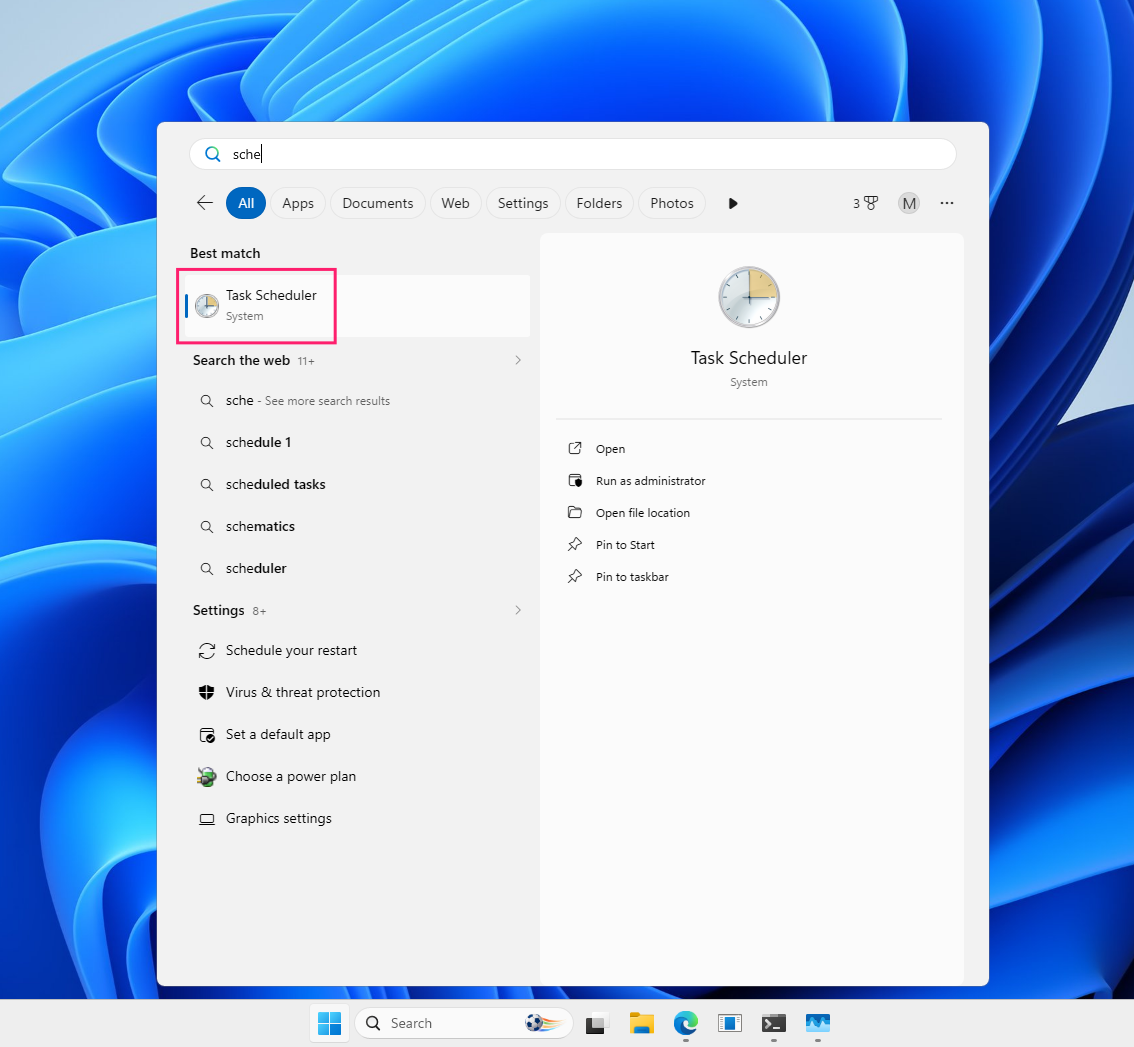
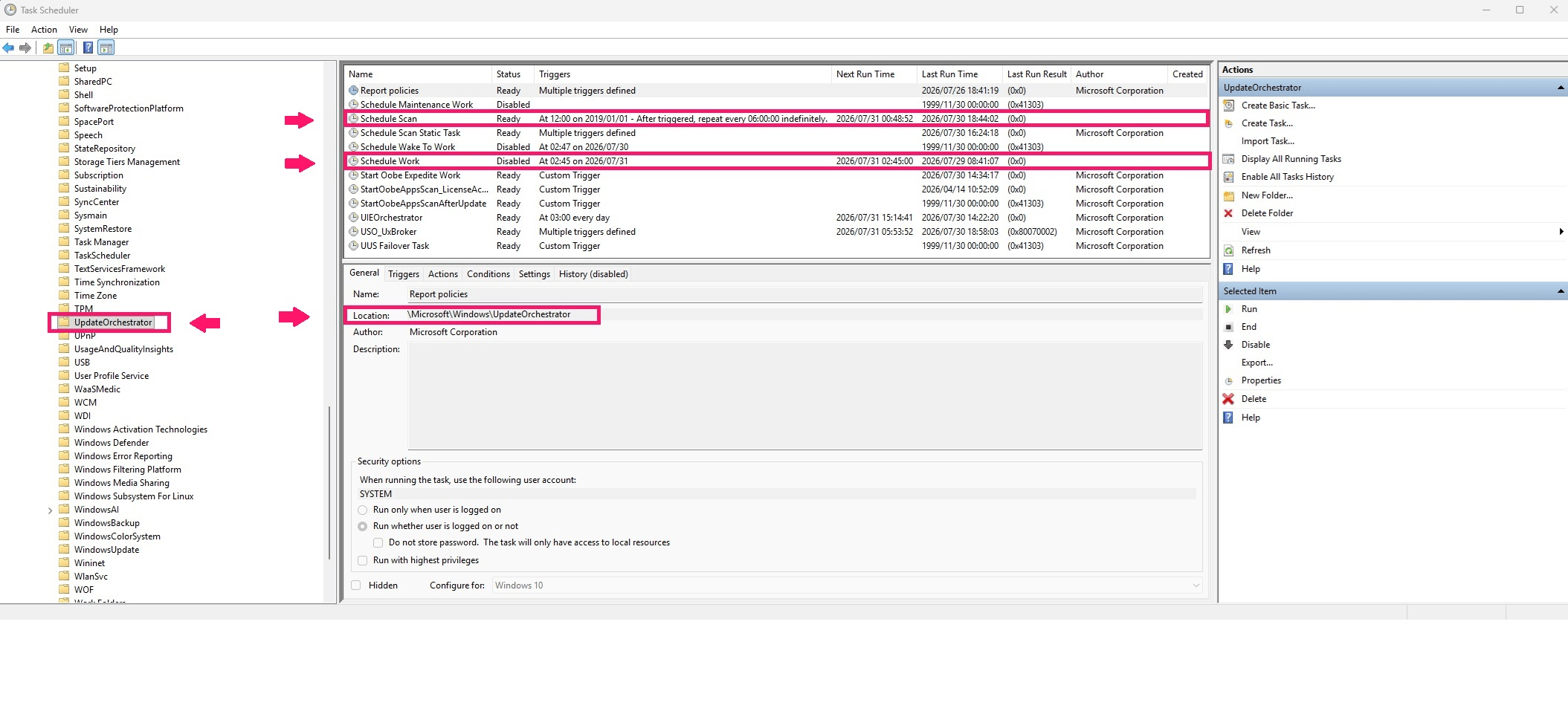
If overnight wake-ups tied to these tasks become a recurring nuisance, disabling or adjusting the relevant wake timer trigger here stops the behavior without touching Windows Update’s normal operation during active use.
» Strange performance drops? Here’s how to run a PC diagnostics report
Diagnosing and resolving everyday issues with MoUsoCoreWorker.exe
Once you know what MoUsoCoreWorker.exe is supposed to do, the real work is telling normal update activity apart from a process that’s actually stuck and knowing what to do about each.
When high CPU or RAM usage is normal (and when it isn’t)
Seeing MoUsoCoreWorker.exe consume CPU or memory while Windows checks for updates, downloads files, or prepares an installation is expected since it’s part of the update engine doing its job and usage typically drops back to normal once the update finishes. Elevated usage doesn’t automatically mean something is broken.
The point to actually start investigating is when the process:
- Keeps running for hours
- Survives a reboot with no pending updates to explain it
- Prevents the machine from sleeping
- Still noticeably affects performance well after Windows Update should have wrapped up
In those cases, don’t chase the process using the most resources since MoUsoCoreWorker.exe is frequently the symptom of a stuck update rather than the cause. A reboot might knock the CPU usage down temporarily, only for it to return because Windows Update is still stuck in the background. When that happens, running the Windows Update Troubleshooter usually resolves it by repairing the update components and letting the queue complete.
» Learn more about disabling Windows updates, re-enabling Windows updates, and stopping a Windows update in progress
Why MoUsoCoreWorker.exe sometimes wakes a sleeping PC
MoUsoCoreWorker.exe works alongside Windows Update’s use of wake timers, which let scheduled updates and maintenance tasks finish even if the machine is asleep, which is why a PC might power on overnight with nobody touching it. In most cases this is Windows finishing an update cycle, not a problem.
If it starts happening regularly enough to be disruptive, don’t assume MoUsoCoreWorker.exe is the culprit before checking what’s actually responsible. Three commands, run from an elevated Command Prompt, will point you to the real cause:
powercfg /lastwake: Shows what woke the device most recently.powercfg /waketimers: Lists any active wake timers.powercfg /requests: Shows what’s currently preventing sleep.
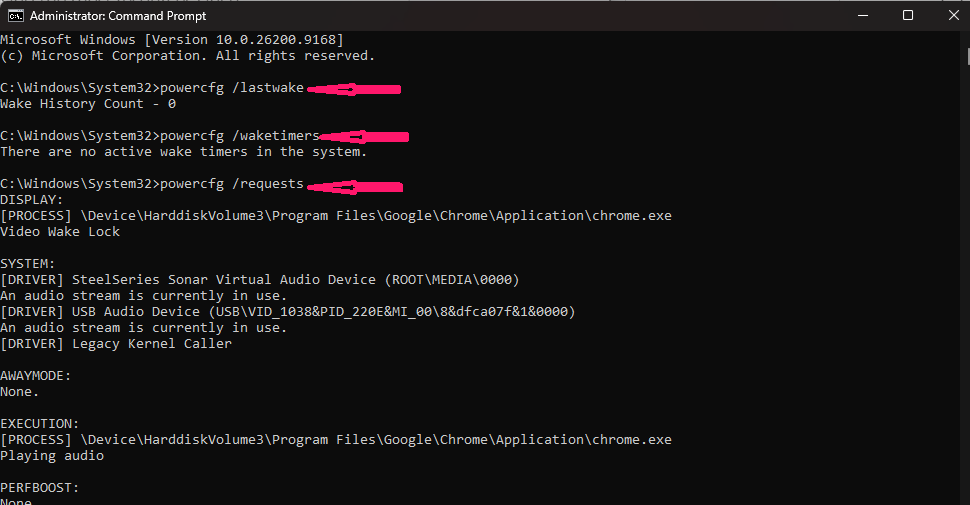
These usually identify the specific service, task, or device behind the behavior, which makes it much easier to troubleshoot the actual source instead of guessing.
How to verify that the process is legit and not malware
Bad actors sometimes disguise malware using legitimate Windows process names, so never rely on the filename alone to confirm MoUsoCoreWorker.exe is what it claims to be. A quick file path and signature check settles it:
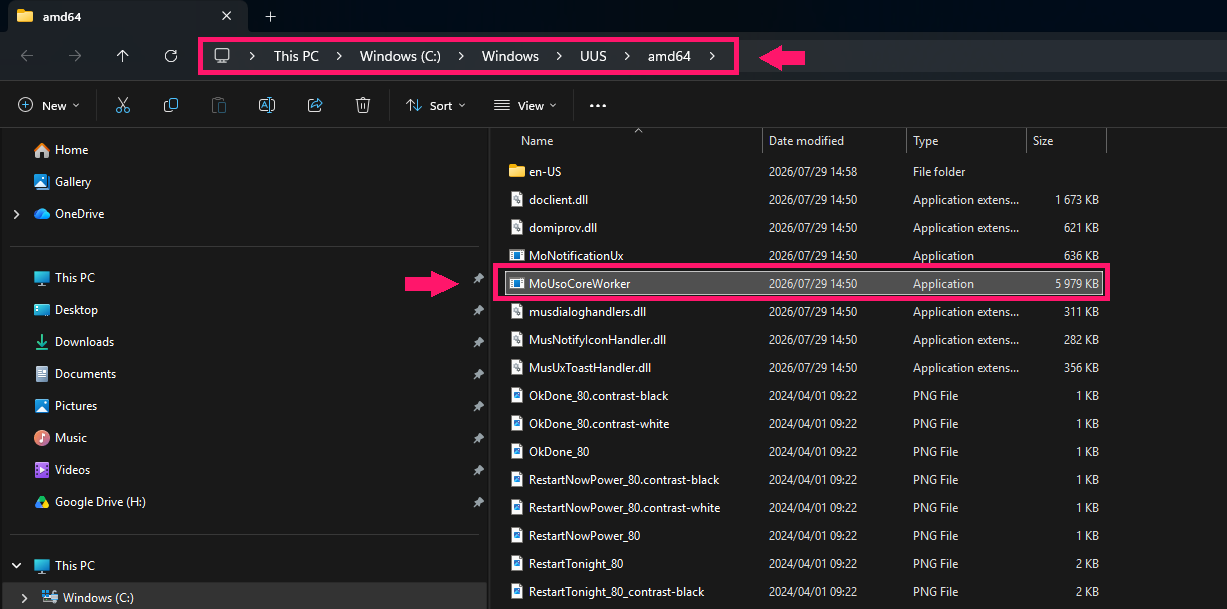
Right-click the process in Task Manager and select Open file location

Confirm the file resides in
C:WindowsSystem32orC:WindowsUUSamd64, not in a user profile, Downloads, or Temp folder
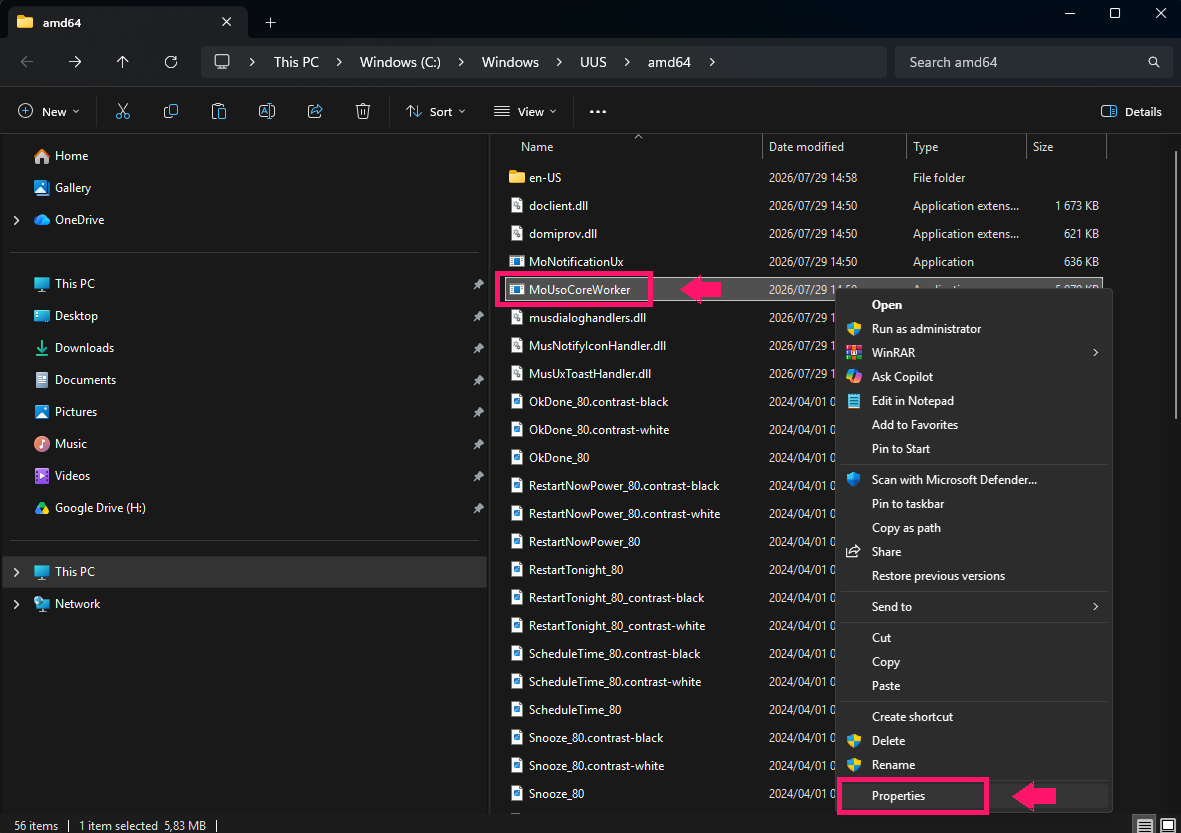
Right-click the file, select Properties

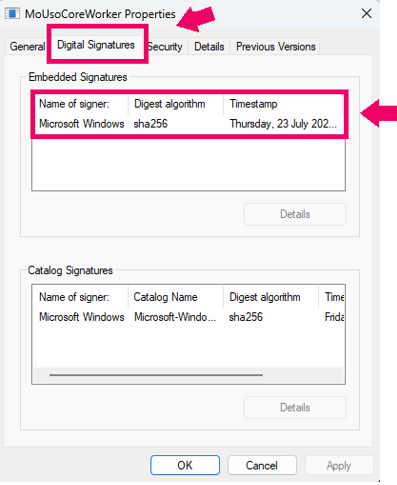
Open the Digital Signatures tab and verify the signer listed is Microsoft Windows

- Open the Details tab and confirm the copyright field reads “© Microsoft Corporation. All rights reserved.”
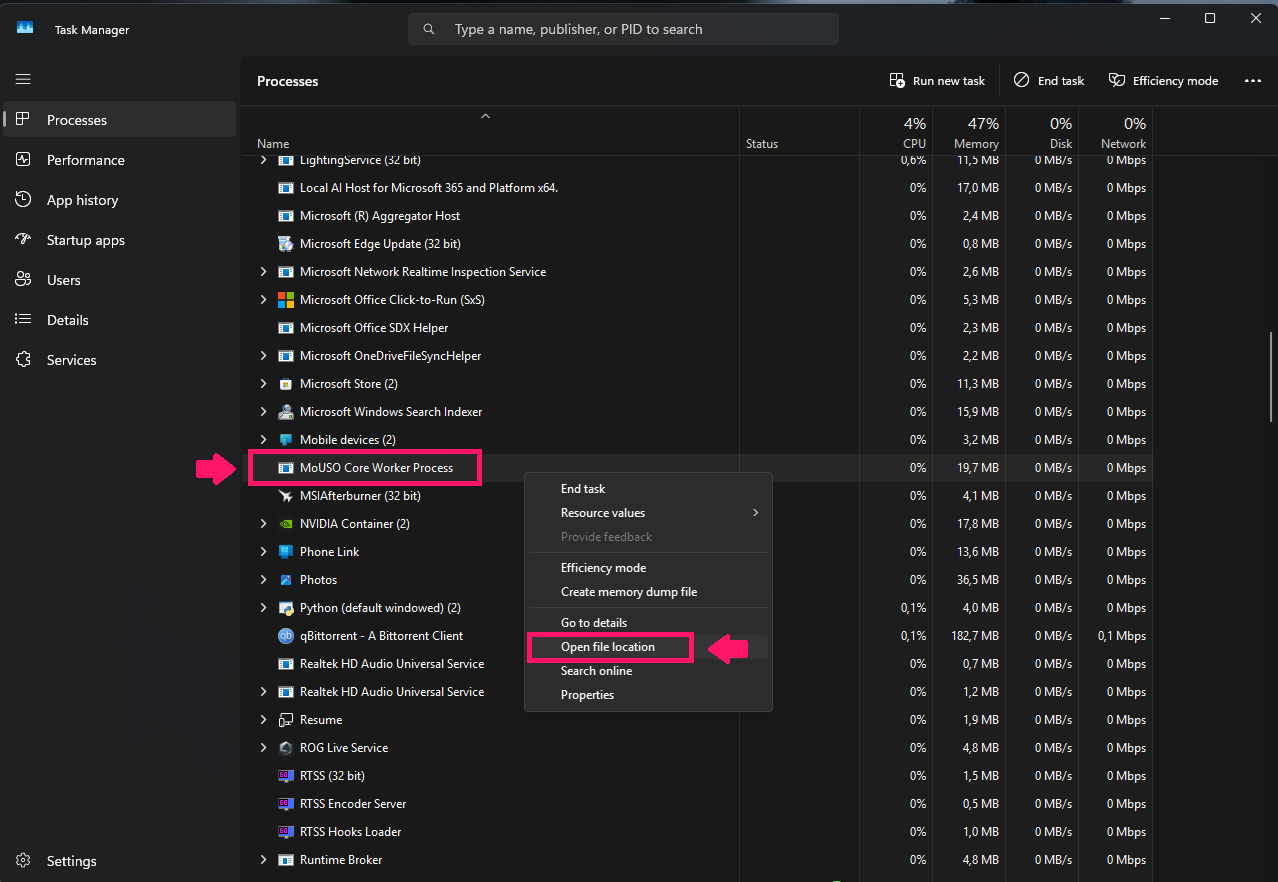
If the file location doesn’t match a legitimate Windows system folder, or the digital signature is missing or invalid, treat it as suspicious: investigate further and run a security scan rather than assuming it’s a false positive.
How to safely restart a frozen process
If MoUsoCoreWorker.exe appears frozen, don’t end the task in Task Manager since it’s part of Windows Update and killing it mid-sequence risks causing problems. Confirm first whether Windows is actively installing something; if the process is genuinely stuck, restarting the Update Orchestrator Service reloads the update components without the risk of a manual kill.
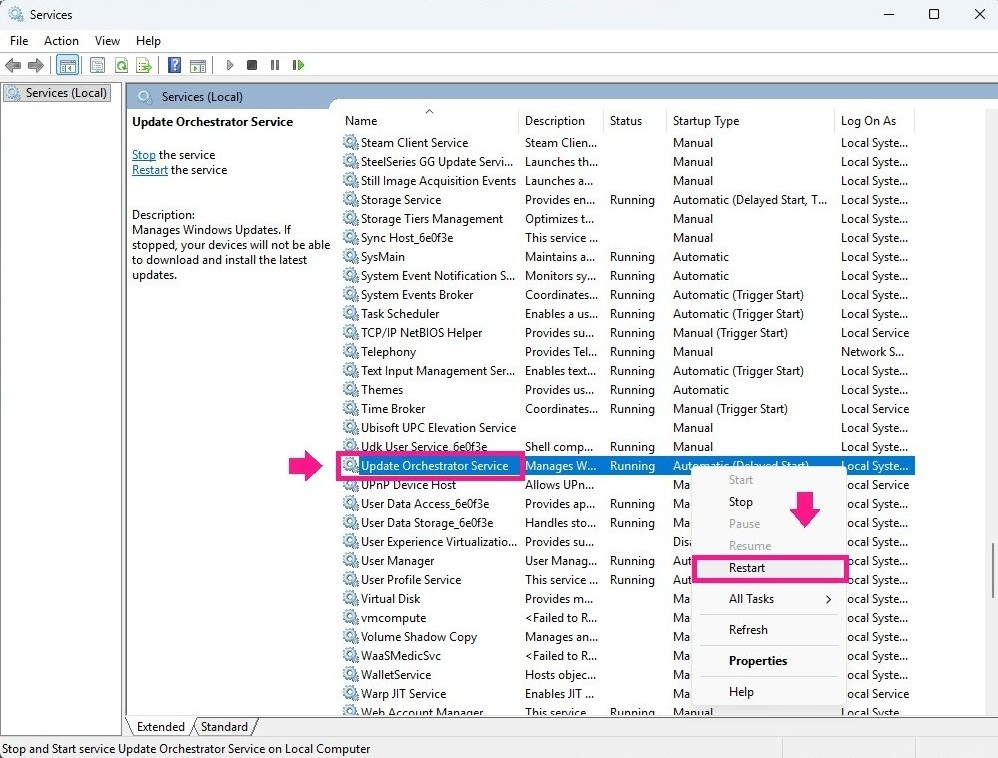
Option 1: Restart via Services
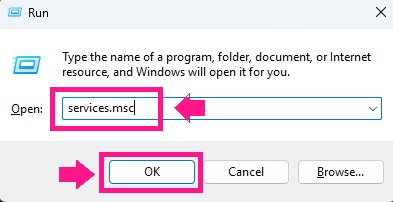
Press Win + R, type
services.msc, and press Enter
- Locate Update Orchestrator Service in the list
Right-click it and select Restart.

- Confirm the Status column shows Running
Option 2: Restart via PowerShell
- Confirm no updates are actively running first
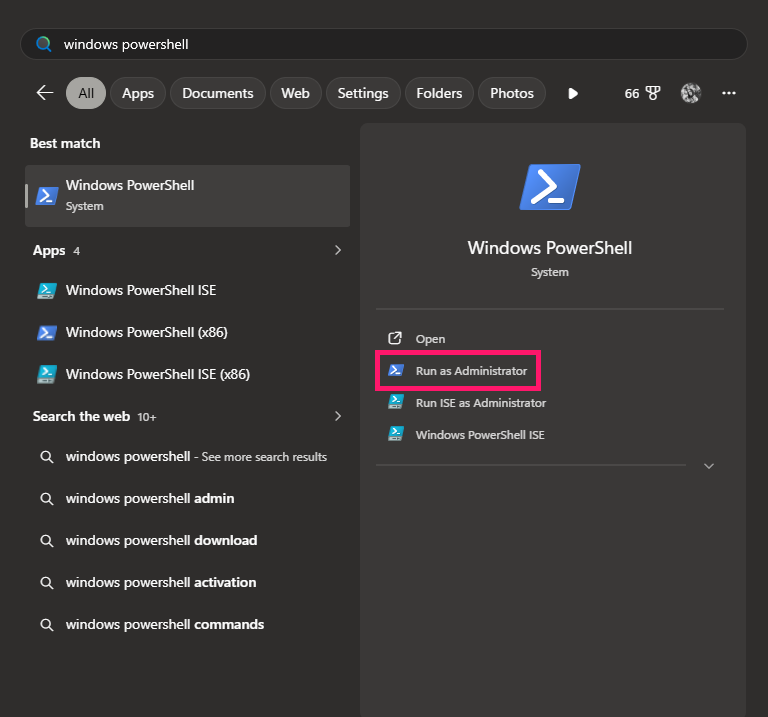
Open PowerShell as an administrator

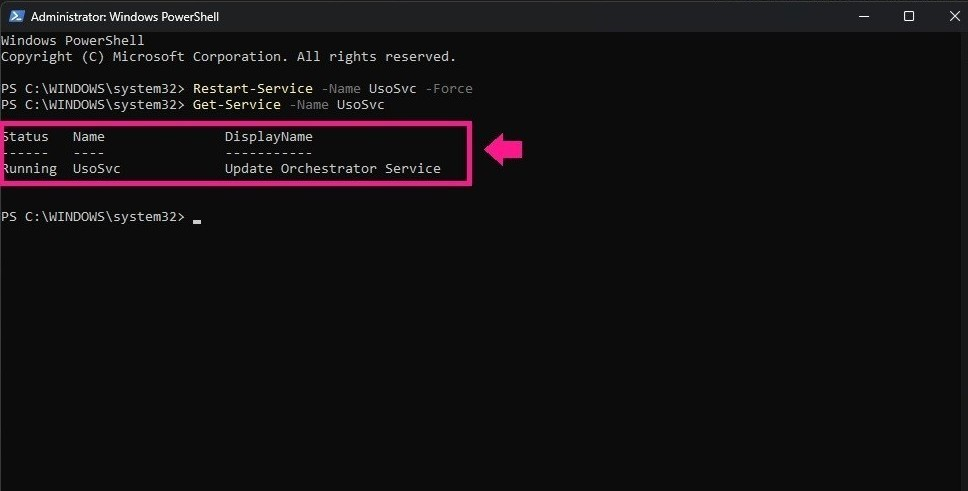
- Run
Restart-Service -Name UsoSvc -Force Run
Get-Service -Name UsoSvcand confirm the status shows Running
If the issue keeps recurring after a restart, run the Windows Update Troubleshooter or dig into the underlying update failure rather than repeatedly cycling the service.
Pro tip: Atera simplifies this process by closing the gap between “something’s using CPU on one machine” and “here’s every machine that needs attention right now.” Instead of a technician manually opening Task Manager across a hundred endpoints, Threshold Profiles flag the outliers automatically, and the Patch Management Dashboard shows update status across the fleet in one view. You can get a quick look into whether each endpoint is fully updated, waiting, or needing a remote restart.
You can also ask AI Copilot to write you a specific PowerShell script to restart certain services on affected machines and then deploy those scripts remotely to selected endpoints without ever having to touch them through the RMM platform.
Keeping update noise in perspective
MoUsoCoreWorker.exe doesn’t decide what gets installed or when. It just executes whatever policy hands it, one machine at a time. That’s manageable when you’re troubleshooting a single laptop. It stops being manageable once you’re trying to tell which of a few hundred endpoints are actually stuck versus just mid-update, or which ones are quietly falling behind on patches nobody’s noticed yet.
That’s where visibility across the fleet matters more than understanding any one process in isolation. Atera gives IT teams and MSPs that view, showing which devices are fully updated, which are waiting, and which need a restart from one central console.
Robin by Atera goes a step further than visibility. Instead of a technician working through the diagnosis in this article by hand, checking Task Manager, running powercfg, verifying a signature, or restarting a service, Robin is the AI technician that resolves Tier-1 and complex Tier-2 technical incidents end to end, autonomously taking real actions on devices, servers, mainframes, and networks, without needing a technician in the loop. A stalled MoUsoCoreWorker.exe process gets diagnosed, remediated, and verified before it ever turns into a “why is my PC slow” ticket, whether that’s on one machine or a few hundred.
Frequently Asked Questions
Related Articles

The Bottleneck Isn’t the Tool. It’s the Operating Model
Beyond adopting AI, enterprises have to reach the absorption stage to find actual value in the technology. Instead of simply adding AI, teams have to develop a new operating model to allow AI to solve IT problems autonomously.
Read now
Why does my search engine keep changing to Yahoo?
Your users' search engines didn't glitch back to Yahoo, something changed them. Resetting without finding the cause won't stop it. Bundled installers, rogue extensions, and device sync can all quietly hijack the default search provider, and each needs a different fix to stick. Here's how to spot the cause, remove it for good, and lock the setting down so it can't happen again.
Read now
Enterprises Don’t Have an AI Problem. IT Has an Absorption Problem.
The path to absorption of enterprise AI technology often stalls in the adoption phase, where users might speed up some tasks incrementally. But organizations that move to the absorption stage can get real value from AI, rethinking their operating model to incorporate true autonomy that saves time and helps IT become proactive.
Read now
Why does my default browser keep changing?
Your browser default isn't broken, it's being overridden. Windows quietly reasserts Edge through updates, background processes, and enterprise policy, which is why a manual fix rarely survives the next patch. Here's what's actually causing the reset, and how to lock your choice in permanently, whether you're fixing one machine or a hundred.
Read nowEndless IT possibilities
Boost your productivity with Atera’s intuitive, centralized all-in-one platform









