
Table of contents
Table of contents
- What fixing a mic takes by hand, and what Robin takes off your plate
- Quick fix: check the input, permissions, and audio services
- Diagnosing and fixing a microphone not working in Windows 11
- Fixing microphone problems remotely and at scale
- When the standard fixes don’t work
- Fewer dead mics, fewer pre-meeting tickets
A user’s headset is plugged in, Windows lists the microphone under Sound, but Teams still can’t hear a thing. Most of these tickets live in the gap between a device Windows can see and a microphone that actually captures sound. The problem is that there are so many potential causes, and almost none of them are a problem with the actual microphone. A 2026 survey of more than 2,300 knowledge workers, run by Toluna and commissioned by headset maker Jabra, found that 75% of meetings hit at least one tech failure, costing around 11 minutes per meeting, and broken audio is one of the failures it names.
On a single laptop, the fix comes down to testing in the right order. Across a fleet, you also need to know which checks can be scripted, which settings are enforced by policy, and when the problem needs a technician rather than another service restart.
What fixing a mic takes by hand, and what Robin takes off your plate
Stage | By hand | With Robin by Atera |
|---|---|---|
Find the fault | Remote in, run the recording test, and check the input, levels, and privacy toggles | Robin detects mic, camera, and Bluetooth headset problems |
Fix it before the call | Change settings, restart audio services, and retest while the user waits | Robin resolves them before the meeting starts |
Update vendor drivers | Check the Driver tab, search for updates, and run the OEM package | Robin checks supported Dell, HP, or Lenovo devices for driver and firmware updates and applies the supported remediation path |
Recover a disabled USB headset | Find the device in Device Manager and re-enable it | Robin checks Windows USB device status and enables the intended peripheral when disabled |
Quick fix: check the input, permissions, and audio services
If a user needs to be heard immediately and can’t wait, these steps will fix most problems. The sections below explain what each result means and what to do when it isn’t enough.
- Open Settings > System > Sound, select the correct microphone under Input, and confirm the input volume isn’t at zero
- In Settings > Privacy & security > Microphone, confirm Microphone access, Let apps access your microphone, and Let desktop apps access your microphone are on
- In an elevated PowerShell window, run
Restart-Service -Name AudioEndpointBuilder -Force; Restart-Service -Name Audiosrv, then test again. This briefly cuts all audio on the device, so don’t run it while the user is on a call. If they are, do steps 1 and 2 first.
Diagnosing and fixing a microphone not working in Windows 11
Start with a recording test before touching drivers or services. A microphone that shows up in Windows hasn’t been proven to work until it actually captures sound, so the test result tells you which layer to check next.
Test the microphone and set the default input
Run this first on every ticket, because the result decides whether you’re dealing with the device, its settings, permissions, or the app.
- Open Settings
Select System, then Sound

- Under Input, select the microphone the user should be using
Check that the Input volume isn’t set too low

- Select the > arrow beside the microphone to open its Properties page
- Under Audio, confirm the device isn’t set to Don’t allow, which stops apps and Windows from using it
- Next to Microphone test, select Start test and speak normally
- Select Stop test
Under Recorded sample, select Play to listen back to the recording, then adjust the input volume and repeat the test if needed

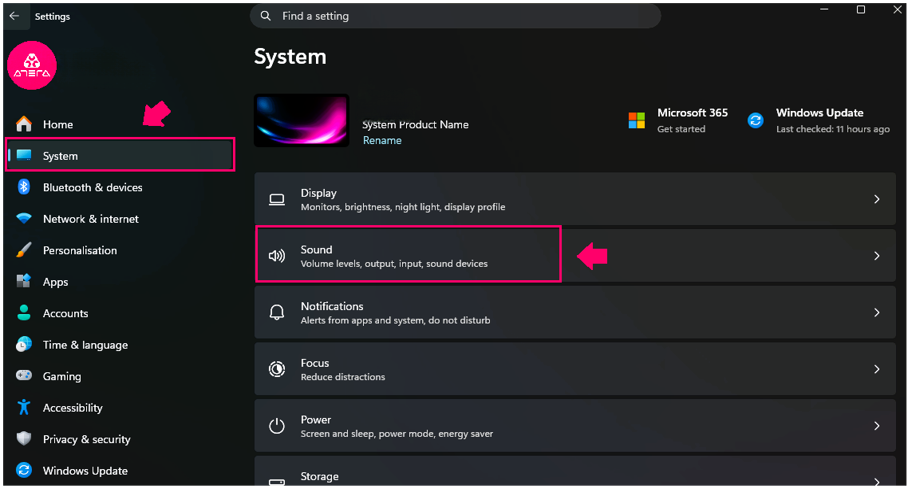
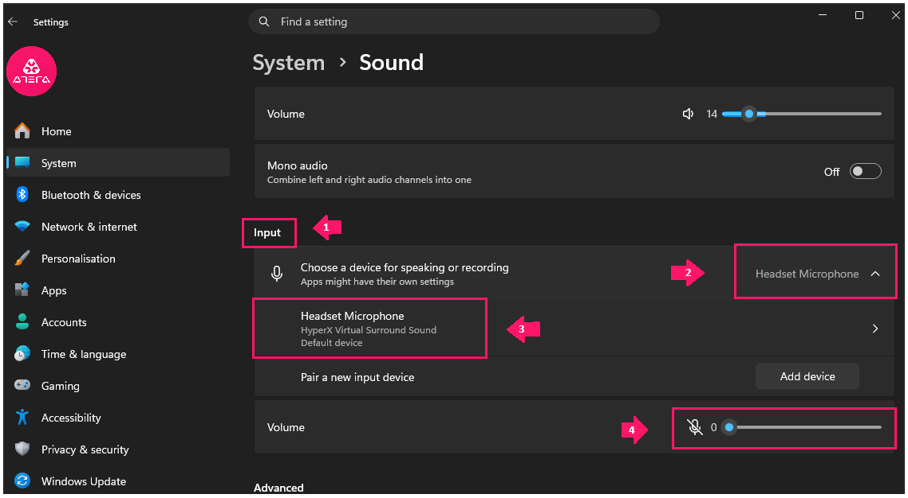
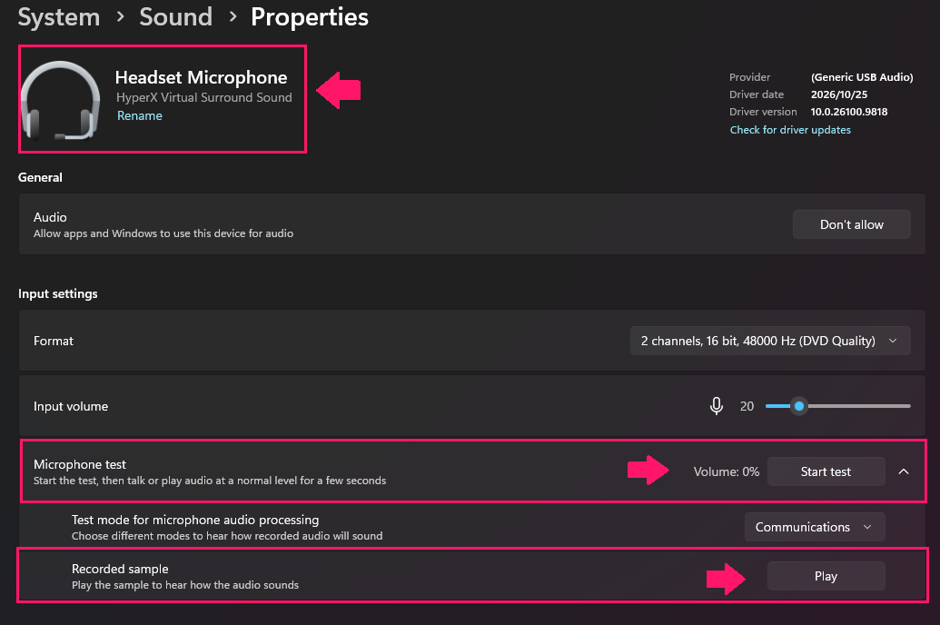
The Test mode for microphone audio processing dropdown lets you play the sample back with different processing modes, such as Default or Communications, to hear how it will sound in each.
Next, check levels and the default device in the classic Sound control panel. Some settings, including Microphone Boost, are only here.
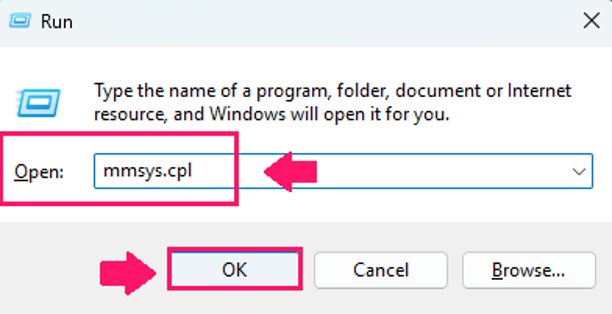
Press
Win + R, entermmsys.cpl, and click OK
- Open the Recording tab
- Select the correct microphone and click Set Default if it isn’t already the default device
- Click Properties
On the Levels tab, check the microphone volume and confirm it isn’t muted

- If Microphone Boost is available, raise it a step at a time, because too much boost causes distortion
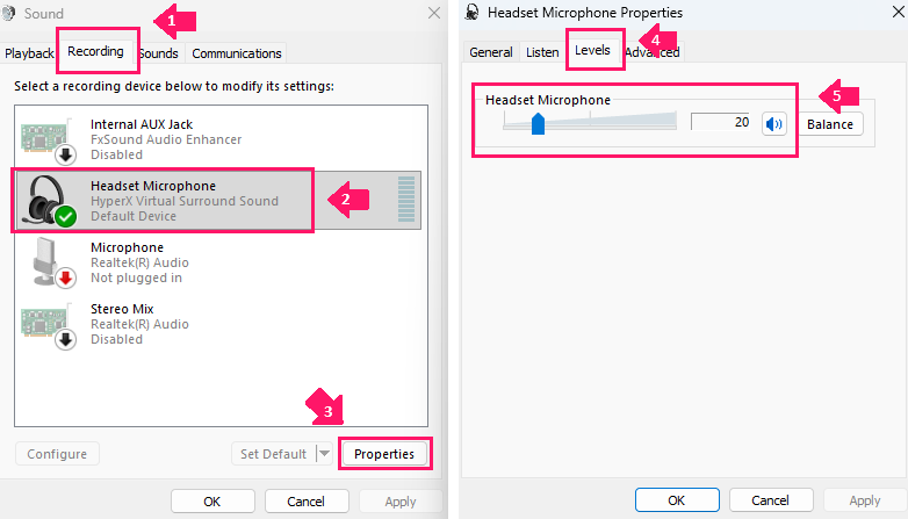
How to read the test result:
Test result | What it points to | Check next |
|---|---|---|
Microphone not listed | Connection or driver | Physical connection, then drivers (below) |
Listed, but records nothing | Muted, disabled, or faulty device | Mute and Don’t allow settings, then hardware |
Weak or distorted recording | Levels | Input volume and Microphone Boost |
Records normally in Windows | Not the microphone | Privacy permissions, then the app itself |
» Here’s how to disable and enable a mic in Windows
Check microphone privacy permissions
Check these whenever Windows records normally but an app still can’t use the microphone. The device can look healthy while Windows blocks access to it.
- Open Settings
Select Privacy & security, then Microphone

- Confirm Microphone access is on
Confirm Let apps access your microphone is on

- If the affected app is listed individually, confirm its toggle is on
- Confirm Let desktop apps access your microphone is on
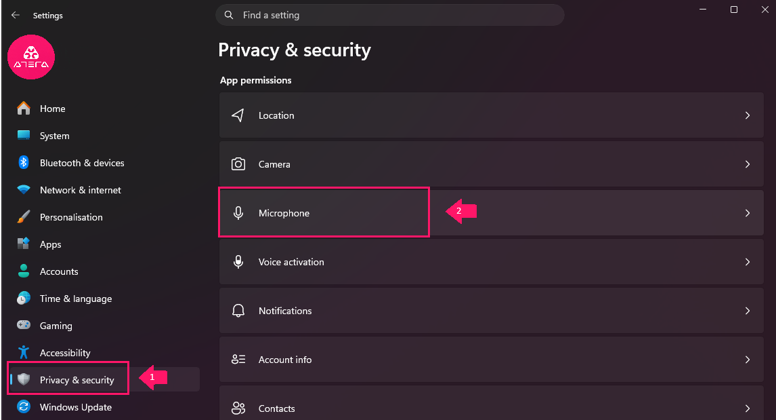
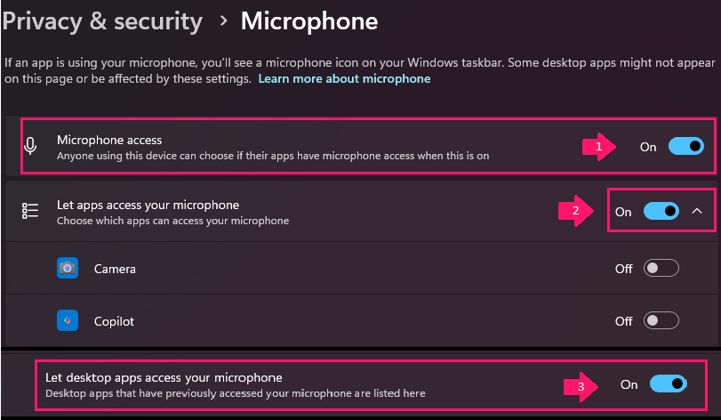
Desktop apps have their own toggle, so a working Store app doesn’t automatically mean desktop apps can use the microphone. On managed devices, Group Policy or Intune can enforce Force Deny for Windows apps. That blocks access, stops the user from changing the setting, and leaves the microphone looking normal everywhere else in Windows, so the restriction is easy to mistake for an app fault.
With Robin by Atera: Checking the input, levels, and privacy toggles is the part of the job that usually lands minutes before a call. Robin detects mic, camera, and Bluetooth headset problems, so the user doesn’t have to wait for a technician to remote in and work through the checklist.
Run audio diagnostics and restart the audio services
Use this when the microphone is detected but still won’t record, or stops working partway through a session. Start with the built-in diagnostics before restarting anything manually.
- Open Settings
- Select System, then Sound
Under Advanced, in Troubleshoot common sound problems, select Input devices

- In Get Help, select Yes to allow Windows to run audio diagnostics
- Follow the on-screen prompts
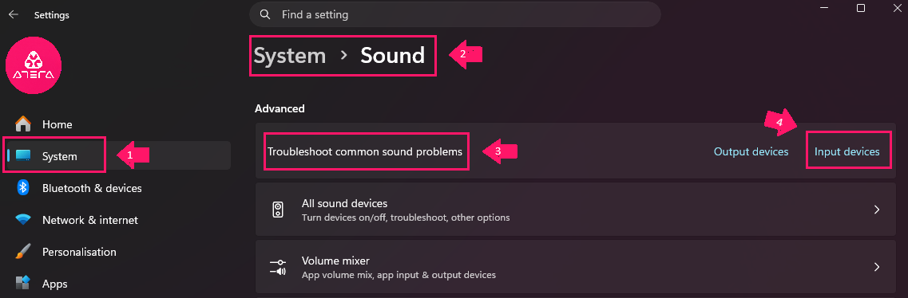
If the diagnostics don’t fix it, check the two services the audio stack depends on.
- Press
Win + R, enterservices.msc, and click OK Find Windows Audio and Windows Audio Endpoint Builder and confirm both show as running

- Right-click either service and select Restart, or Start if it’s stopped
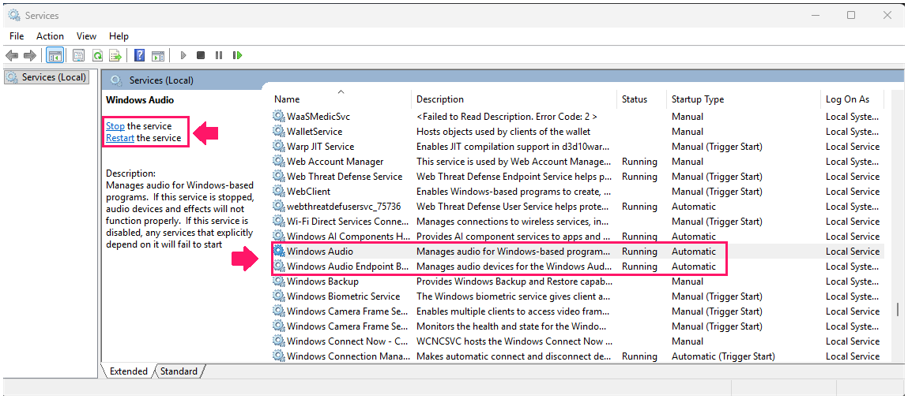
To do the same from PowerShell (such as from a remote support session), open PowerShell as administrator and run the following:
- Check the current status of both services:
Get-Service -Name Audiosrv,AudioEndpointBuilder - Restart Windows Audio Endpoint Builder:
Restart-Service -Name AudioEndpointBuilder -Force - Restart Windows Audio:
Restart-Service -Name Audiosrv Confirm both services are running:
Get-Service -Name Audiosrv,AudioEndpointBuilder
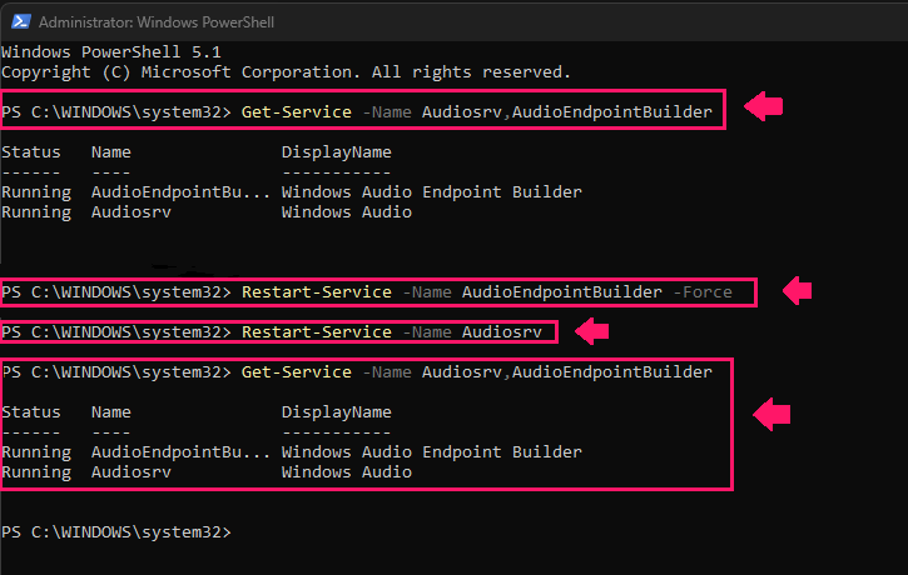
Restarting these services briefly cuts all audio on the device, so don’t do it while the user is on a call. Run the recording test again afterward.
Update, roll back, or reinstall the audio driver
If the microphone worked before a recent driver change, simply roll back first instead of cycling through drivers.
- Press
Win + R, enterdevmgmt.msc, and click OK - Expand Sound, video and game controllers
Right-click the relevant audio device and select Properties

- Open the Driver tab
If a recent driver update caused the problem and a previous version is available, select Roll Back Driver

- Choose a reason, confirm with Yes, and restart if prompted.
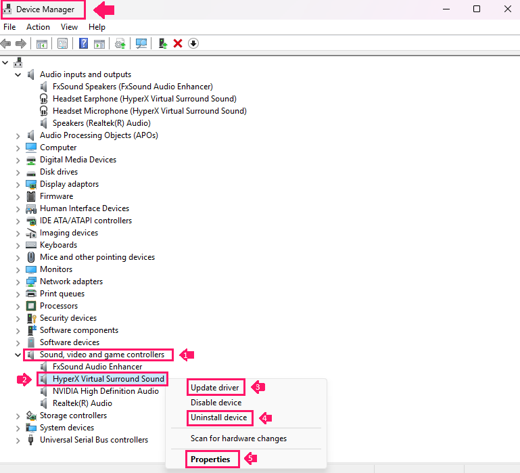
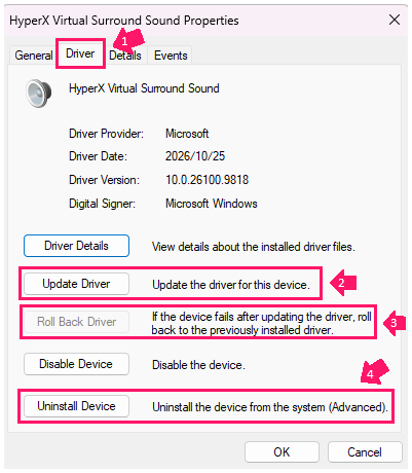
If rolling back isn’t available or doesn’t help, check for an updated driver:
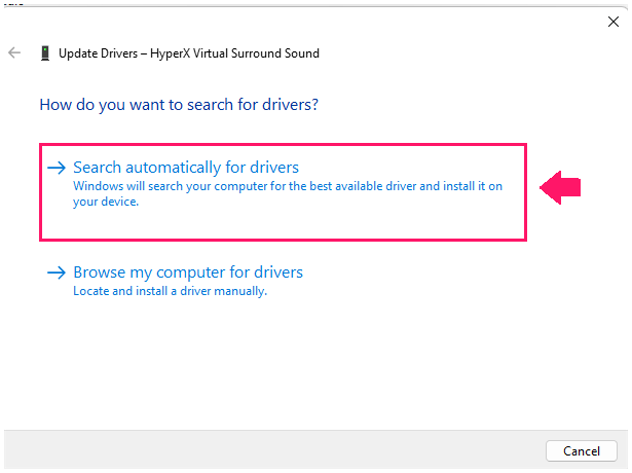
- On the Driver tab, select Update Driver
- Select Search automatically for drivers
If Windows reports the best driver is already installed and the problem continues, check the device or PC manufacturer’s site for the OEM driver

To reinstall, have the correct OEM installer ready first if the device needs one:
- On the Driver tab, select Uninstall Device
- Confirm the action
- Restart Windows and let it reinstall the driver
- If the device doesn’t come back, open Device Manager, open the Action menu, and select Scan for hardware changes
- If Windows still doesn’t install a working driver, run the OEM driver package
There’s no reason to replace a generic Windows driver that works. Built-in microphones on systems with Realtek or Intel Smart Sound components are the exception. If Windows can’t detect the microphone, or features such as array or headset detection are missing, install the OEM driver rather than assuming the generic one covers everything. Switching to a compatible generic driver can show whether the OEM driver is the fault, but expect some manufacturer features to stop working while it’s in place.
With Robin by Atera: On supported Dell, HP, or Lenovo devices, Robin can check for driver and firmware updates and apply the supported remediation path. That covers the routine update case, so a technician only steps in when the answer is a rollback or a switch between the generic and OEM driver.
» Learn more about autonomous remediation
Fixing microphone problems remotely and at scale
When microphone tickets come from many devices at once, opening a remote session on each one doesn’t scale. The checks from the first section can be run across the fleet: confirm Windows can see the audio endpoints, confirm the audio services are running, and find devices where a policy is blocking access.
Check and restart audio services across devices
Use this when several users report microphone problems, or after an update or policy change, to see which devices have a stopped audio service or a missing endpoint without connecting to each one. Remote PowerShell scripts run the same check on every device you list. The target machines need PowerShell remoting enabled, and the account running the script needs admin rights on them.
1. From an elevated PowerShell session, run this script:
The Script:
Atera does not guarantee the integrity, availability, security, virus-free, safety, lawfulness, non-infringement, rights’ status, or functionality of the scripts. The use of the shared scripts is at your own risk. Scripts are provided “AS IS”. *
$Computers = 'PC01', 'PC02', 'PC03'

Invoke-Command -ComputerName $Computers -ScriptBlock {


  Get-PnpDevice -Class AudioEndpoint -PresentOnly | Select-Object FriendlyName,Status
  Get-Service -Name Audiosrv,AudioEndpointBuilder | Select-Object Name,Status
  if ((Get-Service AudioEndpointBuilder).Status -ne 'Running') { Start-Service AudioEndpointBuilder }
  if ((Get-Service Audiosrv).Status -ne 'Running') { Start-Service Audiosrv }
  Get-Service -Name Audiosrv,AudioEndpointBuilder | Select-Object Name,Status
}2. Replace the device names in $Computers with the affected PCs
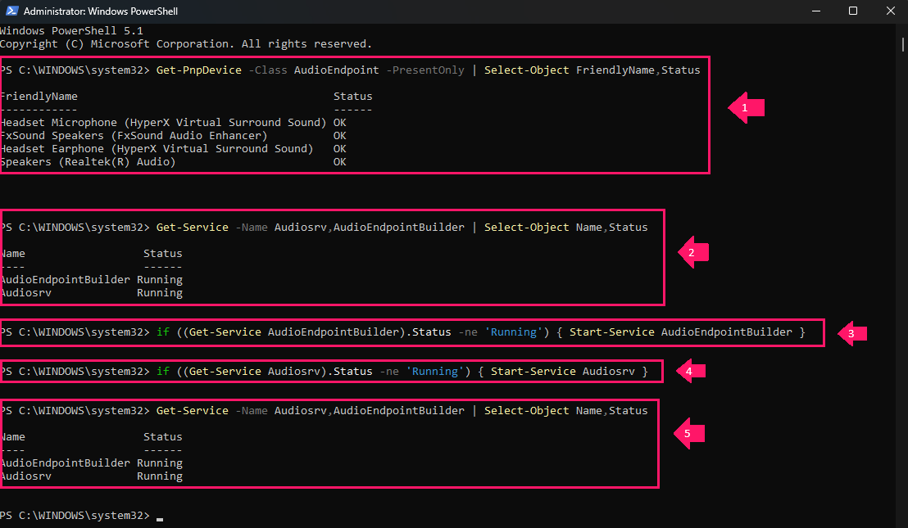
The output lists the audio endpoints each device can see and the status of both audio services. If either service is stopped, the script tries to start it, and the final check confirms whether that worked. Look through the results for devices with a service that wouldn’t start or an endpoint that isn’t reporting OK. Those devices need the individual troubleshooting covered earlier.
Atera removes the setup work. Save the script once in Atera’s script library, then use remote PowerShell execution through the RMM platform to run it across selected devices or device groups, with no list of machine names to keep up to date. To repeat the check regularly, schedule it with an IT automation profile. If you need to adapt the script for your environment, AI Copilot can generate scripts from plain-language descriptions.
Find policies that block microphone access
Use this when microphones look healthy everywhere but apps on managed devices still can’t use them. A policy-enforced Force Deny blocks Windows apps from the microphone and stops users from changing the setting, so it looks like an app fault on every device it reaches.
The setting is applied in one of two places:
- Group Policy: Computer Configuration > Administrative Templates > Windows Components > App Privacy > Let Windows apps access the microphone. With the policy enabled, Default for all apps is set to User is in control, Force Allow, or Force Deny.
- Intune: the Privacy policy
./Device/Vendor/MSFT/Policy/Config/Privacy/LetAppsAccessMicrophone, where0is user in control,1is force allow, and2is force deny.
To find affected devices, create a second script with the same steps as above, using this check:
The Script:
Atera does not guarantee the integrity, availability, security, virus-free, safety, lawfulness, non-infringement, rights’ status, or functionality of the scripts. The use of the shared scripts is at your own risk. Scripts are provided “AS IS”. *
Get-ItemProperty -Path 'HKLM:\SOFTWARE\Policies\Microsoft\Windows\AppPrivacy' -Name LetAppsAccessMicrophone -ErrorAction SilentlyContinue | Select-Object LetAppsAccessMicrophoneA value of 2 means Force Deny is in effect on that device. No output means the policy isn’t set and users control microphone access themselves. If the block is intended, the fix is an exception for the apps that need the microphone, not a change on the device. If it isn’t intended, correct it in the Group Policy object or Intune profile that applies it, because a local change will be overwritten.
With Robin by Atera: Correcting the policy is only half the fix, because the affected device still has to pick it up. Robin forces a Group Policy refresh when an expected company setting hasn’t arrived, or triggers an Intune check-in when a device hasn’t received an expected policy, and returns the result for IT to check.
» Learn how to manage group policies better with Atera
When the standard fixes don’t work
If the microphone still fails after the core sequence, the cause is usually narrower than Windows settings, such as a meeting app, a recent update, the connection type, or something only the logs will show. Here are some specific problems and what you can check:
Teams microphone not working, or the mic works in Windows but not in meeting apps
Use this when Windows records normally but a user’s Teams microphone is not working, or Teams, Zoom or a browser call has no audio from the mic while everything else looks fine. The aim is to find out whether the fault sits with one app, all apps, or Windows itself.
- Open Sound Recorder and make a short recording
- Test the microphone in the affected app
- Test it in a second meeting app or a browser-based call
- In the affected app’s audio or device settings, confirm the correct microphone is selected and isn’t muted
- For browser calls, select the site information icon in the address bar and confirm Microphone is set to Allow for the meeting site
- If others say the user’s voice fades or cuts out, turn off the app’s automatic microphone adjustment setting and retest
- Close any other apps that might be holding the microphone
- If the problem continues, press
Win + R, entermmsys.cpl, and click OK - On the Recording tab, open the microphone’s Properties
- On the Advanced tab, clear Allow applications to take exclusive control of this device, click OK, and retest
Change one setting at a time and retest after each. Teams and Zoom sometimes keep using the previous device after a headset is connected, so device selection is the most common thing to fix here. The results narrow it down:
- Only one app fails: The problem is in that app’s settings.
- Several meeting apps fail but Sound Recorder works: Go back to microphone privacy permissions, including the desktop-app toggle.
- Sound Recorder also fails: The problem is the device or the driver.
With Robin With Robin by Atera: A mic that fails only when the call starts is a classic pre-meeting ticket. Robin resolves mic, camera, and Bluetooth headset problems before the meeting starts, so a technician doesn’t have to troubleshoot app settings with a call already waiting.
The mic stopped working after a Windows or driver update
Use this when the timing points to an update. Typically Windows has replaced the audio driver with an incompatible version, or the driver didn’t install properly, which can stop Windows detecting the microphone or disrupt the audio services.
- Open Settings, select Windows Update, then Update history
- Expand Driver updates and note any recent audio driver installs
- Press
Win + R, enterdevmgmt.msc, and click OK - Expand Sound, video and game controllers, right-click the audio device, and select Properties
- On the Driver tab, compare the Driver Date and Driver Version with the update history
- If the microphone stopped working right after the driver changed, select Roll Back Driver
- If Windows Update reinstalls the bad driver, open Settings, select Windows Update, and choose a period under Pause updates
Pausing updates only delays the next install. It doesn’t remove an installed update or permanently block the driver, and it also holds back security updates. On a single device, that’s a reasonable stopgap. On a fleet, stop the driver from coming back through policy instead:
- Group Policy: enable Do not include drivers with Windows Updates under Computer Configuration > Administrative Templates > Windows Components > Windows Update > Manage updates offered from Windows Update.
- Intune: in the update ring, setting Windows drivers to Block prevents scanning for drivers during updates. To hold back one driver without blocking all of them, use an Intune driver update policy.
If Microsoft or the manufacturer has confirmed a wider problem, a known-good USB headset or external microphone keeps the user working until a fix ships. Waiting for that fix is often safer than repeatedly swapping drivers.
Where Robin stops and your technicians keep control: Rolling back a driver, choosing between the generic and OEM driver, blocking a driver through Group Policy or Intune, and deciding whether a Force Deny policy should stay all affect stability and security, so those decisions stay with your technicians, along with physical faults such as a failing headset, port or dock. Robin covers detecting and resolving mic, camera, and Bluetooth headset problems before the meeting, updating vendor drivers on supported devices, and re-enabling disabled USB peripherals. Taking those routine cases off the queue is what gives your team time for the security decisions above.
» Need more help? Here’s how to disable Windows updates and manually re-enable Windows updates
Built-in arrays, combo jacks, USB, docks, and Bluetooth headsets
Use this when the microphone isn’t detected or is too quiet. Each connection type fails in its own way, so check the one the user is actually on.
Built-in microphone array:
- Check whether the microphone is muted by a keyboard shortcut or function key, if the laptop has one
- Check microphone privacy permissions
- Make a test recording
- If Windows can’t detect the array, install the manufacturer’s audio driver
3.5 mm combo jack headset:
- Confirm the laptop’s jack supports both audio out and microphone in
- For headsets with separate audio and mic plugs, connect through a splitter adapter
- In Settings > System > Sound, confirm Windows has selected the headset microphone under Input
On certain Dell models without Dell Optimizer, an analog headset microphone needs both the Waves MaxxAudio driver and the Waves MaxxAudio UWP app.
USB or dock-connected headset:
- Move the headset to another USB port and check whether Windows detects it
- If it’s connected through a dock, plug it directly into the laptop
- If it works directly, check the dock connection and update the dock firmware
Fewer dead mics, fewer pre-meeting tickets
Most microphone tickets don’t need deep troubleshooting. They need the right checks in the right order: a test recording, the default input, privacy permissions, the audio services, and then the driver. What makes them expensive is volume, and the fact that they tend to come in minutes before a call, when the user can least afford to wait for a technician.
For routine end-user cases, Robin by Atera detects mic, camera, and Bluetooth headset problems and resolves them before the meeting starts. When it can’t, it gathers the unresolved IT issue and diagnostic context and routes it to the right team, so your technician starts from the checks already done. Atera’s remote PowerShell execution covers the fleet side, so you can check audio endpoints, restart stalled services, and find policy blocks across selected devices without connecting to each one. Robin is sold separately as an add-on to the Atera IT suite.
» Request a demo of Robin or jump ahead and try Atera for free
Frequently Asked Questions
Related Articles

How to fix low disk space in Windows and free up storage
A full C: drive is rarely one big file. It’s update caches, runaway logs, shadow copies, and a user Temp folder nobody has checked in years. Clear the wrong one and you break servicing or lose your recovery options.
Read now
How to prevent AI agent sprawl before it becomes a security risk
Every AI agent is an identity with keys to something like a service account. Build them faster than you track them, and you end up with agents nobody owns, permissions nobody approved, and dormant credentials that outlive the projects that created them.
Read now
How to approach machine identity management for AI agents
Your AI agent is only as trustworthy as the identity it runs on. Plug it into a shared service account or a technician’s credentials and it inherits every permission, every stale secret, and every gap in your audit trail. Giving each agent its own scoped identity, short-lived credentials, and time-bound elevation keeps authority where it belongs.
Read now
How to address zero-day vulnerabilities
A zero-day gives you nothing to install and plenty to get wrong. Patching still matters, but it should only come after shrinking what attackers can reach, finding every vulnerable component, cutting off the exploit path with controls you’ve actually tested, and treating “remediated” as something you prove and not just what the dashboard reports.
Read nowEndless IT possibilities
Boost your productivity with Atera’s intuitive, centralized all-in-one platform