
Generate summary with AI

Pretty much every IT pro has fielded a ticket where a user swears they set Chrome or Firefox as default, and a week later, links are opening in Edge again. It’s not user error and it’s not a glitch. Microsoft has been open about the fact that Windows periodically nudges users back toward Edge, even prompting them to reconfigure it when Edge isn’t running. The behavior is deliberate, not accidental, which is exactly why a one-time click in settings rarely holds.
The good news is that once you understand which mechanism is actually responsible in a given case, whether it’s an update reinforcing Edge, an enterprise policy, or a background process, there’s a specific and repeatable fix for each one.
Why your browser keeps resetting itself
Windows doesn’t accidentally reset your browser default. There are three distinct mechanisms behind it, and knowing which one you’re dealing with determines the fix:
- OS updates reinforcing Edge: Microsoft Edge is treated as a core component of Windows 10 and 11, not an optional install. Because of that, the operating system can reassert Edge as the default browser to make sure certain built-in features continue functioning as expected. This is why a browser default that was set correctly before a Windows Update can revert afterward without any action on the user’s part.
- Enterprise policy enforcement: In managed IT environments, administrators can centrally define what the default browser should be across every machine on the network. If a device is joined to a domain or enrolled in an MDM solution, a policy pushed from IT can silently override whatever the end user has configured locally.
- Hijacking: Malware and low-quality third-party software from poor browser security are a less common but real cause. These tools can reset the default browser or quietly modify file type associations for
.htmland.htmfiles, redirecting links to a browser the user never chose.
The takeaway before you touch a single setting is to confirm which of these three is actually happening on the machine in front of you. An update-driven reset needs a different fix than a policy-enforced one, and neither will respond to the same troubleshooting steps you’d use for hijacked file associations.
» Did you know you can disable Windows updates and manually re-enable Windows updates?
5 configurations to fix unexpected Browser changes for good
Fixing a browser default that keeps reverting means working through the layers in order, so your own settings first, then the OS behaviors that override them, then enforcement at scale if you’re managing more than one machine.
1: Reconfigure the native Default Apps dashboard
Start here for any single-machine fix, since this is the baseline setting every other mechanism above ultimately overrides.
- Press
Win + Ito open Settings Go to Apps and select Default apps

Search for the browser you want as default and click its entry

Click the Set default button in the top right

- Scroll down to review individual file type associations (
.htm,.html,.pdf) and click any entry still pointing to another browser In the picker that opens, select your browser and click Set default to confirm

Do the same for link types

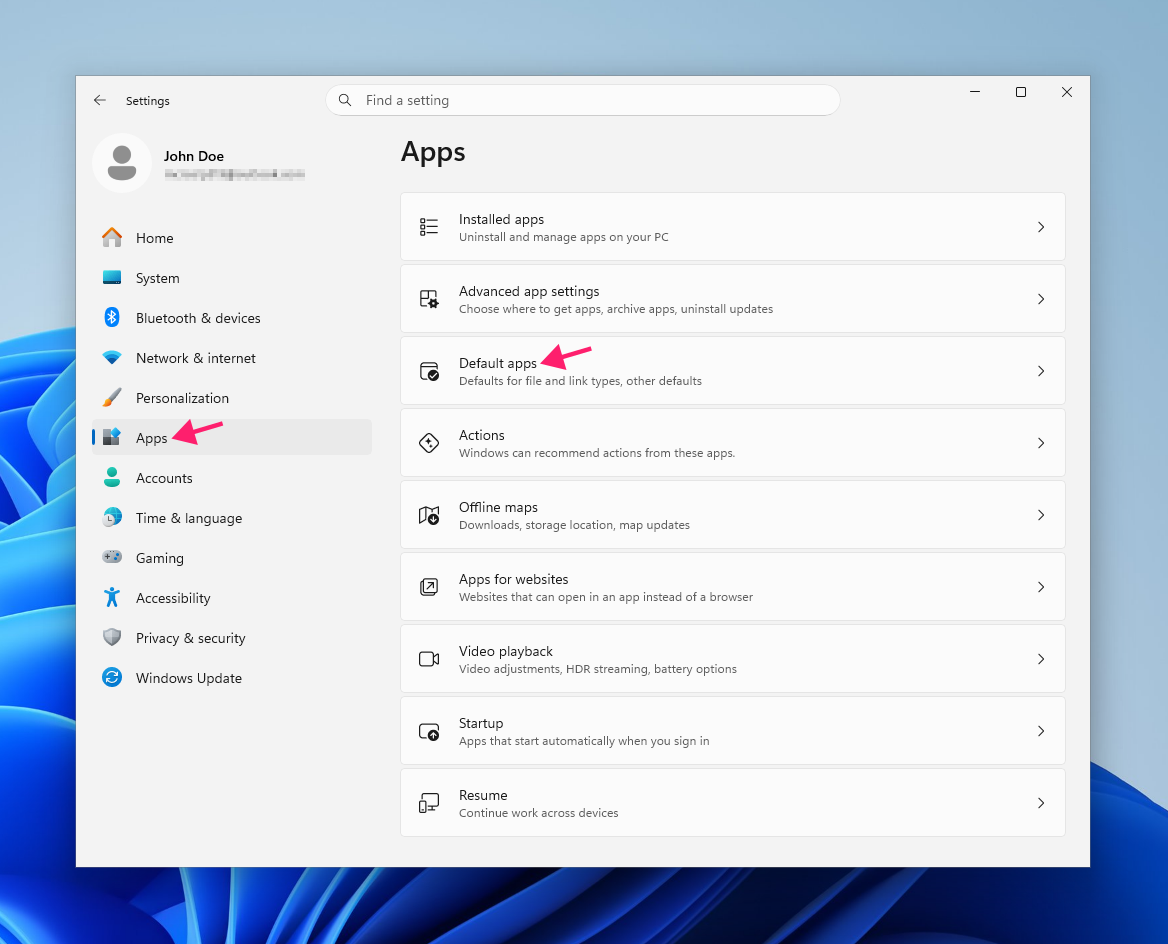
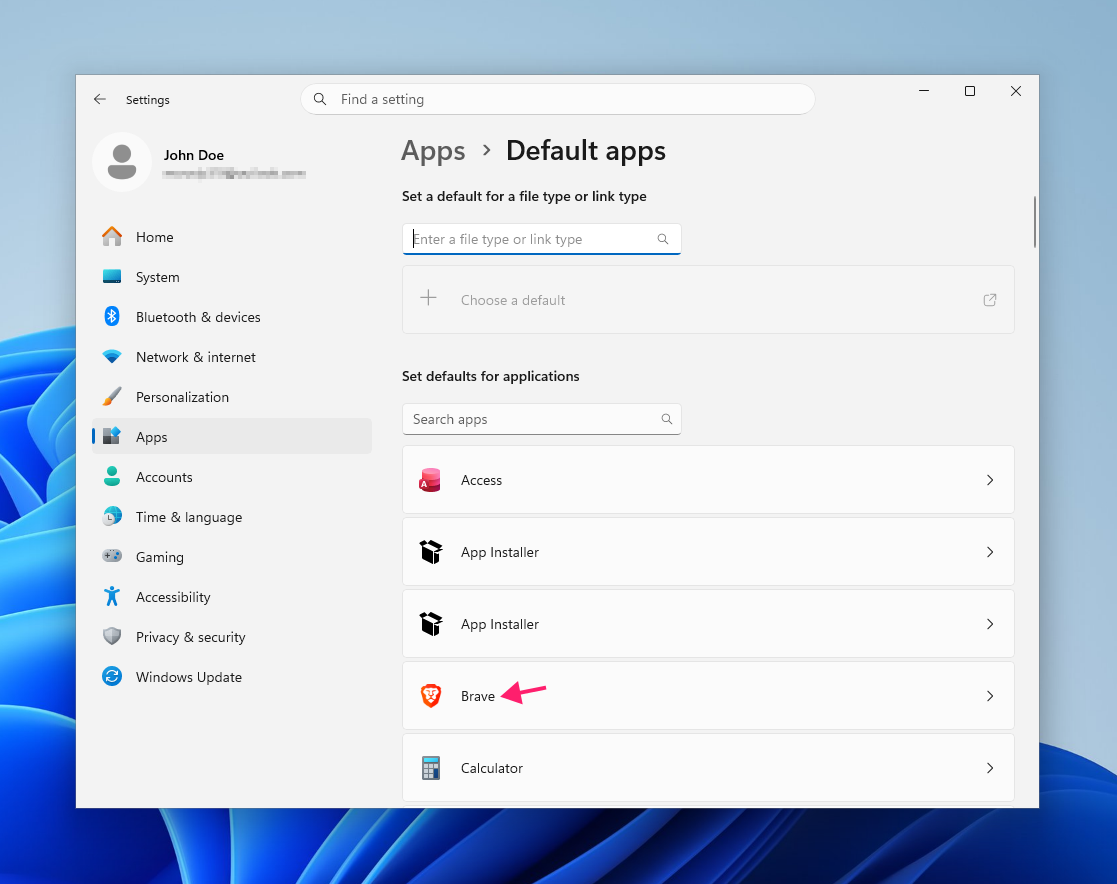
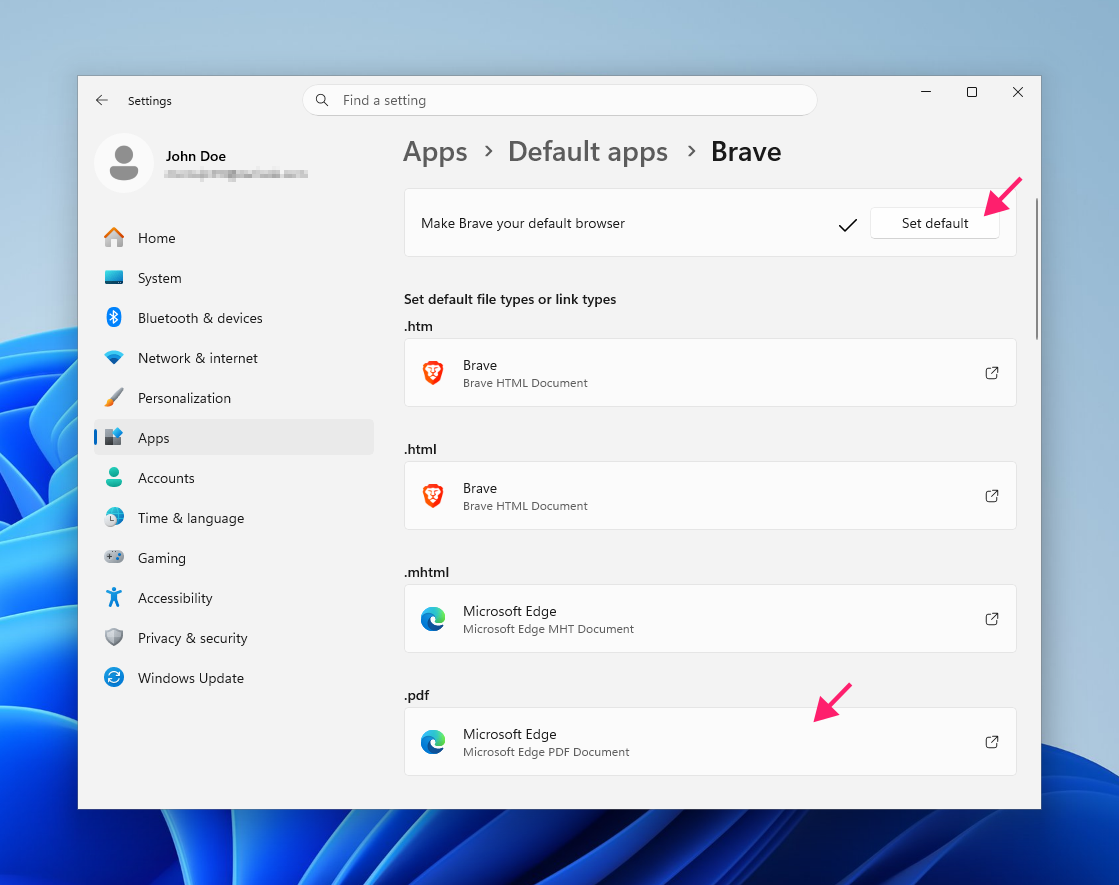
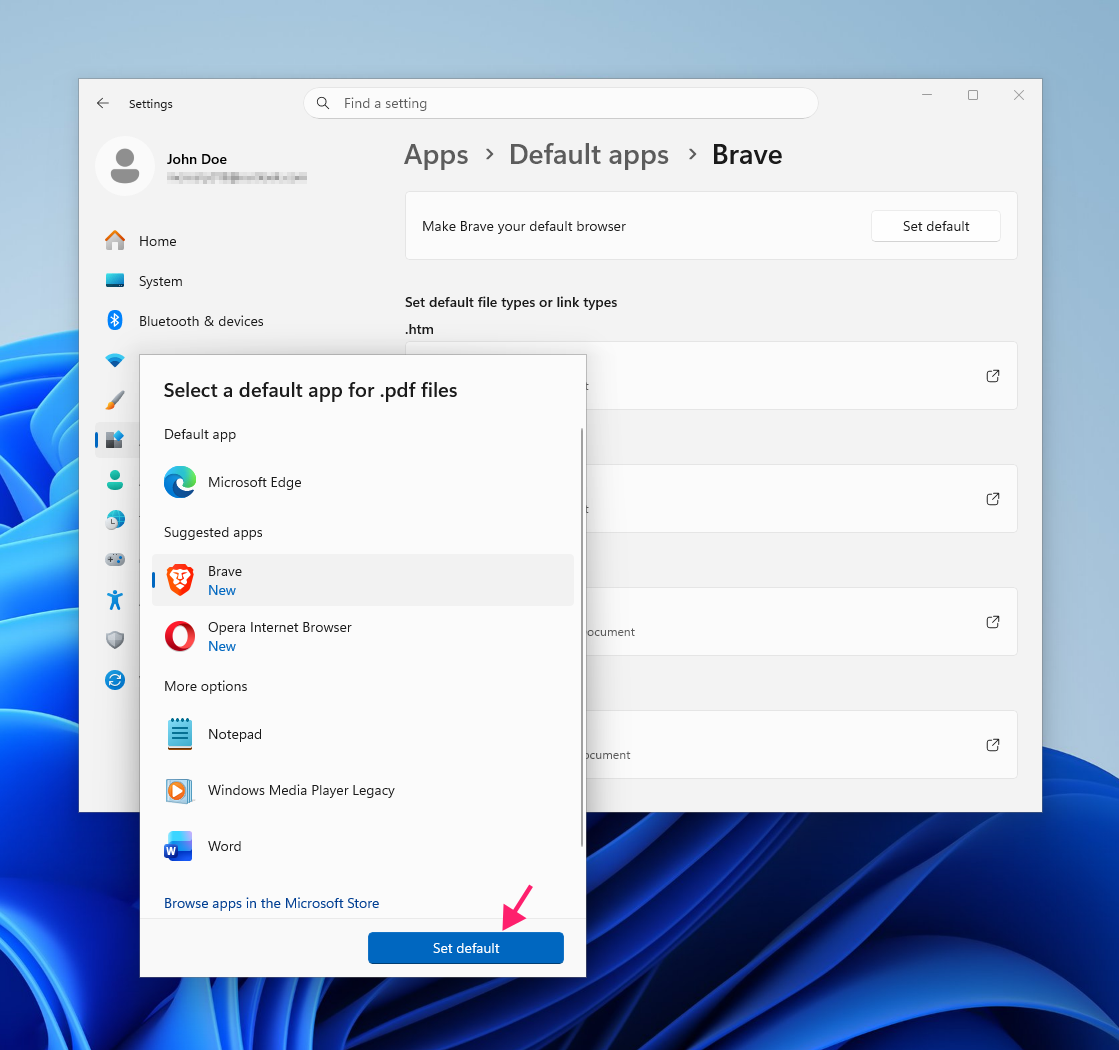
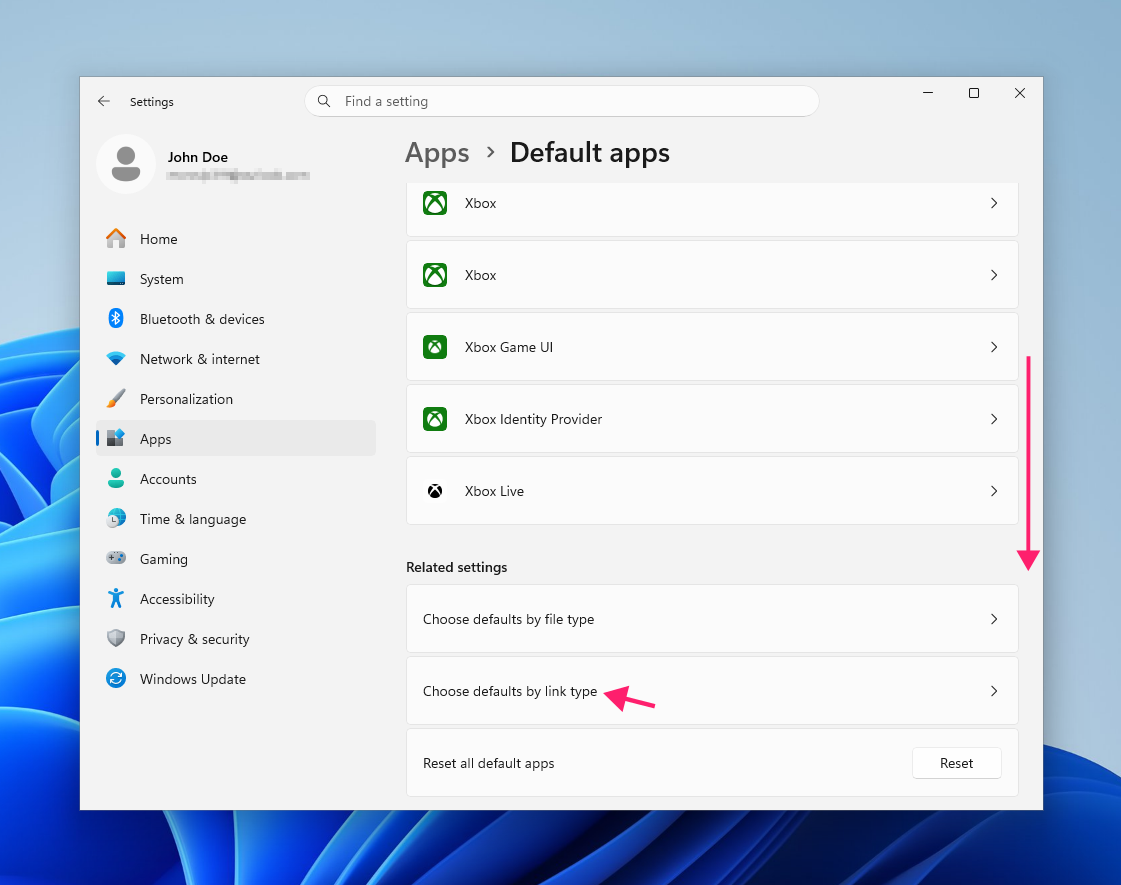
Not every file type or link type gets reassigned automatically when you set a browser as default, which is why steps 5 – 7 matter. You can also mix and match by protocol. For example, keep HTTP and HTTPS links on Edge while routing .html files to Chrome by adjusting each entry under Choose defaults by link type individually.
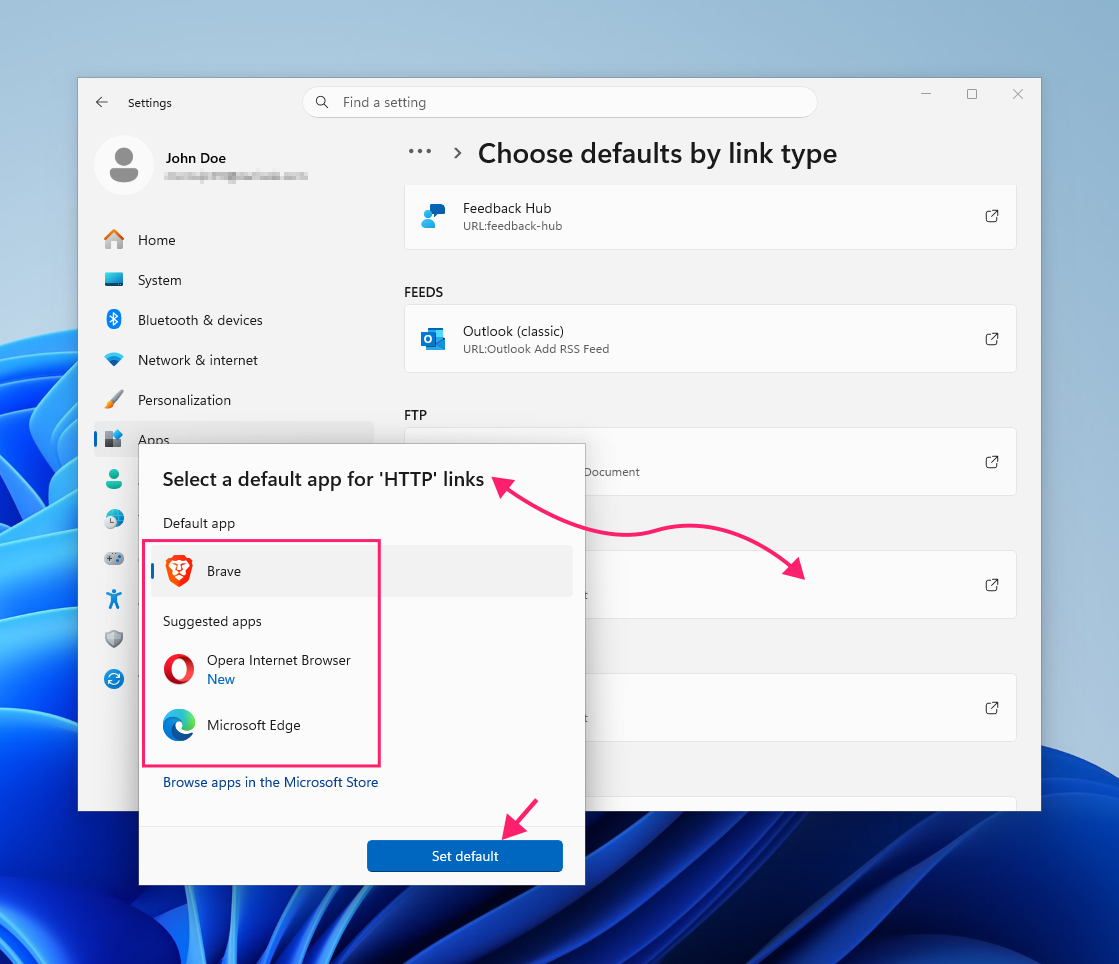
2: Adjust Microsoft 365 and Outlook link handling
Use this method specifically if links from Outlook or other Microsoft 365 apps keep opening in Edge even after your system-wide default is set correctly.
- Open Outlook and click a link in an email
- When the Select an app to open this ‘https’ link dialog appears, choose your preferred browser
Click Always rather than Just once so Outlook stops prompting for future links

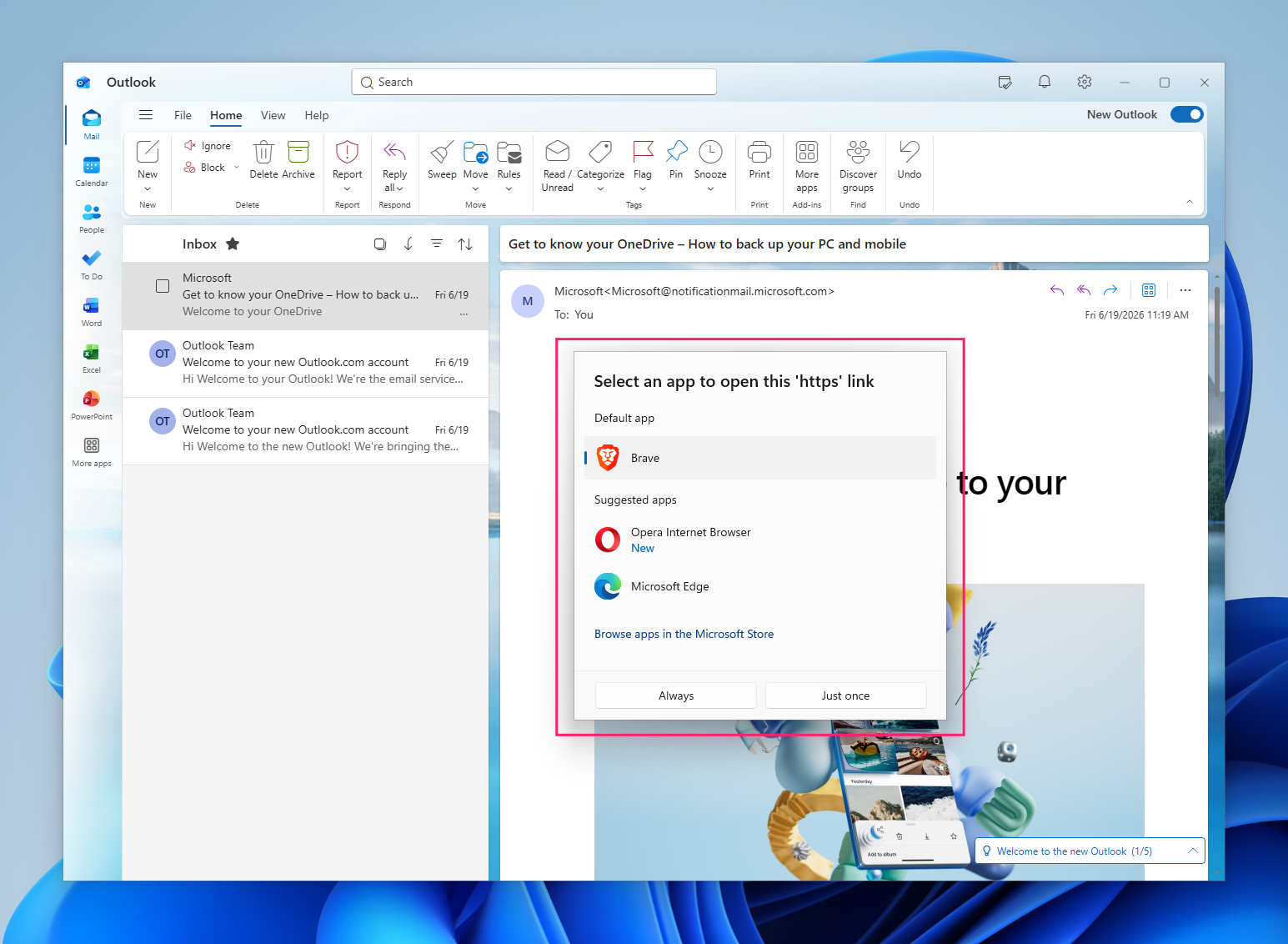
Behavior here is inconsistent across Outlook versions. Older versions may include an Open hyperlinks in… setting inside Outlook itself, while recent versions have dropped that option entirely and defer to the system-wide HTTP/HTTPS associations you set in the Default Apps dashboard instead.
3: Understand what registry lockdown can and can’t do
It’s worth knowing why directly editing the registry keys that store your browser association doesn’t work, so you don’t waste time on an approach that’s structurally blocked.
“Direct manipulation of the individual association keys under ‘UserChoice’ isn’t possible, because each one contains a ‘Hash’ value that Windows generates automatically to validate the entry. Editing the ‘ProgId’ value without a matching hash gets silently rejected.”
Bogdan Stefan
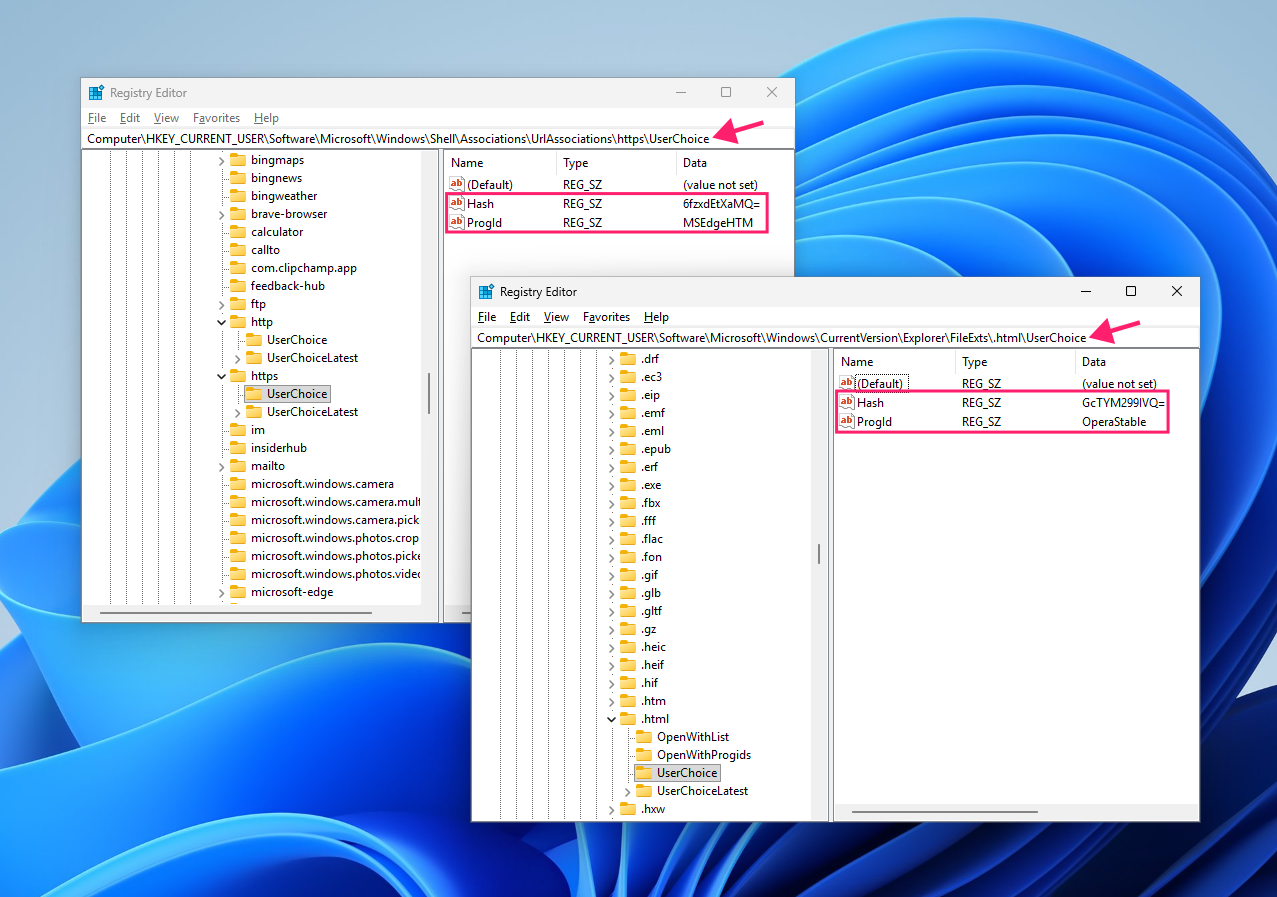
Windows 10 and 11 also include the UserChoice Protection Driver, an anti-tamper mechanism that specifically blocks non-Microsoft processes from writing to these keys at all.
What does work instead is the Set a default associations configuration file policy, which operates above the registry layer that’s protected:
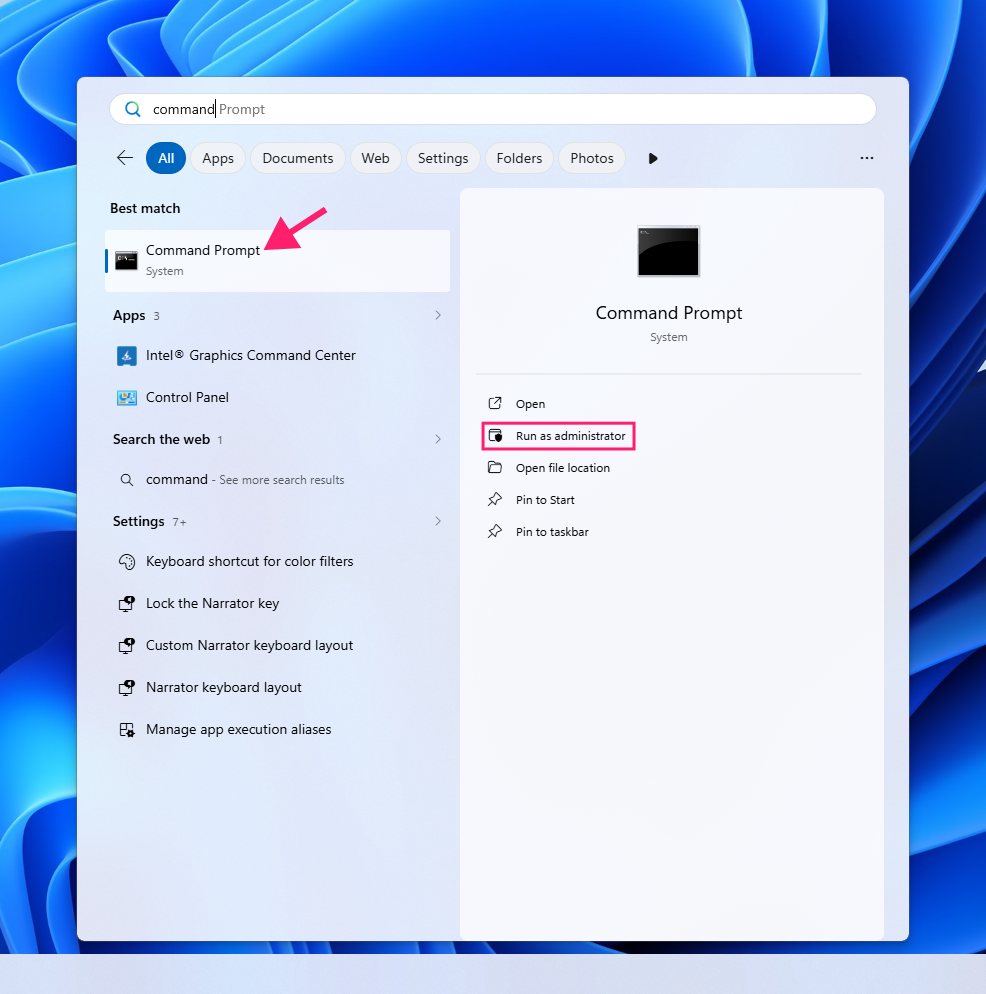
Open Command Prompt as an admin

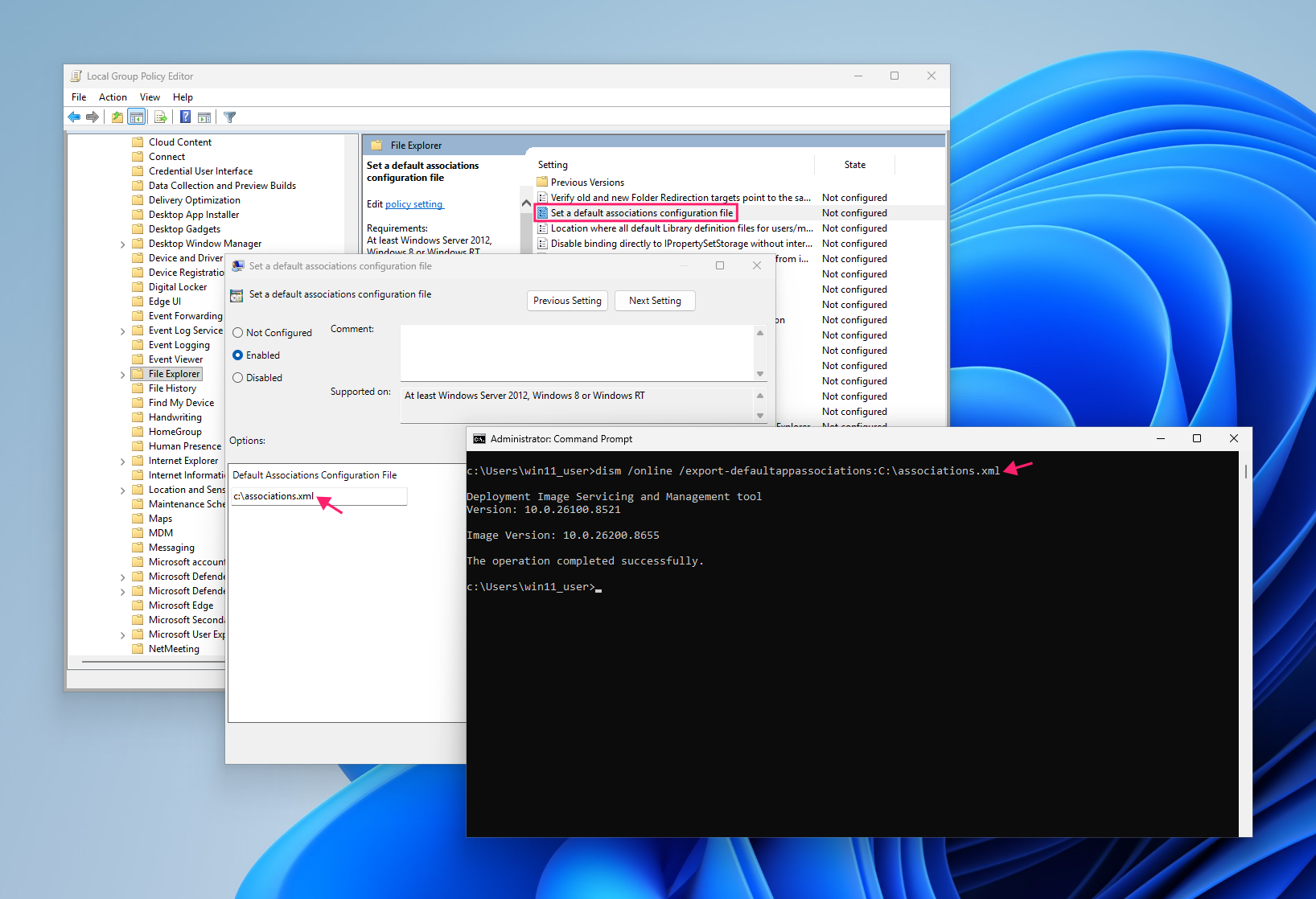
To generate the required XML file, run
dism /online /export-defaultappassociations:C:PathToassociations.xmlin an elevated terminalIf you need help, read our guide to using the DISM command correctly.

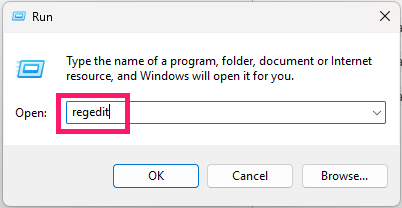
Open Registry Editor by pressing Win + R, typing regedit, and hitting Enter

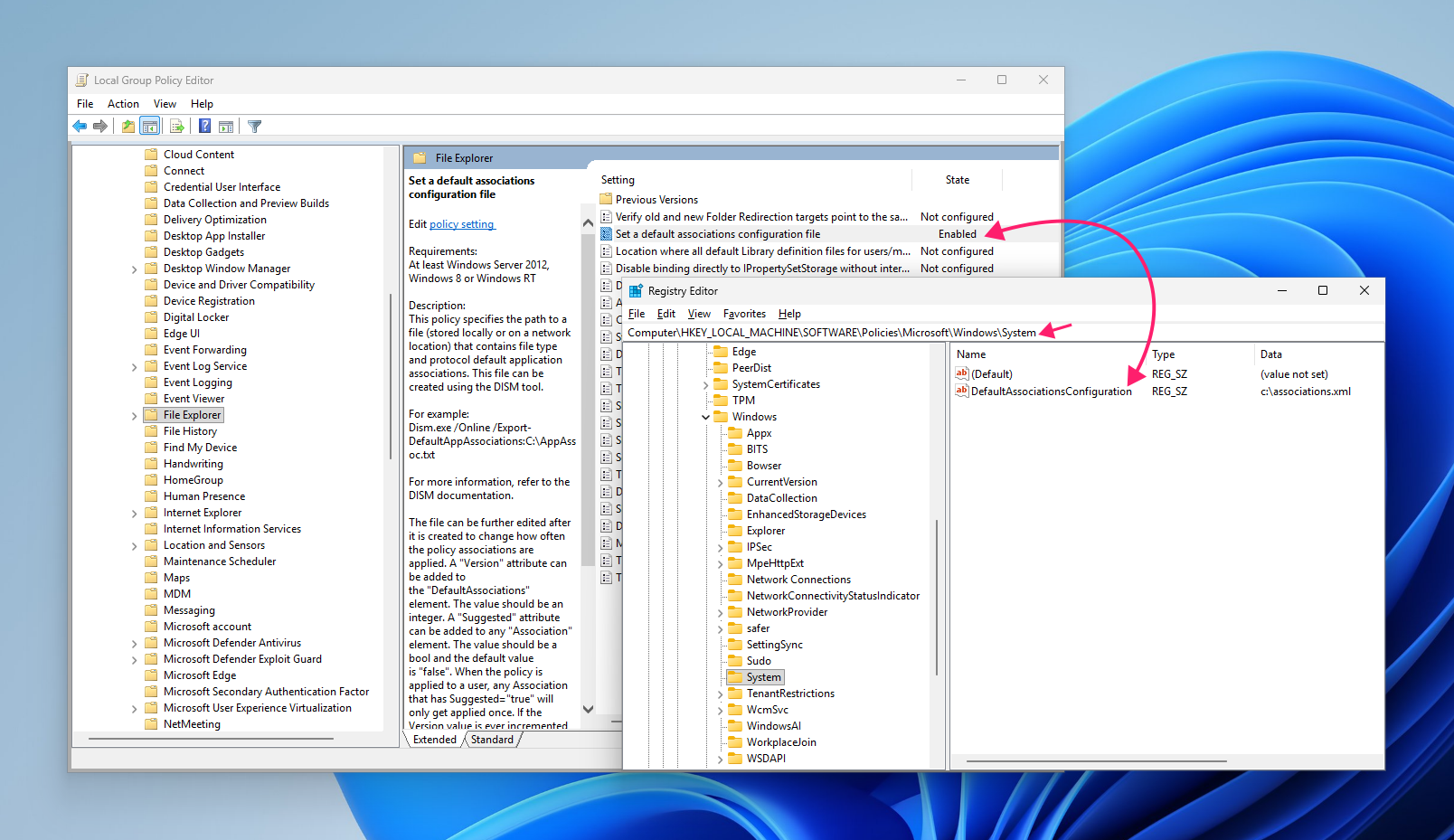
Then enforce it via registry by navigating to
HKLMSOFTWAREPoliciesMicrosoftWindowsSystemand adding a string value namedDefaultAssociationsConfigurationpointing to the XML file’s path
» Don’t miss our top Registry Editor challenges and solutions
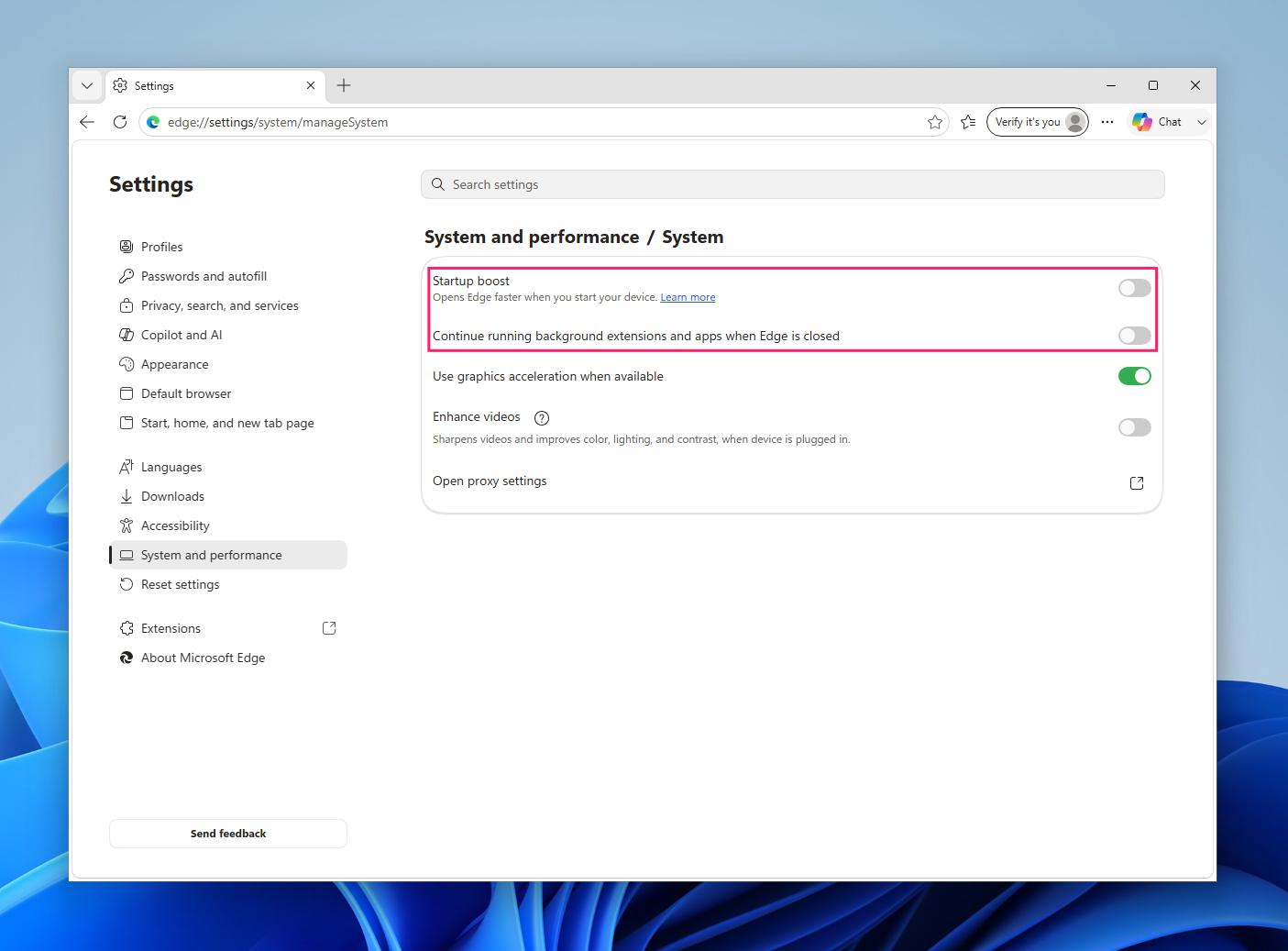
4: Disable Edge’s background and startup boost processes
Use this method if Edge keeps appearing at startup or in the background even though it isn’t your default browser, since these are separate settings from the default browser assignment itself.
- Open Edge and type
edge://settings/system/manageSystemin the address bar - Toggle Startup boost off
Toggle Continue running background extensions and apps when Microsoft Edge is closed off

For fleet-wide enforcement, these two settings can be pushed via the registry so a future update doesn’t silently re-enable them on affected machines.
Navigate to HKEY_LOCAL_MACHINESOFTWAREPoliciesMicrosoftEdge (creating the Edge key if it doesn’t exist), then add two DWORD (32-bit) entries: StartupBoostEnabled set to 0, and BackgroundModeEnabled set to 0.
If you’re managing more than a handful of machines, pushing these two registry values by hand on each one doesn’t scale. Atera’s RMM platform lets you deploy the same StartupBoostEnabled and BackgroundModeEnabled registry changes as a script or automation profile, run remotely across every endpoint in your fleet, so the fix rolls out in one pass instead of you needing to touch each device individually.
» Learn more about managing Windows startup programs
5: Deploy the policy at scale with GPOs or MDM
Once you’ve confirmed the associations file approach works on one machine, the same policy extends cleanly to an entire domain rather than needing to be applied device by device.
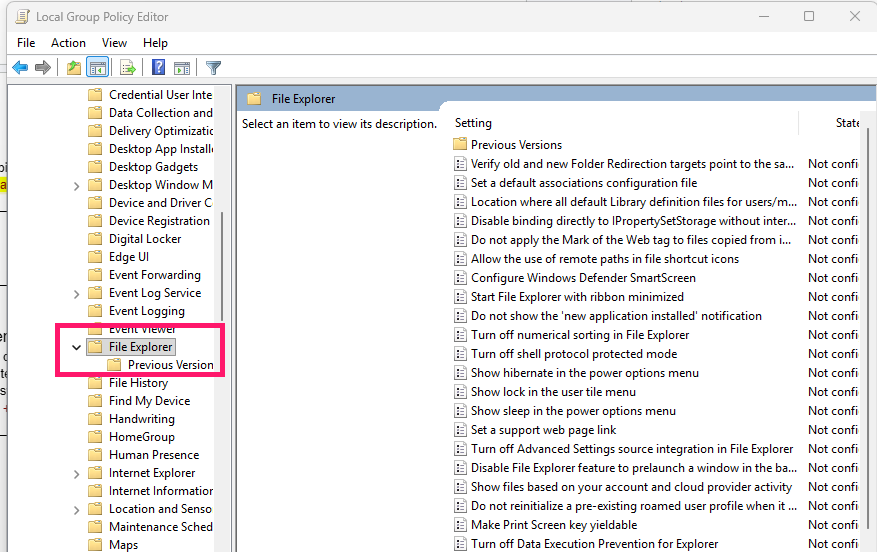
Open Group Policy Editor and navigate to Computer Configuration > Administrative Templates > Windows Components > File Explorer

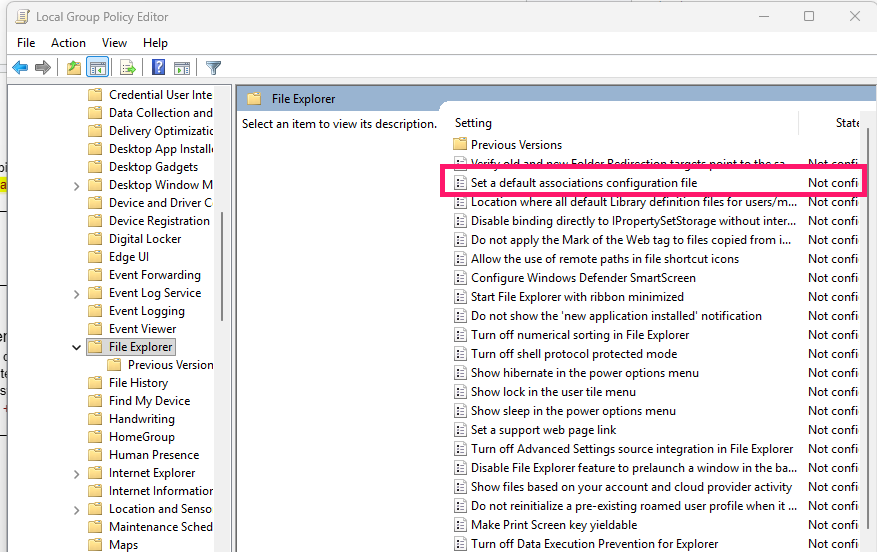
Locate and open Set a default associations configuration file
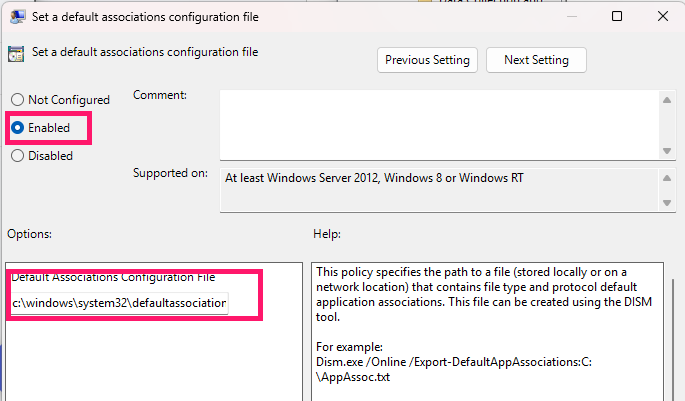
Select Enabled and enter the network-accessible path to your exported
associations.xmlfile
- Apply the policy and allow it to propagate at the next logon cycle across affected machines.
Because this policy applies at logon, the XML file needs to live somewhere every target machine can reach, typically a network share or a path already covered by existing GPO deployment.
For environments managed through MDM rather than on-premises Group Policy, the equivalent enforcement is handled through a configuration profile pushing the same default associations setting, so the underlying mechanism is consistent even when the deployment tool differs.
» Learn how to simplify group policy management with Atera
Protecting your setup from future resets
Even with your default browser locked in and enforced, two things can still undo it: sync pulling old settings back in, and a small set of Microsoft-owned entry points that bypass your default browser choice entirely.
Here’s how to prevent them.
Manage sync profiles deliberately
Most modern browsers sync bookmarks, history, and other settings across every device signed into the same account. Once sync is enabled, all of that data becomes available on any device using that account, which is exactly what makes it easy to accidentally reintroduce a setting you’d already fixed elsewhere.
If your work laptop still has an old Edge-as-default configuration synced from before you locked things down, signing into that same profile on a freshly configured machine can pull the outdated setting right back in.
On Windows, the Edge profile is typically tied to a Microsoft account, and sync settings are managed per profile rather than globally.
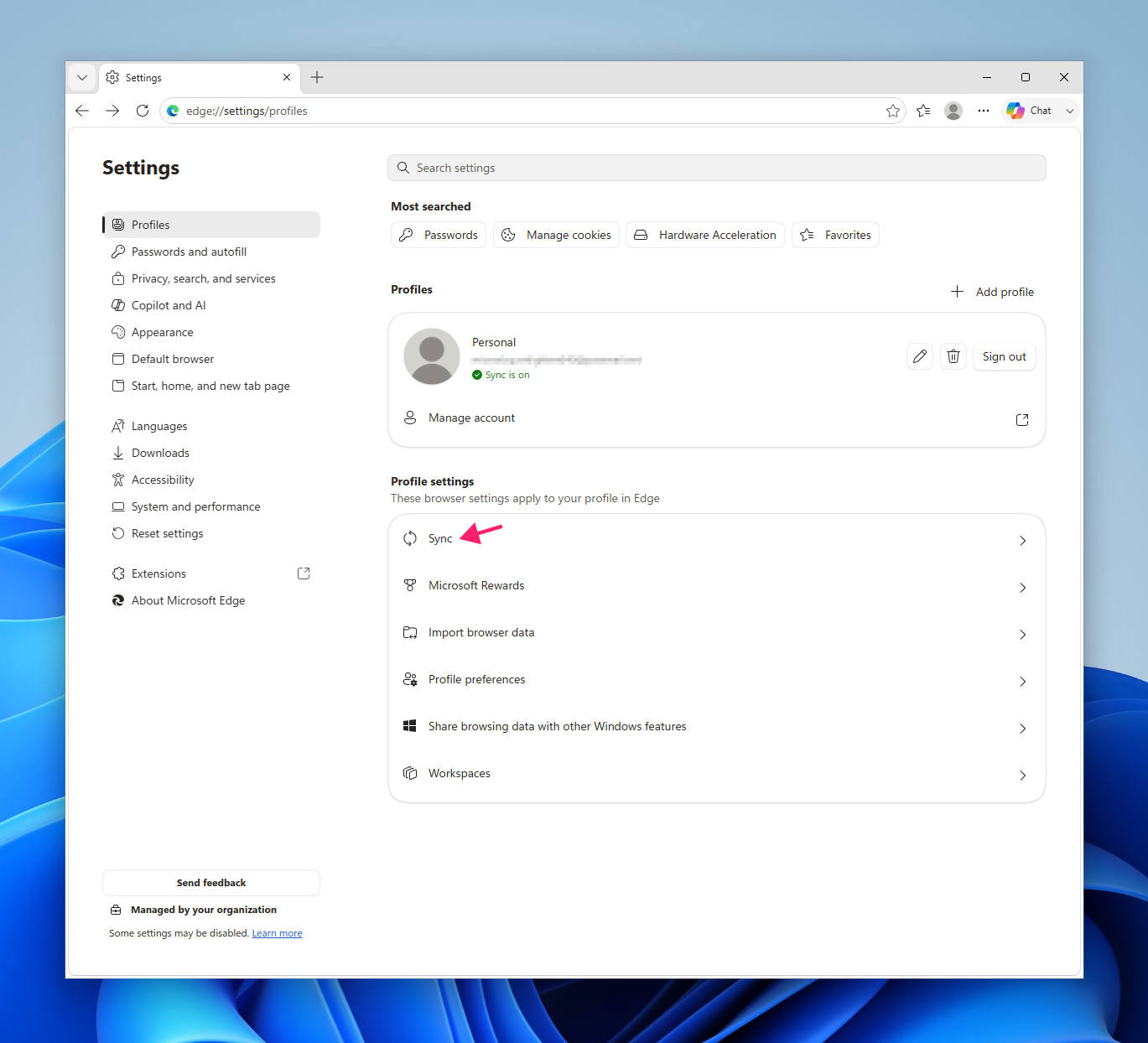
- Open Edge and type
edge://settings/profilesin the address bar Click Sync

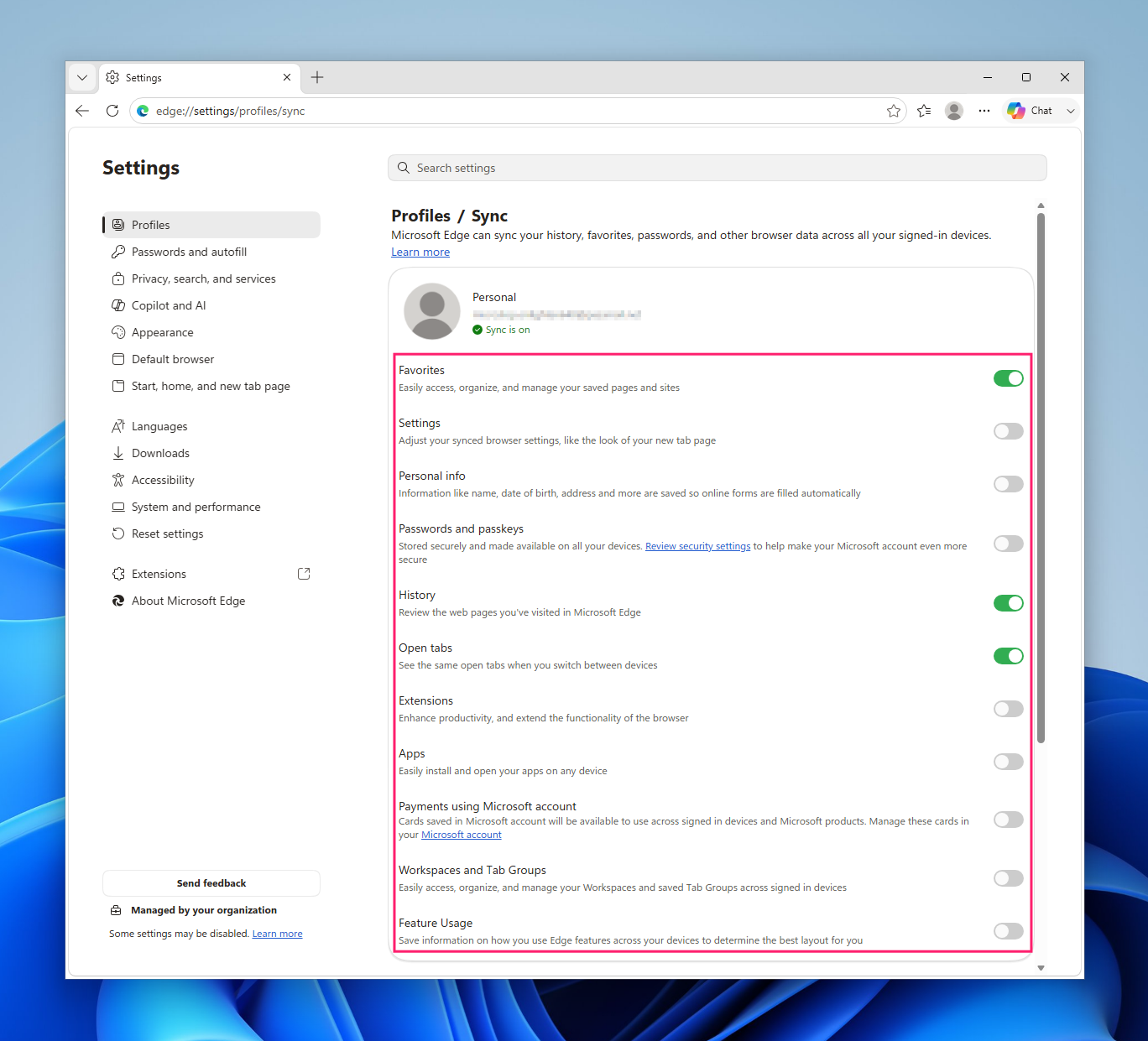
Review each toggle (favorites, settings, history, and so on) and turn off anything you don’t want carried across devices

Back up your bookmarks and preferences before a reset happens
If sync only gets re-enabled after a reset has already happened, the data pulled in reflects the reset state, not your prior setup, and it’s typically lost (though some recovery mechanisms exist for bookmarks specifically).
A local profile backup is the more reliable fallback. For Edge, that means copying the folder at %LOCALAPPDATA%MicrosoftEdgeUser Data. Passwords, saved credit cards, and other encrypted data won’t carry over when that backup is restored to a new device or a fresh installation, even on the same machine.
Bookmarks specifically can also be backed up on their own, independent of a full profile backup:
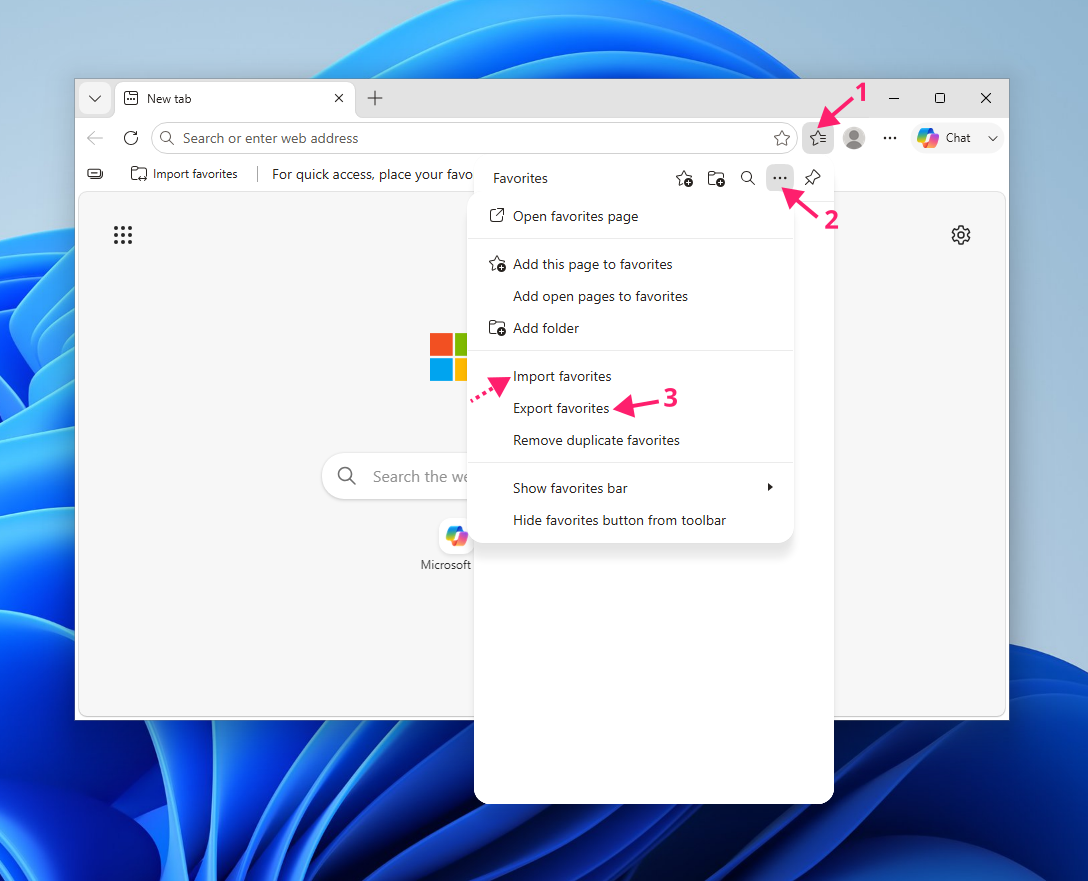
- Edge: Click the Favorites icon, then the … menu button, then Export favorites to save, or Import favorites to restore.
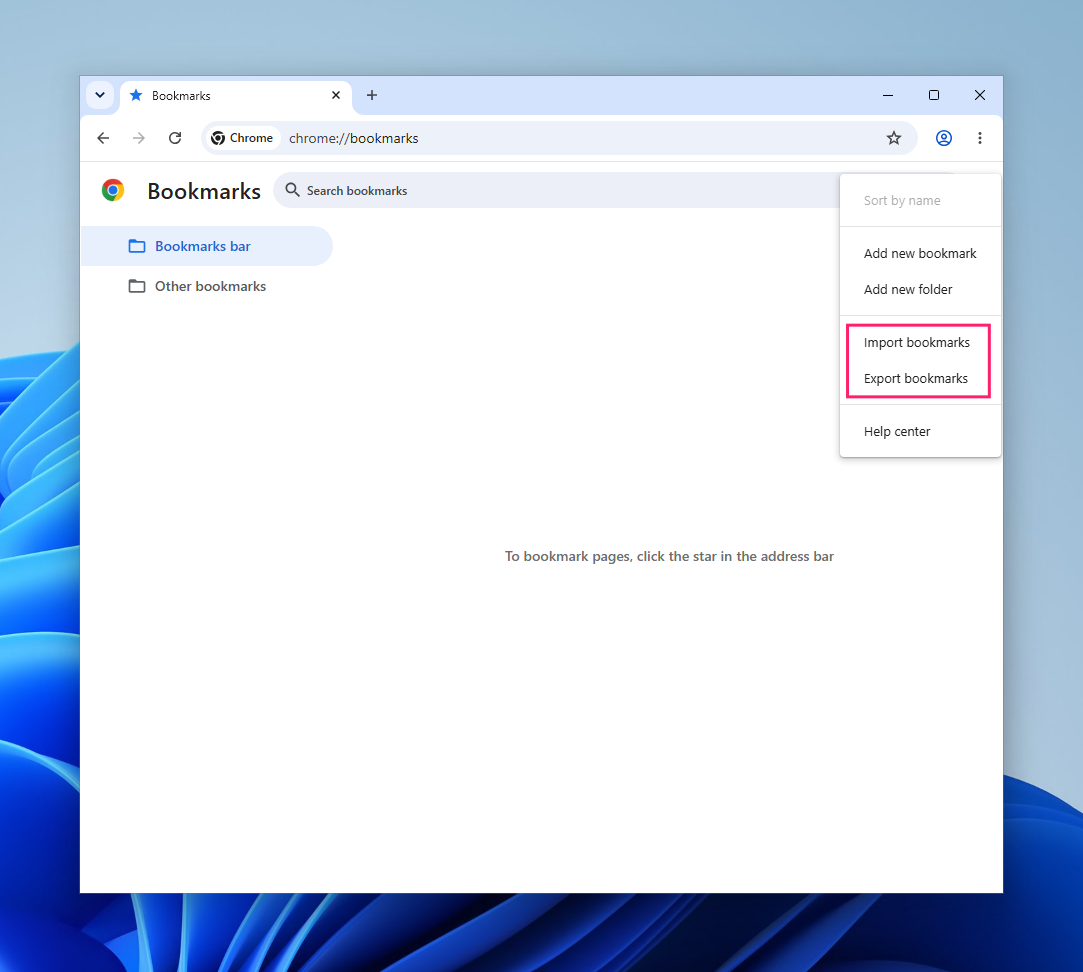
- Chrome: Type
chrome://bookmarks/in the address bar, click the ⋮ menu button, then Export bookmarks or Import bookmarks.
» Did you know you can pin a website to your taskbar?
Stop fighting your browser settings
A browser default that keeps reverting isn’t a one-time annoyance to click past, it’s a setting actively competing against system-level behavior, and it needs to be configured with that in mind. Whether the fix is a registry policy, a disabled background process, or a GPO pushed across every machine in a fleet, the goal is the same: make the override permanent instead of re-fighting it after every update.
For IT teams and MSPs managing more than a handful of endpoints, this isn’t worth doing by hand one machine at a time. Atera’s RMM platform lets technicians push scripts and automation profiles remotely across devices, so a policy like this gets deployed and enforced fleet-wide instead of relying on each user to reset their own settings after every Windows update.
Related Articles

What AI data governance reveals about trustworthy AI agents
At a glance, it can be tough to tell the difference between trustworthy and convincing AI agents. Both project plenty of confidence, but only one can show where its information comes from and what it did with your data. Learn how AI data governance makes an important difference in your organization's AI implementations.
Read now
What is MoUsoCoreWorker.exe?
MoUsoCoreWorker.exe isn't malware, and it isn't broken just because it's using CPU. It's the process that actually executes Windows Update once policy decides what to install, when, and where. Here's what triggers it, how to tell normal activity from a genuinely stuck process, and how to verify it's the real thing.
Read now
The Bottleneck Isn’t the Tool. It’s the Operating Model
Beyond adopting AI, enterprises have to reach the absorption stage to find actual value in the technology. Instead of simply adding AI, teams have to develop a new operating model to allow AI to solve IT problems autonomously.
Read now
Why does my search engine keep changing to Yahoo?
Your users' search engines didn't glitch back to Yahoo, something changed them. Resetting without finding the cause won't stop it. Bundled installers, rogue extensions, and device sync can all quietly hijack the default search provider, and each needs a different fix to stick. Here's how to spot the cause, remove it for good, and lock the setting down so it can't happen again.
Read nowEndless IT possibilities
Boost your productivity with Atera’s intuitive, centralized all-in-one platform









