
Table of contents
Generate summary with AI

Your browser bookmarks are only useful once your browser is already open, and your desktop shortcuts disappear the moment a window covers them. For tools you reach for constantly, neither option is good enough.
A Harvard Business Review study found that the average digital worker toggles between applications and websites roughly 1,200 times a day, burning nearly four hours a week just reorienting after each switch. A taskbar pin won’t solve all of that, but for the sites and web apps you open multiple times a day, it’s the closest thing to a one-click shortcut that’s always in front of you. This guide covers every method for pinning websites to your taskbar, across browsers, operating systems, and IT environments, so you can set it up once and stop thinking about it.
» Here are the easiest ways to switch between open windows in Windows 11
What to know before you start
When you pin a website to the taskbar, Windows isn’t treating it like a native application. It’s essentially a browser shortcut with specific launch arguments. The website has no independent identity on your system since it borrows its identity from whichever browser opens it.
That means to avoid broken shortcuts and other IT issues later down the line, here are some things you’ll need to think about first:
- Progressive Web Apps (PWAs) behave more like native apps: These get their own distinct system identity (called an AppUserModelID) with their own taskbar presence, notifications, and OS-level integration. If the site you’re pinning supports PWA installation, that’s generally the better option.
- Taskbar pins are user-specific, not system-wide: They’re stored in your individual user profile and Microsoft accounts don’t sync taskbar pins across devices, so you’ll need to recreate them manually on each machine. In corporate environments, roaming profiles can theoretically carry pins between devices, but this is unreliable in practice because browser-generated shortcuts depend on local data that doesn’t roam. If your organization needs consistent pins deployed across multiple machines, you’ll have to use the PowerShell method below.
- Firefox is problematic for website pinning: Chrome, Edge, and Brave all offer native pinning workflows with PWA support. Firefox doesn’t, so pinning from Firefox requires a manual workaround. If you’re in a managed environment where the browser is standardized, that will determine which method applies to you.
Step-by-step guide to pin a website to your taskbar on different configurations
Most browsers follow a similar path to pinning a specific website to your taskbar, but with a few subtle differences. Here’s what you need to know for your specific browser:
Google Chrome
Chrome gives you two ways to pin a website to your taskbar: a basic shortcut and a full PWA installation. The shortcut method works for any site and is quick to set up, but a PWA installation is the better option where available since the site gets its own system identity, opens in a clean frameless window, and behaves more like a native app. If you see an install icon in Chrome’s address bar, the site supports PWA and you should use that method.
Follow these steps:
Method 1: Create a shortcut
1. Open Chrome and navigate to the website you want to pin
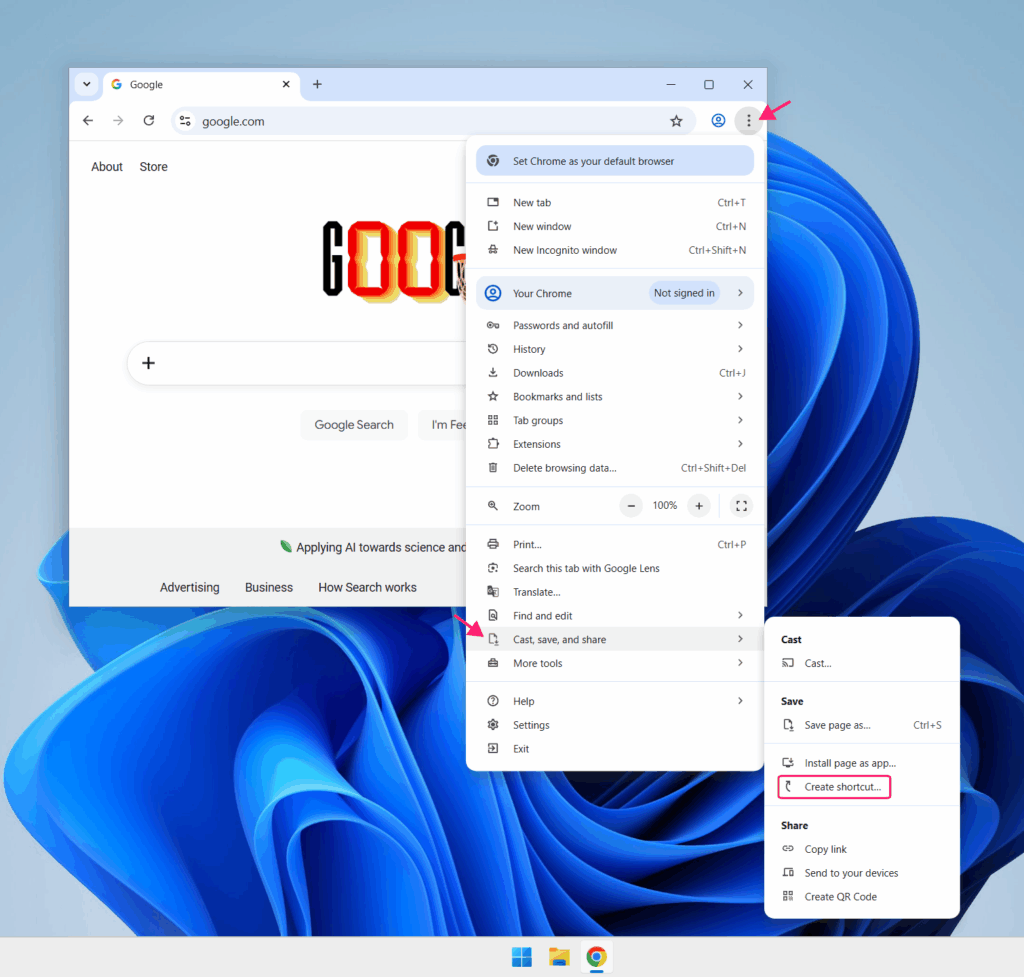
2. Click the menu button (⋮ icon, top-right corner)
3. Go to Cast, save, and share and select Create shortcut (on some Chrome versions this may appear as Save and share)
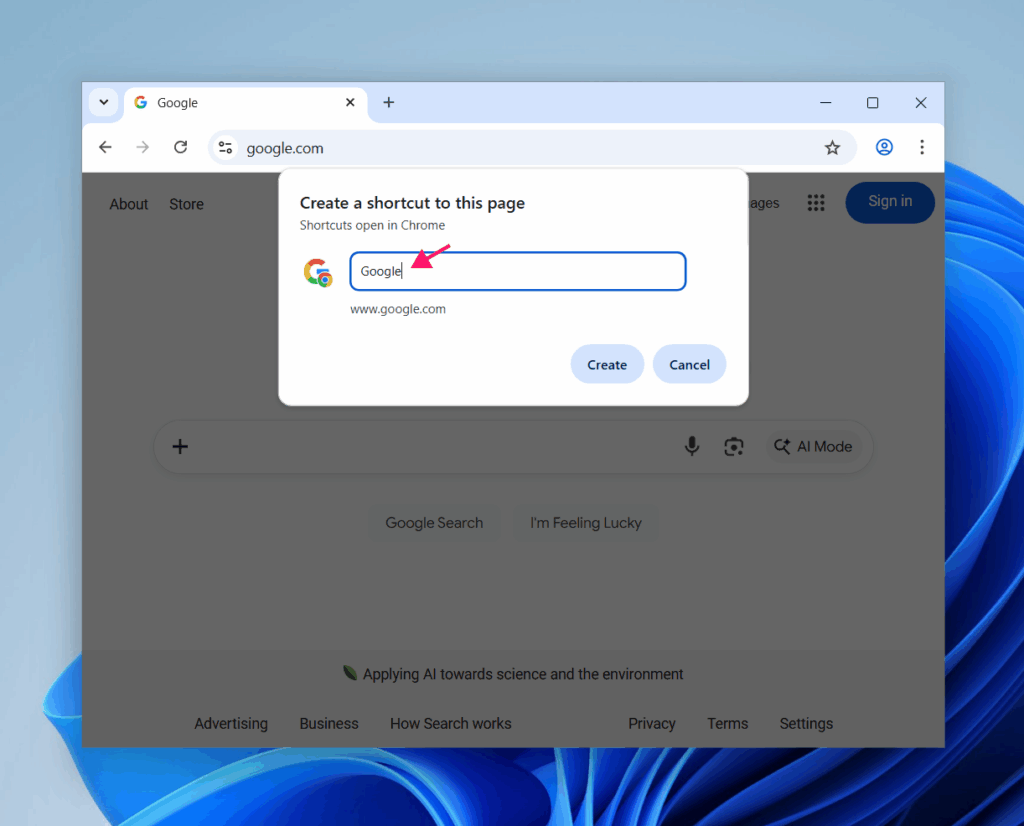
4. Enter a name for the shortcut and click Create to put the shortcut on your desktop
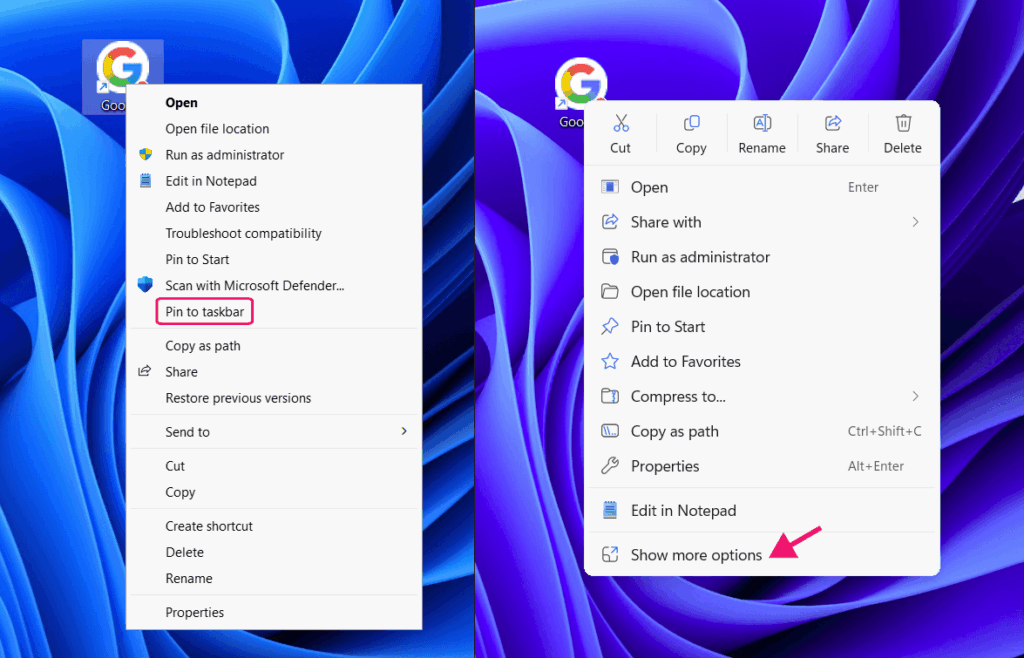
5. Right-click the shortcut and select Pin to taskbar (on Windows 11, you may need to click Show more options first to see this option)
» Don’t miss our guide to making Windows 11 show more options by default
Method 2: Install as a PWA
1. Open Chrome and navigate to the website
2. Click the install icon in the address bar
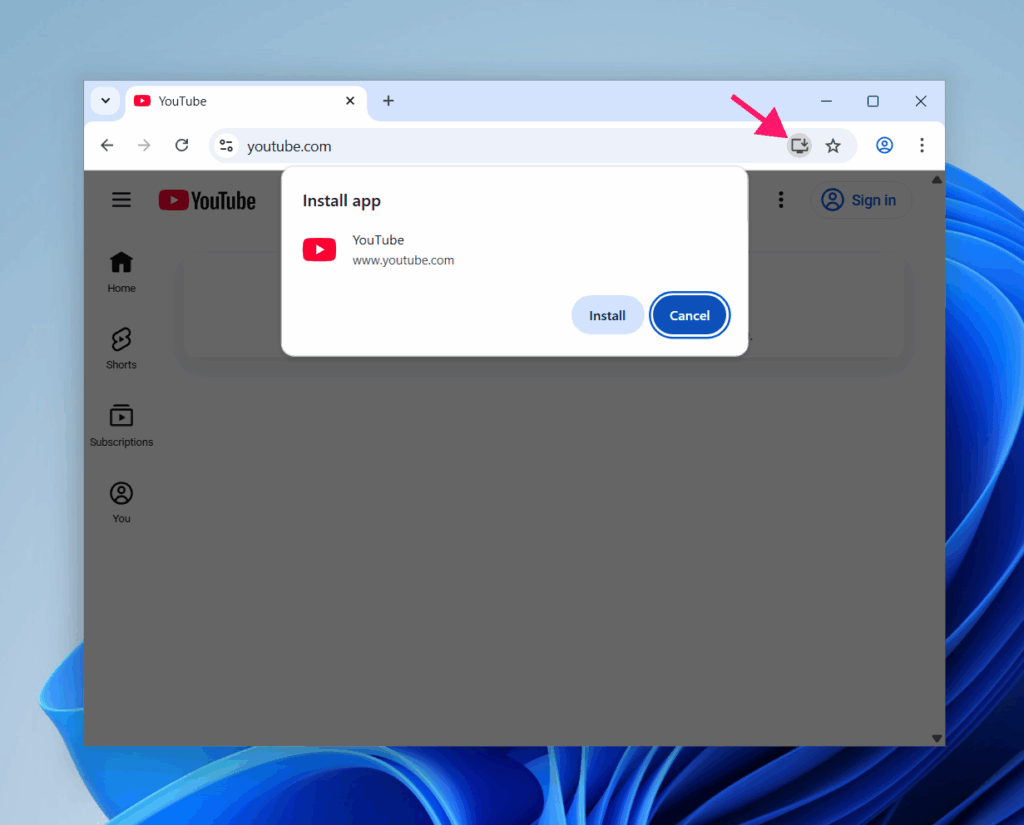
3. Click Install to confirm, or go to Cast, save, and share and select Install [site name]
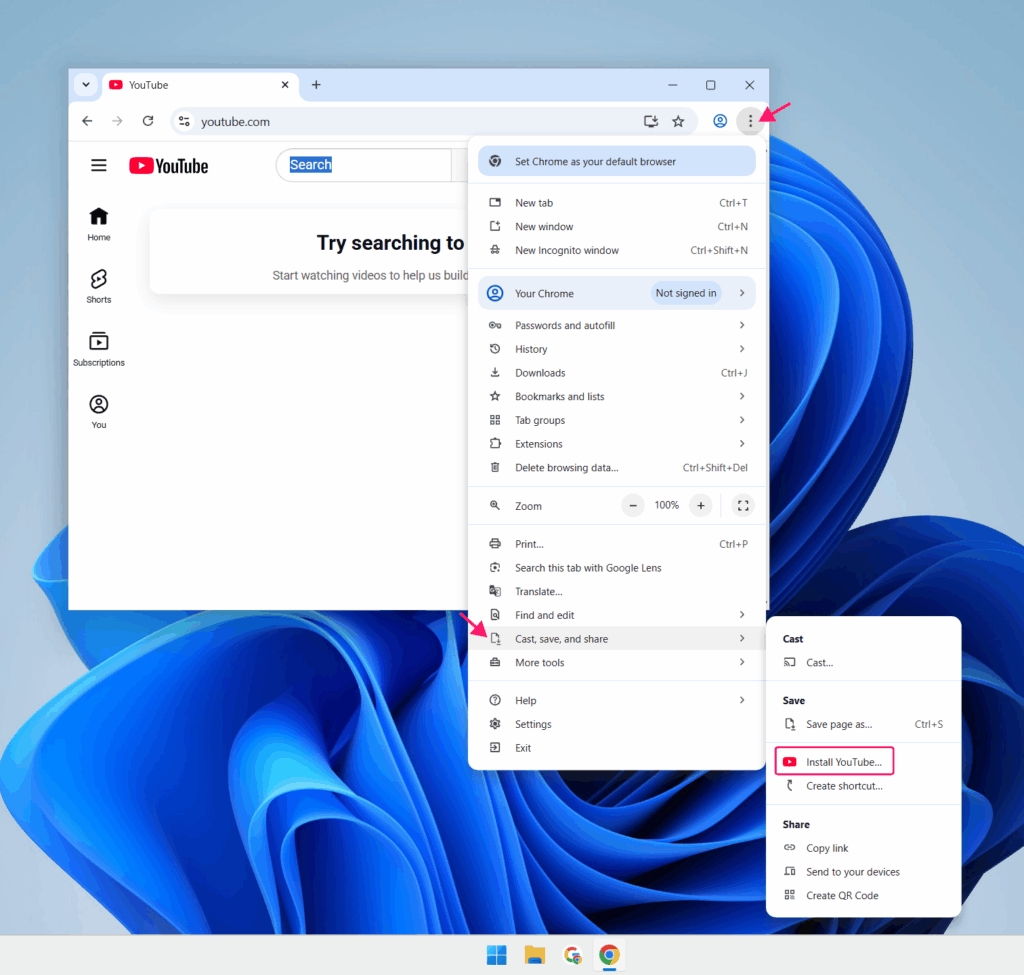
4. Right-click the newly created desktop icon and select Pin to taskbar
The installed app will open in its own frameless window and integrate with Windows at the OS level. If you accidentally unpin it later, click the Open in app button from within Chrome, right-click the taskbar icon, and select Pin to taskbar. To view and manage all installed Chrome apps, navigate to chrome://apps.
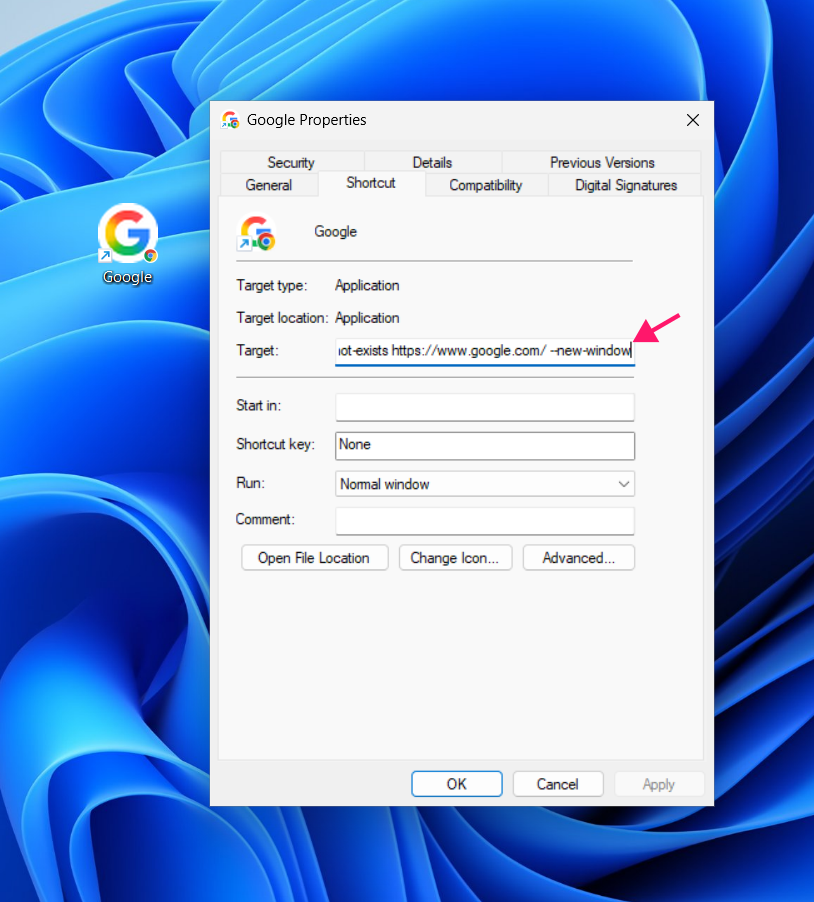
If the shortcut opens in a new tab within your existing Chrome window rather than its own window, here’s how to fix it:
1. Right-click the desktop shortcut > right-click the shortcut name > Select Properties
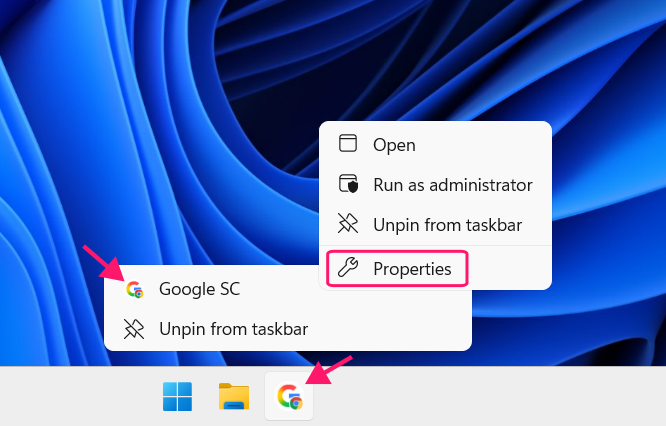
2. Add --new-window to the end of the Target field (with a space before it) and click OK
Microsoft Edge
Edge has the most seamless pinning experience of any browser because of its native Windows integration. It offers three options depending on the site and your preferences. PWA installation is the most capable, but Edge also supports a direct “Pin to taskbar” option that skips the installation step entirely.
Method 1: Pin directly to taskbar
1. Open Edge and navigate to the website
2. Click the menu button (… icon, top-right corner)
3. Go to More tools and select Pin to taskbar
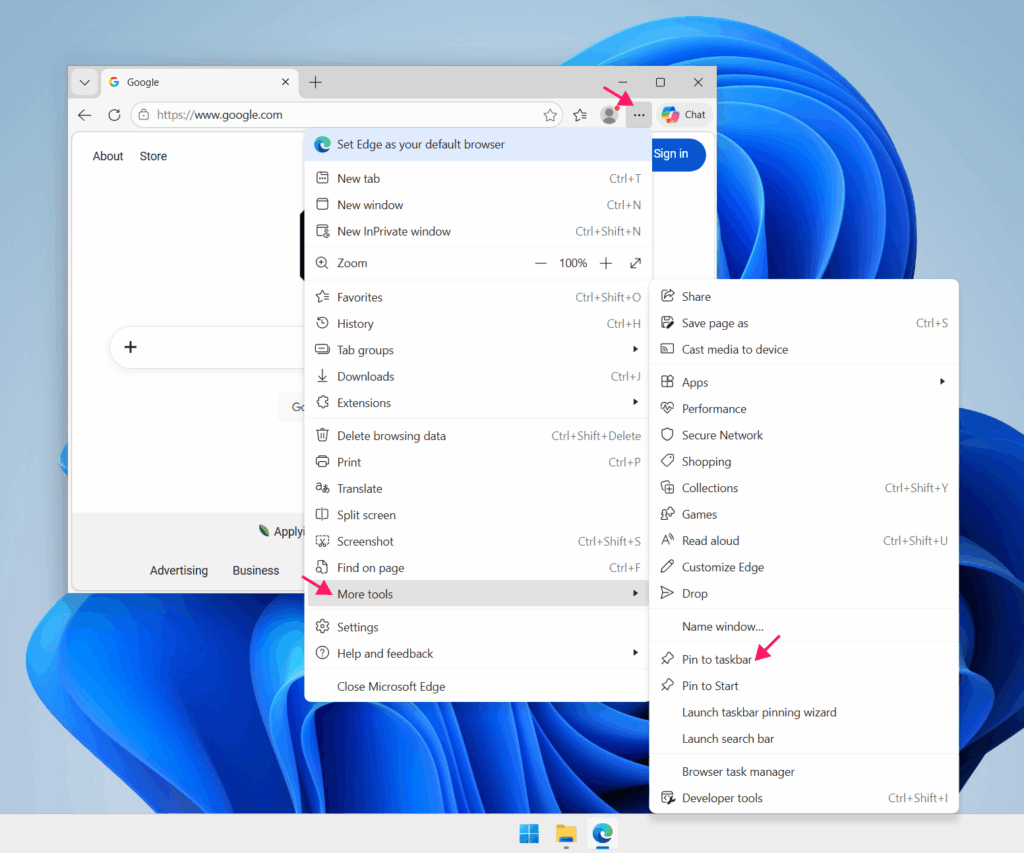
4. Confirm when prompted
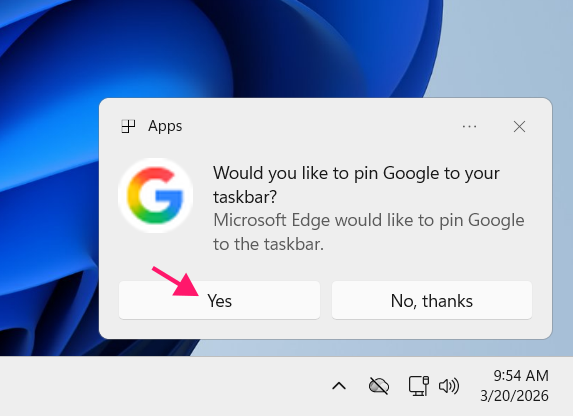
Method 2: Install as a PWA
1. Open Edge and navigate to the website
2. Click the install icon in the address bar, or go to More tools > Apps > Install [site name]
3. Click Install to confirm
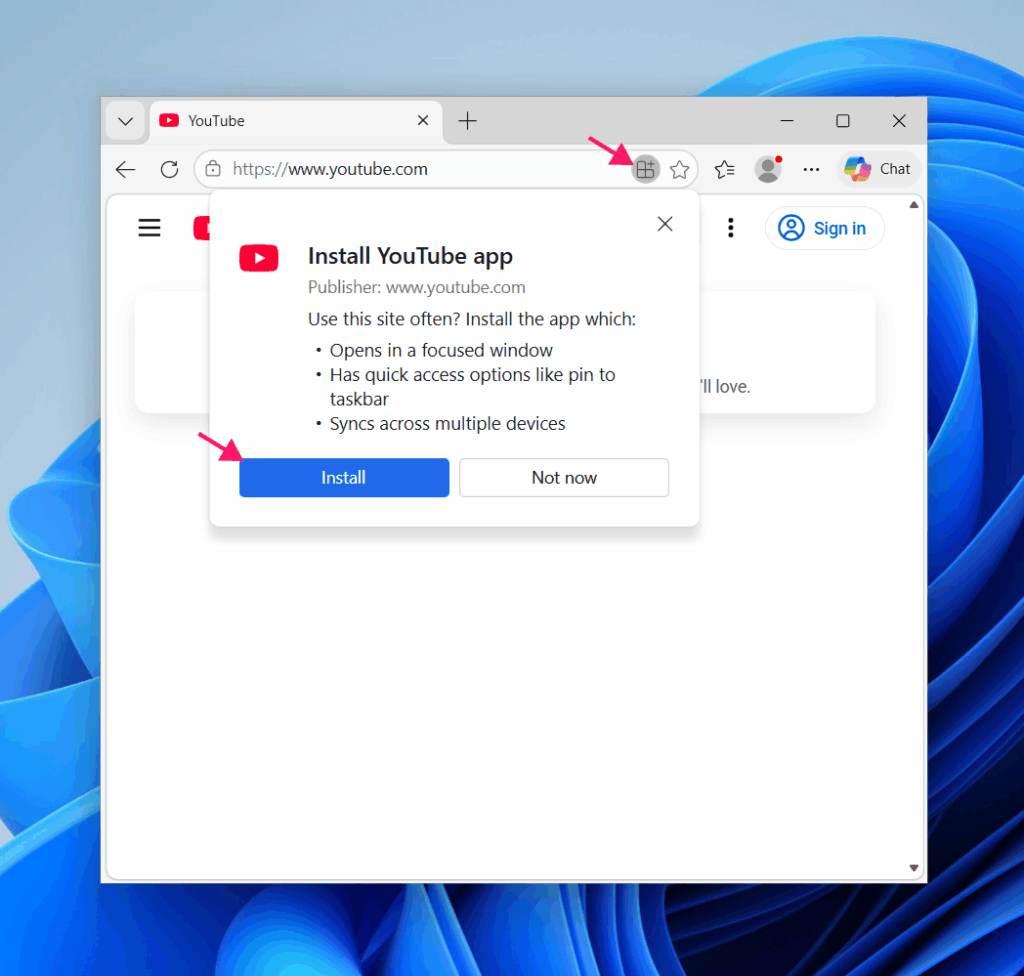
4. When the app opens for the first time, you’ll be prompted to pin it to the taskbar, click Allow
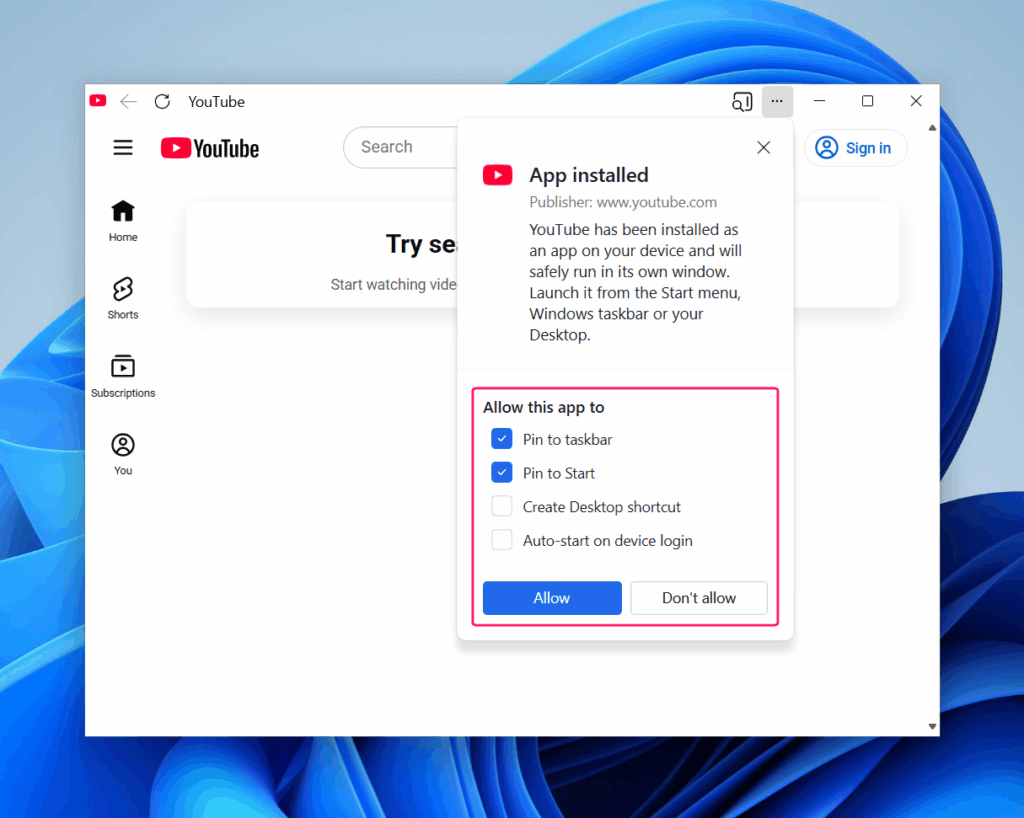
Method 3: Install site as an app (non-PWA sites)
1. Open Edge and navigate to the website
2. Go to the Menu > More tools > Apps > Install this site as an app
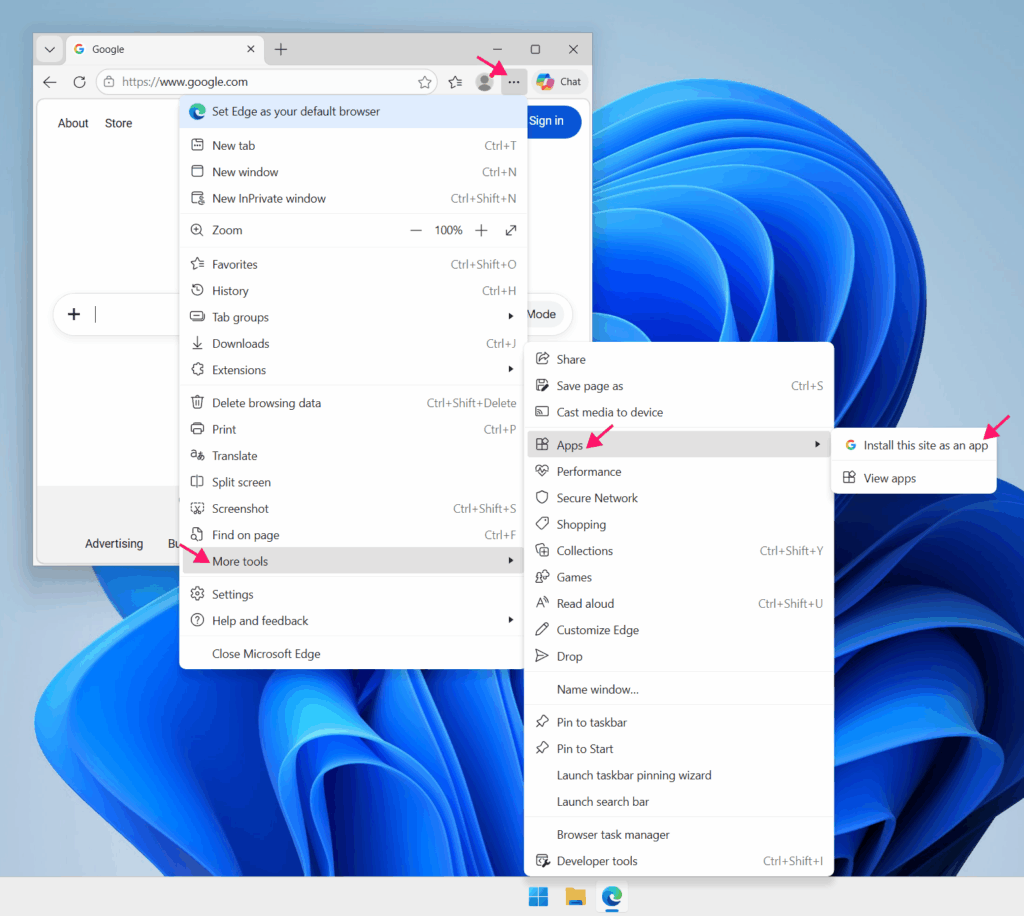
3. Follow the same prompts as PWA installation above
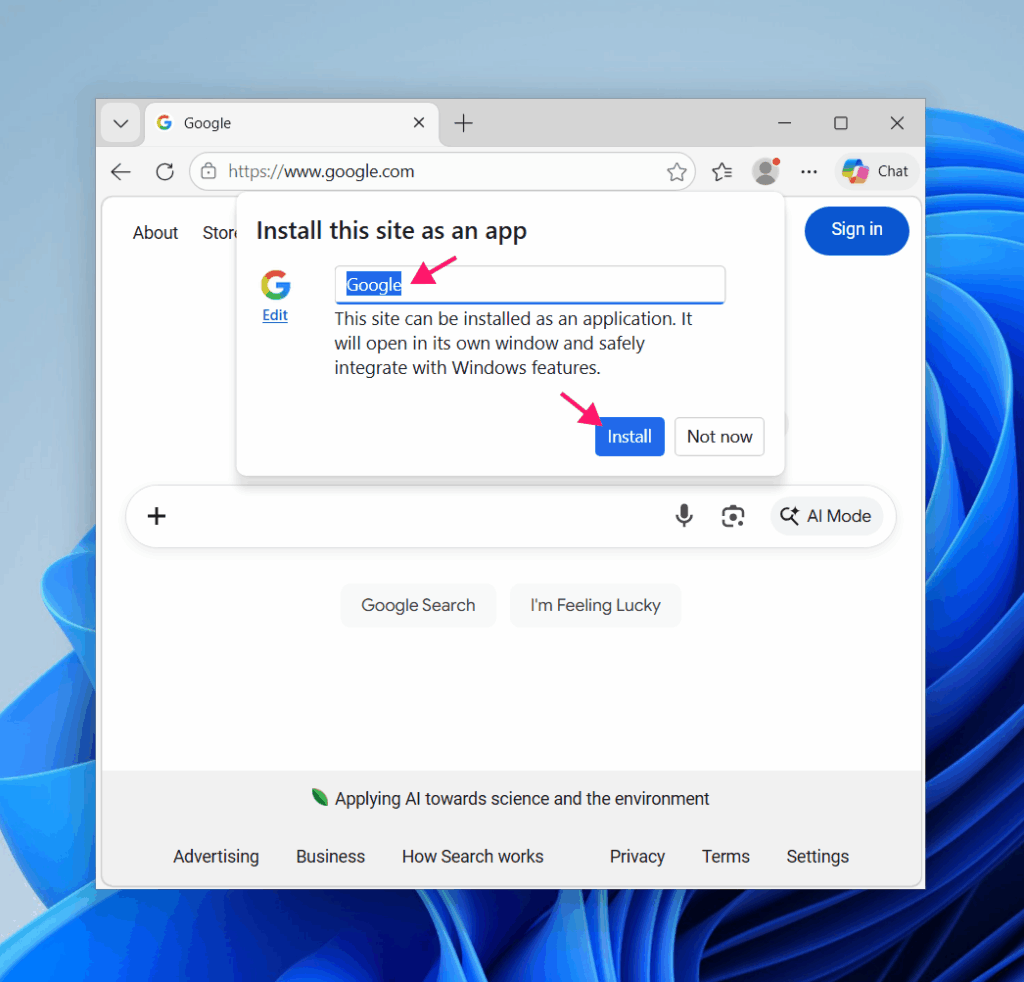
Note that non-PWA sites installed this way will lack true OS-level integration. To manage or re-pin any installed Edge apps, navigate to edge://apps or go to More tools > Apps > View apps.
Note: If the Pin to taskbar option doesn’t appear under More tools, your organization may have disabled taskbar pinning via Group Policy. End users can’t override this without administrator permissions.
Mozilla Firefox
Firefox has no native “Pin to taskbar” feature and no PWA support, so pinning a site requires building the shortcut manually. It takes a few more steps than Chrome or Edge, but it’s straightforward once you’ve done it:
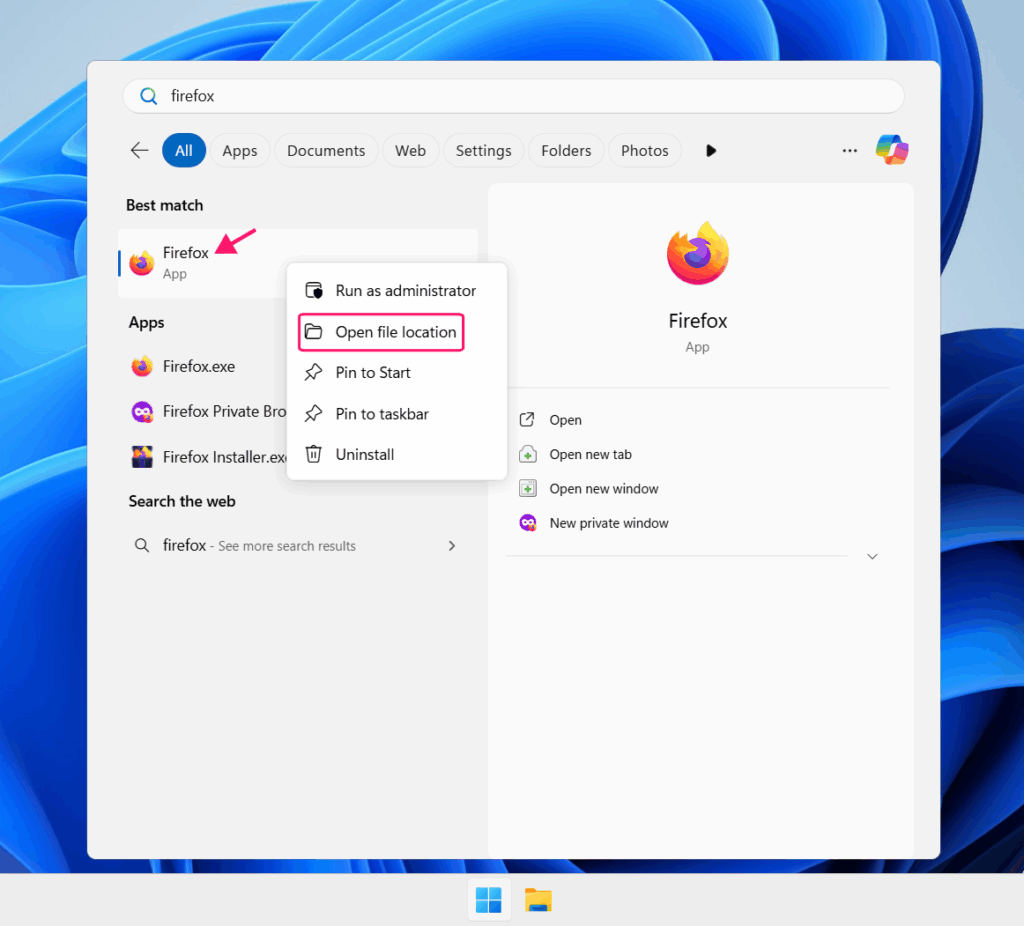
1. Press Start, type Firefox, right-click the result, and select Open file location. A File Explorer window will open showing the Firefox shortcut
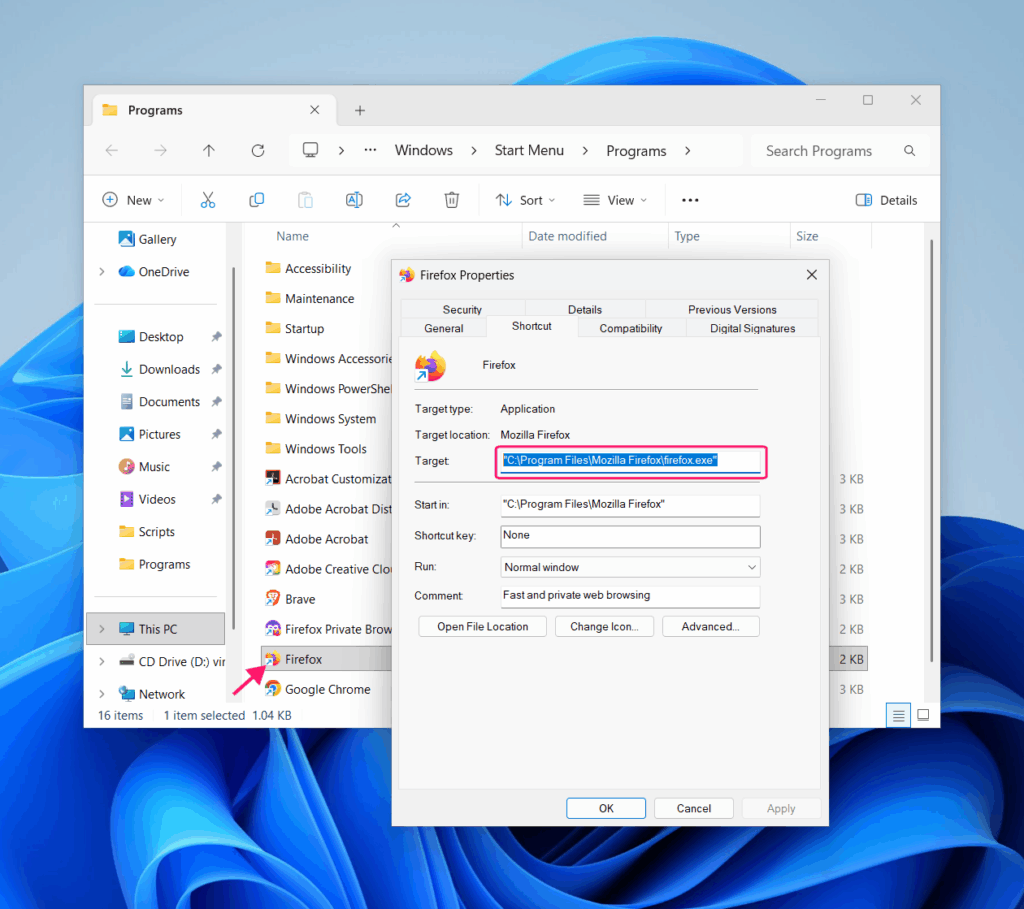
2. Right-click the Firefox shortcut, select Properties, and copy the full text from the Target field
3. Right-click your desktop and select New > Shortcut
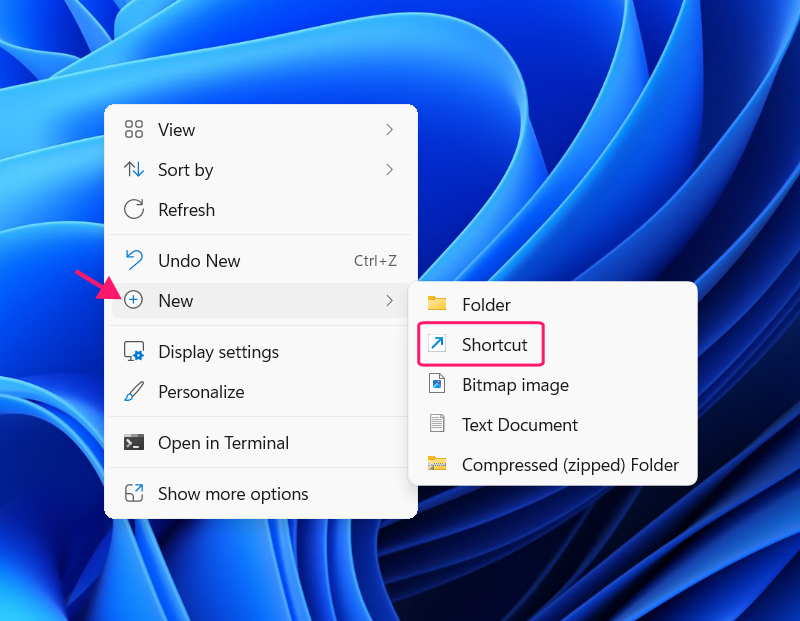
4. Paste the copied target path into the location field and click Next
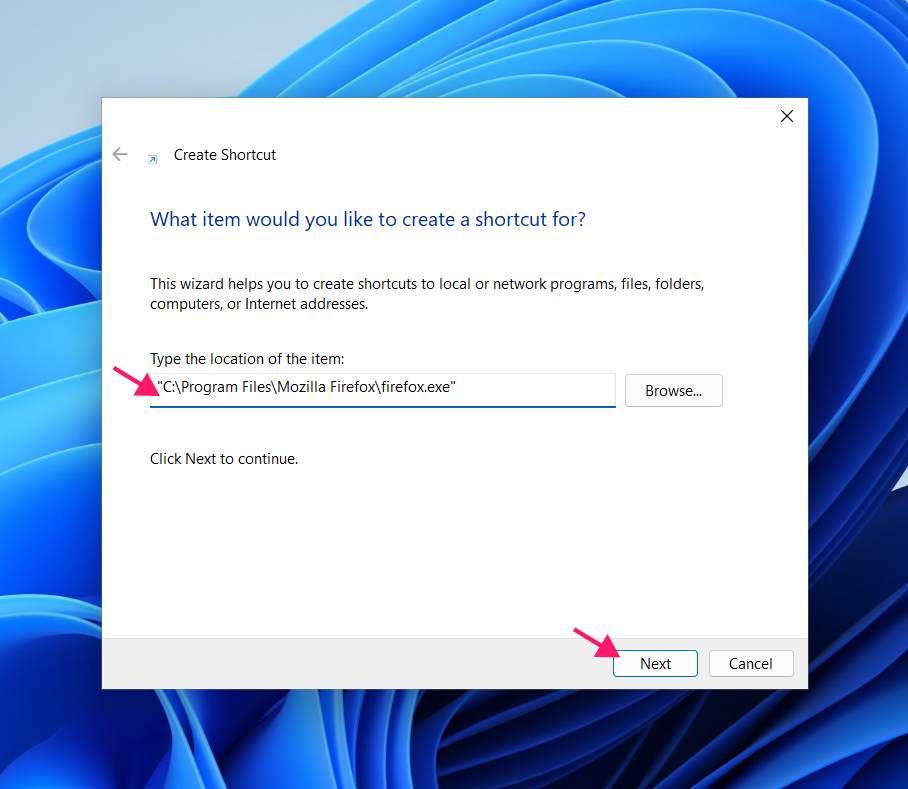
5. Give the shortcut a name and click Finish
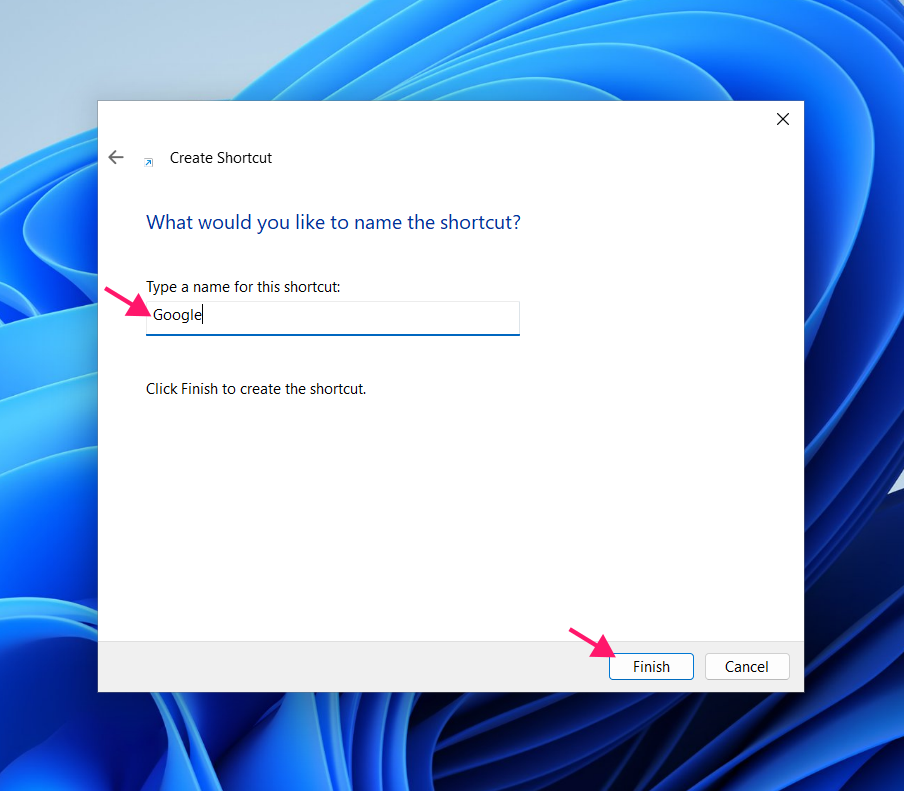
6. Right-click the new shortcut and select Properties
7. In the Target field, add -url https://yourwebsite.com at the end (with a space before -url). To open the site in its own window instead of a new tab, use-new-window https://yourwebsite.com instead
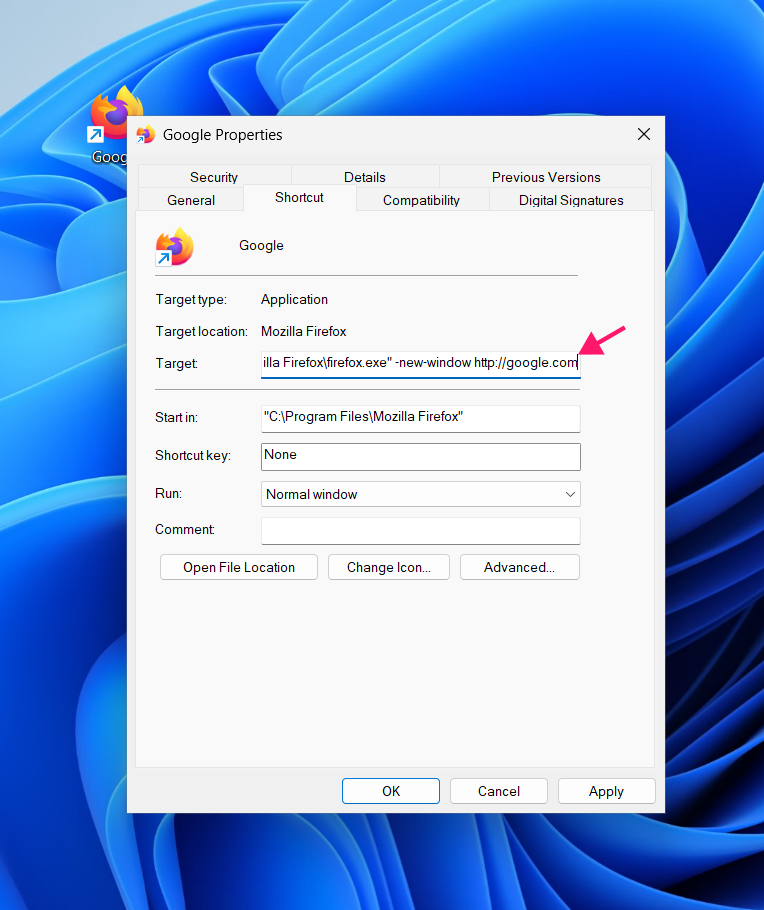
8. To set a custom icon (since Firefox won’t do it automatically), click Change Icon > Browse > select a downloaded favicon file
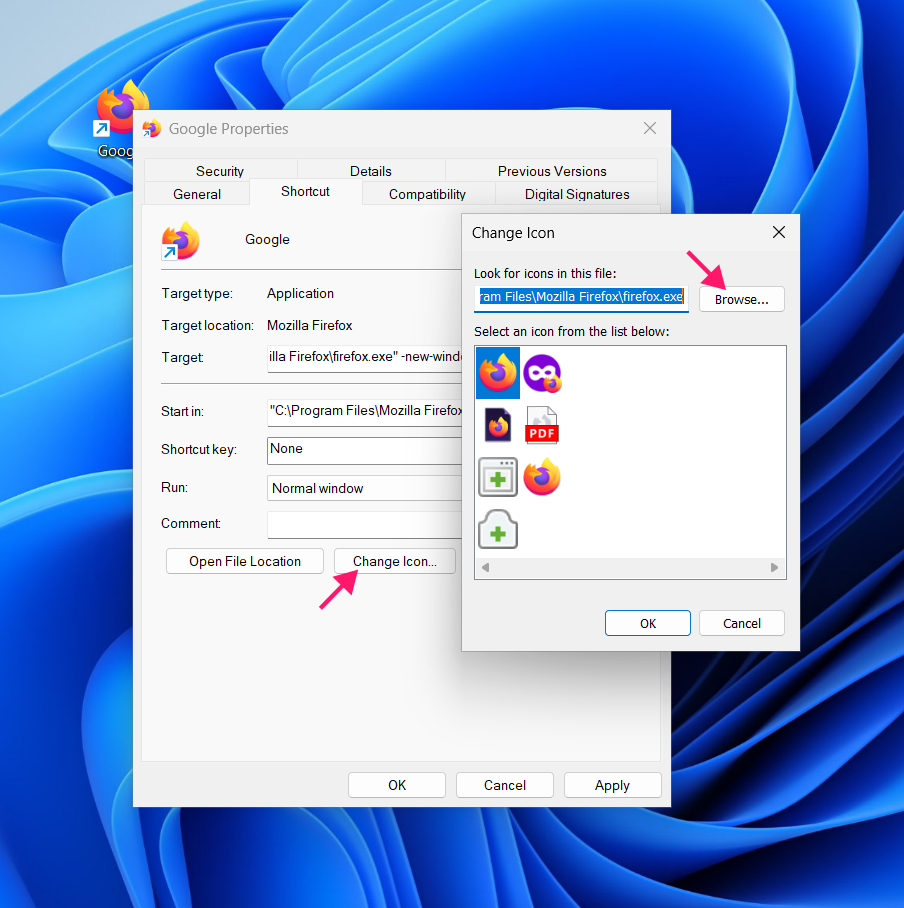
9. Click OK to close Properties, then right-click the shortcut and select Pin to taskbar (on Windows 11, select Show more options first)
Deleting the desktop shortcut after pinning will not affect the taskbar pin.
Troubleshooting: If the pinned shortcut opens the Firefox homepage rather than your target site, double-check that the URL in the Target field is complete and correctly formatted, with a space before the -url flag. Session-based or redirect URLs won’t work reliably as pins, so use the root domain URL where possible.
Brave
Brave is built on Chromium, so the pinning workflow is nearly identical to Chrome. Menu labels differ slightly but the underlying steps are the same.
Method 1: Create a shortcut
1. Open Brave and navigate to the website
2. Click the menu button (≡ icon, top-right corner)
3. Go to Save and share and select Create shortcut
4. Name the shortcut and click Create
5. Right-click the desktop shortcut and select Pin to taskbar
Method 2: Install as a PWA
1. Open Brave and navigate to the website
2. Click the install icon in the address bar if available, or go to Save and share and select Install [site name]
3. Click Install and then pin the resulting icon to your taskbar
Troubleshooting: Brave’s aggressive content blocking can sometimes interfere with favicon and PWA icon fetching. If the installed app is missing its icon, try temporarily disabling Brave Shields for that site during installation.
Advanced PowerShell tips for enterprise-wide website pinning
For enterprise IT managers looking after a fleet of devices, asking users to pin sites manually isn’t a scalable approach. Group Policy and Intune can enforce taskbar layouts, but the most reliable cross-version solution is a PowerShell script that handles both Windows 10 and Windows 11 from a single deployment.
Windows 10 and Windows 11 use different pinning formats internally, so a unified script needs to detect the OS version and apply the correct method accordingly.
Here’s a script that creates .lnk shortcut files in the shared Start Menu directory, builds an XML layout file, and applies it to all existing user profiles as well as the default profile so new users get the pins automatically on first login.
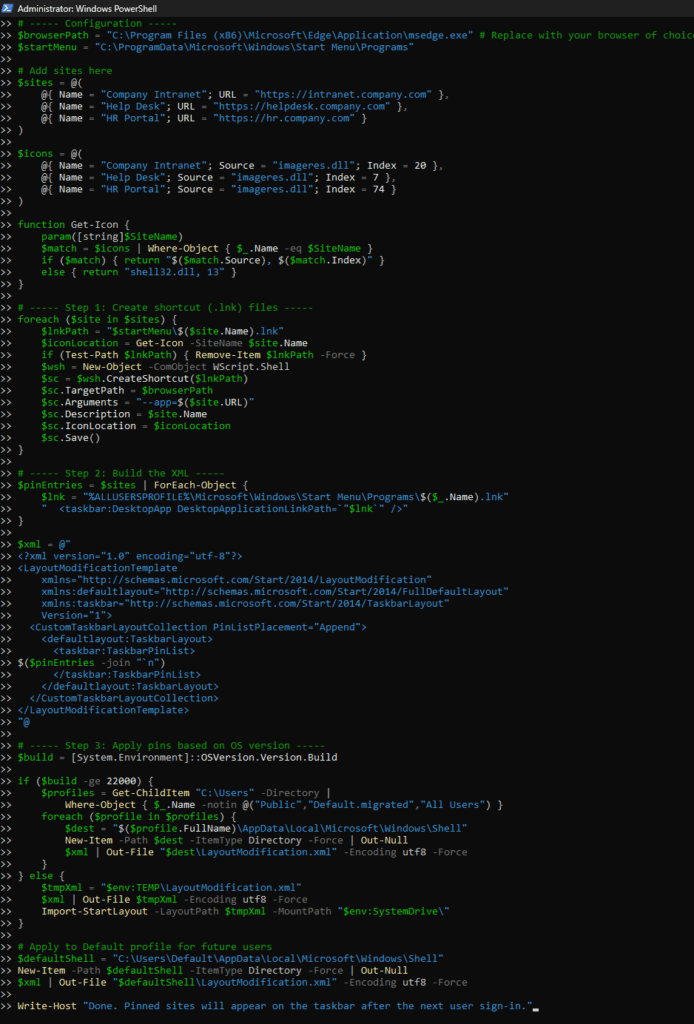
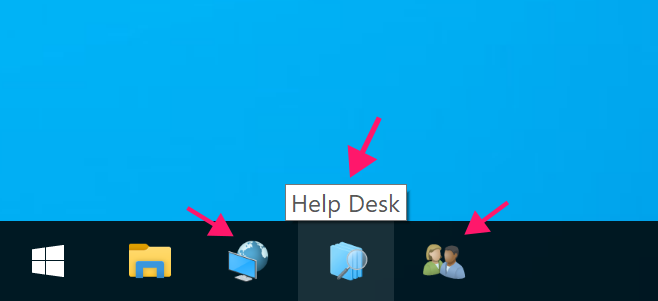
Pins deployed this way are applied at each login, keeping them persistent even if a user removes them manually.
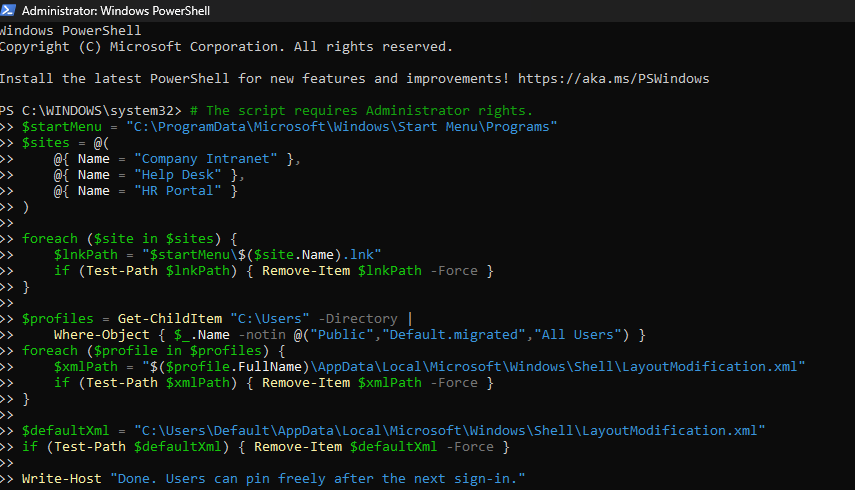
To revert the deployment and restore user control over their taskbar, run this cleanup script:
Sound difficult? It doesn’t have to be. With Atera’s AI Copilot, you can generate comprehensive and conditional PowerShell scripts like these by just explaining your problem in plain language and then deploy that script remotely to all your endpoints through the RMM platform.
macOS
Starting with macOS Sonoma (macOS 14), Safari supports adding websites directly to the Dock.
1. Open Safari and navigate to the website
2. Go to File and select Add to Dock
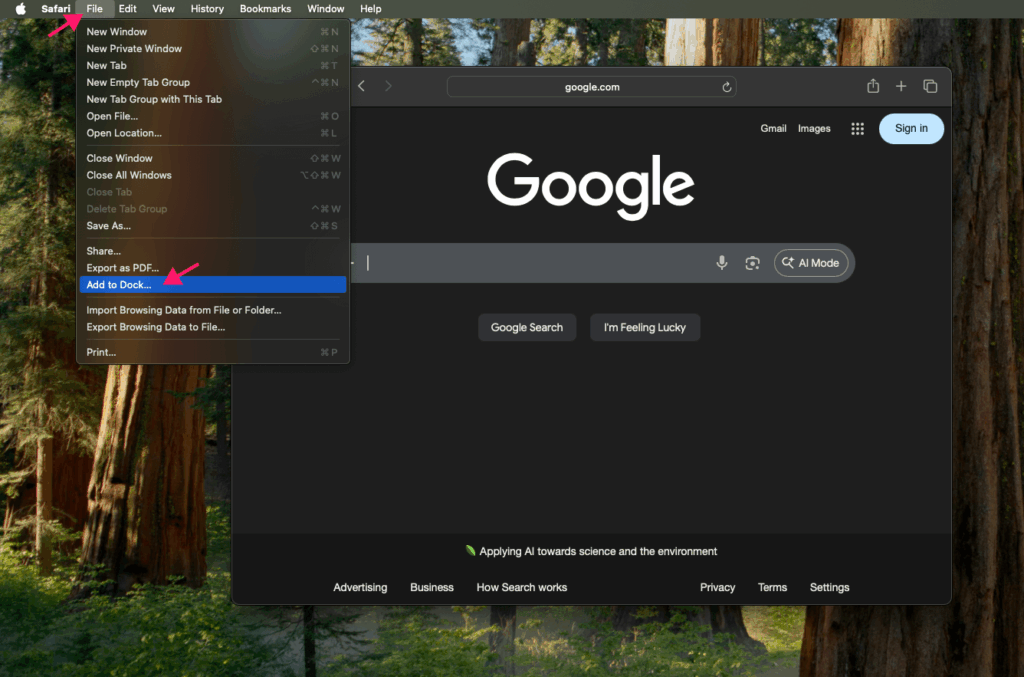
3. Enter a name for the shortcut and confirm
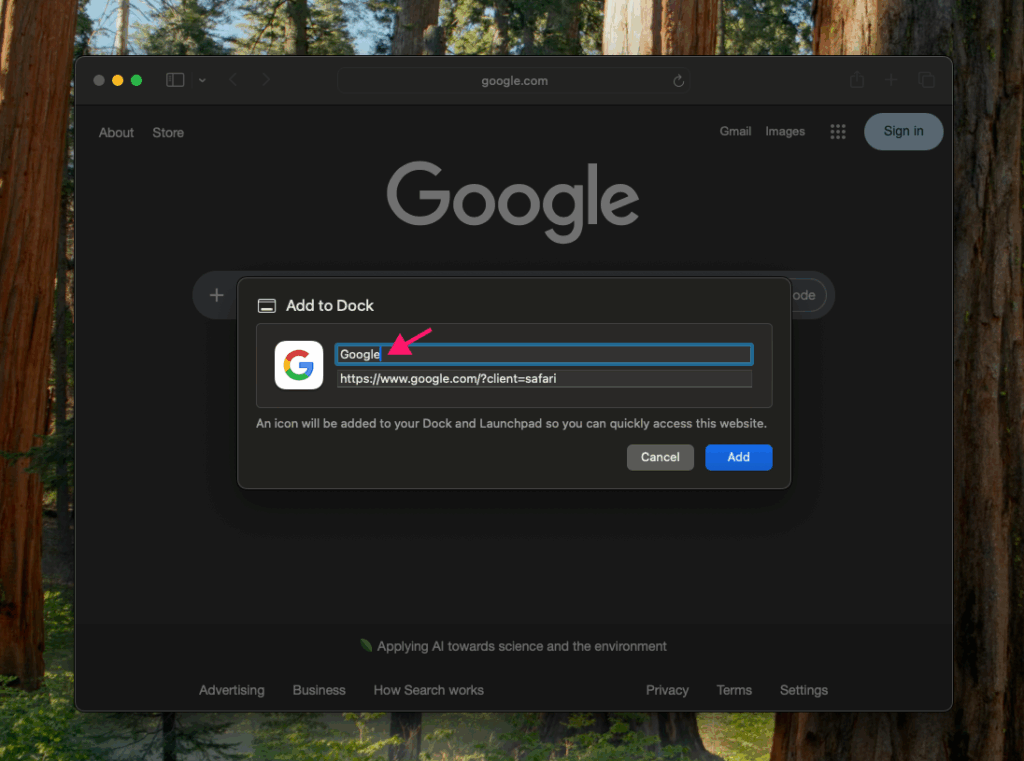
4. The icon will appear in your Dock and open the site in a minimal browser window
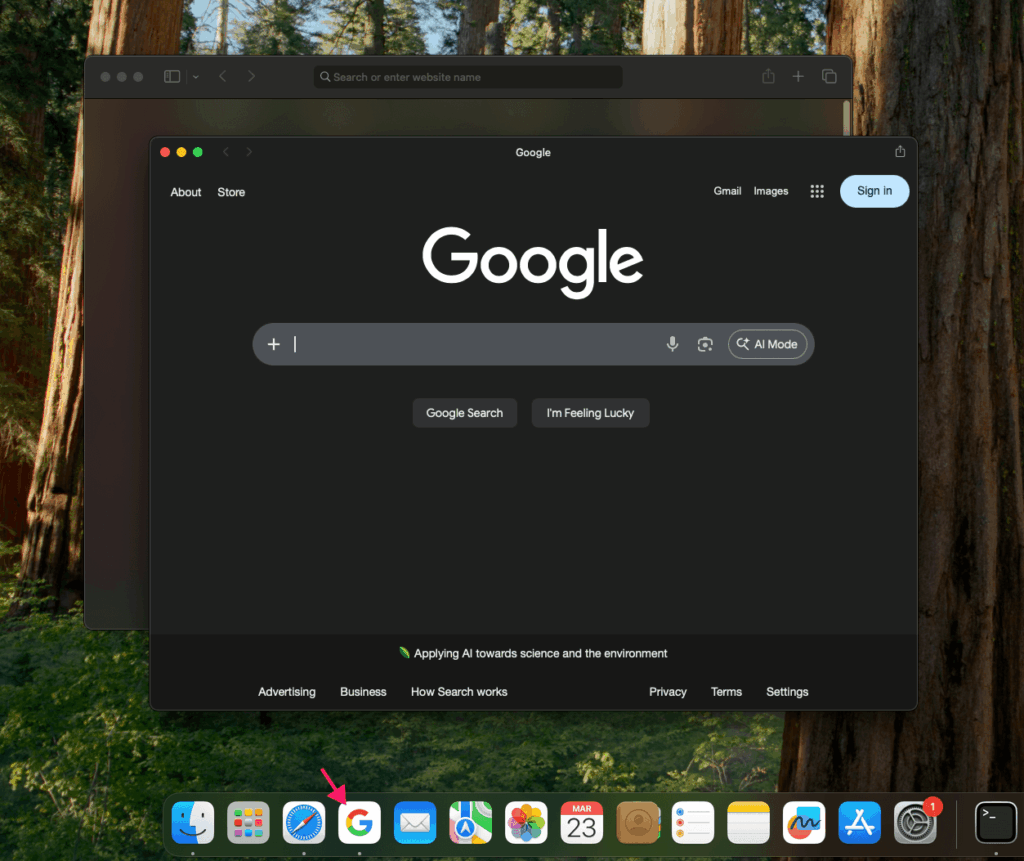
PWA-enabled sites will also surface site-specific features when installed this way.
Linux
The process on Linux follows the same Chromium-based workflow, with minor variations by desktop environment:
1. Open Chrome and navigate to the website
2. Click the install icon in the address bar (for PWA-enabled sites) or go to Cast, save, and share > Install page as app
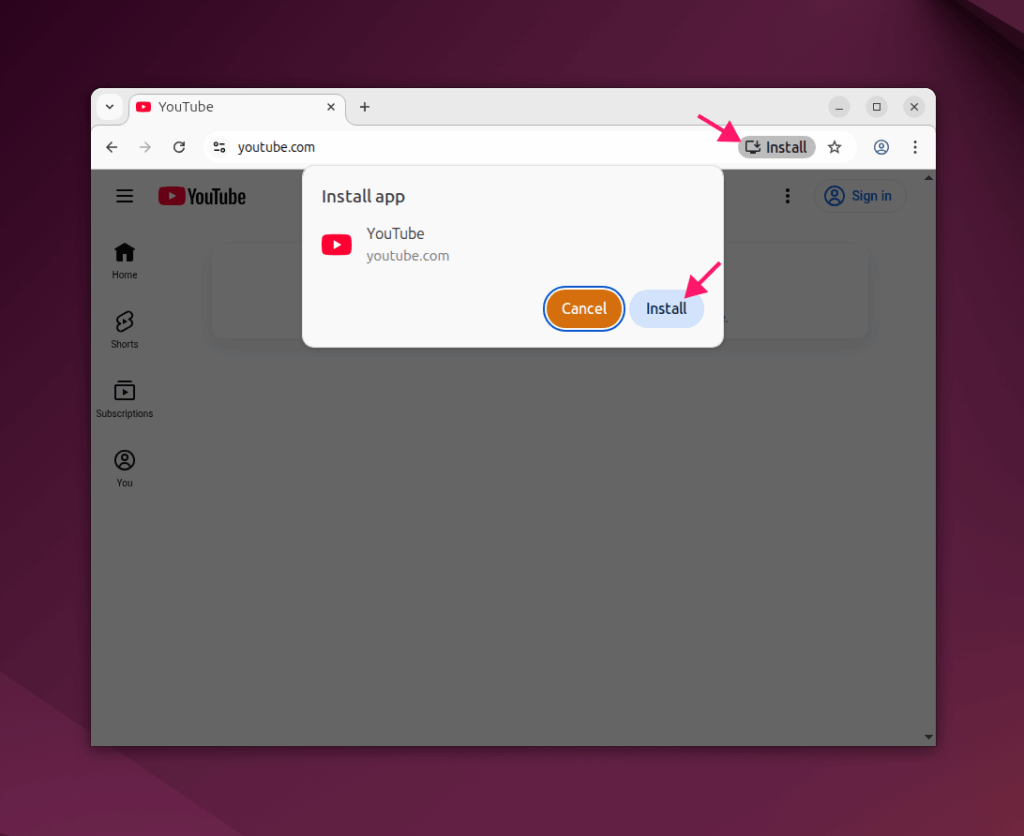
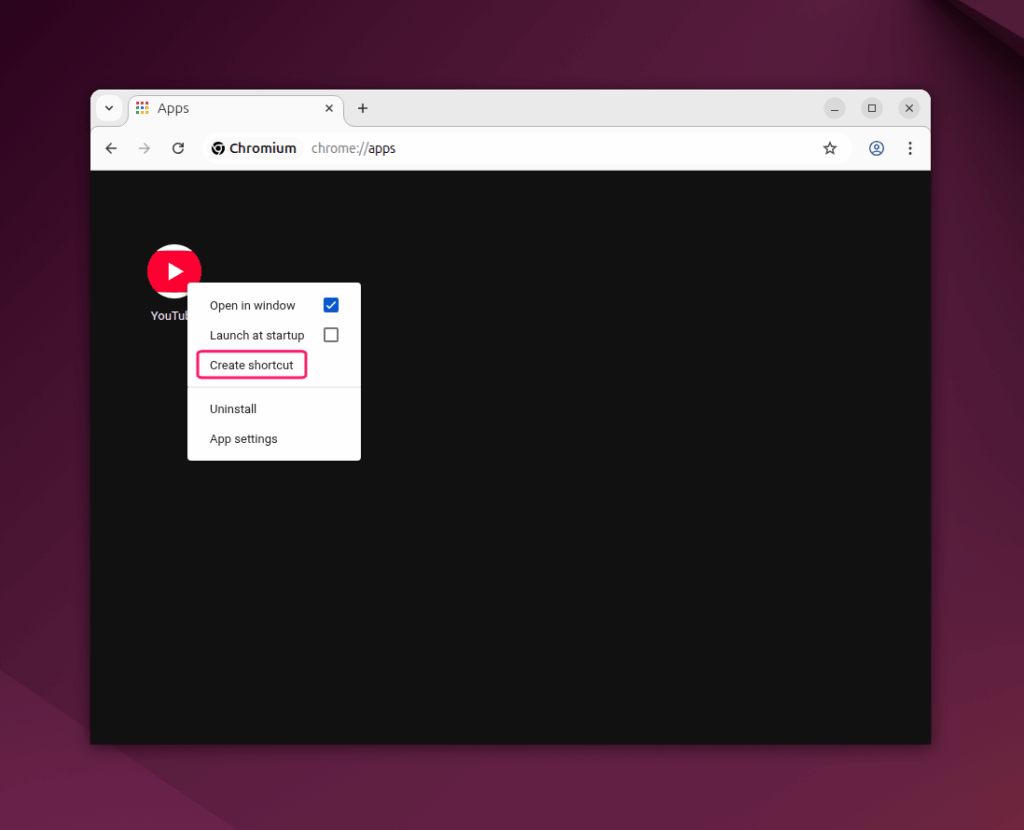
3. Navigate to chrome://apps, right-click the app, and select Create shortcut
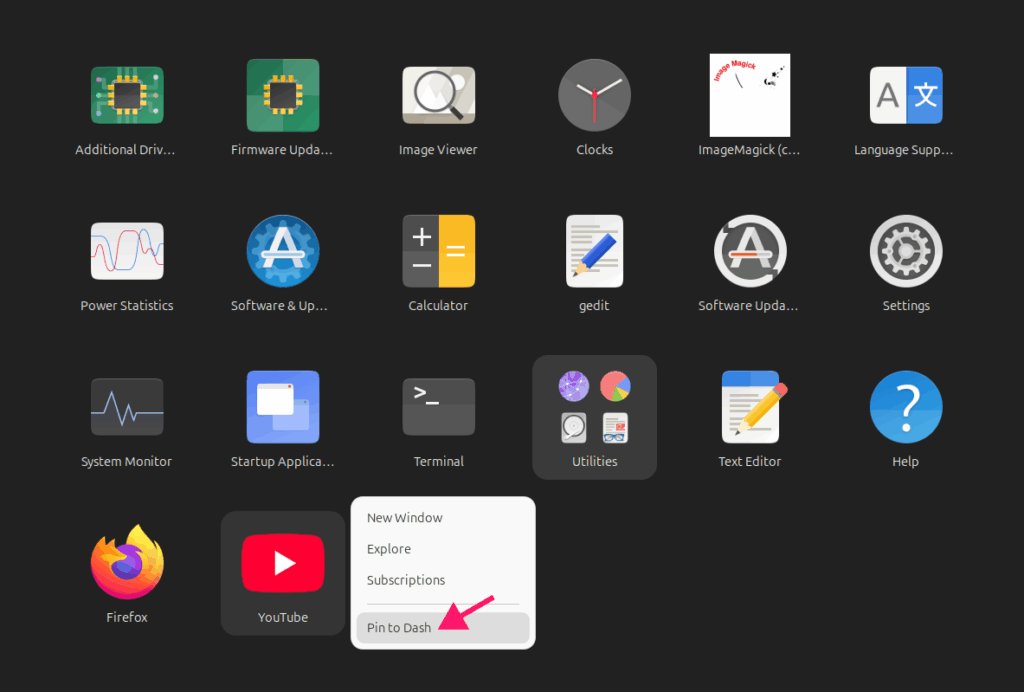
4. Locate the shortcut, right-click it, and select Pin to Dash
» Here’s how to check your Ubuntu version
Manage pins enterprise-wide with Atera
Taskbar pinning has come a long way since Internet Explorer 9 introduced the concept of treating websites like native apps back in 2009. Today, PWAs have picked up where those early experiments left off, offering genuine OS-level integration through modern web standards. Whether you’re setting up a single machine or deploying standardized shortcuts across a fleet, the methods above cover every scenario you’re likely to encounter.
For IT teams managing that kind of fleet-wide configuration, the manual work adds up fast. Atera gives IT management professionals and MSPs a centralized platform to deploy scripts, manage endpoints, and automate the repetitive tasks that eat into the day, so your team can focus on work that actually pushes your business forward.
Frequently Asked Questions
Related Articles

How to reduce alert fatigue across your IT team
Your technicians aren't ignoring alerts because they're careless. They're ignoring them because most alerts have taught them to. Once the stream stops being trustworthy, real failures slip past with the noise. Fixing it means deciding what deserves an interruption, tuning out transient spikes, collapsing alert storms, and automating the fixes you've run a hundred times.
Read now
How to close the IT skills gap on your team
Course completions don't close skills gaps. Technicians finish the training, then hand the first unfamiliar failure straight back to a senior engineer. Real capability gets built on live tickets, incidents, and maintenance windows, with guidance that fades as competence grows.
Read now
How to calculate cost per ticket (and why most teams get it wrong)
Most cost-per-ticket figures are wrong before anyone reads them. Missing overhead, tickets that were opened but never closed, spam and duplicates padding the count, and one month's costs divided by another month's tickets all make support look cheaper than it is. Fix both sides of the division and the number finally shows where technician time and money actually go.
Read now
How to prepare for a software license audit
A vendor audit notice doesn't wait for you to get organized. It demands proof, right now, that every install matches every entitlement you've paid for, and most IT teams find out the hard way how much they don't actually know about their own environment. Getting audit-ready before the letter arrives is the difference between negotiating from strength and paying for months of scrambling.
Read nowEndless IT possibilities
Boost your productivity with Atera’s intuitive, centralized all-in-one platform









