
Table of contents
Table of contents
- Quick fix: Set the time zone and force a resync
- What this takes by hand, and what Robin takes off your plate
- Fix 1: Check and change the time zon
- Fix 2: Check and restore time sync
- Fix 3: Check whether a policy is overriding the setting
- When the clock still won't sync
- Other causes: dead battery, dual boot, and virtual machines
- Take routine clock and time zone fixes off the queue
A clock ticket doesn’t usually say “my time is wrong.” It shows up as a user who can’t sign in, a meeting invite that lands an hour out, or a scheduled task that ran at the wrong time. The cause can sit in a few different places, such as an incorrect time zone, a device that stopped syncing, or a policy that keeps reversing whatever was fixed locally. Changing the time zone won’t help a machine that has lost sync, and forcing a resync won’t stop a policy that keeps resetting the zone.
This guide covers the most common causes of a wrong clock on Windows 11 and how to fix each one: on a single machine, across a fleet, and autonomously with Robin by Atera.
Quick fix: Set the time zone and force a resync
If the clock needs to be correct immediately, then this is the fastest route from a single elevated PowerShell window:
- Run
Get-TimeZone -ListAvailable - Run
Set-TimeZone -Id "Time Zone ID". Replace the ID with the correct one from step 1 and keep the quotation marks - Run
w32tm /resyncto sync the clock with its configured time source - Run
w32tm /query /statusand check that Source shows the expected time source and that Last Successful Sync Time shows the sync you just requested
If the time zone changes back after a restart, Set time zone automatically or a company policy is overriding it. See Fix 3 to check for a policy.
What this takes by hand, and what Robin takes off your plate
We have all the manual methods here, but this is what each stage takes by hand compared to what Robin does autonomously.
Stage | By hand | With Robin |
|---|---|---|
Find the fault | Remote in, run | Robin checks the device timezone and synchronization state |
Get the user signed back in | Force a resync in an elevated window and confirm the source while the user stays locked out of apps that need authentication | Robin turns Windows time sync back on when authentication depends on it |
Fix meeting and task times | Find the right zone ID, set it with | Robin restores the correct timezone |
Apply a time zone policy that hasn’t arrived | Run | Robin confirms the device’s domain membership and forces a Group Policy refresh when an expected company setting hasn’t arrived |
Fix 1: Check and change the time zon
If the time zone is the problem, the fix is quick on one device and only slightly more work across a fleet. A clock that’s off by a whole hour or more (or by a half-hour step) usually points to the time zone rather than sync. To confirm:
- Press Windows + R, type
cmd, and select OK. A standard Command Prompt is enough - Run
tzutil /gto display the current time zone ID Alternatively, run
tzutil /lto list available choices
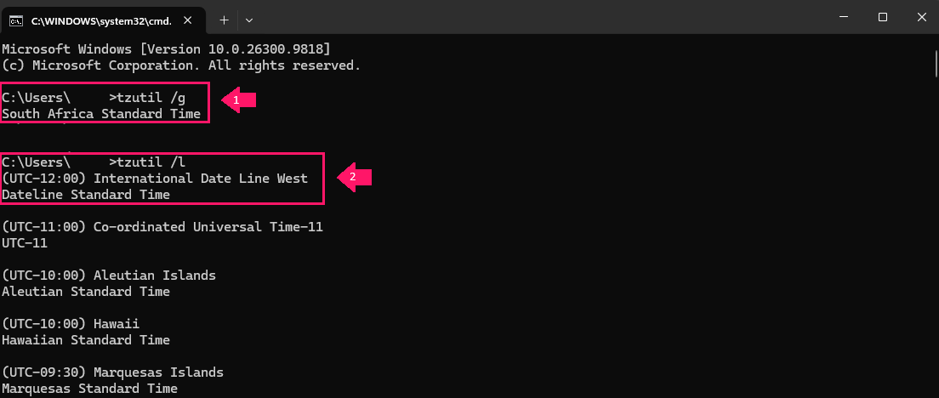
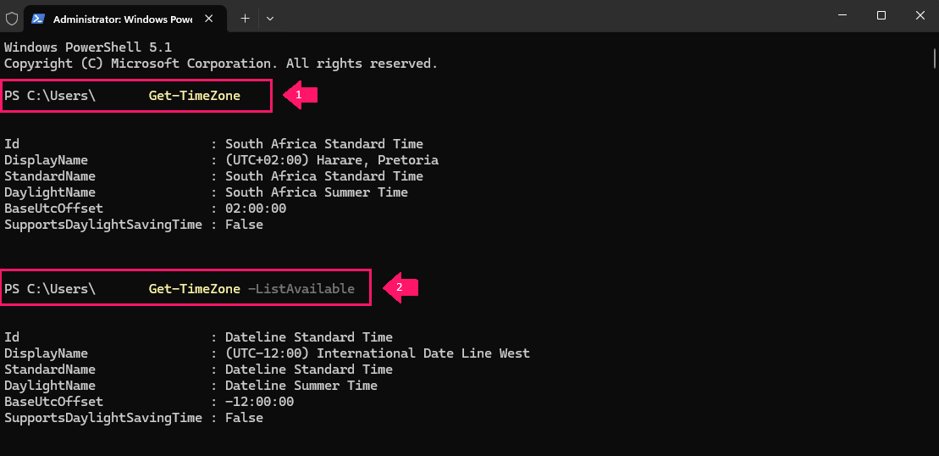
To see the UTC offset and whether the zone observes daylight saving time, run Get-TimeZone in PowerShell. If the ID and offset match where the device actually is, the zone is fine and the problem is sync, covered in the next section. If they don’t match, check whether Set time zone automatically is on, because Windows may have picked the wrong zone itself.
If the time is right for part of the year and an hour off for the rest, check that Adjust for daylight saving time automatically is on under Date & time (it appears when Set time zone automatically is off), and that the zone you chose observes daylight saving time.
How to change the time zone on a single device
Settings is the quickest route when you’re in a session with the user. First decide whether Set time zone automatically should be on:
- Desktops and other fixed-location PCs: Leave it off and set the zone manually, so Windows can’t switch zones if it gets the location wrong.
- Laptops that travel between time zones: Turn it on so local time follows the device. This needs Location services turned on under Privacy & security > Location, and any policy managing the device has to allow automatic time zone changes.
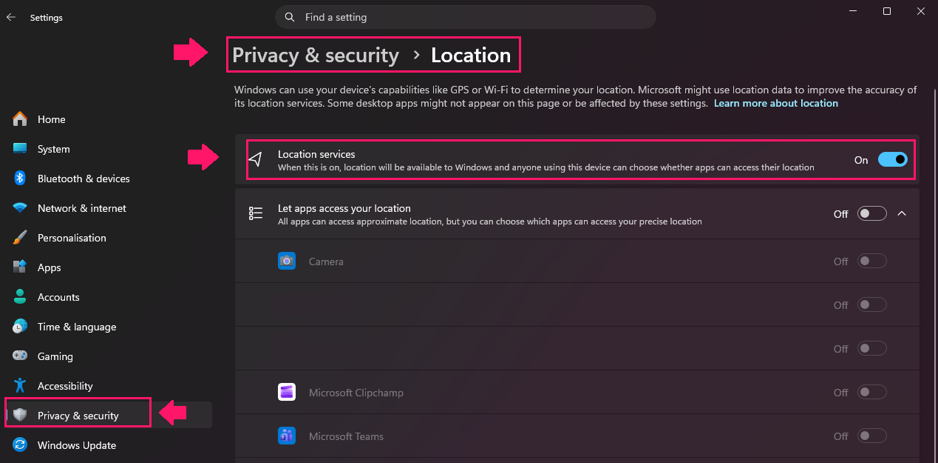
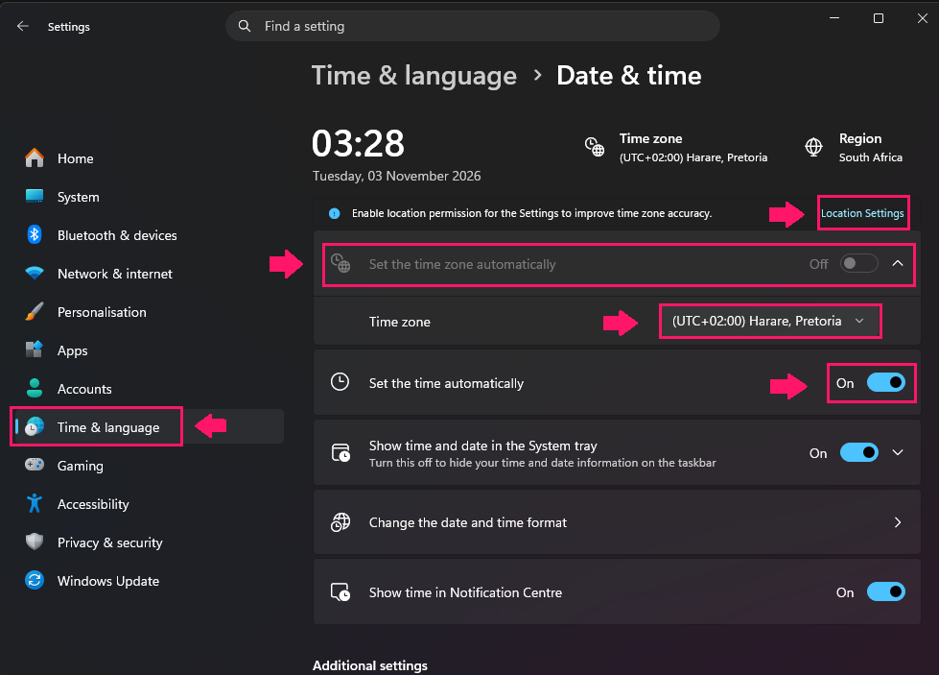
Set time automatically is a separate setting that keeps the clock synced. It can stay on while the zone is set manually. To set the zone manually:
- Press Windows + I to open Settings
- Select Time & language
- Select Date & time
Turn off Set time zone automatically

Select the correct zone from the Time zone dropdown

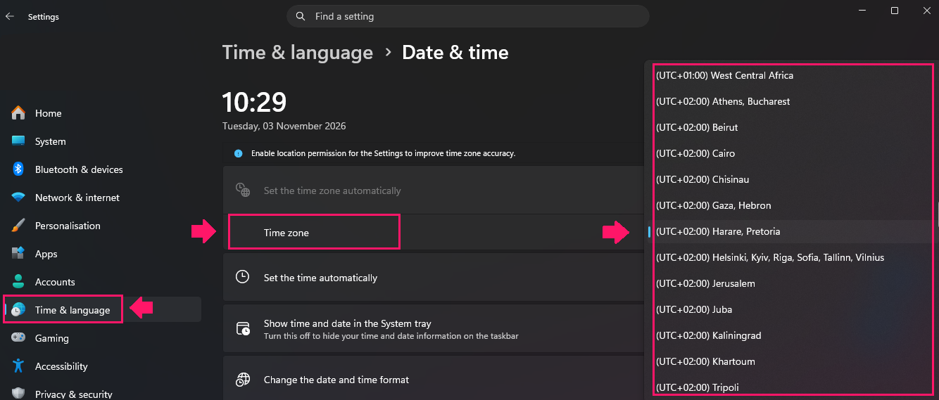
From the command line, use tzutil in Command Prompt or a batch file, and PowerShell when the change belongs in a script with other checks. Neither needs admin rights to view or list zones. Standard users can usually change the zone too, unless a policy removes the Change the time zone user right.
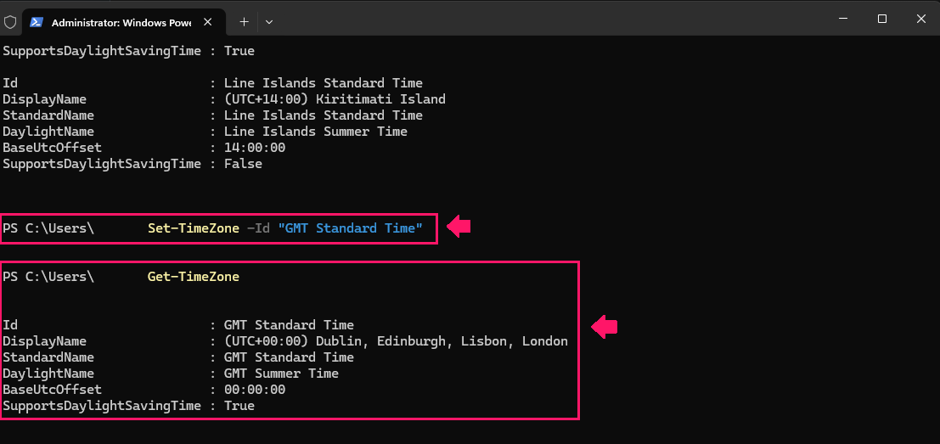
- Run
tzutil /lto list the available IDs. Filtering the output, for exampletzutil /l | findstr /i "GMT", saves scrolling - Run
tzutil /s "GMT Standard Time", replacing the ID with the one you need and keeping the quotation marks - Run
tzutil /gto confirm the change In PowerShell, the equivalents are
Get-TimeZone -ListAvailableto list zones,Set-TimeZone -Id "GMT Standard Time"to change the zone, andGet-TimeZoneto confirm the new ID and UTC offset
How to set the time zone across a fleet
At fleet scale, separate fixed-location PCs from travelling laptops first. Fixed PCs get a set zone with automatic detection turned off. Laptops keep automatic detection and should be excluded from every policy below.
With Group Policy, use one GPO linked to an OU that contains only fixed-location PCs. Start by stopping automatic detection:
- In Group Policy Management, right-click the GPO and select Edit
- Go to Computer Configuration > Preferences > Windows Settings > Registry
- Right-click Registry and select New > Registry Item
- Set Action to Update, Hive to
HKEY_LOCAL_MACHINE, Key Path toSYSTEMCurrentControlSetServicestzautoupdate, Value name toStart, Value type toREG_DWORD, and Value data to4 - Select OK
This disables the automatic time zone service, so Set time zone automatically appears greyed out on those PCs. Then set the zone with a startup script:
- Create a
.cmdfile containingtzutil /s "Time Zone ID", replacing the ID with the correct one and keeping the quotation marks - In the same GPO, go to Computer Configuration > Policies > Windows Settings > Scripts (Startup/Shutdown)
- Open Startup and add the
.cmdfile
Startup scripts run at boot, so the new zone applies after each device restarts.
If you’re using Atera’s RMM, a technician can run the change through remote PowerShell execution across selected devices or device groups, without connecting to each machine. AI Copilot can generate the script from a plain-language description.
With Robin: For a routine case, an employee locked out because their clock has drifted doesn’t have to wait for a technician to remote in and run w32tm. Robin checks the device’s synchronization state and turns Windows time sync back on when authentication depends on it. When several employees report access failures at once, Robin checks domain connectivity, replication, time synchronization, and catalog availability, and returns the findings for IT to investigate.
» Learn more about simplifying group policy management with Atera
Fix 2: Check and restore time sync
If the time zone is right but the clock is still wrong, then the device has probably stopped syncing. On domain-joined devices, that could show up first as a sign-in problem. To check:
- Open Start, search for Windows PowerShell, right-click it, and select Run as administrator
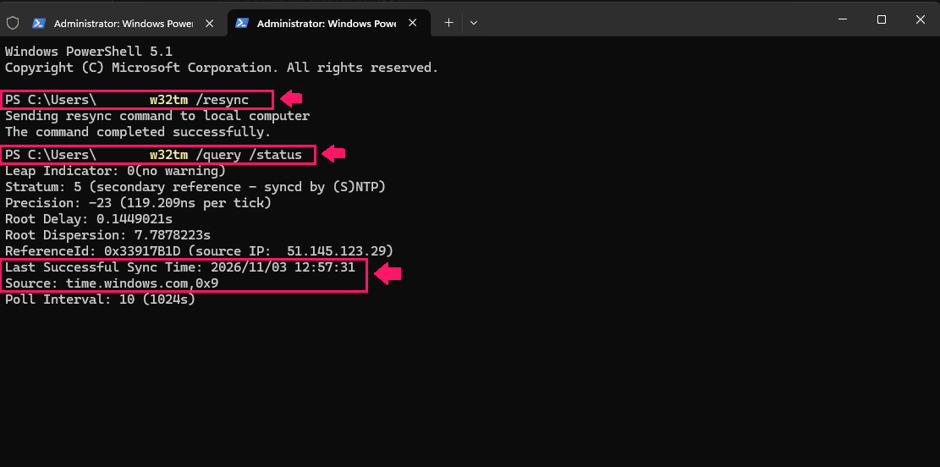
- Run
w32tm /query /status - Check the Source line. A standalone device normally shows
time.windows.com,0x8, and a domain-joined device should show a domain controller. If you seeLocal CMOS ClockorFree-running System Clock, Windows has no working time source Check Last Successful Sync Time. A timestamp that’s days or weeks old means sync stopped at some point, even if the source looks right

- On a domain-joined device, also confirm it’s following the domain hierarchy: In the same window, run
w32tm /query /configuration - Find the Type value under NtpClient.
NT5DSmeans the device takes its time from the domain hierarchy.NTPmeans it has been pointed at a manual time server and is working outside the hierarchy - Run
w32tm /query /sourceto see which time source the device is actually using. It should name a domain controller in the device’s own domain
How to restore sync on a single device
A forced sync makes Windows check its time source right away instead of waiting for the next scheduled poll. That’s useful after a device has been offline or asleep for a long stretch. In Settings:
- Press Windows + I to open Settings
- Select Time & language
Select Date & time

- Make sure Set time automatically is on
Under Additional settings, select Sync now

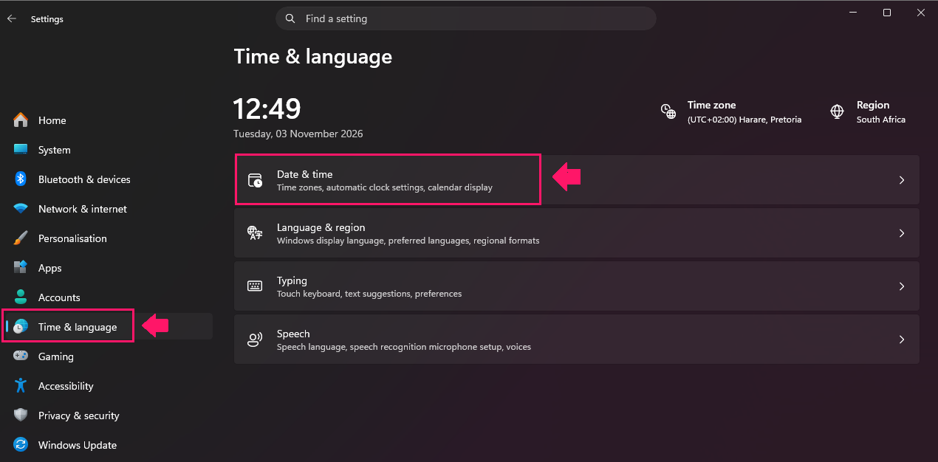
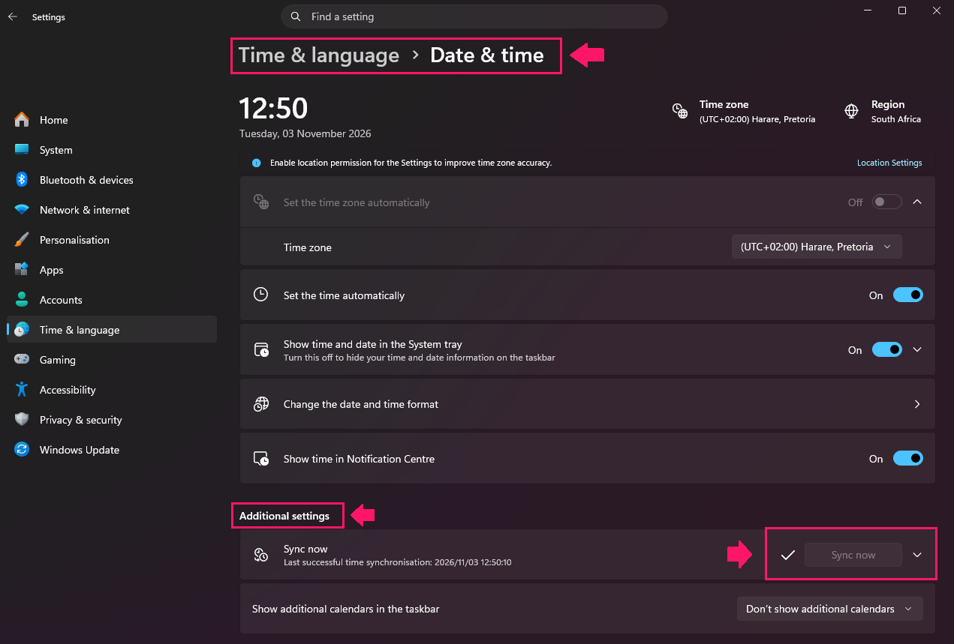
You’ll see a check mark next to the button after the sync completes, and the Last successful time synchronization timestamp updates.
How to keep a fleet in sync through the domain hierarchy
In an Active Directory forest, every device’s time ultimately comes from the domain controller that holds the PDC emulator role in the forest root domain. Workstations sync from a domain controller in their own domain. Domain controllers sync up the hierarchy to that PDC emulator, which is the only server that should point at an external time source.
To find the PDC emulator:
- On a domain controller in the forest root domain, open Command Prompt as administrator
- Run
netdom query fsmo. The PDC line shows which domain controller holds the role
To point the PDC emulator at an external NTP server, on that domain controller:
- Open Command Prompt as administrator
- Run
w32tm /config /manualpeerlist:"ntp.example.com,0x8" /syncfromflags:manual /reliable:yes /update, replacingntp.example.comwith your organization’s approved NTP server. This sets the external source and marks the server as a reliable time source for the domain - Run
w32tm /resync /rediscoverto request a fresh sync - Run
w32tm /query /statusand confirm that Source shows the external NTP server and that Last Successful Sync Time reflects the sync you just requested
To make sure workstations follow the hierarchy, create a GPO linked to the workstation OU. Don’t link it to the Domain Controllers OU. Applying it to the PDC emulator would override the external source you just configured.
- Press Windows + R, type
gpmc.msc, and select OK - Expand Forest > Domains > your domain, and find the OU that contains your workstations
- Right-click the OU and select Create a GPO in this domain, and Link it here
- Name the GPO, for example
Workstation time sync, and select OK - Expand the OU, right-click the new GPO, and select Edit
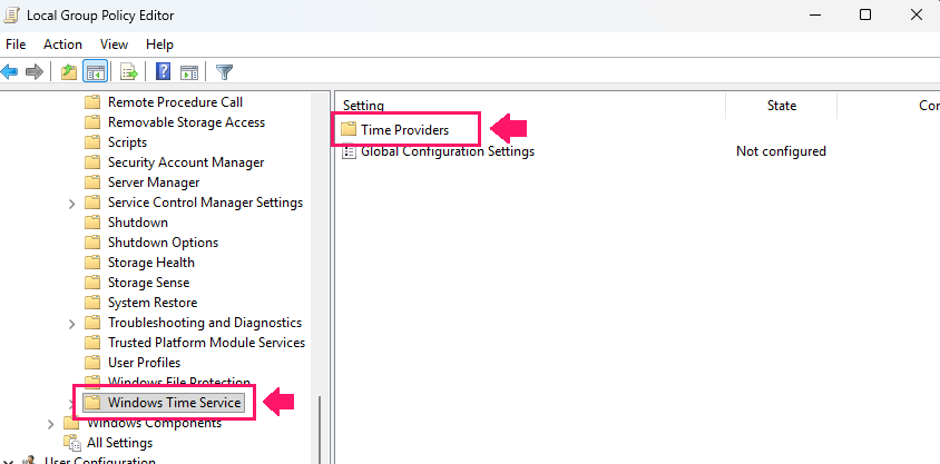
Go to Computer Configuration > Policies > Administrative Templates > System > Windows Time Service > Time Providers

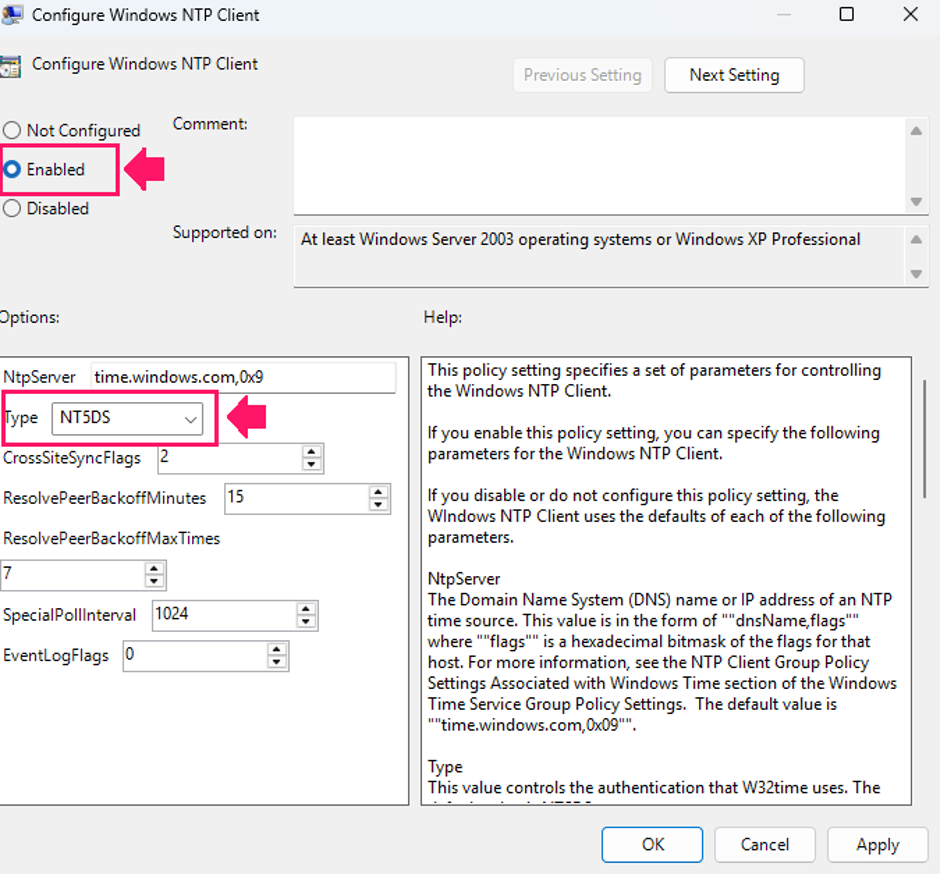
Open Configure Windows NTP Client, select Enabled, set Type to NT5DS, and select OK. Leave the other options at their defaults unless your organization needs different values

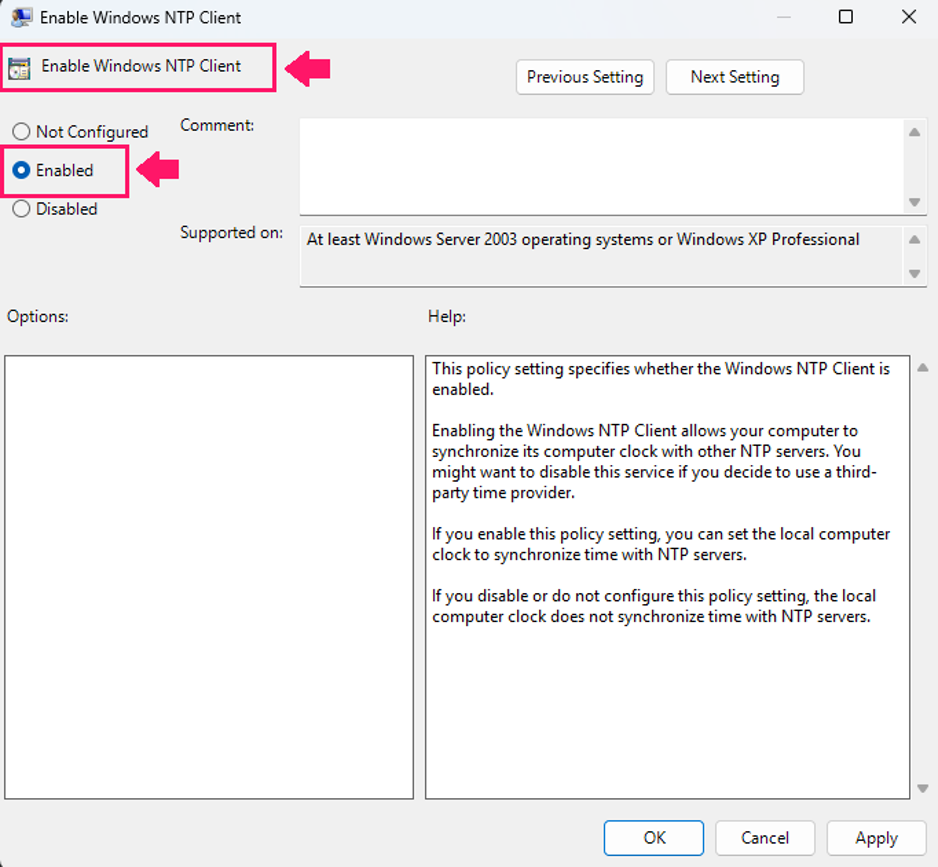
Open Enable Windows NTP Client, select Enabled, and select OK

- Once the policy applies,
w32tm /query /configurationon any workstation in that OU should show Type asNT5DS
With Robin: For a routine case, an employee locked out because their clock has drifted doesn’t have to wait for a technician to remote in and run w32tm. Robin checks the device’s synchronization state and turns Windows time sync back on when authentication depends on it. When several employees report access failures at once, Robin checks domain connectivity, replication, time synchronization, and catalog availability, and returns the findings for IT to investigate.
Where Robin stops and your technicians start: Choosing the external NTP source, configuring the PDC emulator, and deciding which OUs get the time sync policy are infrastructure decisions, and they stay with your technicians. Robin’s clock use case covers checking a device’s time zone and sync state and turning Windows time sync back on or restoring the correct zone. Taking those routine single-device cases off the queue is what gives your team time for the domain-level work above.
Fix 3: Check whether a policy is overriding the setting
If the time zone or sync setting reverts after a restart, or a company setting never arrives on a device, a policy is the likely cause. Check this before you change the same setting locally again, because the fix won’t last while the policy still applies.
How to check policy on a single device
On a domain-joined device, from an elevated Command Prompt:
- Run gpresult /r /scope computer and look under Applied Group Policy Objects for the GPO that should set the time zone or time sync. For a report you can search, run gpresult /h C:gpreport.html /f and open the file in a browser
- If the GPO is missing, run gpupdate /force. Some settings only apply after a restart or sign-in, so restart if prompted, then run gpresult /r /scope computer again
- If it’s still missing, open PowerShell and run Test-ComputerSecureChannel. A result of False means the device can’t talk to the domain, so no policy will apply until that’s fixed. Also confirm the computer account sits in the OU the GPO is linked to
- If the GPO is listed but the zone still reverts, open it in Group Policy Management and look for a startup script or registry preference that sets the zone, like the one in Fix 1. A startup script sets the zone on every boot, so a local change reverts at the next restart. Change the policy, not the device
On devices managed with Intune, there’s no domain controller or GPO. Run dsregcmd /status and check AzureAdJoined and DomainJoined to confirm how the device is joined. Then open the device in the Intune admin center, review its assigned configuration profiles, and look for one that sets the time zone. The per-setting status on that profile shows whether it applied, conflicted with another profile, or failed.
How to fix a policy that keeps resetting the setting across a fleet
Fix it at the source. Edit the GPO or Intune profile so it sets the correct zone, or move the affected devices to the OU or assignment group that has the right policy. Changing devices one by one only holds until the next policy refresh. Keep travelling laptops out of any policy that sets a fixed zone.
With Robin: For a routine case, nobody has to remote in to run gpupdate /force and read gpresult. Robin confirms the device’s domain membership and forces a Group Policy refresh when an expected company setting hasn’t arrived. Deciding which policy should apply, and editing it, stays with your technicians.
When the clock still won’t sync
A wrong time zone changes the displayed time but doesn’t stop sync, so if Sync now or w32tm /resync fails, the problem is the time service, the time source, or the path between them. Check in this order:
- Confirm the device has a working network connection
- In an elevated PowerShell window, run
Get-Service w32time. If Status shows Stopped, runStart-Service w32time - Run
w32tm /query /sourceto see which time source the device is using - Run
w32tm /query /statusto check the last successful sync - Run
w32tm /resyncand read the result
The error message from the resync tells you where to look:
- The computer did not resync because no time data was available: the device can’t reach its time source. Check that the configured server name is right, that it resolves in DNS, and that UDP port 123 isn’t blocked between the device and the server. Running
w32tm /stripchart /computer:<server> /samples:3 /dataonlyconfirms whether the server answers over NTP and shows the current offset. - The service has not been started: the Windows Time service isn’t running. Start it as in step 2, and check why it stopped if it happens again.
If sync still fails, check the Event Viewer log:
- Press Windows + R, type
eventvwr.msc, and select OK - Go to Windows Logs > System
- Select Filter Current Log, choose Microsoft-Windows-Time-Service under Event sources, and select OK
Event 129 means the device couldn’t find a domain controller to use as a time source. Event 134 means the DNS lookup for a manually configured time server failed. On domain-joined devices, check the domain controller’s own sync before changing anything on the workstation. If the domain controller is wrong, every device that syncs from it will be too.
» Need help? Don’t miss our guide to viewing and analyzing Event Viewer logs
If the time service itself looks corrupted, re-register it from an elevated Command Prompt:
- Run
net stop w32time - Run
w32tm /unregister - Run
w32tm /register - Run
net start w32time - Run
w32tm /resync
With Robin: Not every sync failure can be fixed on the device, and those cases shouldn’t reach a technician as a bare “my clock is wrong” ticket. When the cause is DNS, a blocked port, or the domain controller, Robin gathers the unresolved IT issue and diagnostic context and follows your configured ticket routing workflow, so your technician starts with the findings instead of repeating the checks above.
Other causes: dead battery, dual boot, and virtual machines
If the time zone, sync, and policy all check out and the clock is still wrong, look at the hardware and the environment:
- Dead CMOS battery: If the clock resets to a wrong date or time every time the device is powered off or unplugged, the motherboard battery that keeps the hardware clock running is probably dead. Windows can correct the time once it’s online, but it loses it again at the next power-off. Replace the battery (usually a CR2032 coin cell).
- Dual boot with Linux: Windows and most Linux distributions disagree about whether the hardware clock stores local time or UTC, so the time is off by the zone offset after switching between them. Pick one convention for both systems. To make Windows use UTC, run reg add “HKLMSYSTEMCurrentControlSetControlTimeZoneInformation” /v RealTimeIsUniversal /t REG_DWORD /d 1 /f from an elevated Command Prompt, restart, and resync. The alternative is to set Linux to use local time.
- Virtual machines: A VM can take its time from the host, from the domain hierarchy, or both, and it can flip between them when they disagree. Check the host’s clock first, then the VM’s time synchronization setting in the hypervisor (the Time synchronization integration service in Hyper-V, or time sync in VMware Tools), and make sure the VM follows one source.
Take routine clock and time zone fixes off the queue
Wrong time on a Windows 11 device is usually one of three problems that look the same to the user. Check the time zone, the sync state, and the policy layer before you change anything, then fix the problem where it lives. That means Settings or tzutil for a single machine, the domain hierarchy for sync, and Group Policy or Intune when a setting keeps coming back. If none of the three fits, rule out a dead CMOS battery, a dual-boot setup, and virtual machine time sync.
Robin checks the device time zone and synchronization state, then turns Windows time sync back on or restores the correct time zone when authentication and scheduling depend on it. A user who can’t sign in doesn’t have to wait for a technician to remote in and fix the issue manually. For fleet-wide changes, Atera’s remote PowerShell execution lets your team run time zone and resync commands across selected devices or device groups without connecting to each one. Robin is sold separately as an add-on to the Atera IT suite.
» Try it out with a Robin demo or jump ahead with an Atera free trial
Frequently Asked Questions
Related Articles

How to fix a microphone not working in Windows 11
A dead mic is rarely the mic's fault. The problem usually sits somewhere upstream, and one test recording tells you where. From there, it’s a fix sequence that works on any single device, a deeper playbook for the cases where the usual steps fail, and a way to push the same checks across an entire fleet.
Read now
How to fix low disk space in Windows and free up storage
A full C: drive is rarely one big file. It’s update caches, runaway logs, shadow copies, and a user Temp folder nobody has checked in years. Clear the wrong one and you break servicing or lose your recovery options.
Read now
How to prevent AI agent sprawl before it becomes a security risk
Every AI agent is an identity with keys to something like a service account. Build them faster than you track them, and you end up with agents nobody owns, permissions nobody approved, and dormant credentials that outlive the projects that created them.
Read now
How to approach machine identity management for AI agents
Your AI agent is only as trustworthy as the identity it runs on. Plug it into a shared service account or a technician’s credentials and it inherits every permission, every stale secret, and every gap in your audit trail. Giving each agent its own scoped identity, short-lived credentials, and time-bound elevation keeps authority where it belongs.
Read nowEndless IT possibilities
Boost your productivity with Atera’s intuitive, centralized all-in-one platform