
Generate summary with AI

Location services in Windows sounds like a simple on/off toggle. For individual users it usually is, but for IT managers and administrators managing a fleet of devices, it’s rarely that clean. The same setting can be controlled at the OS level, the user profile level, the app level, or locked down entirely by Group Policy. When those layers conflict, you end up with grayed-out toggles, confused end users, and tickets that take longer to diagnose than they should.
This guide covers every method available for managing Windows location services and what to do when the toggle won’t respond at all.
Why location services are more complicated than they look
If you’ve ever had a user complain that an app says location services are turned off when they’re clearly turned on, you already know the problem. Windows doesn’t manage location as a single setting. It manages it as a stack at the OS level, user level, and app level. Each layer can independently block access regardless of what the layers above it are doing.
Windows doesn’t rely on a single signal. It selects from a hierarchy of available hardware and network inputs, automatically choosing the most accurate source the device can access:
- GPS: Most precise, accurate to 3 – 10 meters. Works passively as a receiver and functions in airplane mode as long as a cached almanac is available; though without one, acquiring a fix can take anywhere from 30 seconds to several minutes.
- Wi-Fi positioning: Accurate to 30 – 500 meters. Requires Wi-Fi to be active. Windows cross-references the router’s BSSID against a geolocation database to estimate position.
- Cellular triangulation: Accurate to 300 meters – 3 km. Requires cellular radio to be active.
- IP geolocation: The fallback when no radio-based signals are available. Accurate to 300 meters – 10 km, and requires an active internet connection. If that connection runs through Wi-Fi or cellular, it won’t work when those radios are off.
Why the toggle doesn’t always do what users expect
Even with location services enabled at the OS level, an app can still report that location is unavailable. There are several reasons for this:
- The global toggle is on, but the per-app toggle for that specific application is off
- A Group Policy is overriding user-level settings, common in Active Directory and domain-joined environments
- Location is enabled but a fix hasn’t been acquired yet
- The app requires GPS-level precision but the device only has Wi-Fi or IP fallback available
- Windows Store apps and traditional desktop apps sit under separate permission categories: “Let apps access your location” covers Store apps, while “Allow desktop apps to access your location” is a separate toggle that controls traditional Win32 applications
Important: As of March 2025, Microsoft deprecated the local location history API (Geolocator.GetGeopositionHistoryAsync), which previously stored about 24 hours of cached location data on-device. This change doesn’t affect location services themselves (Windows can still determine and report device location), but it does affect any workflows or applications that relied on querying historical location data locally. Those integrations will need to be updated or rerouted.
5 ways to enable or disable location services in Windows
Location settings in Windows operate across multiple layers, and each one needs to be correctly configured before the next one down will work. A global toggle that’s off blocks everything beneath it. An app toggle that’s off blocks that specific application regardless of what the global setting says.
Working through them in order is the fastest way to confirm exactly where access is being granted or denied.
Method 1: Enable or disable location services via Settings
This is the right method for individual device configuration and end-user control. The path differs slightly between Windows 10 and 11.
On Windows 11
1. Press Win + I to open Settings
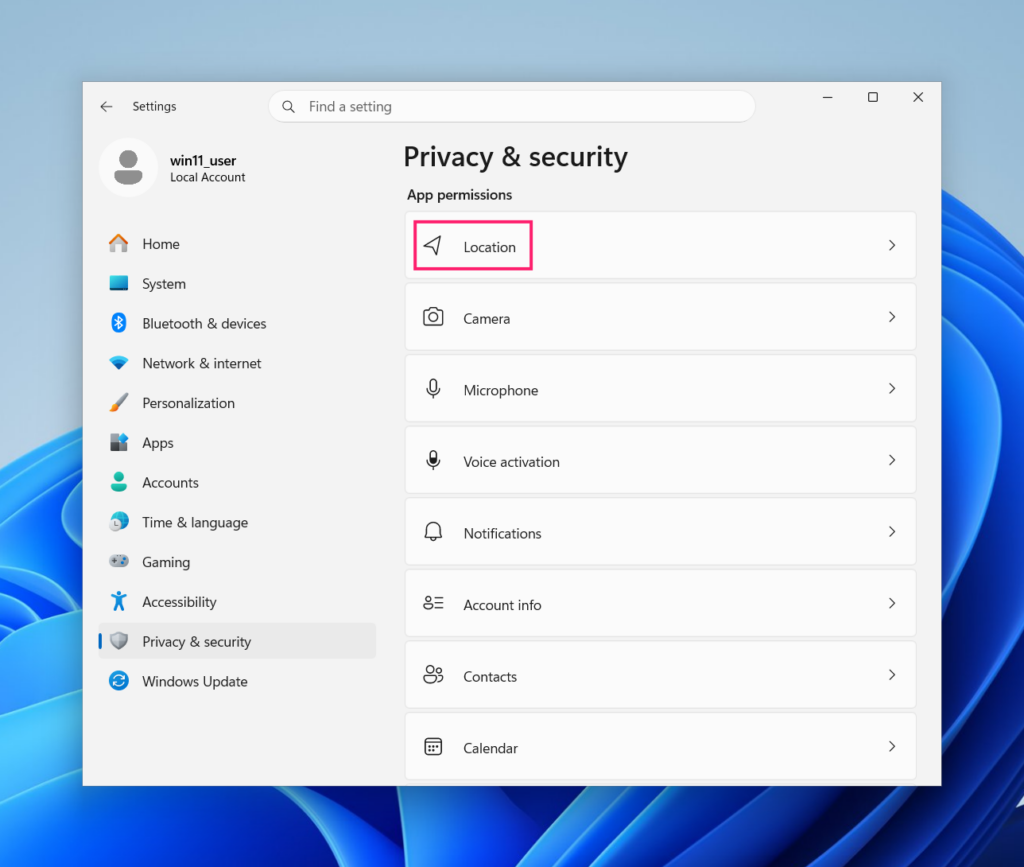
2. Go to Privacy & security > Location
3. Set Location services to On or Off
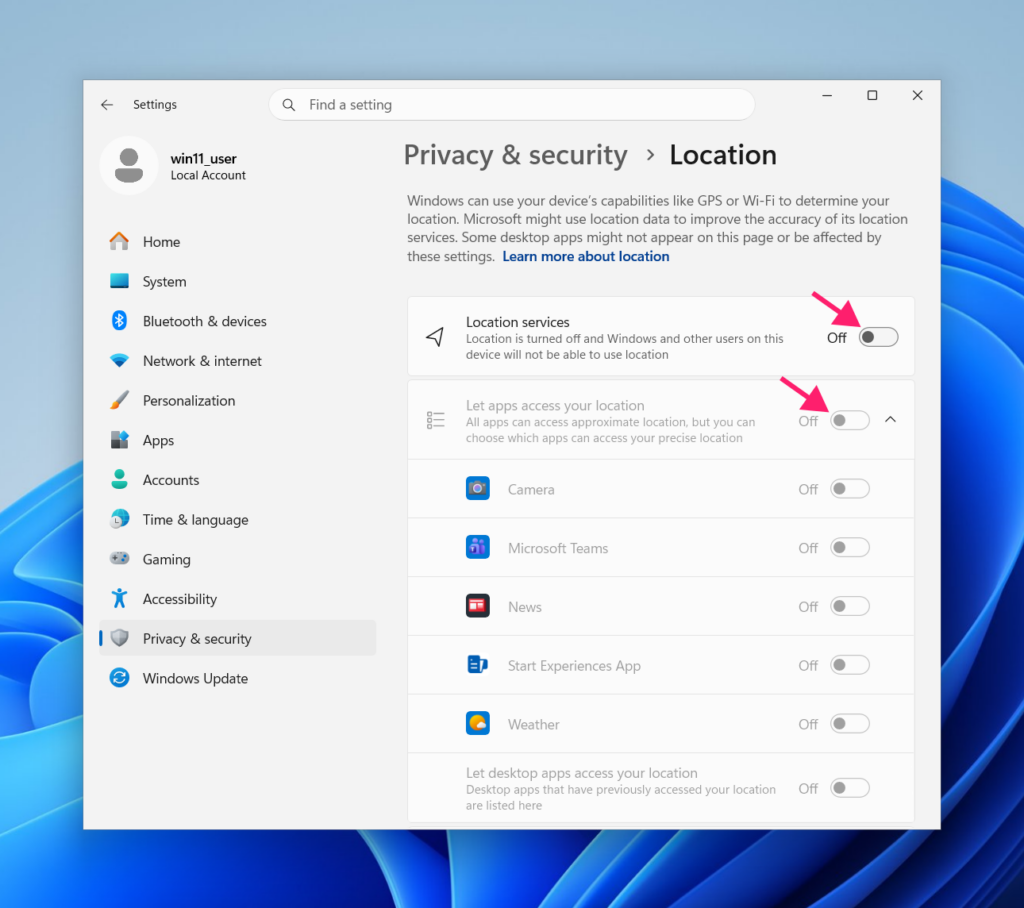
This is the device-level toggle. Turning it off blocks all location access for Windows, apps, and other users on the device.
4. Toggle Let apps access your location to control whether Store apps can use location data
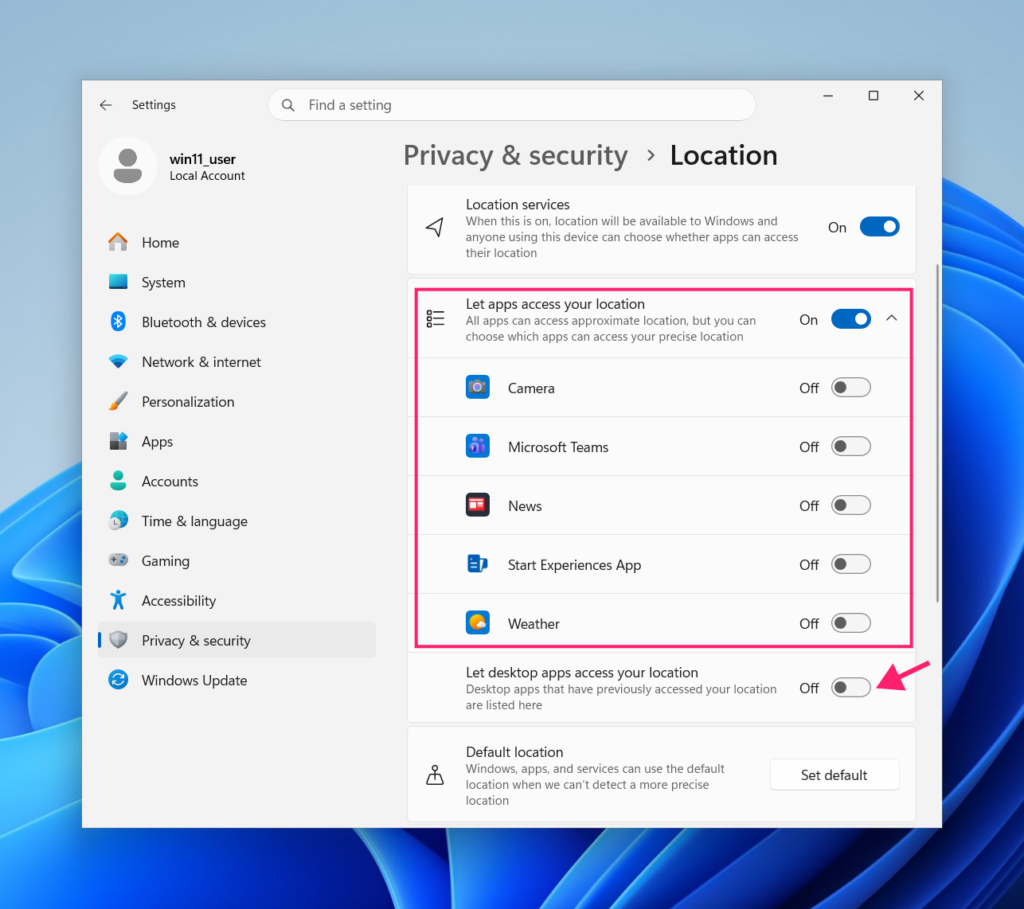
5. With this enabled, expand the list to allow or block individual apps
6. Scroll down to Let desktop apps access your location and toggle this separately
This controls traditional Win32 applications and is independent of the Store app toggle above it.
On Windows 10
1. Press Win + I to open Settings
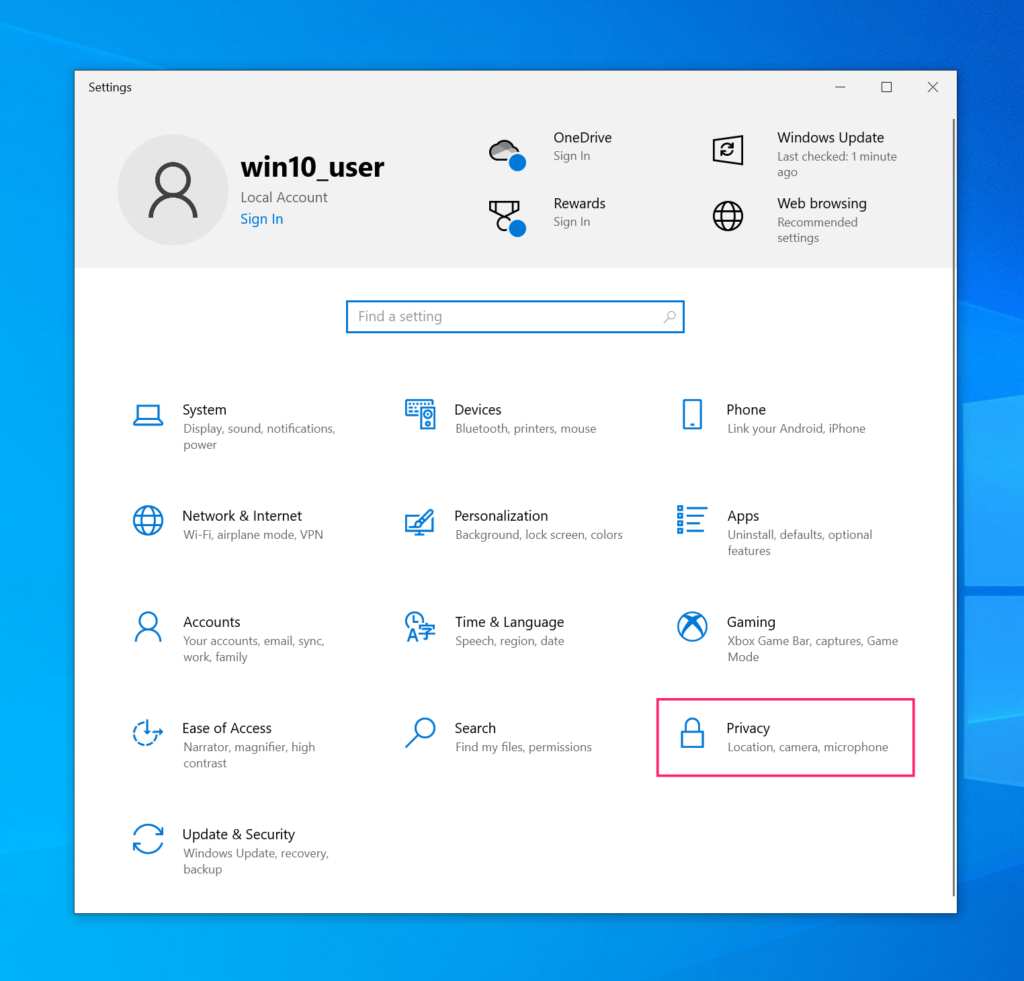
2. Go to Privacy > Location
3. Click Change under “Location for this device is off” and toggle it on
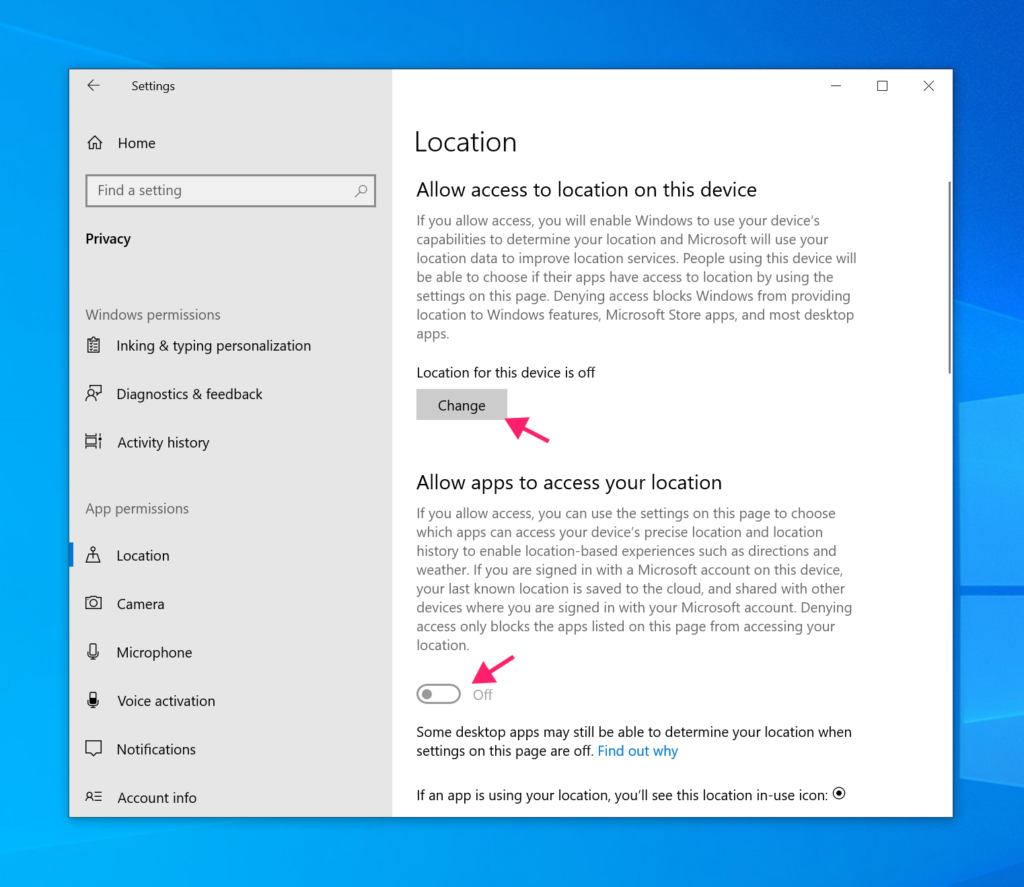
This is the device-level setting and requires administrator privileges to change.
4. Toggle Allow desktop apps to access your location to on, then scroll through the app list and enable or disable access for individual applications
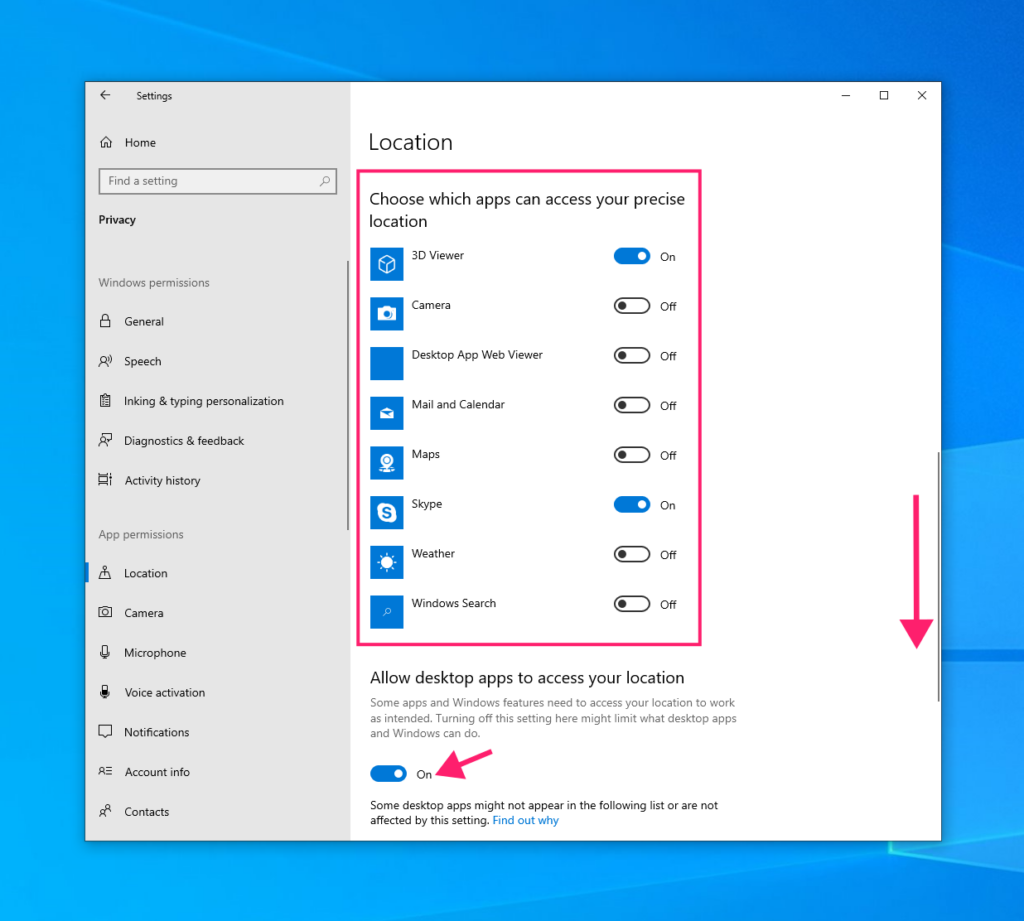
Note: The Let/Allow apps to access your location toggle is per-user, so different accounts on the same device can have different settings here without affecting each other.
» Still on Windows 10? Here’s how to upgrade to Windows 11 using the update assistant
Method 2: Manage location services via Group Policy
Group Policy is the right tool when you need to enforce location settings across multiple domain-joined devices and prevent users from changing them. Enabled policies override all user-level settings, which is the most common reason users encounter a grayed-out toggle.
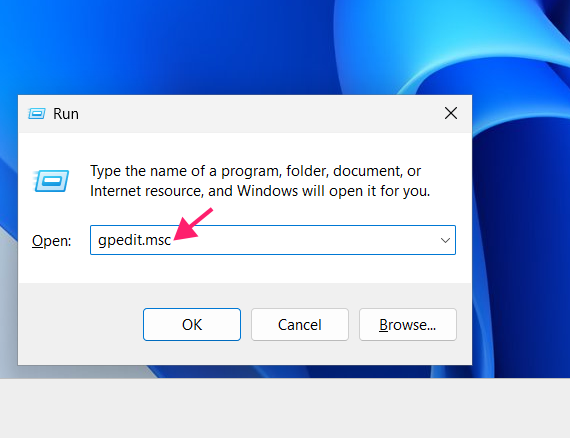
1. Press Win + R, type gpedit.msc, and press Enter to open Group Policy Editor
2. Go to Computer Configuration > Administrative Templates > Windows Components > Location and Sensors
3. Double-click Turn off location and set it to Enabled. This disables location services across the device regardless of user-level settings
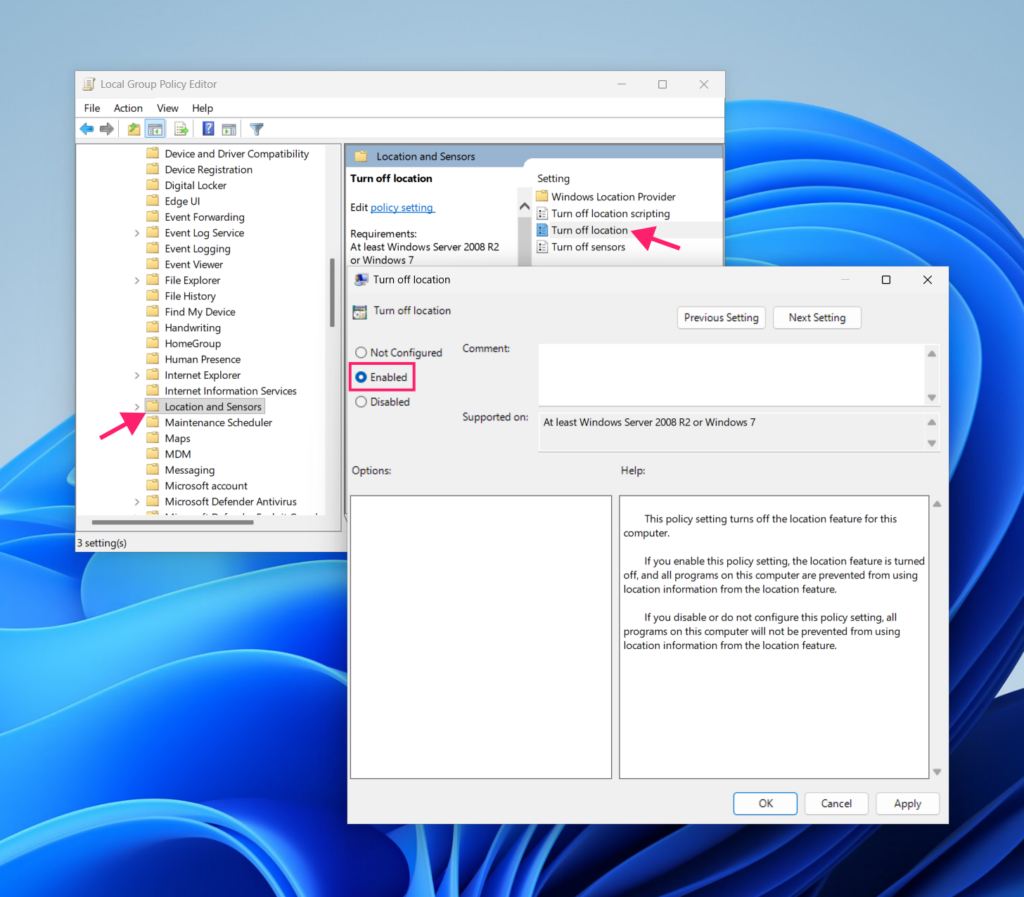
4. Open Command Prompt or PowerShell as Administrator and run: gpupdate /force
This applies the policy immediately without requiring a reboot. Alternatively, the policy will apply on the next reboot.
» Learn more about group policy management with Atera and how to restart a remote PC using Windows
Method 3: Manage location services via Registry Editor
The registry method achieves the same result as the Settings UI without requiring interaction with the interface, which is useful for scripting or remote configuration. The approach differs depending on the Windows version.
On Windows 10 and Windows 11 prior to 24H2
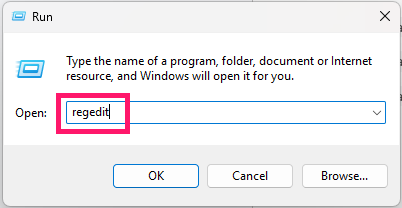
1. Press Win + R, type regedit, and press Enter
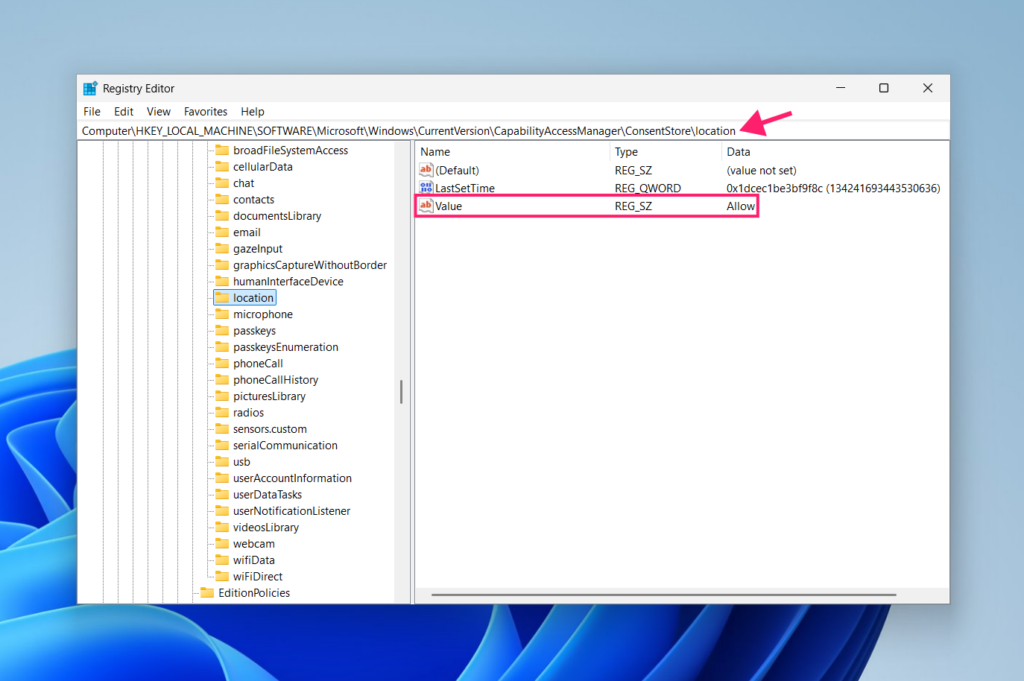
2. Navigate to: HKEY_LOCAL_MACHINE\SOFTWARE\Microsoft\Windows\CurrentVersion\CapabilityAccessManager\ConsentStore\location
3. Set the Value key to Allow to enable device-level location access, or Deny to disable it. This is equivalent to the device-level toggle in Settings
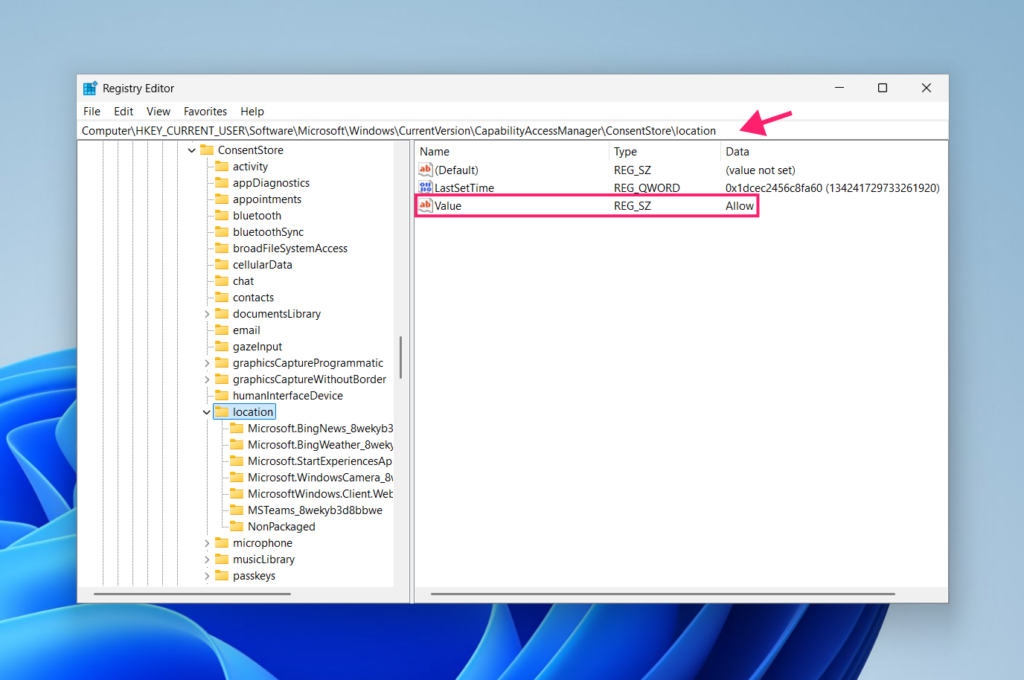
4. Navigate to: HKEY_CURRENT_USER\SOFTWARE\Microsoft\Windows\CurrentVersion\CapabilityAccessManager\ConsentStore\location
5. Set the Value key to Allow or Deny. This controls application-level access for the current user
» Here are our top registry editor challenges and solutions
On Windows 11 24H2 and above
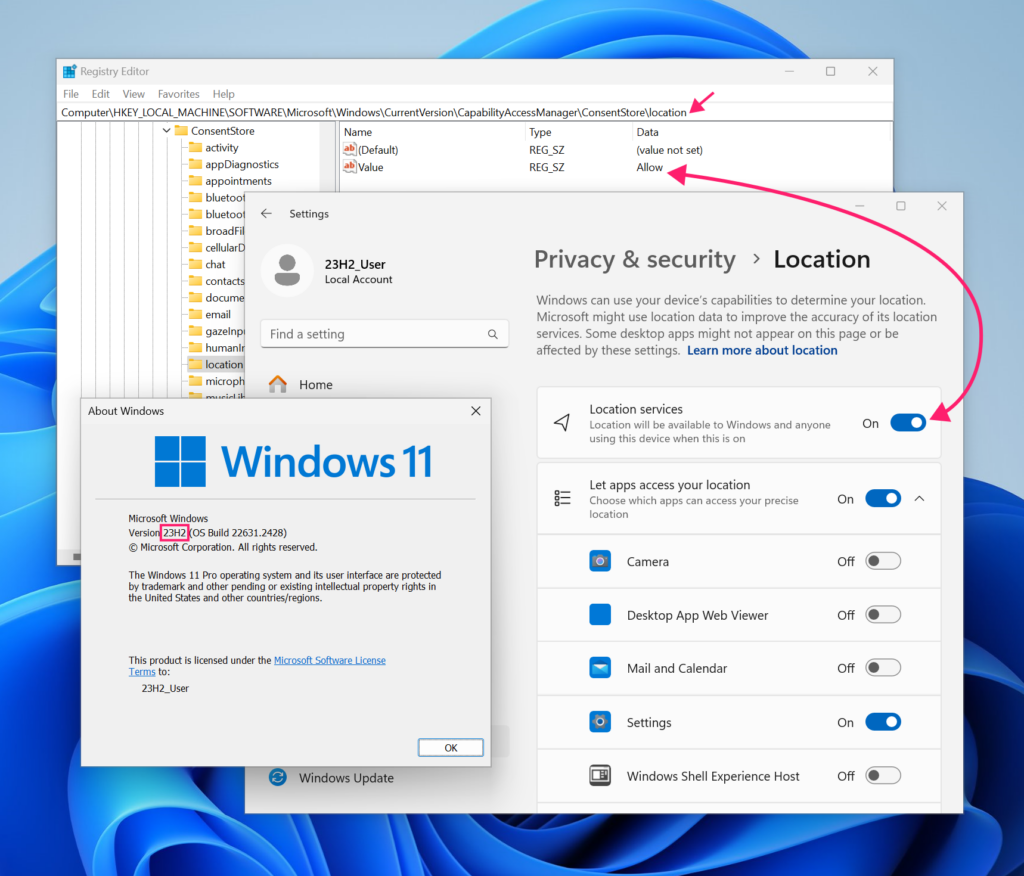
Direct registry editing no longer works for location settings on 24H2 and later. Microsoft decoupled the UI toggles from raw registry injection in this version specifically to prevent malware from silently enabling hardware sensors. Use the PowerShell method below instead.
» Did you know you can manage Registry Editor with Atera?
Method 4: Manage location services via PowerShell
PowerShell is the most efficient method for scripted or remote deployment, and the correct command depends on the Windows version.
On Windows 10 and Windows 11 prior to 24H2
1. Open PowerShell as Administrator and run one of the following:
- Enable:
Set-ItemProperty -Path "HKLM:\SOFTWARE\Microsoft\Windows\CurrentVersion\CapabilityAccessManager\ConsentStore\location" -Name "Value" -Value "Allow" - Disable: Set-ItemProperty -Path “HKLM:\SOFTWARE\Microsoft\Windows\CurrentVersion\CapabilityAccessManager\ConsentStore\location” -Name “Value” -Value “Deny”
On Windows 11 24H2 and above
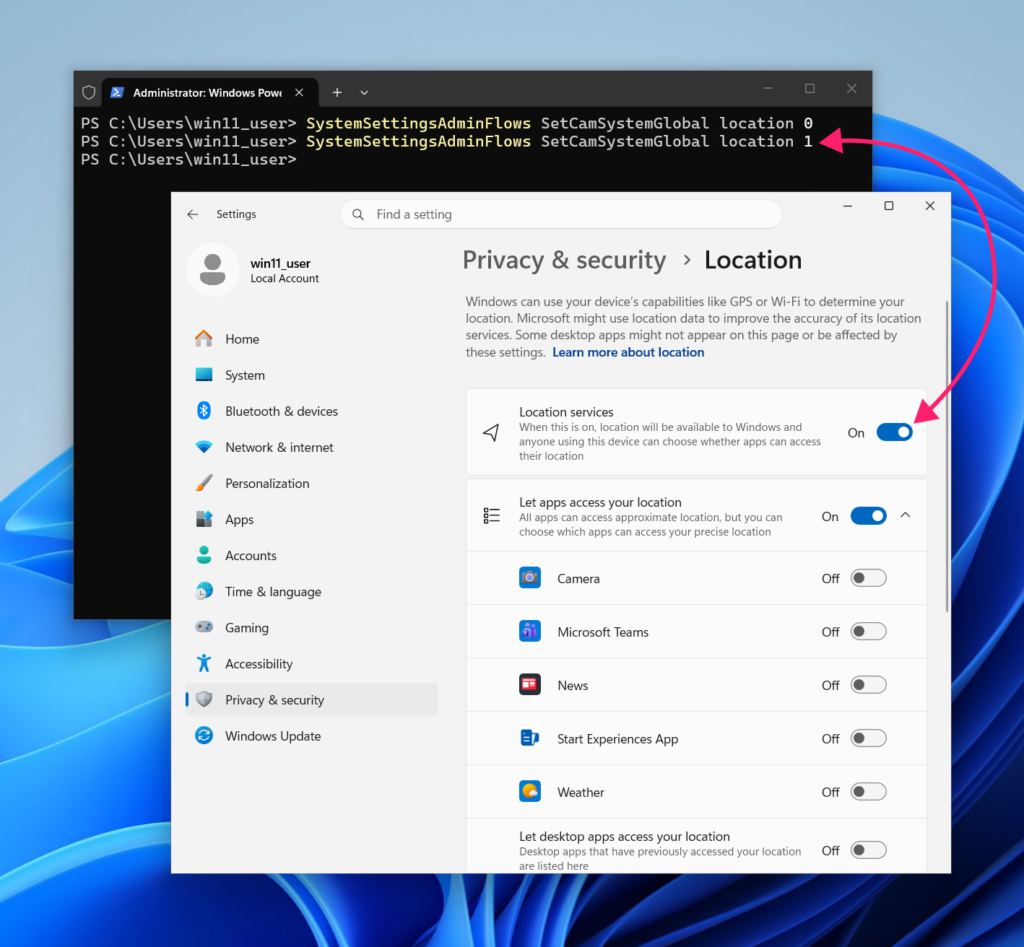
Use SystemSettingsAdminFlows, the internal process Windows uses when a Settings toggle requires elevated privileges to commit:
- Enable:
SystemSettingsAdminFlows SetCamSystemGlobal location 1 - Disable:
SystemSettingsAdminFlows SetCamSystemGlobal location 0
No reboot is required.
Method 5: Disable location services via the Services snap-in
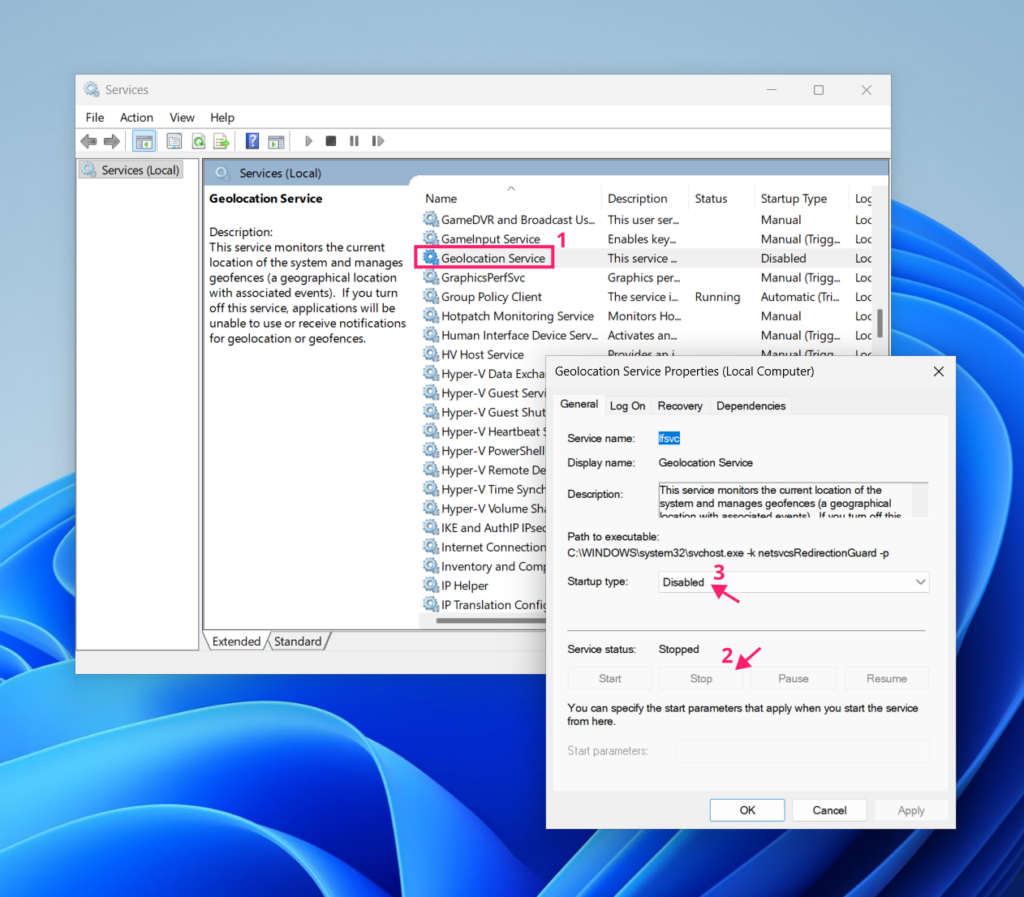
Stopping the Geolocation Service at the Windows Services level prevents the OS from polling location data entirely, independent of the Settings or Registry configuration. This is the most complete way to disable location at the system level.
1. Press Win + R, type services.msc, and press Enter
2. Scroll to find lfsvc (displayed as Geolocation Service) and double-click it
3. Click Stop to halt it immediately
4. Change the Startup type to Disabled to prevent it from starting again on reboot
5. Click OK to apply
Troubleshooting location service issues
Most location service problems fall into one of two categories: the toggle won’t respond, or the location it reports is wrong. Both are fixable, but the fix depends on correctly identifying the root cause before reaching for a solution.
When the location services toggle is grayed out
A grayed-out toggle means something above the user-level setting is overriding it. There are three root causes, and they require different escalation paths.
Group Policy enforcement
This is the most common cause in domain-joined environments. When the Turn off location policy is enabled via GPO, it overrides all user-level settings and the toggle becomes unresponsive.
To confirm GPO is the cause and remove the restriction:
1. Verify the policy is active by opening Command Prompt and runing gpresult /h gpresult.html
2. Open the resulting file in a browser and search for “Location” to confirm whether the Turn off location policy is applied and which GPO is enforcing it
3. On the domain controller or via Group Policy Management Console, navigate to the relevant GPO and set Turn off location to Not Configured or Disabled
4. Run gpupdate /force on the affected device, or reboot
The toggle should become responsive once the policy is no longer enforced.
Insufficient privileges
A non-administrator account can’t change the device-level location setting. The toggle will appear grayed out for standard users attempting to modify the OS-level control.
1. Open Settings and go to Accounts > Your info. If the account is not listed as Administrator, it can’t change the device-level toggle.
2. Log in with an account that has administrator privileges and make the change or elevate the other account from there
3. Alternatively, if the intent is to allow standard users to control their own location settings, the device-level toggle only needs to be enabled once by an administrator since users can then manage their own per-user toggle independently
» Too many accounts to keep track of? Here’s how to remove a Microsoft account from Windows 11
Corrupted system files
If neither GPO nor privileges explain the grayed-out toggle, corrupted system files may be preventing the setting from functioning correctly. Use DISM and SFC in sequence to diagnose and repair:
1. Open Command Prompt as Administrator and run: DISM /Online /Cleanup-Image /RestoreHealth
2. Allow this to complete before proceeding. DISM contacts Windows Update to source replacement files, so an internet connection is required
3. Once DISM completes, run: sfc /scannow
4. SFC scans protected system files and replaces corrupted ones using the repaired component store
5. Reboot after completion and check whether the toggle is responsive
» Need help? Here’s our complete guide to using the DISM command in Windows
When location is enabled but reporting the wrong position
An active location service doesn’t guarantee an accurate one. Inaccurate location reports have three common causes.
Stale or incorrect IP/BSSID geolocation data
Windows uses the device’s public IP address and Wi-Fi router BSSID to estimate location when GPS isn’t available. If either of those is mapped to the wrong location in the underlying database (because the router was previously used elsewhere or the IP block is registered to a different region), Windows will report that location until the database is updated.
To diagnose:
1. Check the reported IP geolocation by visiting a service such as whatismyip.com and compare the reported location against the device’s actual location. A mismatch here confirms the IP geolocation database is the source of the error
2. If the IP location is correct but location is still off, the router’s BSSID may be registered to a previous location. This resolves on its own as geolocation databases update, but there is no manual override available to end users
VPN or proxy interference
VPNs and proxies reroute internet traffic through remote servers by design. Windows will report location based on the exit node, not the device’s physical location. This is expected behavior, not a fault.
If accurate location reporting is required on a device using a VPN, the options are to use a split-tunnel configuration that excludes location-related traffic, or to rely on GPS hardware rather than IP geolocation where the device supports it.
Managing location services at every layer
Location services in Windows aren’t a single setting. They’re a layered permission system, and managing them properly means understanding which layer applies to which situation. A user toggling their own app access is a different problem from a GPO conflict preventing any change at all, which is a different problem from a device silently reporting the wrong location because of a stale IP geolocation record.
For IT teams and MSPs managing this across dozens or hundreds of endpoints, the difference between a one-minute fix and a twenty-minute troubleshooting session usually comes down to whether the right policy is already in place. Atera’s RMM platform lets you deploy and verify Group Policy configurations, push PowerShell scripts remotely, and track the outcome across your entire device fleet, so location settings stay consistent without requiring hands-on work at every machine.
» Interested? Try Atera for free
Related Articles

How to decide if you need a dedicated DEX platform, or already have one
"IT feels slow" is the complaint that often sells DEX platforms. Sometimes it signals a real blind spot, but just as often already catches and fixes the problem, and a new scoring layer would only add another console. Telling the two apart takes evidence, and the real gap usually isn't visibility at all.
Read now
How to set up secure printing across your organization
A secure print checkbox protects exactly one moment in a document's life. Everything else, from unencrypted traffic and unhardened devices to payroll printouts forgotten in a tray, stays exposed. Real secure printing covers the whole lifecycle: release policy, authentication, encryption, hardening, and a fleet that stays monitored long after rollout.
Read now
How to reduce alert fatigue in healthcare IT
In a hospital, a dismissed alert isn't a delayed ticket. It can be a patient deteriorating while the monitor keeps sounding. Cutting alert volume won't fix that on its own, and switching alerts off can make it worse.
Read now
How to prevent configuration drift across your IT infrastructure
Configuration drift rarely breaks anything the day it happens. It hides in a hotfix, a reset default, or a vendor installer, then surfaces weeks later as a failure nobody can trace. Stopping it means defining exactly what approved looks like, closing every side door into production, giving each setting one owning tool, and checking that the baseline itself hasn't gone stale.
Read nowEndless IT possibilities
Boost your productivity with Atera’s intuitive, centralized all-in-one platform









