
Table of contents
Generate summary with AI

Hide file extensions in Windows, and you’re one social-engineering trick away from double-clicking invoice.pdf.exe thinking it’s a PDF. Microsoft turns extension visibility off by default to keep File Explorer uncluttered, but the tradeoff is that a malicious file can spoof a trusted format and many users will never know the difference until it’s too late.
Turning extensions back on takes seconds on a single machine and a bit more planning across a fleet, but either way, it closes a gap that shouldn’t be open in the first place. Here’s how to enable them and keep them enabled.
Why file extensions stay hidden (and what it costs you)
Microsoft doesn’t publish an official rationale for hiding known file extensions by default, but the reasoning is generally understood to come down to two things:
- Keeping File Explorer uncluttered for average users
- Reducing the odds someone accidentally corrupts a file by editing its extension during a routine rename
The tradeoff is a security gap. When extensions stay hidden, a file like document.pdf.exe displays to the user as document.pdf. Anyone scanning a folder or an email attachment sees a familiar, trusted icon and filename with no indication that they’re actually looking at an executable.
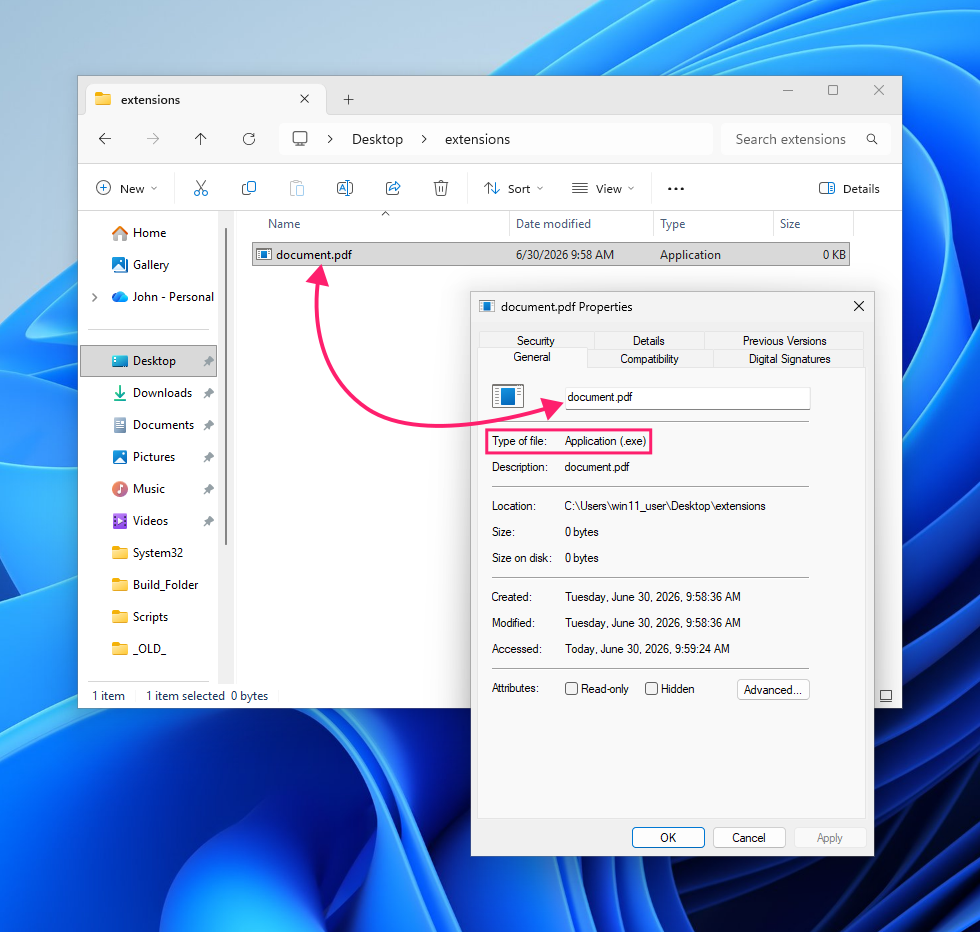
That’s exactly the mechanism behind a long-running category of phishing and malware delivery. Just dress a payload up as a document, PDF, or image, and let Windows’ default settings do the disguising.
» Did you know you can change file associations in Windows 10 and 11?
The risk of having extensions shown
Turning extensions back on removes that blind spot, but it introduces a smaller, everyday tradeoff of its own. With extensions visible, your users (tech savvy and clueless) are responsible for not breaking them.
Windows’ rename behavior only auto-selects the filename portion when you press F2 or choose Rename from the right-click menu, but nothing stops a user from continuing past that boundary and editing the extension too.
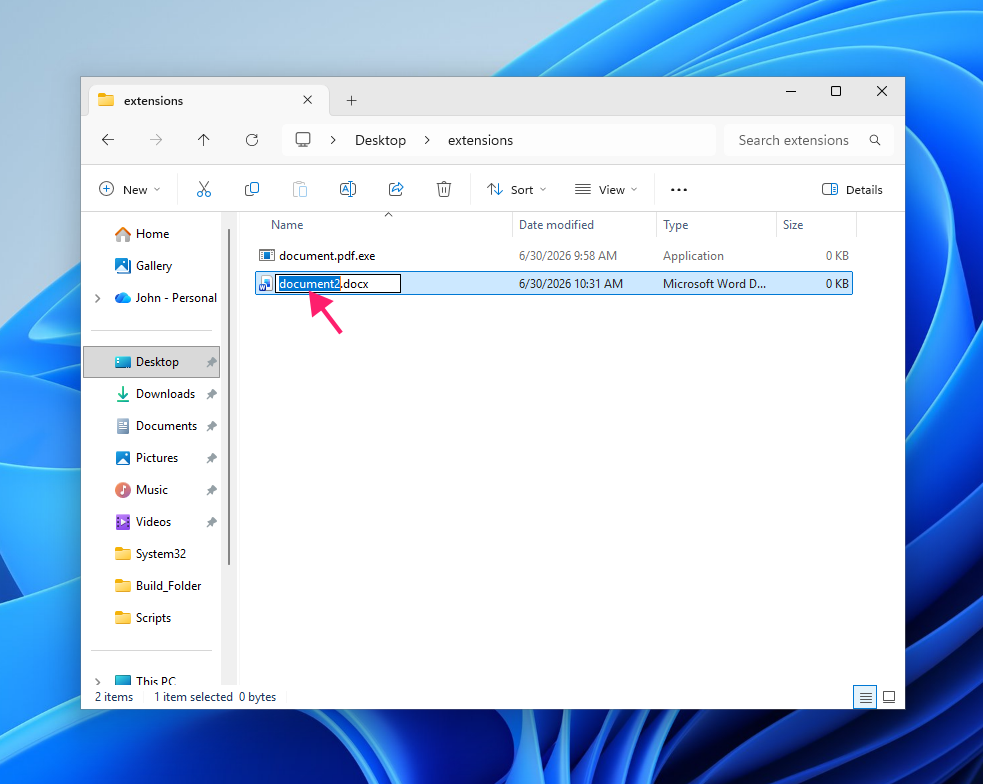
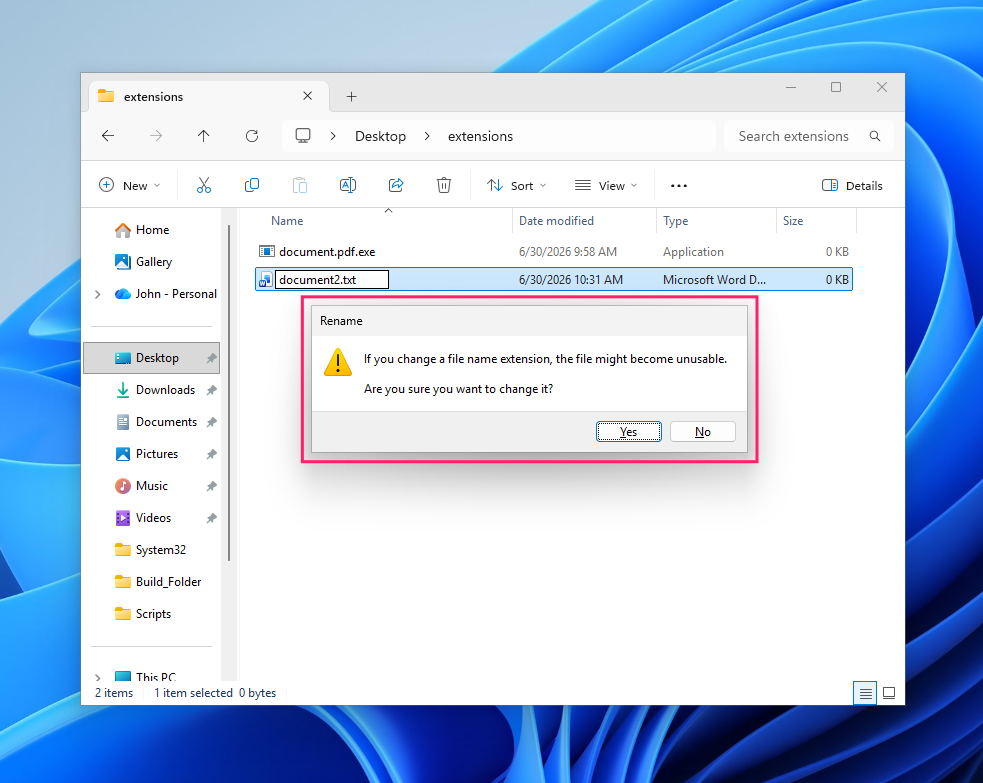
If someone does go past the highlighted part, Windows throws a warning: “If you change a file name extension, the file might become unusable.”
The .lnk exception
One edge case worth knowing before you go looking for a bug that isn’t there is that .lnk files (shortcuts) are exempt from the Hide extensions for known file types setting. The extension won’t display even with the setting disabled, because this behavior is hardcoded via a NeverShowExtregistry flag tied specifically to the .lnkfile type. If a shortcut’s extension isn’t showing while everything else’s is, that’s expected, not broken.
6 ways to show file extensions in Windows 11
There’s more than one way to flip this setting, and which one makes sense depends on the scope of the job. Fixing it on your own machine calls for a different approach than fixing it on someone else’s, and fixing it across an entire fleet calls for a different approach again.
The six methods below run from quickest and most direct to fully scriptable and centrally enforced, so pick the one that matches the machine (or machines) in front of you.
Method 1: Modern File Explorer command bar
The fastest option, and the right starting point for showing extensions on a single machine.
- Open a File Explorer window
- Click View in the command bar
Select Show, then select File name extensions

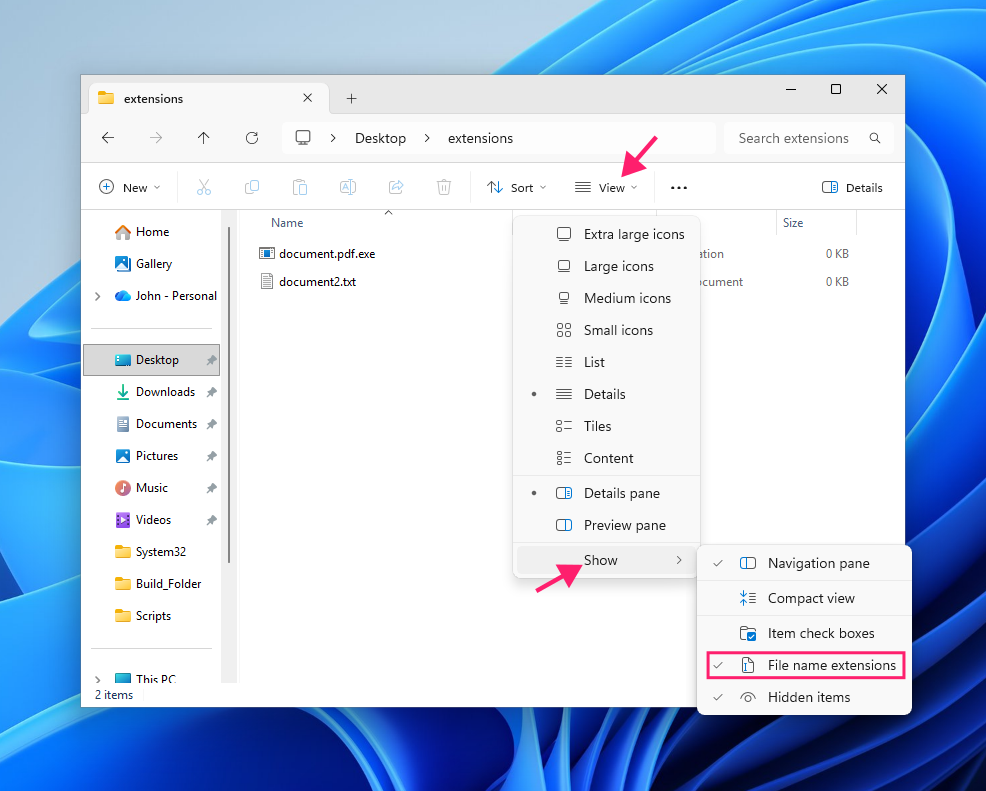
Extensions appear immediately with no restart required.
Method 2: Legacy Folder Options
Worth using if you’re already in the Folder Options dialog to adjust other visibility settings, like hidden files, at the same time.
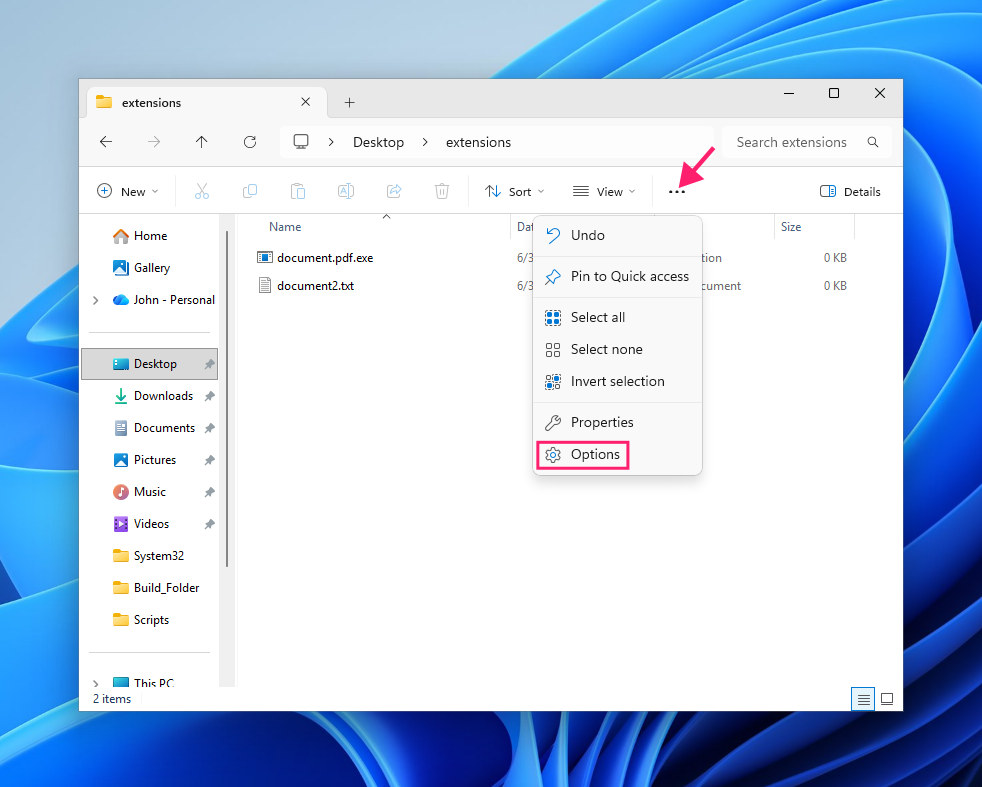
- In a File Explorer window, click the … (three dots) button
Select Options to open the Folder Options window

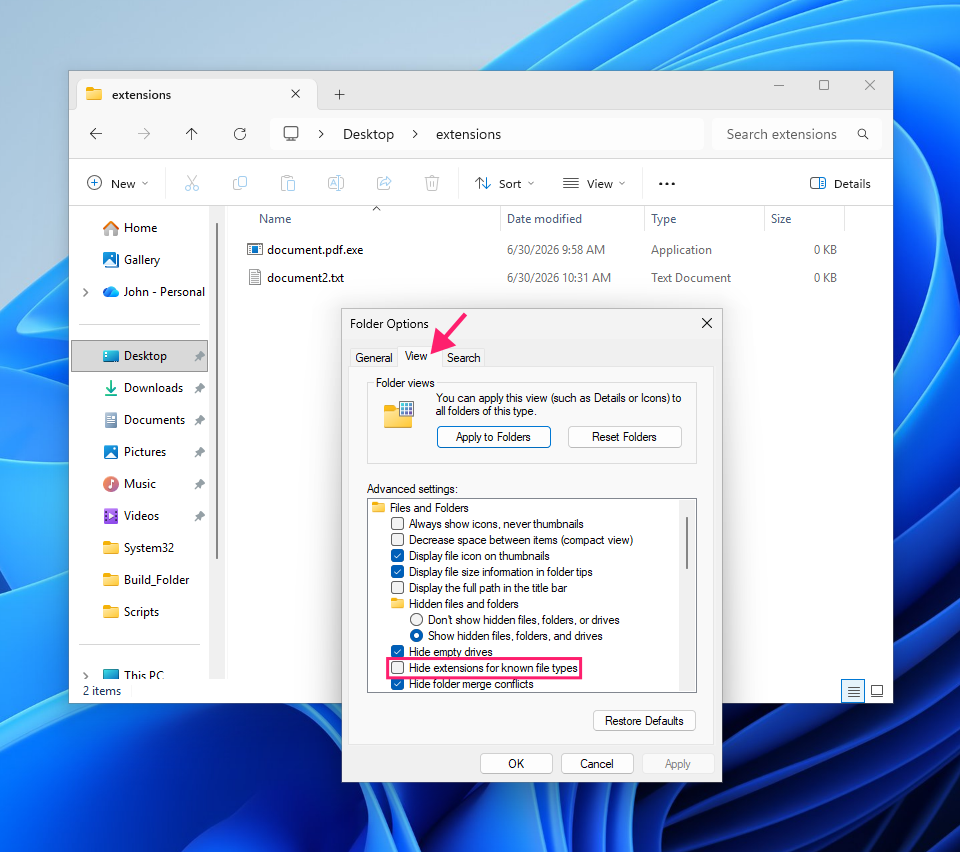
- Switch to the View tab
Uncheck Hide extensions for known file types

- Click OK to apply
Method 3: Control Panel
Useful on systems where the File Explorer ribbon has been customized or removed, or if you’re already working from Control Panel for related changes.
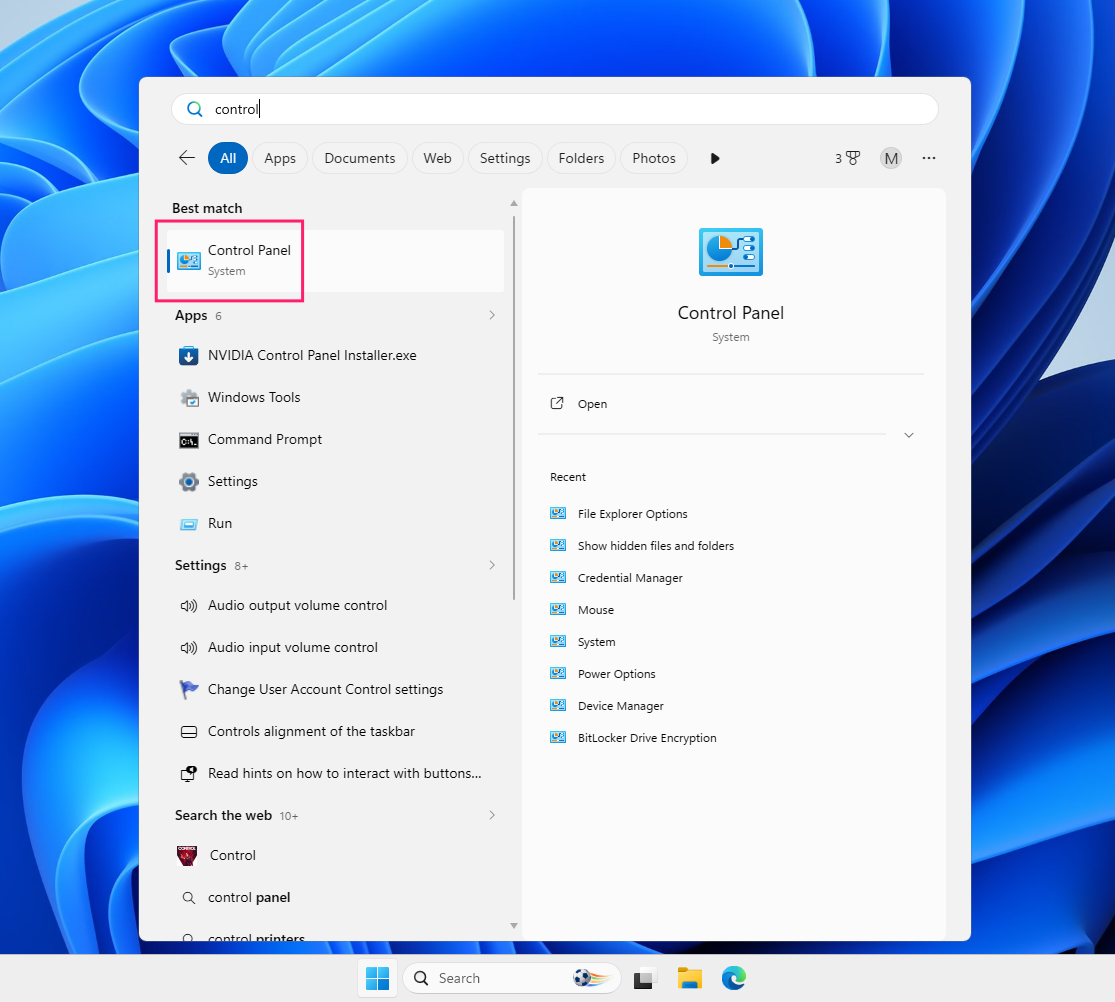
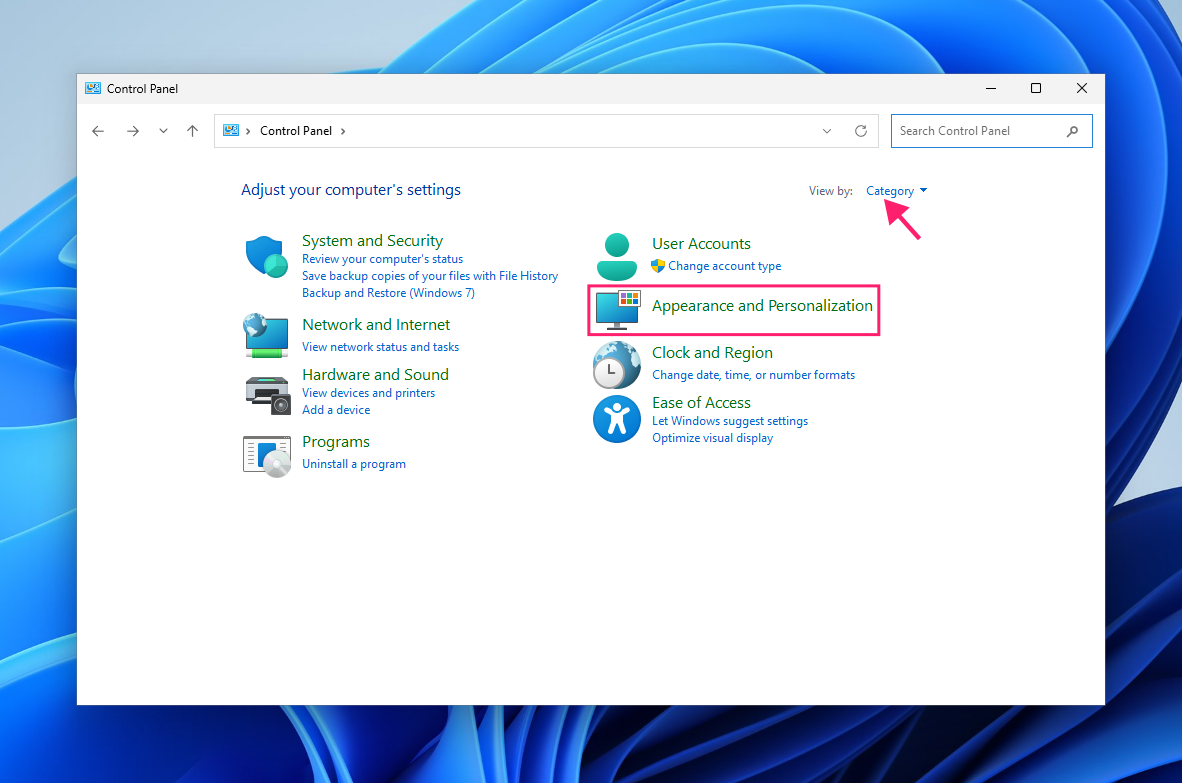
Press the Start menu button and search for control panel, then open it

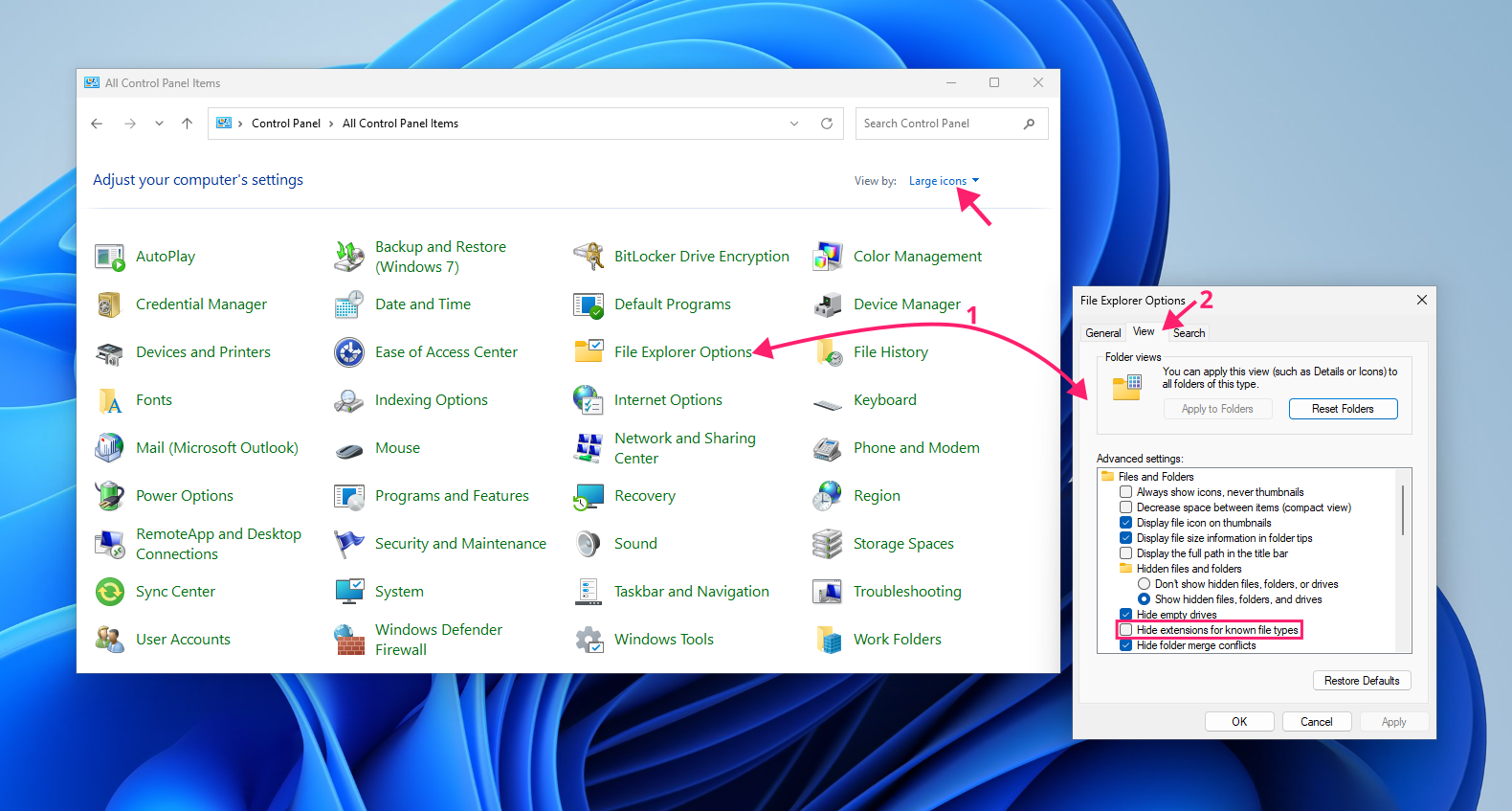
If “View by” is set to “Large icons”, click File Explorer Options

If “View by” is set to Category, click Appearance and Personalization

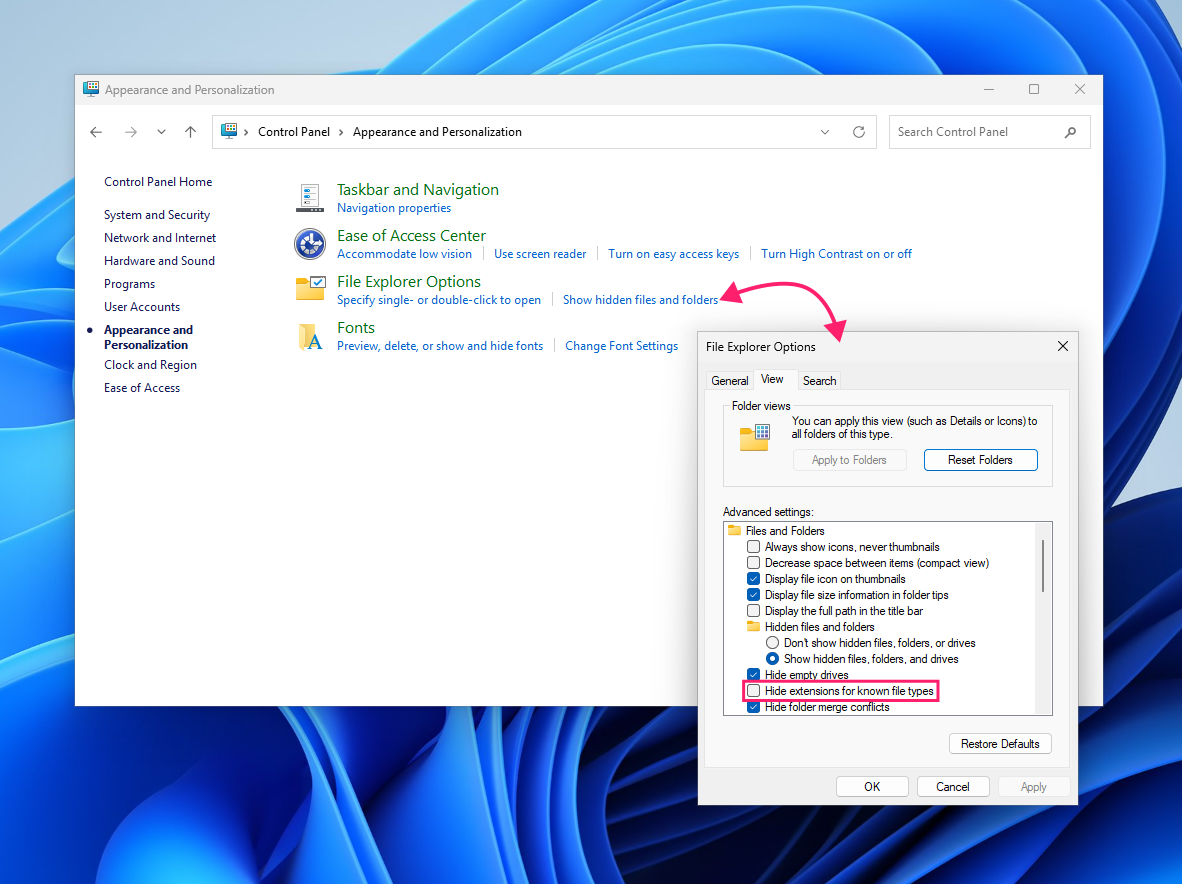
Then click Show hidden files and folders

- In the Folder Options window, switch to the View tab
- Uncheck Hide extensions for known file types and click OK
Method 4: Command Prompt registry command
The quickest scriptable option when a single command beats navigating a GUI, particularly over a remote session.
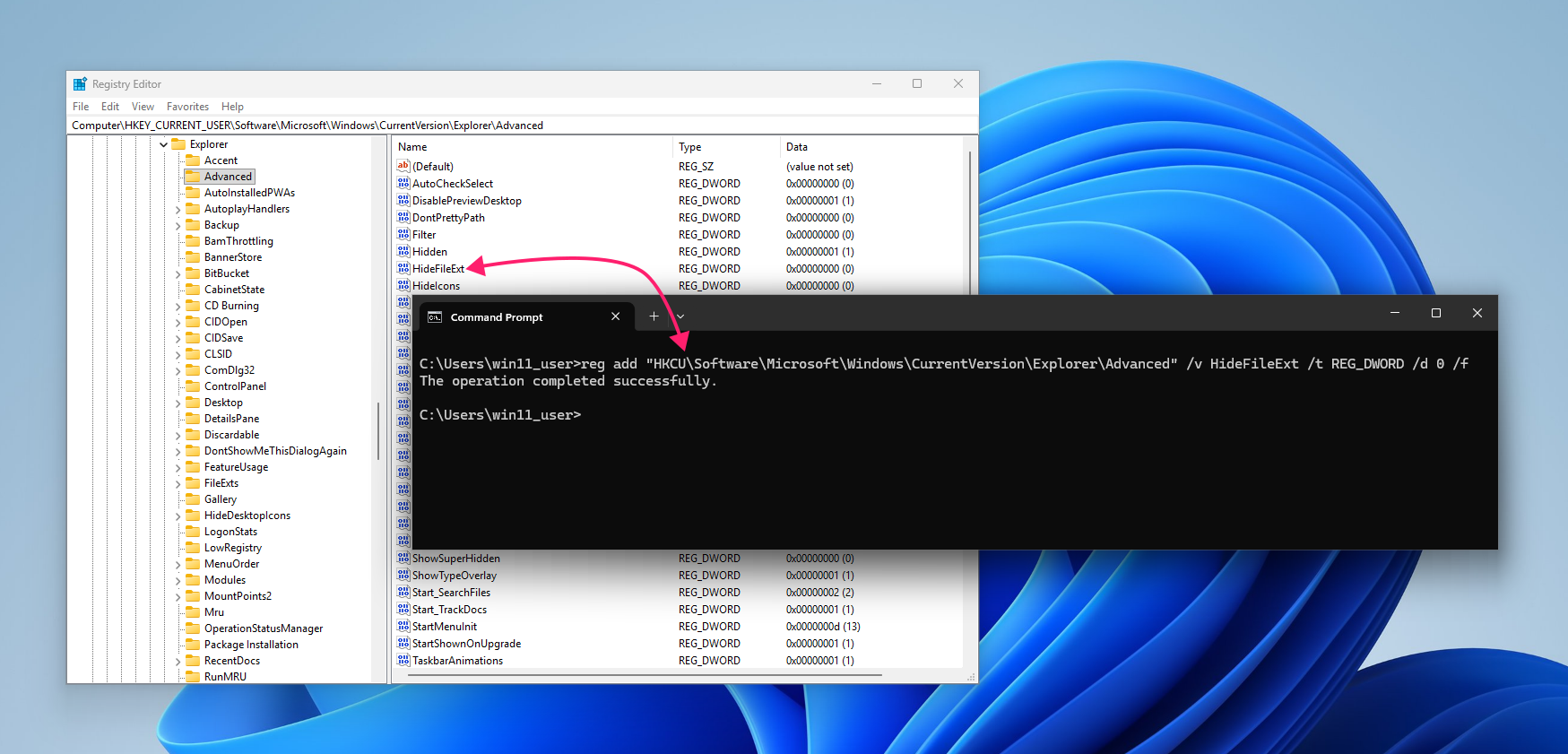
- Open Command Prompt
Run
reg add "HKCUSoftwareMicrosoftWindowsCurrentVersionExplorerAdvanced" /v HideFileExt /t REG_DWORD /d 0 /f
- Restart File Explorer, or sign out and back in, for the change to take effect
Method 5: PowerShell
The better choice when this change is part of a larger script, or when you want something repeatable and version-controlled rather than a one-off command.
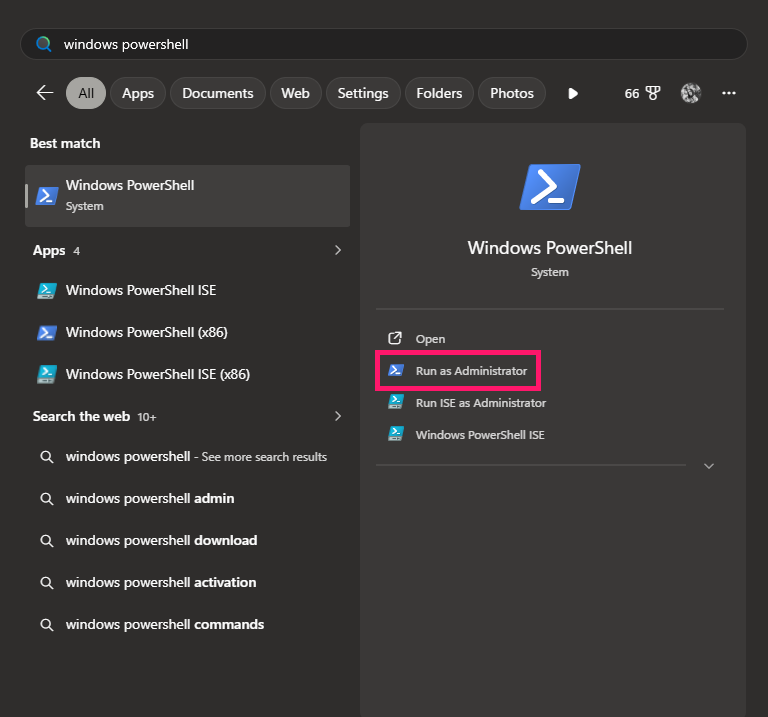
Open PowerShell as an admin

Create this script and run it through PowerShell:
Set-ItemProperty -Path "HKCU\Software\Microsoft\Windows\CurrentVersion\Explorer\Advanced" /v HideFileExt /t REG_DWORD /d 0 /f" -Name HideFileExt -Value 0 -Type DWord -Force
- If the change doesn’t apply automatically, restart Explorer with
Stop-Process -Name explorer -Forcefollowed byStart-Process -FilePath "$env:SystemRootexplorer.exe"
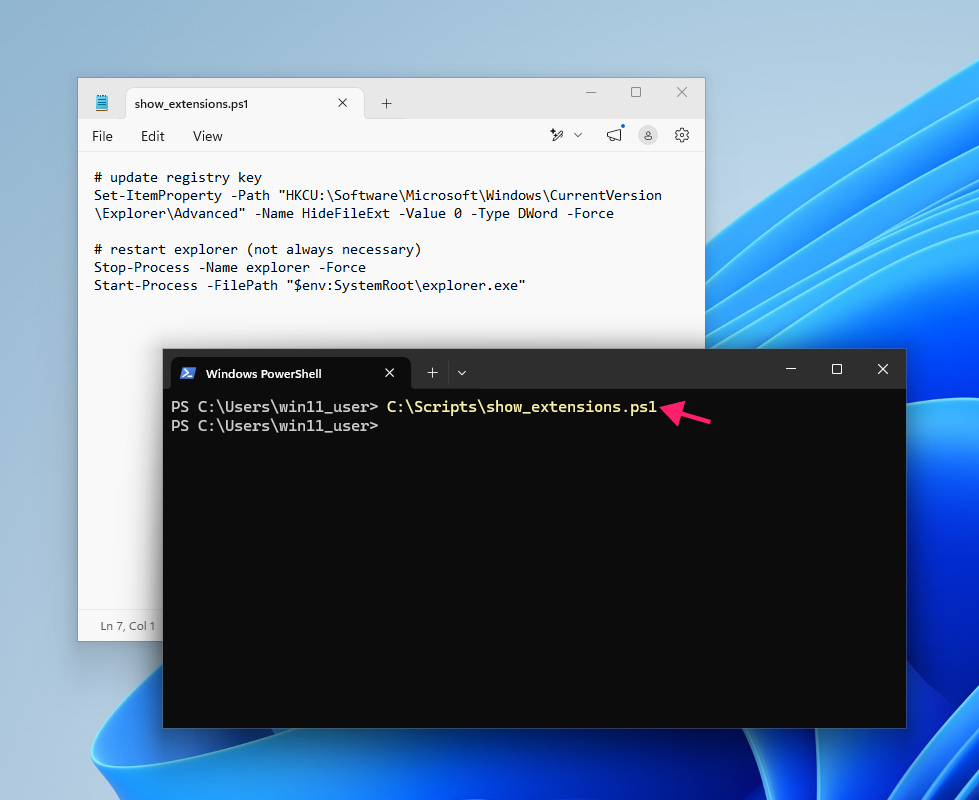
Running this on one machine takes seconds. Running it on fifty, or five hundred, one session at a time isn’t a realistic use of a technician’s day. That’s where Atera’s RMM comes in – it lets you deploy scripts like this one remotely across every endpoint at once, rather than opening a PowerShell session on each device individually. And if you don’t have the script memorized, Atera’s AI Copilot can generate it for you from a plain-language request, so you’re not hunting through documentation mid-task.
» Did you know you can set programs to always run as an administrator?
Method 6: Group Policy, for fleet-wide deployment
Once you’re enforcing this setting across more than a handful of endpoints, Group Policy replaces per-machine toggling with a single, centrally managed change. Microsoft doesn’t provide a dedicated Administrative Template setting for this, so it has to go through Group Policy Preferences targeting the registry directly.
- Open the Group Policy Management Console and create or edit a Group Policy Preferences item targeting
HKCU\Software\Microsoft\Windows\CurrentVersion\Explorer\Advanced - Set the
HideFileExtvalue to0to show file extensions (1hides them) - Link the policy to the appropriate OU so it applies across the affected machines
» Here’s how to open Local Group Policy Editor and manage group policies better with Atera
From single machine to full fleet
Showing file extensions won’t stop every threat, but it removes one of the easiest disguises an attacker has. Once it’s on, it stays on, whether you set it through Folder Options on one machine or push it fleet-wide with Group Policy.
For IT teams and MSPs managing more than a handful of endpoints, keeping settings like this consistent across every device is exactly the kind of low-effort, high-value maintenance that’s easy to lose track of manually. Atera’s RMM platform gives technicians the automation and remote scripting tools to deploy and verify configuration changes like this across an entire fleet, without touching each machine by hand. See how Atera’s RMM scripting works.
Frequently Asked Questions
Related Articles

How to decide if you need a dedicated DEX platform, or already have one
"IT feels slow" is the complaint that often sells DEX platforms. Sometimes it signals a real blind spot, but just as often already catches and fixes the problem, and a new scoring layer would only add another console. Telling the two apart takes evidence, and the real gap usually isn't visibility at all.
Read now
How to set up secure printing across your organization
A secure print checkbox protects exactly one moment in a document's life. Everything else, from unencrypted traffic and unhardened devices to payroll printouts forgotten in a tray, stays exposed. Real secure printing covers the whole lifecycle: release policy, authentication, encryption, hardening, and a fleet that stays monitored long after rollout.
Read now
How to reduce alert fatigue in healthcare IT
In a hospital, a dismissed alert isn't a delayed ticket. It can be a patient deteriorating while the monitor keeps sounding. Cutting alert volume won't fix that on its own, and switching alerts off can make it worse.
Read now
How to prevent configuration drift across your IT infrastructure
Configuration drift rarely breaks anything the day it happens. It hides in a hotfix, a reset default, or a vendor installer, then surfaces weeks later as a failure nobody can trace. Stopping it means defining exactly what approved looks like, closing every side door into production, giving each setting one owning tool, and checking that the baseline itself hasn't gone stale.
Read nowEndless IT possibilities
Boost your productivity with Atera’s intuitive, centralized all-in-one platform









