
Persistent administrator execution isn’t a fringe requirement. For a meaningful slice of the software IT teams actually rely on, it’s the only way the software works correctly. Without it, your users could experience legacy diagnostic tools that silently fail without elevation, monitoring agents that can’t get access to protected registry paths, and deployment scripts that hit ERROR_ELEVATION_REQUIRED and stop dead.
The catch is that elevation carries real risk, which makes permanently elevated processes a target worth protecting carefully. The five methods below give you the control to grant persistent elevation where it’s genuinely needed, lock down where it isn’t, and push those settings across a fleet without touching machines individually.
Why Windows restricts application privileges by default
When Windows launches an application, it doesn’t hand it the keys to the system by default. Even if you’re logged in as an administrator, most processes start with a restricted token that limits what the application can touch.
At logon, Windows creates two separate access tokens for administrator-group users: a full administrator token with all privileges enabled, and a restricted standard user token. Applications use the restricted token by default.
What changes when a process is elevated
When an app requests elevation, Windows discards the restricted token and hands the process the full administrator token instead, but only after the User Account Control (UAC) consent prompt confirms that’s what you intended.
Three things happen at the OS level when an application runs with administrator privileges:
- The restricted token is replaced with the full administrator token, enabling privileges that are disabled by default, including
SeDebugPrivilege,SeTakeOwnershipPrivilege, and others that give the process direct access to system internals. - The process integrity level changes from Medium to High. Windows uses integrity levels as a trust measurement, where high-integrity processes can modify system data but medium-integrity processes can’t. A high-integrity application can write to
Program Files, modify protected registry keys, and interact with other elevated processes. CreateProcessrejects any new process launch that requires elevation with anERROR_ELEVATION_REQUIREDerror.ShellExecuteintercepts that error and calls the Application Information Service, which relaunches the process with the full administrator token, but only after the UAC prompt is satisfied.
Why legacy software and diagnostic tools fail without it
Legacy applications and system diagnostic tools were typically built before UAC existed, in an era when Windows users ran as administrators by default. That assumption of full access was baked into their architecture, so these tools write directly to Program Files, modify system registry keys, or call APIs that require a high-integrity context — all without ever requesting elevation in their manifest. They were simply never designed to ask.
When one of those applications launches under a standard user token today, Windows denies any operation that falls outside the restricted context. The failure is rarely clean. Depending on how the application handles the denial, you might see a silent failure with no indication anything went wrong, a crash with no useful output, or partial functionality where specific features quietly stop working. That ambiguity is what makes these issues so time-consuming to diagnose — the symptom often points nowhere near the actual cause.
» Make sure you know the hidden costs of legacy IT
5 ways to set a program to always run as administrator
Here are the five main ways to set programs to always run as an admin, from the simplest to most powerful. The first three are single-machine GUI approaches suited to individual workstations, while the Task Scheduler and Registry Editor include PowerShell variants that make them scriptable and deployable across a fleet via RMM software.
Method 1: Shortcut properties
Use this when you need to elevate a specific desktop shortcut without affecting how the application launches from other locations. This is the right method when you want controlled, per-shortcut elevation without affecting the executable globally.
Right-click the shortcut and select Properties

- On the Shortcut tab, click Advanced
Check the Run as administrator checkbox and click OK

- Click Apply, then OK to close the properties window
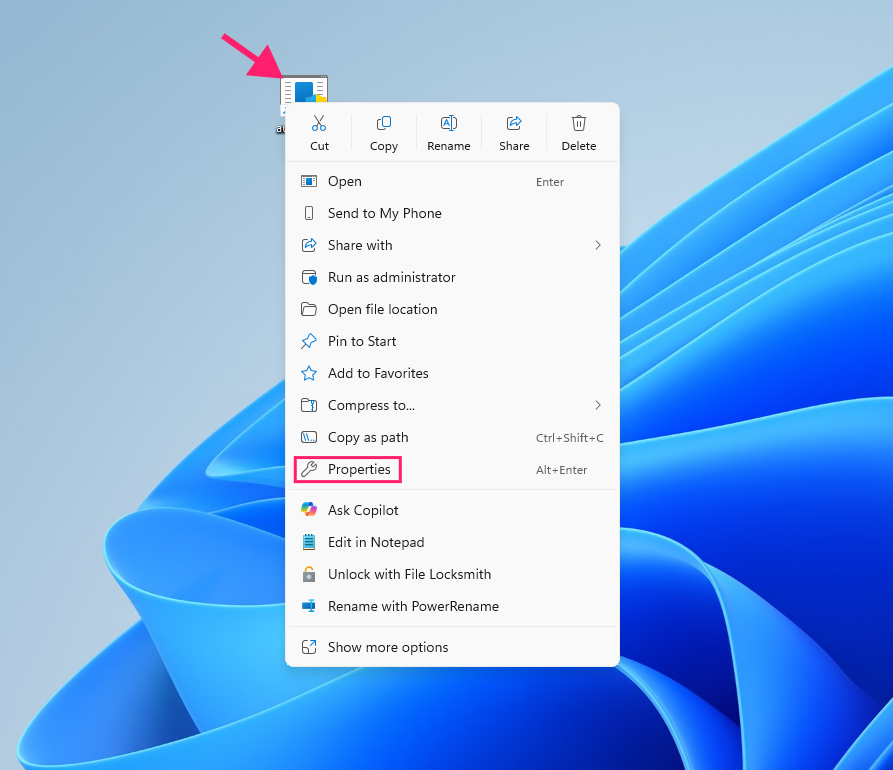
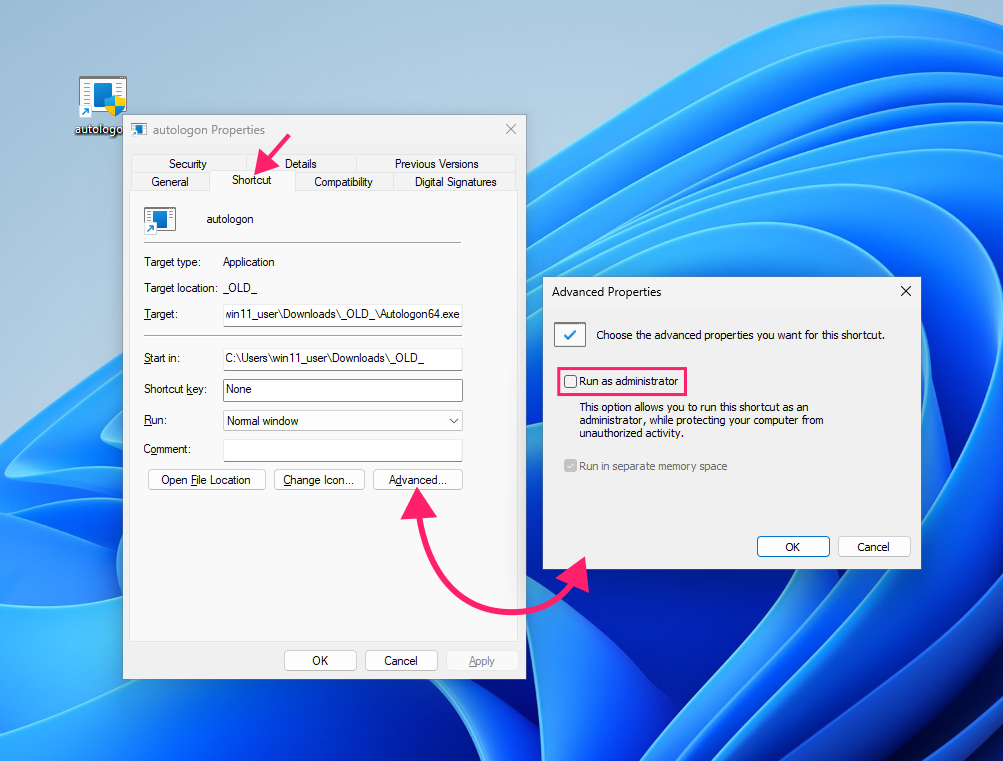
Note: This setting is tied to the shortcut file itself. If the application is launched via the Start Menu, Run dialog, or any other path, it will not be elevated.
Method 2: Taskbar and Start Menu pinned items
Use this when the application is already pinned to the taskbar or Start Menu and you want the pinned entry to always launch elevated.
For Start Menu items:
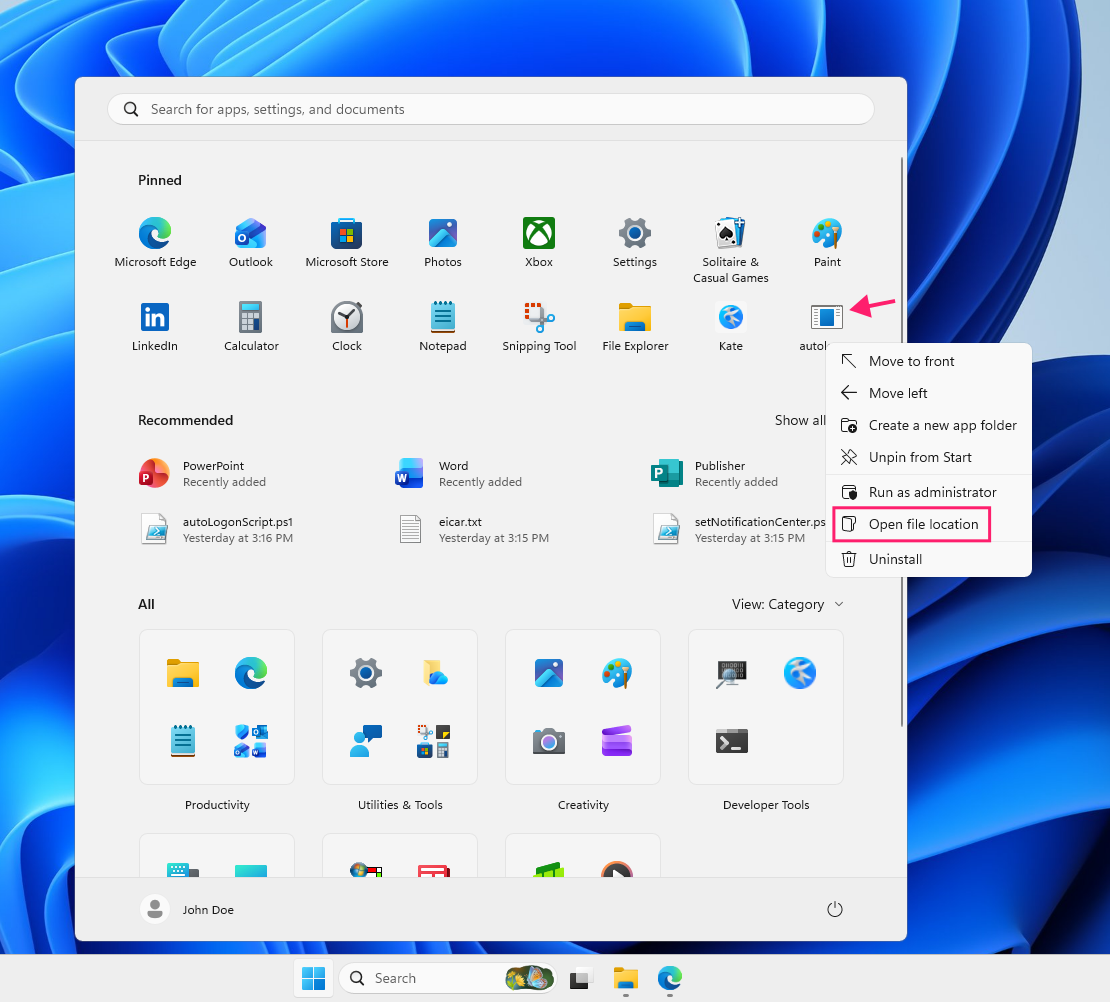
Right-click the pinned icon in the Start Menu and select Open file location. This opens the underlying shortcut in File Explorer

- Right-click the shortcut and select Properties
- On the Shortcut tab, click Advanced
- Check the Run as administrator checkbox, then click OK and Apply
» File explorer not working? Here’s how to restart explorer.exe
For taskbar items:
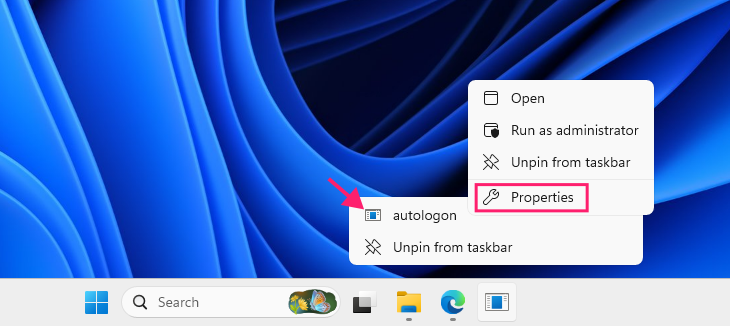
- Right-click the pinned taskbar icon to open the jump list
Right-click the application name within the jump list and select Properties

- On the Shortcut tab, click Advanced
- Check the Run as administrator checkbox, then click OK and Apply
Some Microsoft Store apps will not expose an Open file location option in their context menu. For those, create a manual shortcut to the executable, configure elevation on it via the steps above, then pin that shortcut to the Start Menu instead.
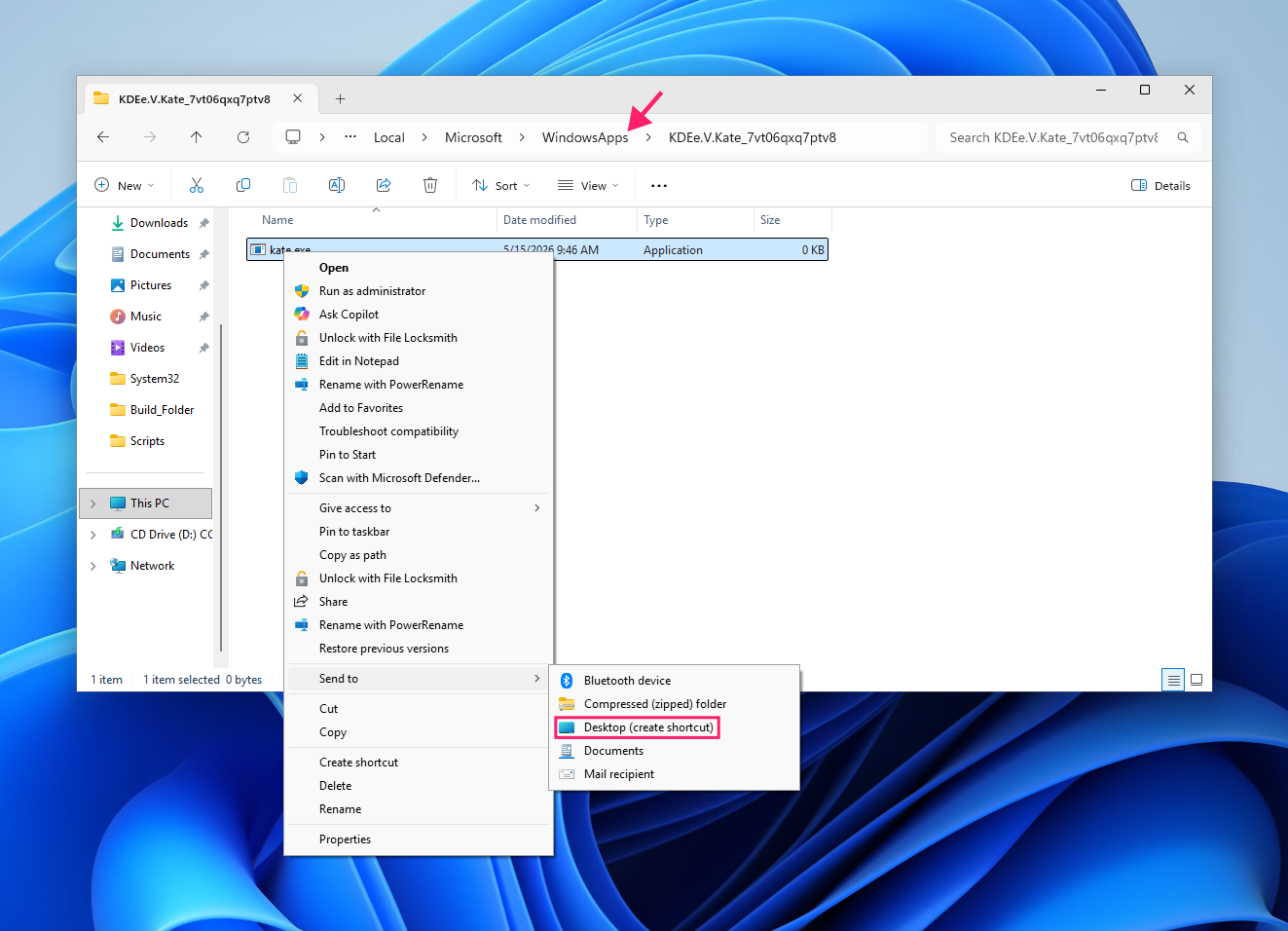
Method 3: Compatibility tab (current user or all users)
Use this when you want to tie elevation to the executable itself rather than a shortcut, and optionally apply it system-wide for all user accounts on the machine.
For the current user:
- Right-click the
.exefile and select Properties - Switch to the Compatibility tab
Check Run this program as an administrator and click Apply

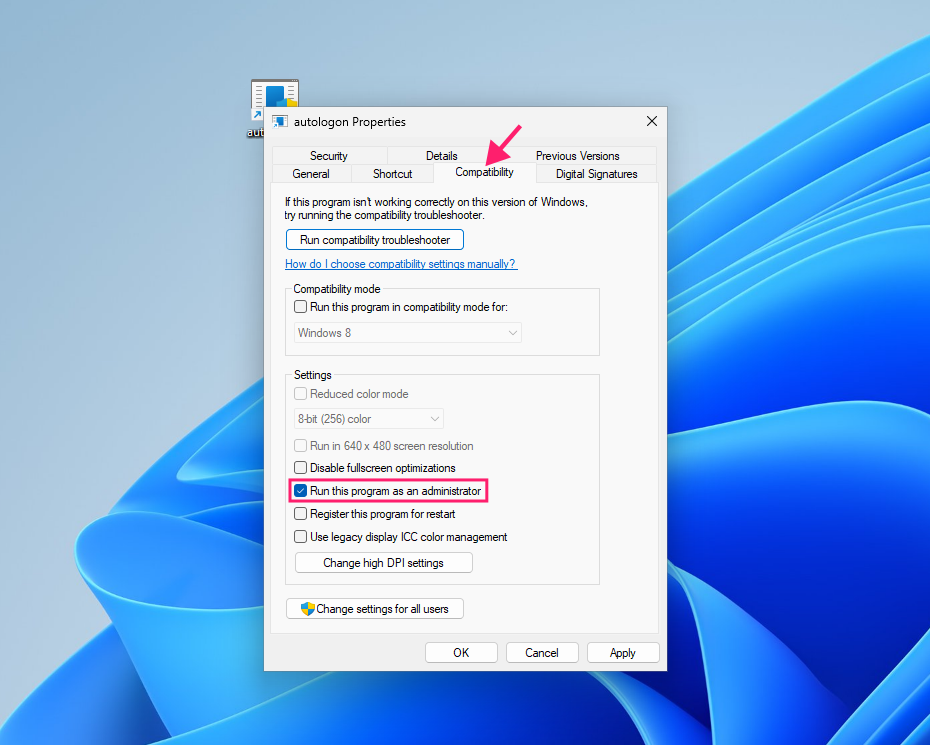
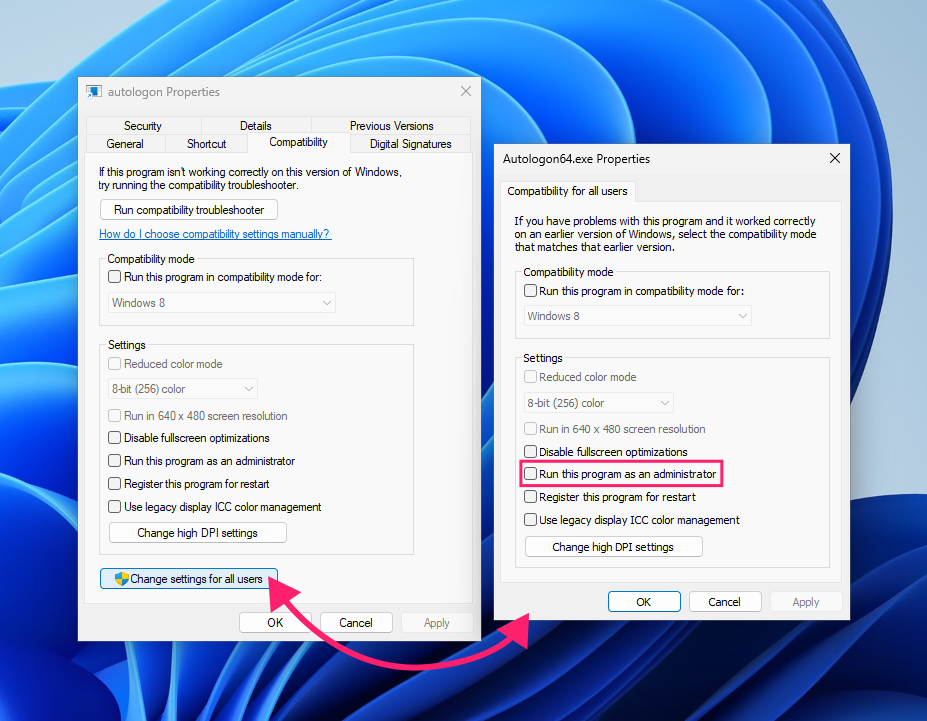
To apply for all users on the machine:
- Right-click the
.exefile and select Properties - Switch to the Compatibility tab
- Click Change settings for all users
Check Run this program as an administrator in the new window and click OK

- Click Apply, then OK to close
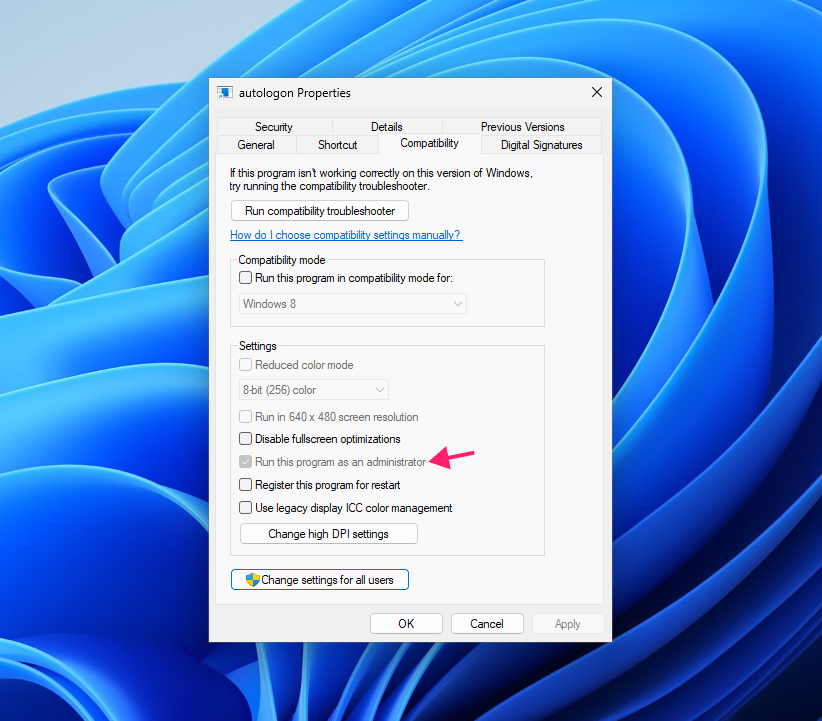
Once the all-users setting is applied, the per-user checkbox will be grayed out. This confirms the setting is now enforced at the machine level rather than the user profile level.
Method 4: Task Scheduler
Use this when you need persistent elevation that bypasses the UAC prompt entirely at launch, which is particularly useful for tools that need to start at logon or on a trigger without interrupting the user.
Via the GUI:
Open Task Scheduler (search
Task Schedulerin the Start Menu)
- In the Actions pane on the right, click Create Task
Give the task a recognisable name and check Run with highest privileges

- Switch to the Actions tab and click New
Set the action type to Start a program and enter the full path to the
.exefile
- Configure the Triggers tab to define when the task fires, typically At log on
- Click OK to register the task
To give users a convenient way to launch it, create a shortcut that calls the task rather than the executable directly by right-clicking the desktop and selecting New > Shortcut

In the location field, enter
schtasks /run /tn "YourTaskName"and give the shortcut a name
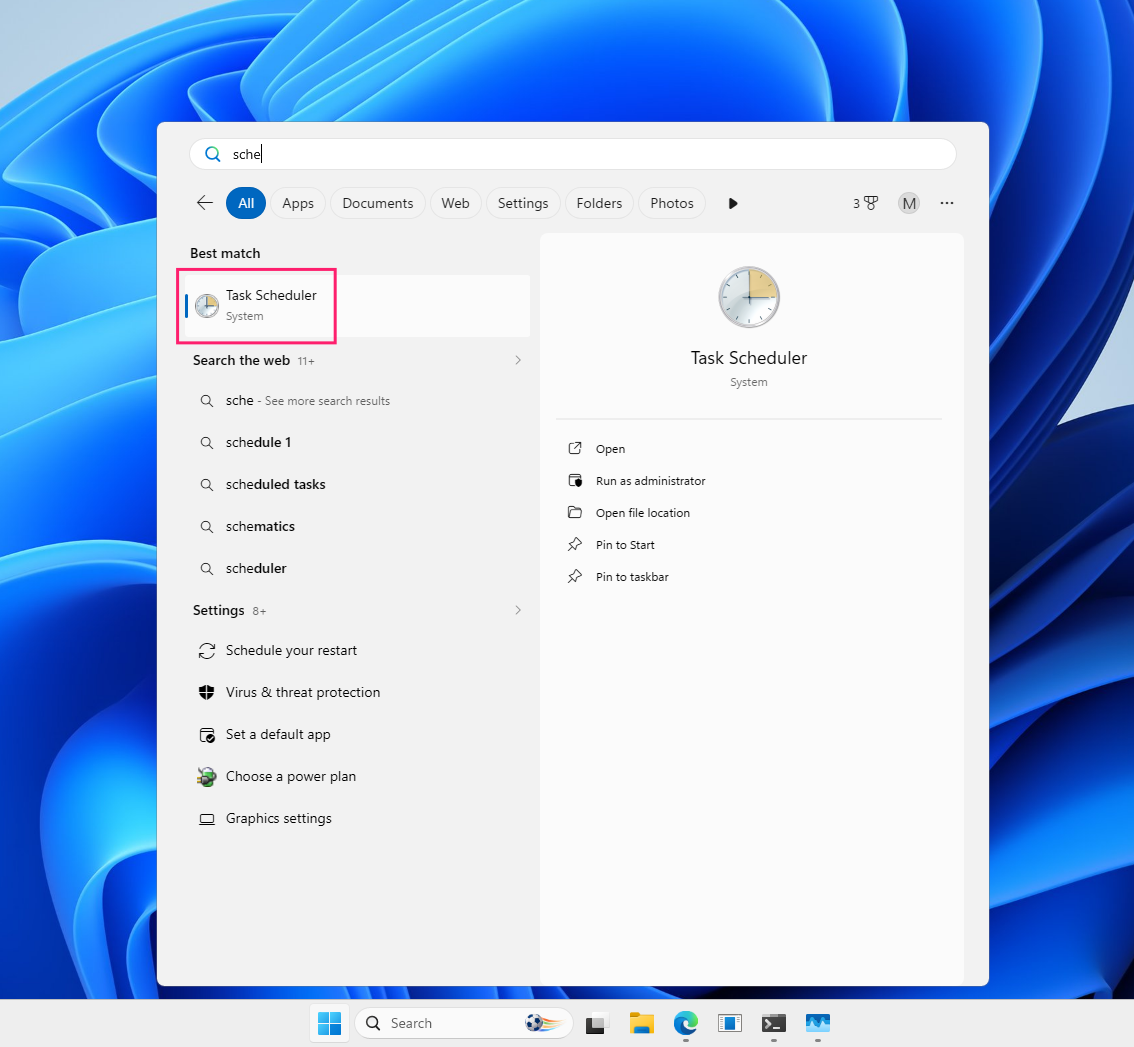
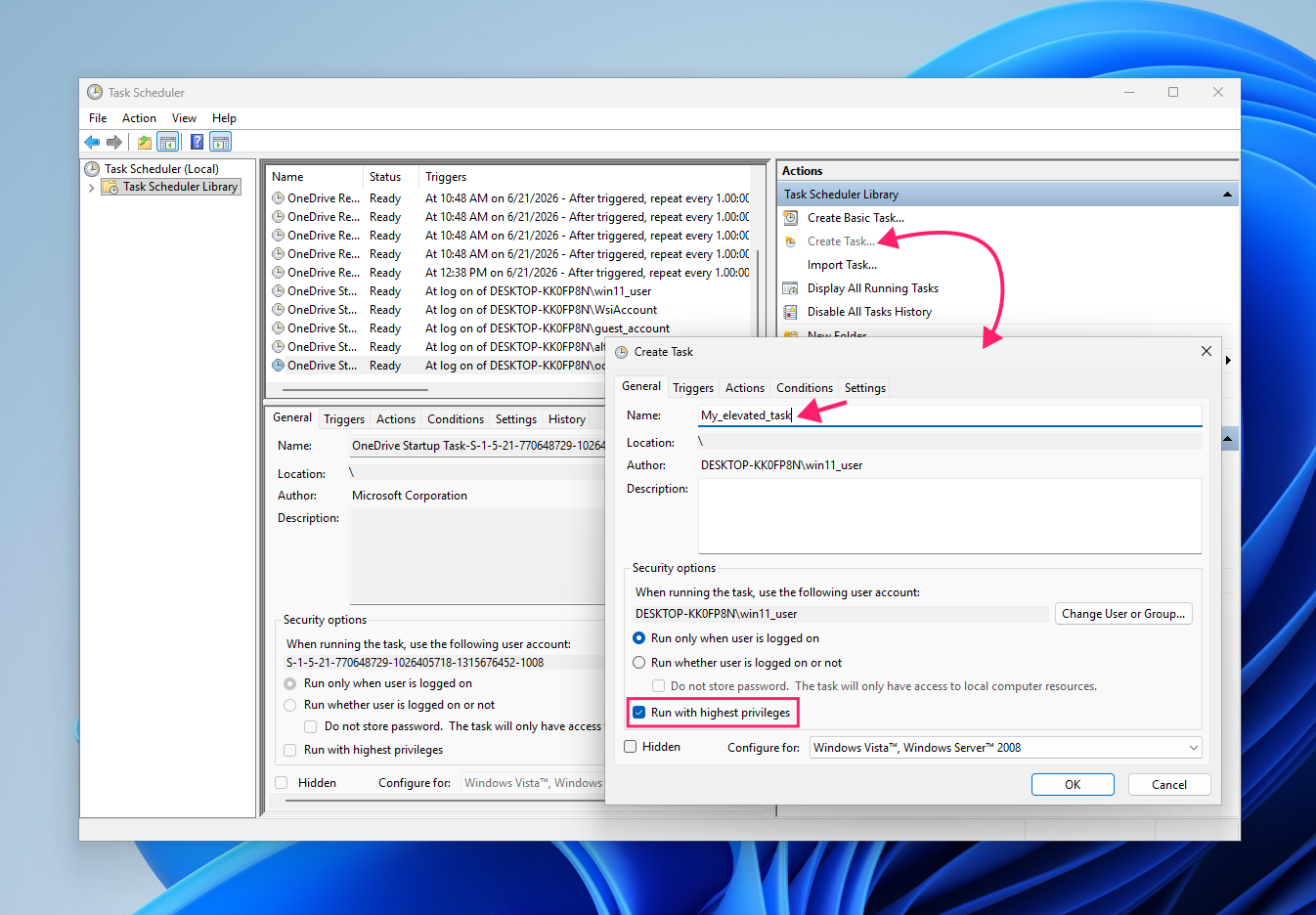
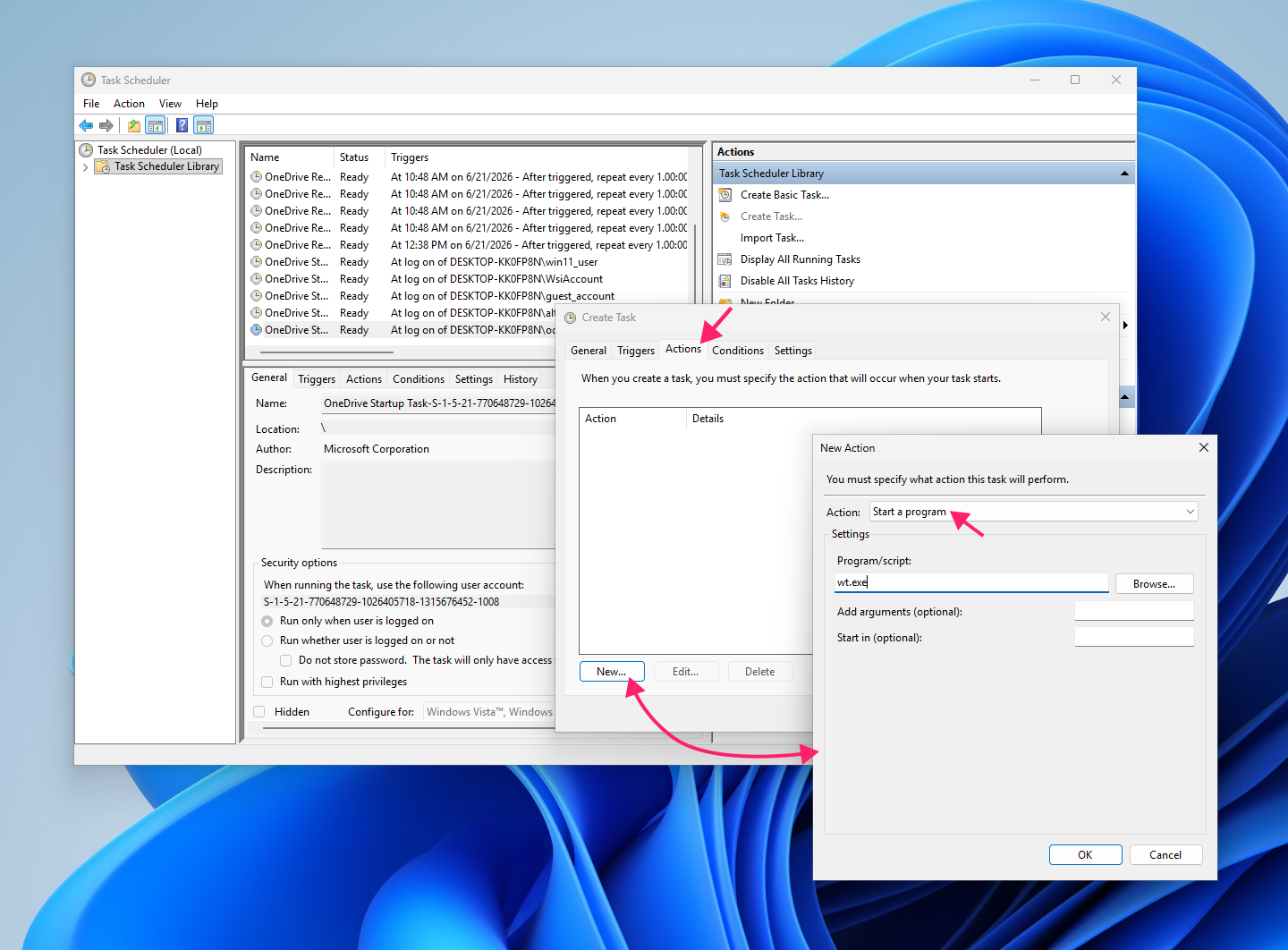
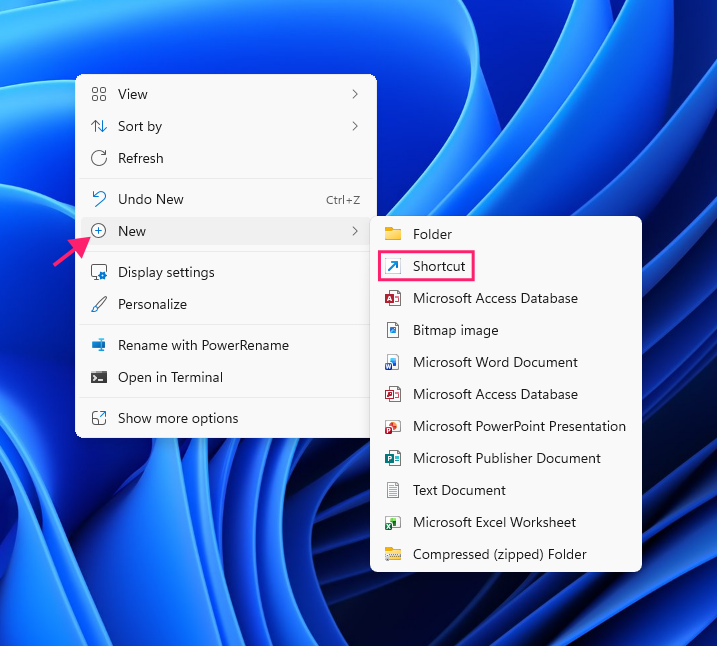
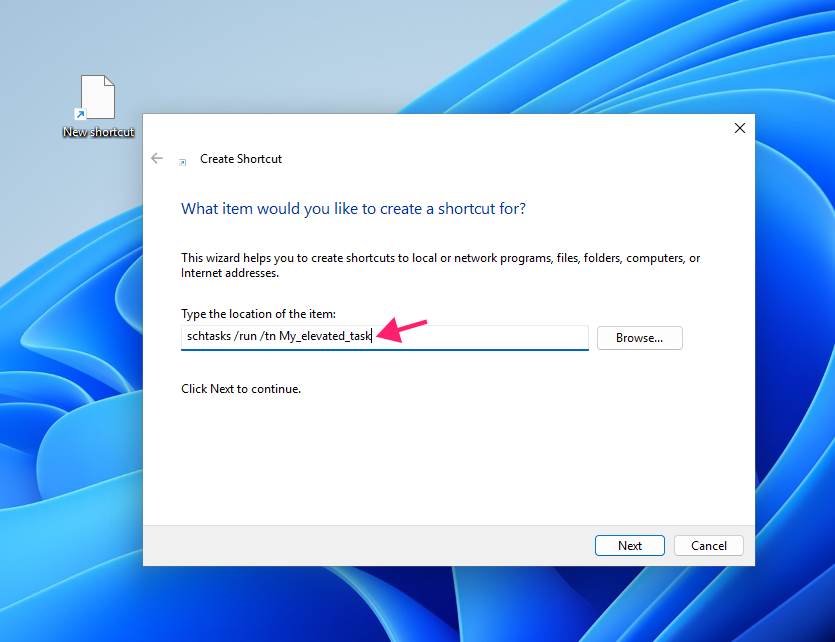
Unlike a standard elevated shortcut, this method bypasses the UAC prompt on launch because Task Scheduler handles elevation at registration time.
Via PowerShell (for fleet deployment):
This is the scriptable equivalent to this method. Wrap it in a script and push it via Atera’s RMM platform to deploy the script remotely to multiple machines without touching each one individually.
$action = New-ScheduledTaskAction -Execute “C:PathToYourApp.exe”
$trigger = New-ScheduledTaskTrigger -AtLogOn
$principal = New-ScheduledTaskPrincipal -GroupId “BUILTINAdministrators” -RunLevel Highest
Register-ScheduledTask -TaskName “YourTaskName” -Action $action -Trigger $trigger -Principal $principal -Force
Replace C:PathToYourApp.exe and YourTaskName with the correct executable path and a recognisable task name. The -RunLevel Highest parameter is what enables elevation; -Force overwrites any existing task with the same name, which keeps repeated deployments idempotent.
» Need more help? Atera’s AI Copilot can help you generate those scripts, no coding knowledge required
Method 5: Registry Editor
Use this when you need a persistent, system-level elevation flag tied directly to the executable, not a shortcut or a scheduled task. The registry approach writes to the same AppCompatFlagsLayers key that the Compatibility tab uses under the hood, and is the cleanest method for scripted fleet deployment.
Via the GUI:
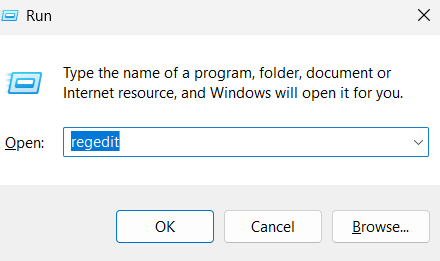
Press
Win + R, typeregedit, and press Enter to open Registry Editor
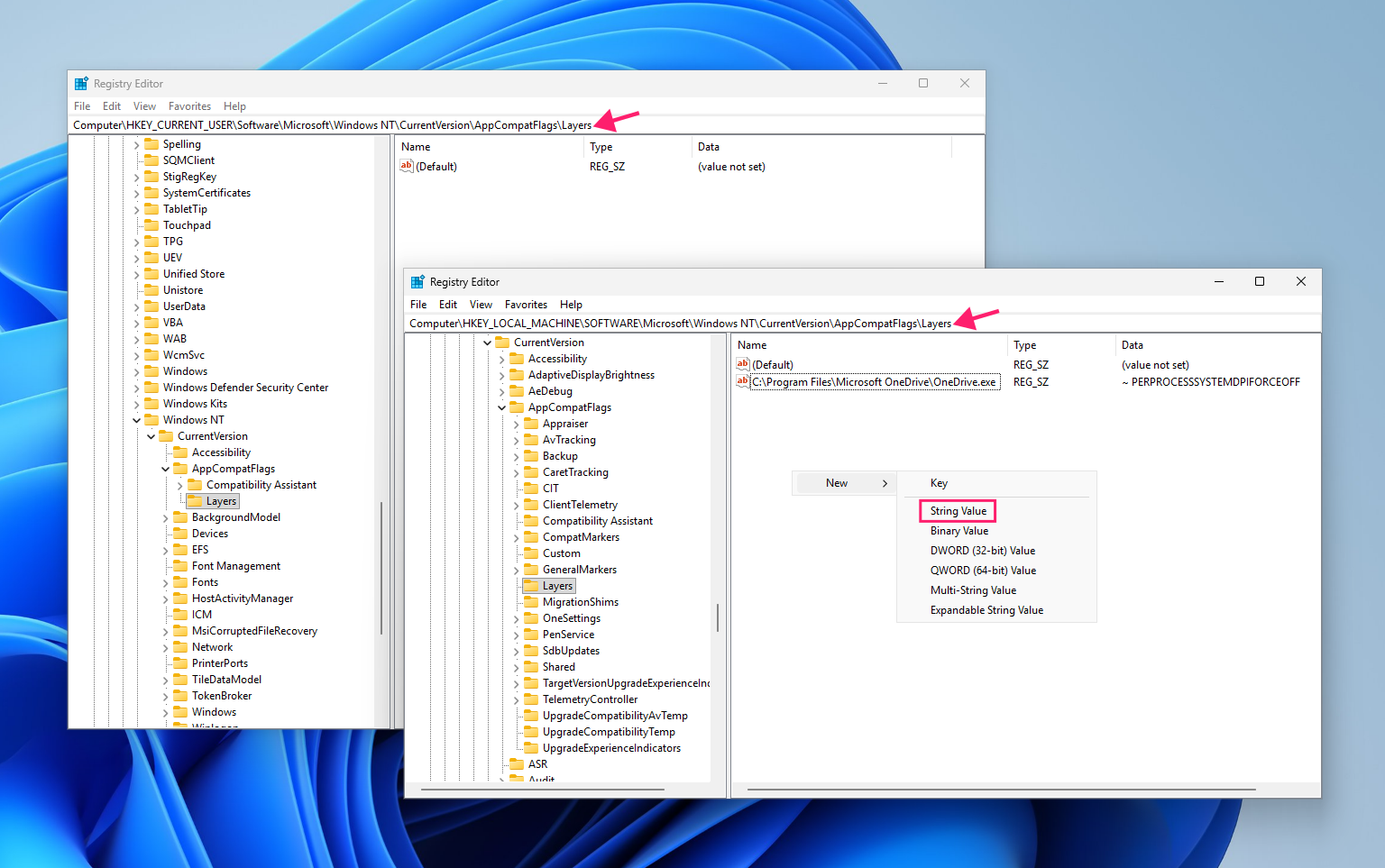
- To apply for the current user, navigate to:
HKEY_CURRENT_USERSoftwareMicrosoftWindows NTCurrentVersionAppCompatFlagsLayers - To apply for all users, navigate to:
HKEY_LOCAL_MACHINESOFTWAREMicrosoftWindows NTCurrentVersionAppCompatFlagsLayers Right-click in the right-hand pane and select New > String Value

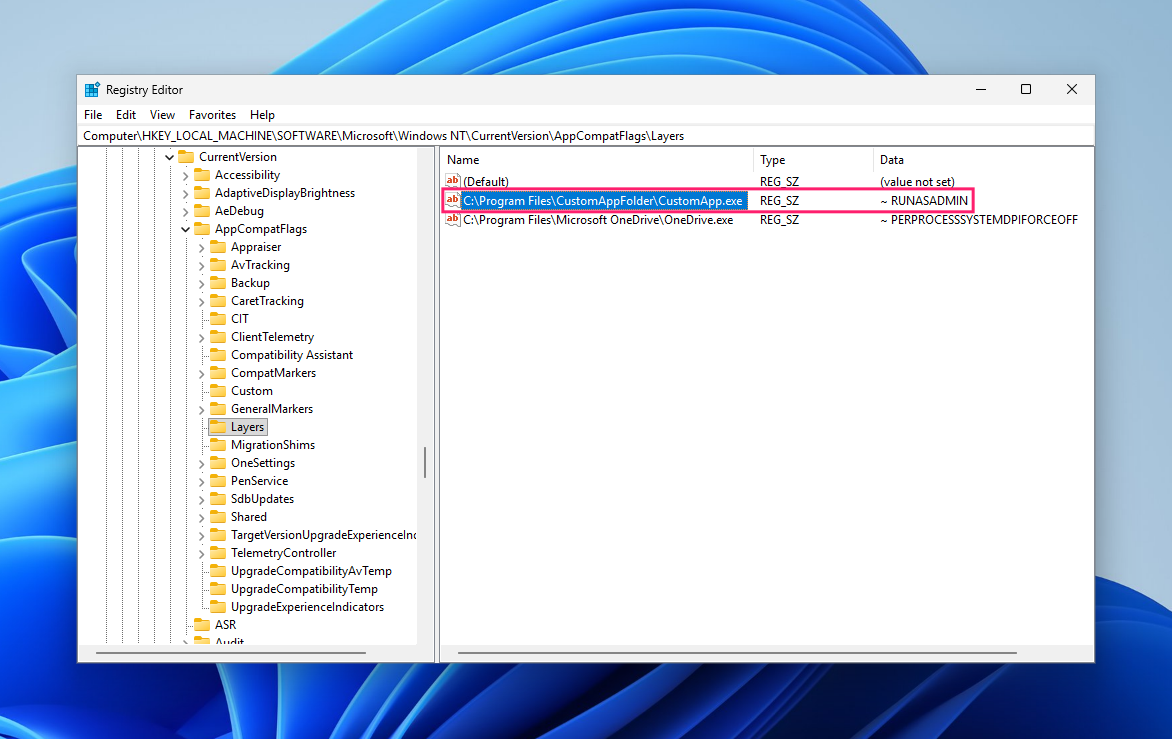
- Set the value name to the full file path of the
.exe(for example,C:Program FilesYourAppYourApp.exe) Set the value data to
~ RUNASADMIN
Via PowerShell (for fleet deployment):
- Open PowerShell as an admin
To change the registry for the current user, input this command:
$regPath = “HKCU:SoftwareMicrosoftWindows NTCurrentVersionAppCompatFlagsLayers” $exePath = “C:Program FilesYourAppYourApp.exe” New-ItemProperty -Path $regPath -Name $exePath -Value “~ RUNASADMIN” -PropertyType String -Force
To change the registry for all users, input this command:
$regPath = “HKLM:SOFTWAREMicrosoftWindows NTCurrentVersionAppCompatFlagsLayers” $exePath = “C:Program FilesYourAppYourApp.exe” New-ItemProperty -Path $regPath -Name $exePath -Value “~ RUNASADMIN” -PropertyType String -Force
Substitute$exePath for the correct path in both scripts. The HKLM variant requires the PowerShell session to be running as administrator.
For fleet deployment, push either script as a remote task via Atera’s RMM platform, but the HKLM version is generally preferable for managed endpoints since it applies to all accounts on the machine rather than the profile of whichever user happens to be logged in when the script runs.
» Discover the top Registry Editor challenges and solutions
Security considerations and troubleshooting
Persistent elevation is a configuration decision with ongoing consequences. This section covers the security tradeoffs that come with it, the edge cases that catch administrators off guard, and the troubleshooting steps for when forcing elevation causes problems rather than solving them.
Bypassing the UAC prompt
The methods above handle persistent elevation while keeping UAC active. There are scenarios (unattended workstations, automated pipelines, kiosk deployments with auto-login setups, etc.) where the UAC prompt itself is the obstacle.
Windows provides three ways to suppress it, each with different scope and implications.
Via UAC settings (suppress prompts only):
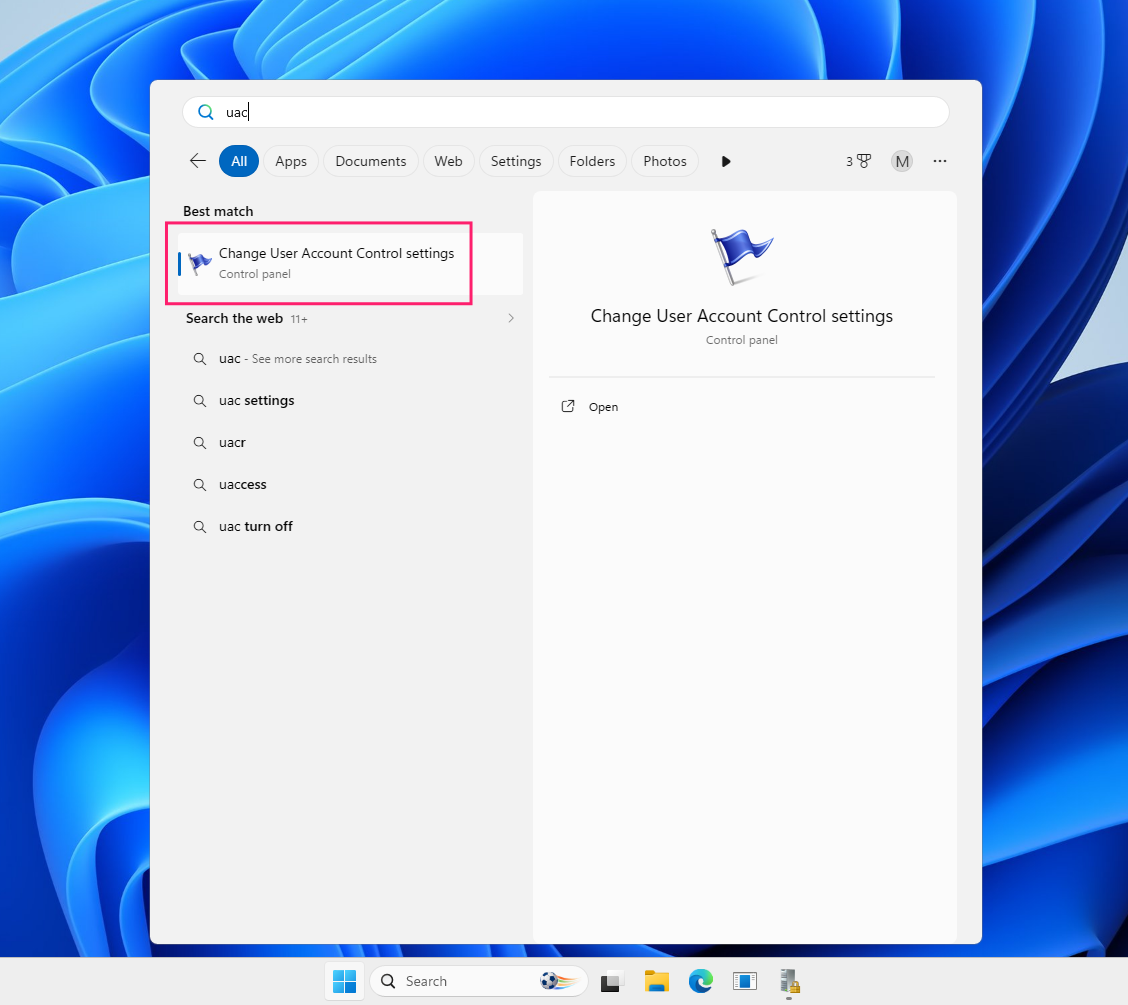
Press Start, type
uac, and click Change User Account Control settings
Pull the slider to the Never notify position and click OK

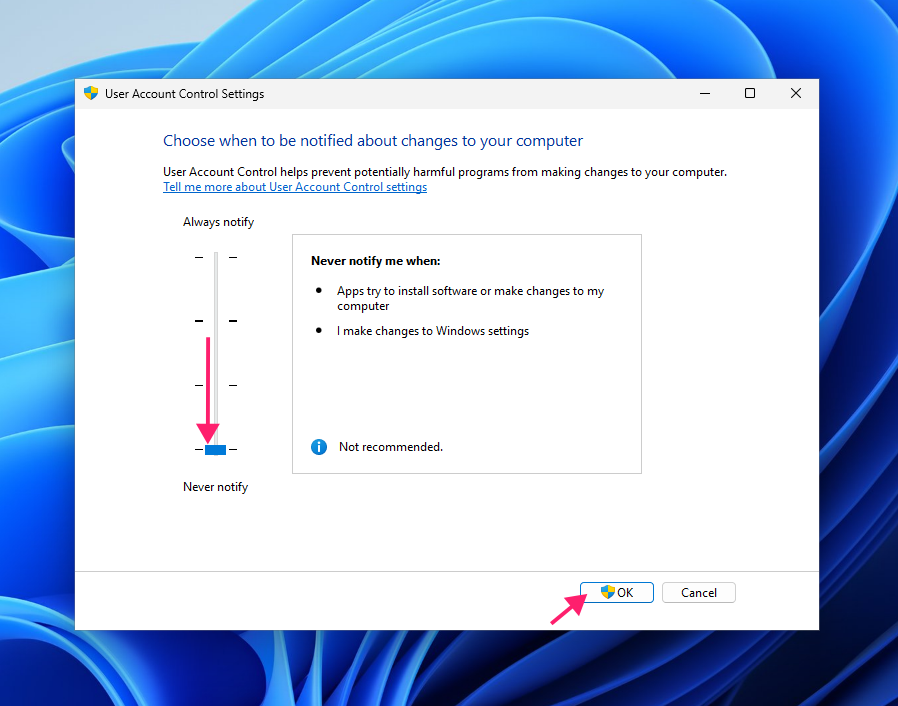
This silences prompts but doesn’t disable the underlying UAC mechanism. Standard user accounts are still restricted; only the consent dialog for administrators is suppressed.
Via Group Policy (suppress prompts only):
- Open the Local Group Policy Editor (
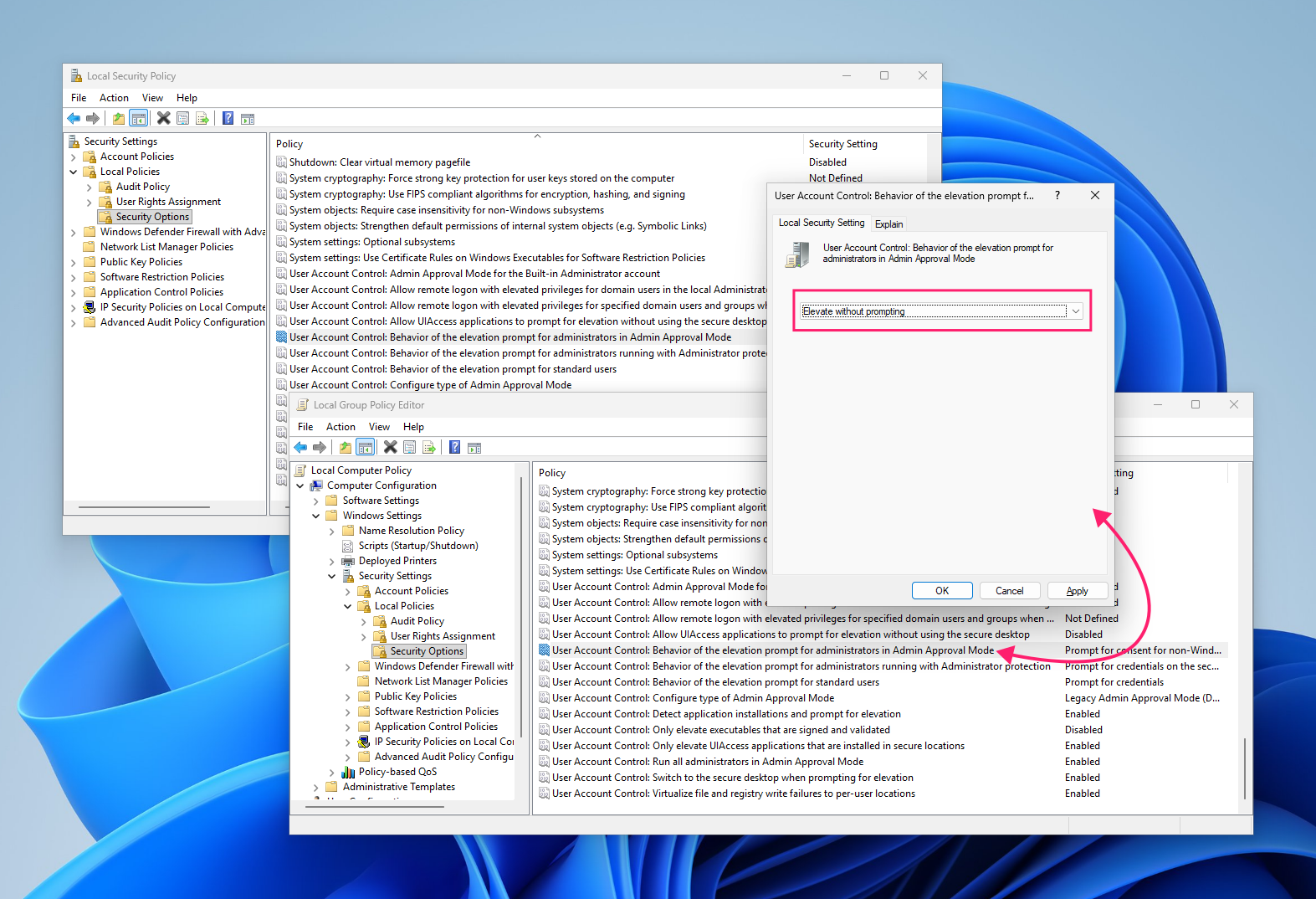
gpedit.msc) or Local Security Policy (secpol.msc) - Navigate to Computer Configuration > Windows Settings > Security Settings > Local Policies > Security Options
- Locate User Account Control: Behavior of the elevation prompt for administrators in Admin Approval Mode
Double-click the policy and change the behavior to Elevate without prompting

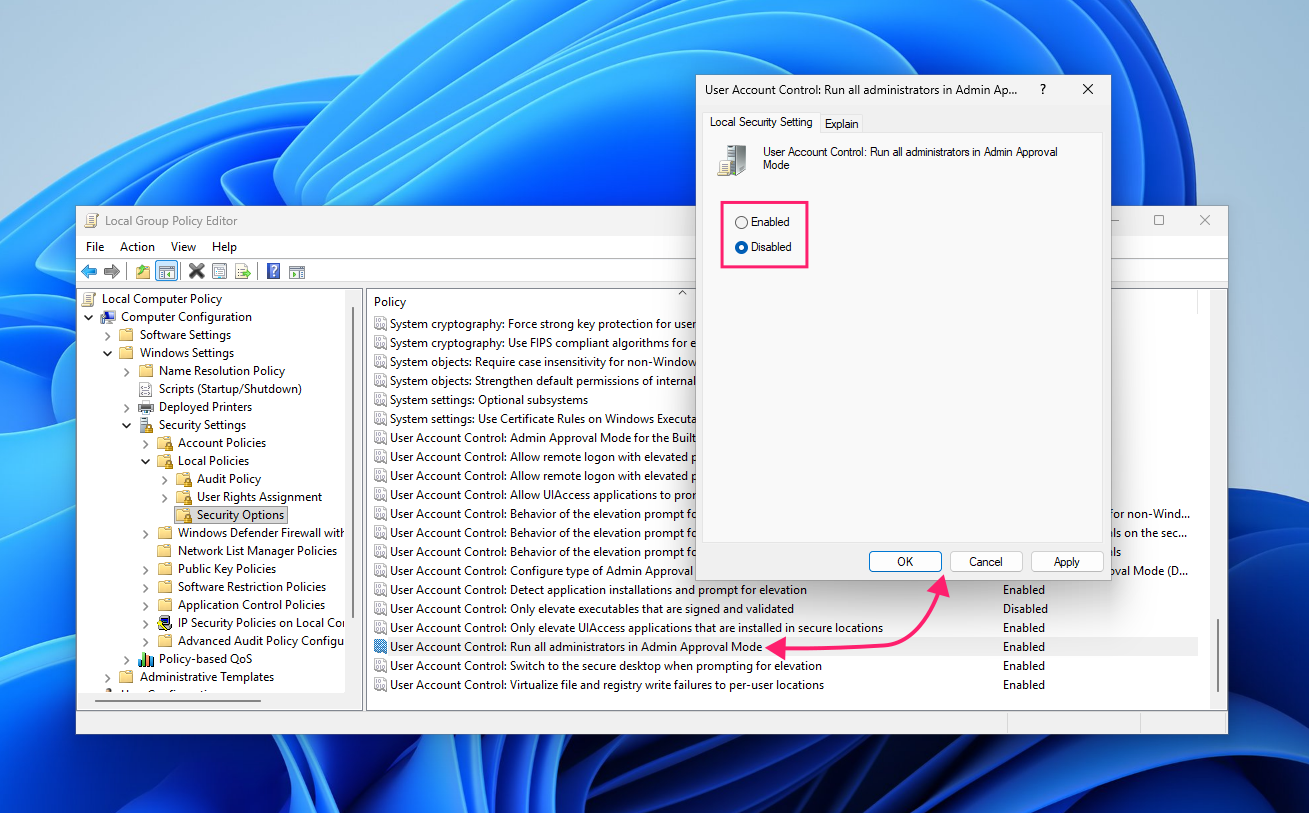
- In the same Security Options location, find User Account Control: Run all administrators in Admin Approval Mode
Set it to Disabled and restart the machine

» Learn how to simplify group policy management with Atera
Via Registry (disable UAC entirely):
- Open Registry Editor (
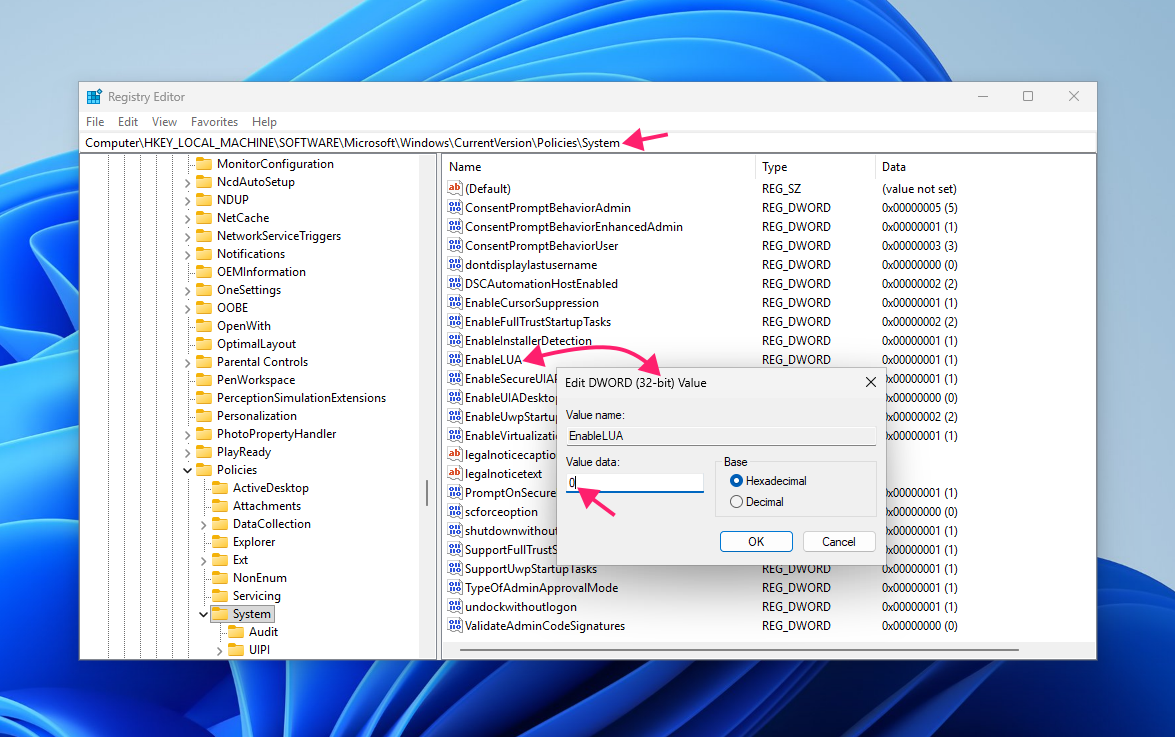
regedit) - Navigate to
HKEY_LOCAL_MACHINESOFTWAREMicrosoftWindowsCurrentVersionPoliciesSystem Set the
EnableLUAkey value to0
- Restart the machine.
WARNING: Disabling UAC entirely carries significant consequences that you should consider first:
- Background processes can silently inherit full system privileges with no consent prompt, removing the last layer of user-visible confirmation for privileged operations
- UWP applications and some Microsoft Store apps may break entirely, since they depend on the UAC framework to manage their privilege boundaries
- Malware can silently modify system files and registry keys without triggering any prompt or log entry
- File and registry virtualization is disabled, which can cause legacy applications that rely on safe write redirection to crash when they are denied direct system access
Suppressing prompts without disabling UAC is the safer path in most managed environments. Full UAC disablement should be reserved for tightly controlled, single-purpose deployments where the risk profile justifies it.
The mapped network drives problem
One of the most common side effects of running an application as administrator is that mapped network drives disappear or become inaccessible from within the elevated process. This happens because administrator accounts operate with two distinct access tokens and corresponding logon sessions.
When a network share is mapped in the standard user session, it exists as a symbolic link tied to that session’s token, which doesn’t carry over into the elevated administrator session.
Here’s the permanent registry fix:
This configures Windows to explicitly share symbolic links and network connection tokens between linked sessions.
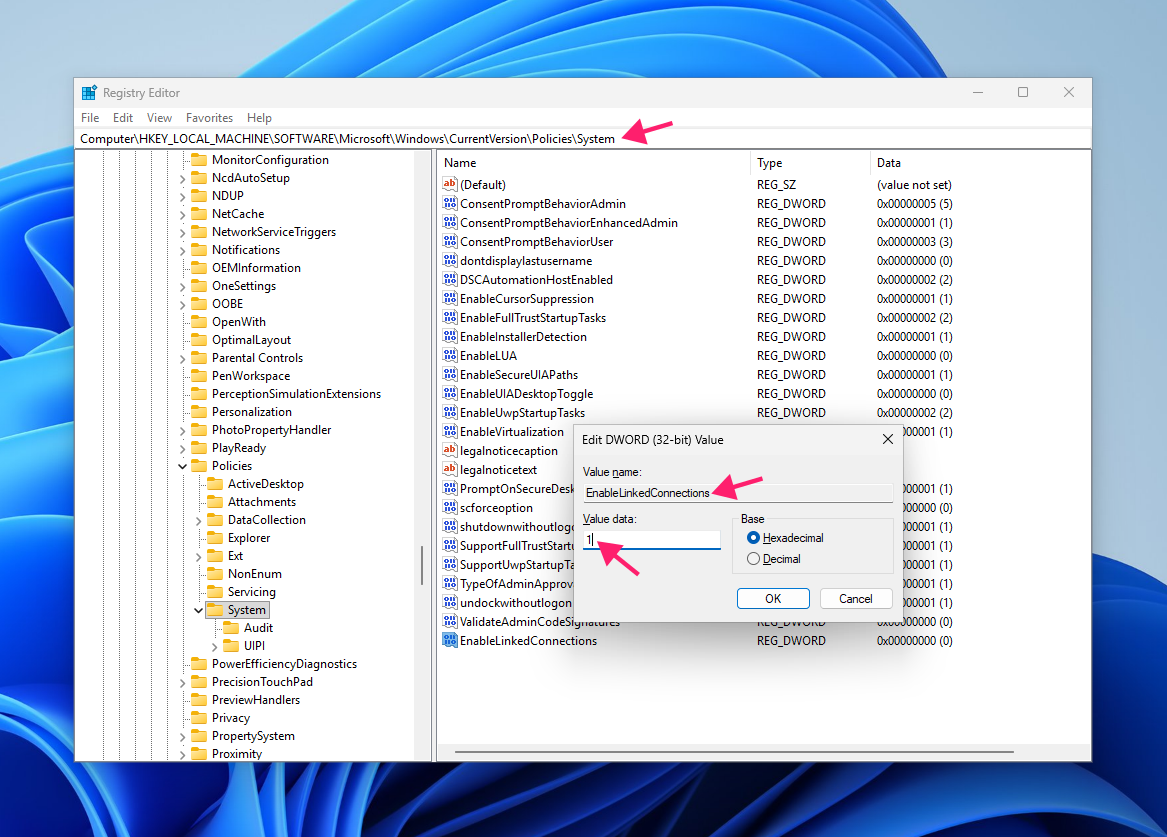
- Open Registry Editor and navigate to
HKEY_LOCAL_MACHINESOFTWAREMicrosoftWindowsCurrentVersionPoliciesSystem - Create a new DWORD (32-bit) value named
EnableLinkedConnectionsand set its value to 1. Restart the machine

» Here’s how to map a network drive in Windows
Troubleshooting: when forcing elevation causes crashes or failures
Forcing a program to run as administrator occasionally forces the application to freeze, crash on launch, or refuse to open at all. Work through the following steps in order.
- Check whether
EnableLUAinHKEY_LOCAL_MACHINESOFTWAREMicrosoftWindowsCurrentVersionPoliciesSystemis set to0 - Disabling UAC breaks some applications that depend on the UAC framework to manage their own privilege boundaries. Restore it to
1and test again - Run DISM followed by SFC in an elevated terminal to rule out corrupted system files as the cause:
DISM /Online /Cleanup-Image /RestoreHealth
sfc /scannow
Corrupted Windows component files can cause elevation-dependent processes to fail in ways that don’t surface a useful error message. Test with a freshly created administrator account. If the application runs correctly under a new account but not the original one, the problem is profile-specific rather than system-wide. Corrupted user profile data or conflicting per-user registry entries are the likely culprits.
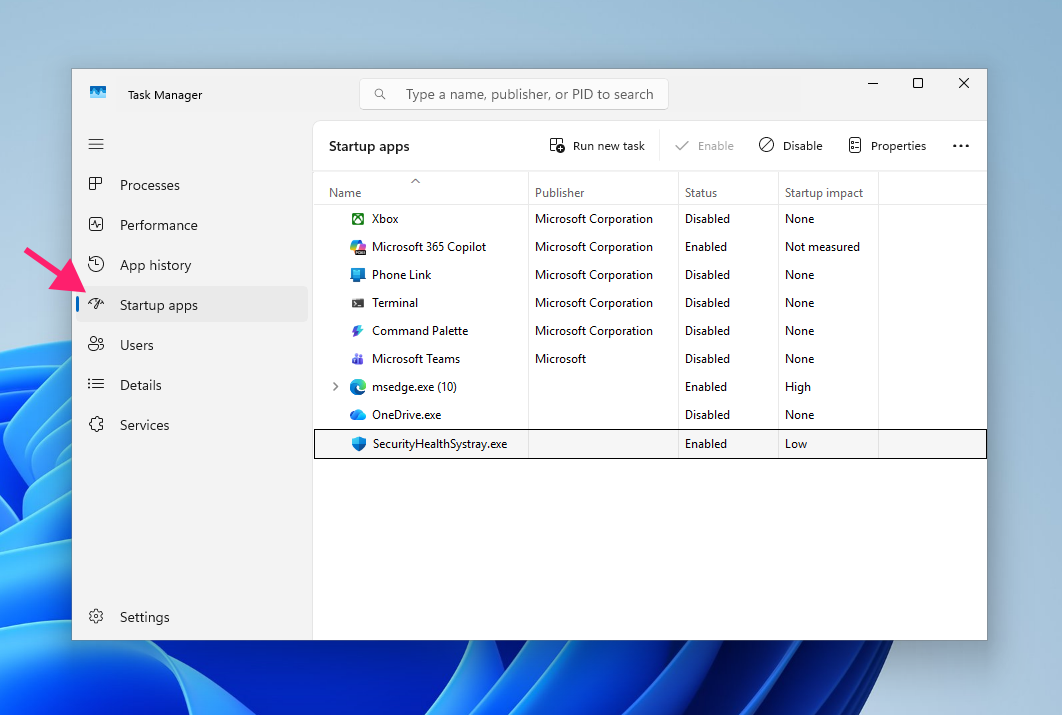
Perform a clean boot to isolate third-party conflicts:
Open Task Manager and switch to the Startup apps tab

- Disable all non-Microsoft startup items
- Restart the machine and attempt to launch the application again
If the application runs correctly after a clean boot, re-enable startup items in batches to identify which one is causing the conflict.
Managing privilege elevation across endpoints
Configuring persistent elevation on a single machine is a five-minute job. Doing it consistently across dozens or hundreds of endpoints and making sure every instance is deliberate, documented, and reversible is where the manual approach breaks down.
Atera’s RMM platform lets IT teams and MSPs script and deploy elevation configurations remotely, pushing registry changes or scheduled task setups across a fleet without touching each device. Combined with centralized monitoring and patch management, it’s the difference between a privilege policy and a privilege posture.
» Interested? Try Atera for free
Related Articles

How to reduce alert fatigue across your IT team
Your technicians aren't ignoring alerts because they're careless. They're ignoring them because most alerts have taught them to. Once the stream stops being trustworthy, real failures slip past with the noise. Fixing it means deciding what deserves an interruption, tuning out transient spikes, collapsing alert storms, and automating the fixes you've run a hundred times.
Read now
How to close the IT skills gap on your team
Course completions don't close skills gaps. Technicians finish the training, then hand the first unfamiliar failure straight back to a senior engineer. Real capability gets built on live tickets, incidents, and maintenance windows, with guidance that fades as competence grows.
Read now
How to calculate cost per ticket (and why most teams get it wrong)
Most cost-per-ticket figures are wrong before anyone reads them. Missing overhead, tickets that were opened but never closed, spam and duplicates padding the count, and one month's costs divided by another month's tickets all make support look cheaper than it is. Fix both sides of the division and the number finally shows where technician time and money actually go.
Read now
How to prepare for a software license audit
A vendor audit notice doesn't wait for you to get organized. It demands proof, right now, that every install matches every entitlement you've paid for, and most IT teams find out the hard way how much they don't actually know about their own environment. Getting audit-ready before the letter arrives is the difference between negotiating from strength and paying for months of scrambling.
Read nowEndless IT possibilities
Boost your productivity with Atera’s intuitive, centralized all-in-one platform









