
Table of contents
Generate summary with AI

Some of your endpoints probably aren’t assigned to a user, but to a function. That kiosk in the lobby, for example, needs to be operational before anyone gets in. When one of those machines reboots, the last thing you want is a login screen sitting there waiting for someone to come and type a password they don’t know. But you can avoid the ticket entirely with a solid auto login setup.
The configuration itself is straightforward, but the method you use depends on your environment. Local accounts, Microsoft accounts, and domain-joined machines each have their own wrinkles, and credentials need to be handled differently depending on how security-conscious you need to be about what ends up in the registry.
This post covers all the methods, the prerequisites that have to be in place before any of them will work, and how to push the configuration across multiple endpoints without touching each machine individually.
» Trying to keep the machines on? Here’s how to disable Hibernate in Windows 11
What to know about auto login first
Before you touch a single registry key or open Netplwiz, two things need to be true:
- The account making the configuration changes has administrator privileges
- The account being configured for auto login has valid credentials with an active username and password. A passwordless account will break auto login silently; the OS will revert
AutoAdminLogonback to 0 on the next boot without any error message to explain why
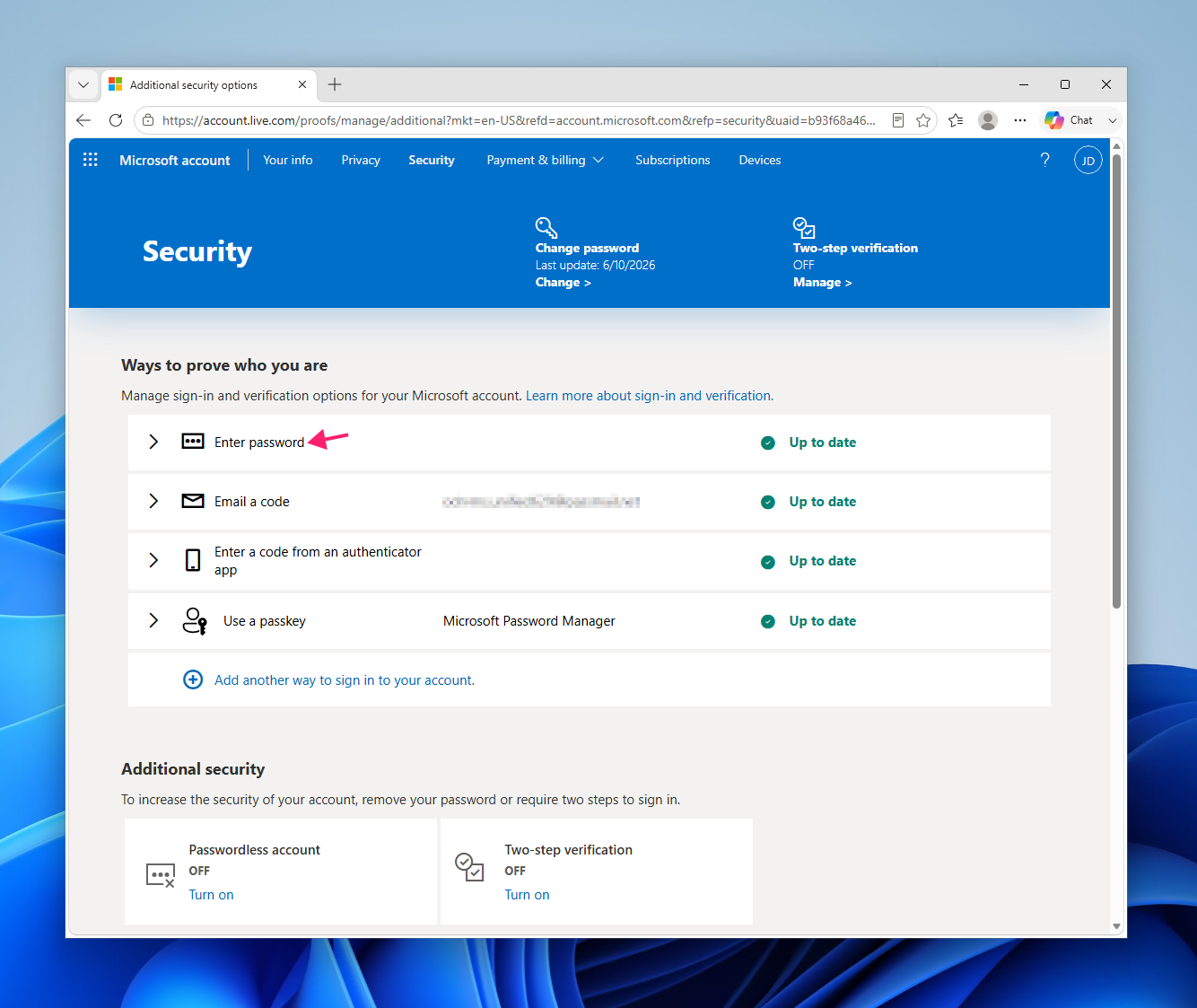
If the target account is linked to a Microsoft account rather than a local profile, there’s additional groundwork to cover:
- The username Windows expects isn’t a display name or a short alias, it’s the full email address the Microsoft account was created with
- Windows Hello enforcement has to be disabled before auto login will function. Navigate to Settings > Accounts > Sign-in options and set For improved security, only allow Windows Hello sign-in for Microsoft accounts on this device to Off
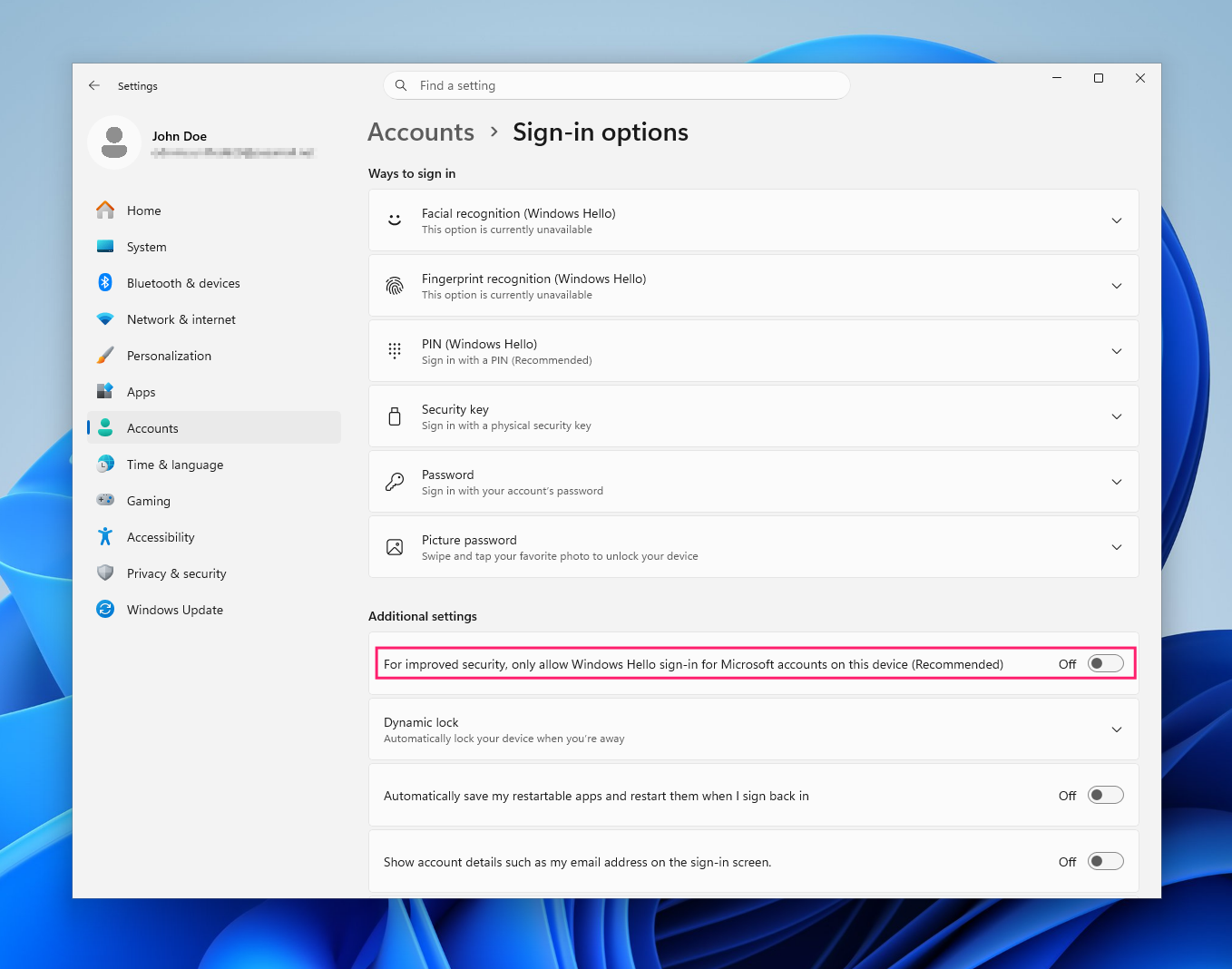
If that toggle is on, the “Users must enter a username and password” checkbox in Netplwiz will be missing entirely, and the registry method won’t behave as expected either.
Is auto login the right choice?
Bypassing the login screen stores credentials in the Windows registry in a way that a local administrator can retrieve, which means this configuration belongs on a specific type of endpoint and NOT general-purpose workstations.
This includes:
- Public-facing kiosks and digital signage terminals that run as restricted local accounts and need to come back up and resume operation without any human intervention after a power cycle or reboot
- Industrial control systems and HMI terminals that monitor live processes
- Build agents and UI testing pipelines, such as automated test suites that render graphical components since they require an active, fully initialized desktop session
What these scenarios share is that the endpoint has a fixed, narrow function, runs under a restricted or purpose-built account, and sits in an environment where physical access is already controlled. That context is doing a lot of the security work that the login screen would otherwise be doing.
» Make the machine more efficient by managing Windows startup programs
4 ways to set up auto login on Windows 11
Windows 11 gives you a few ways to configure auto login. Netplwiz is the most accessible because it’s a built-in GUI utility and the right starting point for most single-machine setups. The Registry Editor gives you direct control over the underlying keys, which is useful when you need to understand exactly what’s being configured or when you’re building out a scripted deployment. Sysinternals Autologon is the credential-conscious option because it writes to the same registry location but encrypts the password as an LSA secret rather than storing it in plain text.
There are also special requirements for domain-joined machines and ways to automate the process with PowerShell scripts.
Method 1: Netplwiz (the quickest path)
Netplwiz is the built-in User Accounts control panel. It’s the quickest path to auto login for a local or Microsoft account on a single machine.
Remember: Before starting, if the target account is a Microsoft account, make sure Windows Hello enforcement is disabled in Settings > Accounts > Sign-in options > set For improved security, only allow Windows Hello sign-in for Microsoft accounts on this device to Off.
Then, follow these steps:
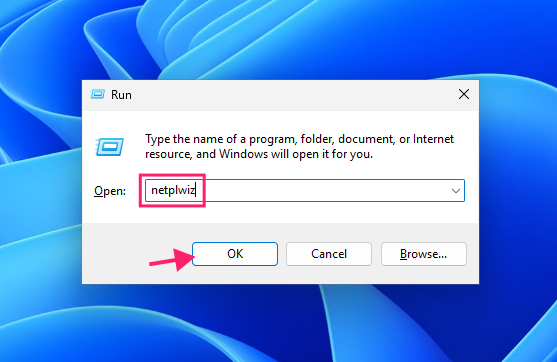
Press Win + R, type
netplwiz, and press Enter
If the current user doesn’t have administrator privileges, provide admin credentials when the UAC prompt appears

- In the User Accounts dialog, confirm the Users must enter a username and password to use this computer checkbox is checked
- Select the account you want to configure for auto login from the list
Uncheck the Users must enter a username and password to use this computer checkbox and click Apply

In the Automatically sign in dialog that appears, enter the username and password for the selected account. If the account is a Microsoft account, enter the full email address in the User name field

- Click OK, then click OK again to close the User Accounts dialog
- Restart the system to confirm auto login is working
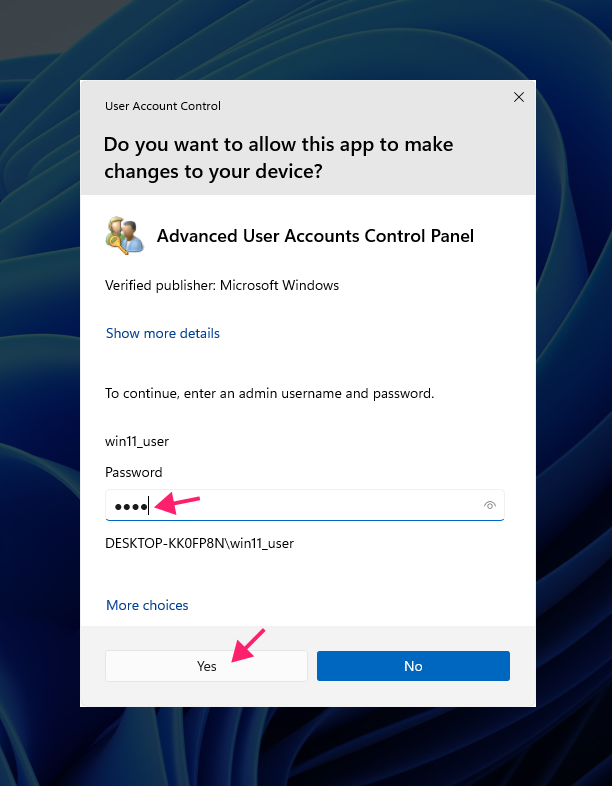
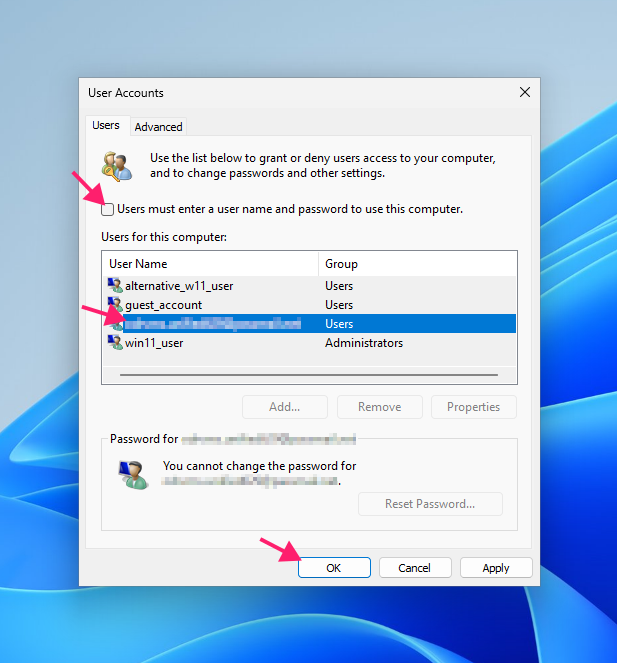
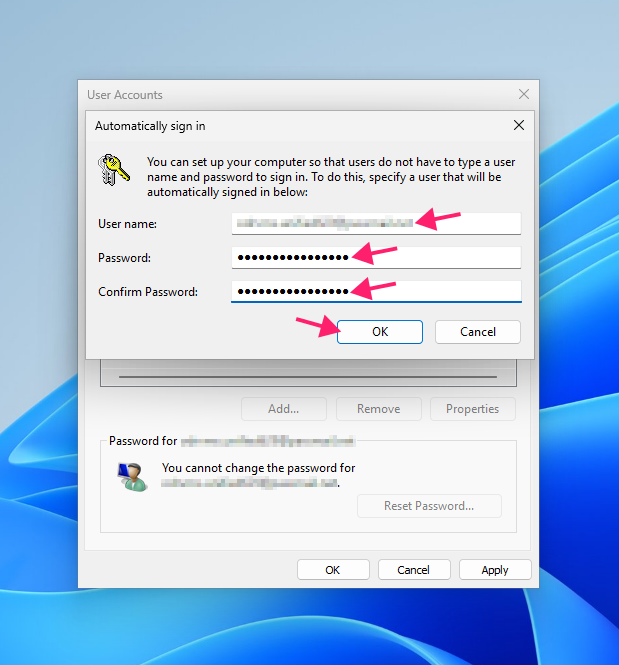
Note that Netplwiz does not validate the credentials you enter. If the username or password is incorrect, the machine will fail to log in on the next boot without any warning at this stage.
» Here’s how to restart a remote computer using Windows
Method 2: Registry Editor (for more flexibility)
The registry method gives you direct access to the Winlogon key that controls auto login behavior. It’s more flexible than Netplwiz and is the foundation for any scripted or remote deployment approach.
Open Registry Editor with administrator privileges

- Navigate to
HKEY_LOCAL_MACHINESOFTWAREMicrosoftWindows NTCurrentVersionWinlogon Locate the following string values (
REG_SZ) or create the ones that don’t already exist:> AutoAdminLogon: 1> DefaultUserName: Target account username. For Microsoft accounts, use the full email address.> DefaultDomainName: Domain name for domain-joined machines; local machine name for local accounts.> DefaultPassword: Plain text password for the target account.- Restart the system.
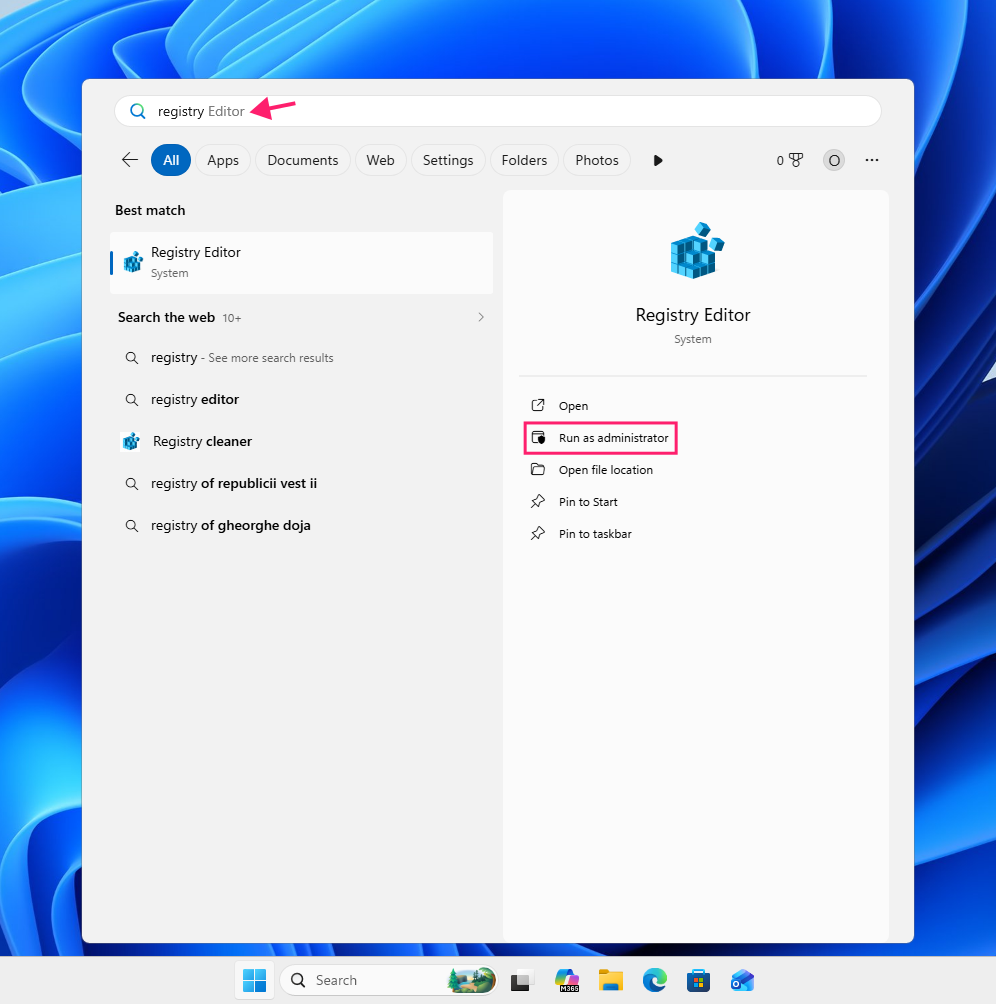
Note: If AutoAdminLogon is set to 1 but DefaultPassword is missing or empty, Windows will silently revert AutoAdminLogon back to 0 on the next boot. If auto login stops working after a restart, this is the first thing to check.
For Active Directory domain-joined machines, this configuration is almost identical, with DefaultDomainName set to the name of the AD domain the user account belongs to. If the machine attempts auto login before it can reach a domain controller, the logon will fail. Microsoft recommends enabling the Always wait for the network at computer startup and logon Group Policy setting to ensure Windows waits for domain connectivity before attempting to authenticate.

For Entra ID-joined machines, the registry keys can be set, but there is no equivalent network-wait policy available for Entra ID. If connectivity to the authentication endpoint isn’t established before the logon attempt, auto login will fail, and there is no current workaround.
» Here are our top Registry Editor challenges and solutions
Method 3: Sysinternals Autologon (flexibility with better security)
Sysinternals Autologon configures the same Winlogon registry keys as the manual method, but encrypts the password as an LSA secret rather than storing it in plain text. For environments where plain text credentials in the registry are a concern, this is the better option.
It also supports command-line usage (autologon ) which makes it scriptable for deployment scenarios where you want the encryption benefit without clicking through a GUI on each machine.
Download Autologon from the official Sysinternals page

- Run
Autologon.exewith administrator privileges - Enter the Username, Domain, and Password for the target account, then click Enable
Click OK on the confirmation dialog

- Restart the system
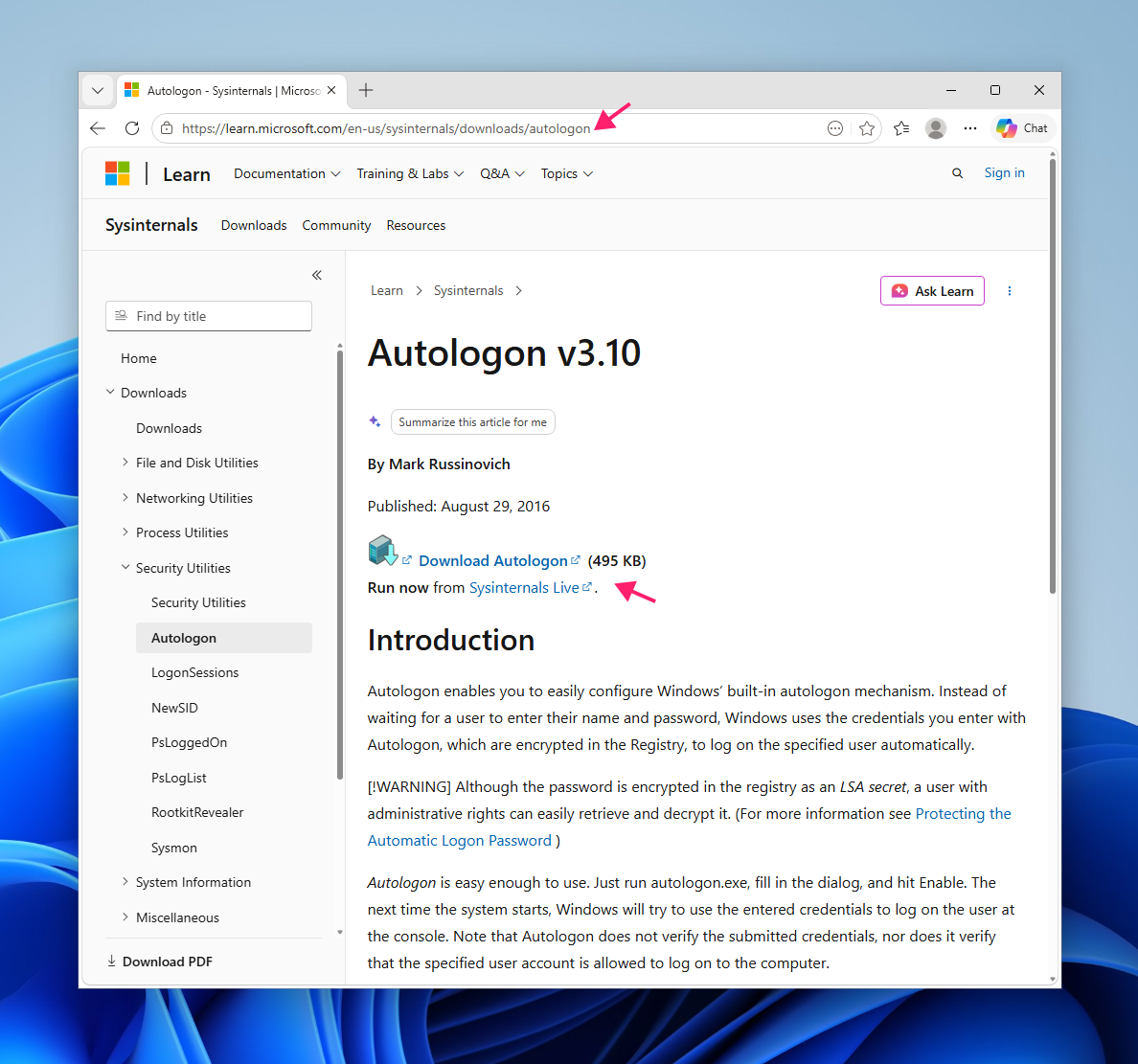
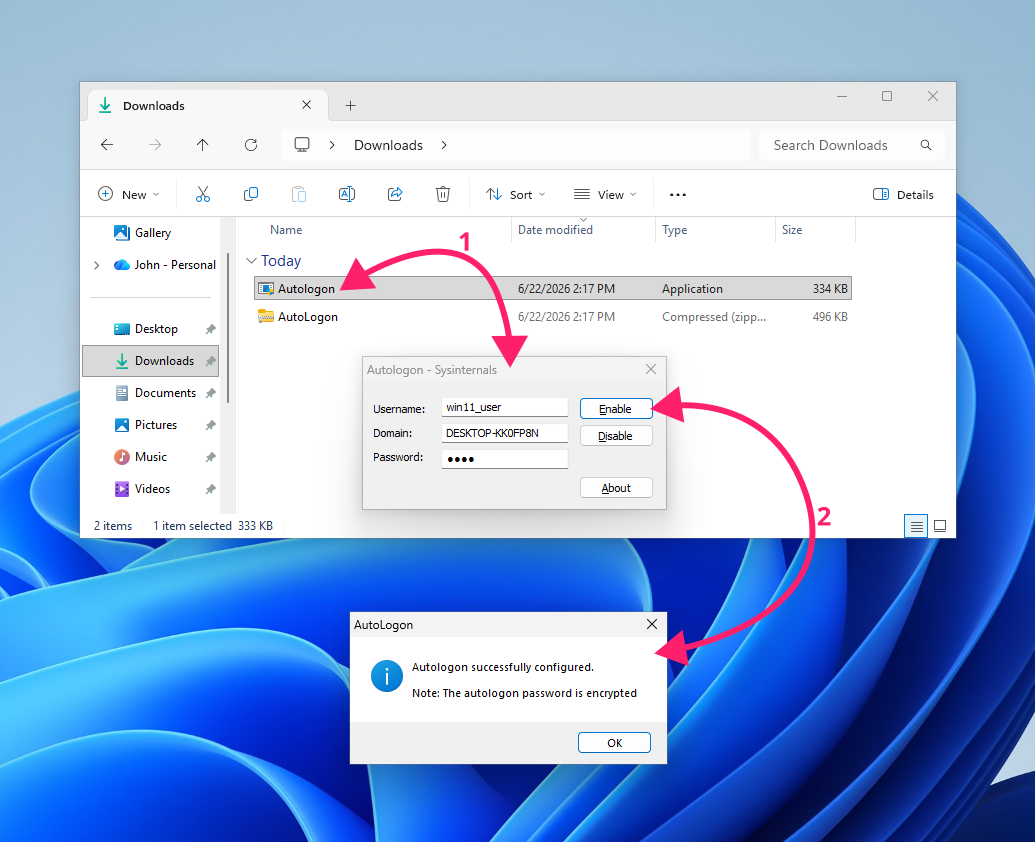
To disable auto login through the tool, open Autologon again and click Disable rather than modifying the registry keys manually.
Method 4: Deploying at scale with PowerShell
There’s no Group Policy setting that centrally deploys AutoAdminLogon. Scale deployment has to go through your management tooling, whether that’s pushing a PowerShell script via a platform like Atera’s RMM, running it through Intune, or distributing it through whatever mechanism your environment already uses.
Here’s an example script to set all four required registry values in a single pass:
The Script:
Atera does not guarantee the integrity, availability, security, virus-free, safety, lawfulness, non-infringement, rights’ status, or functionality of the scripts. The use of the shared scripts is at your own risk. Scripts are provided “AS IS”. *
# Registry path
$Path = "HKLM:\SOFTWARE\Microsoft\Windows NT\CurrentVersion\Winlogon"
# Values to set
$RegistrySettings = @{
    AutoAdminLogon    = "1"
    DefaultUserName   = "KioskUser"
    DefaultDomainName = "KioskDomain"
    DefaultPassword   = "KioskPassword123!"
}
# Apply values
foreach ($Key in $RegistrySettings.Keys) {
    New-ItemProperty -Path $Path -Name $Key -Value $RegistrySettings[$Key] -PropertyType String -Force | Out-Null
}
Swap in the appropriate credentials before deployment. If you’re pushing this remotely via an RMM automation profile, the script runs silently and the registry values are set without requiring a local session on each machine.
The best part is that with Atera, you can do this with zero coding knowledge. Just ask Atera’s AI Copilot to write you a PowerShell script for enabling auto login on specific machines, then deploy those scripts remotely through the RMM platform.
Managing auto login at scale
Setting up auto login on a single machine is straightforward once the prerequisites are in place. Keeping that configuration consistent, monitored, and correctly applied across dozens or hundreds of endpoints is a different problem that doesn’t have a clean answer in the Windows toolset alone. There’s no Group Policy object for AutoAdminLogon, which means deployment falls to whatever management solution your team is already running.
Atera’s RMM platform lets IT teams and MSPs deploy PowerShell scripts remotely across their entire device fleet, schedule them via automation profiles, and track execution without logging into each machine individually. For unattended endpoints that need to come back up cleanly after every reboot, that kind of centralized control matters.
Frequently Asked Questions
Related Articles

How to reduce alert fatigue across your IT team
Your technicians aren't ignoring alerts because they're careless. They're ignoring them because most alerts have taught them to. Once the stream stops being trustworthy, real failures slip past with the noise. Fixing it means deciding what deserves an interruption, tuning out transient spikes, collapsing alert storms, and automating the fixes you've run a hundred times.
Read now
How to close the IT skills gap on your team
Course completions don't close skills gaps. Technicians finish the training, then hand the first unfamiliar failure straight back to a senior engineer. Real capability gets built on live tickets, incidents, and maintenance windows, with guidance that fades as competence grows.
Read now
How to calculate cost per ticket (and why most teams get it wrong)
Most cost-per-ticket figures are wrong before anyone reads them. Missing overhead, tickets that were opened but never closed, spam and duplicates padding the count, and one month's costs divided by another month's tickets all make support look cheaper than it is. Fix both sides of the division and the number finally shows where technician time and money actually go.
Read now
How to prepare for a software license audit
A vendor audit notice doesn't wait for you to get organized. It demands proof, right now, that every install matches every entitlement you've paid for, and most IT teams find out the hard way how much they don't actually know about their own environment. Getting audit-ready before the letter arrives is the difference between negotiating from strength and paying for months of scrambling.
Read nowEndless IT possibilities
Boost your productivity with Atera’s intuitive, centralized all-in-one platform









