
Generate summary with AI

Power management decisions often only get made once during the initial setup for a new PC. That means hibernation gets left on because it was on by default, or disabled because someone read it was bad for SSDs (it isn’t, not in any meaningful way on modern hardware).
Neither is a real decision. Hibernation writes your entire RAM contents to disk, powers the machine completely off, and restores everything exactly as you left it when you come back. That’s genuinely useful in some situations but actively counterproductive in others. Here’s how to take control of it on your machine.
» Worried about SSD degredation? Here’s how to check SSD health
What hibernation actually is and when it causes problems
Hibernation sits in an awkward middle position in Windows power management where it’s deeper than sleep but less final than shutdown. That ambiguity is exactly where most of the confusion comes from.
When a Windows 11 machine enters hibernation, the operating system compresses the entire contents of RAM using all available CPU cores and writes the result to a hidden system file called hiberfil.sys, stored at the root of the primary drive. Once that write completes, the system powers off completely (no power draw, no background activity, nothing). When the machine powers back on, Windows reads hiberfil.sys, decompresses the saved memory image, and restores the previous session to exactly the state it was in before hibernation.
This is fundamentally different from sleep. Sleep keeps the session alive in volatile RAM and transitions the system to a low-power state, which means it still draws power and loses everything if that power is interrupted. Hibernation requires zero power to maintain the previous state, because the state isn’t in RAM anymore. It’s on disk.
The two are frequently treated as interchangeable, but here are the differences:
Sleep | Hibernate | |
Power required | Yes (low draw) | None |
Session stored in | RAM | Disk (hiberfil.sys) |
Wake speed | Near-instant | Seconds (faster on NVMe) |
Safe during power loss | No | Yes |
Background activity | None | None |
When hibernation becomes a liability
Hibernation isn’t always the right default. There are three situations where leaving it enabled creates real problems:
- Limited disk space: The hiberfil.sys reservation is fixed at 40% of RAM and cannot be reduced below that floor in Windows 11. On devices with constrained storage (smaller SSDs, tablets, budget laptops, etc.), that space may be more valuable than the convenience hibernation provides.
- Security without BitLocker: Hiberfil.sys contains a compressed snapshot of everything that was in memory at the time of hibernation, including open documents, browser sessions, application state, and potentially credentials. On a machine without BitLocker drive encryption enabled, that file sits unprotected on disk. Anyone with physical access to the machine and the right tools could extract it and read its contents.
- Troubleshooting and diagnostics: Hibernation preserves the system state, which is exactly what you don’t want when you’re trying to isolate a problem. A fresh boot clears the kernel session, flushes cached states, and gives you a clean environment to work from. If a machine is being actively diagnosed, hibernation can obscure the issue or carry a corrupted state forward into the next session.
The practical implication is that sleep is the right choice for short interruptions where power isn’t a concern. Hibernation is the right choice for longer periods of inactivity, travel, or any situation where the machine may lose power before it’s used again.
» Make sure you know where to find your BitLocker recovery key
4 Ways to disable and enable hibernation in Windows 11
There are four ways to control hibernation in Windows 11 that serve different goals: if you want to just reclaim disk space or eliminate the security exposure, use PowerShell, Command Prompt, or the Registry Editor. If your goal is simply to stop users from accidentally hibernating a machine, the GUI or Group Policy approach is good enough.
Method 1: Control Panel (show or hide hibernate in the shutdown menu)
This method controls menu visibility only but doesn’t actually disable hibernation.
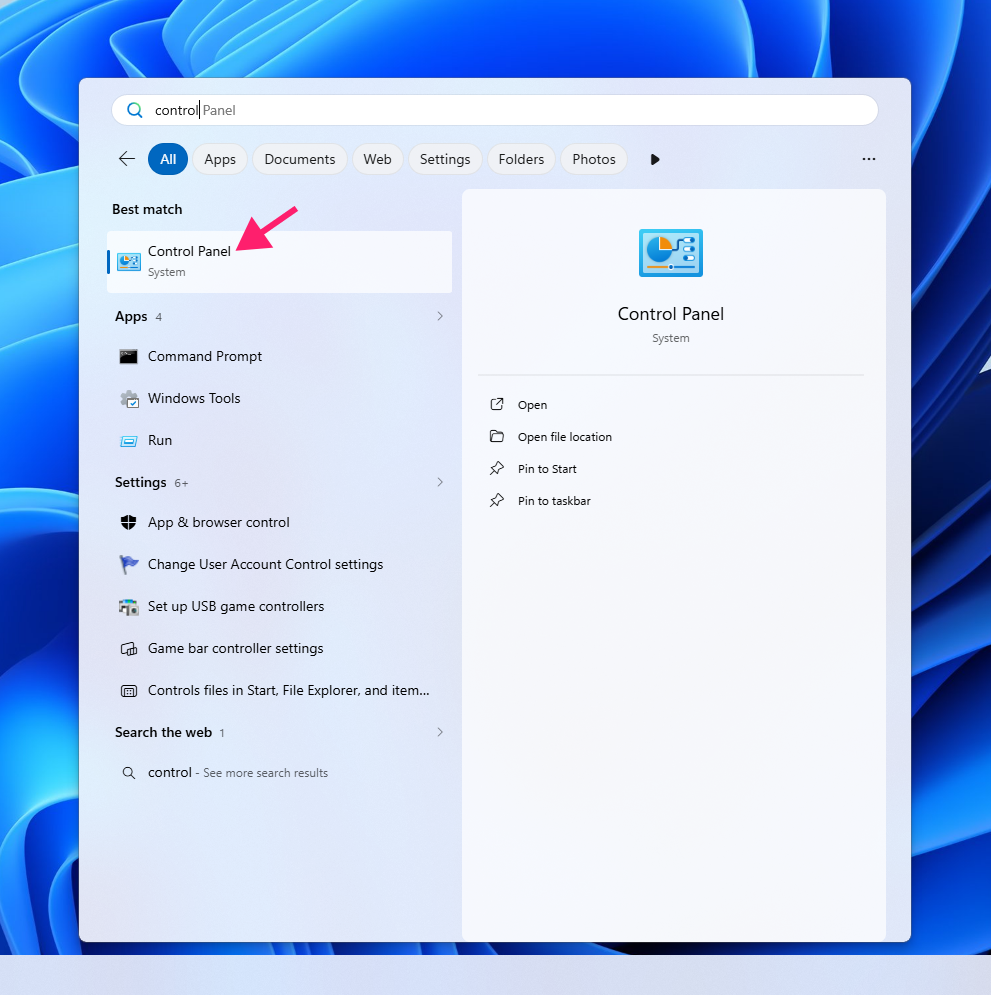
Open the Start menu, search for Control Panel, and open it

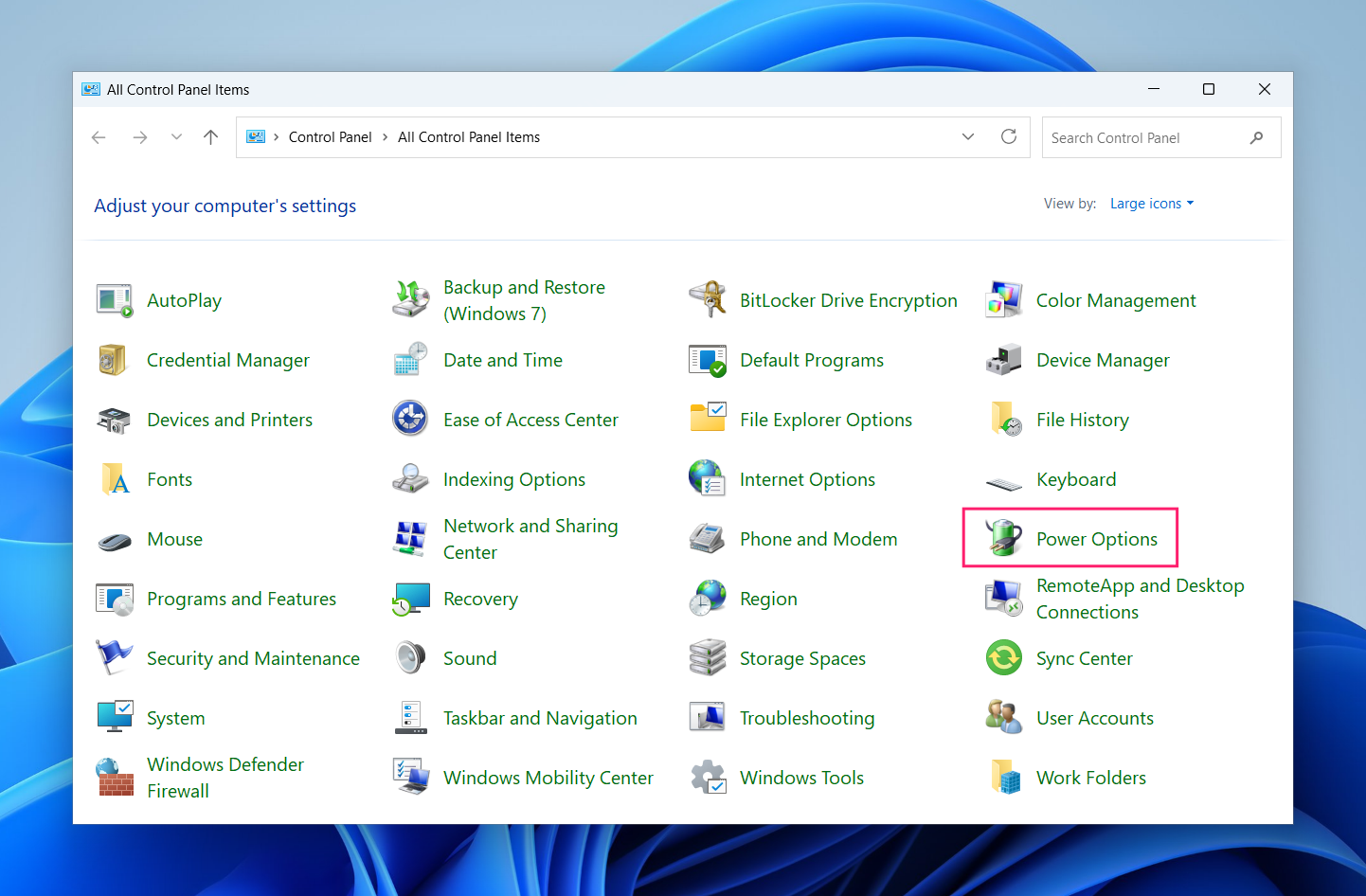
If View by is set to Large icons, click Power Options

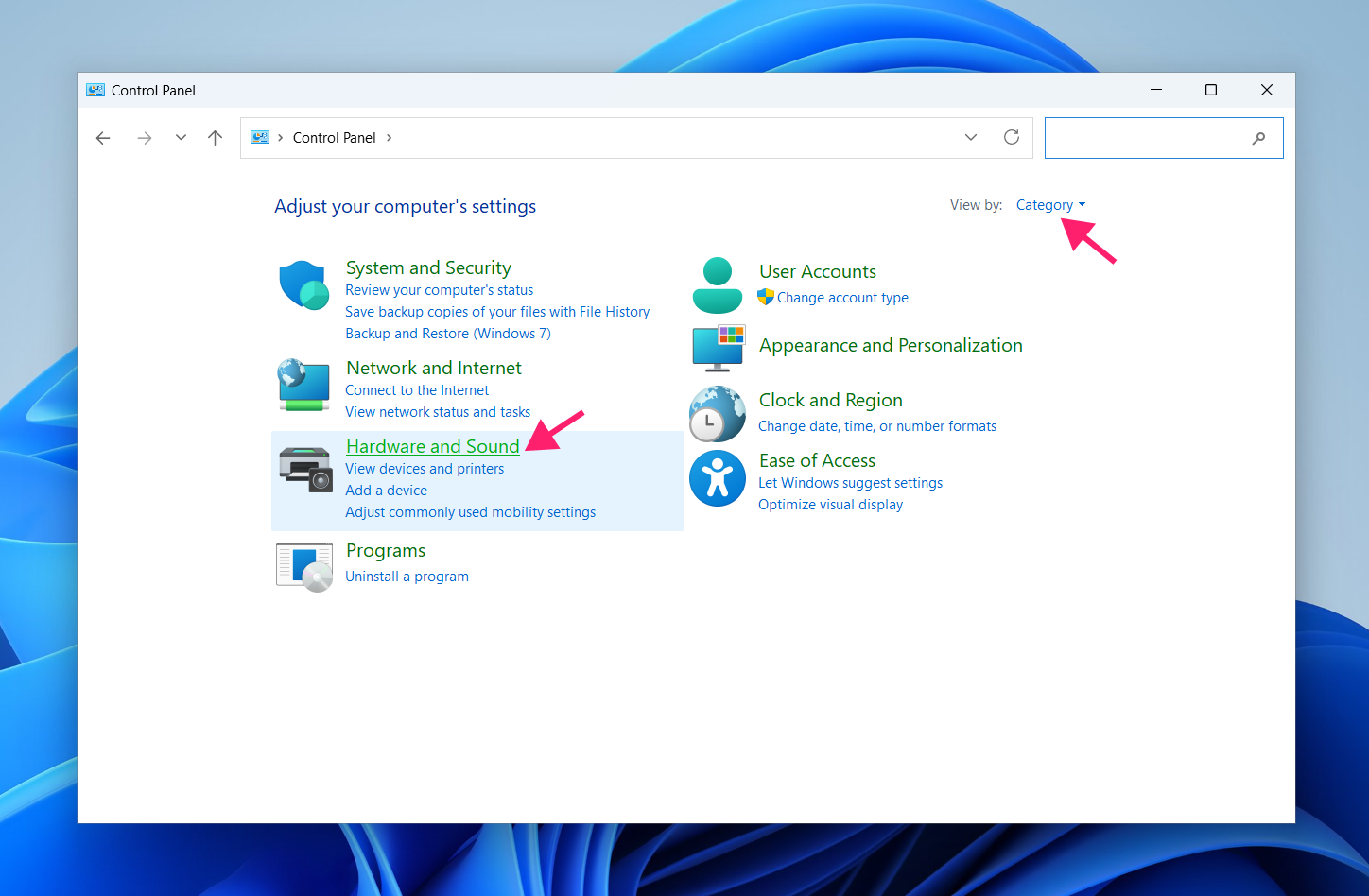
If it’s set to Category, navigate to Hardware and Sound first, then Power Options

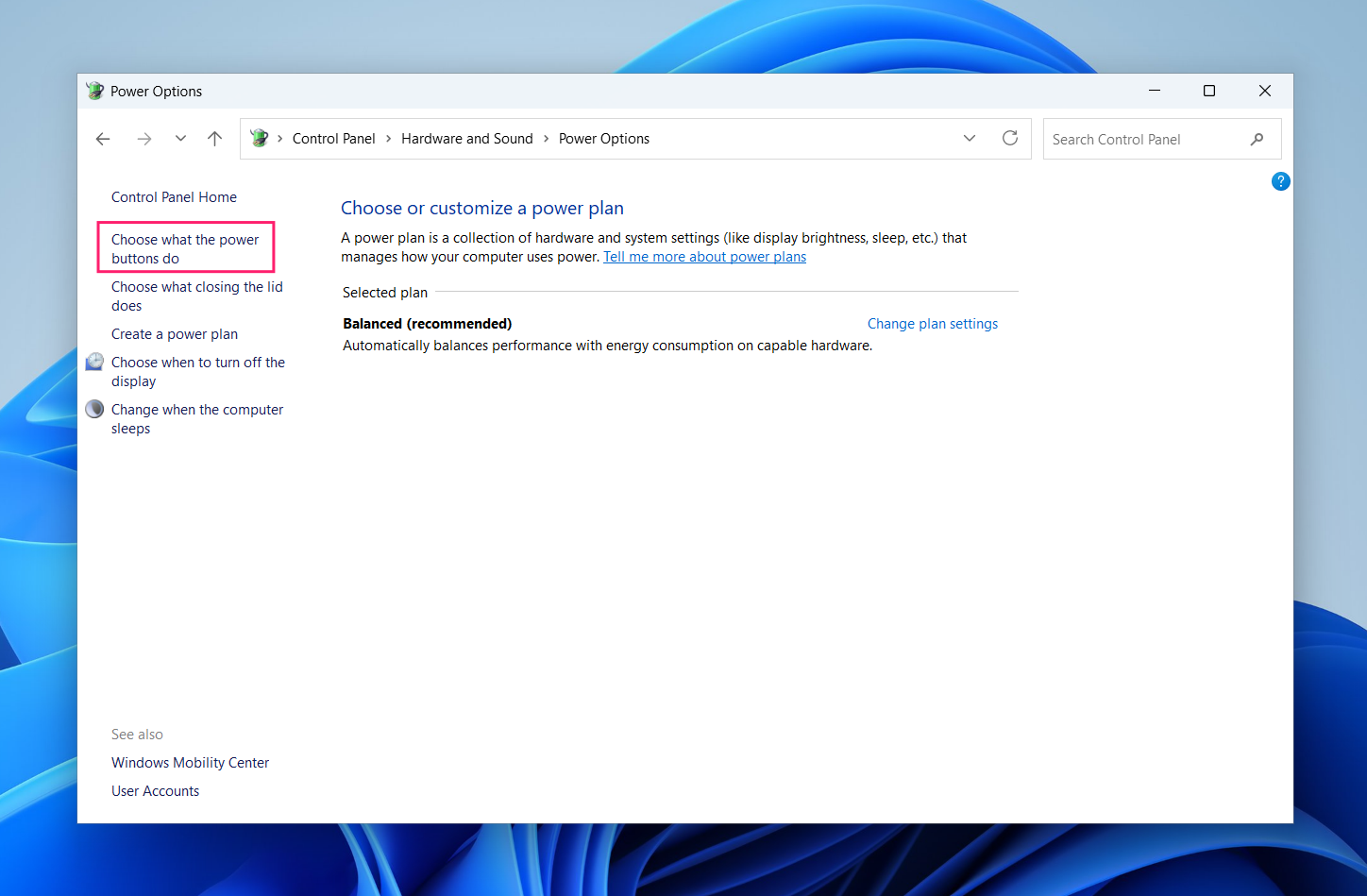
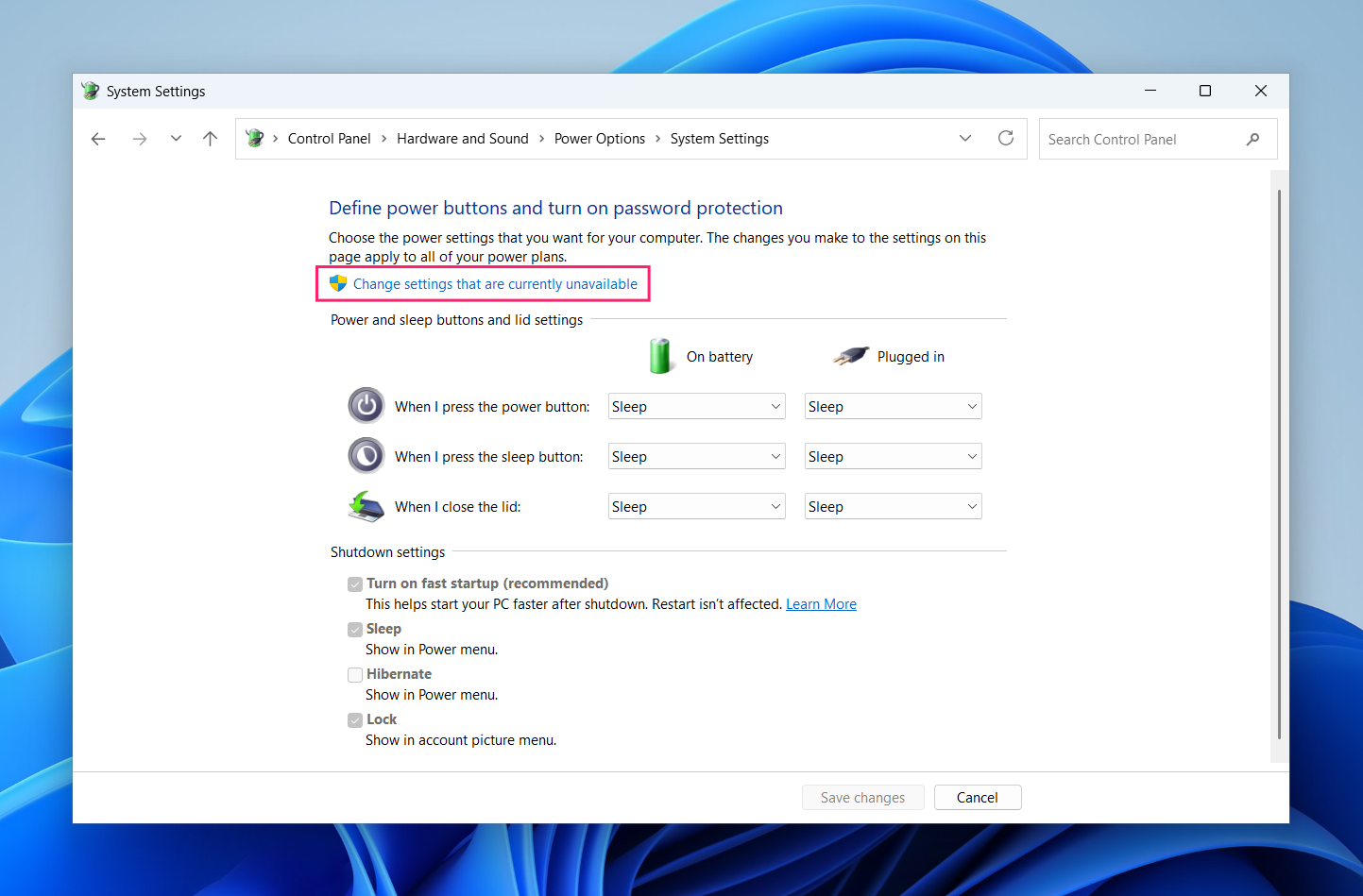
In the left panel, click Choose what the power buttons do

Click Change settings that are currently unavailable to unlock the Shutdown settings section

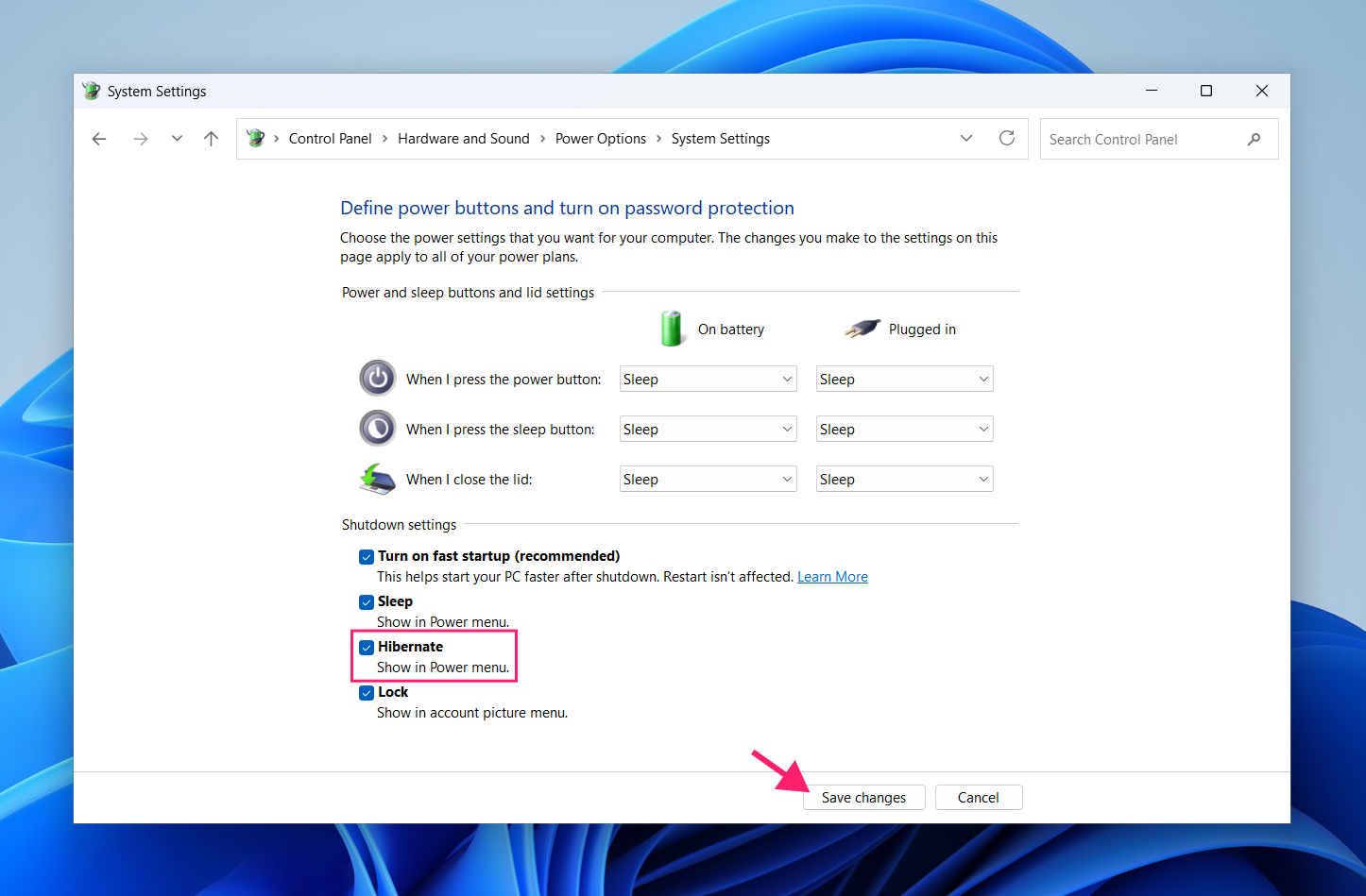
Under Shutdown settings, check Hibernate to add it to the shutdown menu, or uncheck it to remove it

- Click Save changes
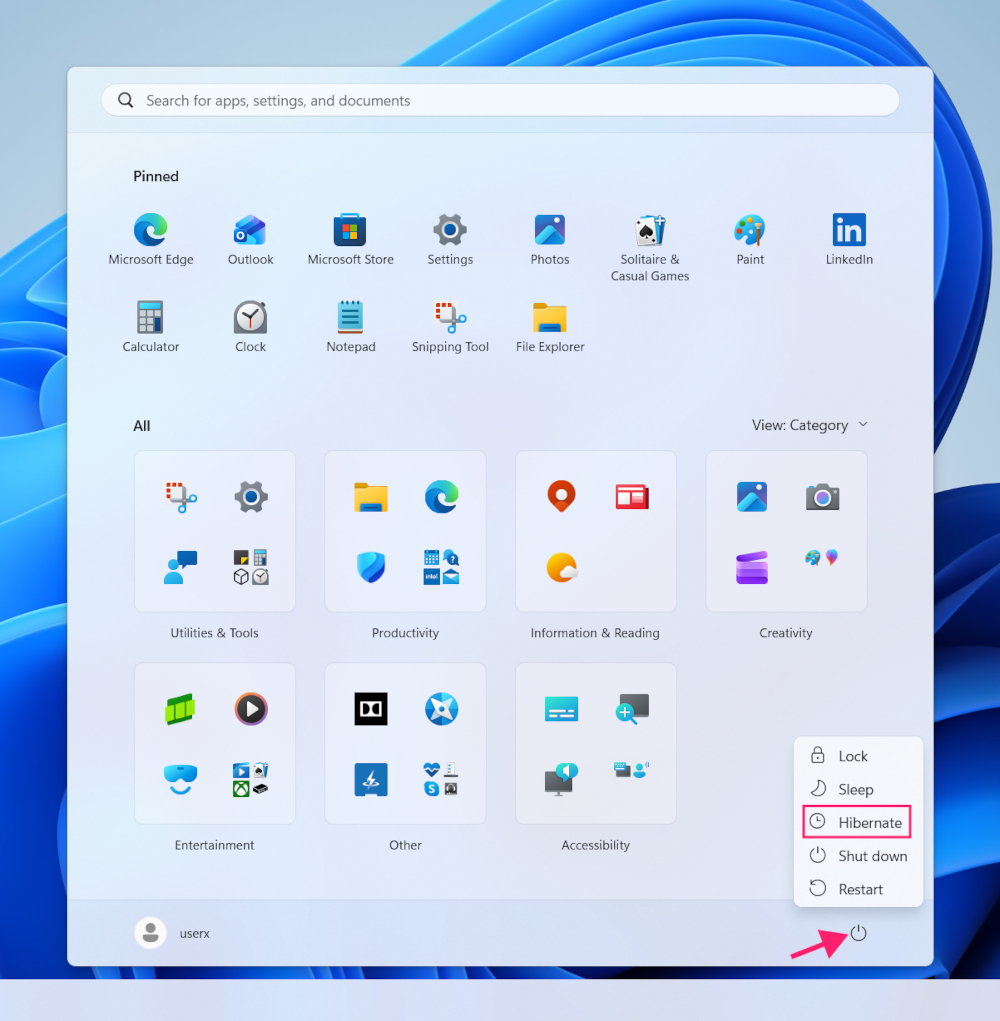
To confirm the change, click the Start button, then the Power icon. Hibernate should now appear or be absent from the menu accordingly

Note: There’s no option in this interface to actually disable hibernation. All you’re controlling here is whether the menu entry is visible.
Method 2: Command Prompt (actually disables or enables hibernation)
This is the most direct method and the one most IT pros reach for because it’s fast and simple.
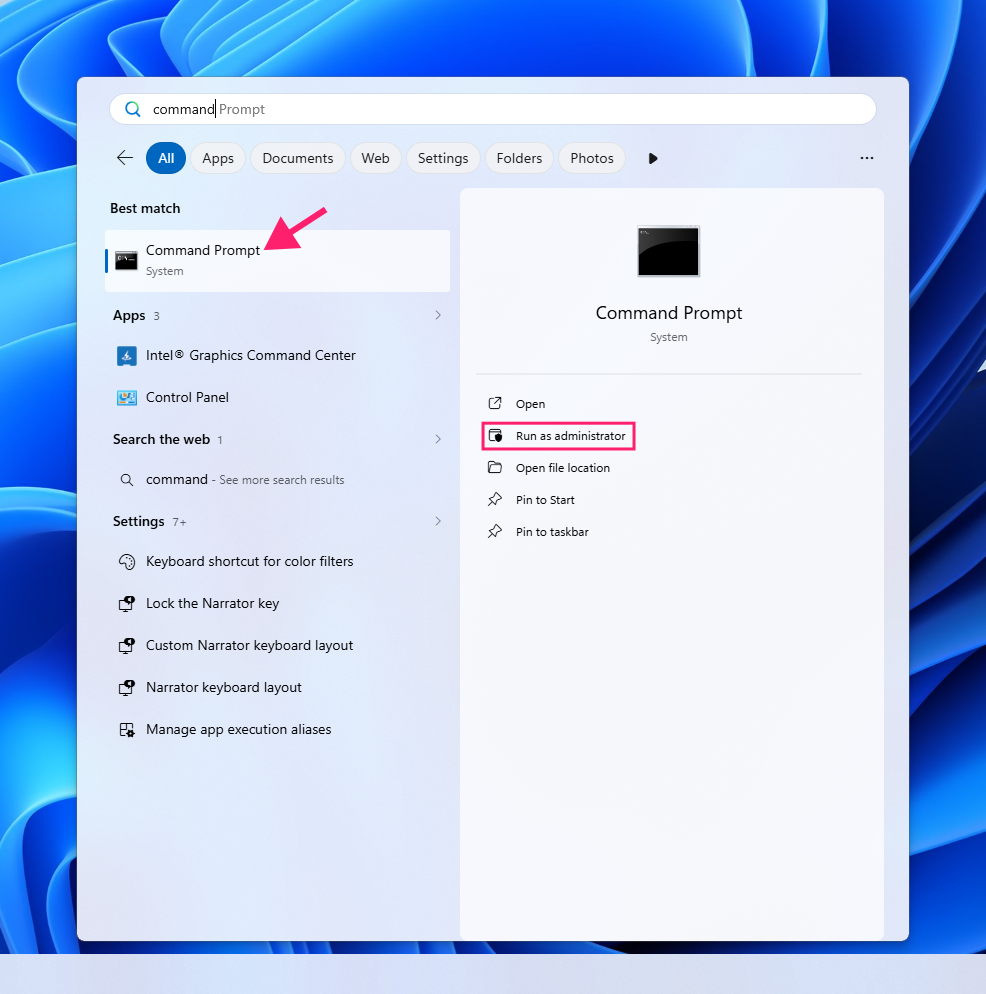
Open the Start menu and run Command Prompt as an administrator

- To disable hibernation, run:
powercfg hibernate off - To enable hibernation, run:
powercfg hibernate on - To verify the current hibernation state after making a change, run:
powercfg /a
This lists all available sleep states on the system. If hibernation has been successfully disabled, the output will show “Hibernation has not been enabled” under the Hibernate entry.
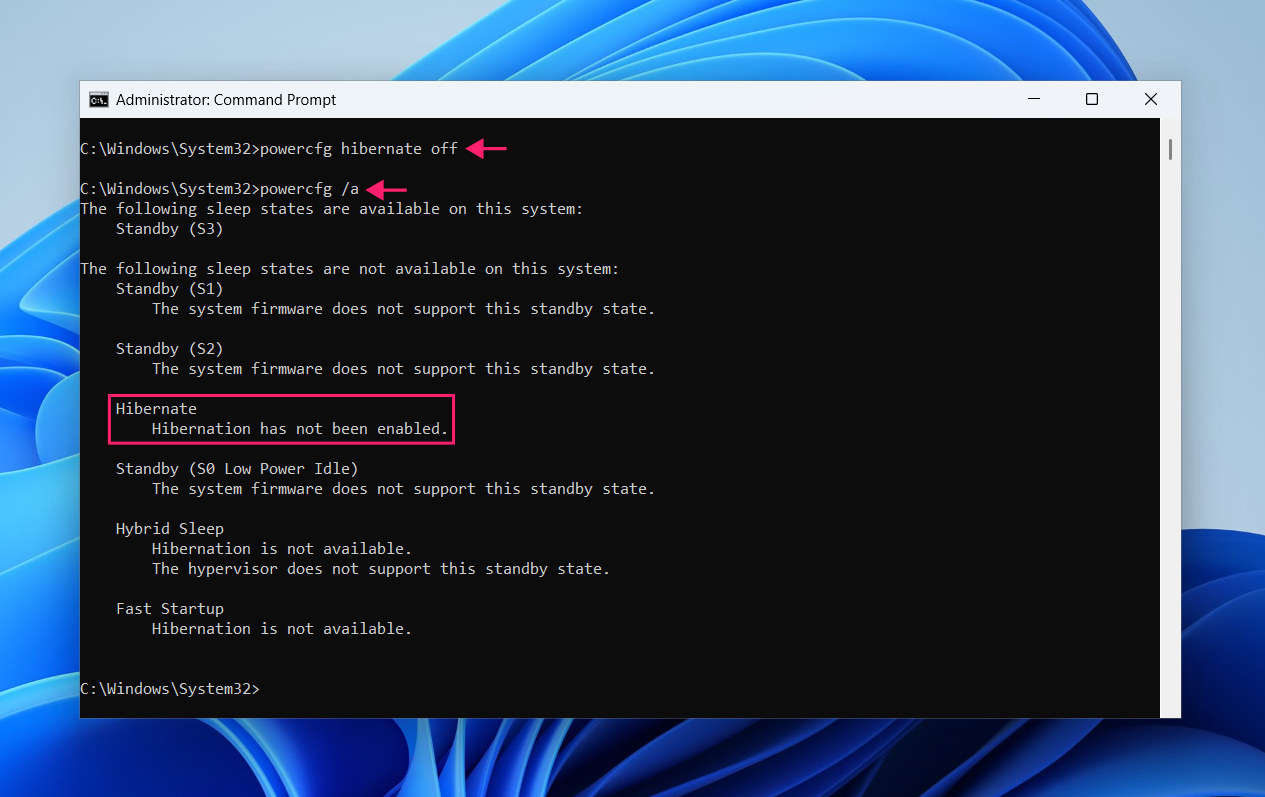
When hibernation is disabled, Windows automatically deletes hiberfil.sys and reclaims the disk space. No manual cleanup required.
The PowerShell method uses the exact same commands as Command Prompt. There is no functional difference since both execute the same powercfg.exe utility under the hood.
The practical reason to use PowerShell over Command Prompt isn’t the command itself; it’s the context. If you’re already in a PowerShell session running other administrative tasks, there’s no reason to switch. More relevantly for IT admins, PowerShell is the natural environment for scripted or remote execution. Running powercfg hibernate off across multiple endpoints via a remote PowerShell session, or wrapping it in a script deployed through Atera’s RMM platform, is a common fleet management pattern.
Method 3: Group Policy Editor (controls menu visibility only)
Like the Control Panel method, Group Policy controls whether the Hibernate option appears in the power menu and doesn’t disable hibernation at the OS level. This method is most useful for administrators who need to enforce menu visibility consistently across multiple machines without relying on users to change their own settings.
Note: The Group Policy Editor is available on Windows 11 Pro, Enterprise, and Education editions. It is not available on Windows 11 Home.
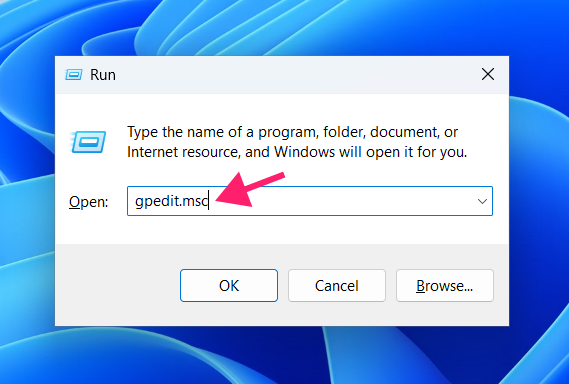
Press Win + R, type
gpedit.msc, and press Enter to open Group Policy Editor
- Navigate to Computer Configuration > Administrative Templates > Windows Components > File Explorer
Locate the policy Show hibernate in the power options menu

- To hide the Hibernate option from the shutdown menu, set the policy to Disabled
- To ensure the Hibernate option is visible, set it to Enabled
- Click OK and close the editor
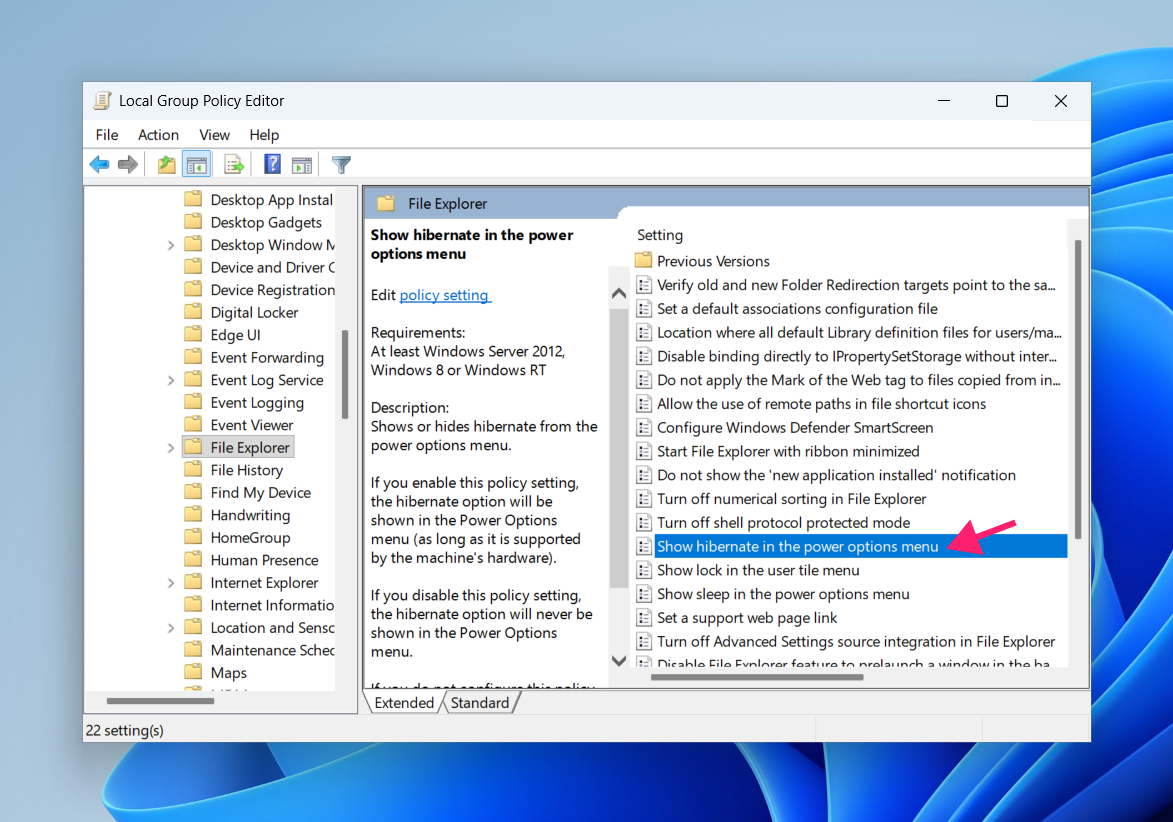
The change applies immediately on the local machine, or propagates via Group Policy refresh on managed devices.
» Here’s our guide to simplifying group policy management with Atera
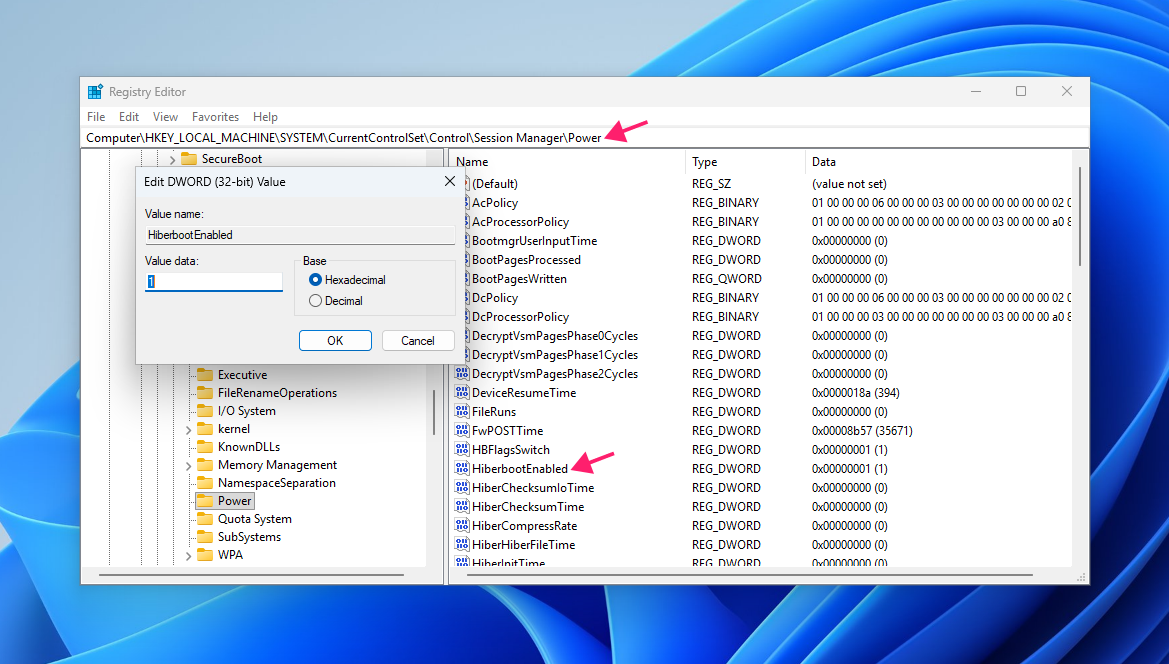
Method 4: Registry Editor (directly controls hibernation state)
The Registry Editor gives you direct access to the underlying values that control hibernation. This method is functionally equivalent to using powercfg but is sometimes preferred in environments where Registry edits are being deployed via scripts or configuration management tools.
Warning: Incorrect Registry edits can cause system instability or even brick the total system. Back up the Registry before making changes if you’re unfamiliar with the process.
To control hibernation state:
- Press Win + R, type
regedit, and press Enter - Navigate to: HKEY_LOCAL_MACHINESYSTEMCurrentControlSetControlPower
Locate the HibernateEnabled DWORD value

Set to 1 to enable hibernation, and set to 0 to disable hibernation

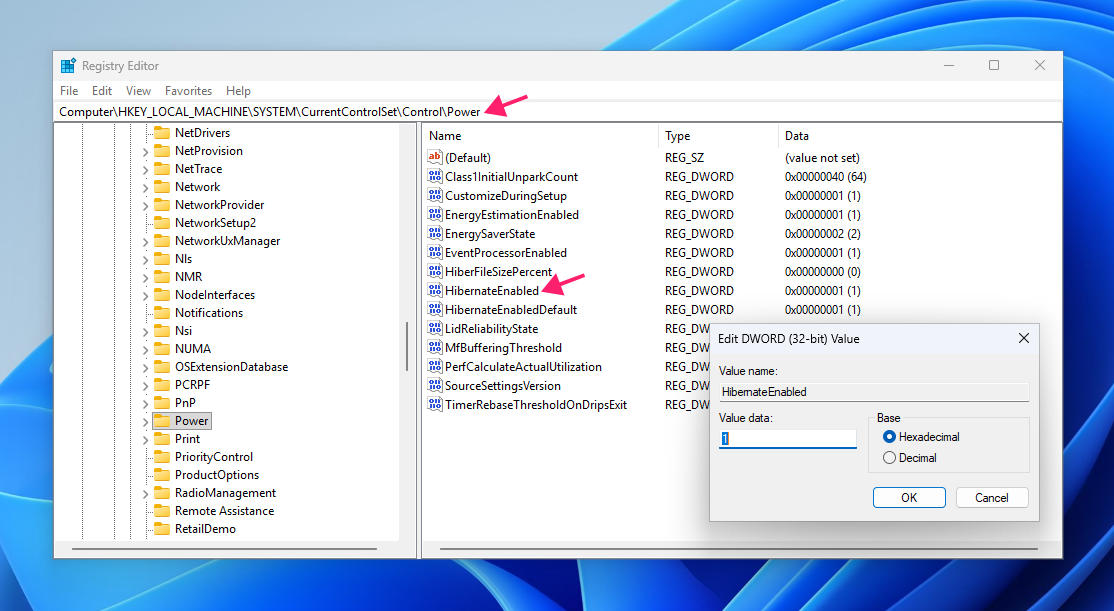
» Don’t miss our top Registry Editor challenges and solutions
Troubleshooting hibernation issues in Windows 11
The most frequently searched hibernation problem is a machine that fails to wake correctly.
Note: Being signed into a Microsoft account has no bearing on whether a machine wakes from hibernation successfully. This is just a common misconception in forums since the wake process operates entirely at the hardware and kernel level. If a machine isn’t waking, the account type isn’t the cause.
Here are some common causes and what to do about them:
» Did you know you can enable and disable kernel mode?
Corrupted hiberfil.sys
Modern standby (a connected standby mode used by many newer devices) can corrupt hiberfil.sys under certain conditions. When this happens, the system has no valid hibernation file to read from and the wake process fails.
To fix it: Hold the power button for several seconds until the machine powers off, then start it again normally. Windows will boot fresh rather than resuming from hibernation.
Once the machine is running, disable hibernation with powercfg hibernate off, then re-enable it with powercfg hibernate on. This forces Windows to delete and recreate hiberfil.sys, replacing the corrupted file with a clean one.
Devices preventing wake
External peripherals like network adapters, USB devices, and Bluetooth controllers can either trigger unwanted wakes or interfere with the wake process entirely.
To identify which devices are currently configured to wake the machine, run this command in an elevated Command Prompt or PowerShell session: powercfg -devicequery wake_armed
This returns a list of every device currently allowed to wake the system. For any device on that list that shouldn’t be there, open Device Manager, locate the device, go to its Properties, navigate to the Power Management tab, and uncheck Allow this device to wake the computer.
Fast Startup conflicts
When Fast Startup is enabled and a user shuts down the machine, Windows doesn’t perform a clean shutdown. Instead, it logs off the user session but hibernates the kernel session to hiberfil.sys, which is the core OS state, device drivers, and system processes. The next boot reads that kernel session back from disk instead of initializing everything from scratch, which is why startup feels faster.
The problem is that this partial hibernation of the kernel session creates the same failure conditions as full hibernation, but less visibly. If a required driver isn’t loaded correctly when the kernel session is written to disk, that corrupted state gets carried into the next boot. This can surface as unexplained startup errors, devices that don’t initialize correctly, or update processes that fail because the system wasn’t in a clean state when they ran.
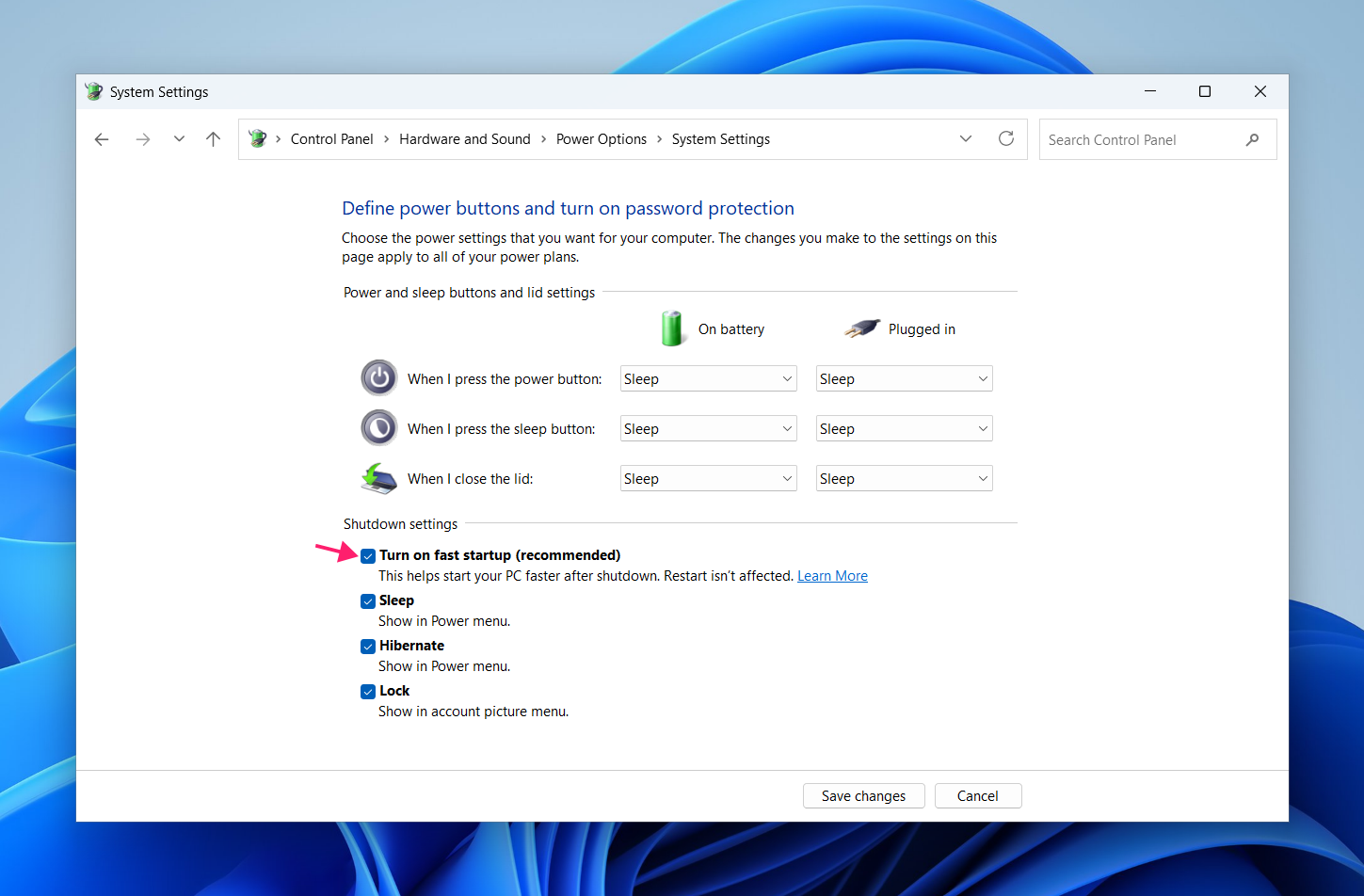
Here’s how to disable fast startup:
- Open Control Panel > Hardware and Sound > Power Options
- Click Choose what the power buttons do
- Click Change settings that are currently unavailable
- Under Shutdown settings, uncheck Turn on fast startup (recommended)
Click Save changes

Managing hibernation across your fleet
The methods in this guide work cleanly on a single machine. When you’re managing hibernation settings across tens or hundreds of endpoints, touching each one manually isn’t a realistic option for just changing hibernation settings.
Group Policy handles visibility, but actually disabling or enabling hibernation at the OS level still requires powercfg, and running that remotely across a fleet becomes so much easier with a plaform like Atera’s RMM. IT teams can deploy that command via remote PowerShell execution or automated scripting across all managed devices, verify the result without leaving their desk, and build the change into a repeatable automation profile for any new device that gets added.
Related Articles

How to reduce alert fatigue across your IT team
Your technicians aren't ignoring alerts because they're careless. They're ignoring them because most alerts have taught them to. Once the stream stops being trustworthy, real failures slip past with the noise. Fixing it means deciding what deserves an interruption, tuning out transient spikes, collapsing alert storms, and automating the fixes you've run a hundred times.
Read now
How to close the IT skills gap on your team
Course completions don't close skills gaps. Technicians finish the training, then hand the first unfamiliar failure straight back to a senior engineer. Real capability gets built on live tickets, incidents, and maintenance windows, with guidance that fades as competence grows.
Read now
How to calculate cost per ticket (and why most teams get it wrong)
Most cost-per-ticket figures are wrong before anyone reads them. Missing overhead, tickets that were opened but never closed, spam and duplicates padding the count, and one month's costs divided by another month's tickets all make support look cheaper than it is. Fix both sides of the division and the number finally shows where technician time and money actually go.
Read now
How to prepare for a software license audit
A vendor audit notice doesn't wait for you to get organized. It demands proof, right now, that every install matches every entitlement you've paid for, and most IT teams find out the hard way how much they don't actually know about their own environment. Getting audit-ready before the letter arrives is the difference between negotiating from strength and paying for months of scrambling.
Read nowEndless IT possibilities
Boost your productivity with Atera’s intuitive, centralized all-in-one platform









