
Table of contents
Disabling Windows Defender sounds reckless, but it’s sometimes the only way to get the job done. There are many real scenarios in every IT environment that call for a neutral baseline without the built-in Windows security tool, such as legitimate software deployments that Defender keeps flagging as a risk and blocking. Instead of traveling to each endpoint to fix it, just disabling Windows Defender temporarily and remotely is by far the easier choice.
Here’s every method for pausing Windows Defender safely, from the UI toggle to PowerShell and Group Policy. It tells you what stops, what stays active, and how to manage this decision across a fleet rather than one machine at a time.
Why disabling Defender is sometimes the right call
There’s a reason Microsoft builds an off switch into Windows Defender, because the alternative, a security tool that can’t be paused under any circumstances, would create as many problems as it solves:
- False positives block legitimate software deployments
- Real-time scanning cuts measurable performance headroom during compile jobs, large file processing, and backup operations
- Security researchers and pen testers need a controlled detection environment to do their work accurately
Rather than disabling Defender outright, the official recommendation from Microsoft is to use exclusions such as scoping Defender away from specific folders, file types, or processes rather than pausing protection across the board.
That’s the right call whenever it’s viable, and it’s worth trying first. But exclusions don’t solve every scenario, particularly performance issues tied to scanning behavior itself or testing environments where you need a genuinely clean detection baseline.
» Need help with this? Here’s our guide to excluding a folder from Windows Defender
What actually stops when you pause real-time protection
Toggling off real-time protection isn’t the same as disabling Windows Security. A specific set of active defenses goes offline while a separate layer stays in place, including:
- On-access file scanning: Files opened or downloaded are no longer scanned as they’re accessed.
- Behavior monitoring: Active process inspection for suspicious activity goes offline.
- Heuristic analysis: Pattern-based threat detection is paused for live, automated interception (it remains active for manual or scheduled scans).
- Attack Surface Reduction (ASR) rules: Degraded or inactive while real-time protection is off.
- Cloud-delivered security and protection: Real-time lookups against Microsoft’s cloud intelligence database stop.
Here’s what stays active:
- Scheduled scans: Any scans already configured will still run on their schedule.
- Windows Defender Firewall: Firewall policies are unaffected and remain enforced.
- Tamper Protection: Continues to block unauthorized changes to Defender’s configuration unless separately disabled.
Note: If a device is enrolled in Microsoft Defender for Endpoint or managed via Intune or Group Policy, some of these behaviors may be enforced at the policy level and won’t actually pause when a local toggle is switched off. The local UI reflects local settings, meaning it doesn’t always reflect what policy is enforcing underneath.
The elevated risk on Microsoft account-linked devices
For devices linked to a Microsoft account, the exposure window carries risks beyond what you’d see on a standalone machine. These are the main two:
- Primary Refresh Token (PRT) exposure: A PRT is the authentication artifact that enables single sign-on across Microsoft services, the key that keeps a user signed into Teams, OneDrive, Outlook, and other cloud applications without re-authenticating. While real-time protection is off, malware can attempt PRT extraction undetected. A stolen PRT gives an attacker authenticated access to everything that token covers.
- OneDrive sync behavior: A malicious file written to a locally synced folder during the disable window can sync to the cloud before protection is restored. Other endpoints with active real-time protection may catch the file when it’s opened, and the Safe Attachments feature may intercept it, but the file is in the cloud.
Neither of these scenarios is an argument against ever pausing Defender. They’re an argument for keeping the window as short as operationally possible and knowing exactly what you’re working with before you start.
» Did you know you can remove OneDrive from file explorer?
6 ways to temporarily disable Windows Defender
The methods below move from the most accessible to the most scalable, starting with the Windows Security interface for individual machines, through PowerShell and Group Policy for scripted or remote execution.
Method 1: Turn off real-time protection via Windows Security
Use this when you need to pause on-access scanning on a single machine quickly and the device isn’t locked down by policy.
Open Windows Security by searching for it in the Start menu

Alternatively, press the Defender icon in the taskbar system tray

Click Virus & threat protection in the left navigation or on the main dashboard

Click the Manage settings link under Virus & threat protection settings

Switch the Real-time protection toggle to Off

Confirm the UAC prompt when it appears. A system notification will also fire

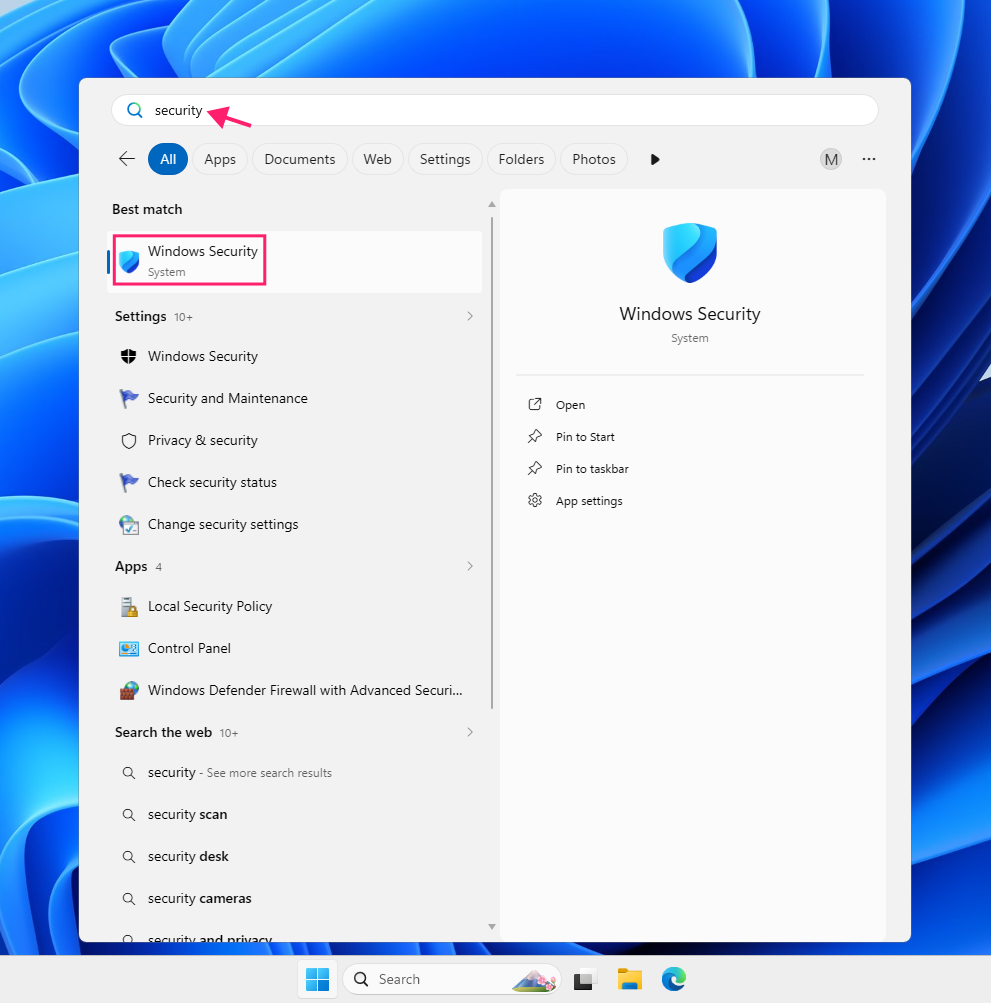
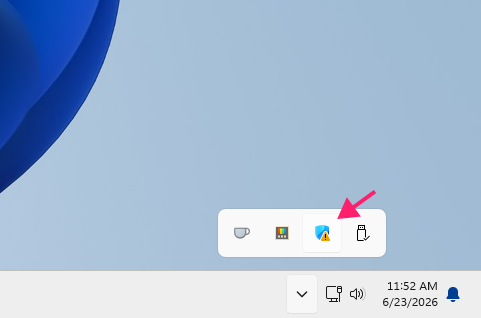
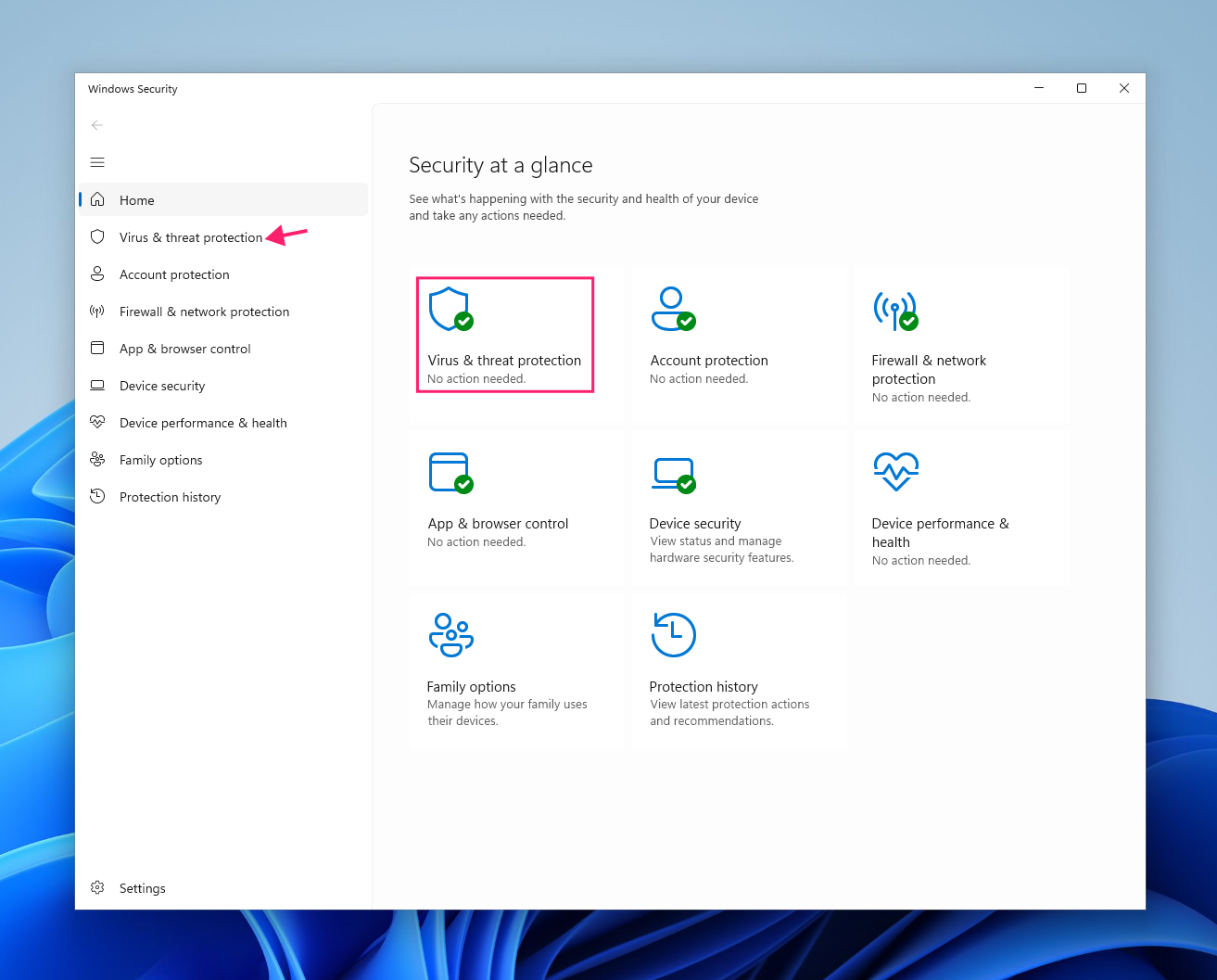
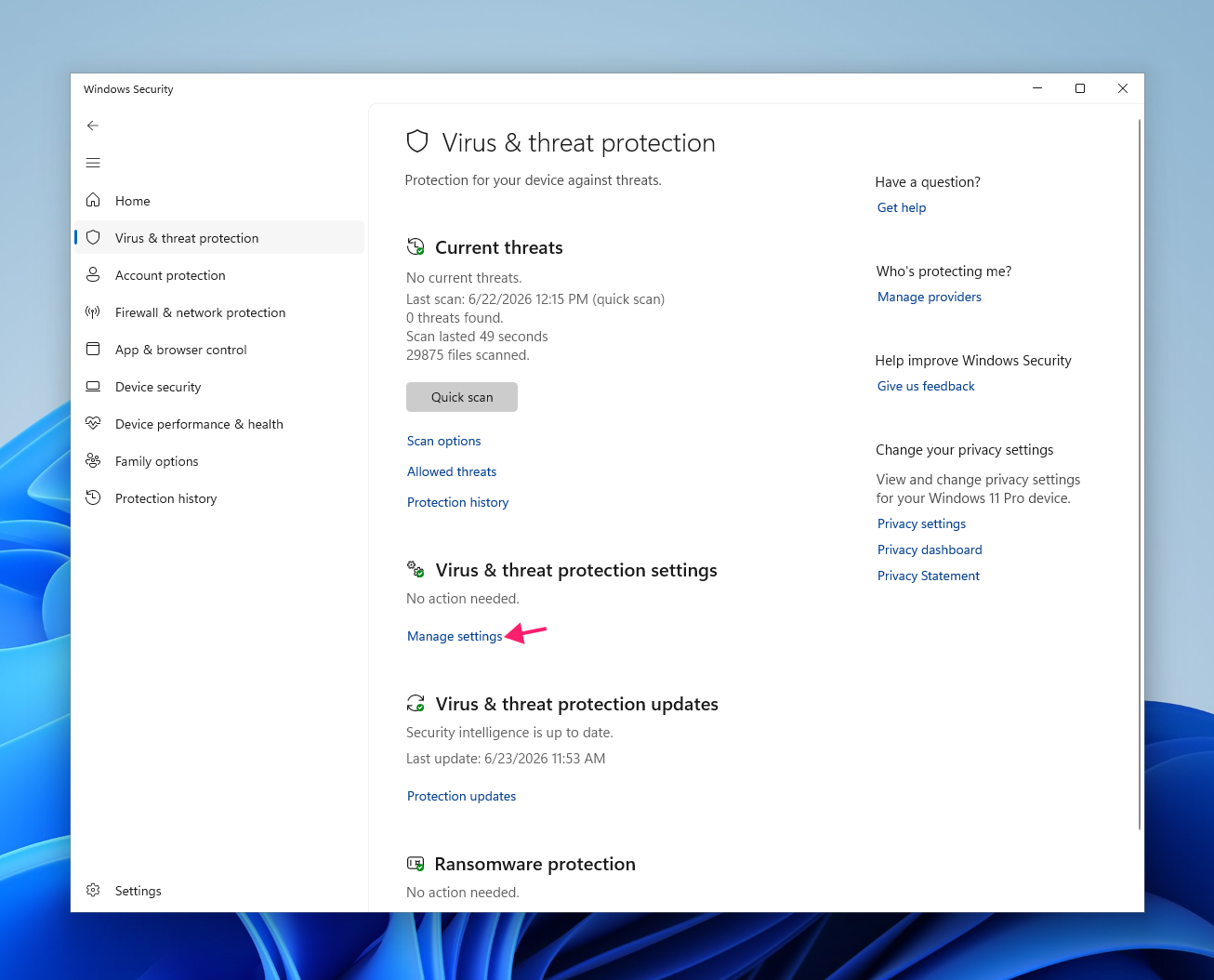
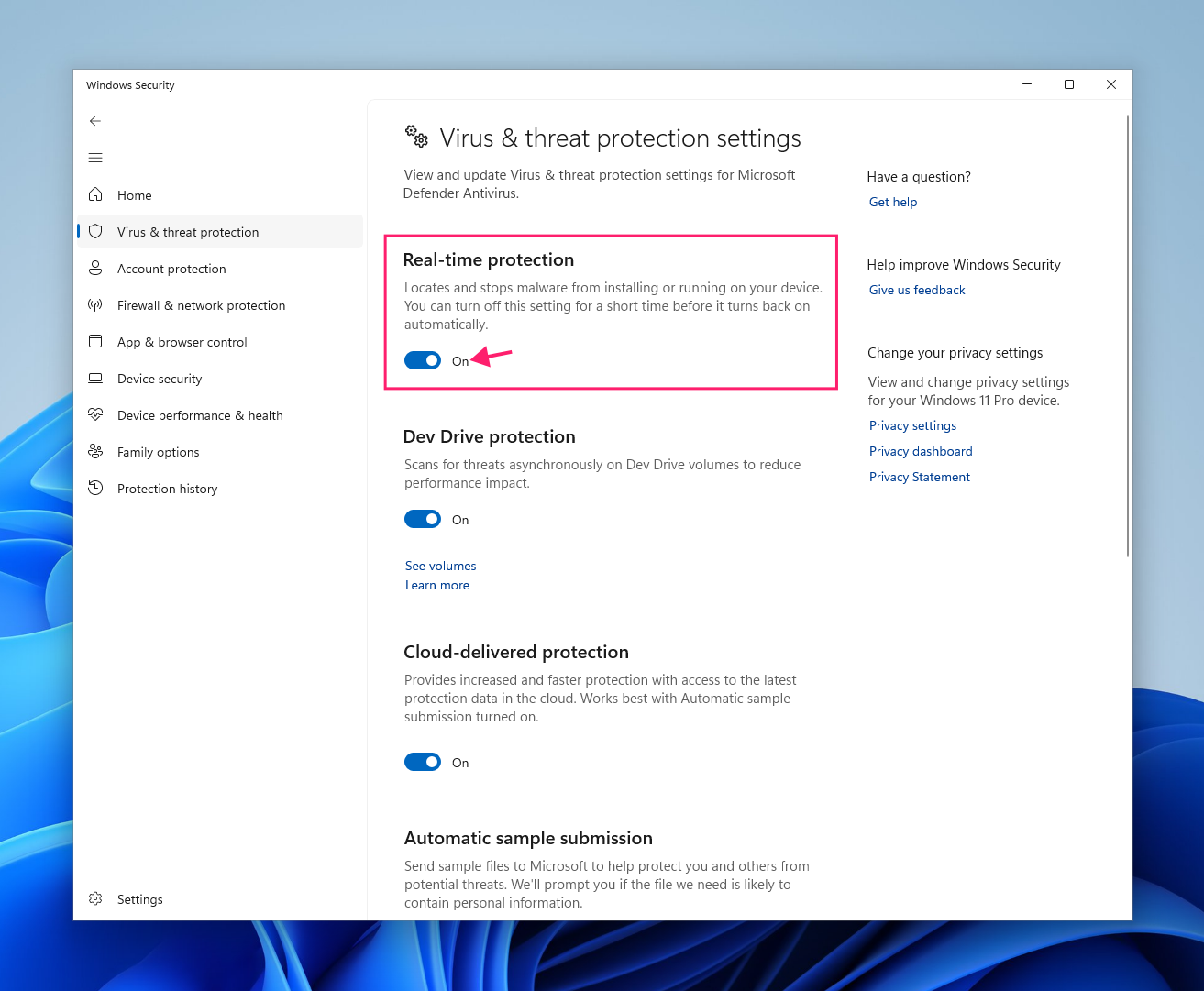
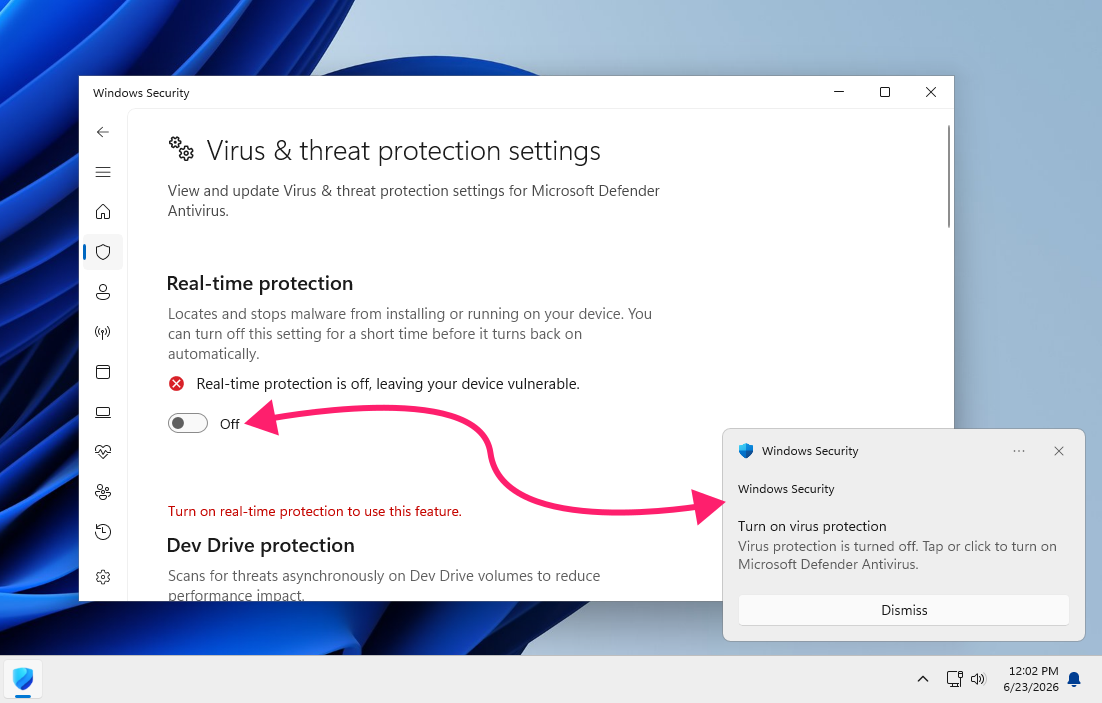
Real-time protection will re-enable automatically after a short delay or on system restart. If the toggle is grayed out or reverts to On immediately after switching, Tamper Protection is blocking the change. Disable Tamper Protection first by scrolling down on the same Manage settings page and switching the Tamper Protection toggle to Off. Confirm the UAC prompt, then return to the Real-time protection toggle.
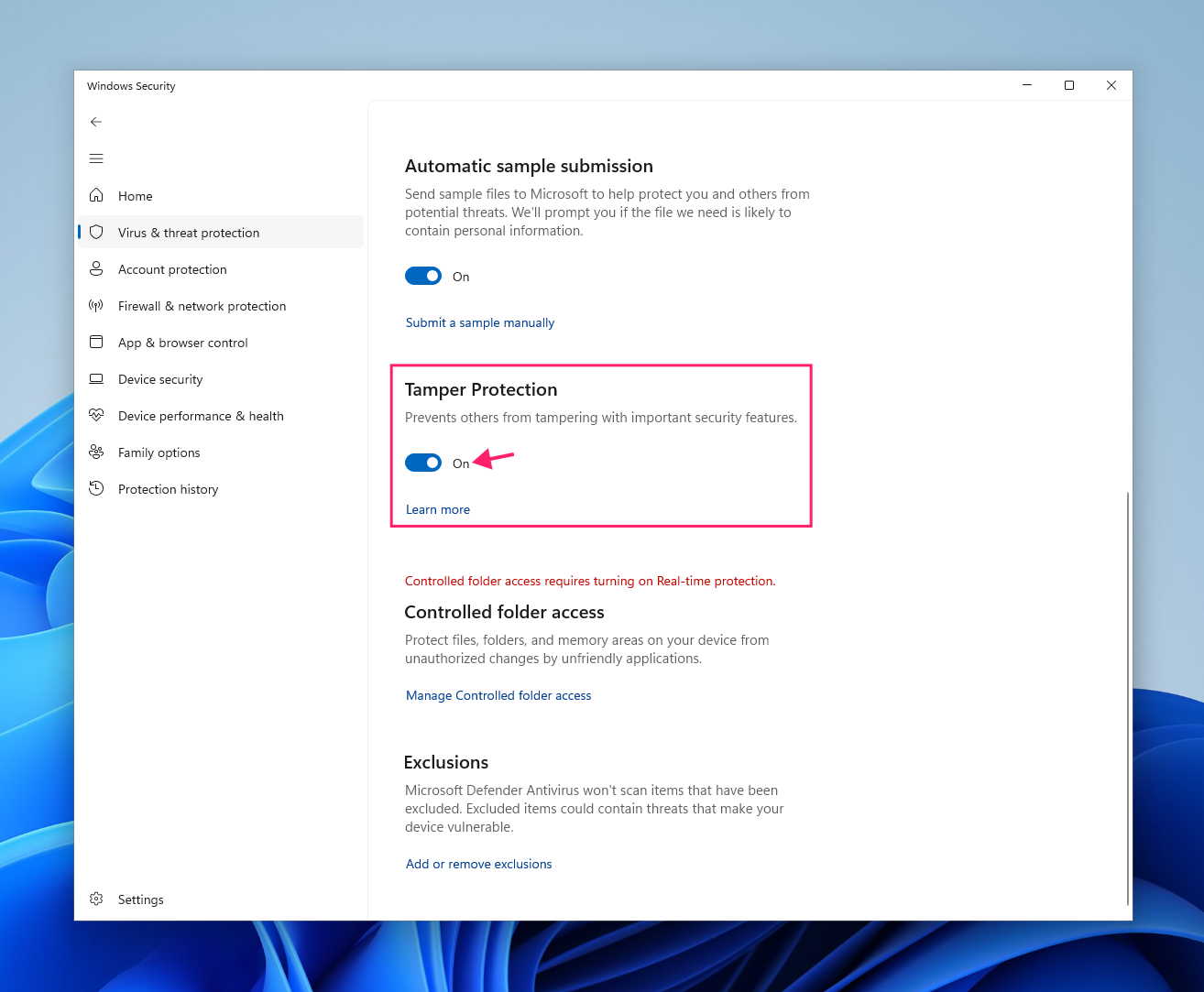
If settings are grayed out and Tamper Protection appears to be off, the device is likely managed via Intune or Group Policy and nothing can be changed locally without updating the policy itself.
Method 2: Disable Windows Defender Firewall for network troubleshooting
Use this when you need to rule out firewall interference during local network troubleshooting. This is a different control from real-time protection, so disabling one doesn’t affect the other.
In Windows Security, click Firewall & network protection
Click the active network profile, for most local network troubleshooting this will be Private network

- Switch the Microsoft Defender Firewall toggle to Off
Confirm the UAC prompt when it appears

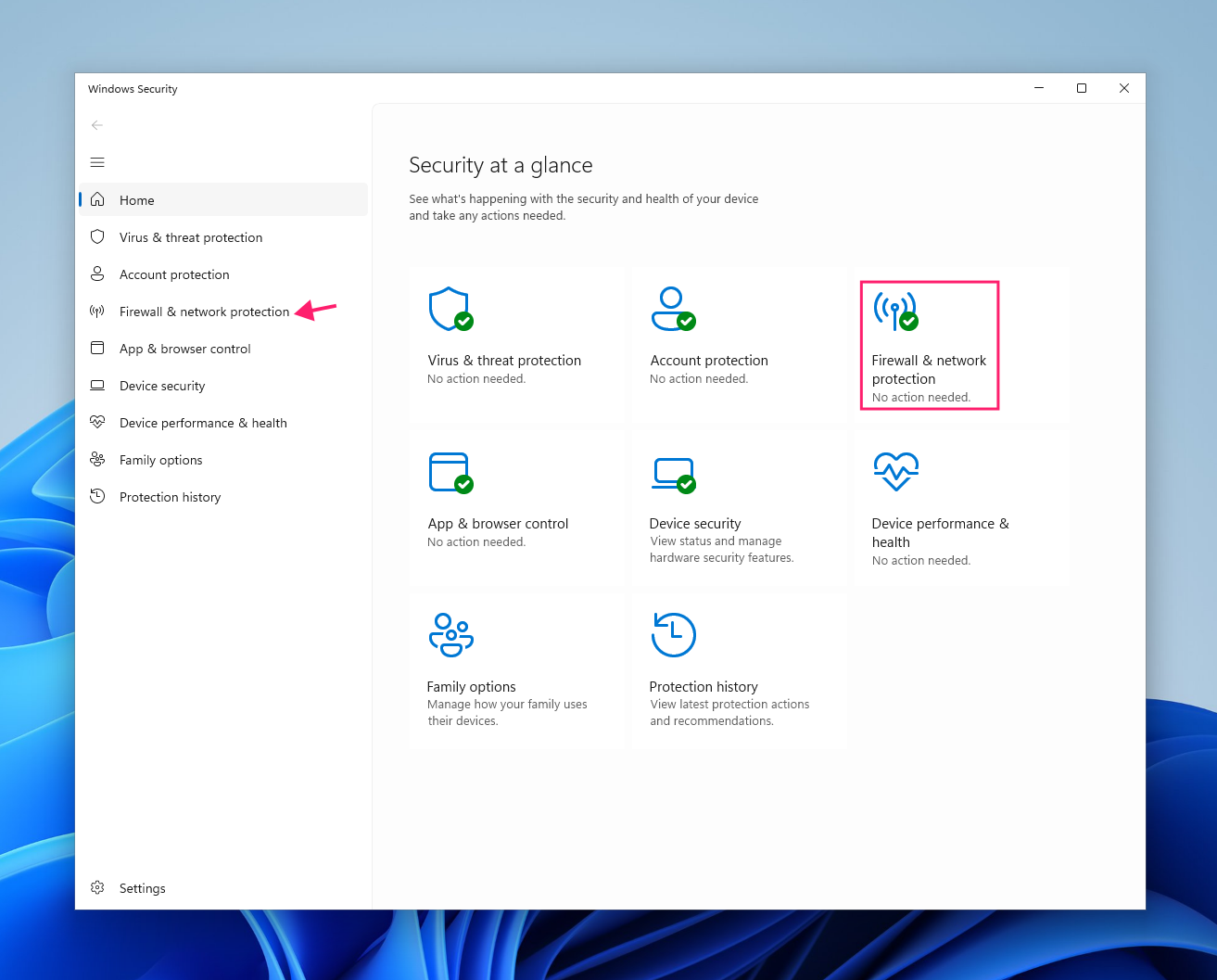
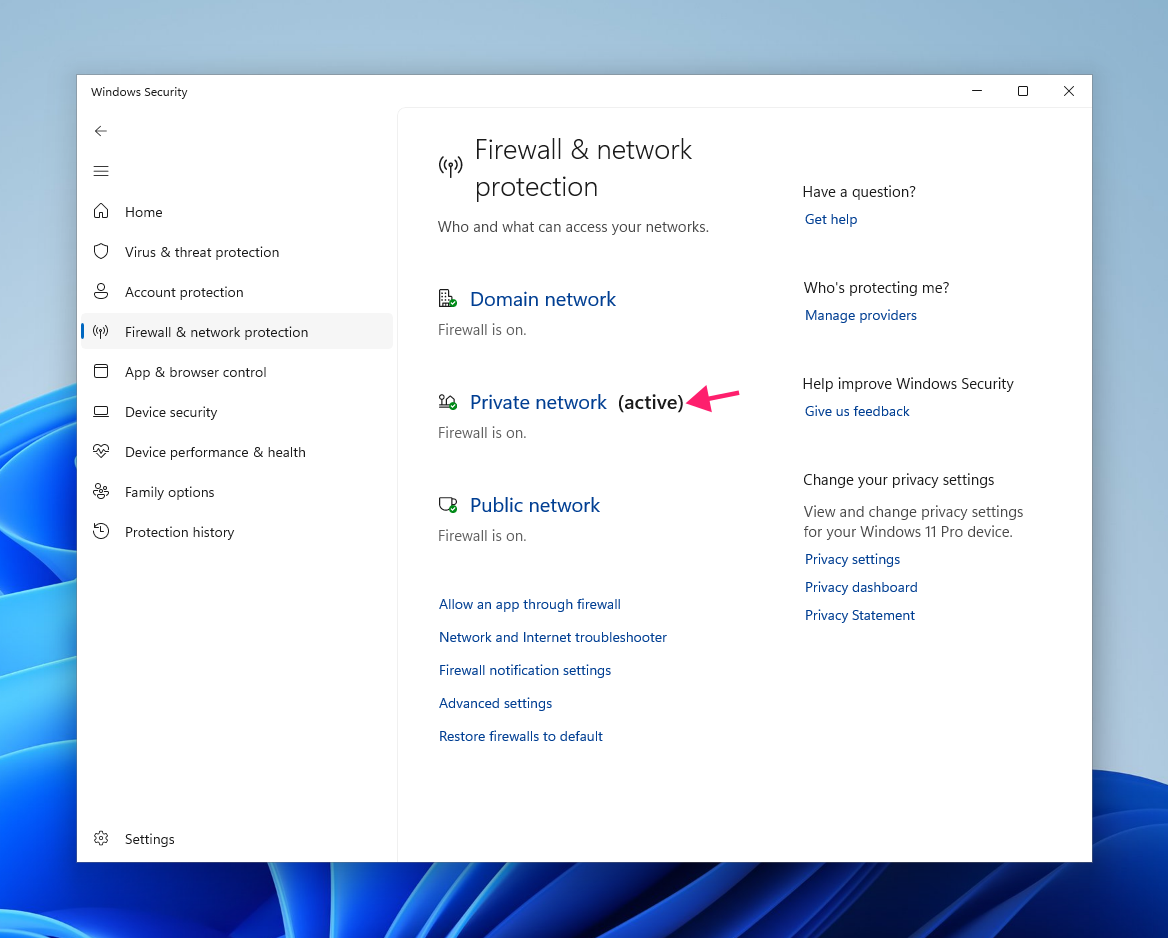
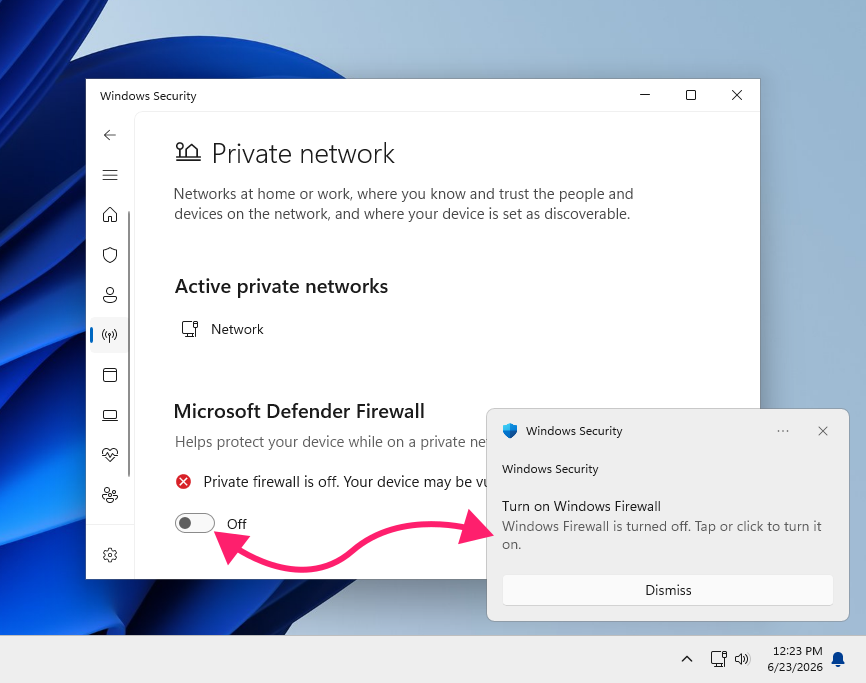
One important behavioral difference from Method 1 is that the firewall doesn’t re-enable itself automatically after a timeout or reboot. Once it’s off, it stays off until you turn it back on manually. Don’t leave this step without a plan for re-enabling the firewall.
» Take control of your network by learning about the importance of network management and network discovery
Method 3: Turn off Cloud-delivered protection and Automatic sample submission
Use this in regulated environments where outbound data to Microsoft’s cloud services is a policy or compliance concern, or in isolated testing scenarios where cloud verdicts would interfere with local detection behavior.
- In Windows Security, click Virus & threat protection
- Click the Manage settings link under Virus & threat protection settings
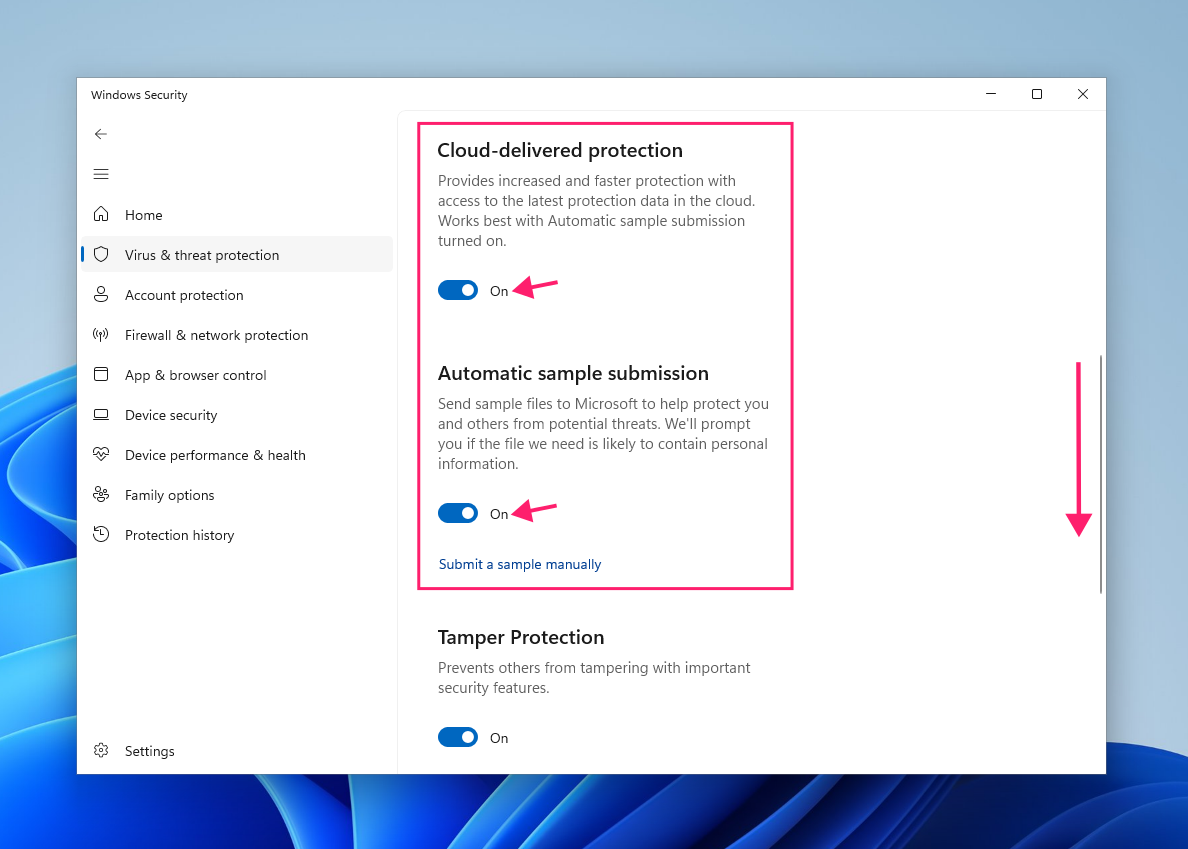
- Scroll down to Cloud-delivered protection and switch the toggle to Off
Scroll down to Automatic sample submission and switch the toggle to Off

When to disable Cloud-delivered protection:
- Regulated environments where contacting Microsoft’s cloud intelligence service is a policy or compliance violation
- Testing scenarios where cloud verdicts need to be excluded from local detection behavior
- Restricted network environments where cloud lookups will silently fail anyway
When to disable Automatic sample submission:
- When working with files containing proprietary or classified data that must not leave the device
- Regulated environments where sending file samples to Microsoft is a compliance violation
- Restricted network environments where submissions will silently fail
Note: Neither of these toggles affects real-time protection directly. They control what Defender does with data, not whether it scans.
» Here are the ways cloud innovation enhances IT management
Method 4: Disable Microsoft Defender SmartScreen
Use this when trusted but unrecognized software is being blocked at the app or browser level, not when real-time protection is the issue.
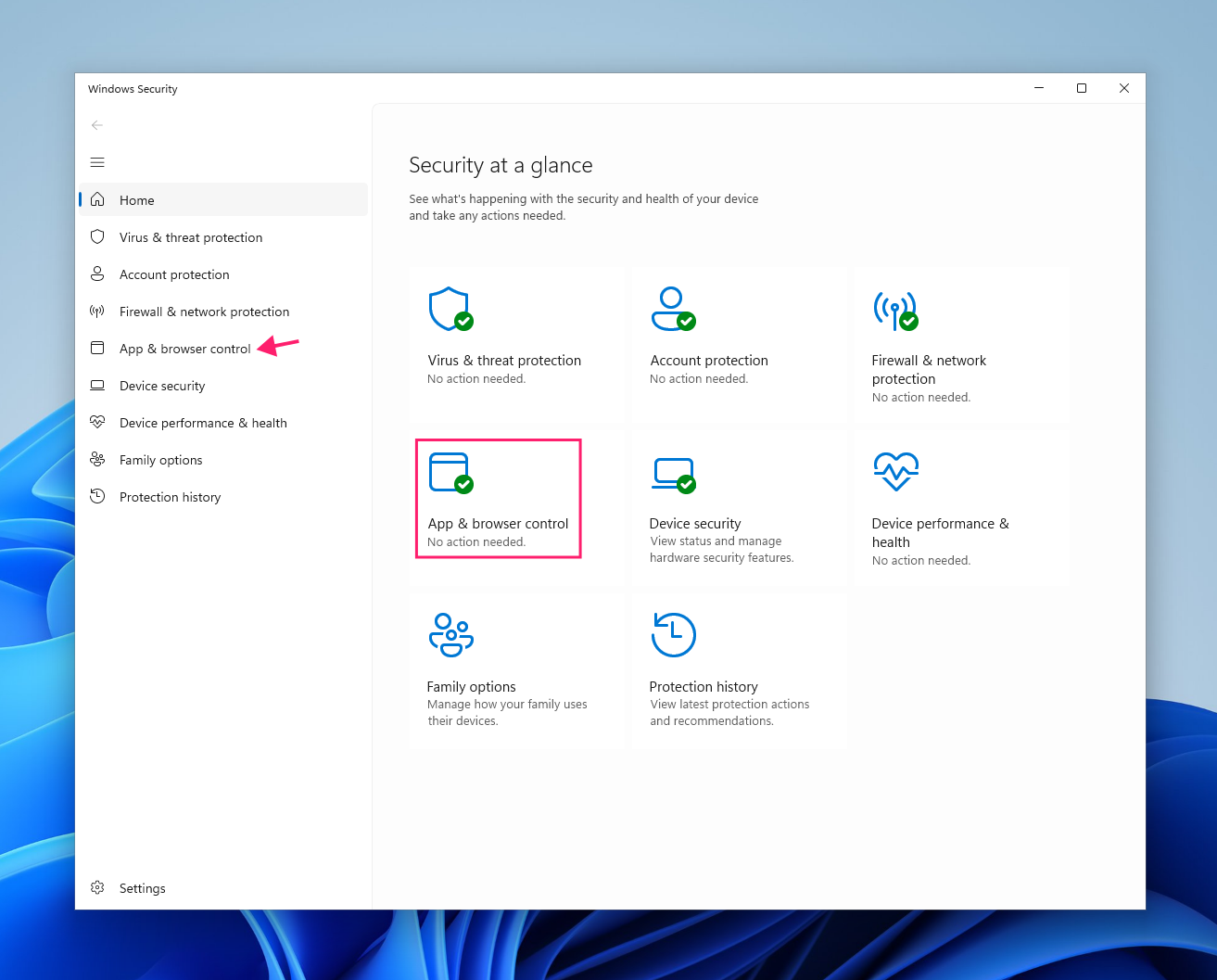
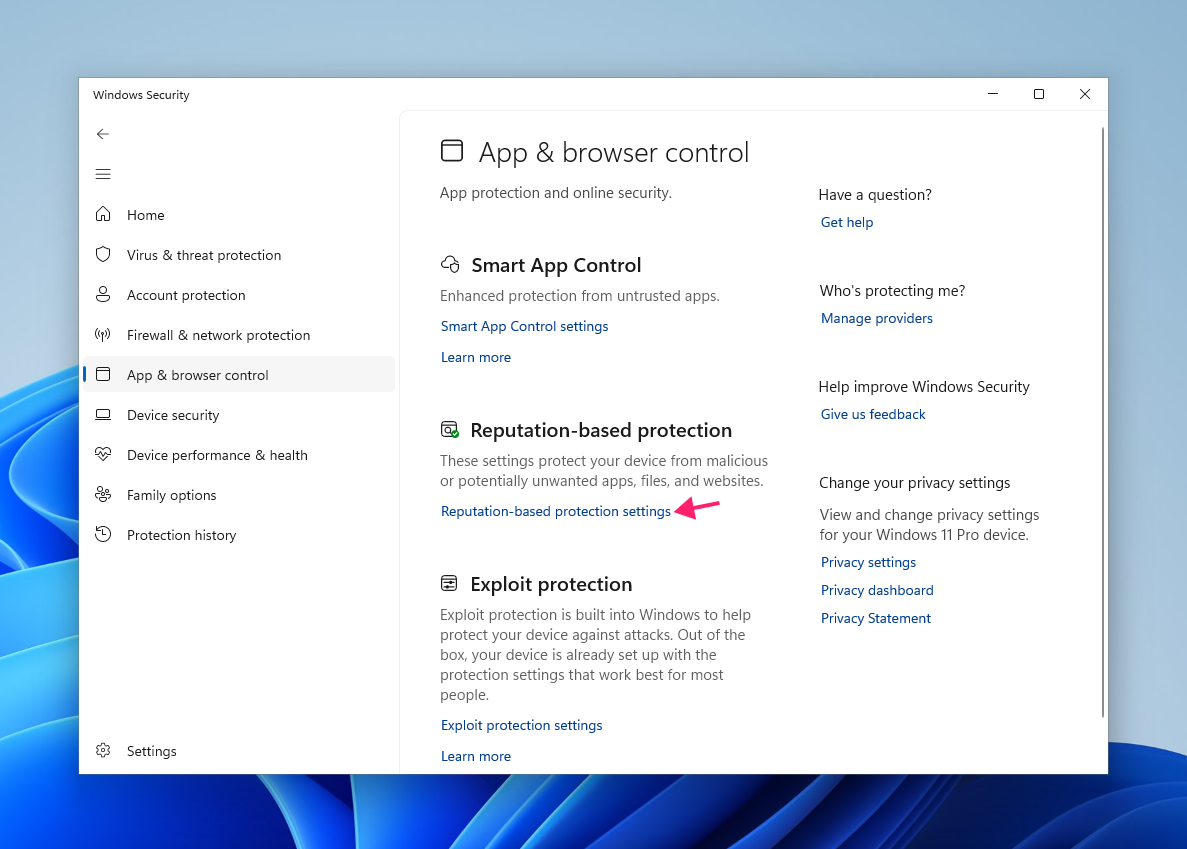
In Windows Security, click App & browser control
Click the Reputation-based protection settings link

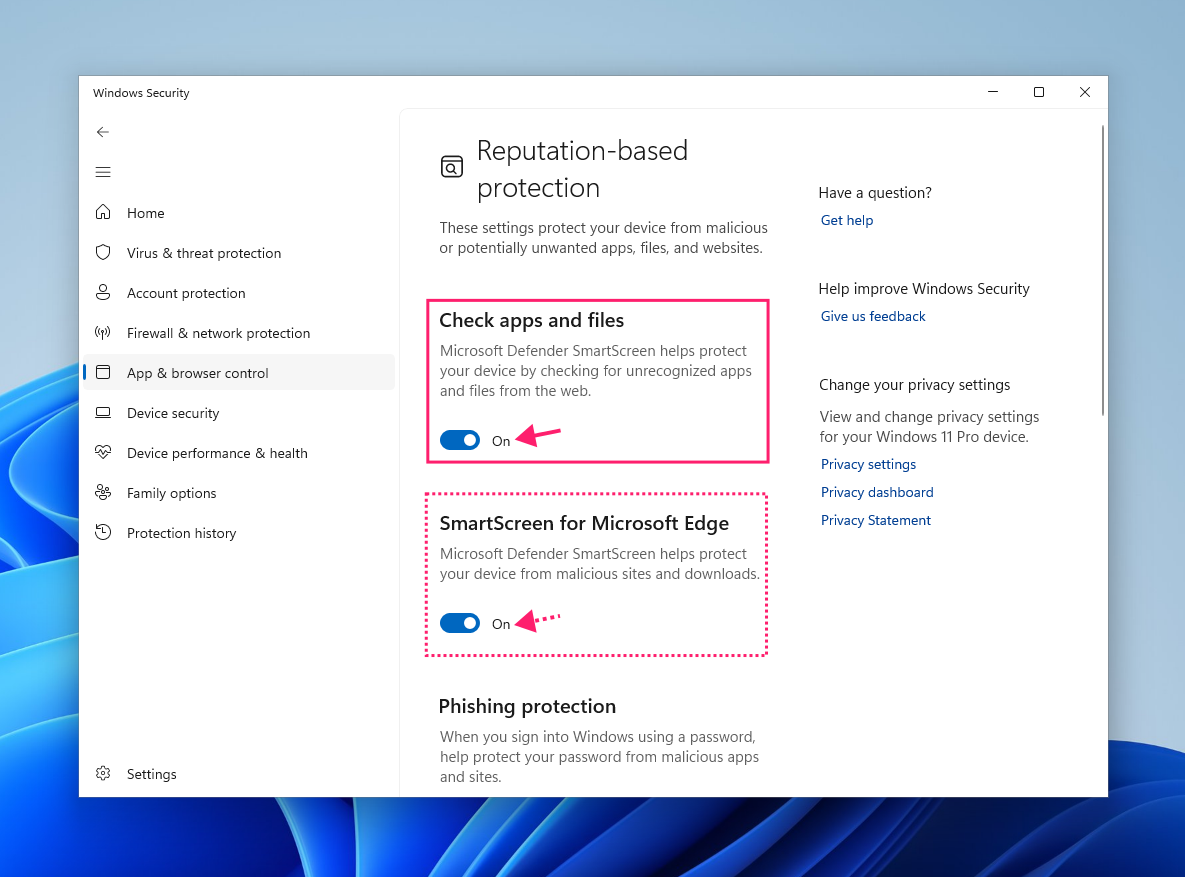
Switch the toggle under Check apps and files to Off

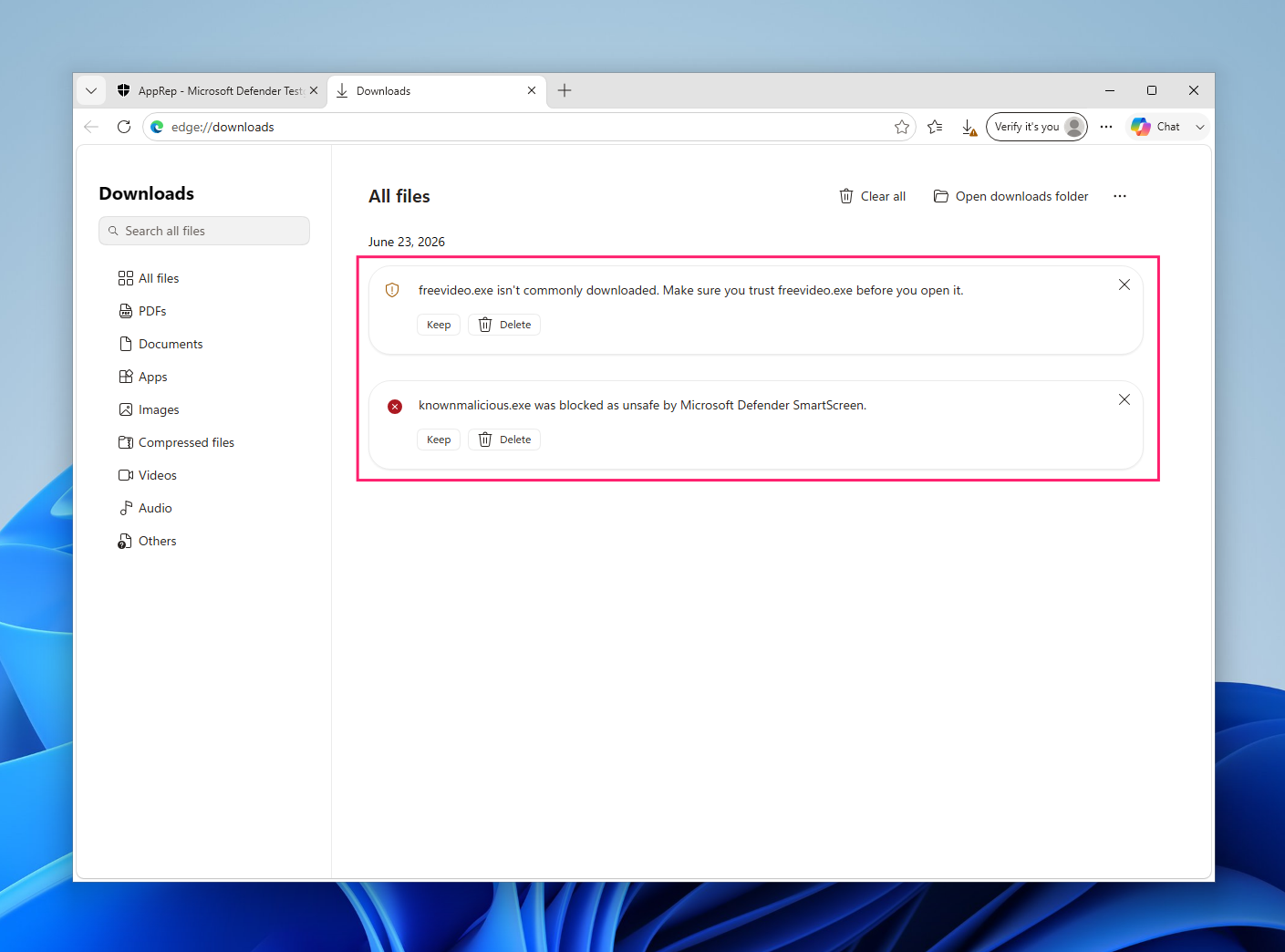
If a specific download is being blocked by Microsoft Edge rather than by Windows Security itself, you can disable SmartScreen at the browser level separately:
SmartScreen and real-time protection operate independently. Disabling SmartScreen doesn’t pause on-access scanning, and disabling real-time protection doesn’t disable SmartScreen. If you’re getting blocked on a software install, confirm which layer is actually doing the blocking before disabling anything.
» Tired of SmartScreen blocking installations? Here’s how to bypass app blocking
Method 5: Disable real-time monitoring via PowerShell
Use this when you need to script the change, push it remotely, or integrate it into an RMM automation profile. This is the admin-facing method for anything beyond a single machine.
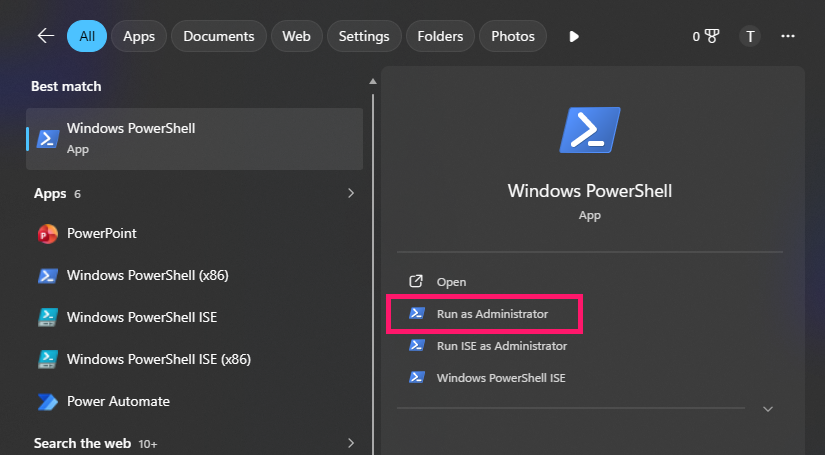
Open a Terminal (PowerShell) window with elevated privileges (run as Administrator)

- Run this command:
Set-MpPreference -DisableRealtimeMonitoring $true - To verify the change took effect, run:
Get-MpPreference | Select-Object DisableRealtimeMonitoring - A return value of
Trueconfirms real-time monitoring is off - To re-enable:
Set-MpPreference -DisableRealtimeMonitoring $false
If Tamper Protection is enabled, the PowerShell command will appear to succeed but no change will actually take effect. The command returns no error, it just silently does nothing. Disable Tamper Protection first.
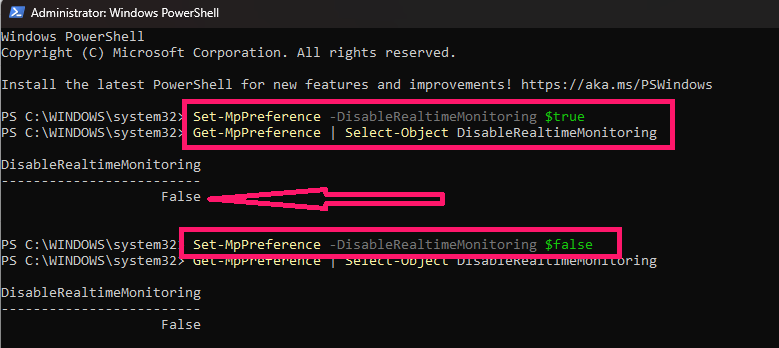
WARNING: The PowerShell command does NOT auto-revert. Unlike the toggle in Windows Security, this change persists until it’s explicitly reversed or a policy overrides it. If you’re using this in a script, build the re-enable command into the same workflow and don’t rely on a manual step to restore protection.
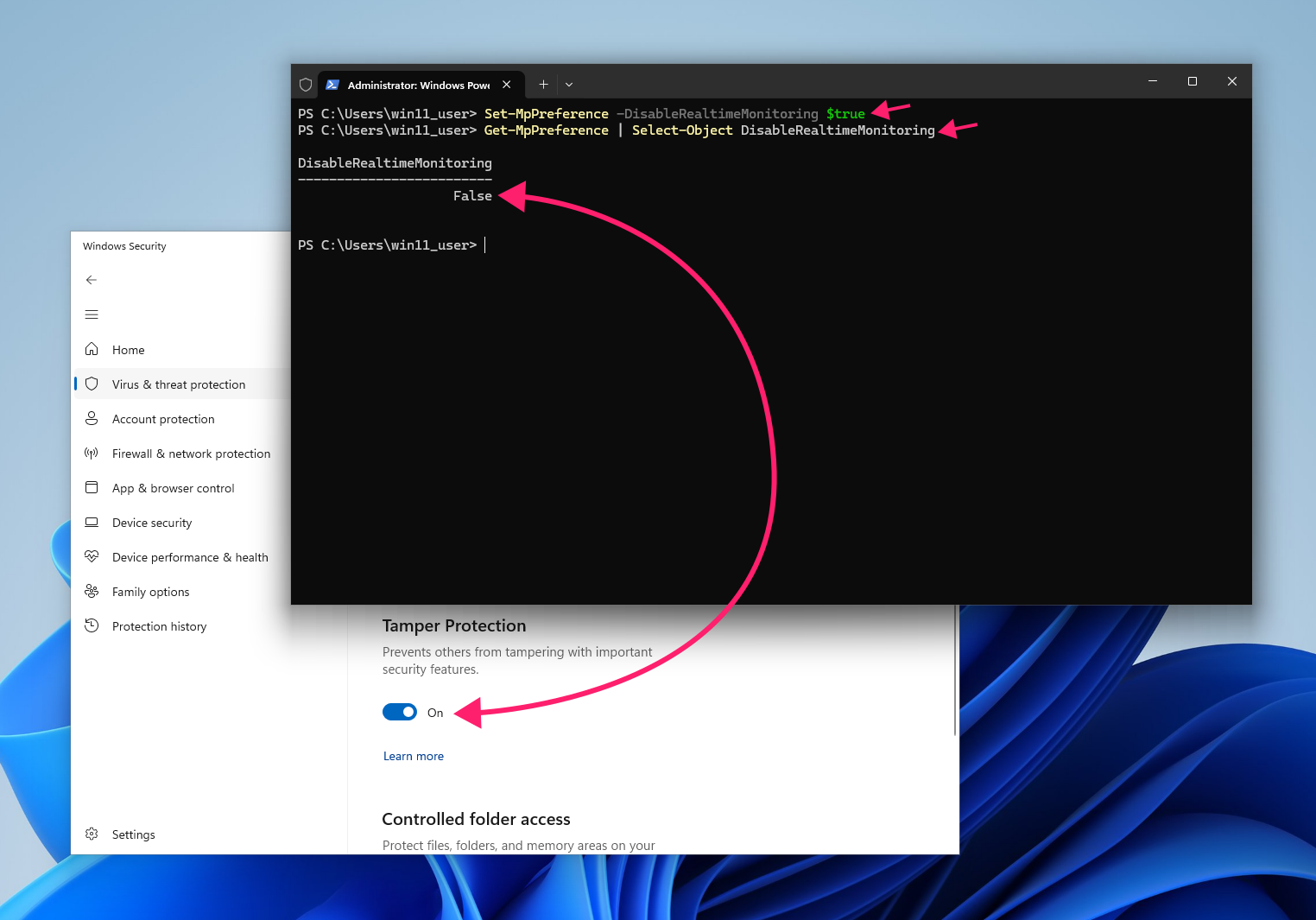
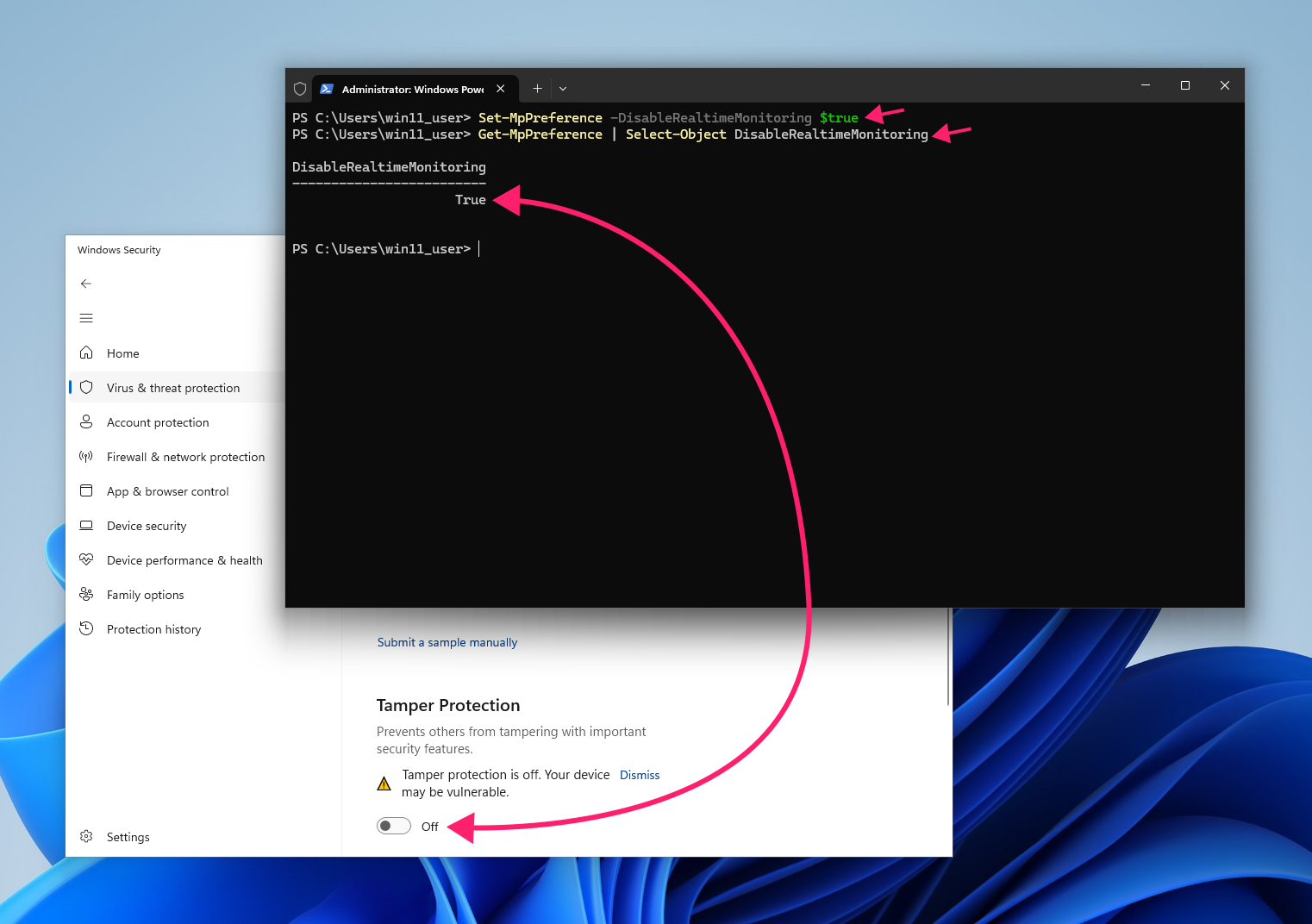
Pro tip: Atera’s AI Copilot can help you write comprehensive PowerShell scripts from natural language queries, then you can deploy those PowerShell scripts remotely through the RMM platform.
Method 6: Disable real-time protection via Group Policy
Use this for permanent, org-wide enforcement where you need the setting applied consistently across managed machines without relying on local user action.
- Open Group Policy Editor
- Navigate to: Computer Configuration > Administrative Templates > Windows Components > Microsoft Defender Antivirus > Real-time Protection
- Find Turn off real-time protection
Set it to Enabled to disable real-time protection across machines in scope

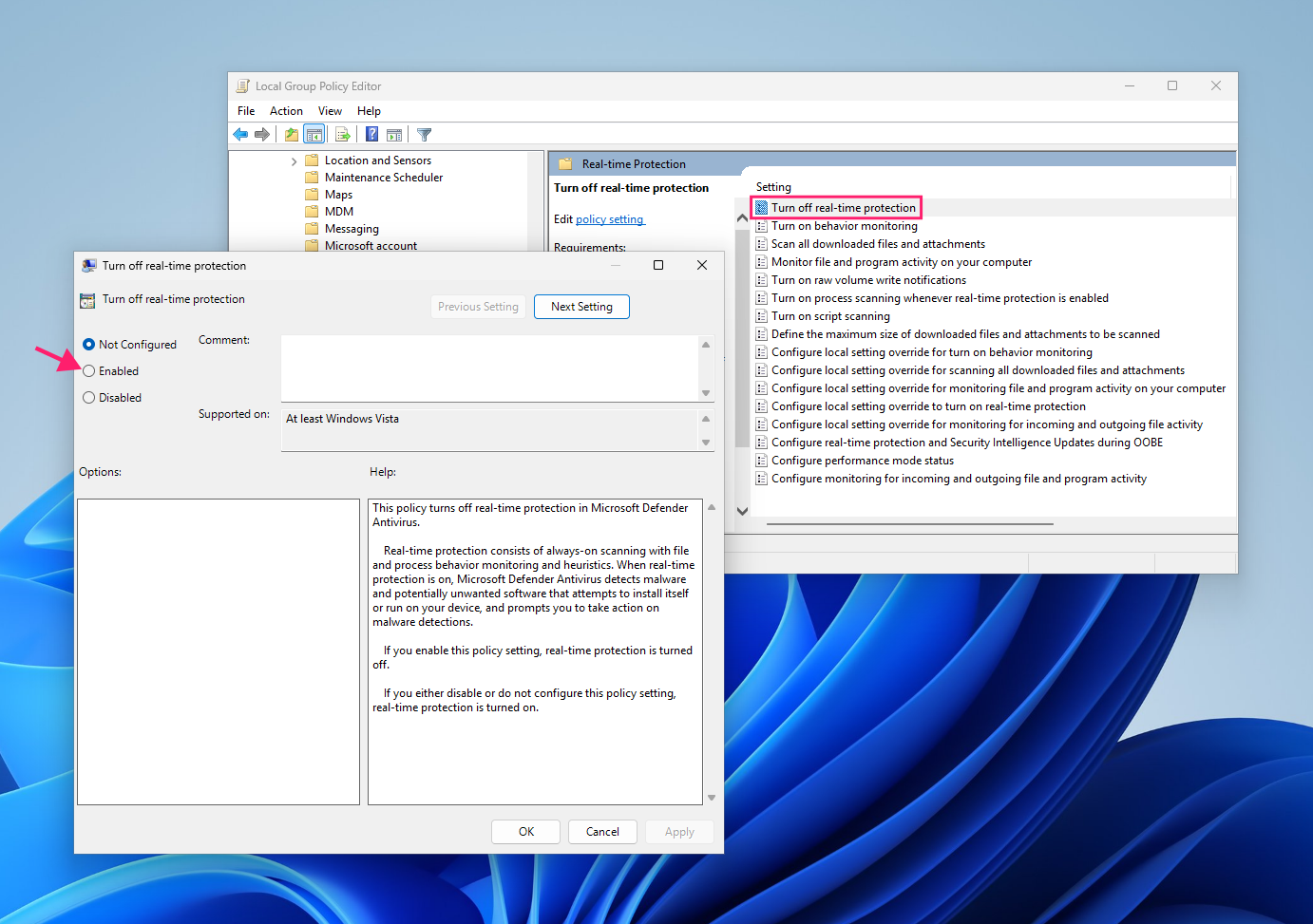
This is a permanent disable, not a temporary pause, so real-time protection will not auto-revert on these machines while the policy is applied. Use it deliberately and scope it carefully. For most scenarios requiring a temporary pause across a fleet, the PowerShell method via an RMM automation profile gives you more control over timing and rollback.
The sanctioned method for policy-managed devices: Troubleshooting Mode
Every method above hits the same wall on managed endpoints — if Defender is enforced through Intune, Group Policy, or Microsoft Defender for Endpoint, local toggles and PowerShell commands silently do nothing. For these devices, Microsoft provides a purpose-built alternative: Defender for Endpoint Troubleshooting Mode.
It temporarily lifts Tamper Protection and unlocks Defender settings on a specific device — even policy-managed ones — for a limited, time-boxed window before automatically reverting. Crucially, it snapshots the device’s configuration before and after, so the change is auditable by design rather than something you have to track manually.
Note: Troubleshooting Mode is an enterprise-only feature. It’s enabled per device from the Microsoft Defender portal and requires the appropriate security-management permissions, so it isn’t available for standalone or unmanaged machines.
» Learn how to simplify group policy management with Atera
Managing Defender settings across your environment
Pausing Windows Defender is a controlled action, not an emergency. When you know exactly what stops, what stays active, and how long you intend to leave protection off, the risk is manageable. When you don’t, a routine maintenance window becomes an exposure you didn’t plan for.
The operational gap most teams hit isn’t the pause itself, but the audit trail. Which machines had protection disabled, by whom, for how long, and whether it came back on. Atera’s RMM platform gives IT teams and MSPs the remote PowerShell execution and automation profiles to push Defender configuration changes at scale, log what changed and when, and verify that protection is restored across every endpoint without chasing down individual machines.
Related Articles

How to reduce alert fatigue across your IT team
Your technicians aren't ignoring alerts because they're careless. They're ignoring them because most alerts have taught them to. Once the stream stops being trustworthy, real failures slip past with the noise. Fixing it means deciding what deserves an interruption, tuning out transient spikes, collapsing alert storms, and automating the fixes you've run a hundred times.
Read now
How to close the IT skills gap on your team
Course completions don't close skills gaps. Technicians finish the training, then hand the first unfamiliar failure straight back to a senior engineer. Real capability gets built on live tickets, incidents, and maintenance windows, with guidance that fades as competence grows.
Read now
How to calculate cost per ticket (and why most teams get it wrong)
Most cost-per-ticket figures are wrong before anyone reads them. Missing overhead, tickets that were opened but never closed, spam and duplicates padding the count, and one month's costs divided by another month's tickets all make support look cheaper than it is. Fix both sides of the division and the number finally shows where technician time and money actually go.
Read now
How to prepare for a software license audit
A vendor audit notice doesn't wait for you to get organized. It demands proof, right now, that every install matches every entitlement you've paid for, and most IT teams find out the hard way how much they don't actually know about their own environment. Getting audit-ready before the letter arrives is the difference between negotiating from strength and paying for months of scrambling.
Read nowEndless IT possibilities
Boost your productivity with Atera’s intuitive, centralized all-in-one platform









