
Generate summary with AI

Your development team is pushing a major software build, but their compilers suddenly grind to a halt. Elsewhere, your core database starts lagging, locking up critical business transactions. The culprit? Your antivirus.
While Microsoft Defender’s real-time scanning is essential for stopping threats, its constant file inspections can severely choke high-I/O operations like code compilation, database logging, or running virtual machines. When security software triggers high CPU usage and broken workflows, IT administrators have to find a quick balance between system performance and endpoint protection.
To clear these bottlenecks without opening your network to malware, you need a safe, structured folder exclusion strategy. In this blog, we’ll cover when directory whitelisting is actually necessary, the exact step-by-step methods to apply exceptions, and how to safely test your configuration to keep your endpoints stable and secure.
When you should use folder exclusions
Microsoft Defender Real-Time Protection intercepts every single file operation synchronously. In high-input/output (I/O) environments, this scanning process can stall operations, lock essential files, or trigger disruptive false flags.
Whitelisting an entire folder becomes necessary during these common scenarios:
- Software development & build systems: Compilers and build tools read, write, and modify thousands of temporary files over short timeframes. Synchronous scanning can cause severe performance drops, CPU locks, and compilation errors when files are caught in a locked state. While the standard practice is to exclude active project directories, Windows 11 also offers Performance Mode to switch scanning to asynchronous mode on designated Dev drives.
- Persistent false positives: In-house utilities or proprietary software frequently trigger false positive flags in Microsoft Defender. If these tools are critical to daily business operations, white-labeling their root folders prevents files from being repeatedly quarantined.
- Databases and high-I/O applications: Active database directories experience continuous read/write cycles. Real-time antivirus scans can disrupt these data streams, potentially corrupting active transactions and tanking application performance.
- Virtualization platforms: Hypervisors like Hyper-V or VMware continuously update large live virtual disk images. Scanning these massive files on the fly slows down host operations and can interfere with virtual machine stability.
» Here’s how to enable CPU virtualization in your BIOS
Why IT professionals prioritize directory whitelisting over granular rules
Configuring exceptions for an entire directory path is often chosen over granular exclusions (like targeting specific file extensions, single filenames, or individual processes) for several practical reasons:
- Managing temporary files: CI/CD deployment pipelines and software builds generate high volumes of ephemeral files constantly. It is technically impossible to write specific rules for temporary files that do not exist yet or utilize shifting, dynamic filenames.
- Preserving complex dependencies: Modern software tools rely on a web of intertwined binaries, localized plugins, and library dependencies. Whitelisting only a handful of specific files can break this execution chain, causing the application to crash or fail to load.
- Scalability and update management: Keeping track of individual file extensions and filenames across multiple software versions is inefficient and prone to administrative errors. A directory path rule scales effortlessly because it covers all current and future sub-files, remaining valid through software updates and version patches.
- System diagnostics: When troubleshooting a malfunctioning application, temporarily whitelisting its directory path serves as a fast diagnostic test to confirm whether Microsoft Defender is causing the conflict. Often, this diagnostic step is kept as a permanent rule.
» Struggling with diagnostics? Here’s how to run a PC diagnostics report in Windows
Systems folders you must NEVER exclude
While folder whitelisting solves performance blocks, excluding broad system directories opens up severe security vulnerabilities. Microsoft explicitly states that administrators must never add the following folders to an exclusion list, as threat actors regularly target them to drop and execute malware undetected:
- %systemdrive%, C:, or C:*, the entire system drive
- %ProgramFiles%Java or C:Program FilesJava
- C:Program FilesVendorName or C:Program Files (x86)VendorNAme, broad vendor paths
- C:Temp, C:Temp, or C:Temp*
- C:Users or C:Users*
- C:UsersAppDataLocalTemp or C:UsersAppDataLocalLowTemp
- %Windir%Prefetch or C:WindowsPrefetch
- %Windir%System32Spool or C:WindowsSystem32Spool
- C:WindowsSystem32CatRoot2
- %Windir%Temp, C:WindowsTemp, or C:WindowsTemp*
3 methods to exclude folders from Windows Defender
To implement folder exceptions within your system configuration, use these native graphical, command-line, or policy-based deployment strategies.
Warning: Some games work slightly differently, so you should consider these factors first:
- Anti-cheat software: This operates at the kernel level, which means it can alter system processes, monitor memory and write to protected locations. Windows Defender may flag it as suspicious but excluding an entire directory is risky. It runs with the highest system privileges, if a threat actor plants a malicious file in the excluded folder it will be able to operate silently. The vendor recommended exclusion paths should be used rather than excluding the parent game folder.
- Game mods: These also represent an elevated risk compared to standard software directories. Mods are generally unsigned, community-produced binaries, scripts, or libraries. Malicious mods are a known attack vector and mod managers can write to both the game directory and a separate staging folder. Excluding both increases the risk.
- Shader caches: Modern games often compile shaders at runtime or after updates, which can generate large numbers of temporary files. Similarly to build systems, system performance can be affected when Real-Time Protection intercepts every file.
Method 1: Windows 11 security dashboard
This method is for users who want to use the native graphical user interface to manually add an exception rule directly within their localized desktop security system.
Follow these steps:
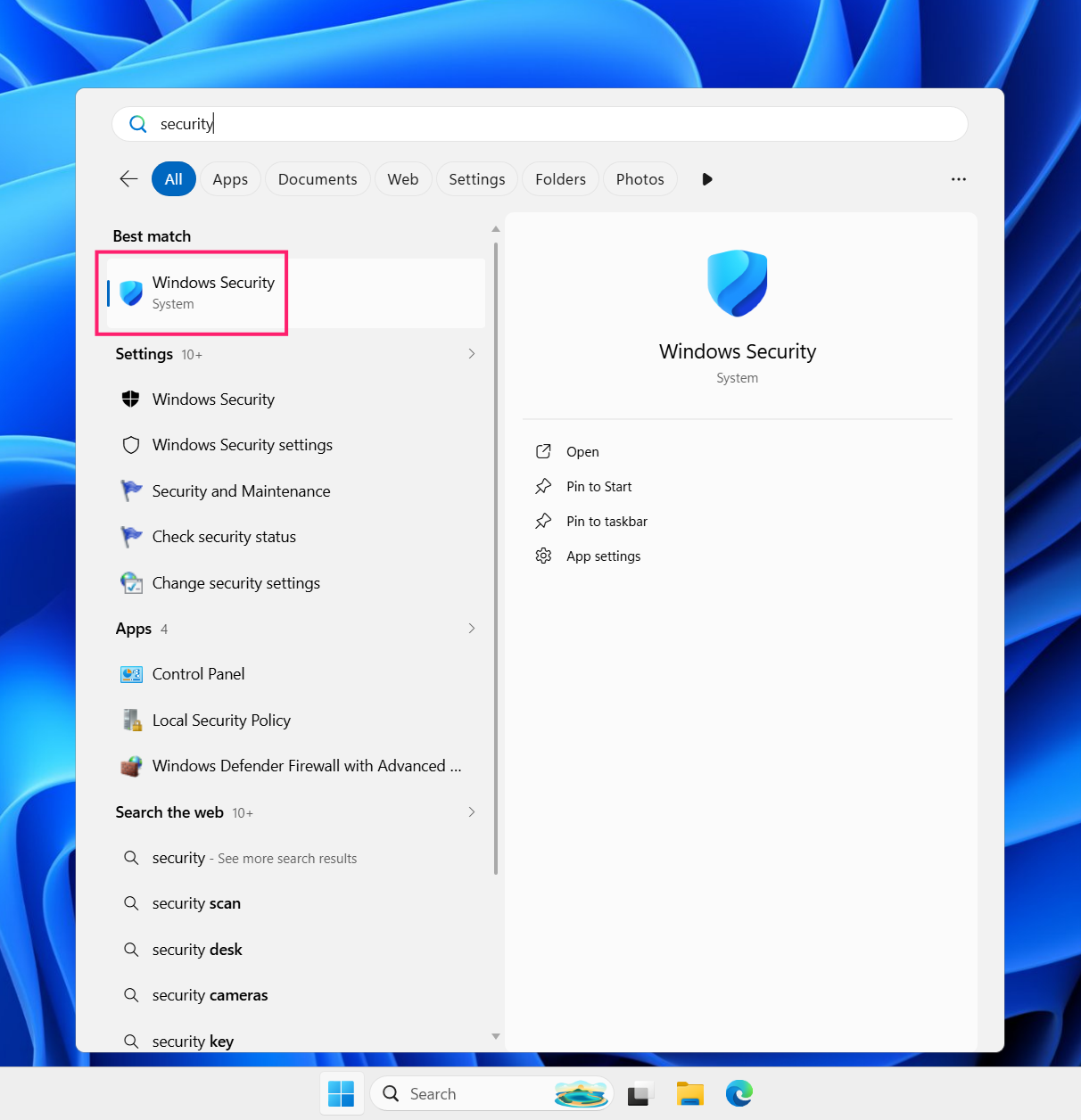
Press the Start Menu button and type security, select Windows Security

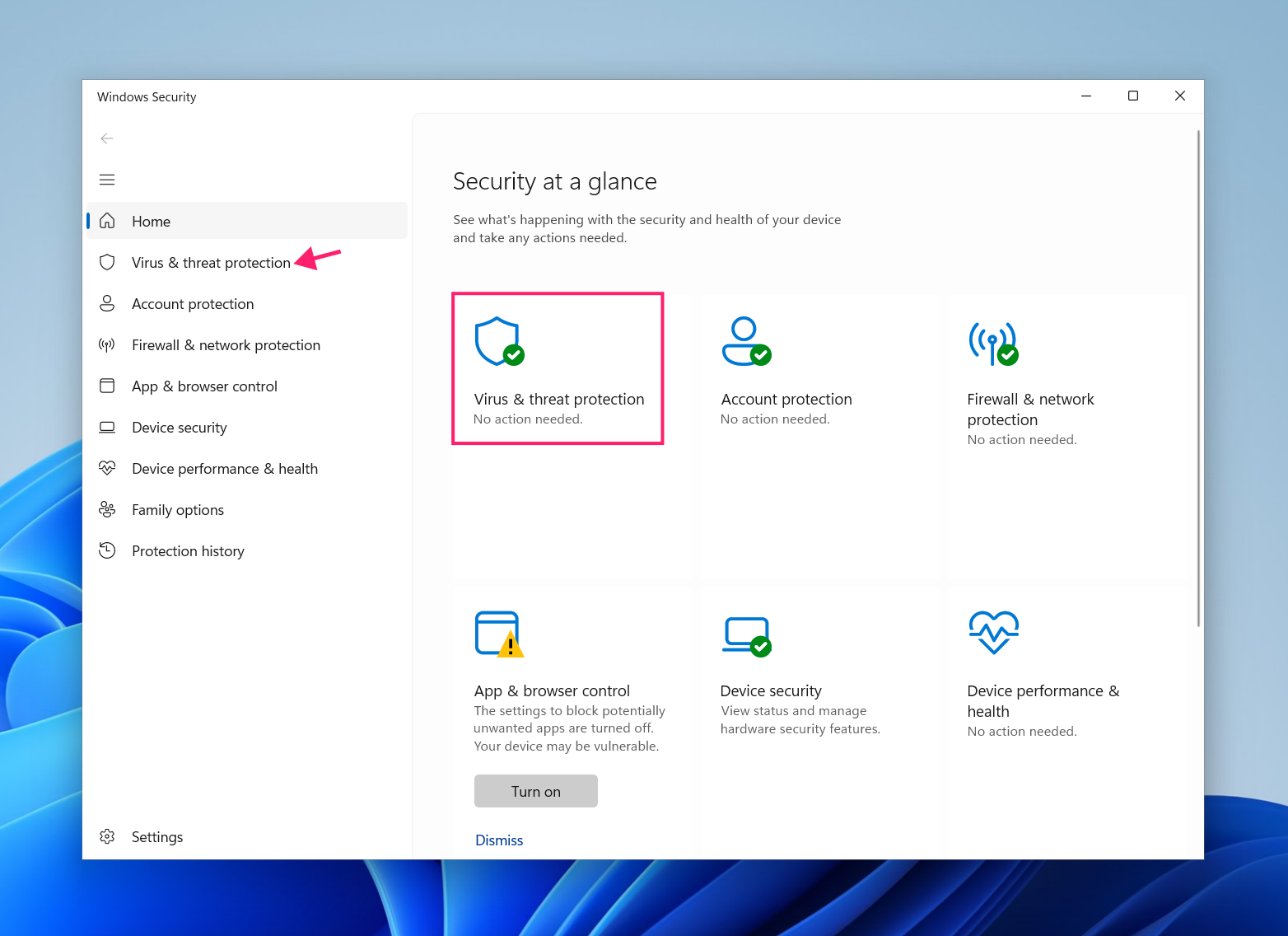
Go to Virus & threat protection

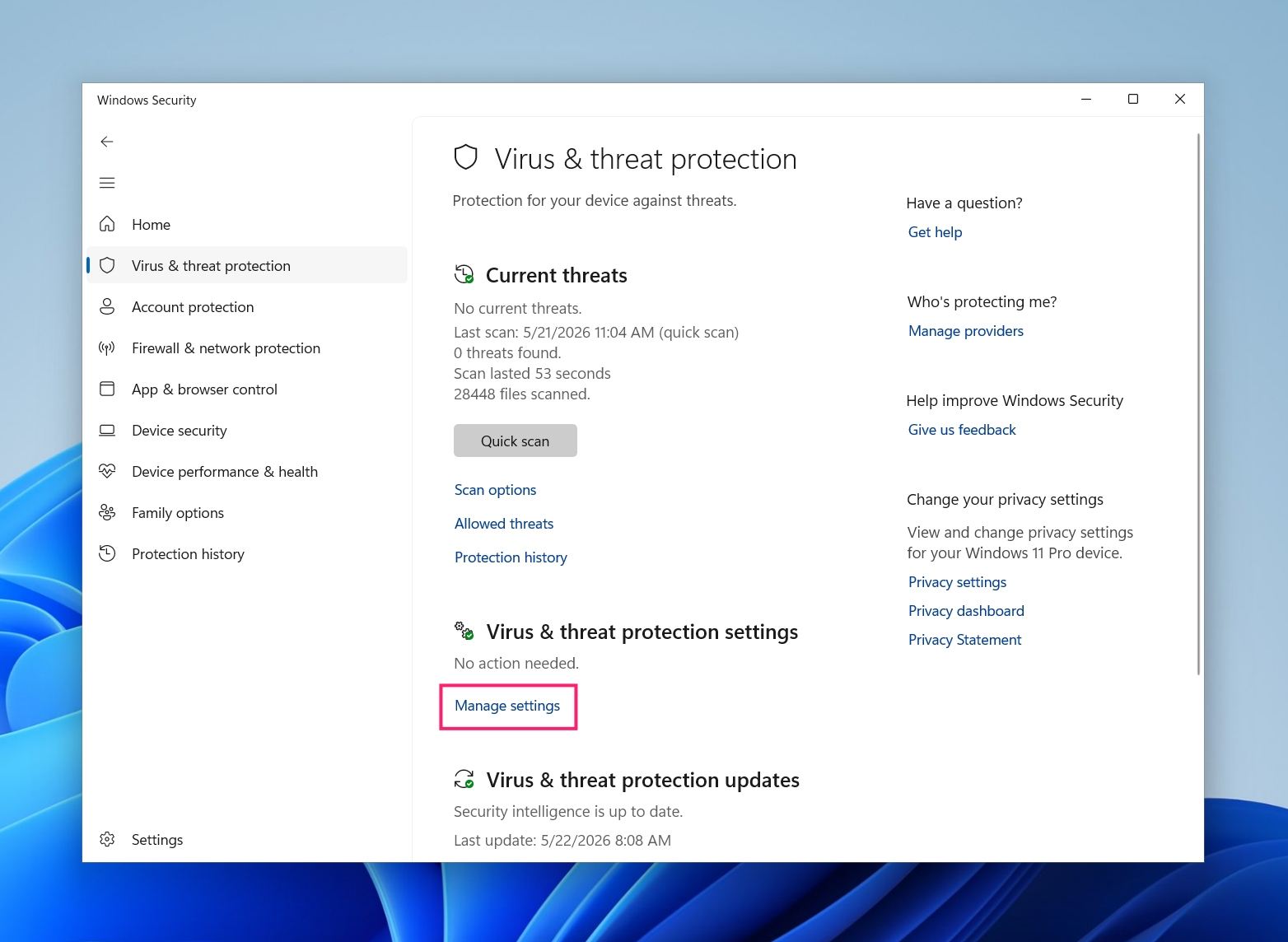
Click Manage settings

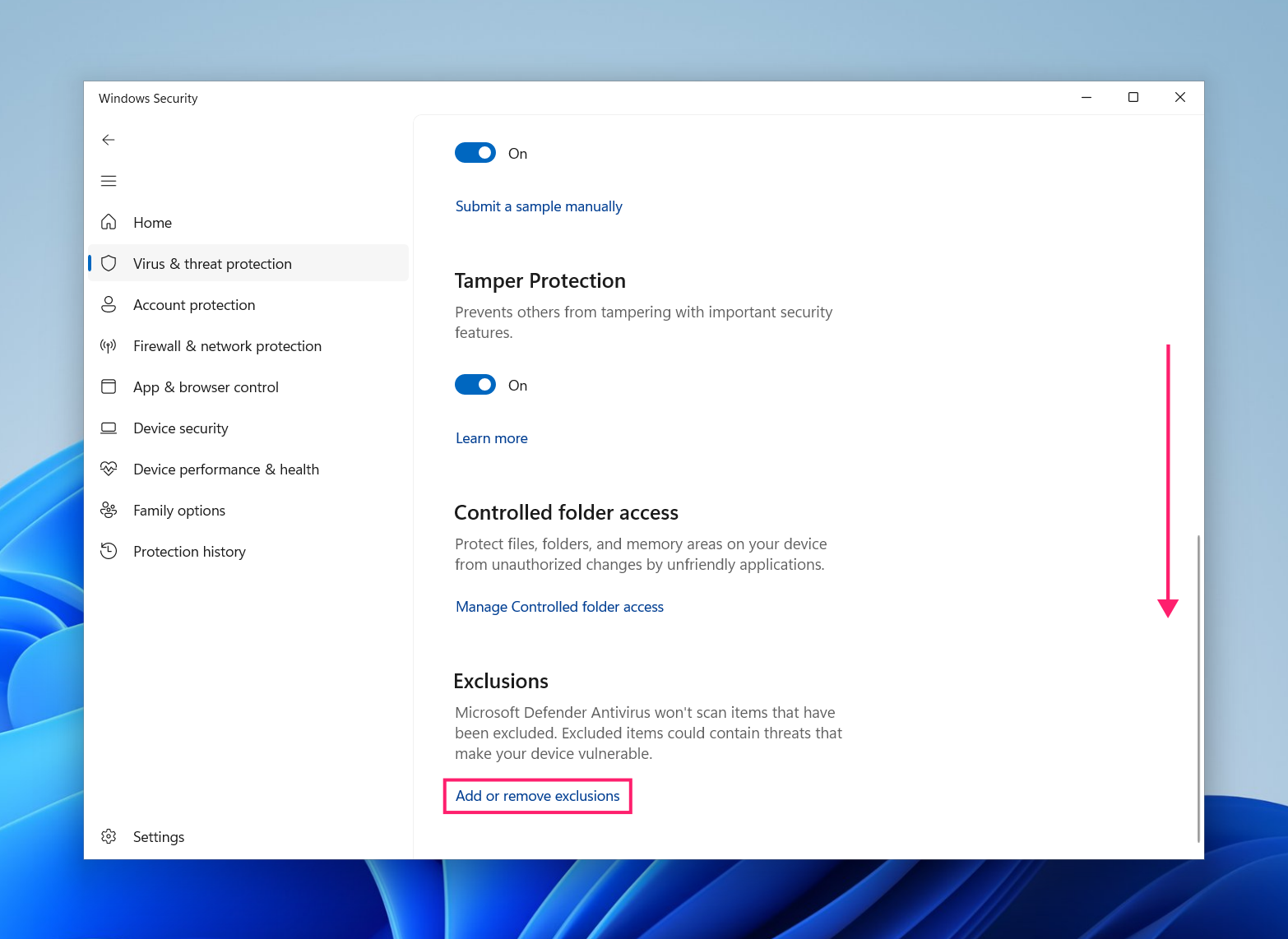
Scroll down to Exclusions and select Add or remove exclusions

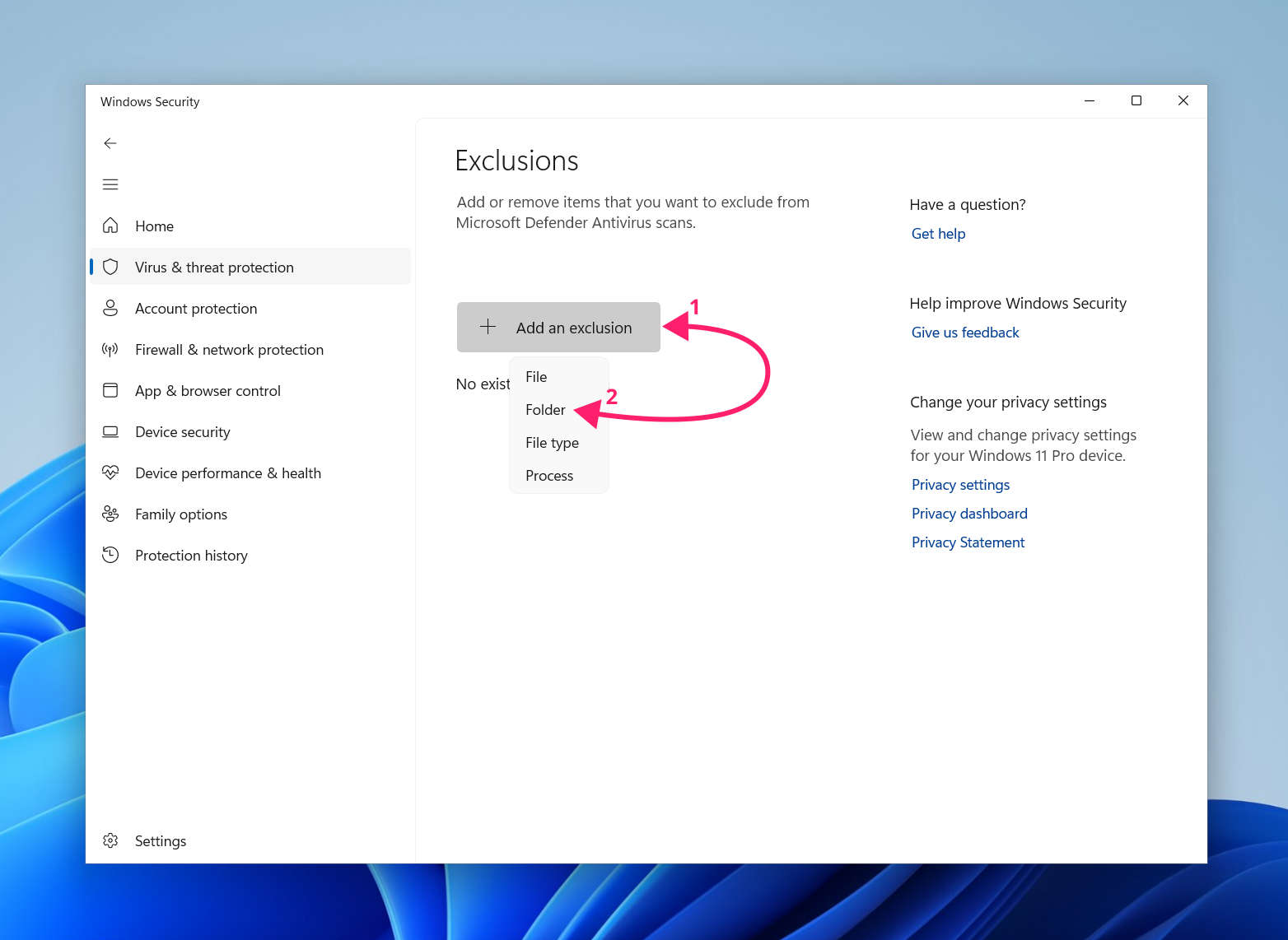
Select Add an exclusion and choose Folder

Method 2: PowerShell cmdlet automation
This method is for administrators or users who need to quickly and cleanly append folder rules using a command-line utility.
Follow these steps:
- Press Win + X (or right-click the Start Menu button) and select Terminal (Admin) to launch a Terminal window with elevated privileges
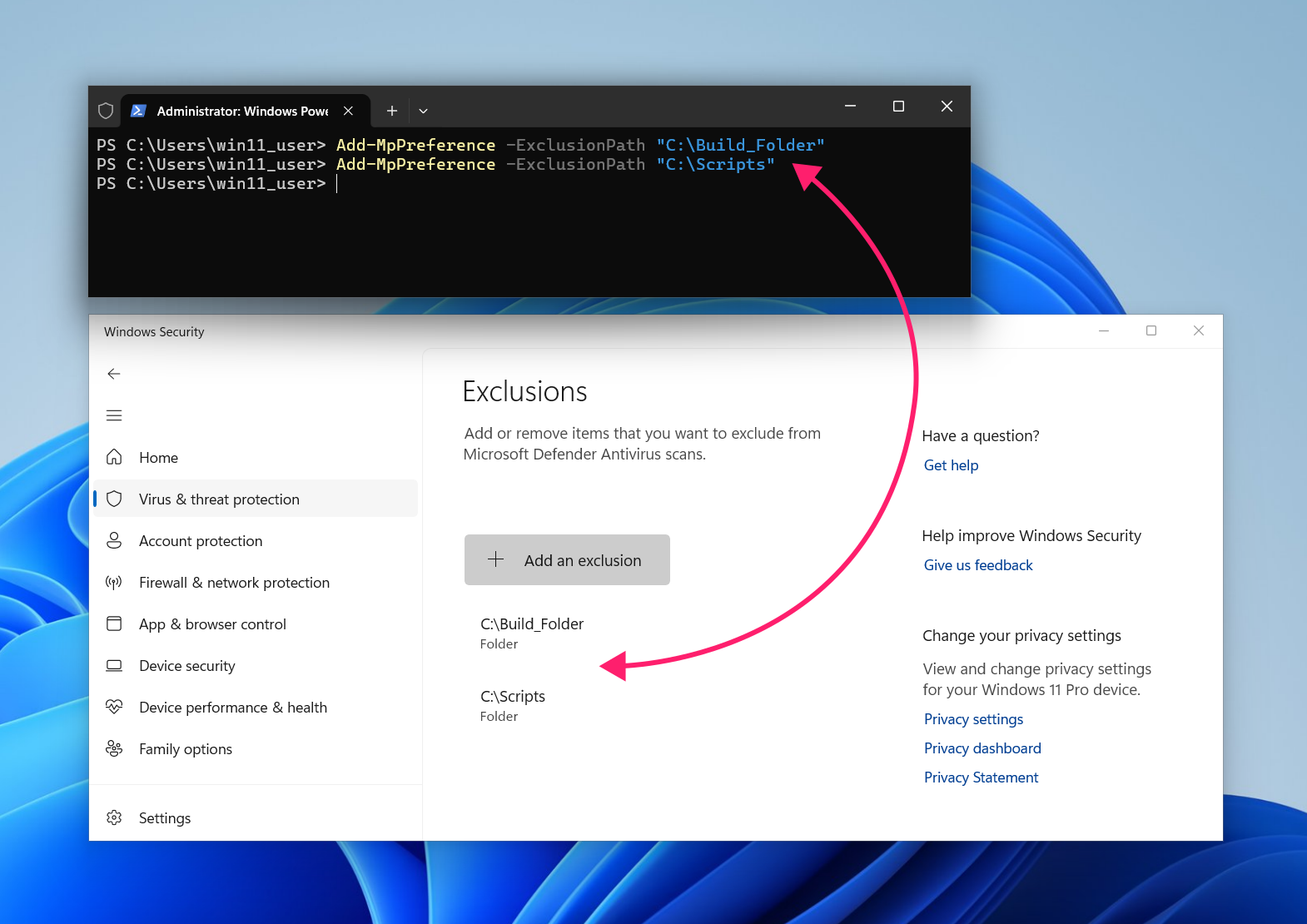
Use the Add-MpPreference cmdlet to update the exclusion list: Run
Add-MpPreference -ExclusionPath "C:ExcludedFolderPath"to append to the current list
Multiple folders can be added by running:
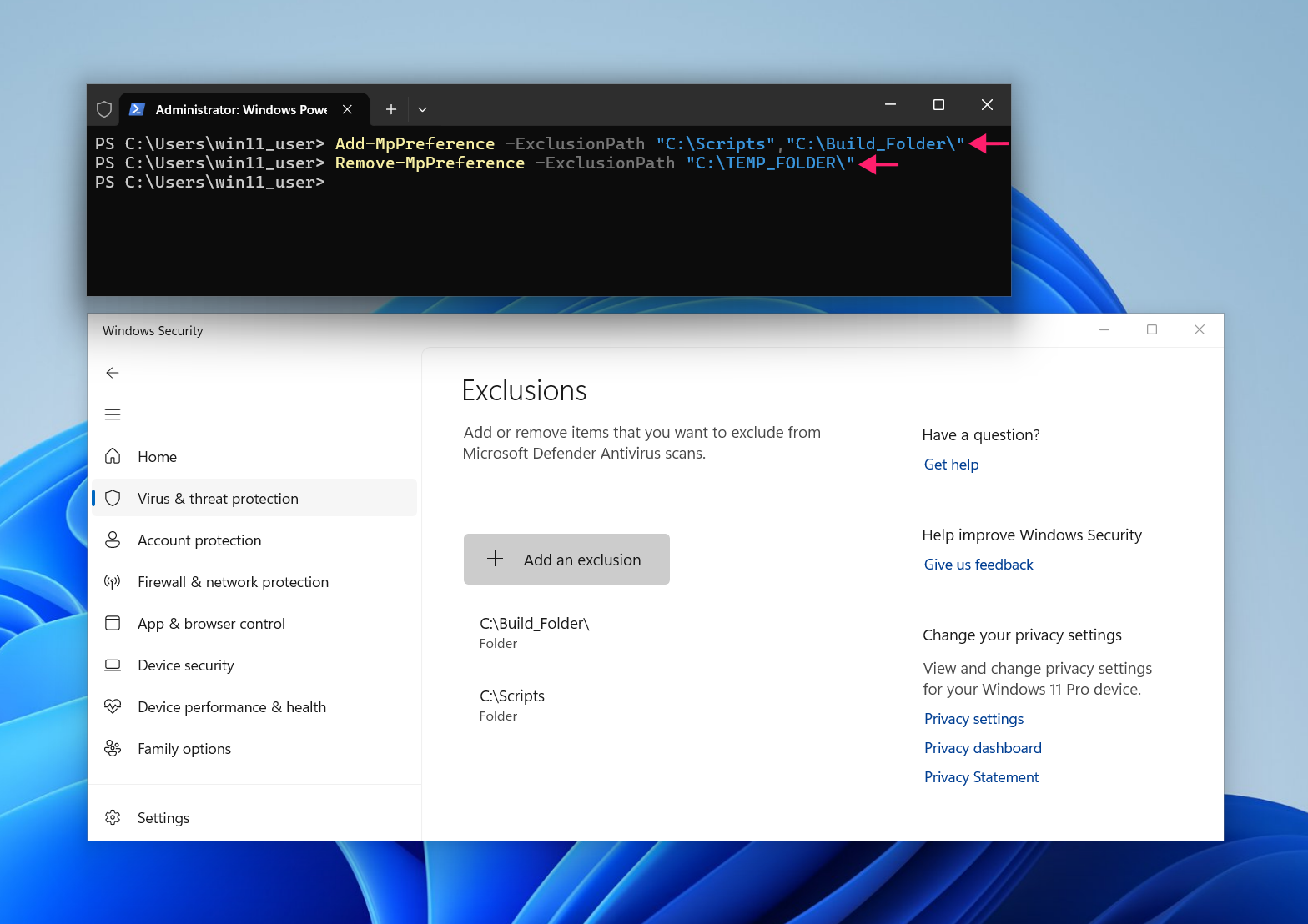
Add-MpPreference -ExclusionPath "C:ExcludedFolderPath1","C:ExcludedFolderPath2"
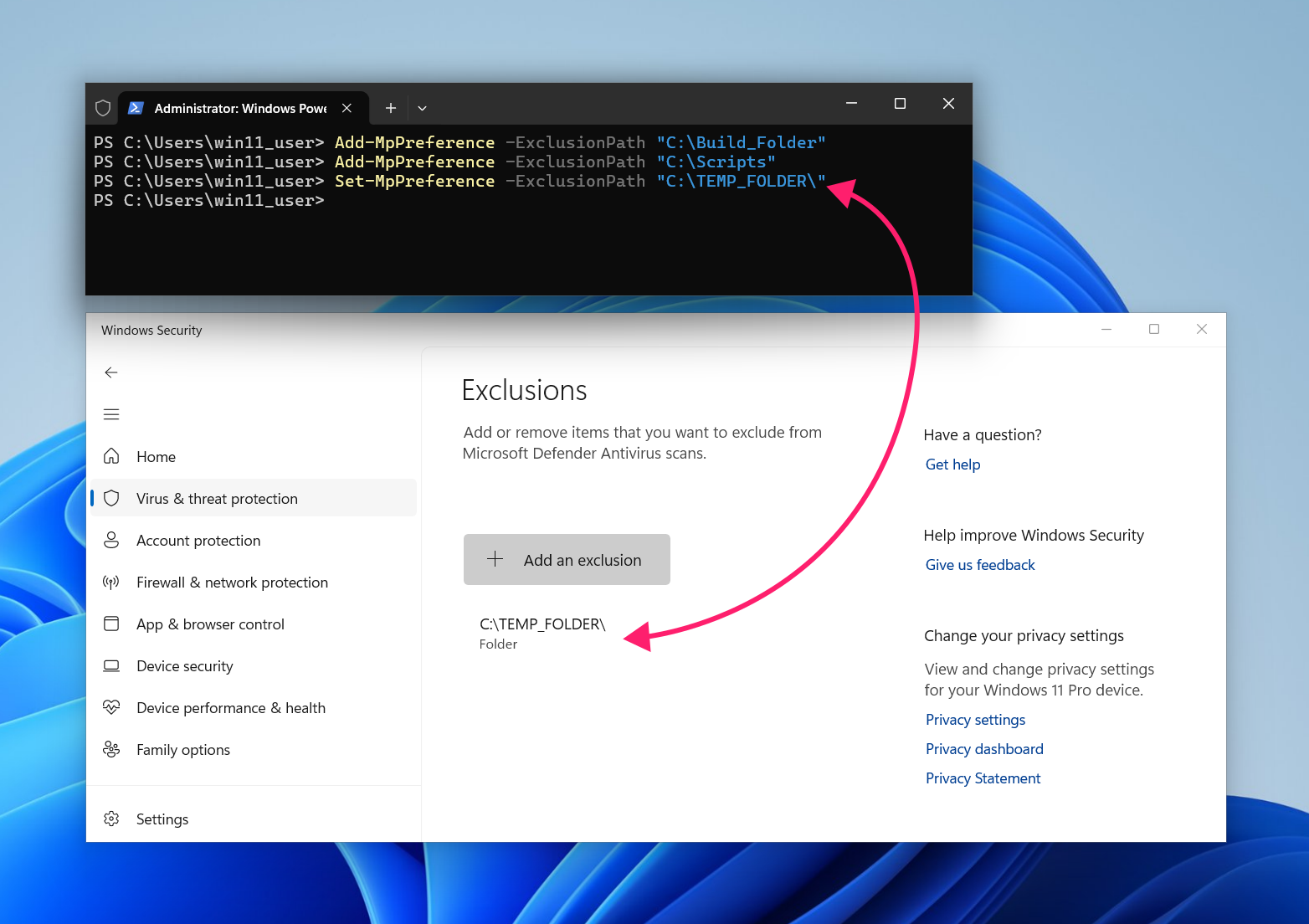
- Use Set-MpPreference to overwrite the entire existing exclusion list by running:
Set-MpPreference -ExclusionPath "C:ExcludedFolderPath" Use Remove-MpPreference to remove a specific path by running:
Remove-MpPreference -ExclusionPath "C:YourFolderPath"
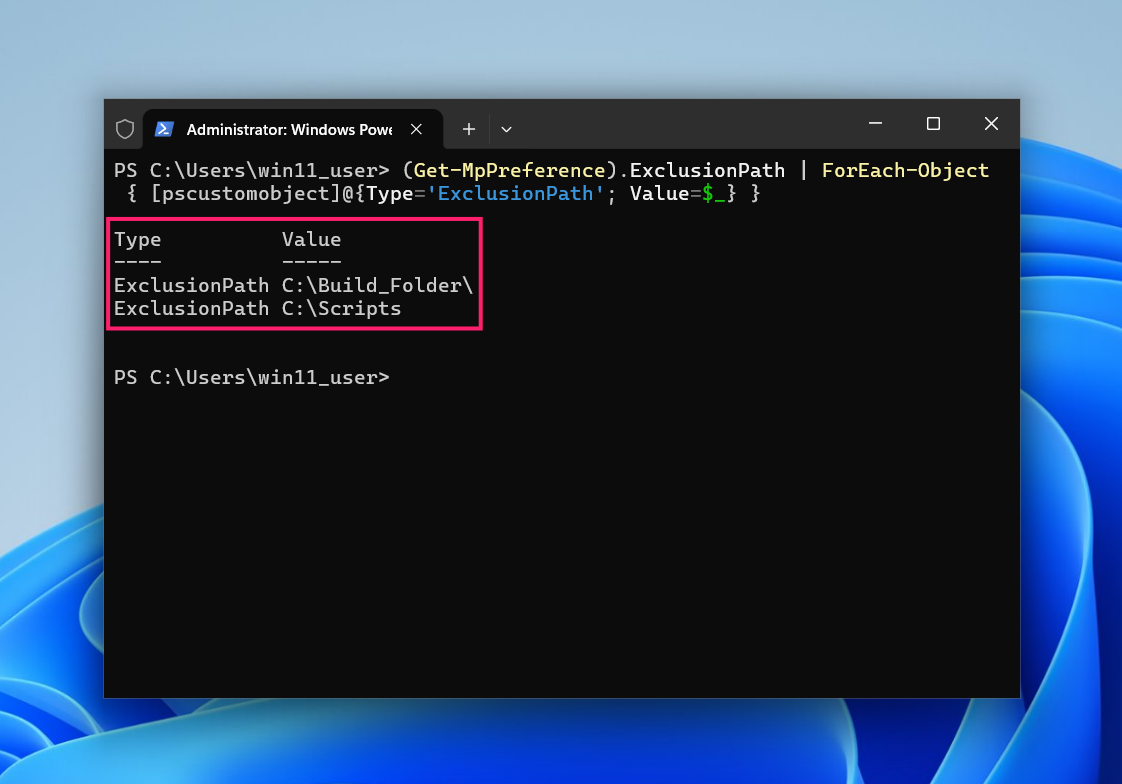
Note: You can run (Get-MpPreference).ExclusionPath | ForEach-Object { [pscustomobject]@{Type='ExclusionPath'; Value=$_} } to get the current list directly in the Terminal. Alternatively, (Get-MpPreference).ExclusionPath can be used directly to simply output the path list, without any formatting
Did you know? You don’t need to memorize complex command syntax or risk typos when deploying these scripts. With Atera’s AI Copilot, you can simply ask it to generate the exact script you need and it will instantly output the precise commands ready for deployment. You can then deploy those scripts remotely using Atera’s RMM platform.
Method 3: Local Group Policy Editor
This method is for system administrators enforcing persistent, policy-based rules on a standalone workstation.
Follow these steps:
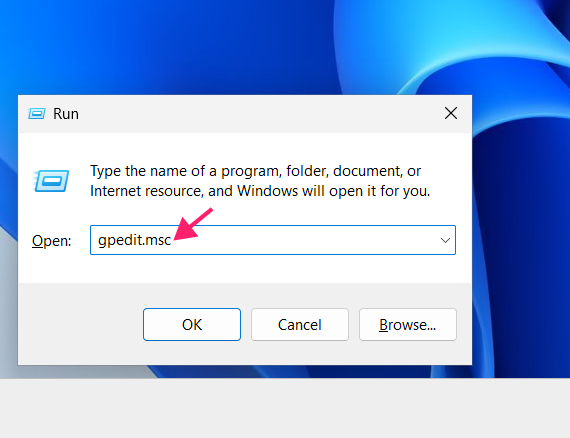
Press Win + X, type gpedit.msc and press Enter to open Group Policy Editor

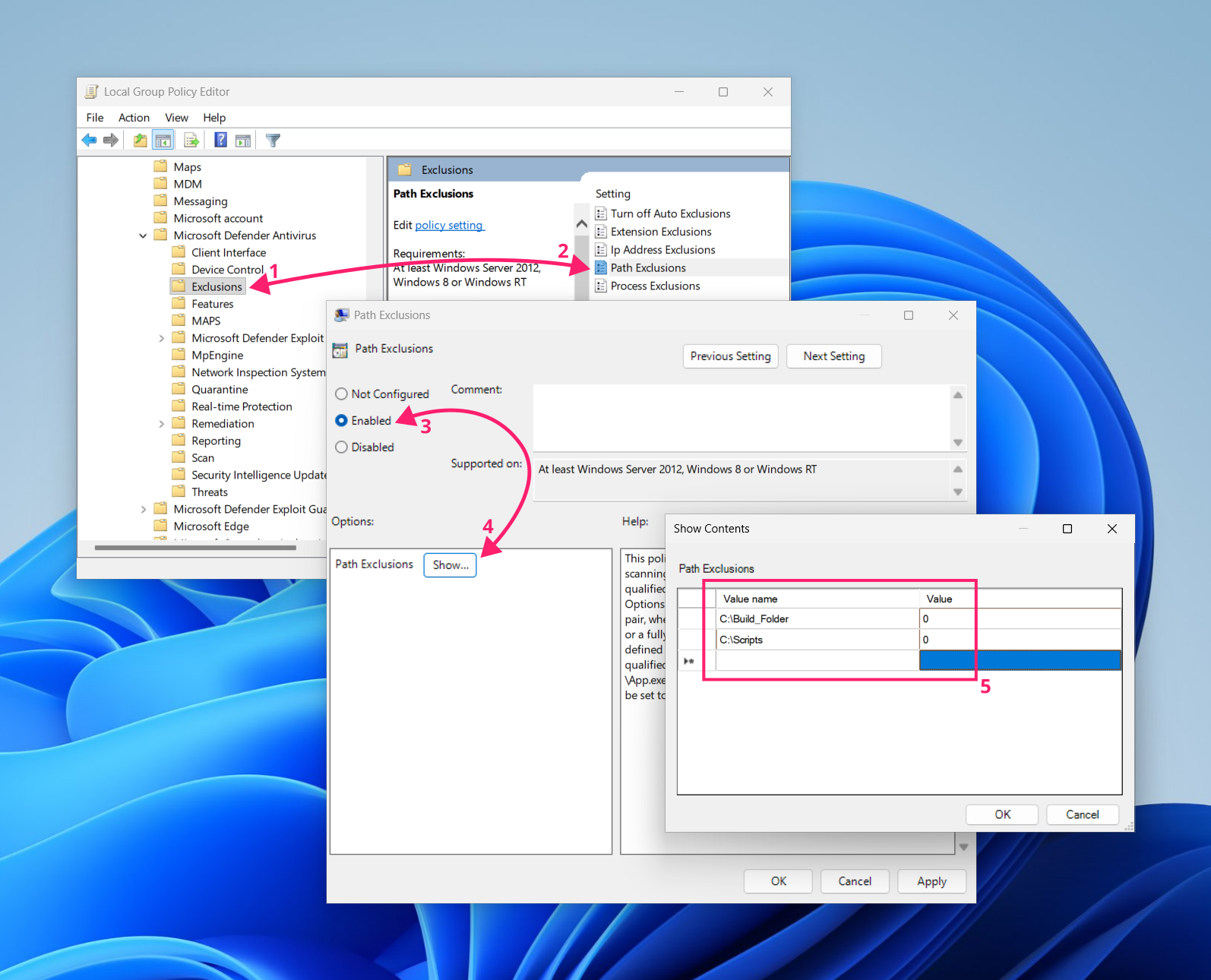
- Navigate to Computer Configuration 🠂 Administrative Templates 🠂 Windows Components 🠂 Microsoft Defender Antivirus 🠂 Exclusions
- Open the Path Exclusions policy and enable it
- Under the Options section, click the Show button
Add each path and enter 0 in the Value column

- Reboot or run
gpupdate /forcein a Terminal or Command Prompt window launched with elevated privileges, to apply the changes
Note: By default, local changes are merged with exclusions deployed by Group Policy.
» Learn more about managing group policies with Atera
How to verify and test folder exclusions
Once an exception is configured, you should verify that the path is active within the engine and test it to confirm that Microsoft Defender is ignoring the directory.
Method 1: Verify active exclusions via command-line utilities
This strategy is for administrators who need to audit the system configuration and check if the folder path is correctly evaluated by the antivirus engine.
Follow these steps:
- Launch a Terminal window with elevated privileges
- Run
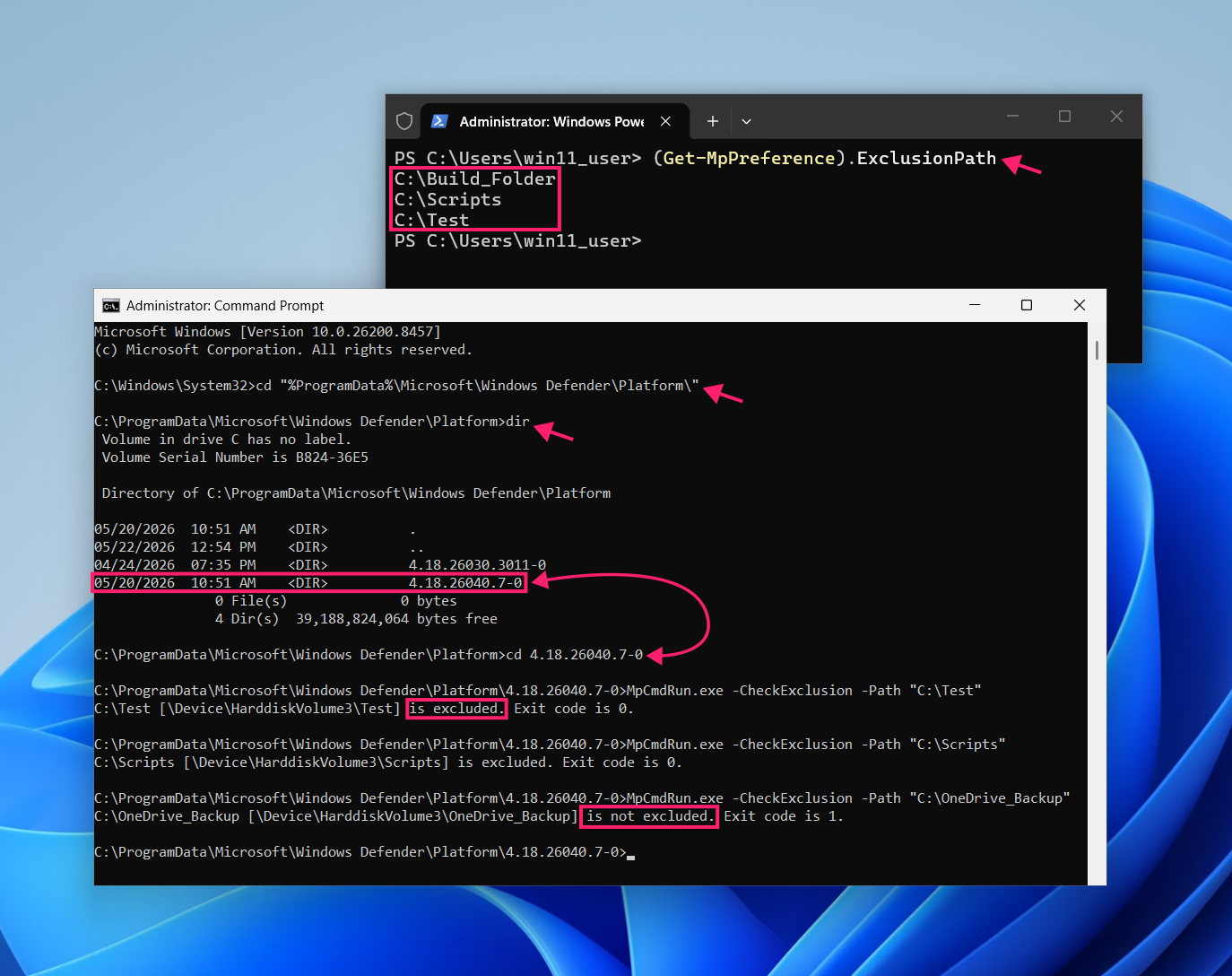
(Get-MpPreference).ExclusionPathto list the full (merged) list of active path exclusions. All sources should be combined here: Group Policy, PowerShell, and GUI - If you are running at least Microsoft Defender Antivirus version 4.18.2111-5.0 or later, open a Command Prompt window with elevated privileges to cross-check the list with the CLI tool
- Run
cd "%ProgramData%MicrosoftWindows DefenderPlatform"to navigate to the Defender-specific path - Run
dirand check which version folder number is the latest - Run
cdto navigate into that latest version folder Run
MpCmdRun.exe -CheckExclusion -Path "C:PathToFolder"to check if the provided path is correctly evaluated by Defender
Method 2: Active exclusion testing using the EICAR string
The official method is to use an EICAR test file, which is a harmless, standardized string specifically designed for validation without using actual malicious code. This strategy is for users who want to safely confirm that Microsoft Defender is actively ignoring a directory without introducing real malicious code to the machine.
Follow these steps:
- Generate the EICAR test file by creating a new text file containing the exact string:
X5O!P%@AP[4PZX54(P^)7CC)7}$EICAR-STANDARD-ANTIVIRUS-TEST-FILE!$H+H* - Save the text file inside your excluded folder. Defender should not generate any notifications
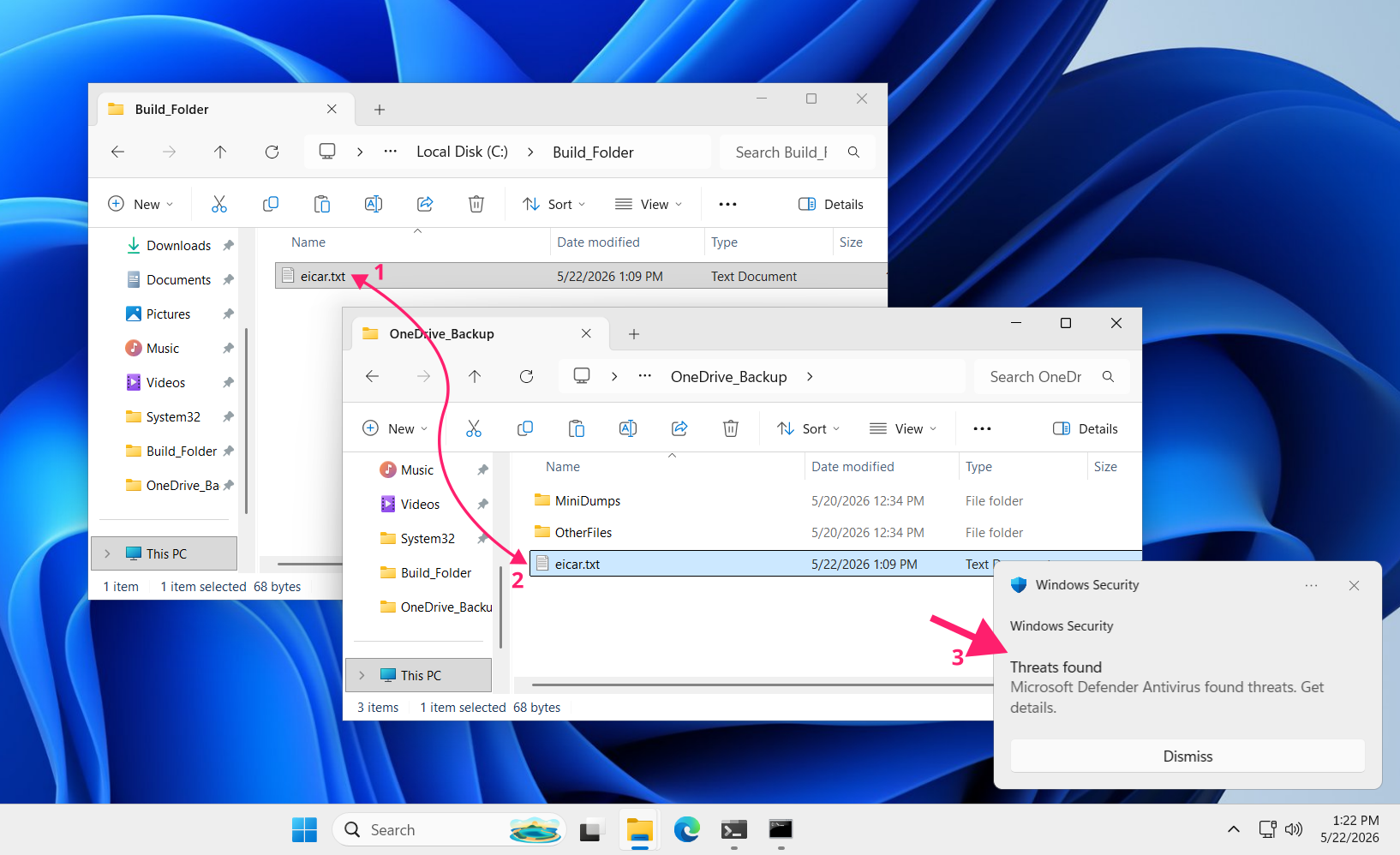
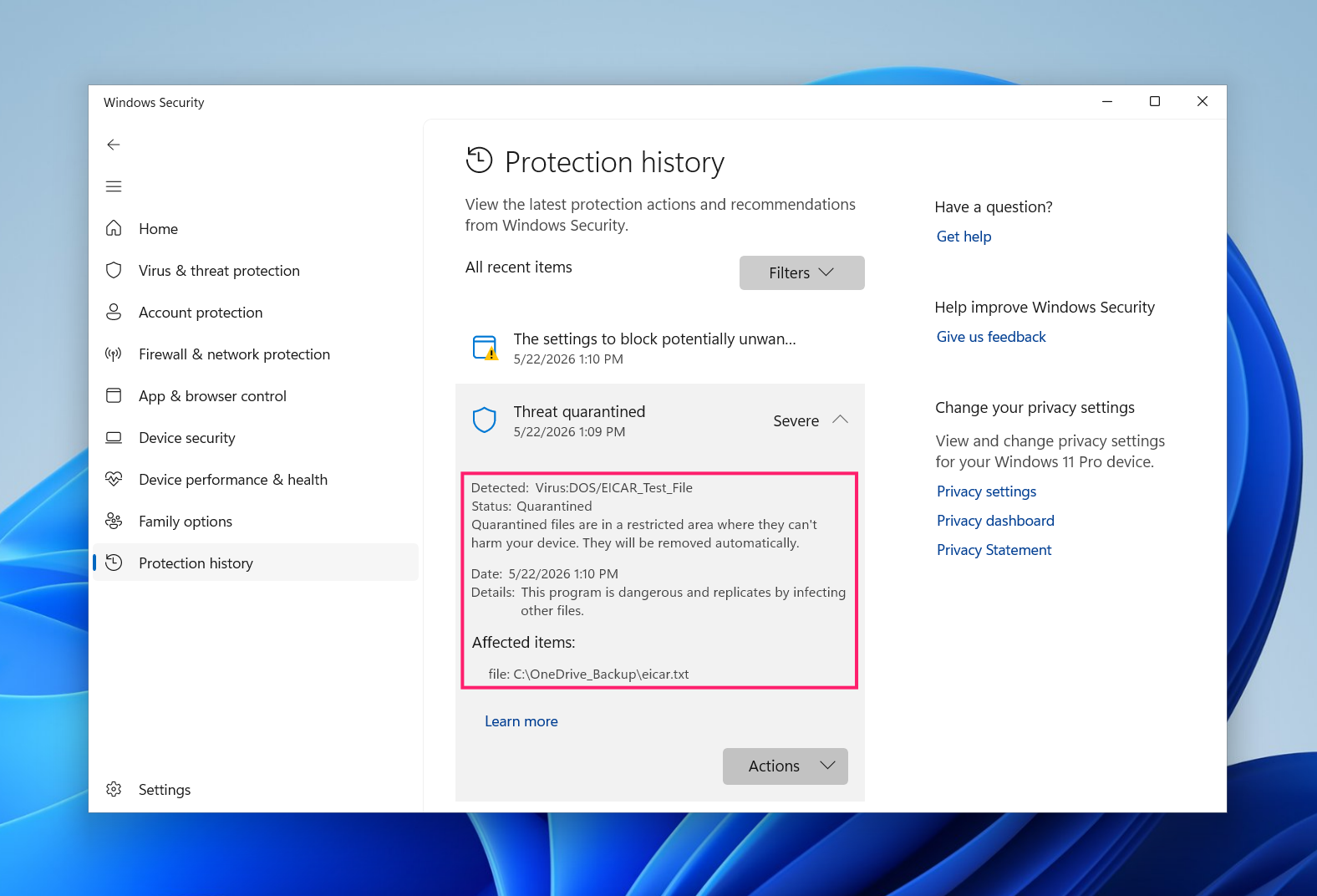
Cross-validate by copying the test file to a non-excluded folder. Defender should give you a notification and quarantine the file


Streamline exclusions with Atera
Managing folder exclusions manually across dozens or hundreds of workstations takes up valuable technical resources. Atera’s RMM platform simplifies this by giving you full control over all your endpoints from a single console. Instead of remoting into individual machines or handling tedious setup tasks, Atera allows you to oversee your entire software environment, track system health, and deploy configurations globally.
Frequently Asked Questions
Related Articles

How to reduce alert fatigue across your IT team
Your technicians aren't ignoring alerts because they're careless. They're ignoring them because most alerts have taught them to. Once the stream stops being trustworthy, real failures slip past with the noise. Fixing it means deciding what deserves an interruption, tuning out transient spikes, collapsing alert storms, and automating the fixes you've run a hundred times.
Read now
How to close the IT skills gap on your team
Course completions don't close skills gaps. Technicians finish the training, then hand the first unfamiliar failure straight back to a senior engineer. Real capability gets built on live tickets, incidents, and maintenance windows, with guidance that fades as competence grows.
Read now
How to calculate cost per ticket (and why most teams get it wrong)
Most cost-per-ticket figures are wrong before anyone reads them. Missing overhead, tickets that were opened but never closed, spam and duplicates padding the count, and one month's costs divided by another month's tickets all make support look cheaper than it is. Fix both sides of the division and the number finally shows where technician time and money actually go.
Read now
How to prepare for a software license audit
A vendor audit notice doesn't wait for you to get organized. It demands proof, right now, that every install matches every entitlement you've paid for, and most IT teams find out the hard way how much they don't actually know about their own environment. Getting audit-ready before the letter arrives is the difference between negotiating from strength and paying for months of scrambling.
Read nowEndless IT possibilities
Boost your productivity with Atera’s intuitive, centralized all-in-one platform









