Patch Tuesday exists to keep machines secure. KB5079473, Microsoft’s March 2026 cumulative update for Windows 11 24H2 and 25H2, is exactly the kind of update you can’t afford to skip because it carries the full security payload for the month, plus fixes rolled in from the February optional preview. The problem is that it keeps failing on some machines, then the update rolls back silently, the security fixes don’t land, and the error codes it leaves behind (0x80073712, 0x80070306, 0x80010002, 0x800f0991, etc.) each point to a different root cause that requires a different fix.
This post walks through every resolution method in order of escalation, from the Windows update troubleshooter to offline DISM installation to in-place repair, so you can work the problem systematically instead of guessing.
» Did you know you can disable Windows update and manually re-enable Windows automatic updates?
What the KB5079473 failure actually means
KB5079473 is Microsoft’s March 2026 Patch Tuesday cumulative update for Windows 11 versions 24H2 and 25H2, released March 10, 2026. It bundles two components in a single package:
- The latest cumulative update (LCU), which carries the full security payload for the month plus non-security improvements from the February optional preview
- The servicing stack update (SSU), which updates the components Windows uses to install updates
Shipping them together eliminates a class of update failures that occurred in earlier Windows versions when the SSU and LCU arrived separately and had to be installed in the correct order. The tradeoff is that the SSU portion can’t be removed once installed.
When KB5079473 fails to install, Windows rolls back to the previous build. The update appears in Update History as failed, the March security fixes are not applied, and the machine remains exposed to whatever vulnerabilities the update was meant to address.
What the error codes tell you
The error code left behind after a failed install is your first diagnostic signal:
- 0x80073712: Update components or metadata are corrupted or missing in the Windows component store. Points toward a DISM repair before retrying.
- 0x80070306: Corrupt Windows Update components. The Software Distribution folder is typically the place to start.
- 0x80010002: A download-stage failure. Often seen in environments with strict network restrictions; the update never completed the download before the install was attempted.
- 0x800f0991: System component corruption caused by the update itself during installation. Generally requires SFC followed by DISM to resolve.
Hardware configurations most likely to fail
Not all failures are component store issues. Some are hardware-specific:
- ARM-based systems (Surface Laptop 7): The ARM64 variant of KB5079473 has reported installation failures requiring manual installation of the ARM64 MSU packages via DISM rather than standard OTA delivery.
- AMD GPU systems: Driver conflicts triggered by the update have generated BSODs on systems running AMD graphics. The update installs but destabilizes the system, which presents differently from a rollback failure.
- Dual-GPU systems: Similar conflict patterns have been reported, though less consistently documented than the AMD GPU cases.
The one confirmed KB5079473 bug: Microsoft account sign-in failures
A note on confirmed vs. reported issues: of the hardware problems above, the ARM64 Surface Laptop 7 install failures are well corroborated and resolve with the manual MSU/DISM method in Method 3. The AMD GPU and dual-GPU instability reports, however, come from community channels (Microsoft Q&A, Reddit, and forums) and were not formally listed by Microsoft as known issues for KB5079473 as of late March 2026. Treat them as real but hardware-specific and unconfirmed rather than universal faults, and install the latest GPU driver directly from the vendor before assuming the update itself is the root cause.
Separate from the install failures above, KB5079473 shipped with one issue that Microsoft has officially acknowledged. After the update installs successfully, some users can’t sign in with a Microsoft account in apps such as Teams (free), OneDrive, Edge, Word, and Excel, and instead see a false message claiming the PC isn’t connected to the internet. Organizations that use Entra ID for app authentication are not affected by this particular problem.
Microsoft’s interim workaround was to restart the device while it is connected to the internet, which can repair the connectivity state; restarting without an active connection may return the device to the faulty state. The permanent fix is the out-of-band update KB5085516, released March 21, 2026, which specifically resolves the sign-in bug.
Because of this, the recommended path for a machine hit by the sign-in issue is to move forward to KB5085516 (or a later cumulative update) rather than uninstall KB5079473 — uninstalling removes the March security protections and reintroduces the bug. Treat rollback as a last resort, as covered in the rollback section below.
5 ways to fix the KB5079473 install error
Work through these methods in order, since each one addresses a different failure layer and starts with the least invasive.
Method 1: Run the Windows Update troubleshooter
This is the right first move for any update failure before touching system files or components manually because it catches and clears the most common causes, including stalled services, misconfigured settings, and corrupted download metadata.
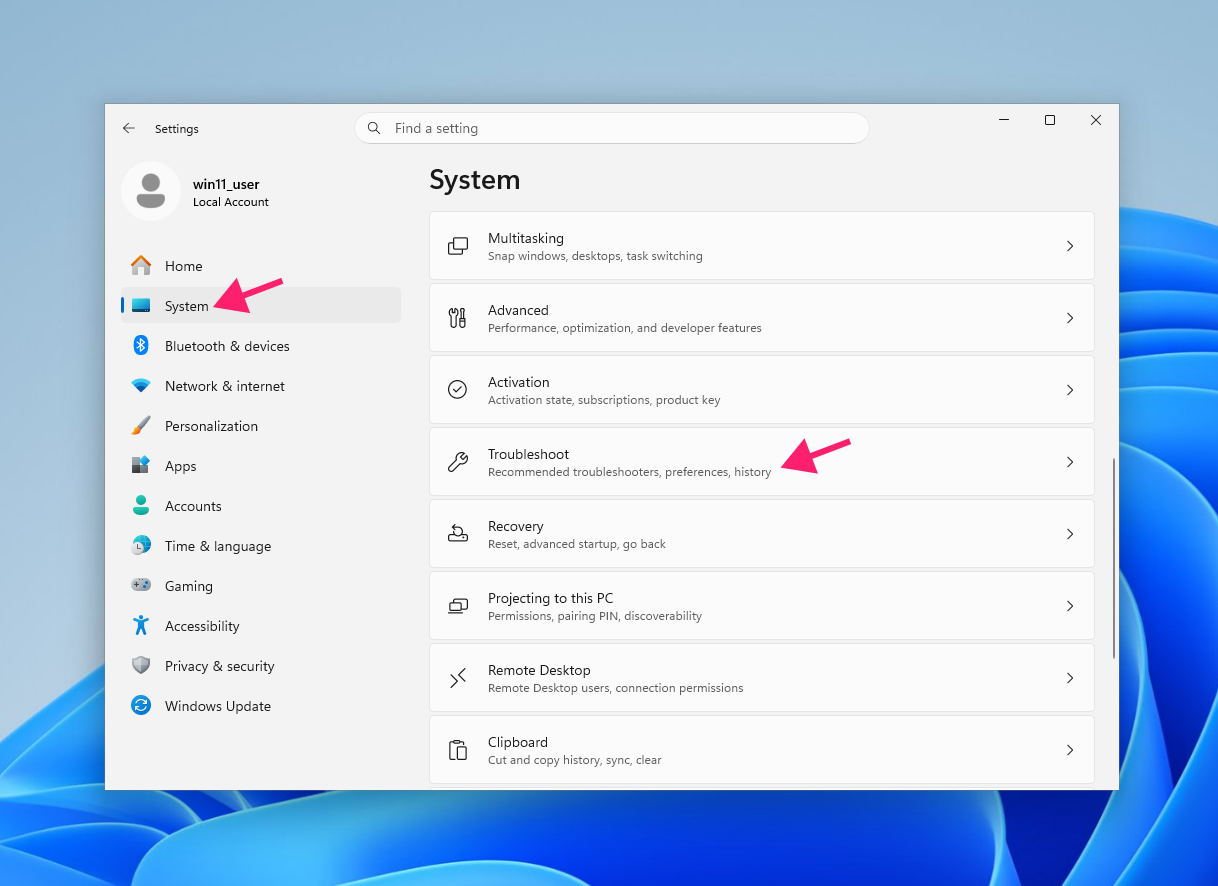
- Press Win + I to open Settings
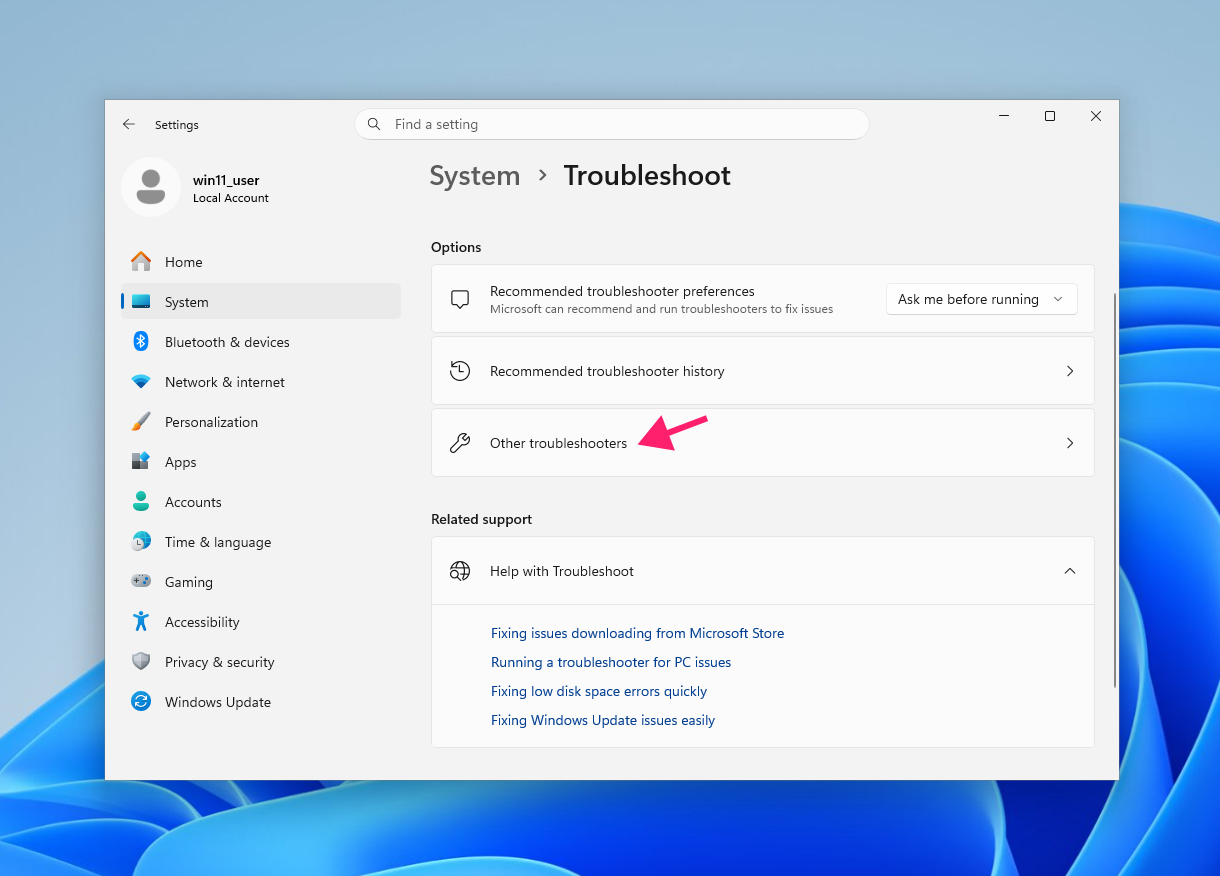
Go to System > Troubleshoot

Click Other troubleshooters

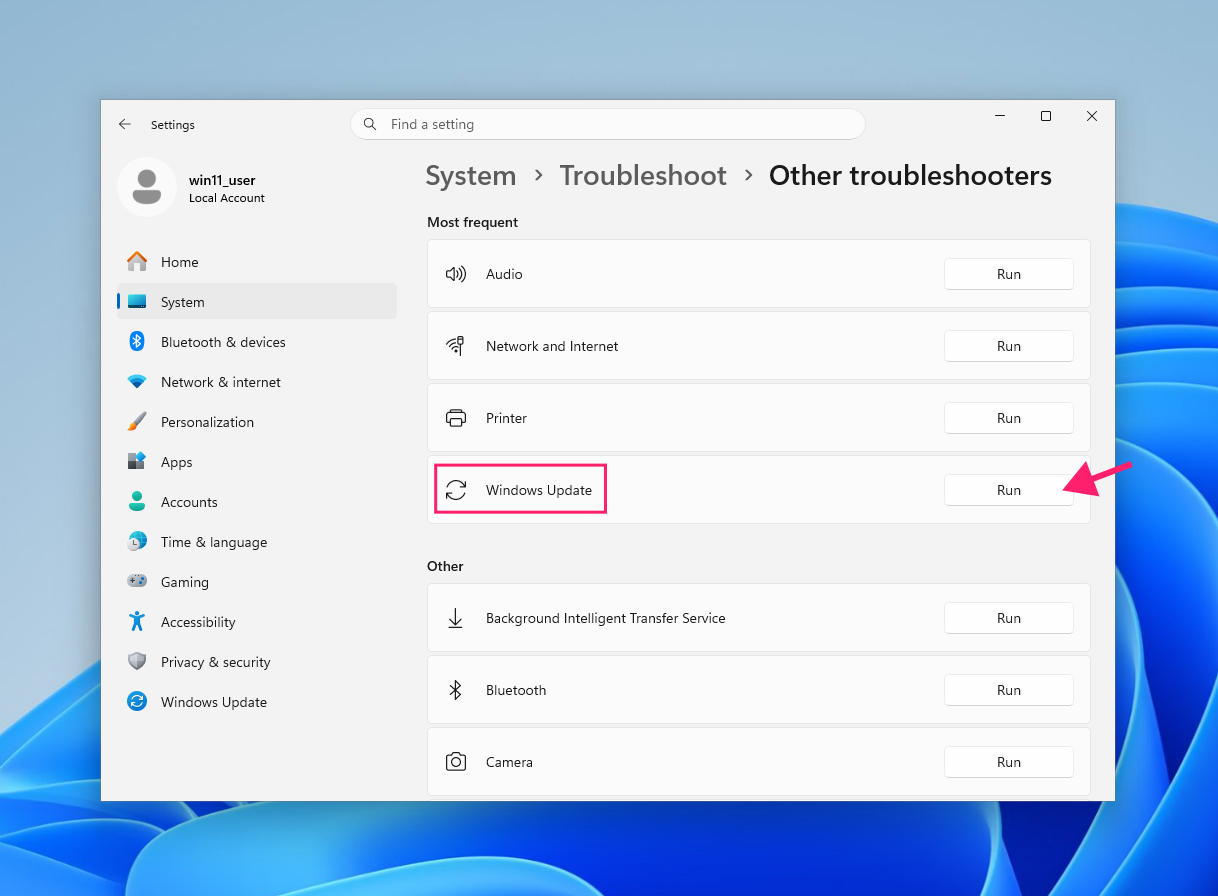
Locate Windows Update and click Run

- Follow the on-screen instructions and restart when prompted
Alternatively, run it directly from an elevated Command Prompt or Terminal with this command:
msdt.exe /id WindowsUpdateDiagnostic
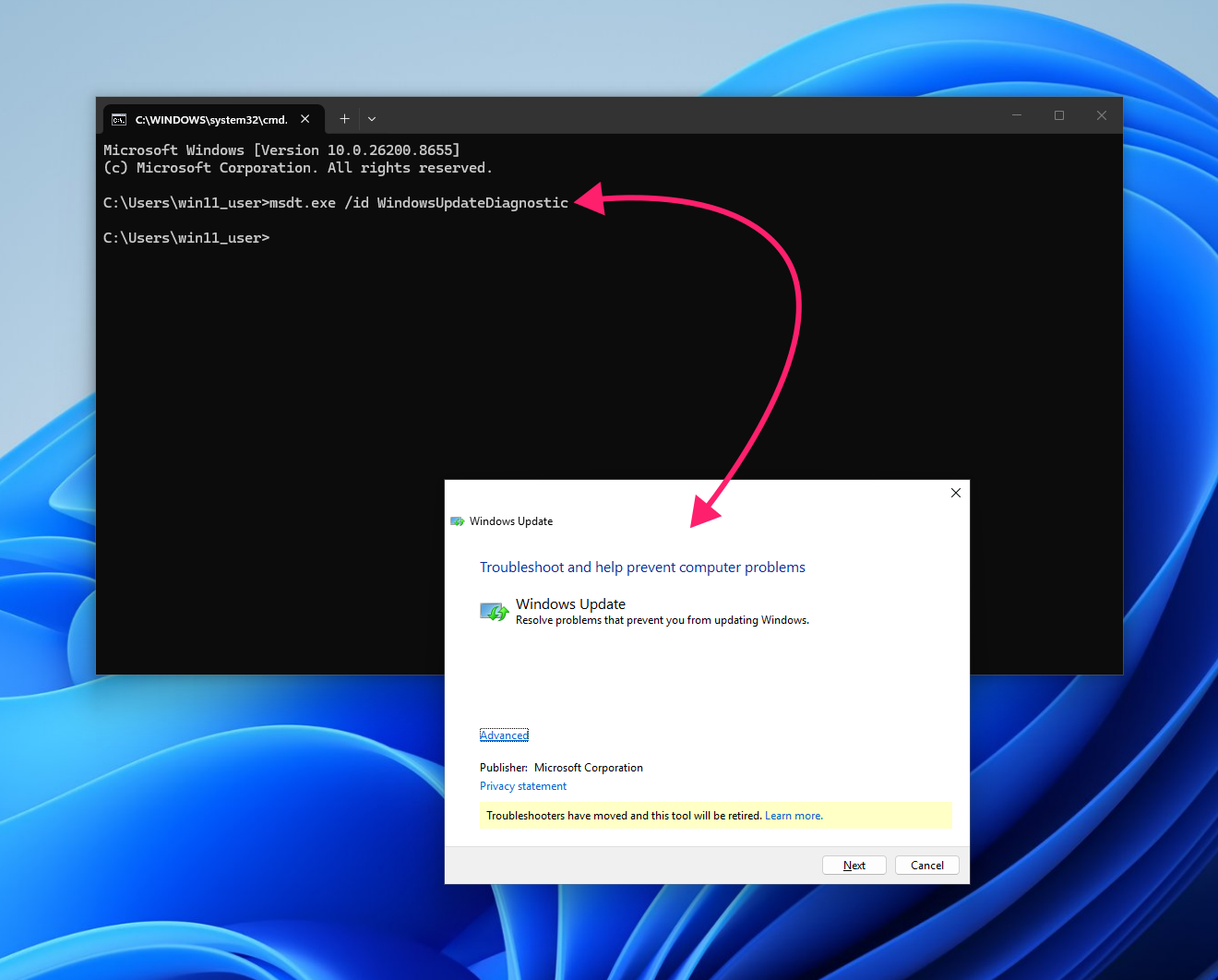
After the troubleshooter completes, return to Windows Update and attempt the install again before moving to Method 2.
Method 2: Clear the SoftwareDistribution folder
When error code 0x80070306 appears, or the troubleshooter doesn’t resolve the failure, the Windows Update cache is the likely culprit. Clearing it forces Windows to re-download a clean copy of KB5079473 from scratch.
Right-click Start and select Terminal (Admin) or Command Prompt (Admin)

Stop the Windows Update services by running the following commands in sequence:
net stop wuauserv net stop cryptSvc
net stop bits
net stop msiserver

- Rename the SoftwareDistribution folder to quarantine the corrupted cache:
ren C:WindowsSoftwareDistribution SoftwareDistribution.old Restart the stopped services:
net start wuauserv net start cryptSvc
net start bits
net start msiserver
- Restart the machine, then go to Settings > Windows Update and select Check for updates
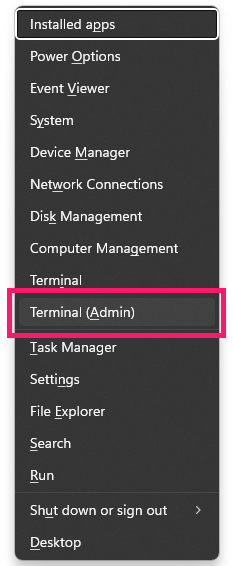
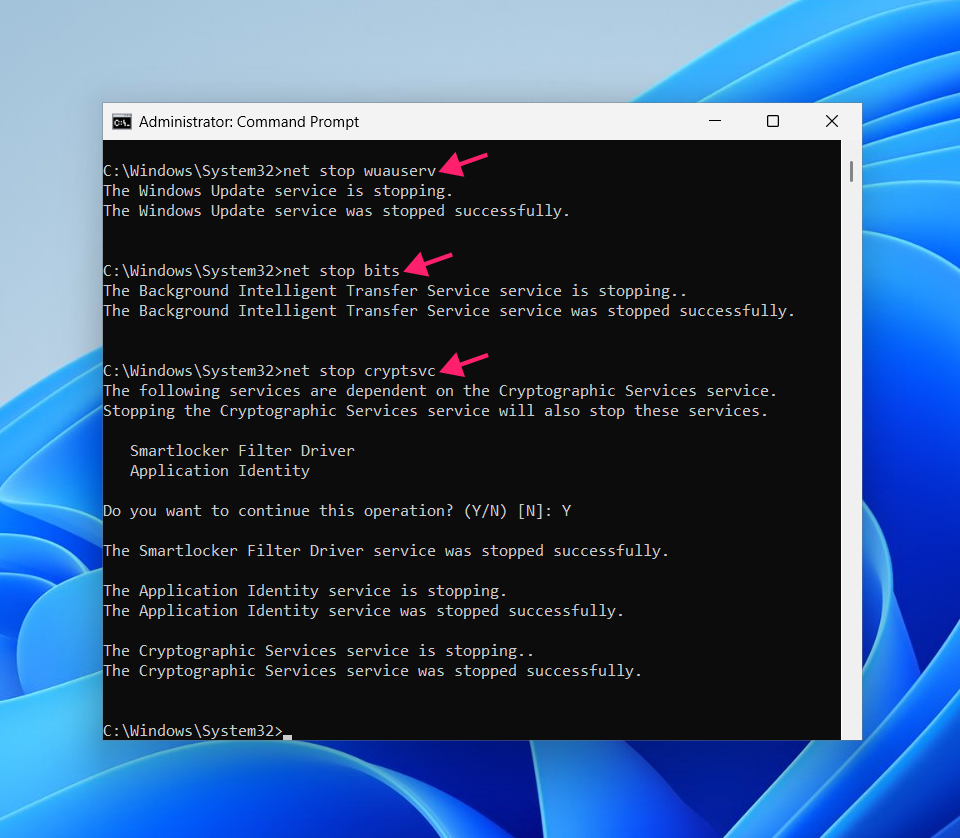
Windows will rebuild the SoftwareDistribution folder and re-download KB5079473. If the download fails again and you’re seeing 0x80010002, move directly to Method 3.
Command-line utilities like PowerShell are the best choice for IT managers because scripts can be deployed remotely across environments through RMM tools. With Atera, you can even use AI Copilot to generate the scripts with no coding knowledge.
» If you’re struggling with this method, learn more about it in our guide to stopping a Windows update in progress
Method 3: Manually install KB5079473 from the Microsoft Update Catalog
The offline installer bypasses OTA delivery entirely, which is the right path when the download is failing (0x80010002), when you’re working in a restricted network environment, or when the ARM64 Surface Laptop 7 variant requires manual MSU installation.
You need to identify your system architecture first:
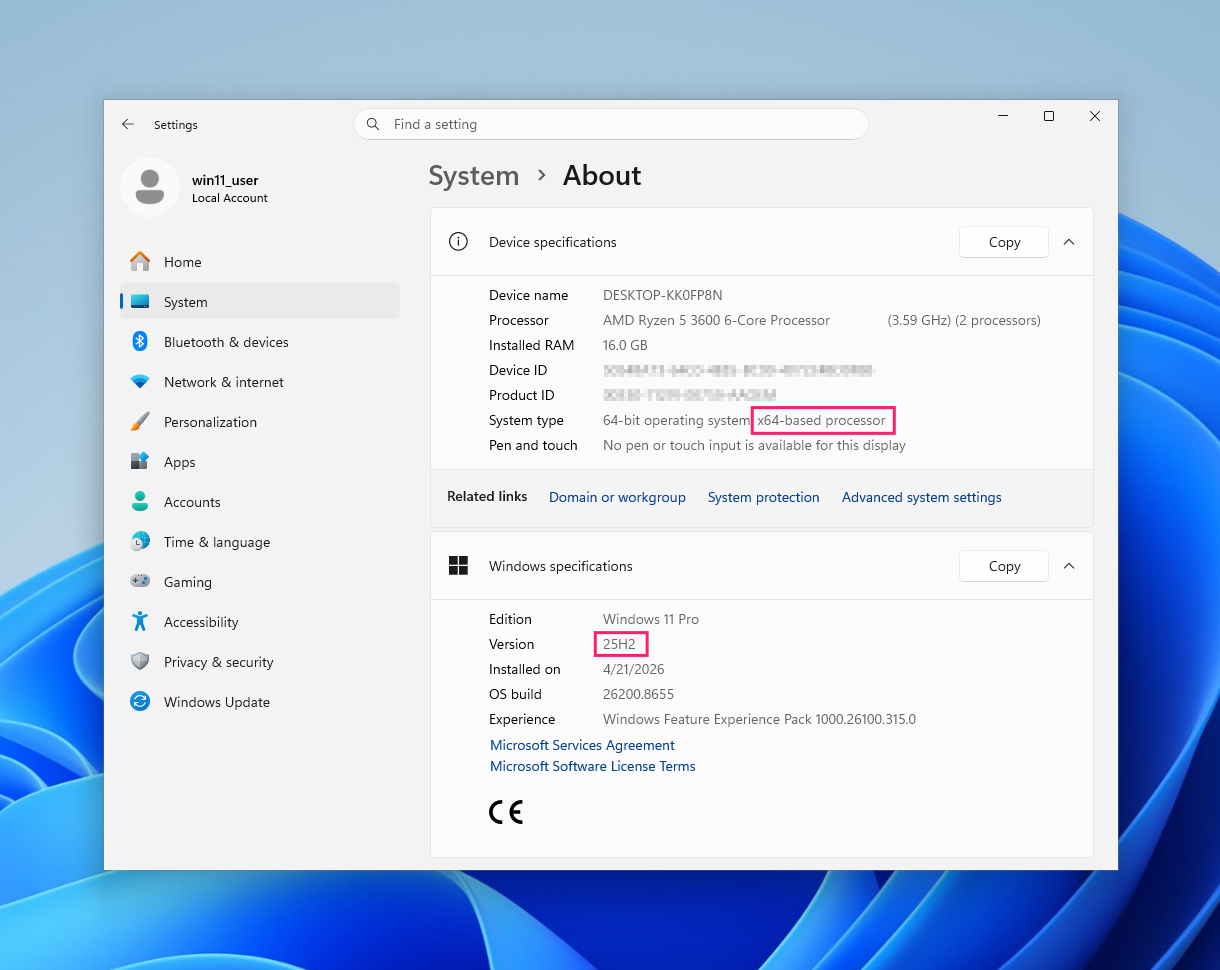
- Press Win + I to open Settings and go to System > About
- Under Device specifications, locate System type and note whether your system is x64 or ARM64
Under Windows specifications, note your Version (24H2 or 25H2)

- You can also confirm both from an elevated Terminal using
msinfo32orwinver
Next, download and install the package:
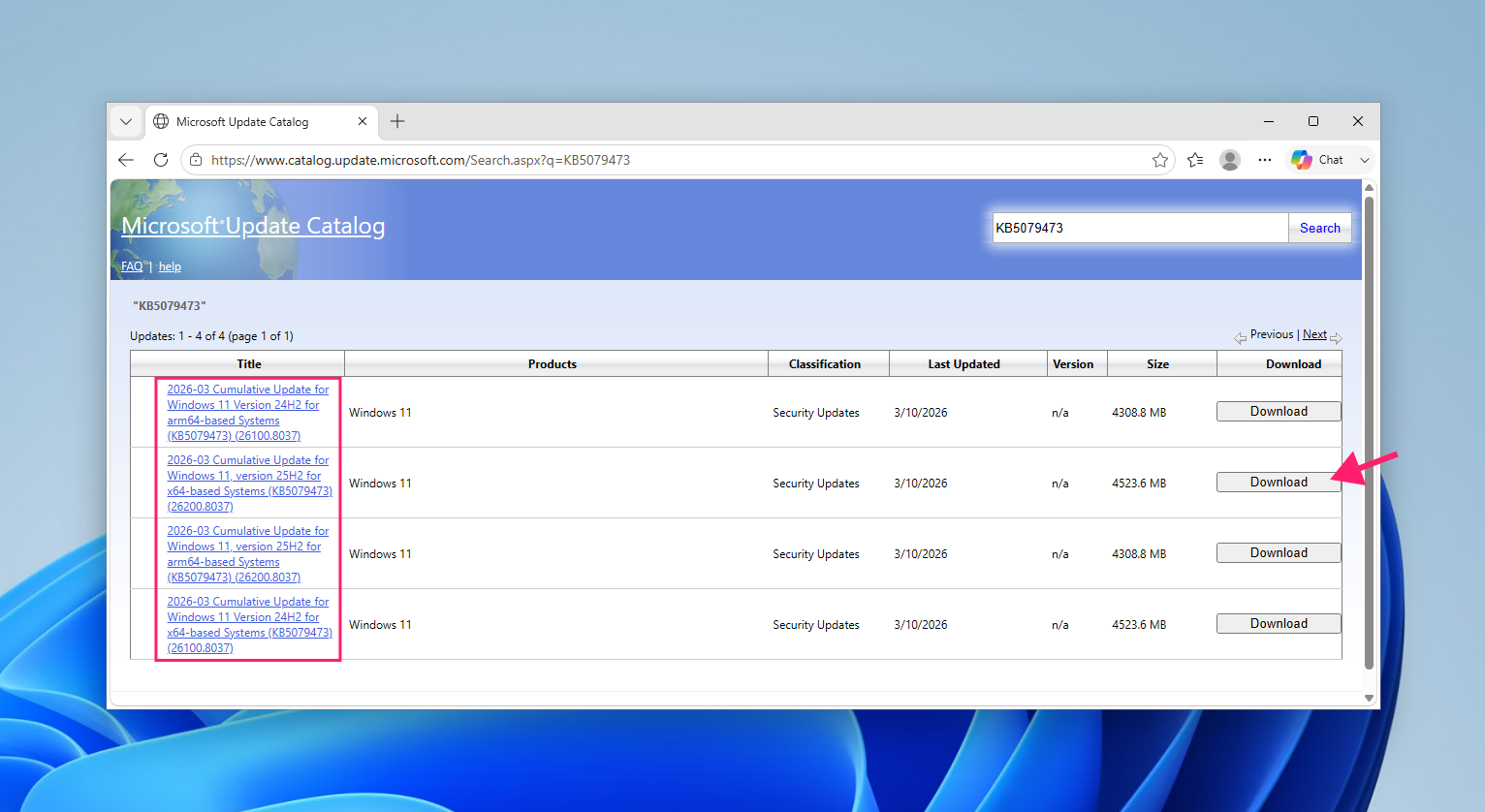
- Open a browser and navigate to the Microsoft Update Catalog and search for KB5079473
Identify the package matching your system architecture and Windows version, such as x64 on 25H2, and click Download

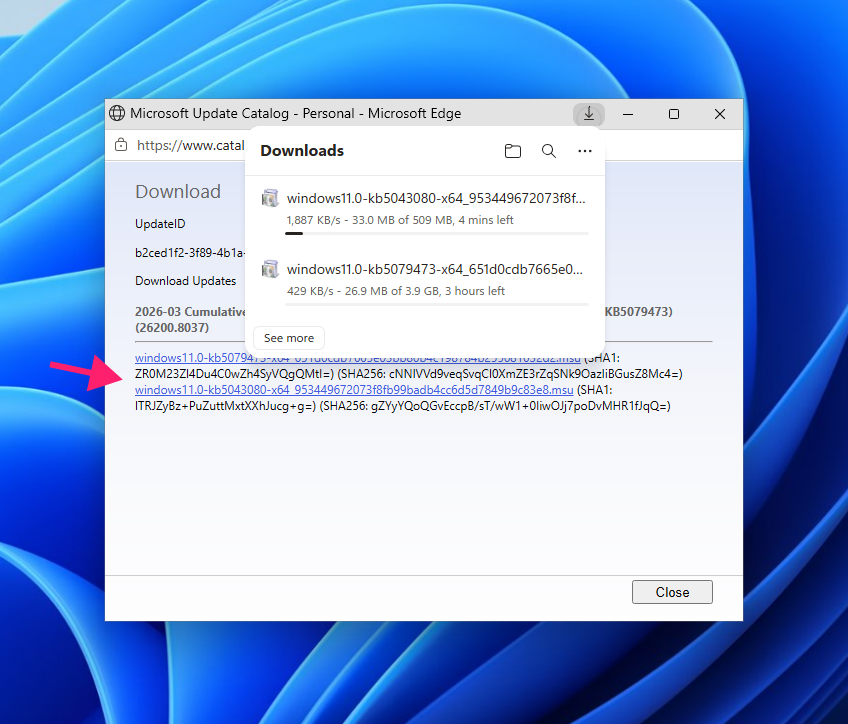
Click each
.msufile link to download. There may be more than one file depending on your configuration
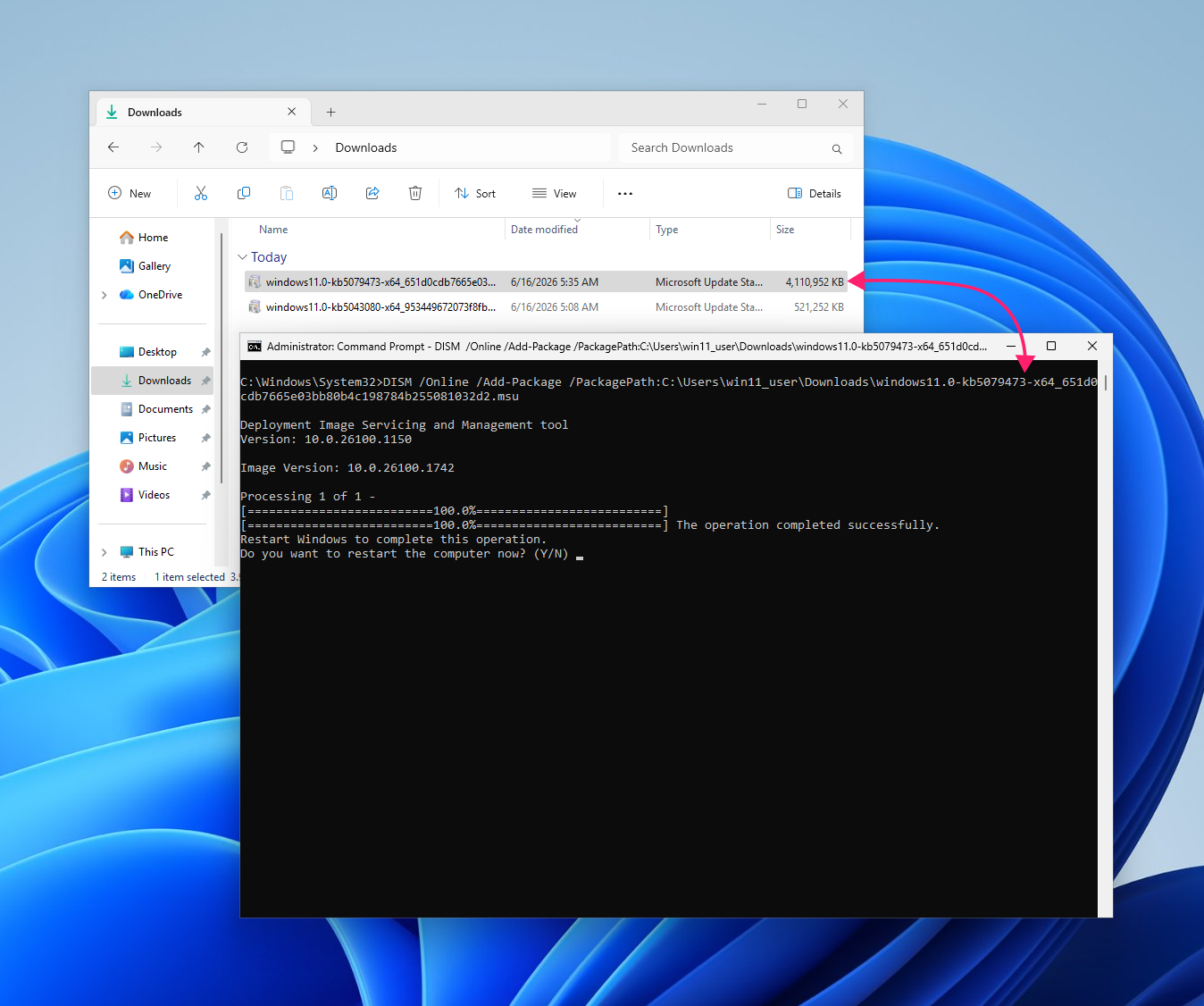
Place all
.msufiles in the same local folder, then open an elevated Command Prompt and run:DISM /Online /Add-Package /PackagePath:C:Packageswindows11.0-kb5079473.msu
- Restart when DISM reports the operation completed successfully
Note: Error codes 0x80073712 and 0x800f0991 both point to component store corruption, so the update can’t complete because the system files it needs to modify are damaged. You can run SFC first, then DISM to repair anything SFC can’t fix on its own.
» Need more help? Here’s how to use the DISM command
Method 4: In-place repair using Windows 11 installation media
When component-level repair hasn’t resolved the failure, an in-place upgrade using Windows 11 installation media reinstalls the OS over itself, replacing damaged system files without touching personal files or installed applications. This is a more thorough reset of the Windows environment than SFC or DISM can achieve.
- Use the Windows 11 creation tool to create your installation media
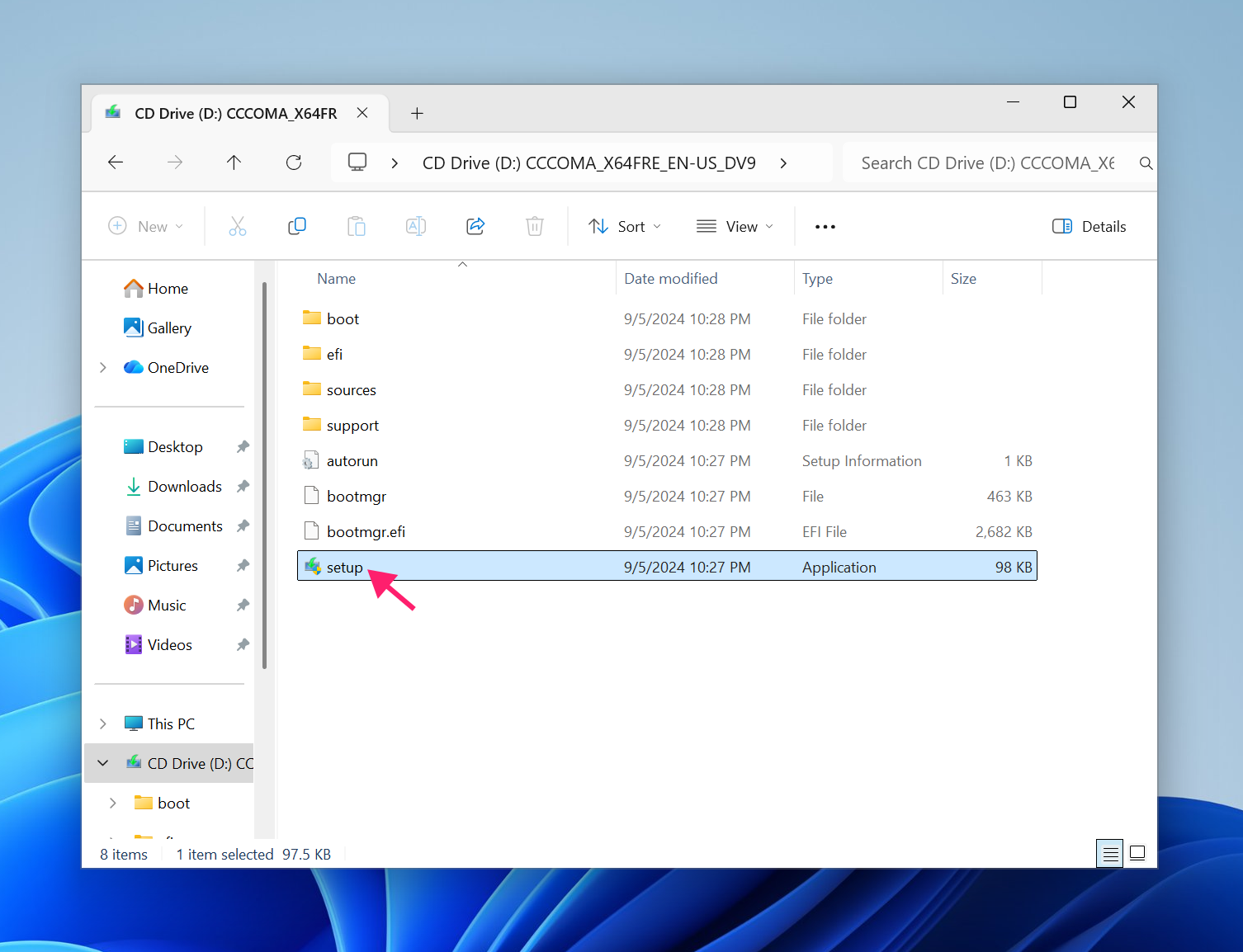
- Insert or mount your Windows 11 installation media and open File Explorer
Navigate to the root of the media and double-click setup.exe

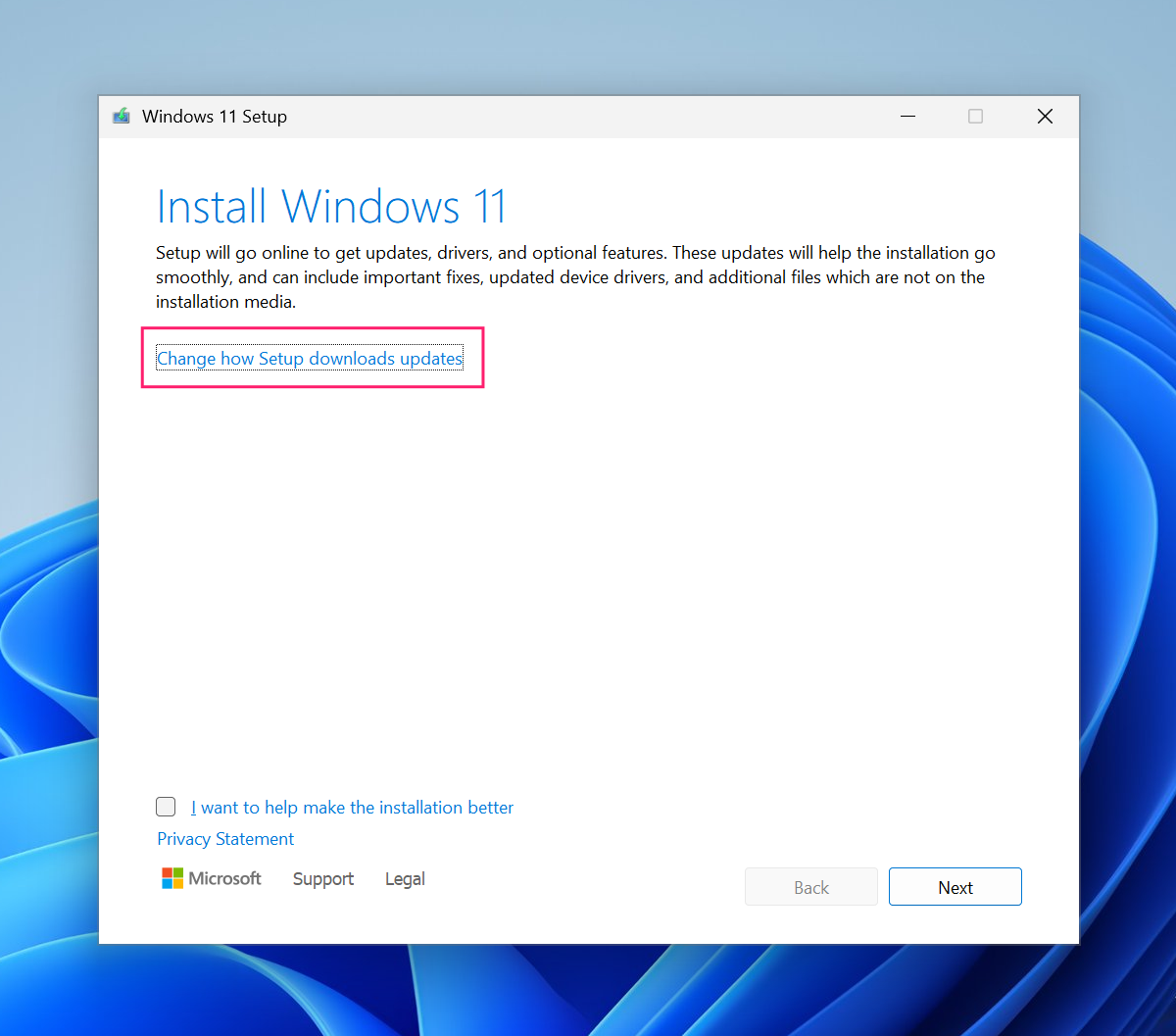
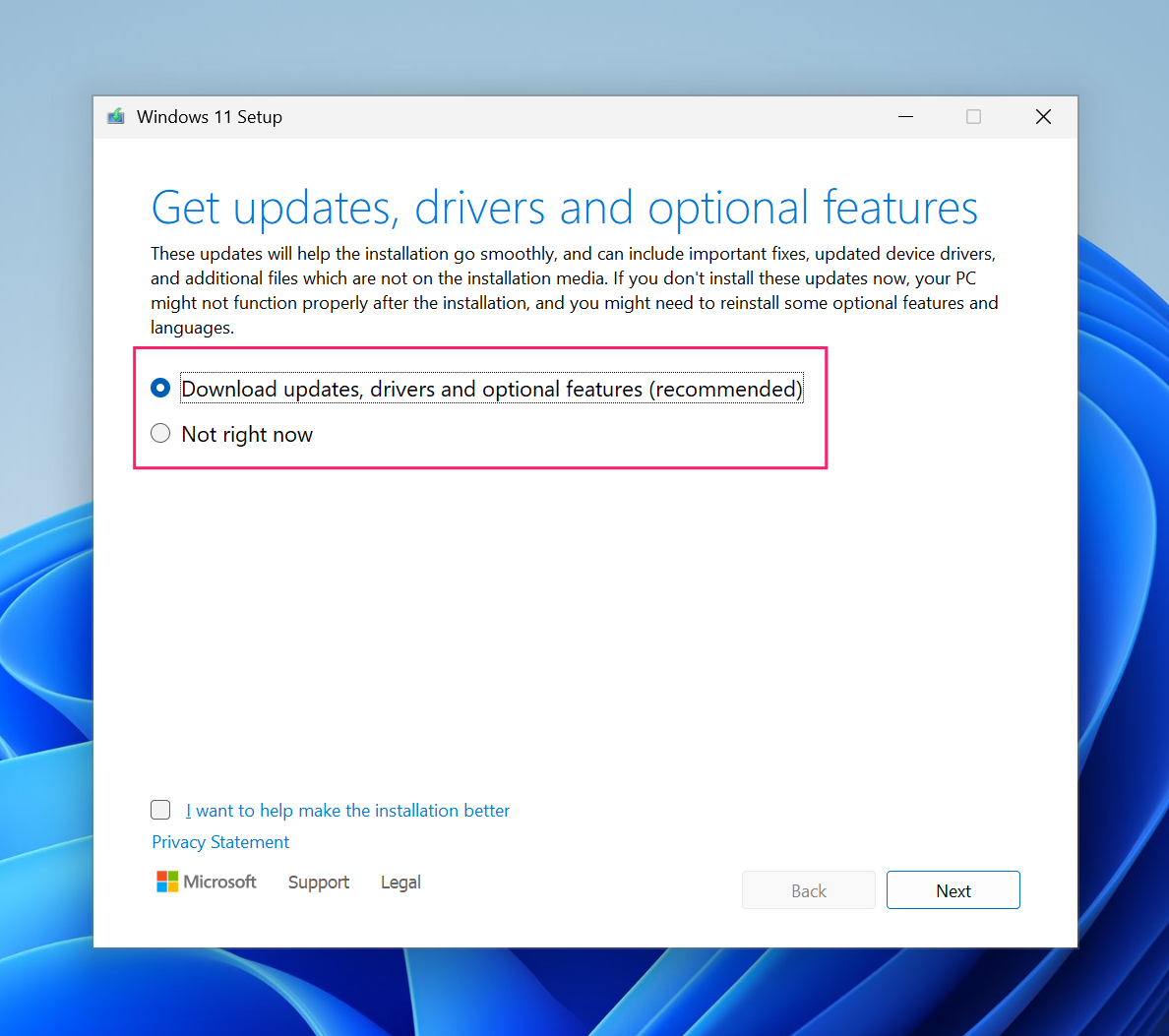
When prompted, allow Setup to check for updates online as this ensures the install includes current drivers and optional features not on the media itself

Select Download updates, drivers and optional features (recommended)

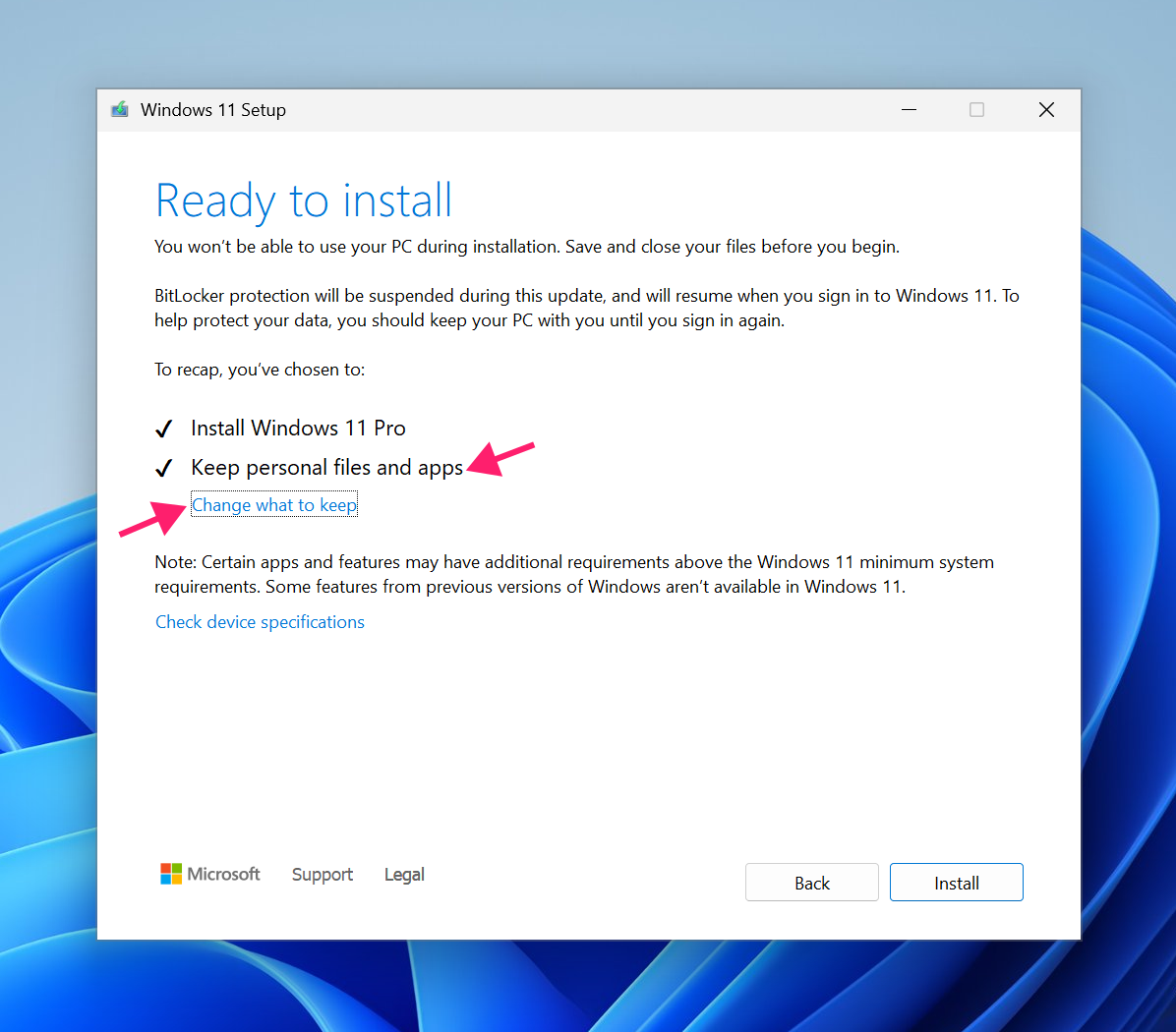
After Setup finishes its checks, confirm that Keep personal files and apps is selected. You can customise what’s retained by clicking Change what to keep

- Click Install and wait for the process to complete. The machine will restart several times
Note: If the edition, language, or architecture of the installation media doesn’t match the existing installation, the option to keep apps and settings may not be available.
Method 5: Clean reinstall (last resort)
A clean reinstall should only be attempted after every method above has failed. It wipes the machine and starts fresh, which is effective but means rebuilding the environment from scratch.
Before proceeding:
- Back up all personal files and data to an external drive or cloud storage
- Export or document network profiles
- Record third-party software product keys and licenses since many won’t survive a clean install
- Confirm you have appropriate Windows 11 installation media ready for your architecture (x64 or ARM64)
Once backed up, boot from the installation media and follow the setup process, selecting Nothing under Choose what to keep to perform a full clean install.
» Learn more: How to reinstall Windows 11 and how to reset Windows 11 to factory settings
How to roll back KB5079473 if the installed update causes instability
Before you roll back: if the instability you’re seeing is the Microsoft account sign-in failure, don’t uninstall — install KB5085516 (or a later cumulative update) instead, which fixes that bug while keeping your March security protections in place. Roll back only when a different, update-caused instability can’t be resolved any other way, and remember you’ll still need to fix the underlying driver or component issue before reinstalling (see the note at the end of this section).
KB5079473 carries Microsoft’s full March 2026 security payload, so rollback removes those protections and should only be done when the update is actively destabilising the system.
If the system is stable enough to reach Settings:
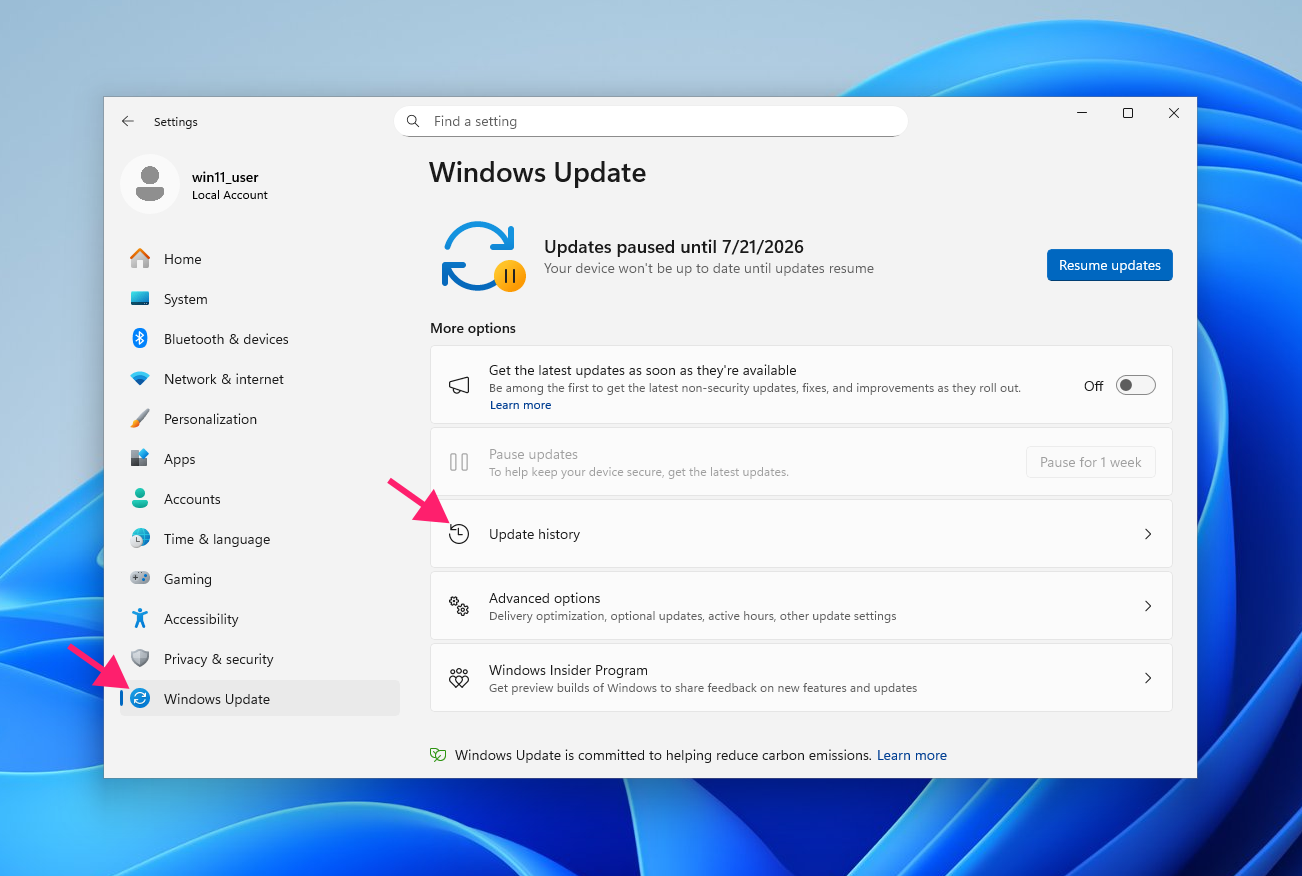
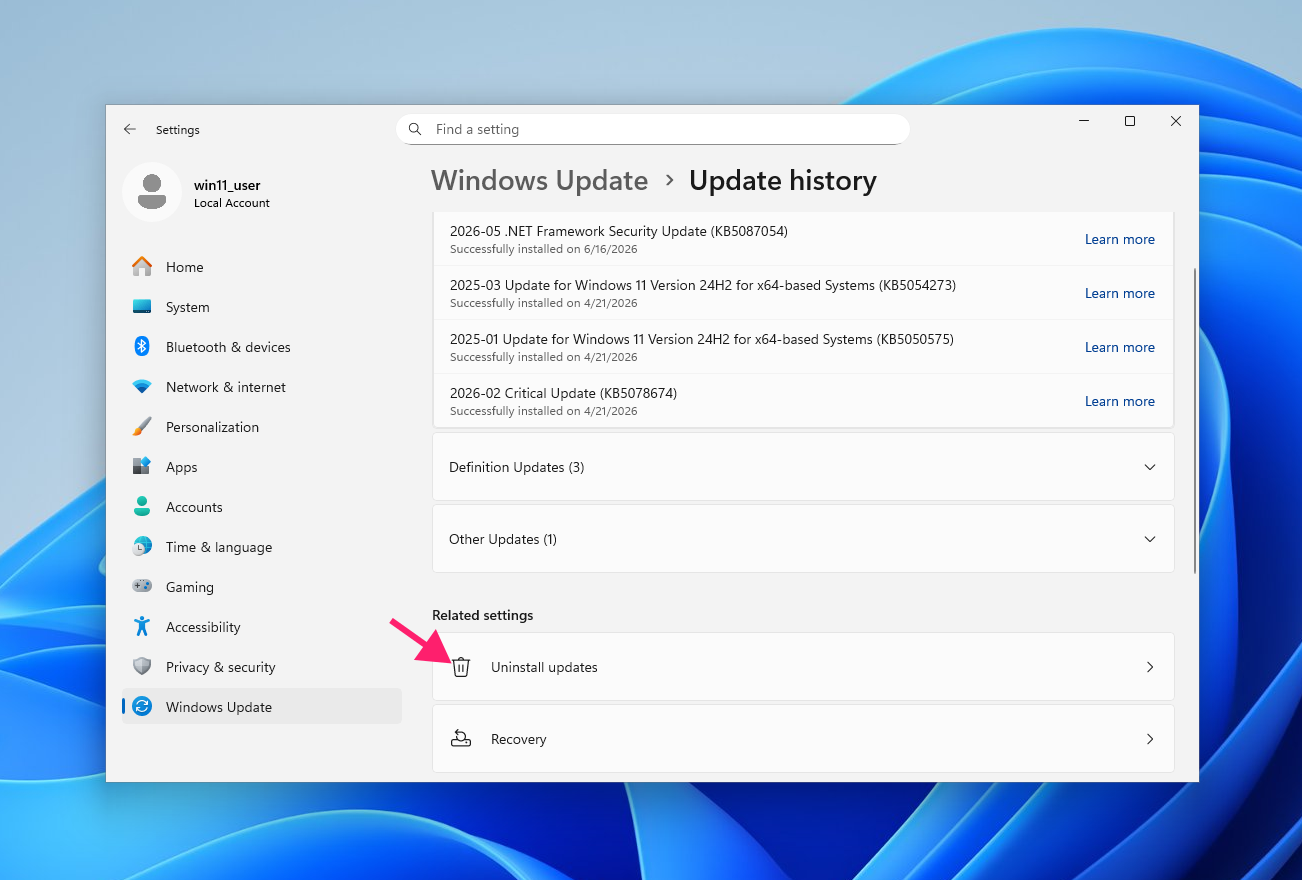
Press Win + I to open Settings and go to Windows Update > Update history

Under Related settings, select Uninstall updates

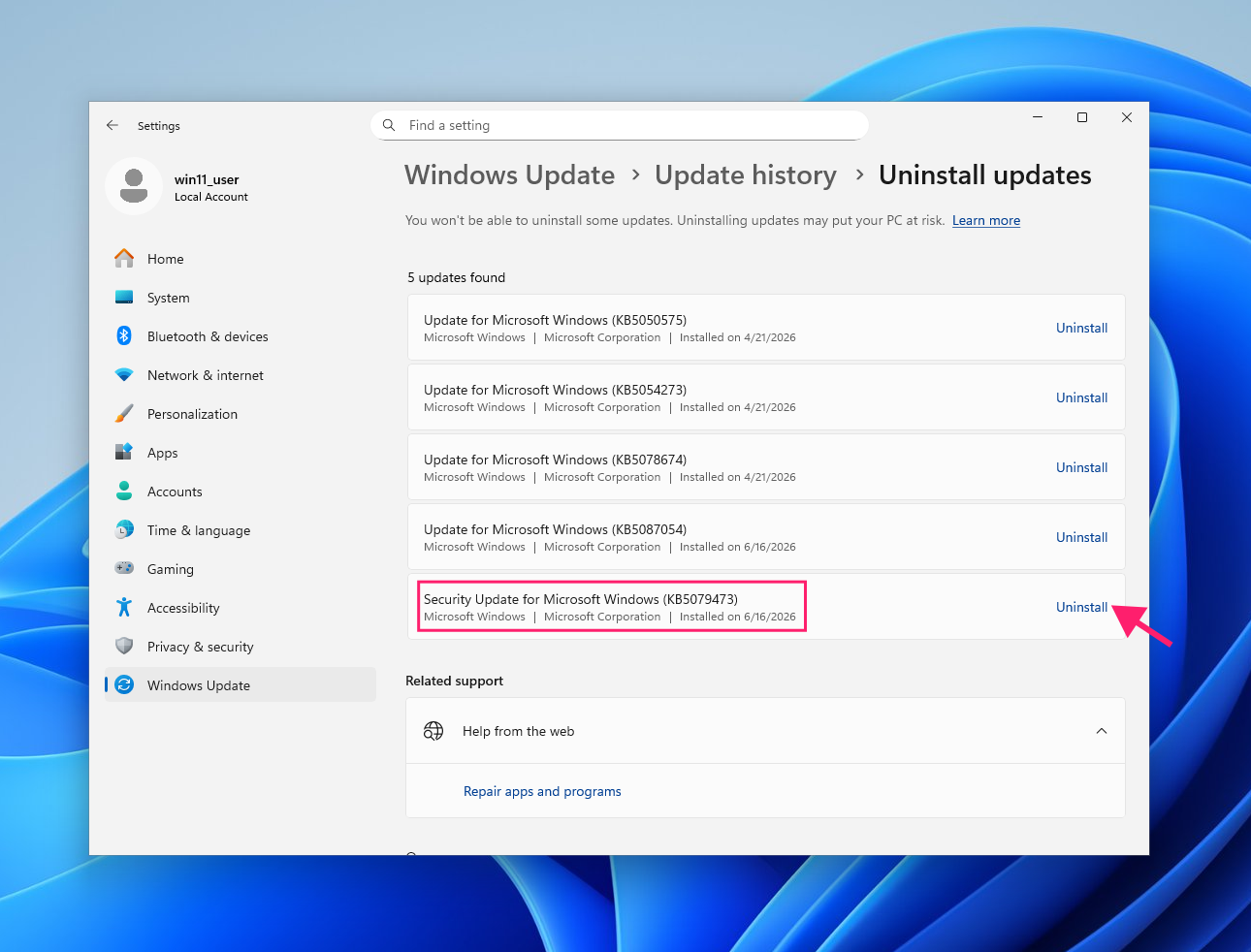
Locate Security Update for Microsoft Windows (KB5079473) and click Uninstall

- Confirm the prompt and restart when complete
If the system isn’t booting or can’t reach Settings:
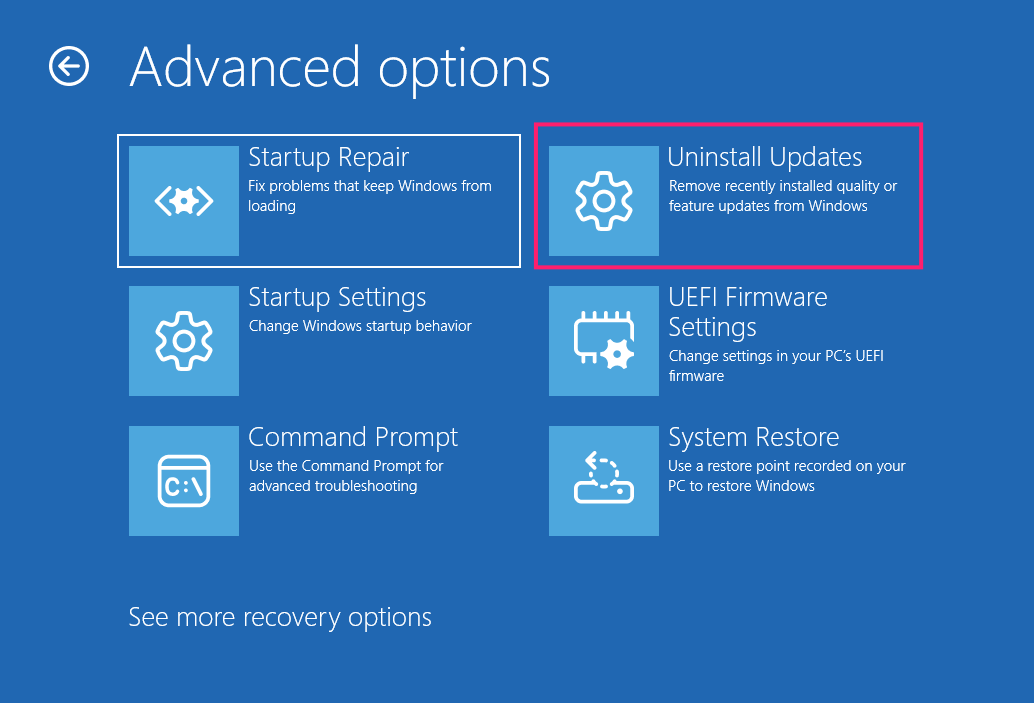
- Boot into Windows Recovery Environment. On most systems, hold Shift while clicking Restart, or interrupt the boot sequence twice to trigger automatic recovery
Select Troubleshoot > Advanced options > Uninstall updates

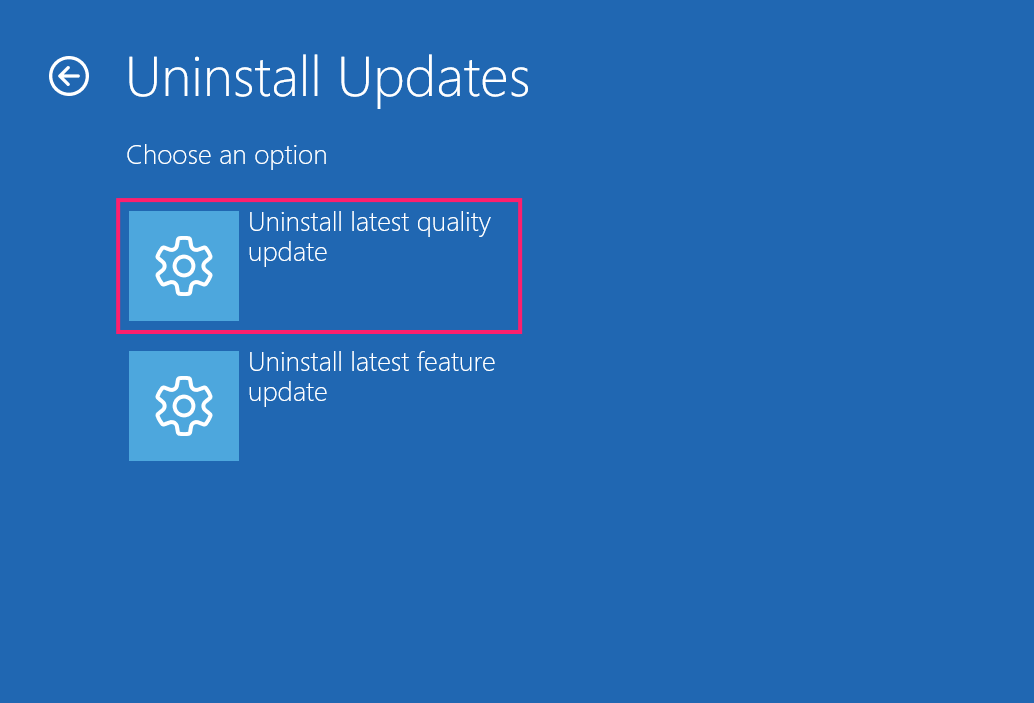
Select Uninstall latest quality update
- Follow the prompts and allow the system to restart
Note: After rollback, the LCU portion of KB5079473 is removed and the machine returns to its previous build. The SSU remains in place, so you’ll need to address the underlying driver conflict or component issue before attempting to reinstall the update. Rolling back and reinstalling without resolving the root cause will reproduce the same instability.
» Here’s how to update drivers on PC and the best driver updater software
Keep your fleet patched without the guesswork
Fixing KB5079473 on a single machine is a solvable problem. Doing it across a mixed-architecture fleet where ARM64 devices need manual MSU installs and AMD GPU systems may need driver remediation before the update will stick is a different kind of work. The more machines you’re managing, the faster a single problematic Patch Tuesday compounds into a support backlog.
Atera’s patch management layer through the RMM platform handles deployment scheduling, failure detection, and status reporting centrally, so you’re not piecing together update compliance from device to device. When KB5079473 fails on a subset of machines in your environment, you know which ones, why, and what to do next without touching each endpoint individually.
Related Articles

How to reduce alert fatigue across your IT team
Your technicians aren't ignoring alerts because they're careless. They're ignoring them because most alerts have taught them to. Once the stream stops being trustworthy, real failures slip past with the noise. Fixing it means deciding what deserves an interruption, tuning out transient spikes, collapsing alert storms, and automating the fixes you've run a hundred times.
Read now
How to close the IT skills gap on your team
Course completions don't close skills gaps. Technicians finish the training, then hand the first unfamiliar failure straight back to a senior engineer. Real capability gets built on live tickets, incidents, and maintenance windows, with guidance that fades as competence grows.
Read now
How to calculate cost per ticket (and why most teams get it wrong)
Most cost-per-ticket figures are wrong before anyone reads them. Missing overhead, tickets that were opened but never closed, spam and duplicates padding the count, and one month's costs divided by another month's tickets all make support look cheaper than it is. Fix both sides of the division and the number finally shows where technician time and money actually go.
Read now
How to prepare for a software license audit
A vendor audit notice doesn't wait for you to get organized. It demands proof, right now, that every install matches every entitlement you've paid for, and most IT teams find out the hard way how much they don't actually know about their own environment. Getting audit-ready before the letter arrives is the difference between negotiating from strength and paying for months of scrambling.
Read nowEndless IT possibilities
Boost your productivity with Atera’s intuitive, centralized all-in-one platform









