
Generate summary with AI

In July 2024, a single faulty update from CrowdStrike pushed 8.5 million Windows machines into a boot loop simultaneously. IT teams worldwide spent days manually touching devices, booting into recovery, running commands, and repeating. Some managed to fix the machines eventually, but others went straight to resetting them. It was a sharp reminder that knowing exactly how to recover a Windows machine (and when each method applies) is a crucial skill.
A factory reset sounds simple. Windows even makes it look simple with a few clicks and a progress bar, but what it doesn’t tell you upfront is that the wrong choice at the wrong screen can wipe data you meant to keep, leave data you meant to destroy, or strand you mid-process with a machine that won’t boot and a rollback that won’t complete.
Here’s everything you need to know.
When a reset is the right call and what it costs you
A factory reset reinstalls Windows from scratch. It’s extremely thorough, so before you touch anything, you should know if it’s even worth it and when lighter options would be better.
When a reset makes sense
Windows gives you several ways to recover a troubled system, and a factory reset is the most drastic of them. It shouldn’t be your first option, but there are some situations where it’s the only option:
- A system that’s behaviorally broken without an obvious cause. A reset is the recommended path when a PC isn’t working as expected and no new software has been installed and no settings have been changed, meaning the usual suspects have already been ruled out. If targeted fixes haven’t worked and the system is still misbehaving, a reset cuts through the noise rather than adding another layer to it.
- Device transitions. When a machine is being decommissioned, handed to a new user, or prepared for resale, a reset ensures the incoming user starts clean. The “Remove everything” option exists specifically for this scenario.
What a reset is not well-suited for is a system where the goal is speed above all else. If Windows is still running and the problem is contained (such as with corrupted system files, a bad update, or a specific app causing instability), lighter options like running a repair through Windows Setup or using System Restore can solve the problem without the full rebuild cost.
A reset is the right tool when those options have failed or when a clean slate is genuinely required, not just convenient.
What gets destroyed
The reset wizard presents two choices with different levels of what gets removed:
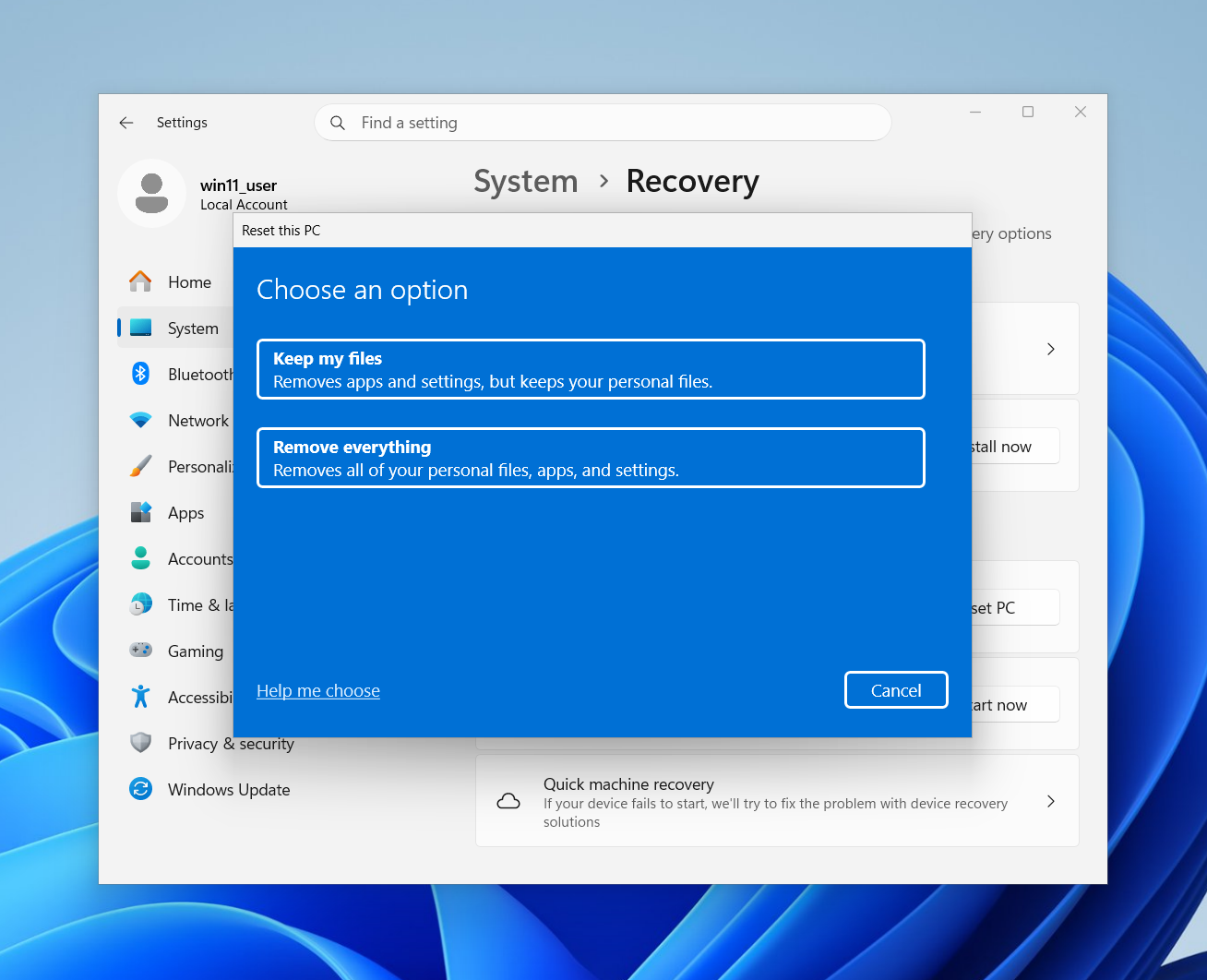
- Keep my files removes all installed applications and resets system settings to default, but leaves personal files in their original locations. What it doesn’t preserve is anything that lives outside your user folders, such as application data in AppData, software configurations, custom system settings, and installed drivers. If an application stored data in a non-standard location, that data is gone. Basically, your documents survive but your software environment doesn’t.
- Remove everything gets rid of personal files, applications, and all settings. This is the option to use when handing off a device or decommissioning hardware. However, there’s an important distinction between removing files and making them unrecoverable. By default, “Remove everything” marks disk sectors as available but doesn’t overwrite them, meaning files can potentially be recovered with tools like Windows File Recovery. If you actually need the data to be irrecoverable, you need to hit the Clean data toggle. This takes significantly longer, but it’s the only option that makes recovery genuinely difficult.
Before you reset: what to do and what to disconnect
A factory reset is not easily undone. The preparation that happens in the ten minutes before you start is usually what separates a clean recovery from a painful one.
Back up before you do anything else
This is the step most people skip because they assume they know what’s on the machine. They’re usually wrong about at least one thing.
The most reliable approach is to back up to an external drive or cloud storage before initiating the reset. For cloud-backed files already syncing through OneDrive, SharePoint, or a similar service, confirm the sync is current and complete before proceeding since a file that hasn’t finished uploading doesn’t exist in the backup.
If BitLocker encryption is active on the device, locate and save the BitLocker recovery key before starting. Depending on which reset method you use (particularly the sign-in screen and WinRE paths covered in the next section), you may be prompted to enter it mid-process. If you don’t have it, the reset can stall in a place that’s difficult to recover from.
» Here’s how to use BitLocker correctly
Unlink OneDrive first
On older Windows versions, OneDrive-synced files could reappear in the C:Windows.old folder after a reset, accessible without credentials. That specific vulnerability has been patched, but the safer habit is still to unlink the PC from OneDrive in OneDrive settings before running any reset on a device you’re handing off.
To do this, open OneDrive settings, go to the Account tab, and select Unlink this PC. This ensures the reset isn’t working around an active sync relationship and eliminates any ambiguity about what data might linger.
Disconnect peripherals you don’t need
You should disconnect any external storage you don’t want erased, and remove unnecessary peripherals that could introduce driver conflicts or installation freezes during the process.
The specific risk with external drives is the Delete files from all drives toggle in the reset wizard. If that option is enabled and external drives are connected, they will be included in the wipe. Disconnect any drive you want to keep before you reach that screen, not after.
4 ways to factory reset Windows 11
Each method below is built for a different starting condition. The framing at the top of each one tells you when it applies.
Method 1: Reset via Windows Settings
When to use this: The desktop is accessible and Windows is functioning well enough to navigate normally. This is the standard path for the majority of resets.
- Press Win + I to open Settings
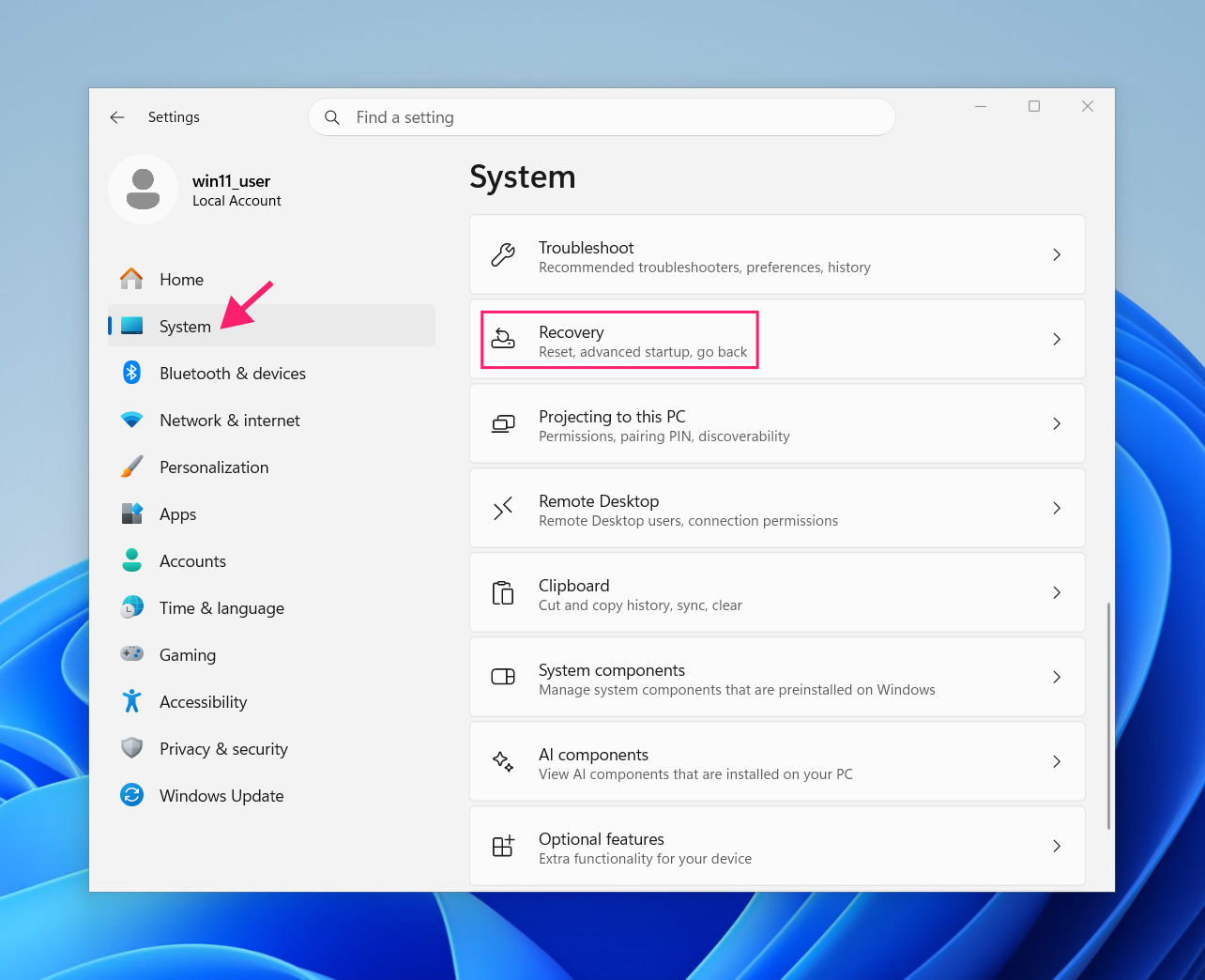
Go to System > Recovery

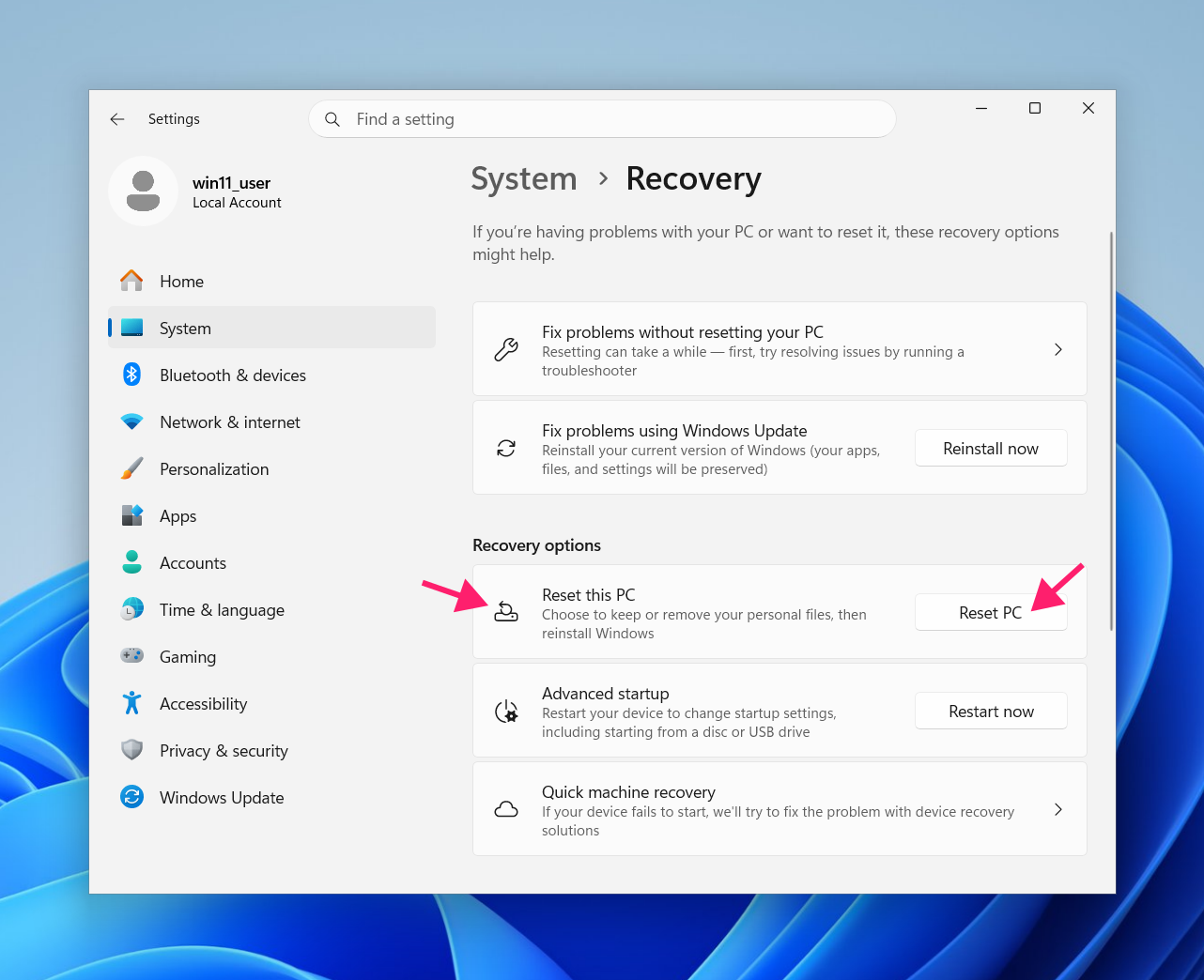
Under Recovery options, select Reset PC

Choose your file option: Keep my files removes apps and settings but preserves personal files; Remove everything wipes the drive entirely

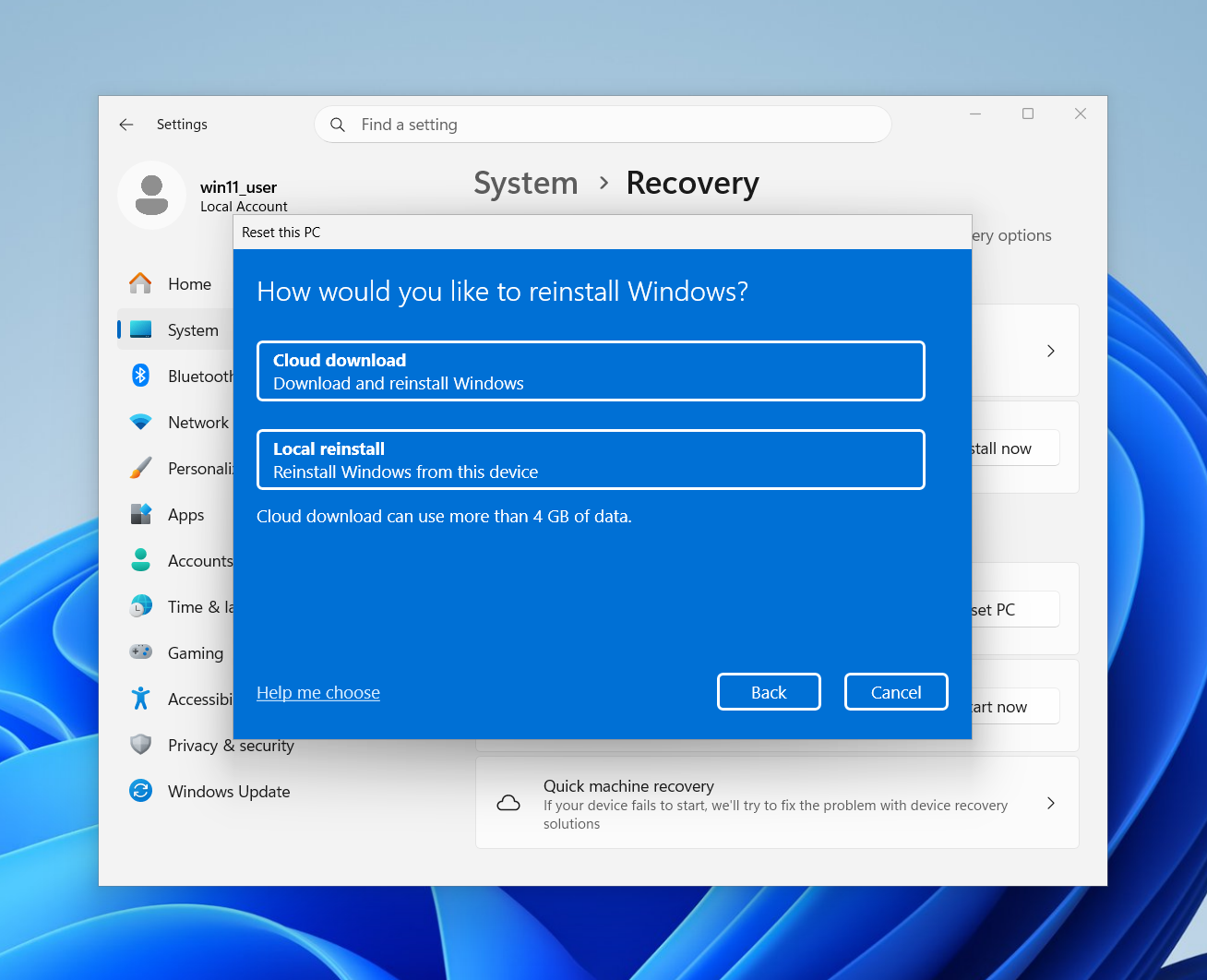
Choose your reinstallation method: Cloud download fetches a fresh Windows image from Microsoft’s servers (requires an internet connection and uses approximately 4 GB of data); Local reinstall rebuilds Windows from files already on the device. Use cloud download if you suspect local system files may be corrupted
Click “Change settings” to configure how thorough you wish to be

This is where you enable Clean data (overwrites disk sectors to make recovery difficult) and Delete files from all drives (extends the wipe to all connected storage)

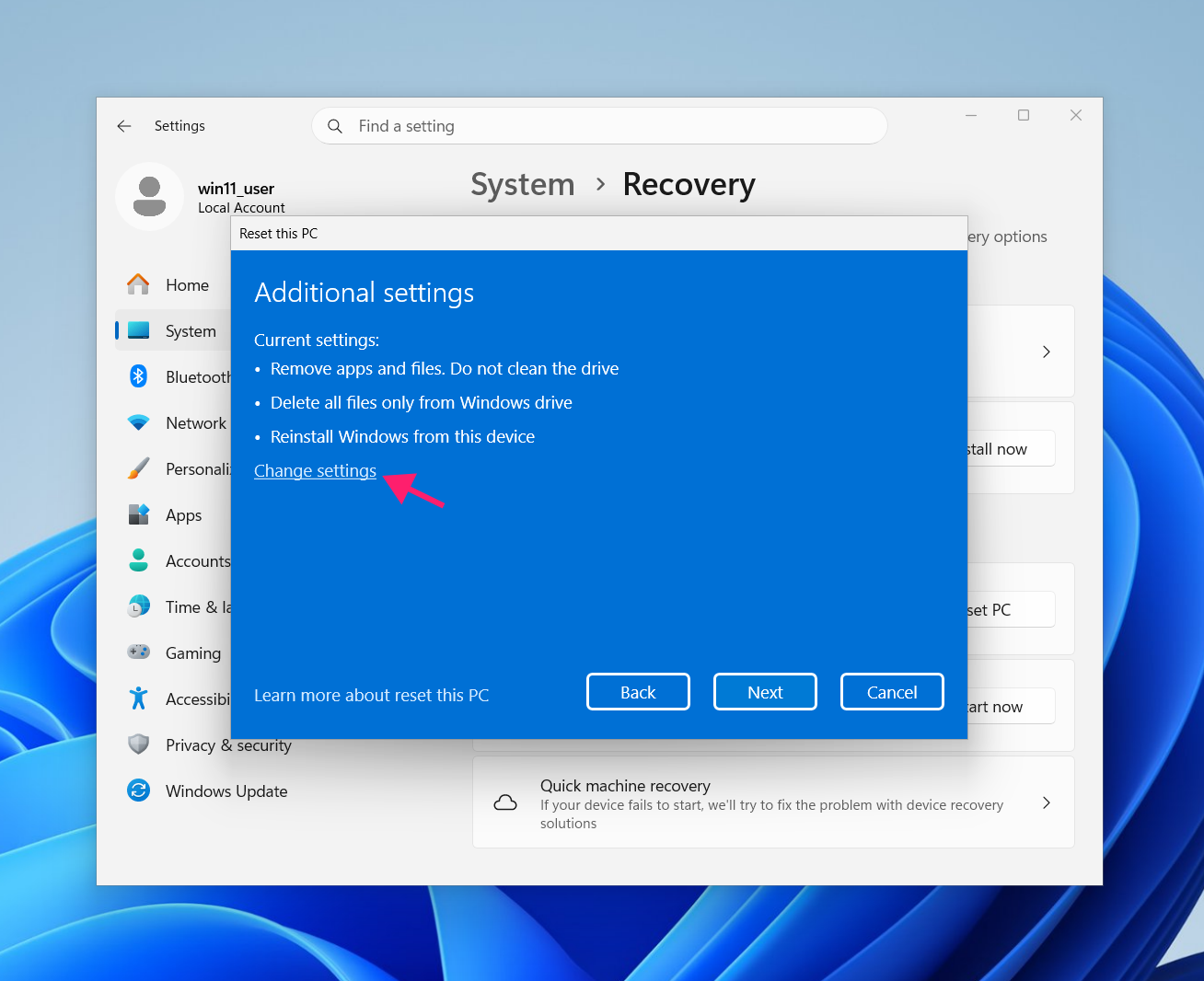
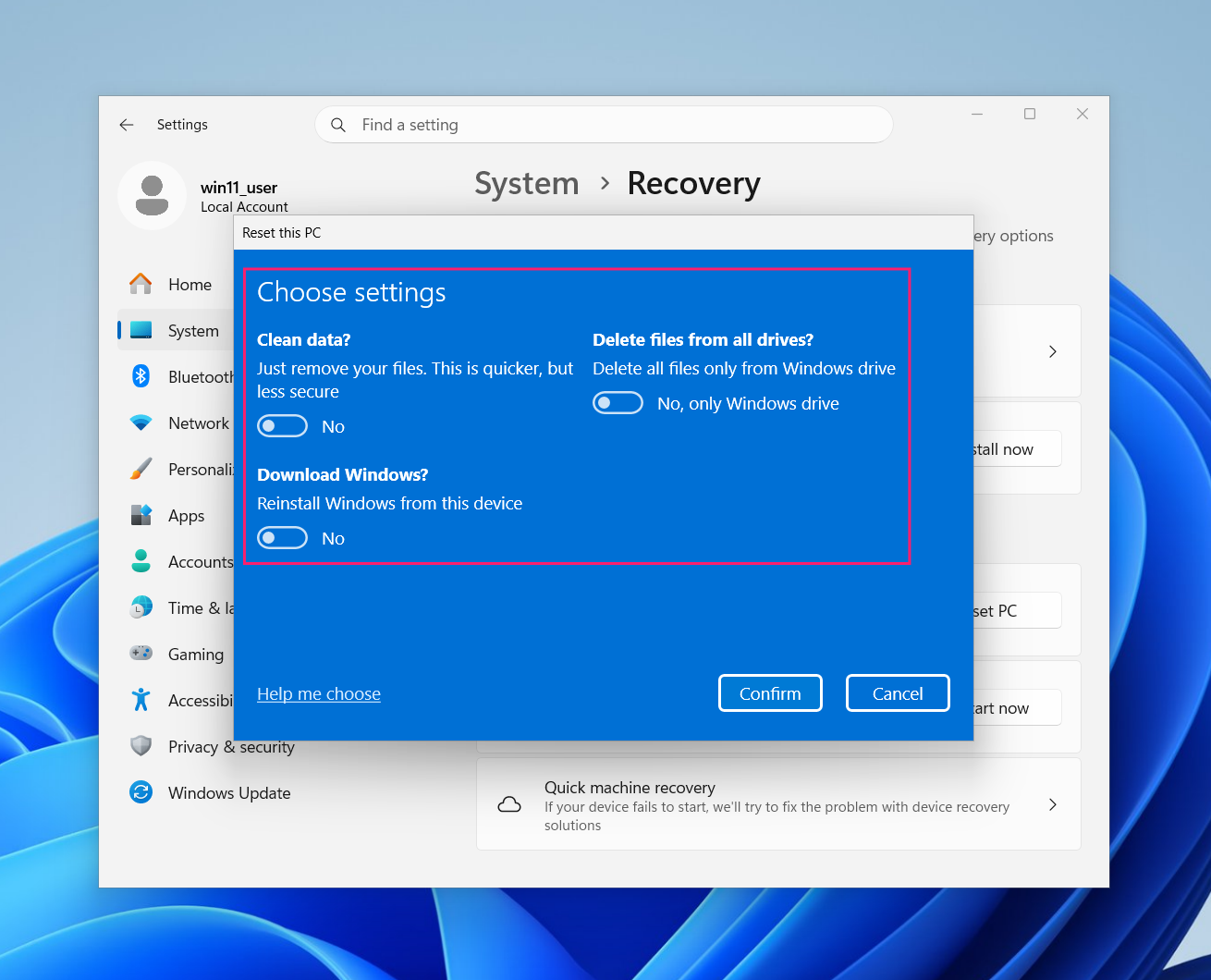
Review the summary screen, confirm your selections, and select Reset to begin. The system will restart automatically and display a progress percentage on a black screen. Do not power off the device during this process.
Method 2: Reset from the sign-in screen
When to use this: The account password is lost, the user profile is corrupted, or you need to reset without logging in. Windows must still be able to reach the sign-in screen.
At the sign-in screen, hold Shift and select Power > Restart from the lower-right corner. Keep holding Shift until the system reboots

Select Troubleshoot > Reset this PC

- Follow the on-screen instructions, which are identical to Method 1 but presented within the WinRE interface

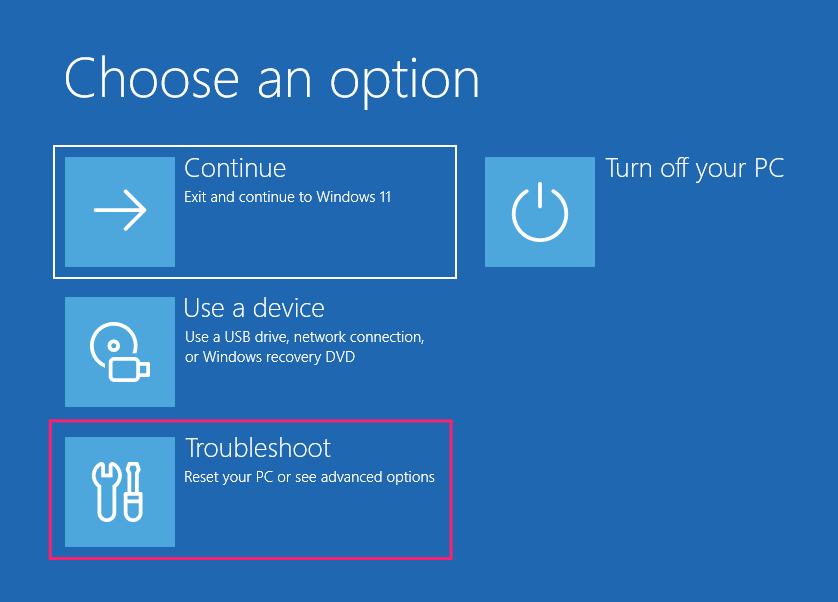
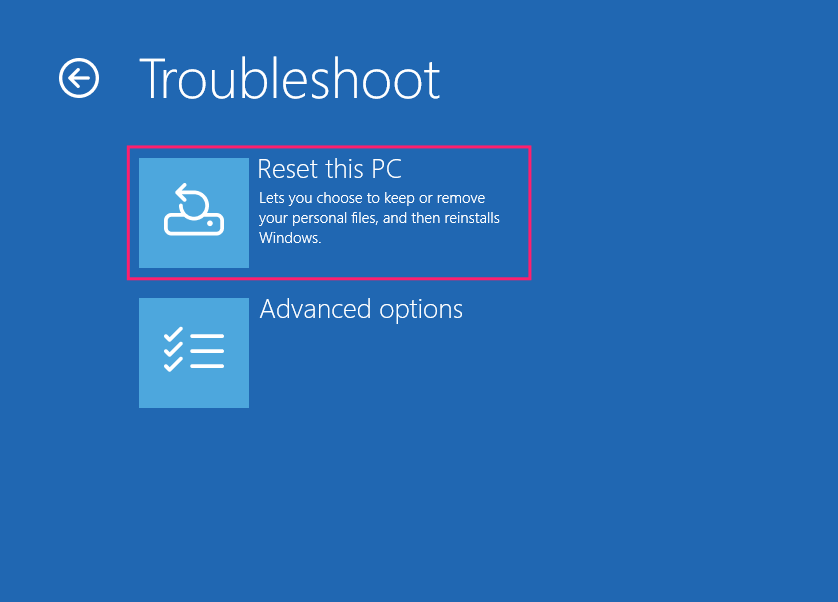
Warning: If BitLocker was enabled on the device, you will be prompted to enter the recovery key before the reset can proceed. This is not optional. Without the key, the process can’t continue. Retrieve it from your Microsoft account at account.microsoft.com/devices/recoverykey, or from wherever it was saved during BitLocker setup.
4. Review your selections and select Reset to begin
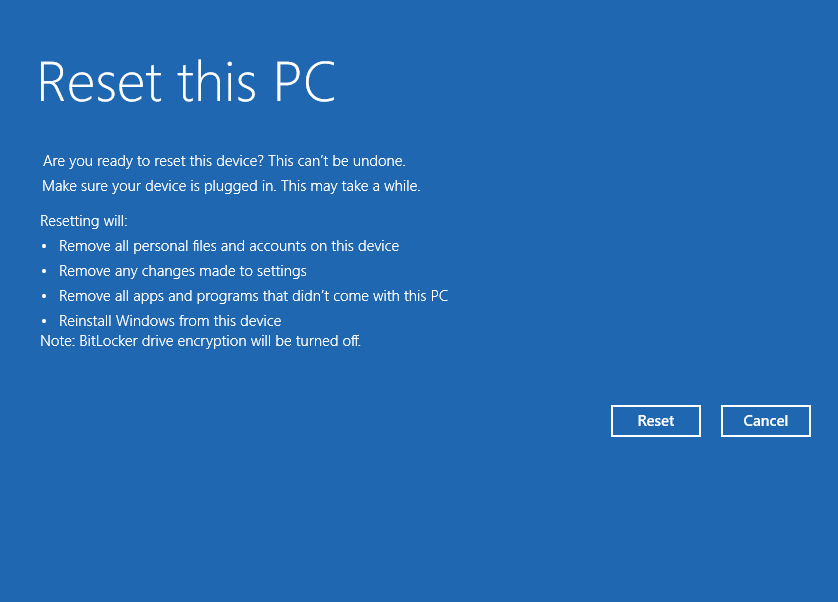
Method 3: Reset via WinRE from a cold boot
When to use this: Windows fails to load entirely, the OS won’t start, automatic repair has already attempted and failed, or the system is caught in a boot loop. This method forces entry into WinRE without requiring a working Windows session.
WinRE launches automatically after Windows detects consecutive failed boot attempts, so if your system is already failing to load, it may already be trying to do this.
To force it manually:
- Power on the device. As soon as the loading animation appears, press and hold the power button until the device shuts down completely
- Repeat this sequence. After the third interrupted boot, Windows will launch Preparing Automatic Repair and enter WinRE automatically
- If Automatic Repair completes but can’t fix the issue, select Advanced options on the failure screen rather than restarting
- Navigate to Troubleshoot > Reset this PC
- Follow the same options as Methods 1 and 2
Note: If your device has a dedicated reset button (found on some desktops and servers), that can be used to force the boot interruption instead of the power button.
» Here’s everything you need to know about enabling Automatic Repair and using Startup Repair
Method 4: Reset via USB installation media
When to use this: The internal recovery partition is corrupted or missing, meaning Methods 1 through 3 are unavailable or have failed. This method bypasses the recovery partition entirely by booting and installing from external installation media.
This method requires a USB drive loaded with the Windows 11 installation files. If you don’t have one prepared, you’ll need to create it on a working machine using the Microsoft Media Creation Tool before proceeding.
- Connect the USB drive to the device and boot from it. This typically requires entering the BIOS or UEFI firmware settings to change the boot order so the USB drive takes priority over the internal drive
- The key to enter BIOS varies by manufacturer, but is commonly F2, F12, Delete, or Esc at startup. On some devices, pressing F12 at startup opens a one-time boot menu directly, which is faster than changing the boot order permanently
- Once the Windows 11 Setup screen loads, you will reach a Select setup option screen
- Select Install Windows 11 to wipe the system and reinstall from scratch
Tick the checkbox confirming you acknowledge that all files, apps, and settings will be deleted

- Follow the remaining on-screen instructions to complete the installation
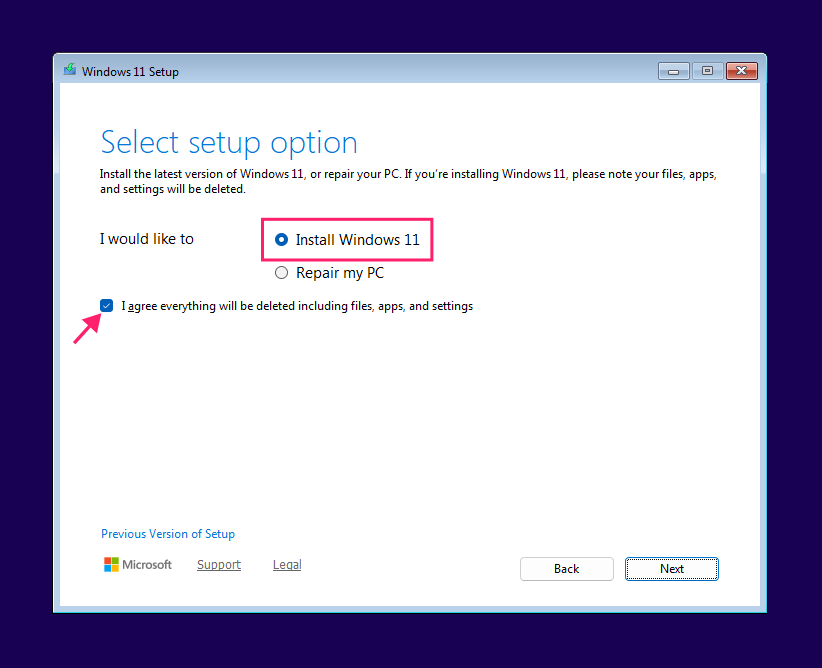
If you want to attempt a repair before committing to a full wipe, the same screen offers a Repair my PC option, which will attempt to fix the current installation without erasing data. Use this first if data preservation is still a priority and you haven’t already backed up.
How to recover data after a reset you weren’t ready for
If a “Remove everything” reset ran without a backup in place, the picture is not necessarily hopeless, but you’ve got to act fast:
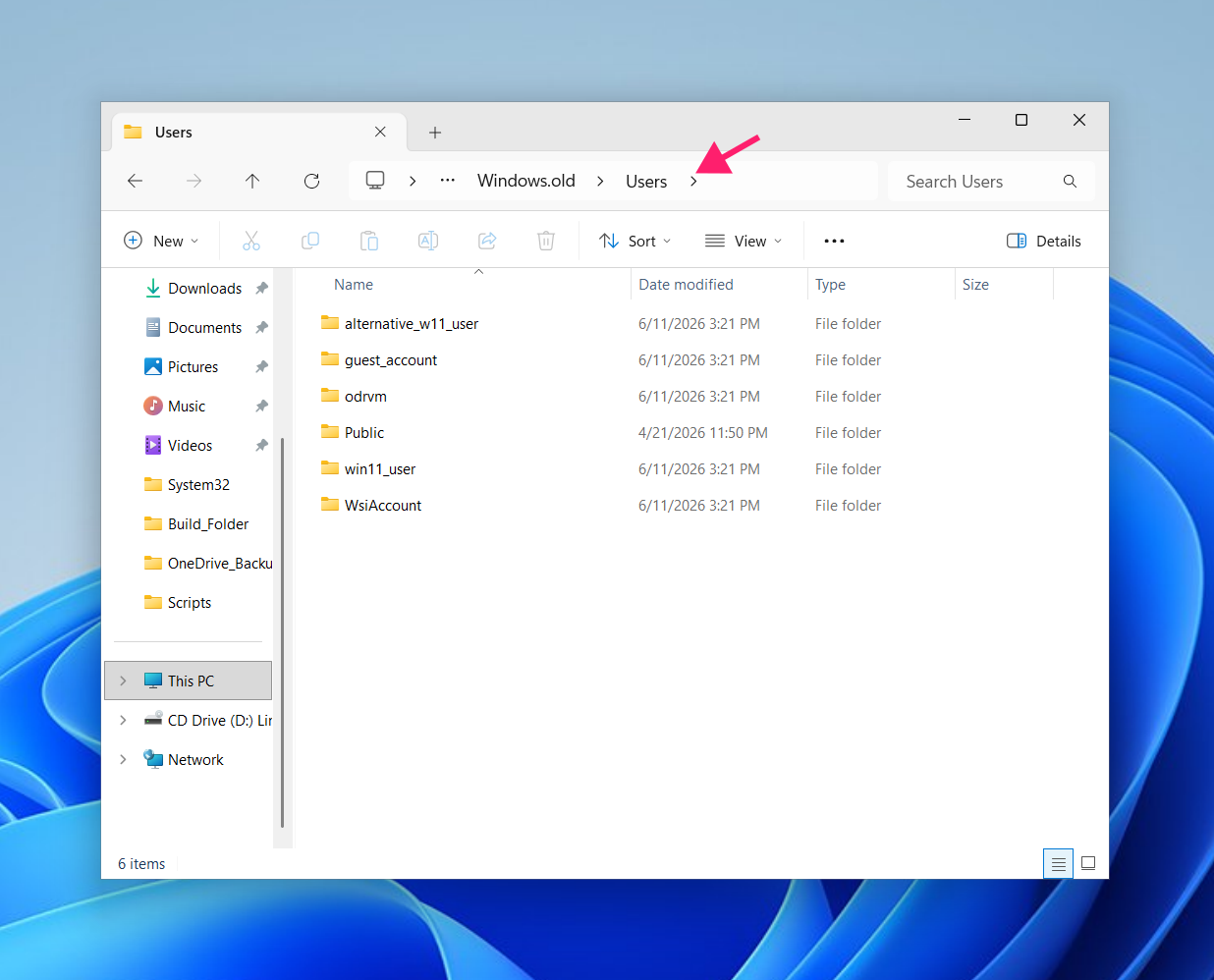
- Check Windows.old first: After a reset that didn’t use the Clean data option, Windows sometimes preserves a
C:Windows.oldfolder containing files from the previous installation, including user-specific data from your old profile. It’s not guaranteed to be there, and it’s subject to automatic deletion by Windows after a period of time, so check immediately. Navigate toC:Windows.oldUsers[your username]to see what survived.
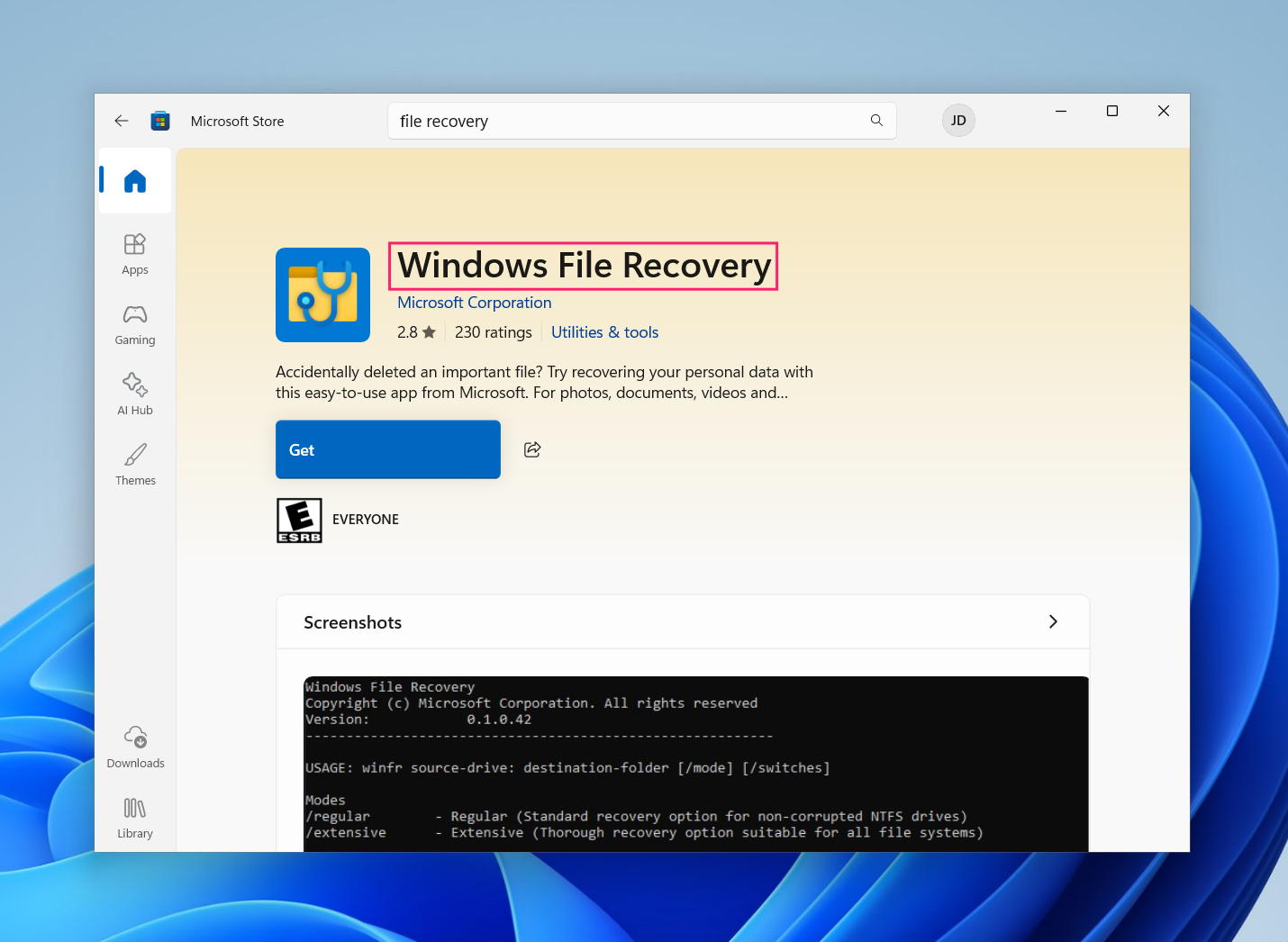
- Windows File Recovery is Microsoft’s own command-line recovery tool, available free from the Microsoft Store. It scans local drives for deleted files that haven’t yet been overwritten and can recover documents, photos, and other file types depending on how much disk activity has occurred since the reset. The less the drive has been used since the reset, the better the odds.
- For serious recovery situations, the most reliable approach is to stop using the affected drive entirely and either connect it to a separate system as a secondary drive, or boot from a live Linux USB environment to access the drive without the OS writing to it. This preserves whatever is still recoverable while you assess options. If the data is genuinely critical, such as with financial records, irreplaceable files, or anything with real consequence, professional data recovery services have access to tools that consumer software doesn’t. They’re expensive, but they operate at the hardware level and can recover data that software tools cannot reach.
A reset is only as good as the preparation behind it
A factory reset is a blunt instrument. Used correctly, it solves problems that nothing else can like corrupted system files, persistent malware, unbootable machines, and devices ready for reuse. Used carelessly, it creates problems like lost data, stalled processes, and drives that aren’t as clean as they look. The difference between the two outcomes is almost always preparation and method selection, not the reset itself.
For IT teams managing more than a handful of devices, the manual process described in this guide scales poorly. Atera’s RMM platform gives technicians remote access to endpoints, remote PowerShell execution, and automated patch management, so when a device needs a reset, the work before and after it doesn’t have to happen on-site only one machine at a time.
Related Articles

How to reduce alert fatigue across your IT team
Your technicians aren't ignoring alerts because they're careless. They're ignoring them because most alerts have taught them to. Once the stream stops being trustworthy, real failures slip past with the noise. Fixing it means deciding what deserves an interruption, tuning out transient spikes, collapsing alert storms, and automating the fixes you've run a hundred times.
Read now
How to close the IT skills gap on your team
Course completions don't close skills gaps. Technicians finish the training, then hand the first unfamiliar failure straight back to a senior engineer. Real capability gets built on live tickets, incidents, and maintenance windows, with guidance that fades as competence grows.
Read now
How to calculate cost per ticket (and why most teams get it wrong)
Most cost-per-ticket figures are wrong before anyone reads them. Missing overhead, tickets that were opened but never closed, spam and duplicates padding the count, and one month's costs divided by another month's tickets all make support look cheaper than it is. Fix both sides of the division and the number finally shows where technician time and money actually go.
Read now
How to prepare for a software license audit
A vendor audit notice doesn't wait for you to get organized. It demands proof, right now, that every install matches every entitlement you've paid for, and most IT teams find out the hard way how much they don't actually know about their own environment. Getting audit-ready before the letter arrives is the difference between negotiating from strength and paying for months of scrambling.
Read nowEndless IT possibilities
Boost your productivity with Atera’s intuitive, centralized all-in-one platform









