
Generate summary with AI

If you’ve ever run a Python script from inside a project folder and watched it import the wrong version of a package, the problem probably wasn’t the code, but the environment. Creating a virtual environment with python -m venv doesn’t activate it, and skipping that step is one of the most common reasons developers end up debugging dependency conflicts that don’t actually exist.
The trouble is that activation is several different commands, and which one you need depends on your shell, your OS, and whether you’re running interactively or inside a script that skips activation entirely. Get the syntax wrong and you’ll either see a cryptic PSSecurityException in PowerShell or no error at all, just a script quietly running against the wrong interpreter.
Here’s everything you need to know.
What activation actually does under the hood
When you run the activation script, it reads the absolute path of the virtual environment’s executable directory, <venv>/bin on POSIX systems or <venv>/Scripts on Windows, and prepends it to your shell session’s PATH variable.
Since directories in PATH are scanned left to right, putting the venv’s directory first means its versions of python and pip resolve before anything installed globally. Nothing on your system is modified permanently; this only affects the current shell session, and it’s reversed the moment you deactivate.
Prerequisites before you activate
A few things need to be in place before activation will work cleanly:
- Python 3.3 or higher, since
venvwasn’t added to the standard library until that release - On Windows, your execution policy has to allow running scripts, which by default it doesn’t; if you hit a permissions error before you even get to activation, you’ll need to run
Set-ExecutionPolicy -ExecutionPolicy RemoteSigned -Scope CurrentUser - On Debian-based Linux distributions, the
python3-venvpackage often isn’t installed by default, so you may need to runsudo apt install python3-venvbeforevenvwill even create an environment
There’s no special path configuration required beyond this. If Python itself isn’t on your system PATH, you’ll just need to invoke it using its full path when creating the environment. The activation script doesn’t add itself to your PATH automatically either, which is exactly why you have to call it explicitly from its own location every time.
Note: On POSIX systems, venv defaults to symlinking the base Python binary into the environment instead of copying it in order to save disk space. On Windows, it uses lightweight redirector executables instead. The practical effect is that upgrading your base Python installation won’t silently break every existing venv that points back to it since the environment isn’t holding a full independent copy of the interpreter.
» Here’s how to fix permission denied error on Linux and check your Linux version
How to activate a virtual environment across shells and tools
The activation command itself is short, but the exact syntax depends entirely on which shell and OS you’re running. Here’s the correct command for every environment:
Linux and macOS
Use this on any POSIX system where you’re activating from a terminal directly.
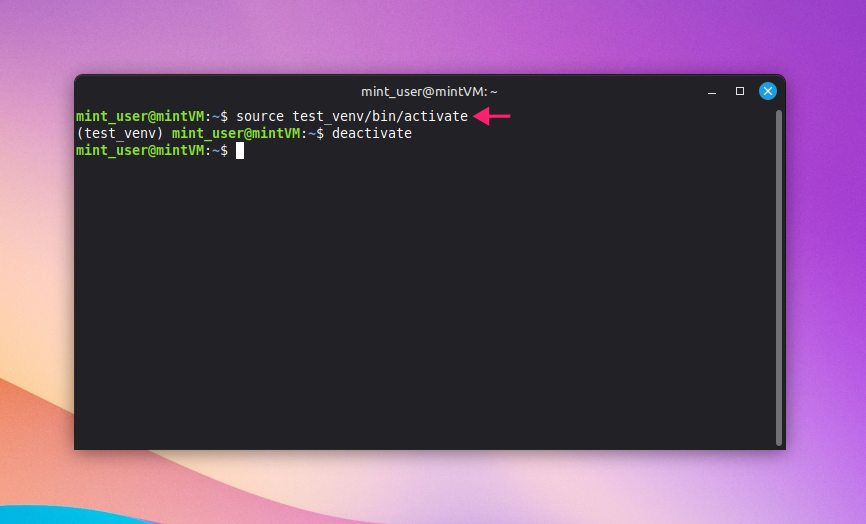
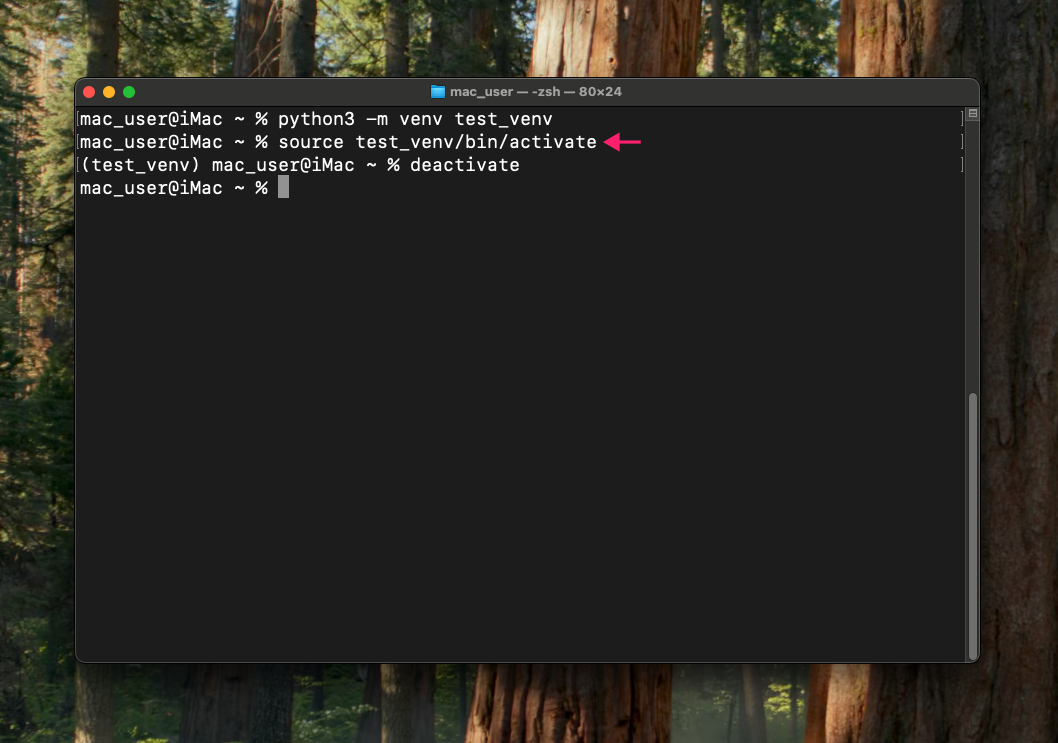
Run
source <venv_path>/bin/activate

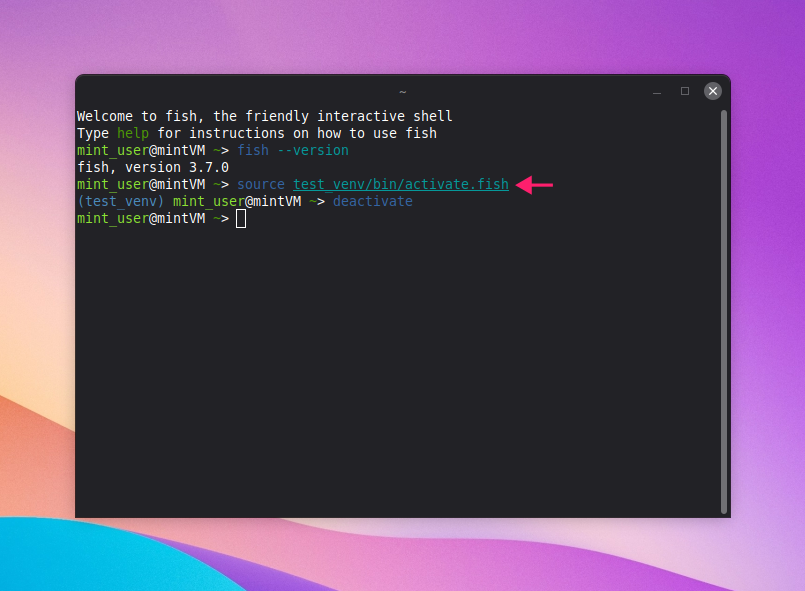
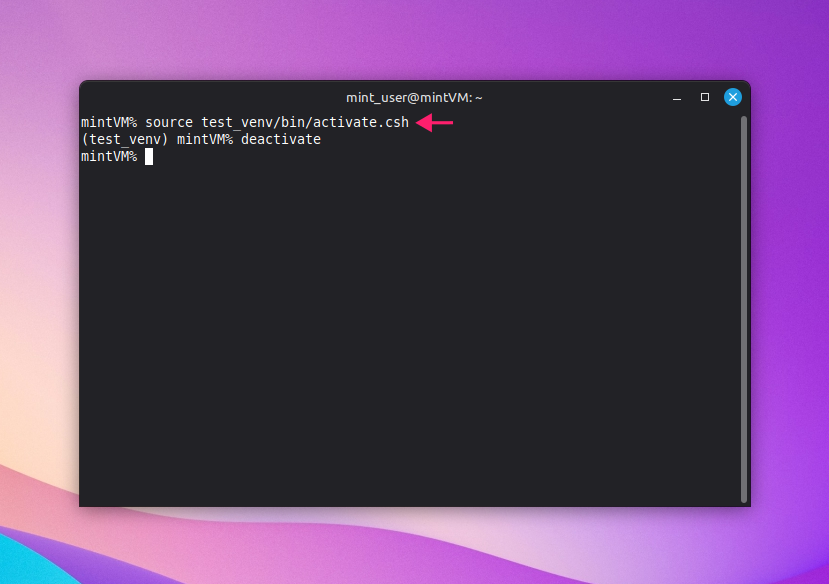
- If you’re on Fish or csh/tcsh instead of Bash or Zsh, the activation script has a shell-specific variant:
- fish:
source <venv_path>/bin/activate.fish
- csh / tcsh:
source <venv_path>/bin/activate.csh
Windows: Command Prompt and Git Bash
Use this when you’re on Windows and not running PowerShell.
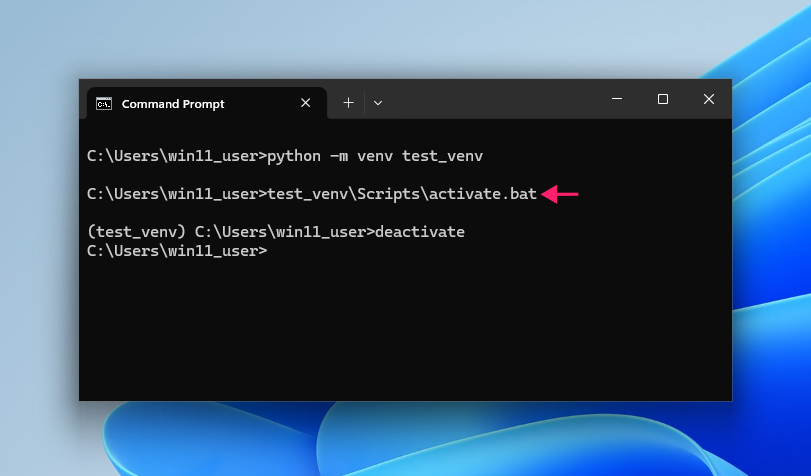
In Command Prompt, run
<venv_path>Scriptsactivate.bat
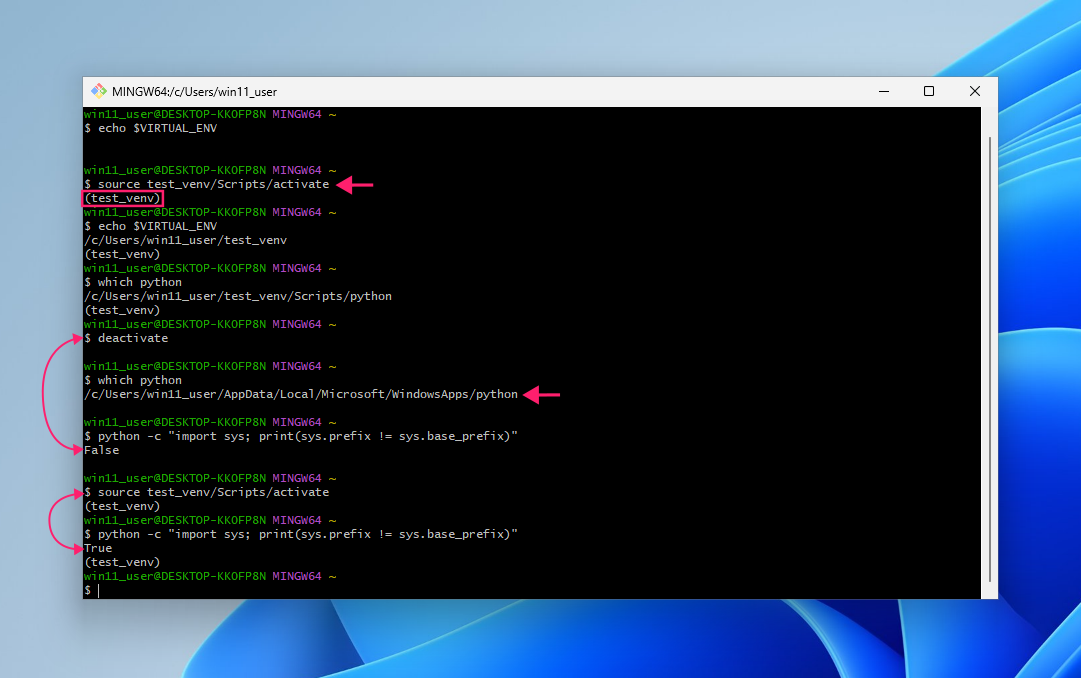
- In Git Bash, run
source <venv_path>Scriptsactivate
Git Bash doesn’t prefix your prompt with the venv name the way Bash does on Linux, so the visual confirmation you’d normally rely on isn’t there. To confirm activation worked, check one of the following instead:
- Run
echo $VIRTUAL_ENV: This returns empty if the environment isn’t active - Run
which python: The path returned should point inside the venv folder Run
python -c "import sys; print(sys.prefix != sys.base_prefix)":Trueconfirms activation,Falsemeans it didn’t take
Windows: PowerShell
Use this when you’re activating from a native PowerShell session, which is the most common source of activation failures on Windows.
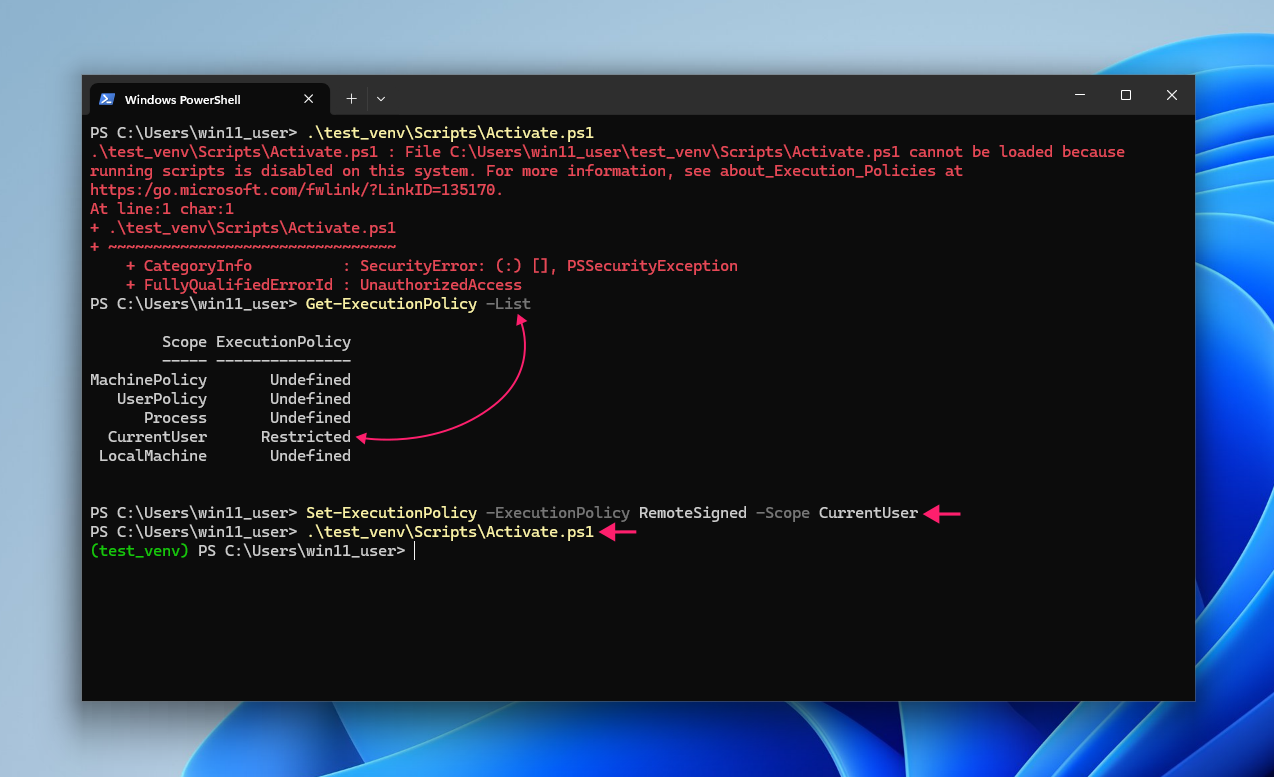
1. Run .<venv_path>ScriptsActivate.ps1
2. If this returns a PSSecurityException, your execution policy is blocking the script:
- Run
Get-ExecutionPolicy -Listto see your current policy settings - Run
Set-ExecutionPolicy -ExecutionPolicy RemoteSigned -Scope CurrentUserto permanently allow locally created scripts to run
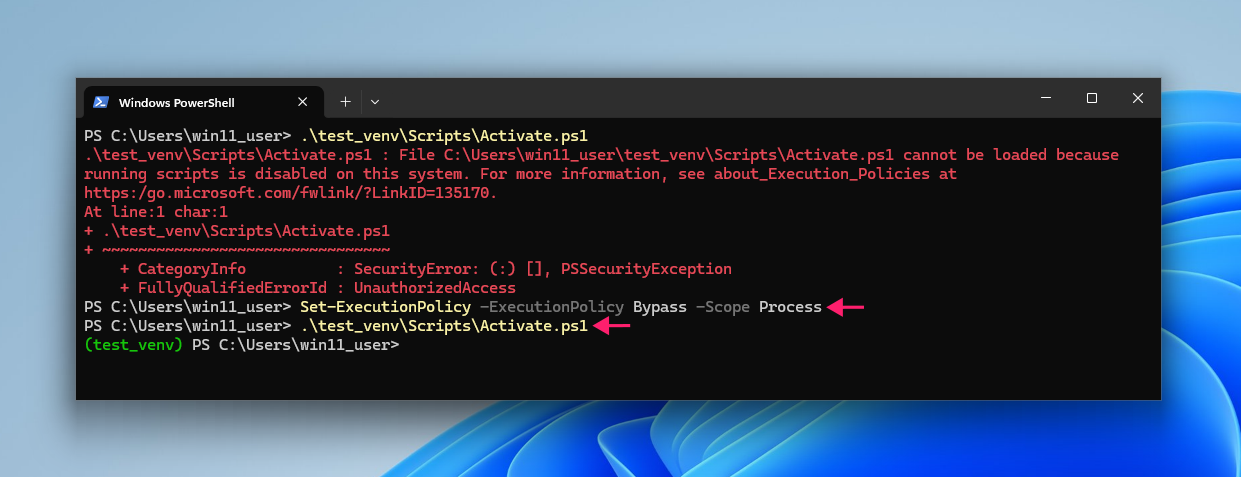
3. If you’d rather not change your policy permanently, you can bypass it for just the current session instead with this command: Set-ExecutionPolicy -ExecutionPolicy Bypass -Scope Process
» Did you know that PowerShell commands are the preferred choice for IT technicians? Learn more about deploying PowerShell scripts remotely
IDE auto-activation
Use this if you want VS Code or PyCharm to activate your venv automatically every time you open a terminal, instead of running the command by hand each session.
You can run
Get-command pythonin the terminal to confirm the path of the Python binary

In PyCharm, open the menu, go to File > Settings > Tools > Terminal, and confirm Activate virtualenv is checked

- In VS Code, press
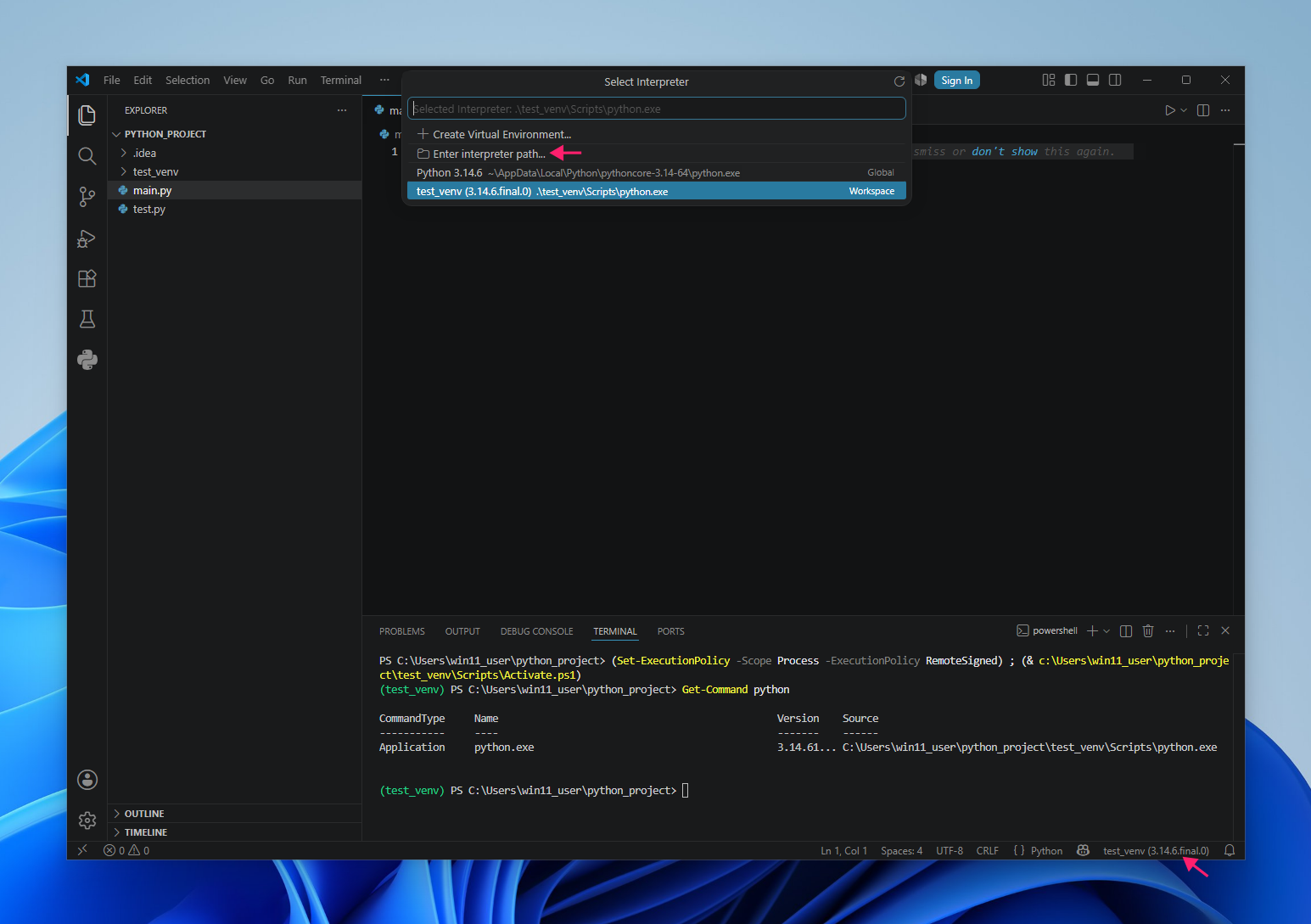
Ctrl + ,to open Settings, searchpython:activate, and confirm Activate Environment is checked - In both IDEs you can also manually select the python interpreter (in case the virtual environment is not inside the project folder, for example):
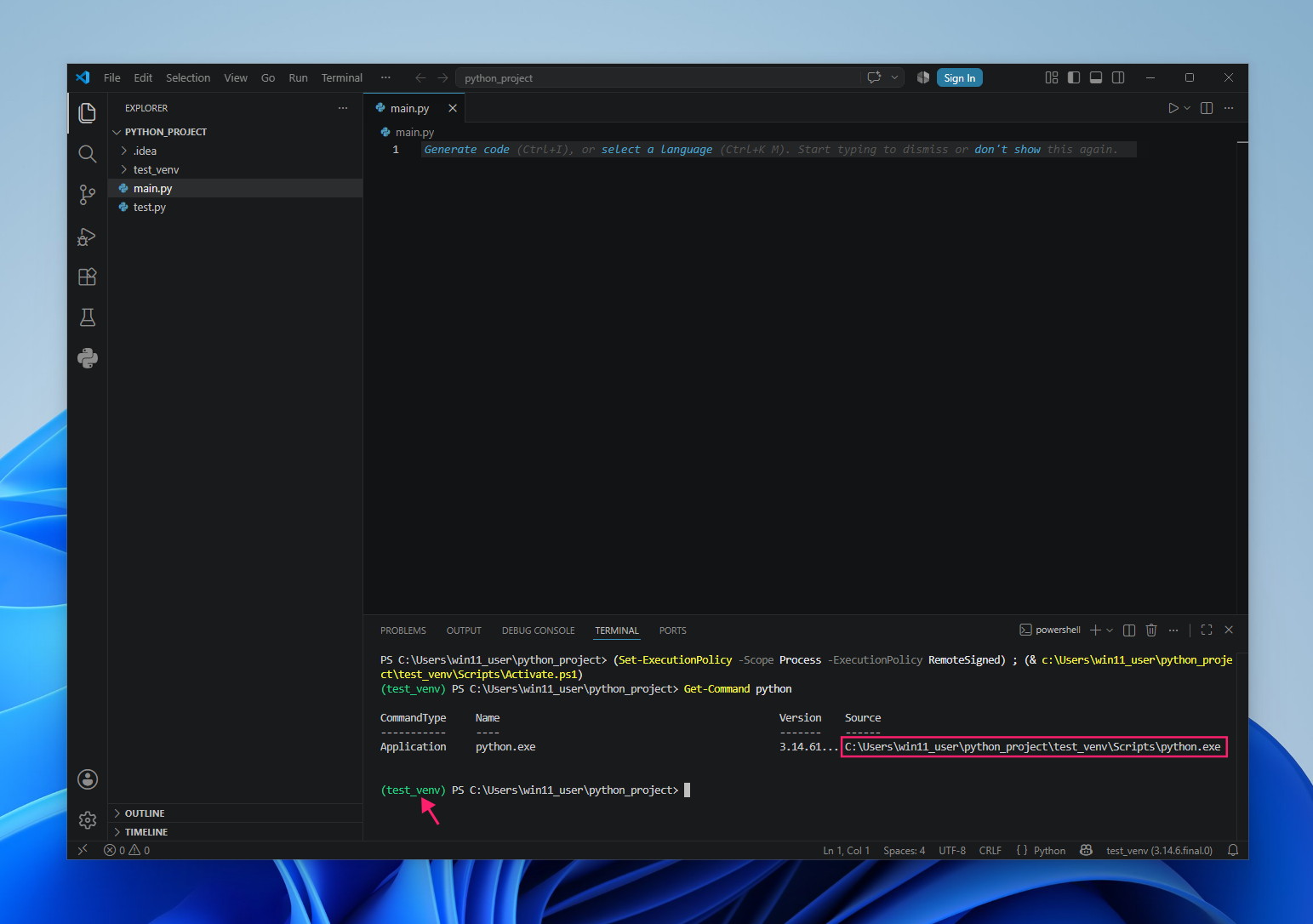
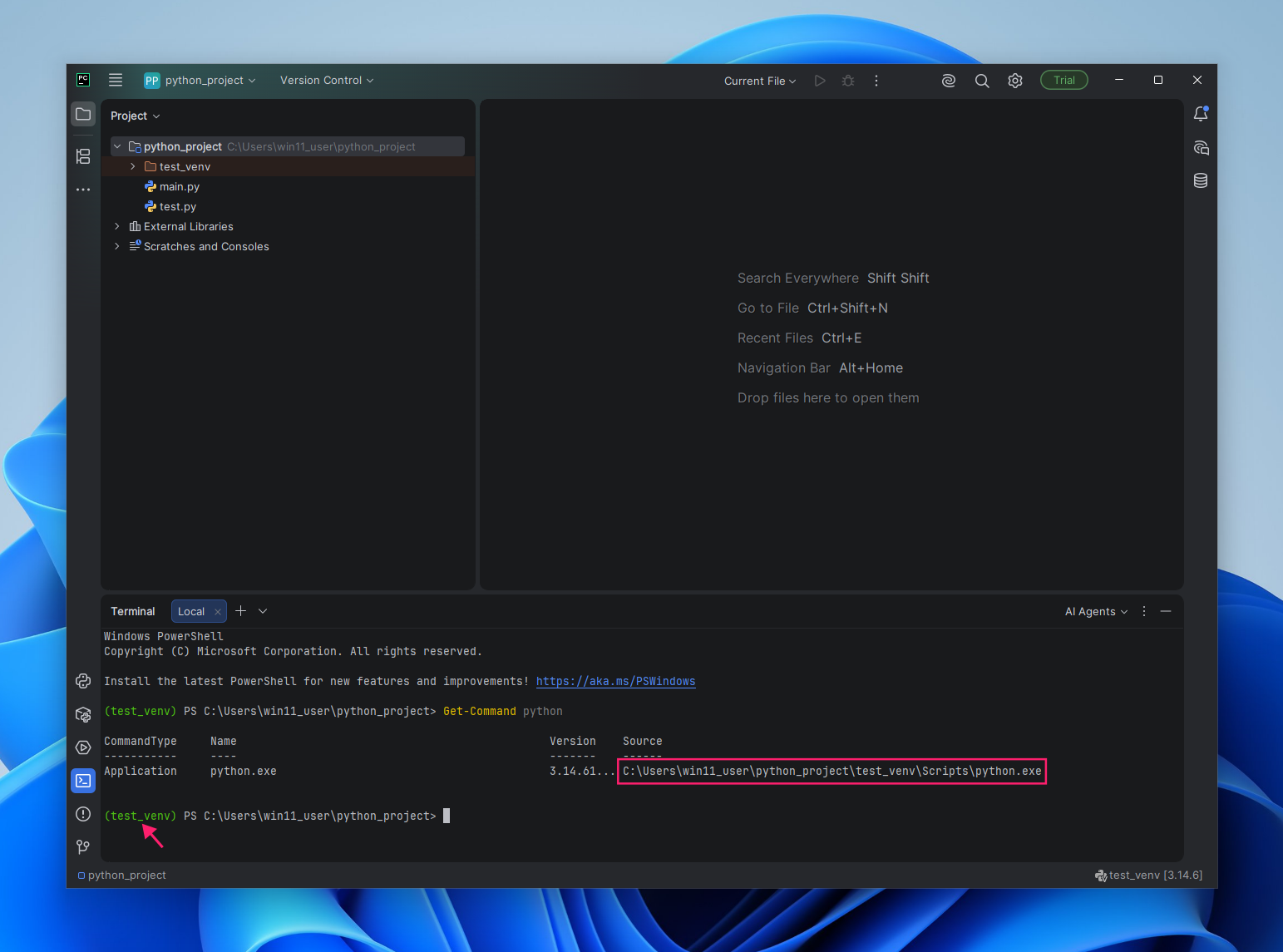
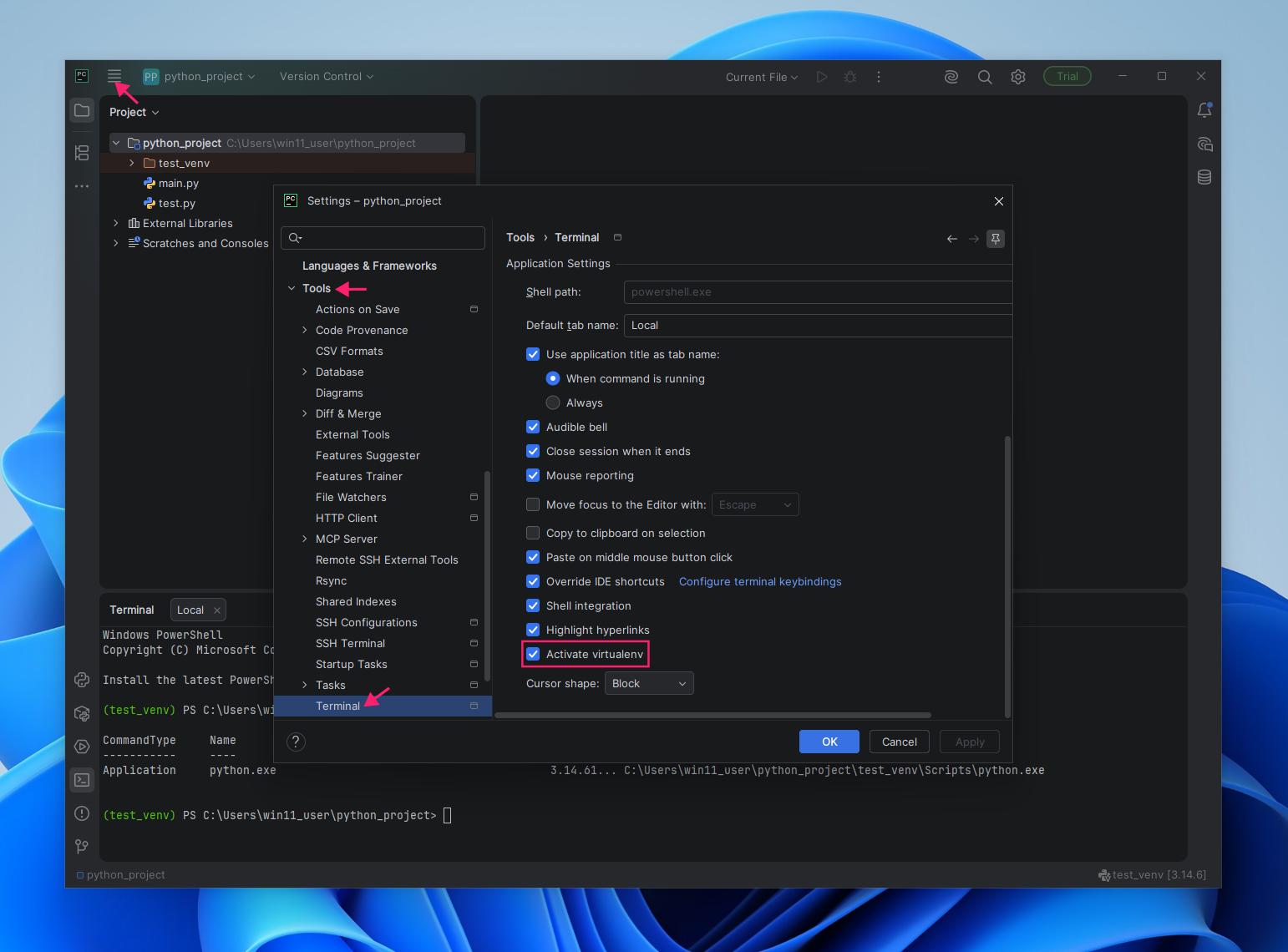
- VS Code: Press Ctrl + Shift + P and search for python interpreter
- PyCharm: Press the ≣ menu button (top left) and go to File > Settings > Python > Interpreter
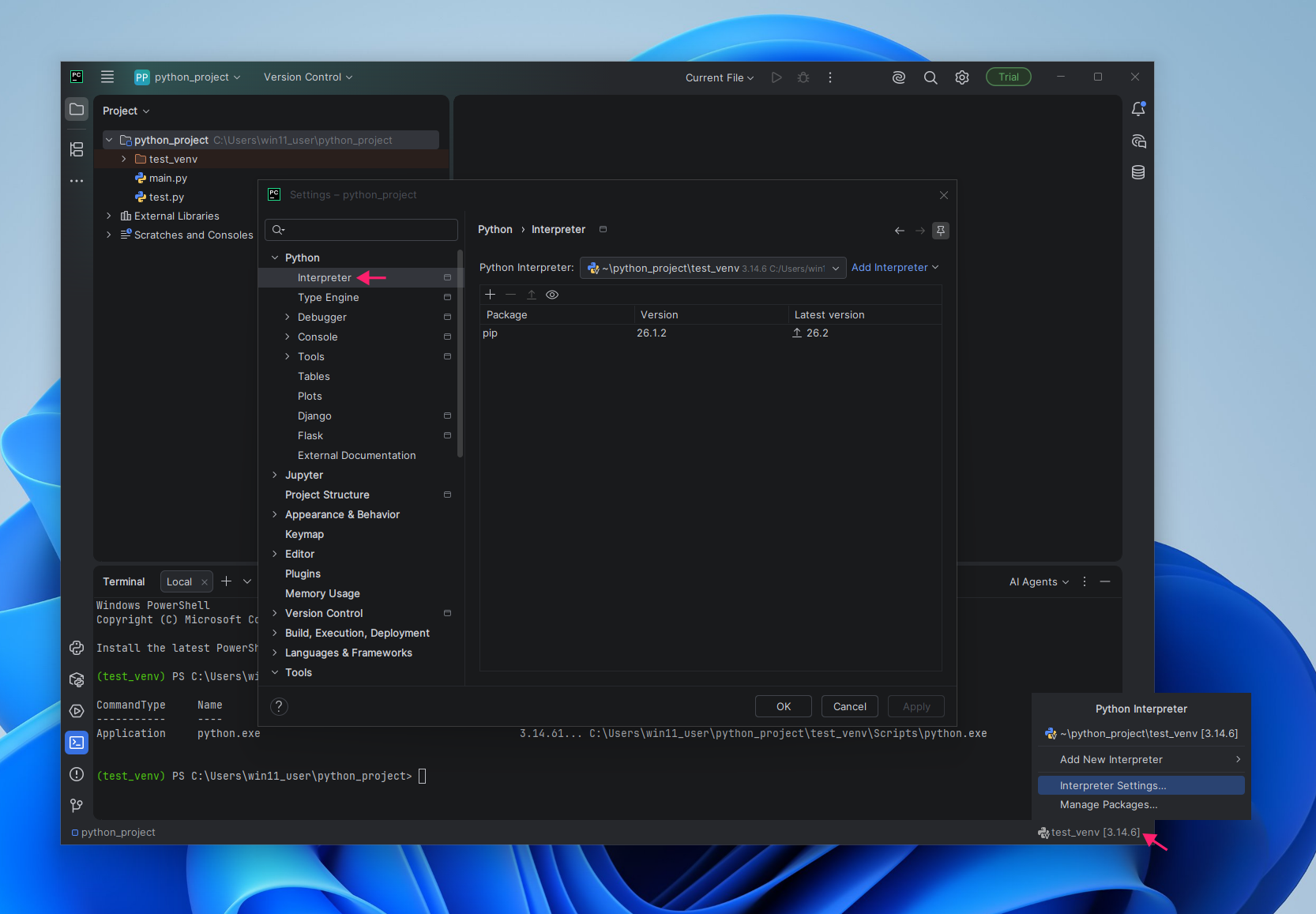
5. On both IDEs you can manage the available interpreters by clicking the interpreter identifier (lower right corner).
Activating at scale and in CI/CD & Docker
Manual activation works fine for a single terminal session, but it breaks down the moment you’re running Python outside an interactive shell, like in a cron job, a CI pipeline, or a Docker container.
Here’s how to use a script or scheduled job that needs to run inside a specific virtual environment without an interactive shell to activate it in:
- On POSIX systems, call the environment’s interpreter directly by its full path:
/path/to/venv/bin/python script.py
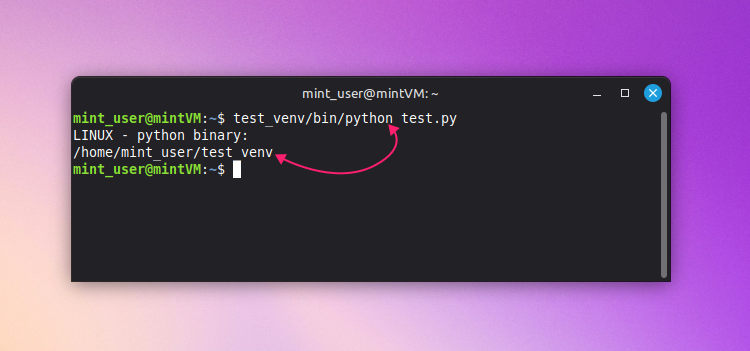
- On Windows, do the same with the Windows-specific path:
C:pathtovenvScriptspython.exe script.py
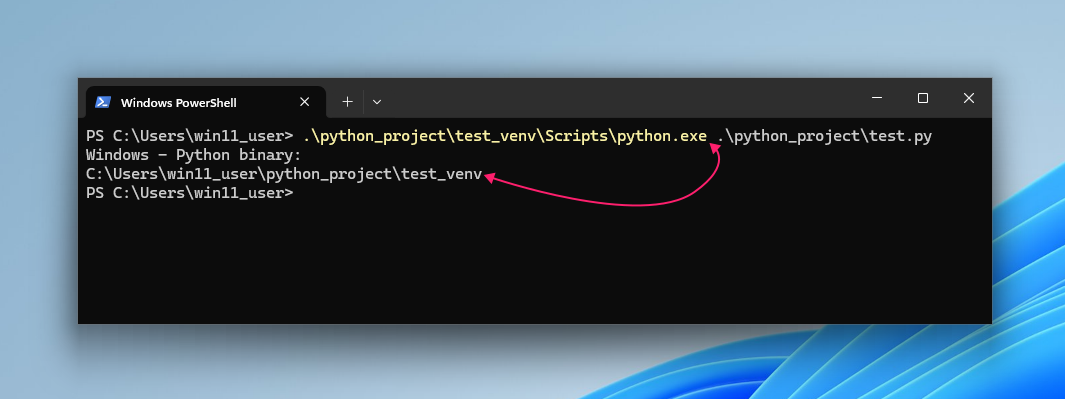
This works because activation was never actually required to use the isolated interpreter. It’s a convenience for interactive sessions, not a prerequisite for running code inside the venv.
Managing environments in CI/CD and Docker
The same full-path principle scales to build pipelines, where each step runs as its own non-interactive process and there’s no persistent shell to hold an activated state.
Here’s a Docker multistage build that keeps the isolated environment out of your final image entirely:
The Script:
Atera does not guarantee the integrity, availability, security, virus-free, safety, lawfulness, non-infringement, rights’ status, or functionality of the scripts. The use of the shared scripts is at your own risk. Scripts are provided “AS IS”. *
# stage 1: build & compile
FROM python:3.14-slim AS builder
WORKDIR /app
RUN python -m venv /app/.venv
ENV PATH="/app/.venv/bin:$PATH"
COPY requirements.txt .
RUN --mount=type=secret,id=pip_config \
    PIP_CONFIG_FILE=/run/secrets/pip_config pip install --no-cache-dir -r requirements.txt


# stage 2: runtime
FROM python:3.14-slim AS final
WORKDIR /app
COPY --from=builder /app/.venv /app/.venv
ENV PATH="/app/.venv/bin:$PATH"
RUN groupadd -r appuser && useradd -r -g appuser appuser
USER appuser
ENTRYPOINT ["python", "-m", "app_name"]
CI runners follow the same logic. Since each step executes as a separate process, invoking the venv’s interpreter by full path is more reliable than relying on activation state carrying over between steps.
When the same setup needs to run consistently across a bunch of developer machines or build agents instead of just one pipeline, that becomes a fleet management problem. Atera’s remote scripting and PowerShell execution through the RMM platform lets technicians push the same venv setup or dependency install across selected devices or device groups on demand without touching each machine individually. And you don’t even have to know anything about coding. AI Copilot can help you write the scripts you need from simple natural language queries.
Activation is a small step with a big blast radius
Activation is a small command with an outsized effect on everything downstream. It determines which interpreter runs your code, which packages pip touches, and whether the dependencies you just spent an hour debugging were ever really the problem in the first place. Getting the syntax right for your shell, and building the habit of checking VIRTUAL_ENV before you trust the output saves far more time than it costs.
That same discipline matters even more once Python environments move off a single machine and onto a fleet of them. When you’re managing dependency setup, package versions, or environment configuration across dozens or hundreds of endpoints, Atera’s remote scripting lets you push and verify the same commands across selected devices or device groups without touching each one by hand.
Frequently Asked Questions
Related Articles

How to decide if you need a dedicated DEX platform, or already have one
"IT feels slow" is the complaint that often sells DEX platforms. Sometimes it signals a real blind spot, but just as often already catches and fixes the problem, and a new scoring layer would only add another console. Telling the two apart takes evidence, and the real gap usually isn't visibility at all.
Read now
How to set up secure printing across your organization
A secure print checkbox protects exactly one moment in a document's life. Everything else, from unencrypted traffic and unhardened devices to payroll printouts forgotten in a tray, stays exposed. Real secure printing covers the whole lifecycle: release policy, authentication, encryption, hardening, and a fleet that stays monitored long after rollout.
Read now
How to reduce alert fatigue in healthcare IT
In a hospital, a dismissed alert isn't a delayed ticket. It can be a patient deteriorating while the monitor keeps sounding. Cutting alert volume won't fix that on its own, and switching alerts off can make it worse.
Read now
How to prevent configuration drift across your IT infrastructure
Configuration drift rarely breaks anything the day it happens. It hides in a hotfix, a reset default, or a vendor installer, then surfaces weeks later as a failure nobody can trace. Stopping it means defining exactly what approved looks like, closing every side door into production, giving each setting one owning tool, and checking that the baseline itself hasn't gone stale.
Read nowEndless IT possibilities
Boost your productivity with Atera’s intuitive, centralized all-in-one platform









