
Table of contents
Generate summary with AI

Every Linux admin knows what it’s like to run into a “permission denied” error, run chmod 777 or sudo out of habit, and move on without ever learning what actually broke. It works often enough to become a reflex, but it’s not a universal fix for every situation and might actually open a security hole or mask a misconfiguration that resurfaces somewhere worse.
The truth is that a permissions error is rarely about the permission bits themselves. Modern Linux stacks several independent layers between a process and the file it wants to touch. Any one of them can throw the identical error message, but only one is fixed by the command you probably reached for first.
Here’s what’s actually happening and how you should fix this error properly.
Why Linux throws a permission denied error
A permission denied error means the Linux kernel’s Virtual Filesystem (VFS) checked a request against every access-control layer available and rejected it at least once.
That check runs through the effective UID and GID, the standard read/write/execute permission bits, any Access Control Lists attached to the file, and Mandatory Access Control systems like SELinux or AppArmor where enabled.
A failure at any single layer on all Linux versions returns EACCES or EPERM to the calling process, and the resulting error message looks identical regardless of which layer actually rejected it. That’s the trap: chmod only touches one of these layers. It won’t do anything for an SELinux policy violation, an immutable file attribute, a read-only mount, or an NFS export restriction, even though the terminal shows you the exact same “permission denied” text either way.
Why sudo isn’t a fix
sudo works because root isn’t subject to standard discretionary permission checks, so a command that fails normally can succeed under elevation. That’s exactly why it shouldn’t be a default troubleshooting step because if something only works with sudo, that’s usually a sign of incorrect ownership, missing group membership, or a permission that should be corrected at the source, not routed around.
Treating sudo as a universal fix expands privilege beyond what a task actually needs, which is the opposite of the least-privilege principle that governs sound access control. A script quietly running as root for months because sudo “fixed” a recurring error is a common way ownership problems turn into standing security risk.
» Wrong permissions? Here’s how to change file permissions on Linux
8 ways to diagnose and fix the permission denied error on Linux
Whatever the symptom, make sure you confirm your identity with whoami or id first just to rule out the obvious incorrect user problem. After that, follow through each of the steps below to diagnose and fix the problem:
Method 1: Basic read, write, create, and delete blocks
Use this when a user can’t open, edit, create, or delete a standard file or directory.
Run
ls -lon the target file and its parent directory to check ownership against your ownidoutput.
If ownership and standard permission bits don’t explain the error, check for the immutable attribute with
lsattr- Remove the immutable attribute with
chattr -i report.txtif present Reapply the permission change with
chmod
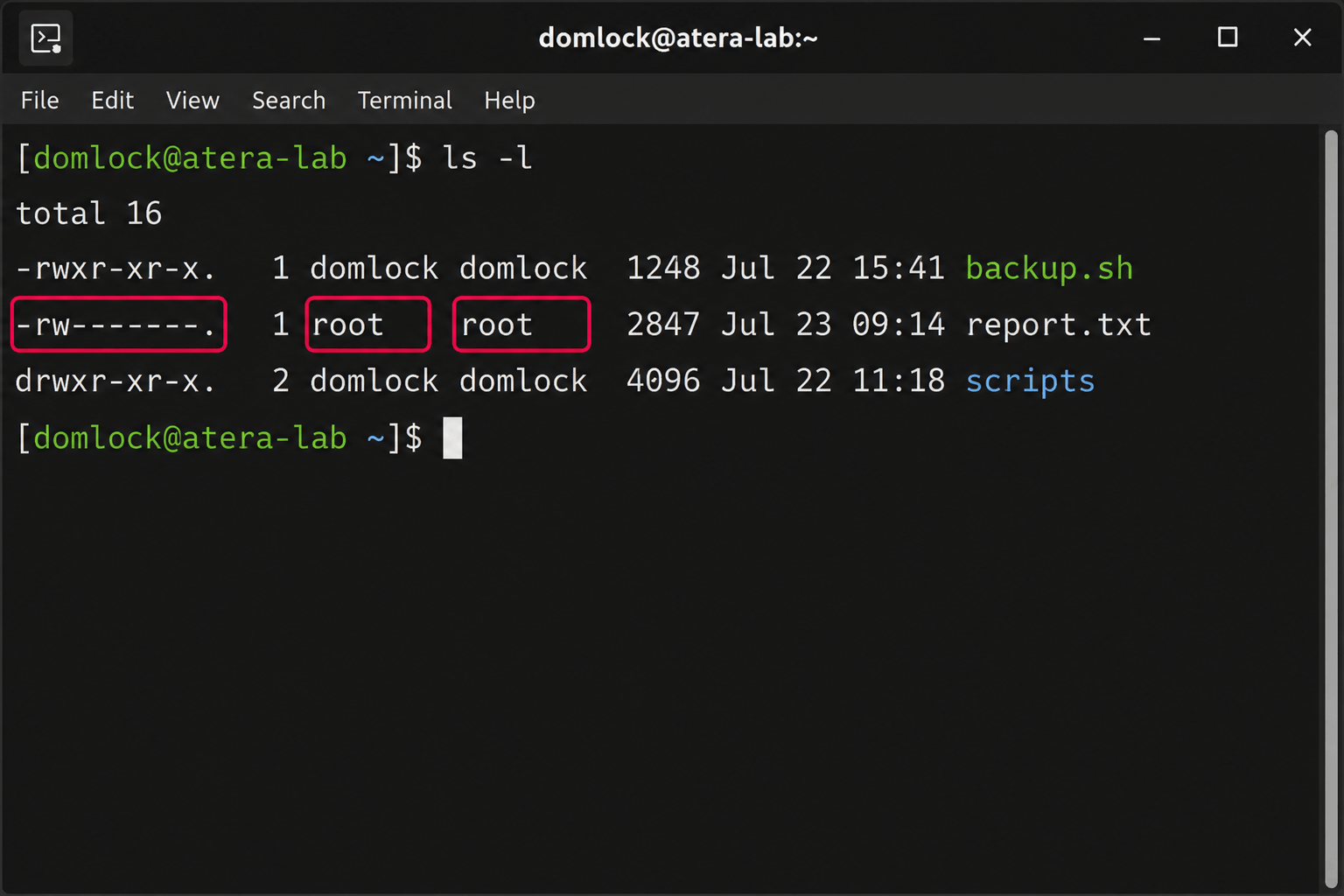
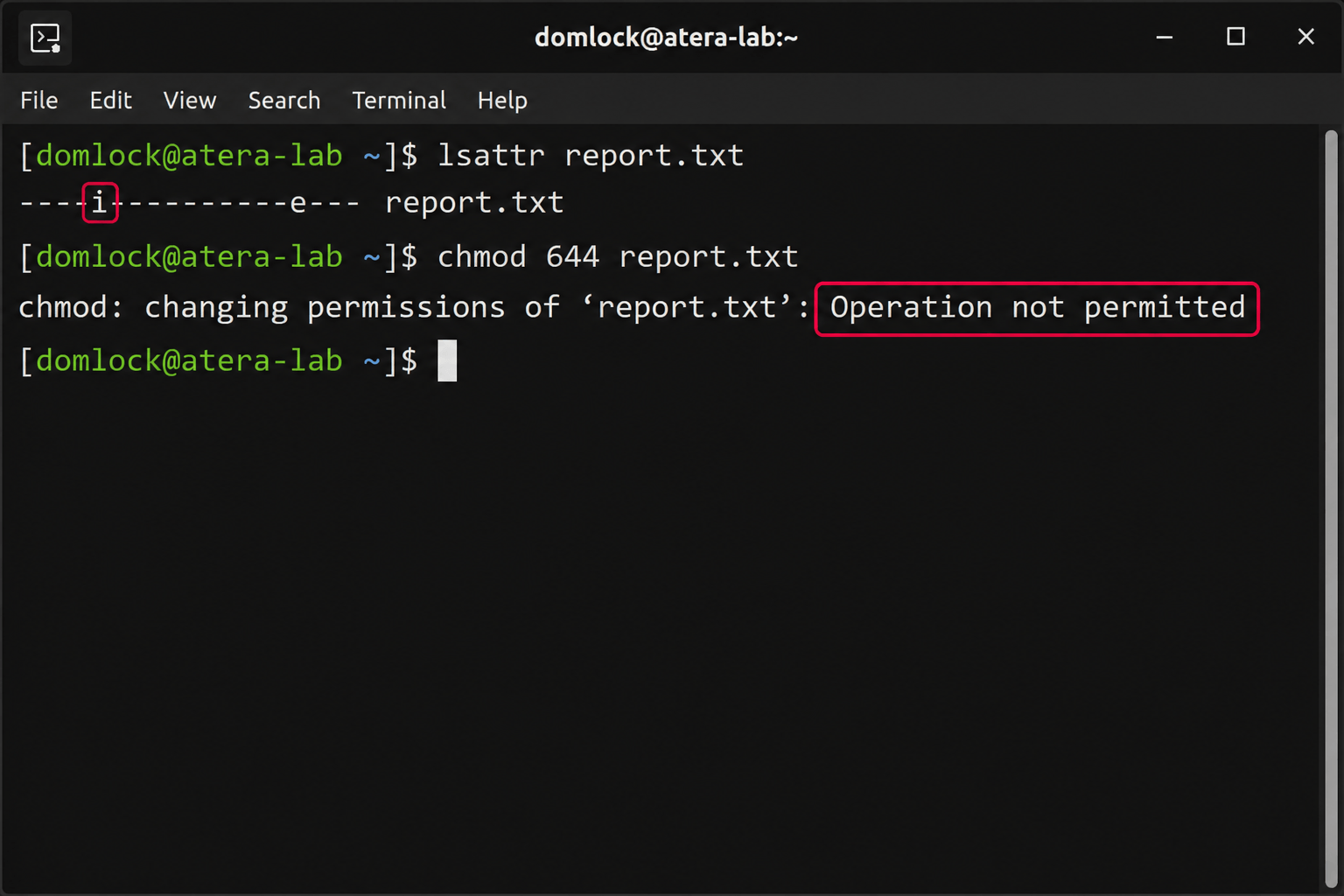
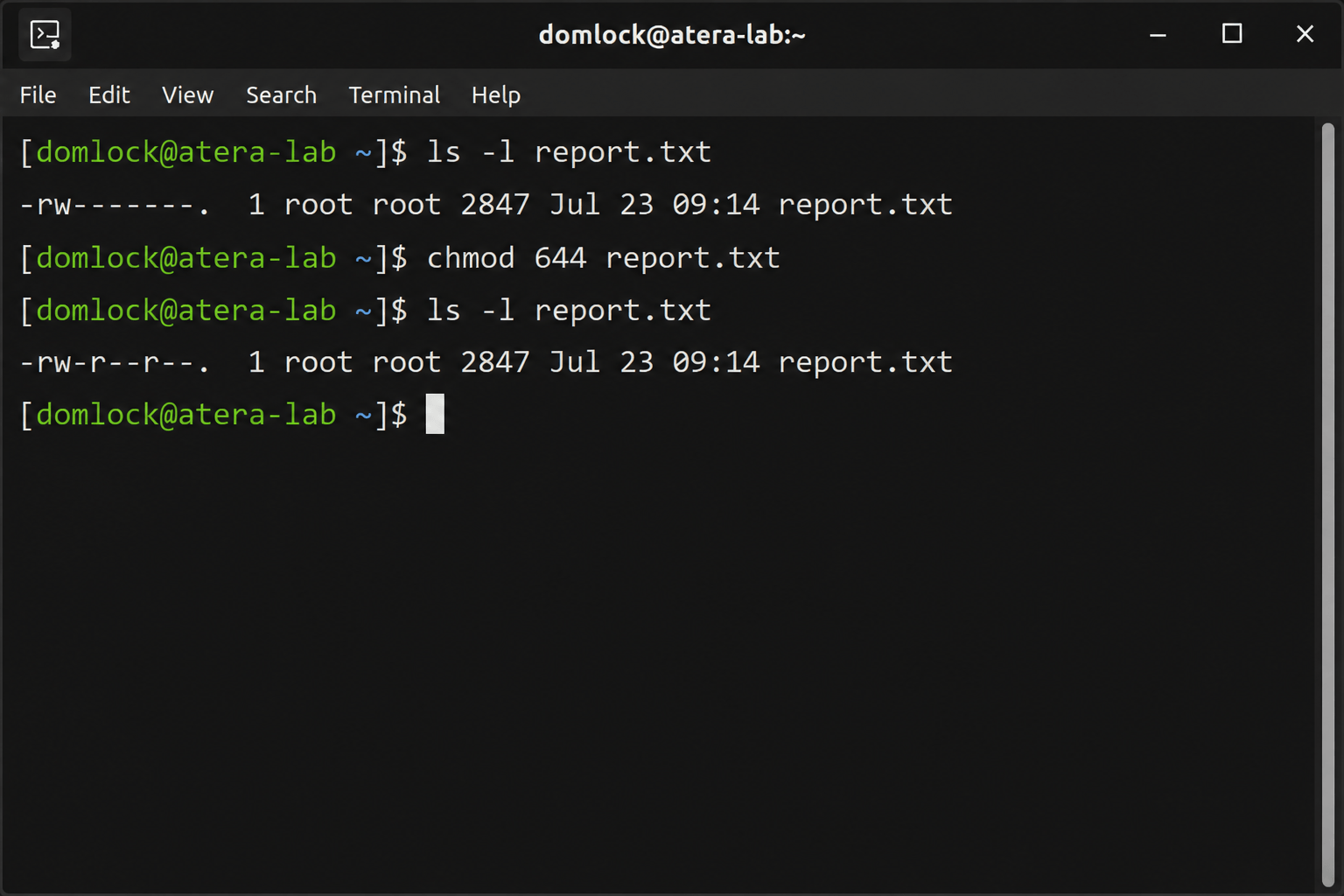
Note: A cannot create regular file: permission denied error points to the parent directory’s write permission, not the target file, which means the file doesn’t exist yet so its own permissions are irrelevant. An rmdir: permission denied error means checking directory ownership, write and execute permissions, sticky-bit behavior, and whether the directory is actually empty.
» Learn how to rename a directory in Linux
Method 2: Script execution failures
Use this when a downloaded or newly written script won’t execute even though it opens and reads fine.
Run
ls -l script.shto check the current permission bitsAdd the execute bit with
chmod +x script.shif it’s missing, then confirm the change and run the scriptIf the execute bit is already set and the error persists, check whether the script is on a mount that blocks execution entirely with
findmnt
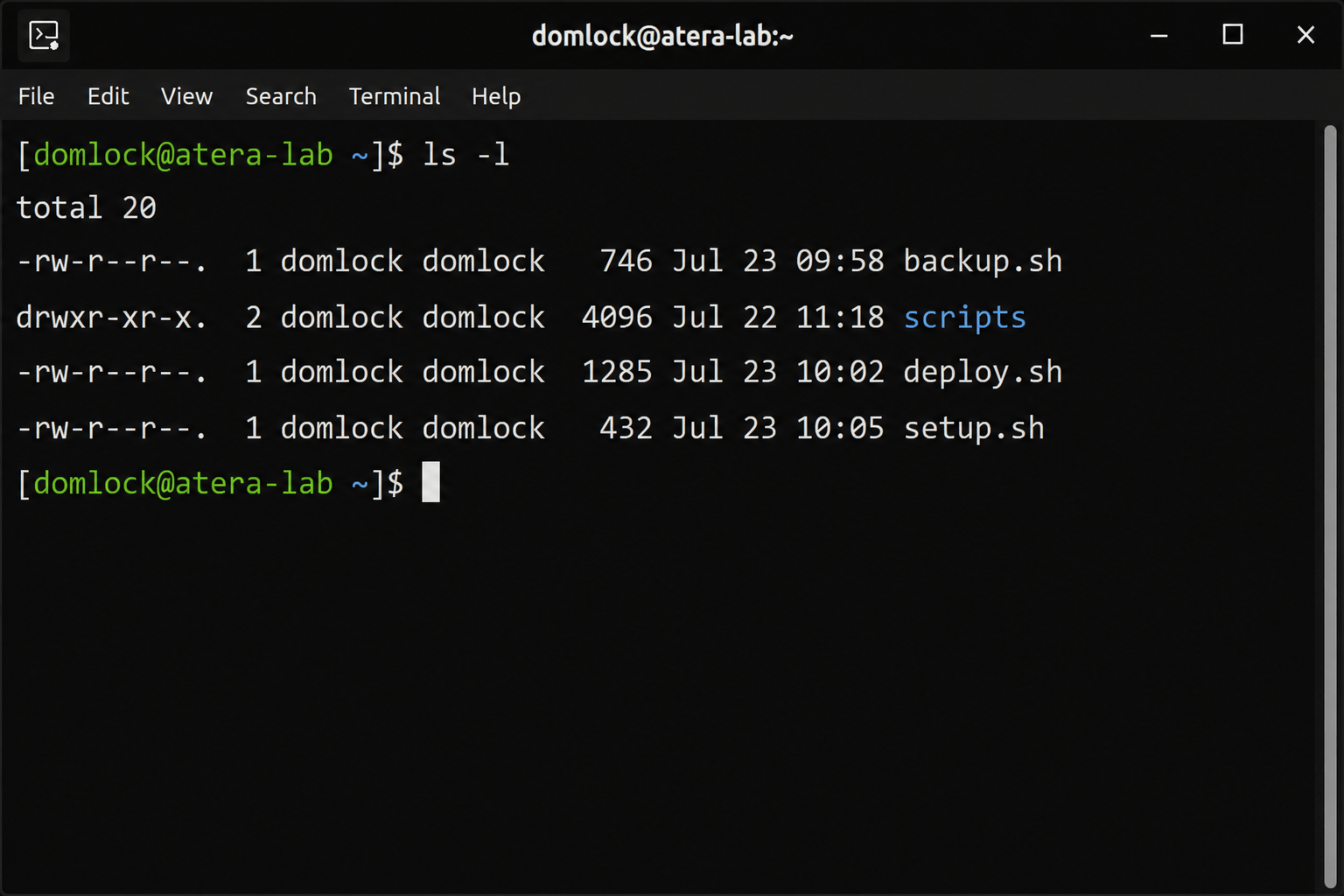
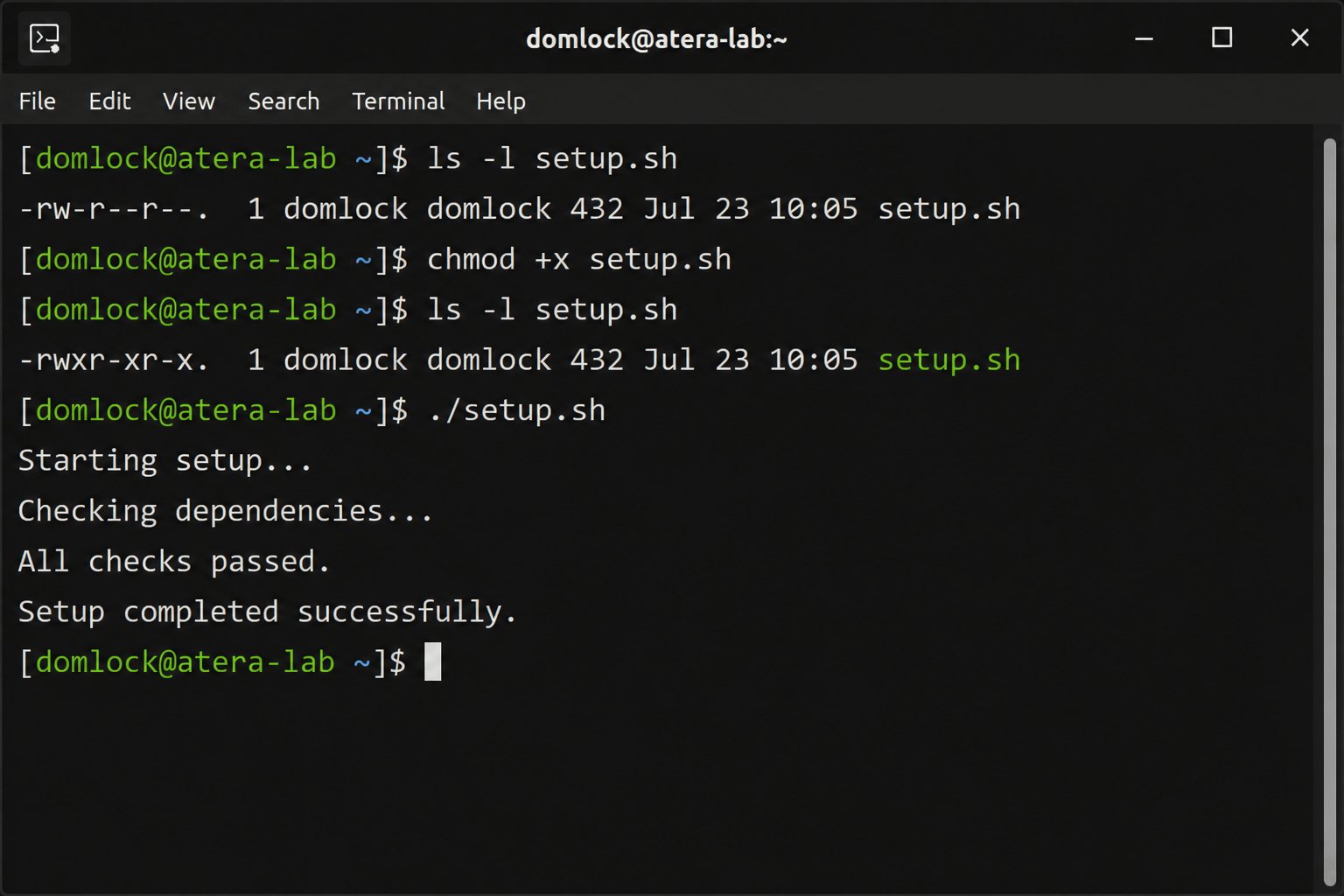
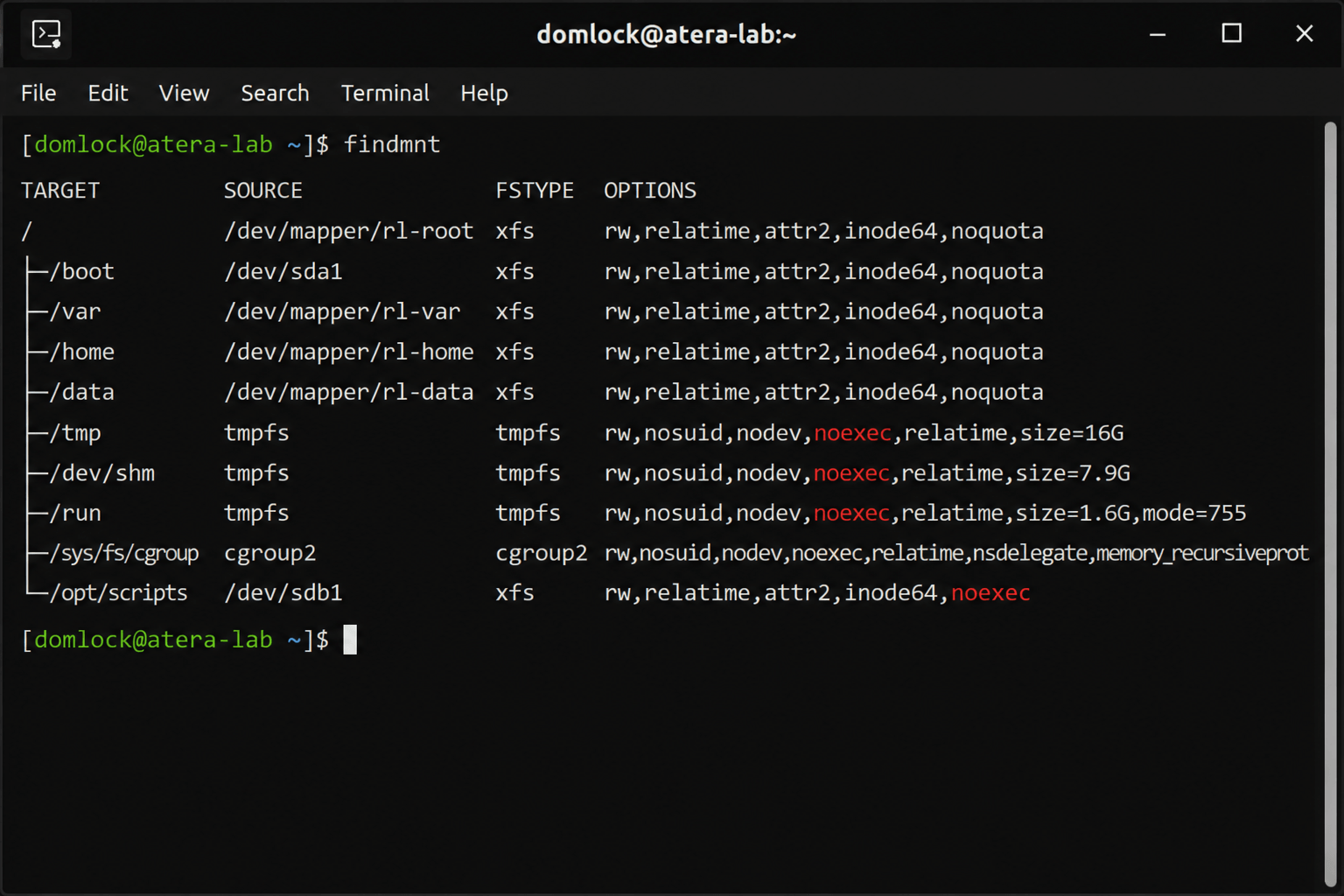
A noexec mount blocks execution regardless of what chmod shows, which is why it’s worth checking directly rather than assuming the execute bit alone explains the failure.
Beyond the mount, here’s what you should check:
- Confirm the shebang line matches the intended interpreter (e.g.
#!/bin/bash) and that the file uses Unix LF line endings rather than Windows CRLF since a script edited or transferred from Windows can fail to execute even with correct permissions and nonoexecmount involved. - Also check the sticky bit if the script sits in a shared directory like
/tmp. Only the file owner, directory owner, or root can rename or remove files there, which can look like a permissions problem when it’s actually a shared-directory restriction.
» Did you know you can paste in Linux?
Method 3: SSH key connection rejections
Use this when key-based SSH authentication fails even though the key itself looks correct.
Run
ssh -vvvto the target host to identify exactly where authentication failsCheck ownership and permissions of the home directory,
.sshdirectory, private key, andauthorized_keysfile withls -la ~/.sshCorrect ownership and permissions:
~/.sshat700, private keys andauthorized_keysat600, usingchownandchmod
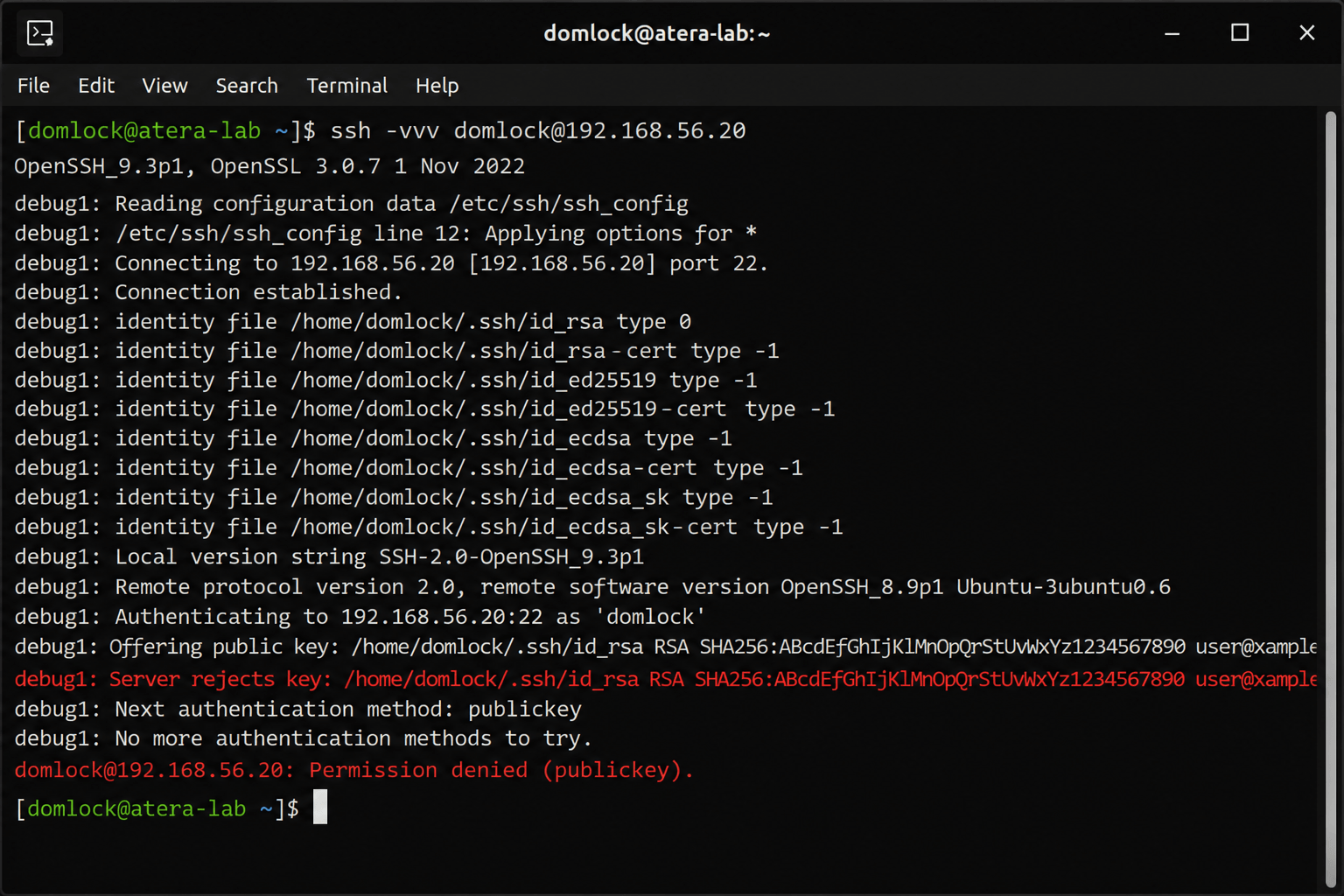
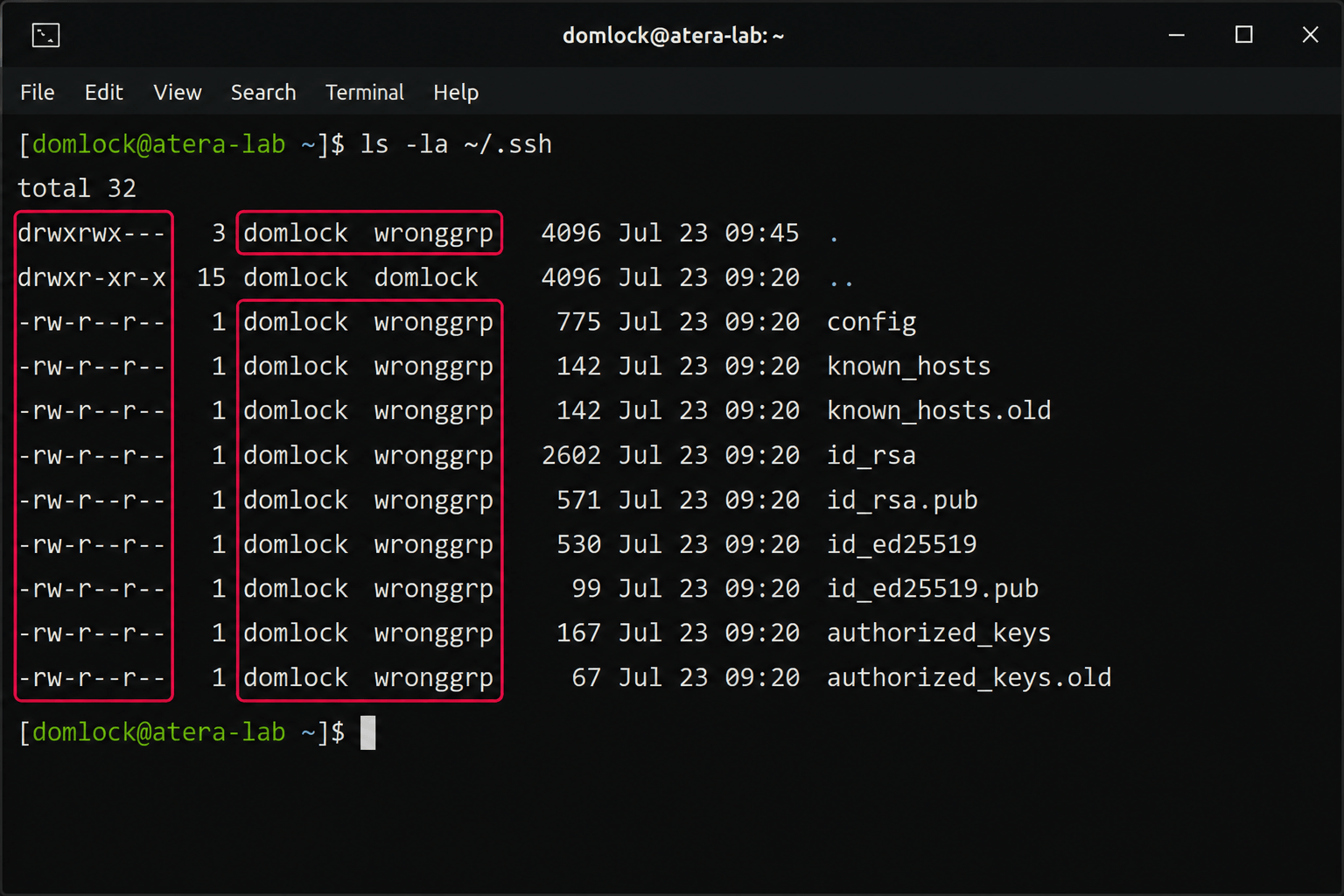
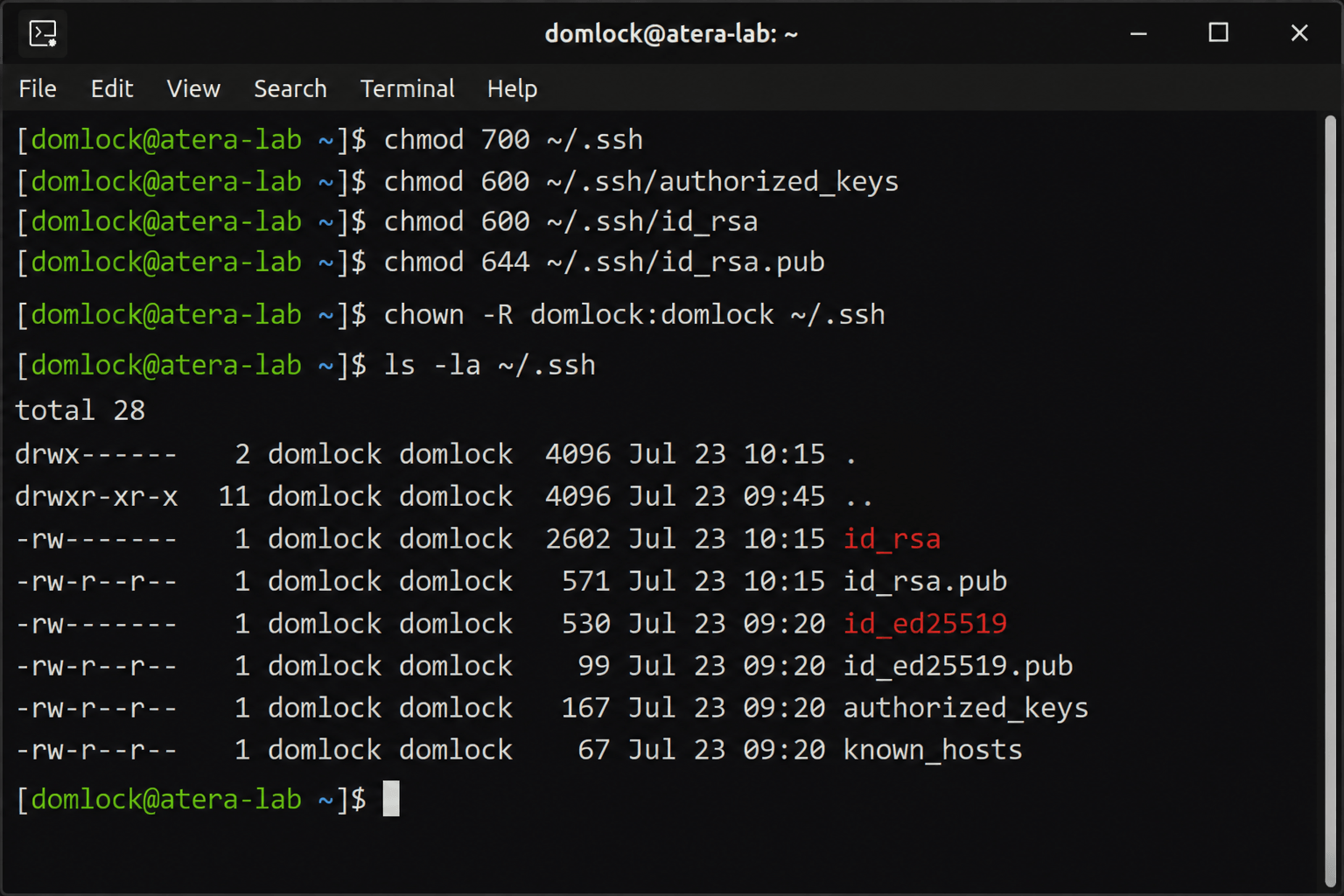
If ownership and permissions are all correct and the rejection continues, confirm sshd_config settings like PubkeyAuthentication and AuthorizedKeysFile are set as expected. On SELinux systems, check the security context with ls -Z; on Ubuntu, check aa-status if an AppArmor profile applies to SSH.
» Here’s how to check your Ubuntu version
Method 4: Sudoers misconfiguration and missing privileges
Use this when a user’s sudo command fails and it’s unclear whether the account actually lacks the rights or something else is wrong.
Run
sudo -lto check the user’s effective privilegesConfirm group membership with
idorgroupsIf the account is missing a group membership entirely,
visudois the safe way to inspect or edit/etc/sudoers, since it validates syntax before saving and prevents accidental lockoutsBefore granting broad access through the main file, check
/etc/sudoers.d/for a scoped snippet, which is where the actual fix should land for most cases
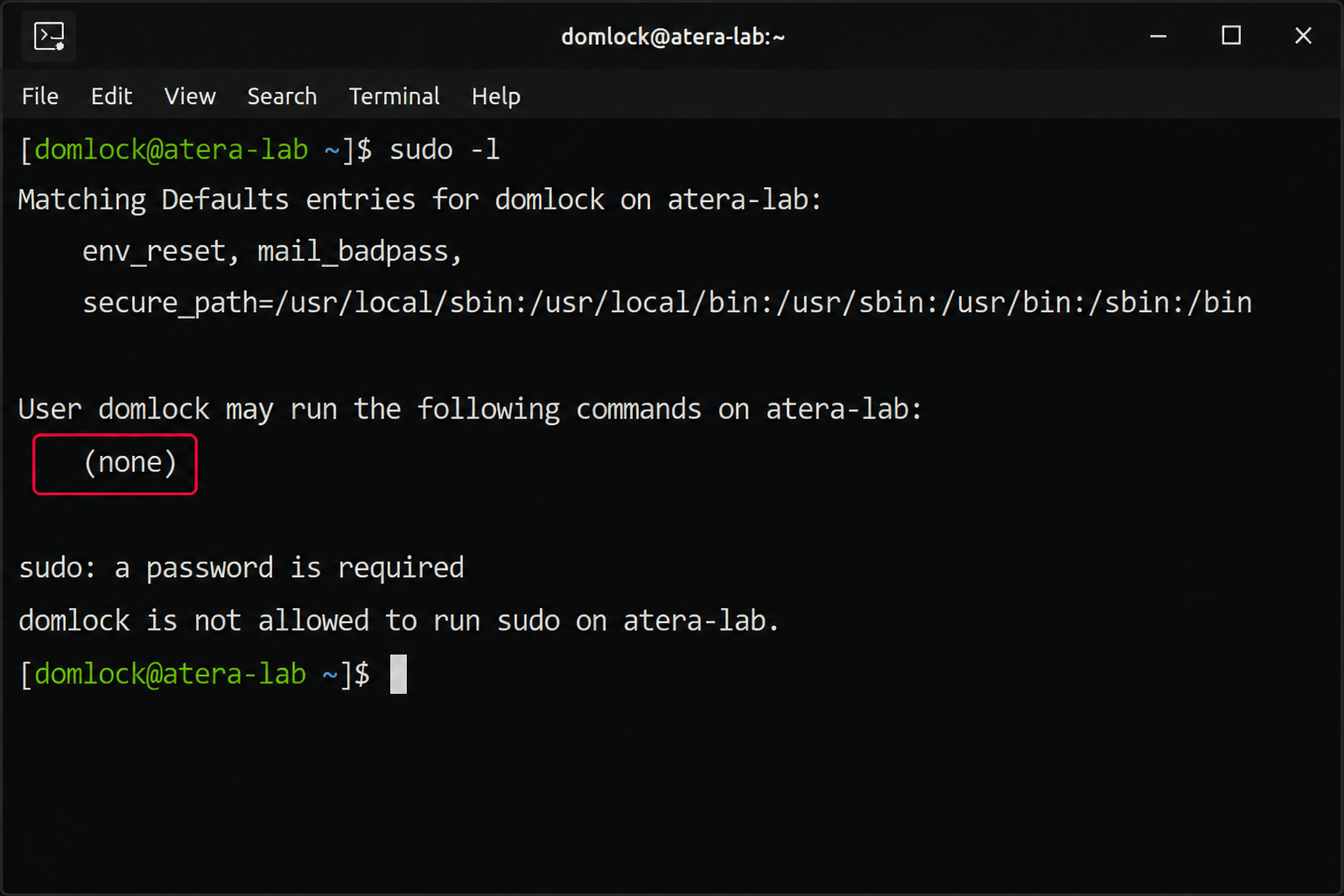
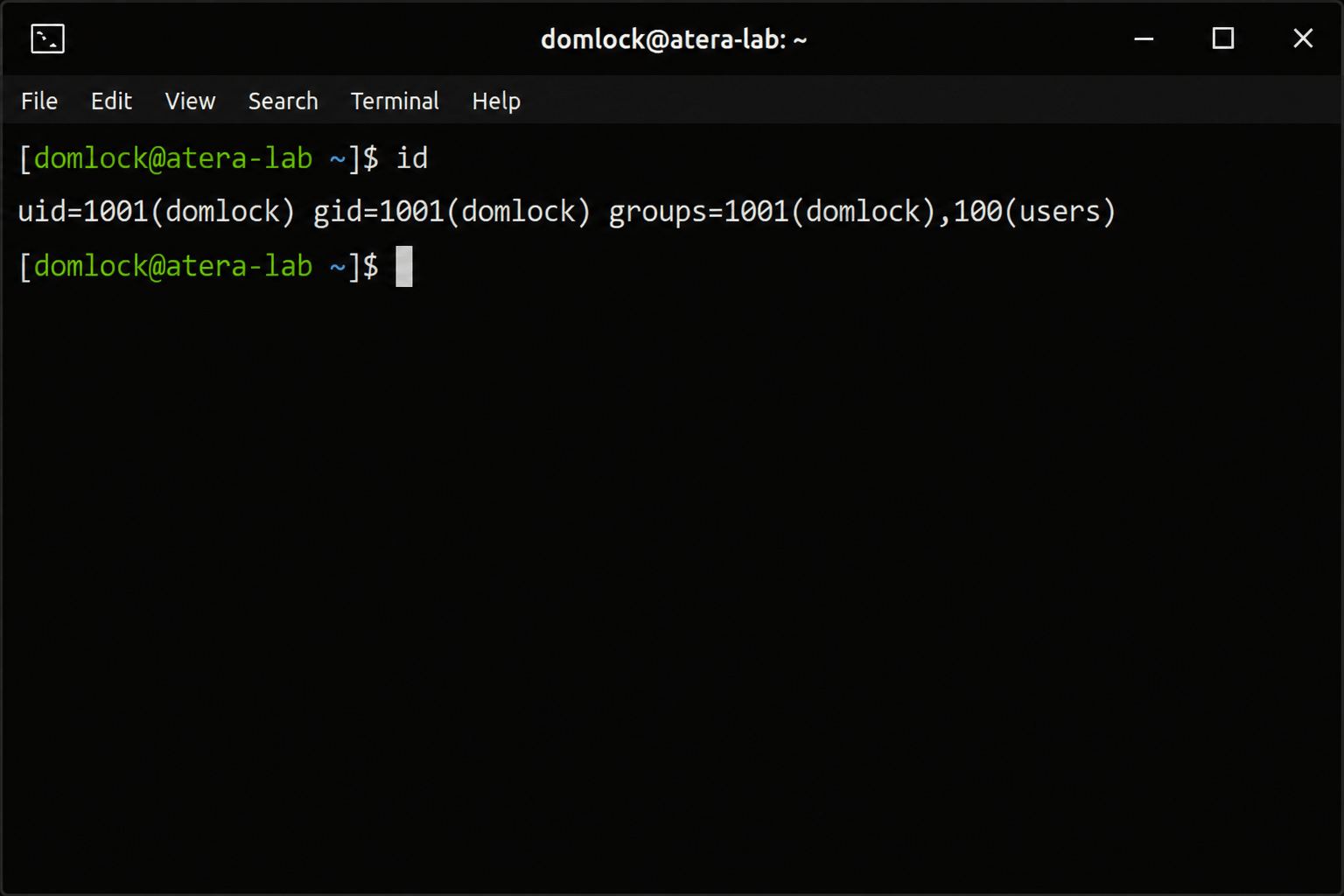
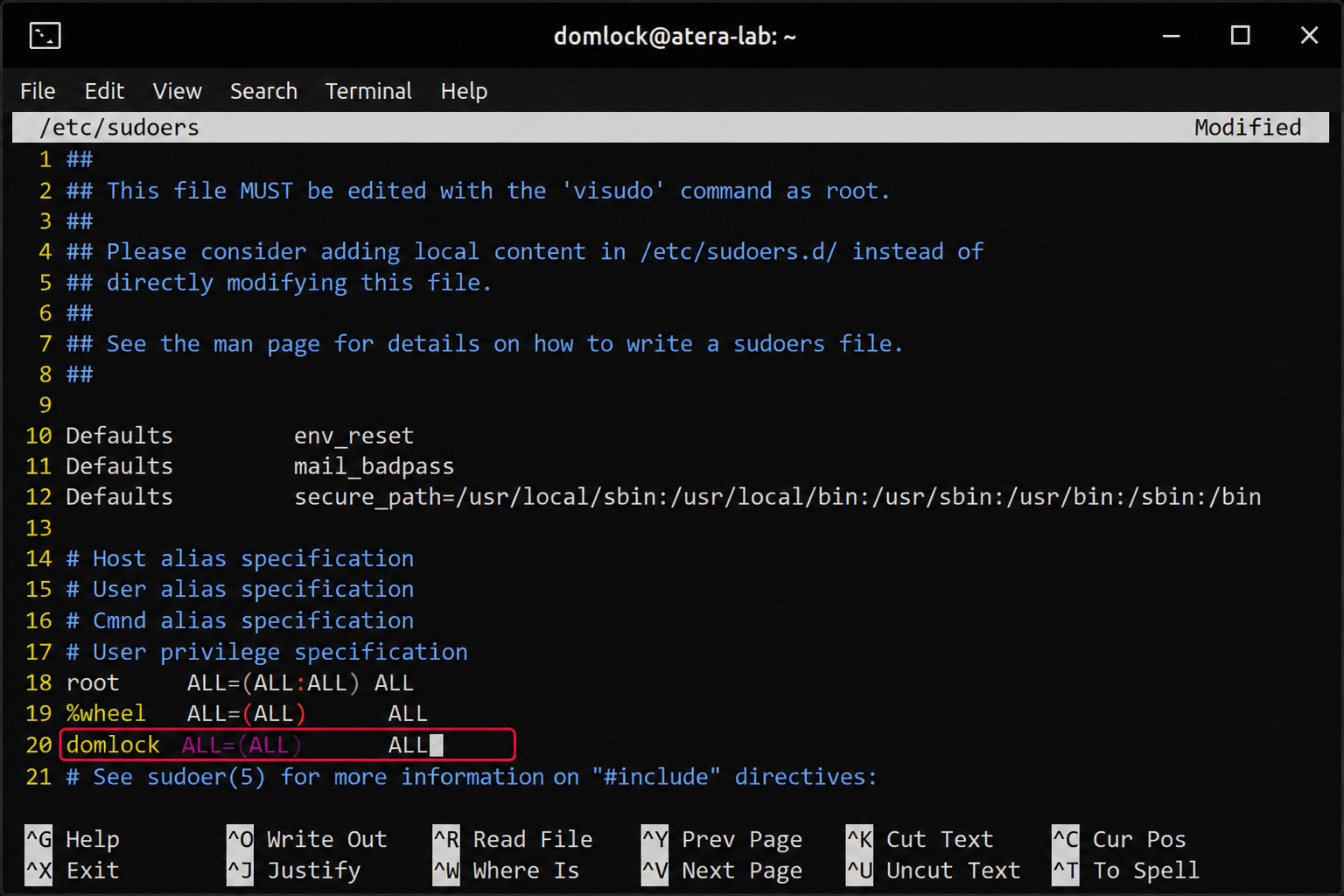
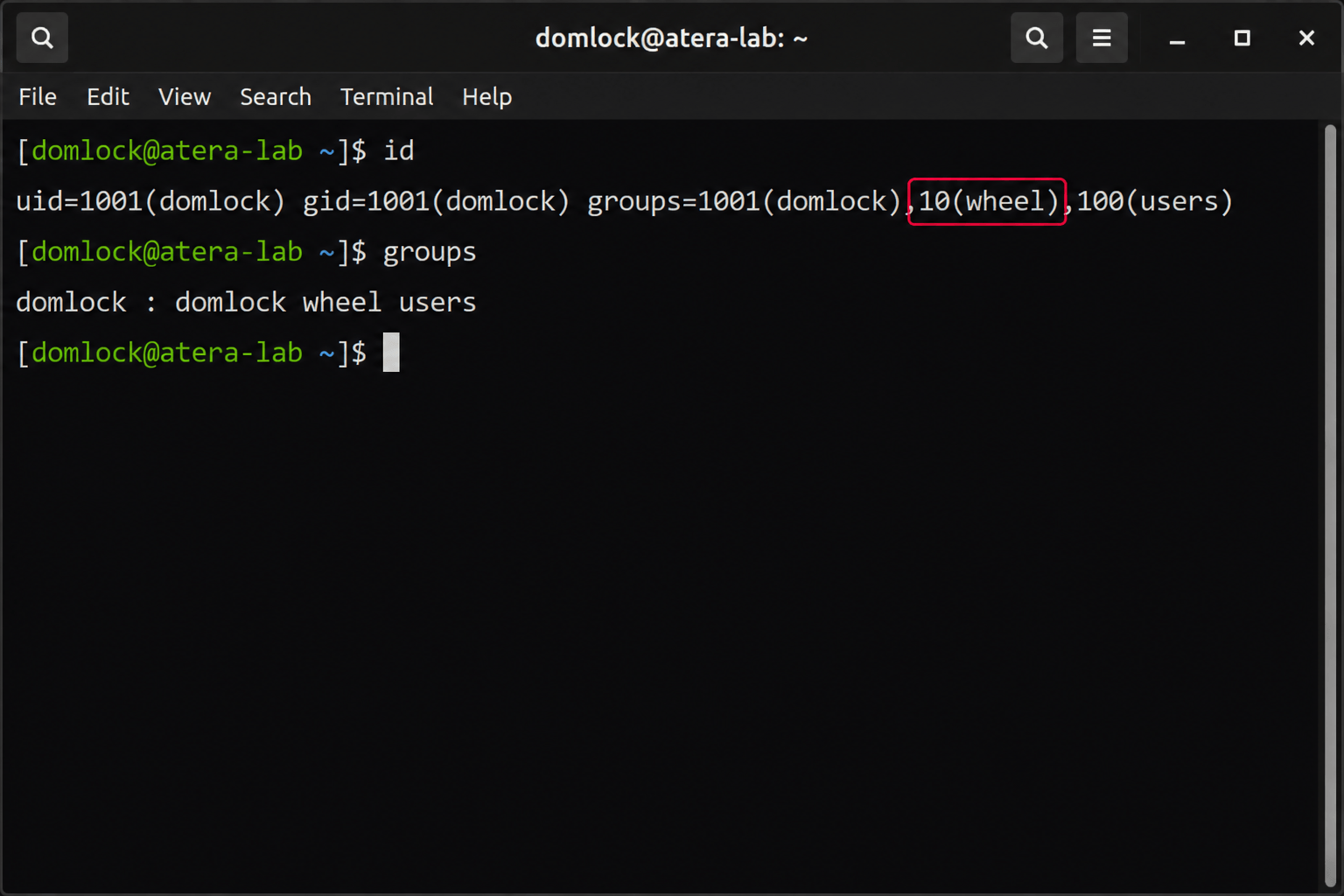
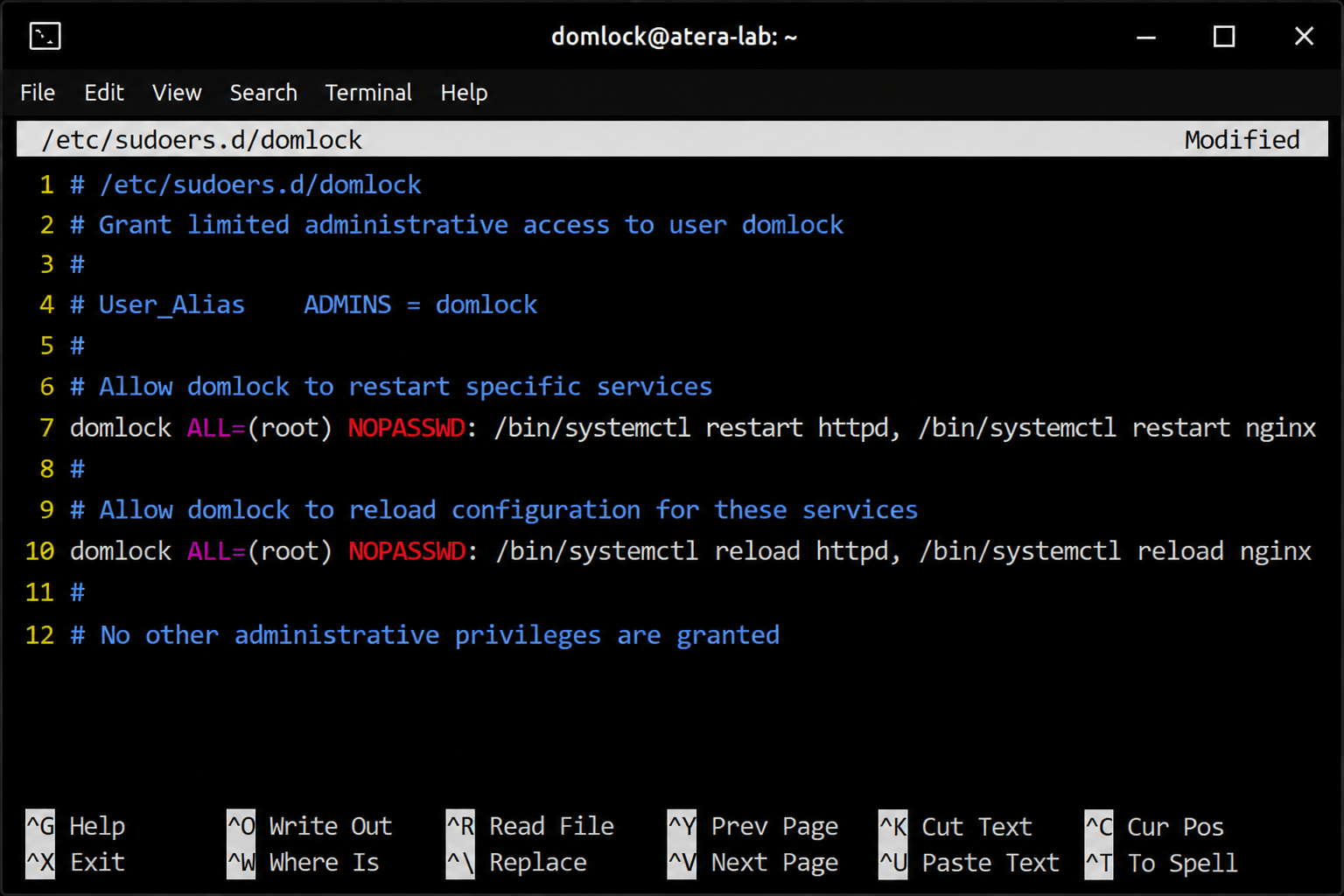
Grant only the commands or administrative rights the account actually needs, following least privilege. In practice, that means step 4’s scoped /etc/sudoers.d/ snippet, not the blanket ALL=(ALL) ALL grant shown in step 3, is the corrected end state for a routine sudo access request.
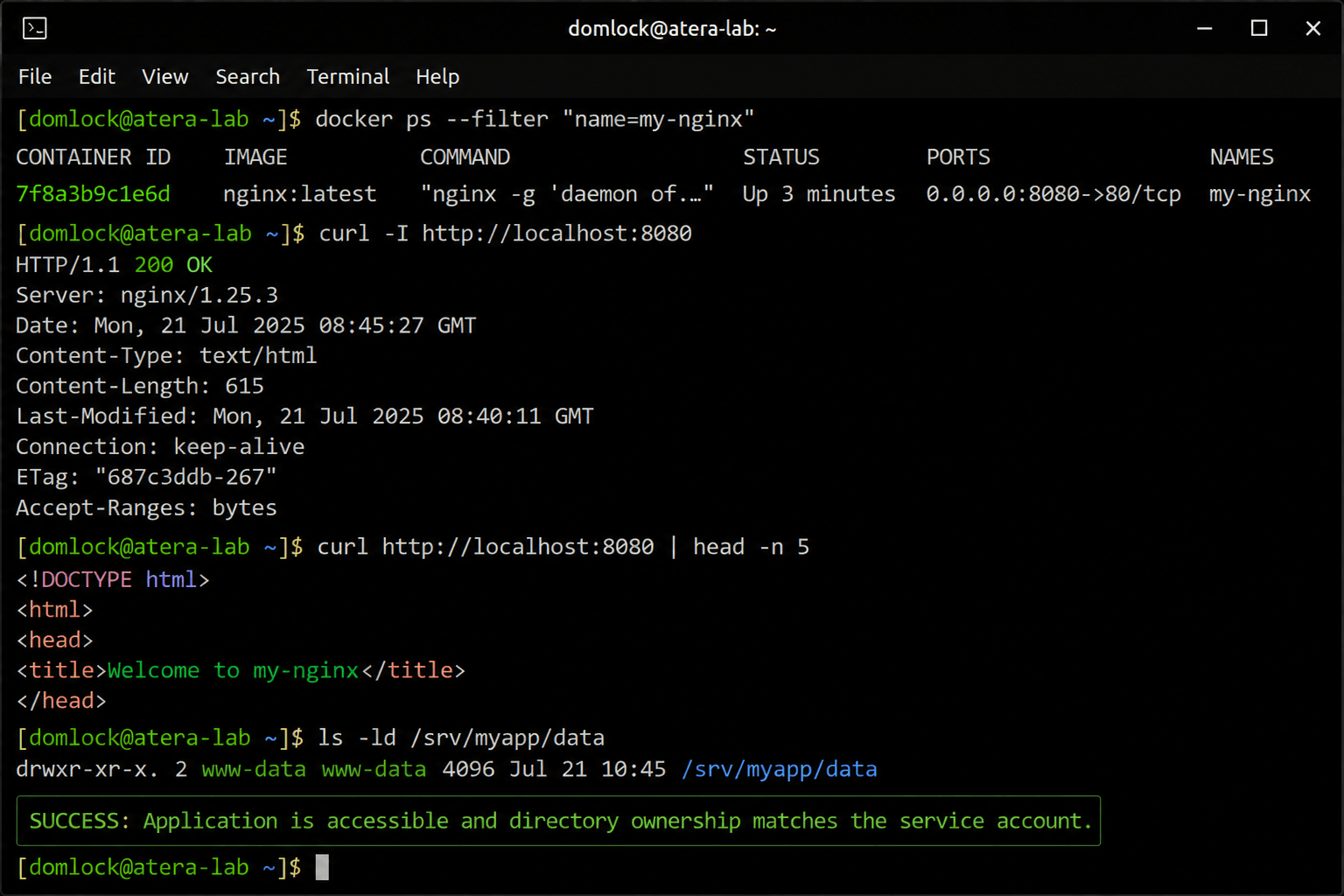
Method 5: Docker and container permission conflicts
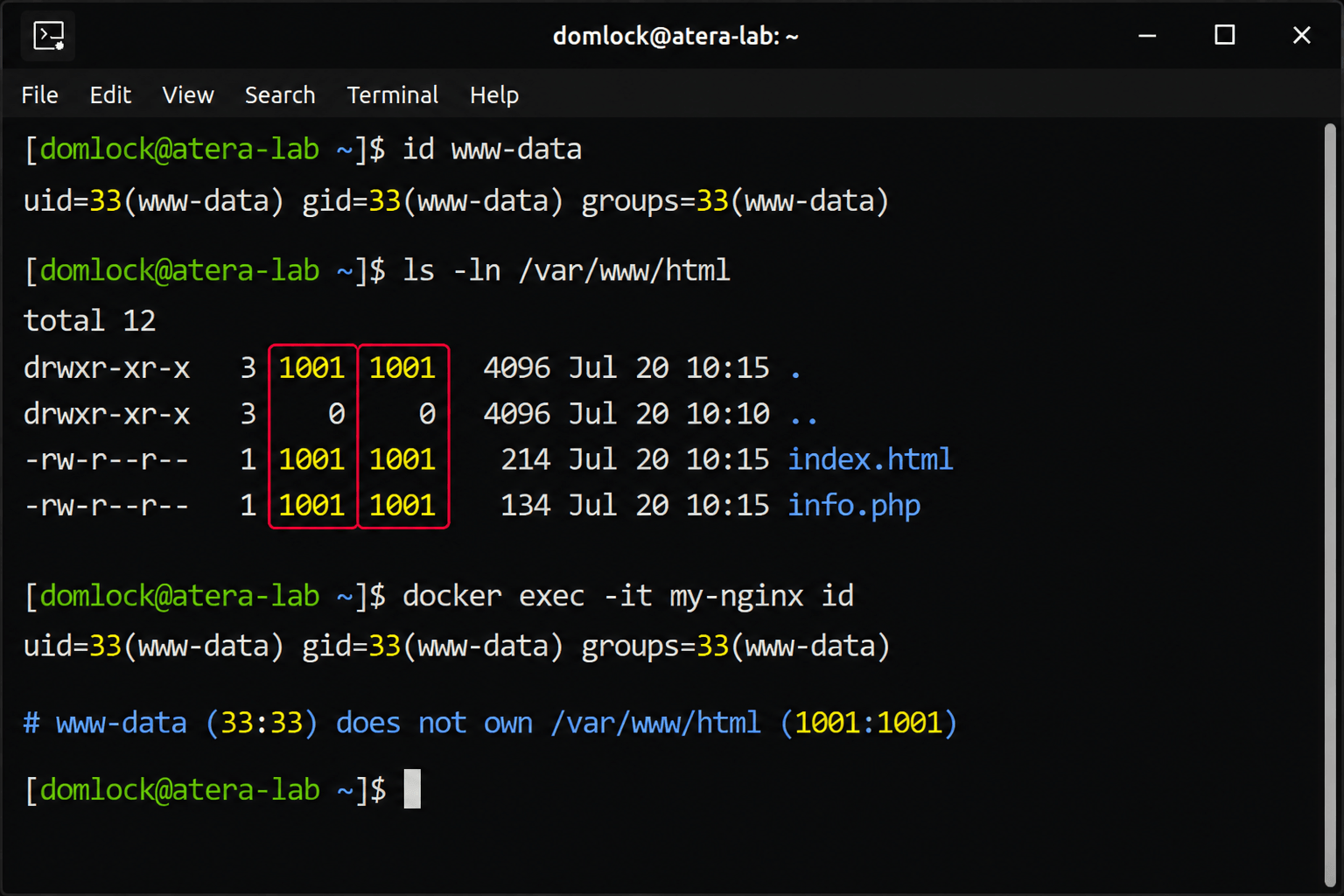
Use this when an application, web server, or container can’t access a bound volume or host directory because it runs as a non-root user.
Identify the container’s runtime user and compare it against the host directory’s ownership
- Correct the mismatch with
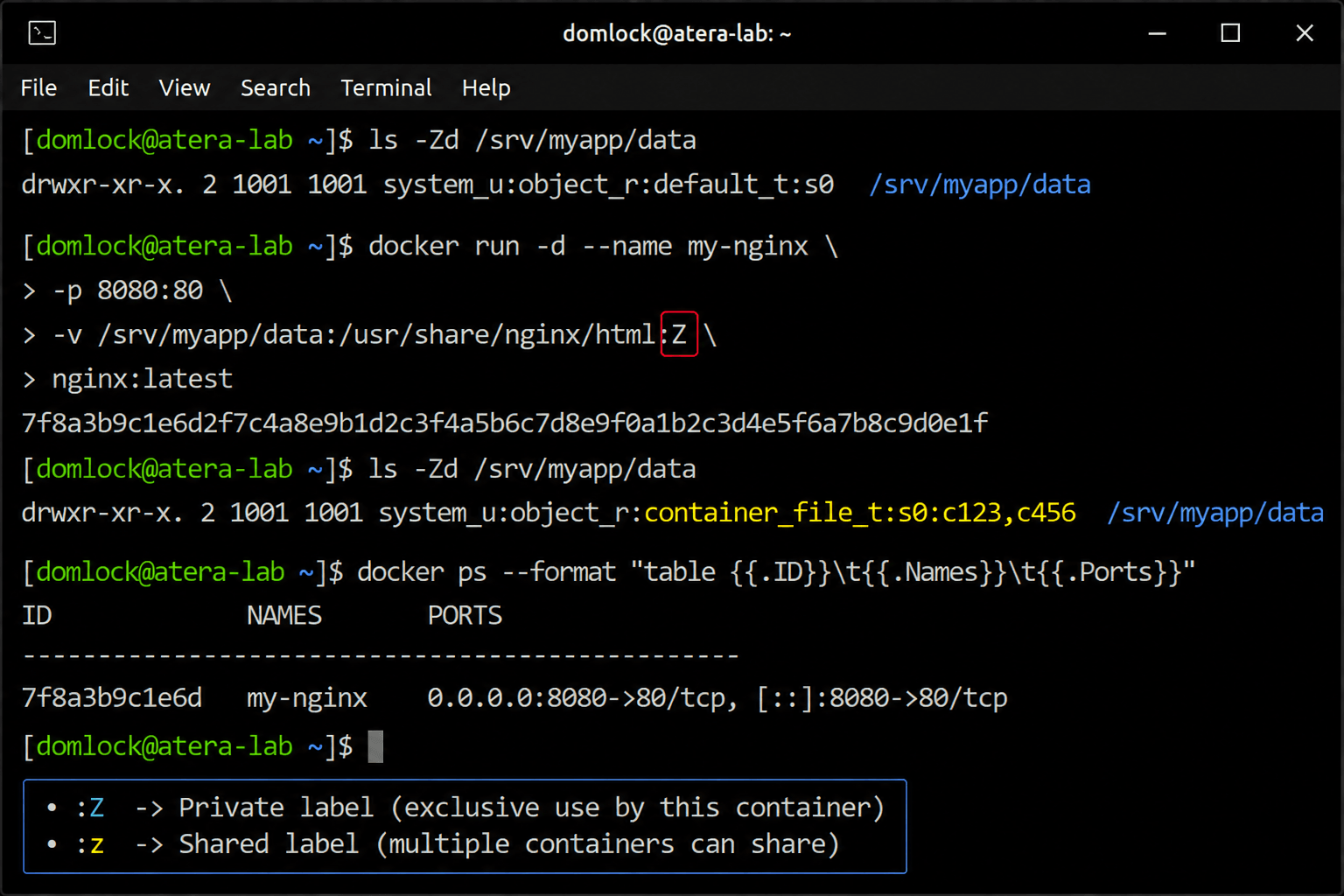
chown, adjust group membership or permissions, or configure the container to run with the expected UID/GID instead of root On SELinux-enabled systems, apply the correct security context to the mount using the
:Z(exclusive to one container) or:z(shared across containers) optionConfirm the fix by checking that the app responds correctly and that ownership now matches
Method 6: NFS and mounted filesystem denials
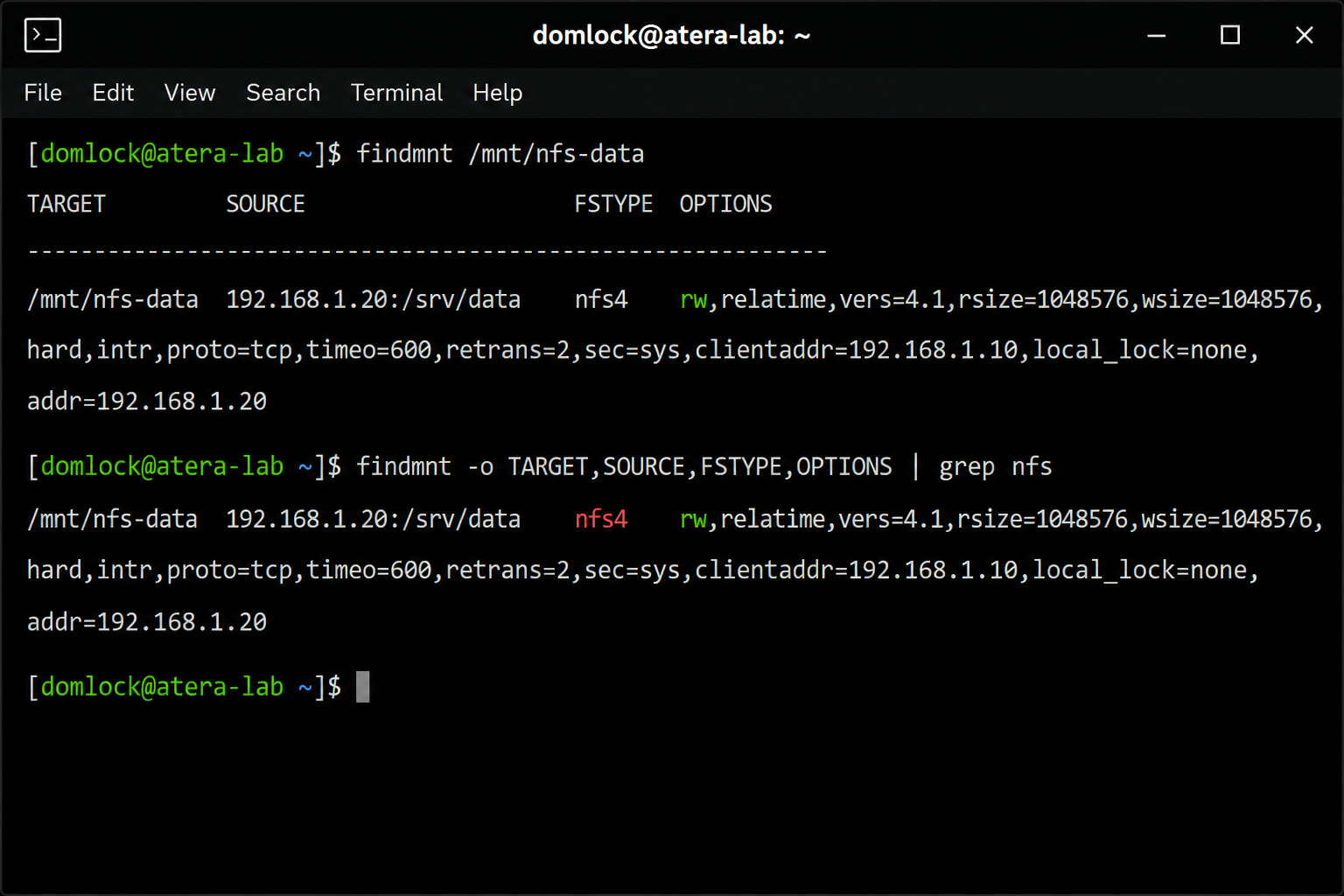
Use this when local ownership and permissions look completely correct but access is still denied.
Check how the filesystem is mounted with
mountorfindmnt, watching for restrictive optionsFor NFS specifically, inspect the server’s export configuration in
/etc/exportsConfirm UID/GID values match between client and server, since NFS authorizes by numeric ID rather than username
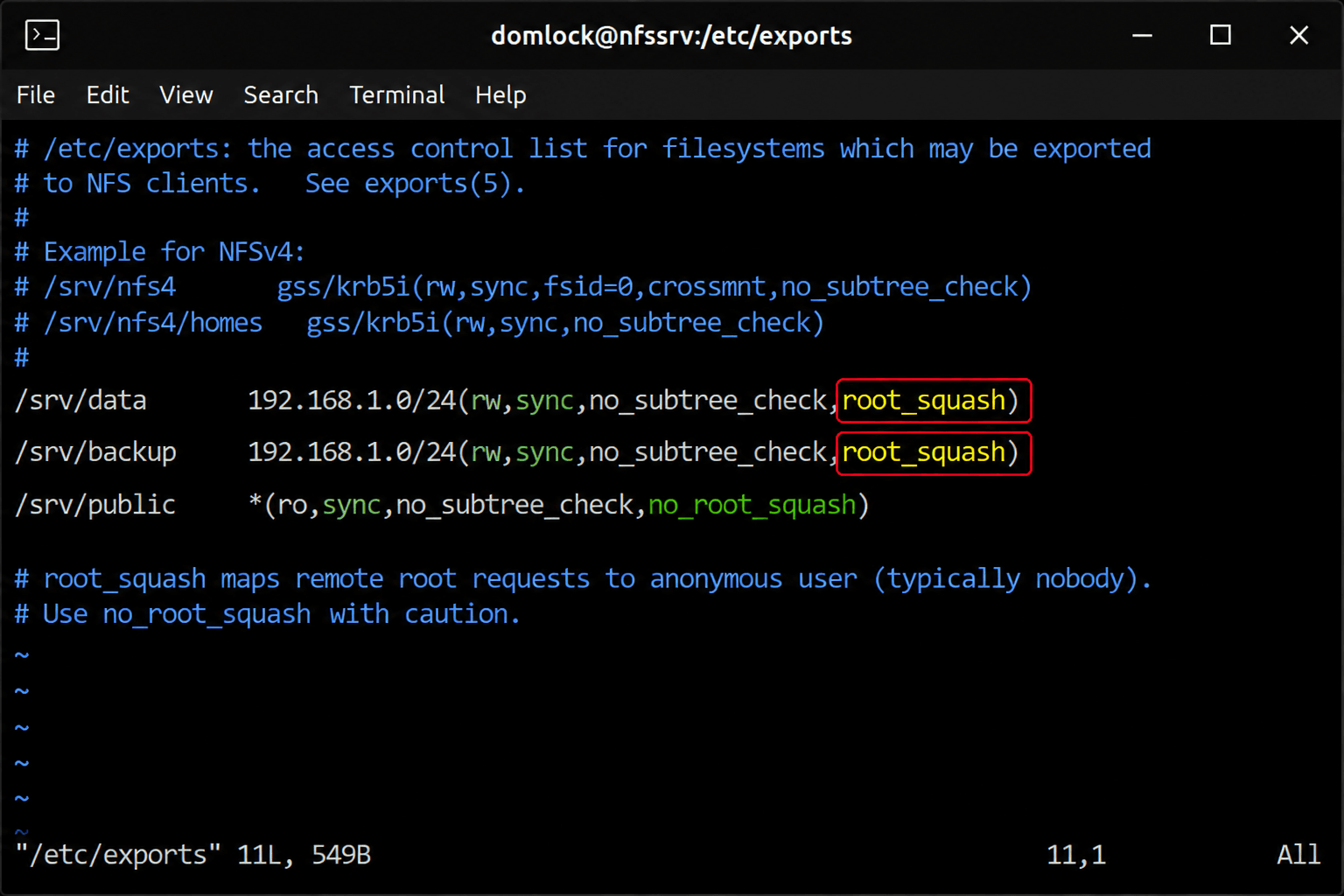
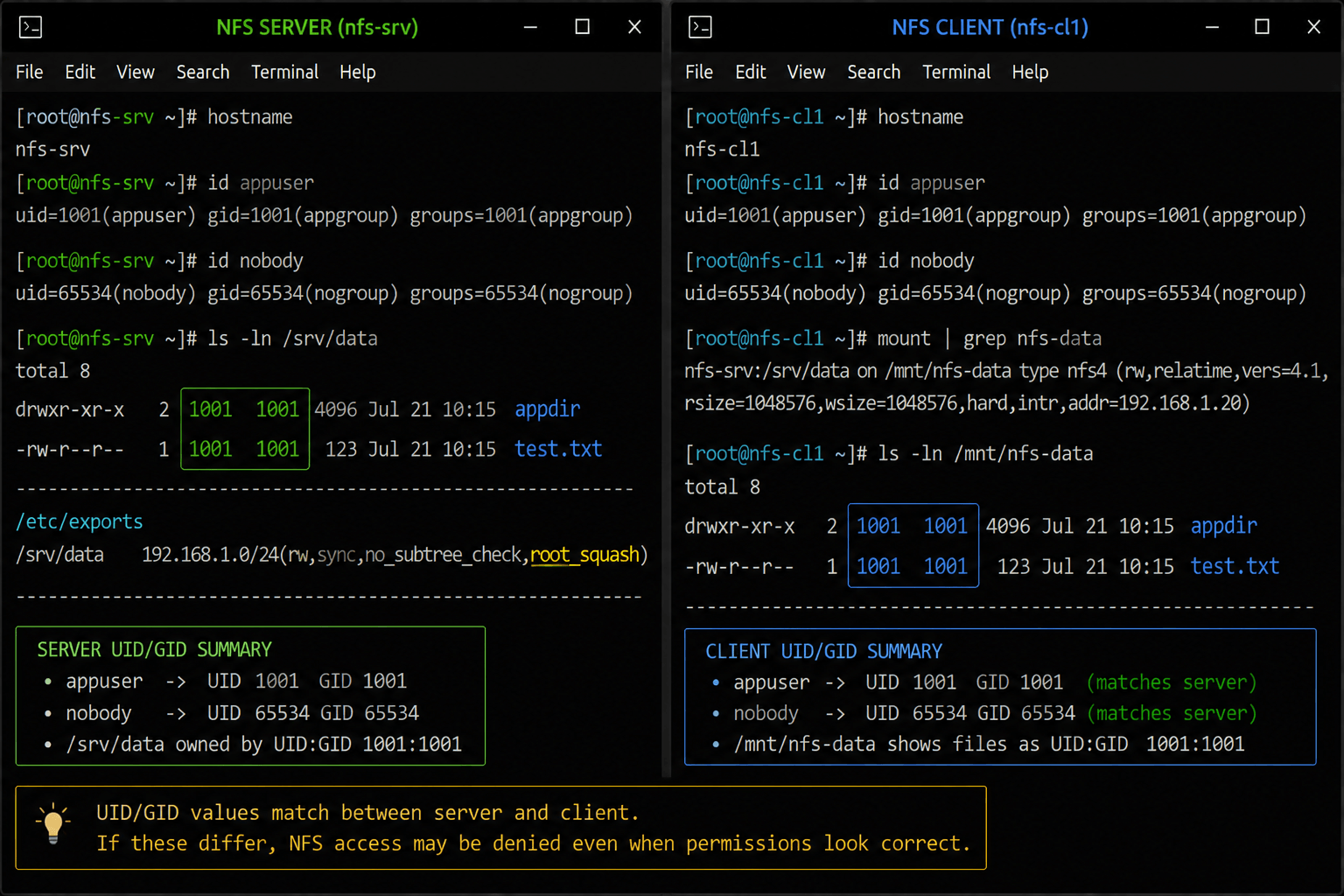
root_squash, all_squash, and host-based export restrictions can all override what looks correct locally, so a mismatch here means the fix belongs on the export configuration, not the client’s chmod values. A privileged write mapped to the anonymous user by root_squash is a common way this surfaces: everything checks out on both systems individually, but the export design is quietly overriding it.
Method 7: Hidden attributes and Mandatory Access Control
Use this when standard rwx permissions look completely fine and access is still denied.
- Check for the immutable attribute with
lsattrand remove it withchattrif present - Check SELinux context and audit logs with
ls -Zandausearch - Check AppArmor status and logs with
aa-statusandjournalctlor syslog
A file can pass every standard permission check and still be blocked because SELinux denies it over a mismatched context, or AppArmor denies an operation because the application’s profile doesn’t permit that path. These systems evaluate policy independently of the permission bits ls -l shows you, which is why this is usually the last layer to check, not the first.
Method 8: Scaling the same diagnostics across a fleet
The same checks that resolve one machine don’t scale well if you’re repeating them server by server. They do by standardizing the baseline and enforcing it. Establish secure baselines for ownership, permissions, service accounts, ACLs, SELinux/AppArmor posture, and mount options, then enforce them with configuration management tools like Ansible, Puppet, or Salt, backed by regular compliance audits to catch permission drift before it causes an outage.
Atera can complement those tools by providing centralized Linux visibility through the Linux Agent, hardware and performance monitoring, alerts, remote terminal access, and remote script deployment and automation. That turns permission drift from something you discover when an application breaks into something you can check for on your own schedule across as many machines as the fleet has.
The real fix for permission denied errors
The fastest way to make a permission error worse is to fix the wrong layer. A chmod change doesn’t touch an SELinux denial, and a chown doesn’t fix a noexec mount. Working through the checks in order (identity, ownership, standard permissions, then ACLs, MAC policy, mount flags, and sudoers) gets you to the actual cause instead of a temporary workaround.
That same discipline is what holds up once you’re not looking at one machine anymore. Atera’s RMM platform gives IT teams and MSPs the remote terminal access and fleet-wide script execution to run those same diagnostic commands across every affected endpoint at once, so permission drift gets caught and corrected with the same precision, whether it’s one server or two hundred.
Related Articles

How to reduce alert fatigue across your IT team
Your technicians aren't ignoring alerts because they're careless. They're ignoring them because most alerts have taught them to. Once the stream stops being trustworthy, real failures slip past with the noise. Fixing it means deciding what deserves an interruption, tuning out transient spikes, collapsing alert storms, and automating the fixes you've run a hundred times.
Read now
How to close the IT skills gap on your team
Course completions don't close skills gaps. Technicians finish the training, then hand the first unfamiliar failure straight back to a senior engineer. Real capability gets built on live tickets, incidents, and maintenance windows, with guidance that fades as competence grows.
Read now
How to calculate cost per ticket (and why most teams get it wrong)
Most cost-per-ticket figures are wrong before anyone reads them. Missing overhead, tickets that were opened but never closed, spam and duplicates padding the count, and one month's costs divided by another month's tickets all make support look cheaper than it is. Fix both sides of the division and the number finally shows where technician time and money actually go.
Read now
How to prepare for a software license audit
A vendor audit notice doesn't wait for you to get organized. It demands proof, right now, that every install matches every entitlement you've paid for, and most IT teams find out the hard way how much they don't actually know about their own environment. Getting audit-ready before the letter arrives is the difference between negotiating from strength and paying for months of scrambling.
Read nowEndless IT possibilities
Boost your productivity with Atera’s intuitive, centralized all-in-one platform









