
Generate summary with AI

Renaming a directory is a task that varies in complexity depending on whether you’re modifying a single folder or a large batch. While a graphical interface is convenient for quick changes, terminal-based commands offer powerful flags to prevent data loss and allow for automation.
This guide explores different methods to rename a directory on Linux, ranging from the basic mv utility to more advanced regular expression tools. It also covers the reasoning behind permission requirements and outlines the exact steps for each method.
What you should know before renaming a directory in Linux
Renaming a directory in Linux may seem easy enough, but doing so without a proper assessment can lead to an unexpected IT problem. Before you execute the command, you must understand the permission requirements and the underlying filesystem behavior to ensure the operation is safe and successful.
The ability to rename a directory depends on your identity and specific bits set on the parent folder.
- Root or sudo: The root user and those with sudo privileges can bypass all standard permission checks to rename any directory.
- Non-root users: For a standard user to succeed, they must have both write and execute permissions on the parent directory. The write bit allows the user to modify the directory entries, while the execute bit is required to access and search the parent path.
- Sticky bit: If the parent directory has the sticky bit set (common in shared folders like
/tmp), a user can only rename directories that they personally own, even if they have write access. - Access Control Lists (ACL) entries: ACL can grant the necessary write and execute bits to specific users or groups regardless of the standard rwx settings. Note that an ACL entry can’t override sticky bit behavior.
Filesystem behavior and operational consequences
The mechanics of a rename operation change significantly based on the location of the source and destination.
- Within the same filesystem: This is a metadata operation where only the directory entry is updated. Because no data is physically moved, the operation is nearly instantaneous regardless of the directory size.
- Across different filesystems: If you rename a directory across different mounted filesystems, Linux must copy the entire data set to the destination and then delete the original.
- Consequences: This is a much slower operation proportional to the amount of data. There’s also a risk window where a system crash could leave you with a corrupted or incomplete directory at the destination.
Safeguards for critical or shared directories
Implementing these safeguards before a rename operation ensures accountability and provides a path for recovery if a service breaks.
- Backup: Perform a full backup to allow for a rollback. Keep this backup on a separate mount or offline so it is not affected by the rename. You can use a command like:
sudo tar -czf /var/backups/dir-$(date +%F).tgz ~/path/to/dir/ - Change management: Log a ticket in your ITSM system. Specify the purpose, the impact, your rollback plan, and the scheduled maintenance window.
- Staging and testing: Clone the directory into a sandbox or use VM snapshots to run the rename first. Automate tests to check for expected file availability and service status after the change.
- Dependency check: Use
lsof +D /path/to/dirto check for open file handles. You should also search for hardcoded paths in configuration files using grep:sudo grep -R /path/to/dir /etc/* /var/* - Permission review: Use
getfacl -R /path/to/dirto verify that only authorized users have access. This prevents accidental privilege escalation or locking out critical services after the name change.
» New to Linux? Learn which Linux command sends messages to network interface
How to rename directories in Linux
Renaming directories in Linux can be done using several methods, from basic terminal commands to pattern-based and scripted approaches.
Method 1: Rename a directory using the mv command
This method is used when you want to rename a folder in Linux directly from the terminal. It’s useful if you’re working with files and need a quick way to change a directory name without moving it. You just need the right permissions.
Follow these steps:
1. Open the terminal, copy and paste the following command into it: mv -nTv SOURCE_DIR DEST_DIR, replace SOURCE_DIR with your current folder name and DEST_DIR with the new name, then press Enter:
2. This command includes built-in safety options:
-nstops the command from overwriting an existing folder-i(optional) asks you before overwriting-Ttreats the destination as a new name, not a location-vshows what happened after the command runs

Method 2 : Rename a directory using the rename command
This method is used when you want more control over how names are changed, especially if you’re working with patterns. It’s preferred over mv when you need consistent or pattern-based renaming (for example, changing parts of names using rules). Most modern Linux systems use the Perl-based version, often called prename. If it’s not installed, you can install it using your system’s package manager (Debian/Ubuntu, Fedora/RHEL, or Arch).
Follow these steps
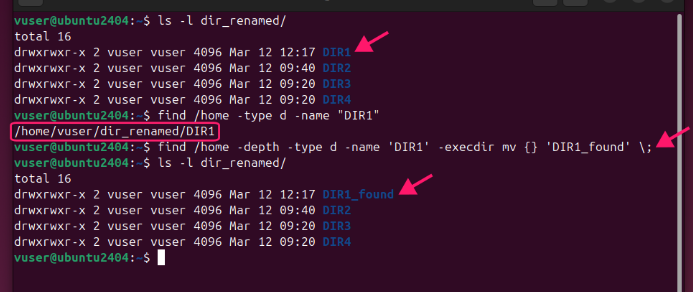
1. To rename a specific directory without knowing the exact location run find START_PATH -depth -type d -name 'old_name' -execdir mv {} 'new_name' \;
-depth– ensures the directory is processed after traversal (find can generate an error when the directory is modified during traversal)START_PATH– where to start the search (. for current directory)-type d– look for directories only- -name ‘old_name’ – directory name to find
execdir mv {} 'new_name' \;– run mv on result (runs the command inside the parent)
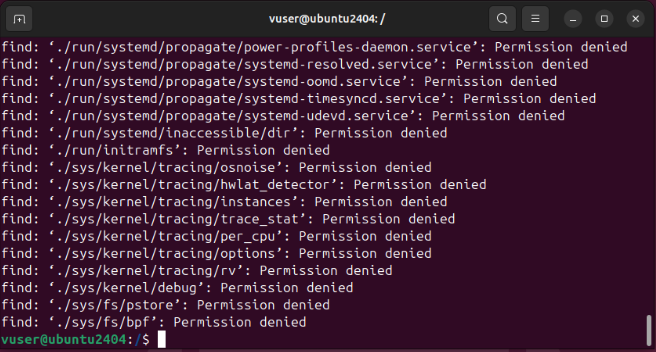
Take note: If your user doesn’t have the necessary execute (or sudo) permissions for the paths you’re searching you’ll get a Permission denied error.
» Here’s how to check your Linux version
Method 3: Rename a directory using a Graphical File Manager
GUI-based file managers are intuitive and easy to use, often including undo support (Ctrl + Z), which makes them safer for simple tasks. They’re ideal for quick, single-directory edits and users who prefer a visual approach. In managed enterprise IT environments, these tools are typically used for smaller, manual changes rather than large-scale updates.
Follow these steps
1. Open your file manager (such as GNOME Files or KDE Dolphin)
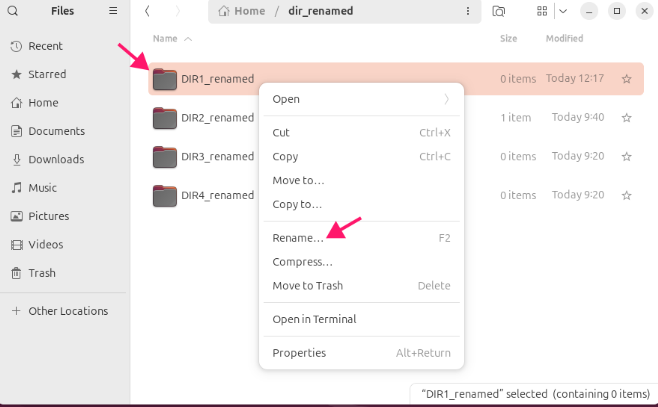
2. Navigate to the folder where your directory is located, right-click on the directory and select Rename (or click it once and press F2)
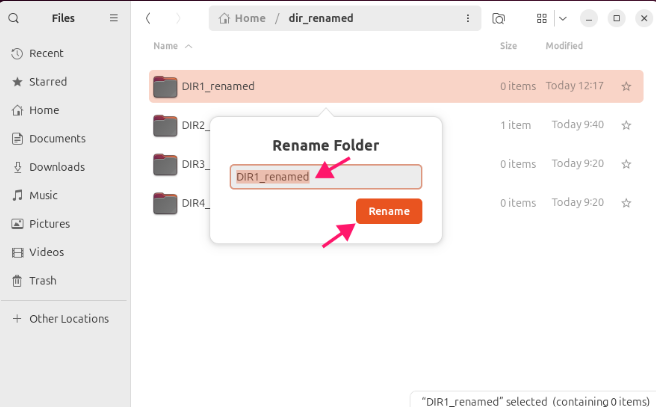
3. Type the new name, then press Enter or click confirm
Method 4: Use a Bash script
Bulk renaming is used when multiple directories need to be updated at once using patterns. This is useful for system admins or developers managing large file structures. Creating a script is the most customizable way to rename folders. This specific script includes a “dry run” feature, so you don’t accidentally break your file structure.
1. Create the script file by typing nano rename_script.sh in your terminal

2. Copy and paste the script code into the editor window. Ensure you include the “shebang” (#!/usr/bin/env bash) at the very top so Linux knows how to run it
The Script:
Atera does not guarantee the integrity, availability, security, virus-free, safety, lawfulness, non-infringement, rights’ status, or functionality of the scripts. The use of the shared scripts is at your own risk. Scripts are provided “AS IS”. *
#!/usr/bin/env bash

# ./rename_script.sh OLD_PATTERN NEW_PATTERN PATH --apply

OLD_PATTERN="$1"
NEW_PATTERN="$2"
PATH_TO_SCAN="${3:-.}"
APPLY="$4"

if [[ -z "$OLD_PATTERN" || -z "$NEW_PATTERN" ]]; then
    echo "Syntax: $0 OLD_PATTERN_PREFIX NEW_PATTERN_PREFIX [PATH] [--apply]"
    exit 1
fi

for dir in "$PATH_TO_SCAN"/"$OLD_PATTERN"*; do
    [[ -d "$dir" ]] || continue

    base=$(basename "$dir")
    suffix="${base#$OLD_PATTERN}"
    NEW_PATTERNname="$PATH_TO_SCAN/${NEW_PATTERN}${suffix}"

    if [[ -e "$NEW_PATTERNname" ]]; then
        echo "Skipping: $dir -> $NEW_PATTERNname (already exists)"
        continue
    fi

    if [[ "$APPLY" == "--apply" ]]; then
        mv -v "$dir" "$NEW_PATTERNname"
    else
        echo "[TEST only] mv \"$dir\" \"$NEW_PATTERNname\""
    fi
done
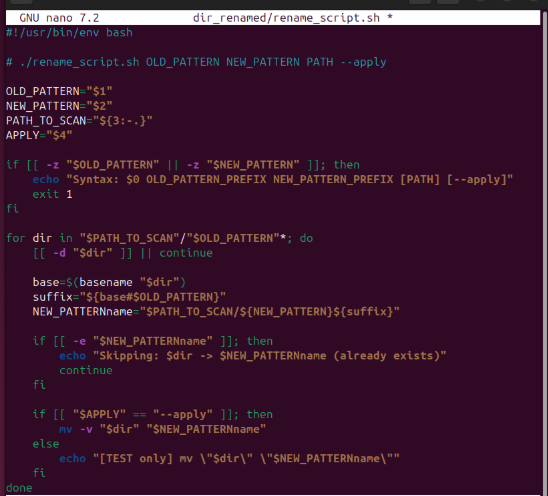
3. Make the script executable by running the command chmod +x rename_script.sh
4. Run the script without the apply flag first: ./rename_script.sh folder dir_ . This allows you to see what would happen without actually changing your files

5. Finalize the rename by adding the --apply flag at the end: ./rename_script.sh old_name new_name . --apply

» Here are essential scripts that every IT professional needs to know
How to reverse a directory rename
Reversing a directory rename is possible as long as you still know the original and new directory names and have the required permissions. In most cases, the change can be undone by simply renaming the directory back to its original name using the same method you used initially.
The main limitation is that any services or applications relying on the original path may break until they are updated.
Method 1: Swap script arguments
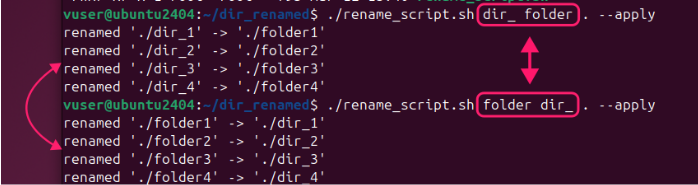
If you used the Bash script from earlier, you can reverse the process by simply switching the “Old” and “New” pattern arguments in your command.
Follow these steps:
1. Identify your current folder names. Use ls -l to see the current names (e.g., dir_1)

2. Run the script in reverse. Put the current name pattern first and the original name pattern second. Command: ./rename_script.sh dir_ folder . --apply
Method 2: Fix the broken services
Sometimes renaming a folder (like a web root) breaks a background service. Even if you update the configuration files, services often cache the old paths and need a manual refresh.
Follow these steps to fix it:
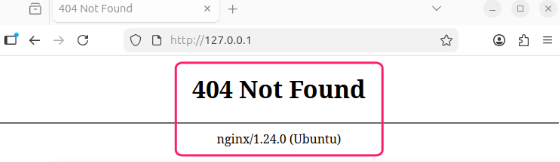
1. Identify the error. If you rename your web folder (e.g., html to html_renamed), your website will likely show a 404 Not Found error, as shown in the image below
2. Update the service configuration. Use the nano text editor to open the default Nginx site configuration. Run this command: sudo nano /etc/nginx/sites-enabled/default
3. Once the file is open, look for the line that starts with root. It usually looks like this: root /var/www/html;. Change it to match your new folder name: root /var/www/html_renamed;

4. For the changes to take effect, you must restart the daemon. Run: sudo systemctl restart nginx

» Here’s how to increase IT efficiency in your organization
Manage Linux directories with Atera
Mastering directory management across a vast network can quickly become a complicated task. While the manual commands and safety checks mentioned above are effective for individual machines, professional environments require a more streamlined approach. This is where Atera’s Linux RMM platform becomes essential.
By using Atera, you can push these renaming scripts and directory audits to all your Linux endpoints simultaneously from a single dashboard. Instead of manually checking permissions or searching for hardcoded paths on every individual server, Atera provides the centralized visibility needed to maintain order. Furthermore, Atera’s AI Copilot helps you quickly refine your Bash scripts for specific naming conventions, ensuring your directory structures remain consistent and secure across the entire fleet.
Frequently Asked Questions
Related Articles

How to audit AI agent activity
The script ran, exit code 0, but nobody can say why the agent chose it. Standard logs prove an AI agent acted, but accountability needs the whole chain, including the request, the context it drew on, the approval, the action, and the verified outcome. Without that chain, an audit is guesswork after the damage is done.
Read now
How to decide if you need a dedicated DEX platform, or already have one
"IT feels slow" is the complaint that often sells DEX platforms. Sometimes it signals a real blind spot, but just as often already catches and fixes the problem, and a new scoring layer would only add another console. Telling the two apart takes evidence, and the real gap usually isn't visibility at all.
Read now
How to set up secure printing across your organization
A secure print checkbox protects exactly one moment in a document's life. Everything else, from unencrypted traffic and unhardened devices to payroll printouts forgotten in a tray, stays exposed. Real secure printing covers the whole lifecycle: release policy, authentication, encryption, hardening, and a fleet that stays monitored long after rollout.
Read now
How to reduce alert fatigue in healthcare IT
In a hospital, a dismissed alert isn't a delayed ticket. It can be a patient deteriorating while the monitor keeps sounding. Cutting alert volume won't fix that on its own, and switching alerts off can make it worse.
Read nowEndless IT possibilities
Boost your productivity with Atera’s intuitive, centralized all-in-one platform







