
Generate summary with AI

Every technician doing pre-upgrade triage ends up running into the same wall. Some machines sail through Windows 11 eligibility and others get flagged for reasons that aren’t always obvious from a spec sheet alone. And it’s not a small edge case either; some estimates believe roughly 400 million active PCs are unable to officially upgrade to Windows 11 because their hardware fails its TPM 2.0, Secure Boot, or supported-processor requirements.
Cross-referencing every device against Microsoft’s baseline manually, then double-checking the approved CPU list on top of that, doesn’t scale past a handful of machines. Microsoft’s PC Health Check app exists to collapse that process into a single check, and knowing how to run it properly, and what to do with what it tells you, is the difference between a clean pre-upgrade assessment and a pile of surprises on go-live day.
» Here’s how to fix that TPM device not detected error and enable/disable secure boot
What the PC Health Check app does and why it beats manual checks
The PC Health Check app runs a single, focused job where it checks a Windows 10 device against Microsoft’s Windows 11 minimum system requirements and tells you whether the upgrade path is open. No more, no less. It doesn’t optimize the OS, doesn’t fix compatibility gaps on its own, and doesn’t touch anything outside the eligibility question.
So why is it better to download a separate tool than just check your PC specs manually?
Because checking each part can be confusing and time-consuming. Microsoft’s minimum requirements list looks straightforward on paper, but there’s a second layer most manual checks miss. For example, the CPU has to be on Microsoft’s approved processor list, not just meet baseline clock speed and core count. A chip or motherboard chipset can technically satisfy every published spec and still fail eligibility because it isn’t on that list. Cross-referencing a device against both the published specs and the approved CPU list by hand means keeping two references open and reconciling them yourself, for every machine. It could take 5 – 10 minutes on one machine, now imagine hundreds or thousands.
The app does it all for you, giving you a clear pass or fail along with the specific reason behind a fail, so you’re not left guessing whether it was RAM, storage, TPM, or the processor that’s holding the machine back.
The app also surfaces compatibility safeguard holds. If Microsoft has detected an issue that would disrupt the Windows 11 experience on a given device, it can place a temporary hold on the upgrade offer, independent of whether the hardware technically qualifies. You can’t get that information through a manual spec comparison.
» Can’t figure out what’s wrong with a PC? Here’s how to run a PC diagnostics report
The steps to run the PC Health Check app
The steps show you the full sequence, from installing the app through troubleshooting a stale result on a single endpoint through the GUI and how to do it remotely across a fleet of devices. Use whichever half applies to the job in front of you.
Step 1: Install the app
On a single endpoint, downloading and installing PC Health Check directly is the right call when you’re assessing one device on its own, without a management platform in the loop:
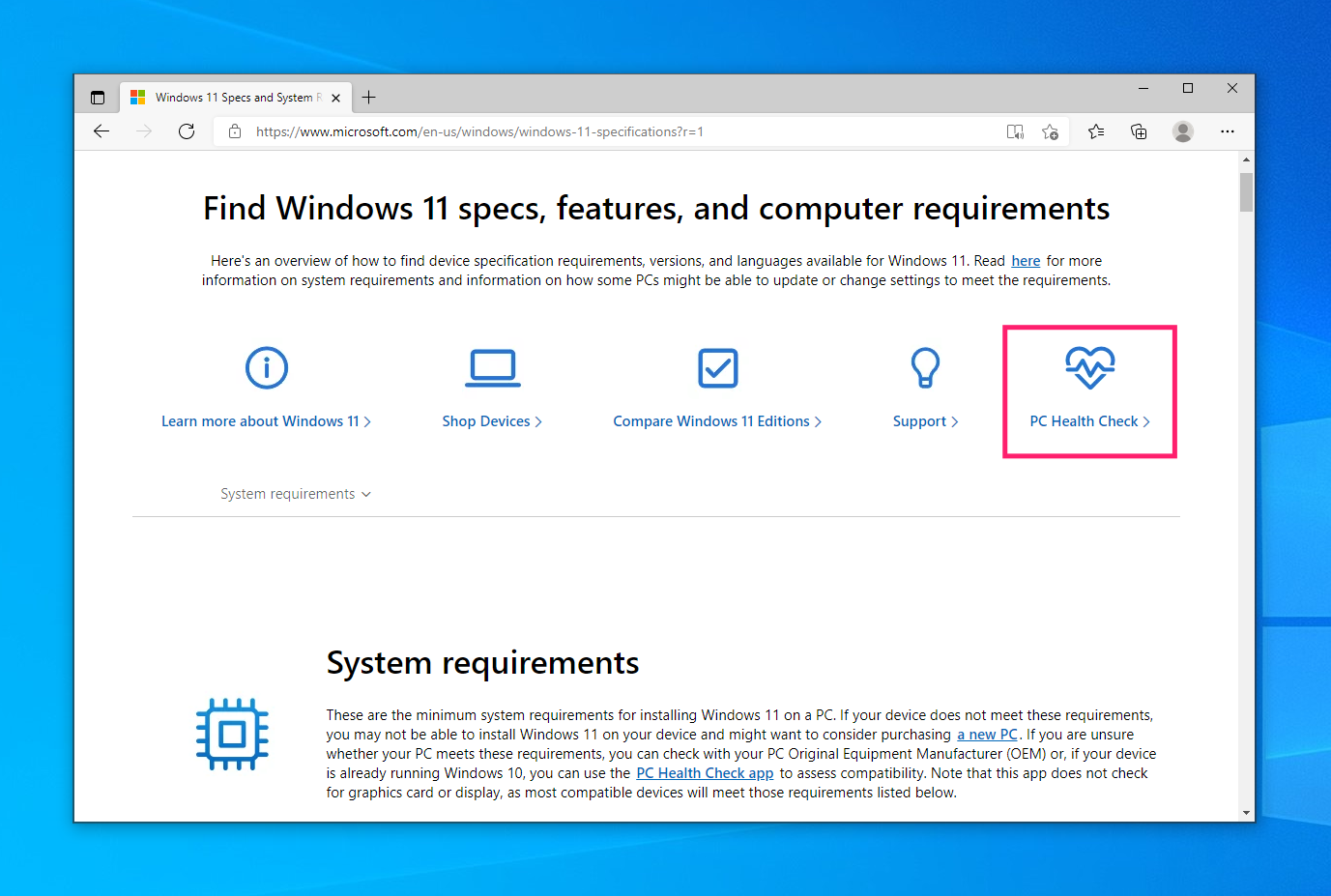
Go to the Windows 11 specifications page and select PC Health Check, or use the direct download link from Microsoft’s official documentation

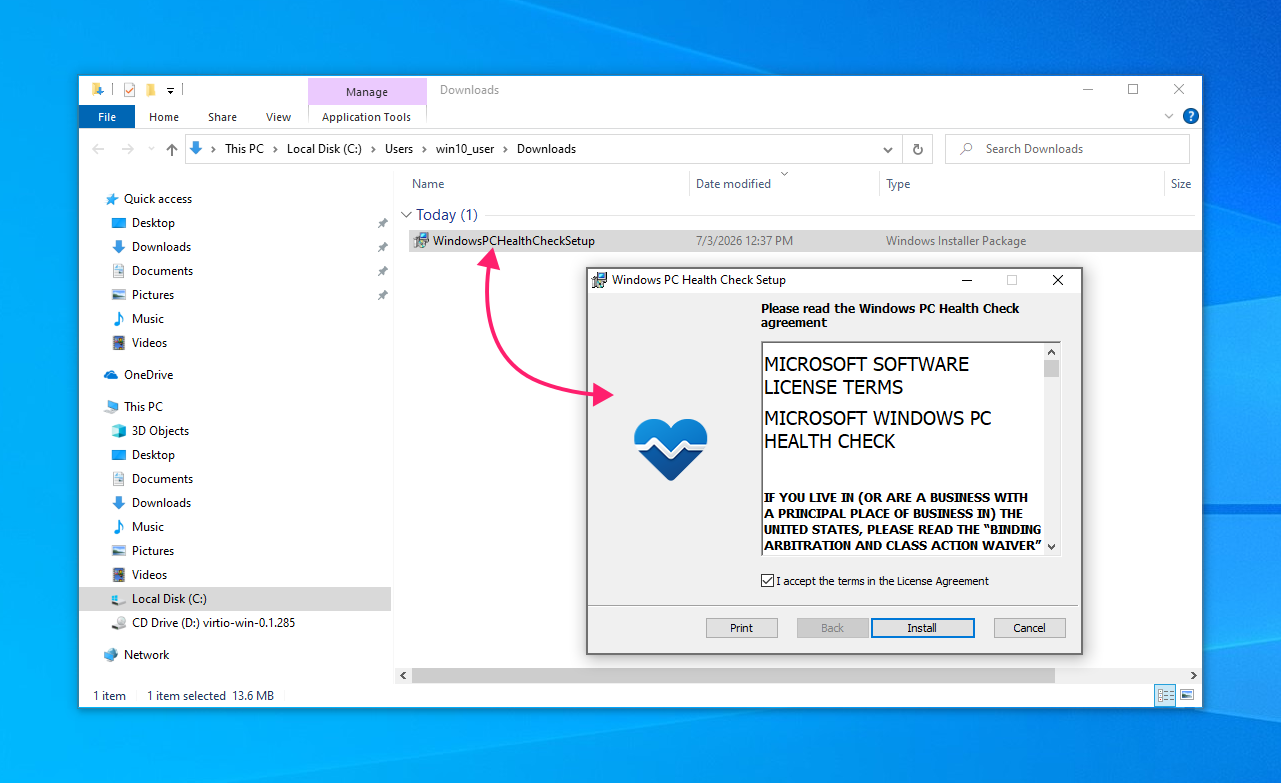
Double-click the downloaded WindowsPCHealthCheckSetup file to start the install process

- Accept the terms in the License Agreement and click Install
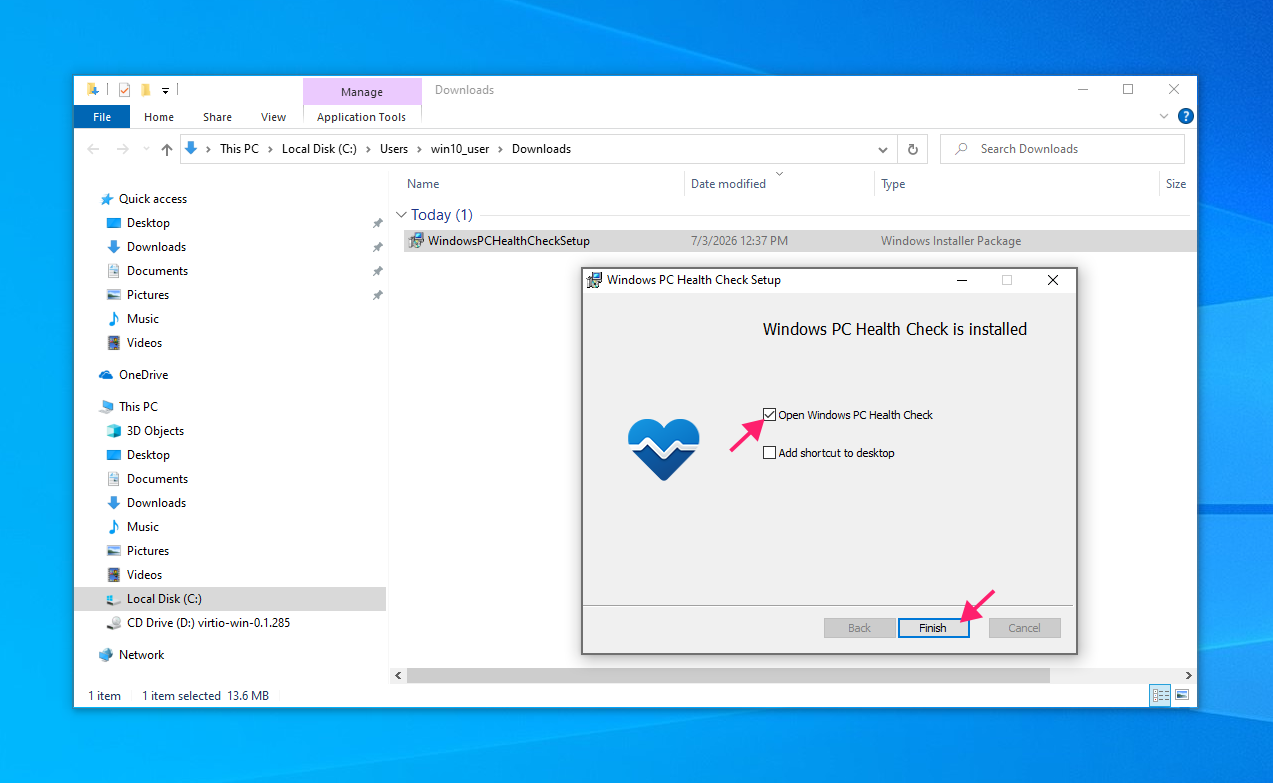
- Check Open Windows PC Health Check if you want the app to launch automatically, or leave it unchecked and add a desktop shortcut instead
Click Finish to complete the install

At scale, Atera’s software deployment tools let you push updates, install applications remotely, and monitor endpoints all from a centralized dashboard. That means a few clicks can install the app on every PC on your network without you having to physically see any of them.
Step 2: Run a PC Health Check
Running the check through the GUI is the fastest path when you’re sitting at the device or remoted into it for a one-off assessment:
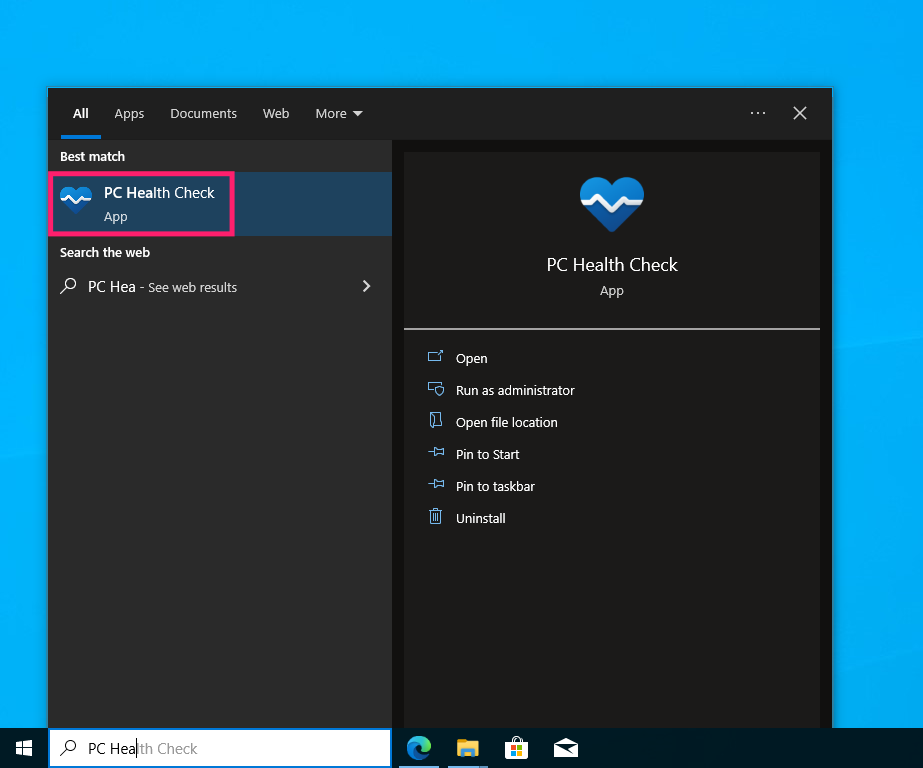
Open the app from the Start menu or by double-clicking the desktop shortcut

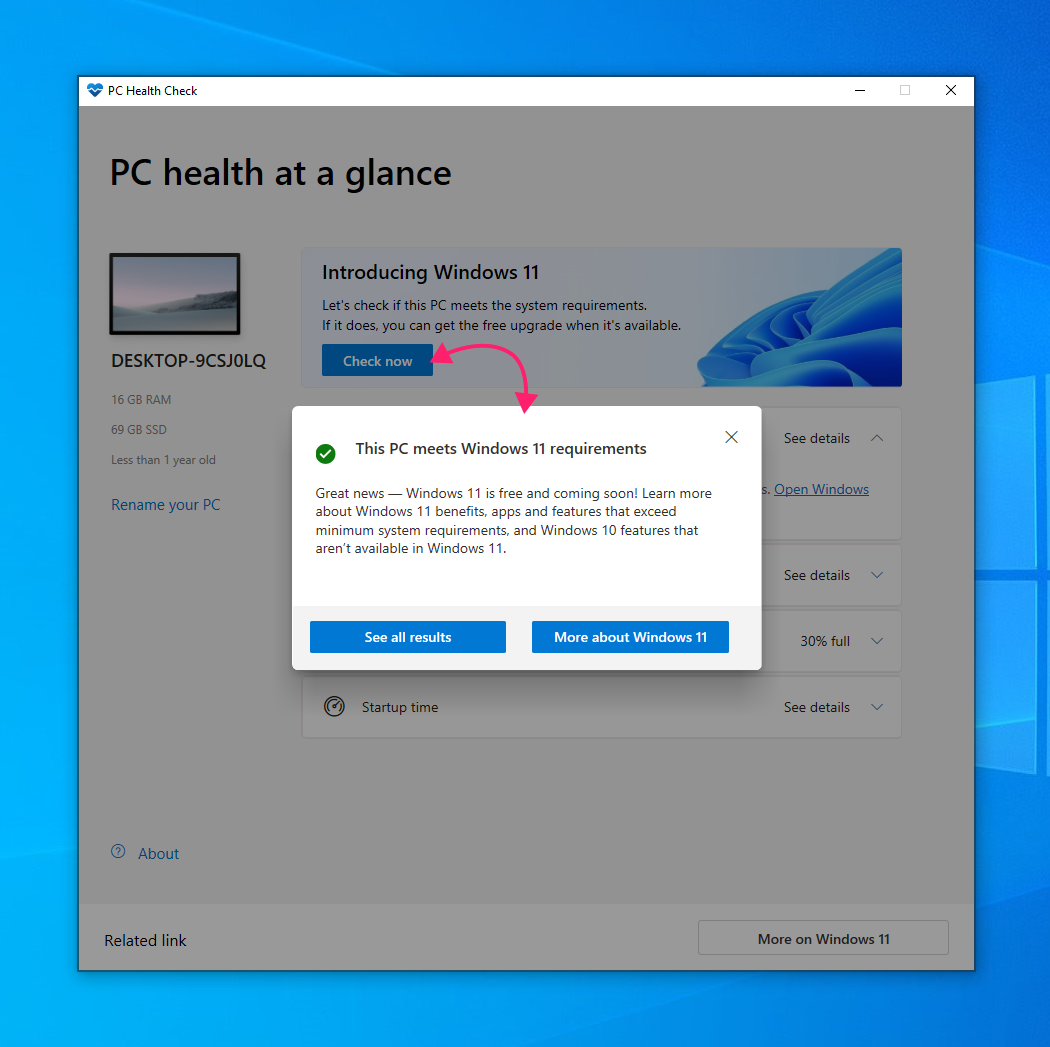
Click Check now to run the eligibility scan

- Review the result. A pass shows This PC meets Windows 11 requirements
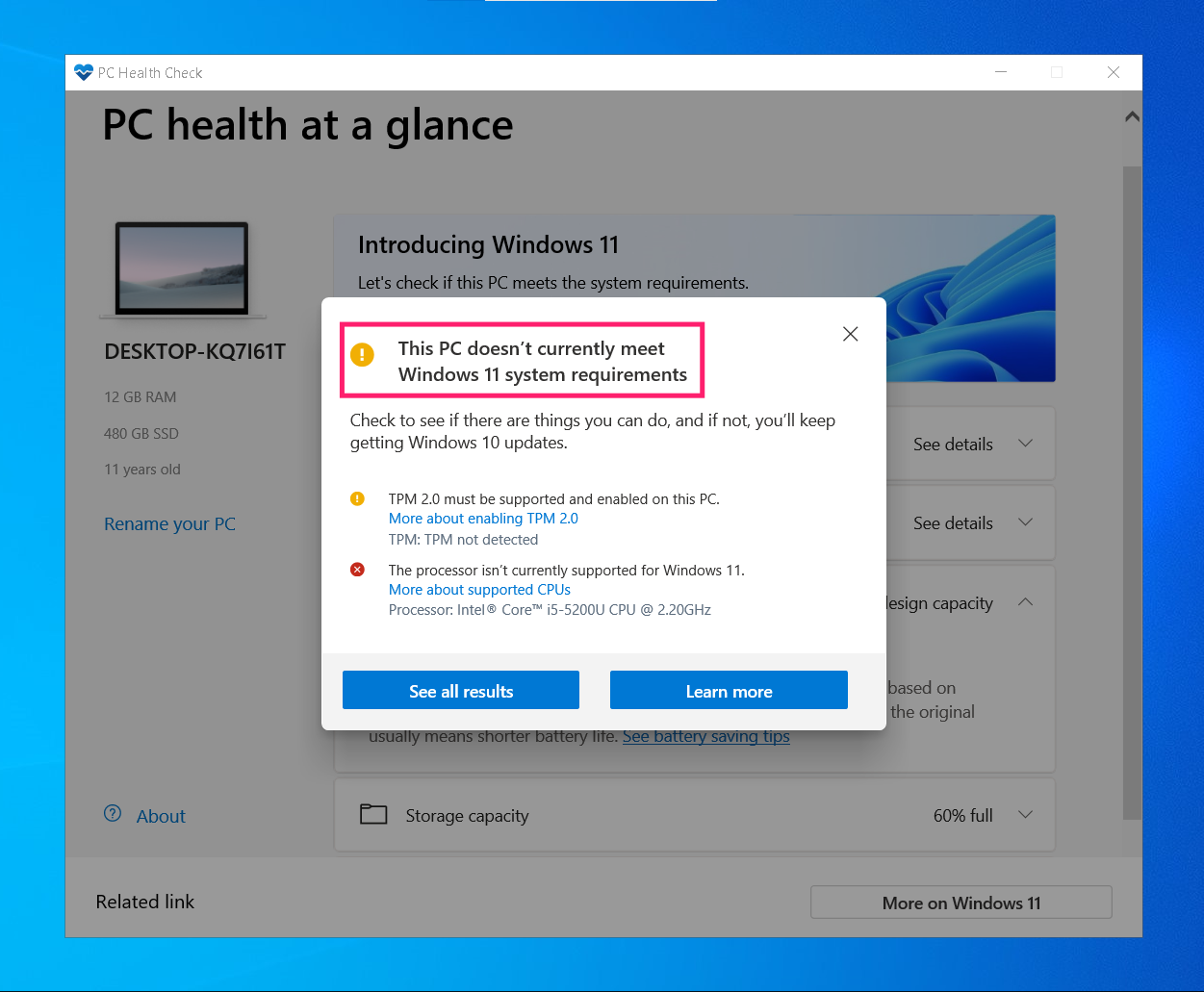
A fail lists the specific blocking factor, such as an unsupported processor or missing TPM 2.0

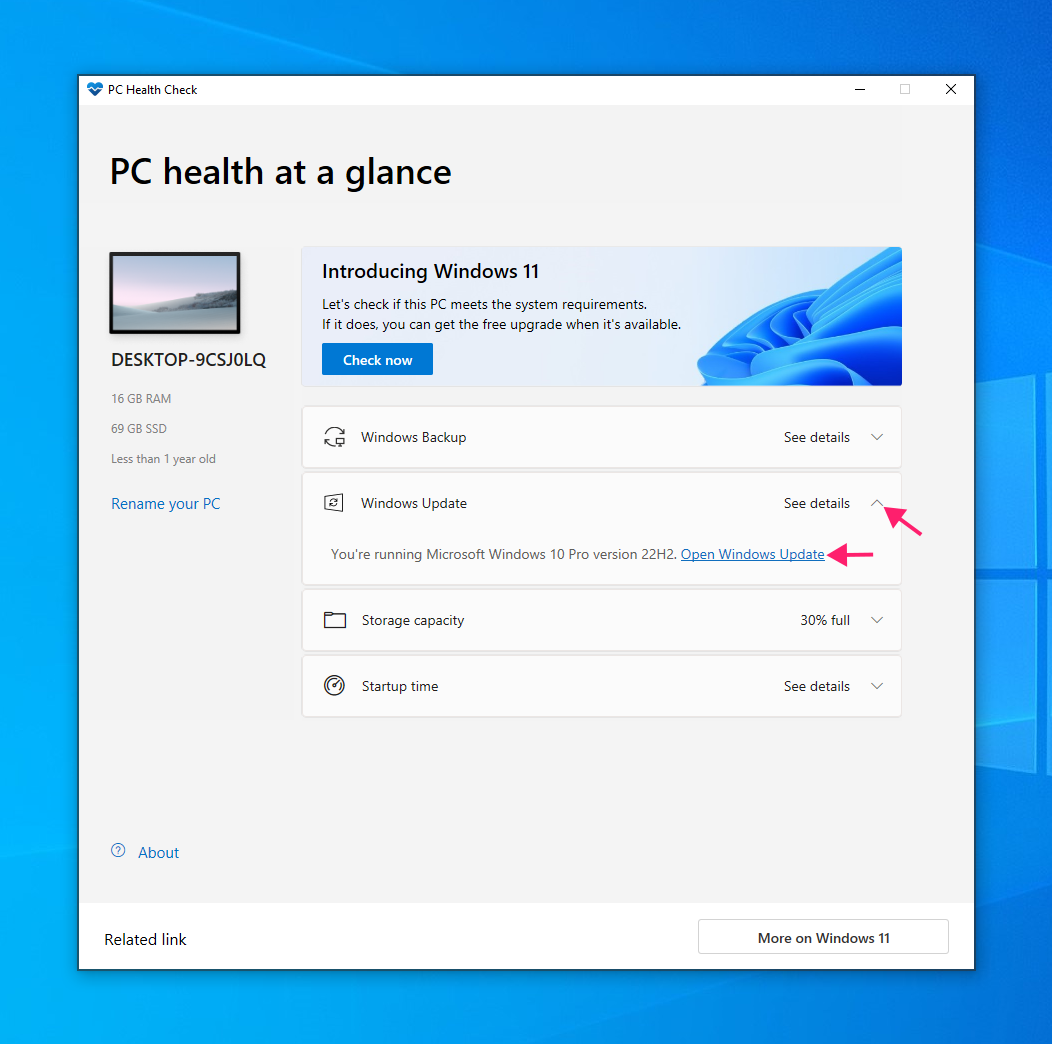
With the PC Health Check app open, click the Windows Update section

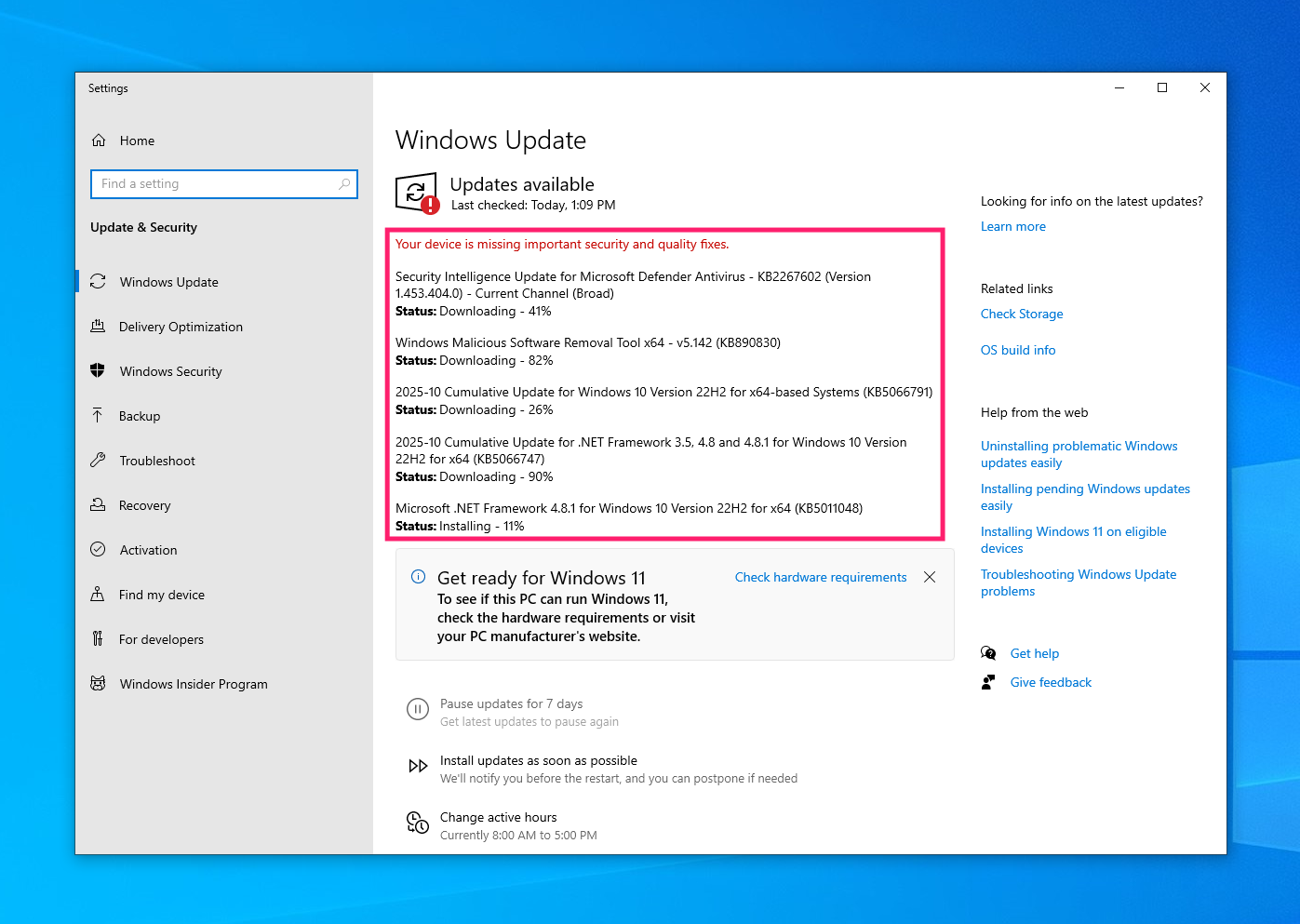
Click on the Open Windows Update link to open the corresponding Windows Update window and check if you have any pending updates

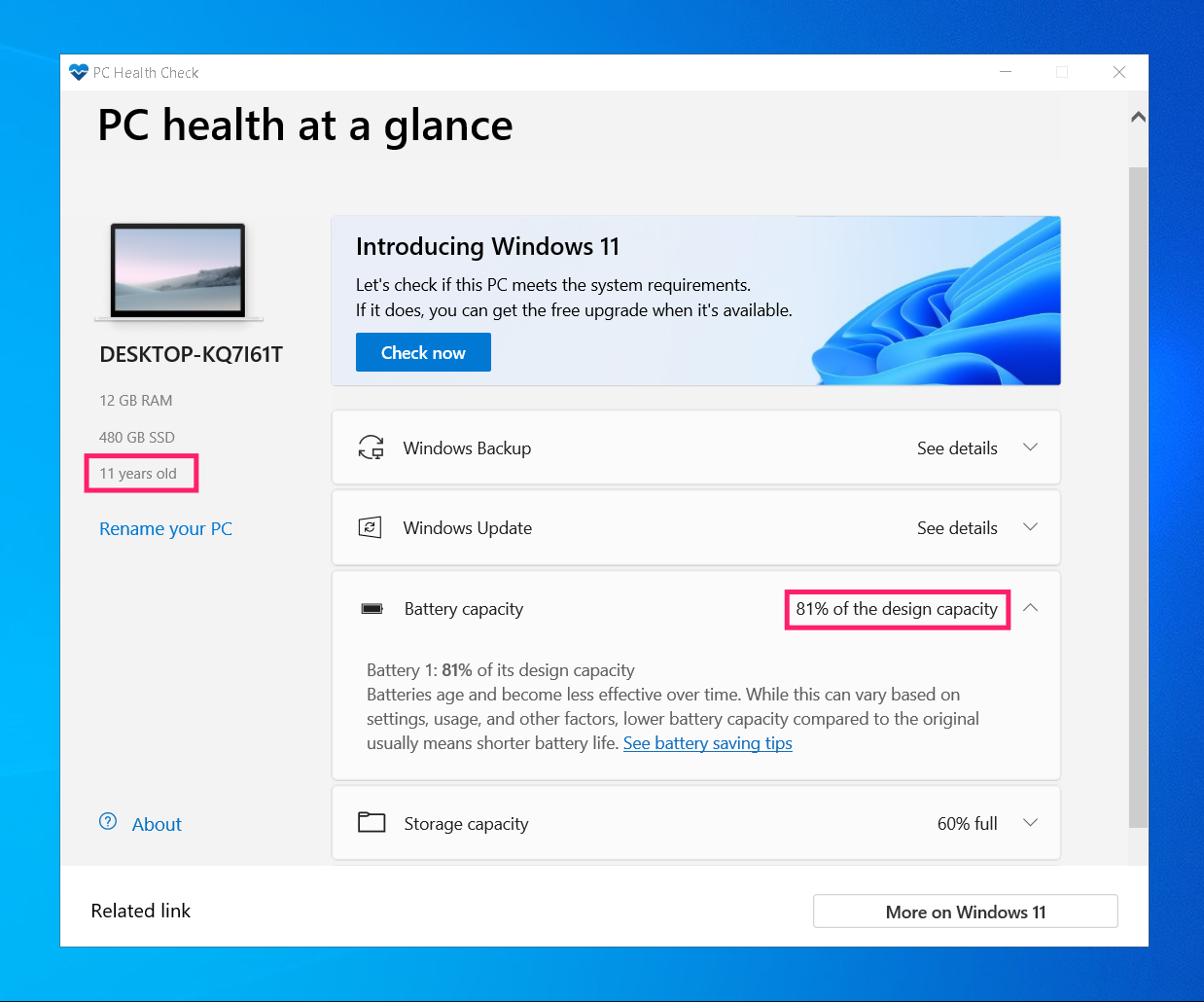
With the app open, check the Battery capacity section, which lists current capacity against design capacity for devices older than three years

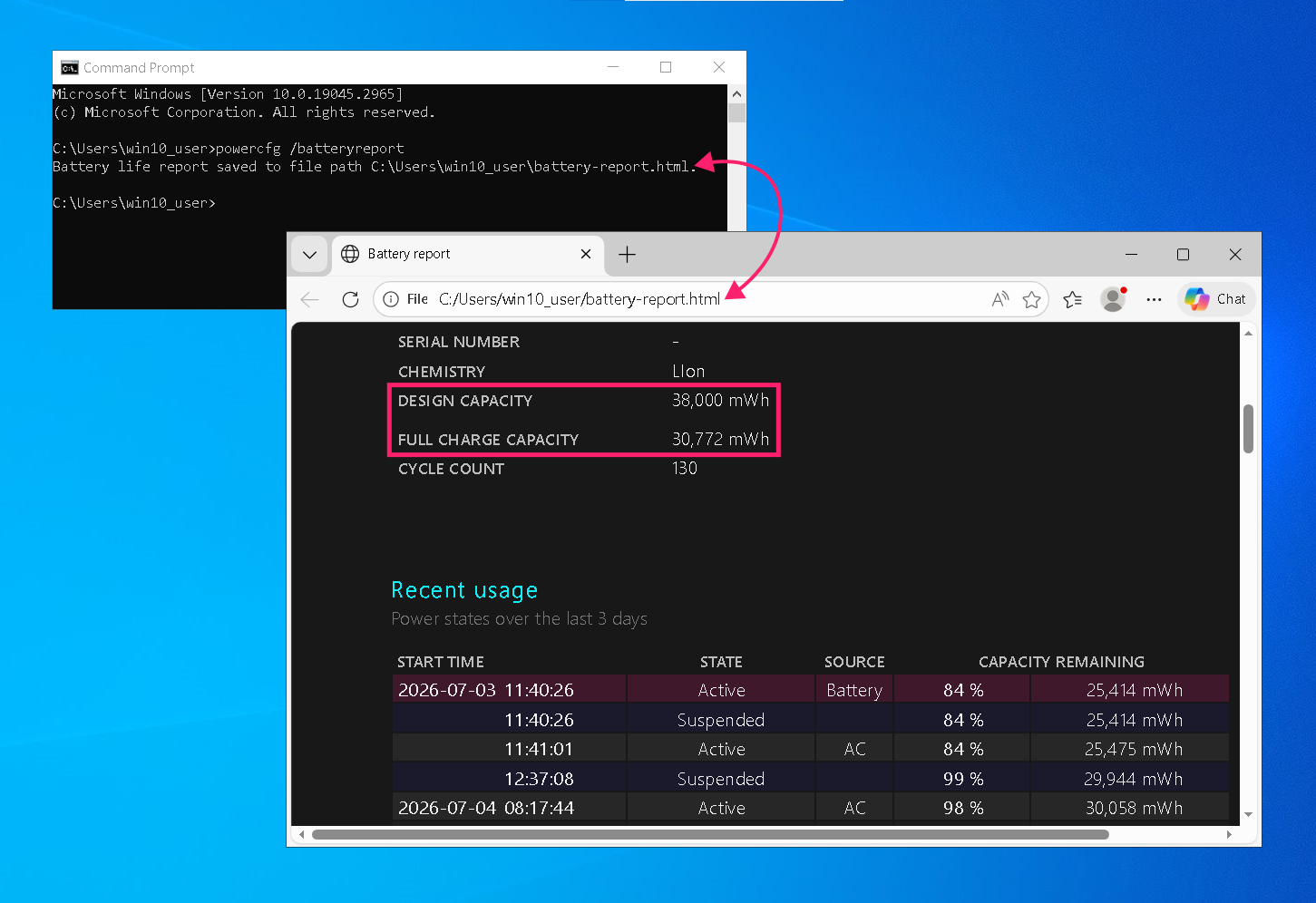
For a detailed report, open Command Prompt and run
powercfg /batteryreport, optionally using/output "C:PathTobattery-report.html"to specify where the report is saved
- Note the device age listed below the system specifications
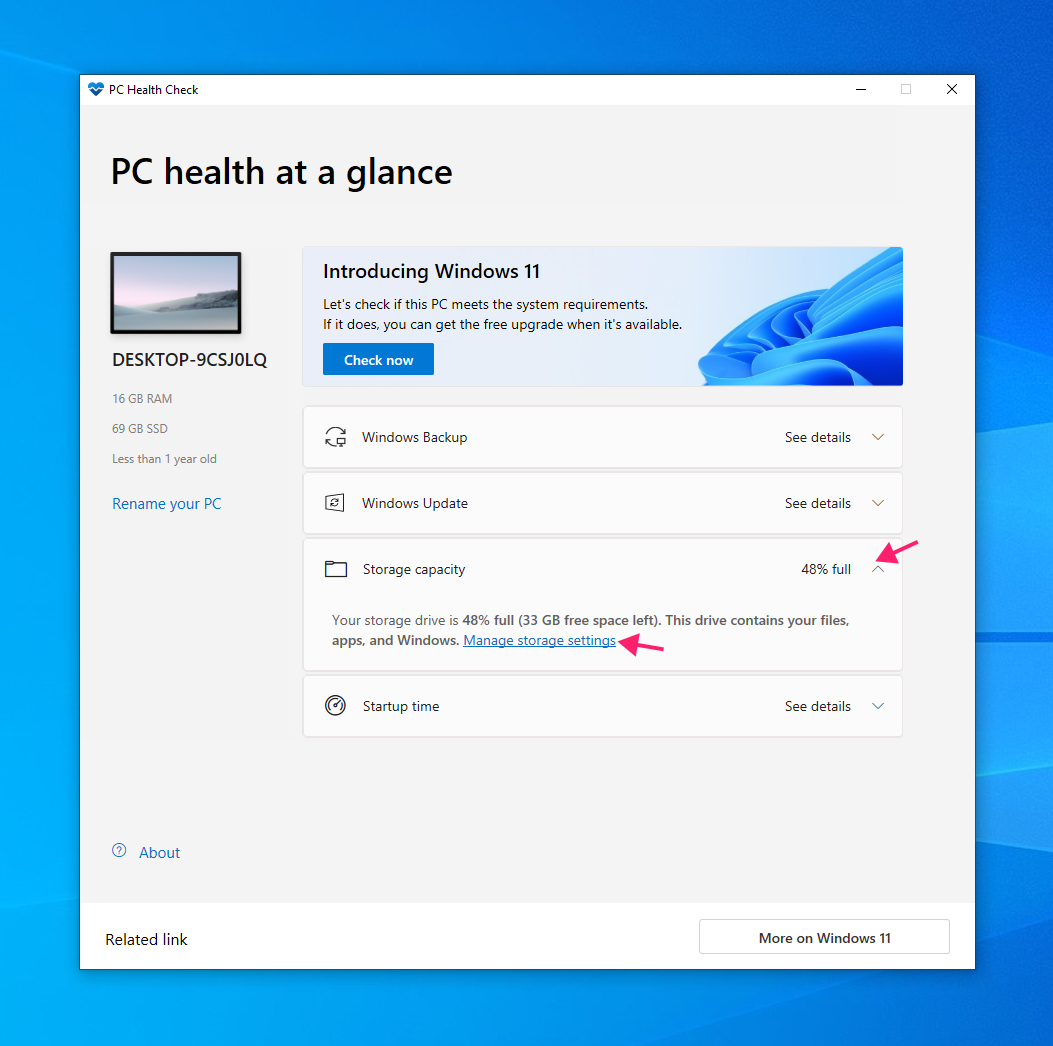
Check the Storage capacity section and click Manage storage settings to review usage and cleanup options

At scale, opening the GUI on every managed device to read a pass/fail result isn’t practical when you’re assessing dozens or hundreds of endpoints at once. Atera’s remote PowerShell execution through the RMM platform lets you pull eligibility results directly without opening the app on each device. If you don’t already have a script for this, AI Copilot can generate one from a plain-language description of what you need.
» Ready for the upgrade? Here’s how to upgrade to Windows 11 using the update assistant
Step 3: Troubleshoot outdated or cached results
PC Health Check identifies issues but doesn’t fix them automatically, and it links out to relevant settings pages rather than resolving anything itself. Compatibility also isn’t guaranteed to update your device immediately, even after hardware changes bring it into compliance.
On a single endpoint, forcing a manual refresh clears out a stale or cached result.
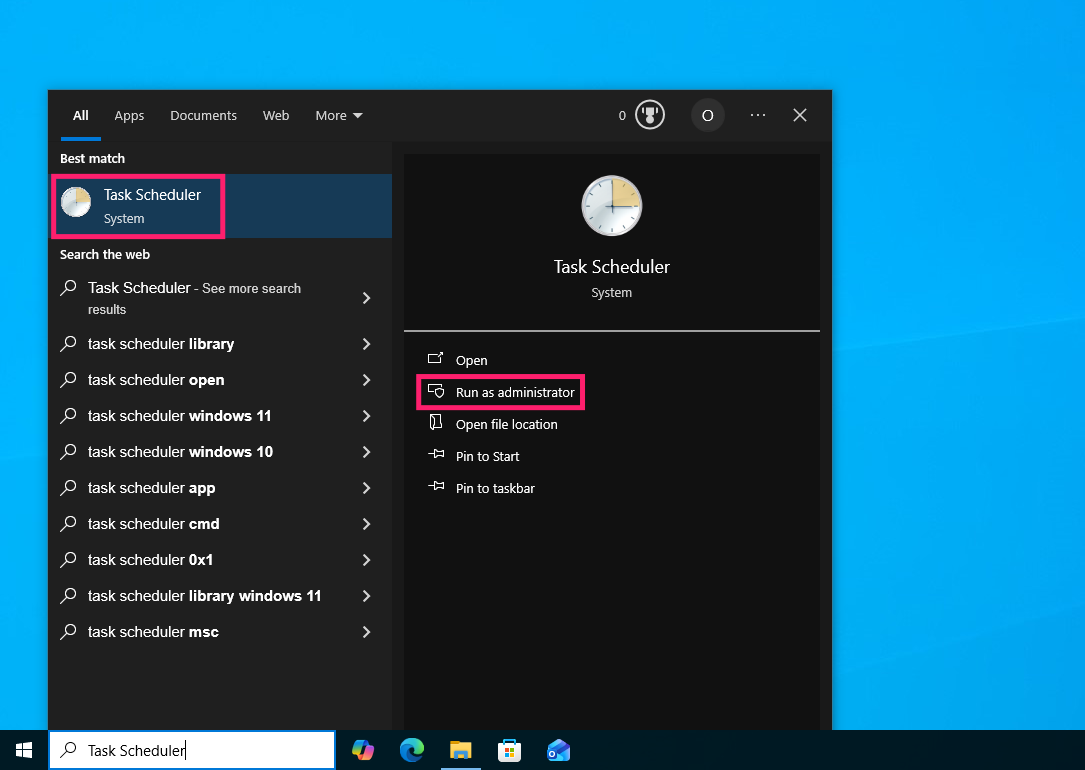
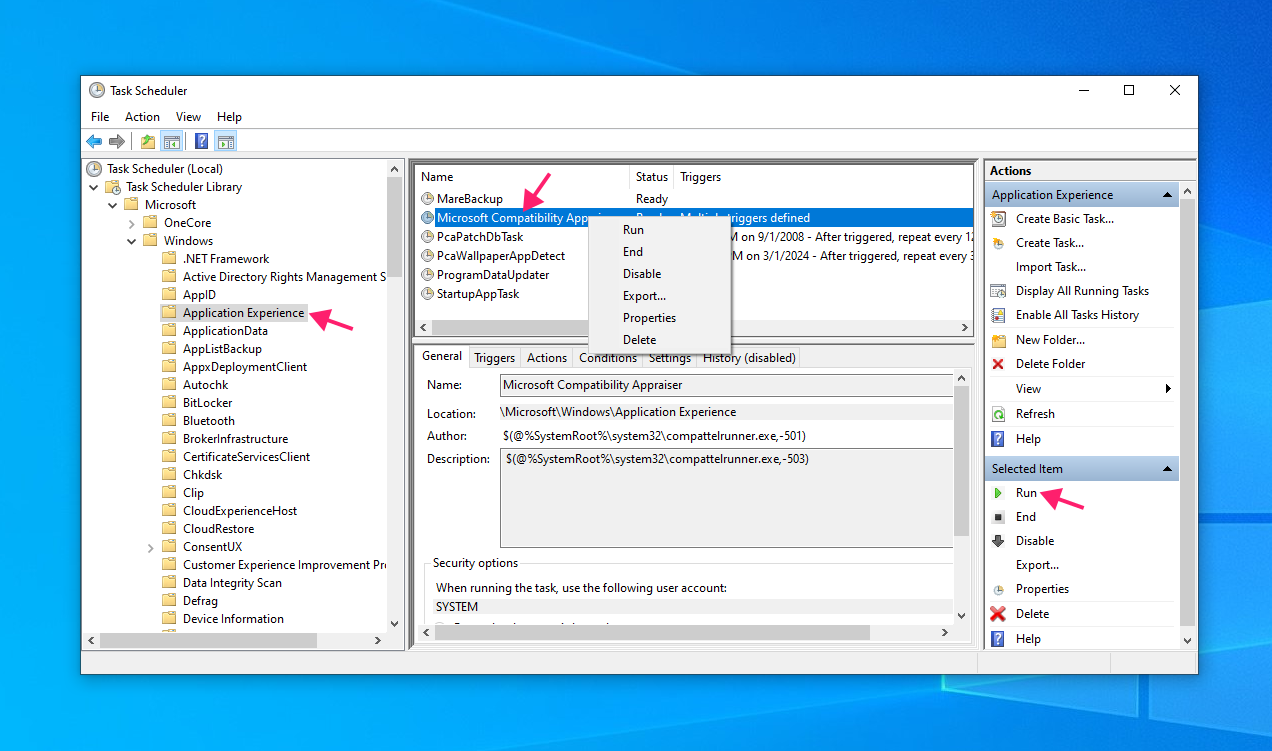
Open Task Scheduler as administrator

- Navigate to Task Scheduler Library > Microsoft > Windows > Application Experience
Right-click the Microsoft Compatibility Appraiser task and select Run

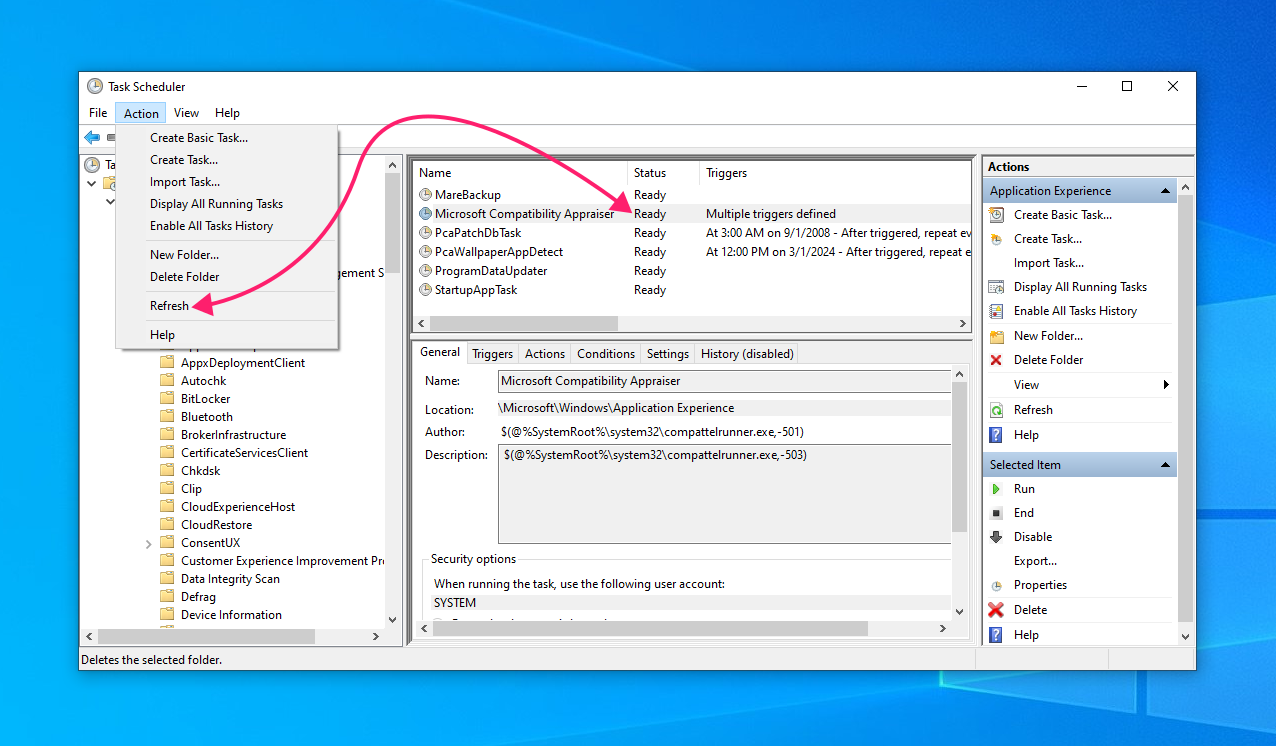
Wait for the Status column to return to Ready, then click Refresh under Actions to confirm

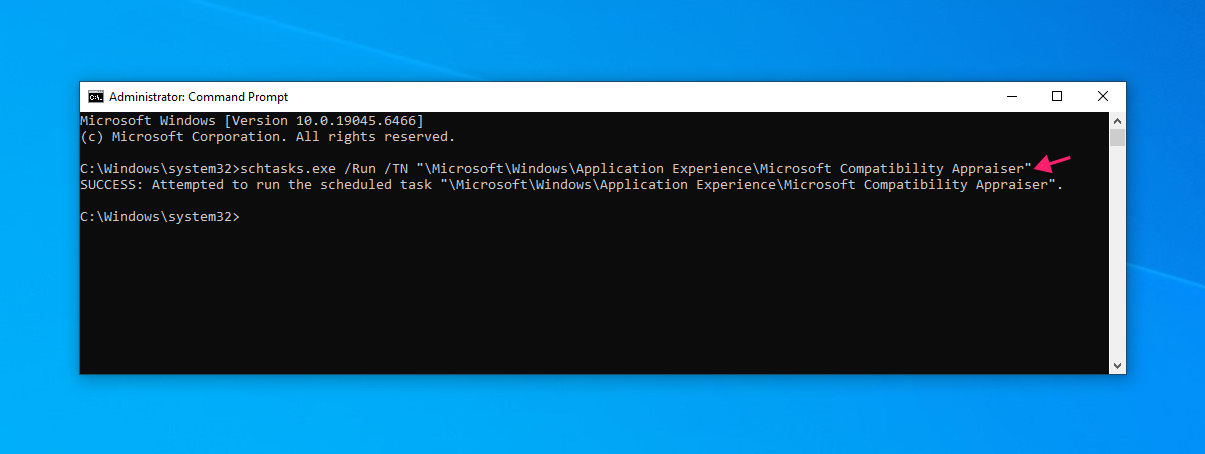
Alternatively, run
schtasks.exe /Run /TN "MicrosoftWindowsApplication ExperienceMicrosoft Compatibility Appraiser"from an administrator Command Prompt
Press
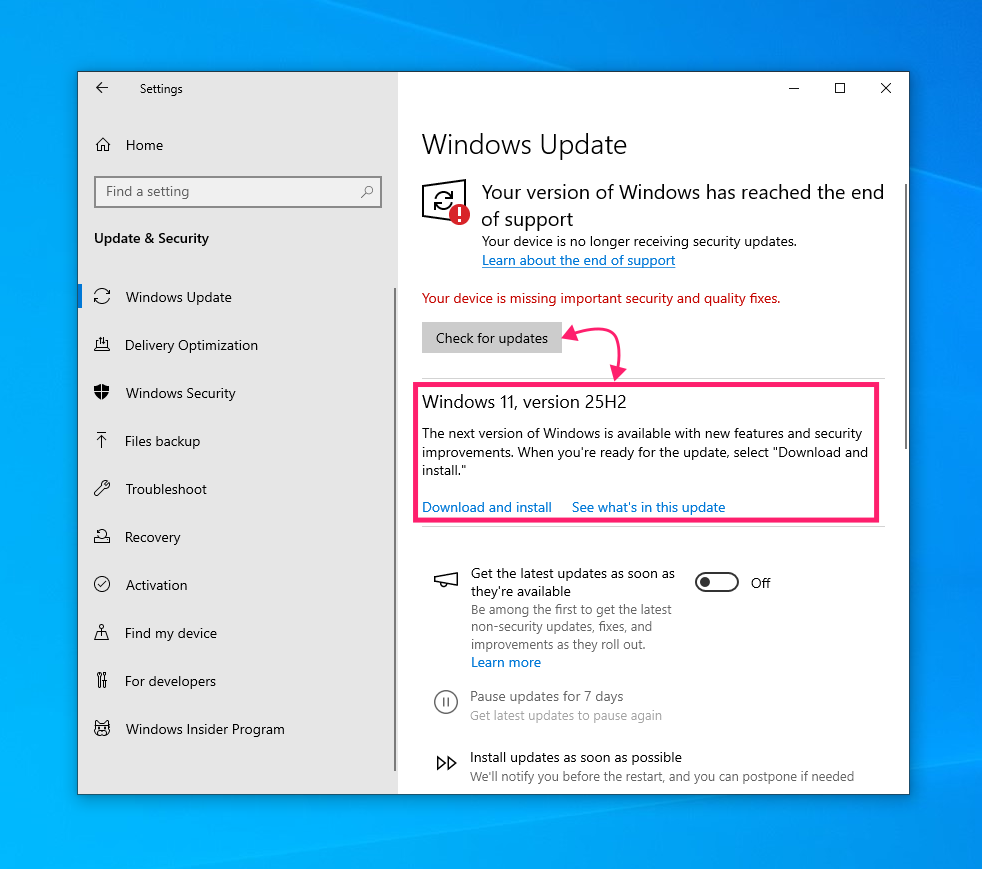
Win + I, go to Windows Update, and click Check for updates to verify the refreshed eligibility status
» Did you know you can disable Windows Updates and manually re-enable Windows Updates
Make Windows 11 readiness a routine, not a scramble
PC Health Check does exactly what it’s built for: a fast, reliable read on a single machine’s Windows 11 eligibility. But running it one device at a time, then manually tracking down which machines failed, why, and what needs fixing, is just unsustainable.
Atera’s RMM platform extends that same logic across an entire fleet. Asset and inventory scanning surfaces hardware specs across every managed endpoint, remote PowerShell lets you pull compatibility data or trigger the app itself without touching each device, and automation profiles handle the patch management and deployment once devices are ready.
» Want to try it out? Atera has a 30-day free trial
Frequently Asked Questions
Related Articles

How to reduce alert fatigue across your IT team
Your technicians aren't ignoring alerts because they're careless. They're ignoring them because most alerts have taught them to. Once the stream stops being trustworthy, real failures slip past with the noise. Fixing it means deciding what deserves an interruption, tuning out transient spikes, collapsing alert storms, and automating the fixes you've run a hundred times.
Read now
How to close the IT skills gap on your team
Course completions don't close skills gaps. Technicians finish the training, then hand the first unfamiliar failure straight back to a senior engineer. Real capability gets built on live tickets, incidents, and maintenance windows, with guidance that fades as competence grows.
Read now
How to calculate cost per ticket (and why most teams get it wrong)
Most cost-per-ticket figures are wrong before anyone reads them. Missing overhead, tickets that were opened but never closed, spam and duplicates padding the count, and one month's costs divided by another month's tickets all make support look cheaper than it is. Fix both sides of the division and the number finally shows where technician time and money actually go.
Read now
How to prepare for a software license audit
A vendor audit notice doesn't wait for you to get organized. It demands proof, right now, that every install matches every entitlement you've paid for, and most IT teams find out the hard way how much they don't actually know about their own environment. Getting audit-ready before the letter arrives is the difference between negotiating from strength and paying for months of scrambling.
Read nowEndless IT possibilities
Boost your productivity with Atera’s intuitive, centralized all-in-one platform









