
Generate summary with AI

Most people assume they know what’s in their machine. They bought it, they use it every day, how mysterious can it be? But ask someone whether their laptop’s RTX 5090 is performing like a desktop RTX 5090, or why their brand-new 1TB drive shows up as 931GB in Windows, and the certainty starts to fade. Specs on a label and specs in practice are not always the same thing, and the gap between them is where a lot of troubleshooting time goes to waste.
Knowing how to read your hardware accurately (not just what the box said) matters whether you’re matching a game’s requirements, diagnosing a bottleneck, or deciding whether a machine is worth upgrading. This guide covers every major method across Windows, macOS, and Linux.
What your specs actually tell you
The short answer is: almost everything, as long as you’re using the right tool. Your operating system exposes a wide range of hardware data, such as:
- Processor family
- Clock speed
- Core count
- RAM capacity and speed
- Storage type and capacity
- GPU model and VRAM
- BIOS version
Third-party utilities go further still, surfacing voltages, memory subtimings, fan RPMs, and thermal data that the OS collects but doesn’t bother to show you by default.
The longer answer has a few caveats. Some hardware simply doesn’t communicate with the OS:
- Most power supplies have no data interface, so there’s no telemetry to read and you won’t find wattage draw or rail voltages through any software tool
- Case fans and CPU coolers will often report RPM, but brand and dimensions aren’t exposed because there’s no hardware logic transmitting that information
- Enterprise and OEM devices sometimes deliberately lock or hide firmware-level details
Game compatibility
One place where specs translate directly into a decision is game compatibility. Publishers provide minimum and recommended requirements so buyers know whether their hardware can run a title as intended:
- Meeting only the minimum means the game will run, but you’ll likely need to compromise on graphical settings and overall performance
- Falling short of the minimum means it may not run at all
In practice, the GPU tends to be the determining factor more often than any other component.
Storage capacity
A 1TB drive will show up as roughly 931GB in Windows. It’s not because something is wrong, but because drive manufacturers count in decimal (1,000,000,000,000 bytes) while Windows counts in binary (1,099,511,627,776 bytes per terabyte).
The gap scales with drive size: a 4TB drive appears as approximately 3.6TB. Neither figure is incorrect, they’re just measuring different things, but it’s something that people don’t often realize.
Laptop vs. desktop naming conventions
A mobile RTX 5090 and a desktop RTX 5090 share a name and a general architecture, but they operate under completely different thermal and power constraints.
Laptops are limited to small fans and heatpipes, while desktop systems can run large air coolers or full liquid cooling loops. A high-end desktop GPU under load typically draws more power than an entire gaming laptop.
The practical result is that the mobile version of a top-tier GPU often performs on par with the desktop equivalent from two generations prior. If you’re checking specs to verify whether a machine meets a requirement, the model name alone isn’t enough. You need the full picture.
How to check your specs on Windows
Windows gives you several built-in tools for pulling hardware information, and they’re not interchangeable. Each one surfaces different data, and knowing which to reach for saves you the frustration of opening the wrong tool for the job.
System Information (msinfo32)
System Information is the most comprehensive of the built-in options and the right starting point when you need a broad snapshot of a machine across multiple component types.
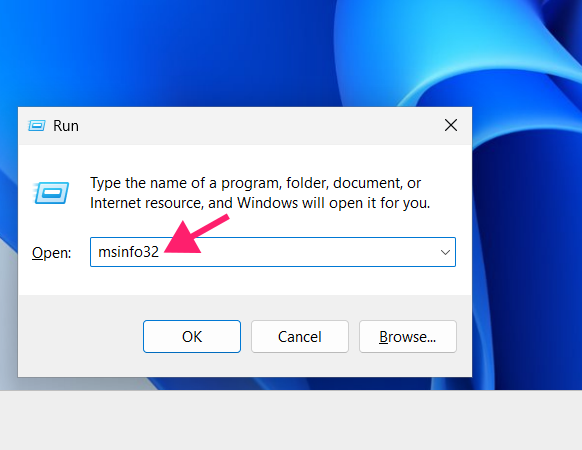
Press Win + R, type
msinfo32, and press Enter
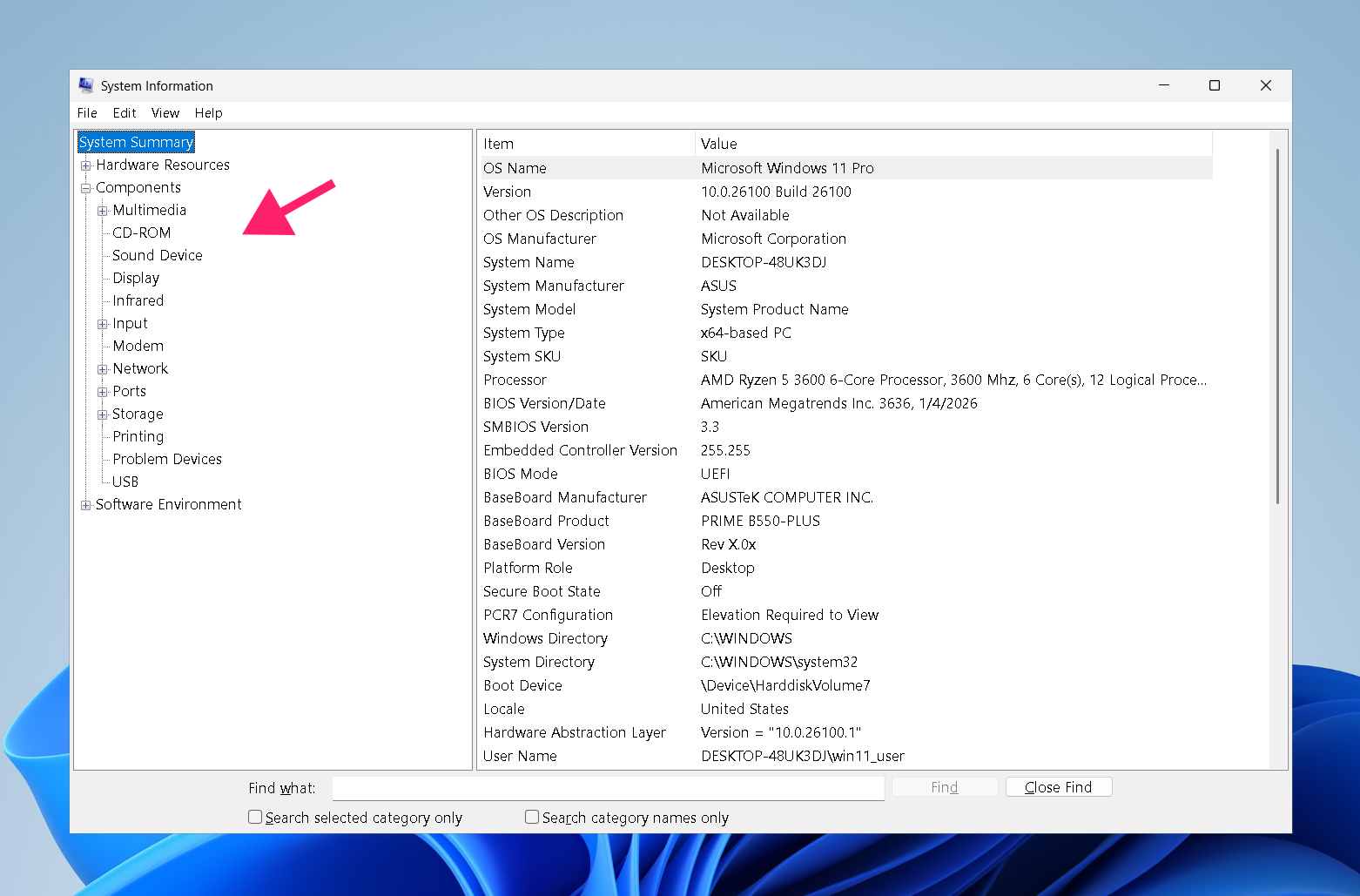
Review the System Summary, since this view surfaces your OS version, processor model, installed RAM, and BIOS details immediately

- Navigate the tree on the left to drill into specific component categories, including display adapters, storage, and network adapters
Task Manager
Task Manager gives you more info than msinfo32, including live performance data alongside hardware details. Reach for this when you need to understand not just what’s in a machine, but how it’s behaving right now.
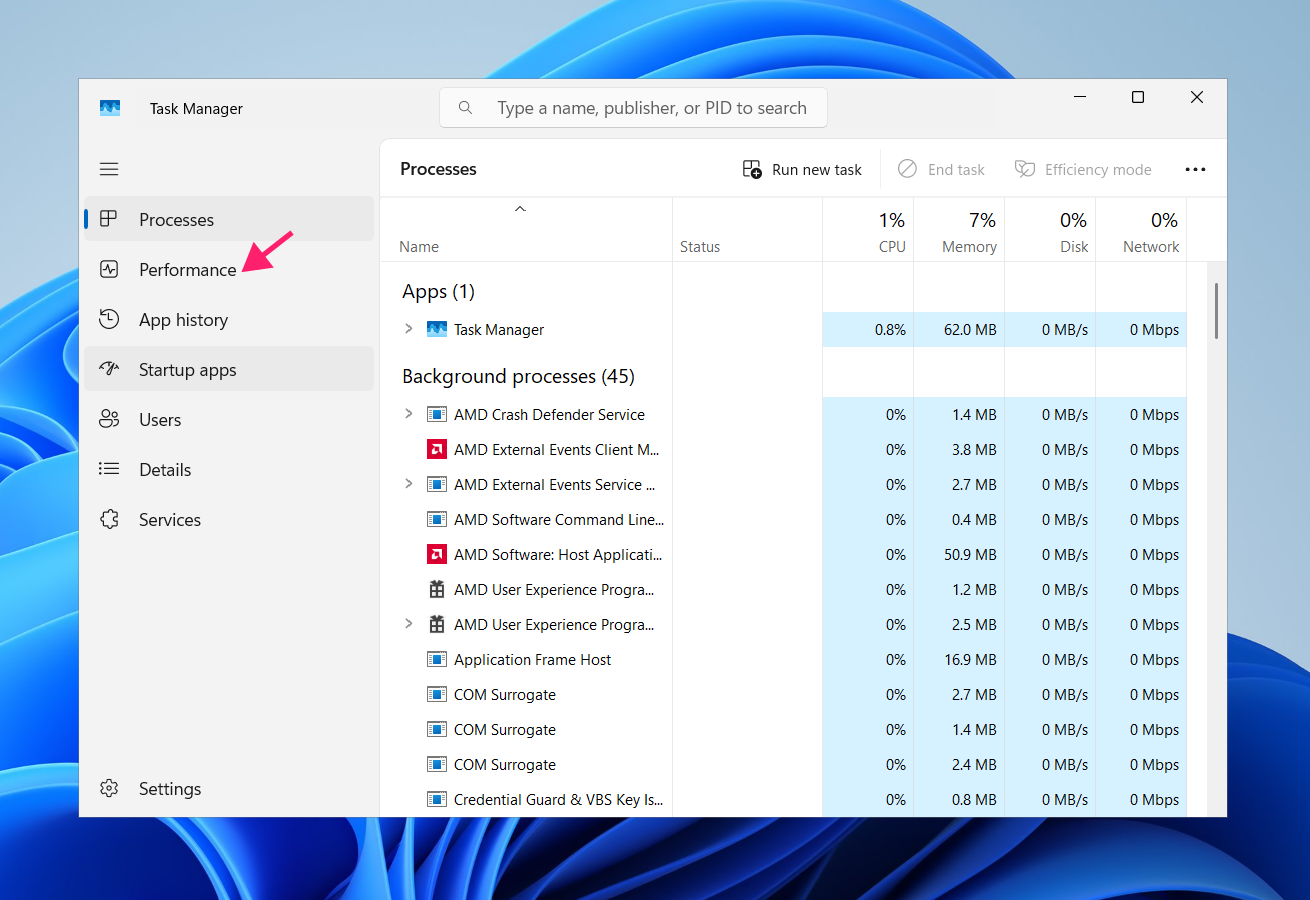
- Press Ctrl + Shift + Esc to open Task Manager, or right-click the taskbar and select Task Manager
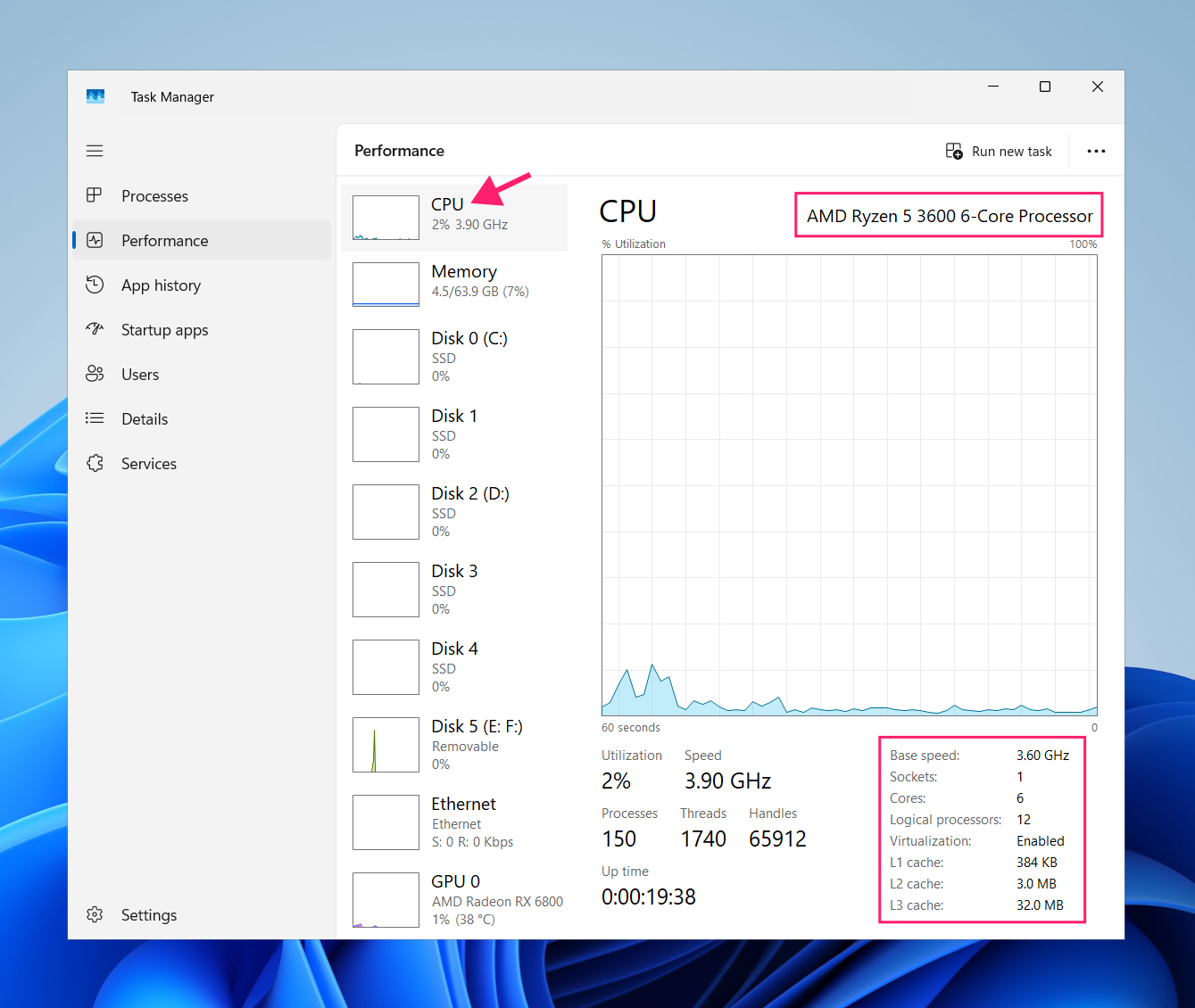
Switch to the Performance tab

Click any component (CPU, Memory, GPU) to view its model information alongside current utilization, clock speed, and temperature where applicable

A processor that looks adequate on paper but is running at 95% utilization under a light load tells a different story than the spec sheet alone.
DirectX Diagnostic Tool (dxdiag)
The DirectX Diagnostic Tool has a narrower focus than the other two. It’s the right call when you’re troubleshooting display issues, verifying DirectX compatibility for a game or application, or checking driver details on a machine with multiple GPU configurations.
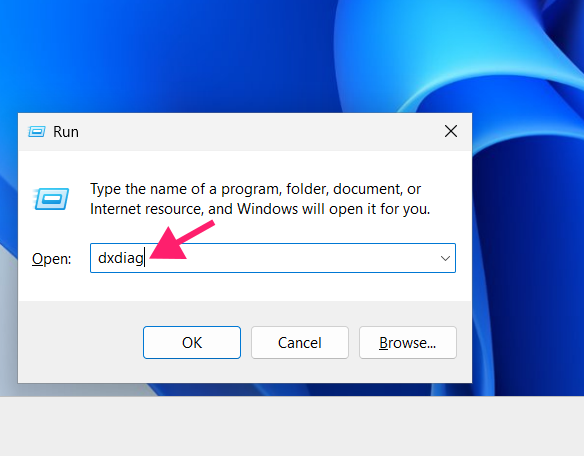
Press Win + R, type
dxdiag, and press Enter
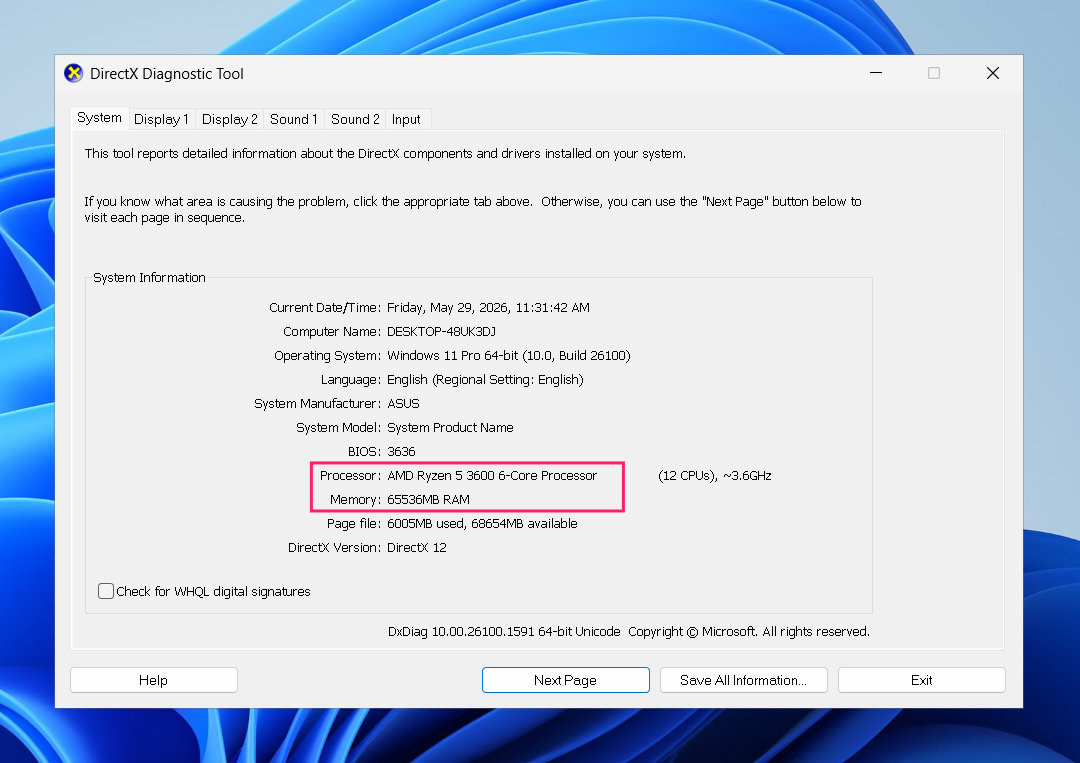
Review the System tab for a quick overview of processor and memory

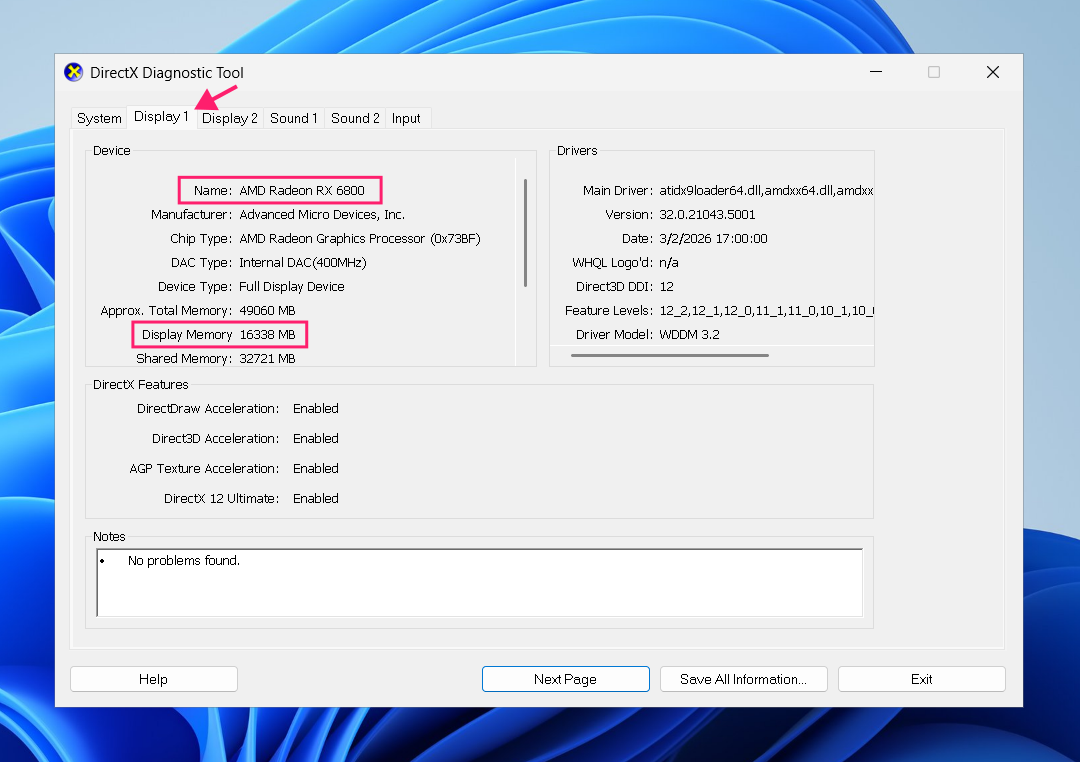
Switch to the Display tab to see detailed GPU information like display memory, driver version, driver date, and DirectX feature levels. If multiple monitors are connected, you’ll see a separate Display tab for each

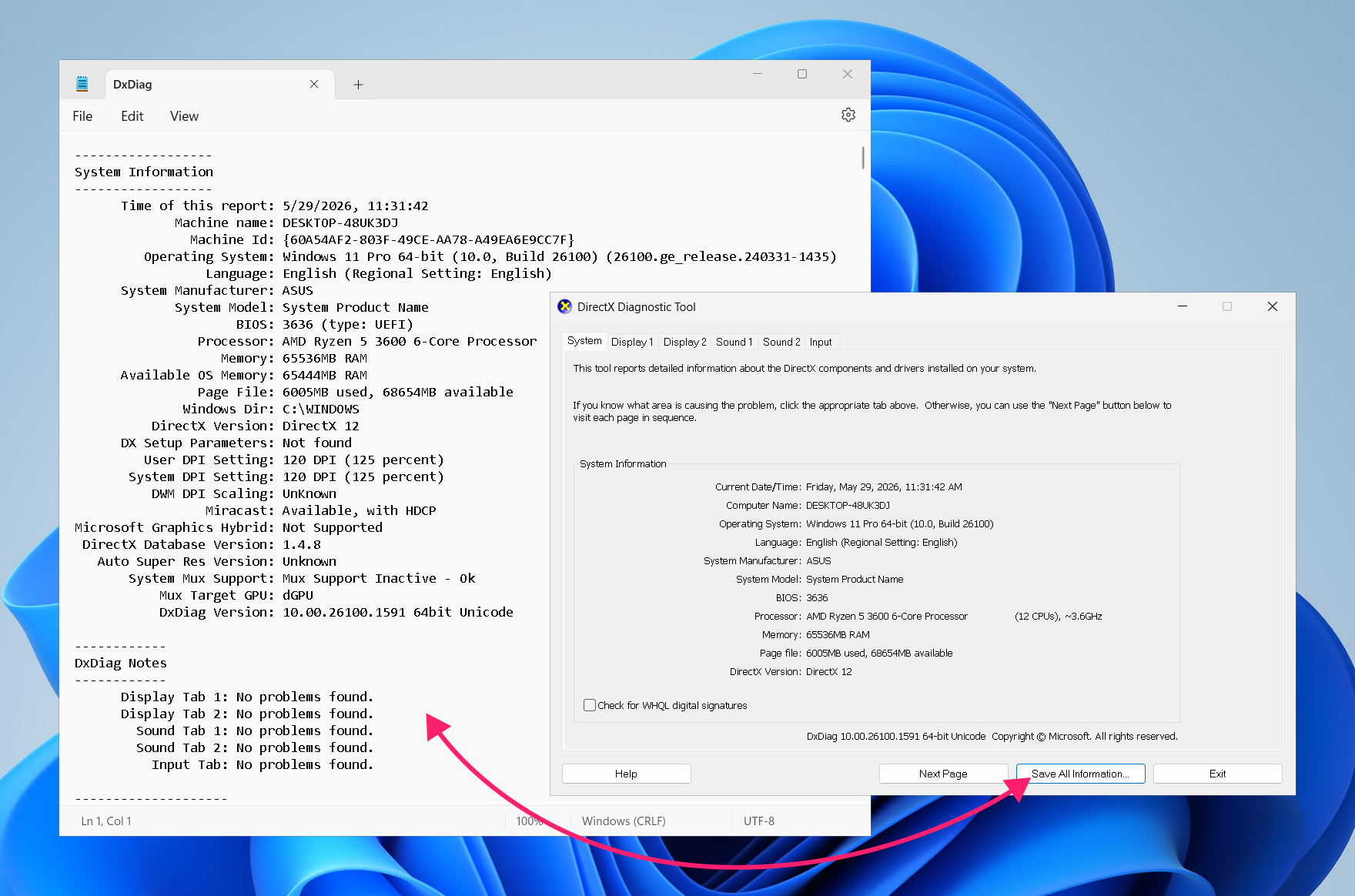
Click Save All Information to export a full diagnostic report as a text file, useful for documenting a system’s configuration or sharing details with a vendor

» Drivers outdated? Here’s how to update PC drivers and the best driver updater software
How to check your specs on macOS
macOS keeps hardware information close to the surface. The two tools you need are built in and accessible within a few clicks of each other.
Click the Apple icon in the menu bar at the top of the screen and select About This Mac

Review the overview panel, which surfaces your processor, graphics card, memory, storage, and display at a glance

- Click More Info to open the corresponding System Settings section for any category
Click System Report to open the full System Information app, which provides a comprehensive breakdown of every hardware and software component on the device

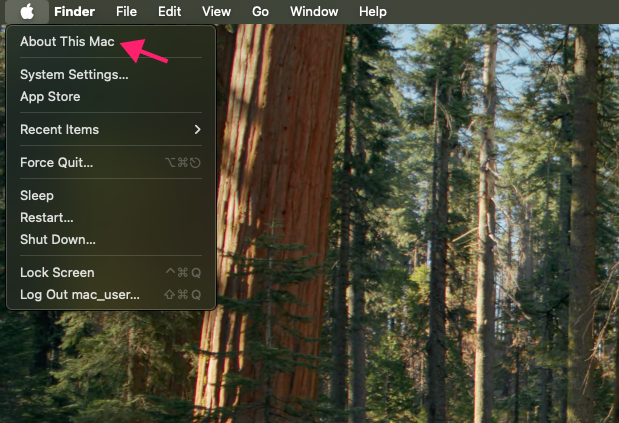
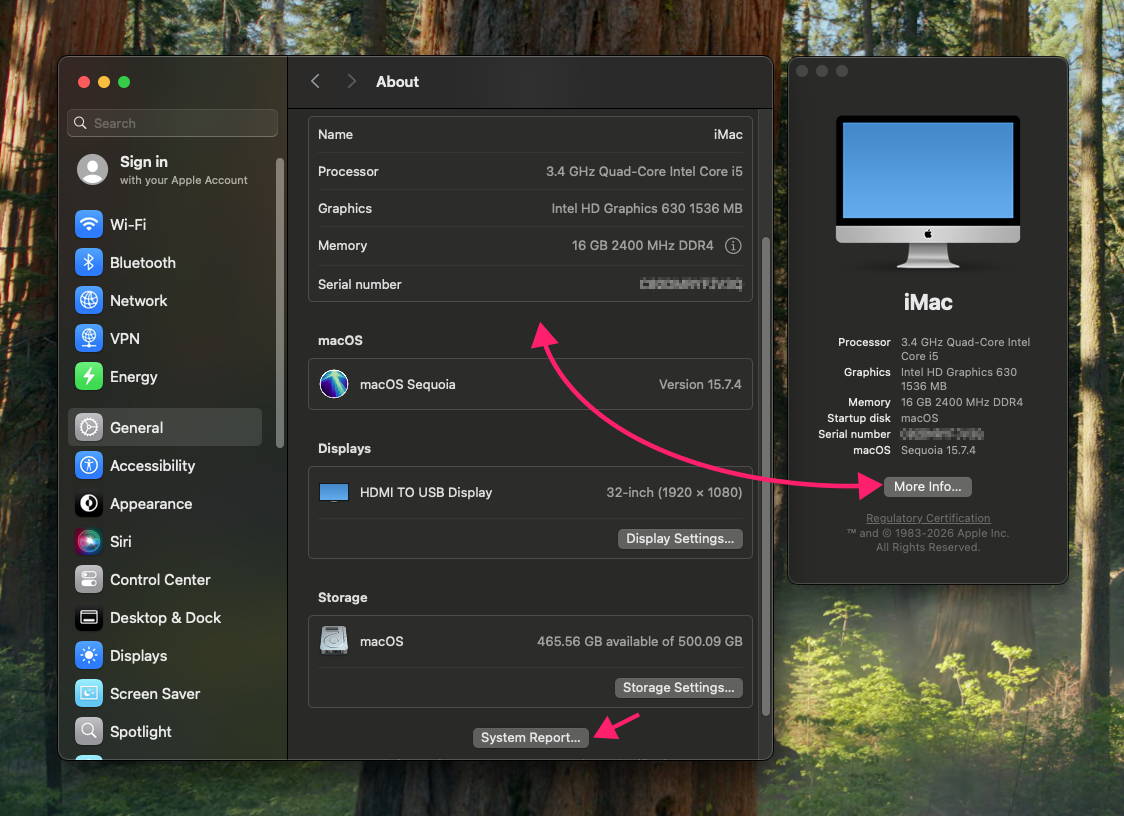
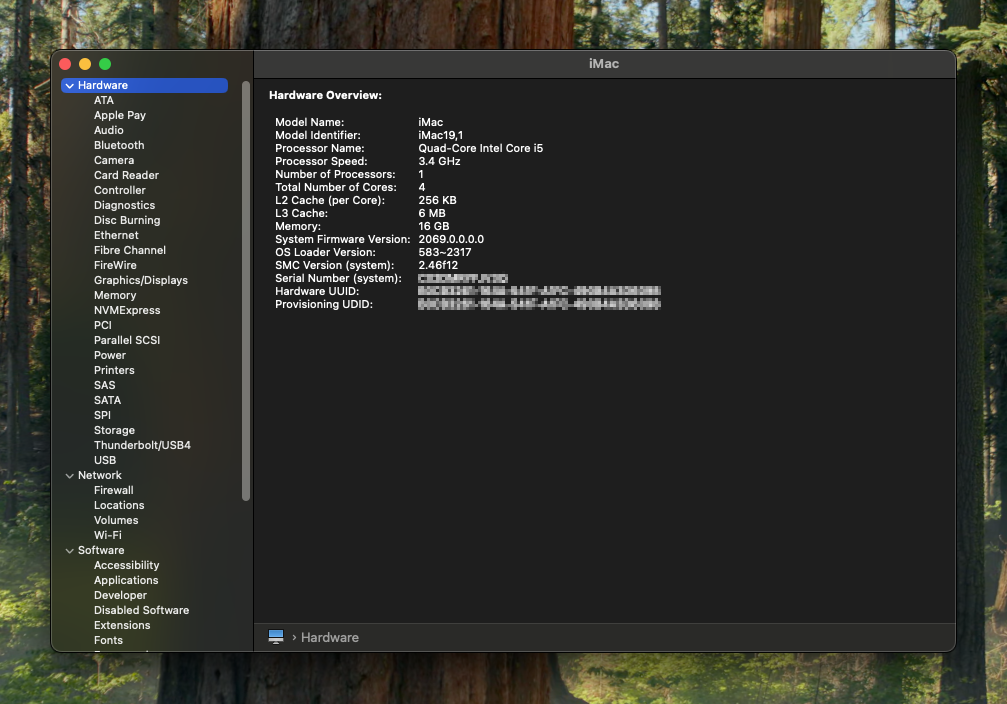
The overview panel is enough for quick spec checks. System Report is where you go when you need the full picture with firmware versions, bus speeds, PCI device details, connected peripherals, and more.
» Learn more about firmware updates
How to check your specs on Linux
Linux hardware visibility depends on your distribution, your desktop environment, and how deep you need to go. The graphical tools vary by distro, while the terminal commands are consistent across almost all of them.
» Not sure what you have? Here’s how to check Linux version
Graphical tools
The naming and menu hierarchy differs depending on which distribution and desktop environment you’re running. For example, on Linux Mint, there are two routes to the same place:
Press the Start button and search for System Information

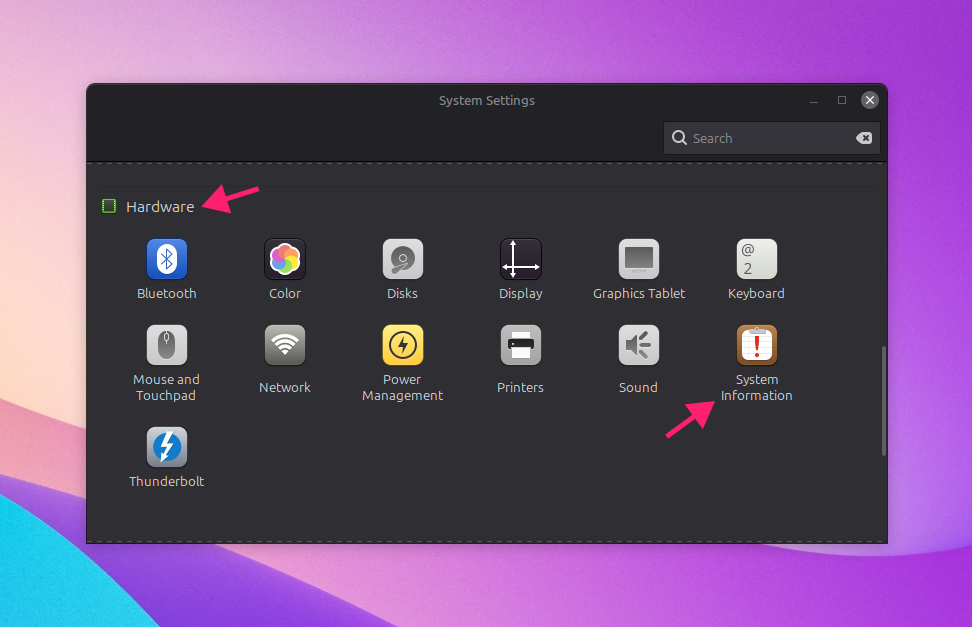
You can also open System Settings, scroll to the Hardware section, and click the System Information icon

Review the summary panel, which typically shows processor, graphics card, memory, and storage at a high level

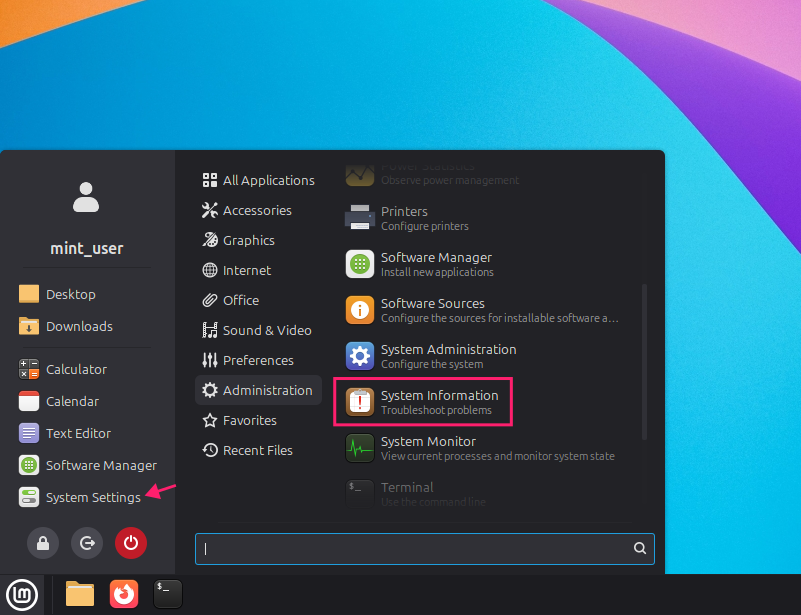
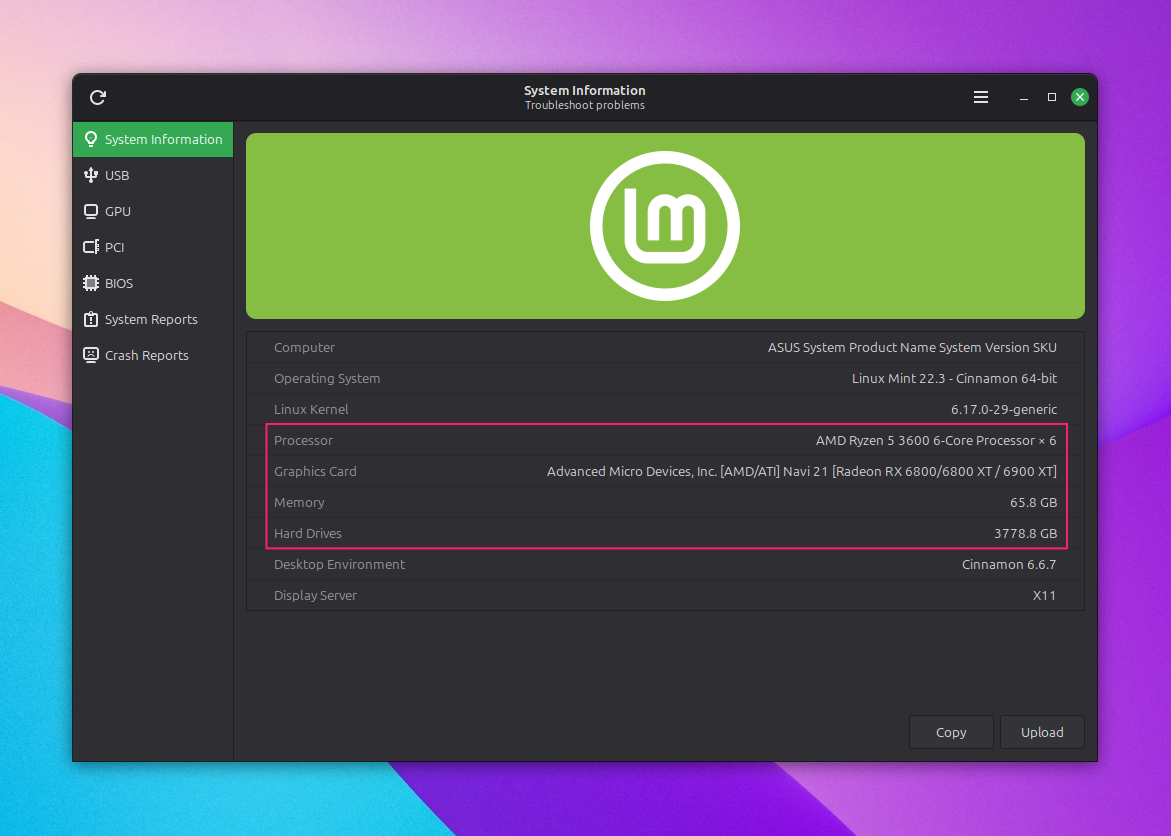
The information displayed is often minimal compared to what terminal tools expose.
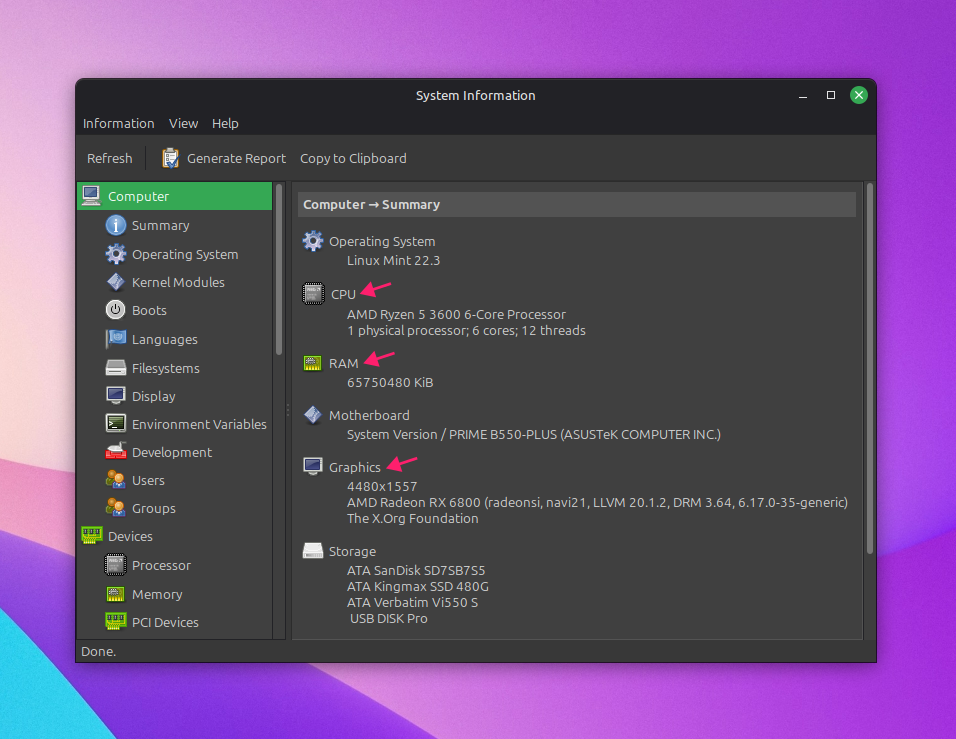
For more detail without dropping into the terminal, open-source tools like hardinfo or its successor hardinfo2 are available across most distributions and surface considerably more component data than the built-in system panels.
Terminal commands
The terminal gives you the most complete picture on Linux, and a small set of standard commands covers the majority of what you’ll need.
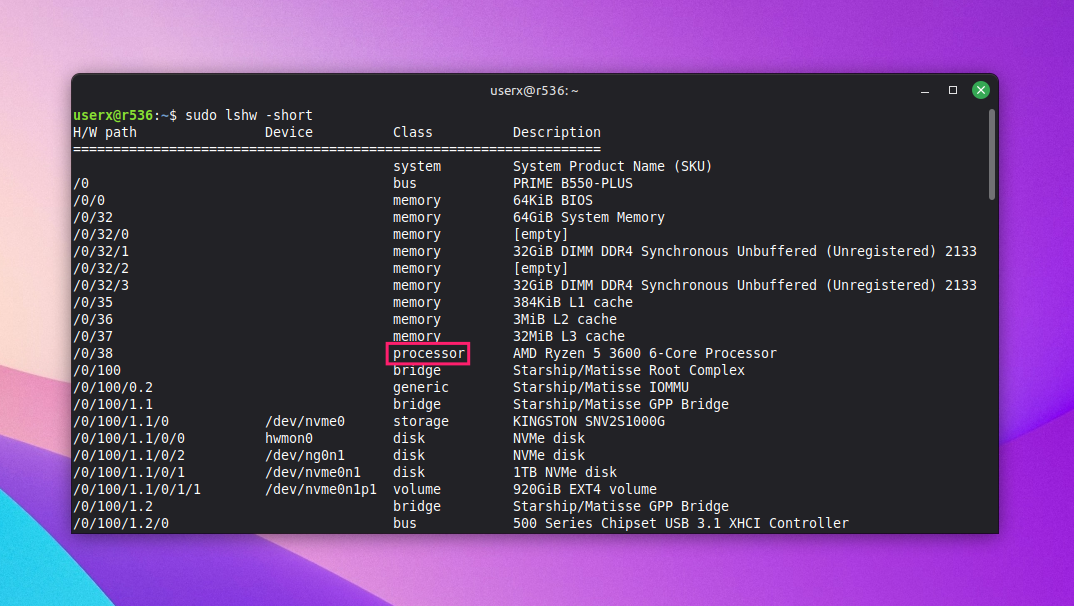
lshw is generally available across all distributions and provides a full hardware inventory. Run sudo lshw -short for a condensed summary of all hardware organized by path and class:
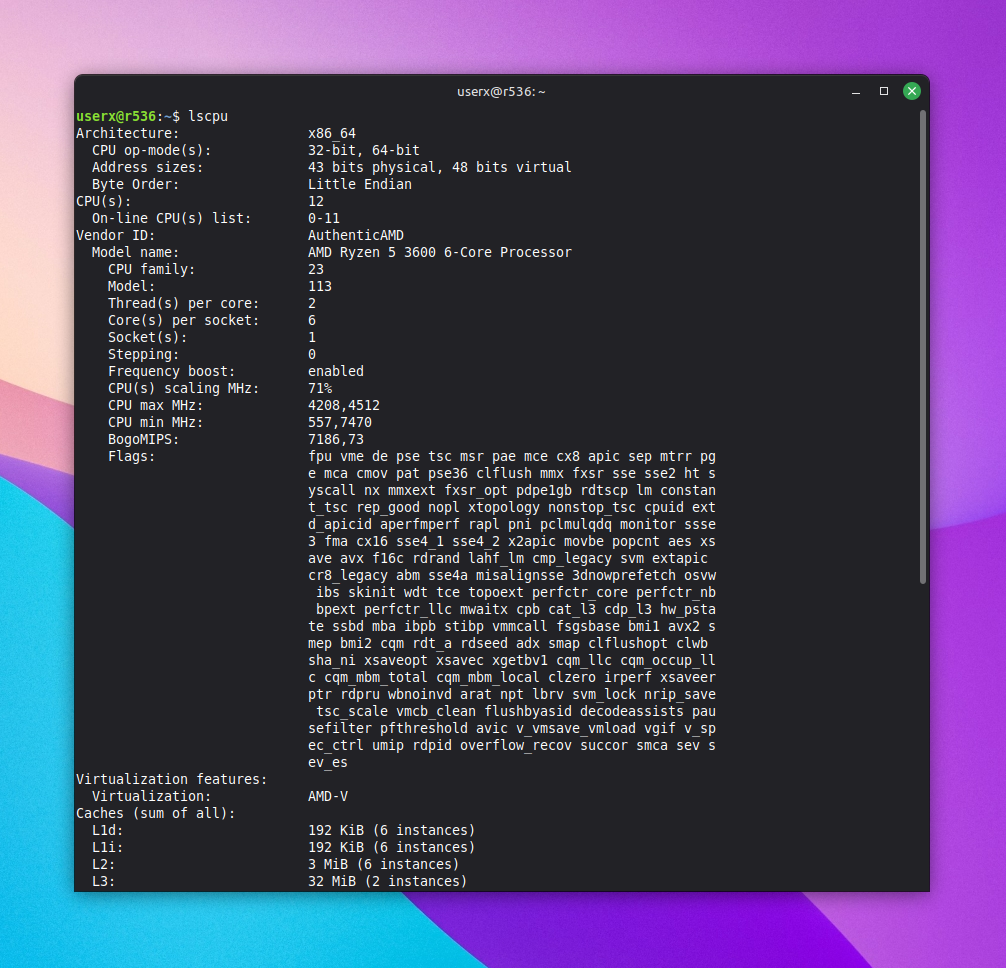
lscpu is purpose-built for processor information. Run lscpu to get a detailed report on your CPU, such as architecture, core count, thread count, clock speeds, cache sizes, and virtualization support.
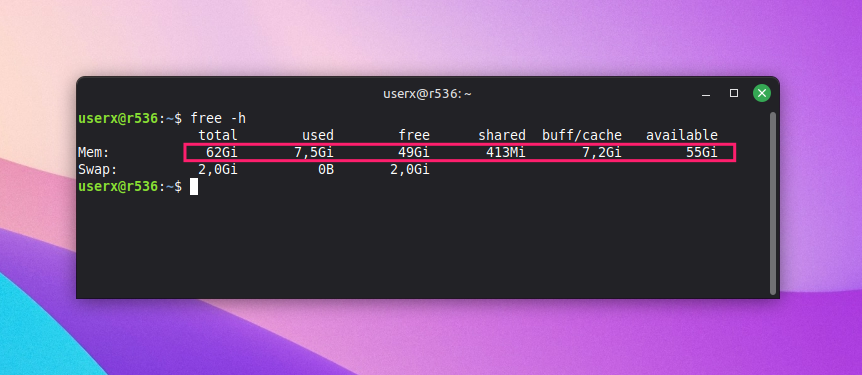
Run free -h for a human-readable report on total, used, and available RAM.
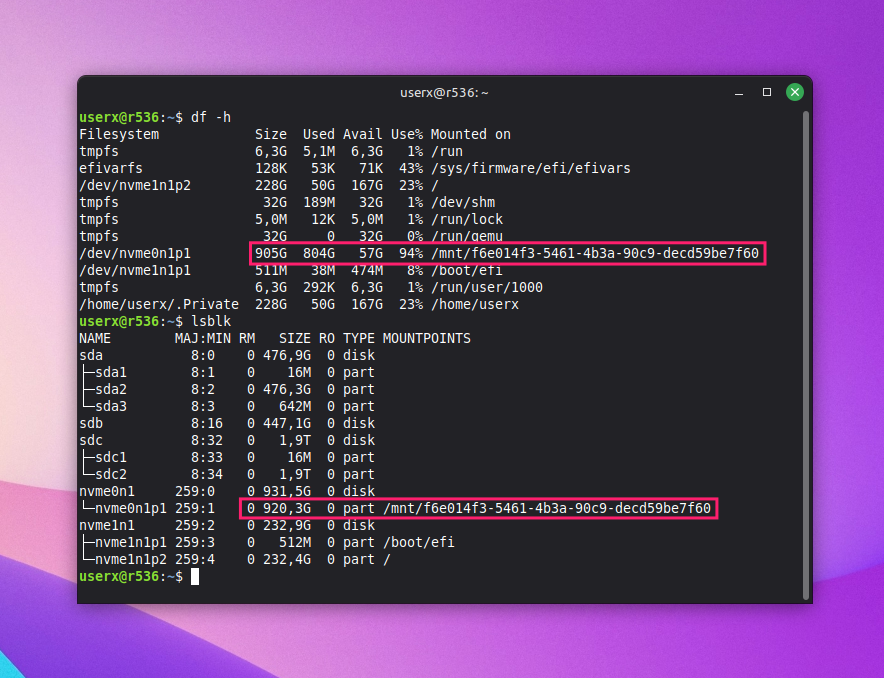
Run lsblk to list block devices and partition structure, and df -h for filesystem-level storage usage.
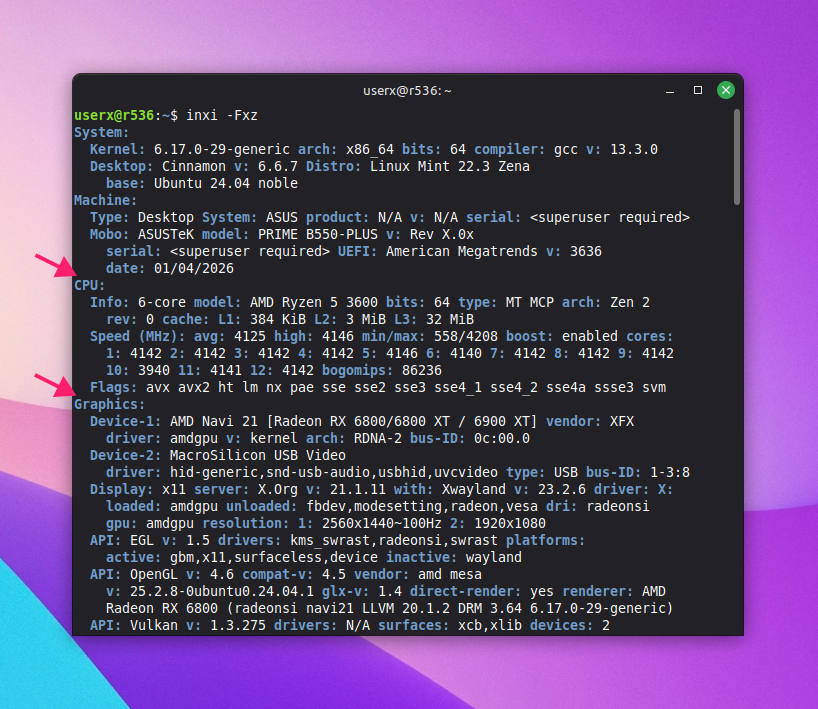
For a more structured output similar to lshw but with cleaner formatting, inxi is worth installing, though it isn’t available by default on most distributions. Run inxi -Fxz for a full system summary covering CPU, memory, graphics, storage, and network in a single output.
Specs visibility across your fleet
Checking specs on a single machine is a skill. Knowing the specs of every machine in your environment is a different problem entirely, and running around with msinfo32 open on 200 endpoints isn’t exactly a viable workflow.
For IT teams and MSPs managing devices at scale, Atera’s RMM platform surfaces hardware details across your entire fleet from a single pane of glass. Device profiles pull motherboard type, BIOS version, processor, and more without a script in sight, and AI Copilot can go deeper on demand to generate PowerShell scripts that you can deploy remotely across devices when you need data the OS doesn’t surface by default.
» Interested? Try Atera for free
Related Articles

How to reduce alert fatigue across your IT team
Your technicians aren't ignoring alerts because they're careless. They're ignoring them because most alerts have taught them to. Once the stream stops being trustworthy, real failures slip past with the noise. Fixing it means deciding what deserves an interruption, tuning out transient spikes, collapsing alert storms, and automating the fixes you've run a hundred times.
Read now
How to close the IT skills gap on your team
Course completions don't close skills gaps. Technicians finish the training, then hand the first unfamiliar failure straight back to a senior engineer. Real capability gets built on live tickets, incidents, and maintenance windows, with guidance that fades as competence grows.
Read now
How to calculate cost per ticket (and why most teams get it wrong)
Most cost-per-ticket figures are wrong before anyone reads them. Missing overhead, tickets that were opened but never closed, spam and duplicates padding the count, and one month's costs divided by another month's tickets all make support look cheaper than it is. Fix both sides of the division and the number finally shows where technician time and money actually go.
Read now
How to prepare for a software license audit
A vendor audit notice doesn't wait for you to get organized. It demands proof, right now, that every install matches every entitlement you've paid for, and most IT teams find out the hard way how much they don't actually know about their own environment. Getting audit-ready before the letter arrives is the difference between negotiating from strength and paying for months of scrambling.
Read nowEndless IT possibilities
Boost your productivity with Atera’s intuitive, centralized all-in-one platform









