
When Google Drive isn’t syncing on one laptop, it’s usually a short ticket. It’s a different job when the Drive location vanishes from Finder on several Macs at once, or when sync stalls behind a proxy doing SSL inspection. Either way, the fix that looks fastest is often the riskiest. If you disconnect your Google Drive account without checking first, offline streamed files are removed along with any edits that never reached the cloud.
To fix it properly, you need to confirm what’s actually failing, protect anything that hasn’t uploaded, and work from the least disruptive fix to the most disruptive one. The order holds whether you’re supporting one user or rolling a fix out across your whole fleet.
This guide covers Google Drive for desktop on macOS and Windows. The Robin by Atera checks described here apply to Macs.
Quick fix: Restart the Drive client remotely
If you need sync moving again now, start on the device. Use your RMM if you can’t reach the user. A restart doesn’t clear the cache or sign the user out. The sections below cover what to check if the sync stalls again.
On the device: open Google Drive for desktop from the macOS menu bar or Windows system tray, select Settings > Pause syncing, wait about 10 seconds, then select Resume syncing.
If it’s still stuck, quit the app from the same menu and reopen it.
To do it remotely:
- In your RMM, set the script to run as the current logged-in user rather than root or SYSTEM, because Drive for desktop keeps its state per user
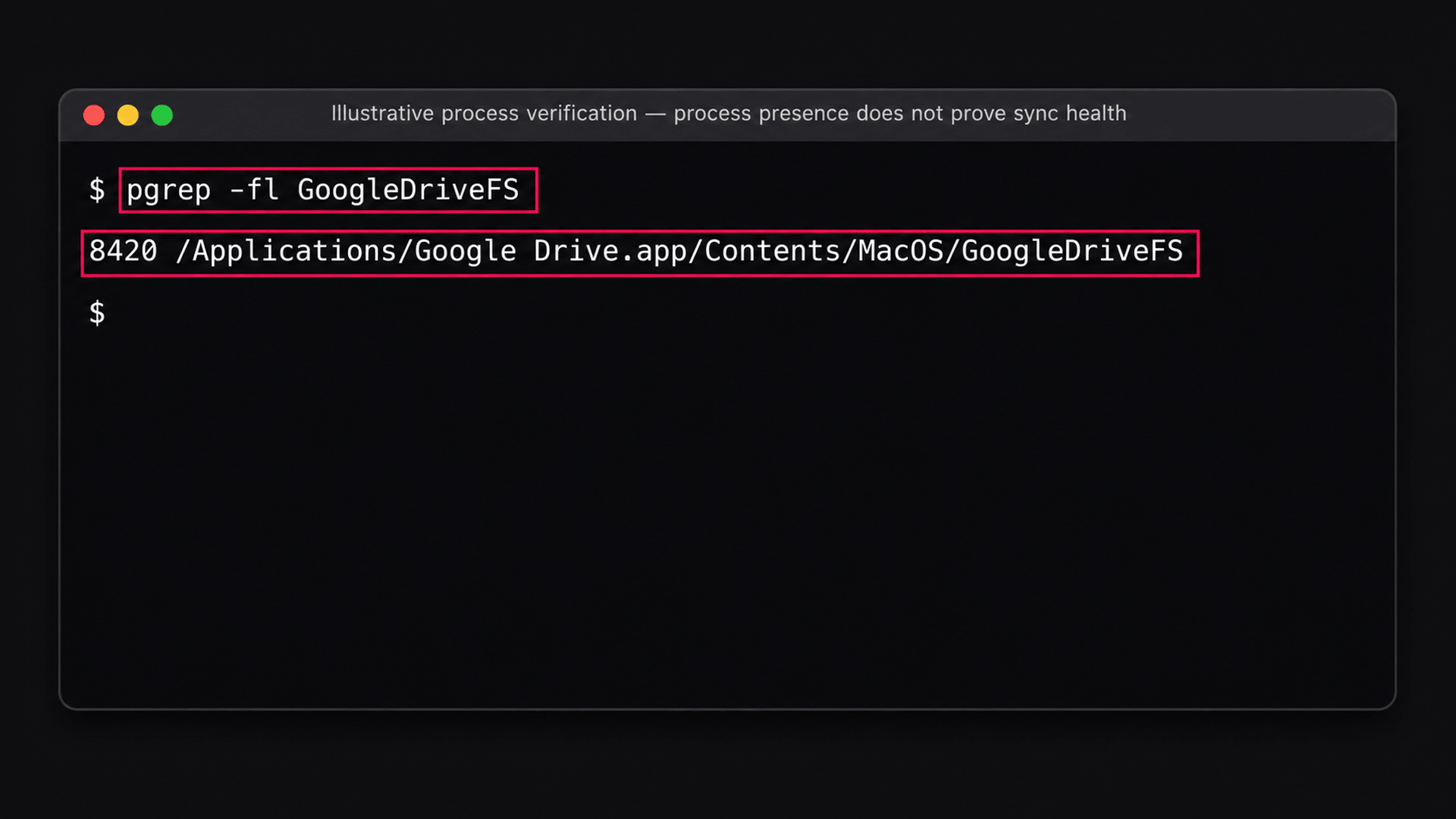
- On a Mac, check whether the client is running with
pgrep -fl GoogleDriveFS - Quit it with
osascript -e 'quit app "Google Drive"' - Relaunch it with
open -a "Google Drive" - Confirm it’s running again with
pgrep -fl GoogleDriveFS - On Windows, run the same restart with
Get-Process -Name GoogleDriveFS -ErrorAction SilentlyContinue | Stop-Process, thenStart-Process (Join-Path $env:ProgramFiles 'Google\Drive File Stream\launch.bat')
» Make sure you know how to enable remote monitoring on Mac
What this takes by hand, and what Robin takes off your plate
Everything after this table is the manual route. Each row shows what a stage takes by hand, next to what Robin by Atera does for routine end-user cases. The Robin checks in this table are for Macs.
Stage | By hand | With Robin by Atera |
|---|---|---|
Check the Drive location | Have the user open Finder, check Locations, and run | Robin checks whether the Google Drive mount is present and readable |
Test the connection to Google | Run DNS and port 443 tests against Google’s endpoints and compare the results | Robin tests connectivity to the relevant Google services |
Narrow down the cause | Compare the client, Finder, and network results yourself | Robin helps distinguish a local mount problem from a service reachability issue |
Hand off what’s left | Write up the findings and route the ticket | Robin gathers the unresolved issue and diagnostic context, then follows the configured routing workflow |
How to fix Google Drive not syncing, step by step
Work through these steps in order. They start with checks that change nothing and finish with the reset that can cost a user their unsynced work, so each step only escalates when the one before it hasn’t found the cause. Most of the commands use the current user’s profile, so if you run them remotely, set your RMM to run them as the logged-in user rather than SYSTEM.
Step 1: Check the sync status and the signed-in account
Before you restart or reconnect anything, work out whether sync has stopped completely, is working through a backlog, or is failing on specific files. The client usually tells you which.
- Open Google Drive for desktop from the macOS menu bar or Windows system tray
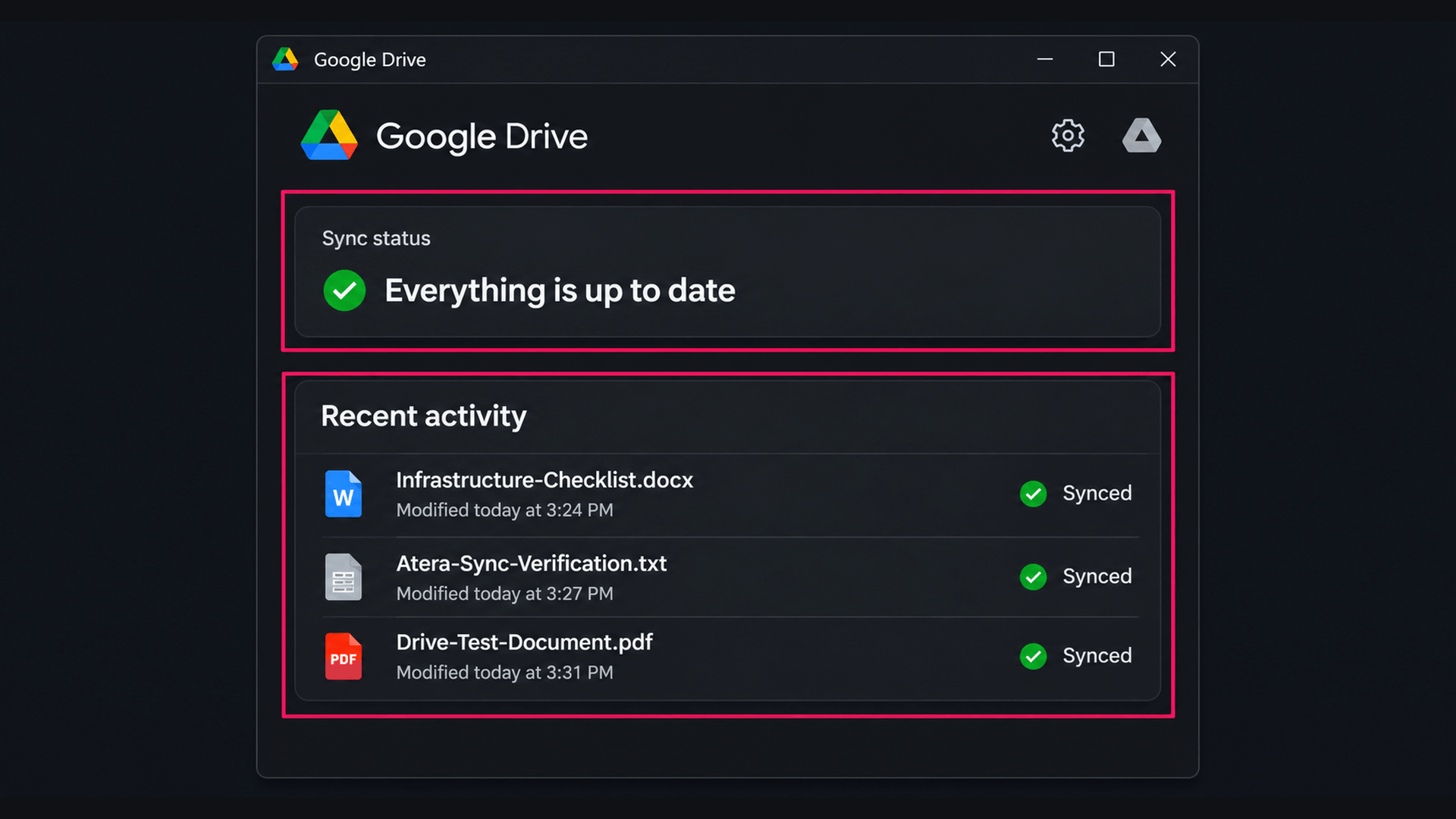
Check the Sync status tile on the homepage, then open the activity list to see whether files are transferring, waiting, or reporting errors

Select the profile picture in the upper-right corner to confirm which account is active. Drive for desktop can run up to four accounts at once, so make sure the affected files belong to the account you’re looking at
Open the notifications and any failed sync entries, and note the exact error message
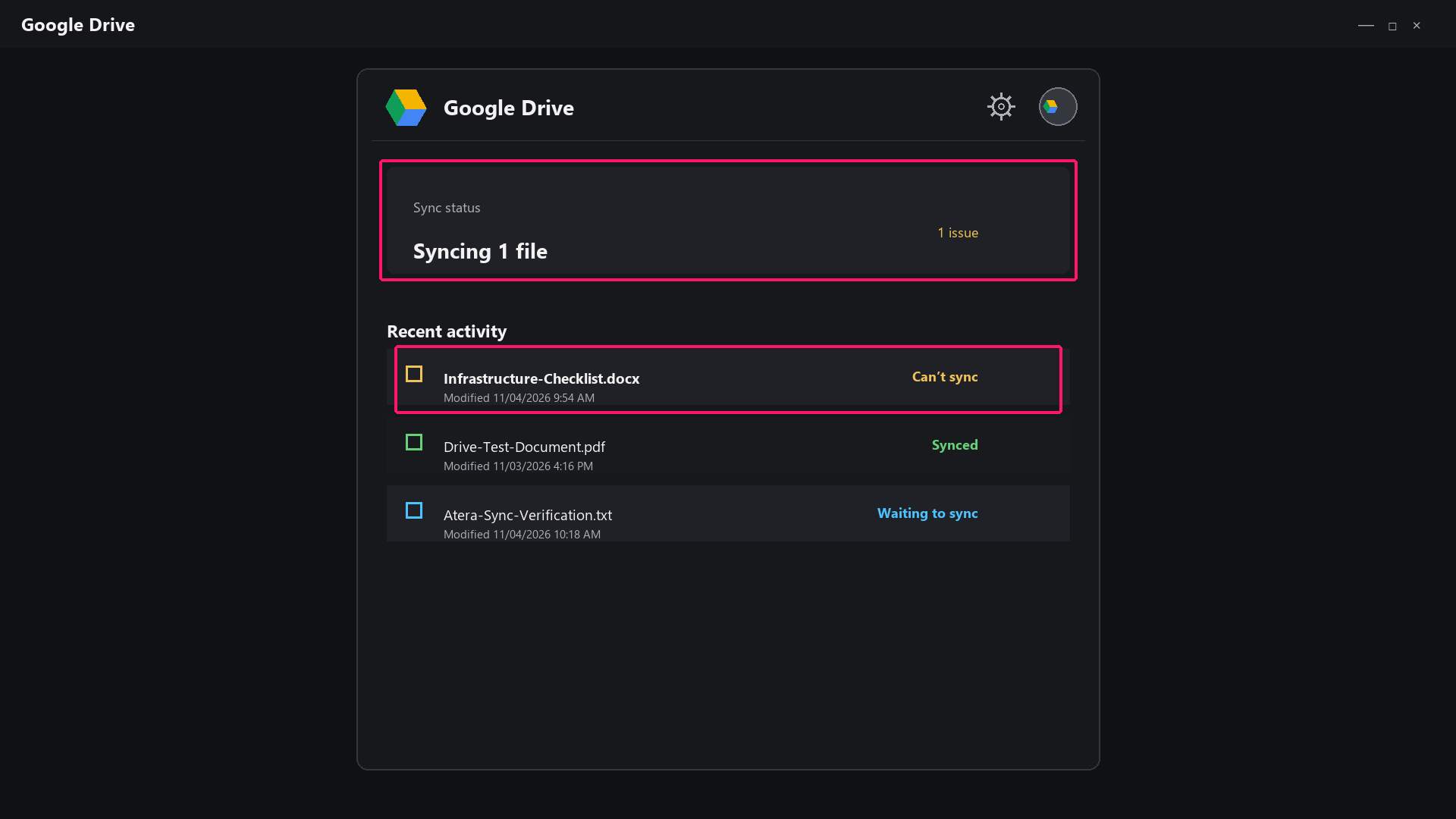
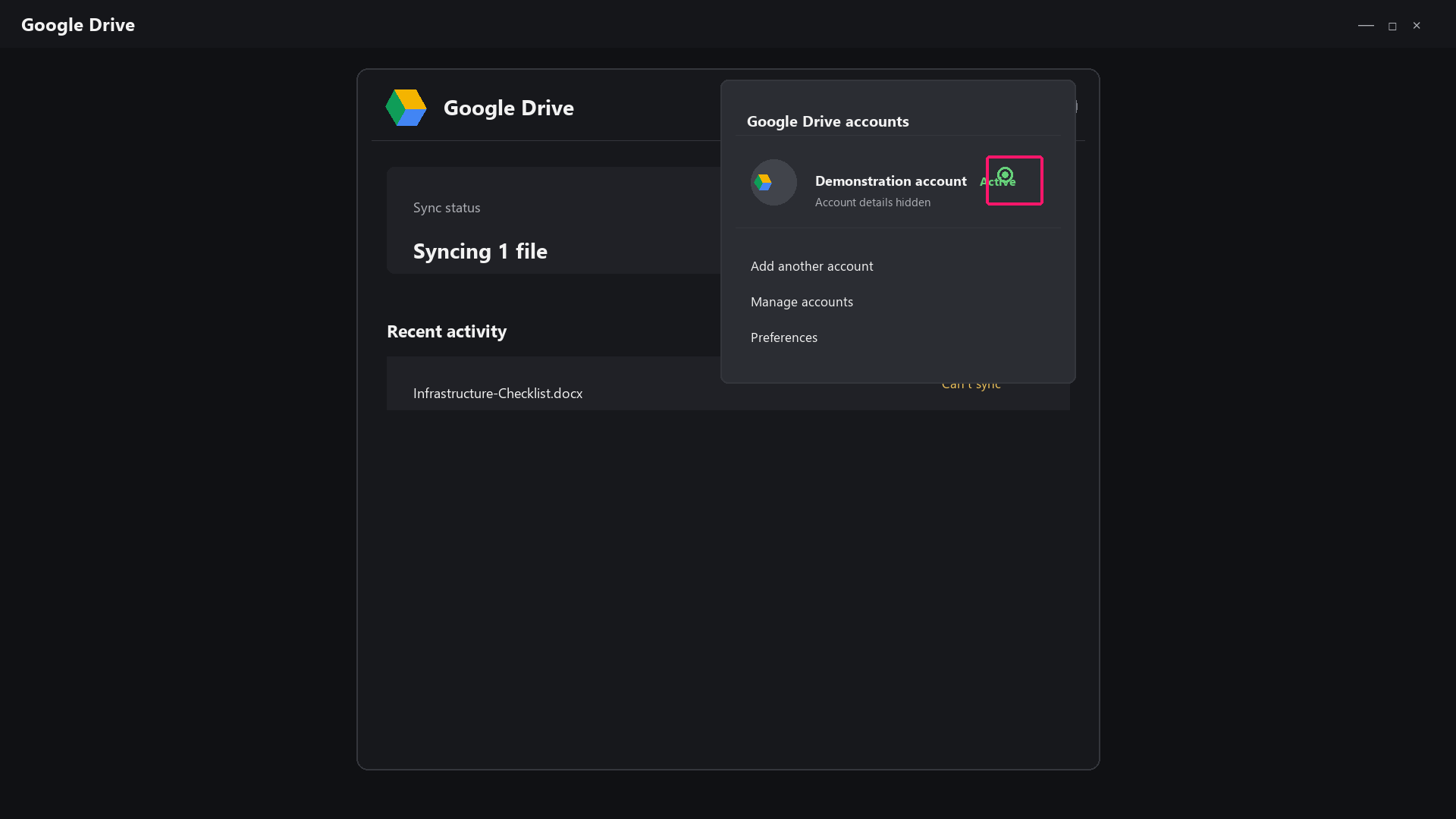
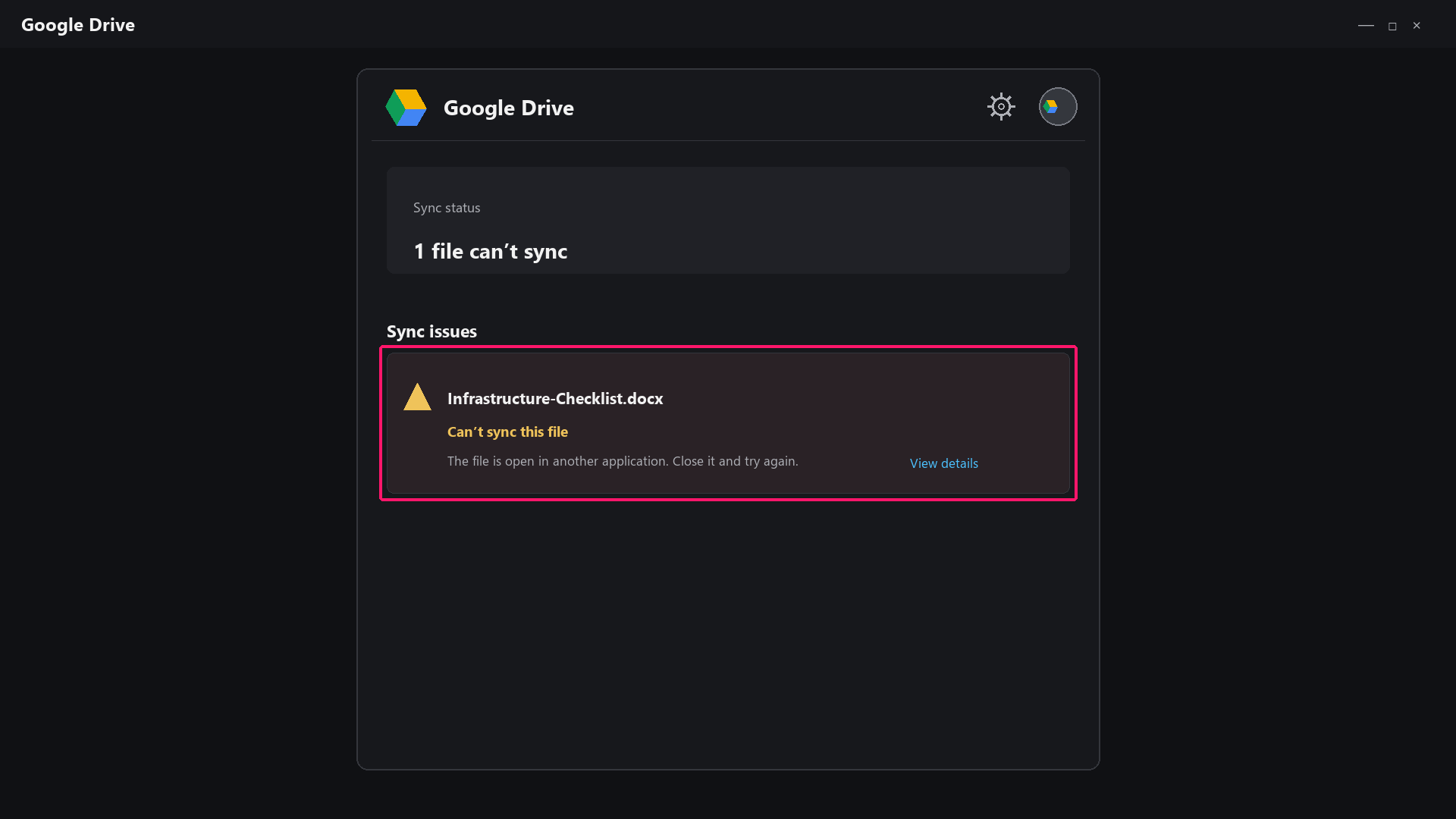
The error message narrows things down much faster than a general “it’s not syncing” report:
- Can’t load account: Points to authentication, a proxy, or an organizational restriction.
- Can’t sync file: The problem is tied to that file, so check its name, path, and permissions before looking at the client.
- Your disk space is low: Local storage is full, which is separate from the user’s Google storage quota. Don’t miss our guide to freeing up disk space on Mac.
- Can’t sync file/folder – moved to Lost & Found: Locally modified files may not have reached Google Drive. Recover them before you change anything else.
Once you’ve noted the error, pause and resume sync to see whether it clears:
Select Settings > Pause syncing
- Wait about 10 seconds, then select Settings > Resume syncing
- Check the activity list again to see whether transfers resume or the same error comes back
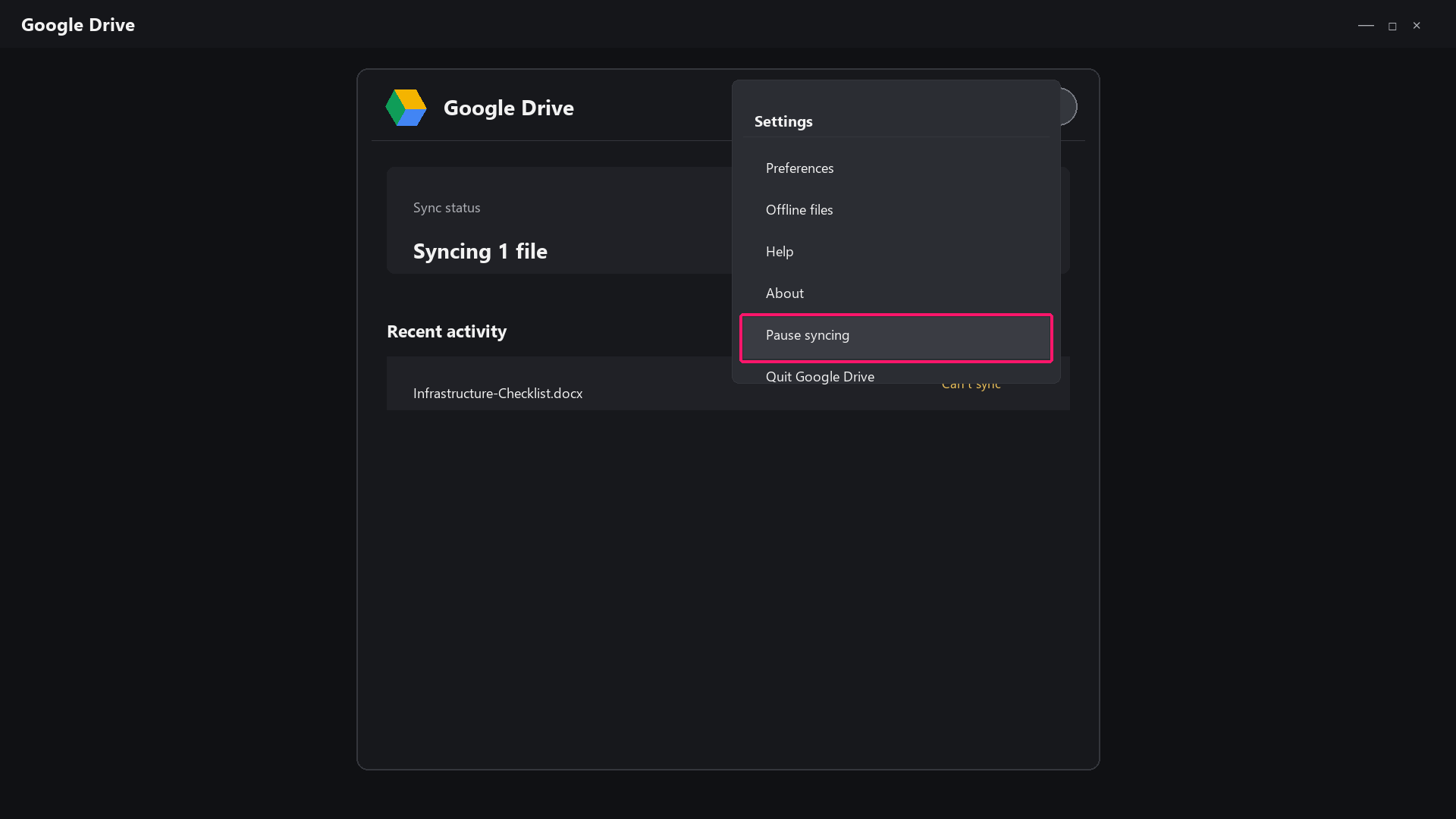
Even if transfers start moving again after the pause, that doesn’t prove sync is healthy. The real test is whether the pending changes finish and the files show up correctly on both ends. Before you change any configuration, record the account, client version, error message, file path, and time of failure. That gives you a reproducible starting point, and it helps you tell an isolated endpoint problem apart from a wider network or Google Workspace issue.
Step 2: Fix missing Google Drive folder or files on a Mac
On current macOS versions, Drive for desktop presents files through Apple’s File Provider framework rather than a conventional mounted disk. So a missing Drive location in Finder can come from the app not running, File Provider not being enabled, a macOS permission, or the account, and none of these is a sync failure as such. Check the activity list for pending uploads before you start, and don’t delete anything while you troubleshoot.
Check whether the client is running with
pgrep -fl GoogleDriveFS- If nothing comes back, start it with
open -a "Google Drive". Both commands need the logged-in user’s session, so run them as the current user rather than as root - Open Drive for desktop from the menu bar, confirm the correct account is signed in, and check the sync status for errors
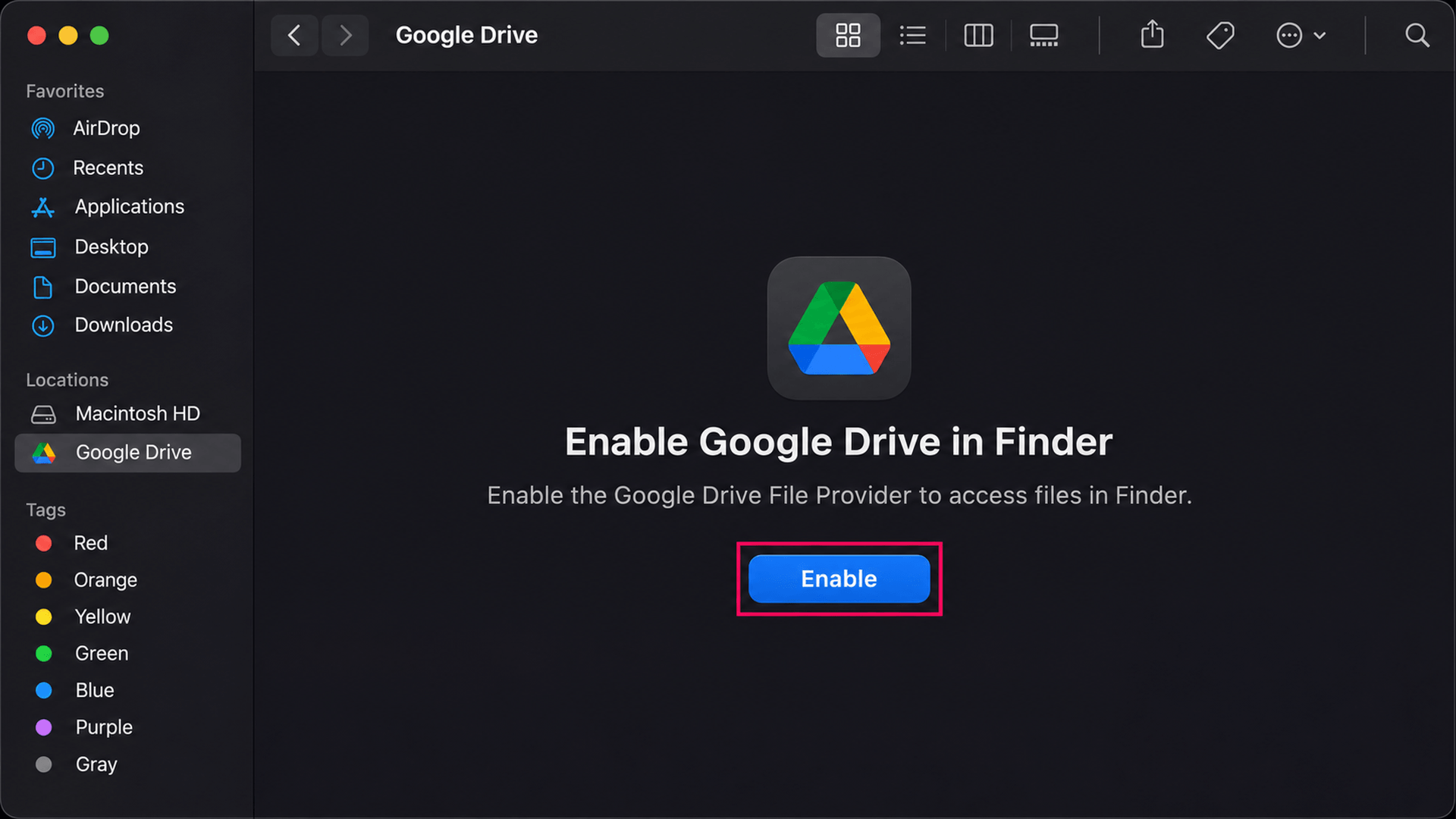
- Open Finder and look for Google Drive under Locations in the sidebar
If Google Drive appears there but its files don’t, select it and click Enable when prompted. This approves the File Provider integration so Finder can show the files
- If Google Drive is missing from the sidebar, open Finder > Settings > Sidebar and make sure the relevant location options are turned on
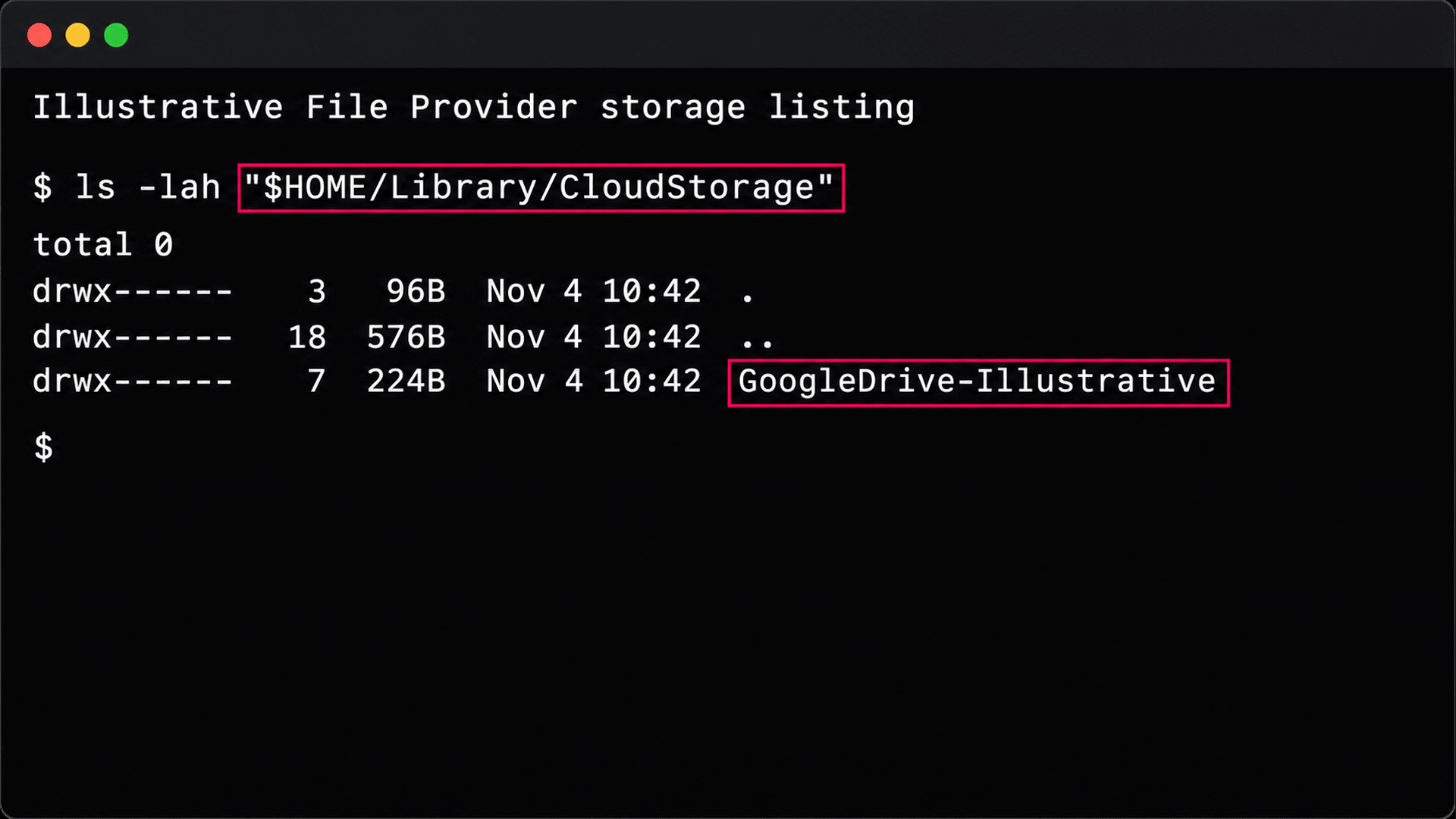
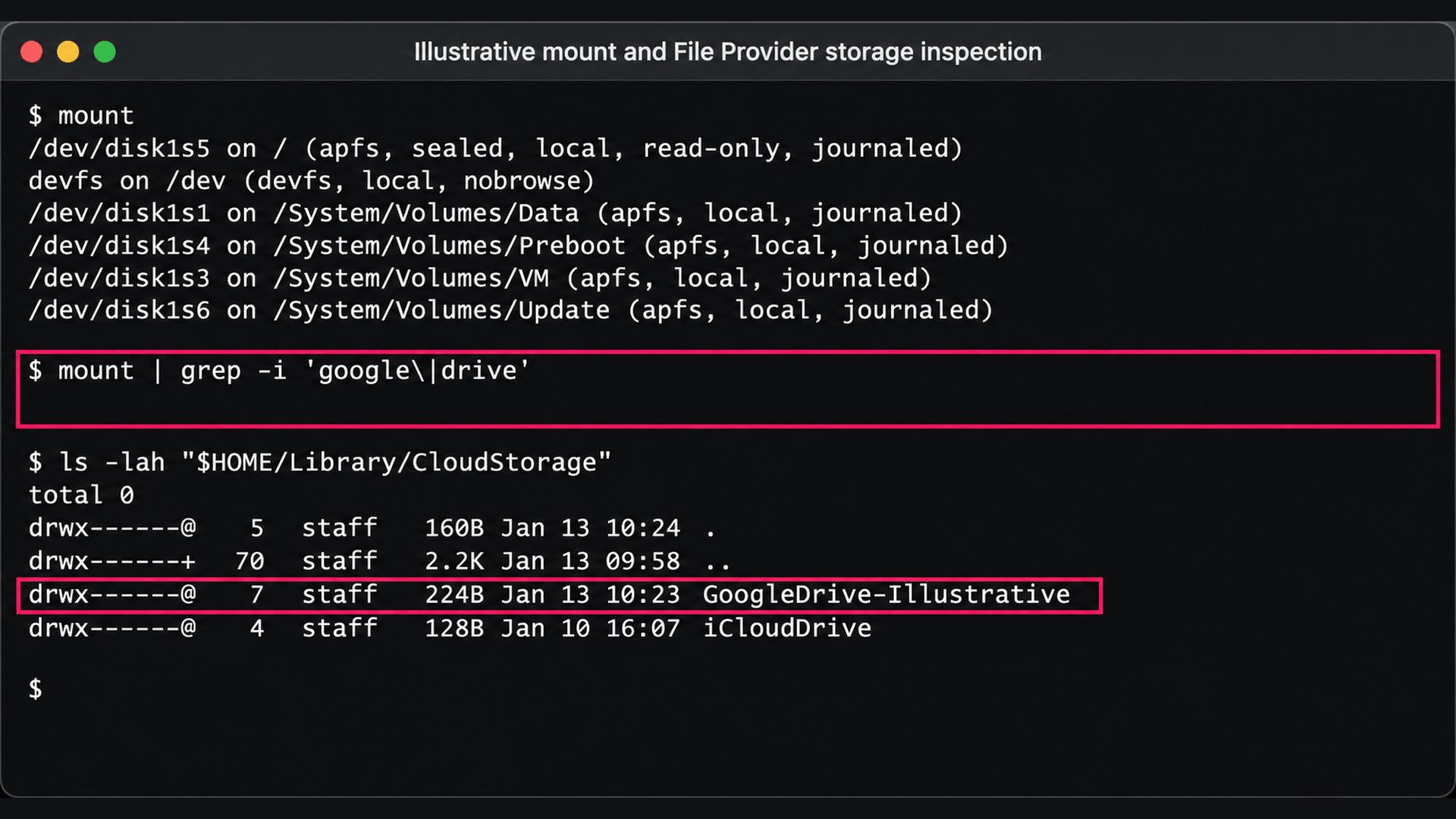
Check for the File Provider storage location with
ls -lah "$HOME/Library/CloudStorage". The folder name varies with the account and configuration, so don’t assume a fixed pathCheck whether Google Drive appears as a conventional mount with
mount | grep -Ei 'google|drive'. On installs that use File Provider, this usually returns nothing. That’s expected, and it doesn’t mean anything has failedOpen System Settings > General > Login Items & Extensions and check that Google Drive’s File Provider extension is allowed
- Open System Settings > Privacy & Security > Files and Folders and confirm Google Drive has access to any protected folders it syncs, such as Desktop, Documents, or removable storage. Don’t grant Full Disk Access as a shortcut unless the documented app behavior and your policy require it
- Open Google Drive in the browser with the same account and confirm the missing files exist and the user can still access them. If they’re in the browser but not in Finder, the problem is local. If they’re missing from the browser as well, go back to the account, permission, and location checks above
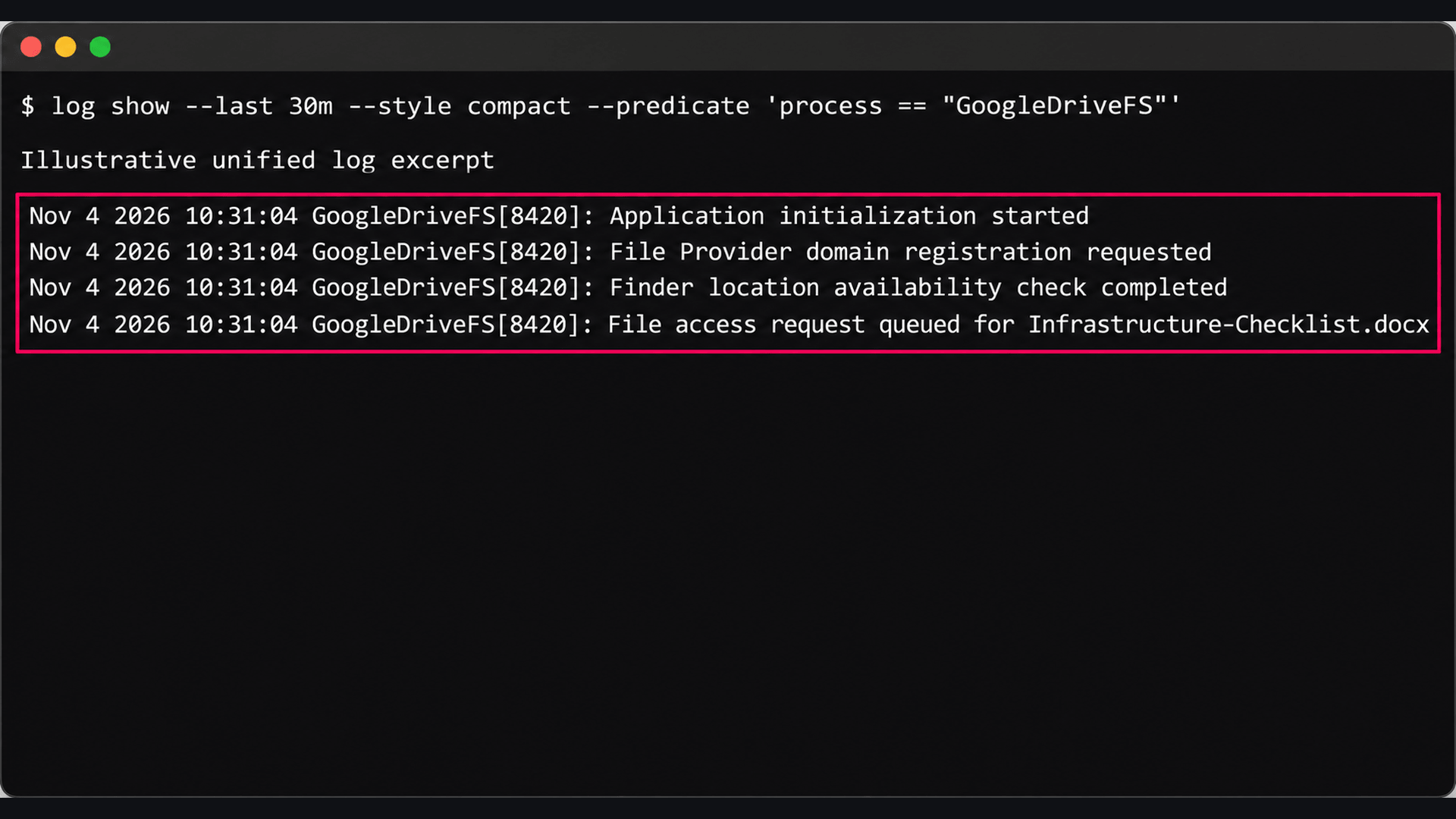
Check the unified log for the client around the failure time with
log show --last 30m --style compact --predicate 'process == "GoogleDriveFS"'. File Provider events don’t always appear under that process name, so if this comes back quiet, look in Console or check the optionsfileproviderctloffers on that macOS release- If the account, permissions, and File Provider all check out, quit Drive for desktop from the menu bar and reopen it with
open -a "Google Drive" - Once the Drive location reappears in Finder, open a file to confirm its content matches the cloud version, then run the two-way test from the first section
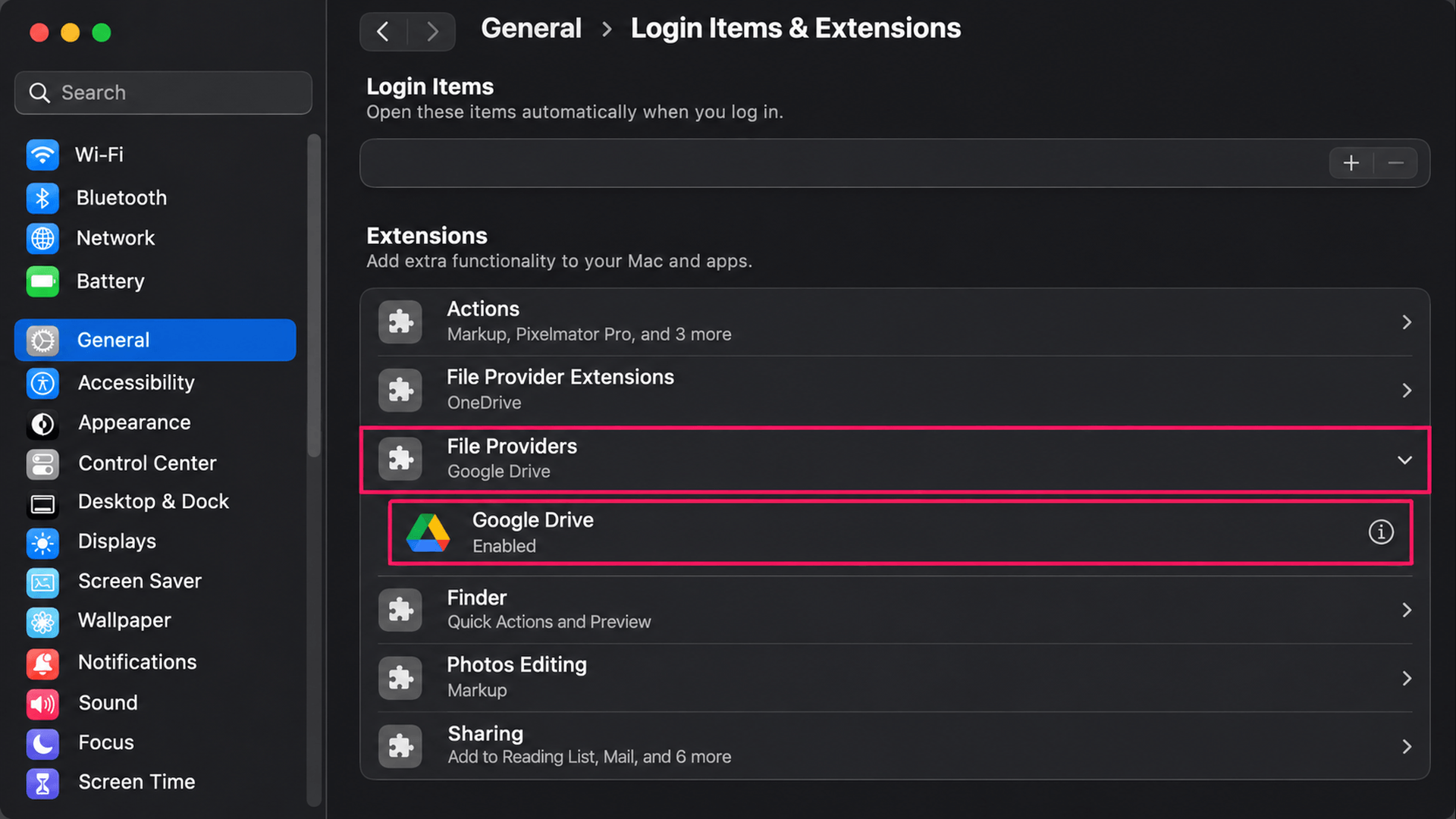
With Robin by Atera: When a Mac user reports that their Drive files are missing, Robin checks whether the Google Drive mount is present and readable, so your technician doesn’t need a remote support session to work through Finder and Terminal. If the case still needs a person, Robin gathers the issue and diagnostic context and follows your configured routing workflow.
Step 3: Check whether files are streamed or mirrored
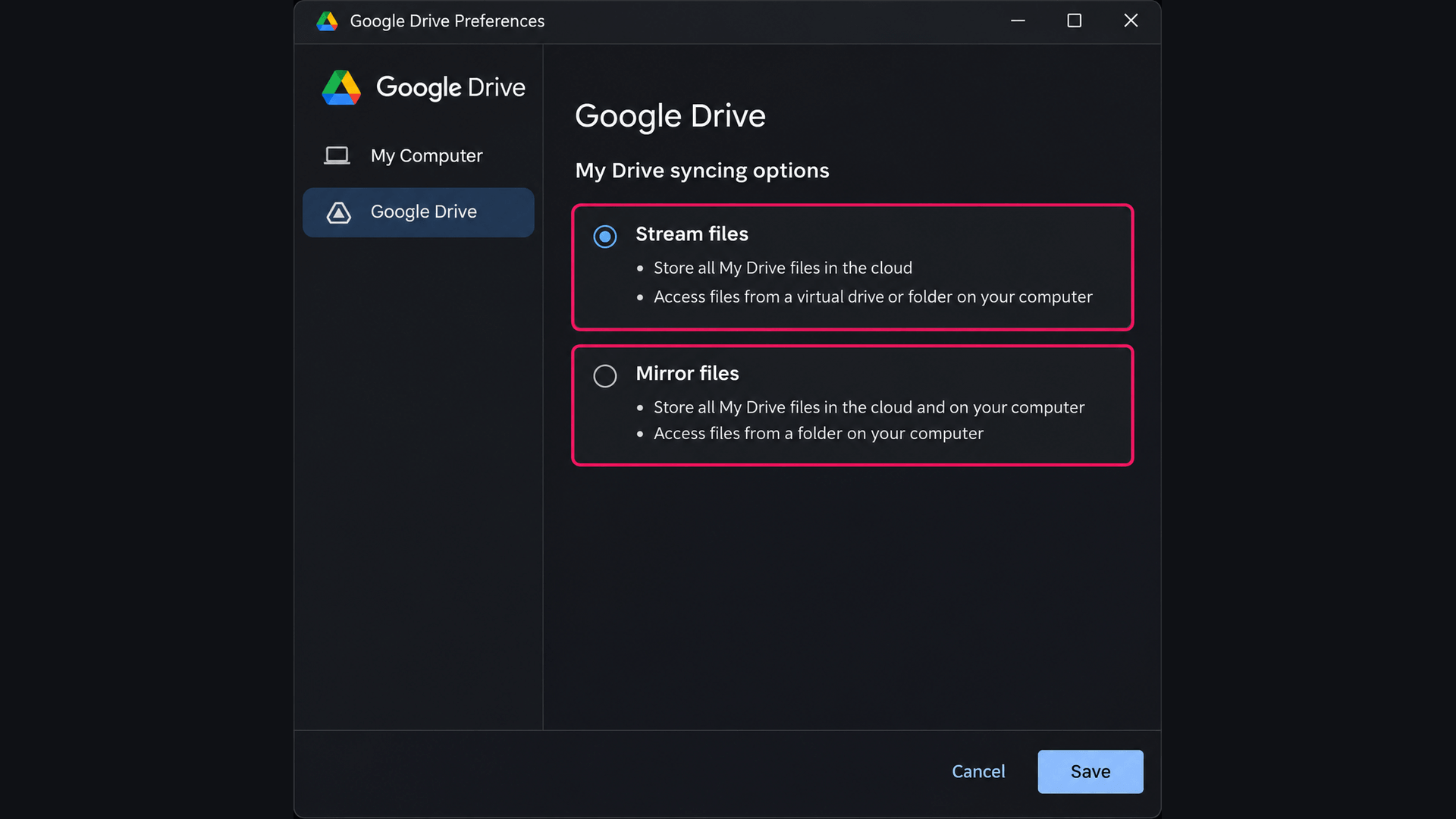
Many “Drive isn’t syncing” reports are really about files that were never stored on the device in the first place. With Stream files, the primary copy stays in Google Drive and content downloads on demand. With Mirror files, the device keeps a full local copy of My Drive. A user on streaming who expects every file to be available offline will report a sync failure when nothing has actually failed. Additionally, shared drives can only be streamed, so switching My Drive to mirroring won’t make them available locally.
Here’s how to check:
- Open Google Drive for desktop and select Settings > Preferences
Select Google Drive on the left and check whether Stream files or Mirror files is selected
- If the user needs a streamed file without a connection, right-click it and select Available offline
- Wait for the file to finish downloading before the user disconnects. When a file is saved offline, you’ll see a green check next to it
Before switching modes, check the activity list and make sure every pending upload has finished
- If the user does need mirroring, confirm the device has enough free disk space, select Mirror files, and choose the local folder when prompted
- Let the initial sync finish before you check that the files are available
Step 4: Collect diagnostics and read the logs
If the client’s status doesn’t explain the failure, collect evidence before you restart or reset anything, since a reset destroys the state you’d need to work out what went wrong. Start with a specific failure time and an affected file or account, then match the logs to them rather than searching everything.
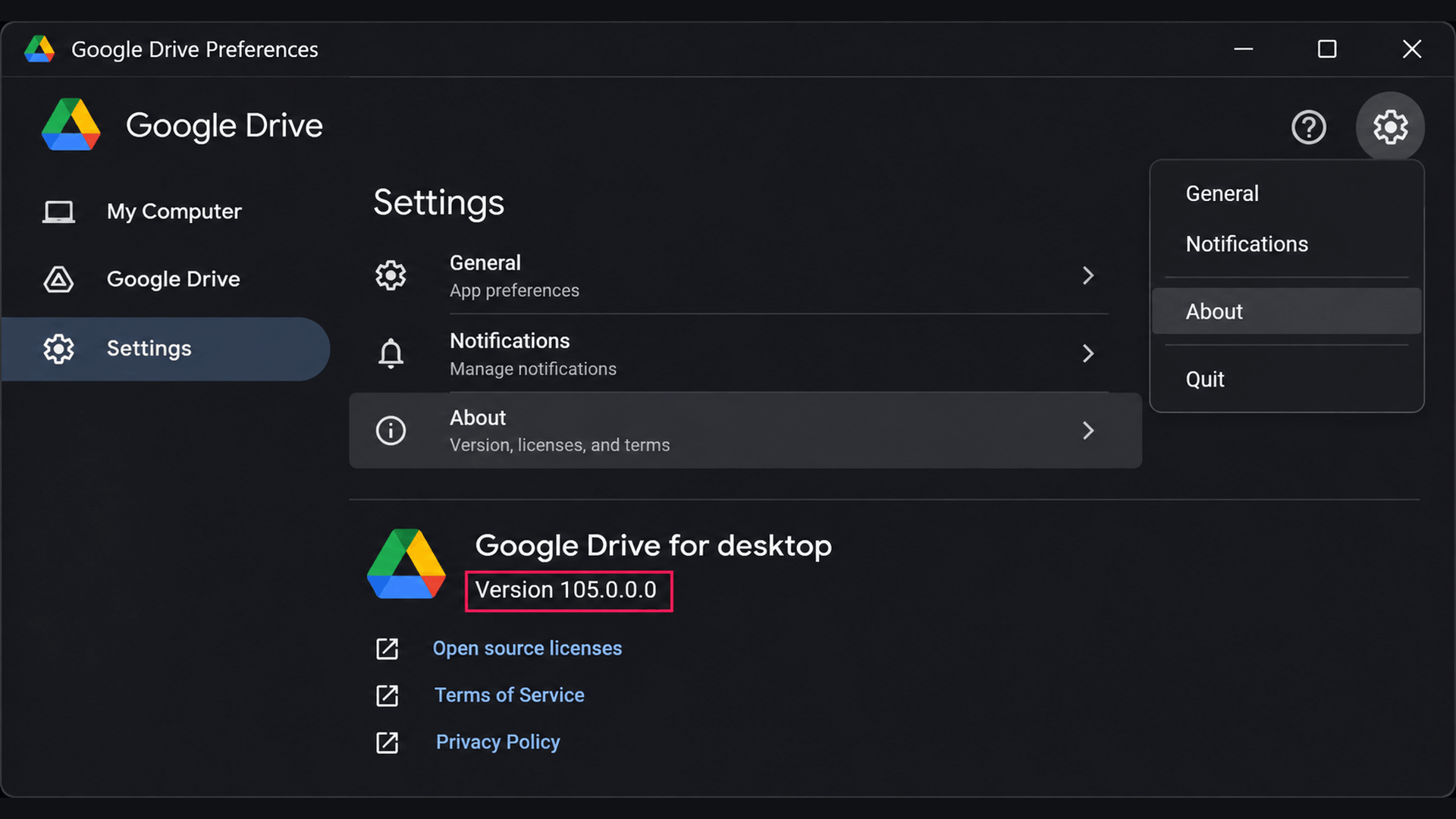
In Google Drive for desktop, select Settings > About and record the installed client version
- Record the OS version with
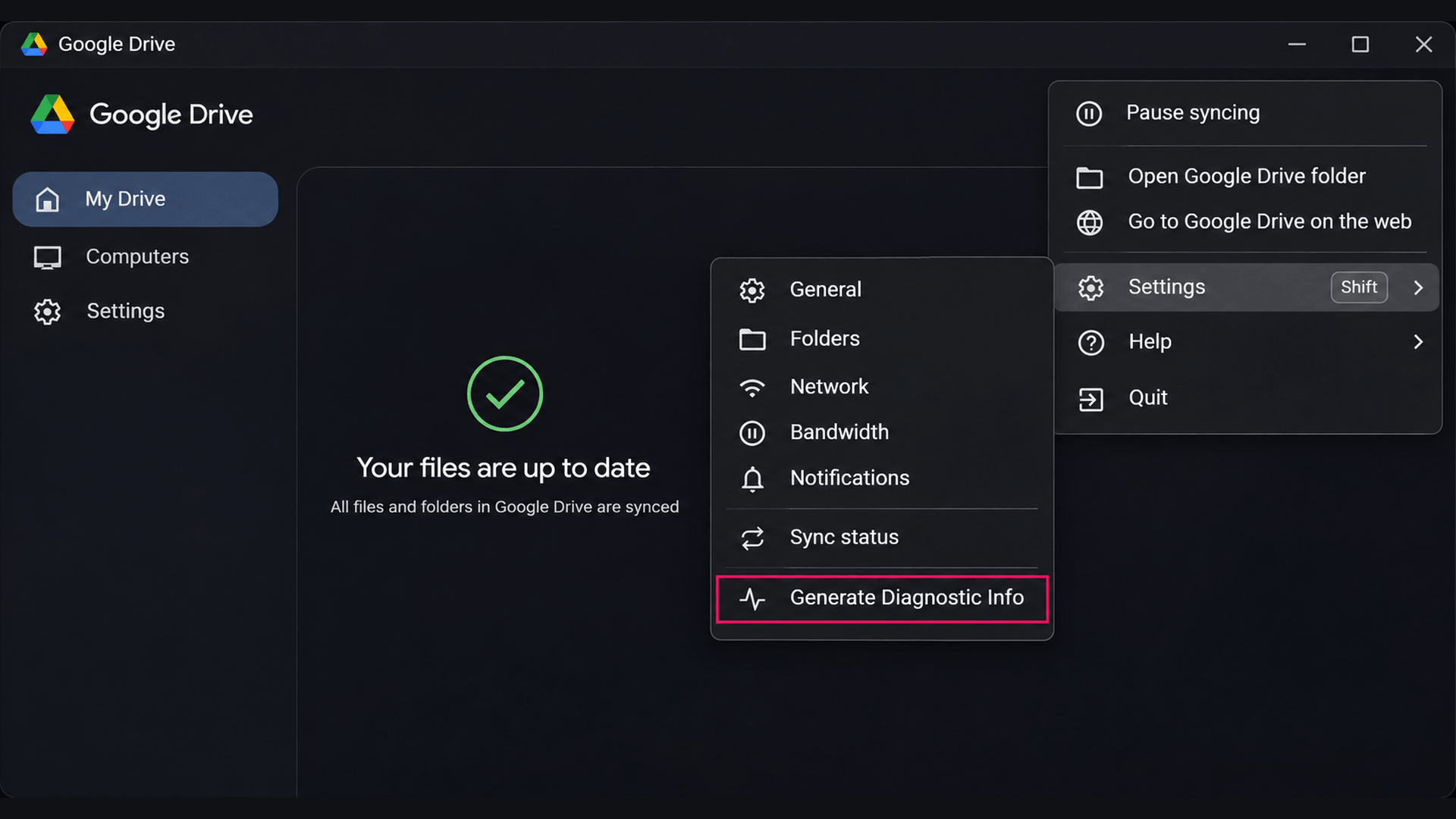
Get-CimInstance Win32_OperatingSystem | Select-Object Caption, BuildNumberon Windows orsw_verson a Mac Generate a diagnostics report by holding Shift, clicking the Settings gear, and selecting Generate Diagnostic Info. You’ll get a notification when the ZIP is saved to your desktop
- If Drive for desktop won’t open, run the diagnostic tool directly instead. On Mac, it’s
diagnostic_toolin/Applications/Google Drive.app/Contents/MacOS, and on Windows, it’sdiagnostic_tool.exein%PROGRAMFILES%\Google\Drive File Stream. Either way, a ZIP named “Google Drive Diagnostics – <DATETIME>.zip” appears on your desktop - Move the archive to approved support storage, because it can include account identifiers, file paths, and application configuration
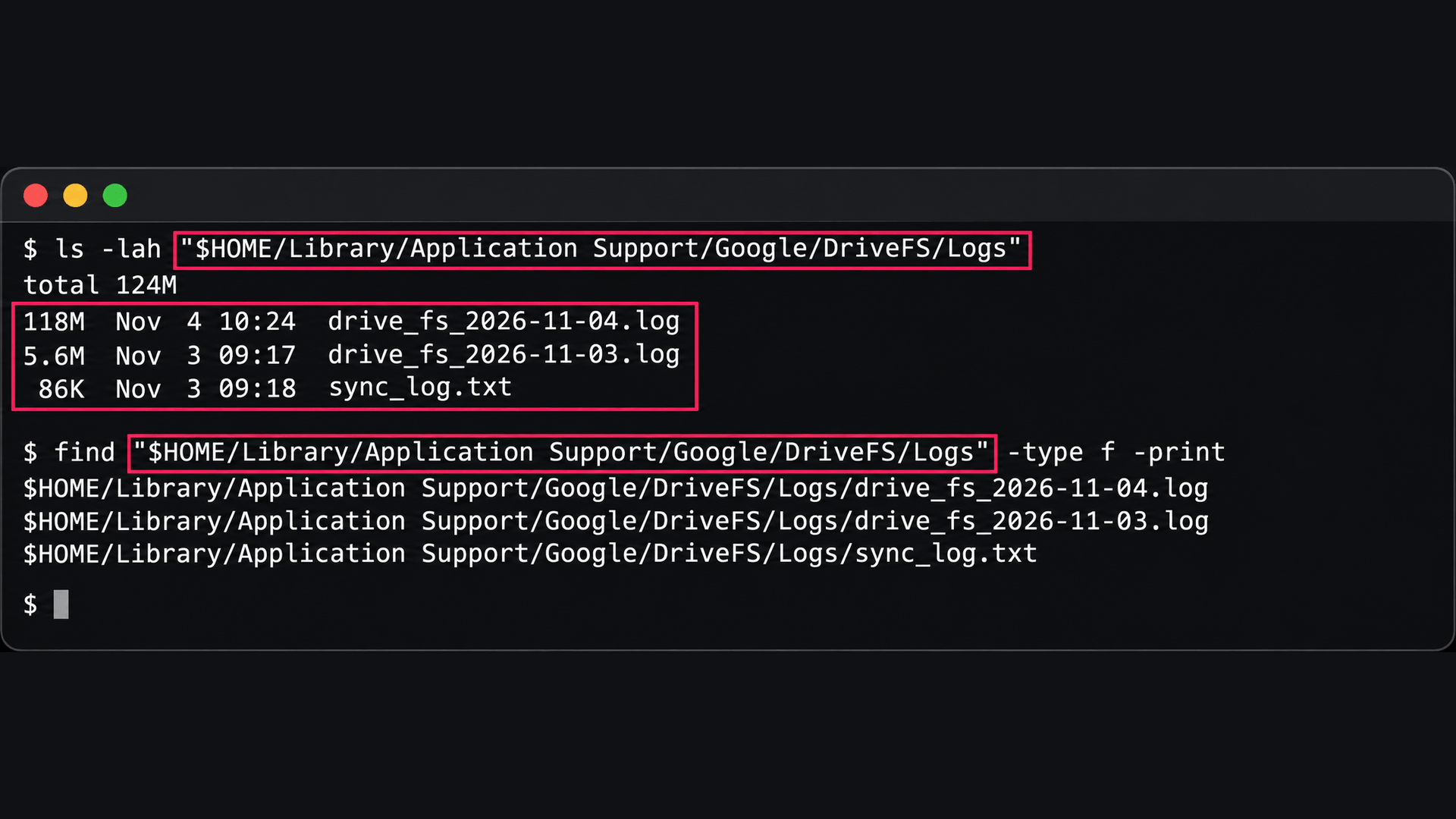
On Mac, list the most recently modified log files to find the ones covering the failure:
ls -lah "$HOME/Library/Application Support/Google/DriveFS/Logs"Then filter the readable logs for common failure terms:
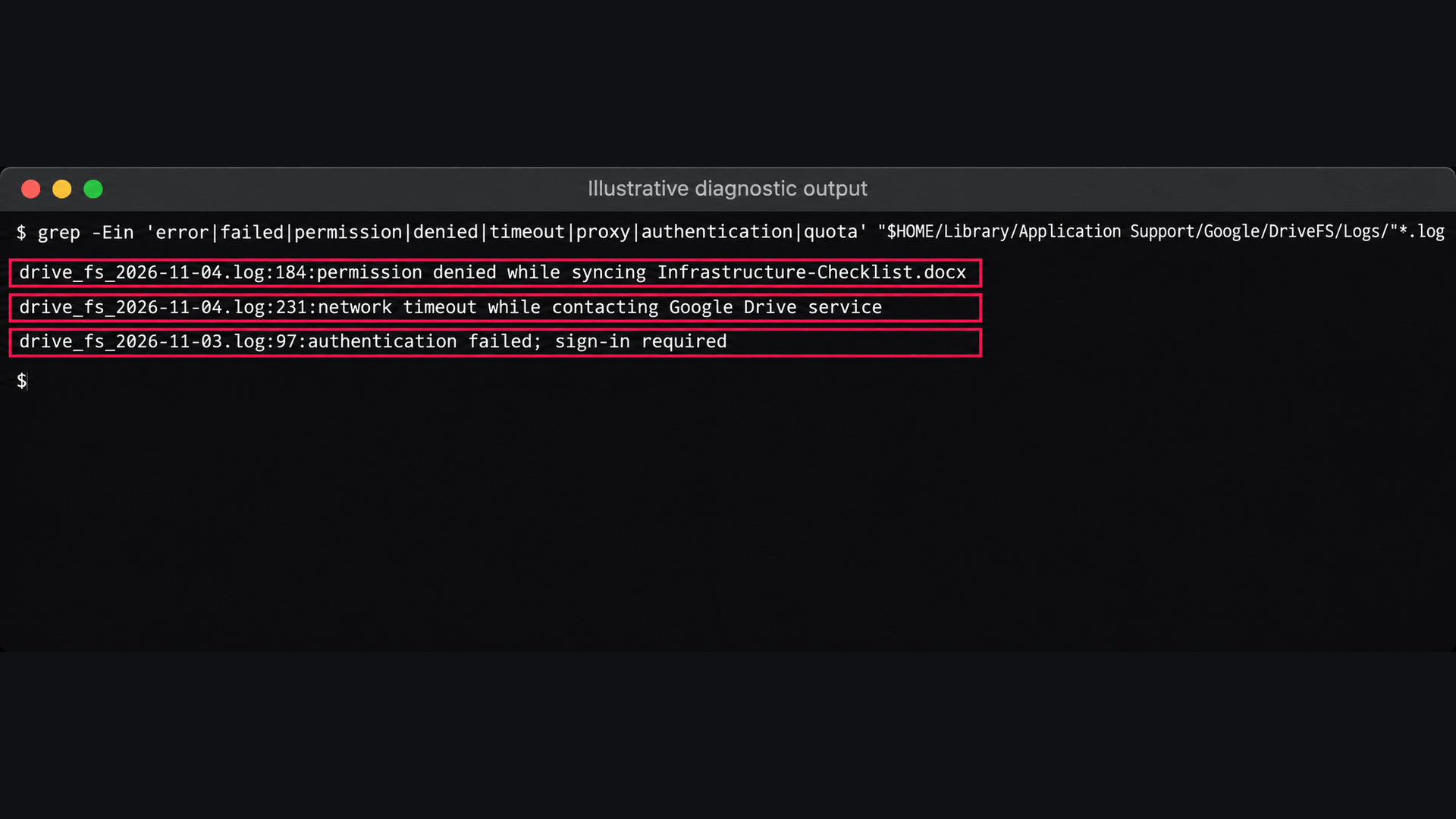
grep -Ein 'error|failed|permission|denied|timeout|proxy|authentication|quota' "$HOME/Library/Application Support/Google/DriveFS/Logs/"*.log.On Windows, it’s:
The Script:
Atera does not guarantee the integrity, availability, security, virus-free, safety, lawfulness, non-infringement, rights’ status, or functionality of the scripts. The use of the shared scripts is at your own risk. Scripts are provided “AS IS”. *
$LogPath = Join-Path $env:LOCALAPPDATA 'Google\DriveFS\Logs'
Get-ChildItem -LiteralPath $LogPath -File |
    Sort-Object LastWriteTime -Descending |
    Select-Object Name, Length, LastWriteTime
Script copied to clipboardThen:
The Script:
Atera does not guarantee the integrity, availability, security, virus-free, safety, lawfulness, non-infringement, rights’ status, or functionality of the scripts. The use of the shared scripts is at your own risk. Scripts are provided “AS IS”. *
$LogPath = Join-Path $env:LOCALAPPDATA 'Google\DriveFS\Logs'
$Patterns = @('error', 'failed', 'permission', 'denied', 'timeout', 'proxy', 'authentication', 'quota')
Get-ChildItem -LiteralPath $LogPath -File |
    Where-Object { $_.Extension -in '.log', '.txt' } |
    Select-String -Pattern $Patterns -Context 2,2 |
    Select-Object -First 100 Path, LineNumber, Line
Script copied to clipboard
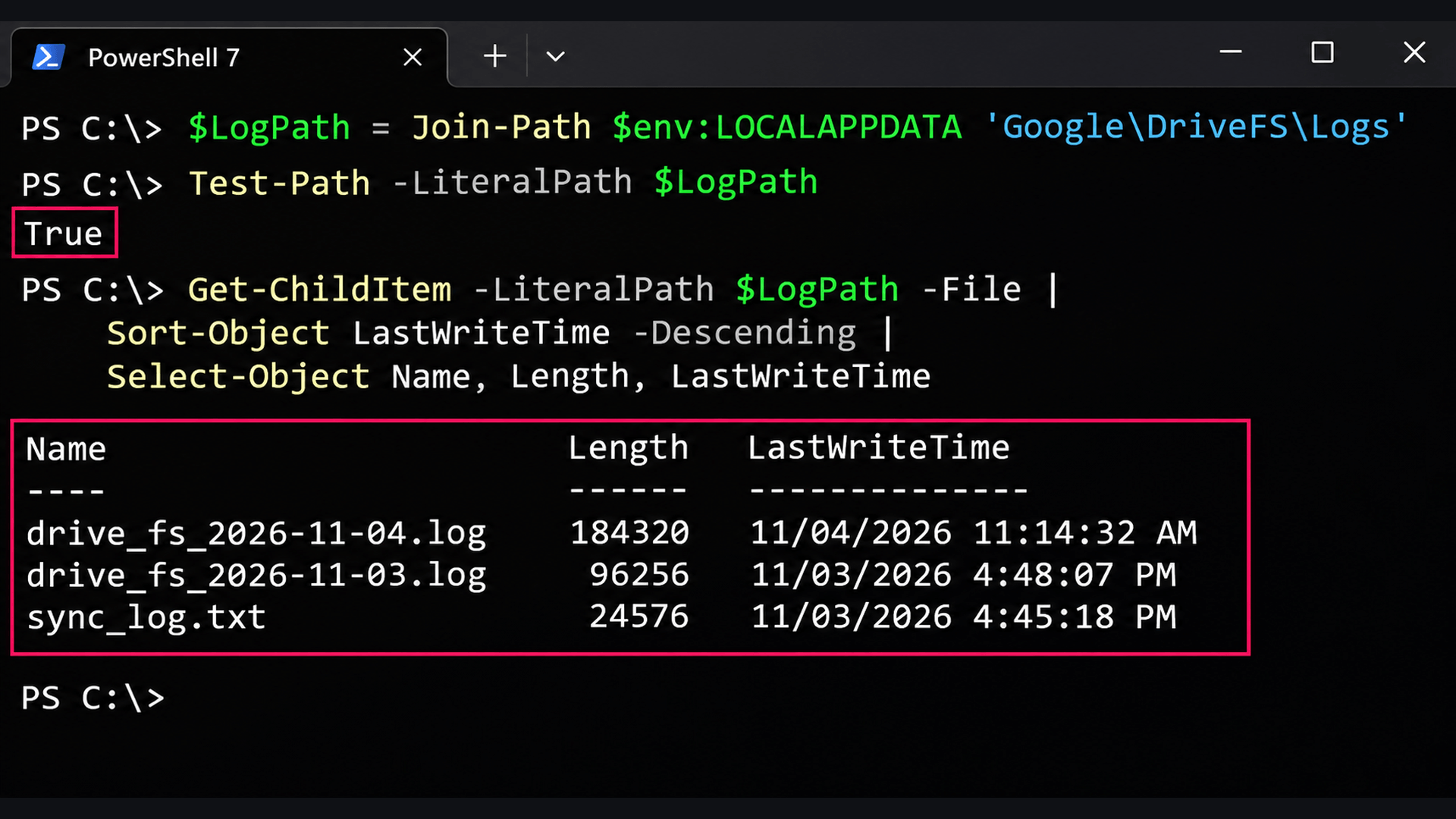
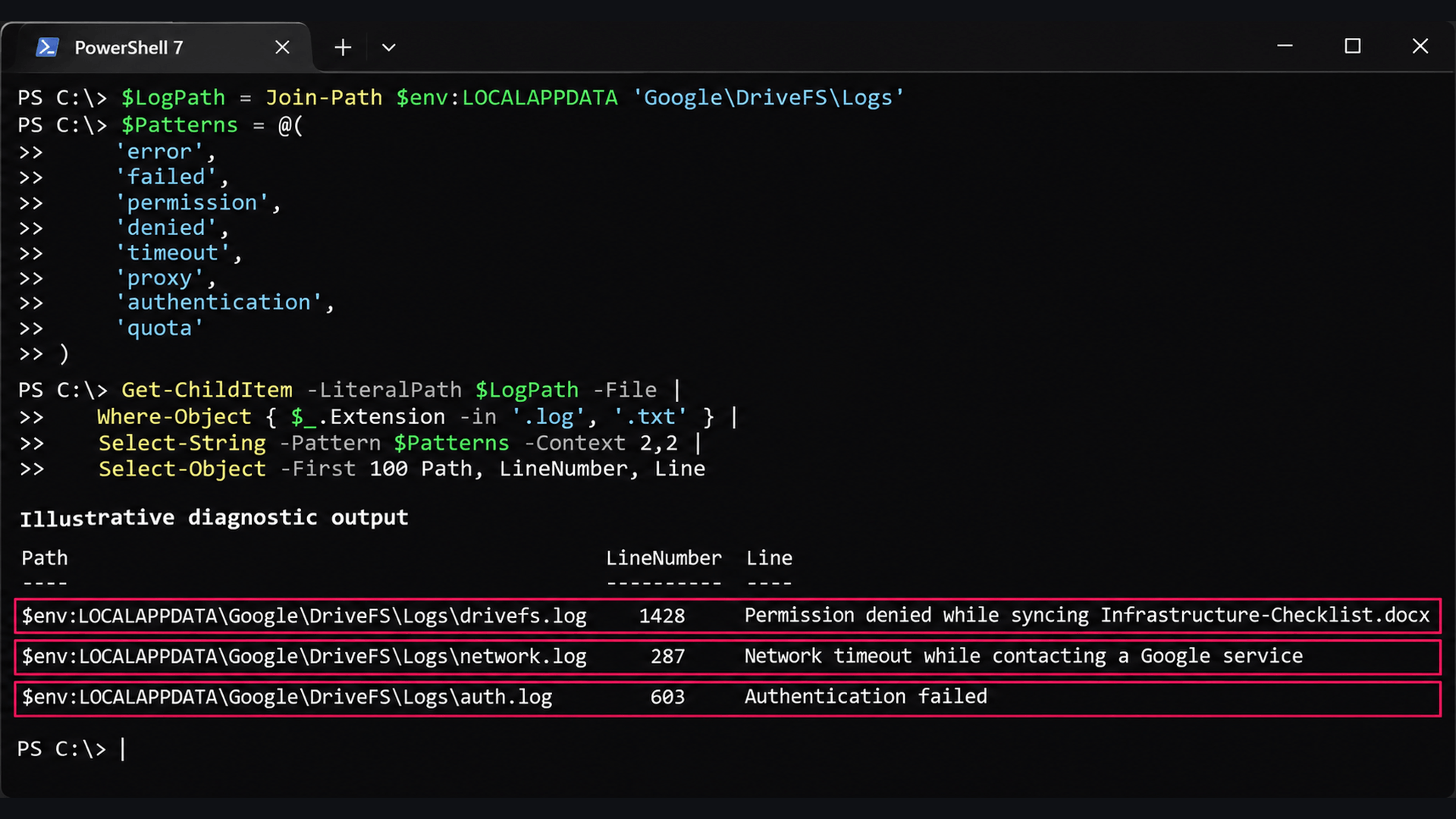
Pro tip: Atera’s RMM lets you run scripts remotely to specific endpoints. And if you don’t have the scripts, AI Copilot can help you write them.
These filters are a first pass, not a parser. Some Drive logs aren’t plain text, and a match on “error” doesn’t prove a root cause. The matches usually fall into one of these categories:
- Authentication failures: Repeated sign-in or token errors point to the account’s status or a Google Workspace policy.
- Permission errors: Access denied messages mean either the local file or folder can’t be read, or cloud access is restricted. Check which side is failing.
- Network timeouts: Connection failures, timeouts, proxy errors, or TLS errors point to the network path, which the “Drive won’t sync on the corporate network” section below
- Storage failures: Disk full, quota exceeded, or write errors. Separate local disk space from the user’s Google storage limit.
- File-specific failures: The same file or folder failing again and again points to locks, naming restrictions, or conflicting edits.
- Local database or cache errors: Repeated application-state failures are the one case that justifies the reset in the next step.
With Robin by Atera: When a case gets past these checks and needs a technician, Robin gathers the unresolved issue and diagnostic context, then follows your configured routing workflow. The technician who picks it up starts from the evidence rather than asking the user to repeat everything.
Step 5: Reset the cache or reconnect the account without losing changes
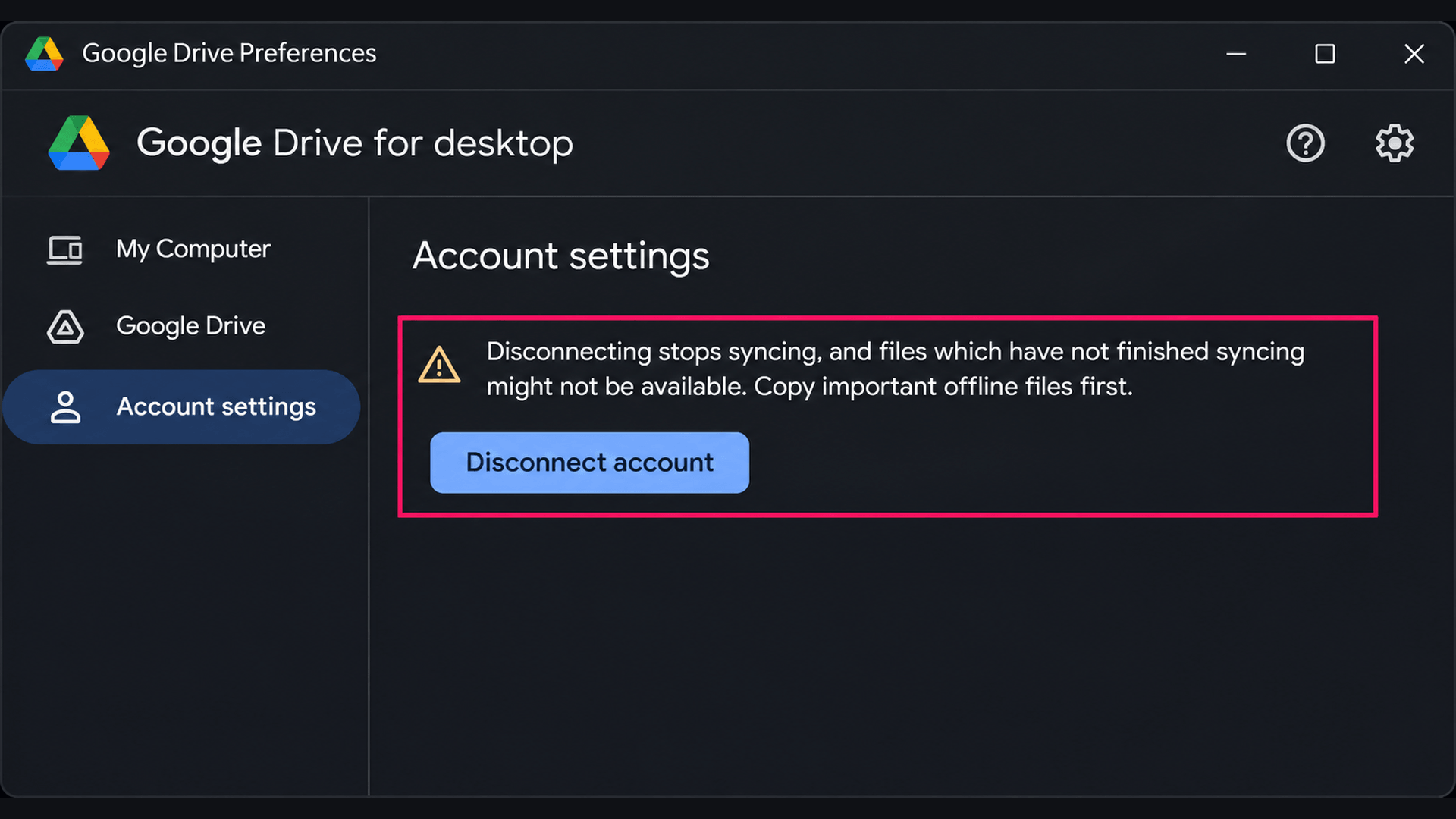
Only reset after the earlier steps have failed and you have evidence that the local application state is the problem, because disconnecting your Google Drive account removes offline streamed files, along with any changes in them that never uploaded. Protect the data first.
- Check the activity list and notifications for pending uploads, failed transfers, and Lost & Found warnings
- Compare each affected file with its version in Google Drive in the browser. If the browser copy is older, treat the local changes as not uploaded
- Copy the affected files to a recovery folder outside Drive-managed storage, such as
~/Documents/Drive-Recoveryon a Mac orC:\Drive-Recoveryon Windows; make sure that folder isn’t being synced - Quit Google Drive for desktop
- Confirm the process has exited with
pgrep -fl GoogleDriveFSon a Mac orGet-Process -Name GoogleDriveFS -ErrorAction SilentlyContinue - On a Mac, back up the DriveFS application data with
mkdir -p "$HOME/Documents/Drive-Recovery"followed bycp -Rp "$HOME/Library/Application Support/Google/DriveFS" "$HOME/Documents/Drive-Recovery/DriveFS-Backup". This doesn’t cover files managed by Apple’s File Provider under~/Library/CloudStorage, so recover any important files from there individually On Windows, it’s:
The Script:
Atera does not guarantee the integrity, availability, security, virus-free, safety, lawfulness, non-infringement, rights’ status, or functionality of the scripts. The use of the shared scripts is at your own risk. Scripts are provided “AS IS”. *
$Source = Join-Path $env:LOCALAPPDATA 'Google\DriveFS'
$Destination = 'C:\Drive-Recovery\DriveFS-Backup'
New-Item -ItemType Directory -Path $Destination -Force | Out-Null
Copy-Item -LiteralPath $Source -Destination $Destination -Recurse -Force -ErrorAction Stop
Script copied to clipboardOpen Google Drive for desktop, go to Settings > Preferences, select the affected account, and select Disconnect account
- Sign the account back in and let Drive rebuild its sync state before you open any of the affected files
- Compare the previously affected files with the copies in your recovery folder, and keep the backups until you’ve confirmed sync is working
Deleting the whole DriveFS folder isn’t a cache reset. It removes local application state and potentially recoverable cached content, and there’s no single risk-free reset command that works across every Windows and macOS install. The cache location can also differ if an administrator has set a custom path.
Where Robin stops and your technicians start: Recovering unsynced changes, backing up application data, and disconnecting accounts can all cost a user their work, so they stay with your technicians, along with proxy, SSL inspection and firewall changes. On Macs, Robin’s role is the first round of Google Drive checks. Taking those routine checks off the queue frees your team for the recoveries that need a careful hand.
Step 6: Confirm sync works in both directions
Don’t rely on the client’s status indicator to confirm a fix. Use a controlled test instead. The rest of this guide comes back to this test after each fix.
- Create a small, non-sensitive test file in the affected synced location
- Open Google Drive in the browser and confirm the file appears with the expected modification time
- Edit the file in the browser
- Confirm the updated version appears locally
If the test file syncs but the original file doesn’t, focus on the original’s permissions, path, ownership, or edit history. If neither syncs, widen the investigation to the client, the account, the network, and the organization’s configuration.
What to do when the standard fixes don’t work
If the checks above come back clean and files still aren’t where users expect them, the cause is usually one of two patterns: the client reports sync as complete but files are missing or out of date and a corporate network is blocking the client’s connections to Google.
Here’s how to deal with each one:
Sync says complete, but files are missing or out of date
A completed sync status only means the client has finished the work it knows about. It doesn’t confirm that every file the user expects is present, current, or in scope. Most cases come down to the wrong account, a file outside My Drive, a shortcut, conflicting edits, or a file name the operating system won’t accept.
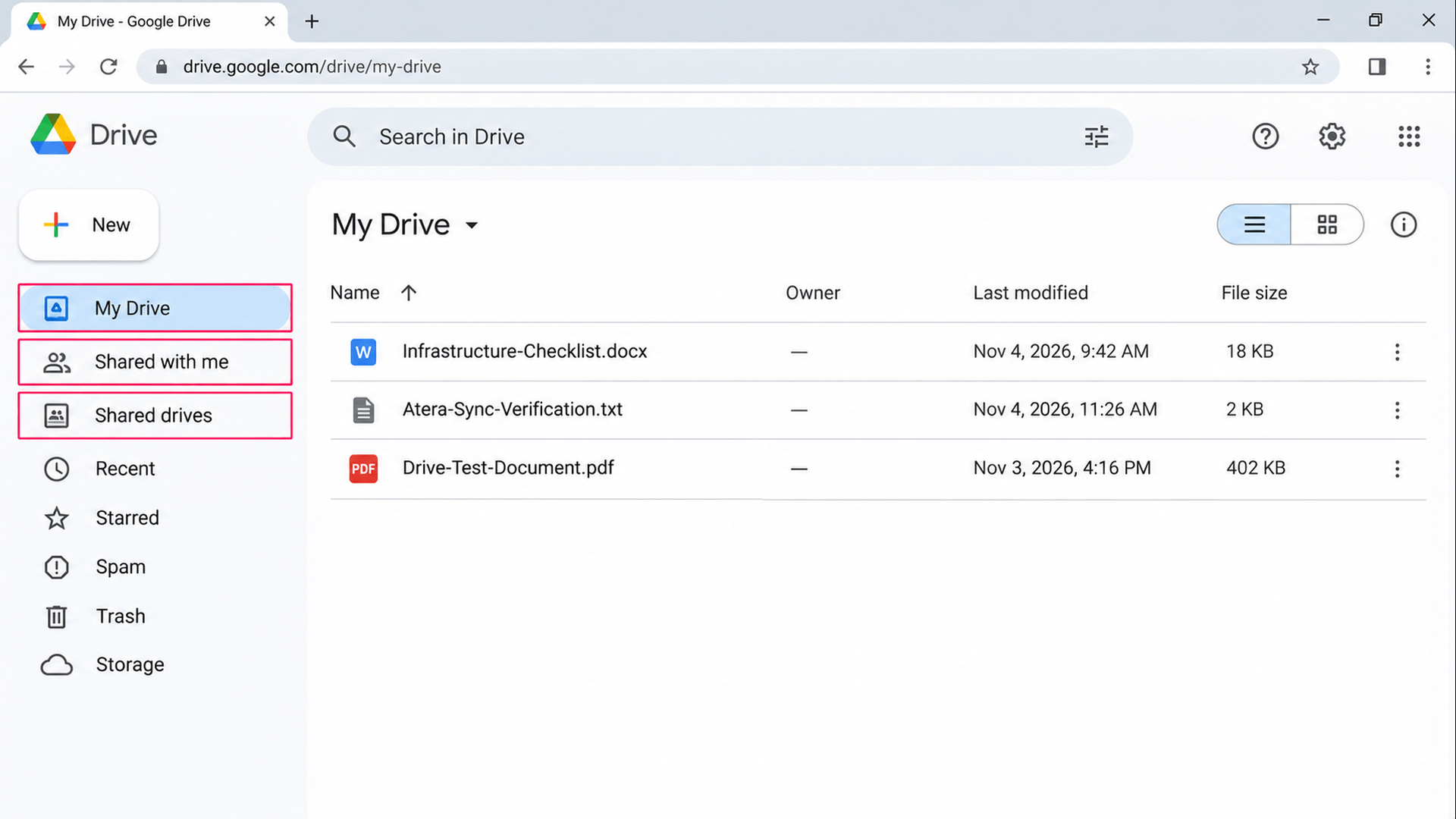
- Open Google Drive in the browser with the same account that’s signed in to Drive for desktop, and search for the missing file
Check where the file actually sits: My Drive, Shared with me, a shared drive, or a folder reached through a shortcut. Files in Shared with me don’t appear in My Drive automatically
- If the file is in a shared drive, confirm the user still has membership and permission to the file
If the item is a shortcut, open its target and confirm the original still exists and the user can access it. A shortcut points to a file rather than copying it, so if the original was moved, deleted, or re-permissioned, the shortcut stays visible while the content is unavailable
- If the file is missing from the browser too, check its original location, sharing permissions, and deletion history before you troubleshoot the desktop client
If the file is in both places but the content differs, compare the modification times and open the version history in the browser. Don’t overwrite the cloud version with the local one until you know which holds the latest valid changes, and keep both copies if you’re unsure
- Check the Drive for desktop activity list for failed or pending transfers on that specific file, rather than relying on the overall status
- If the file exists locally but not in the browser, confirm its folder is actually set to sync and that no client setting, organizational policy, or file-type restriction excludes it
- Try opening, renaming, and copying the file locally. Errors here point to a file lock, a security product blocking access, or a name the OS won’t accept. On Windows, reserved device names such as
CON,PRN, andNULcan’t be used for ordinary files, and unsupported characters or overly long paths cause similar failures
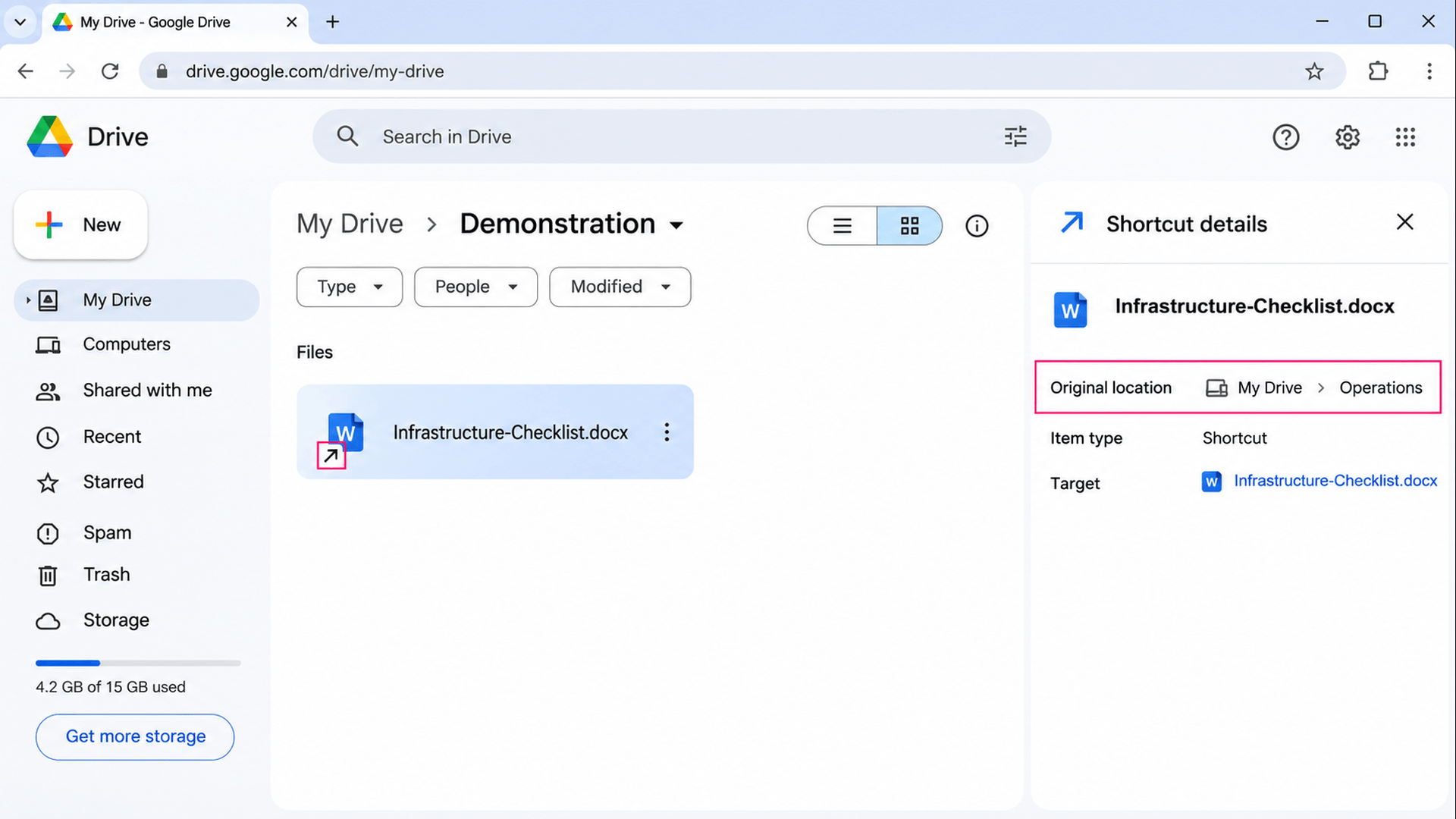
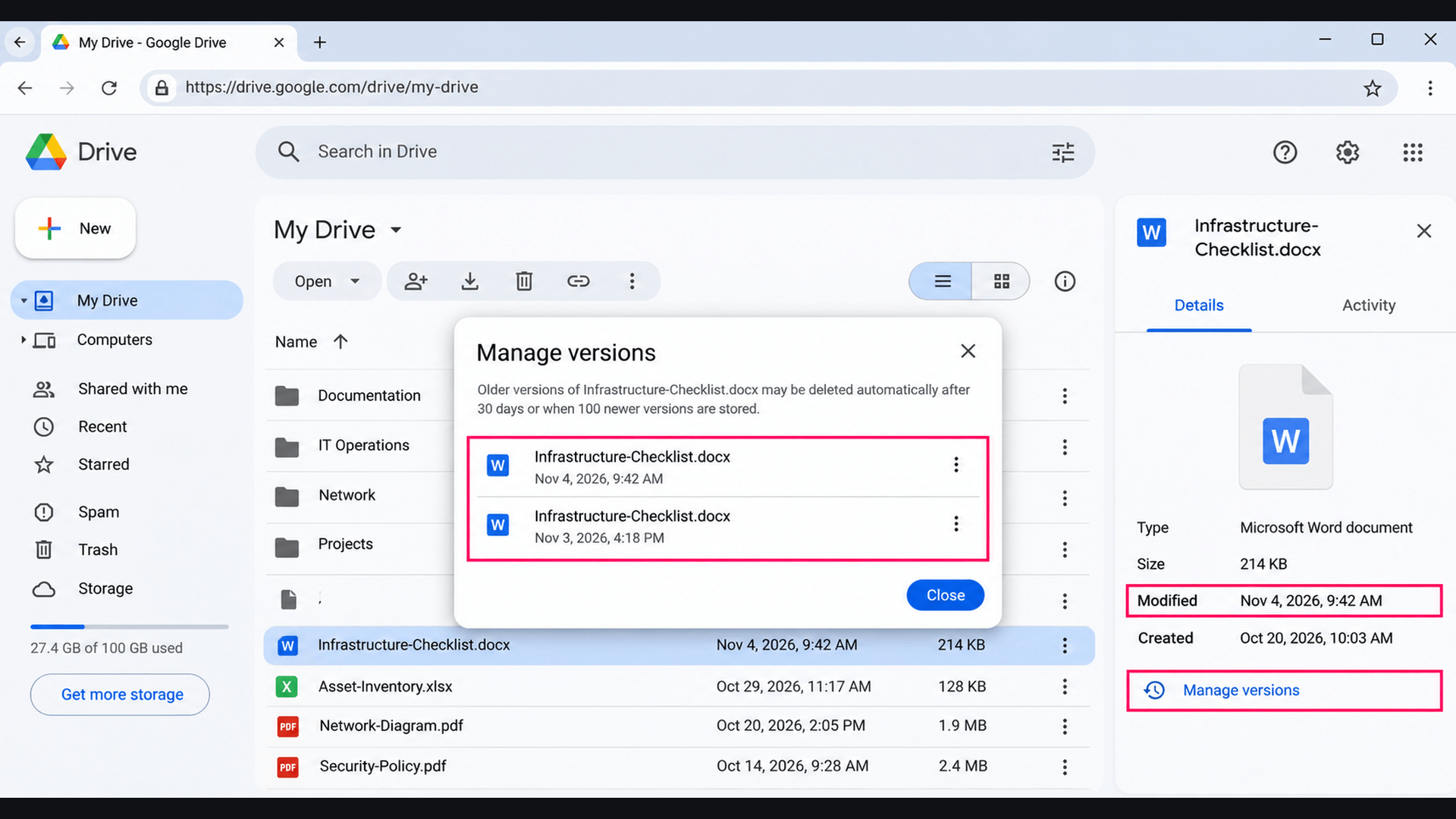
With Robin by Atera: On Macs, Robin checks whether the Google Drive mount is present and readable, which rules out a local mount problem before you start comparing files in the cloud. Checking the file’s location, permissions and trash in Google Drive stays with your technician.
Drive won’t sync on the corporate network
When Drive for desktop syncs off-site but not in the office, check the network path before the client. Proxies, firewalls, SSL inspection, and endpoint security tools can all block the client while normal browsing keeps working.
- Where policy allows, connect the device to an approved alternative network, such as a mobile hotspot. If sync resumes, the corporate network is the cause
- Test reachability with
nc -vz drive.google.com 443on a Mac, orTest-NetConnection drive.google.com -Port 443andTest-NetConnection www.googleapis.com -Port 443on Windows - Check the proxy with
scutil --proxyon a Mac ornetsh winhttp show proxyon Windows, and compare it with the proxy setting under Settings > Preferences in Drive for desktop. Drive for desktop doesn’t support password-authenticated proxies, so if yours needs credentials, work with the network team on a narrowly scoped rule for Drive’s endpoints - Review firewall, secure web gateway, and DNS filtering logs for blocked connections from the device. Allow only the domains listed in Google’s published Workspace network requirements
- Check for SSL inspection by running
openssl s_client -connect drive.google.com:443 -servername drive.google.comon a Mac, or by viewing the certificate in a browser on Windows. If the certificate issuer is your inspection gateway rather than Google, the gateway is in the path - To get Drive to trust the gateway, deploy a PEM file containing the certificates from Drive’s
roots.pemplus your proxy-signing certificates, then point the host-wideTrustedRootCertsFilesetting at it. Test on a pilot device first - Review EDR, antivirus, and application control events from the time sync stopped. If a product blocked Drive, scope the exception to the verified application and its folders, not the whole user profile
After any change, confirm sync works in both directions on the corporate network. If many users stopped syncing at once after a proxy, certificate, or security policy change, fix that shared cause instead of resetting clients one by one.
With Robin by Atera: On Macs, Robin tests connectivity to the relevant Google services and helps distinguish a local mount problem from a service reachability issue. If several users come back with the same failure, your team knows to look at the shared network path rather than individual devices. Changes to the proxy, SSL inspection and firewall rules stay with your network team.
Keep Google Drive sync problems off your queue
You can fix Google Drive sync without guesswork if you work in order. Find where the sync is breaking, protect changes that haven’t uploaded, and only then reset clients or reconnect accounts. That order matters even more once the same failure shows up across a fleet. What changes is that you do the work from your RMM rather than device by device. With Atera’s remote script execution and group policy management, you can run the silent installer across selected devices or device groups so every endpoint runs the same client version. The same feature can set policy values such as AutoStartOnLogin and TrustedRootCertsFile under the HKLM\SOFTWARE\Policies\Google\DriveFS key, so you don’t have to configure each machine by hand.
On Macs, push the equivalent settings through an MDM configuration profile, which writes them as managed preferences to /Library/Managed Preferences/com.google.drivefs.settings.plist. Either way, you don’t have to configure each machine by hand.
When a Mac user reports missing Drive files, Robin by Atera handles the first round of checks to confirm the Google Drive mount is present and readable, tests connectivity to the relevant Google services, and helps distinguish a local mount problem from a service reachability issue. When a case needs a technician, Robin gathers the IT issue and diagnostic context and follows your configured routing workflow. Robin is sold separately as an add-on to the Atera IT suite.
Try a Robin demo or jump ahead with a free trial of Atera
Related Articles

How to fix Bluetooth not working in Windows 11
A Bluetooth ticket could mean a radio switched off in Quick Settings, a headset still connected to someone’s phone, a stopped service, a driver Windows Update swapped overnight, or an adapter that has vanished from Device Manager. Guessing burns the remote session. Work the causes in order, cheapest check first, and fix each one on a single PC or across the fleet.
Read now
How to recover deleted files in Windows 11
A deleted file is only as recoverable as the setup behind it, since some methods skip the Recycle Bin entirely. Work the recovery paths in the right order, then set devices up so the next restore takes minutes, not a data recovery service.
Read now
How to change the time zone in Windows 11 and fix time sync
A user can’t sign in, and the clock is five minutes off. Or an hour. Or it was right yesterday. Wrong time on Windows 11 comes from three places: a bad time zone, a broken sync, or a policy that quietly undoes every manual fix. Find the layer first and fix it there, whether that means one laptop and a tzutil command or every workstation in the domain.
Read now
How to fix a microphone not working in Windows 11
A dead mic is rarely the mic's fault. The problem usually sits somewhere upstream, and one test recording tells you where. From there, it’s a fix sequence that works on any single device, a deeper playbook for the cases where the usual steps fail, and a way to push the same checks across an entire fleet.
Read nowEndless IT possibilities
Boost your productivity with Atera’s intuitive, centralized all-in-one platform