
A “Bluetooth isn’t working” ticket tells you almost nothing about the actual fault. The user could have switched off the radio in Quick Settings, a headset could still be connected to their phone, or the Bluetooth Support Service could be stopped. Each cause needs a different fix. On a device you can only reach remotely, it’s easy to spend the whole session on the wrong fix.
The faster approach is to work through the causes in order, starting with the cheapest check and ending with the most invasive, and stop at the one that matches. Each step below shows how to confirm the cause and how to fix it on one machine, and, where it applies, how to handle it remotely or across a fleet when the same failure turns up on more than one device.
What this takes by hand, and what Robin by Atera takes off your plate
Robin is an AI technician that remediates Tier-1 and complex Tier-2 technical incidents end to end by autonomously taking real actions on devices, servers, mainframes, and networks, without needing a technician in the loop. Its Bluetooth use case covers checking the Bluetooth peripheral and following the pairing, removal, or restart path supported on the device’s operating system.
While we cover the manual methods in detail below, this table shows each stage of the fix by hand next to what Robin does for you.
Stage | By hand | With Robin by Atera |
|---|---|---|
Check the peripheral | Remote in, confirm Bluetooth is on, and check whether the device is connected to another host | Robin checks the Bluetooth peripheral, such as a keyboard or mouse |
Clear the stale pairing | Remove the device in Bluetooth & devices. If it won’t go, remove the stuck entry with pnputil | Robin follows the removal path supported on the device’s operating system |
Pair it again | Walk the user through pairing mode and Add device | The employee still puts the device in pairing mode. |
Quick fix: Toggle Bluetooth restart Bluetooth services, and re-pair the device
If a single peripheral has stopped working, this is the fastest route back to a working device. If it doesn’t fix the problem, the steps below work through all the possible causes in order.
- Press Win + A and check that the Airplane mode tile isn’t highlighted. If it is, select it to turn airplane mode off
- Select the Bluetooth tile to turn Bluetooth off, wait a few seconds, and select it again to turn it back on
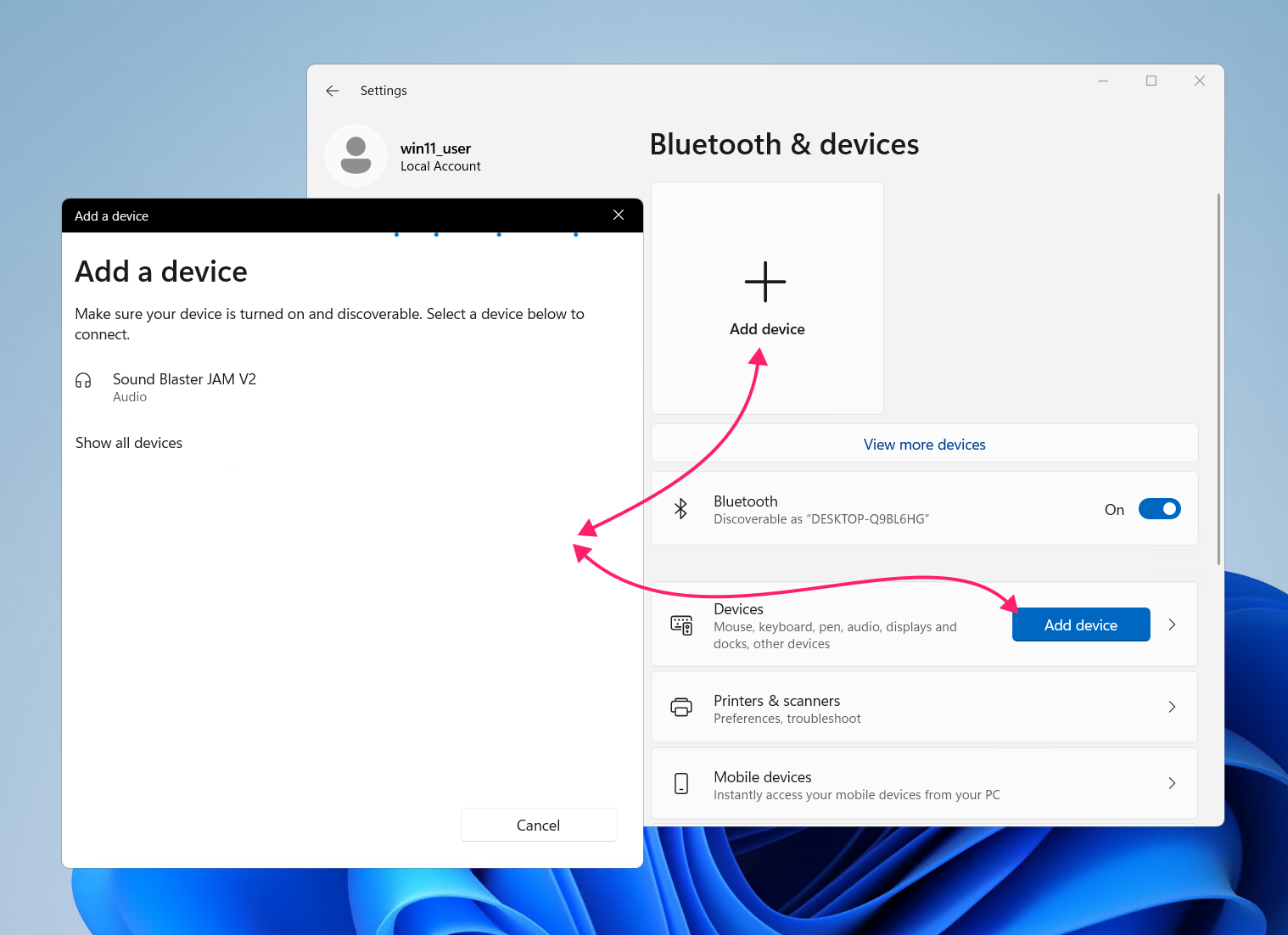
- Go to Settings > Bluetooth & devices > Devices, select the device, and select Remove, then put the device in pairing mode and pair it again with Add device
- Run
Get-PnpDevice -Class Bluetooth | Format-Table Status, FriendlyName, InstanceId -AutoSizeand copy the Bluetooth adapter’s InstanceId - Run
Restart-Service -Name bthserv -Force. If the service is disabled, runSet-Service -Name bthserv -StartupType Manualfirst Run
pnputil /restart-device "ADAPTER_INSTANCE_ID", using the InstanceId you copied
How to fix Bluetooth not working, cause by cause
Work down the list and stop at the first check that matches what you’re seeing. Each step shows how to confirm the cause and how to fix it on one PC, with remote and fleet options where they apply.
Note: All PowerShell commands need an elevated session (run as administrator). Find out how to always run something as an admin.
Step 1: Bluetooth is off, airplane mode is on, or the toggle is missing
Check this first. It takes seconds and rules out a setting on the user’s side before you touch anything on the system.
Open Quick Settings with Win + A, or by selecting the network, volume, or battery icons in the taskbar. Look for one of three things:
- The Bluetooth tile isn’t highlighted: Bluetooth is off.
- The Airplane mode tile is highlighted and the airplane icon shows in the taskbar: Airplane mode has turned off the wireless radios, Bluetooth included.
- There’s no Bluetooth tile at all, but Bluetooth appears in Settings: The tile has been removed from Quick Settings.
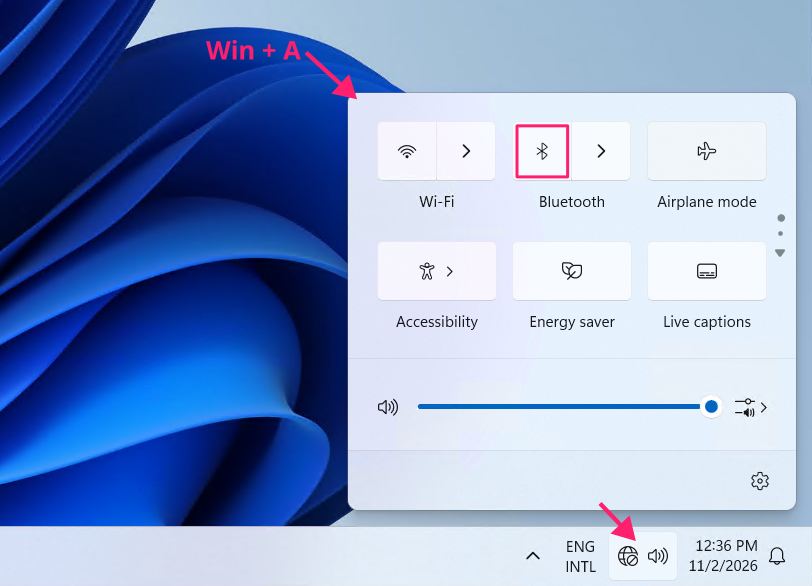
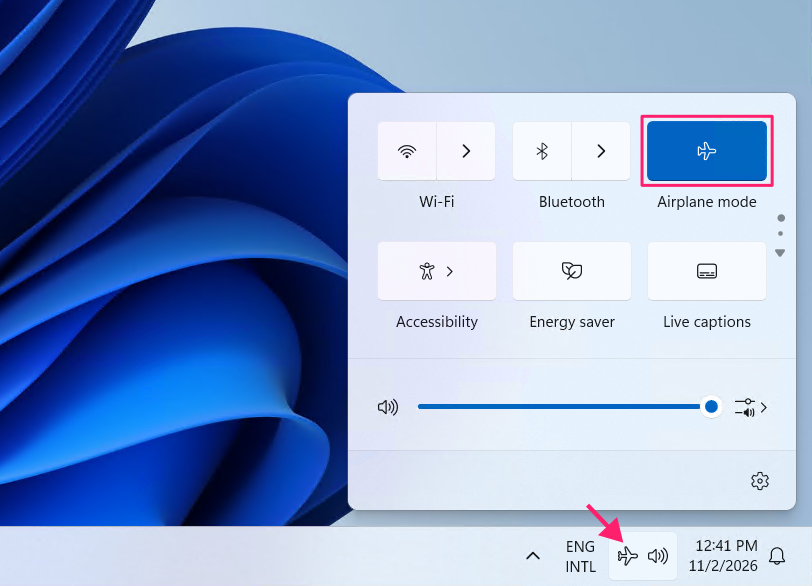
If there’s no Bluetooth toggle in Settings either, the problem is the adapter, not the setting. Check Step 4 first, and go straight to Step 7 if no adapter appears at all.
To turn Bluetooth on from Settings:
- Press Win + I to open Settings
- Select Bluetooth & devices
- Switch the Bluetooth toggle to On
Airplane mode doesn’t lock Bluetooth off. You can switch Bluetooth back on while airplane mode stays enabled, which suits users who travel with a headset.
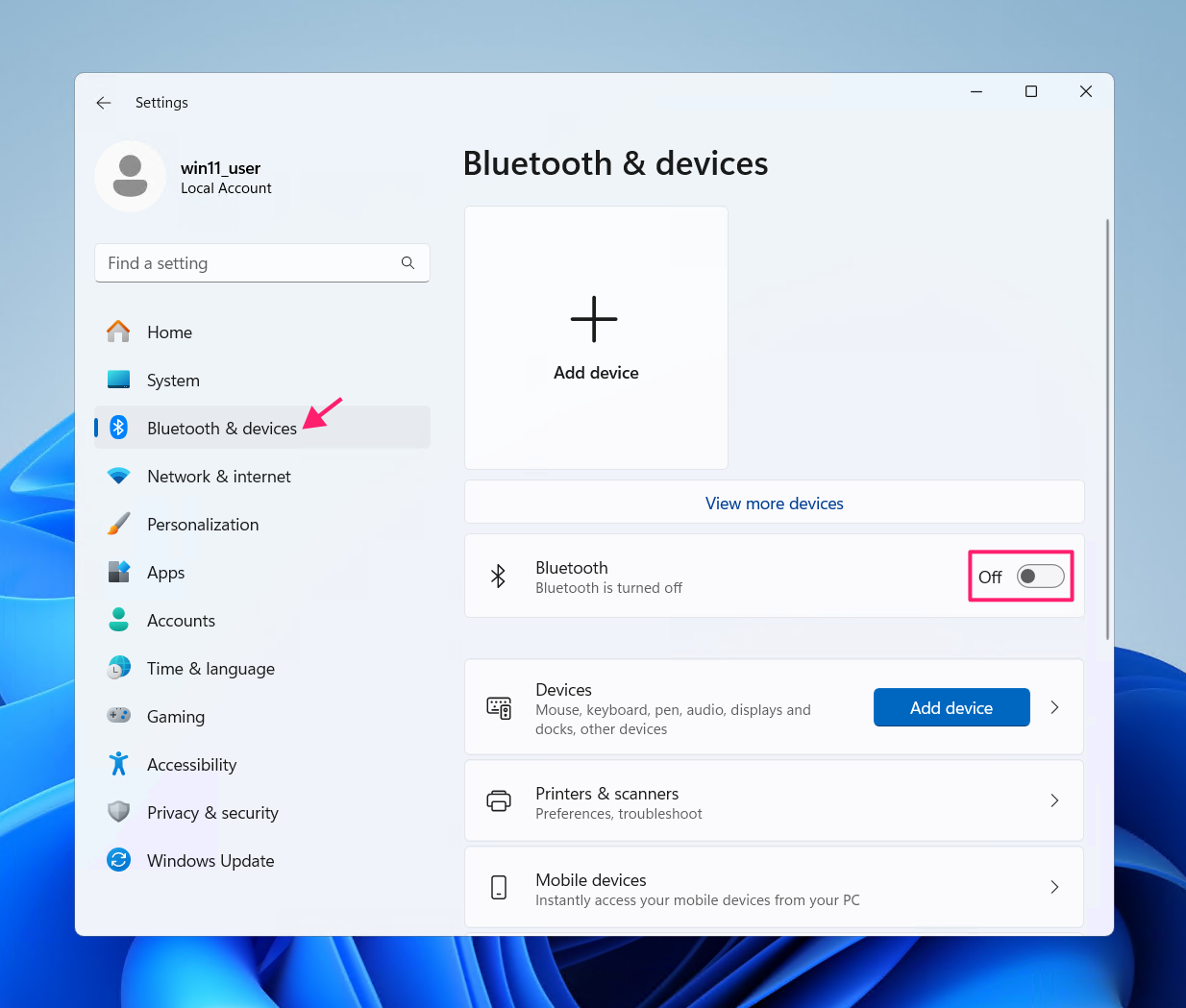
To restore a missing Bluetooth tile:
- Press Win + A to open Quick Settings
- Select the pencil icon (Edit quick settings)
- Select Add
- Select Bluetooth from the list
- Select Done
With Robin: A missing tile is a settings change, and the steps above restore it. When Quick Settings itself stops responding or its controls fail to display, Robin identifies the Windows shell symptom and uses the supported icon-cache rebuild or Quick Settings restart. It then asks the employee to confirm that the controls display correctly, so a missing toggle doesn’t turn into a remote session.
Step 2: The fault is with the device, not the PC
Isolate the peripheral before you touch services or drivers. If other Bluetooth devices work on the same PC, the adapter is fine, and the fault is in the device or its pairing. If no Bluetooth device works on the PC, re-pairing will waste your time. Go straight to Step 3.
Before you remove anything, check whether the device is connected somewhere else. Most Bluetooth peripherals can be paired with several hosts but connect to only one at a time. A headset that’s still connected to the user’s phone will show as paired on the PC and fail with a “couldn’t connect” error. Some headsets support multipoint, which allows two connections at once, but it sometimes has to be enabled in the manufacturer’s app. Check the device’s specifications before you assume the connection is faulty.
If the device isn’t connected elsewhere, first remove it:
- Press Win + I to open Settings
- Select Bluetooth & devices
- Select Devices
- Select the device you want to remove
Select Remove

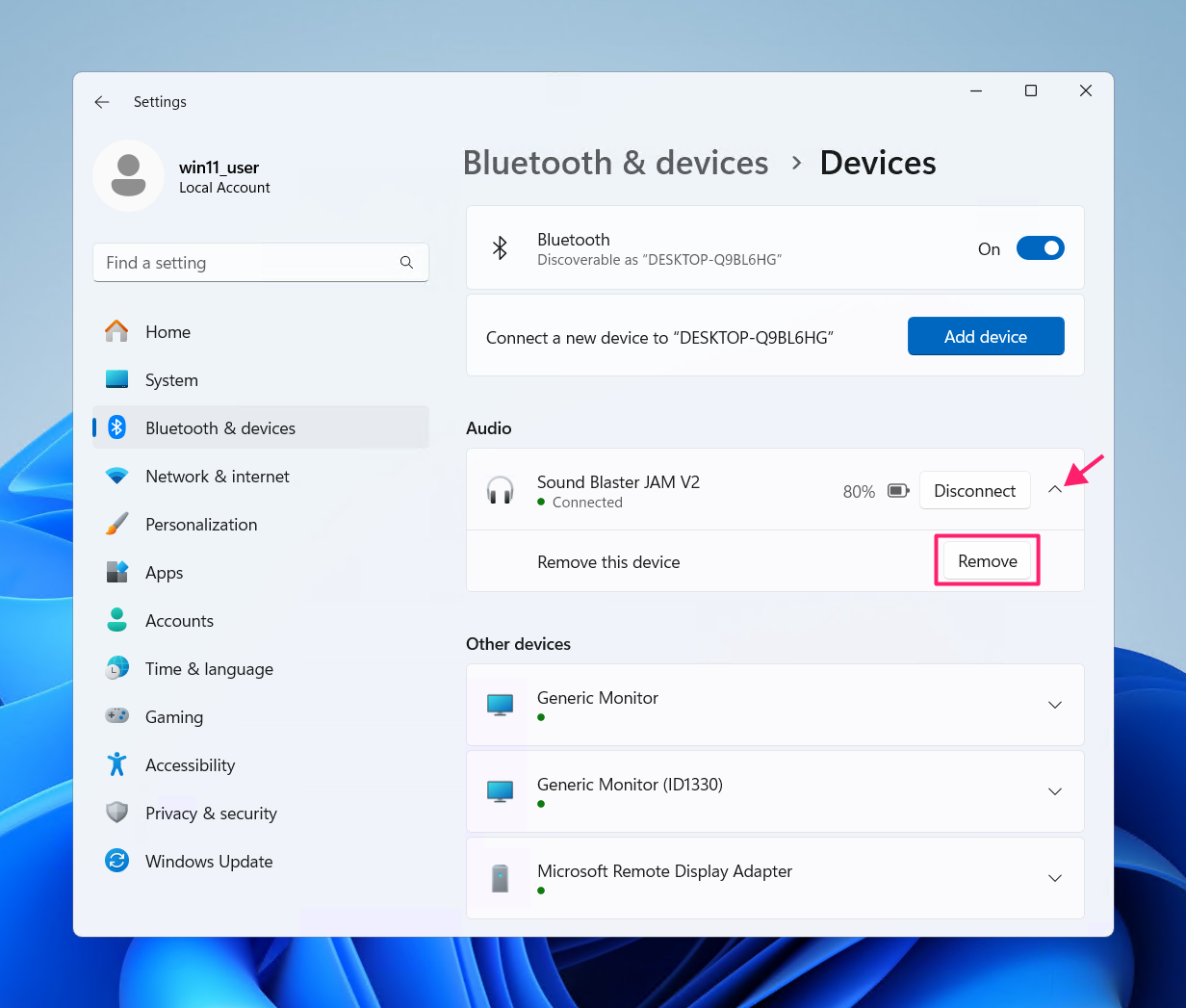
Then pair it again:
- Put the device in pairing mode. How you do this varies by model, so check the device’s manual if you’re not sure
- Select Add device under the Devices section, or the + button at the top of the page
- Select Bluetooth
Select the device from the list

- Follow the on-screen instructions to finish pairing
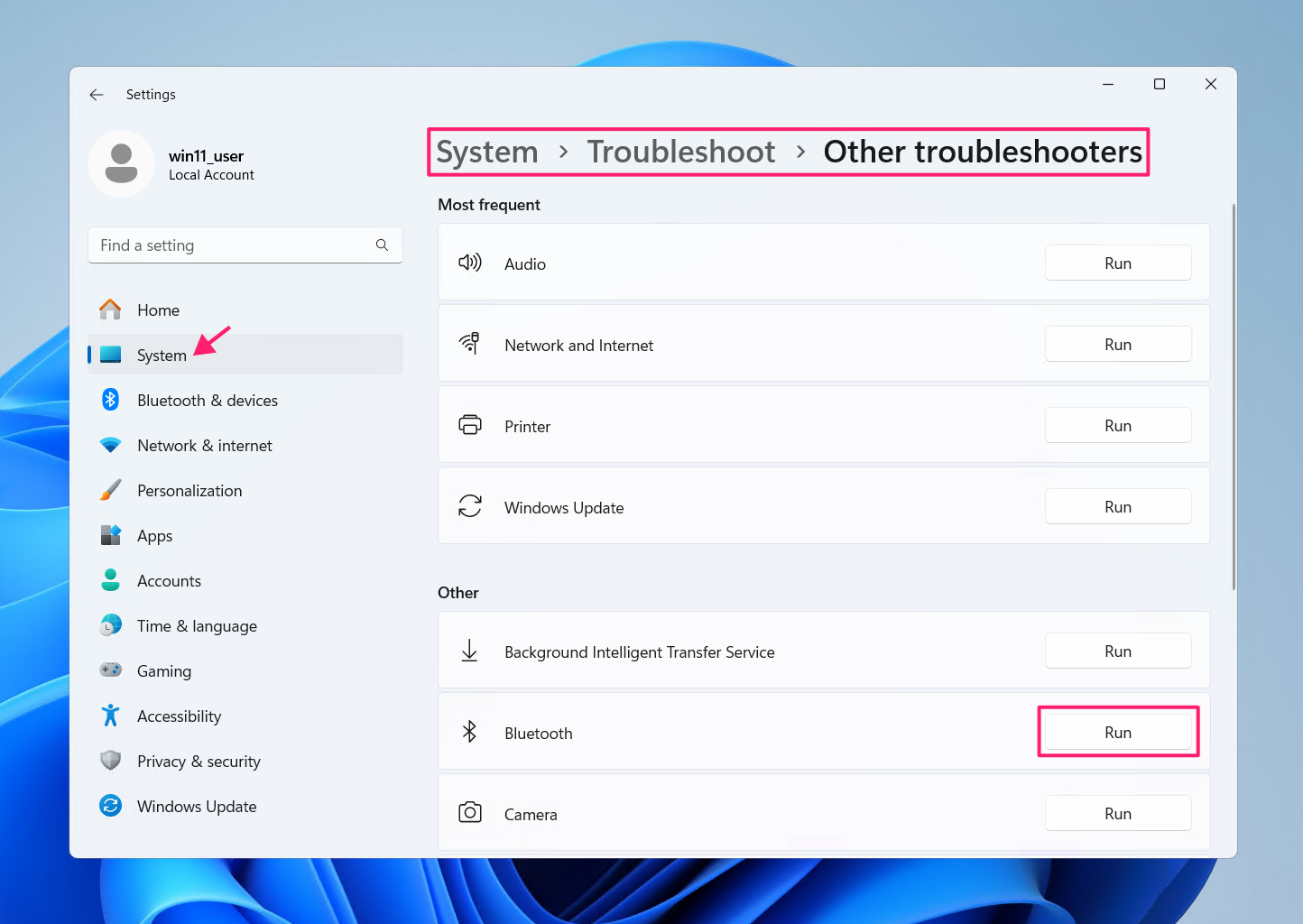
If the new pairing doesn’t hold, run the built-in troubleshooter: go to Settings > System > Troubleshoot > Other troubleshooters, and select Run next to Bluetooth. On current Windows 11 builds, Run opens the Get Help app, which runs the diagnostics.

If Remove fails, or the device reappears after you remove it, clear the pairing at the driver level from the command line: run pnputil /enum-devices /class Bluetooth to list every Bluetooth device with its instance ID, and pnputil /remove-device "INSTANCE_ID" to remove the stuck entry. Pair the device again once the entry is gone.
With Atera’s RMM platform, you can deploy this script remotely to specific endpoints to clear a stuck entry, but someone still has to put the device in pairing mode and pair it.
With Robin: Re-pairing is the part of a Bluetooth ticket that keeps a technician on the line while a user holds a mouse in pairing mode. Robin checks the Bluetooth peripheral and follows the pairing or removal path supported on the device’s operating system, so a routine keyboard or mouse case doesn’t need a remote session. Putting the device in pairing mode is a physical step, so the employee still does that part. For headsets before a video call, Robin detects Bluetooth headset problems and resolves them before the meeting starts.
Step 3: The Bluetooth Support Service is stopped or disabled
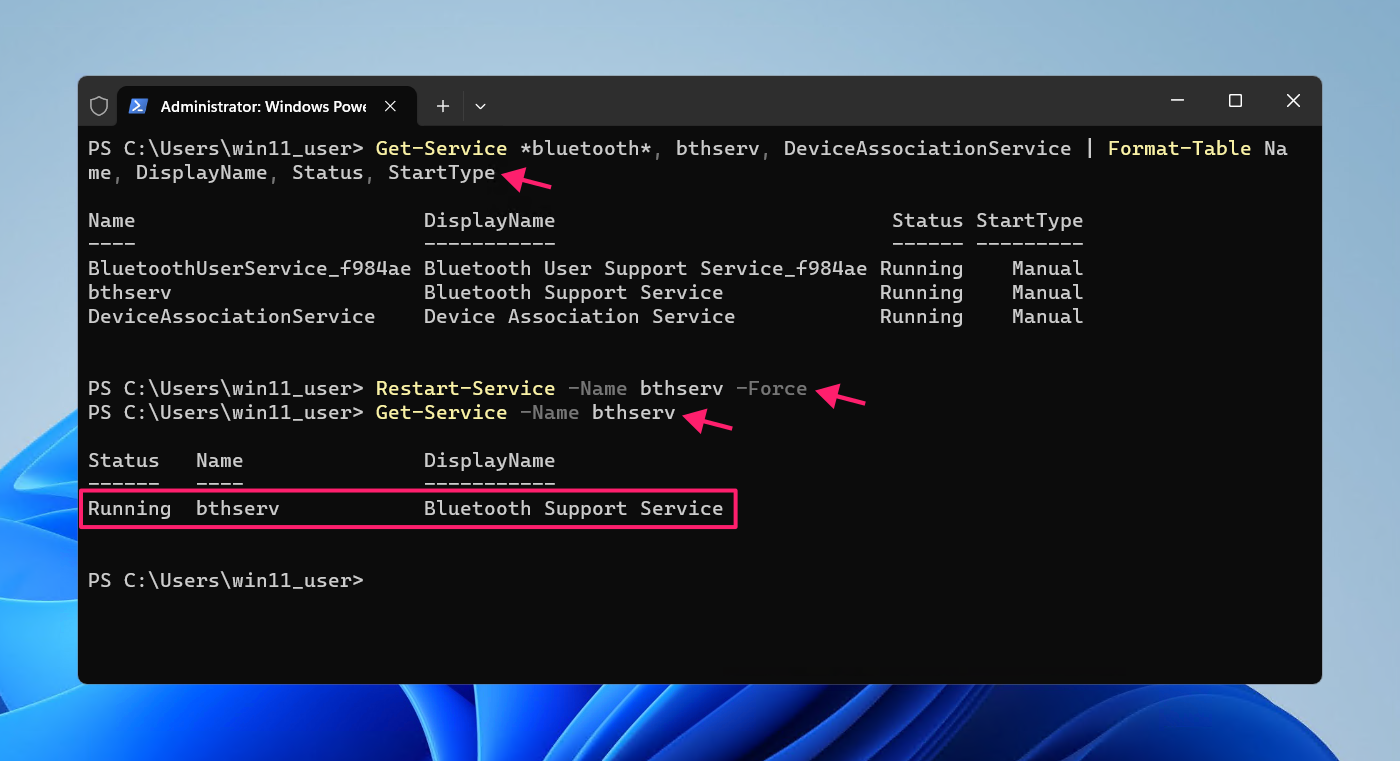
Move here when no Bluetooth device works on the PC. To see the state of the Bluetooth Support Service (bthserv) and its related services, run: Get-Service *bluetooth*, bthserv, DeviceAssociationService | Format-Table Name, DisplayName, Status, StartType
Read the output carefully. A Stopped status alone doesn’t mean anything is wrong: bthserv runs on demand, so with a StartType of Manual, it can sit stopped until something needs it. The service is the real cause when its StartType is Disabled, or when it won’t start, or stops again, as soon as you try to use a device.
To fix it from PowerShell:
- If the StartType is Disabled, run
Set-Service -Name bthserv -StartupType Manual - Run
Restart-Service -Name bthserv -Force Run
Get-Service -Name bthservand confirm the status is Running
- Ask the user to reconnect the device
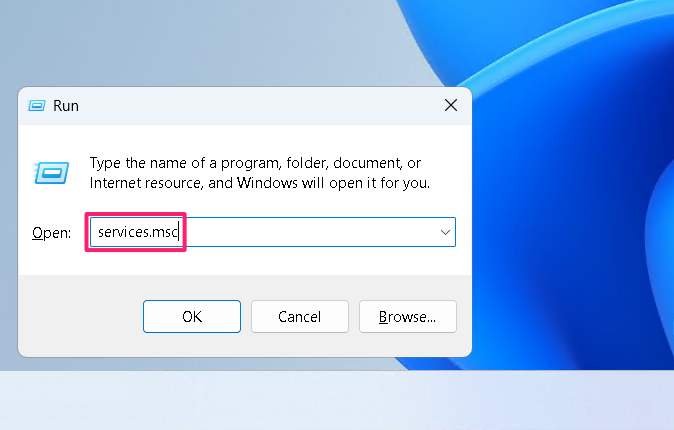
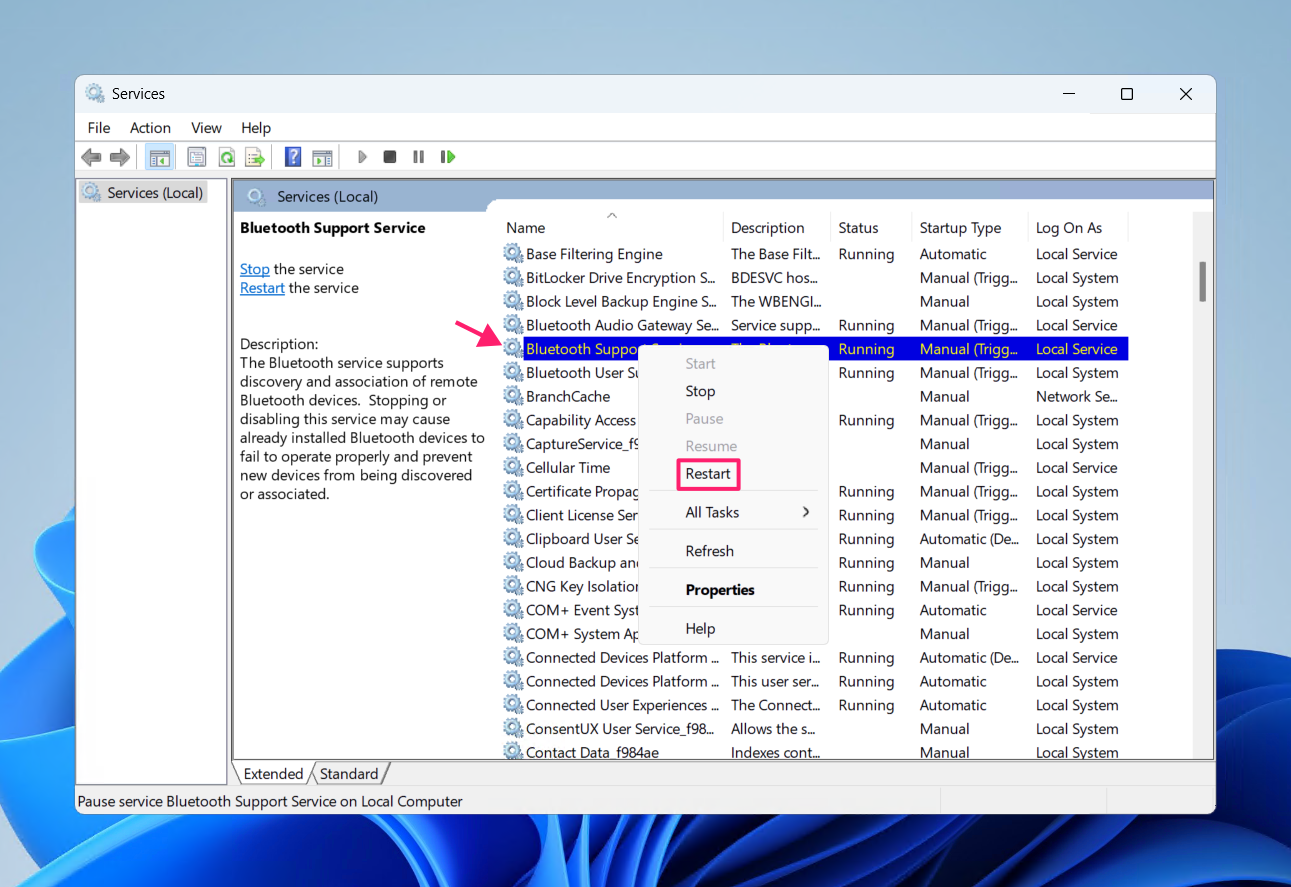
To do the same from the GUI:
Press Win + R, type
services.msc, and press Enter
- Right-click Bluetooth Support Service
Select Restart

- If the service is disabled, open its Properties first and set Startup type to Manual
To fix this on many devices, deploy the script below to a device group from Atera’s RMM platform. It runs on each endpoint through the Atera agent, so no remoting setup is needed, and it only changes the startup type when the service is disabled:
The Script:
Atera does not guarantee the integrity, availability, security, virus-free, safety, lawfulness, non-infringement, rights’ status, or functionality of the scripts. The use of the shared scripts is at your own risk. Scripts are provided “AS IS”. *
Get-Service -Name bthserv | Where-Object { $_.StartType -eq 'Disabled' } | Set-Service -StartupType Manual
Restart-Service -Name bthserv -Force
Get-Service -Name bthserv | Select-Object Name, Status, StartTypePro tip: If you don’t understand scripting or don’t have the knowledge to write one, Atera’s AI Copilot can help you write scripts from plain-language instructions.
Step 4: The adapter is in an error state or disabled
In Device Manager, a warning triangle or a down arrow on the adapter under Bluetooth marks this cause. To check remotely, list the Bluetooth devices Windows can currently see: Get-PnpDevice -Class Bluetooth -PresentOnly | Format-Table Status, FriendlyName, InstanceId -AutoSize
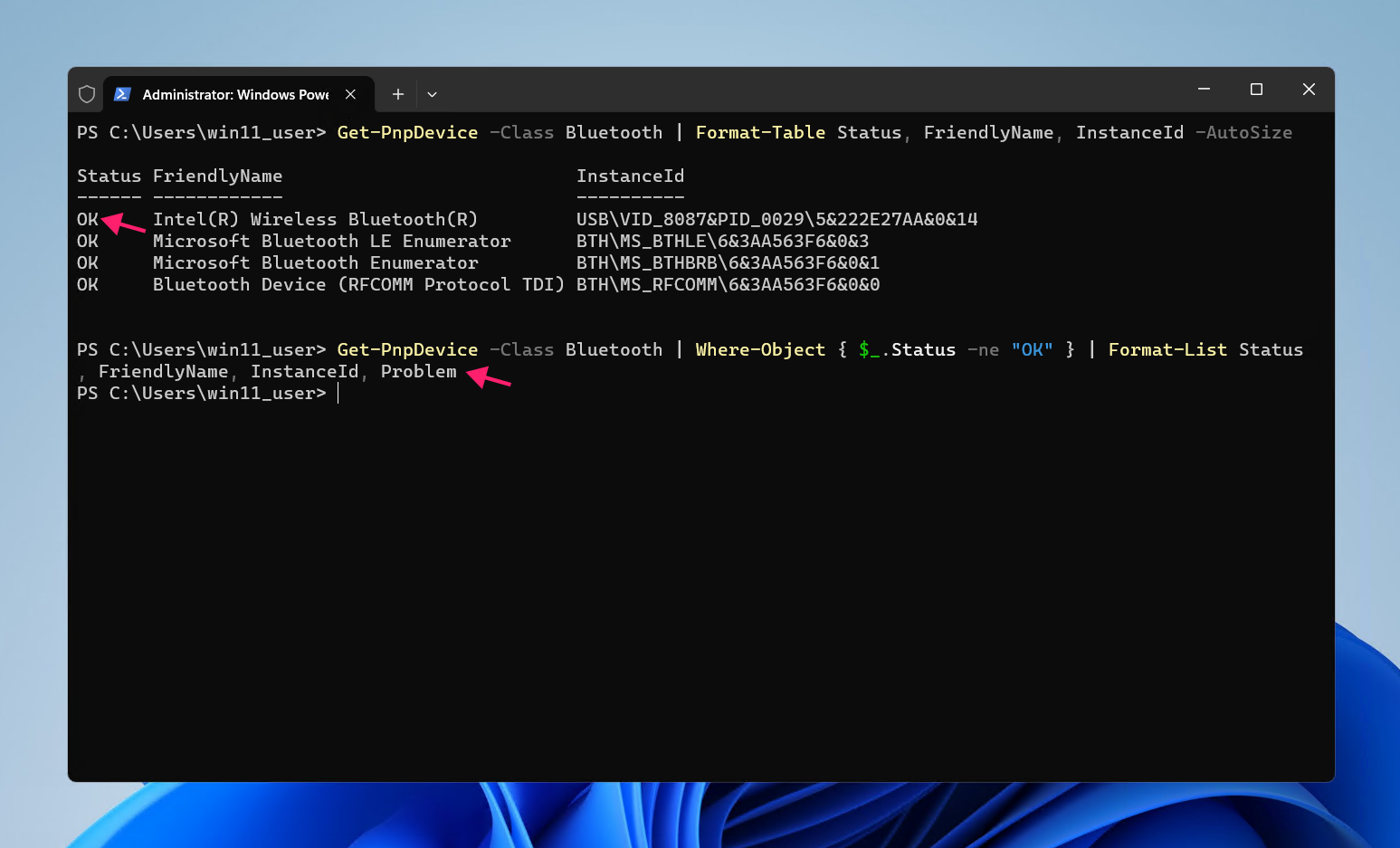
Keep the -PresentOnly switch. Without it, every previously paired or disconnected device appears with an Unknown status, and the real fault gets buried.
To see the Plug and Play problem code behind each fault, run this script:
The Script:
Atera does not guarantee the integrity, availability, security, virus-free, safety, lawfulness, non-infringement, rights’ status, or functionality of the scripts. The use of the shared scripts is at your own risk. Scripts are provided “AS IS”. *
Get-PnpDevice -Class Bluetooth -PresentOnly | ForEach-Object {
    $device = $_
    $code = Get-PnpDeviceProperty `
        -InstanceId $device.InstanceId `
        -KeyName 'DEVPKEY_Device_ProblemCode' `
        -ErrorAction SilentlyContinue

    [PSCustomObject]@{
        Name        = $device.FriendlyName
        Status      = $device.Status
        ProblemCode = $code.Data
        InstanceId  = $device.InstanceId
    }
} | Format-Table -AutoSizeIf a local policy blocks the script, Set-ExecutionPolicy -ExecutionPolicy Bypass -Scope Process lifts it for the current session only. A blank or zero problem code means Windows sees no fault.
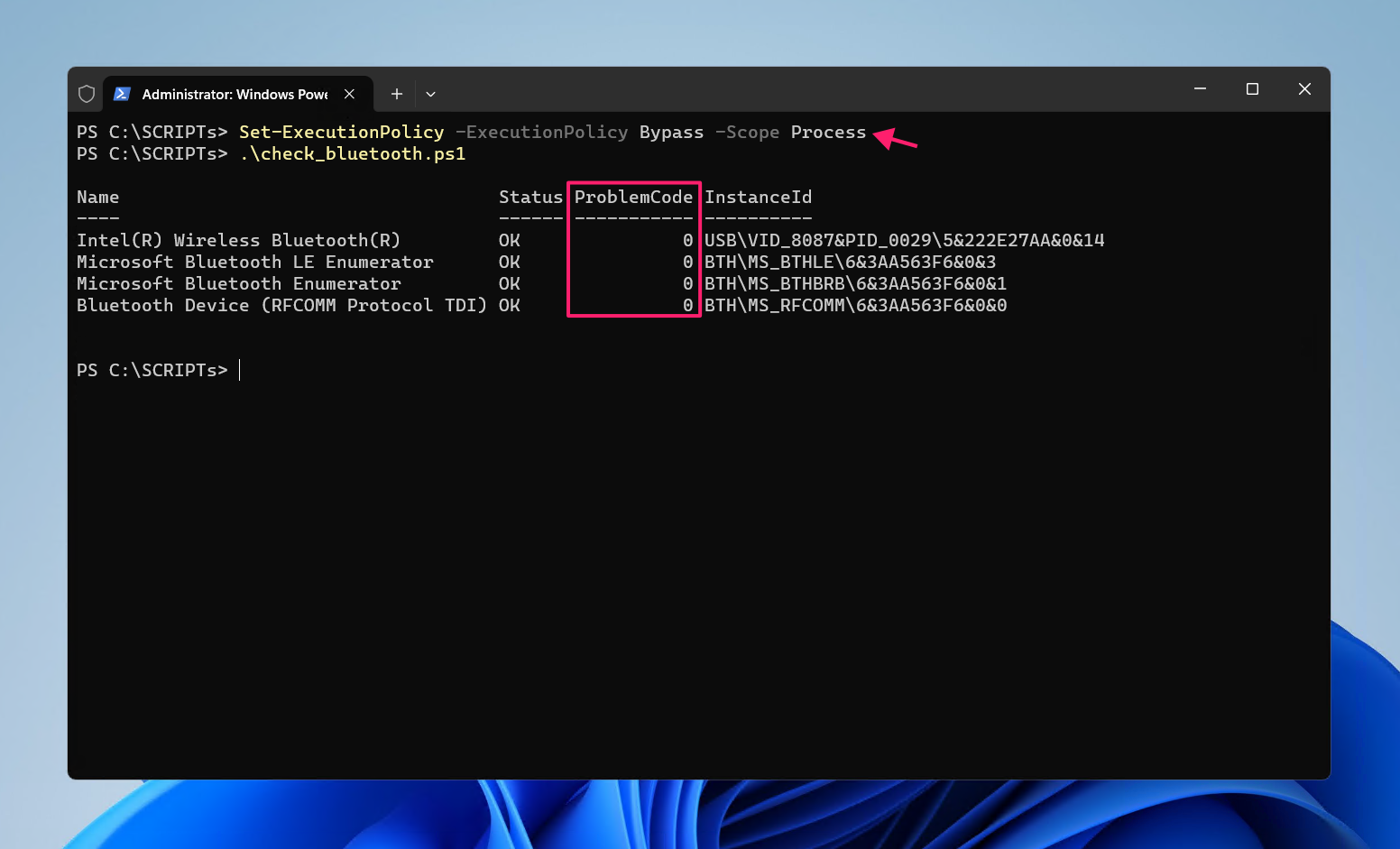
These are the codes that matter on the adapter:
- Code 22: The device is disabled. Re-enable it with the steps below.
- Code 10: The device can’t start. Restart the adapter, and if the code comes back, go to Step 5.
- Code 43: Windows has stopped the device because it reported problems. Restart the adapter, and if the code comes back, treat it as a driver or hardware fault and go to Step 5.
- Code 28: No driver is installed. Go straight to Step 5.
» Here’s how to simplify group policy management with Atera
If no Bluetooth adapter appears at all, even without -PresentOnly, go to Step 7.
To bring the adapter back:
- Copy the adapter’s InstanceId from the output
- If the problem code is 22, run
Enable-PnpDevice -InstanceId "ADAPTER_INSTANCE_ID" -Confirm:$false For codes 10 and 43, run
pnputil /restart-device "ADAPTER_INSTANCE_ID"
- Run the
Get-PnpDevicecommand again and confirm the adapter’s status is OK
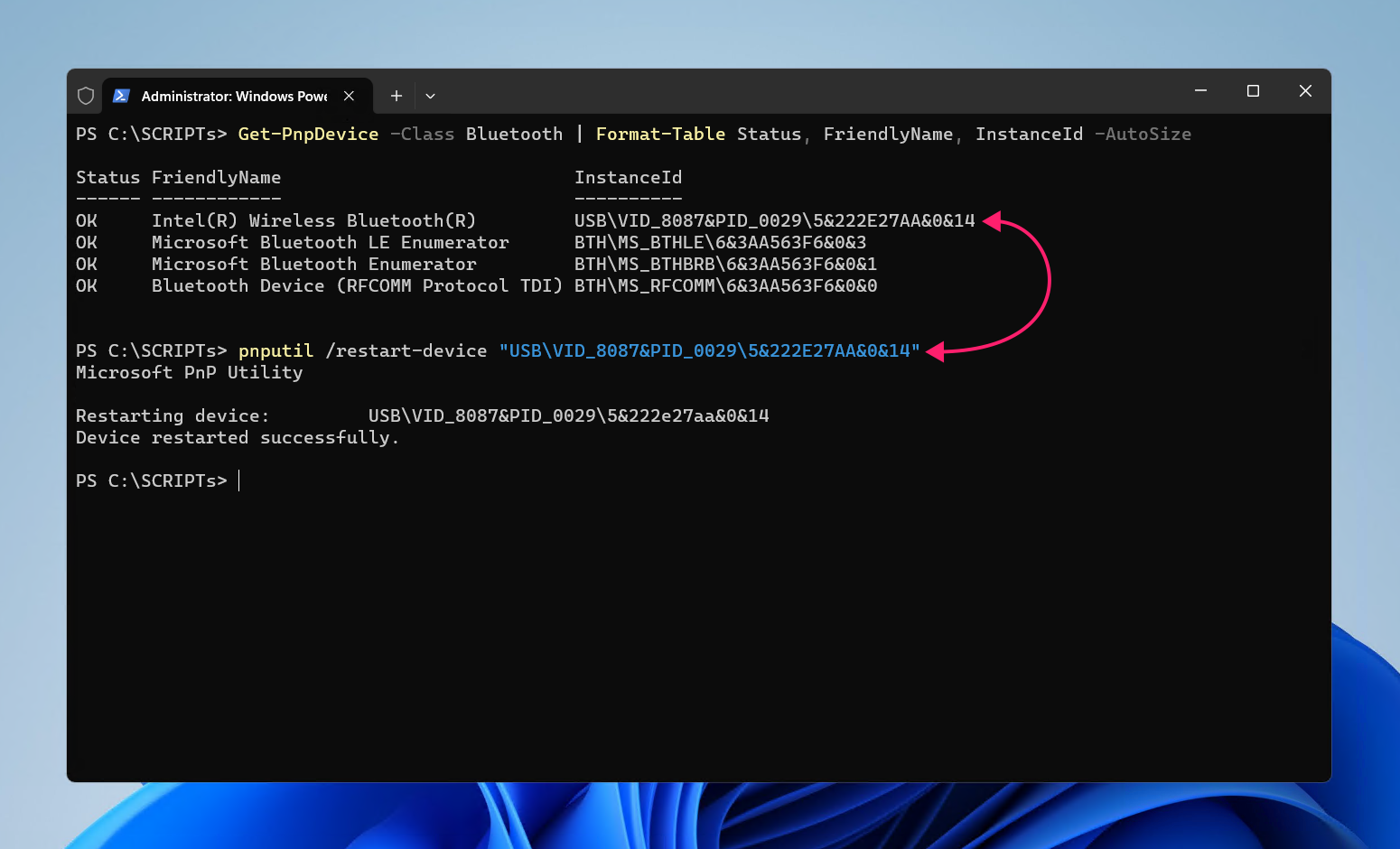
To restart a faulty adapter on many devices without visiting the users, deploy the script below from Atera’s RMM platform. It looks up adapters in an error state on each device, so you don’t need to collect InstanceIds first:
The Script:
Atera does not guarantee the integrity, availability, security, virus-free, safety, lawfulness, non-infringement, rights’ status, or functionality of the scripts. The use of the shared scripts is at your own risk. Scripts are provided “AS IS”. *
Get-PnpDevice -Class Bluetooth -PresentOnly | Where-Object { $_.Status -eq 'Error' } | ForEach-Object {
    Enable-PnpDevice -InstanceId $_.InstanceId -Confirm:$false
    pnputil /restart-device $_.InstanceId
}Step 5: The driver is wrong, outdated, or broke after an update
Look at the driver when any of these is true:
- Bluetooth stopped working right after a Windows or driver update
- The adapter keeps coming back with code 10 or 43 after a restart, or shows code 28
- The adapter is running a generic driver: in Device Manager, open the adapter’s Properties, select the Driver tab, and check whether Driver Provider is Microsoft. Generic drivers can cause instability and missing features
If Bluetooth broke after an update, roll the driver back:
- Press Win + X and select Device Manager
- Expand Bluetooth
- Double-click the Bluetooth adapter
- Select the Driver tab
Select Roll Back Driver. If the button is grayed out, there’s no previous driver to roll back to

- Choose a reason and select Yes
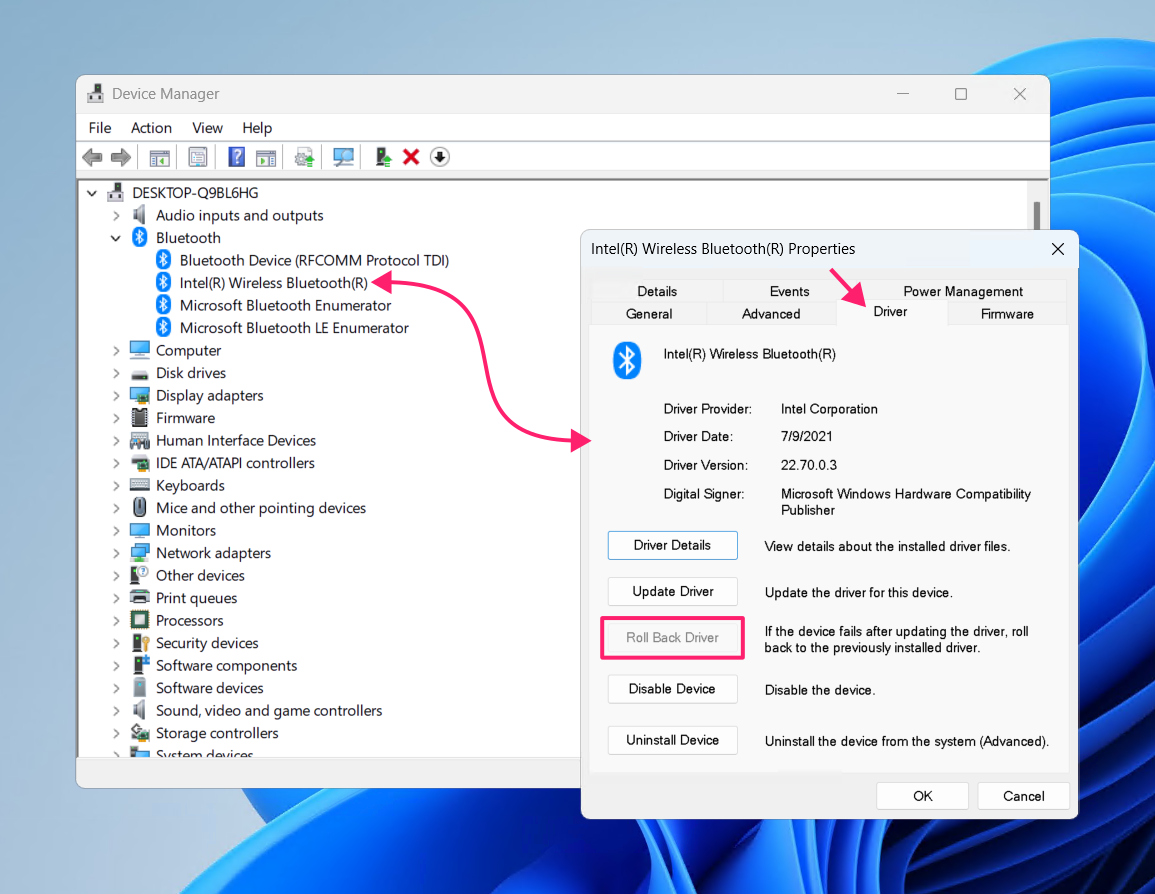
If there’s nothing to roll back to, or the adapter’s driver looks corrupt, reinstall it:Sie
- In Device Manager, right-click the adapter and select Uninstall device
- Tick Attempt to remove the driver for this device only if you plan to replace the driver. Leave it unticked to reinstall the same one
- Select Uninstall
- Select Action > Scan for hardware changes
Once you know which driver is safe for your fleet, you can enforce it centrally instead of fixing PCs one by one. In Intune, driver update policies let you control which drivers Windows Update delivers to which devices:
- In the Microsoft Intune admin center, select Devices > Windows updates
- Select the Driver updates tab
- Select Create profile, or open an existing profile to edit it
- Choose Manual or Automatic approval
- Assign the profile to a device group
With Robin: Finding the right package on a vendor support page is the slow part of a driver fix. On supported Dell, HP, or Lenovo devices, Robin checks for driver and firmware updates and applies the supported remediation path, so the user isn’t left waiting for a technician to find and install the package.
Where Robin stops and your technicians start: Driver rollbacks, OEM driver choices, fleet-wide driver policy, and hardware checks are more complex decisions about the PC’s Bluetooth stack, and they should stay with your technicians. Robin’s Bluetooth use case covers checking the peripheral and following the pairing, removal, or restart path supported on the device’s operating system. Without the routine peripheral cases to worry about, your team can focus on the more difficult adapter and driver work.
Step 6: Bluetooth drops after sleep or stutters
This cause shows up as a pattern rather than a hard failure. Bluetooth drops after the PC wakes from sleep, or audio and input stutter near a dock, a USB 3.0 port or hub, or a busy 2.4 GHz Wi-Fi network.
If the adapter doesn’t come back after sleep, stop Windows from powering it down:
- In Device Manager, expand Bluetooth
- Right-click the Bluetooth adapter and select Properties
- Select the Power Management tab
- Clear Allow the computer to turn off this device to save power
Select OK

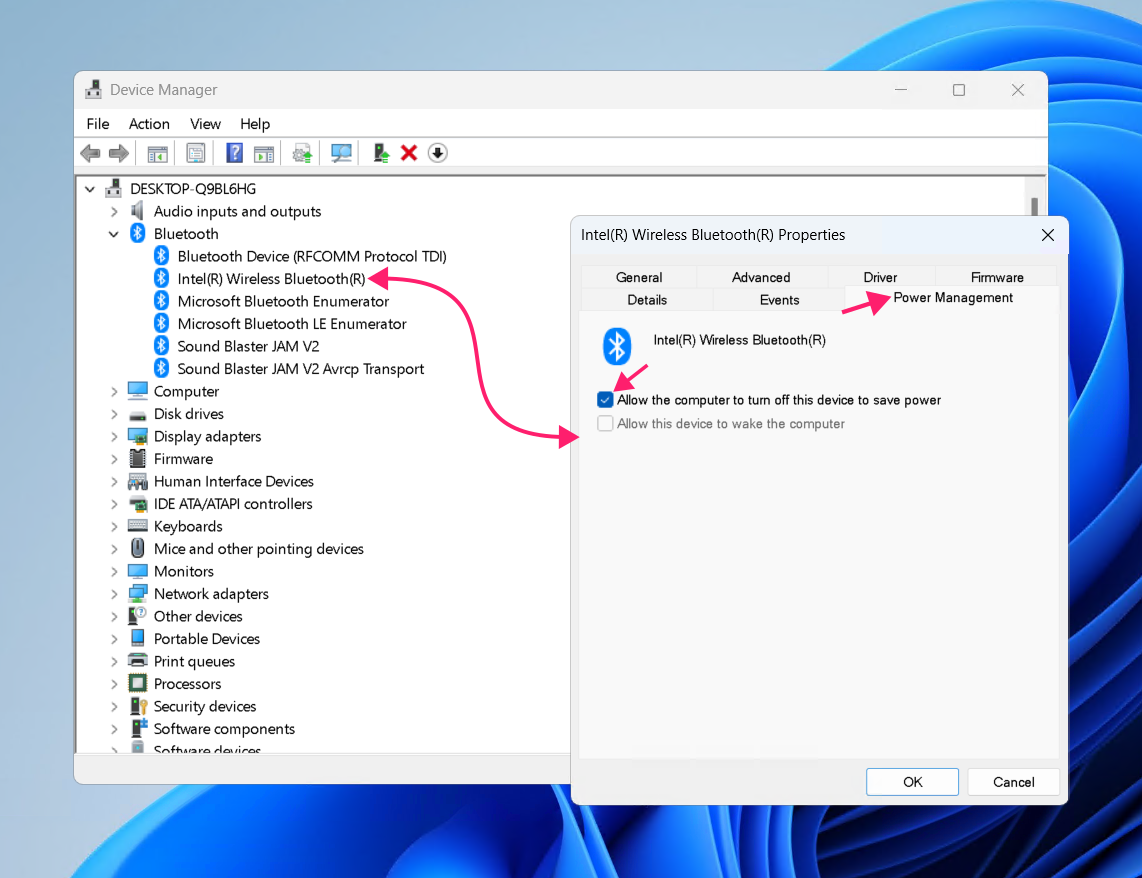
For stuttering, look at what shares the 2.4 GHz band. Bluetooth competes with 2.4 GHz Wi-Fi, and many laptop adapters put both radios on one card. Moving the PC to a 5 GHz network, where one is available, reduces the contention. USB 3.0 ports and the devices plugged into them can also add noise in the 2.4 GHz band. If the user has a USB Bluetooth adapter on a hub or dock, move it to a native port, or use a short extension cable to put distance between the adapter and the USB 3.0 devices.
Step 7: Bluetooth is missing entirely
Here the adapter is gone from Windows altogether. There’s no toggle in Settings, no Bluetooth section in Device Manager even with Show hidden devices on, and Get-PnpDevice -Class Bluetooth returns nothing.
Start with Fast Startup, because it’s the cheapest cause to rule out. With Fast Startup on, a normal Shut down saves the kernel and driver state to disk instead of fully powering down, so an adapter stuck in a bad state can survive it. Sleep and hibernation cycles can also stop the adapter from re-initializing properly. Restart does a full shutdown and re-detects the hardware, so try that first:
- Restart the PC. To restart a remote device, run shutdown /r /t 60 /c “Restarting to restore Bluetooth” so the user gets a warning first. Don’t use shutdown /s on a remote device: it powers the PC off, and you can’t turn it back on from a distance.
- Check Device Manager for the adapter once the PC is back up
- If the adapter comes back, turn off Fast Startup so it doesn’t happen again: Open Control Panel and select Power Options
- Select Choose what the power buttons do
- Select Change settings that are currently unavailable
- Clear Turn on fast startup
- Select Save changes
To turn off Fast Startup on many devices, deploy this script from Atera’s RMM platform. It sets the registry value Windows uses for the feature:
Set-ItemProperty -Path 'HKLM:\SYSTEM\CurrentControlSet\Control\Session Manager\Power' -Name HiberbootEnabled -Value 0
If a full restart doesn’t bring the adapter back, Bluetooth is probably disabled below Windows, either in the BIOS or UEFI settings or by a hardware wireless switch or function key. No driver reinstall will bring it back while it’s disabled at that level. Check the laptop or PC’s user manual for where the setting lives in BIOS and where the hardware switch is.
Take routine Bluetooth pairing tickets off the queue
Most Bluetooth failures on Windows 11 end up being the peripheral or the PC’s Bluetooth stack. Working through the causes in order helps you figure it out quickly, which stops you reinstalling drivers for a mouse that only needed re-pairing, and it tells you when the issue really is in the adapter, the driver, or the firmware.
Re-pairing a user’s keyboard or headset is the kind of fix that shouldn’t need a technician. Robin by Atera checks the Bluetooth peripheral and follows the pairing, removal, or restart path supported on the device’s operating system, so routine cases are resolved without anyone opening a remote support session. For everything else, Atera’s remote PowerShell execution across selected devices or device groups lets your technicians run the service checks, adapter restarts, and driver fixes from this guide without actually touching the machine.
» Learn more about Robin or try Atera for free
Frequently Asked Questions
Related Articles

How to recover deleted files in Windows 11
A deleted file is only as recoverable as the setup behind it, since some methods skip the Recycle Bin entirely. Work the recovery paths in the right order, then set devices up so the next restore takes minutes, not a data recovery service.
Read now
How to change the time zone in Windows 11 and fix time sync
A user can’t sign in, and the clock is five minutes off. Or an hour. Or it was right yesterday. Wrong time on Windows 11 comes from three places: a bad time zone, a broken sync, or a policy that quietly undoes every manual fix. Find the layer first and fix it there, whether that means one laptop and a tzutil command or every workstation in the domain.
Read now
How to fix a microphone not working in Windows 11
A dead mic is rarely the mic's fault. The problem usually sits somewhere upstream, and one test recording tells you where. From there, it’s a fix sequence that works on any single device, a deeper playbook for the cases where the usual steps fail, and a way to push the same checks across an entire fleet.
Read now
How to fix low disk space in Windows and free up storage
A full C: drive is rarely one big file. It’s update caches, runaway logs, shadow copies, and a user Temp folder nobody has checked in years. Clear the wrong one and you break servicing or lose your recovery options.
Read nowEndless IT possibilities
Boost your productivity with Atera’s intuitive, centralized all-in-one platform