
Table of contents
Table of contents
- Where Robin by Atera fits in a Windows Search ticket
- The fastest fix: restart Search in four commands
- Match the symptom to the fix
- Method 1: Restart Windows Search when the search bar isn't working
- Method 2: Check and rebuild the search index
- Method 3: Reset Windows Search with Microsoft's script
- Method 4: Rule out the user profile and system files
- Method 5: Fix Windows Search remotely and at scale
- Common problems and edge cases
- Spend technician time on the search tickets that need it
Windows Search looks like one box on the taskbar, but three separate parts sit behind it. The Windows Search service (WSearch) runs as SearchIndexer.exe and builds the index, SearchHost.exe draws the search window on Windows 11 (SearchApp.exe on Windows 10), and Explorer runs the taskbar button that opens it. When any one of them stalls, the user reports the same thing: the search bar doesn’t work.
That shared symptom is why so many search tickets end with an index rebuild that ties up the device for hours when a restart would have taken seconds. This guide starts from what the user actually sees, points you to the part that has failed, and gives you the fix for one PC and for a whole fleet.
Windows 10 reached end of support in October 2025, so devices still on it need Extended Security Updates. The Windows 10 steps are included because many fleets still run it.
Where Robin by Atera fits in a Windows Search ticket
The rest of this guide is the manual route. Here’s how the routine stages of a search ticket compare by hand and with Robin by Atera, based on its documented Windows Search repair use case.
Stage | By hand | With Robin by Atera |
|---|---|---|
Reach the device | Connect remotely and check which Windows version it runs | Robin acts on the device when the employee reports the problem |
Unfreeze the search bar | Restart WSearch and end the right search process for that Windows version | Robin restarts the Windows Search components |
Fix missing or stale results | Start a rebuild in Indexing Options and wait for it to finish | Robin rebuilds the Windows Search components |
The fastest fix: restart Search in four commands
Try this first when Search was working and suddenly stopped. It runs the same way in a remote PowerShell session, and it doesn’t touch the index or the user’s settings. Open PowerShell as administrator and:
- Run
Get-Service -Name WSearchto see the service’s status and startup type. If the startup type is Disabled, leave it alone and find out why first, because a policy may have set it on purpose - Run
Restart-Service -Name WSearch, orStart-Service -Name WSearchif it’s stopped - Close the search window process so Windows loads a fresh one:
Stop-Process -Name SearchHost -Forceon Windows 11, orStop-Process -Name SearchApp -Forceon Windows 10 - Run
Get-Service -Name WSearchonce more, check that it reads Running, and have the user search for a file they know is there
Still broken? The next section helps you find which part has failed.
» Find out how to run PowerShell commands on a remote computer
Match the symptom to the fix
Before you change anything, ask the user to show you what happens when they search. The first thing that fails tells you which method to start with. The five methods run from least to most disruptive, so if you’re unsure, start at Method 1 and work down. The common problems after them cover three specific symptoms. Methods 1 to 4 run from least to most disruptive, so if you’re unsure, start at Method 1 and work down. Method 5 covers fixing many devices at once. The common problems after them cover three specific symptoms.
What the user sees | Part that has likely failed | Start with |
|---|---|---|
Nothing happens when they click the search box, or the taskbar is frozen | Search service, search process, or Explorer | Method 1 |
Results are thin or out of date across the board | The index itself | Method 2 |
Restarts and a rebuild haven’t helped | Search components | Method 3 |
Search fails for one person only | The user profile | Method 4 |
Search fails on many devices at once | Service state or company policy | Method 5 |
The search window opens, but typing does nothing | Text input (ctfmon.exe) or the search process | Common problems: you can’t type |
The window opens blank, or SearchHost.exe keeps crashing | A faulting module or an indexer under load | Common problems: blank or crashing Search |
Results appear, but a known file is missing | Indexed folders, file types, network shares, or policy | Common problems: files that exist |
Every command in this guide needs administrator rights. If you open PowerShell or Command Prompt elevated many times a day, set it to always run as an admin.
Method 1: Restart Windows Search when the search bar isn’t working
A restart is the least disruptive fix in this guide. It clears a stalled service or search window without touching the index, so do it before anything else.
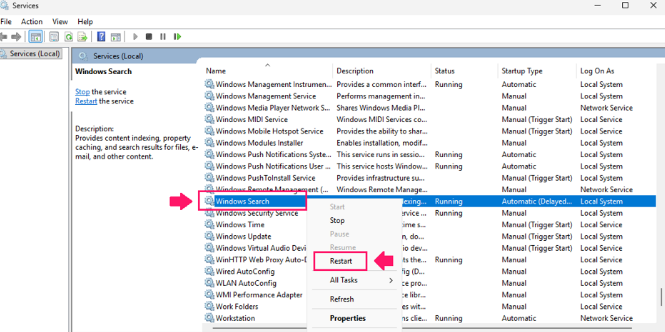
Restart the Windows Search service
The Services console looks and works the same on Windows 10 and 11.
- Press Win + R, enter
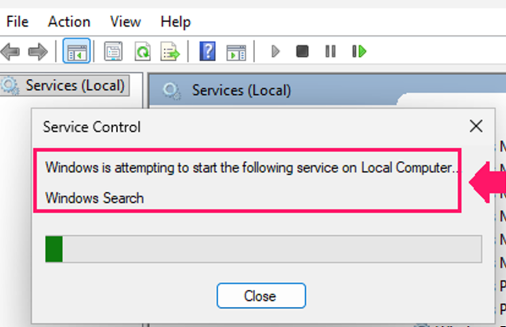
services.msc, and select OK Right-click Windows Search and choose Restart, or Start if the service isn’t running. –
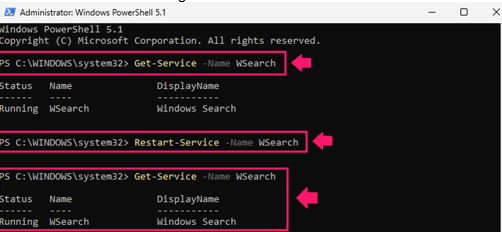
Get-Service -Name WSearch–Restart-Service -Name WSearch–Get-Service -Name WSearchIf the service is stopped, use Start-Service -Name WSearch on the second line instead.

Wait for the status to return to Running

The PowerShell version takes three lines and works on both Windows versions. The last line should report Running:

End the search window process
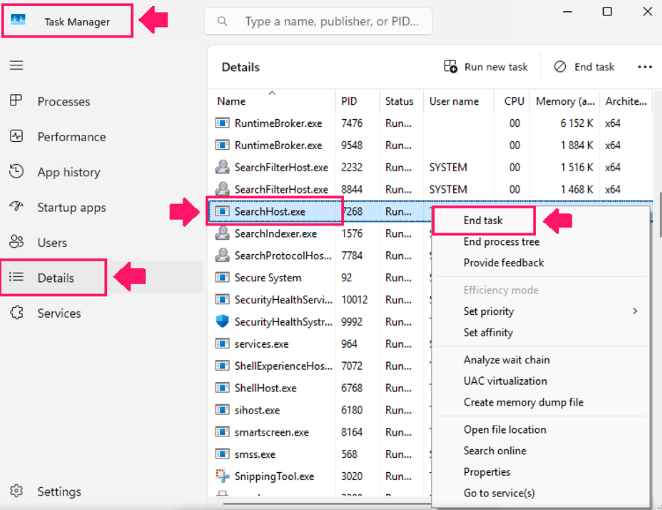
The search window runs separately from the service, so a frozen window can survive a service restart. End it, and Windows loads a clean copy the next time the user opens Search.
- On Windows 11, open Task Manager, choose Details in the sidebar, right-click SearchHost.exe, and select End task
From PowerShell:
Stop-Process -Name SearchHost -Force
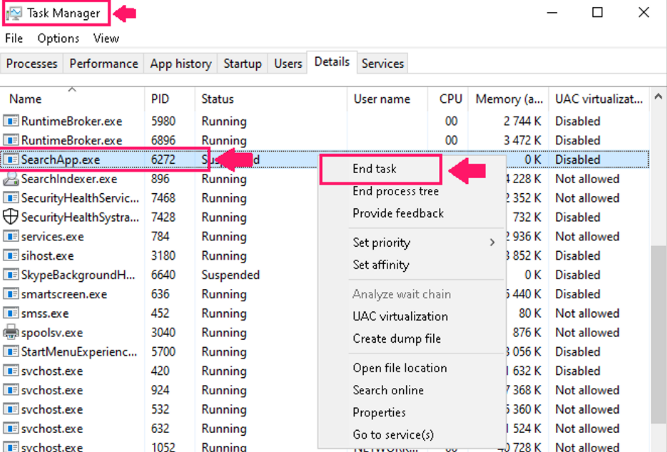
- On Windows 10, open Task Manager, expand it with More details if needed, and open the Details tab
- Right-click SearchApp.exe (SearchUI.exe on some older builds) and select End task
From PowerShell:
Stop-Process -Name SearchApp -Force
» New to ending processes from the command line? Here’s how to kill a process in Windows
Restart Explorer when the taskbar is stuck too
Explorer runs the taskbar, so a frozen Search button often means Explorer has hung, not Search.
On Windows 11, open Task Manager, choose Processes in the sidebar, right-click Windows Explorer, and select Restart. Windows 10 has the same option under the Processes tab.
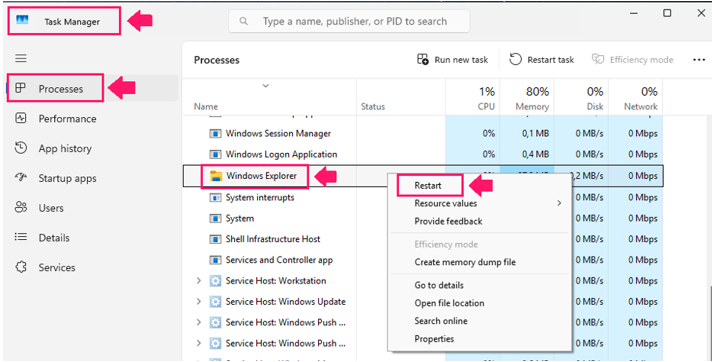
An Explorer restart won’t repair the service or the index. If Search still fails after these three restarts, stop restarting and look for the cause.
With Robin by Atera: When an employee reports that their search bar has frozen, Robin restarts the Windows Search components, so your technician doesn’t need to remote in or check whether that laptop runs SearchHost.exe or SearchApp.exe.
» More options, including Command Prompt: restarting explorer.exe in Windows 10 and 11
Method 2: Check and rebuild the search index
When the right folders and file types are covered but results are still thin or out of date, look at the index. Check its status and run the troubleshooter first, because Windows may simply still be indexing.
Check indexing status
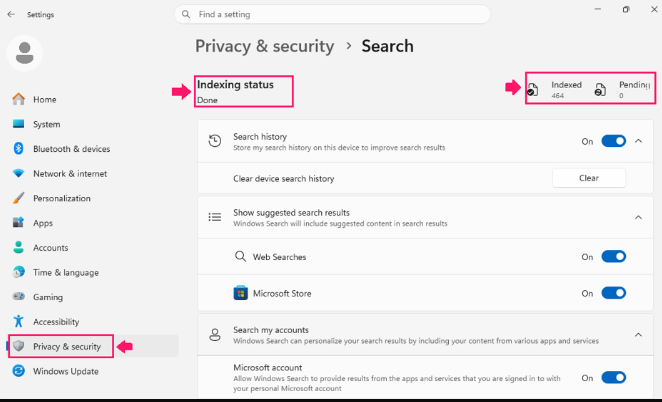
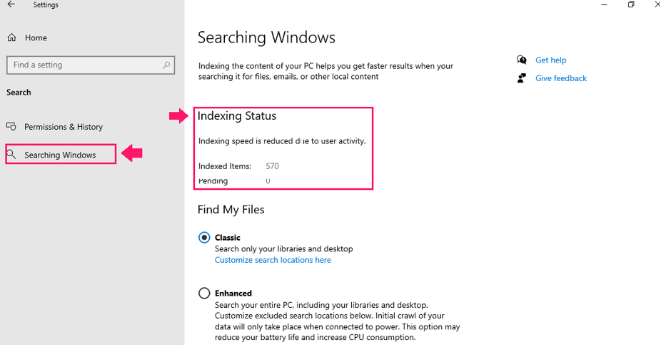
On Windows 11, go to Settings > Privacy & security > Search to see whether indexing has finished and how many items are indexed or pending

On Windows 10, the same numbers sit under Settings > Search > Searching Windows

Run the Search and Indexing troubleshooter
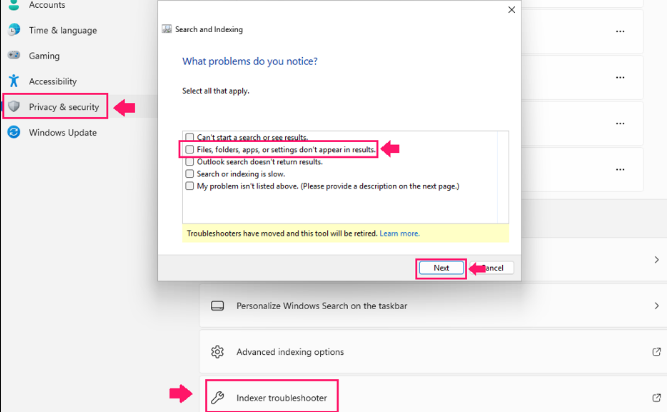
- On Windows 11, scroll to the bottom of Settings > Privacy & security > Search and select Indexer troubleshooter
Tick the problem the user reported and select Next

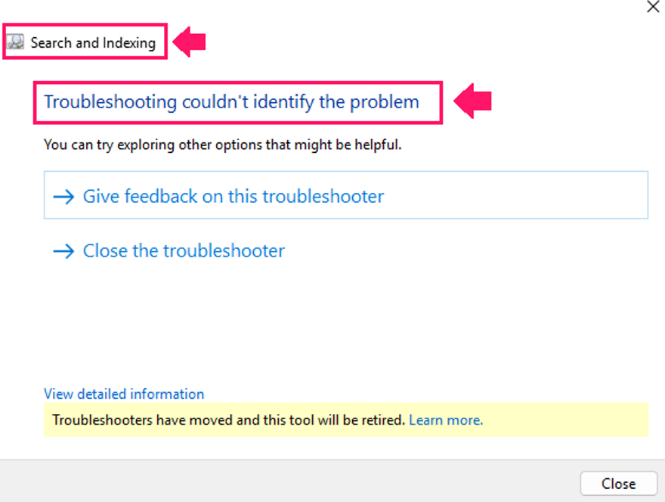
On our Windows 11 test machine, the troubleshooter found nothing to fix. Its own results screen also says the tool will be retired, so treat it as a quick check rather than a dependable fix

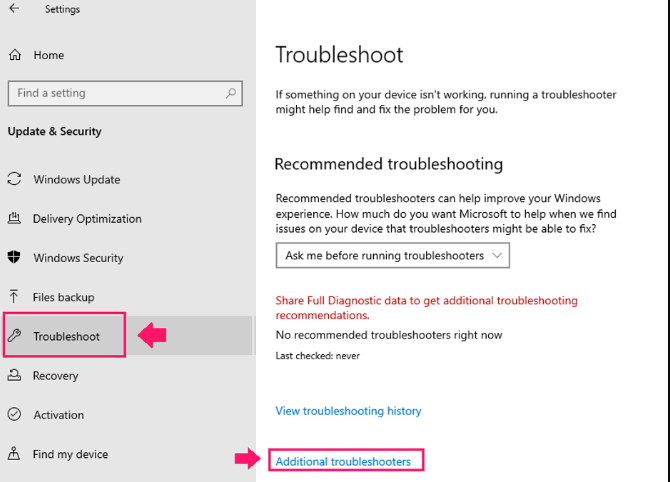
On Windows 10, go to Settings > Update & Security > Troubleshoot and select Additional troubleshooters

Choose Search and Indexing, select Run the troubleshooter, pick the problem, and select Next.

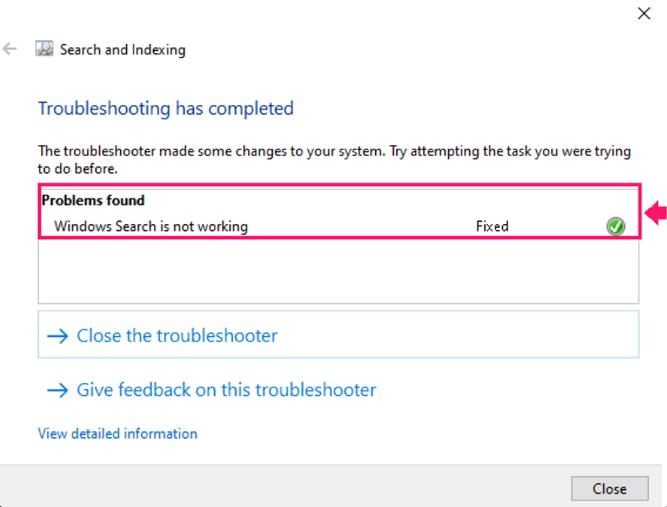
On Windows 10 the result was better: the troubleshooter flagged that Windows Search wasn’t working and marked it Fixed


Rebuild the index
If the troubleshooter doesn’t help, rebuild. Indexing Options is identical on Windows 10 and 11 (Windows 11 shown).
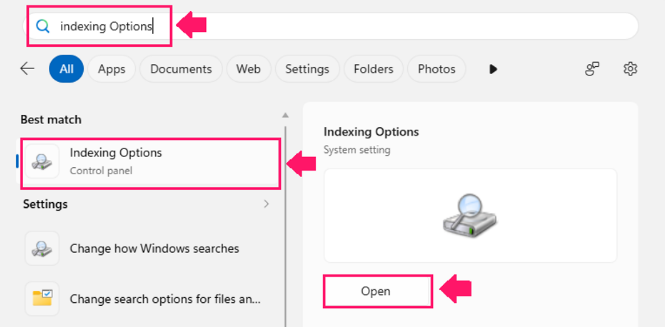
Search Start for Indexing Options and open the Control Panel result.

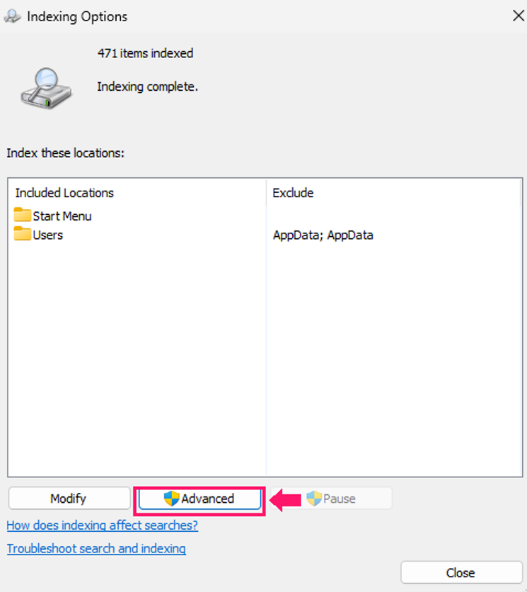
Select Advanced

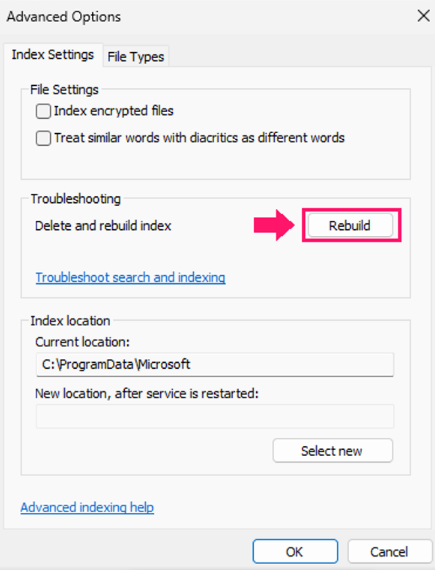
Under Troubleshooting, select Rebuild

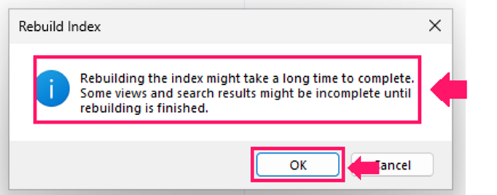
Select OK on the warning. Results stay incomplete until the rebuild finishes

Indexing Options shows progress while it works. Don’t judge the results until it’s done

Come back later and check for Indexing complete

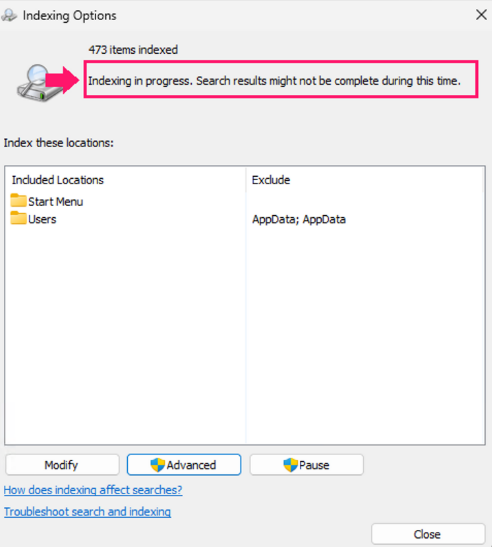

How long a rebuild takes depends on the size of the index. A small one can finish in minutes, while a large one can run for several hours or past 24 hours. Windows also slows indexing while the user is active, so a long rebuild isn’t a sign of a fault. Once Indexing complete appears, search for a known file to confirm it worked.
With Robin by Atera: A rebuild is mostly waiting, which makes it a poor use of a technician’s time. Robin rebuilds the Windows Search components when an employee reports missing or stale results, so a technician doesn’t have to start the rebuild and wait for it to finish.
Method 3: Reset Windows Search with Microsoft’s script
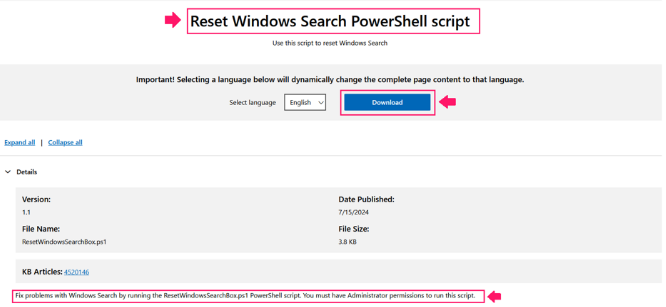
If restarts and a rebuild haven’t worked, reset Search to its defaults. Microsoft provides a single script, ResetWindowsSearchBox.ps1, that covers both Windows 10 and Windows 11.
Download ResetWindowsSearchBox.ps1 from the Microsoft Download Center to the Downloads folder

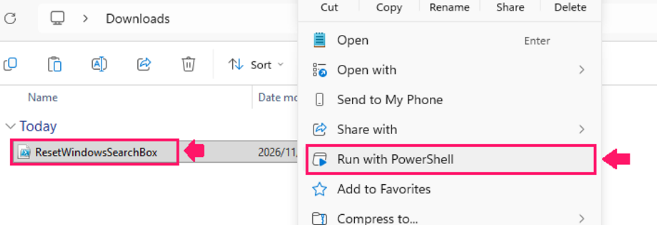
Right-click the file and choose Run with PowerShell. If the window flashes and closes, run it by hand instead (next step)

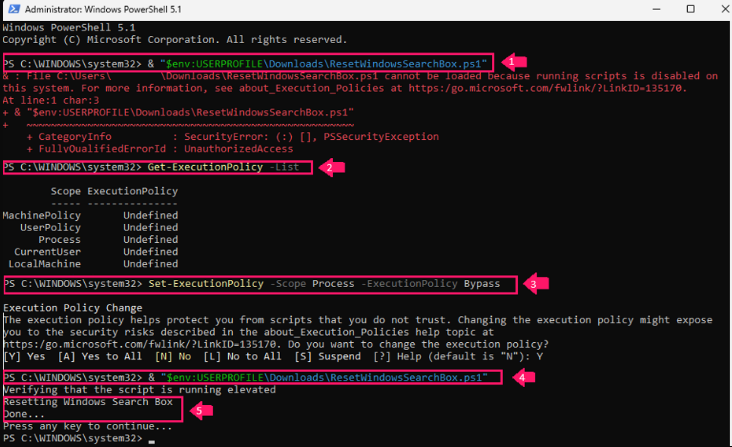
- In an elevated PowerShell window, run
&"$env:USERPROFILE\Downloads\ResetWindowsSearchBox.ps1" - If PowerShell refuses to run scripts, check why with
Get-ExecutionPolicy -List. Where no company restriction applies and you have permission, runSet-ExecutionPolicy -Scope Process -ExecutionPolicy Bypass, answer Y, and run the script again. The bypass only lasts until you close the window Wait for Done, close PowerShell, and test Search

Our Windows 10 test machine hit the same execution-policy block, and the same one-session bypass cleared it

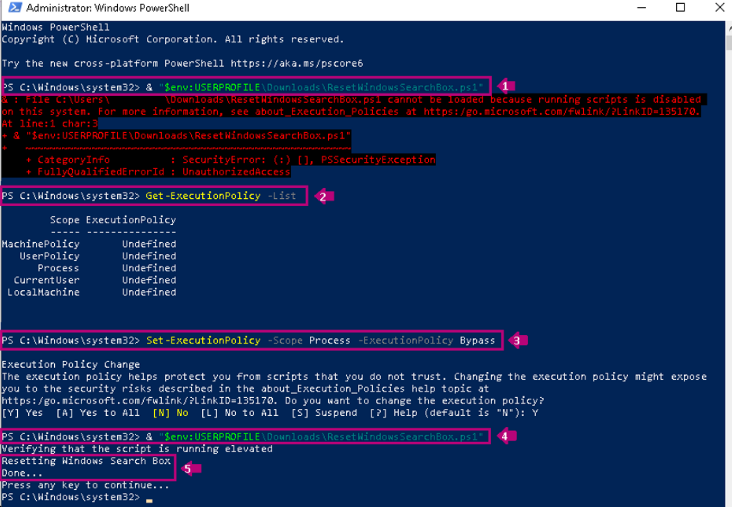
A reset leaves personal files alone, but expect less accurate results and some extra load for a while as Windows refreshes the index. Since the script needs administrator rights, only ever download it from Microsoft. And if a company policy blocks scripts, respect it rather than bypassing it. If the reset fails too, the next option is re-registering the Windows Search system app. That repair uses different package paths on Windows 10 and 11 and goes deeper into the system, so save it for last. If the reset fails too, move on to Method 4 to rule out the user profile and system files.
Where Robin stops and your technicians start: Robin handles the repeatable part of a search ticket: restarting or rebuilding the Windows Search components when results are missing, stale, or unresponsive. The cases that follow need a person to weigh the evidence. A crash pattern in the event logs, a search failure that affects only one user, and an indexing policy pushed to hundreds of devices are judgment calls. With Robin clearing the routine restarts and rebuilds, your technicians have the time to dig into them properly.
» Don’t miss our guide to viewing and analyzing Event Viewer logs
Method 4: Rule out the user profile and system files
If Search still fails after a reset, find out whether the fault belongs to the person or the PC. A temporary local account answers that in a few minutes.
Test Search in a new profile
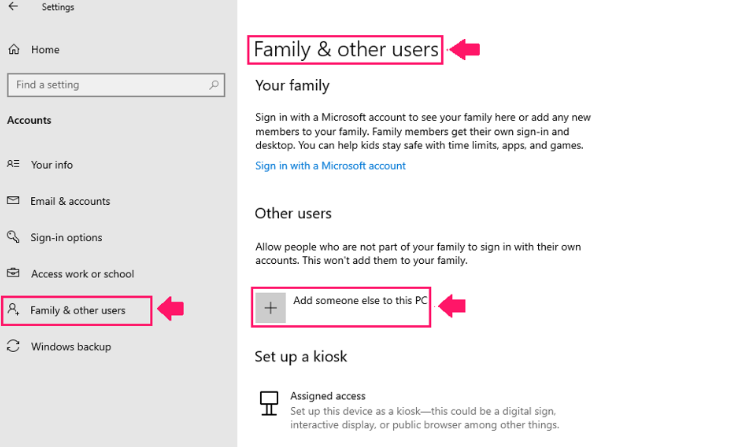
On Windows 11, open Settings > Accounts > Other users and select Add account

On Windows 10, open Settings > Accounts > Family & other users and select Add someone else to this PC. On either version, choose I don’t have this person’s sign-in information, then Add a user without a Microsoft account, and create a standard local account
 Accounts > Family & other user” title=”Settings > Accounts > Family & other user” decoding=”async”/>
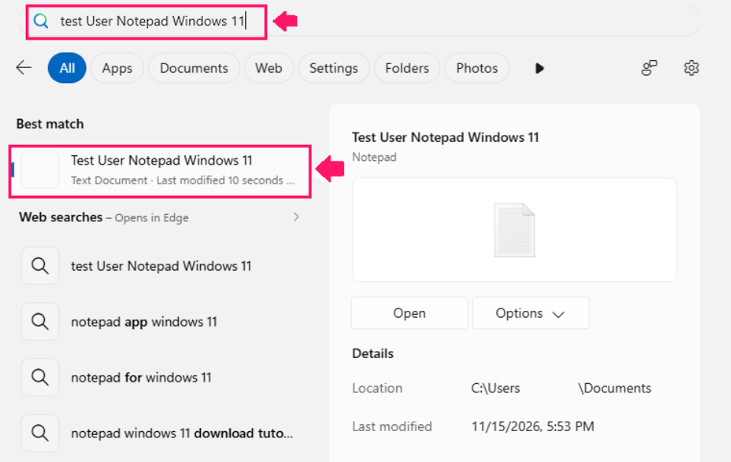
Sign in as the new user and search for Notepad or a document saved in that profile. Then run the same kind of search in the original account (Windows 11 shown below)

Result
What it points to
Works in the new account, fails in the original
That user’s profile, settings, or account-level policies. It doesn’t mean the profile is corrupt
Fails in both accounts
A device-wide cause, such as the Search service, Windows components, or damaged system files

 Accounts > Family & other user” title=”Settings > Accounts > Family & other user” decoding=”async”/>
Repair system files with DISM and SFC
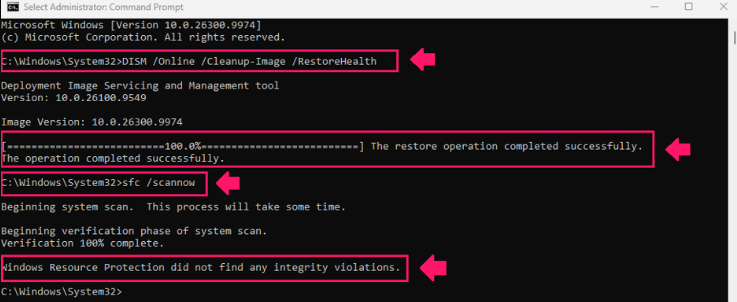
When Search fails in both profiles and the earlier checks came up empty, repair the system files. In an elevated Command Prompt, run DISM /Online /Cleanup-Image /RestoreHealth, then sfc /scannow once DISM completes. The commands are the same on Windows 10 and 11. On our Windows 11 test machine, DISM completed cleanly and SFC found no integrity violations.
With Robin by Atera: DISM and SFC can take a long time, and someone has to watch for the result. Robin runs the supported system file repair workflow when Windows components look damaged and reports whether the corruption was fixed. Your team only gets involved if it wasn’t.
» Go deeper on the repair tool with our guide to the DISM command in Windows 11
Method 5: Fix Windows Search remotely and at scale
When Search fails on several computers at once, start with a remote restart. It’s quicker than a rebuild and won’t leave users with incomplete results while an index fills back in.
The script below checks the Windows Search service before it changes anything. If the service is disabled, it stops and reports an error rather than overriding a setting that may be deliberate. Otherwise, it restarts the service (or starts it if it’s stopped), ends any running search window process so Windows loads a fresh one, and reports the final status.
The Script:
Atera does not guarantee the integrity, availability, security, virus-free, safety, lawfulness, non-infringement, rights’ status, or functionality of the scripts. The use of the shared scripts is at your own risk. Scripts are provided “AS IS”. *
$service = Get-Service WSearch -ErrorAction Stop
if ($service.StartType -eq 'Disabled') { throw 'Windows Search is disabled.' }
if ($service.Status -eq 'Running') { Restart-Service WSearch -ErrorAction Stop } else { Start-Service WSearch -ErrorAction Stop }
Get-Process -Name SearchHost, SearchApp -ErrorAction SilentlyContinue | Stop-Process -Force
Get-Service WSearch
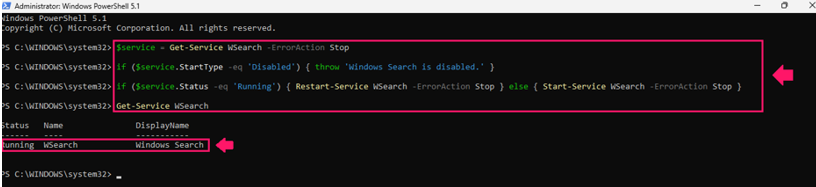
In Atera’s RMM, save this as a script and run it against selected devices or device groups. Start with a handful of devices, check the execution results, and confirm those users can search before you widen the rollout.
A script can’t fix every symptom remotely. Typing problems tied to ctfmon.exe live in the user’s own session, so a background script won’t bring text input back. For those, follow the steps in You can’t type in the search bar.
Pro tip: Need a variation, such as one that also reports indexing status? Describe it in plain language and AI Copilot writes the script for you.
Check the policies that control Search
If a restart doesn’t help, a company policy may be limiting Search. Neither a restart nor a rebuild will override it.
- Group Policy: In Group Policy Management, open Computer Configuration > Administrative Templates > Windows Components > Search. Look at settings such as Prevent indexing certain paths to make sure nobody excluded locations users rely on.
- Microsoft Intune: Under Devices > Configuration, review the Windows Settings catalog. Make sure Allow Windows Indexer isn’t turned off. On Windows 11 version 22H2 and later, Fully disable Search UI should be disabled or not configured if users need Search.
If you confirm the index itself is damaged, rebuild only the affected machines. A fleet-wide rebuild leaves every user with incomplete results for hours.
With Robin by Atera: After you fix a search policy, devices still have to pick up the change. Robin forces a Group Policy refresh on domain-joined Windows devices, or triggers a Microsoft Intune check-in, when an expected company setting hasn’t arrived. It reports the result so your team can confirm the right policy applied.
» See how Atera simplifies group policy management
Common problems and edge cases
Sometimes Search half-works: the window opens but won’t take typing, goes blank or keeps crashing, or runs fine but can’t find a file you know exists. Each of these needs its own fix, and the sections below cover them.
You can’t type in the search bar
If the user can type in Notepad or a browser, the keyboard isn’t the problem. The usual suspects are the Windows text input service and the search window process.
- Press Win + R, enter
ctfmon.exe, and press Enter. This starts CTF Loader, the service Windows uses to handle text input - Then try typing in Search again
- Still nothing? Open Task Manager with Ctrl + Shift + Esc, go to Details, and end SearchHost.exe on Windows 11, or SearchApp.exe or SearchUI.exe on Windows 10. Windows reloads it the next time Search opens
- If the problem began after someone added or changed a language, check the keyboard layout under Settings > Time & language
- If typing still fails, restart the PC and test a second user profile before you reset Search
Search opens blank, or SearchHost.exe crashes or uses high CPU
High CPU on its own isn’t a fault. Windows works hard while it builds or rebuilds the index, and the load drops when indexing finishes. A search window that opens blank or a process that keeps crashing is a separate problem, and the event logs usually name the cause.
In Task Manager, check which process is busy. SearchHost.exe is the Windows 11 search window, and SearchIndexer.exe does the indexing. If the indexer is busy and its item count is climbing, let it finish.
For repeated crashes, open Event Viewer > Windows Logs > Application and look for these entries around the time the user saw the failure:
Event ID | Source | What it tells you |
|---|---|---|
1000 | Application Error | Which process crashed and the faulting module |
1001 | Windows Error Reporting | Extra detail about the same crash |
3036 | Windows Search | A location the indexer couldn’t reach |
Reliability Monitor helps you spot recurring crashes or problems that started after an update. If nothing stands out, check for pending updates and the indexing status before you reset Search a second time.
With Robin by Atera: Robin reads recent application crash events and pulls out the failure details. Your technician starts with the faulting module in hand instead of scrolling through Event Viewer in a remote session.
File Explorer search can’t find files that exist
A missing result usually means Windows was never told to look there, not that the index is broken. Rule out these four gaps before you rebuild anything:
- The folder isn’t indexed. Open the folder and search for the file’s exact name. Then open Indexing Options and select Modify to check which folders are included. Windows 11 also lists indexed locations under Settings > Privacy & security > Search (or Searching Windows on some builds). On Windows 10, go to Settings > Search > Searching Windows.
- Windows indexes the name, not the contents. If a search finds the file name but not words inside the document, open Indexing Options > Advanced > File Types. Check that the extension is listed and set to Index Properties and File Contents. Some formats also need a compatible filter before their contents become searchable.
- The file lives on a network share. Shared folders aren’t added to the local index automatically. Confirm the user can open the share, then check whether the file server indexes it or whether Offline Files is in use.
- Policy excludes the location. Group Policy or Intune can block indexing for certain paths. Check those settings before a rebuild, or the gap comes straight back.
With Robin by Atera: Sometimes the file is fine and the employee is looking in the wrong place. Robin checks the expected Windows user folder, searches for matching file names, and flags any match that’s hidden. It returns the file paths, so the employee finds the document without logging a ticket.
Spend technician time on the search tickets that need it
A broken search bar has a handful of possible causes, and the cheapest fix is usually the right one. Restart before you rebuild, check what’s indexed before you assume corruption, and test a second profile before you touch system files. That order saves hours on routine tickets and makes the hard cases easier to spot.
The routine cases don’t need your technicians at all. Robin by Atera restarts or rebuilds the Windows Search components when an employee reports missing or stale results or a search bar that won’t respond. For the profile, policy, and crash investigations that do need a person, Atera’s remote PowerShell execution lets your team run the scripted checks in this guide across selected devices or device groups. Robin is sold separately as an add-on to the Atera IT suite.
» Ready to hand off routine search tickets? Book a Robin demo or start a free Atera trial
Related Articles

How to fix a USB device not recognized in Windows 11
“USB device not recognized” covers a dead cable, a dock on old firmware, a port Windows powered down to save energy, and a drive your own policy is blocking on purpose. Swapping ports won’t tell them apart. Rule out the hardware, read what Device Manager reports, and fix each cause where you find it, whether that’s one desk or a whole fleet.
Read now
How to fix Google Drive not syncing
The Drive folder is gone from Finder, and the user swears nothing changed. Somewhere between the account, the sync mode, a corporate proxy, and macOS File Provider, something broke, and the quickest reset can wipe edits that never uploaded. Find the real failure first, protect what hasn’t synced, then fix it on one Mac or across the fleet.
Read now
How to fix Bluetooth not working in Windows 11
A Bluetooth ticket could mean a radio switched off in Quick Settings, a headset still connected to someone’s phone, a stopped service, a driver Windows Update swapped overnight, or an adapter that has vanished from Device Manager. Guessing burns the remote session. Work the causes in order, cheapest check first, and fix each one on a single PC or across the fleet.
Read now
How to recover deleted files in Windows 11
A deleted file is only as recoverable as the setup behind it, since some methods skip the Recycle Bin entirely. Work the recovery paths in the right order, then set devices up so the next restore takes minutes, not a data recovery service.
Read nowEndless IT possibilities
Boost your productivity with Atera’s intuitive, centralized all-in-one platform