
Dark mode has moved well past the “developer preference” stage. It’s now the default expectation for most knowledge workers and the kind of setting users configure on day one and assume will carry across every app they touch. When it doesn’t, they file a ticket. You’ve probably seen a few of these already.
The catch is that Outlook isn’t one thing. It’s Classic Outlook for Windows, New Outlook for Windows, Outlook on the Web, Outlook for Mac, and two separate mobile apps, and none of them share theme settings. Enable dark mode in one and the others stay exactly as they were. For IT teams supporting mixed environments, that fragmentation means support requests don’t just come in once; they come in from every platform your users are on.
Here’s everything you need to know about fixing it for good.
What dark mode actually does in Outlook
Before touching a single setting, it’s worth understanding what you’re actually configuring because dark mode in Outlook behaves differently depending on where you are and what you’re looking at.
Firstly, dark mode and night mode are not the same thing. These terms get used interchangeably, but they refer to different features. Dark mode is a UI color scheme (dark background, light text, etc.) applied across the application interface. Night mode (called Night light in Windows) is a system-level blue-light reduction feature that warms your display based on time of day. The two can run simultaneously, and they’re configured in completely different places.
The other things you need to know include:
- Settings don’t sync across platforms: This is the part that generates the most confusion. Outlook theme settings do not synchronize across platforms, even when a user is logged into the same account on every device. Set dark mode in Classic Outlook for Windows and Outlook on the Web stays light. Configure it on iOS and the desktop is untouched. Each client maintains its own appearance preference independently.
- OS-level dark mode interacts with Outlook: System-wide dark mode in Windows 11 or macOS will carry into Outlook only if the app’s appearance setting is configured to use system settings. If a user has explicitly selected a theme inside Outlook, that selection overrides the OS preference. The app-level setting always wins over the system-level setting when the two conflict.
- Dark mode is strictly a display feature: When a user composes and sends an email in dark mode, the message does not go out as a dark-themed email. Recipients see the message rendered according to their own client settings and not the sender’s. It’s useful knowledge in case your users ask.
How to enable dark theme on every platform
Outlook’s theme settings are configured per client. Work through whichever platforms apply to your environment.
Classic Outlook for Windows
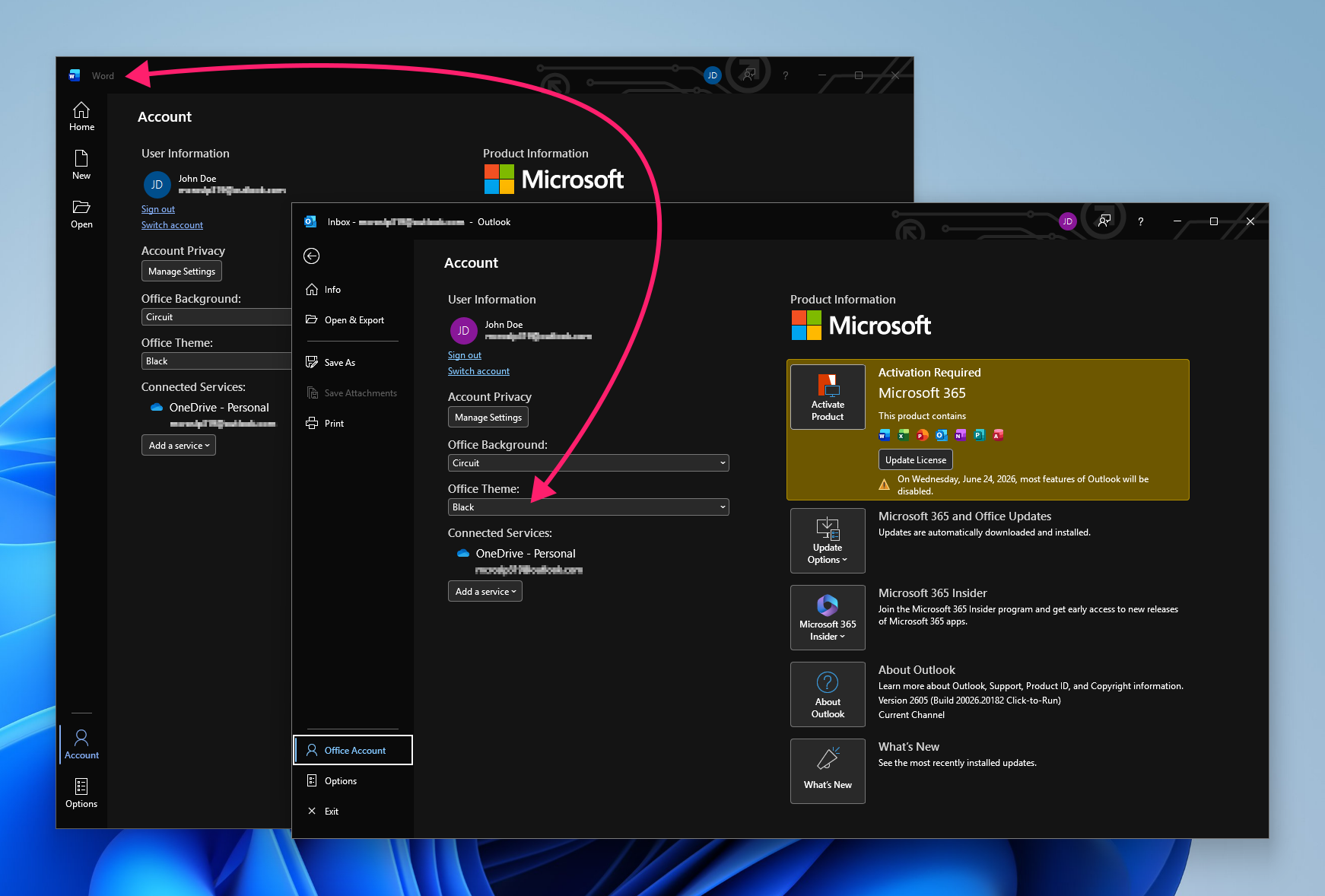
The classic desktop client uses the Office Account theme, which applies across all installed Microsoft 365 applications, not just Outlook.
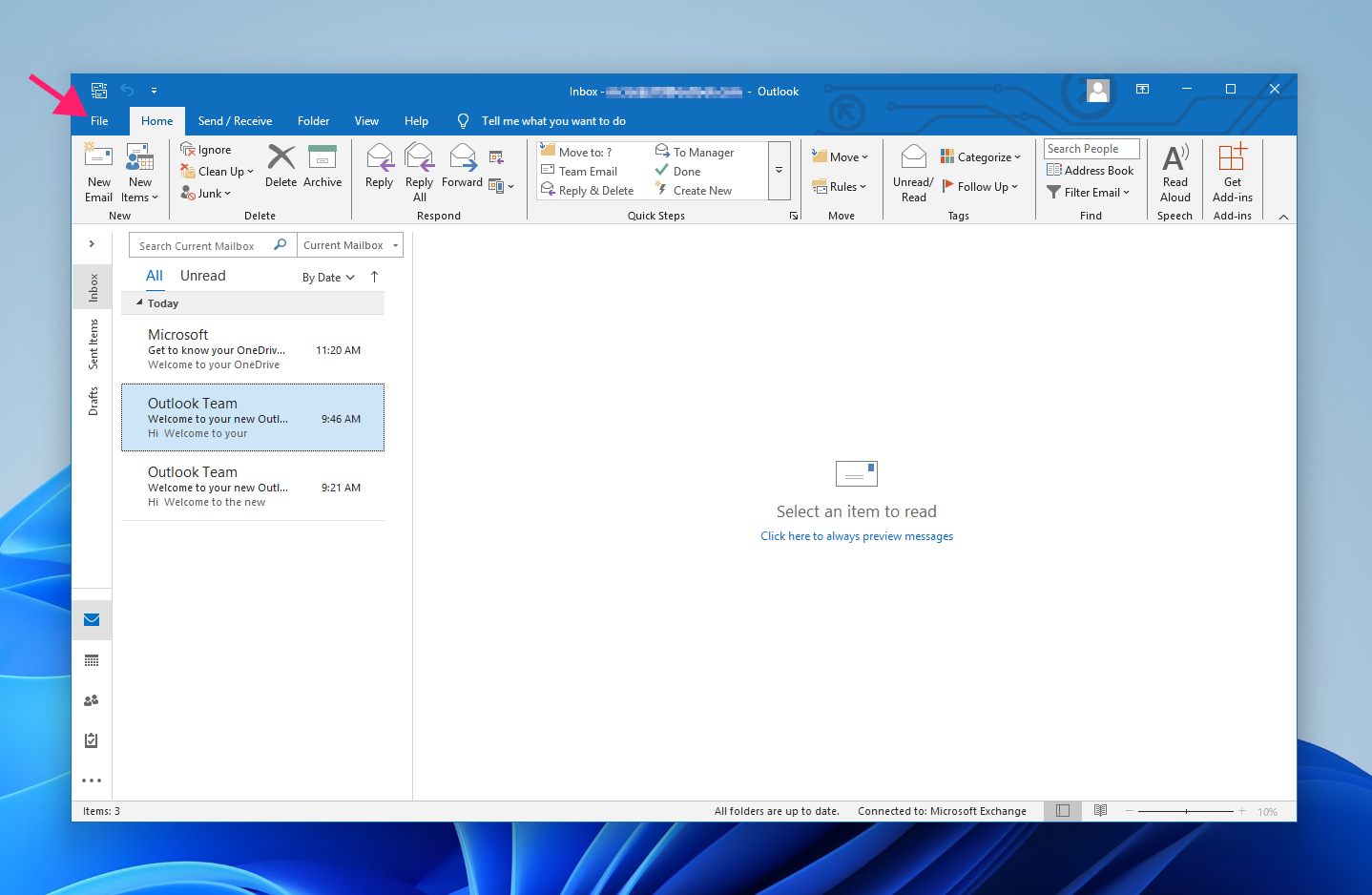
Click File and select Office Account

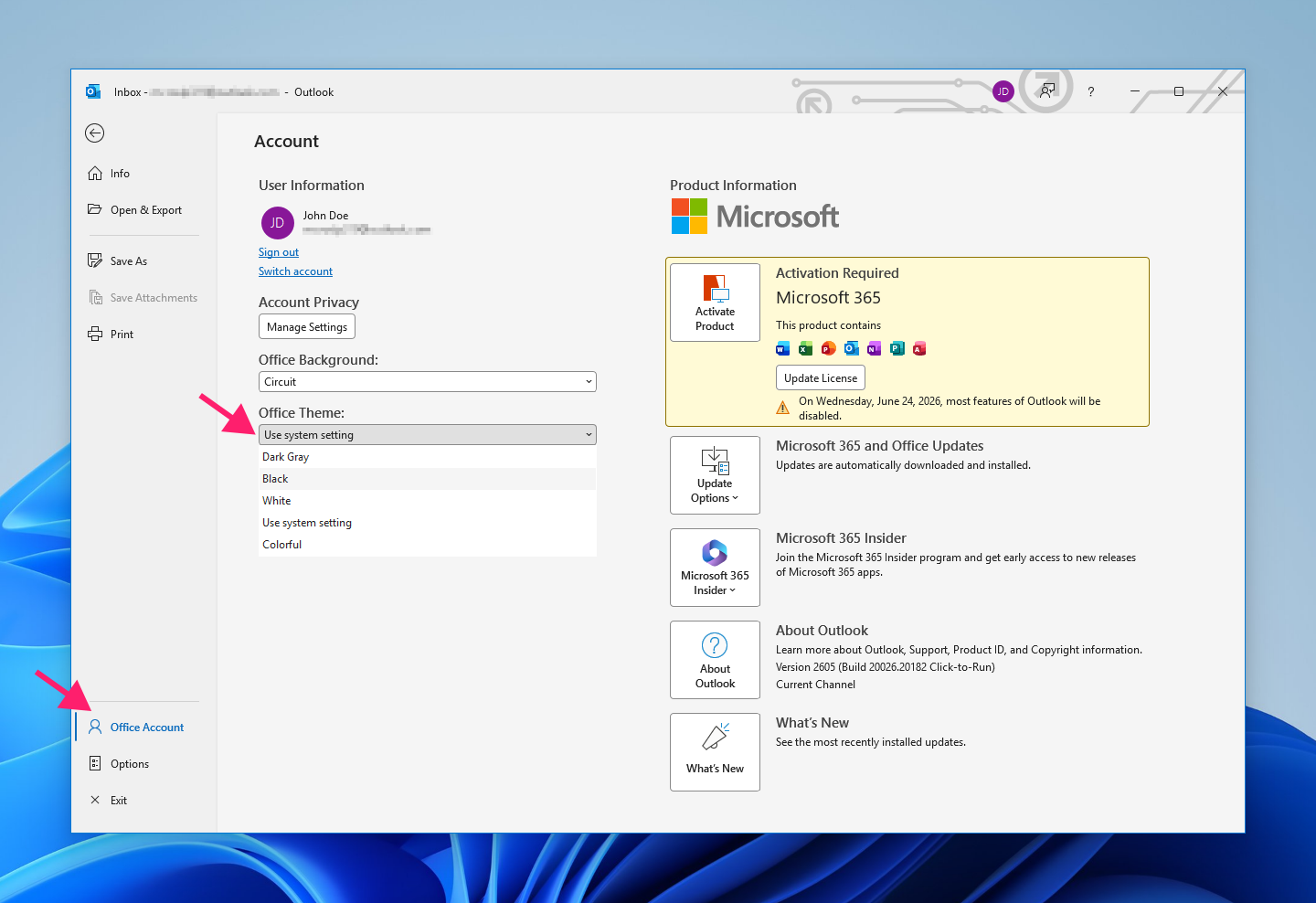
Click the dropdown under Office Theme

Select Black

New Outlook for Windows
The new client uses its own appearance settings, separate from the Office Account theme.
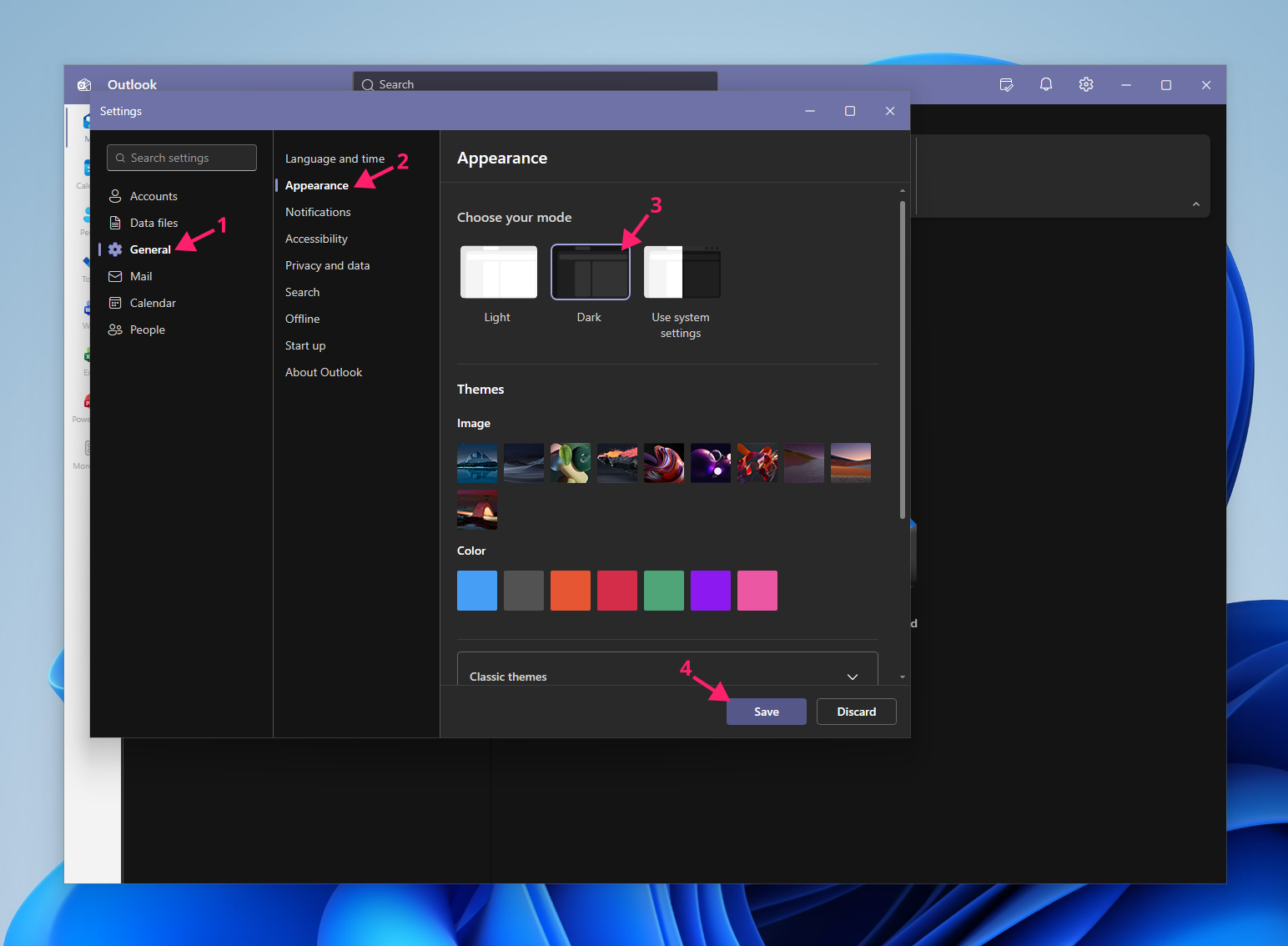
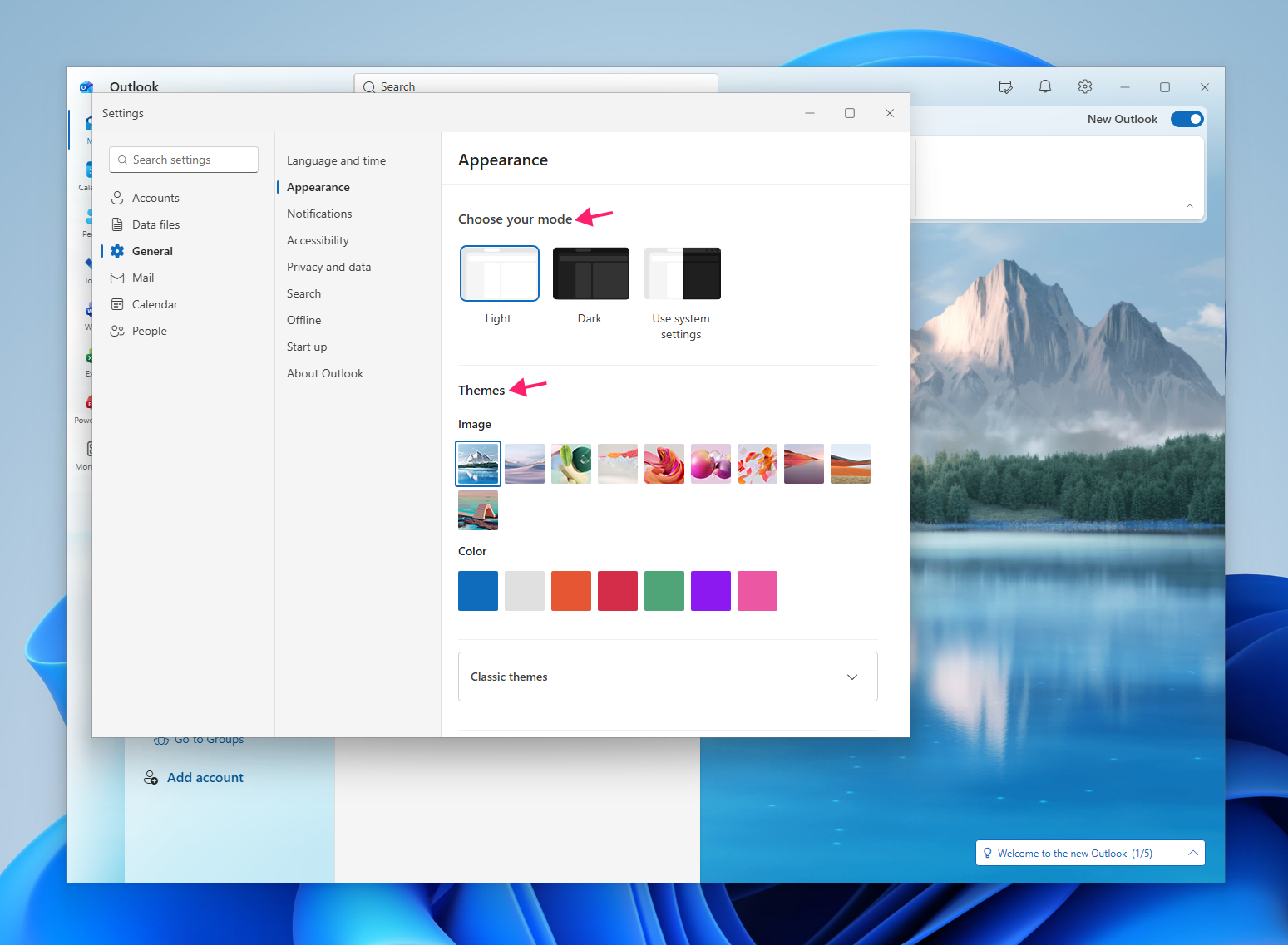
- Click the gear icon in the top-right corner to open Settings
- Navigate to General > Appearance
- Under Choose your mode, select Dark
Click Save and close the settings window

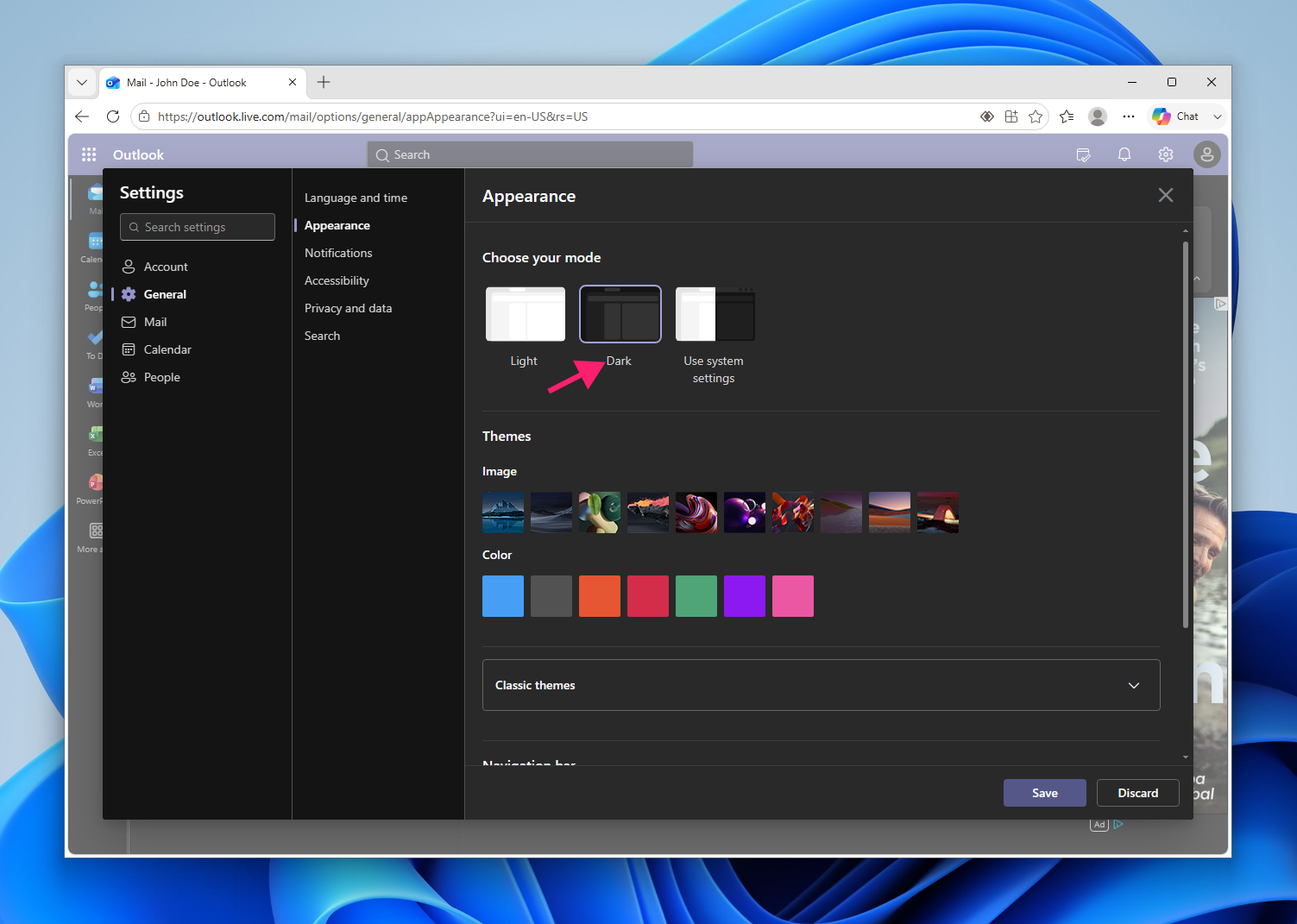
Outlook on the Web (OWA)
The web UI mirrors the new Outlook app and follows the same navigation path.
- Click the gear icon in the top-right corner to open Settings
- Navigate to General > Appearance
- Under Choose your mode, select Dark
- Click Save and close the settings window
Appearance preferences in OWA should persist across different browsers, though Microsoft has no official documentation confirming this.
Outlook for Mac
The Mac client has its own appearance panel inside the app and can optionally follow macOS system settings.
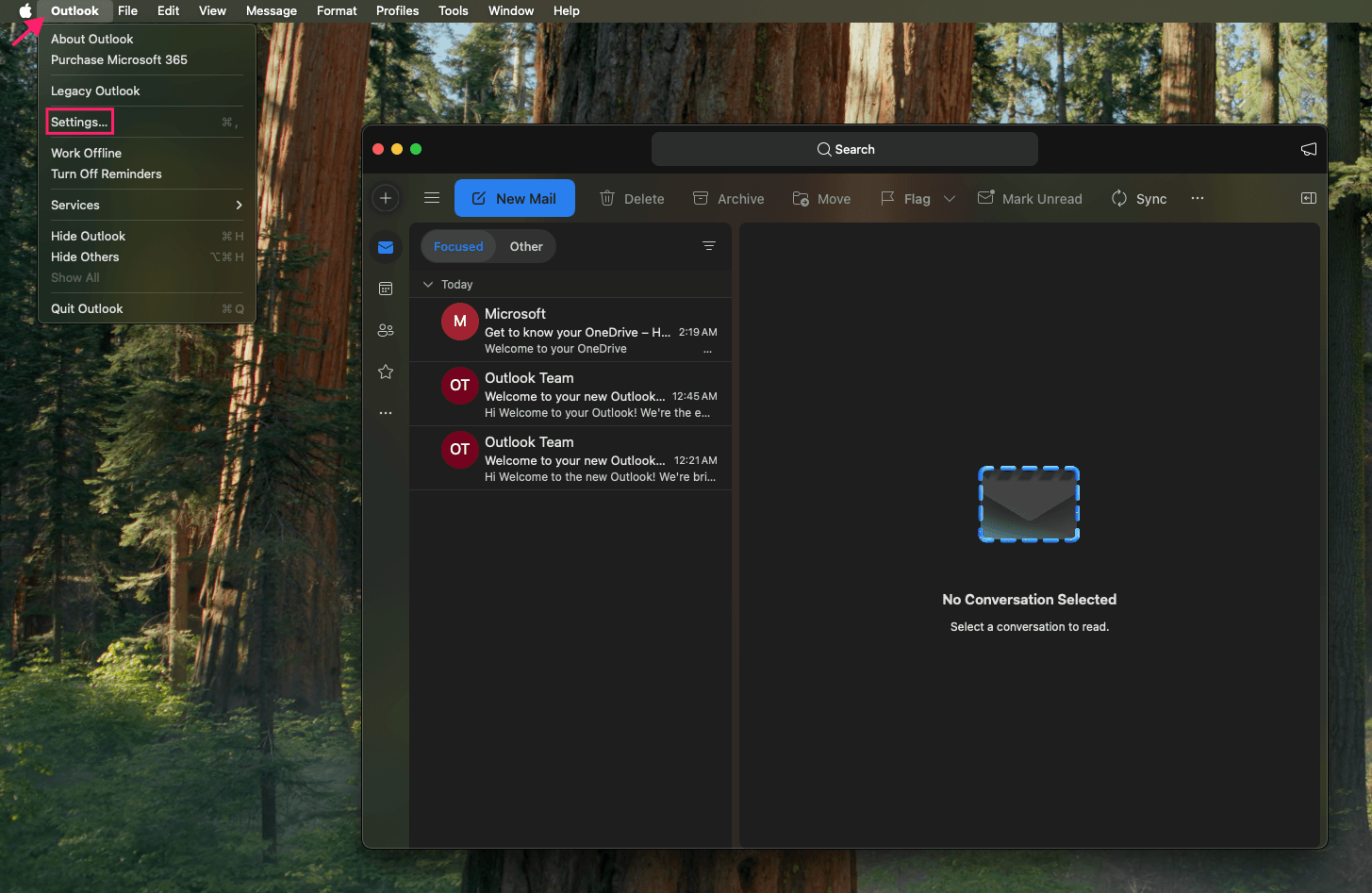
From the top menu bar, select Outlook > Settings

Select Appearance

Under Appearance, choose Dark

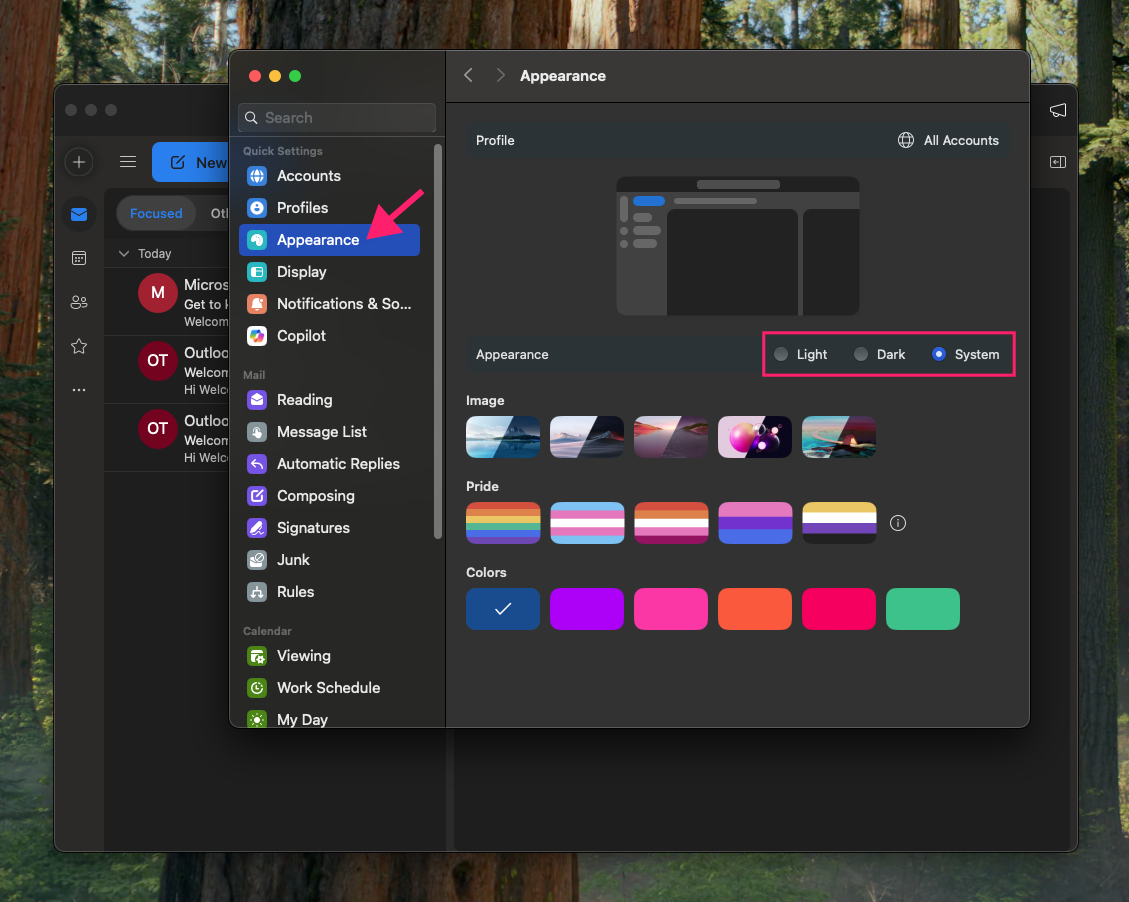
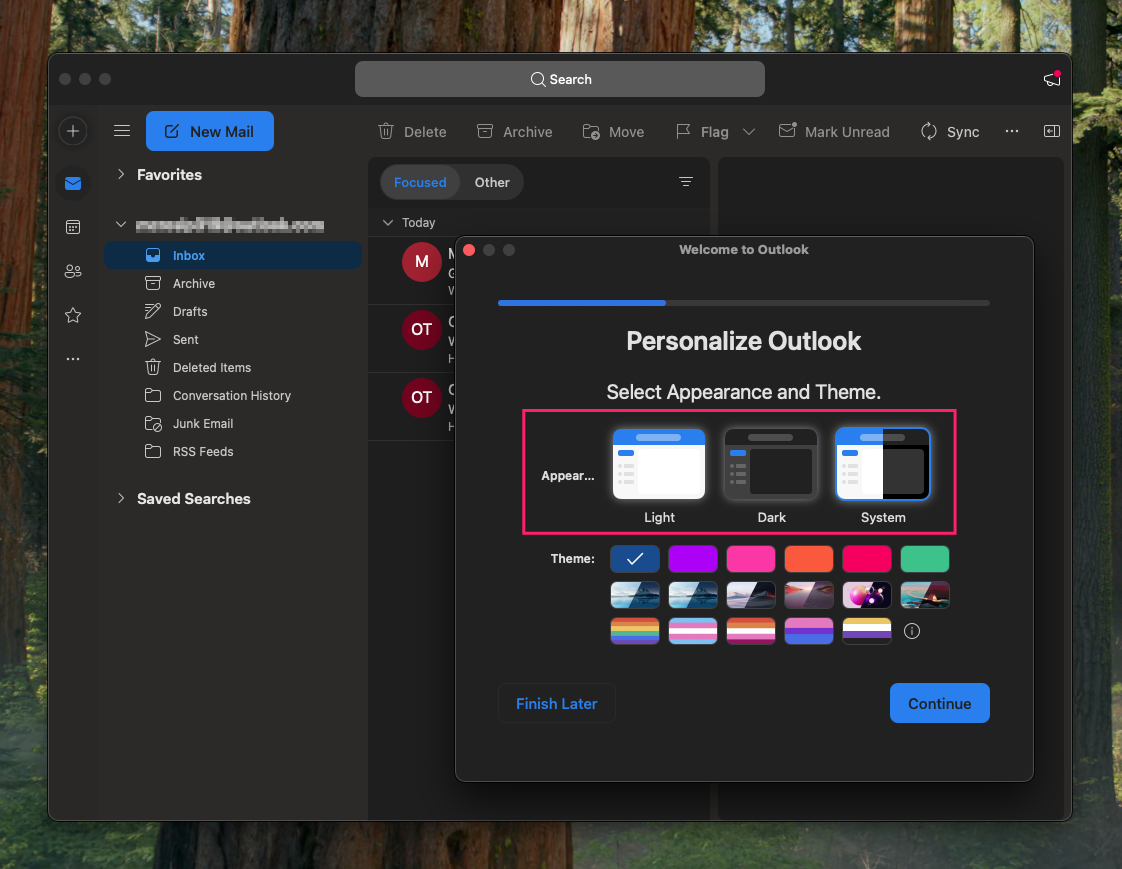
To follow macOS system settings instead of a fixed theme, set this option to System. Outlook will switch automatically when macOS transitions between light and dark.
First-time users launching Outlook after installation are also prompted to select an appearance before the app fully opens.
» Did you know you can enable RMM on Mac?
Outlook for iOS
Tap the icon containing your initials in the top-left corner

Tap the gear icon (⚙) in the bottom-left corner to open Settings
Select Display & Appearance
Under Theme, select Dark
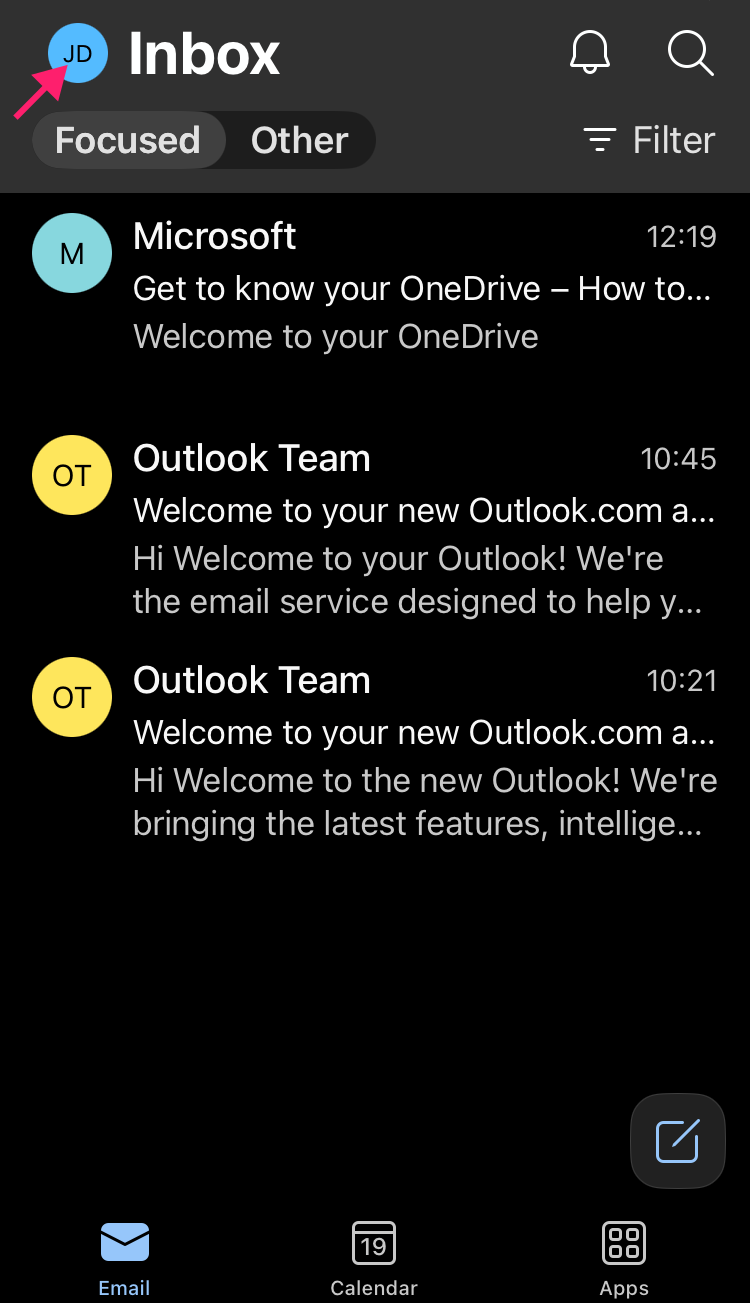
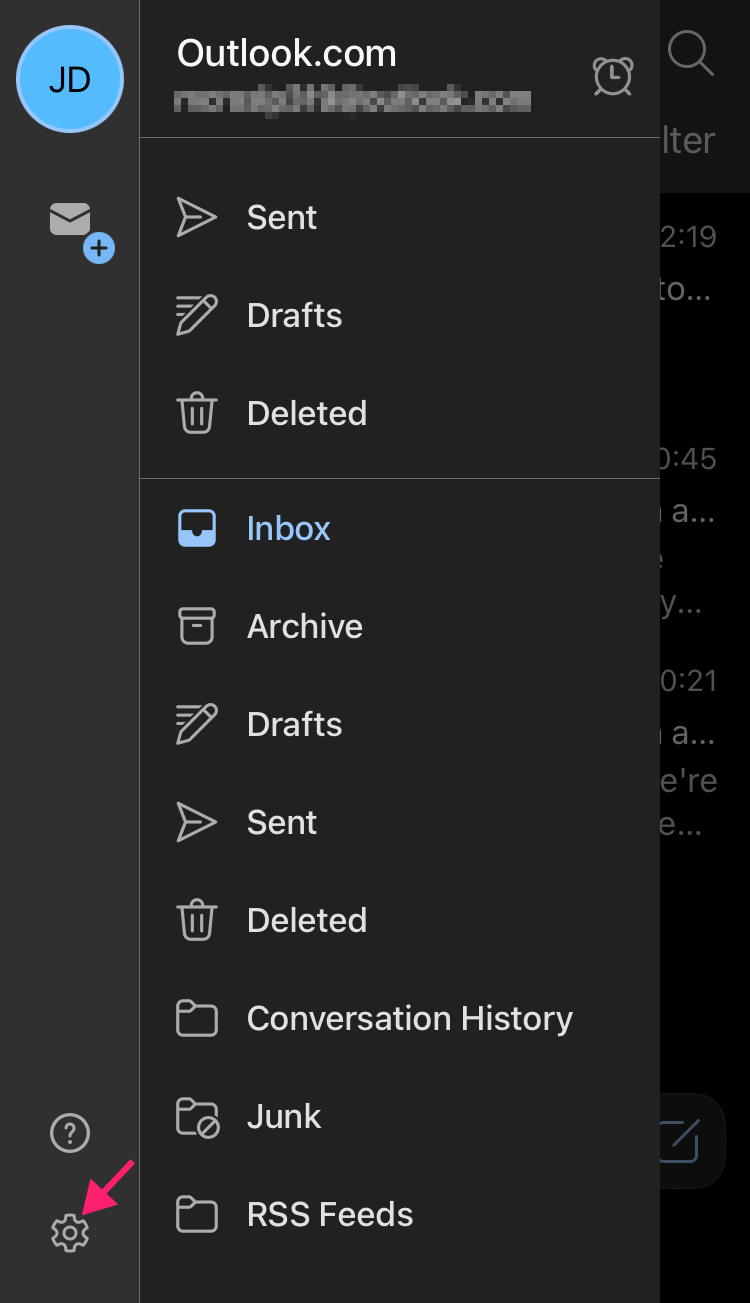
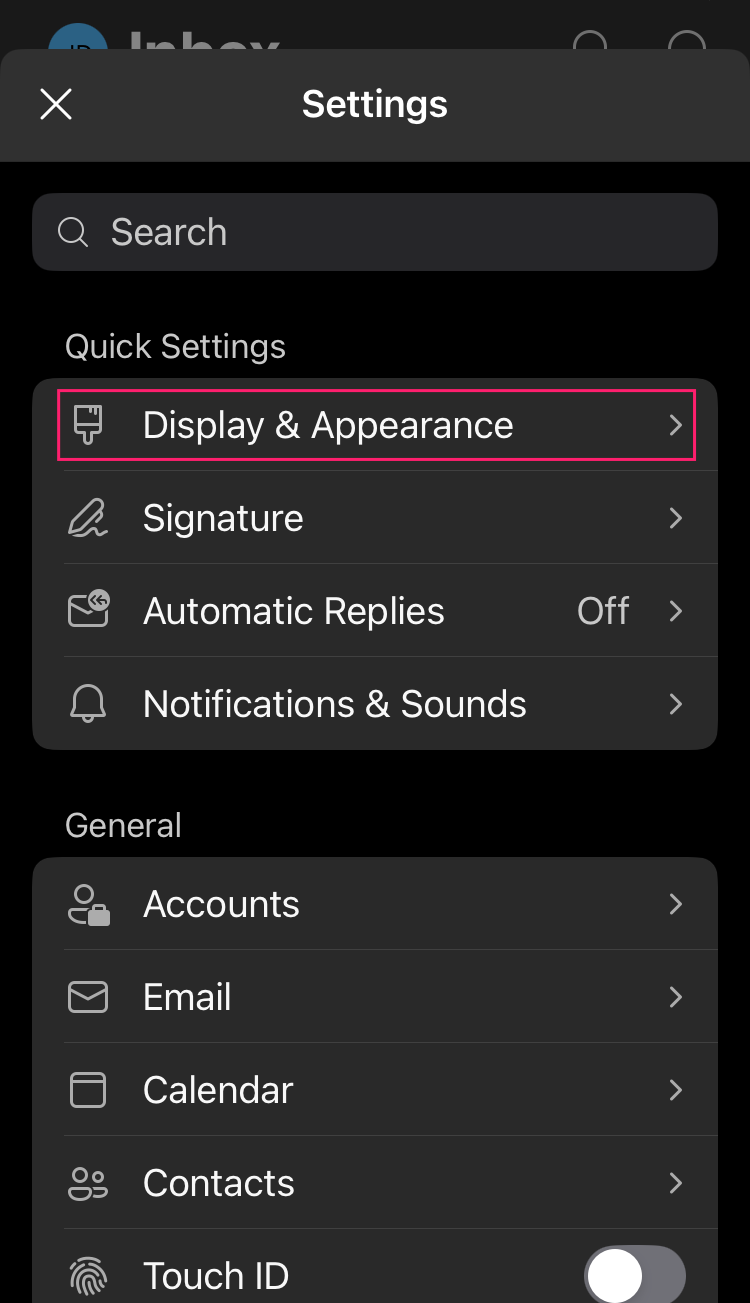
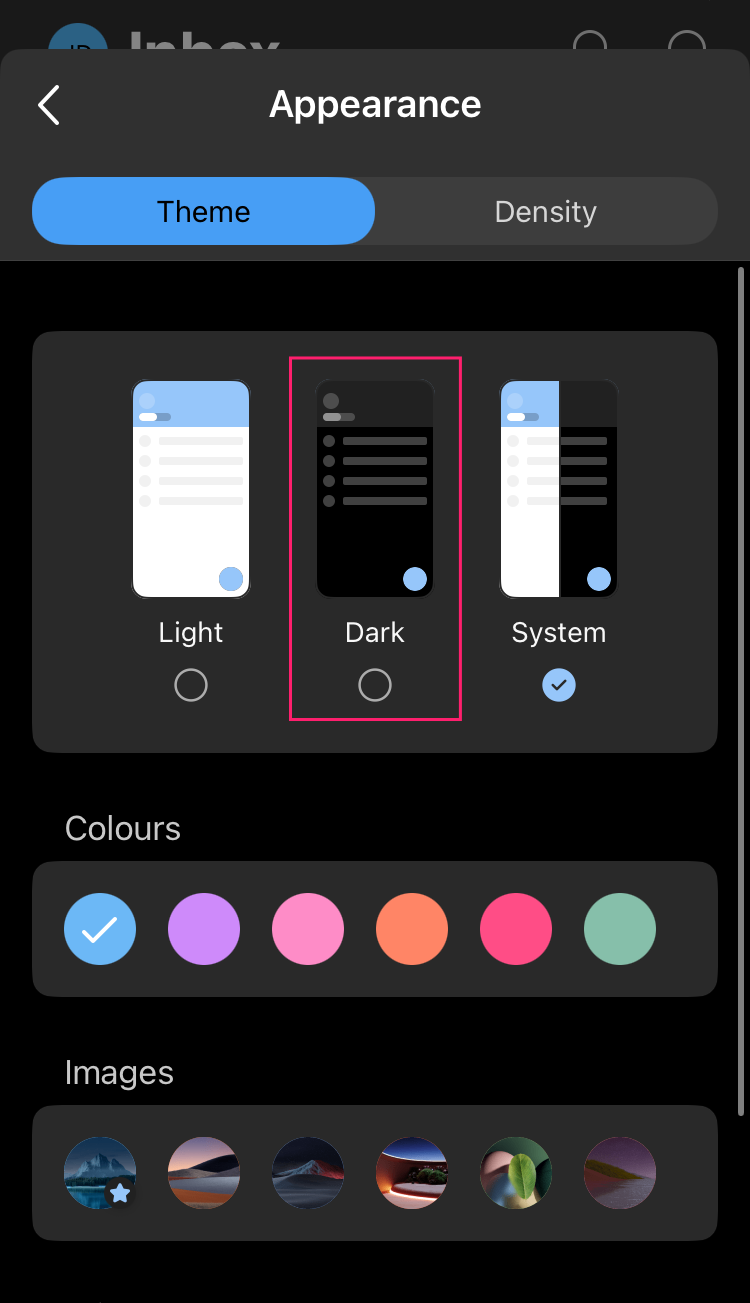
Outlook for Android
Tap the Outlook icon in the top-left corner

Tap the gear icon (⚙) in the bottom-left corner to open Settings
- Select Display & Appearance
Under Theme, select Dark
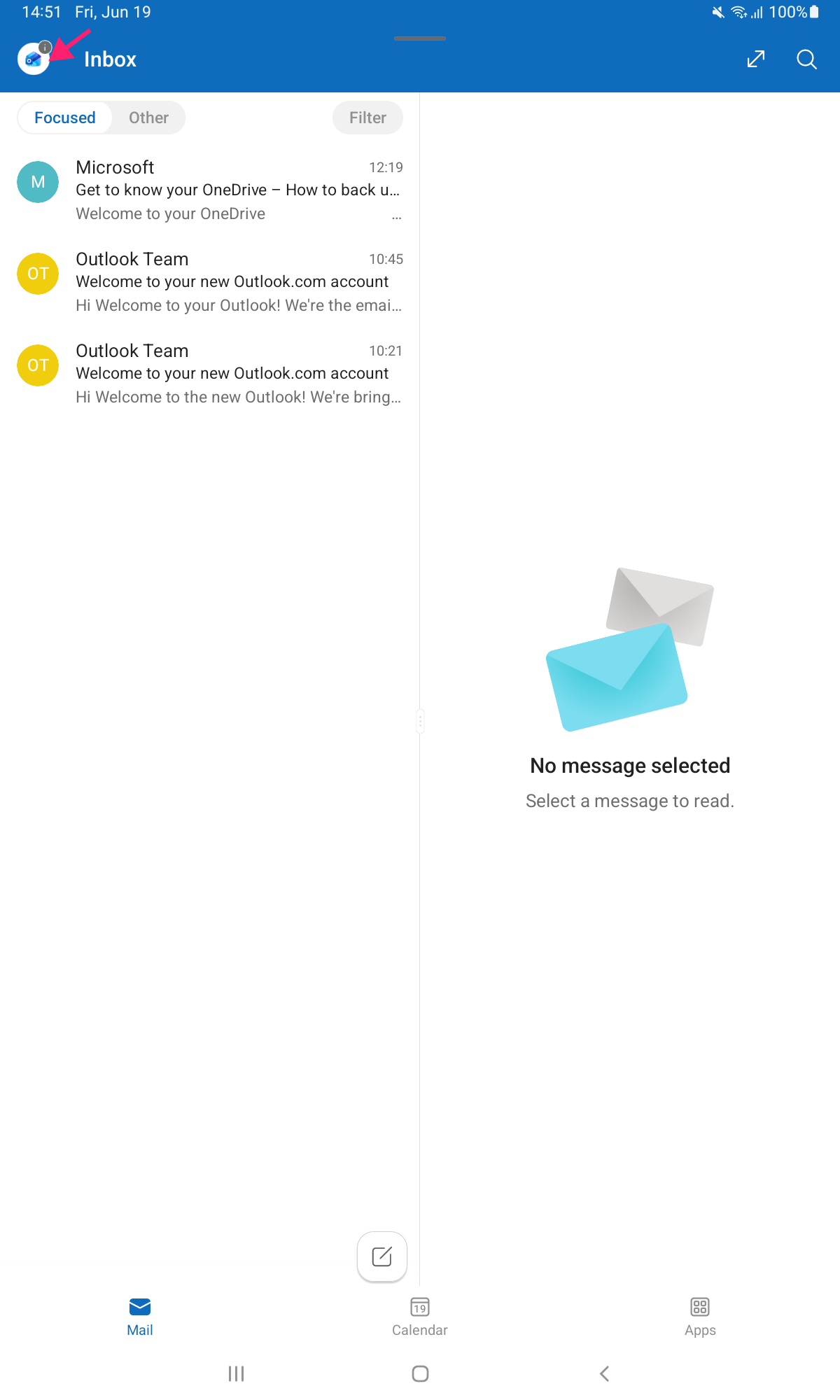
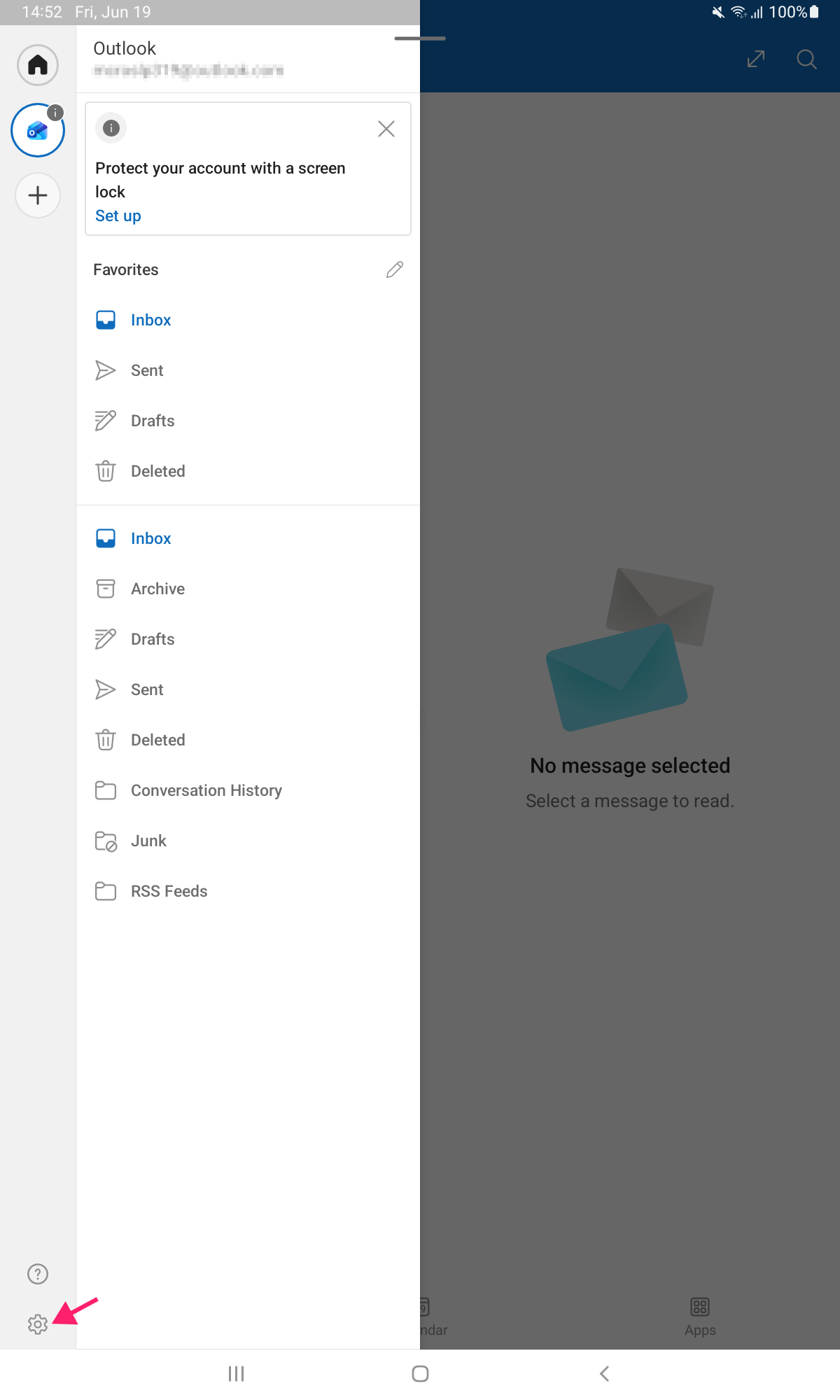
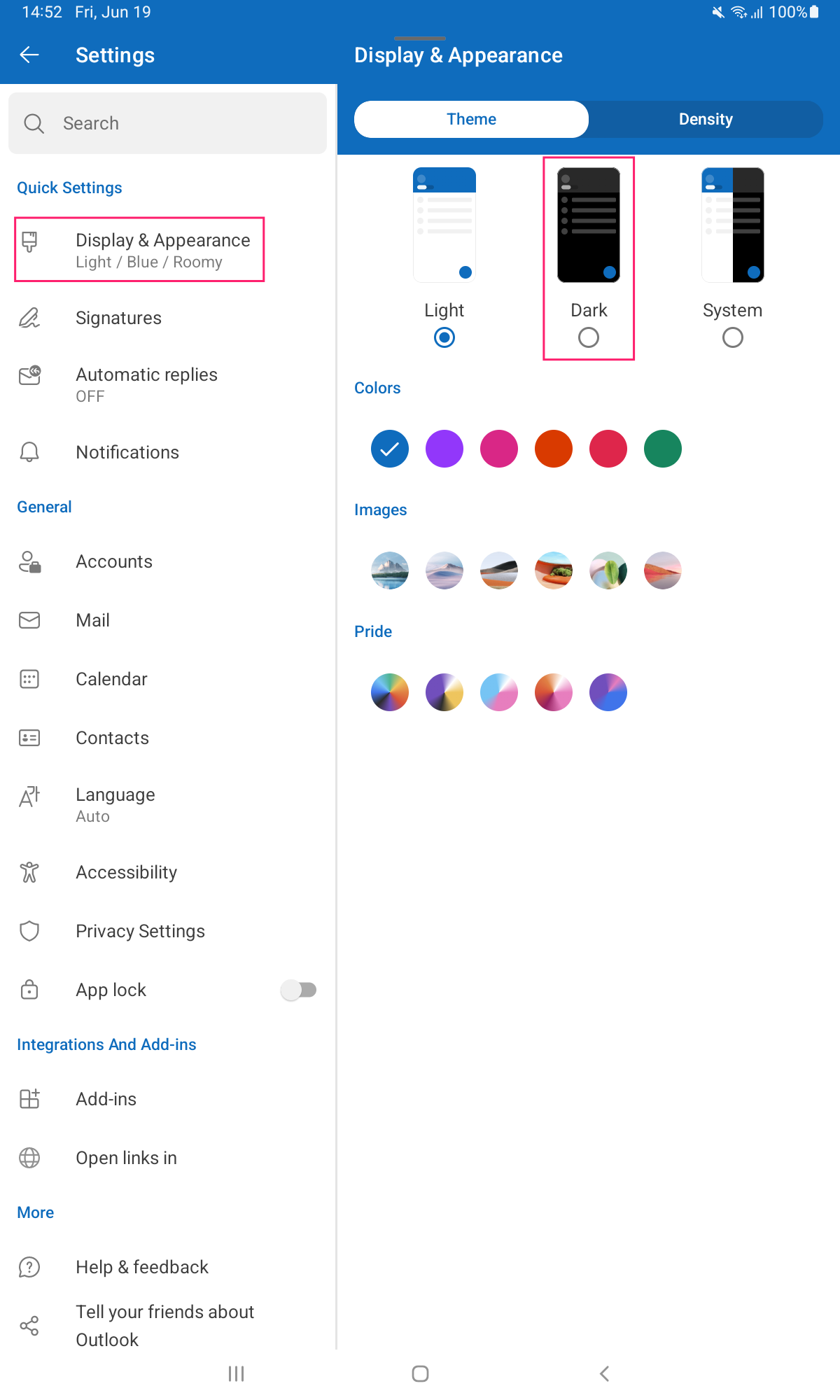
Note: Both mobile clients also offer a System option, which ties the app theme to the device’s OS-level dark mode setting. For users who switch between light and dark at the OS level, this is the lower-maintenance choice.
How to automate mass deployment of the Outlook dark theme
Individual users can set their own Outlook theme, but if you want dark mode on by default across a fleet, the approach differs depending on which version of Outlook you’re managing.
New Outlook is built on web technologies and saves appearance settings directly to the cloud. Theme policies can be pushed via Exchange Online PowerShell, but themes and appearance mode are separate settings in this client.
Exchange Online PowerShell controls the decorative theme (background image and accent color), not the light/dark mode toggle.
There is currently no supported method to enforce dark mode as a default for New Outlook or OWA at the organizational level.
Classic Outlook respects Office group policies. Two methods are available: GPO for domain-joined environments, and a registry key for provisioning scripts or RMM deployment.
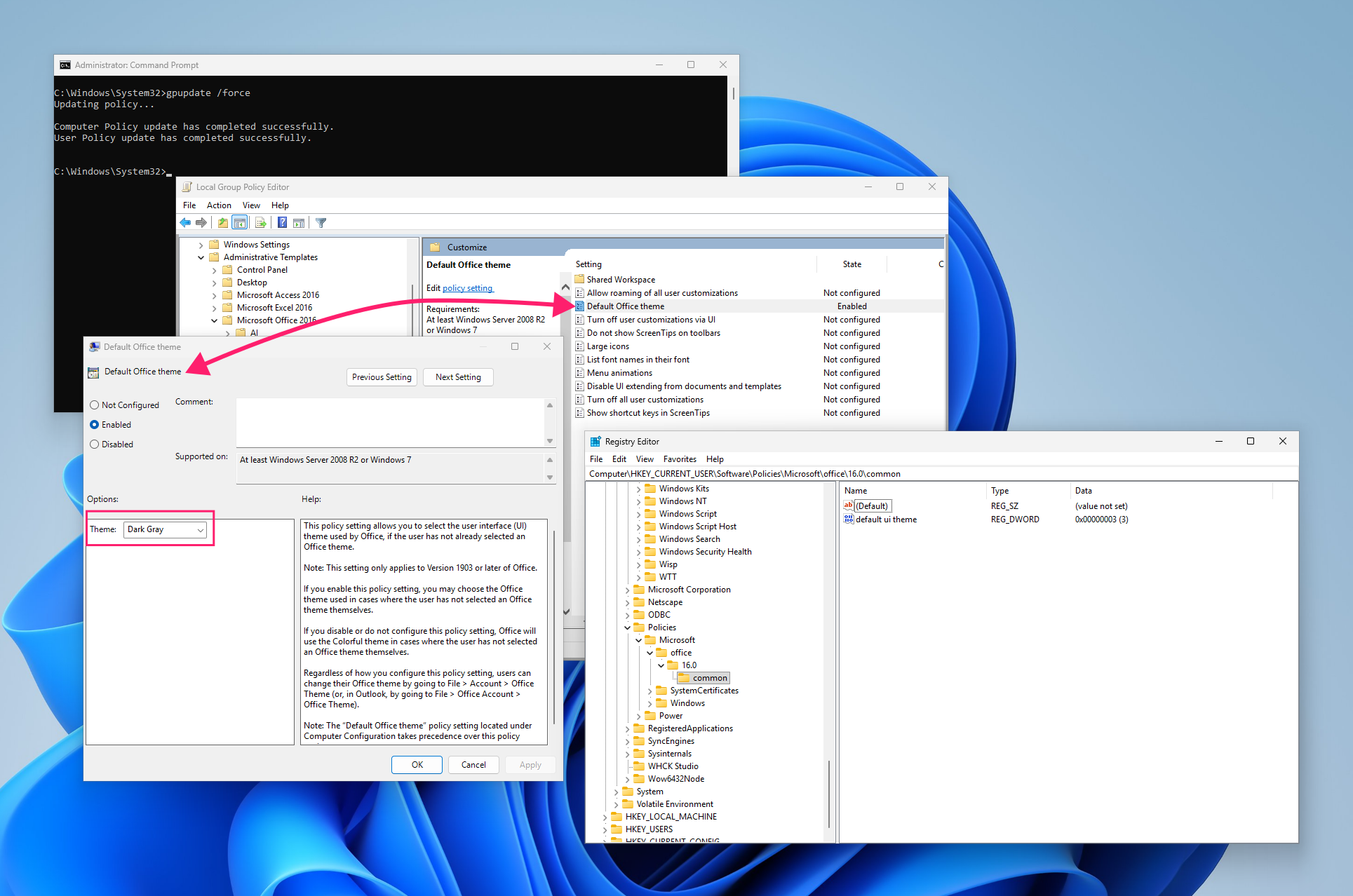
Method 1: Group Policy
This requires the Office ADMX/ADML administrative template files, available from Microsoft. Download and install these before proceeding, then follow these steps:
- Open the Group Policy Management Console
- Create or edit a GPO linked to the target OU
- Navigate to User Configuration > Administrative Templates > Microsoft Office 2016 > Global Options > Customize
- Open the Default Office Theme policy setting
Set the value to 4 (Black) and apply

Method 2: Registry key
Use this method when deploying via provisioning script or RMM automation profile.
- Target the following key:
HKEY_CURRENT_USERSoftwarePoliciesMicrosoftoffice16.0common Set the value name
default ui themeas aREG_DWORDusing the appropriate value for the target theme:- 0: Colorful
- 3: Dark Grey
- 4: Black
- 5: White
To deploy the Black theme via a PowerShell script, run:
reg add "HKCUSoftwarePoliciesMicrosoftOffice16.0common" /v "default ui theme" /t REG_DWORD /d 4 /f
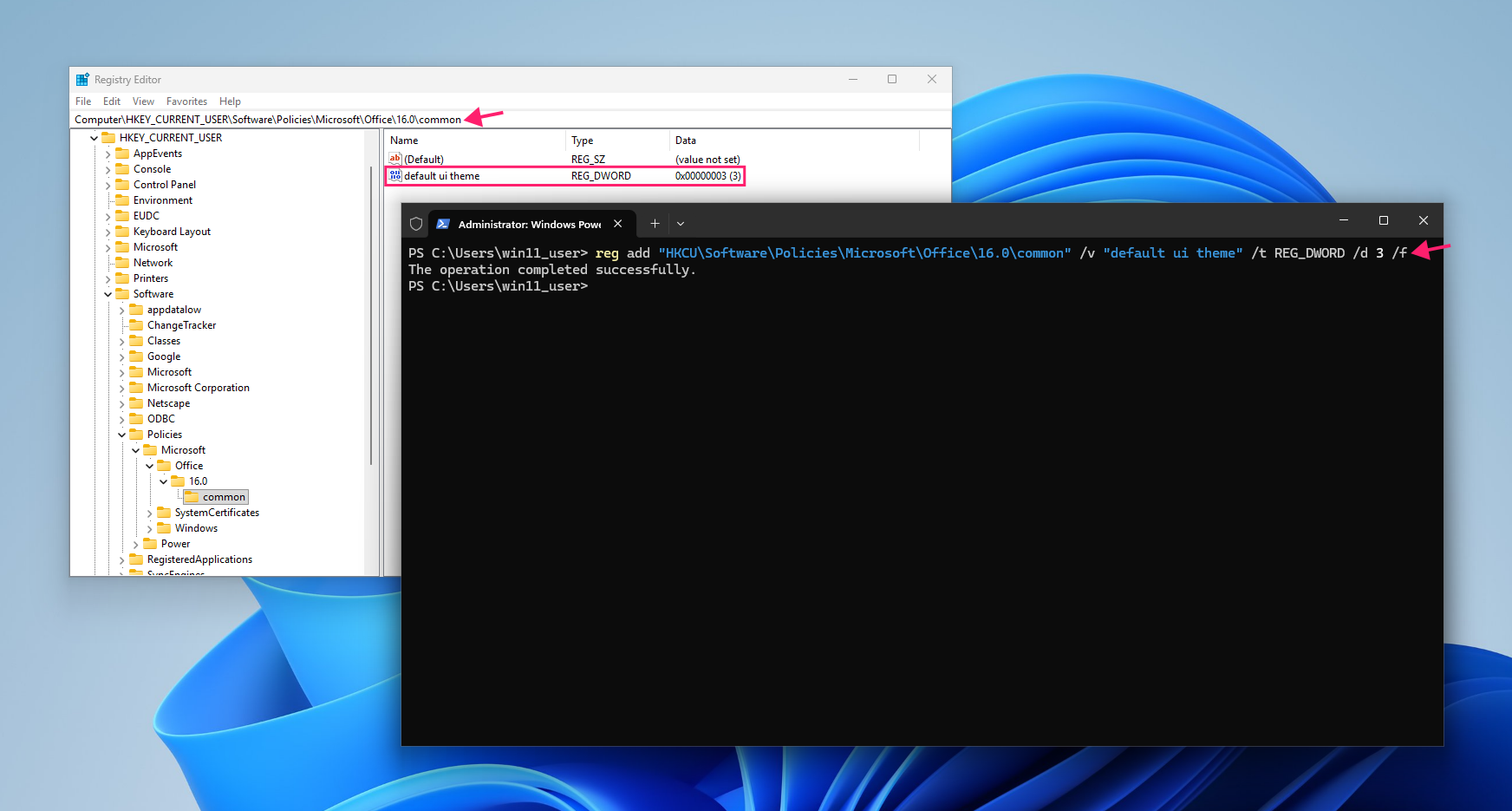
A PowerShell script like this can be deployed remotely across endpoints through Atera’s RMM platform.
Note: Neither GPO nor registry enforcement locks the setting permanently. Both establish the default theme users see on first launch but do not prevent users from changing it afterward. Outlook’s appearance settings are user-configurable by design, and any user can override the default through the standard settings menu.
Managing Outlook settings at scale
Dark mode in Outlook is a simple enough preference until you’re the person fielding the same question across five platforms from users who all expect it to just work. The real friction isn’t finding the setting; it’s that Microsoft’s Outlook ecosystem doesn’t share state across clients, and your users don’t know that. Every platform requires its own configuration, and none of them talk to each other.
That’s a small example of a much larger pattern. Managing a Microsoft environment at any scale means managing fragmentation with different settings, different behaviors, and different support paths for desktop, web, and mobile. IT teams and MSPs using Atera get a unified view across that environment, with remote management and automation profiles through the RMM platform simplifying the IT workload significantly.
Frequently Asked Questions
Related Articles

How to reduce alert fatigue across your IT team
Your technicians aren't ignoring alerts because they're careless. They're ignoring them because most alerts have taught them to. Once the stream stops being trustworthy, real failures slip past with the noise. Fixing it means deciding what deserves an interruption, tuning out transient spikes, collapsing alert storms, and automating the fixes you've run a hundred times.
Read now
How to close the IT skills gap on your team
Course completions don't close skills gaps. Technicians finish the training, then hand the first unfamiliar failure straight back to a senior engineer. Real capability gets built on live tickets, incidents, and maintenance windows, with guidance that fades as competence grows.
Read now
How to calculate cost per ticket (and why most teams get it wrong)
Most cost-per-ticket figures are wrong before anyone reads them. Missing overhead, tickets that were opened but never closed, spam and duplicates padding the count, and one month's costs divided by another month's tickets all make support look cheaper than it is. Fix both sides of the division and the number finally shows where technician time and money actually go.
Read now
How to prepare for a software license audit
A vendor audit notice doesn't wait for you to get organized. It demands proof, right now, that every install matches every entitlement you've paid for, and most IT teams find out the hard way how much they don't actually know about their own environment. Getting audit-ready before the letter arrives is the difference between negotiating from strength and paying for months of scrambling.
Read nowEndless IT possibilities
Boost your productivity with Atera’s intuitive, centralized all-in-one platform









