
Table of contents
Generate summary with AI

Spend enough time in a remote terminal long enough and you’ll eventually hit a frozen SSH session that won’t respond to exit, won’t respond to Ctrl+C, and just sits there with a blinking cursor.
The instinct is usually to close the terminal window outright or kill the whole application, but that approach can leave orphaned processes running, cut a file transfer mid-stream, or worse, leave a ghost session tying up resources on the remote server long after the local window is gone. So here’s the right way to do it across environments.
Why SSH sessions freeze and why force-dropping isn’t free
Most frozen sessions trace back to one of three causes:
- A network interruption, whether it’s a dropped Wi-Fi or Ethernet connection or a VPN reconnecting mid-session, breaks the underlying TCP connection without giving the client or server a chance to close the shell properly
- Client-side sleep states cause the same problem because suspending a laptop suspends its network stack entirely, and when the machine wakes back up, SSH has no way to recover the connection it was holding open.
- A configuration gap rather than an outside event.
ServerAliveIntervaldefaults to0, meaning the client never proactively checks whether the server is still responding. Without that setting configured, a dead connection looks frozen indefinitely instead of timing out.
» SSH session stability is one of the reasons you need network monitoring software
What happens when you force a connection closed instead of exiting cleanly
A dropped SSH connection doesn’t behave like a dropped remote desktop session. In a remote desktop scenario, the session runs entirely on the host, so closing the client has no effect on what’s running remotely.
In a SSH session, the shell’s lifetime is tied directly to the client connection, so when that shell exits, its child processes receive a SIGHUP signal and are killed by default. Anything running in the foreground goes with it, and any file transfer in progress gets interrupted, potentially corrupting something.
A few exceptions include processes that were:
- Started with
nohup - Explicitly disowned from the shell
- Running inside
screenortmux
These usually survive the disconnect because they aren’t attached to the session in the same way.
» Here’s how to close a tmux session and detatch a tmux session
All the ways to exit SSH across environments
Picking the right exit strategy depends entirely on whether the session is still responding or not and what environment you’re running. However, before any of these escape sequences will work, you need to guarantee these two conditions:
- A pseudo-terminal must have been allocated for the session (running
ssh -Tdisables this, so those escape sequences won’t function at all) - The escape character (
~by default) is only recognized when it immediately follows a new line. Press Enter first if you’re not sure which line you’re on, otherwise the tilde just gets sent to the remote shell as ordinary input
Once you’ve ensured those conditions, pick the method below that best matches your situation.
Bonus tip: How to avoid accidentally closing the wrong process
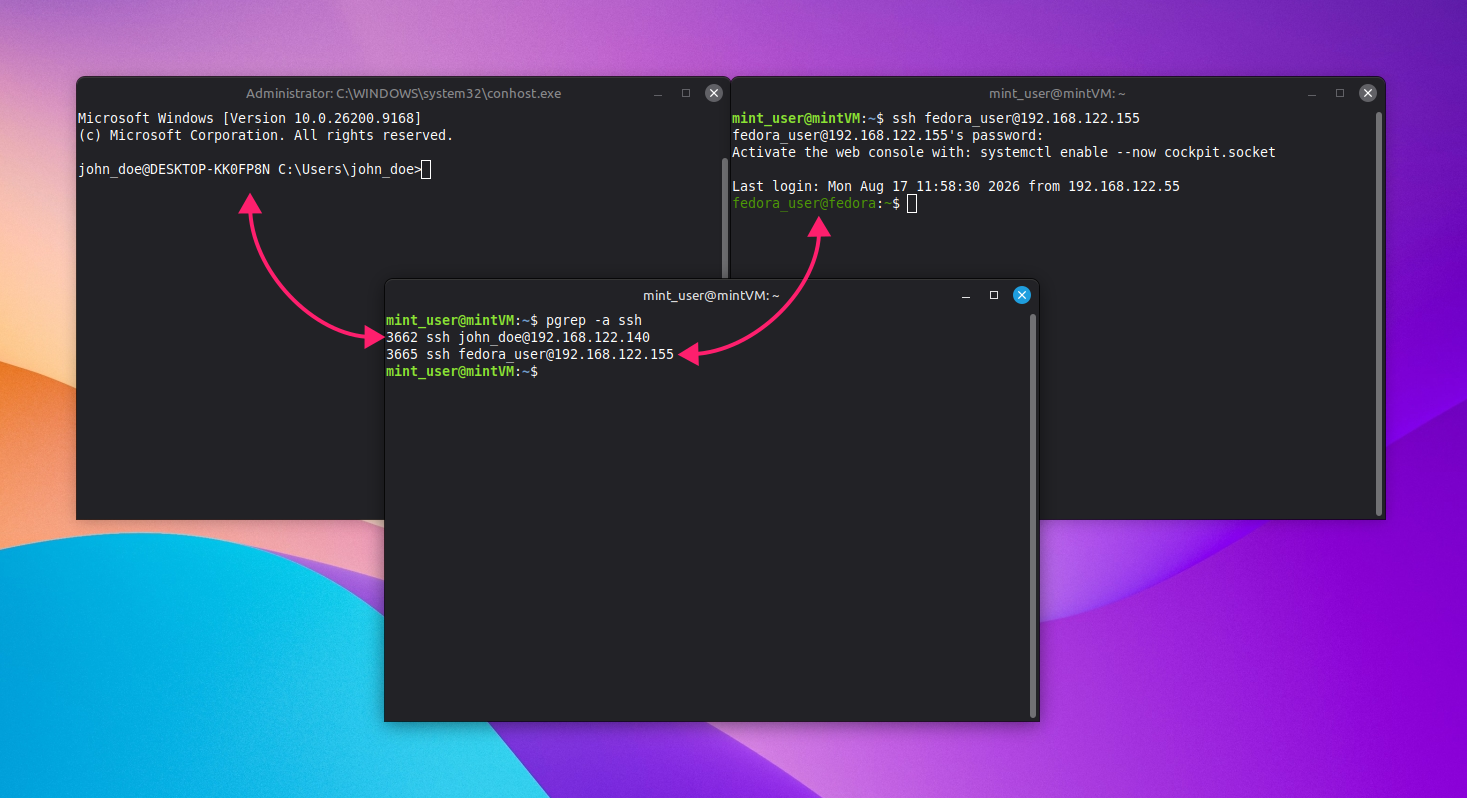
Use this when multiple SSH sessions or terminal windows are open at once and you need to be certain you’re targeting the right one before killing anything:
On Linux or macOS, run
psorpgrepto identify the process, and check the invocation command shown alongside it; each SSH process lists the remote host it’s connected to, which makes it easy to distinguish between sessions
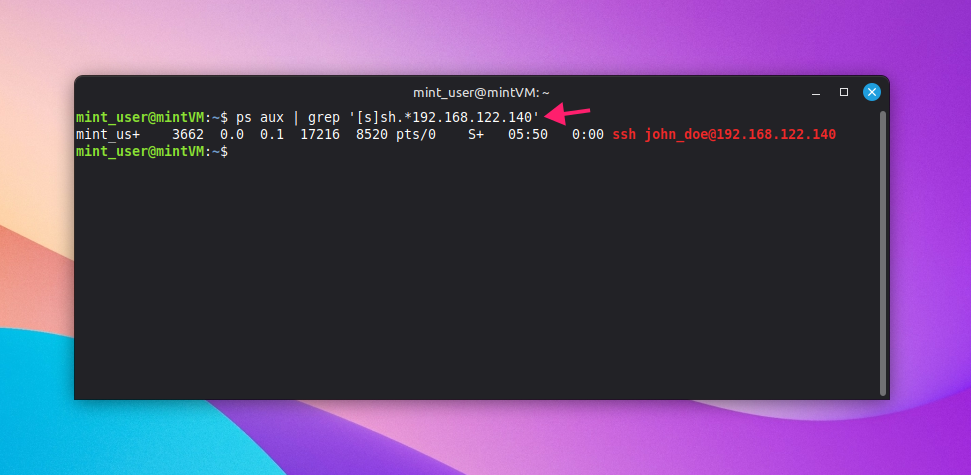
Narrow the search further by filtering on the remote host, for example
ps aux | grep '[s]sh.*hostname', to isolate the exact session you’re targeting
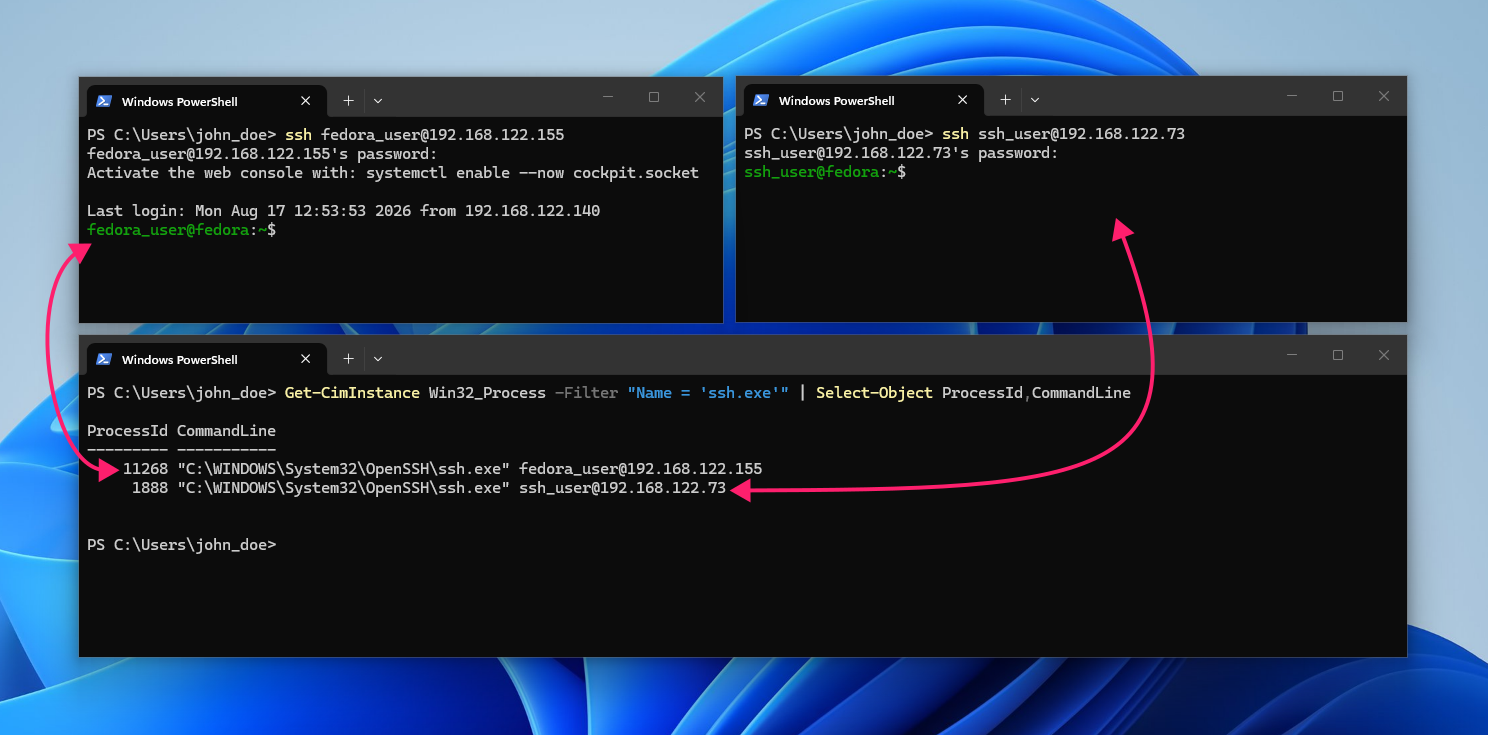
On Windows, run
Get-CimInstance Win32_Process -Filter "Name = 'ssh.exe'" | Select-Object ProcessId,CommandLineto see the same host-level detail for every running SSH process
Exiting a responsive session with commands and keyboard shortcuts
Use this when the session is still active and taking input normally; it’s the standard, no-risk way to close an SSH connection.
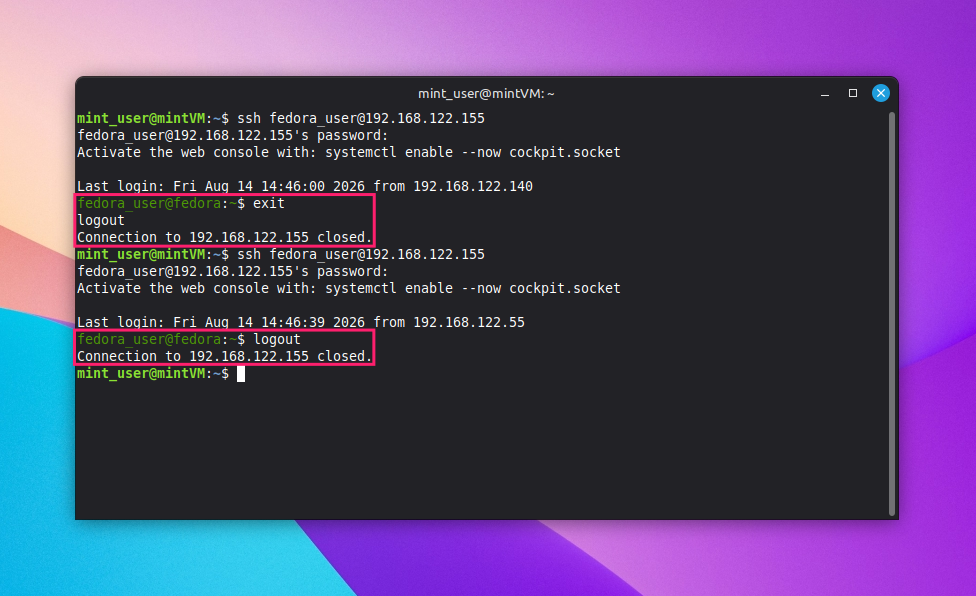
- In the connected terminal, type
exitand press Enter. This closes the remote shell, which in turn terminates the SSH connection Alternatively, type
logoutand press Enter. Since a standard SSH session is typically a login shell,logoutworks interchangeably withexitin this context, though it will fail if run in a sub-shell or non-login context
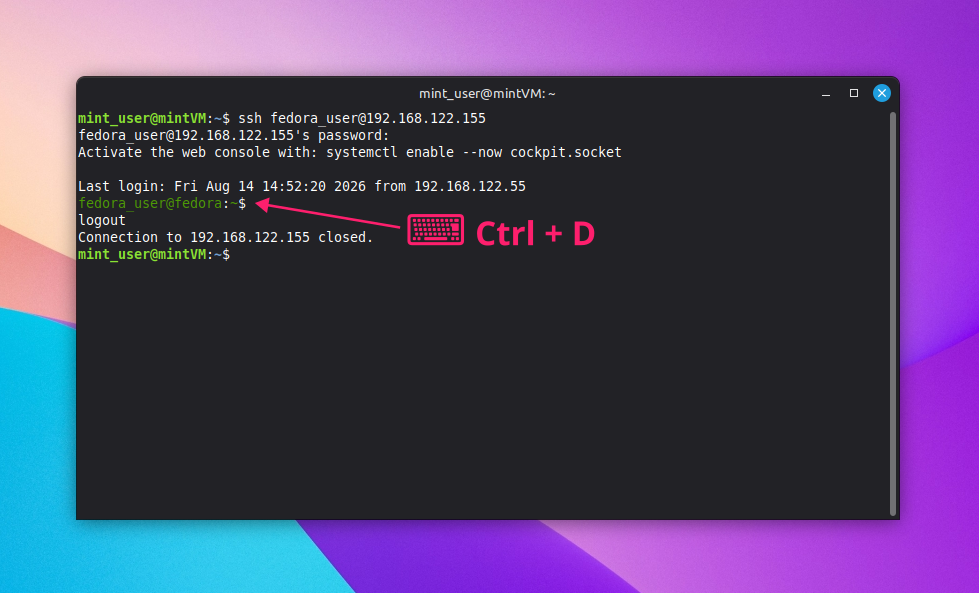
You can also close a responsive session without typing a command at all. On an empty prompt line, press
Ctrl + D, which sends an EOF signal to the shell
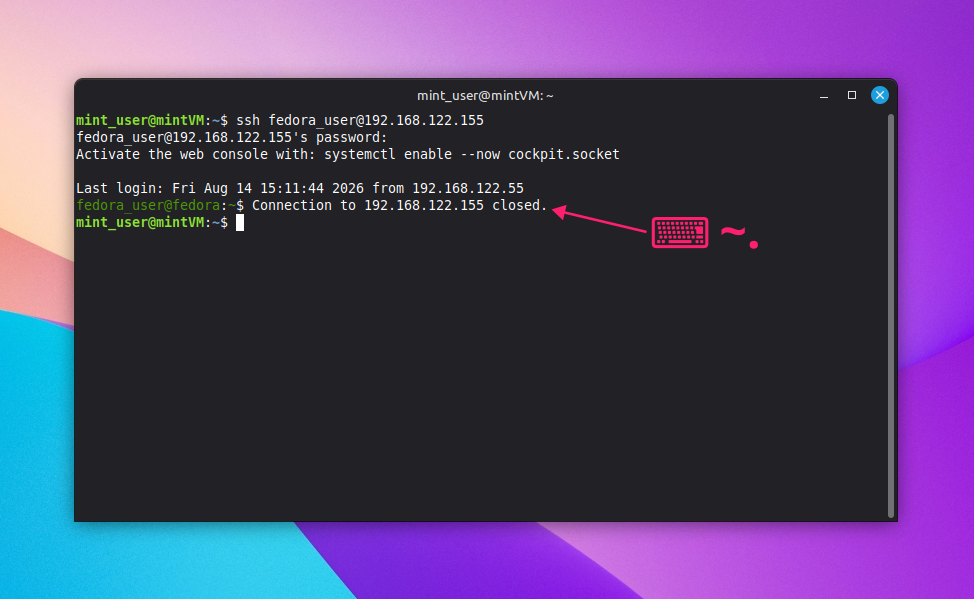
If the session has stopped responding to input entirely and you need to close it without access to the remote shell, follow these steps:
- Press Enter to make sure you’re on a fresh line, since the escape character is only recognized immediately after a new line
Type
~followed by.(tilde, then period) to terminate the connection immediately
Force-closing a stuck SSH client on Windows
Use this when the escape sequence doesn’t clear the connection and the client process itself needs to be killed, whether on a single machine or across a fleet of them.
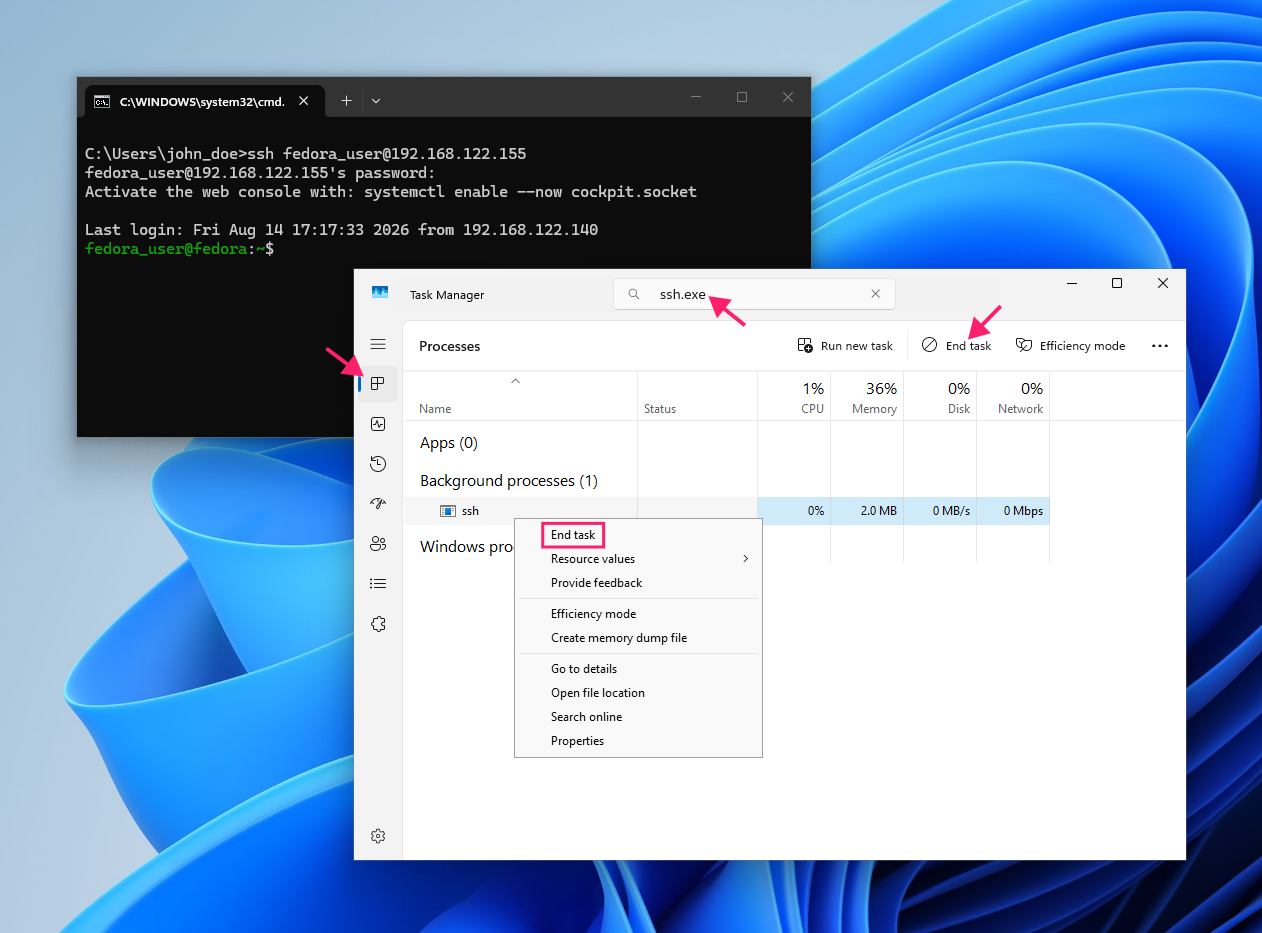
Task Manager (GUI)
- Press
Ctrl + Shift + Escto open Task Manager and go to the Processes tab - Type
ssh.exe(or the name of your SSH client) into the search box Select the matching entry and click End Task, or right-click the entry and select End Task

PowerShell
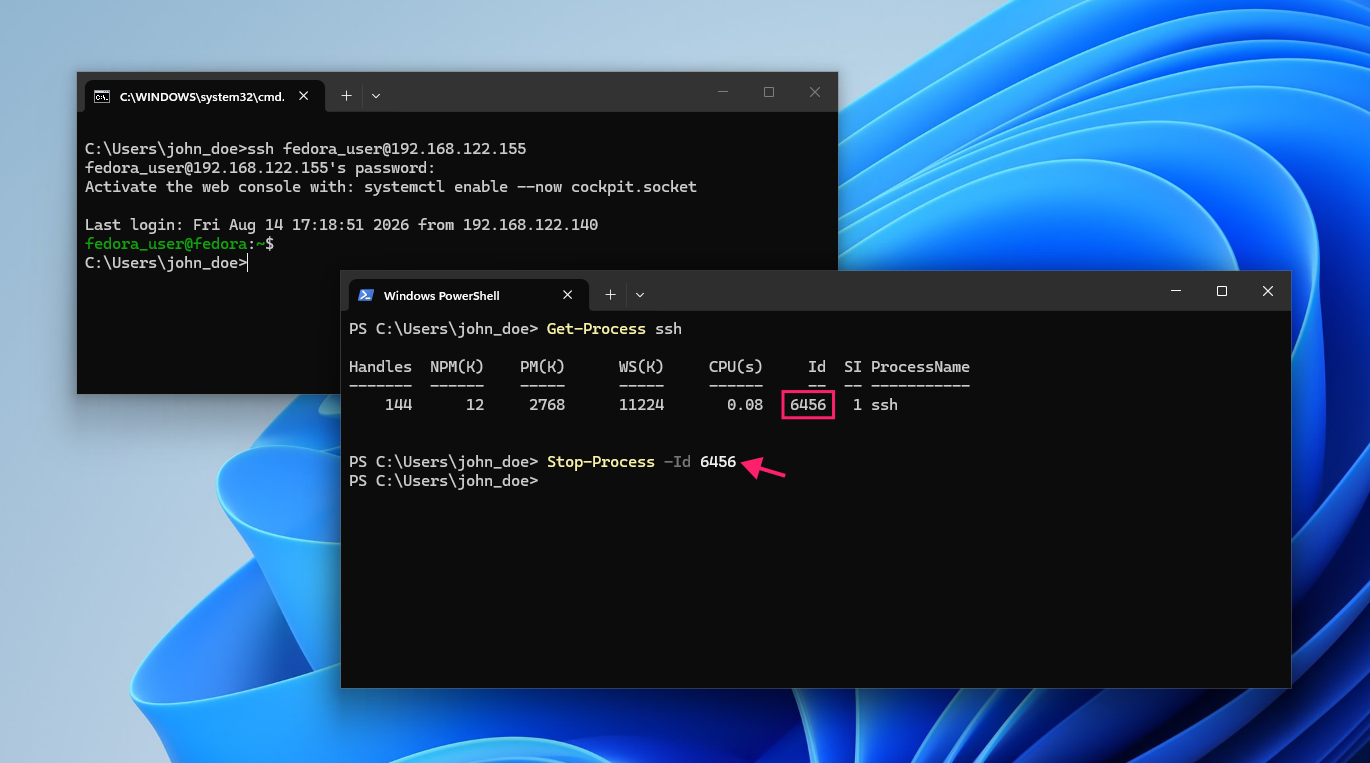
- Run
Get-Process sshto locate the process and note its ID Run
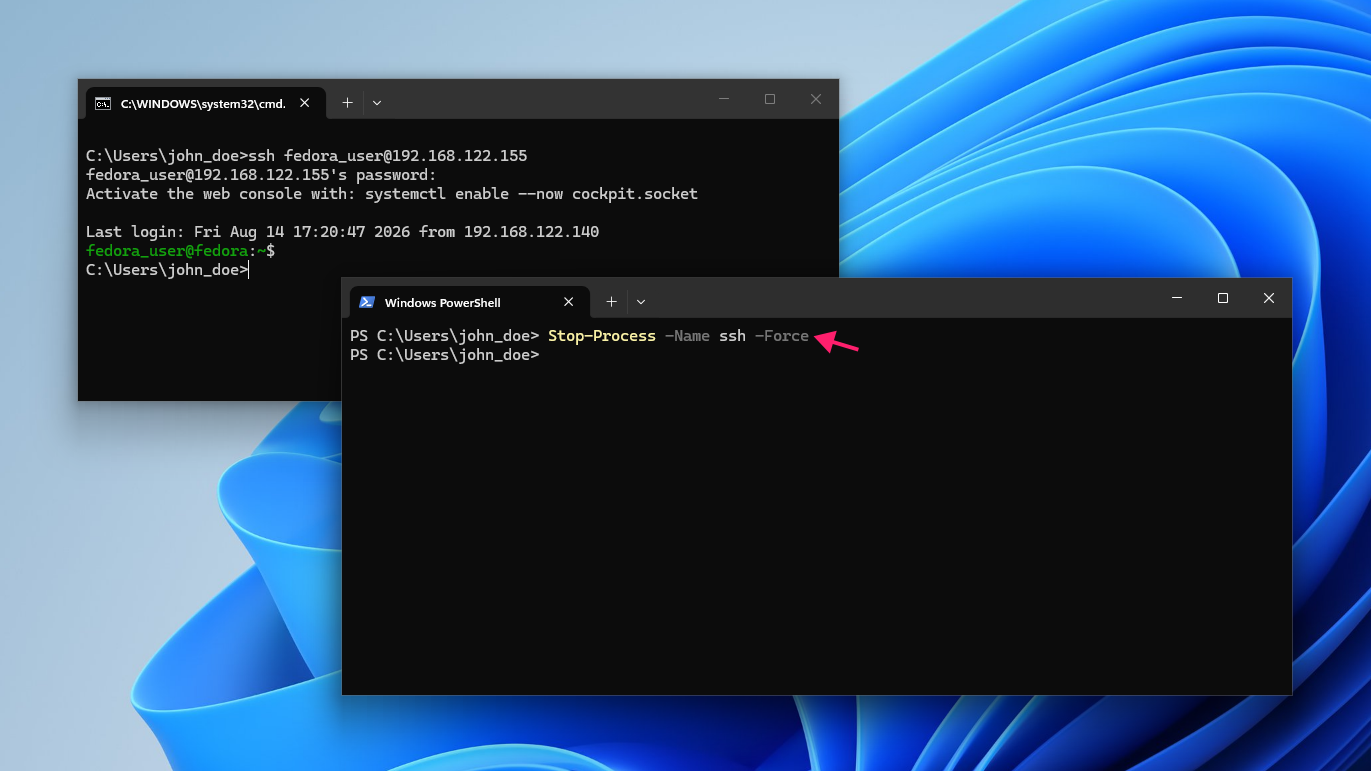
Stop-Process -Id <Id>to stop it, or runStop-Process -Name sshto target it by process name directly
If the process isn’t responding to a standard stop, add the
-Forceoption to force close it
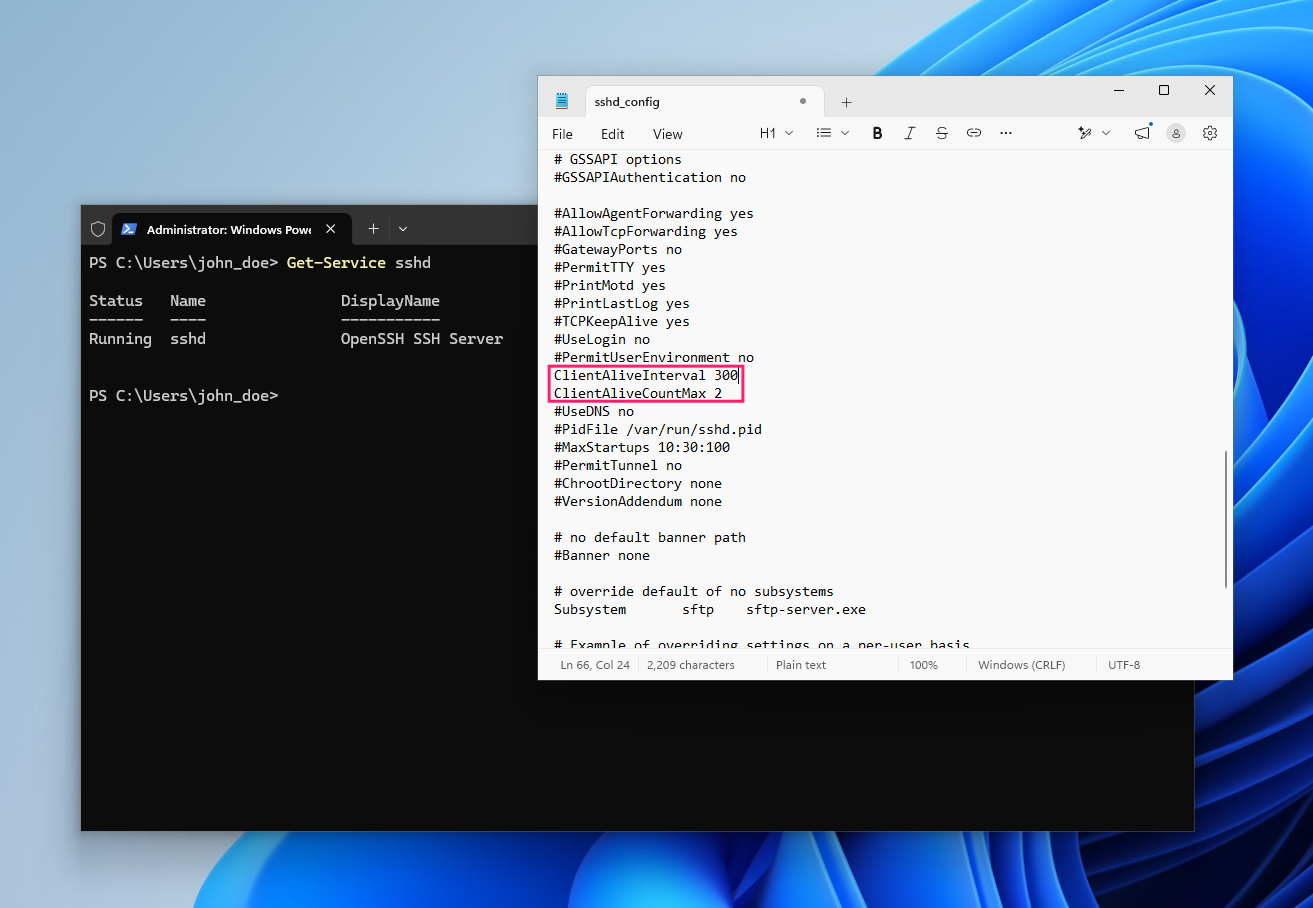
Rather than force-closing stuck sessions one at a time, Windows fleets can configure idle sessions to disconnect automatically. The built-in OpenSSH server reads its timeout settings from sshd_config (by default at C:ProgramDatasshsshd_config), so admins can use Group Policy Preferences to push the same configured file out to every machine at once, rather than editing it locally on each one.
Pro tip: With Atera’s RMM platform, technicians can manage group policy preferences and deploy PowerShell scripts remotely to all endpoints with ease. And if you need a more complicated script, AI Copilot can write it for you.
Force-closing a stuck SSH client on macOS
Use this when the connection is unresponsive and you need to terminate the client process directly rather than through an escape sequence.
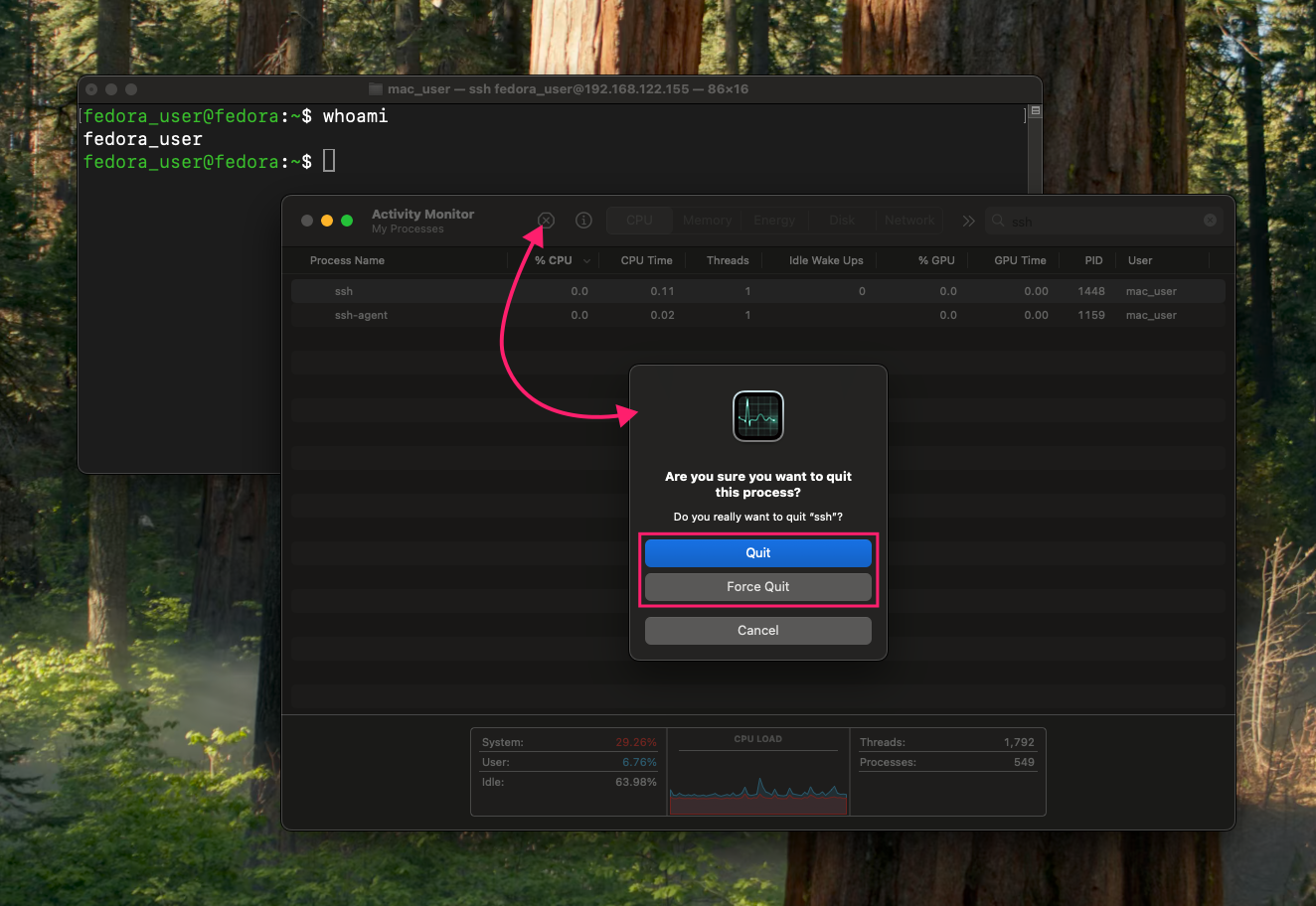
Activity Monitor (GUI)
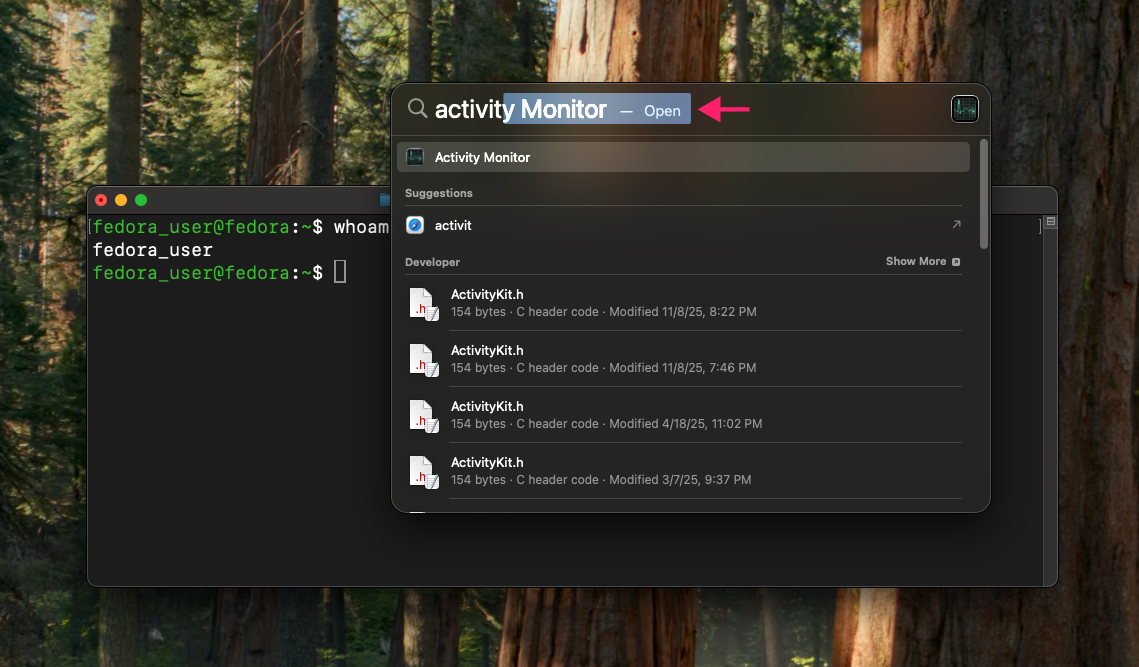
Press
Command (⌘) + Space, type Activity Monitor, and press Return
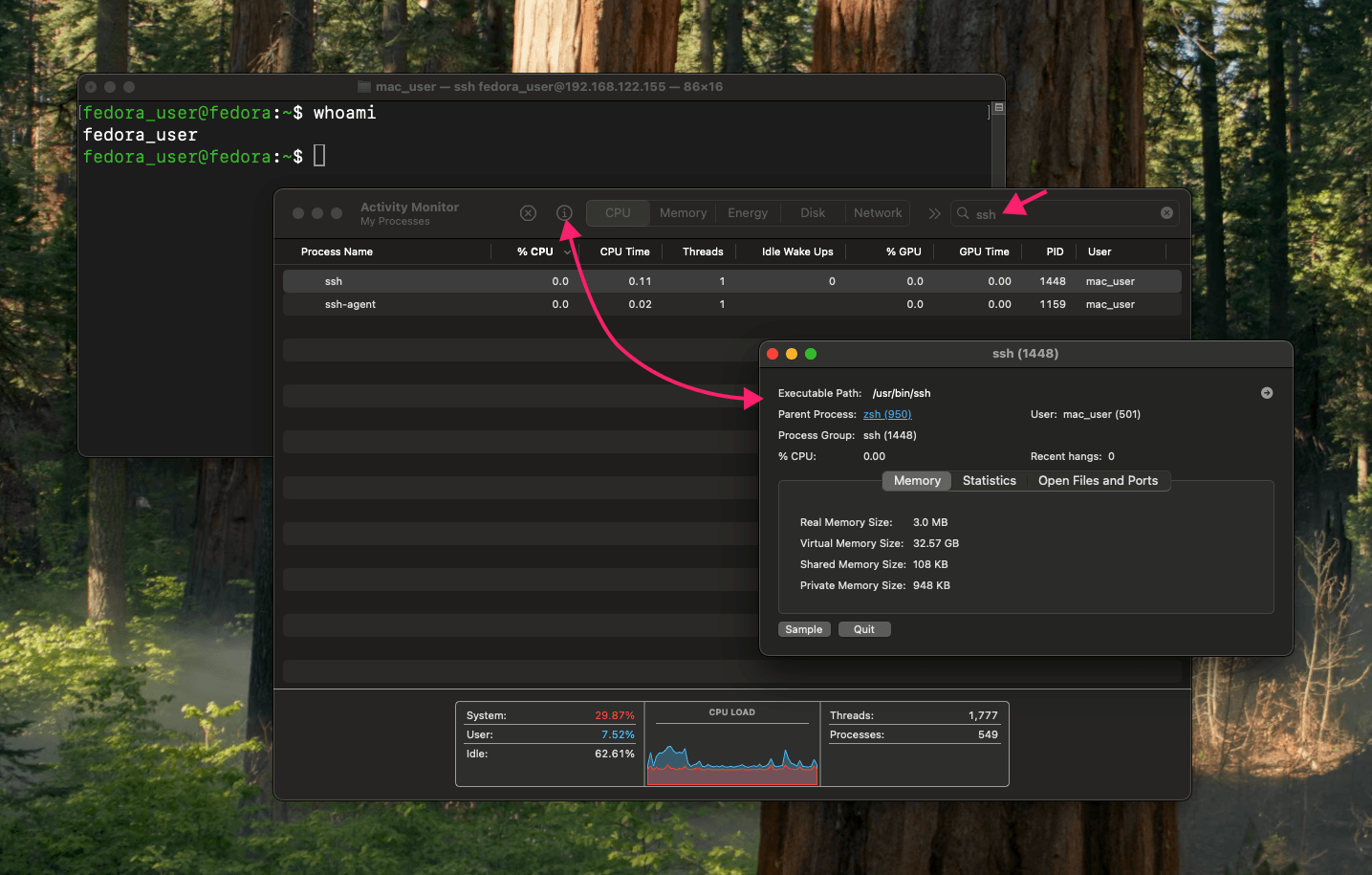
Type
sshinto the search box and select the matching process
Click the stop button, then select Force Quit in the confirmation dialog if the process isn’t responding

Terminal
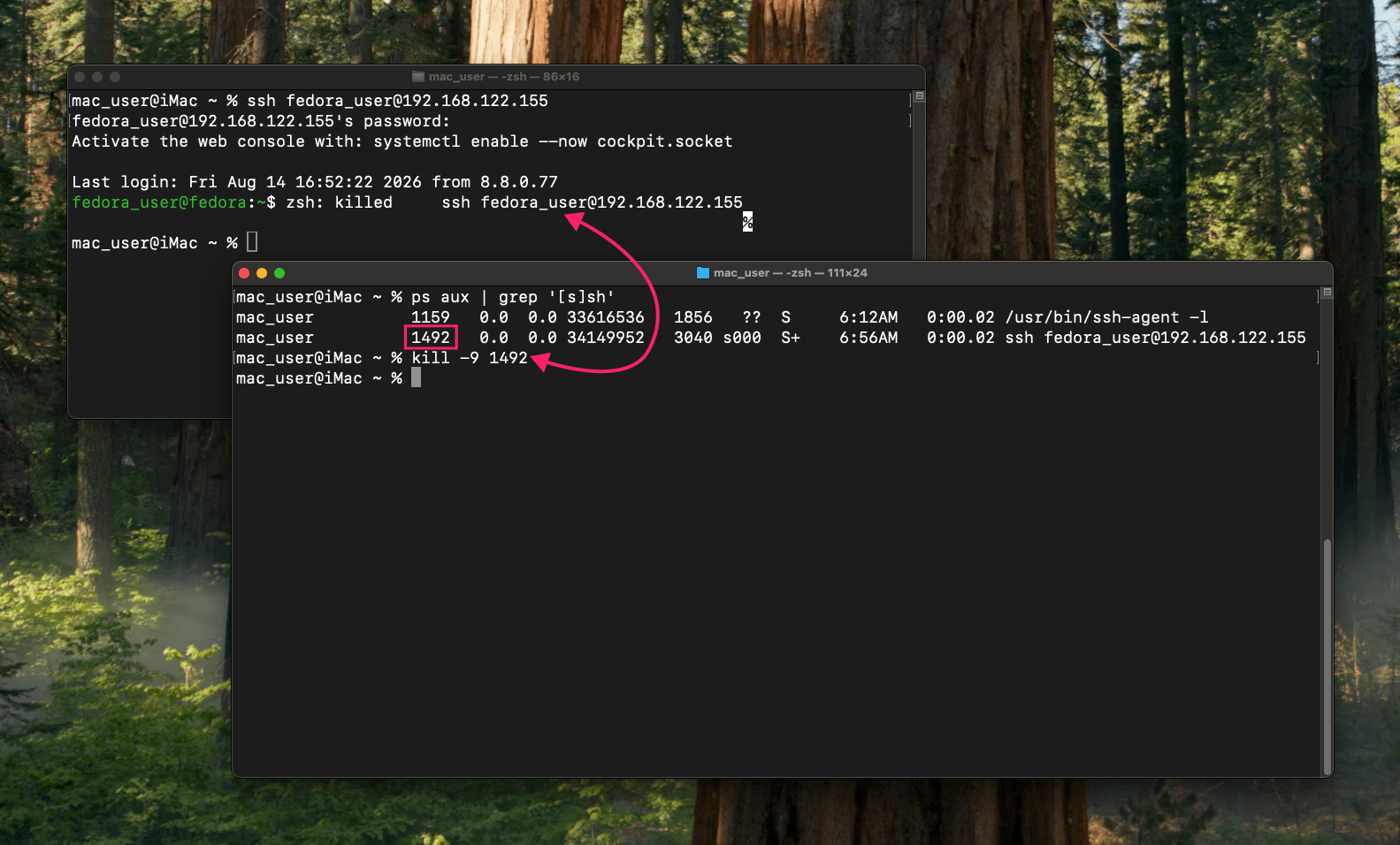
- Run
ps aux | grep '[s]sh'to find the process without the search itself showing up in the results Run
kill <PID>for a graceful termination viaSIGTERM, orkill -9 <PID>for a forceful one viaSIGKILLif the process won’t close normally
» Here’s how technicians can manage macOS devices better by enabling RMM on Mac and installing Atera’s macOS Agent
Force-closing a frozen SSH client on Linux
Use this when the same kind of unresponsive session shows up on a workstation running any Linux version and needs to be cleared from the command line, or across many workstations at once.
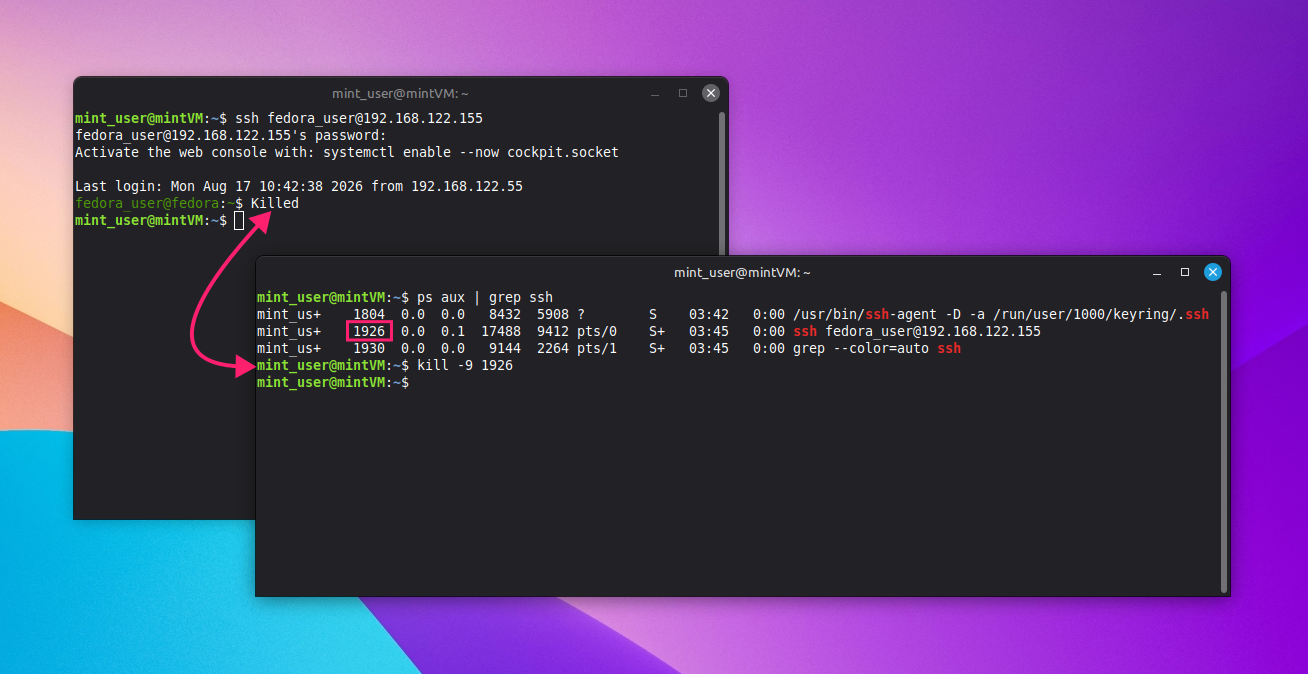
- Run
ps aux | grep sshto find the process, or pasteps aux | grep '[s]sh'(orpgrep -a ssh) to avoid the grep command itself appearing in the results Run
kill -9 <PID>to forcefully kill an unresponsive process viaSIGKILL
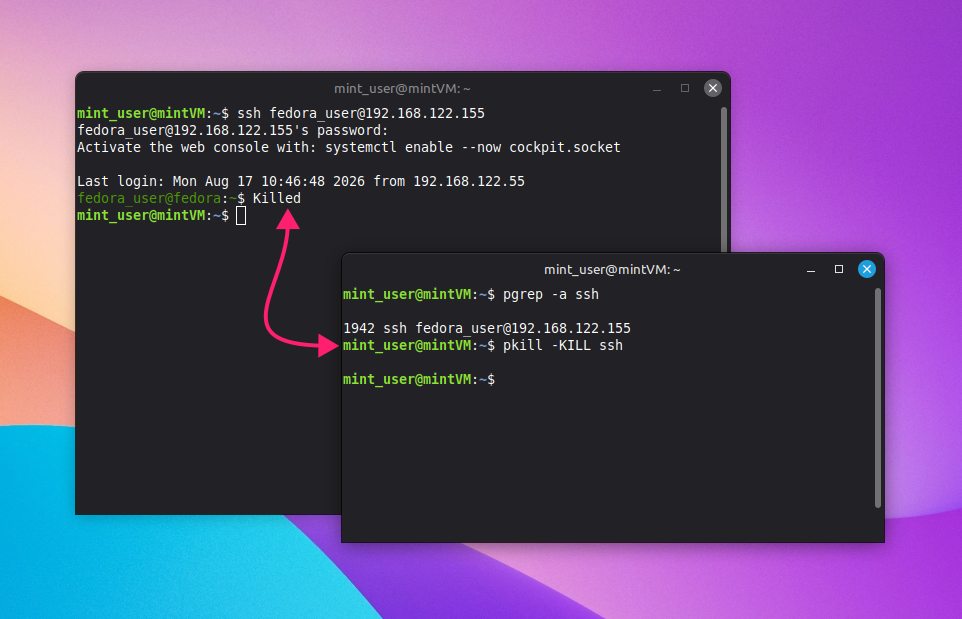
Alternatively, run
pkill -KILL sshto kill the process by name without first looking up its PID
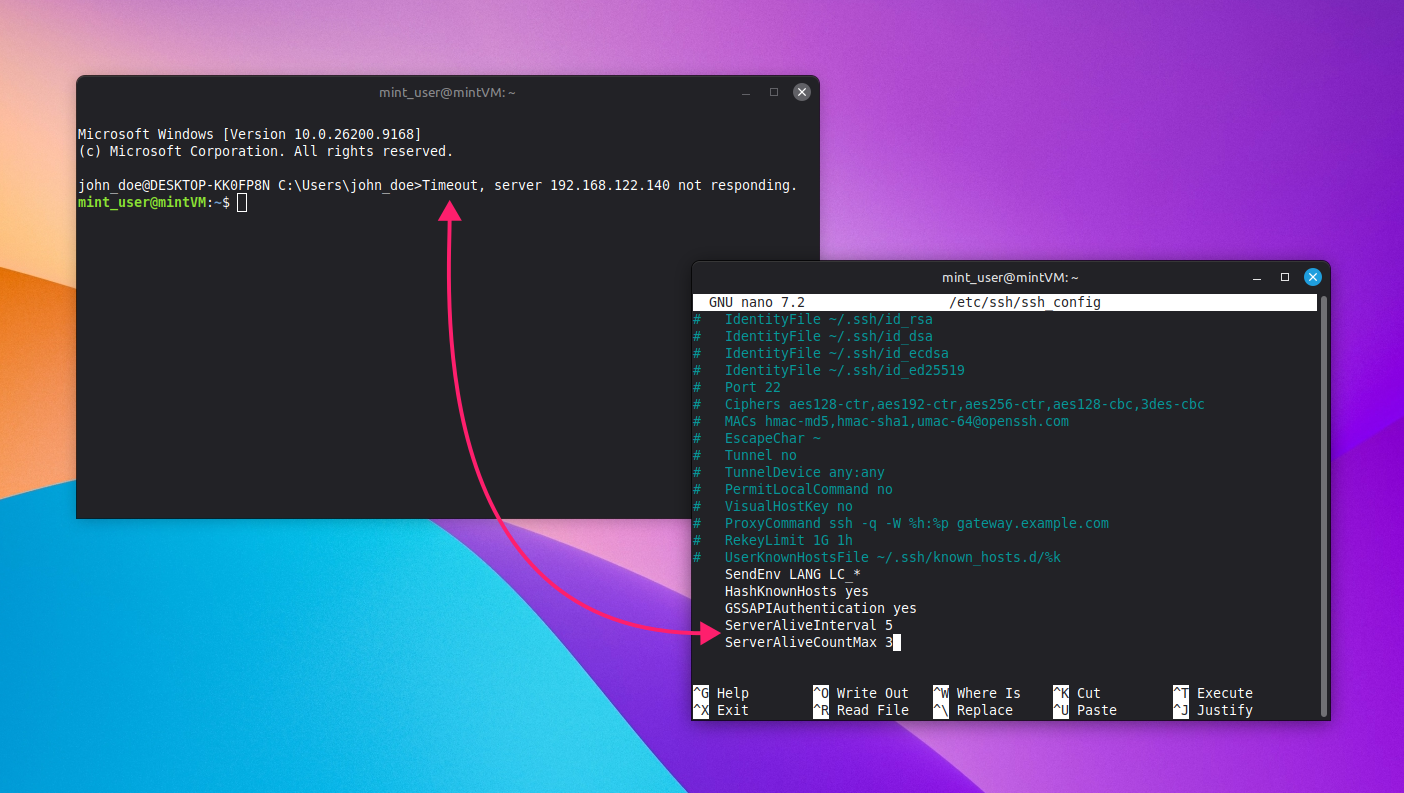
Idle or unresponsive sessions can be timed out automatically instead of relying on someone to notice and kill them manually, but you should avoid using TMOUT in bash since it affects every shell on the system and can close an idle session that still has important output from an earlier command.
A more reliable approach is setting ClientAliveInterval and ClientAliveCountMax in sshd_config on the server side (paired with matching ServerAliveInterval and ServerAliveCountMax values in ssh_config on the client side), then deploying that configuration across all clients or servers using configuration management tools like Ansible or Puppet.
» Learn more about monitoring Linux servers at scale with Atera’s Linux Agent
Finding and closing ghost sessions on the remote server
Use this when a session was force-closed locally but may still be running (and consuming resources) on the server it connected to.
- Run
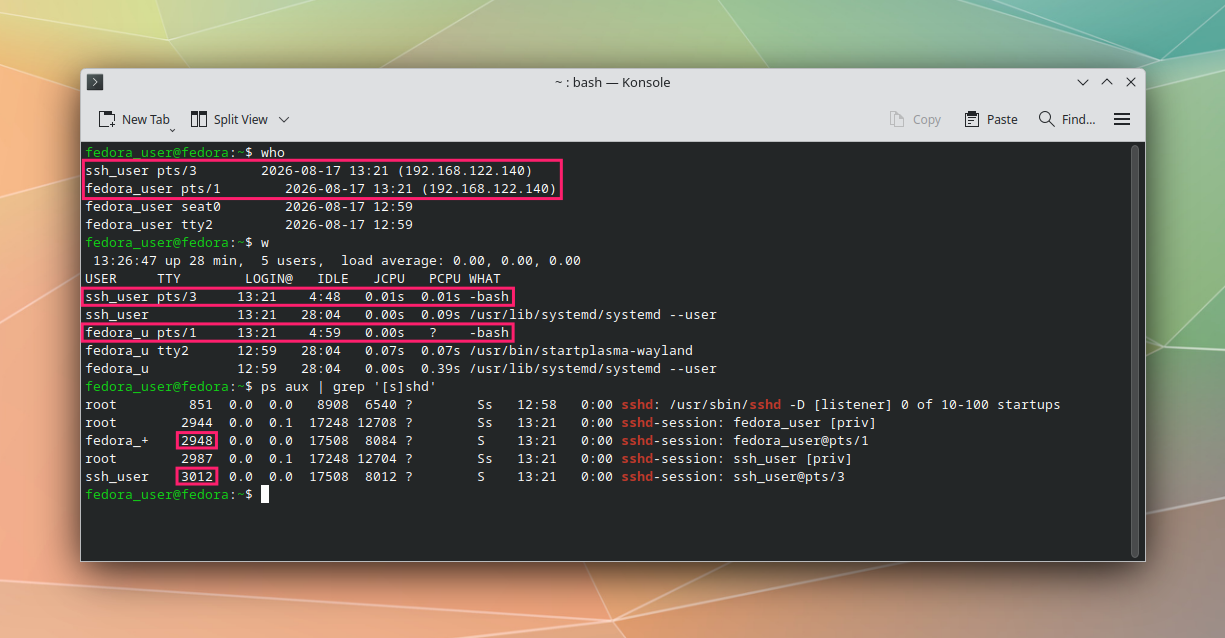
whoorwon the server to see a detailed list of active sessions, including how long each one has been idle - Cross-reference that output with
ps aux | grep [s]shdto match each idle session to its correspondingsshdprocess and confirm which PID belongs to the ghost session Run
kill <PID>orpkillto end the identified process. If you need to clear every session tied to a specific user,pkillalso supports targeting by username, for examplesudo pkill -u <username>
A clean SSH exit protects more than the session
Whether it’s a simple exit, an escape sequence for a frozen shell, or a force-kill through Task Manager, Activity Monitor, or pkill, the goal is the same: close the connection without leaving orphaned processes, incomplete transfers, or ghost sessions behind. That gets harder to manage by hand once you’re troubleshooting the same stuck session across more than one machine.
Atera’s remote monitoring and scripting capabilities lets IT teams and MSPs check for and terminate hung SSH processes across selected devices or device groups on demand without opening a session to each one individually.
Related Articles

How to reduce alert fatigue across your IT team
Your technicians aren't ignoring alerts because they're careless. They're ignoring them because most alerts have taught them to. Once the stream stops being trustworthy, real failures slip past with the noise. Fixing it means deciding what deserves an interruption, tuning out transient spikes, collapsing alert storms, and automating the fixes you've run a hundred times.
Read now
How to close the IT skills gap on your team
Course completions don't close skills gaps. Technicians finish the training, then hand the first unfamiliar failure straight back to a senior engineer. Real capability gets built on live tickets, incidents, and maintenance windows, with guidance that fades as competence grows.
Read now
How to calculate cost per ticket (and why most teams get it wrong)
Most cost-per-ticket figures are wrong before anyone reads them. Missing overhead, tickets that were opened but never closed, spam and duplicates padding the count, and one month's costs divided by another month's tickets all make support look cheaper than it is. Fix both sides of the division and the number finally shows where technician time and money actually go.
Read now
How to prepare for a software license audit
A vendor audit notice doesn't wait for you to get organized. It demands proof, right now, that every install matches every entitlement you've paid for, and most IT teams find out the hard way how much they don't actually know about their own environment. Getting audit-ready before the letter arrives is the difference between negotiating from strength and paying for months of scrambling.
Read nowEndless IT possibilities
Boost your productivity with Atera’s intuitive, centralized all-in-one platform









