
Generate summary with AI

Tmux doesn’t give you one way to close something, it gives you half a dozen, and they all mean something different depending on what you’re actually trying to shut down. A stray pane, a runaway window, one named session out of a dozen running on a shared server, or the entire tmux server itself. Reaching for the wrong one (or not knowing the right one exists) is how people end up either leaving abandoned sessions piling up for months or accidentally killing more than they meant to.
The commands themselves aren’t complicated. What confuses people is knowing which tool matches which job, such as a keybinding for the pane you’re sitting in right now, kill-session for a named session you’re targeting from outside it, or a short script for cleaning up a dozen stale sessions across a fleet of servers at once. Here are all the options you need to know.
Key things to know before closing a tmux session
Before running any close command in tmux, you should know what’s actually at stake. Tmux gives you two different ways to end your interaction with a session, and confusing them is one of the most common ways people lose work they didn’t mean to lose.
Detaching preserves the session, killing ends it
Detaching disconnects you from a tmux session without touching what’s running inside it. The session keeps running in the background on the server, along with every process attached to it, and you can reattach later and pick up exactly where you left off.
Killing a session is permanent. It terminates every window and pane inside it and ends every process running there, with no way to recover it afterward.
» To learn more, see our guide to detaching a tmux session
Checking what’s actually running before you act
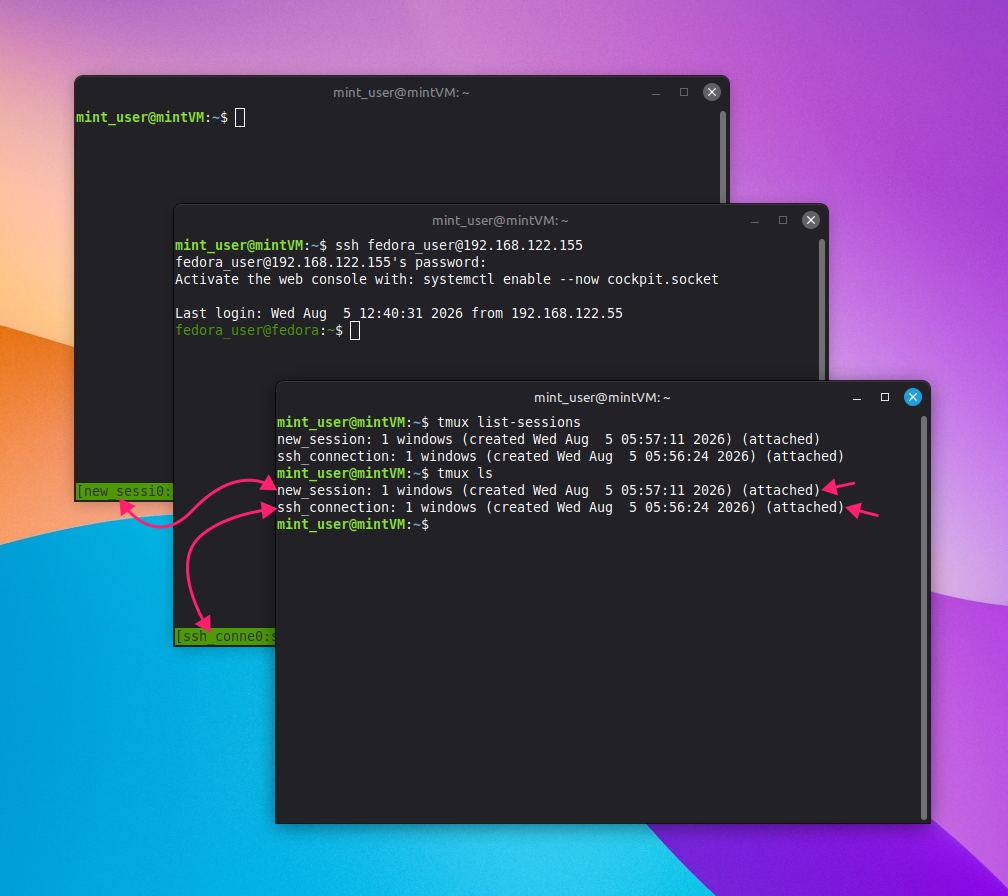
You can’t make a good decision about closing a session if you don’t know what’s attached, detached, or currently in progress. The tmux ls command (or its longer form: tmux list-sessions) lists every session on the server along with its window count, creation time, and attachment status. Sessions currently in use show as attached; everything else is detached and safe to inspect without disrupting anyone actively working in it.
Running this check first is a habit worth building, particularly on shared or long-running servers where a session you don’t recognize might belong to someone else’s active work or might be exactly the stale session you’re trying to track down and close.
What you risk by killing without stopping processes first
Killing a session doesn’t ask what’s running inside it first, which could cause problems if you aren’t careful. For example:
- Mid-execution applications can leave incomplete temp files or corrupted lock files, which can prevent the same application from launching cleanly the next time
- Database systems or file-writing scripts caught mid-transaction won’t flush their memory buffers properly, which can lead to file system or database corruption rather than a simple interruption
- Terminal editors like Vim or Nano terminate without saving, so any unsaved changes in an open buffer are gone the moment the session ends
None of this is hypothetical edge-case territory. It’s the ordinary result of treating kill-session as a shortcut for “I’m done with this terminal” rather than an immediate, unconditional stop to everything running underneath it. The safer default is to check what’s active with tmux ls, stop or save anything mid-task on its own terms, and only then decide whether to detach or kill.
5 ways to close sessions, windows, and panes
Which command you reach for depends entirely on your situation, such as whether you’re sitting inside the session right now or issuing a command from an entirely separate terminal. Pick the method below that best matches what you need.
Method 1: native keybindings, for when you’re already inside the session
Use this when you’re sitting inside the pane or window you want to close and don’t want to leave tmux to do it. Since you’re already inside the session, tmux always targets whatever’s currently focused, so there’s no need to name a session or window explicitly:
- Press
Ctrl + b(the default prefix), then?to bring up the full list of command key bindings if you ever need to check what’s available - Press
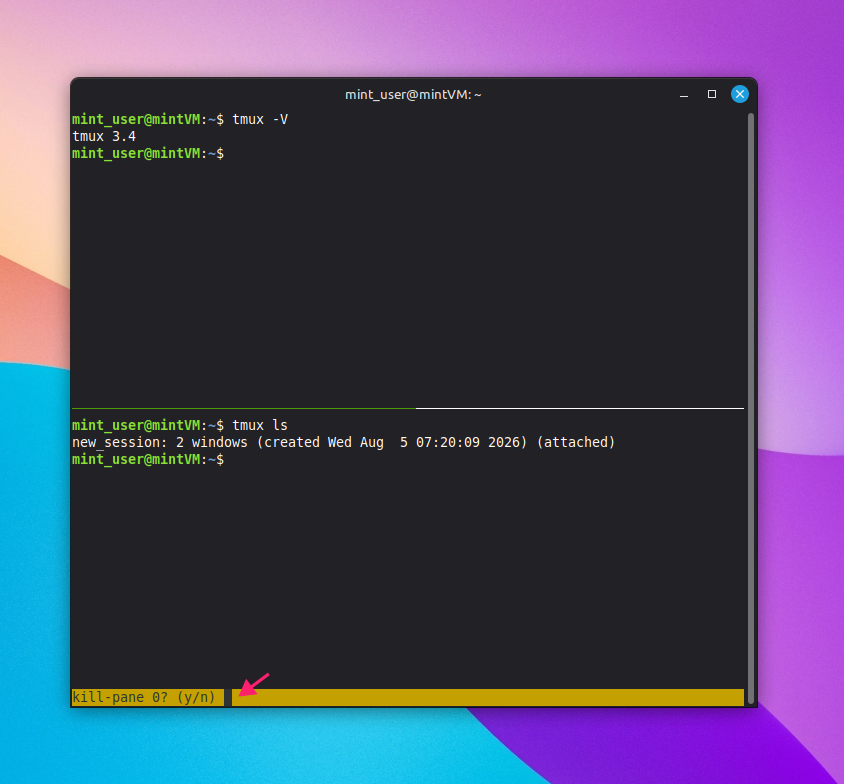
Ctrl + bthenxto close the pane you’re currently in Confirm the prompt that appears at the bottom of the screen by pressing
y. Keep in mind this always targets the pane that currently has focus, not one you’re merely looking at in a split view
Press
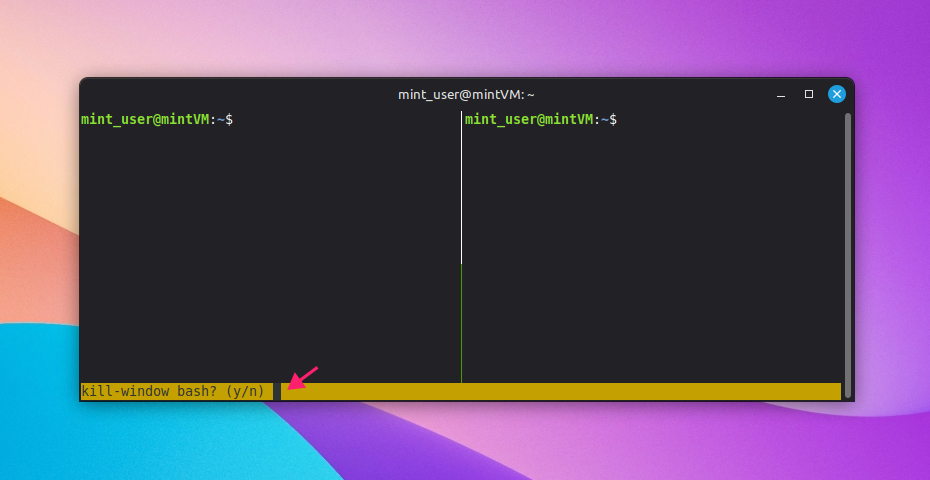
Ctrl + bthen&to kill the entire window instead of a single pane. This closes every pane inside that window at once and prompts for confirmation the same way
Alternatively, if you want the shell inside a pane to end on its own terms rather than being forcibly closed from outside, you can also just type exit in the active shell and press Enter.
That single command gives the shell room to do things a forced close won’t, such as writing your command history to ~/.bash_history if your shell is configured to do so. Because exit lets the shell terminate normally, it gets the chance to run its own logout routines instead of being cut off mid-process. When the pane closing that shell was the last one in its window, the window closes along with it.
Method 2: target a named session from outside it
Use this when you’re not inside the session you want to close and don’t want to attach to it first, for example when you’re cleaning up a session from a fresh terminal or a script. This is the method most people mean when they ask how to “kill” a tmux session by name.
- Run
tmux lsortmux list-sessionsto see every session currently running, along with its window count and creation time Run
tmux kill-session -t <session_name>, substituting the name of the detached session you want to remove
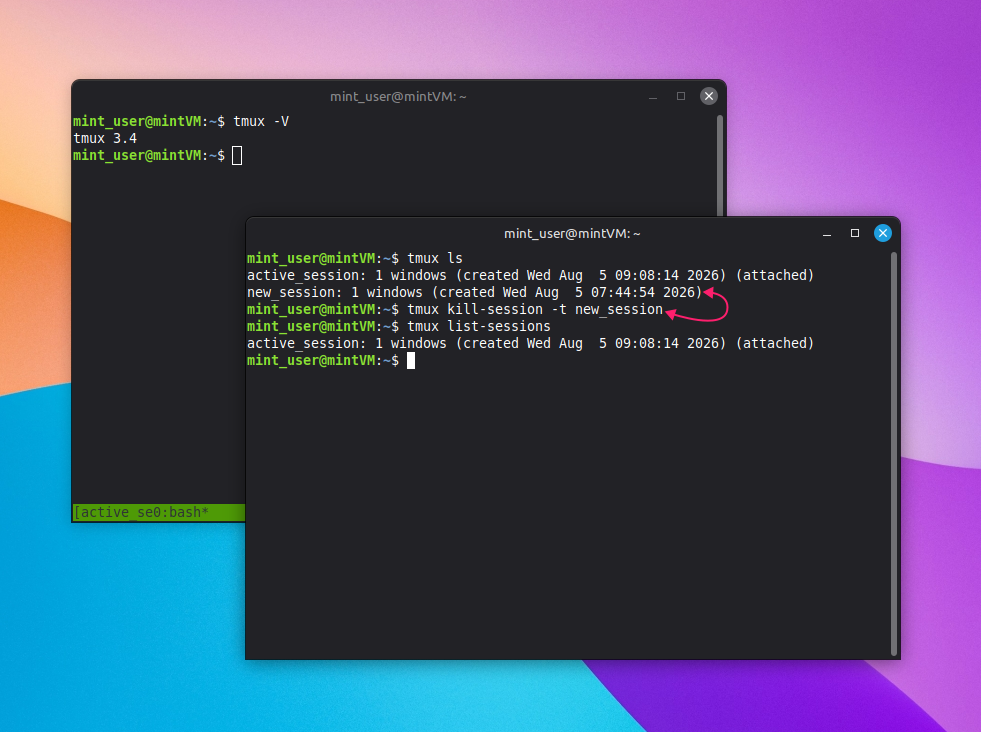
The session and everything running inside it ends immediately once that command runs, so it’s worth double-checking the session name against the output of tmux ls before you hit enter, particularly on a server where several similarly-named sessions might be running at once.
Method 3: shut down every session at once
Use this when you want to reset the tmux server entirely, not just close one session. This is the most destructive method available, and it’s worth treating it that way.
Run
tmux kill-server
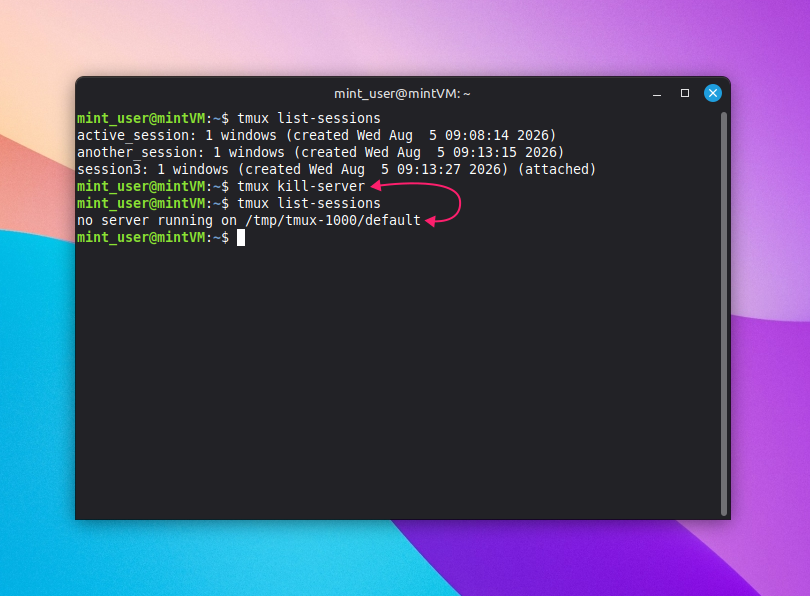
This terminates every window and pane across every session on the server, attached or detached, and shuts down the tmux server process itself. There’s no confirmation prompt and no way to undo it, so this should be a deliberate last step and NOT a habit for clearing out a few stale sessions.
Method 4: close a window or pane inside a session you’re not attached to
Use this when the thing you want to close isn’t the whole session, just one window or pane buried inside a session you don’t want to attach to.
- Run
tmux list-windows -t <session_name>to see the individual windows inside that session Run
tmux list-panes -t <session_name>to see the panes inside the session’s active window, or target a specific window withtmux list-panes -t <session_name>:<window_name_or_index>if you need panes from a window other than the active one
- Run
tmux kill-window -t <session_name>:<window_index>(or the window’s name or ID in place of its index) to close that specific window Run
tmux kill-pane -t <session_name>:<window_name_or_index>.<pane_index>(or a pane ID such as%2) to close just that pane
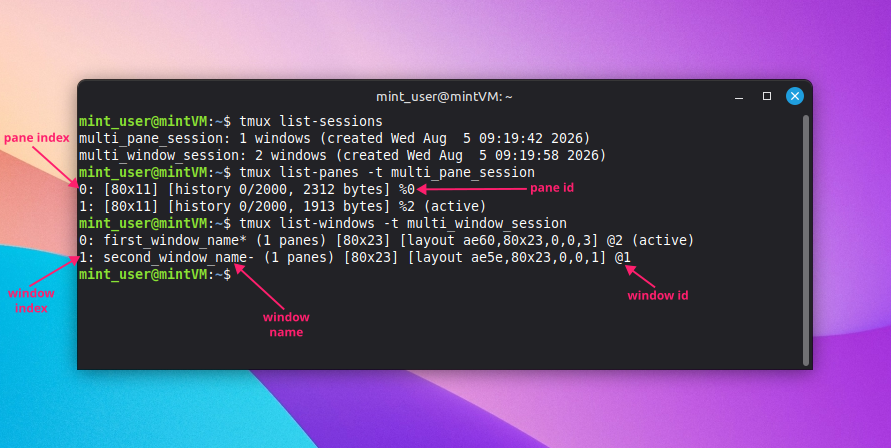
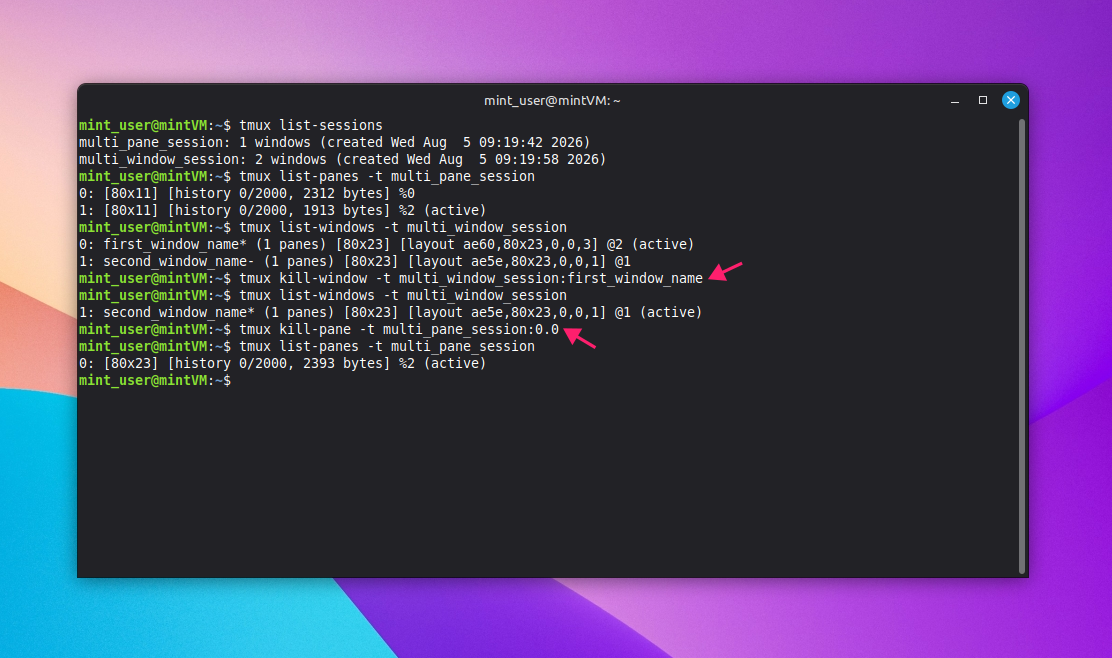
Each of these commands works without ever attaching to the target session, which matters when reattaching would interrupt someone else’s active work or when you’re scripting cleanup across sessions you don’t want to step into one by one.
Method 5: automate cleanup across a fleet of sessions
Once you’re managing tmux sessions across more than a couple of servers, checking each one by hand stops being practical. Use scripting when you need to identify and close stale, abandoned, or resource-heavy sessions across a whole fleet on a recurring basis, rather than reacting to one session at a time.
A typical approach combines two checks:
- Comparing session creation time against last activity to catch stale or abandoned sessions
- Cross-checking process IDs against CPU and memory usage to catch resource-heavy ones
Here’s an example of a script that pulls session name, creation time, last activity, attachment status, and the PID behind each pane using tmux list-panes -a with a custom format string, then feeds that into ps to calculate normalized CPU and memory usage per session:
The Script:
Atera does not guarantee the integrity, availability, security, virus-free, safety, lawfulness, non-infringement, rights’ status, or functionality of the scripts. The use of the shared scripts is at your own risk. Scripts are provided “AS IS”. *
#!/usr/bin/env bash

# get total logical CPU cores on the host
CORES=$(nproc 2>/dev/null || sysctl -n hw.ncpu 2>/dev/null || echo 1)


# list panes along with the corresponding window and session
tmux list-panes -a -F "#{session_name}|#{t:session_created}|#{t:session_activity}|#{session_attached}|#{window_index}|#{pane_index}|#{pane_pid}|#{pane_current_command}" | \
while IFS='|' read -r sess created active attached win_idx pane_idx pid cmd; do
  pgid=$(ps -o pgid= -p "$pid" 2>/dev/null | tr -d ' ')
  if [ -n "$pgid" ]; then
    # divide CPU sum by $CORES for normalized system percentage
    stats=$(ps -g "$pgid" -o pcpu=,pmem= 2>/dev/null | \
      awk -v cores="$CORES" '{cpu+=$1; mem+=$2} END {
        printf "%.1f%% CPU (Raw) | %.1f%% CPU (Normalized) | %.1f%% MEM", cpu, (cpu/cores), mem
      }')
  else
    stats="0.0% CPU (Raw) | 0.0% CPU (Normalized) | 0.0% MEM"
  fi


  if [ "$attached" -gt 0 ]; then
    att_status="Attached"
  else
    att_status="Unattached"
  fi


  echo "Session: $sess [$att_status] | Created: $created | Last Active: $active"
  echo "  └─ Window: $win_idx | Pane: $pane_idx | PID: $pid | CMD: $cmd | Usage: $stats"
  echo
done
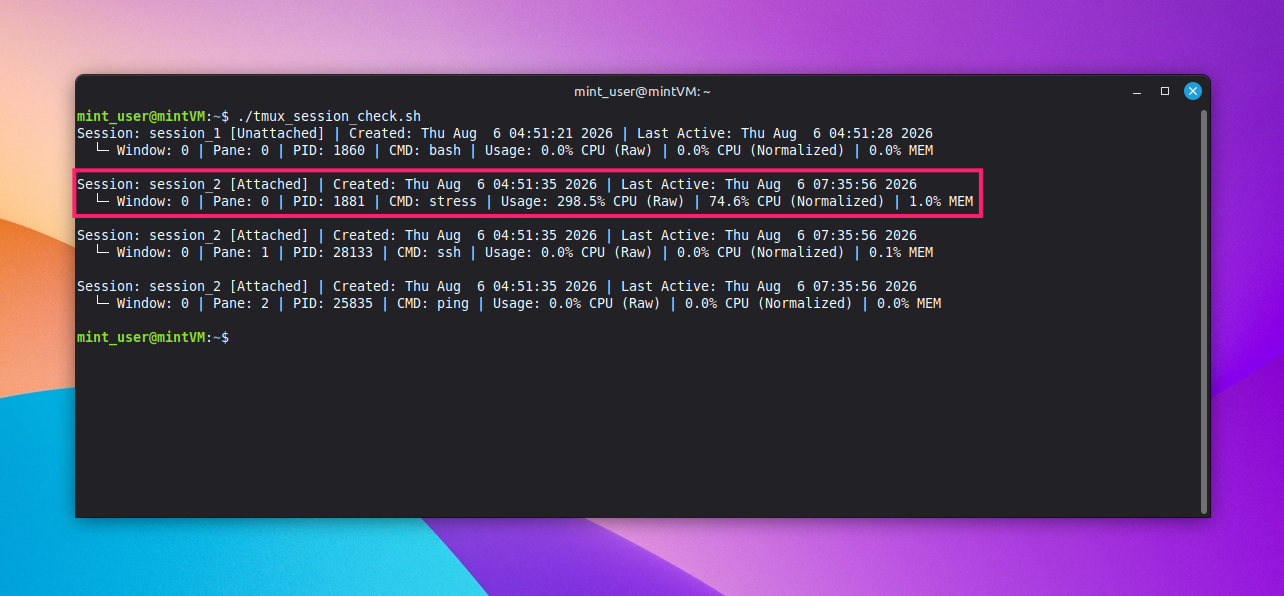
From there, the same kill-session, kill-window, or kill-pane commands covered above can be triggered automatically once a session crosses whatever threshold you’ve set. Scheduling that script is typically handled with cron for a straightforward recurring job, or with Ansible’s cron and shell modules when the cleanup needs to run consistently across a larger, managed fleet.
Pro tip: Atera removes the need to hand-code this yourself. You can create comprehensive scripts like this with natural language queries using AI Copilot, then deploy the script remotely to selected devices or device groups on demand through the RMM platform without needing to touch each server individually or maintain a separate scheduling setup per machine.
» Did you know you can paste into Linux terminal?
Troubleshooting and preventing common tmux issues
Not every session closes cleanly on the first try, and not every kill command should run without a safety net. This section covers what to do when a pane or window stops responding to normal close commands and how to build in a confirmation step so a stray keystroke can’t take down a session you meant to keep.
Recovering a frozen session, window, or pane
Use this when standard exit or close commands stop working and a pane or window looks stuck. Work through these in order, starting with the least destructive option.
1. Press Ctrl + q inside the frozen pane first. It’s easy to accidentally trigger Ctrl + s, which freezes terminal output, and Ctrl + q resumes it. This alone resolves a surprising number of “frozen” panes
2. Send keys remotely to the stuck pane with tmux send-keys -t <session_name>:<window_index_or_name>.<pane_index> <keys>
- To send
Ctrl + c, usetmux send-keys -t <session_name>:<window_index_or_name>.<pane_index> C-c - To send literal text followed by Enter, use
tmux send-keys -t <session_name>:<window_index_or_name>.<pane_index> "echo hello world" Enter - Variable names can also be sent this way, either with single quotes or by escaping the dollar sign in double quotes:
'echo $PATH'or"echo $PATH"
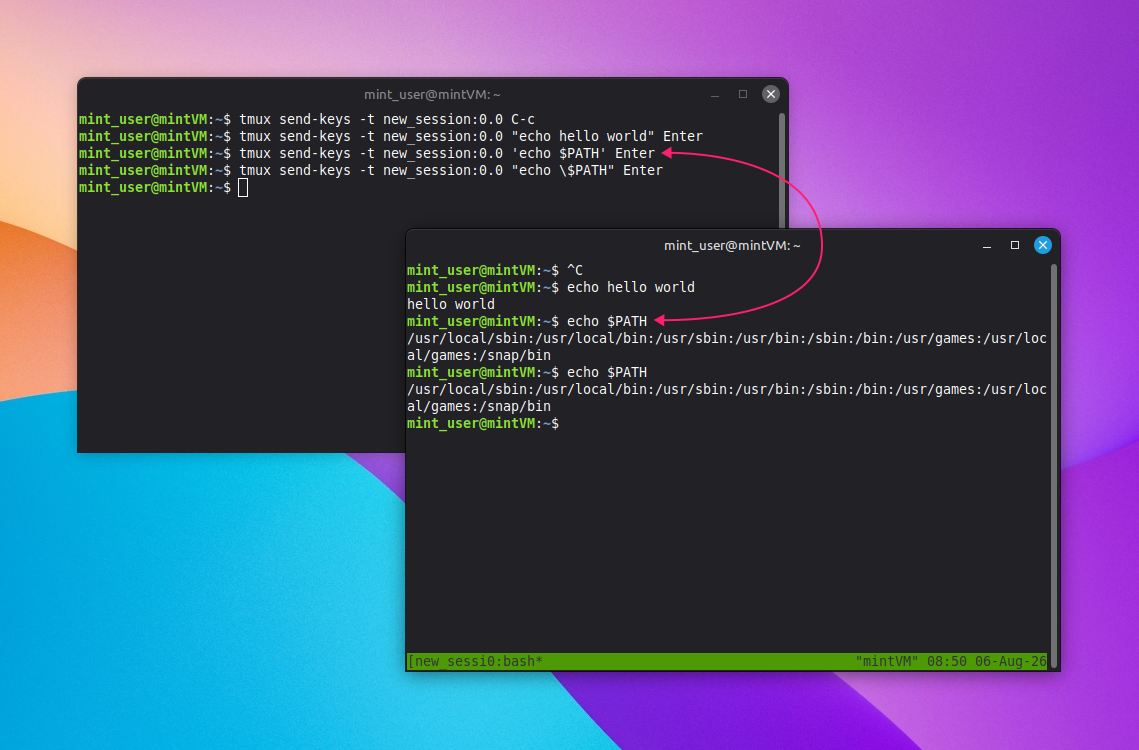
3. Try tmux respawn-pane -k -t <session_name>:<window_index_or_name>.<pane_index> to respawn a dead or frozen pane without closing the entire window around it
4. If you suspect the underlying process directly, use the tmux_session_check.sh script from the automation section above to get its PID, then run kill <pane_pid> to kill the pane directly
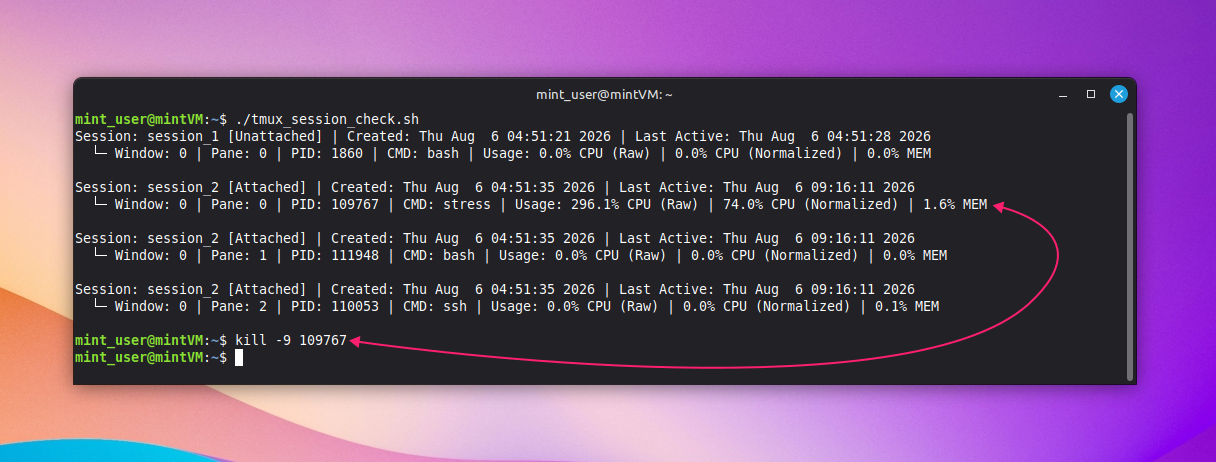
5. If the pane is still unresponsive, run ps --ppid <pane_pid> to list the processes running underneath it, then kill the corresponding process
6. Run kill -9 <pid> for an immediate, forceful kill with no chance for cleanup, or kill -TERM <pid> for a graceful termination request that gives the process a chance to run its own cleanup code before exiting

7. If none of that resolves it, close the specific session, window, or pane using the targeting methods from the previous section
As a genuine last resort, tmux kill-server ends everything, including every other session on the server. This should be the final option.
Adding a confirmation prompt before kill-session
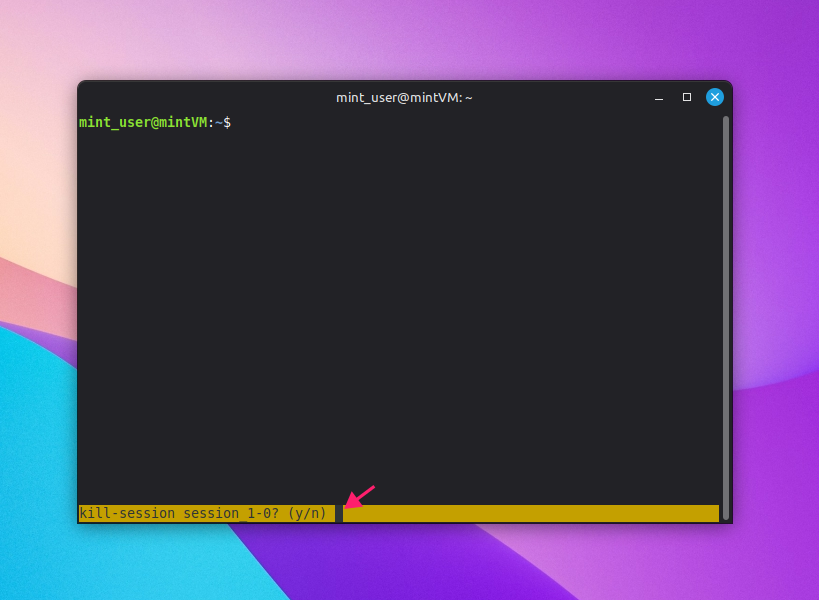
Use this to prevent a mistyped or muscle-memory keystroke from killing a session before you’ve had a chance to reconsider it. Tmux’s confirm-before command wraps key bindings rather than intercepting commands directly, and kill-session isn’t bound to a key by default, so this needs to be set up deliberately.
- Add the line
bind-key X confirm-before -p "kill-session #S? (y/n)" kill-sessionto your.tmux.conffile. This binds the confirmation-wrapped kill to prefix (Ctrl + bby default) followed by uppercaseX(Shift + x) - Keep in mind that commands issued through the tmux command prompt (
prefixthen:) aren’t covered by that key binding on their own. To catch those too, addset -g command-alias[100] 'kill-session=confirm-before -p "kill-session #S? (y/n)" "kill-session"'to the same file, which makes typing thekill-sessioncommand itself trigger the same confirmation - Note that confirmation prompts require an interactive tmux client to display in. The alias above works when the command is issued from inside tmux, but running
kill-sessionfrom the OS shell, outside tmux entirely, will fail rather than prompt Run
tmux source-file ~/.tmux.confto reload the configuration and apply the new settings without restarting the server
Closing sessions without losing work
Closing a tmux session doesn’t have to be a guessing game. Once detach versus kill is second nature, and the confirmation prompts in .tmux.conf are in place, accidental data loss stops being a risk you’re managing around and just becomes something that doesn’t happen. The same discipline that protects one session scales cleanly, whether that’s a scripted cleanup job running on a schedule or a one-off push across a handful of machines.
That’s where Atera’s remote scripting and management come in for MSPs and IT teams managing Linux servers at scale. The same targeted, on-demand control over a single tmux session can be applied across selected devices or device groups without needing to touch each one by hand.
Related Articles

How to decide if you need a dedicated DEX platform, or already have one
"IT feels slow" is the complaint that often sells DEX platforms. Sometimes it signals a real blind spot, but just as often already catches and fixes the problem, and a new scoring layer would only add another console. Telling the two apart takes evidence, and the real gap usually isn't visibility at all.
Read now
How to set up secure printing across your organization
A secure print checkbox protects exactly one moment in a document's life. Everything else, from unencrypted traffic and unhardened devices to payroll printouts forgotten in a tray, stays exposed. Real secure printing covers the whole lifecycle: release policy, authentication, encryption, hardening, and a fleet that stays monitored long after rollout.
Read now
How to reduce alert fatigue in healthcare IT
In a hospital, a dismissed alert isn't a delayed ticket. It can be a patient deteriorating while the monitor keeps sounding. Cutting alert volume won't fix that on its own, and switching alerts off can make it worse.
Read now
How to prevent configuration drift across your IT infrastructure
Configuration drift rarely breaks anything the day it happens. It hides in a hotfix, a reset default, or a vendor installer, then surfaces weeks later as a failure nobody can trace. Stopping it means defining exactly what approved looks like, closing every side door into production, giving each setting one owning tool, and checking that the baseline itself hasn't gone stale.
Read nowEndless IT possibilities
Boost your productivity with Atera’s intuitive, centralized all-in-one platform









