
Table of contents
Generate summary with AI

Every terminal session tied to an SSH link is one dropped connection away from disaster until you detach it. Picture a multi-hour database migration running inside a plain SSH session with no multiplexer in the mix. The moment that connection drops, whether from a flaky VPN, a closed laptop lid, or a network hiccup, the process dies with it. Run that same migration inside tmux and detach before you walk away, and the job keeps executing on the server regardless of what happens to your local connection.
That’s the difference between a background process and a process that’s accidentally tethered to your terminal window. The mechanics are simple once you know them, but there’s more than one way to do it depending on whether you’re inside the session, outside it, working with nested sessions, or trying to recover from a connection that already dropped.
» Make sure you know how to monitor Linux performance
How tmux sessions actually work
Detaching only works the way you’d expect because of how tmux is built under the hood. The reason detaching never interrupts a job is because a tmux session is displayed by a client, but every session is actually managed by a single server process. The client and server are separate from each other, and detaching only kills the client.
You don’t need much to run tmux beyond a POSIX-compliant terminal and the base tmux package. There’s no special hardware or permission tier required. What matters more is understanding how tmux connects clients to sessions in the first place. It uses UNIX domain sockets, stored by default in a directory under /tmp (or $TMUX_TMPDIR if you’ve set it), to link each client to the background server process. By default, those sockets are locked down so only the owner and root can access them.
If you need multiple users connecting to the same session, you have two options:
- Manually adjust group permissions on a custom socket file created with the
-S <socket_path>flag - Use the
server-accesscommand to grant or revoke per-user access without touching file permissions directly
» Need more help? Here’s how you can rename a directory in Linux
Checking session and client status
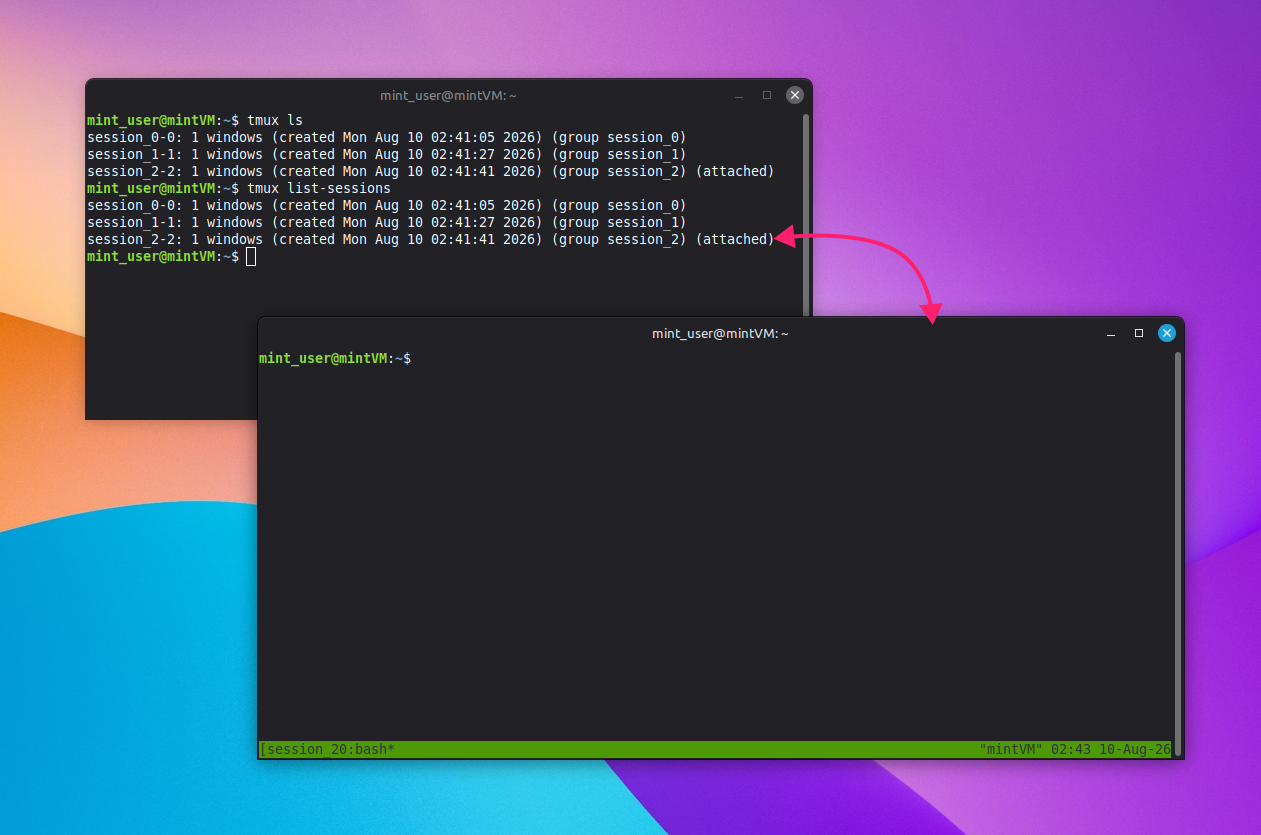
Before detaching anything, it’s worth confirming what’s actually running and who’s attached to it. Run tmux ls or tmux list-sessions to see every session on the server, with currently attached sessions flagged as (attached).
To check one specific session rather than scanning the full list, use: tmux display-message -p -t <session_name> '#{session_attached}'
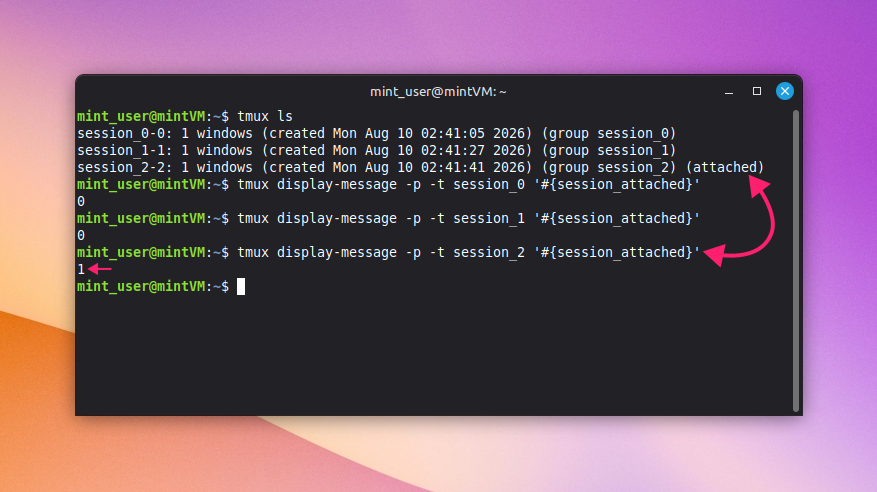
This returns 0 for not attached or 1 for attached, and it’s useful in scripts where you need a programmatic check rather than a visual scan.
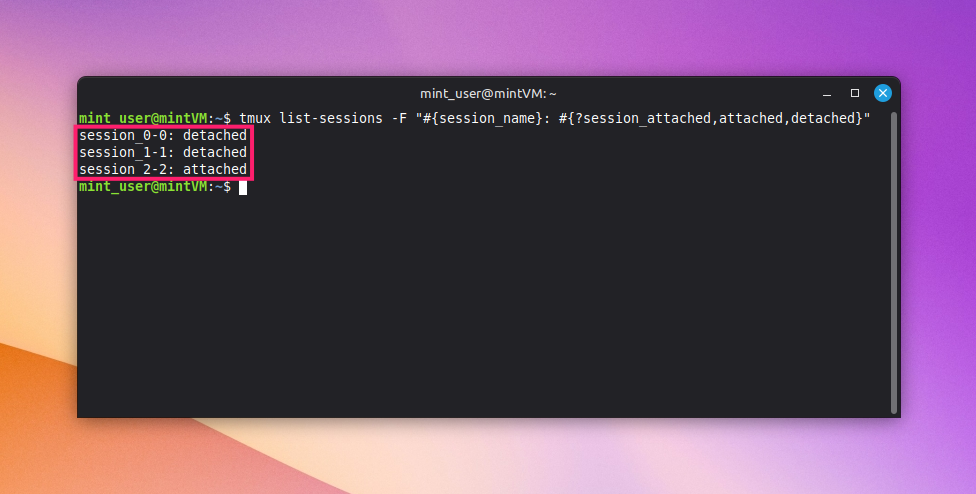
For a full breakdown across every session at once, run: tmux list-sessions -F "#{session_name}: #{?session_attached,attached,detached}"
This outputs every session name alongside an explicit attached or detached label.
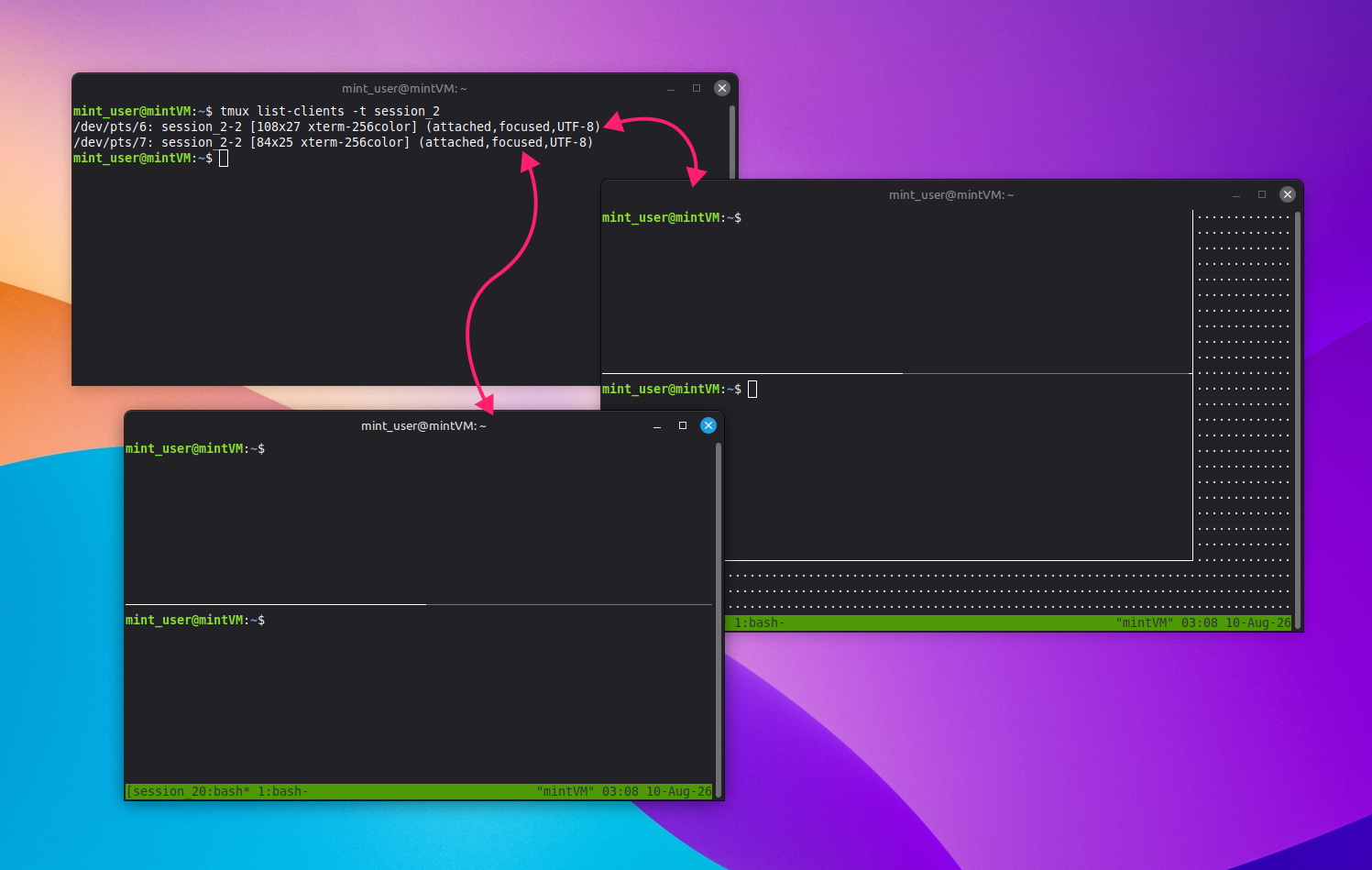
Finally, to see who’s actually connected to a given session, tmux list-clients -t <session_name> lists the clients attached to that session specifically, or tmux list-clients on its own lists every client attached to the server.
» Wrong permissions? Here’s how to fix the permission denied error on Linux
6 ways to detach a tmux session
There’s no single correct way to detach since the right method depends on where you’re working from, whether you’re inside the session or scripting against it remotely, and whether anyone else is attached. The six methods below cover the full range, from the everyday shortcut to admin-level disconnection of other users.
Method 1: Use the default keyboard shortcut
Use this when you’re actively inside a session and want the fastest way out. It’s the method you’ll reach for most.
- Press the prefix key combination,
Ctrl + bby default Press lowercase
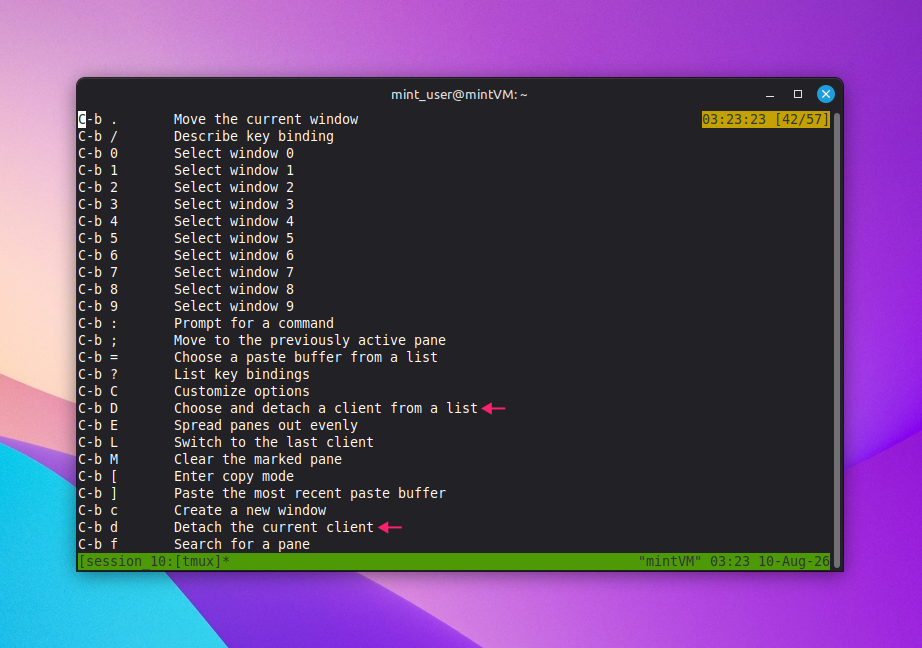
dto detach the current client immediately, orD(Shift + d) to open an interactive list and choose which client to detach
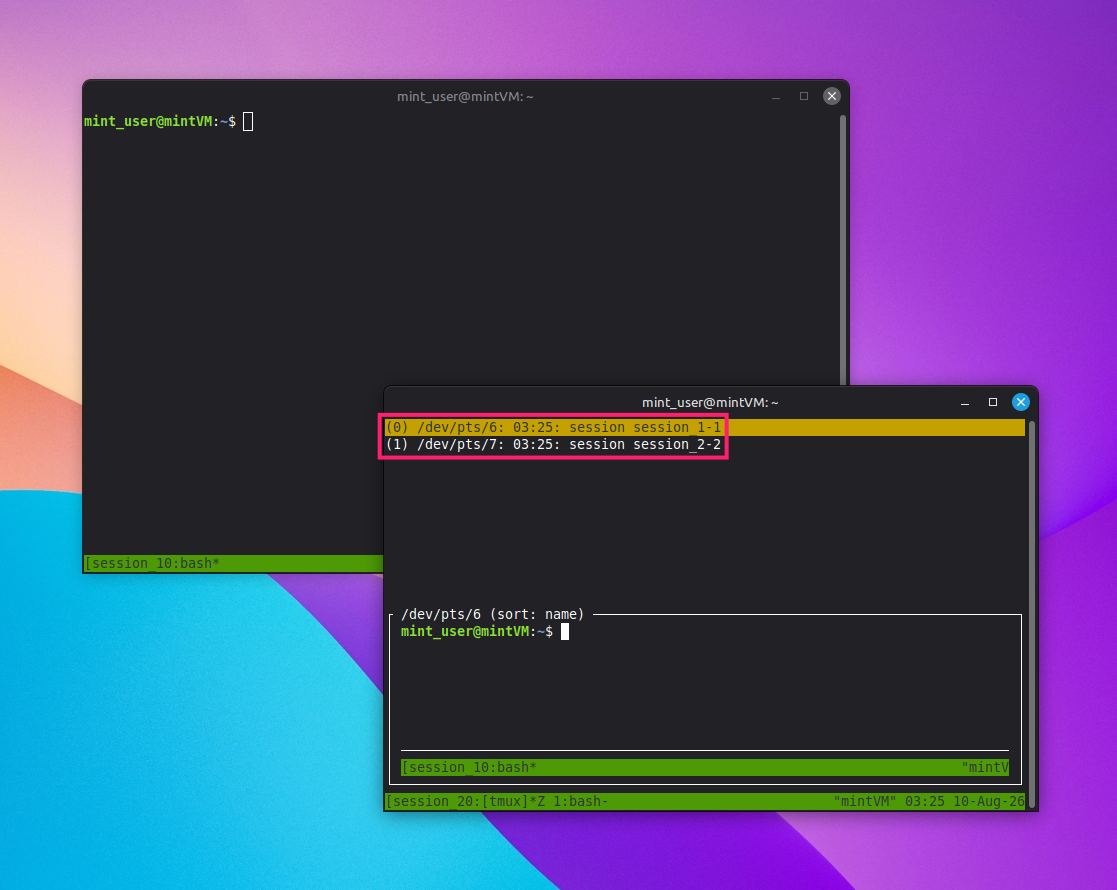
If you ever forget the bindings, press Ctrl + b followed by ? to pull up the full list of current key bindings.
» Using Mint? Here’s how to update Linux Mint
Method 2: Native CLI command from inside a session
Use this when you’d rather type a command than remember a keystroke, or when you’re scripting a detach as part of a larger sequence run from within the session itself.
- Press
Ctrl + bfollowed by:to open the tmux command prompt Type
detachand press Enter
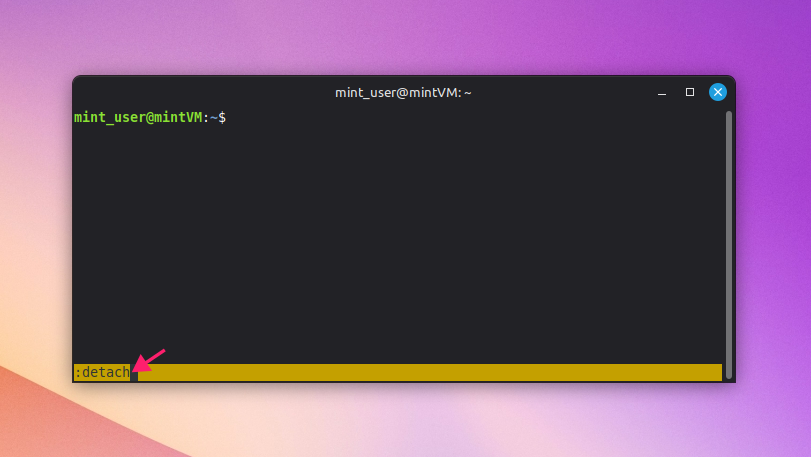
Alternatively, skip the prefix entirely and type tmux detach directly at the shell prompt, then press Enter. This works because the command runs against whichever tmux client environment is active in that pane.
Method 3: Detach a specific session from outside it
Use this when you’re not inside the target session at all, such as managing sessions from a separate shell or script.
- Run
tmux list-sessions -F "#{session_name} | #{session_id}"to view every session alongside its ID Run
tmux detach -s <session_name>ortmux detach -s <session_id>to detach all clients connected to that session. Enclose the ID in single quotes so the shell doesn’t interpret$as an environment variable
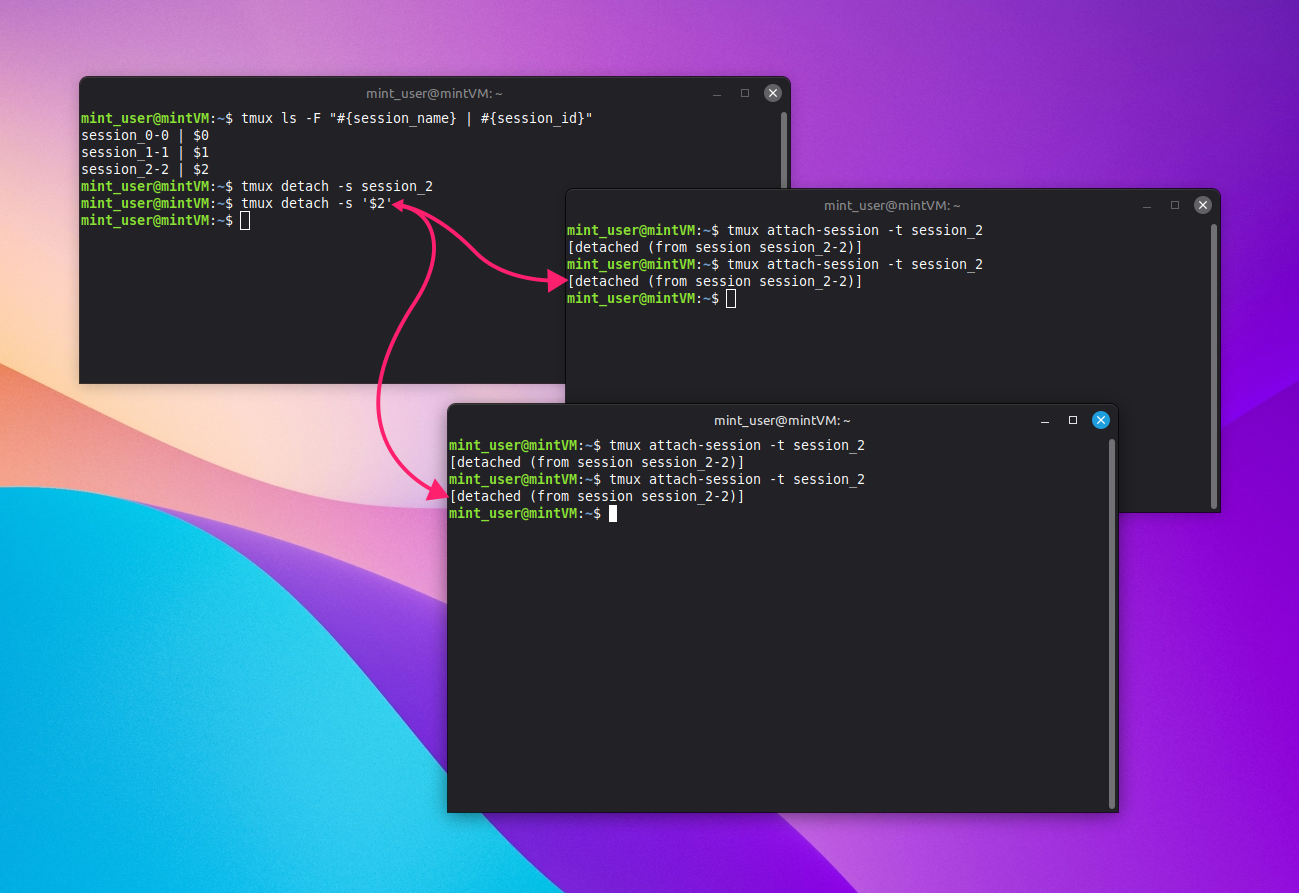
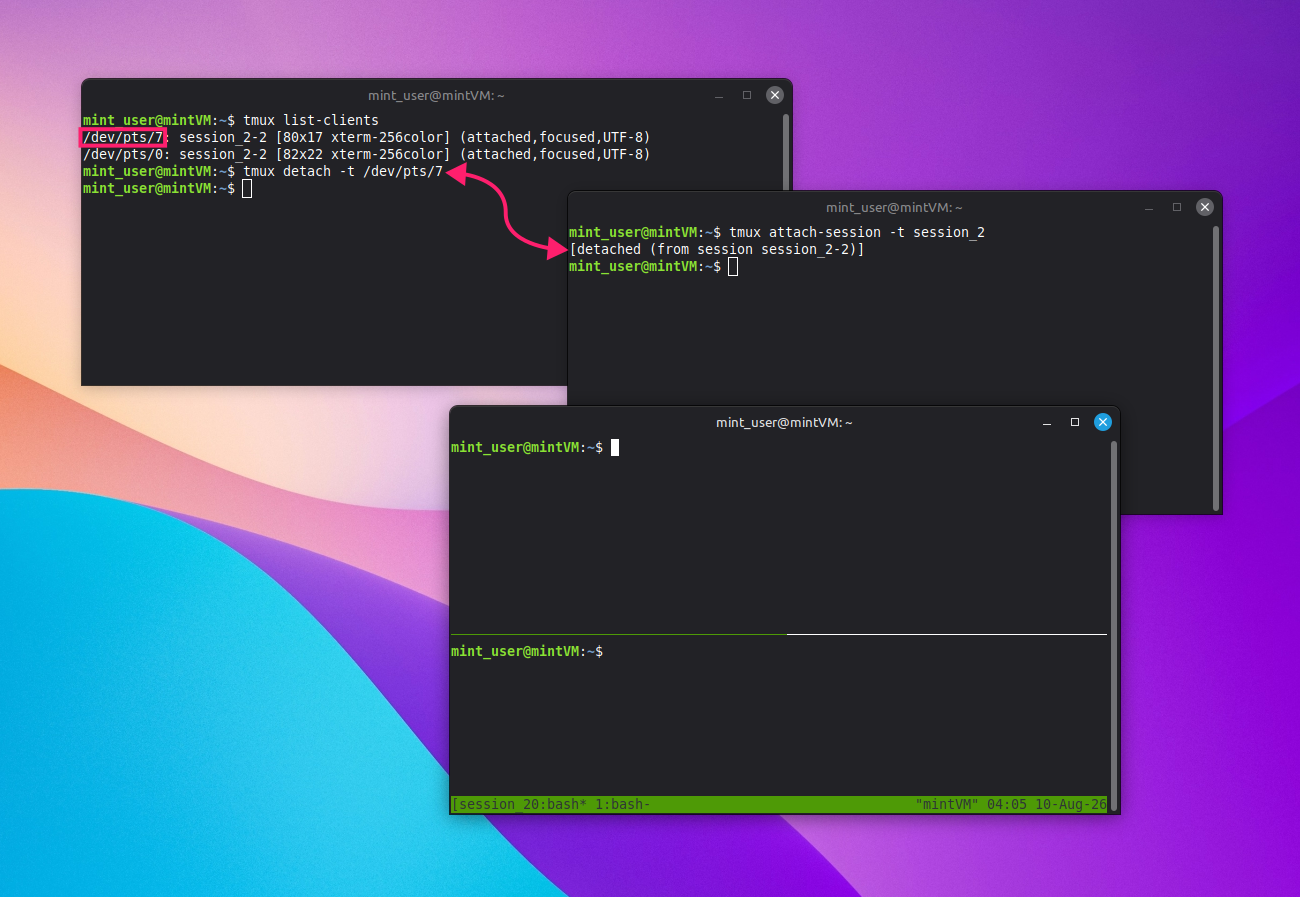
If you only want to detach one specific client rather than every client on a session, run tmux list-clients to find the target, then pass it with tmux detach -t <client>. Keep in mind that if sessions are grouped, group membership will show up in the output of tmux ls and tmux list-clients.
Method 4: Detach a nested session
Use this when you’re running tmux inside tmux (commonly over SSH into a machine where you’re already inside a local session) and need to detach only the inner one.
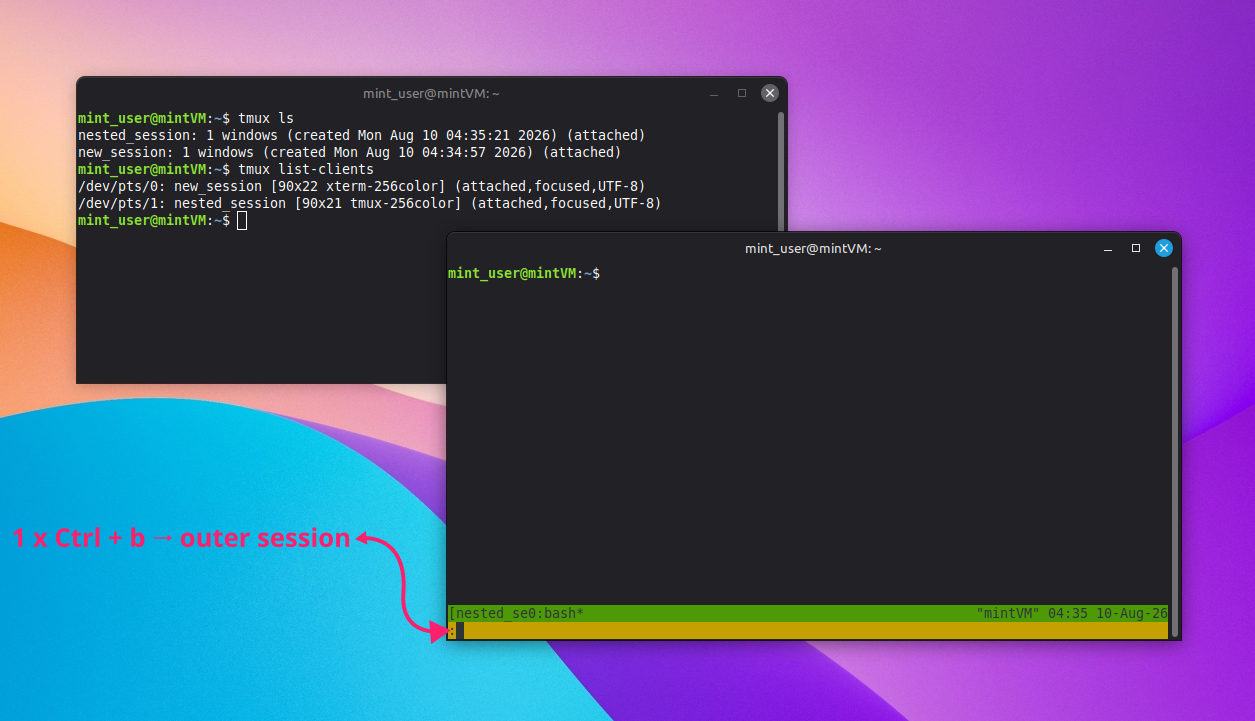
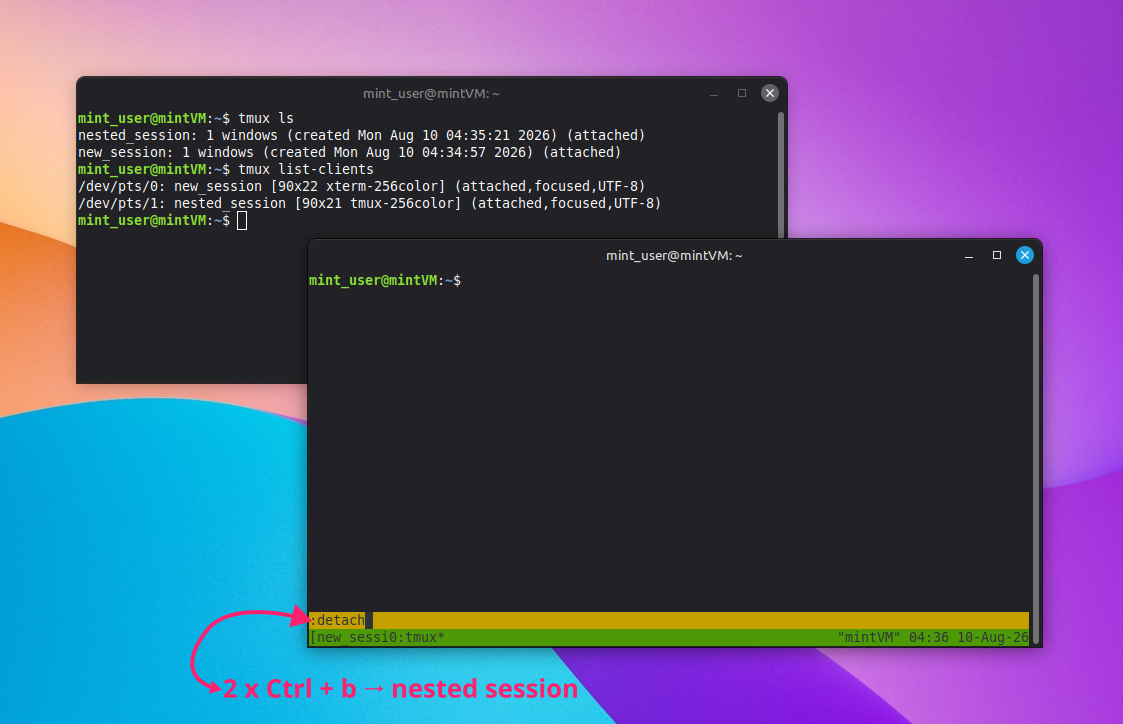
- Press the prefix key combination twice: the first
Ctrl + bis consumed by the outer session, and the second reaches the inner one Press
dto detach the nested session, or press:and typedetach

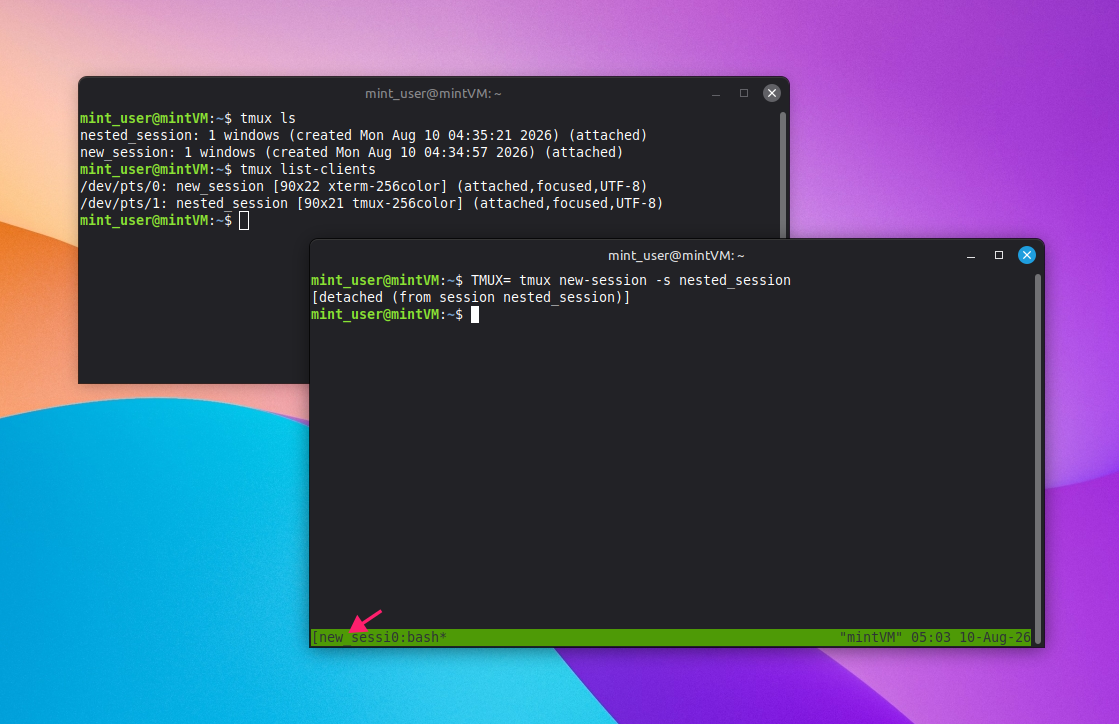
You can also type tmux detach directly into the inner session’s shell. Since the command runs against whichever client environment is active in that pane, it detaches only the inner client and leaves the outer session untouched.
Method 5: Force a detach when the terminal hangs
Use this when the terminal emulator itself has become unresponsive and you can’t detach normally from within it.
From a separate, working terminal, run tmux attach-session -d -t <session_name>
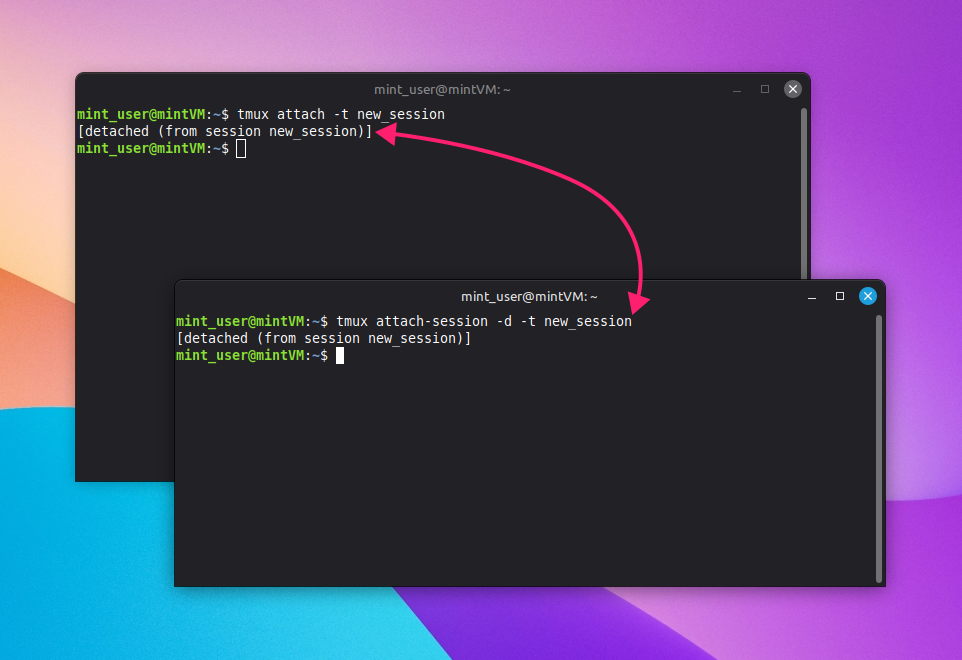
This attaches your new terminal to the session while simultaneously detaching every other client connected to it (including the hung one) using the -d flag on attach-session. You can also target a specific unresponsive client directly with the detach command if you know which client you need to disconnect.
Method 6: Disconnect all other clients at once
Use this when you’re managing a shared session on a development server and need to clear out every other connected user or idle client in one move.
Admins have three options depending on the outcome needed:
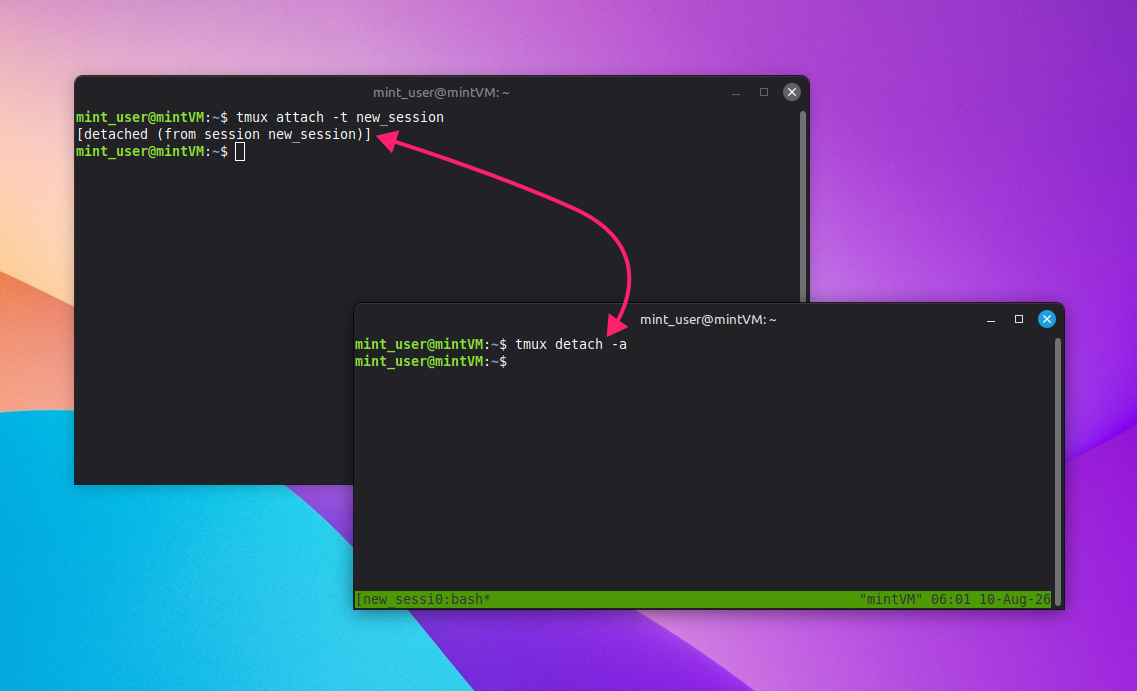
- Run
tmux attach-session -d -t <session_name>to attach to a specific session while simultaneously disconnecting everybody else already connected to it - Run
tmux detach-client -a -s <session_name>to detach all clients connected to the specified session, without attaching yourself - From inside the session itself, run
tmux detach-client -ato detach every other connected client except your own
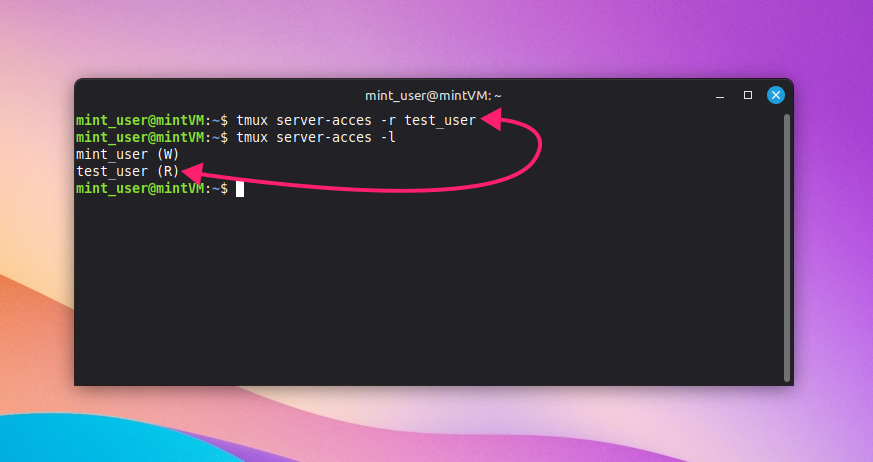
Access can also be managed per user with the server-access command:
tmux server-access -r <user_name>sets access mode to read-only for that usertmux server-access -d <user_name>revokes their access entirely and detaches them if they’re currently attachedtmux server-access -llists current permissions for everyone with access
To identify idle clients before disconnecting them, query the client_activity variable: tmux list-clients -F "#{session_name} | #{client_tty} | #{t:client_activity} | #{client_user}"
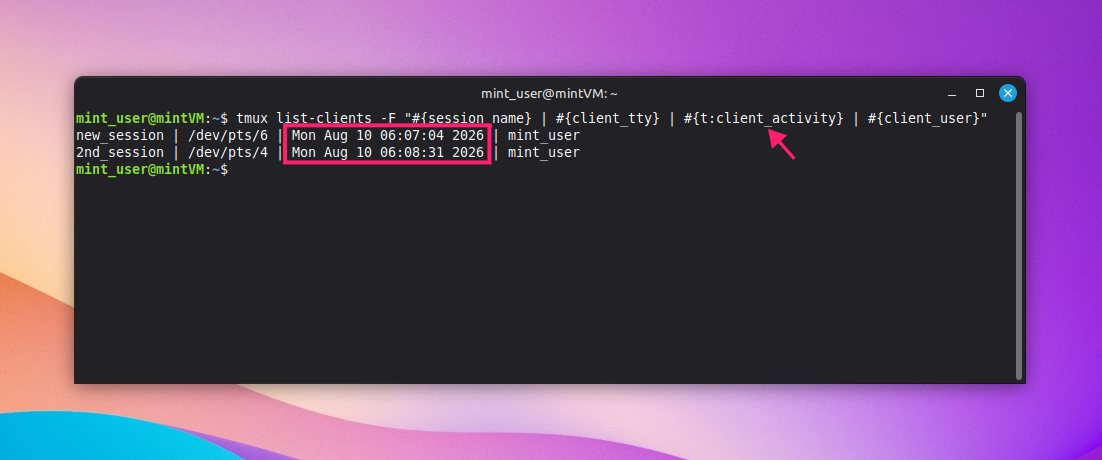
This shows the last activity timestamp for each connected client. Once you’ve identified which ones are genuinely idle, they can be closed using the detach command.
If you’re managing this kind of cleanup across more than a handful of shared servers, running these commands one machine is a major time waste. Atera’s Linux Agent connected to the RMM platform lets you push the same detach or diagnostic command remotely to selected devices or device groups at once, instead of SSHing into each server individually to run it. And if you need a specific script with specific flags, AI Copilot can write it for you.
» Did you know you can paste into Linux terminal?
Troubleshooting and edge cases
Detaching usually works exactly as expected, but a couple of configuration and connection scenarios can throw that off. Here’s how to diagnose and fix the two most common ones.
When a session terminates instead of backgrounding on detach
If a session disappears entirely the moment you detach from it, instead of continuing to run in the background, the cause is almost always a .tmux.conf setting called destroy-unattached.
1. Check the current state of the setting by running tmux show-options -g | grep destroy-unattached
2. While you’re checking, also look for two related options that can cause similar behavior:
exit-empty(the server exits if there are no active sessions)exit-unattached(the server exits if no clients are attached at all)
3. Check all three at once with tmux show-options -g | grep -E "destroy-unattached|exit-unattached|exit-empty"
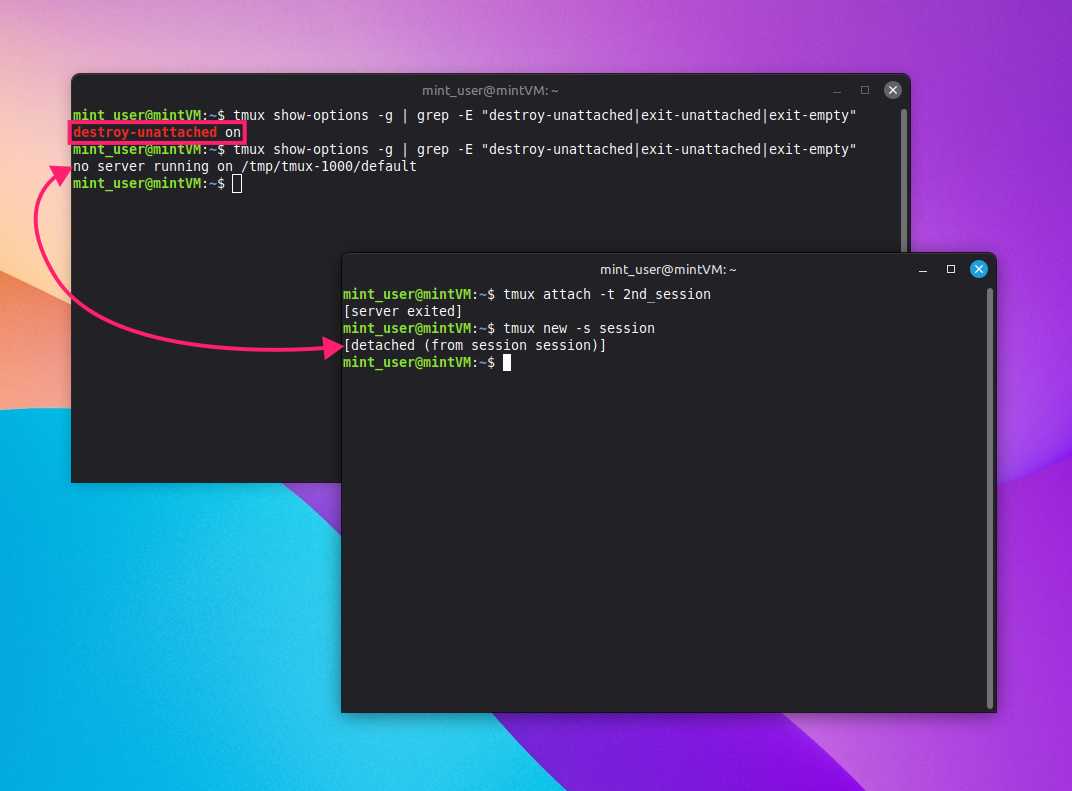
If the setting comes back on, that’s your answer. The server is killing the session as soon as it becomes unattached, which is why a later tmux attach attempt returns [server exited] instead of reconnecting you, and why running the check command again afterward can return no server running on /tmp/tmux-1000/default rather than a result. At that point there’s no session left to recover; you’ll need to start a new one with tmux new -s <session_name>.
To fix it going forward:
- Run
tmux set-option -g destroy-unattached offto disable it immediately for the current server. This change is not persistent, it won’t survive a server restart - To make the fix permanent, open
.tmux.confand find the lineset-g destroy-unattached on. Either delete the line entirely or changeontooff If the server is still running, reload the updated config without restarting anything by running
tmux source-file ~/.tmux.conf
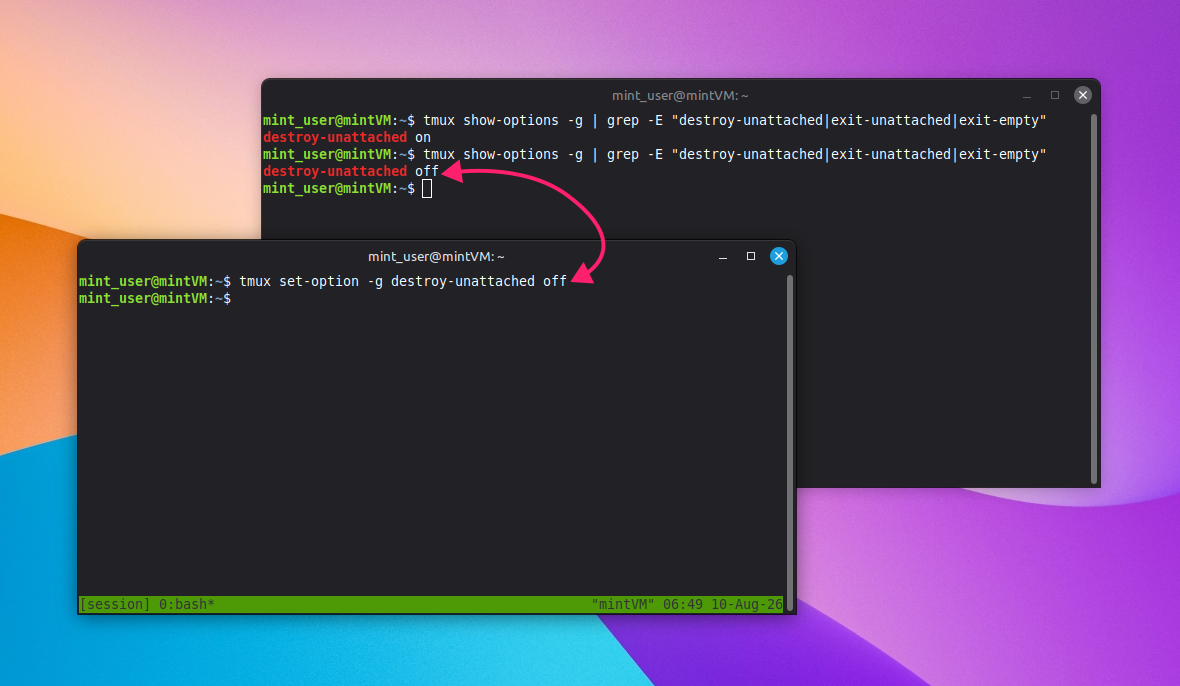
Keep in mind you’ll need at least one active session to check these options in the first place. Running the check command against a server with nothing running will return the same no server running warning rather than a useful result.
Recovering from a dropped SSH connection
An SSH connection dropping unexpectedly can leave what looks like a “ghost” client still attached to your session. What actually happens next depends entirely on how that SSH connection was started in the first place.
If the tmux session itself was created by calling SSH directly (for example, tmux new -s ssh_session 'ssh user@remote_machine'), the session’s lifetime is tied directly to that SSH process. When the connection drops, the session ends with it and generally can’t be recovered, unless a new window was created in the session in the meantime or the remain-on-exit flag was specifically set to on beforehand. If the session had multiple windows and one is left in a non-responsive state, kill it directly with tmux kill-window -t <session_name:window_index_or_name>.
Instead, if SSH was run from inside an already-existing tmux session (meaning tmux was started first, and ssh was just one command run within it), the session survives the dropped connection. The client reverts to whatever state it was in before the SSH command was launched, and the session remains fully usable once you reattach.
Stop losing work to dropped connections
Once detaching becomes muscle memory, tmux stops being a nice-to-have and becomes the default way you run anything that shouldn’t die with your connection. Checking session status, detaching idle clients, and troubleshooting .tmux.conf edge cases one server at a time works fine for one machine. It stops working once you’re doing it across a fleet.
Atera helps IT teams and MSPs run the same detach, cleanup, or diagnostic commands across selected devices or device groups at once, instead of SSHing into each server individually. If you’re already comfortable with the commands in this guide, scripting them across your fleet is the natural next step.
» Take control of your tmux session management with a free trial of Atera
Related Articles

How to decide if you need a dedicated DEX platform, or already have one
"IT feels slow" is the complaint that often sells DEX platforms. Sometimes it signals a real blind spot, but just as often already catches and fixes the problem, and a new scoring layer would only add another console. Telling the two apart takes evidence, and the real gap usually isn't visibility at all.
Read now
How to set up secure printing across your organization
A secure print checkbox protects exactly one moment in a document's life. Everything else, from unencrypted traffic and unhardened devices to payroll printouts forgotten in a tray, stays exposed. Real secure printing covers the whole lifecycle: release policy, authentication, encryption, hardening, and a fleet that stays monitored long after rollout.
Read now
How to reduce alert fatigue in healthcare IT
In a hospital, a dismissed alert isn't a delayed ticket. It can be a patient deteriorating while the monitor keeps sounding. Cutting alert volume won't fix that on its own, and switching alerts off can make it worse.
Read now
How to prevent configuration drift across your IT infrastructure
Configuration drift rarely breaks anything the day it happens. It hides in a hotfix, a reset default, or a vendor installer, then surfaces weeks later as a failure nobody can trace. Stopping it means defining exactly what approved looks like, closing every side door into production, giving each setting one owning tool, and checking that the baseline itself hasn't gone stale.
Read nowEndless IT possibilities
Boost your productivity with Atera’s intuitive, centralized all-in-one platform









