
Table of contents
Generate summary with AI

So many remote IT support sessions start with a technician asking for the computer name, and the user having no idea what they’re talking about. It’s a small gap with real consequences. Without the hostname, you can’t initiate an RDP session, log the right device in a ticket, or pull it up in your RMM platform. The user is stuck, and so are you.
Windows 11 gives you more ways to find the computer name than most people realize, from a quick Settings lookup to a handful of command-line options that surface additional network detail. Here are the easiest options.
Why computer names matter
A computer name is how everything on your network identifies a specific machine. Get that identifier wrong, or not know it at all, and a surprising number of IT operations fall apart before they start.
Windows actually maintains several related naming concepts under the hood, and it’s worth knowing the difference:
Name type | What it is | Examples |
Computer name | The user-facing identifier shown in Windows Settings | OFFICE-PC1 or DESKTOP-KK0FP7N |
Full computer name | The FQDN used for domain-joined machines (computer name + DNS domain suffix) | OFFICE-PC1.domain.company.com or DESKTOP-KK0FP7N.domain.company.com |
DNS hostname | Functionally the same as the computer name, viewed through the DNS lens | OFFICE-PC1 or DESKTOP-KK0FP7N |
NetBIOS name | A legacy network identifier from pre-DNS networking protocols | OFFICE-PC1 or DESKTOP-KK0FP7N |
In practice, the computer name and DNS hostname are what you’ll work with most. The FQDN matters in domain environments. NetBIOS is largely legacy, but Windows still maintains it for compatibility.
“Applications and management tools don’t actually communicate using computer names. They use IP addresses. What the computer name does is give DNS something human-readable to resolve. When a technician enters a hostname into an RDP client, DNS translates it into the IP address the connection needs to be established.”
Bogdan Stefan
That chain matters. If a technician types OFFICE-PC1.domain.company.com into Remote Desktop Connection, the RDP client queries the DNS server, gets the matching IP, and establishes the session. Skip the hostname and use an IP address instead, and you’re relying on that address being static, but it isn’t on most networks. DHCP-assigned IPs change; hostnames don’t.
Why unique device names are non-negotiable
A meaningful, unique computer name lets technicians and administrators identify machines reliably across every context they work in, including:
- Network views
- RDP connection history
- Event logs
- Asset inventories
- Help desk tickets
A device named DESKTOP-KK0FP7N tells you nothing. A device named PRODUCTION-PC1or SARAH-LAPTOP-MKT tells you exactly what you’re looking at before you’ve opened a single tool.
The operational case is straightforward. When a ticket comes in and the user can’t tell you which machine is affected, a recognizable naming convention is the difference between finding the right device in seconds and spending ten minutes cross-referencing IP addresses against an asset list.
» Discover if free IT asset inventory management software is worth it
6 methods to find your computer name in Windows 11
There are seven ways to find the computer name on a Windows 11 device. Some take two clicks, while some take a single command. Which one you reach for depends on where you are and what you’re doing.
Here are the options:
Method 1: Start Menu search
The fastest GUI option for users who don’t know where Settings lives.
1. Open the Start Menu by clicking the Windows icon on the taskbar or pressing the Win key
2. Type name or PC name into the search bar
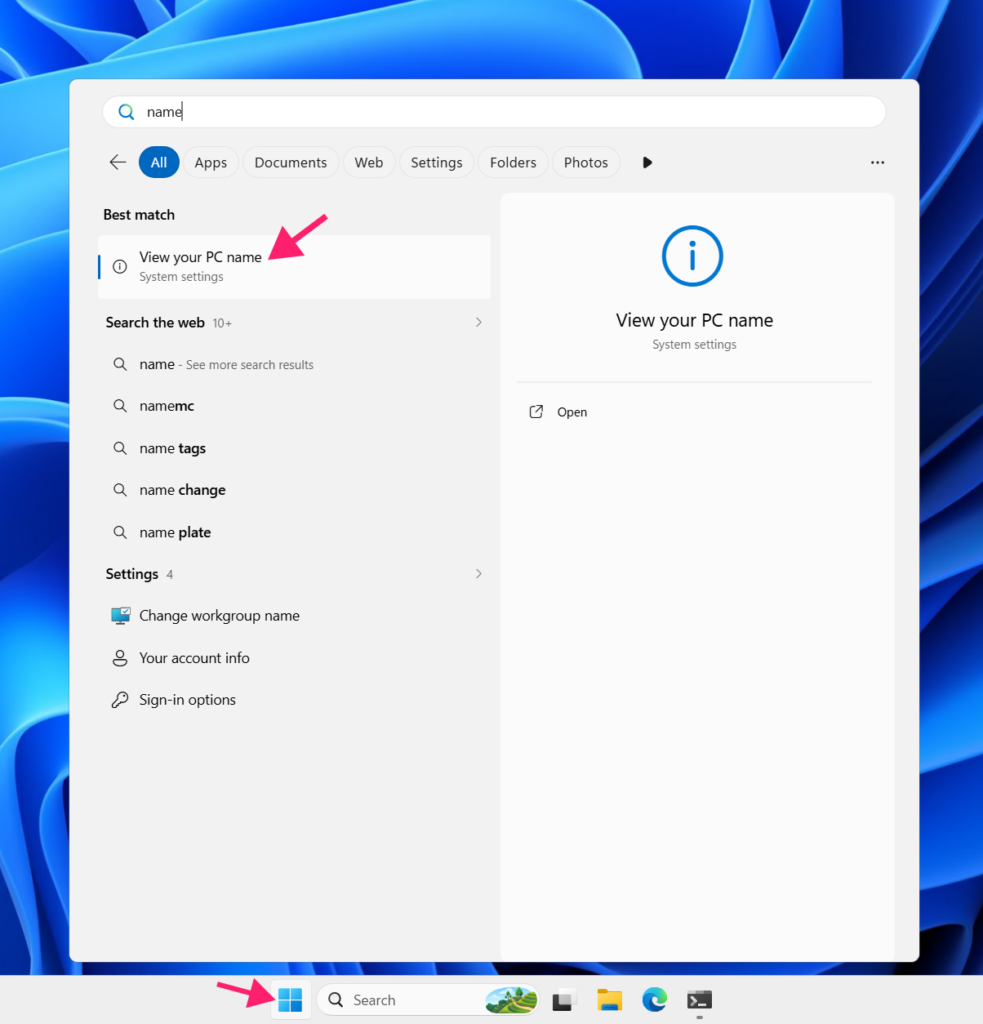
3. Select View your PC name from the results
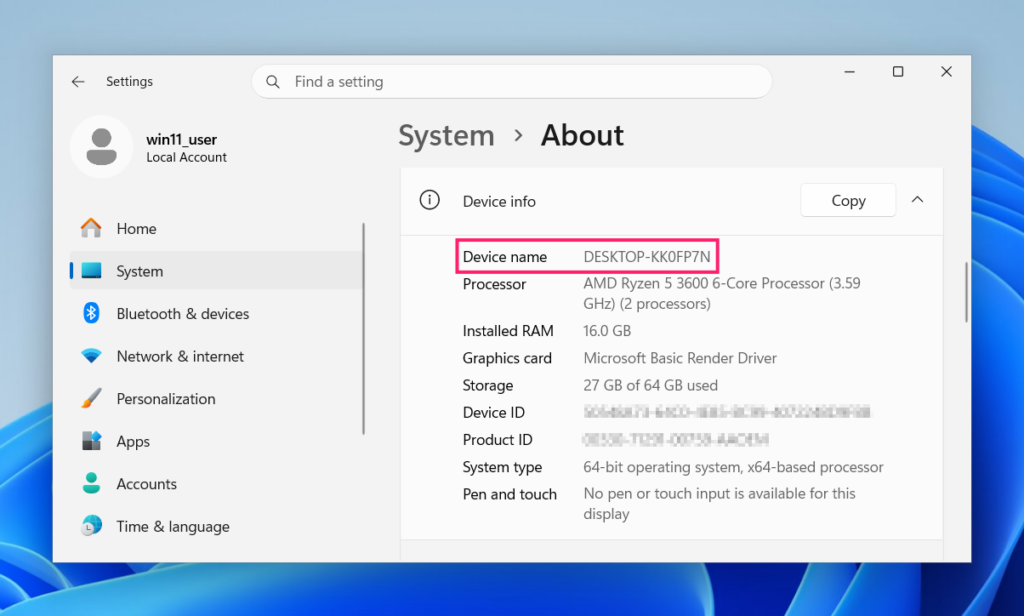
4. This takes you directly to Settings > System > About, where the device name is listed under Device info
Method 2: Windows Settings
The most straightforward path through the modern Settings app.
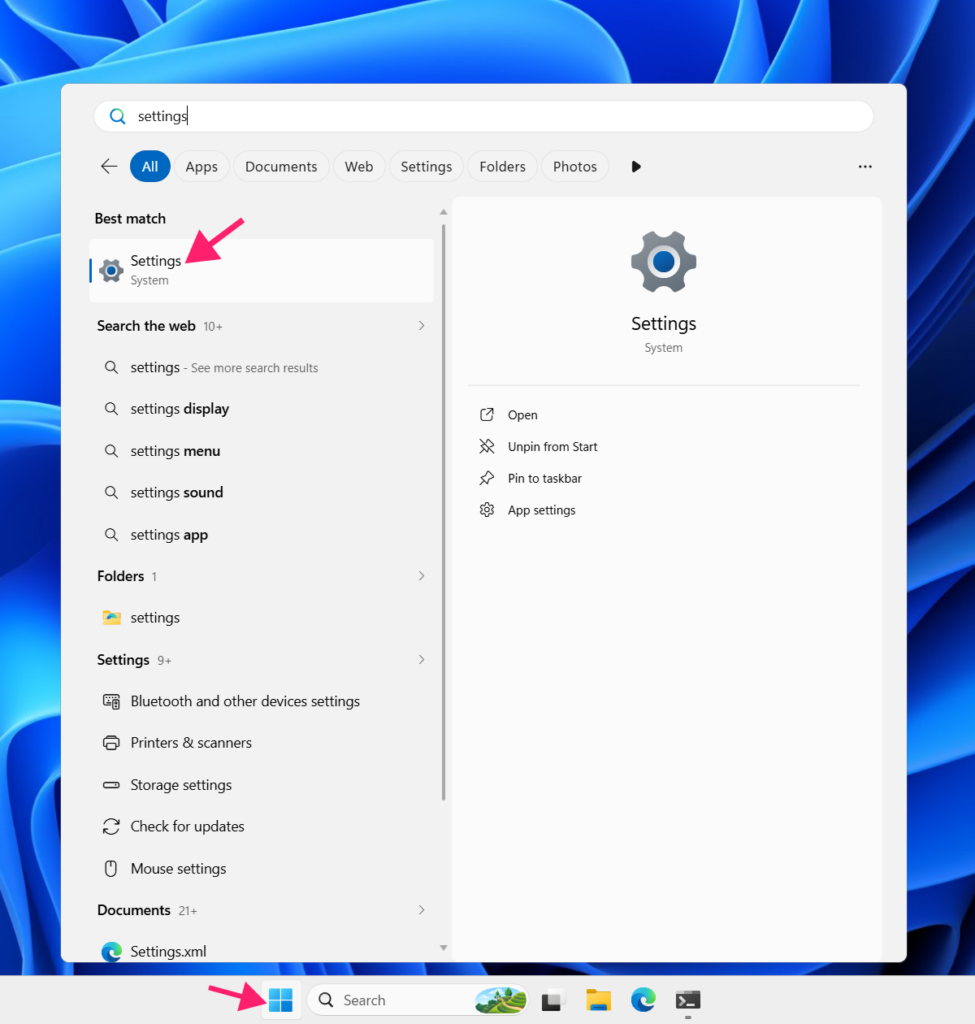
1. Open Settings by pressing Win + I, or open the Start Menu and type settings
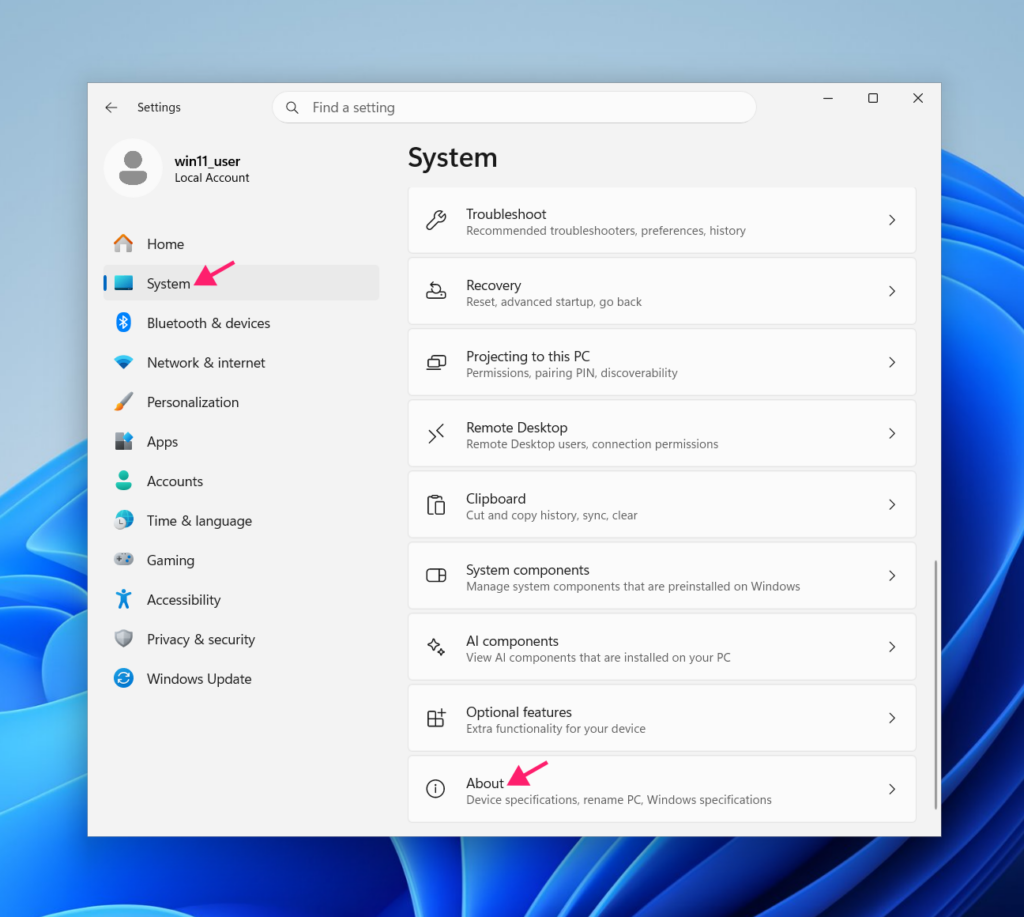
2. Navigate to System > About
3. Locate the Device name entry under Device info
Method 3: Run dialog (System Properties)
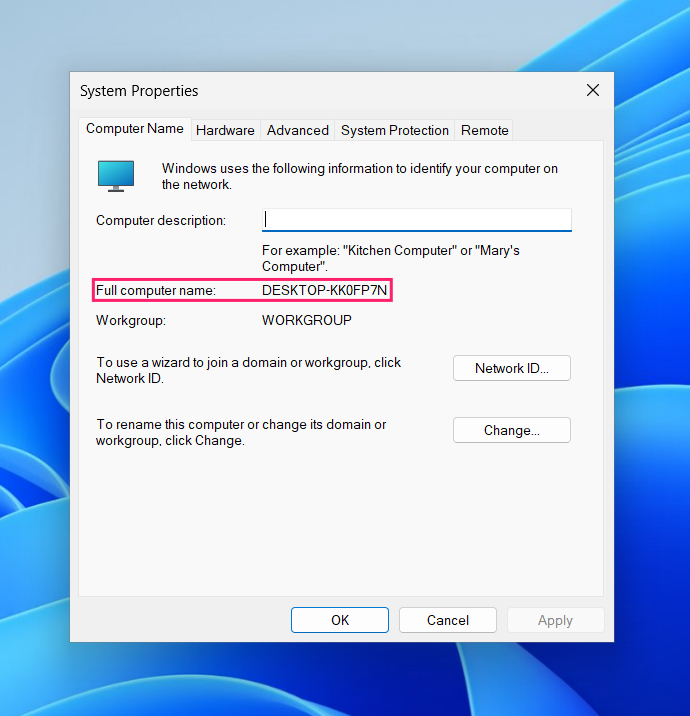
Useful when you want the classic System Properties view, which also shows the full computer name and workgroup or domain membership.
1. Press Win + R to open the Run dialog
2. Type sysdm.cpl and press Enter
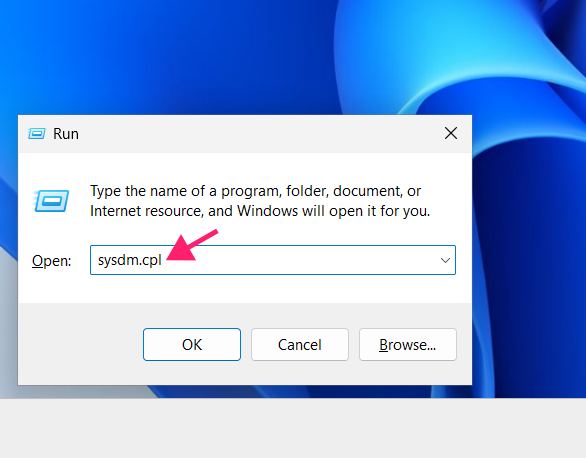
The System Properties window opens on the Computer Name tab by default, where you can find your full computer name listed.
Method 4: File Explorer (This PC > Properties)
A quick route if you already have File Explorer open.
1. Open File Explorer using the taskbar icon or Win + E
2. Right-click the This PC icon in the left sidebar
3. Select Properties
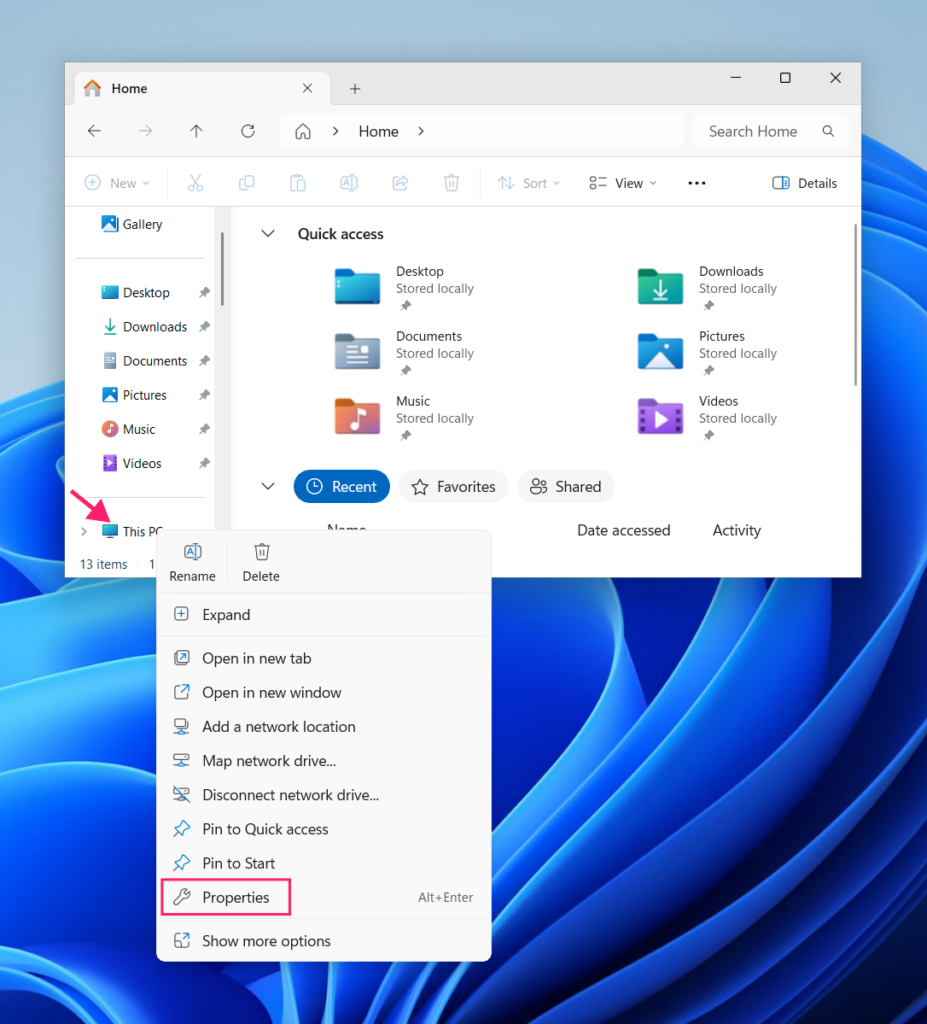
This takes you directly to Settings > System > About, where the device name is listed.
» Service not working? Here’s how to restart File Explorer
Method 5: Command Prompt
Three commands that each return the computer name, with slightly different output depending on what else you need.
Open Command Prompt by pressing Win + R, typing cmd, and pressing Enter.
Run any of the following:
hostname: Returns the computer name only, nothing else.echo %COMPUTERNAME%: Reads the same value from the Windows environment variable.ipconfig /all: Returns full network configuration detail, with the computer name listed as Host Name near the top.
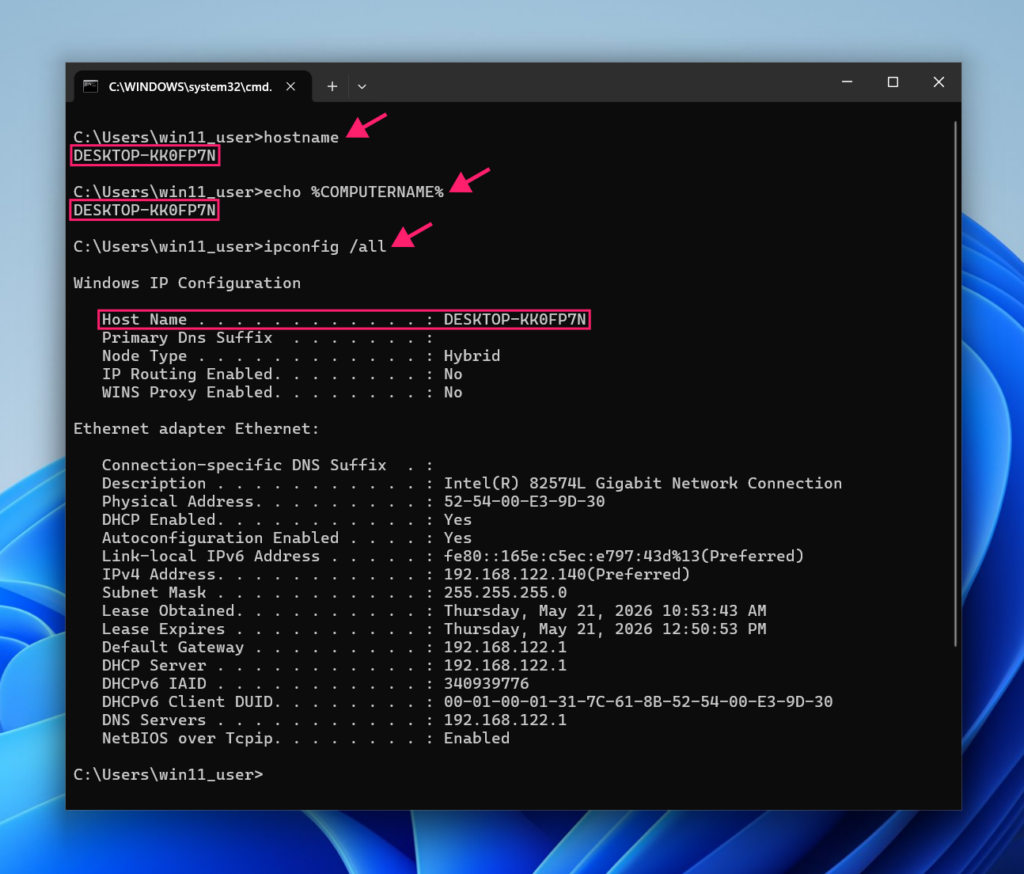
Use hostname or echo %COMPUTERNAME% when you just need the name. Use ipconfig /all when you also need network adapter details like IP address, DNS servers, or MAC address in the same output.
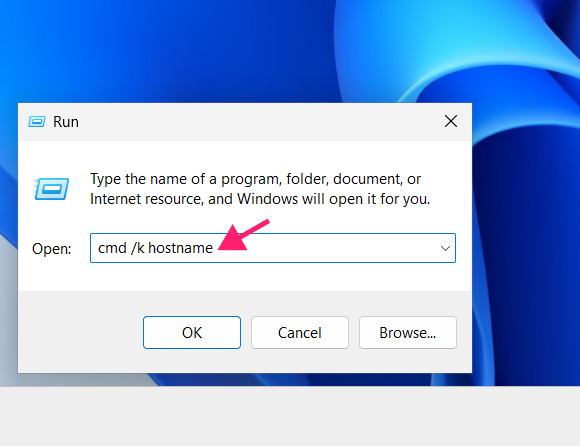
Note: you can also run these commands directly from the Run dialog without opening a full Command Prompt window. Just type cmd /k hostname, for example, to run hostname and keep the window open.
Method 6: PowerShell
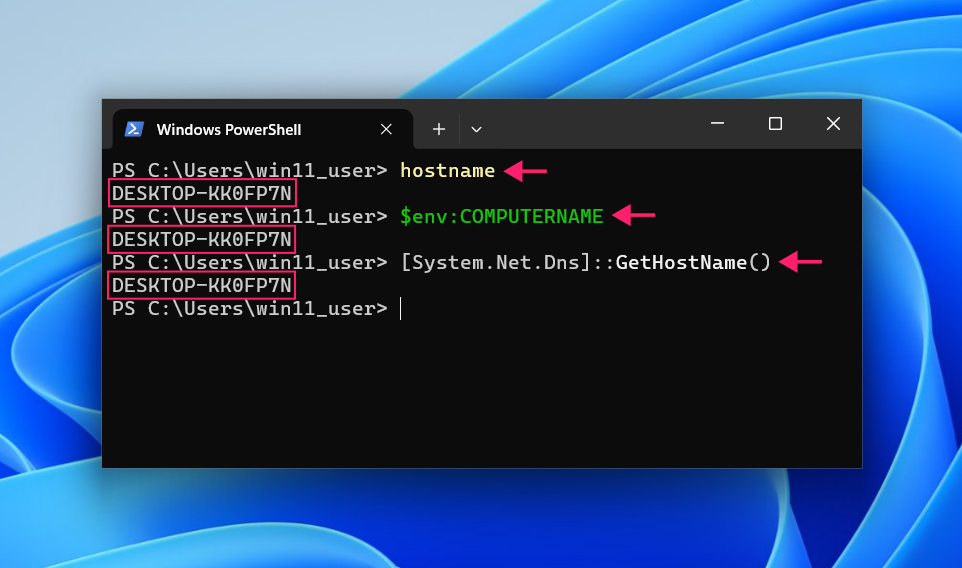
Three commands are available in PowerShell, each pulling the hostname from a different source.
Open PowerShell (Terminal) by pressing Win + X or right-clicking the Start Menu button and selecting Terminal.
Then run any of the following:
hostname: Works identically to the CMD version.$env:COMPUTERNAME: Reads the hostname from the PowerShell environment variable. Useful in scripts where you need to reference the computer name dynamically.[System.Net.Dns]::GetHostName(): Calls the .NET DNS class directly. This is the most reliable option in scripting contexts where you need the DNS-registered hostname specifically, as it queries the same source that network services use.
One of the best parts about PowerShell is enterprise-level automation. With Atera’s AI Copilot, you can generate comprehensive PowerShell scripts from natural language queries like “write me a script that will pull all device names from the network”. You can then deploy that script remotely to all devices through the RMM platform.
Troubleshooting common problems
Finding the computer name is usually straightforward, but there are a few situations where the name you find doesn’t behave the way you expect, especially when using it to establish remote connections or troubleshoot network issues.
When the hostname doesn’t resolve
This happens when a technician takes the computer name from Settings or a ticket, plugs it into an RDP client, and gets a connection error. The name is correct, but the connection fails anyway.
This is almost always a DNS issue. The RDP client needs to resolve the hostname to an IP address before it can establish a session. If DNS hasn’t updated, or the device’s records haven’t been registered, that resolution fails.
To force the machine to re-register its DNS records:
1. Open Command Prompt as Administrator
2. Run ipconfig /registerdns
If the connection works with the IP address but not the hostname, that confirms the issue is DNS rather than connectivity. Use ipconfig /all to check the DNS server addresses the machine is pointing to, and verify the records are current.
When the name looks right but the device isn’t found
If the hostname resolves but the device still can’t be reached by name on the local network, NetBIOS caching may be the culprit. Devices using NetBIOS for name resolution can hold onto stale entries after a network change or device rename.
To flush the NetBIOS cache:
1. Open Command Prompt as Administrator
2. Run nbtstat -RR to release and re-register all NetBIOS names
Manage computer names easier with Atera
Finding a computer name is a five-second task once you know where to look. The friction shows up when users don’t know, technicians have to walk them through it mid-ticket, and support time gets eaten up before the actual problem is even addressed.
At scale, that friction adds up. Atera’s RMM platform keeps device names, hostnames, and full system inventory centralized and accessible without needing to ask anyone. When a ticket comes in, the device details are already there. That’s one less back-and-forth before the real work begins.
Frequently Asked Questions
Related Articles

How to reduce alert fatigue in healthcare IT
In a hospital, a dismissed alert isn't a delayed ticket. It can be a patient deteriorating while the monitor keeps sounding. Cutting alert volume won't fix that on its own, and switching alerts off can make it worse.
Read now
How to prevent configuration drift across your IT infrastructure
Configuration drift rarely breaks anything the day it happens. It hides in a hotfix, a reset default, or a vendor installer, then surfaces weeks later as a failure nobody can trace. Stopping it means defining exactly what approved looks like, closing every side door into production, giving each setting one owning tool, and checking that the baseline itself hasn't gone stale.
Read now
How to reduce alert fatigue across your IT team
Your technicians aren't ignoring alerts because they're careless. They're ignoring them because most alerts have taught them to. Once the stream stops being trustworthy, real failures slip past with the noise. Fixing it means deciding what deserves an interruption, tuning out transient spikes, collapsing alert storms, and automating the fixes you've run a hundred times.
Read now
How to close the IT skills gap on your team
Course completions don't close skills gaps. Technicians finish the training, then hand the first unfamiliar failure straight back to a senior engineer. Real capability gets built on live tickets, incidents, and maintenance windows, with guidance that fades as competence grows.
Read nowEndless IT possibilities
Boost your productivity with Atera’s intuitive, centralized all-in-one platform









