
Table of contents
When a user reports Outlook not opening, the ticket rarely tells you what actually broke. A crash at the splash screen, a window frozen on Loading Profile, and an endless credential prompt can each come from a COM add-in, a damaged Office install, a corrupt profile, an unreadable data file, or a sign-in fault. To the user, they just care that their mail won’t load.
Reinstalling Outlook first usually wastes time, and sometimes costs more than time. A rebuilt profile won’t get past a Conditional Access block, and a deleted OST or a repaired PST can take local-only mail with it. The faster route is to rule out the quick causes, identify the component that failed, and repair only that, whether it’s one device or every machine showing the same crash signature.
Quick fix for Outlook not opening: clear a hung Outlook and open it in safe mode
If a user on classic Outlook needs their mail now, this gets them in fastest without changing any files. The sections below explain how to find and repair what actually failed.
- In a remote PowerShell session on the device, run
Get-Process OUTLOOK -ErrorAction SilentlyContinue | Select-Object Name, Id, StartTimeto check whether Outlook is still running in the background - If it is, confirm with the user that any unsaved work can be lost, then run
Stop-Process -Name OUTLOOK -Force - Ask the user to press Windows + R, enter
outlook.exe /safe, and select OK
If the mailbox loads, the user can keep working in safe mode while you isolate the cause. If it doesn’t, point them to Outlook on the web so they’re not blocked while you work through the sections below.
What this takes by hand, and what Robin takes off your plate
Everything after this is the manual route. Here’s what each stage involves by hand, next to what Robin by Atera does for you.
Stage | By hand | With Robin by Atera |
|---|---|---|
Work out what failed | Remote in, check the Outlook process, test Outlook on the web and safe mode, and read the crash events | Robin detects which Outlook subsystem has failed executes the corresponding native repair |
Get new Outlook launching | Open the app’s Advanced options, run Repair, then Reset if that fails | Robin uses the supported repair path, such as Microsoft Store app reset or re-registration, and asks the user to verify the app works |
Fix add-in problems | Disable COM add-ins, then re-enable them one at a time, restarting Outlook after each | Robin checks and remediates supported Outlook COM add-ins |
Repair the Office install | Run Quick Repair, then Online Repair if the fault persists | Robin runs the Microsoft Office repair and asks the user to verify that the application works |
Stop sign-in loops | Check the sign-in logs, then find and remove only the stale credentials in Credential Manager | Robin removes cached Office, Outlook, Teams, ADAL, or OneDrive credentials when stale sign-in data is causing repeated prompts |
Rule out the quick causes before you repair anything
Most Outlook startup failures can be ruled out in a few minutes, without changing a file or a setting. Work through three checks in order: whether Outlook is already running in the background, whether the user is on new or classic Outlook, and whether classic Outlook opens in safe mode.
Outlook is already running in the background
A previous Outlook session that never closed properly can stop a new one from opening. The user sees nothing happen, or a window that never finishes loading.
- Open Task Manager
- Look for
OUTLOOK.EXE. If it’s there while no Outlook window is open, confirm with the user that any unsaved work can be lost Select
OUTLOOK.EXE, then select End task
- Start Outlook normally and see whether it opens
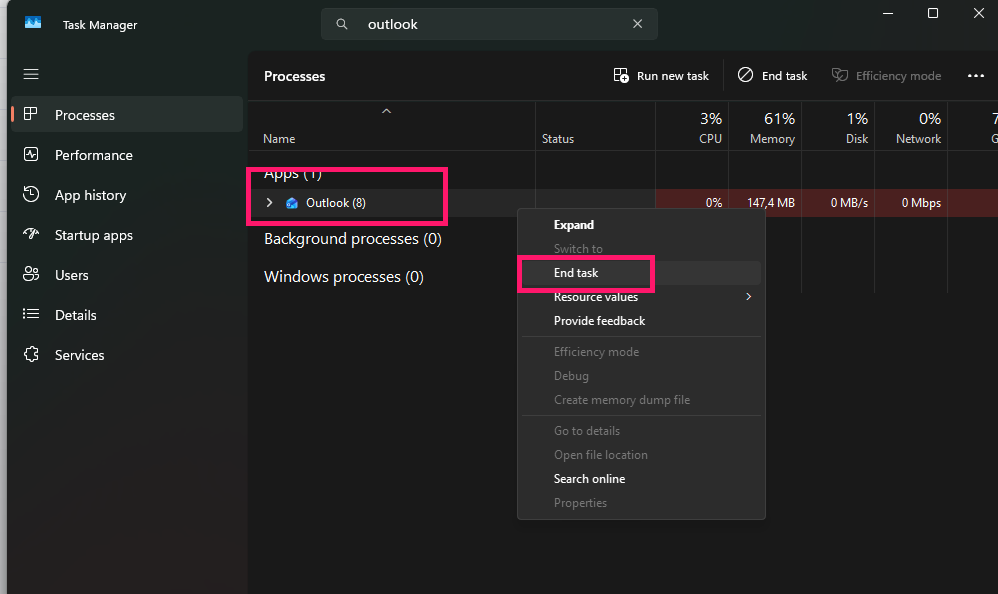
To do the same remotely, use the Get-Process and Stop-Process commands from the quick fix above. If Outlook hangs again on the next launch, the process wasn’t the cause, so move on to the next check.
With Robin by Atera: Working out which part of Outlook failed is the first job Robin takes over for routine end-user cases. Robin detects which Outlook subsystem has failed and executes the corresponding native repair, so a technician doesn’t need a remote support session to check processes and read crash events first.
New Outlook won’t open
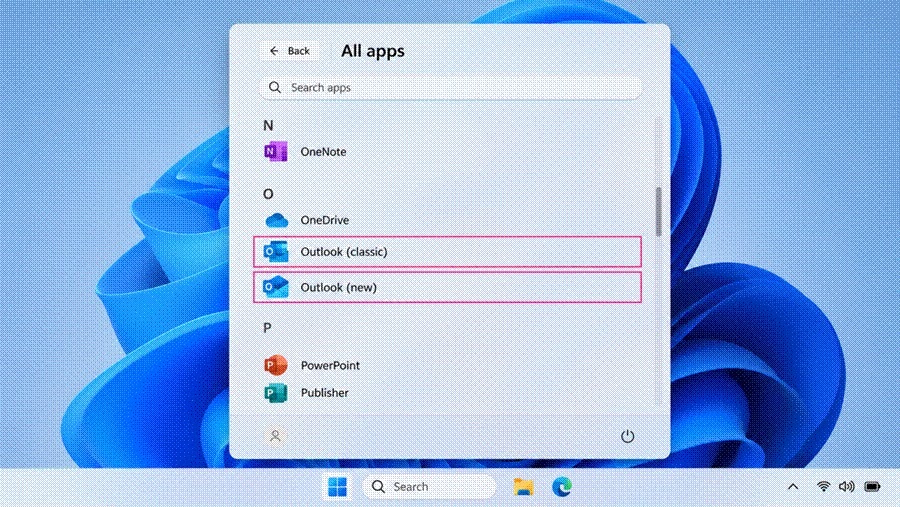
New Outlook is a separate app from classic Outlook. The classic add-in, profile, and data file fixes don’t apply to it, so confirm which one the user is launching before you go any further.
Open Start > All apps and check whether the user is opening Outlook (new) or Outlook (classic).

- If it’s new Outlook, open Settings > Apps > Installed apps
- Find Outlook (new), select the three-dot menu, and select Advanced options
Under Reset, select Repair, then try to open the app again. Repair keeps the app’s data
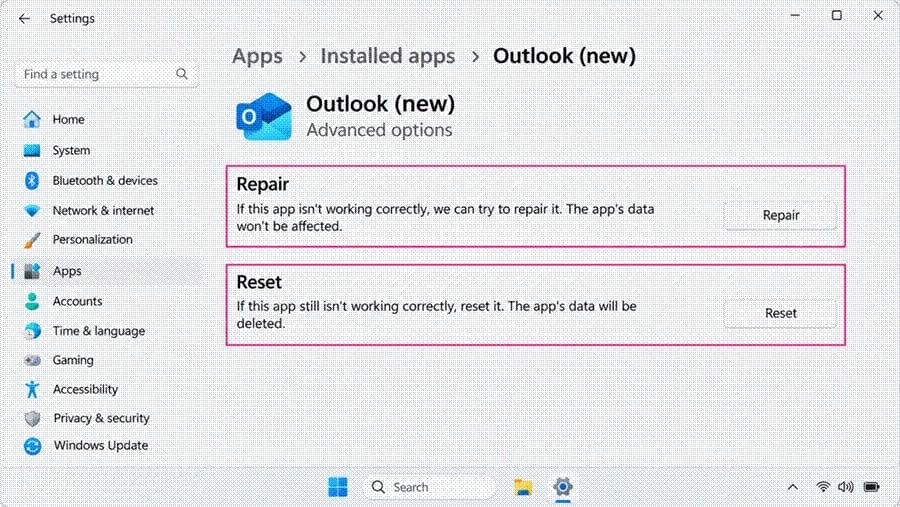
If new Outlook still won’t open, return to Advanced options and select Reset. Be sure to warn the user first, since a reset clears the app’s local data, so they may need to add their account again
If neither works, check Microsoft 365 service health and whether the mailbox opens in Outlook on the web before reinstalling. Reinstall new Outlook only through your organization’s approved deployment method.
When a user needs classic Outlook instead: If classic Outlook is installed and licensed, the user can open Outlook (classic) from Start. When new Outlook is working, a toggle appears at the top right of the window, and its Switch back to classic Outlook option returns the user to classic Outlook, which then opens on every launch after that. Not every build or tenant shows the toggle, so don’t rely on it alone.
To stop users switching to new Outlook before you’re ready, use Microsoft’s cloud policy:
- Sign in to the Microsoft 365 Apps admin center
- Under Customization, select Policy Management, then select Create
Search for the Hide the "Try the new Outlook" toggle in Outlook policy and set it to Enabled
- Assign the policy to a pilot group first, and confirm that classic Outlook and the add-ins your business depends on work as expected before you widen the scope
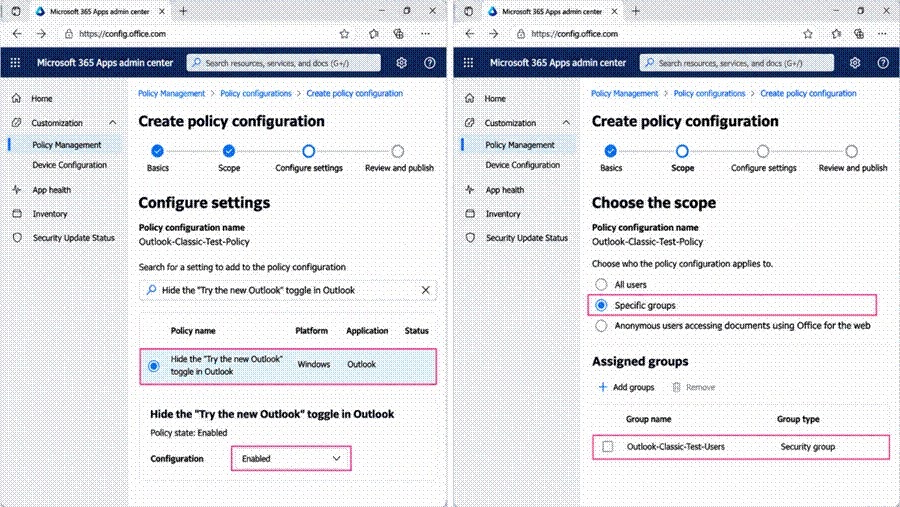
On devices you manage through the Registry editor, set HideNewOutlookToggle to 1 under HKEY_CURRENT_USER\Software\Microsoft\Office\16.0\Outlook\Options\General. Hiding the toggle only changes what users see. It doesn’t stop new Outlook from connecting to a mailbox. If you need to block that, use Set-CASMailbox -Identity <MailboxIdentity> -OneWinNativeOutlookEnabled $false in Exchange Online PowerShell. Treat it as a separate change request, because it affects mailbox access.
With Robin: When new Outlook stops opening for a single user, Robin identifies the installed application and uses the supported repair path, including Microsoft Store app reset or re-registration. It then asks the user to confirm that the app works, so the case doesn’t sit in the queue while someone works through Advanced options by hand.
Classic Outlook opens in safe mode
Safe mode starts classic Outlook without COM add-ins and several other customizations. It’s the lowest-risk test you can run. If Outlook opens in safe mode but not normally, something that loads at startup is the likely cause, and an add-in is the usual one.
- Confirm that
OUTLOOK.EXEisn’t running, using the check above - Press Windows + R, enter
outlook.exe /safe, and select OK. You can also hold Ctrl while you start classic Outlook and select Yes at the safe mode prompt - If the profile chooser appears, select the user’s profile
- Note whether Outlook opens, whether the mailbox loads, and any error text
If Outlook fails in safe mode too, it’s not an add-in problem, so go to the next section. If it opens, check whether Windows has already recorded which add-in is crashing Outlook before you start disabling add-ins one by one. You can do this remotely, without taking over the user’s session:
In a remote PowerShell session, pull the last two days of Outlook crash events from the Application log:
The Script:
Atera does not guarantee the integrity, availability, security, virus-free, safety, lawfulness, non-infringement, rights’ status, or functionality of the scripts. The use of the shared scripts is at your own risk. Scripts are provided “AS IS”. *
Get-WinEvent -FilterHashtable @{ LogName = 'Application'; StartTime = (Get-Date).AddDays(-2) } -ErrorAction SilentlyContinue |
    Where-Object { $_.ProviderName -match 'Application Error|Windows Error Reporting' -and $_.Message -match 'OUTLOOK.EXE' } |
    Select-Object -First 10 TimeCreated, Id, ProviderName, Message |
    Format-List
Script copied to clipboard
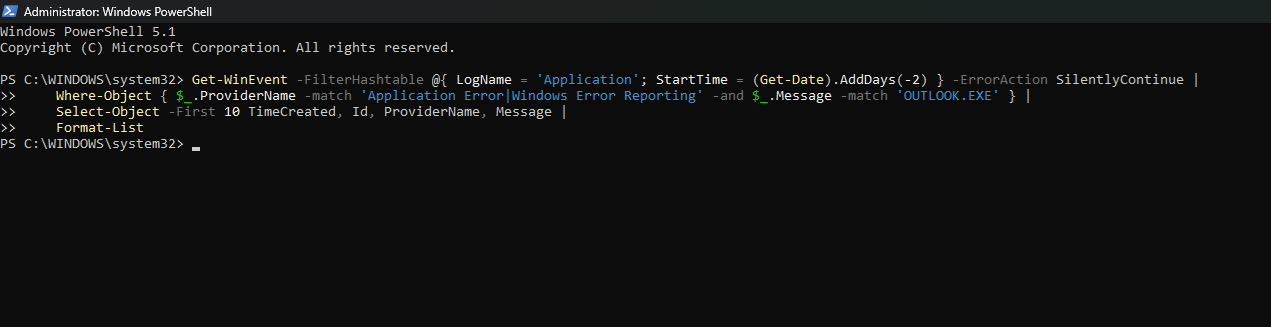
Check the Faulting module name and Faulting module path in any Application Error event (ID 1000). A module loaded from an add-in’s install folder points straight to that add-in, so test it first when you isolate add-ins below.
Then find the add-in at fault:
- In safe mode, select File > Options > Add-ins
Next to Manage, select COM Add-ins, then select Go
- Record which add-ins are enabled, and note their publishers from the Location field
Clear the checkbox for every add-in the user doesn’t need to work, then select OK
- Close Outlook and start it normally
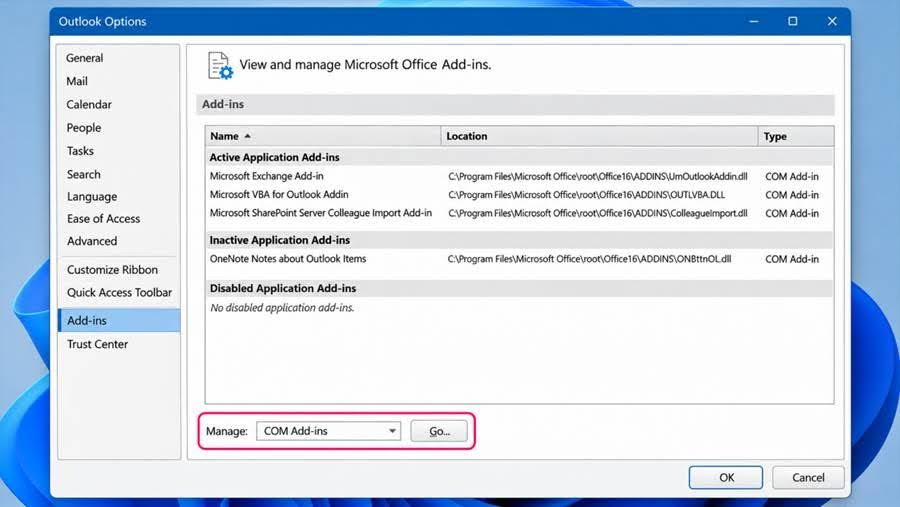
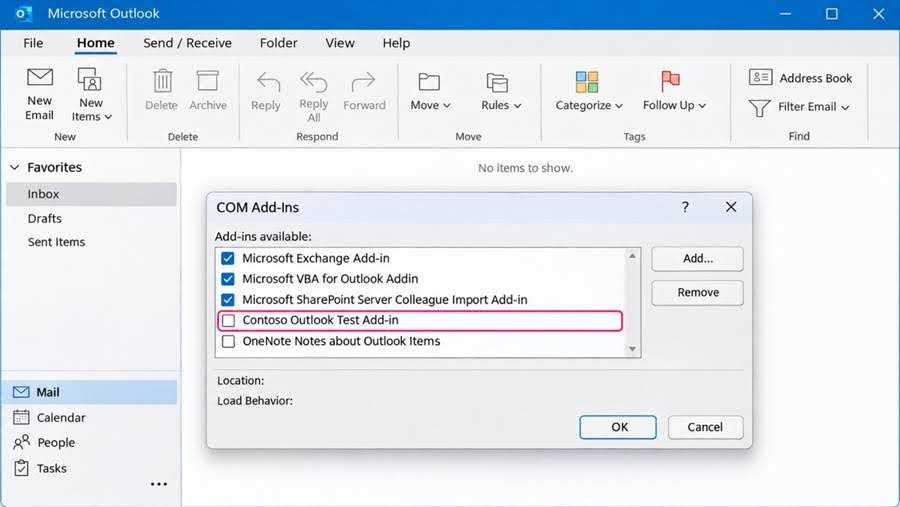
Re-enable one add-in, then restart Outlook. Start with any add-in the crash events pointed to. Repeat until the failure comes back. Before removing or updating that add-in, check its version, any recent updates, and whether a business process depends on it. Don’t disable security or compliance add-ins without approval.
Across the fleet: Once you know which add-in is at fault, control it centrally rather than device by device. In Group Policy, go to User Configuration > Policies > Administrative Templates > Microsoft Outlook 2016 > Miscellaneous and enable List of managed add-ins. In Intune, the same setting is in the settings catalog under Microsoft Outlook 2016\Miscellaneous as List of managed add-ins (User). Add each add-in by its ProgID, not its display name. To find it, check HKEY_LOCAL_MACHINE\SOFTWARE\Microsoft\Office\<application>\Addins or HKEY_CURRENT_USER\SOFTWARE\Microsoft\Office\<application>\Addins on a client where the add-in is installed. The names are case sensitive.
Then give each add-in one of these values:
0means always disabled, which blocks the faulty add-in1means always enabled, for add-ins the business can’t run without2means configurable by the user, and not blocked by Block all unmanaged add-ins when that setting is enabled
With Robin: Add-in isolation is slow because each test needs a restart and a check-in with the user. For routine cases, Robin checks and remediates supported Microsoft 365 integration points such as Outlook COM add-ins, including restoring a required add-in that has gone missing. Your technicians keep the decisions about which add-ins to block across the fleet.
» Learn how to manage group policies easier with Atera
Repair the component that failed
If Outlook got past the checks in the previous section, either it’s classic Outlook that fails in safe mode, or safe mode opened it but nothing you tried there fixed the problem. The cause is now one of four components: the Office installation, the Outlook profile, the data file, or sign-in.
Match what you’re seeing to the table below, then go straight to that subsection.
What you see | Likely component | Go to |
|---|---|---|
Word, Excel, or other Office apps also crash or show errors | Office installation | Other Office apps fail too |
"Cannot start Microsoft Outlook. Cannot open the Outlook window", or Outlook fails in safe mode while other Office apps work | Outlook profile | Outlook only fails with the user’s profile |
An error that names a | Data file | The data file is damaged |
Repeated password prompts, or a sign-in window that keeps coming back | Sign-in | Outlook keeps asking for a password |
Other Office apps fail too
When Word or Excel shows errors as well, the problem is more likely the shared Office installation than anything specific to Outlook. Office repair fixes the installation. It doesn’t fix mailbox permissions or sign-in policy, so don’t use it for a fault that only affects one mailbox.
- Run
winverand note the Windows build. If an Office app still opens, select File > Account > About and note the Office version and update channel - Close every Office app
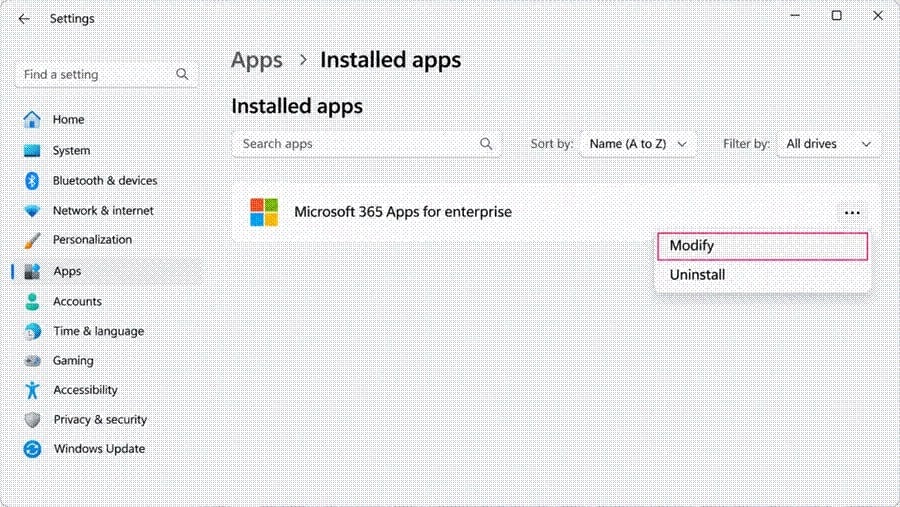
- Open Settings > Apps > Installed apps
Find your Microsoft 365 Apps entry (the name varies, for example "Microsoft 365 Apps for enterprise" or "Microsoft 365 – en-us"), select the three-dot menu, and select Modify. You may need admin approval
Select Quick Repair, then select Repair
- When the repair finishes, start Outlook normally
- If the same failure comes back, check that the device has a network connection and enough free disk space, and schedule a maintenance window with the user
- Return to Modify, select Online Repair, then select Repair
- When Online Repair finishes, sign in or reactivate Microsoft 365 Apps if prompted. Then confirm that Outlook, Word, and Excel all open
- If Online Repair fails too, record the error it shows and check the installation and update logs before you try again or reinstall
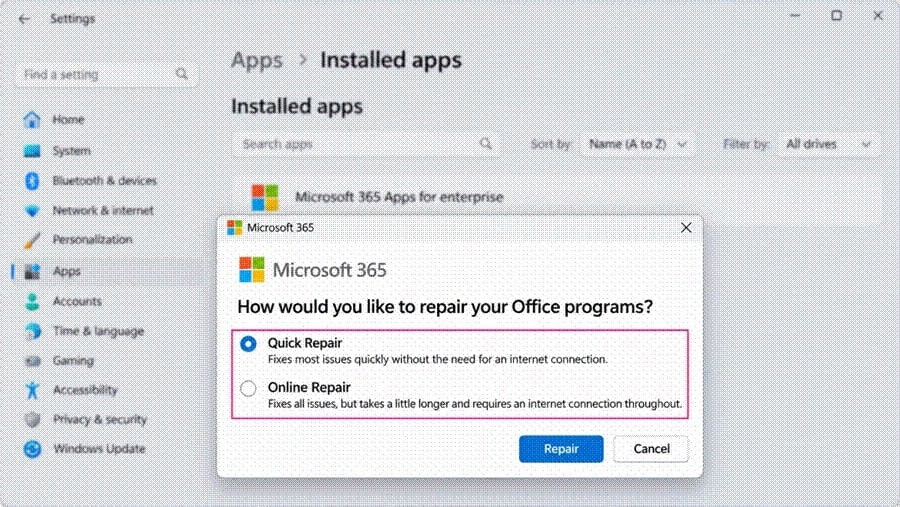
With Robin: For a single user, Robin identifies the installed application, runs the Microsoft Office repair, and asks the user to confirm that the app works.
Outlook only fails with the user’s profile
A classic Outlook profile holds the account configuration and app settings, which is separate from the Microsoft 365 mailbox. A damaged profile can stop Outlook opening even when the mailbox, the Office installation, and sign-in are all fine. Building a new profile is a test, not a reason to delete the old one.
If Outlook opens far enough to reach the account settings, try repairing the existing profile first:
- Select File > Account Settings > Account Settings
On the Email tab, select the account, then select Repair
- Follow the prompts, then restart Outlook
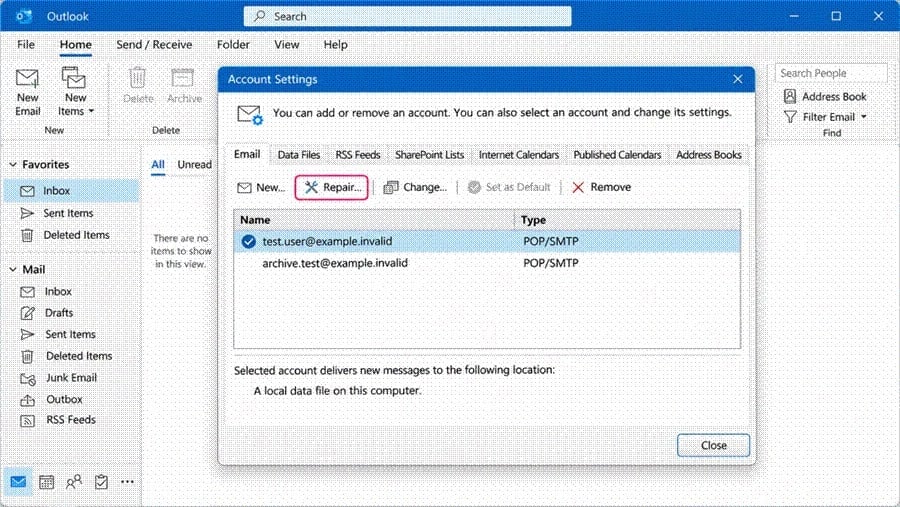
Repair isn’t available for every account type, such as if you’re using Outlook 2016 to connect to an Exchange account. If Outlook won’t open far enough, or Repair isn’t there, build a test profile instead:
- Close Outlook
- Open Control Panel > User Accounts > Mail (Microsoft Outlook), then select Show Profiles. The Mail applet only appears where classic Outlook is installed
Select Add, enter a name that marks it as a test profile, and set up the mailbox using your organization’s normal sign-in process
- Select Prompt for a profile to be used, then select OK
Start Outlook and choose the test profile
- Check sign-in, folder sync, shared mailboxes, calendars, and sending and receiving
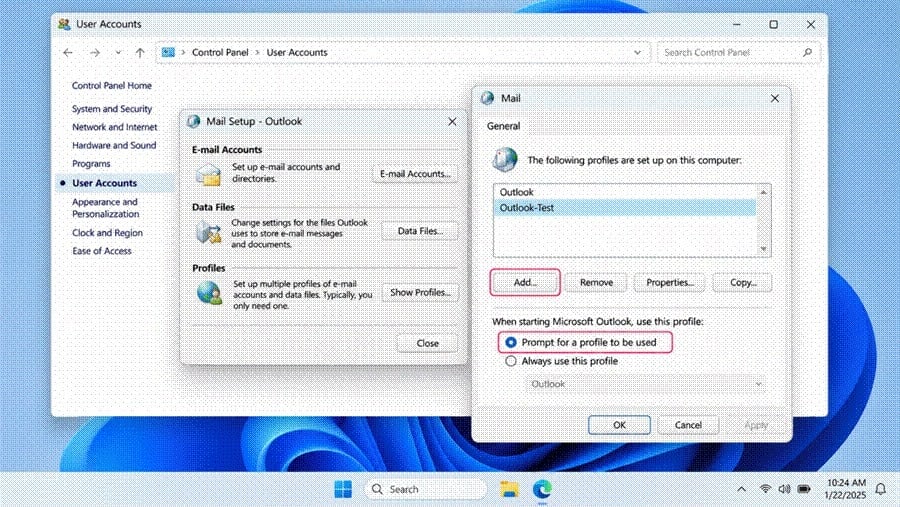
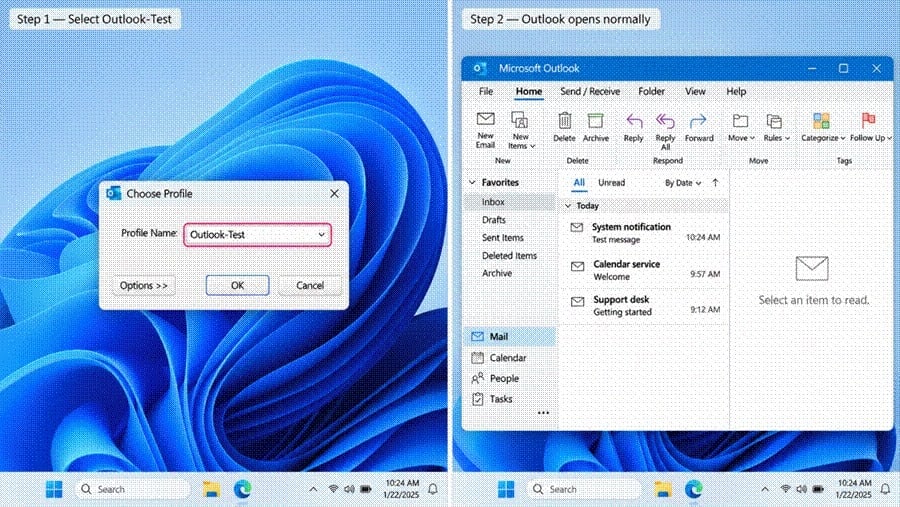
If Outlook works with the test profile, the original profile or its configuration is the cause. Before you retire the old profile, list and back up everything that won’t follow the user to the new one, including:
- Other accounts
- Local PST files
- Signatures
- Rules
- Archives
- Shared mailbox setup
The data file is damaged
PST and OST files need different decisions, so check which one you’re dealing with before you change anything. A PST may hold the only copy of archived or POP mail, while an OST is normally a synced cache of an Exchange mailbox that Outlook can rebuild from the server. Never delete an OST until you’ve confirmed that the mailbox data is on the server.
To repair a PST:
- Close classic Outlook and confirm that
OUTLOOK.EXEis no longer running - Find the file under File > Account Settings > Data Files, if Outlook opens. Otherwise, check the usual locations:
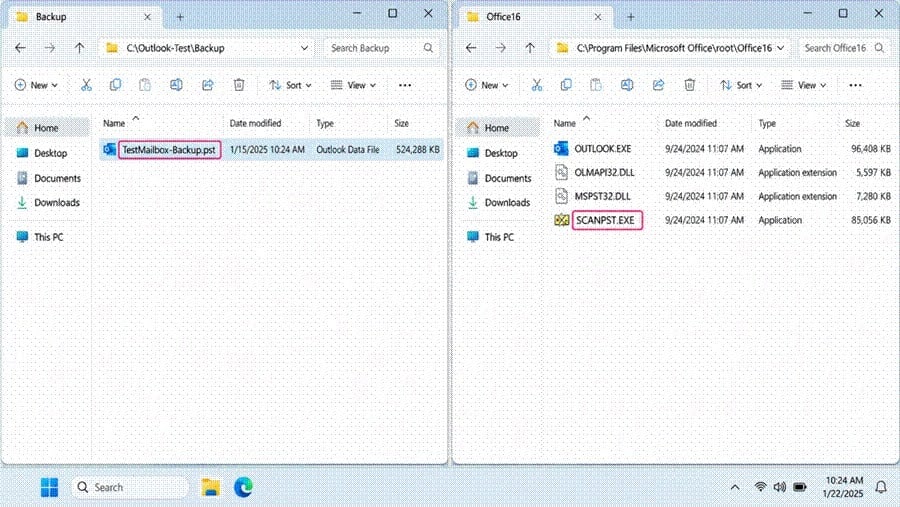
%USERPROFILE%\Documents\Outlook Filesfor PST files and%LOCALAPPDATA%\Microsoft\Outlookfor OST files. Paths can vary - Copy the PST to approved, protected storage with enough free space, and record its path and size. Never run a repair against the only copy
Find
SCANPST.EXEin the Office installation folder. On 64-bit Click-to-Run installs, that’s usuallyC:\Program Files\Microsoft Office\root\Office16\SCANPST.EXE, but confirm the path on the device- Open
SCANPST.EXE, browse to the PST, and select Start If the scan finds errors, select Make backup of scanned file before repairing, then select Repair
- Open Outlook and check folder access, recent messages, and archive contents, plus any Recovered or Lost and Found folders the repair created
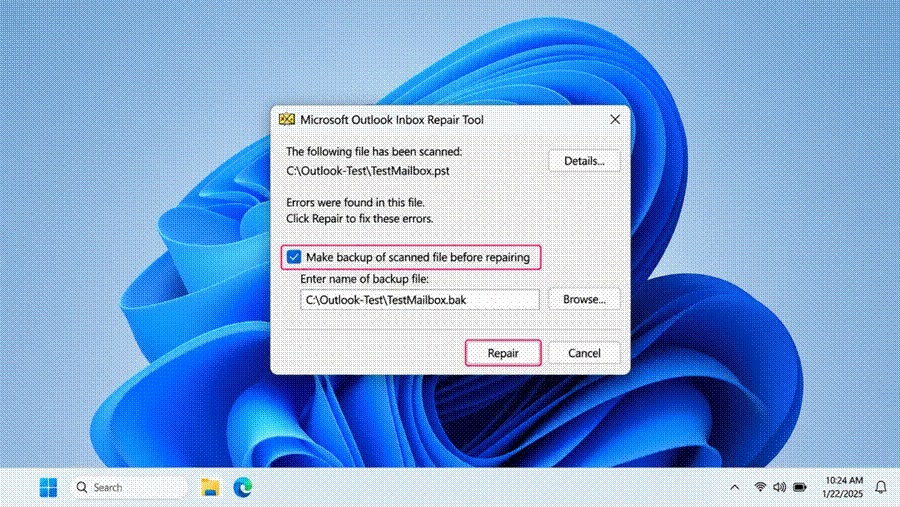
Run the scan again only if the tool reports more errors, and keep your original backup either way. A repair can discard items it can’t recover, which is why the backup comes first.
To rebuild an OST:
- Open the mailbox in Outlook on the web and confirm that the mail the user needs is there
- Check for anything that hasn’t synced from the device, such as items stuck in the Outbox or recent local changes. If anything is missing from the server, stop and investigate rather than rebuilding
- Close Outlook
Rename the OST with a unique
.oldextension rather than deleting it- Start Outlook with the user’s profile so it rebuilds the cache
- Watch the sync until it finishes, then compare folders and recent mail against Outlook on the web
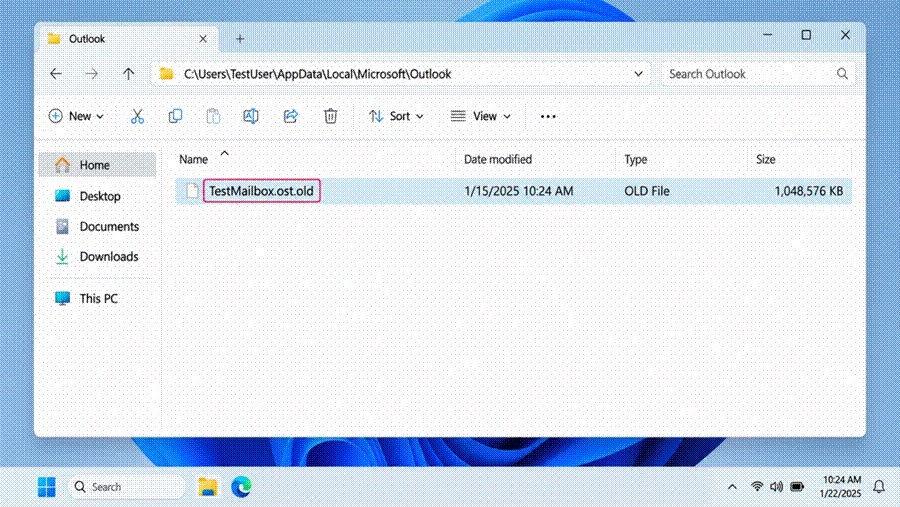
Keep the renamed OST until the rebuild is confirmed and your retention policy allows you to delete it. SCANPST doesn’t touch the Exchange Online mailbox, and a large mailbox can take a long time to download again.
Where Robin stops and your technicians start: Deleting profiles, repairing PSTs, and rebuilding an OST that might hold unsynced mail are decisions about the user’s data, and they stay with your technicians. Robin’s Outlook use cases cover detecting which Outlook subsystem failed and running the native repair, repairing the Office installation, clearing stale credentials, and remediating Outlook add-ins. Taking those routine cases off the queue gives your team time for the decisions above.
But Atera can still help you run those fixes remotely at scale. For example, here’s a script you can deploy remotely through Atera’s RMM platform that renames one specific, approved OST. It doesn’t find or delete files on its own.
The Script:
Atera does not guarantee the integrity, availability, security, virus-free, safety, lawfulness, non-infringement, rights’ status, or functionality of the scripts. The use of the shared scripts is at your own risk. Scripts are provided “AS IS”. *
$OstPath = Join-Path $env:LOCALAPPDATA 'Microsoft\Outlook\TEST-MAILBOX.ost'
if (Get-Process OUTLOOK -ErrorAction SilentlyContinue) { throw 'Close Outlook before proceeding.' }
if (-not (Test-Path -LiteralPath $OstPath)) { throw 'Approved OST not found.' }
Rename-Item -LiteralPath $OstPath -NewName ((Split-Path $OstPath -Leaf) + '.old-' + (Get-Date -Format 'yyyyMMddHHmmss')) -WhatIf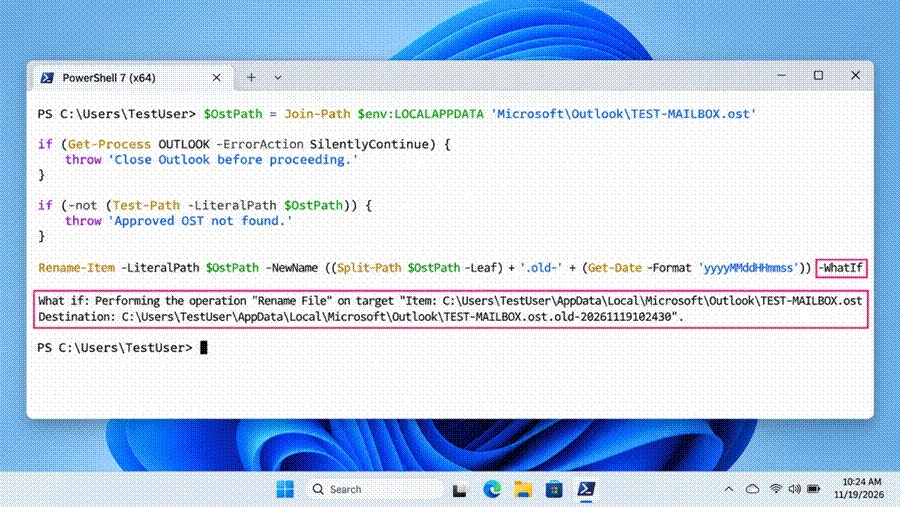
Replace TEST-MAILBOX.ost with the real file name. Remove -WhatIf only after you’ve confirmed the exact file, checked that the mailbox has synced, gotten approval, and scheduled the change with the user.
When you run it in Atera, select Run as current user so it works on the signed-in user’s own Outlook folder, then target the selected devices or device groups that need the rebuild.
Pro tip: If you need a variation on this script, such as a read-only version that lists every OST and PST on each device with its size and last-modified date before you decide what to rebuild, AI Copilot can generate it from a plain-language description. Review and test any generated script on a pilot device before you run it across your fleet.
Outlook keeps asking for a password
Repeated sign-in prompts don’t always mean a wrong password. Expired tokens, a broken Windows sign-in path, a damaged profile, or a new Conditional Access or MFA requirement can all cause them. Find out whether the problem is on the device or in the tenant before you change anything by following these steps:
- Ask the user to sign in to Outlook on the web and one other Microsoft 365 app. Record the exact prompt and any error or correlation ID
In the Microsoft Entra admin center, go to Monitoring & health > Sign-in logs, and find the user’s recent failed attempts
- Check the failure reason, the Conditional Access result, the device compliance state, and the MFA requirement. Confirm whether the failed attempt came from classic Outlook, new Outlook, or a browser
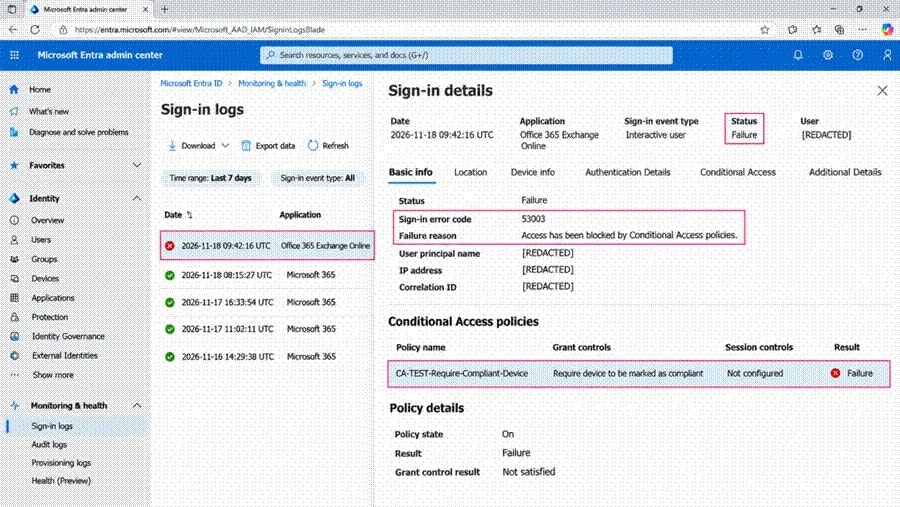
If the sign-in logs show a Conditional Access block, a non-compliant device, a disabled account, or an MFA registration problem, the fault is in the tenant. Fix it through your identity team’s normal process. No local repair will override the policy. A failure that’s consistent across devices, with matching sign-in log entries, points the same way.
If Outlook on the web and other devices sign in fine but this one keeps prompting, the fault is on the device. Follow these steps:
- Open Settings > Accounts > Access work or school and check that the expected work account is connected. Don’t disconnect a managed device just to test Outlook
- Open Credential Manager > Windows Credentials and look for old Office or Outlook entries, such as those beginning with
MicrosoftOffice16_Data - Record the names of the entries you plan to remove, confirm that removing them is approved, then remove only those. Leave Windows, VPN, and other application credentials alone
- Restart Outlook and sign in once
If the prompts continue, check whether they happen with a new Outlook profile or a fresh Windows profile, to narrow the problem down to one user’s profile state. Then check the Web Account Manager and Microsoft 365 broker errors in the Windows event logs. Don’t delete the AAD BrokerPlugin package or token folders as a first fix, since that can break Windows sign-in and other apps on the device.
The fix is confirmed when the user signs in once and Outlook stops prompting on every launch after that.
With Robin: When stale sign-in data is causing repeated prompts, Robin can remove cached Office, Outlook, Teams, ADAL, or OneDrive credentials, so the user doesn’t wait for a technician to go through Credential Manager. When the cause might be the account itself, Robin checks account status, failed sign-ins, password policy, and group membership. It returns what it finds and identifies the supported recovery or escalation path.
Take routine Outlook repairs off the ticket queue
Outlook not opening is a symptom, not a diagnosis. The time that goes into fixing it manually is spent working out whether an add-in, the Office installation, the profile, the data file, or sign-in failed, and the risk comes from fixing the wrong one. Start with the checks that change nothing, repair only the component that failed, and protect anything that exists only on the device before you rebuild.
Robin by Atera can take the routine part of that work off your plate. It detects which Outlook subsystem has failed and executes the corresponding native repair, clears stale Microsoft credentials and remediates Outlook add-ins when they’re behind the failure. Across Atera customers, Robin delivers up to 92% autonomous resolution of Tier-1 and complex Tier-2 technical incidents, so your team keeps its time for profile, data file, and tenant decisions. Robin is sold separately as an add-on to the Atera IT suite.
» Interested? Try Atera for free or request a Robin demo
Frequently Asked Questions
Related Articles

How to fix Microsoft Teams camera not working
From a frozen preview before a call to a camera button greyed out across the whole tenant: a quick fix, five numbered methods, and two edge cases for Windows and Mac.
Read now
How to fix a slow laptop and find the real bottleneck
One "my laptop is slow" ticket can hide five different problems: a pinned CPU, memory paging to disk, a failing drive, heat or power throttling, or a startup list that's grown with every install. Cleanup tools and reboots treat them all the same. The real fix starts with reading what Windows reports, finding the one resource that's struggling, and fixing that.
Read now
How to fix Wi-Fi that is connected but has no internet
Wi-Fi says connected but nothing loads. This guide shows IT teams how to find the failing layer in four quick tests, then fix it with different methods for Windows, macOS, and Linux.
Read now
How to fix Zoom camera not working
Zoom camera not working? This guide gives IT teams a quick fix to try first, then five numbered methods and three edge cases for Windows and Mac, from one laptop before a meeting to a whole fleet.
Read nowEndless IT possibilities
Boost your productivity with Atera’s intuitive, centralized all-in-one platform