
Table of contents
Table of contents
- Quick fix: refresh the address and DNS cache
- What this takes by hand, and what Robin by Atera takes off your plate
- Before you start: find the layer that failed
- Method 1: Renew the IP address
- Method 2: Fix DNS
- Method 3: Reset the network stack
- Method 4: Diagnose a site-wide outage remotely
- Common problems and edge cases
- Hand routine Wi-Fi tickets to Robin
A Wi-Fi icon with full bars proves one thing: the device reached the access point. It doesn’t prove the device got a usable IP address, can reach its gateway, or can turn a domain name into an address. Any of those can fail while the connection still looks healthy, and so can a proxy, a VPN, or a captive portal sitting in the middle.
That’s why "connected but no internet" tickets eat so much time. Technicians reset adapters before they know which layer broke, and the reset either does nothing or knocks out the remote session they were using. This guide starts with four tests that point to the broken layer. Then it walks through four methods, ordered from least to most disruptive, each with steps for Windows, macOS, and Linux.
This guide covers Windows 11, macOS, and Linux with NetworkManager.
Quick fix: refresh the address and DNS cache
Most single-device cases clear up with two quick steps: get a fresh IP address, then clear the DNS cache. It takes under a minute and doesn’t change any custom settings. The first step drops the connection for a moment, so do this on site or where you have another way back in.
Follow the steps for your operating system, then open a website. If it loads, you’re done. If not, run the four tests in the next section.
Windows 11
- Open PowerShell as administrator
- Release the current IP address:
ipconfig /release - Request a new one:
ipconfig /renew - Clear the DNS cache:
Clear-DnsClientCache
macOS
- Open Terminal
- Find your Wi-Fi interface name (usually
en0):networksetup -listallhardwareports - Request a new IP address:
sudo ipconfig set en0 DHCP - Clear the DNS cache:
sudo dscacheutil -flushcache - Restart the DNS responder:
sudo killall -HUP mDNSResponder
Linux
- Open Terminal
- Take the connection down:
sudo nmcli connection down "<connection-name>" - Bring it back up to get a new IP address:
sudo nmcli connection up "<connection-name>" - If systemd-resolved is running, clear the DNS cache:
sudo resolvectl flush-caches
What this takes by hand, and what Robin by Atera takes off your plate
The rest of this guide is the manual route. Here’s what each stage takes by hand, next to what Robin by Atera does for routine end-user cases.
Stage | By hand | With Robin by Atera |
|---|---|---|
Take the report | Open a ticket, then remote in or talk the user through commands | The employee starts the conversation from the service portal, email, Slack, Microsoft Teams, or WhatsApp |
Find the failing layer | Run the four tests on that OS and read each result | Robin isolates whether the problem sits with the device, the adapter, DNS, or a proxy |
Apply the fix | Pick the right command for that OS and that failure, then retest | Robin executes the targeted fix |
Hand off what’s left | Write up the findings and route them to the network team | Robin gathers the unresolved issue and diagnostic context, then follows the configured routing workflow |
Before you start: find the layer that failed
Run these four tests in order. The first one that fails tells you which method to use. None of them change any settings, so they’re safe over a remote support session.
Test | Windows (Command Prompt) | macOS (Terminal) | Linux (NetworkManager) |
|---|---|---|---|
1. Valid IP address |
|
|
|
2. Gateway reachable |
|
|
|
3. Outside IP reachable |
|
|
|
4. Names resolve |
|
|
|
On macOS, run networksetup -listallhardwareports first, because en0 won’t always be the Wi-Fi interface.
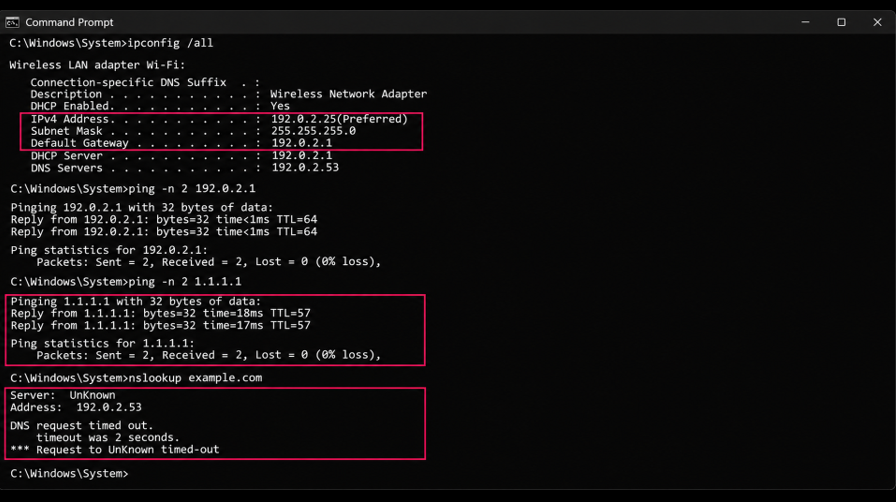
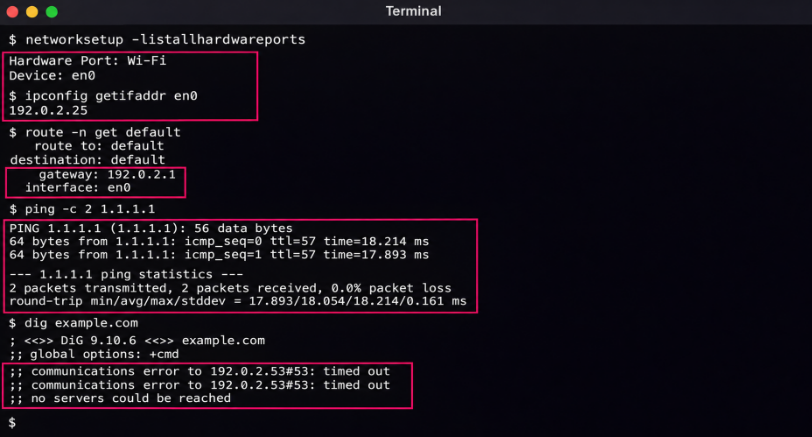
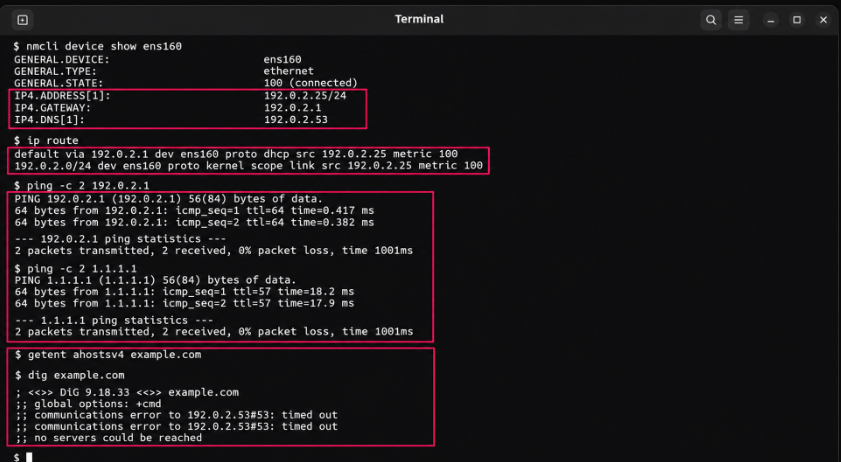
Here’s what the four tests look like on each OS. In these examples, the lookup fails, which points to DNS (Method 2).
Windows 11
macOS
Linux
Now pick your method:
- No IP address, or one starting with 169.254: Method 1.
- Outside IPs work, but names don’t resolve: Method 2.
- Only this device fails, and Methods 1 and 2 didn’t help: check the common problems section, then Method 3.
- Several devices fail at the same test: Method 4.
- All four tests pass, but sites and apps still fail: see the proxy, VPN, and captive portal case under common problems.
- Windows says "No internet, secured" but browsing works: see the first case under common problems.
One caution: many networks block ping. Before you call it an outage, confirm with a TCP test such as Test-NetConnection 1.1.1.1 -Port 443.
On macOS and Linux, use nc -vz 1.1.1.1 443 instead.
» Need a refresher on the switches? See our guide to ipconfig commands
Method 1: Renew the IP address
Use this when: test 1 fails, so the device has no address, or one that starts with 169.254.
DHCP gives the device its address, gateway, and usually its DNS servers. A 169.254 address is a link-local address: the device asked for a lease and nobody answered. Before you renew, confirm the adapter is meant to use DHCP rather than a static address, and note its current settings. Releasing an address can also cut off the remote session you’re working in, so keep a second way back in.
Windows 11
- Open Command Prompt as administrator
- Run
ipconfig /allto record the current settings - Run
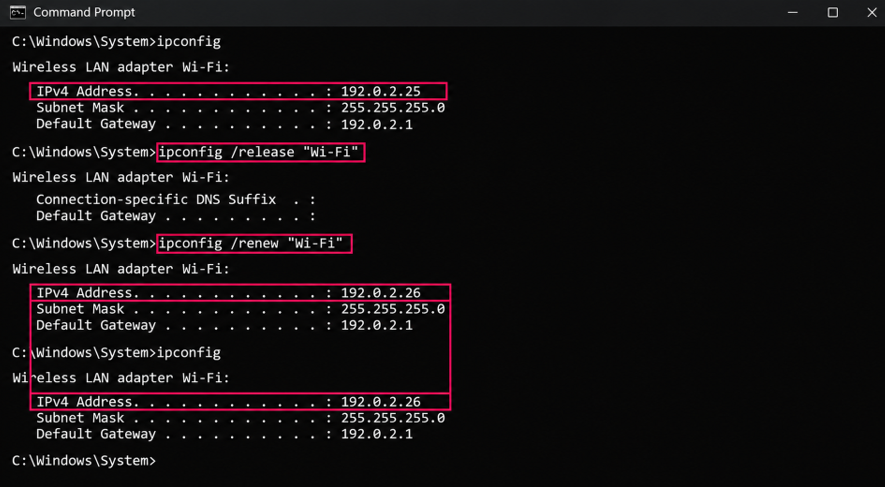
ipconfig /release, thenipconfig /renew. On a machine with several adapters, name one, for exampleipconfig /renew "Wi-Fi" - Run
ipconfig /allagain and check the new address, gateway, and DNS servers
macOS
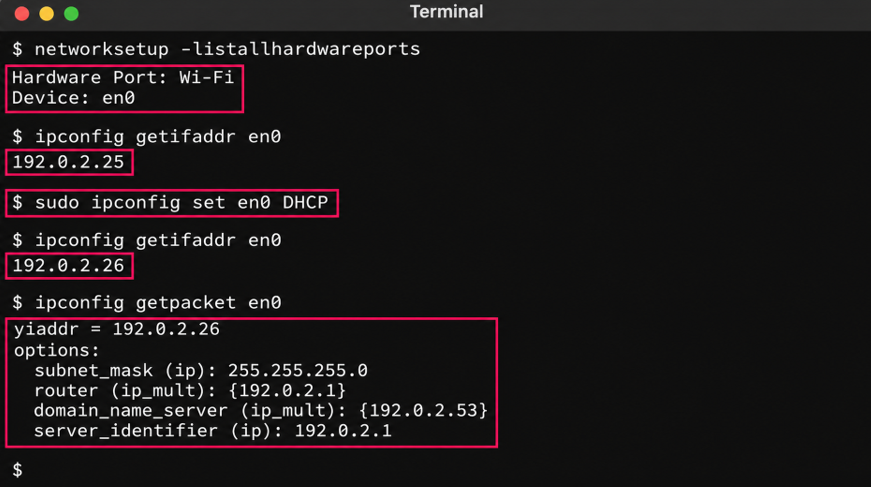
- Find the interface with
networksetup -listallhardwareports - Renew the lease with
sudo ipconfig set en0 DHCP, using your interface name - Check the result with
ipconfig getifaddr en0andipconfig getpacket en0
In our test, the Mac moved from 192.0.2.25 to 192.0.2.26 and showed the new lease details. On managed Macs, check for configuration profiles before you change addressing.
Linux
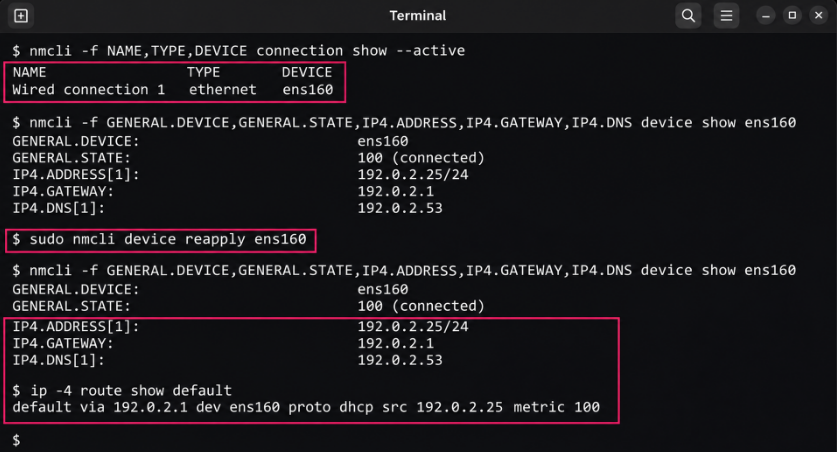
- Find the active connection with
nmcli connection show --active - Try the gentle option first:
sudo nmcli device reapply <interface>, then check withnmcli device show <interface> - If the address is still wrong, bounce the connection with
sudo nmcli connection down "<connection-name>"andsudo nmcli connection up "<connection-name>". This drops the link, including SSH, so only do it with console access ready
Still no valid address? The DHCP server, the VLAN, or a full DHCP scope is the likely cause. If several devices show the same thing, go to Method 4
With Robin by Atera: An employee usually doesn’t know what a lease is. They just know nothing loads. Robin isolates whether the problem sits with the device, the adapter, DNS, or a proxy and executes the targeted fix, so your technician doesn’t need to open a remote session and read through ipconfig output.
Method 2: Fix DNS
Use this when: 1.1.1.1 replies but names don’t resolve.
Prove it’s DNS before you change anything. If a lookup fails through the configured server but works through an approved alternative, the problem is the configured server or the path to it. Then fix the resolver setting, not just the symptom.
Windows 11
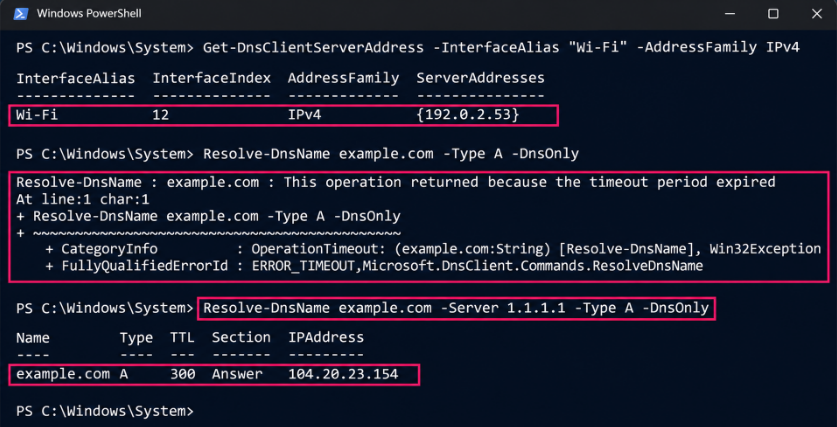
- In PowerShell, see which servers the adapter uses:
Get-DnsClientServerAddress -AddressFamily IPv4 - Compare a normal lookup with one sent to a known resolver:
Resolve-DnsName example.com, thenResolve-DnsName example.com -Server 1.1.1.1 - If cached records may be stale, run
Clear-DnsClientCacheand test again - If the server setting is wrong, set approved servers in an elevated session:
Set-DnsClientServerAddress -InterfaceAlias "Wi-Fi" -ServerAddresses ("<approved-DNS-1>","<approved-DNS-2>"). To go back to DHCP’s servers, add-ResetServerAddressesinstead
In our test, the configured server timed out while 1.1.1.1 answered.
macOS
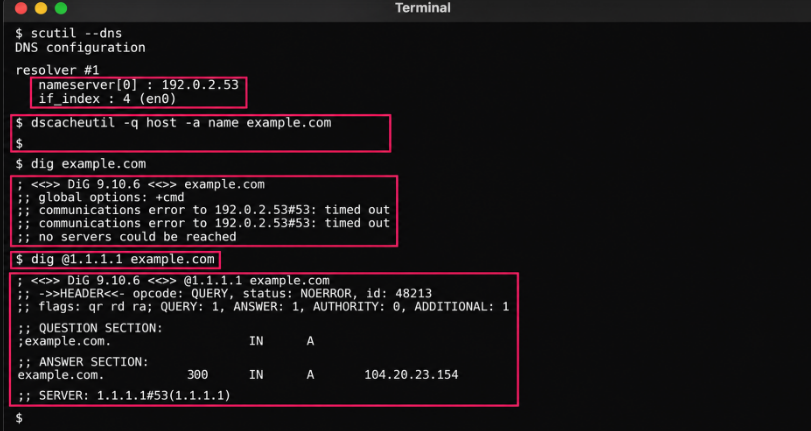
- List every resolver, including ones a VPN adds:
scutil --dns - Test the path apps use,
dscacheutil -q host -a name example.com, then query servers directly withdig example.comanddig @1.1.1.1 example.com - Clear the cache:
sudo dscacheutil -flushcache, thensudo killall -HUP mDNSResponder - If the servers are wrong, find the service with
networksetup -listallnetworkservices, then runsudo networksetup -setdnsservers "Wi-Fi" <approved-DNS-1> <approved-DNS-2>. UseEmptyin place of the addresses to go back to automatic DNS
Linux
- Check the resolver setup:
nmcli device show,cat /etc/resolv.conf, andsystemctl is-active systemd-resolved - Compare
getent ahostsv4 example.com(the system path) withdig example.com(a direct query).digcomes the bind-utils package on RHEL-style systems and the dnsutils package on Debian and Ubuntu - If systemd-resolved is active, clear its cache with
sudo resolvectl flush-caches. Linux has no single flush command, and without a local cache there’s nothing to flush - To change servers:
sudo nmcli connection modify "<connection-name>" ipv4.dns "<approved-DNS-1> <approved-DNS-2>" ipv4.ignore-auto-dns yes, thensudo nmcli device reapply <interface>
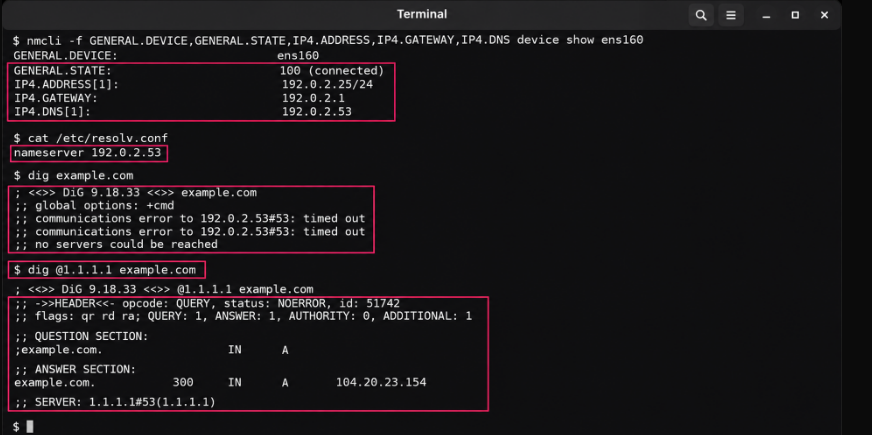
Two things to keep in mind: A public resolver such as 1.1.1.1 can’t resolve Active Directory or private app names, so don’t leave one on a domain-joined machine. And a cache flush won’t revive a DNS server that’s down. If many devices fail lookups at once, go to Method 4.
With Robin: When an employee can reach the network but can’t open a single site, Robin isolates whether DNS is the failing point and executes the targeted fix. Problems with the DNS server itself stay with your network team.
» For the errors users see on screen, read our guide to common DNS errors and how to fix them
Method 3: Reset the network stack
Use this when: the fault stays on one device, Methods 1 and 2 didn’t help, and something points to damaged network settings, such as leftovers from a removed VPN client. If a proxy, VPN, or single-device setting could be to blame, check the common problems section first.
This is the most disruptive fix in the guide. A reset won’t help with a full DHCP scope, a dead DNS server, or a failed internet link, because those problems sit on the network. Record the current settings first, and never reset a remote device without a tested way back in.
Windows 11
- Open Command Prompt as administrator
- Run
netsh winsock resetto rebuild the Winsock catalog that apps use to connect - Run
netsh int ip resetto rewrite the TCP/IP settings. This can wipe custom configuration. - Restart the device
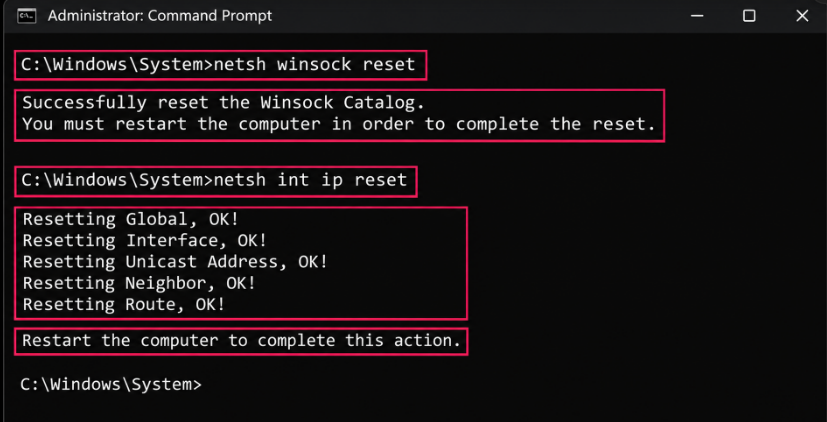
If that fails, go to Settings > Network & internet > Advanced network settings > Network reset. It reinstalls every network adapter, so expect to set up VPN clients, virtual switches, and static addresses again afterward.
» More options in our guides to resetting Windows network settings and resetting network adapters in Windows 11
macOS
macOS has no single reset, so recreate the network service instead.
- Note the service’s TCP/IP, DNS, and proxy settings
- Open System Settings > Network, Control-click the affected service, and select Delete Service
- Use the Action menu > Add Service to recreate it
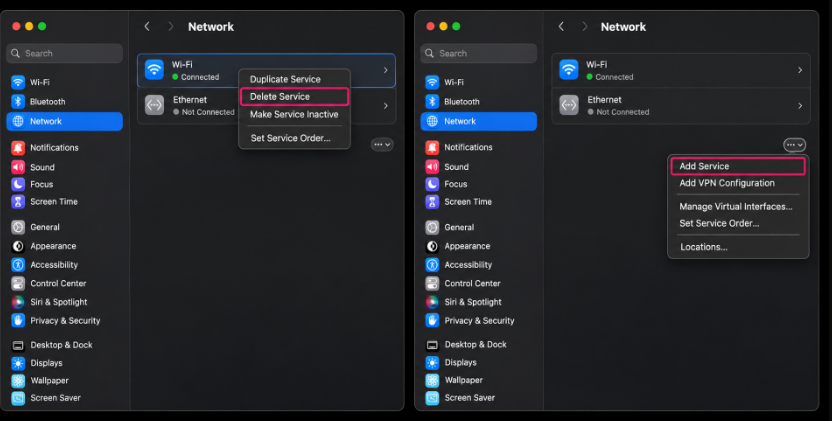
This won’t clear VPN extensions or security filters, and a managed profile may push the old settings straight back.
Linux
- Check the service and connection:
systemctl status NetworkManager --no-pagerandnmcli connection show --active - Reapply the profile:
sudo nmcli device reapply <interface> - Only if NetworkManager itself is misbehaving, run
sudo systemctl restart NetworkManager. This drops every connection, SSH included
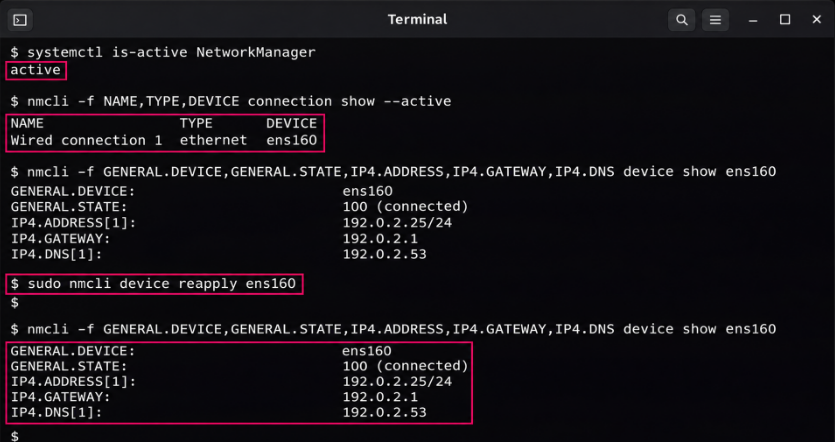
After any reset, rerun the four tests. Then check that the VPN, remote management, and business apps still work.
Method 4: Diagnose a site-wide outage remotely
Use this when: several users report the problem at once, or several devices fail at the same test.
The handoff point between Robin and your team: Robin’s network use case isolates whether the problem sits with the device, the adapter, DNS, or a proxy, then executes the targeted fix. That is how single-device tickets like those in Methods 1 and 2, and the proxy case under common problems, can stay out of your queue.
A site-wide outage is a different job. A full DHCP scope, a failed DNS forwarder, a dropped WAN link, or a VLAN mapping error needs someone with access to the network and the judgment to change it. That’s where your technicians come in, and with Robin clearing the single-device tickets, they have the time for it.
Step 1: Scope the outage
Ask three questions before touching any device. Are the affected devices on the same access point, VLAN, or building? Are wired devices down too? Did it all start at the same time? Then match the pattern:
- No address or 169.254.x.x: DHCP. Check free leases in the scope, server health, and relay settings. Devices that already hold a lease keep working until they renew, so only new arrivals fail at first.
- Gateway replies, outside IPs don’t: The upstream link. Check the firewall, WAN link, routing, NAT, and failover.
- Outside IPs work, names don’t resolve: DNS infrastructure. Check the DNS servers and forwarders. A failed forwarder can look like a full outage.
- Only Wi-Fi clients fail: The wireless side. Check the access points, controller, SSID-to-VLAN mapping, and authentication.
Step 2: Collect the same data from every device
Don’t ask users to run commands. Push a read-only script from your RMM to a sample of devices in affected and unaffected areas. This one collects addressing, DHCP status, the default route, gateway and outside reachability (ping and TCP 443), and a DNS lookup. It changes nothing:
The Script:
Atera does not guarantee the integrity, availability, security, virus-free, safety, lawfulness, non-infringement, rights’ status, or functionality of the scripts. The use of the shared scripts is at your own risk. Scripts are provided “AS IS”. *
$Gateway = (Get-NetRoute -DestinationPrefix '0.0.0.0/0' -ErrorAction SilentlyContinue |
    Sort-Object RouteMetric |
    Select-Object -First 1).NextHop

$Results = [ordered]@{
    Timestamp = Get-Date
    ComputerName = $env:COMPUTERNAME
    IPConfiguration = Get-NetIPConfiguration | Select-Object InterfaceAlias, Ipv4Address, Ipv4DefaultGateway, DNSServer
    DHCP = Get-NetIPInterface -AddressFamily Ipv4 | Select-Object InterfaceAlias, Dhcp, ConnectionState
    DefaultRoute = Get-NetRoute -DestinationPrefix '0.0.0.0/0' -ErrorAction SilentlyContinue
    GatewayICMPReachable = if ($Gateway) { Test-Connection -ComputerName $Gateway -Count 1 -Quiet -ErrorAction SilentlyContinue } else { $false }
    ExternalICMPReachable = Test-NetConnection 1.1.1.1 -InformationLevel Quiet
    ExternalTCP443Reachable = Test-NetConnection 1.1.1.1 -Port 443 -InformationLevel Quiet
    DNSResolution = try { (Resolve-DnsName example.com -Type A -ErrorAction Stop).IPAddress } catch { "DNS resolution failed" }
}

$Results | ConvertTo-Json -Depth 6
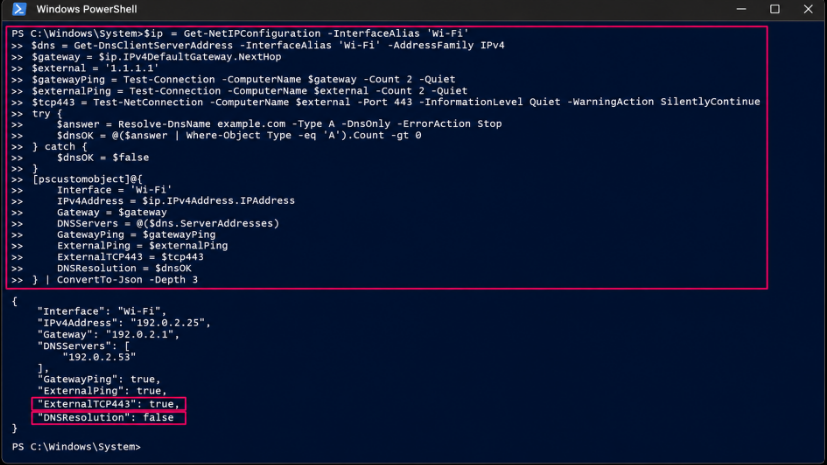
In Atera’s RMM, save it under Admin > Monitoring and Automation > Scripts and run it against the affected site’s devices. For Macs and Linux machines, run the read-only checks from the four tests instead, because the Windows script won’t run there.
Pro tip: Need a macOS version of the script? Describe it in plain language and AI Copilot writes it for you.
Step 3: Read the results and escalate
Look across devices, not at each one. Ten devices on one VLAN with valid leases that reach the gateway but not 1.1.1.1 point to the upstream path. The same devices reaching 1.1.1.1 but failing lookups point to DNS. Failures on one access point point to that AP. Send the network team the scope, timestamps, test results, and the point where things fail.
Don’t mass-reset devices. If the cause is a full DHCP scope or a dead WAN link, resetting fifty laptops creates fifty new problems and fixes none.
Common problems and edge cases
These three cases often look like the problems above, but the standard fixes won’t clear them. Windows may report no internet while the connection works, one device may fail while every other device is fine, or something in the path may block traffic on a healthy connection.
Windows says "No internet, secured" but the internet works
Use this when: Windows shows "No internet, secured", but browsers and apps still work.
Windows decides whether you’re online with the Network Connectivity Status Indicator (NCSI). It sends an HTTP probe to a Microsoft test page and expects one exact reply. If a proxy, firewall, or web filter blocks or rewrites that probe, the warning appears even though the connection is fine. NCSI also runs a DNS lookup of dns.msftncsi.com, so DNS filtering can trigger the same warning.
- Confirm the internet really works. In PowerShell, run
Test-NetConnection www.microsoft.com -Port 443 - Test the probe yourself:
(Invoke-WebRequest -Uri "http://www.msftconnecttest.com/connecttest.txt" -UseBasicParsing -TimeoutSec 10).Content. It should return exactlyMicrosoft Connect Test - If HTTPS works but the warning stays, check that your firewall or web gateway allows www.msftconnecttest.com over HTTP port 80 and passes the reply through unchanged. A 403 error, a proxy login page, or a redirect all break the probe
- Check proxy auto-discovery, PAC files, and proxy logins. A browser can get through an authenticated proxy that the probe can’t
- Read the NCSI log at Event Viewer > Applications and Services Logs > Microsoft > Windows > NCSI > Operational to see which probes failed
In our test, the profile showed LocalNetwork even though HTTPS worked and the probe returned the right text. That’s a false warning, not an outage.
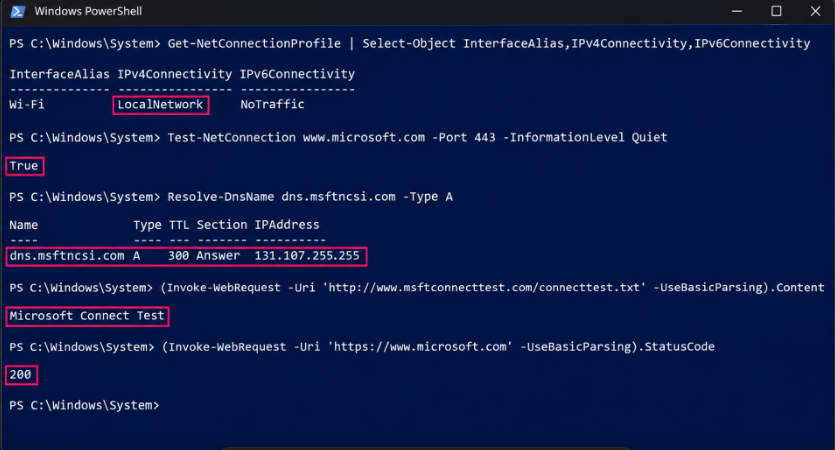
When many devices behind the same gateway show the warning, fix the gateway, proxy, or PAC file once and let the devices check again. Also make sure no Group Policy or Intune setting has turned active probing off. Don’t push a registry change just to hide the warning. Microsoft advises against disabling active probing, because Windows and apps rely on it.
Only one device can’t get online
Use this when: every other device on the same Wi-Fi or Ethernet works, and Methods 1 and 2 didn’t help.
If the network works for everyone else, the fault is on this device or in how the network treats it. Compare its address, gateway, DNS servers, and connection profile with a working device on the same VLAN. Then ask what changed recently, such as a driver update, a new VPN client, or a security policy.
Windows 11
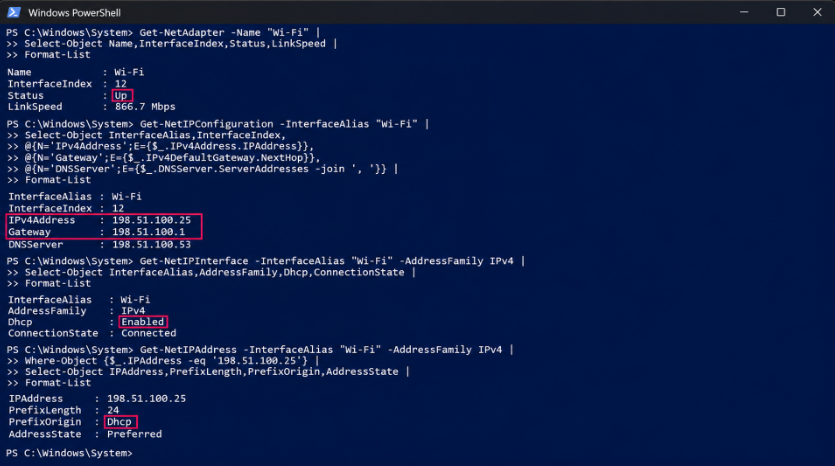
- Check the adapter and its settings:
Get-NetAdapter | Select-Object Name, Status, LinkSpeed, InterfaceDescriptionandGet-NetIPConfiguration - Confirm DHCP is on:
Get-NetAdapter | Get-NetIPInterface -AddressFamily IPv4 | Select-Object InterfaceAlias, Dhcp, ConnectionState - On Wi-Fi, read the WLAN AutoConfig operational log and note the driver version
» Here’s how to install Atera’s Windows agent
macOS
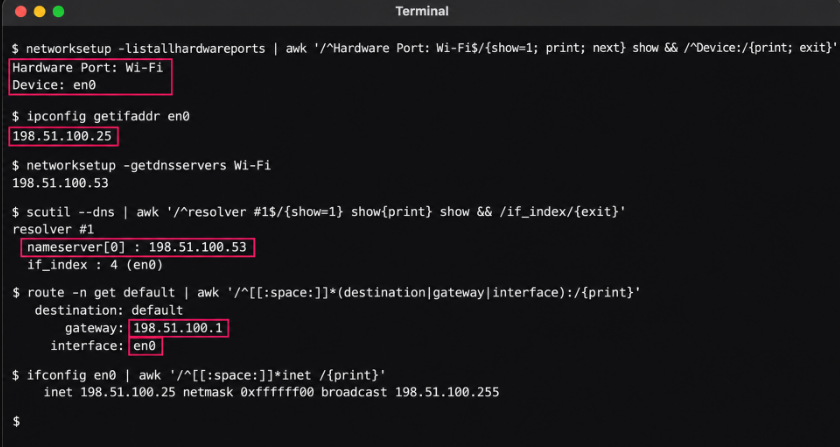
- Pull the settings to compare:
networksetup -listallhardwareports,scutil --dns, androute -n get default - Check the network service, VPN settings, and installed profiles.
- Run Apple’s Wireless Diagnostics, which checks the connection without changing it
» Here’s how to install Atera’s macOS agent
Linux
- Confirm the right profile is active and routed:
nmcli device status,nmcli connection show --active,nmcli device show, andip route - Read the NetworkManager log for DHCP, activation, or authentication errors:
sudo journalctl -u NetworkManager -b --no-pager
» Here’s how to install Atera’s Linux agent
Match the clue to the cause
- Settings differ from a working device: A leftover static IP or DNS server. Correct it.
- Intermittent drops or duplicate-address warnings: An IP conflict. Confirm it in DHCP lease records or ARP tables before you act.
- Device joins Wi-Fi but lands in the wrong VLAN: MAC filtering, a network access policy, or a failed 802.1X login. Check the controller, RADIUS logs, and certificate. On a Mac, check the clock too, because a wrong date breaks certificate checks.
- Problem started after an update or a sleep cycle: The adapter driver.
If you’re still stuck, swap things around. Put the device on another approved network. If it works there, the original network’s access rules are the problem. Then put a known-good device on the same SSID or port. If that one fails too, look at the access point, switch port, or VLAN. If the device fails everywhere, move on to Method 3.
With Robin: Two of these causes have their own Robin use cases. On supported Dell, HP, and Lenovo devices, Robin checks for driver updates and applies the supported remediation path. When a wrong clock is breaking certificate checks, it restores time sync or the correct time zone.
A proxy, VPN, or captive portal is blocking traffic
Use this when: all four tests pass, but sites and apps still won’t load.
Something between the device and the internet is stopping traffic. Before you remove it, work out whether it’s broken or doing its job:
- Stale proxy: An old proxy address, a broken PAC file, or a failed proxy login. This one is a genuine fault.
- VPN kill switch: When a full-tunnel VPN drops, an always-on policy may block all traffic on purpose. Don’t disable it. Reconnect the VPN or fix the client.
- Captive portal: Guest and hotel networks hold traffic until the user signs in. If the sign-in page never shows, open http://neverssl.com to trigger it, and check the portal is genuine before anyone enters credentials.
- Security tool or web filter: A blocked domain or an expired inspection certificate. Check the tool’s logs and recent policy changes.
Windows 11
- Check VPN profiles and the default route:
Get-VpnConnectionandGet-NetRoute -DestinationPrefix "0.0.0.0/0" - Check the system proxy with
netsh winhttp show proxy - Check the user proxy under Settings > Network & internet > Proxy
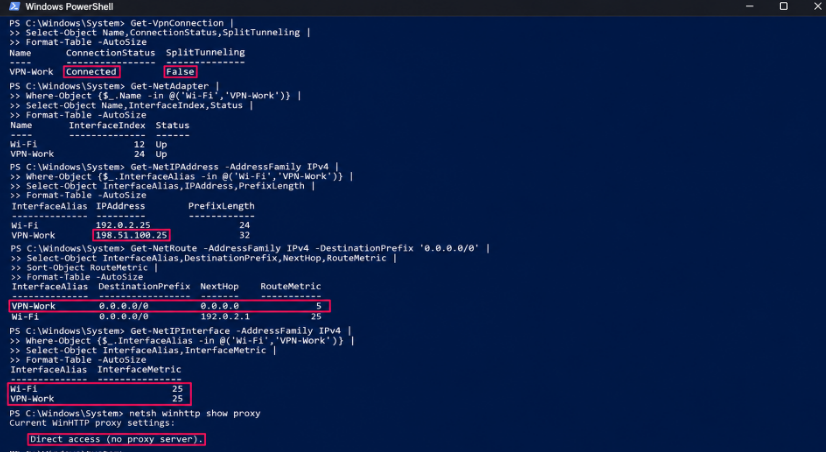
Windows keeps two proxy settings. Browsers use the one in Settings, while Windows services use WinHTTP. That’s why browsing can work while Windows Update fails. Get-VpnConnection also only lists the current user’s profiles, so check third-party VPN clients in their own apps.
macOS
- Check proxies and VPN services:
scutil --proxyandscutil --nc list - Check the route with
route -n get default - Check per-service proxies:
networksetup -getwebproxy "Wi-Fi"andnetworksetup -getsecurewebproxy "Wi-Fi" - Open System Settings > Network > VPN & Filters to see any content filters.
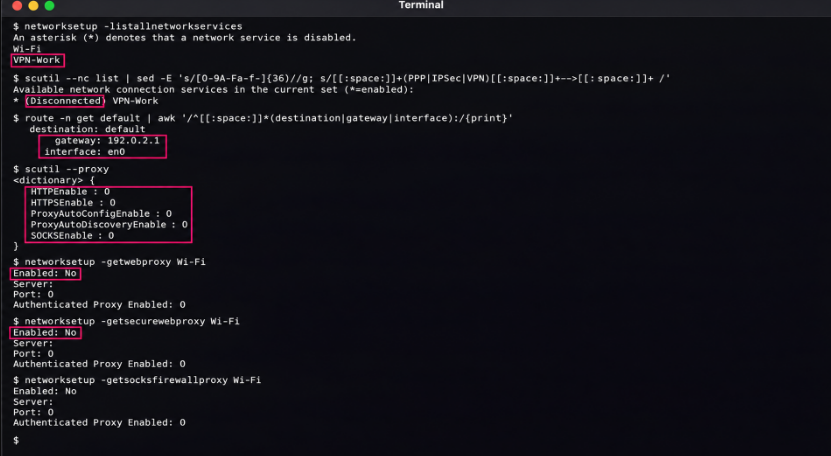
Security tools on a Mac can filter traffic on their own, whatever the Wi-Fi status says. If MDM manages the setting, change it there.
Linux
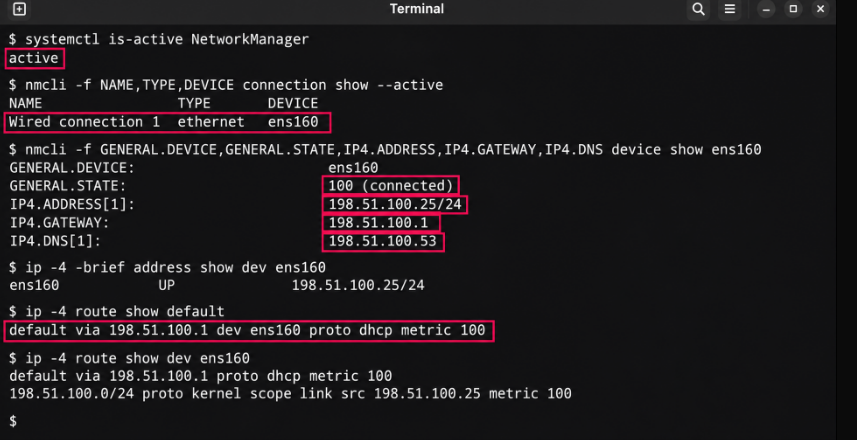
- Check the connection and routes:
nmcli connection show --activeandip route - Ask NetworkManager what it sees:
nmcli networking connectivity check. A result of "portal" points straight at a captive portal - Check proxy variables with
env | grep -i proxy
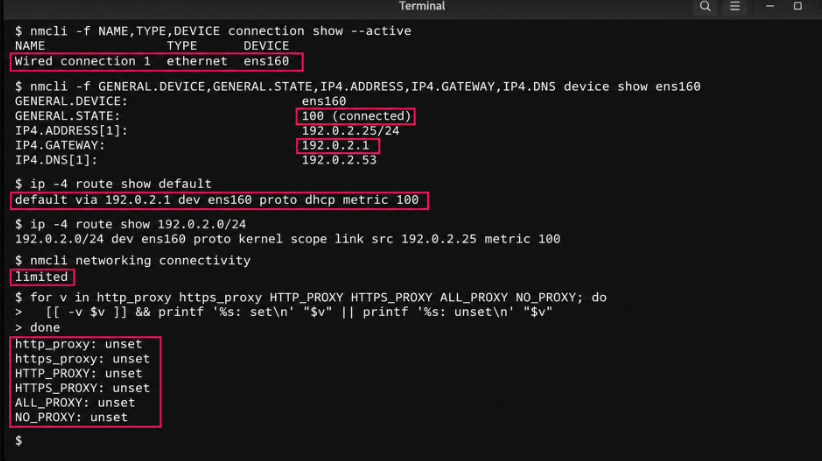
Shell variables aren’t the whole story. Services can carry their own proxy settings, and firewalld or nftables can block traffic outside NetworkManager’s view. Confirm a rule is a mistake before you remove it.
With Robin: A stale proxy is a classic "it worked yesterday" ticket, and Robin isolates whether a proxy is the failing point before it executes the targeted fix. When a VPN won’t connect, Robin checks connectivity, the VPN adapter and profile, the required certificate details, and user access. It then follows the supported recovery path or routes the specific failure to IT. A kill switch or web filter that’s blocking traffic on purpose stays your team’s call.
Hand routine Wi-Fi tickets to Robin
Almost every "connected but no internet" ticket comes down to one broken layer, like the address, DNS, something in the path like a proxy, or the network upstream. Four read-only tests find it in minutes, and the matching method fixes it without touching anything else. Save resets for the rare case that calls for one, and when failures cluster by site, fix the network, not the laptops.
Atera’s Robin takes the routine end of this off your queue. It isolates whether the problem sits with the device, the adapter, DNS, or a proxy, then executes the targeted fix for the employee who reported it. For the rest, Atera’s RMM gives your technicians remote script execution across selected devices or device groups, so the diagnostic script in Method 4 runs on one laptop or a whole site. Robin is sold separately as an add-on to the Atera IT suite.
» Ready to take routine network tickets off your queue? Learn more about Robin or try Atera for free
Related Articles

How to fix Microsoft Teams camera not working
From a frozen preview before a call to a camera button greyed out across the whole tenant: a quick fix, five numbered methods, and two edge cases for Windows and Mac.
Read now
How to fix Outlook not opening and repair what failed
Outlook not opening looks like one problem, but it can be five: an add-in, the Office install, the profile, the data file, or sign-in. Guess wrong and you rebuild a profile that was fine or put local mail at risk. The fix is to rule out the quick causes, pin down the component that actually failed, repair only that, and push the same fix remotely when it hits more than one device.
Read now
How to fix a slow laptop and find the real bottleneck
One "my laptop is slow" ticket can hide five different problems: a pinned CPU, memory paging to disk, a failing drive, heat or power throttling, or a startup list that's grown with every install. Cleanup tools and reboots treat them all the same. The real fix starts with reading what Windows reports, finding the one resource that's struggling, and fixing that.
Read now
How to fix Zoom camera not working
Zoom camera not working? This guide gives IT teams a quick fix to try first, then five numbered methods and three edge cases for Windows and Mac, from one laptop before a meeting to a whole fleet.
Read nowEndless IT possibilities
Boost your productivity with Atera’s intuitive, centralized all-in-one platform