
Generate summary with AI

Network problems have a way of appearing at the worst possible time. One moment everything is working, and the next you’re dealing with dropped connections, slow loading pages, or applications that refuse to connect. When these IT issues appear in Windows 11, resetting your network adapters is often suggested as a quick fix.
However, a full reset is not a small change. It rebuilds large parts of the Windows networking stack and removes stored configurations like Wi-Fi credentials, VPN profiles, and static IP settings. While it can resolve persistent connectivity problems, it can also introduce downtime if you are not prepared.
In this blog, we’ll look at the key considerations before resetting network adapters in Windows 11, along with practical ways to perform the reset if it becomes necessary.
What to try before resetting network adapters in Windows 11
Resetting network adapters is often viewed as the “nuclear option” for fixing connectivity issues in Windows 11. While it can resolve stubborn software glitches, it also wipes out critical configurations that keep an endpoint connected to corporate resources, so here’s what to keep in mind:
- Distinguish NIC failure from infrastructure: Identifying if the problem is the physical card, a driver, or an external switch prevents unnecessary resets.
- Effective resolution scenarios: Resets are ideal for clearing corrupted DHCP leases, stale DNS caches, and transient Winsock errors.
- Identify persistence: A reset will not fix hardware degradation, physical cable damage, or server-side firewall blocks.
- Data and profile loss: A full reset deletes saved Wi-Fi passwords, VPN profiles, and static IP assignments.
- Post-reset reconfiguration: Planning for the immediate re-entry of custom DNS or proxy settings is required to restore intranet access.
» Here’s everything you need to know about software deployment
Diagnose the root cause: Is the NIC the failure point?
Before performing a reset, you need to confirm that the network adapter or its local configuration is actually the culprit. Misdiagnosing an external ISP outage or a DNS server failure as a NIC issue leads to wasted effort.
- Loopback testing: Running
ping 127.0.0.1
verifies that the local TCP/IP stack is operational. Failure typically indicates OS-level corruption or driver malfunction. - Link-local IP indicators: An address in the 169.254.x.x range signals that the adapter is active but unable to reach a DHCP server, often pointing to infrastructure communication failure rather than adapter damage.
- Event viewer logs: Event IDs such as 27 or 4201 may indicate link disconnection, driver resets, or network stack instability.
- Media state verification: Running
ipconfig /alland seeing “Media disconnected” despite a connected cable suggests a disabled adapter, faulty port, or physical layer failure.
These checks help determine whether the issue is software-based where a reset may help or infrastructure-based, where further troubleshooting is required.
» Make sure you know how to update drivers on your PC
What a reset fixes vs. persistent issues
A network reset reinstalls all physical and virtual network adapters, rebuilds the TCP/IP stack, resets Winsock, and restores networking components to default state. While effective for software corruption, it doesn’t repair physical or upstream infrastructure.
Issues reliably resolved by a reset:
- Corrupted driver states: Clears instances where the adapter driver becomes unresponsive or improperly bound.
- Winsock and TCP/IP corruption: Rebuilds registry entries and protocol stacks used for network communication.
- Conflicting or stale network profiles: Removes cached network identities that interfere with new connections.
- Persistent DHCP or DNS misdirection: Clears local lease and resolver data that point to invalid gateways or servers.
» Find out how to fix slow DNS lookup
Issues that typically persist:
- Hardware degradation: A failing NIC chipset, damaged Ethernet port, or defective cable will remain faulty.
- Switch or firewall enforcement: MAC address filtering, port security policies, or firewall blocks cannot be bypassed through an endpoint reset.
- ISP or router-level failures: External routing disruptions or modem failures require infrastructure remediation.
» Check out the best firewall appliances
Preparation steps for a network reset
Performing a network reset is a significant change to your system’s communication stack. To avoid being locked out of critical resources or losing specific local configurations, follow these preparatory steps before clicking the reset button.
Step 1: Document your network identity
Open the Start Menu, type cmd, and press Enter

Type ipconfig /all and press Enter

Copy or take a photo of your IPv4 Address, Subnet Mask, Default Gateway, and DNS Servers
Step 2: Backup VPN and proxy profiles
Click on Settings > Network & internet > VPN
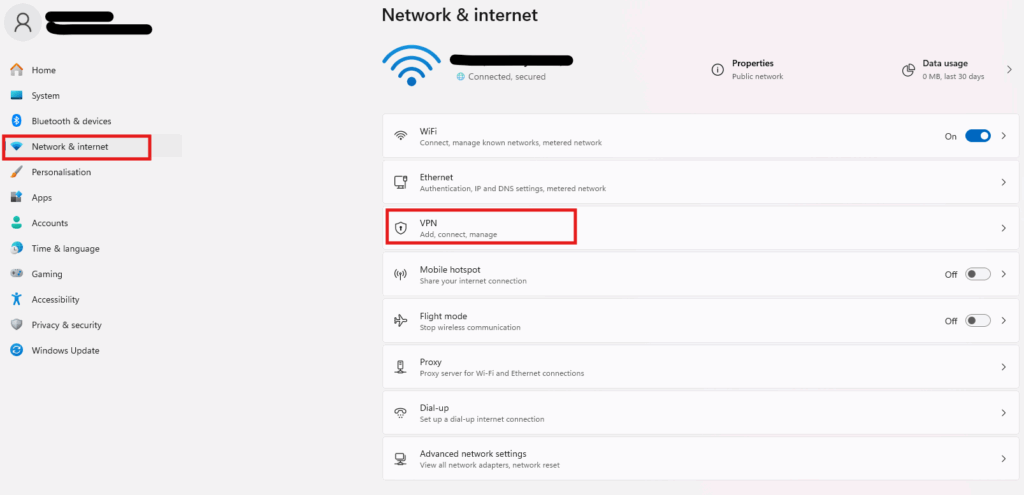
Open each profile and write down the server address and connection type.
Step 3: Secure administrative credentials
Confirm you have the password for a local administrator account. A network reset requires elevated permissions to modify system drivers.
Step 4: Obtain offline drivers
Go to your computer manufacturer’s website and download the latest Network/Wireless driver. Save it to a USB drive. This ensures you can re-install the driver even if you have no internet access after the reset.
» Here’s the 5 best enterprise VPN hardware
How to reset network adapters in Windows 11
Windows 11 provides several ways to reset your network, ranging from “soft” refreshes that clear your temporary data to “hard” resets that reinstall your hardware drivers. Choosing the right method depends on whether your’e dealing with a simple configuration glitch or deep-seated system corruption.
Method 1: Settings
Best for: Resolving complex, cascading connectivity issues where targeted fixes have failed.
This is a comprehensive rollback of your entire networking stack. Internally, Windows uninstalls all network adapters and resets the TCP/IP stack, Winsock catalog, and firewall rules to their factory defaults. It’s the most effective way to clear registry-level corruption.
Warning: This process is irreversible and will trigger a mandatory system reboot after five minutes. You’ll lose all saved Wi-Fi passwords, VPN profiles, and static IP configurations.
Follow these steps:
1. Search “Settings” in your search bar and click “open”

2. Select Network & internet from the left-hand sidebar. Scroll to the bottom and click Advanced network settings

3. Under “More settings,” click Network reset
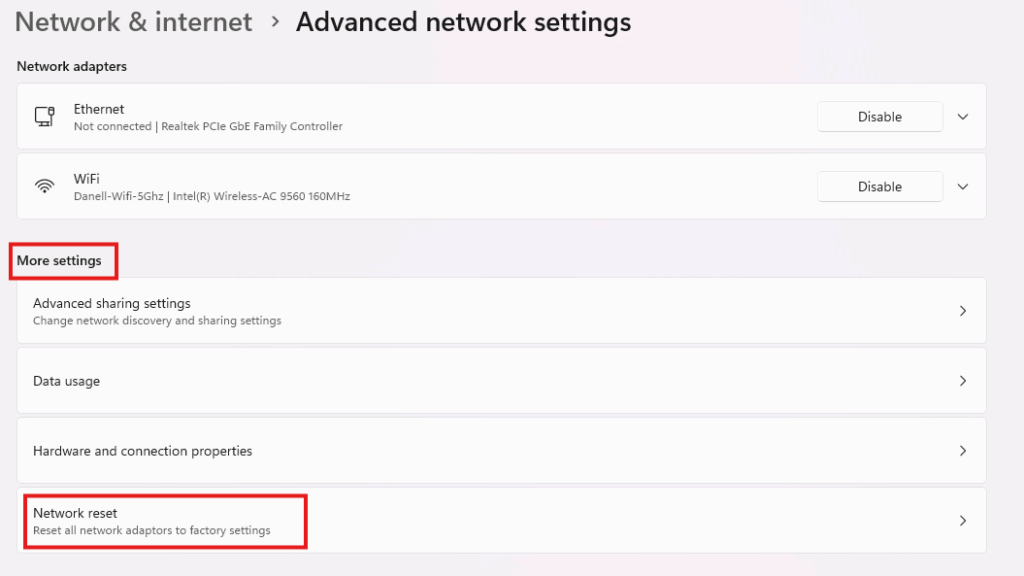
4. Click the Reset now button and select Yes to confirm

Method 2: Command Prompt
Best for: IT professionals who need to clear specific networking layers without a full reboot or hardware reinstallation.
This method allows you to target individual components of the network stack. It is less intrusive than a full reset and is often used as a first-line defense for DNS or DHCP errors.
Follow these steps:
1. Type “Command Prompt” in the search bar and select “Run as Administrator”
2. Type the following commands one by one, pressing Enter after each:
- netsh winsock reset (Repairs the socket catalog for apps)
netsh int ip reset(Resets the TCP/IP stack)ipconfig /release
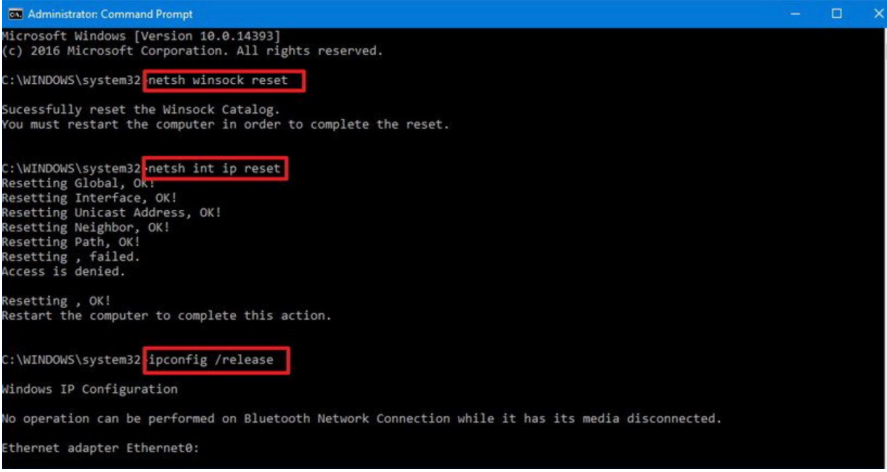
3. Restart your computer manually to finalize the changes
» Here’s how to restart a remote computer using Windows
Method 3: PowerShell
Best for: Remote administration and managing multiple devices at once.
PowerShell provides granular control that Command Prompt lacks. It allows administrators to reset interfaces while applying conditional logic, such as skipping active VPN adapters or logging the results for an audit trail.
Follow these steps:
1. Type “PowerShell” in the search bar and select “Run as Administrator”

2. Use the following scripts:
- To restart a specific adapter, copy and paste:
Restart-NetAdapter -Name "YourAdapterName". For example, if the adapter name is Wi-Fi, the command would look like this:Restart-NetAdapter -Name "Wi-Fi"

- To clear all IP addresses and DNS caches at once, copy and paste:
Get-NetIPAddress | Remove-NetIPAddressfollowed byClear-DnsClientCache

Did you know? When network disruptions affect multiple endpoints, manually troubleshooting each device quickly becomes time-consuming. This is where Atera’s RMM platform can help streamline the process. Atera’s RMM with AI Copilot allows IT professionals to diagnose and resolve networking problems across environments from a single console. It can also generate PowerShell scripts for you, helping automate the fix.
If a networking issue requires clearing the DNS cache, resetting Winsock, or restarting a network adapter, Copilot can write the script and you can then run that script through Atera’s RMM platform across one device or multiple endpoints at the same time. This approach reduces the time spent diagnosing problems and helps resolve connectivity issues faster, especially when similar IT issues appear across several systems.
» Find out how to paste in PowerShell
Method 4: Device Manager
Best for: Fixing hardware-specific errors or corrupted drivers that a software reset cannot reach.
Unlike a network reset, which focuses on software and registry settings, this method addresses the communication between the hardware and the OS. It’s the best choice if you suspect a driver-level glitch is causing persistent “Media Disconnected” errors.
Warning: If you select “Attempt to remove the driver for this device” without having an offline backup, you may be unable to reconnect to the internet to download a new one.
Follow these steps:
1. Search “Device Manager” in your search bar and click “open”

2. Double-click Network adapters to expand the list. Right-click your adapter (e.g., Intel Wi-Fi 6 or Realtek PCIe) and select Uninstall device
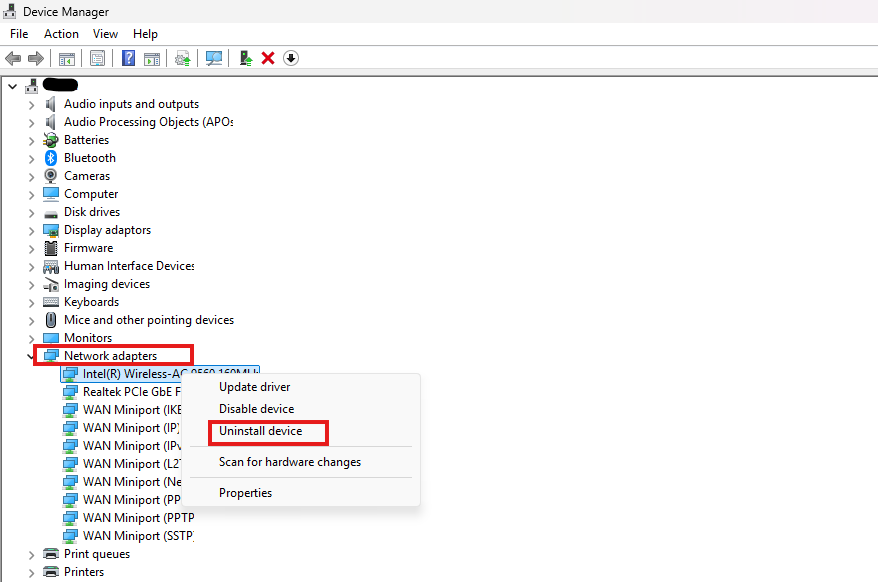
3. Restart your PC. Windows will automatically detect the hardware and reinstall the driver from its local cache
» Here are the best hardware monitoring software
Master network troubleshooting with Atera
A network reset is a decisive tool in the Windows 11 troubleshooting kit, but its success depends entirely on a disciplined approach. Jumping straight to a reset without first performing loopback tests or checking for hardware failure can lead to unnecessary downtime and the loss of essential configurations like static IPs and VPN certificates. By following a structured diagnostic path, you ensure that you are treating the root cause rather than just the symptoms.
Ultimately, the goal of any network intervention is to restore stability with the least amount of friction for the end user. By documenting your settings, securing offline drivers, and utilizing Atera’s RMM platform to automate recovery, you turn a high-risk manual task into a controlled, professional operation.
Frequently Asked Questions
Related Articles

How to reduce alert fatigue across your IT team
Your technicians aren't ignoring alerts because they're careless. They're ignoring them because most alerts have taught them to. Once the stream stops being trustworthy, real failures slip past with the noise. Fixing it means deciding what deserves an interruption, tuning out transient spikes, collapsing alert storms, and automating the fixes you've run a hundred times.
Read now
How to close the IT skills gap on your team
Course completions don't close skills gaps. Technicians finish the training, then hand the first unfamiliar failure straight back to a senior engineer. Real capability gets built on live tickets, incidents, and maintenance windows, with guidance that fades as competence grows.
Read now
How to calculate cost per ticket (and why most teams get it wrong)
Most cost-per-ticket figures are wrong before anyone reads them. Missing overhead, tickets that were opened but never closed, spam and duplicates padding the count, and one month's costs divided by another month's tickets all make support look cheaper than it is. Fix both sides of the division and the number finally shows where technician time and money actually go.
Read now
How to prepare for a software license audit
A vendor audit notice doesn't wait for you to get organized. It demands proof, right now, that every install matches every entitlement you've paid for, and most IT teams find out the hard way how much they don't actually know about their own environment. Getting audit-ready before the letter arrives is the difference between negotiating from strength and paying for months of scrambling.
Read nowEndless IT possibilities
Boost your productivity with Atera’s intuitive, centralized all-in-one platform









