
Table of contents
Generate summary with AI

Network problems seem to have a way of appearing at the worst possible time, and basic fixes don’t always cut it. According to Cradlepoint’s State of Connectivity 2024 report, more than half of technology decision-makers (54%) say their organizations deal with one to two hours of connectivity downtime per week due to network failure. Some of that is infrastructure. Some of it is a Windows machine with a corrupted network stack that no amount of toggling airplane mode will fix.
When you’ve exhausted the standard troubleshooting playbook and the connection still isn’t cooperating, a network reset is the right next move. This removes and reinstalls your network adapters and returns your networking components to their default state.
» Here’s why you need network monitoring software
What to know before you reset
Not every connectivity problem warrants a full reset. It should be a last resort that you reserve for a few situations:
- Persistent connection failures that appeared after a Windows update or upgrade
- Situations where a machine has an active internet connection but can’t reach a shared network drive
- Once you’ve exhausted standard troubleshooting methods like flushing the DNS, releasing and renewing the IP, and rebooting the router
» Learn how to disable Windows updates and manually re-enable Windows updates
When to hold off
There are specific environments where initiating a reset creates more problems than it solves:
- Static IP configurations: The reset wipes these back to default. You’ll need to manually reconfigure them afterward, and if the machine is being managed remotely, you may lose access entirely until someone can get to it physically.
- Virtual networking environments: Hypervisors like Hyper-V, VMware, and VirtualBox install virtual network adapters that integrate with the Windows networking stack. A reset can remove these virtual switches, taking any running VMs offline until the network is reconfigured.
- Enterprise-managed environments: Organizations that enforce specific network policies via Group Policy management or similar tooling will have those configurations wiped. Reconfiguration isn’t always straightforward and may require admin intervention.
- VPN clients: Third-party VPNs tunnel traffic through virtual adapters. A reset may remove those adapters, requiring a full reinstall or reconfiguration of the VPN client before the tunnel works again.
- Active remote sessions: If you’re managing a machine remotely, a reset will terminate the connection. Without physical access to reconfigure afterward, you may be locked out.
- Custom firewalls: Behavior after a reset can be unpredictable depending on how the firewall hooks into the network stack. Software may stop monitoring traffic, block all internet access, or fail silently.
What to back up before you touch anything
If a reset is the right move, the prep work is what determines how smooth the recovery is. Document or export the following before you start.
Wi-Fi profiles
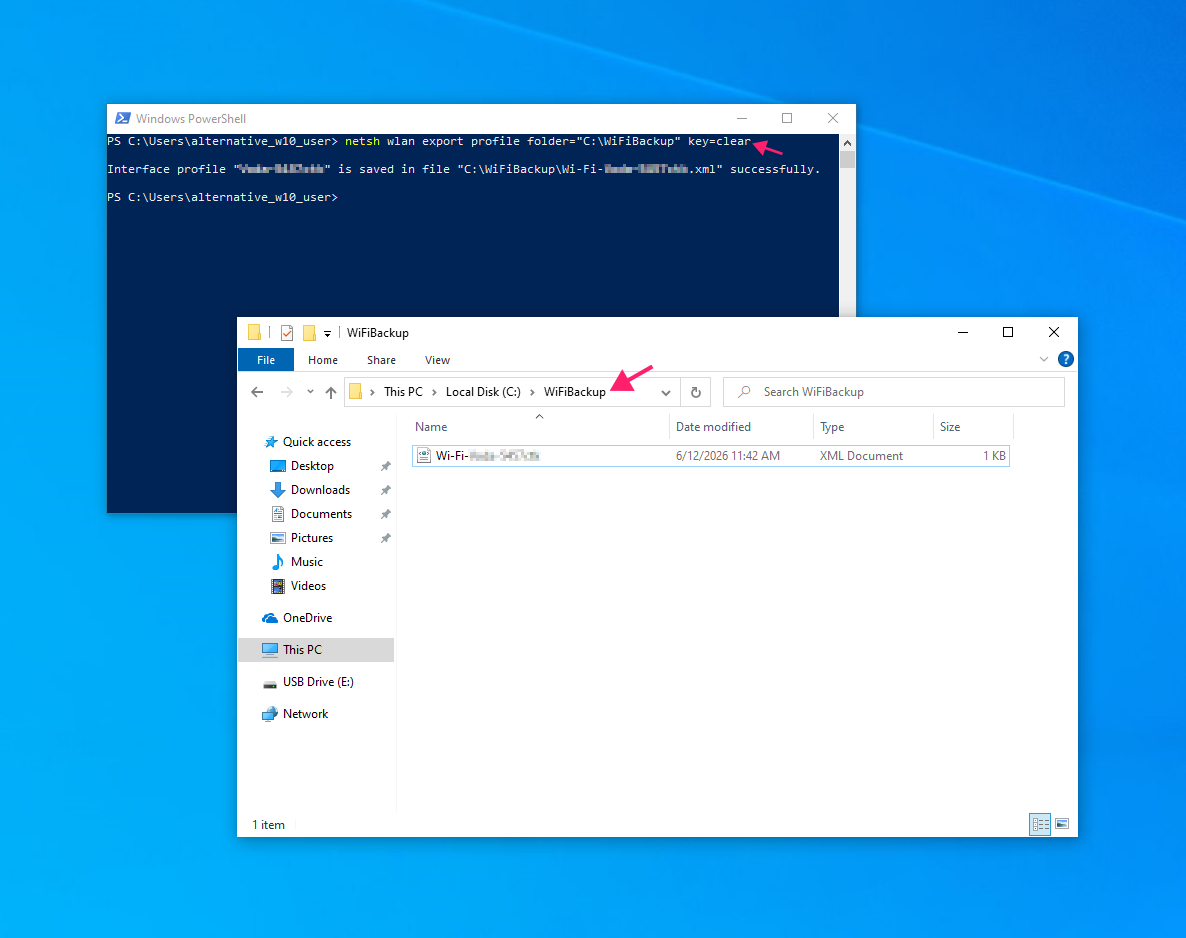
Export all saved Wi-Fi profiles and their authentication settings using the following command in an elevated Command Prompt: netsh wlan export profile folder="C:WiFiBackup" key=clear
This exports each profile as an XML file, including passwords in plain text. For LAN authentication settings, use netsh lan export and consult the official Microsoft documentation for full syntax and argument details.
Adapter settings
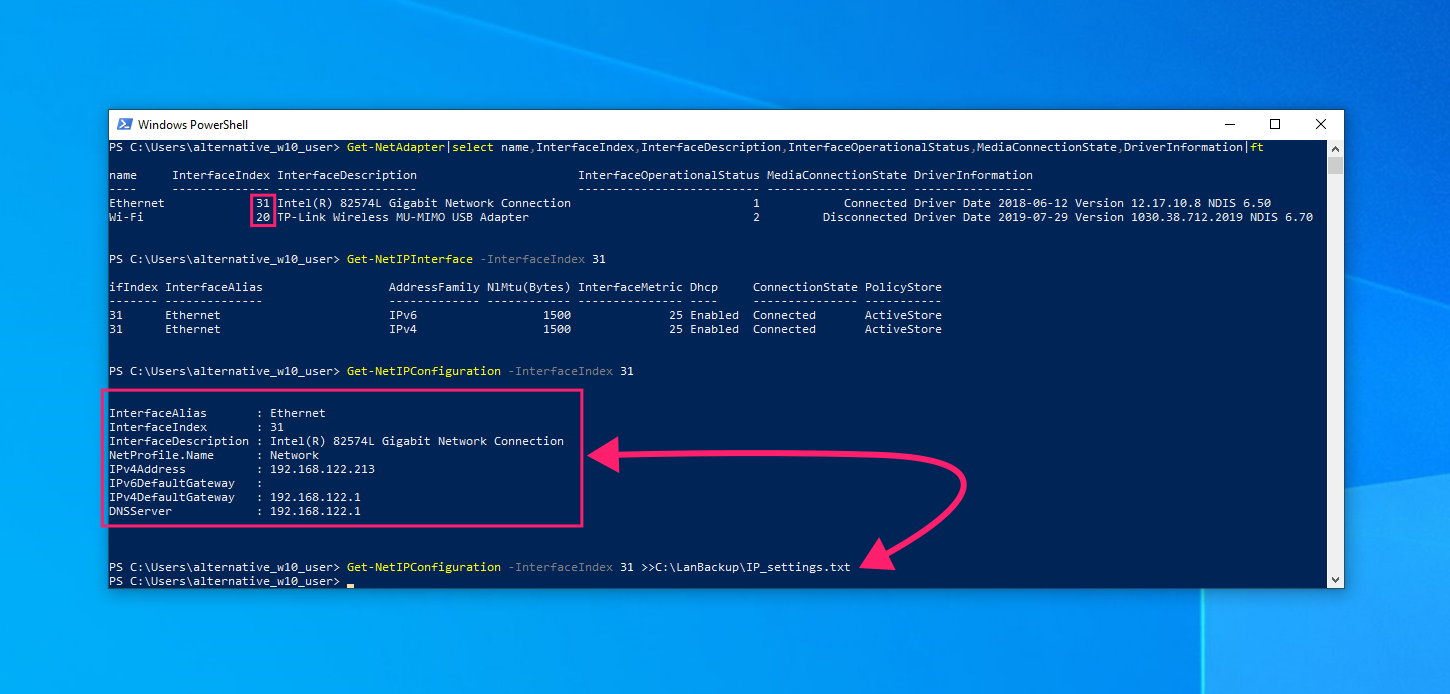
Open PowerShell and run the following to list all current network adapters: Get-NetAdapter | select name,InterfaceIndex,InterfaceDescription,InterfaceOperationalStatus,MediaConnectionState,DriverInformation | ft
Then run this to capture the IP configuration for a specific adapter (replace the index number with the one matching your setup): Get-NetIPConfiguration -InterfaceIndex 31
Append >>C:LanBackupIP_Settings.txt to export the output to a text file for reference after the reset.
4 Ways to reset Windows 10 network settings
There are four ways to reset network settings in Windows 10, ranging from a full system-wide reset through the Settings GUI to targeted adapter-level fixes via PowerShell and Device Manager.
Which method you use depends on what you’re trying to fix:
- The GUI reset is the most comprehensive because everything goes back to default
- The command-line methods give you more control over what gets reset and what doesn’t
- Device Manager is best when the problem is isolated to a specific adapter rather than the stack itself
Method 1: Windows Settings (full network reset)
This is the broadest reset available and the right starting point when the problem is stack-wide rather than adapter-specific. It removes all network adapters and reinstalls them, then returns all networking components to their default state.
Follow these steps:
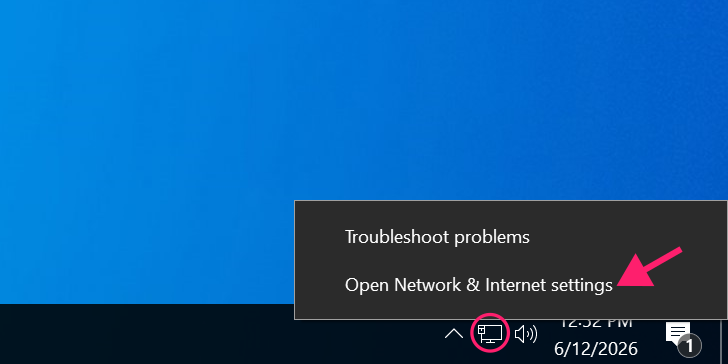
Right-click the network or Wi-Fi icon in the taskbar and select Open Network & Internet settings

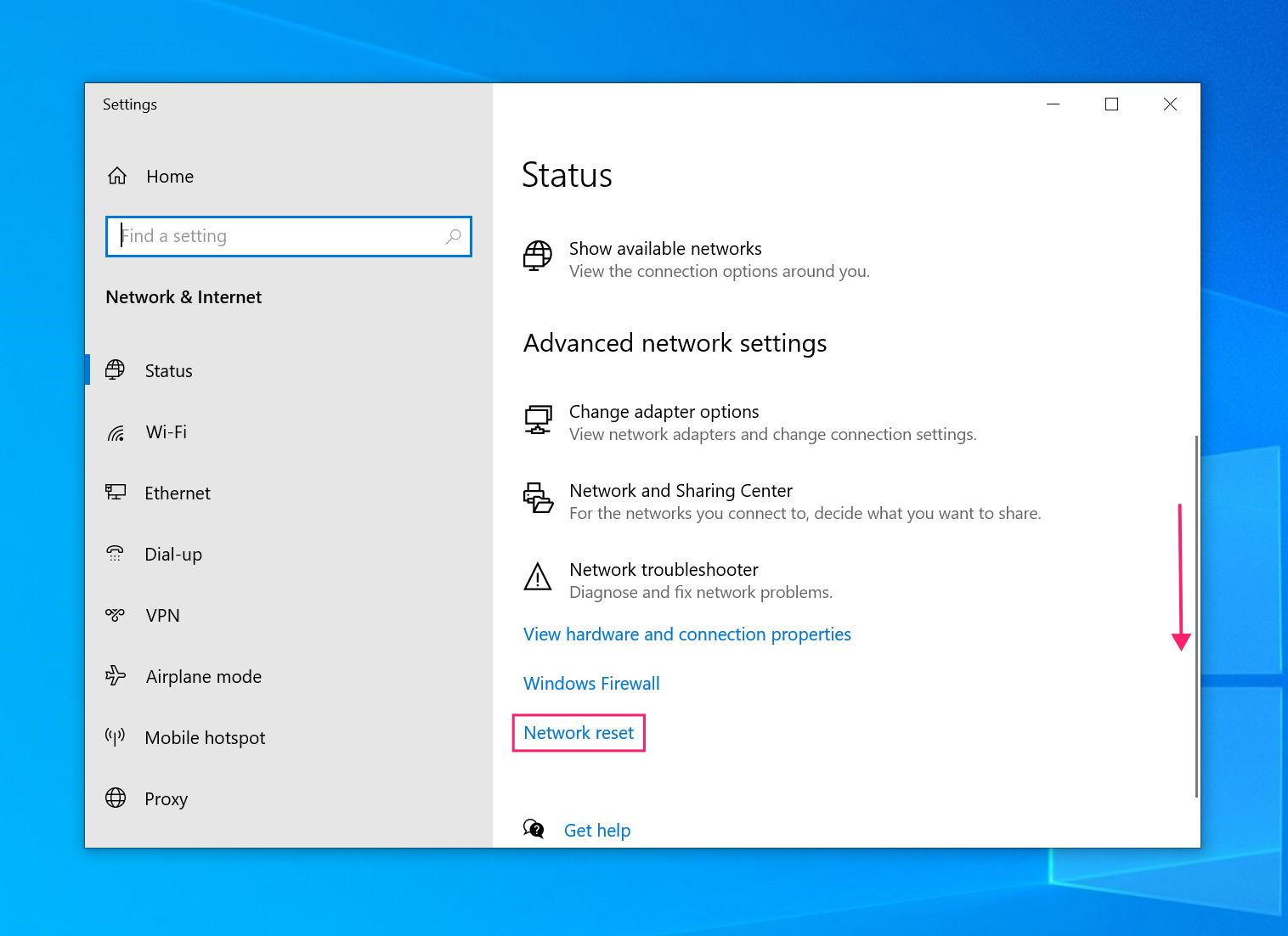
Scroll down to Advanced network settings and click Network reset

Click Reset now, then click Yes in the confirmation prompt

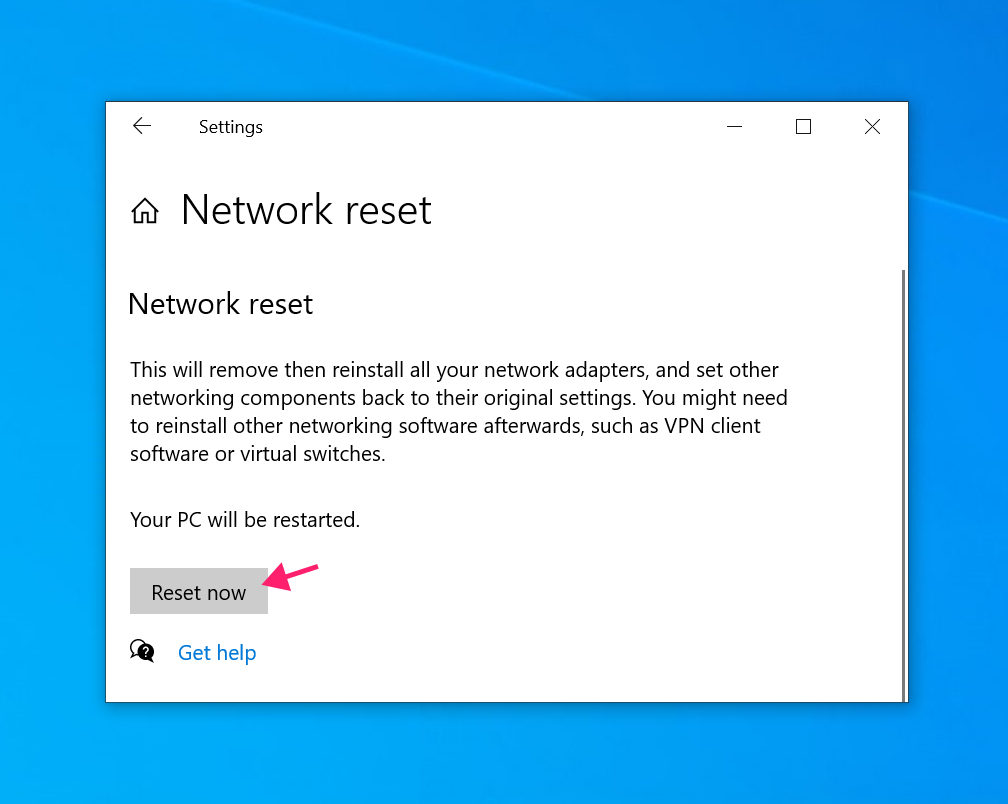
Windows will notify you that the system will reboot automatically in five minutes, so save any open work before confirming.
Note: After the reboot, any software that hooks into the network stack (like VPN clients, custom firewalls, and virtual switches) will need to be reinstalled or reconfigured. This is expected behavior, not a sign something went wrong.
Method 2: Command Prompt (Winsock and TCP/IP stack reset)
When you want to reset the network stack without triggering a full adapter reinstall, the Command Prompt gives you targeted control. Microsoft recommends running the full sequence of commands together rather than in isolation.
Open Command Prompt as Administrator (search for Command Prompt in the Start menu, right-click it, and select Run as administrator)

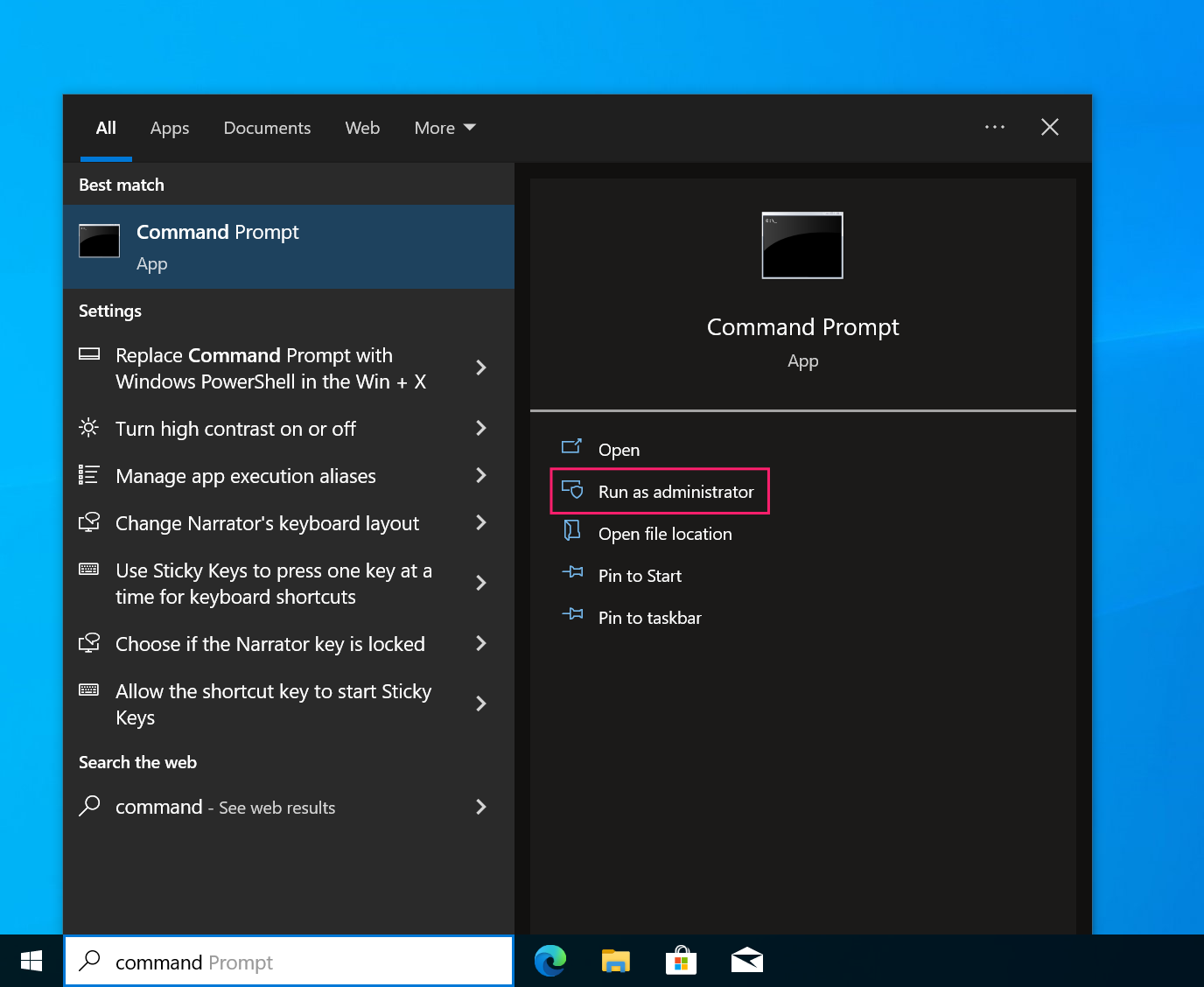
2. Run the following commands in order:
The Script:
Atera does not guarantee the integrity, availability, security, virus-free, safety, lawfulness, non-infringement, rights’ status, or functionality of the scripts. The use of the shared scripts is at your own risk. Scripts are provided “AS IS”. *
netsh winsock reset
netsh int ip reset
ipconfig /release
ipconfig /renew
ipconfig /flushdns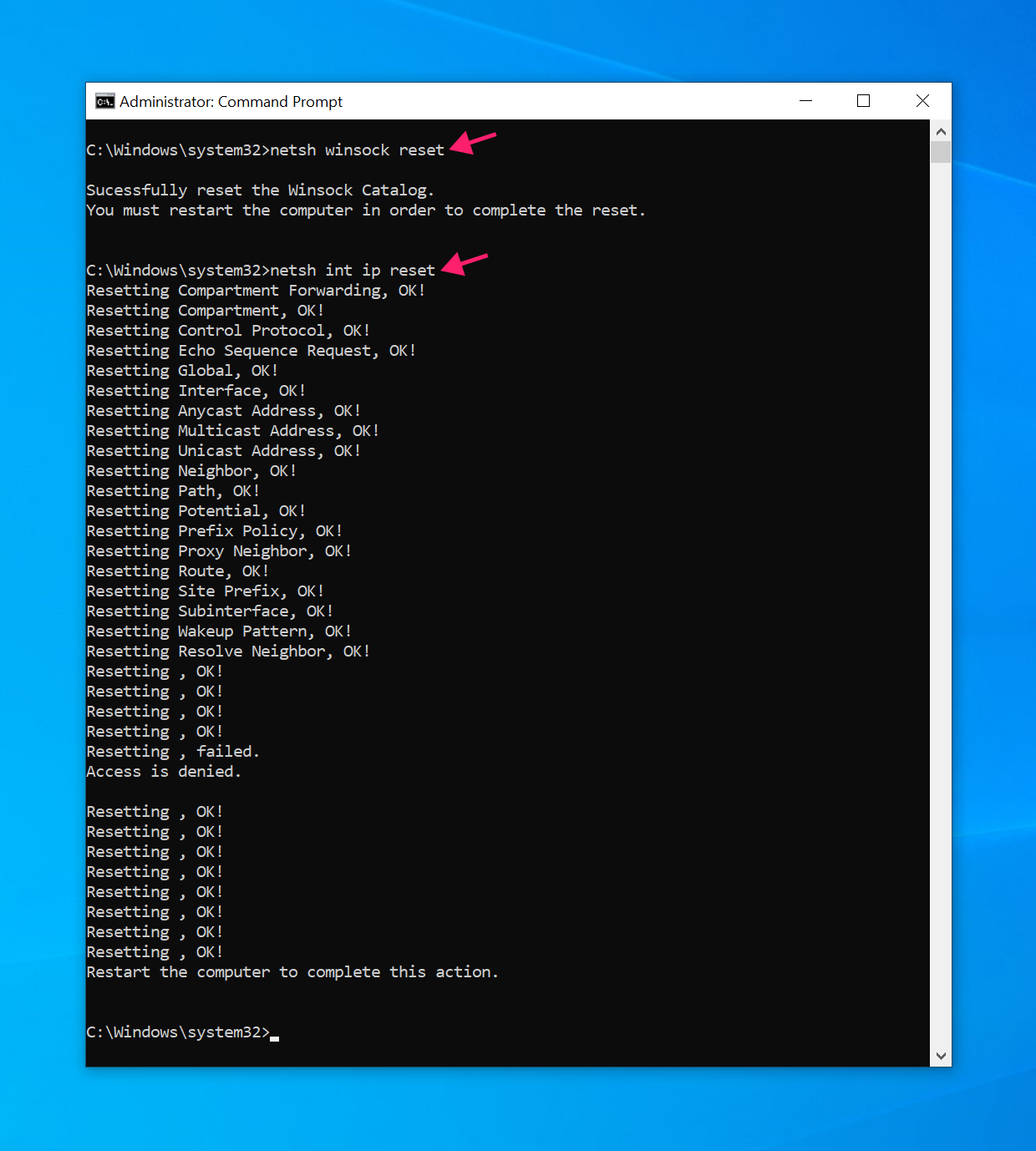
Here’s what each command does:
netsh winsock resetrebuilds the Winsock Catalog from scratch, clearing any corruption that’s causing applications to lose network access despite the adapter functioning correctlynetsh int ip resetresets the TCP/IP stack back to its default stateipconfig /releasedrops the current IP address leaseipconfig /renewrequests a fresh IP address from the DHCP serveripconfig /flushdnsclears the DNS resolver cache, forcing Windows to look up addresses fresh
3. Reboot the system after running all five commands. The restart is required for the Winsock and TCP/IP resets to take effect
Note: Running these commands from Safe Mode with Networking is sometimes suggested, but it loads only minimal network drivers and services, which can limit the effect of the reset. There’s no official Microsoft requirement to perform a network reset from Safe Mode, and in most cases it isn’t necessary.
Method 3: PowerShell (adapter-specific reset)
Where netsh resets the entire network stack, PowerShell cmdlets let you target specific adapters, which makes this the better choice when the problem is isolated to one interface rather than the stack as a whole. It’s also the more scriptable option for IT admins who need to run this across multiple machines.
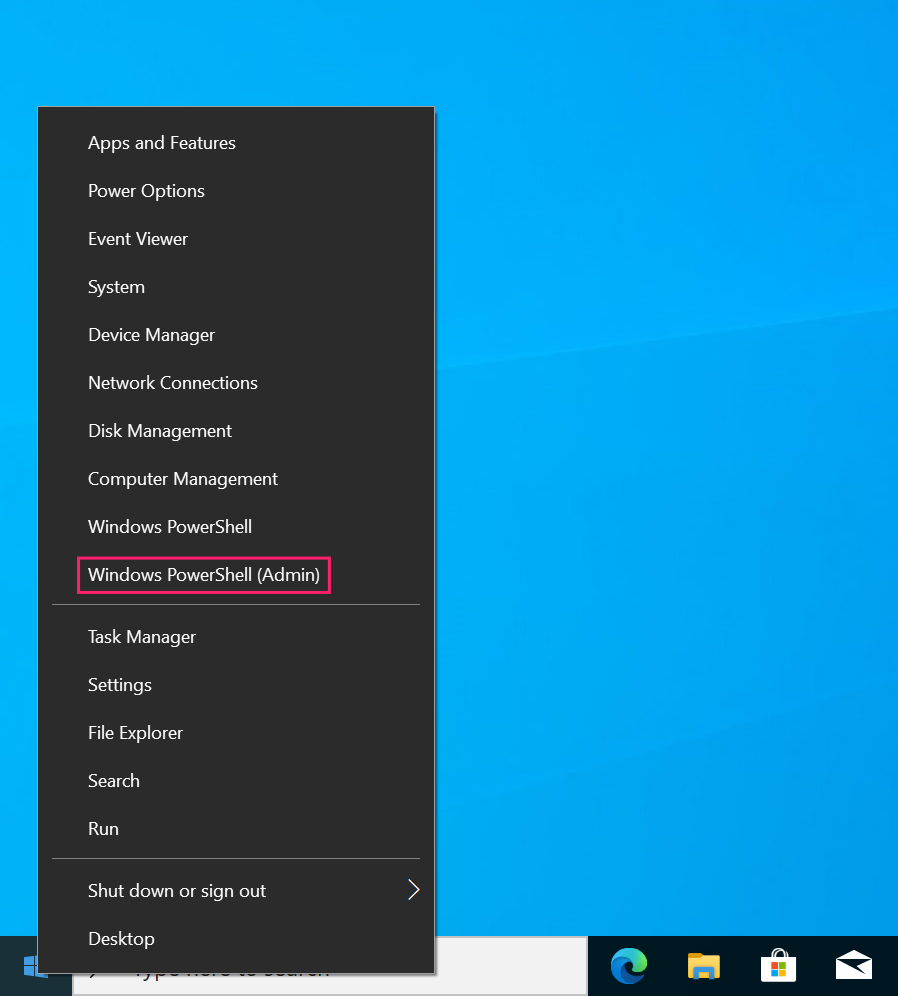
Open PowerShell as Administrator by pressing Win + X and selecting Windows PowerShell (Admin)

- List all network adapters to identify the one you want to target:
Get-NetAdapter - Note the Name column; that’s how you’ll reference the adapter in the next commands
- To restart a specific adapter by disabling and re-enabling it, enter this command:
Restart-NetAdapter -Name "Ethernet"
Replace "Ethernet" with the name of the adapter you want to restart
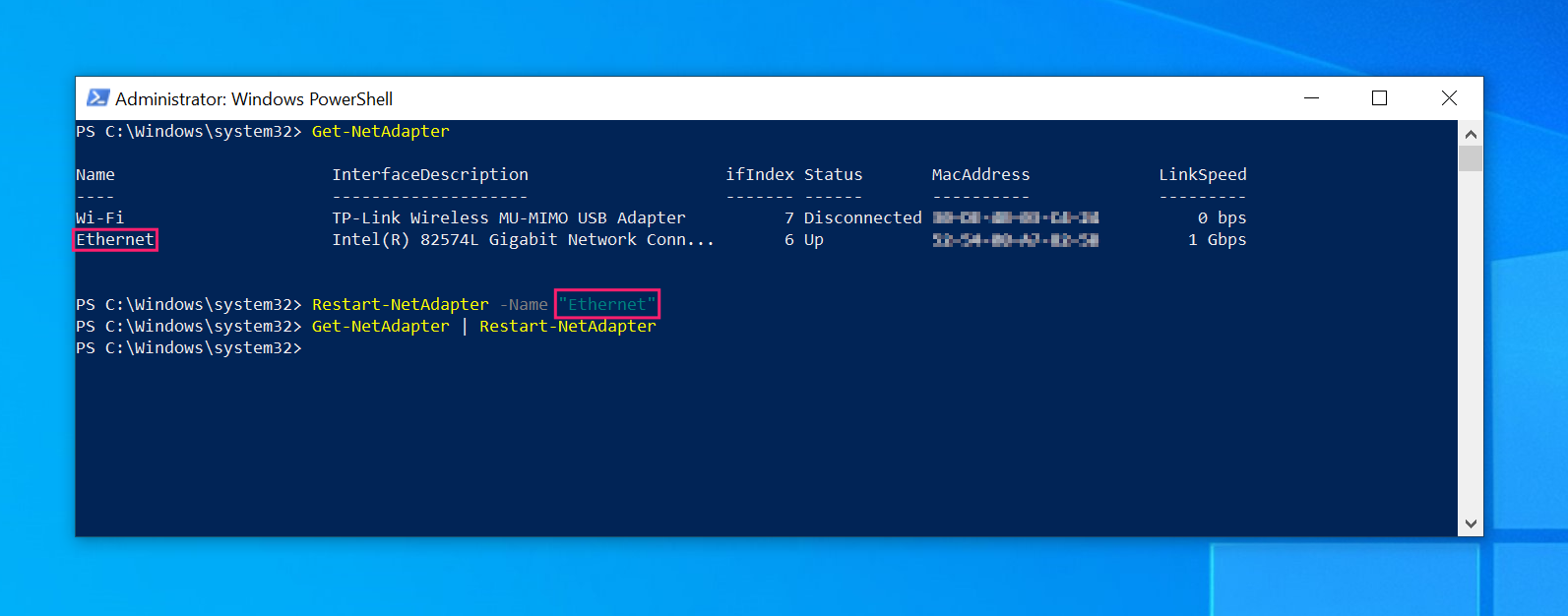
5. To restart all adapters at once: Get-NetAdapter | Restart-NetAdapter
6. To manually disable and re-enable an adapter in two steps: Disable-NetAdapter -Name "Ethernet" -Confirm:$falseEnable-NetAdapter -Name "Ethernet"
7. To reset an adapter’s advanced properties back to factory defaults: Reset-NetAdapterAdvancedProperty -Name "Ethernet" -DisplayName "*"
Did you know? You don’t have to understand code to use PowerShell. With Atera, AI Copilot can help you generate PowerShell scripts from simple natural language queries like “Write me a script to reset network adapters”, then you can deploy those PowerShell scripts remotely to multiple endpoints through the RMM platform.
Method 4: Device Manager (adapter reinstall, driver rollback, power management)
Device Manager is the right tool when you’re dealing with a specific misbehaving adapter, particularly after a driver update causes problems or when power management settings are silently dropping the connection.
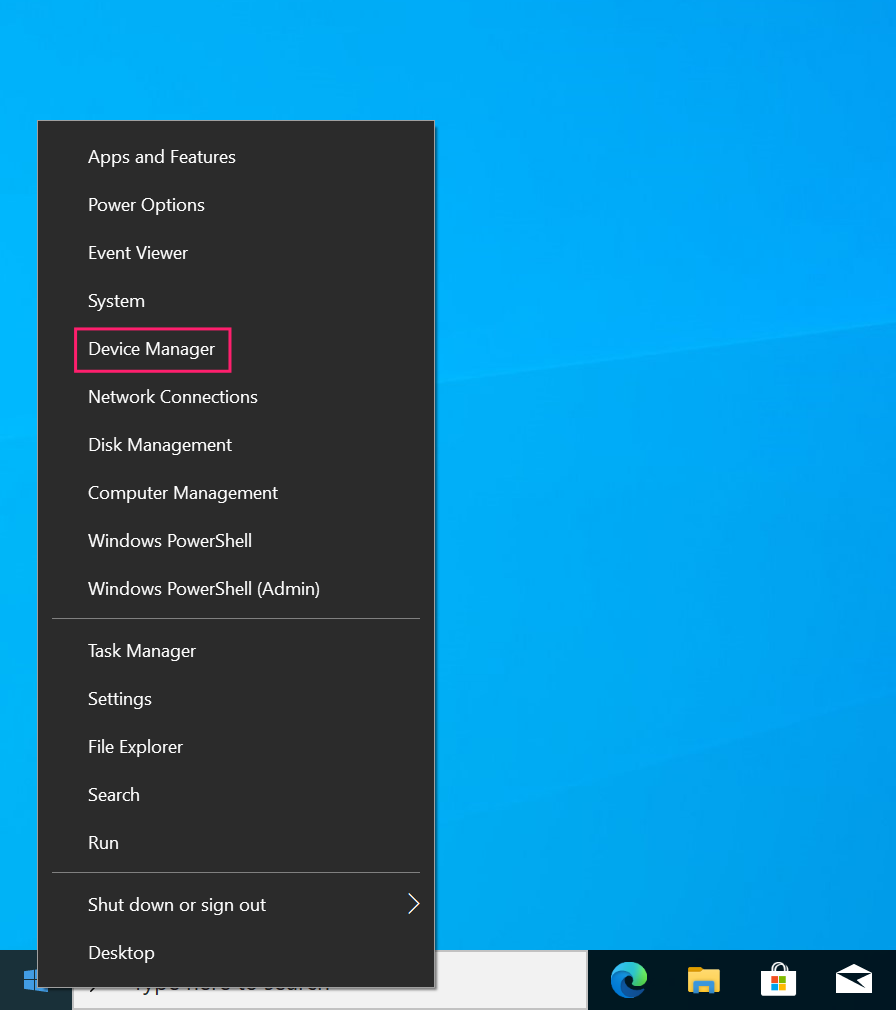
Open Device Manager by pressing Win + X and selecting Device Manager

Expand Network adapters to find the adapter you want to work with

Disable and re-enable the adapter by right-clicking it > Disable device > Yes > Right click > Enable device. This forces the adapter to reinitialize without touching the rest of the stack

If that doesn’t work, you can reinstall the adapter by right clicking > Uninstall device > Confirm > Reboot

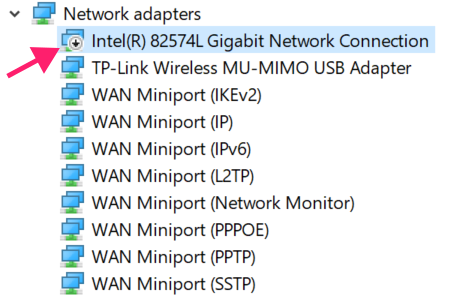
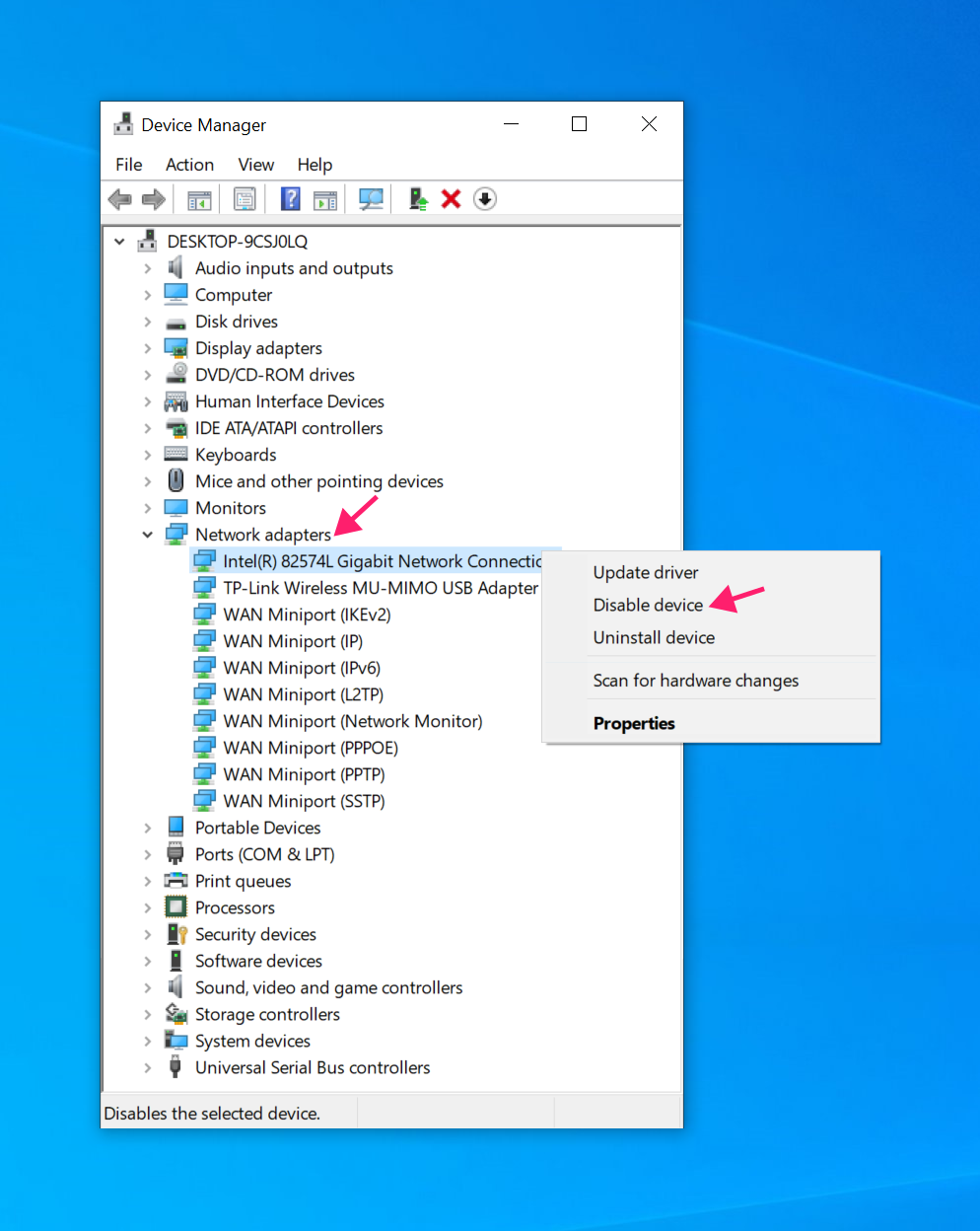
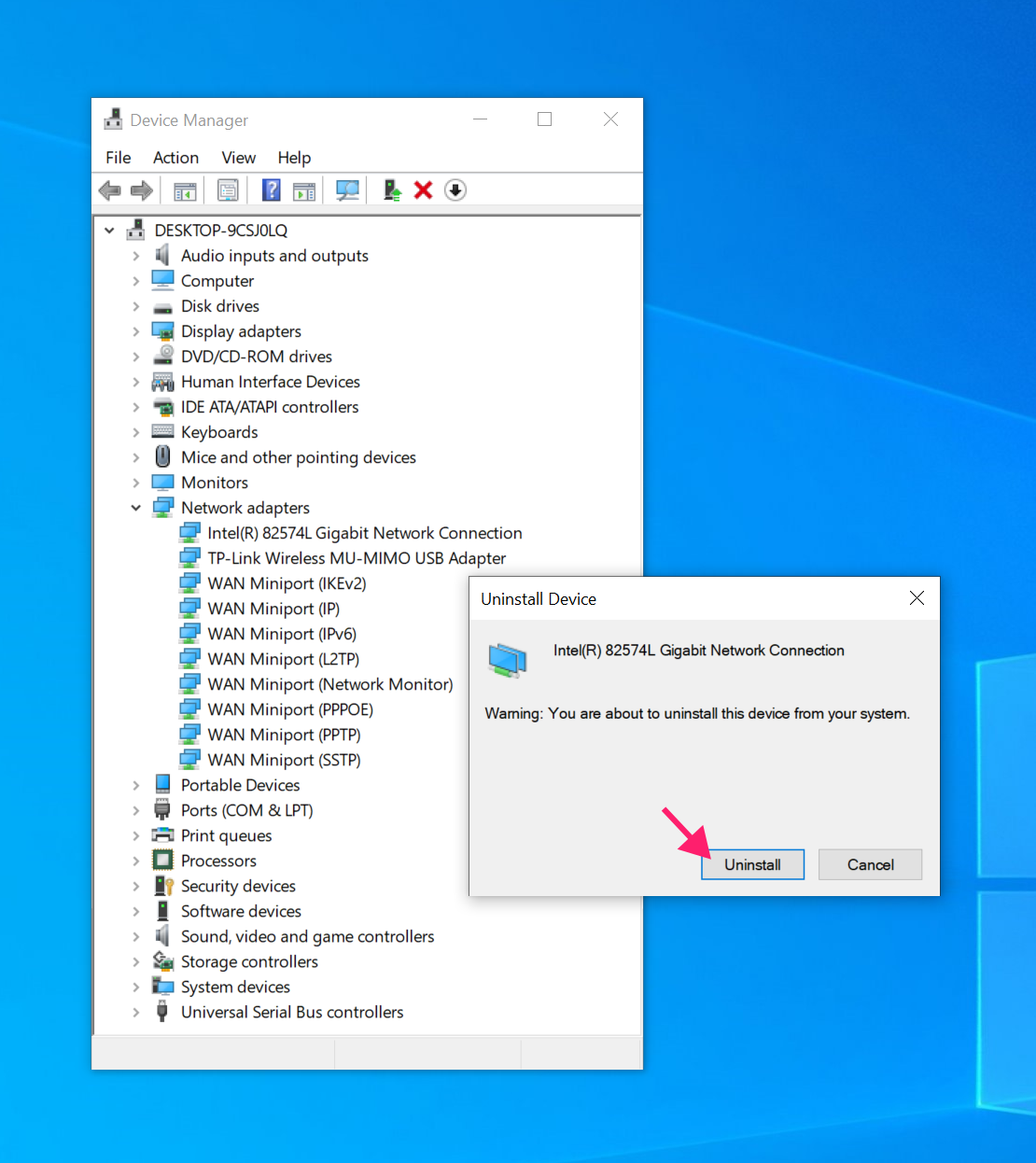
Windows will automatically detect the adapter and reinstall the driver. This is the Device Manager equivalent of the full reset because the adapter comes back up clean.
5. If the problem started after a driver update, then you can try and older version of the driver and see if that fixes the problem: right-click the adapter > Properties > Driver tab > Roll Back Driver
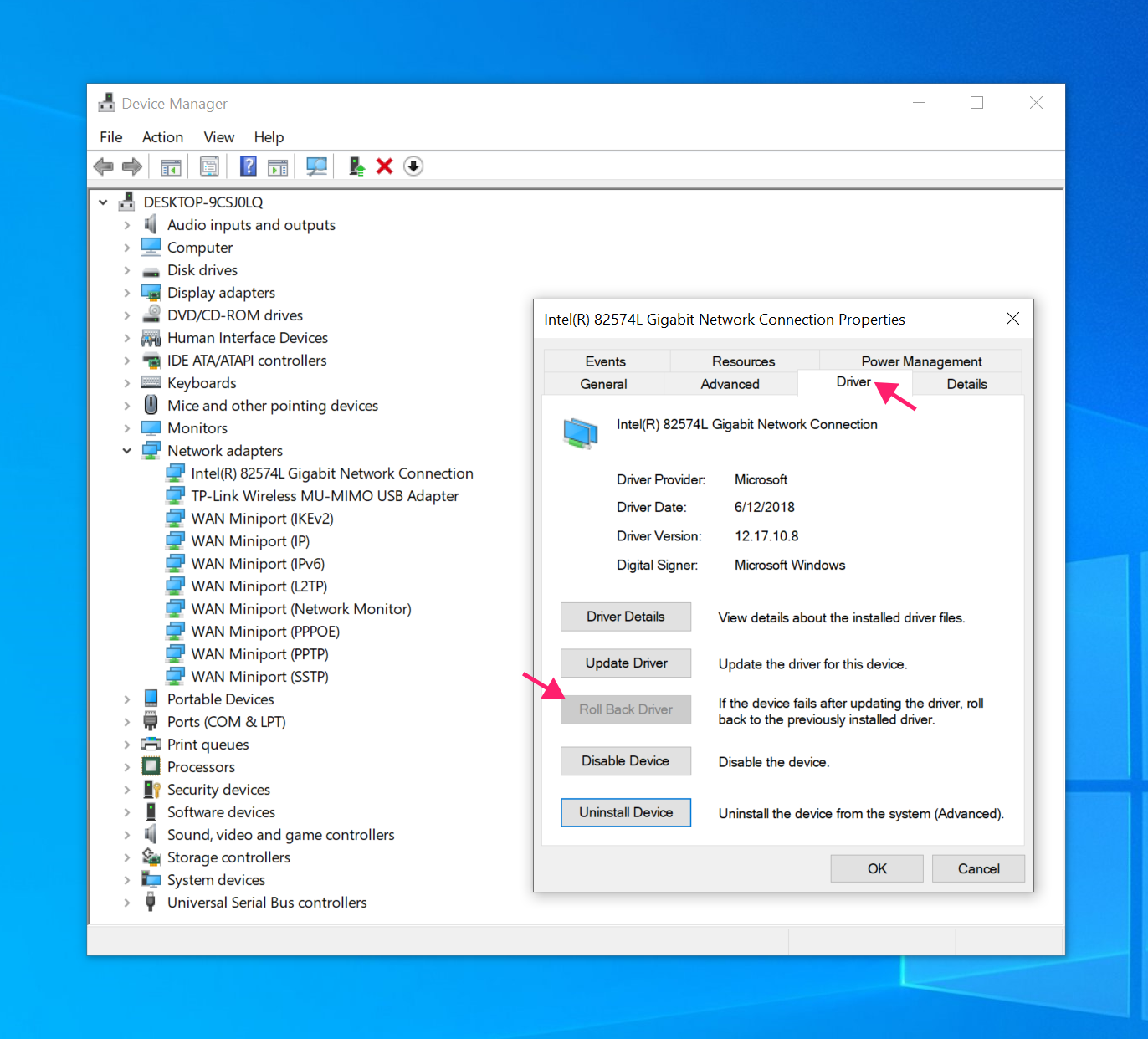
If the button is grayed out, no previous driver version was recorded and rollback isn’t available.
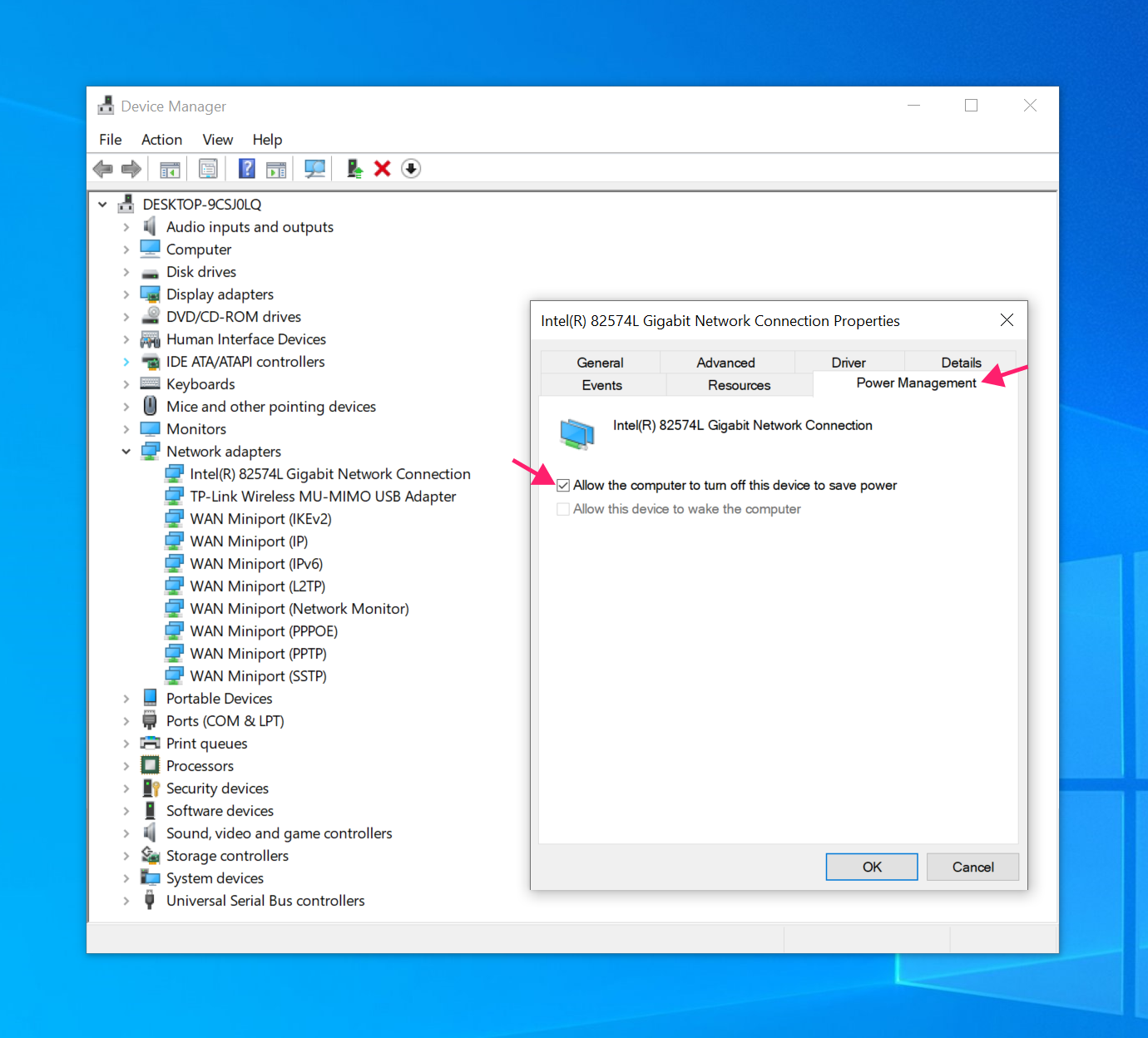
If the problem still isn’t fixed, then the last thing you can try is to fix power management that might be dropping the connection. Windows can be configured to cut power to a network adapter to save energy, which presents as an intermittent or dropped connection with no obvious cause.
Right-click the adapter > Properties > Power Management tab > Uncheck Allow the computer to turn off this device to save power. Then test whether the connection issues persist.
» Need driver help? Here’s how to update PC drivers and the best driver updater software
A clean reset beats a slow diagnosis
A network reset isn’t something you reach for first, but when you need it, it’s one of the most reliable fixes Windows offers. The stack gets rebuilt from scratch, corrupted configurations get cleared, and the adapters come back up clean.
For IT teams and MSPs managing Windows environments at scale, Atera’s RMM platform makes this kind of work more manageable. Scripts for adapter diagnostics, remote PowerShell execution, and centralized visibility across every device mean you’re not running these fixes machine by machine; you’re handling them from one place, across your entire fleet.
» Want to try it out? Use Atera’s free trial!
Frequently Asked Questions
Related Articles

How to reduce alert fatigue across your IT team
Your technicians aren't ignoring alerts because they're careless. They're ignoring them because most alerts have taught them to. Once the stream stops being trustworthy, real failures slip past with the noise. Fixing it means deciding what deserves an interruption, tuning out transient spikes, collapsing alert storms, and automating the fixes you've run a hundred times.
Read now
How to close the IT skills gap on your team
Course completions don't close skills gaps. Technicians finish the training, then hand the first unfamiliar failure straight back to a senior engineer. Real capability gets built on live tickets, incidents, and maintenance windows, with guidance that fades as competence grows.
Read now
How to calculate cost per ticket (and why most teams get it wrong)
Most cost-per-ticket figures are wrong before anyone reads them. Missing overhead, tickets that were opened but never closed, spam and duplicates padding the count, and one month's costs divided by another month's tickets all make support look cheaper than it is. Fix both sides of the division and the number finally shows where technician time and money actually go.
Read now
How to prepare for a software license audit
A vendor audit notice doesn't wait for you to get organized. It demands proof, right now, that every install matches every entitlement you've paid for, and most IT teams find out the hard way how much they don't actually know about their own environment. Getting audit-ready before the letter arrives is the difference between negotiating from strength and paying for months of scrambling.
Read nowEndless IT possibilities
Boost your productivity with Atera’s intuitive, centralized all-in-one platform









