
Table of contents
Table of contents
- Quick fix for Teams camera not working: the quickest way to get your camera working
- Fixing a Teams camera manually vs. with Robin by Atera
- Method 1: Check Teams device settings and run a test call
- Method 2: Check camera permissions
- Method 3: Free the camera and restart Teams properly
- Method 4: Update the driver or reinstall Teams
- Method 5: Prevent and fix camera problems across the tenant
- Common Teams camera issues
- Let Robin fix Teams cameras before the call
A Teams camera not working just before a meeting is one of the easiest tickets to misdiagnose. A camera that works in the Windows Camera app can still fail in Microsoft Teams. And in Teams, the device isn’t always the problem. The camera might be turned off at the OS level, held by another app, stuck on an old driver, or set to the wrong device in Teams. It might also be blocked by a meeting policy, the organizer’s meeting options, or the user’s role in a town hall. Each of those needs a different fix, and resetting Teams or reinstalling drivers without knowing which one you’re facing can make it harder to find.
This guide starts with a quick fix, then works through five methods in order, followed by two edge cases.
Quick fix for Teams camera not working: the quickest way to get your camera working
On a single laptop, the camera is often held by another app, blocked by a privacy setting, or set to the wrong device in Teams. These steps cover all three in a few minutes and don’t delete anything.
Windows 11 (elevated PowerShell)
Find any app that still has the camera open:
The Script:
Atera does not guarantee the integrity, availability, security, virus-free, safety, lawfulness, non-infringement, rights’ status, or functionality of the scripts. The use of the shared scripts is at your own risk. Scripts are provided “AS IS”. *
$path = 'Software\Microsoft\Windows\CurrentVersion\CapabilityAccessManager\ConsentStore\webcam'
Get-ChildItem 'Registry::HKEY_USERS' | Where-Object Name -match 'S-1-5-21-[\d-]+$' | ForEach-Object {
    Get-ChildItem "Registry::$($_.Name)\$path" -Recurse -ErrorAction SilentlyContinue |
        Where-Object { $_.GetValue('LastUsedTimeStop') -eq 0 } |
        Select-Object -ExpandProperty PSChildName
}
Script copied to clipboard- How to read the output: desktop apps appear as a file path with # in place of each backslash, and packaged apps appear as package family names. Neither is necessarily the process name, so match each entry to a running app in Task Manager before you act.
- Once you’ve matched the entry to a running app and the user agrees, close it, for example: Stop-Process -Name Zoom -Force
- Check why the camera is disabled before you re-enable it. If IT or a policy turned it off on purpose, enabling it undoes a security decision. Only run the command below when the camera was disabled by accident.
Re-enable the webcam if Windows has it disabled:
The Script:
Atera does not guarantee the integrity, availability, security, virus-free, safety, lawfulness, non-infringement, rights’ status, or functionality of the scripts. The use of the shared scripts is at your own risk. Scripts are provided “AS IS”. *
Get-PnpDevice -Class Camera,Image -ErrorAction SilentlyContinue |
    Where-Object ConfigManagerErrorCode -eq 'CM_PROB_DISABLED' |
    Enable-PnpDevice -Confirm:$false
Script copied to clipboard- Fully quit new Teams with
Stop-Process -Name ms-teams -Force - Ask the user to reopen Teams and check the preview in Settings > Devices
macOS (Terminal, as the signed-in user)
- Quit Teams:
osascript -e 'quit app id "com.microsoft.teams2"' - If Teams was denied camera access, reset it with
tccutil reset Camera com.microsoft.teams2. macOS asks again the next time Teams opens the camera, and the user has to select Allow, because device management can’t grant camera access - Reopen Teams:
open -b com.microsoft.teams2
Fixing a Teams camera manually vs. with Robin by Atera
Robin is the AI agent at the core of Atera’s Autonomous IT platform. For video calls, it detects microphone, camera, and Bluetooth problems and resolves them before the meeting starts.
The rest of this guide shows the manual fix. The table below compares each manual step with what Robin by Atera does instead.
Step | Manual | With Robin by Atera |
|---|---|---|
Take the report | Log a ticket, then connect to the user’s laptop remotely before the meeting starts | The employee messages Robin from the service portal, email, Slack, or Microsoft Teams |
Find the cause | Test the camera outside Teams, then check Teams device settings, permissions, and other apps one by one | Robin detects the camera problem |
Free the camera and restart Teams | Close competing apps, quit Teams fully, and check the preview again | Robin resolves the camera problem before the meeting starts and restarts a frozen Teams app using the method that fits the app and operating system |
Repair the driver or app | Update or roll back the driver, then repair, reset, or reinstall Teams | Robin checks supported Dell, HP, and Lenovo devices for driver and firmware updates and repairs a damaged app through its supported repair path, such as a Microsoft Store app reset |
Method 1: Check Teams device settings and run a test call
Use this when: You don’t yet know whether the camera, the device, or Teams is at fault.
Start outside Teams. That tells you straight away whether the operating system can use the camera at all.
- Test the camera outside Teams: On Windows 11, open the Camera app and check for a stable picture. On a Mac, close Teams and other video apps, then open Photo Booth.
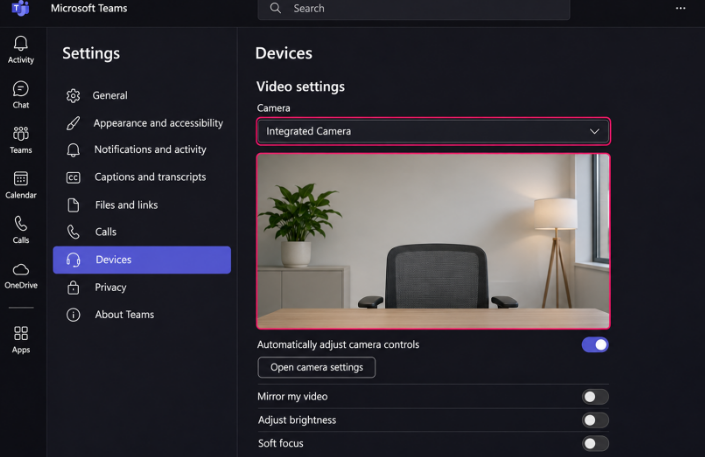
- Open Teams device settings: In new Teams, go to Settings and more (…) > Settings > Devices.
Pick the camera: Under Video settings, choose the camera from the Camera menu and check the preview. If several cameras or virtual devices are listed, pick the physical camera rather than the last one used.

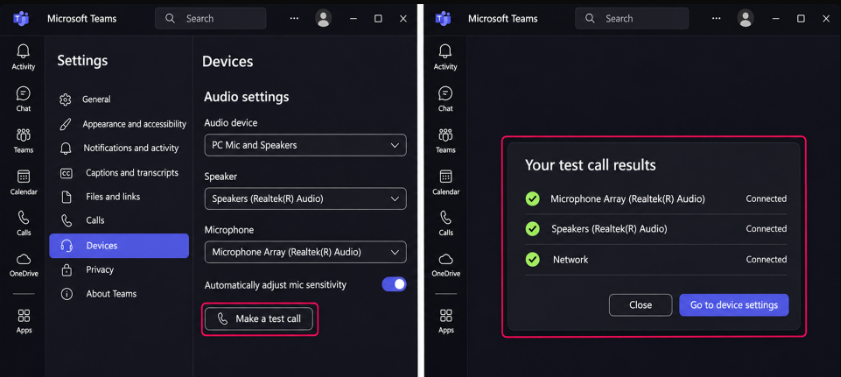
Run a test call: Under Audio settings, select Make a test call and follow the prompts. The test call is only in the desktop app, not Teams on the web, and it mainly checks audio. To check video, use the pre-join camera preview or a test meeting.

Read the result
What you see | Where to look |
|---|---|
The Camera app or Photo Booth fails too | Hardware, privacy permissions, driver, privacy shutter (Methods 2 and 4) |
The OS camera works, but the Teams preview is blank | Teams device selection, app permissions, other apps, the Teams client (Methods 2 and 3) |
The Teams preview works, but the camera won’t turn on in one meeting | Meeting options and policy (see "The camera button is greyed out") |
Teams on the web works, but the desktop app doesn’t | The desktop client (Methods 3 and 4) |
Write down pass or fail for four checks: the OS camera preview, the Teams desktop preview, the Teams web preview, and a test meeting. Together they show where the fault sits without relying on an error message.
With Robin by Atera: These four checks are the work Robin takes off your technicians for routine cases. Robin detects camera problems in video calls and resolves them before the meeting starts, so nobody needs a remote session to work through the comparison.
Method 2: Check camera permissions
Use this when: The camera works outside Teams, but the Teams preview stays blank.
Windows, macOS, and browsers each control camera access on their own. Passing one doesn’t mean the others allow it.
Windows 11
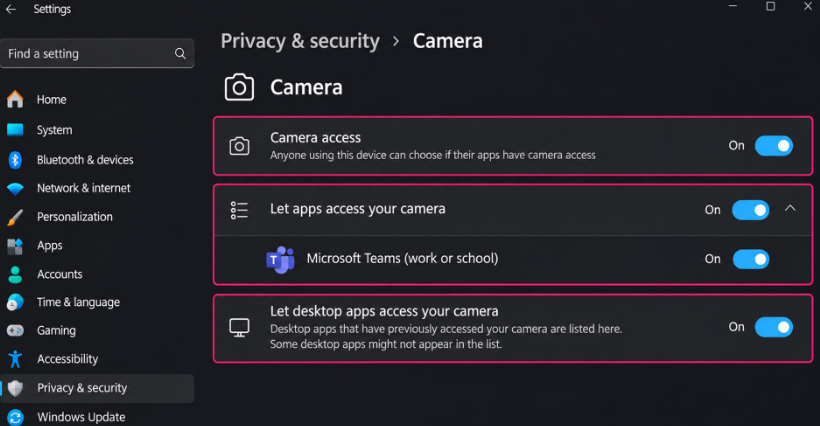
- Open Settings > Privacy & security > Camera
- Turn on Camera access and Let apps access your camera
- If Microsoft Teams (work or school) is listed, turn it on
- Turn on Let desktop apps access your camera too. Depending on the Teams build, new Teams may appear in the app list or be covered by this desktop app setting
New Teams and classic Teams are separate apps to Windows. An old classic Teams entry doesn’t mean new Teams has permission.
macOS
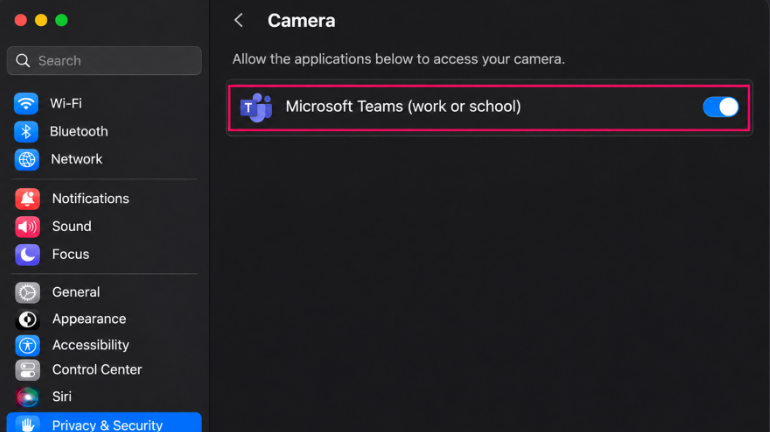
- Open System Settings > Privacy & Security > Camera
- Turn on Microsoft Teams (work or school). Make sure it’s the new Teams app, not a leftover classic Teams entry
- If Teams isn’t listed, open a camera preview in Teams to trigger the permission request
- Quit and reopen Teams after changing access
On a managed Mac, if the setting is locked, check your organization’s privacy and device management settings.
Teams on the web
- Open https://teams.microsoft.com in a supported browser such as Edge or Chrome
- Select the site permissions icon beside the address bar, set Camera to Allow, and reload the page
- Check the browser’s camera settings and make sure the physical camera is selected
On a Mac, the browser also needs macOS camera permission. If an old denied permission sticks, test in a fresh browser session

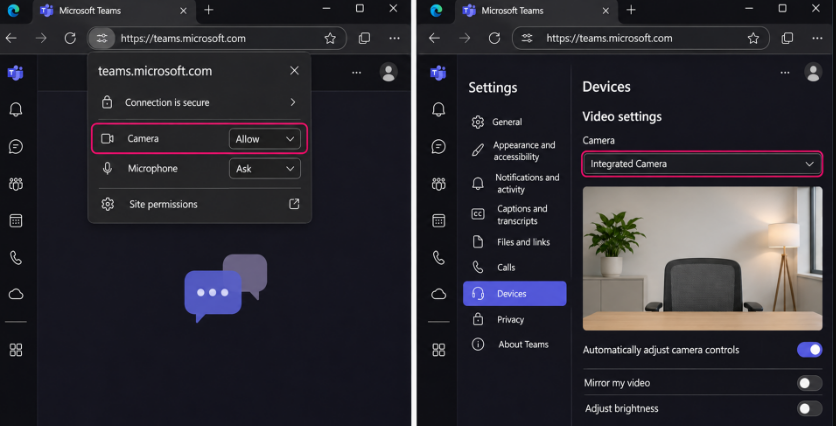
On managed devices, note the policy that applies before you change anything locally.
Method 3: Free the camera and restart Teams properly
Use this when: Permissions are on and the right camera is selected, but the Teams preview is still blank or frozen.
Another app may be holding the camera, or Teams may be half-running in the background. Treat a competing app as something to test, not a sure cause, because whether one app can block another depends on the driver and the app.
Windows 11
- Close Zoom, browser meetings, camera utilities, OBS, and virtual camera tools
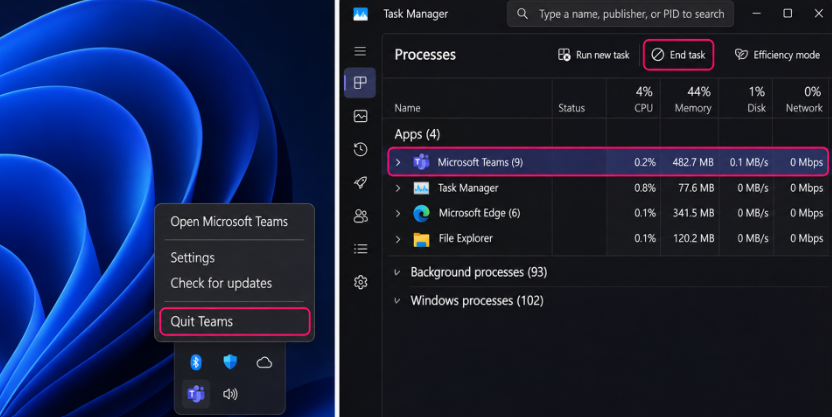
- Look for camera-in-use indicators and check Task Manager for those apps. Close them normally before you use End task
- Right-click the Teams icon in the notification area and select Quit. Make sure Teams has actually closed. If it hangs, end the Teams process in Task Manager
Open Teams again and check the preview with other video apps closed

macOS
- Check the camera indicator in the menu bar and quit the app that’s using the camera
- Quit Teams with Teams > Quit Microsoft Teams or Command-Q. Use Force Quit only if it’s frozen
- Open Teams again and check the preview with other video apps closed
If the camera is still stuck after restarting the apps, restart the device. That clears a stuck driver or camera service. If it’s still stuck after the reboot, clearing the Teams cache is the last step.
With Robin: When Teams freezes and won’t quit, the user can ask Robin to restart it. Robin uses the restart method that fits the app and operating system, then reports back so the employee can rejoin the meeting.
When to clear the Teams cache
Clearing the cache is a last resort. Only do it when all of these are true:
- The camera works in other apps.
- Teams has camera permission and the right camera selected.
- Restarting Teams and rebooting the device didn’t fix it.
Microsoft warns that clearing the cache can delete logs you may need, so save them first. On Windows, press Ctrl+Alt+Shift+1 or select the Teams icon in the system tray and choose Collect support files. On a Mac, press Option+Command+Shift+1 or go to Help > Collect support files. Teams saves the logs to the Downloads folder.
Here’s how to clear the cache:
Windows 11
- Quit Teams fully. Right-click the Teams icon in the system tray and select Quit Teams
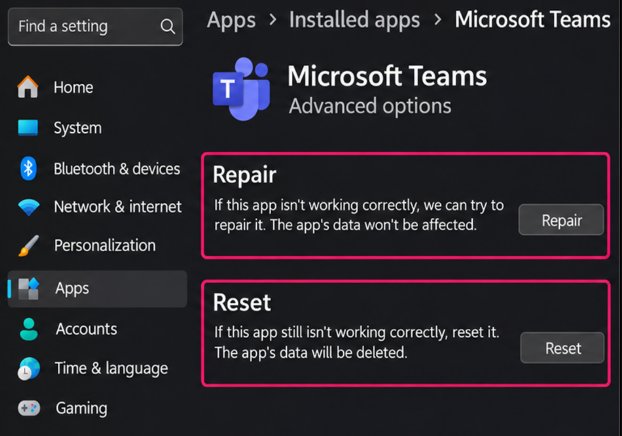
- Try the built-in reset first. Go to Settings > Apps > Installed apps > Microsoft Teams > Advanced options > Reset. This also removes the user’s personal Teams settings
If the reset doesn’t work, paste this path into the File Explorer address bar. Check that the folder opens, then move everything inside it to a backup folder outside the Teams folder:
The Script:
Atera does not guarantee the integrity, availability, security, virus-free, safety, lawfulness, non-infringement, rights’ status, or functionality of the scripts. The use of the shared scripts is at your own risk. Scripts are provided “AS IS”. *
%userprofile%\appdata\local\Packages\MSTeams_8wekyb3d8bbwe\LocalCache\Microsoft\MSTeamsScript copied to clipboard
macOS
- Quit Teams fully. Select Teams > Quit Microsoft Teams from the menu bar
- Confirm the new Teams folders exist on that Mac before you delete anything.
Open Terminal and run
The Script:
Atera does not guarantee the integrity, availability, security, virus-free, safety, lawfulness, non-infringement, rights’ status, or functionality of the scripts. The use of the shared scripts is at your own risk. Scripts are provided “AS IS”. *
mv ~/Library/Group\ Containers/UBF8T346G9.com.microsoft.teams ~/Library/Group\ Containers/UBF8T346G9.com.microsoft.teams.bak
mv ~/Library/Containers/com.microsoft.teams2 ~/Library/Containers/com.microsoft.teams2.bak
Script copied to clipboard
These steps move the local Teams data out of its original location instead of deleting it, so you can restore it if something goes wrong. Keep the backups until Teams works and your retention policy allows you to delete them. Get approval first if your change process requires it. Don’t use the classic Teams cache paths, because they don’t apply to new Teams.
Method 4: Update the driver or reinstall Teams
Use this when: The camera fails in the OS Camera app too, or it works everywhere except new Teams after Methods 1 to 3.
First decide which one you’re fixing:
- Driver problem: The camera also fails in the Windows Camera app, or it’s missing from Device Manager.
- Teams problem: The camera works everywhere except new Teams.
Windows 11: check and update the driver
- Open Device Manager and expand Cameras or Imaging devices
- Open the webcam and note its Device status and Driver version
- Select Update driver. Only use the manufacturer’s driver or Windows Update
- If the camera disappeared after an update, select Roll Back Driver
- Test the Windows Camera app again before you go back to Teams
Note the driver version before and after each change, so you can undo it if needed.
» For more on drivers, see our guide on how to update drivers on a PC
Windows 11: repair or reinstall Teams
- Update new Teams and restart it first
If that doesn’t help, go to Settings > Apps > Installed apps > Microsoft Teams > Advanced options and try Repair, then Reset

- If neither works, uninstall new Teams from Installed apps and reinstall it through your approved Microsoft 365 deployment channel
macOS
Macs don’t have separate camera drivers to update. Install macOS updates and, for an external camera, the vendor’s firmware.
For a Teams problem, quit Teams, remove it from the Applications folder, and reinstall it. On managed Macs, do this through Intune or your software catalog.
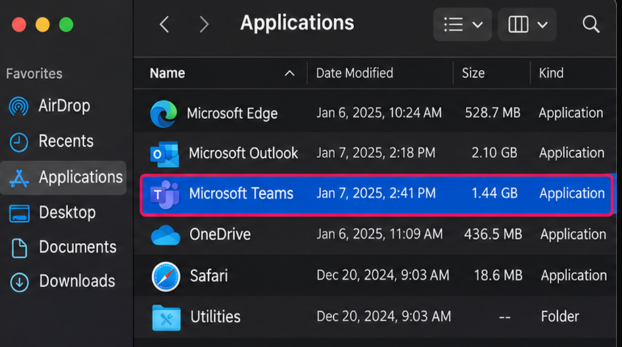
On either system, save the Teams logs before you remove it. Reinstalling won’t fix a camera that a policy has turned off.
With Robin: Robin covers both fixes. It updates drivers and firmware on supported Dell, HP, and Lenovo devices, and it repairs a damaged new Teams app, for example with a Microsoft Store app reset.
Method 5: Prevent and fix camera problems across the tenant
Use this when: Many users report the problem, failures started after a Teams rollout, or video is off for a whole policy group.
What Robin covers, and what it hands to you: Robin takes the single employee whose camera fails minutes before a call. A tenant-wide problem is different. Changing a Teams meeting policy, an Intune restriction, or an organization-wide security setting needs an authorized admin. A camera blocked by policy calls for a look at the effective policy, not an automatic loosening of security. With Robin clearing the everyday device tickets, your team has time for these changes.
Step 1: Sort the incident before you touch policy
- One laptop fails: Check that endpoint with Methods 1 to 4.
- A cluster after a client rollout: Compare Teams builds and device models.
- Video off for a whole policy group: Check the effective meeting policy.
» Here’s how to simplify group policy management with Atera
Step 2: Check the meeting policy
In the Teams admin center, go to Meetings > Meeting policies, open the policy, and expand Audio & video. Check Mode for IP video and the other video settings.
The most restrictive organizer or attendee policy can win, so one user’s setting may not explain every meeting. Also check the policy assignment, whether it has propagated, and whether the problem happens in meetings, group calls, or one-to-one calls.
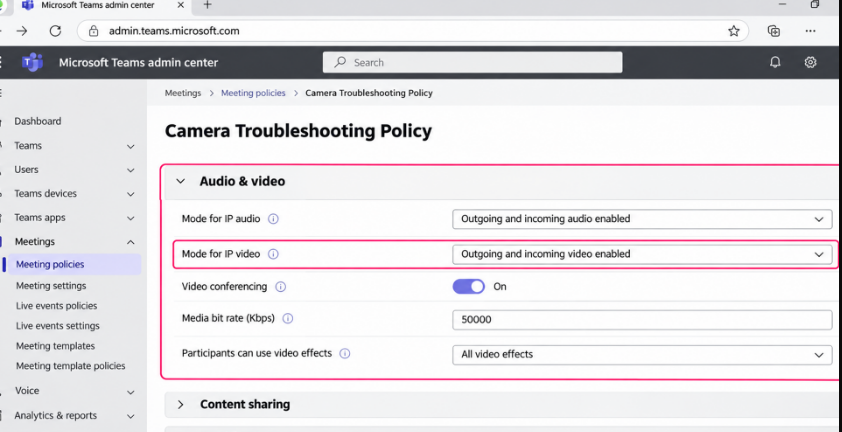
To get a read-only baseline in Teams PowerShell, run:
The Script:
Atera does not guarantee the integrity, availability, security, virus-free, safety, lawfulness, non-infringement, rights’ status, or functionality of the scripts. The use of the shared scripts is at your own risk. Scripts are provided “AS IS”. *
Connect-MicrosoftTeams
Get-CsTeamsMeetingPolicy -Identity Global | Select-Object Identity,AllowIPVideo
Get-CsOnlineUser -Identity '[email protected]' | Select-Object UserPrincipalName,TeamsMeetingPolicyThe sample identity is a placeholder, so swap in an authorized test account in a controlled tenant. The Global policy result alone doesn’t tell you what applies to one user.
Where group assignments or inheritance apply, check the user’s effective policy. AllowIPVideo can be changed with Set-CsTeamsMeetingPolicy, but don’t do that as routine camera troubleshooting. Any policy change should be approved, documented, piloted, and rolled back if it doesn’t help.
Step 3: Check camera devices and Intune policy on endpoints
These read-only commands list cameras under both the Cameras and Imaging devices classes, so you don’t miss webcams that Windows files under Imaging:
The Script:
Atera does not guarantee the integrity, availability, security, virus-free, safety, lawfulness, non-infringement, rights’ status, or functionality of the scripts. The use of the shared scripts is at your own risk. Scripts are provided “AS IS”. *
Get-PnpDevice -Class Camera -ErrorAction SilentlyContinue | Select-Object Status,FriendlyName,InstanceId
Get-PnpDevice -Class Image -ErrorAction SilentlyContinue | Select-Object Status,FriendlyName,InstanceIdFor managed devices, also confirm that Windows camera permissions and two Intune settings allow access. Allow Use of Camera (Camera/AllowCamera) in the Camera Policy CSP turns the camera on or off for the whole device, so it must allow access. Let Windows apps access the camera (Privacy/LetAppsAccessCamera) controls app access, and its force-allow list can include new Teams by its package family name, MSTeams_8wekyb3d8bbwe.
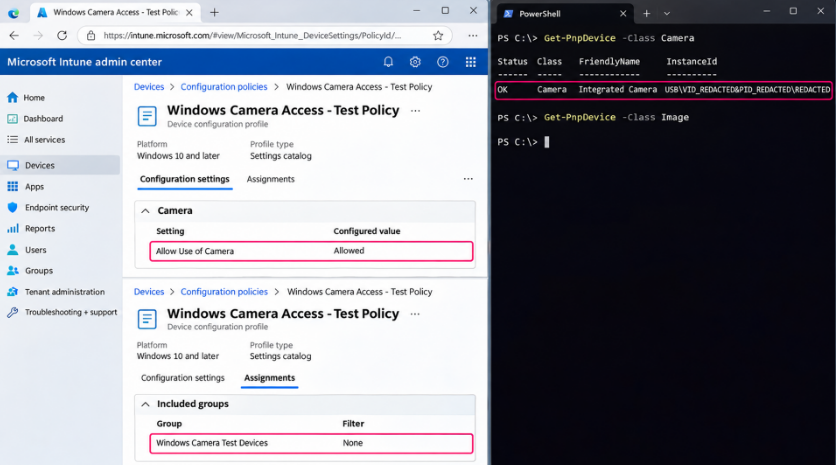
Use Atera’s RMM to check camera availability, driver status, and device settings across the affected endpoints. You can run the commands above through Atera’s remote PowerShell execution.
With Robin: After you fix an Intune camera policy, a device may still be waiting to pick it up. Robin triggers an Intune sync so the device checks in for pending policies and apps.
» New to Atera? Here’s how to install Atera’s Windows agent
Step 4: Compare and roll out carefully
Compare results across affected devices by device model, OS build, Teams build, camera driver version, policy assignment, and the time of failure. That shows whether the fault is one device or a shared setting. Test any fix on a pilot group with an unaffected device for comparison and a rollback plan. Don’t bulk-uninstall camera drivers or change tenant-wide video policy without change control.
Common Teams camera issues
Some camera problems aren’t caused by the device itself. Two common examples are a greyed-out camera button and a camera that works in other apps but not in Teams.
The camera button is greyed out or missing in a meeting
If the preview works in Teams settings, the webcam isn’t broken. A greyed-out button usually points to a setting or role, so find out where the restriction happens:
- Only in one meeting: The organizer may have turned off cameras for attendees in Meeting options. Ask the organizer or a co-organizer to check it, rather than changing tenant policy.
- Across many normal meetings for the same user: Check that user’s effective Teams meeting policy, and the organizer’s policy for each affected meeting.
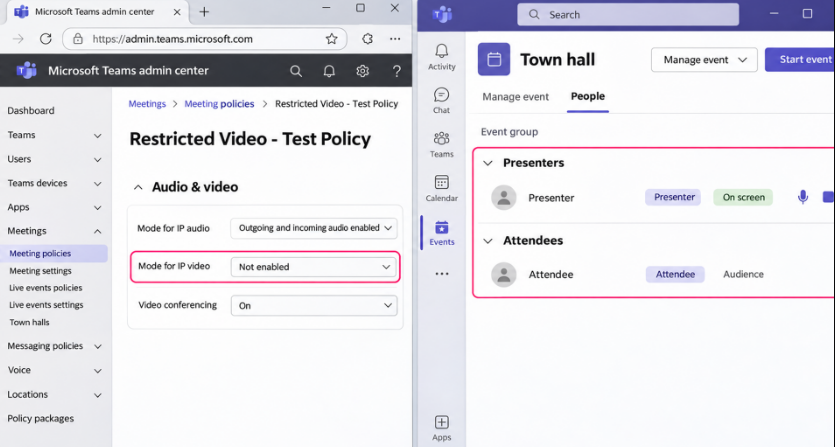
- Only in webinars or town halls: Check whether the user is an attendee rather than a presenter. These large events limit who can turn on a camera on purpose.
To narrow it down, try three comparisons: the same user in a different meeting, a different user in the same meeting, and the same user in a normal meeting versus a town hall. A test meeting organized by a user with known video permissions also helps separate a meeting setting from a device fault.
How to fix each one:
- Policy: An authorized Teams admin reviews the assignment and the Mode for IP video setting.
- Meeting options: The organizer changes the setting if appropriate.
- Role: Assign a presenter role only when the event and security requirements allow it. Don’t make every attendee a presenter just to unlock the camera button.
The camera works in the Camera app or Zoom but not in Teams
Users often report a built-in camera that freezes or doesn’t show up in Teams calls, even when the call itself works. If you’ve already worked through the quick fix and Methods 1 to 3, check these three things, one at a time:
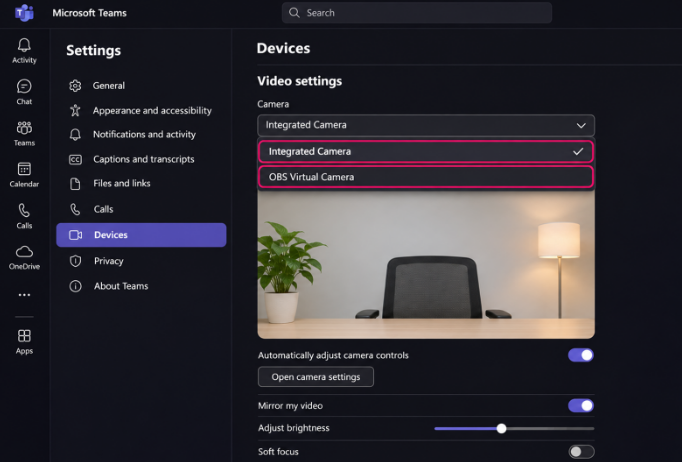
Virtual cameras: Close OBS or any other app that adds a virtual camera, and make sure Teams is set to the real webcam in Settings > Devices.

Camera effects: Turn off Windows Studio Effects and any vendor background or framing features one at a time. If the freeze stops, an effect was the cause.

Desktop vs. web: Try Teams on the web in Edge. If web works and desktop doesn’t, the desktop client is the problem, so save the Teams build and logs before you reset anything.
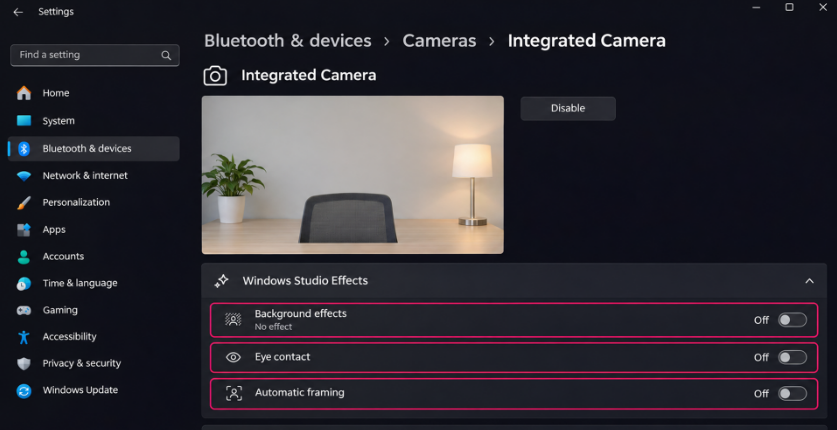
Let Robin fix Teams cameras before the call
Most Teams camera issues appear just minutes before a meeting, when employees need a quick fix. When troubleshooting manually, work from the outside in: test the camera in the operating system, check Teams settings and permissions, rule out other apps, and only then investigate drivers and policies. This order helps you identify the actual cause without jumping straight to unnecessary driver reinstalls.
Robin by Atera detects and resolves camera, microphone, and Bluetooth headset problems before meetings start, helping employees join on time while technicians focus on more complex issues, such as meeting policies and Intune settings. Atera’s RMM also lets your team run the checks in this guide across all managed devices. Robin is sold separately as an add-on to the Atera IT suite.
» Ready to stop chasing camera tickets before every meeting? Book a Robin demo or start a free Atera trial
Related Articles

How to fix Outlook not opening and repair what failed
Outlook not opening looks like one problem, but it can be five: an add-in, the Office install, the profile, the data file, or sign-in. Guess wrong and you rebuild a profile that was fine or put local mail at risk. The fix is to rule out the quick causes, pin down the component that actually failed, repair only that, and push the same fix remotely when it hits more than one device.
Read now
How to fix a slow laptop and find the real bottleneck
One "my laptop is slow" ticket can hide five different problems: a pinned CPU, memory paging to disk, a failing drive, heat or power throttling, or a startup list that's grown with every install. Cleanup tools and reboots treat them all the same. The real fix starts with reading what Windows reports, finding the one resource that's struggling, and fixing that.
Read now
How to fix Wi-Fi that is connected but has no internet
Wi-Fi says connected but nothing loads. This guide shows IT teams how to find the failing layer in four quick tests, then fix it with different methods for Windows, macOS, and Linux.
Read now
How to fix Zoom camera not working
Zoom camera not working? This guide gives IT teams a quick fix to try first, then five numbered methods and three edge cases for Windows and Mac, from one laptop before a meeting to a whole fleet.
Read nowEndless IT possibilities
Boost your productivity with Atera’s intuitive, centralized all-in-one platform