
Generate summary with AI

Around 16% of companies around the world are fully remote, which means the likelihood of a technician logging in from a coffee shop halfway across the world or an admin session starting from an unmanaged personal laptop is a daily occurrence. In these moments, a password alone isn’t enough to prove identity. In this blog, we’ll look at how Conditional Access works as a real-time gatekeeper by checking signals like location and device health before granting entry.
This approach helps you build security directly into every login attempt, keeping your data safe without getting in the way of your team’s work.
» Here’s how to increase IT efficiency in your organization
Why privileged accounts need a different approach
Most Conditional Access conversations start with end users, but that’s the wrong place to start. Privileged accounts (global admins, security administrators, helpdesk administrators, etc.) are the accounts attackers actually want. Compromise one, and the blast radius isn’t a single user’s inbox; it’s your entire identity plane.
The problem isn’t that organizations lack Conditional Access policies. It’s that policies written for standard users don’t account for how privileged access actually works.
“Admin portal access triggers the highest level of security friction for good reason. The goal is to ensure that even if a password is stolen, the “keys to the kingdom” remain out of reach.”
Odinke Ukomadu
But that friction cuts both ways. Get the policy logic wrong and you’re locking your own administrators out of the environment during the moments they need access most.
The decision logic compounds this risk. When multiple policies apply simultaneously, requirements stack cumulatively and a single block instruction overrides everything else, regardless of how many other policies the user satisfies. That’s a powerful security mechanism, and a reliable way to accidentally lock out a senior admin at 2 AM during an incident if the pilot wasn’t structured carefully.
Before you proceed: establish your safety net
Every organization piloting Conditional Access for privileged accounts must create break-glass accounts before touching a single policy. These are cloud-only accounts excluded from all Conditional Access policies, secured with long, complex passwords and FIDO2 security keys stored in separate physical safes. Without them, a misconfigured block rule can produce a tenant-wide, unrecoverable lockout. This is non-negotiable.
What Conditional Access actually does and how its decision logic works
Rather than covering fundamentals your privileged-access team likely already knows, this section focuses on the three patterns that matter most in production environments and exactly why each one exists.
- The Multi-Factor Authentication (MFA) pattern serves as the baseline for nearly all production tenants by requiring a second form of verification for every user regardless of their location. This pattern is designed to solve the problem of credential stuffing and phishing by ensuring that a leaked password alone is not enough for an attacker to gain entry.
- Device compliance restricts access to resources like SharePoint or Teams only to managed and healthy hardware that has been enrolled in the company system. This solves the problem of data exfiltration and Shadow IT by preventing users from accessing sensitive information from unpatched or unauthorized personal devices.
- Location and risk filtering involves blocking sign-in attempts that originate from high-risk geographies or show anomalous behaviors. This solves the problem of automated brute-force attacks by mitigating threats from known malicious IP ranges and blocking access from regions where the company doesn’t operate.
» Understand how to automate threat detection and response for IT security
How access decisions differ across platforms
Conditional Access doesn’t treat every login the same way, as the security requirements change based on who is signing in and what tools they are using to access the network. These include:
- Interactive user sign-ins rely on browser-based signals and background checks to provide a smooth experience for the average employee. If a user is on a known, healthy device, the system often uses a “Primary Refresh Token” to verify their status without requiring them to re-enter their credentials every time they switch apps.
- PowerShell and CLI clients interact with management APIs rather than a visual website, which can make it harder for the system to see if the device is managed. To secure this pathway, IT administrators often apply Conditional Access policies such as restricting access to trusted locations, requiring strong authentication methods, or limiting access to approved identities to reduce the risk of session misuse.
» Strengthen your security with the best API security tools
How Conditional Access decisions work
When a user attempts to sign in, the system evaluates all applicable policies simultaneously rather than picking just one. This creates a cumulative security checklist that must be fully satisfied before access is granted.
If one policy requires MFA and a second policy requires a compliant device, the user must satisfy both conditions to get in. The system effectively merges all your “Grant” requirements into a single, stricter list of rules.
“The most important rule of interaction is that a “Block” instruction always wins. If any single policy results in a denial, the user is blocked immediately, even if they successfully meet every requirement in ten other policies.”
Odinke Ukomadu
Different signals serve different purposes during the evaluation process:
- Location is frequently used to skip extra steps when a user is in a trusted office
- Device state is used to gate sensitive data
- Risk signals act as a primary trigger, often forcing a password reset or blocking the attempt entirely if the system detects a high probability of a compromised account
For example, if an administrator tries to log in from home on a personal laptop with a leaked password, the “High Risk” policy will trigger a block immediately. This happens even if the “Location” or “Device” policies would have normally allowed the login with just a simple MFA prompt.
» Learn more about cybersecurity best practices for small businesses
4 steps to safely pilot Conditional Access for privileged users
To implement these controls successfully, organizations must move from broad enforcement to a staged approach that limits risk while providing meaningful security data.
1. Establish break-glass accounts and monitoring before anything else
This step is a prerequisite, not a suggestion. Skipping it and encountering a misconfigured block policy can mean an unrecoverable tenant lockout with no path back in.
Break-glass account requirements:
- Create two cloud-only accounts that are excluded from all Conditional Access policies — no exceptions.
- Secure them with long, complex passwords and FIDO2 security keys stored in physically separate, access-controlled locations (not the same safe).
- Never use them for day-to-day tasks. Their sole purpose is emergency access if primary authentication methods fail.
- Audit them monthly. Confirm the accounts still exist, are excluded from all active policies, and that credentials remain intact and accessible.
Monitoring requirements:
- Connect Microsoft Entra ID logs to a Log Analytics workspace. This is your flight recorder. Without it, you have no visibility into which administrators would have been blocked before enforcement.
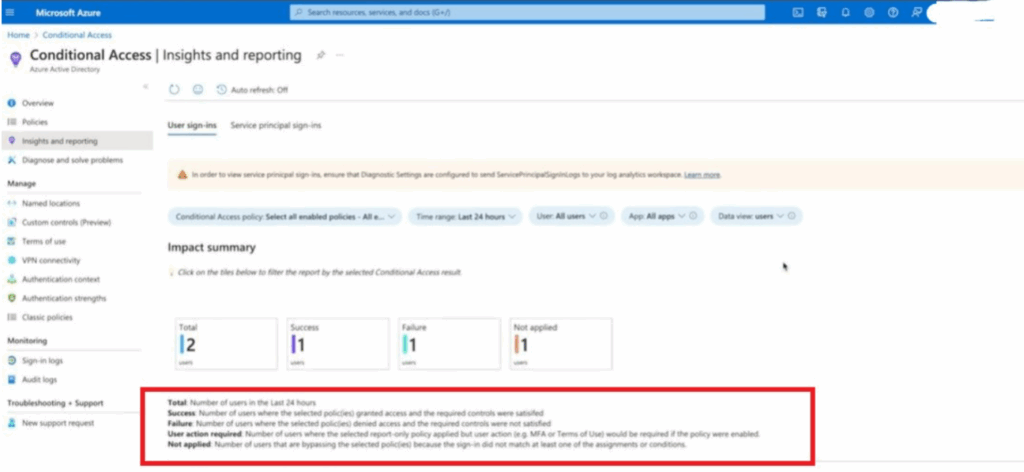
- Enable the Conditional Access Insights and Reporting workbook. Use it to visualize potential impact during your pilot.
- Set up alerts for break-glass account usage. Any sign-in using an emergency account should trigger immediate notification to your security team.
Run a break-glass drill before going live. Confirm that emergency accounts are excluded from all active policies and that credentials are accessible to at least two people in your organization. Do this quarterly.
» Here are the 30 best password managers for enterprises
2. Implement graduated enforcement strategies
To prevent all-or-nothing lockouts, structure your pilot policies so that authentication failures degrade access safely instead of fully blocking administrators.
- Use “require one of” logic: Instead of a single block rule, use a policy that requires either a compliant device or multi-factor authentication. If a technician’s device fails the compliance check, they aren’t blocked; they are simply prompted for additional MFA.
- Implement session frequency throttling: For pilot groups, don’t block unmanaged devices. Instead, apply session controls that force a sign-in frequency of one hour. This ensures that if the authentication is weak, the window of risk is automatically minimized without stopping the admin’s task.
- Exclude your pilot group from production block policies: Until you confirm no unintended failures, keep pilot administrators out of any policy that carries a hard block instruction.
3. Identify failure paths with report-only mode
Report-only mode allows you to shadow-test policies by capturing outcomes without enforcing them, helping you identify admin-specific failure paths before they cause downtime.
By filtering the reporting workbook for your pilot group, you can isolate failure or user action required states. This helps you spot edge cases, such as legacy PowerShell scripts failing due to MFA or untrusted IP flags, as seen in the image below.
Warning: While powerful, report-only mode has specific gaps that must be accounted for during your analysis, including:
- MFA interactivity: The mode can’t simulate whether a user can successfully complete an MFA challenge; it only logs that a challenge would have been issued.
- Policy conflict: It may not perfectly predict logic if multiple policies overlap, as the evaluation engine stops at the first hard block.
- Device state gap: If a device is not registered or enrolled in Microsoft Intune, attributes like compliant won’t be available, which can result in failed Conditional Access checks in the logs.
» Make sure you know how to automate tasks with PowerShell scripts
4. Test Conditional Access across IT management workflows
Validating that security policies don’t disrupt critical operations means testing scenarios that reflect the real tasks performed in enterprise IT management.
Check these aspects:
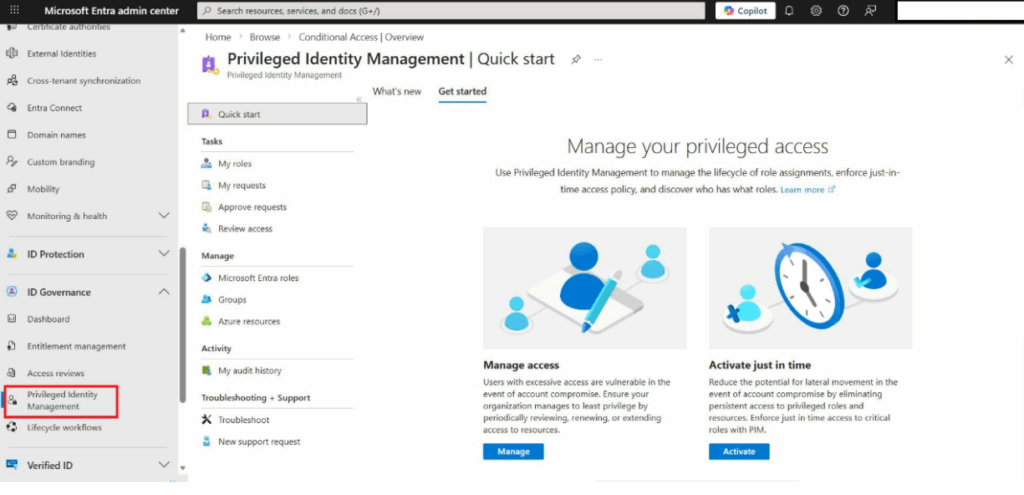
Privileged Identity Management (PIM) activation and step-up testing: As shown in the image below, verify that policies trigger the moment a role is activated in PIM. Confirm that the system prompts for the required MFA or device compliance checks without causing loops or unintended access blocks.
Token refresh and session continuity: Test how policies handle active sessions when trust levels change. Revoke a test admin’s session or switch networks (e.g., to a mobile hotspot) and confirm that Continuous Access Evaluation forces re-authentication or blocks access immediately after a high-risk event.
Cross-tenant workflow validation: Ensure delegated access remains functional by accessing a client tenant via Azure Lighthouse or GDAP. Confirm that policies in the partner tenant don’t conflict with the client environment’s access requirements.
Break-glass emergency drills: Run periodic checks to confirm that emergency accounts are excluded from all active policies. This ensures full availability if primary authentication methods fail during a critical incident.
Bringing it together: identity controls need an endpoint layer
Conditional Access controls who can access your environment. But identity controls alone can’t tell you whether the device being used is healthy, correctly configured, or drifting from your security baseline.
That gap is where endpoint management becomes part of the access story. Continuously monitoring device health, detecting configuration drift, and verifying compliance across all managed hardware ensures the device signals your Conditional Access policies rely on are accurate — not stale.
Atera’s RMM capabilities give you that endpoint visibility layer alongside your identity controls: running routine compliance checks across managed devices, enforcing configuration standards through automation and PowerShell scripting, and surfacing security gaps that identity policies alone can’t detect. The result is an access strategy where every signal your policies evaluate can be trusted.
The takeaway
Conditional Access for privileged accounts is high-reward and high-risk. The steps above — break-glass accounts first, report-only testing before enforcement, graduated logic to avoid hard lockouts, and thorough workflow validation — give you a path to strong identity security without the operational risk of locking out the administrators who need to respond when something goes wrong.
Frequently Asked Questions
Related Articles

How to reduce alert fatigue across your IT team
Your technicians aren't ignoring alerts because they're careless. They're ignoring them because most alerts have taught them to. Once the stream stops being trustworthy, real failures slip past with the noise. Fixing it means deciding what deserves an interruption, tuning out transient spikes, collapsing alert storms, and automating the fixes you've run a hundred times.
Read now
How to close the IT skills gap on your team
Course completions don't close skills gaps. Technicians finish the training, then hand the first unfamiliar failure straight back to a senior engineer. Real capability gets built on live tickets, incidents, and maintenance windows, with guidance that fades as competence grows.
Read now
How to calculate cost per ticket (and why most teams get it wrong)
Most cost-per-ticket figures are wrong before anyone reads them. Missing overhead, tickets that were opened but never closed, spam and duplicates padding the count, and one month's costs divided by another month's tickets all make support look cheaper than it is. Fix both sides of the division and the number finally shows where technician time and money actually go.
Read now
How to prepare for a software license audit
A vendor audit notice doesn't wait for you to get organized. It demands proof, right now, that every install matches every entitlement you've paid for, and most IT teams find out the hard way how much they don't actually know about their own environment. Getting audit-ready before the letter arrives is the difference between negotiating from strength and paying for months of scrambling.
Read nowEndless IT possibilities
Boost your productivity with Atera’s intuitive, centralized all-in-one platform









