
Table of contents
Generate summary with AI

An environment variable change can seem simple until a script works on one PC but not another, or a setting appears to change but applications continue using the old value. For IT teams managing Windows devices, knowing where a variable is stored, which scope takes priority, and how to apply the change consistently can save a lot of troubleshooting time.
In this blog, we’ll break down how PowerShell environment variables work and show you how to set and manage them, from a single machine to multiple devices.
» Here’s how to increase IT efficiency in your organization
Foundations of PowerShell environment variables
When you manage system-level environment variables with PowerShell, the changes you make won’t work unless you manage administrator privileges and execution policies correctly.
Take note: To create or change a Machine-level environment variable, you must open PowerShell as an administrator. Simply being logged into an administrator account isn’t enough. The PowerShell window itself must be elevated because Machine-level variables are stored in protected parts of Windows.
Execution policies are separate from administrator privileges. They mainly control whether PowerShell can run saved .ps1 scripts. They don’t normally affect commands that you type directly into the PowerShell window. Before running a script, you can check the active policies with: Get-ExecutionPolicy -List
On managed computers, MachinePolicy and UserPolicy can be enforced through Group Policy. If these policies prevent a script from running, it’s generally better to use an approved deployment method than to weaken the security settings.
» Here’s everything you need to know about group policy management with Atera
Variable priority and conflicts
Sometimes the same environment variable exists at both the User and Machine levels. For most variables, the User-level value takes priority for that specific user.
For example:
- Machine variable:
Production - User variable:
Test - Effective value for that user:
Test
However, the Path variable works differently. Windows usually combines the Machine and User Path values instead of allowing one to completely replace the other.
It’s also important to remember that environment variables are loaded when a process starts. If you change a variable while PowerShell is already open, that existing PowerShell session may continue using the old value. You may need to open a new terminal or restart the relevant application.
» Make sure you know how to view and manage environment variables in Windows
Environment variable scopes
Environment variables can exist at three different levels:
- Process scope: A process-level variable exists only in the current PowerShell session. It can be passed to programs launched from that session, but it disappears when the session closes.
- User scope: A user-level variable is saved for a specific Windows user account. It remains available after signing out or restarting the computer and is available to new processes started by that user.
- Machine scope: A machine-level variable applies to the entire computer. It’s available to all users by default, although a User-level variable with the same name can override it for a specific user. Changing Machine-level variables requires an elevated PowerShell session.
» Find out how to restart a remote PC using Windows
Step-by-step methods for setting environment variables
This section covers the different ways you can create environment variables in PowerShell, depending on whether you want the variable to be temporary, user-specific, or available across the entire computer.
Method 1: Create a temporary environment variable
If you’re testing scripts or need a variable that cleans itself up automatically when you close your window, this is the quickest route. It works well for local testing and debugging without modifying permanent system settings.
Follow these steps:
- Open the PowerShell window as administrator where you want to create the temporary variable
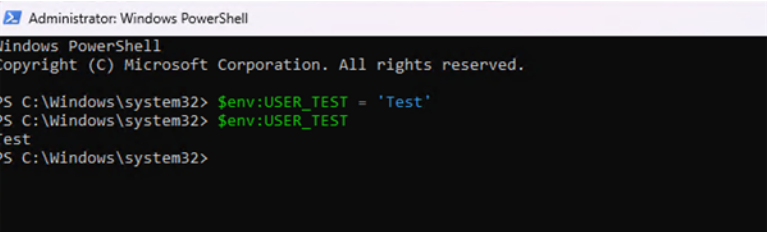
- Create the environment variable by pasting the following command in PowerShell:
$env:USER_TEST = 'Test' Check the variable by running:
$env:USER_TESTPowerShell should return:TestThis confirms that the variable was created successfully
Method 2: Set a permanent user-level environment variable using .NET classes
When you need a configuration to belong strictly to the signed-in account and survive a system restart, this approach gets the job done. It works well for persistent user-specific settings without requiring administrative privileges.
Follow these steps:
- Open your PowerShell window to configure the persistent User setting
- Set the variable by running:
[Environment]::SetEnvironmentVariable('USER_TEST','Production','User') - Read back the saved User scope directly by running:
[Environment]::GetEnvironmentVariable('USER_TEST','User') The command should return
Production. This updates the saved registry location without refreshing the current window’s$env:block; open a new terminal window to test normal inheritance

Method 3: Set a permanent environment variable using the native setx utility
Use this method when you need a quick command-line utility for the current user profile without writing custom .NET code. It’s ideal for rapid administrative tasks.
Follow these steps:
- Open your PowerShell prompt to run the utility command
- Execute the tool for the current user profile by running:
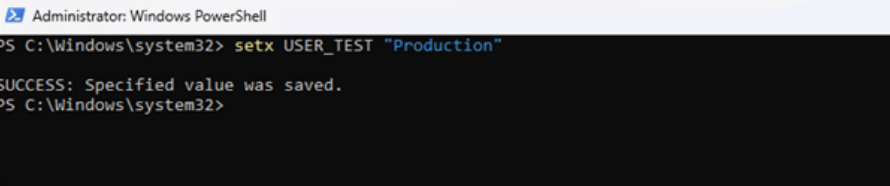
setx USER_TEST "Production" Open a brand-new PowerShell window and check
$env:USER_TESTto confirm inheritance. A success message confirms saving, but note that the current window will not update dynamically, and values are subject to a 1,024-character assignment limit
» Find out how to run PowerShell commands on a remote computer
Method 4: Configure a permanent system-level environment variable (Machine scope)
This method is designed for systems administrators who need to configure a single computer so that the environment variable is available as a default for all user accounts on that machine. It’s useful when managing an individual workstation or when testing the configuration before deploying it more widely.
Follow these steps:
- Open PowerShell with Run as administrator to ensure you have the required elevated privileges for system-level changes
Run the following commands:
[Environment]::SetEnvironmentVariable('USER_TEST','Production','Machine')[Environment]::GetEnvironmentVariable('USER_TEST','Machine')The command should return
Production. Keep in mind that open applications retain their earlier Process values, and a same-named User variable can still override this default for an individual account

Method 5: Deploy PowerShell environment variable scripts at scale
This method is for applying environment variable changes across multiple computers. Rather than manually repeating Method 4 on every machine, administrators can use automation tools to run the configuration remotely or deploy it across an entire organization.
Take note: You don’t need to use both methods on the same computer. Method 4 shows how to make the change on an individual machine, while Method 5 is the scalable approach for applying similar changes across a large fleet of devices.
- Pilot and test first: Don’t begin with the whole fleet. Prove the script on one test device and make readback part of the script, as a command finishing without an error is not enough to confirm the correct target changed.
- Use PowerShell remoting: Create an approved target list, then use
Invoke-Commandfor online computers when PowerShell Remoting is configured and the remote identity has permission to change Machine scope. - Leverage enterprise Group Policy: For domain-joined computers, assign the tested script under Computer Configuration > Policies > Windows Settings > Scripts (Startup/Shutdown).
Writing PowerShell scripts with scope handling, error checks, and verification can take time. Atera’s AI Copilot helps by generating scripts for tasks like this from natural language queries. Combined with Atera’s RMM, technicians can write, test, and deploy PowerShell scripts across multiple devices faster.
» Make sure you know how to automate tasks with PowerShell scripts
How Atera can help
Managing Windows environment variables effectively starts with understanding scopes, permissions, and which setting takes priority. Whether you are using temporary variables for testing, .NET methods for persistent settings, or native utilities for quick changes, choosing the right approach helps keep configurations predictable and consistent.
For larger environments, manually configuring each computer is not practical. PowerShell remoting, Group Policy, and Atera’s RMM make it easier to deploy system-level environment variables across multiple devices. With testing, automated execution, and readback verification built into the process, administrators can reduce errors, prevent configuration differences between machines, and manage changes more reliably across the organization.
Related Articles

How to install AppImage on Linux
An AppImage that won't launch usually isn't broken. It's missing FUSE, sitting on the wrong filesystem, or lacking its execute bit. Here's every method for running one on Linux, from a single terminal command to pushing it across an entire fleet.
Read now
How to remove write protection from a USB
A drive gone read-only isn't always a two-minute registry fix. Sometimes it's flash memory quietly failing, and every write attempt afterward costs you more of the data you're trying to save. Here's how to tell which one you're dealing with and what to do once you know.
Read now
How to enable or disable Windows Subsystem for Linux WSL in Windows 10
Enabling WSL feels harmless right up until a checkbox turns into error 0x80370102 and a BIOS setting nobody documented. WSL now shows up on more professional machines than a standalone Linux install, which means more failed toggles landing on IT's desk.
Read now
How to start mysql server on windows
MySQL doesn't fail loudly on Windows. It just doesn't start, and the reason is buried in a locked port, a missing permission, or a my.ini path pointing nowhere. Five methods will get the service running again, but only if you know which one to reach for and what to check when it stalls.
Read nowEndless IT possibilities
Boost your productivity with Atera’s intuitive, centralized all-in-one platform









