
Table of contents
Generate summary with AI

A MySQL service that won’t start rarely announces the reason on its own. You get a connection refused error, a blank status panel in Workbench, or an application that simply can’t reach its database, and the actual cause is sitting a few layers back in a locked port, a stale my.ini path, or a service account without the right permissions.
Anyone who has spent a Monday morning chasing a “service ended unexpectedly” message across Event Viewer and the MySQL error log trying to close support tickets knows how much time gets burned on process before you even reach a fix. So here’s every way to start it and the best situations for each one.
Before you start the service
Every method for starting the MySQL service assumes three things are already in place:
- You have the rights to control it
- The service can find its configuration
- Nothing else on the machine is fighting it for the same port or files
Skipping this layer is the fastest way to end up troubleshooting a “service ended unexpectedly” error that was actually a permissions or conflict issue from the start.
How my.ini controls startup
The my.ini file defines what MySQL does the moment it starts, so a startup failure often traces back to a value here rather than the start command itself.
my.ini sets:
- The data directory (
datadir) - TCP/IP port
- Socket
- Character set
- Logging
- Storage engine options
MySQL reads all of it before opening data files or accepting connections. In a default installation, you’ll typically find it in the MySQL installation directory or under C:ProgramDataMySQLMySQL Server 8.0.
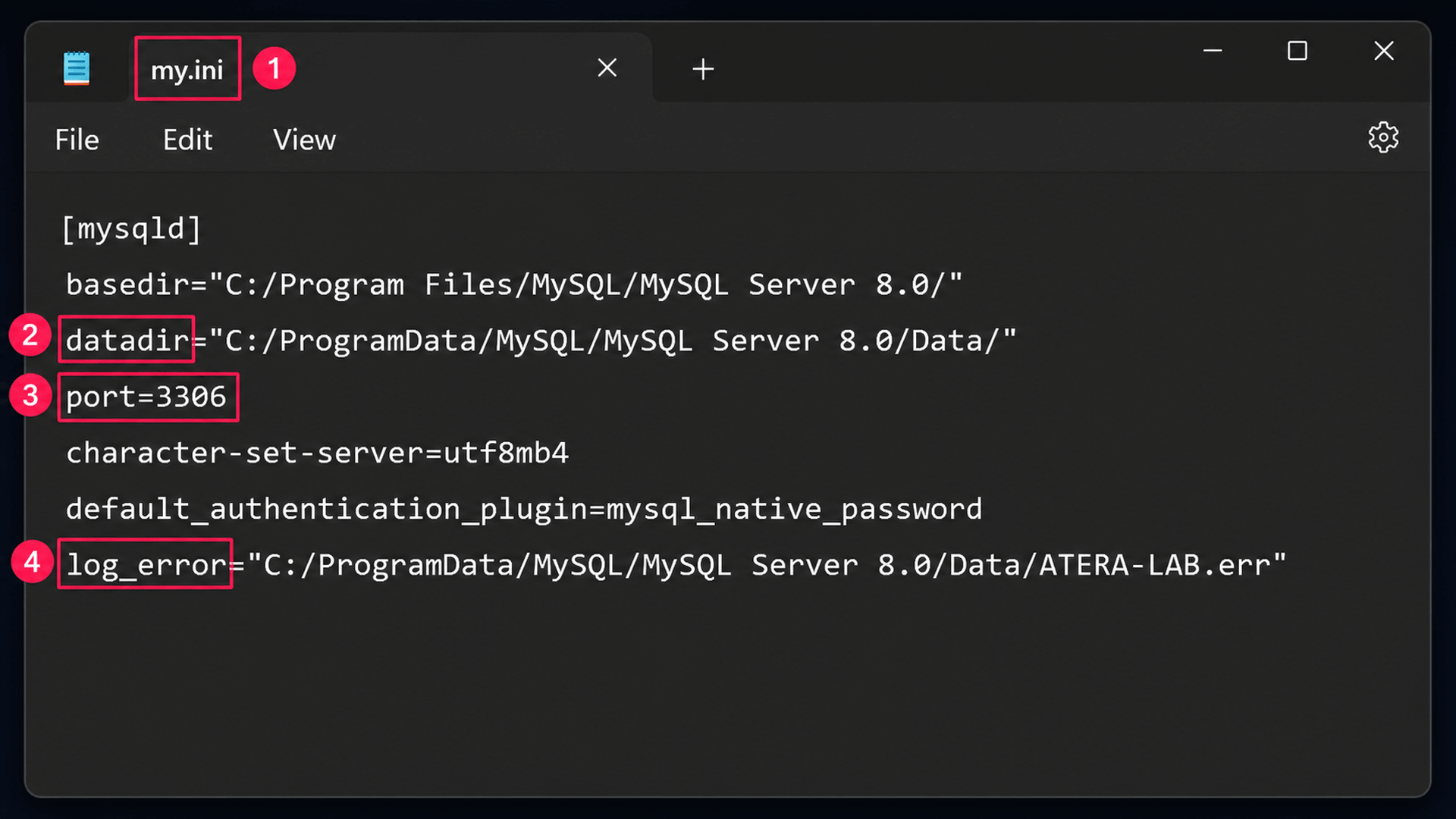
MySQL searches for option files in a defined order (the Windows directory, the MySQL installation directory, then the ProgramData location) so if you’ve got more than one my.ini on the system, then an invalid path, a bad value, or an inaccessible data directory in whichever file loads is enough to stop the service from starting.
Resolving conflicts in XAMPP or WAMP environments
This matters specifically when MySQL is bundled inside a stack like XAMPP or WAMP rather than installed standalone, since bundled environments run their own config files and service definitions alongside anything else already on the machine.
So do the following first:
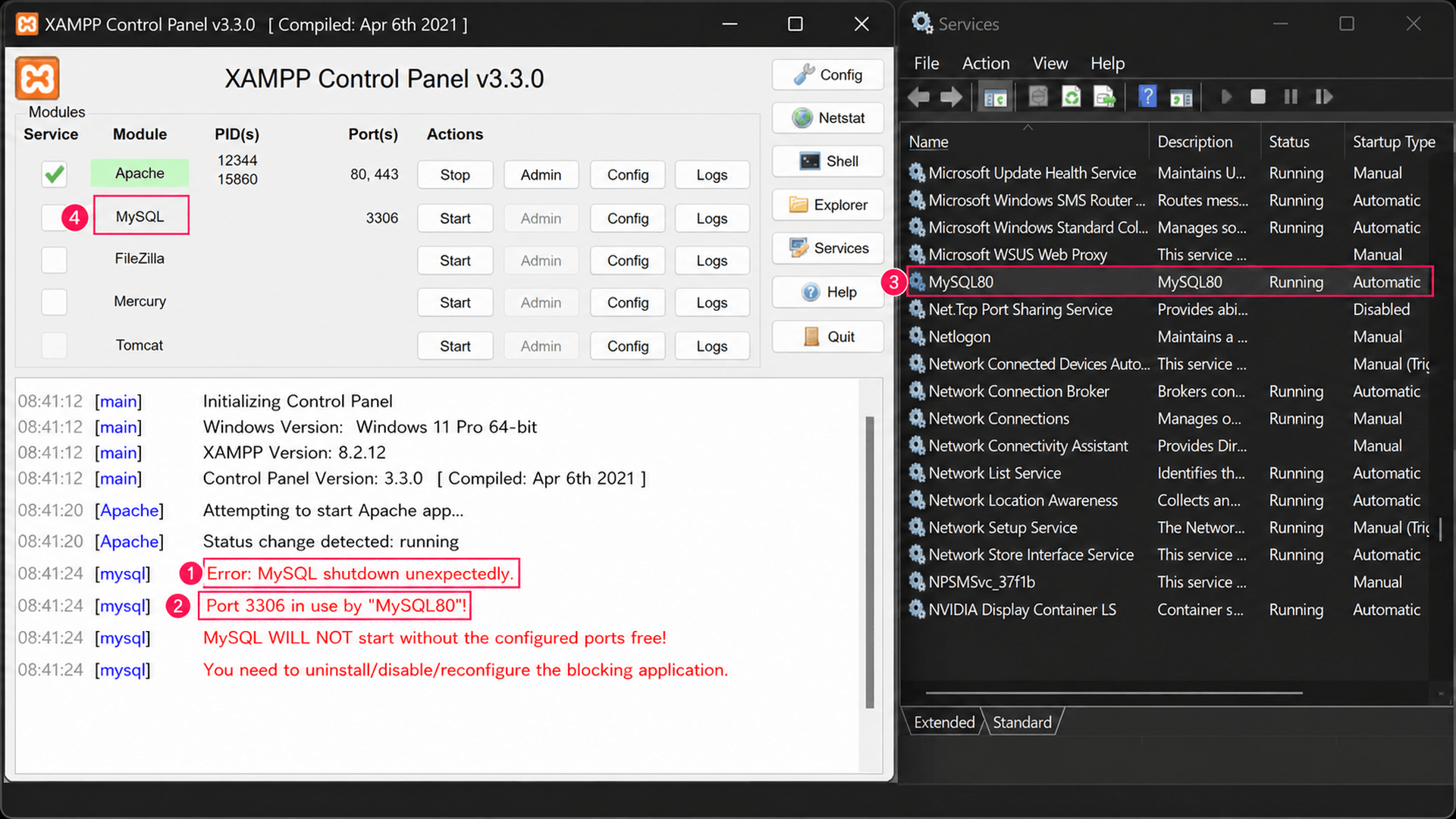
- Check whether another MySQL or MariaDB service is already running before starting the bundled one. Two database services competing for the same resources is the most common cause of startup failure in these setups.
- Confirm nothing else is already listening on TCP port 3306, since bundled and standalone installs both default to it and only one can bind successfully.
- Verify the Control Panel is loading its own
my.inirather than a standalone installation’s file. Bundled environments maintain separate configuration files and data directories, and pointing at the wrong one produces confusing, hard-to-trace failures.
5 ways to start the MySQL service
Once you’ve confirmed the prerequisites from the previous section, starting the service itself comes down to picking the right tool for the situation. None of the methods are technically better than the others; it just depends on what your situation is.
Method 1: Using the services console
Use this when you want a GUI-based option that doubles as a quick status check, since it’s often the fastest way to confirm whether MySQL is already running before you try anything else.
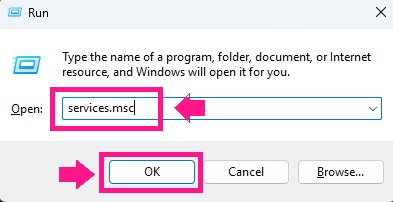
Press Win + R, type
services.msc, and press Enter
- Locate MySQL80 (or the service name used during your installation)
Right-click the service and select Start

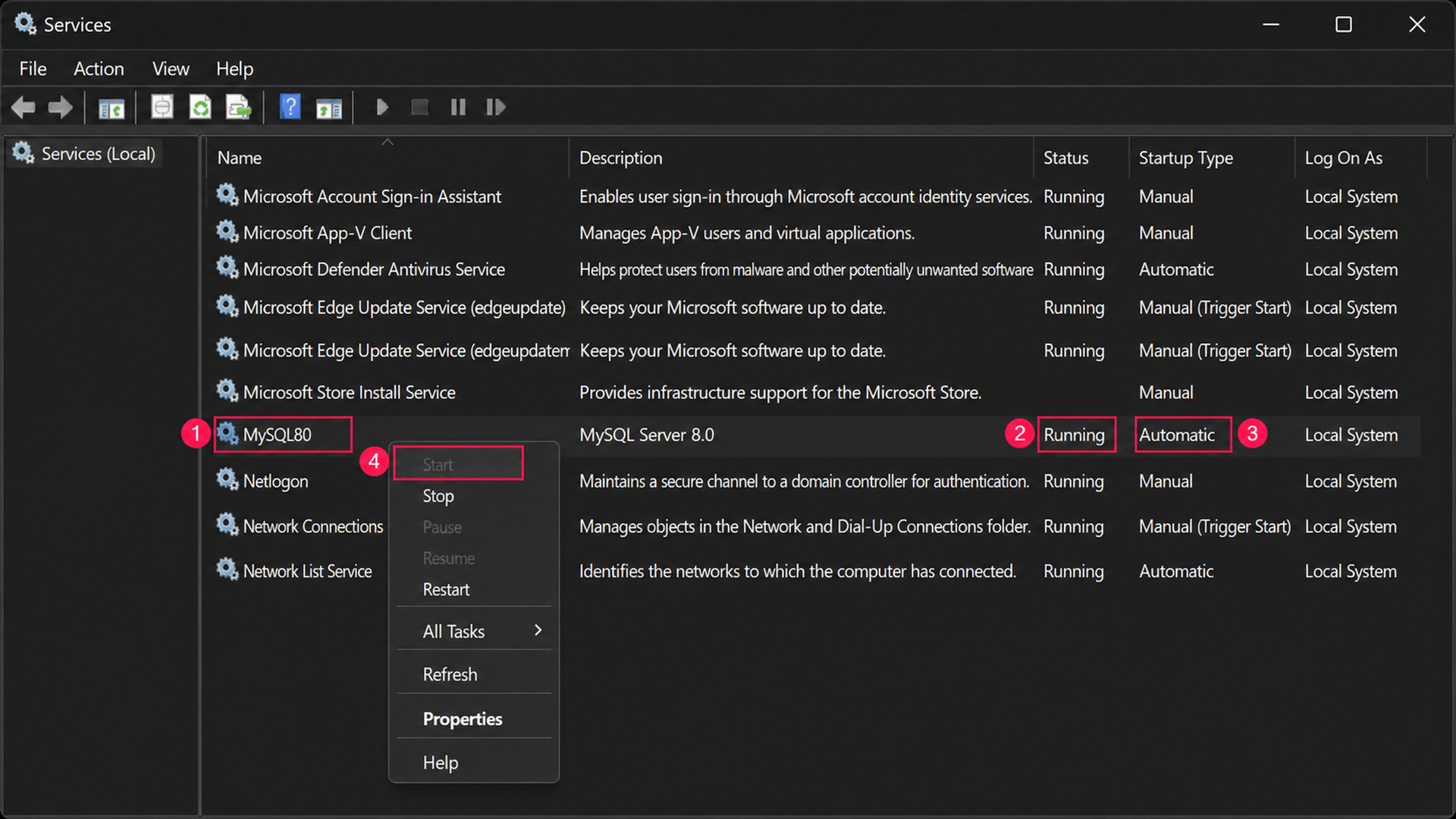
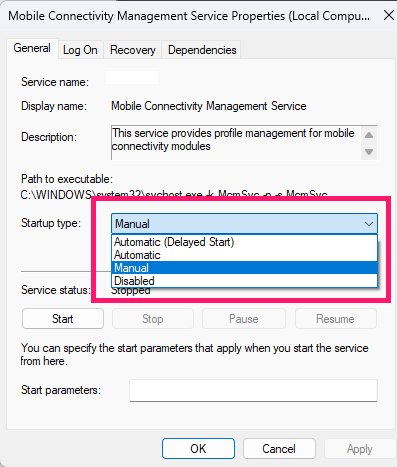
If the service starts successfully, its status changes to Running. If the Start option is grayed out or the service fails immediately after, check the Startup Type and executable path under Properties. A disabled startup setting or an incorrect path will prevent the service from launching even on reboot.
Method 2: Using an elevated command prompt
Reach for this when you want a fast, scriptable way to start the service without opening a GUI, or when you’re already working from the command line for other tasks.
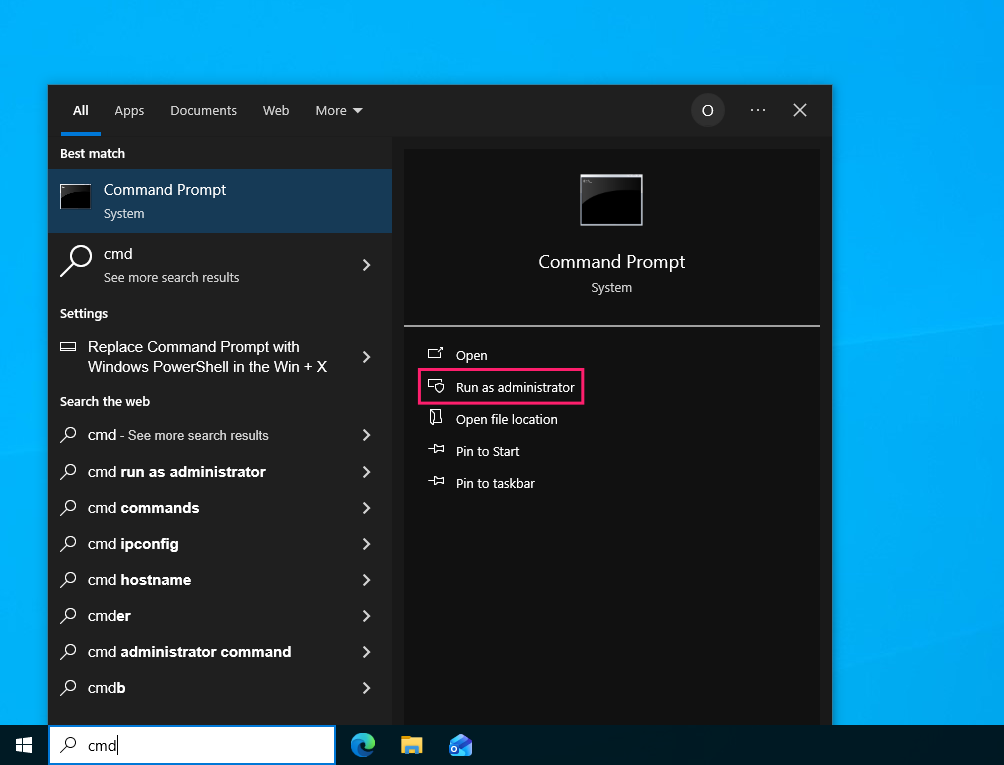
Open Command Prompt as an admin

Run
net start MySQL80(orsc start MySQL80if your installation uses a different service name).
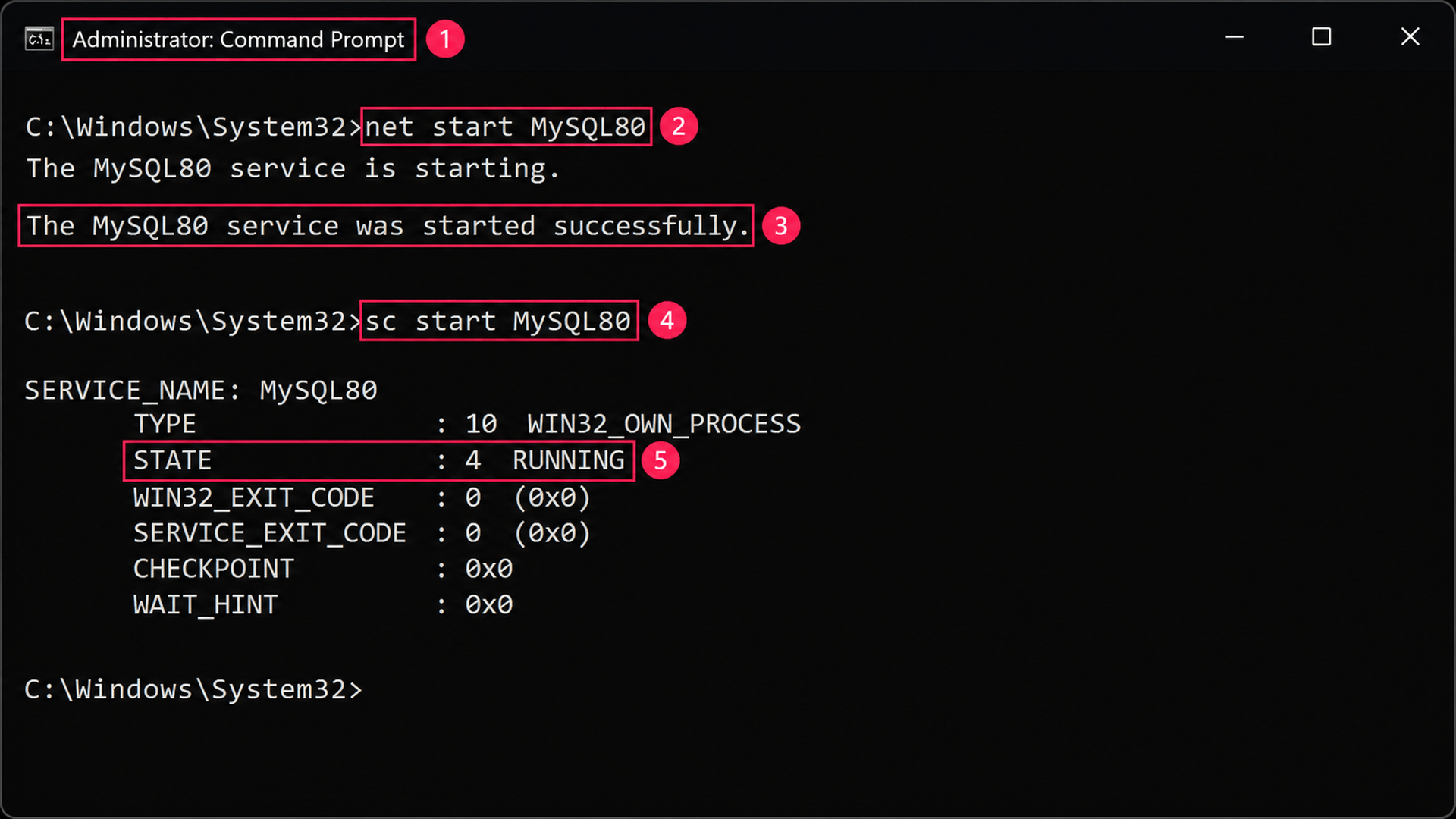
Windows confirms the start with a message in the console. If it fails instead, verify the service name with sc query, then check the MySQL error log and Windows Event Viewer for configuration, permission, or port-related causes before retrying.
Method 3: Using PowerShell
This is the better option when you want to verify the result programmatically in the same session, rather than reading a confirmation message and moving on.
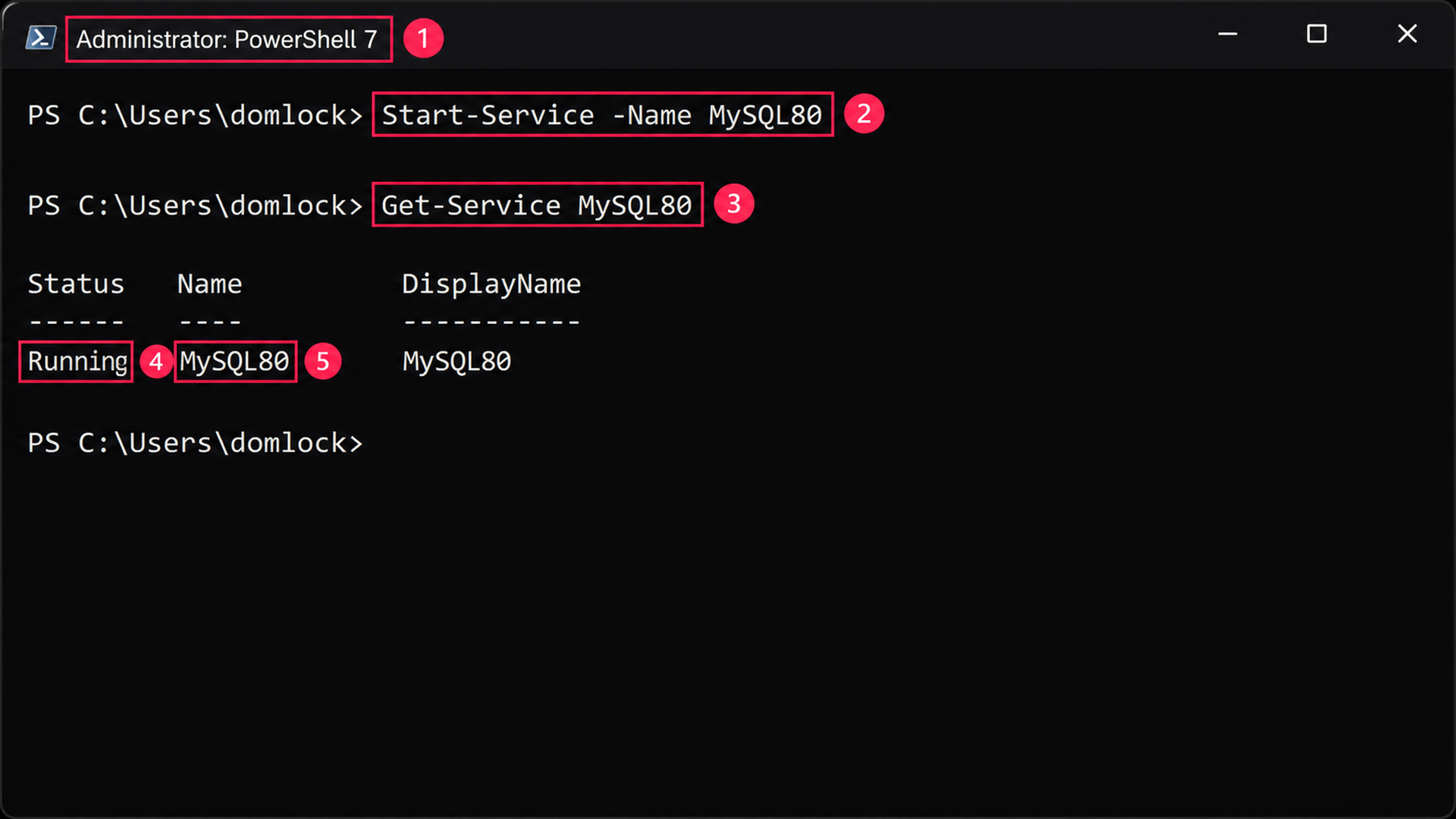
- Open PowerShell as an admin
- Run
Start-Service -Name MySQL80(substitute the correct service name if yours differs) Run
Get-Service MySQL80to confirm the service status without switching to the Services console
PowerShell can also be used to scale this fix across an entire fleet of machines without having to touch each one with a command like Invoke-Command -ComputerName DB-SQL01,DB-SQL02,DB-SQL03 -ScriptBlock { Start-Service -Name MySQL80; Get-Service MySQL80 } to start and verify the service across multiple servers in one call.
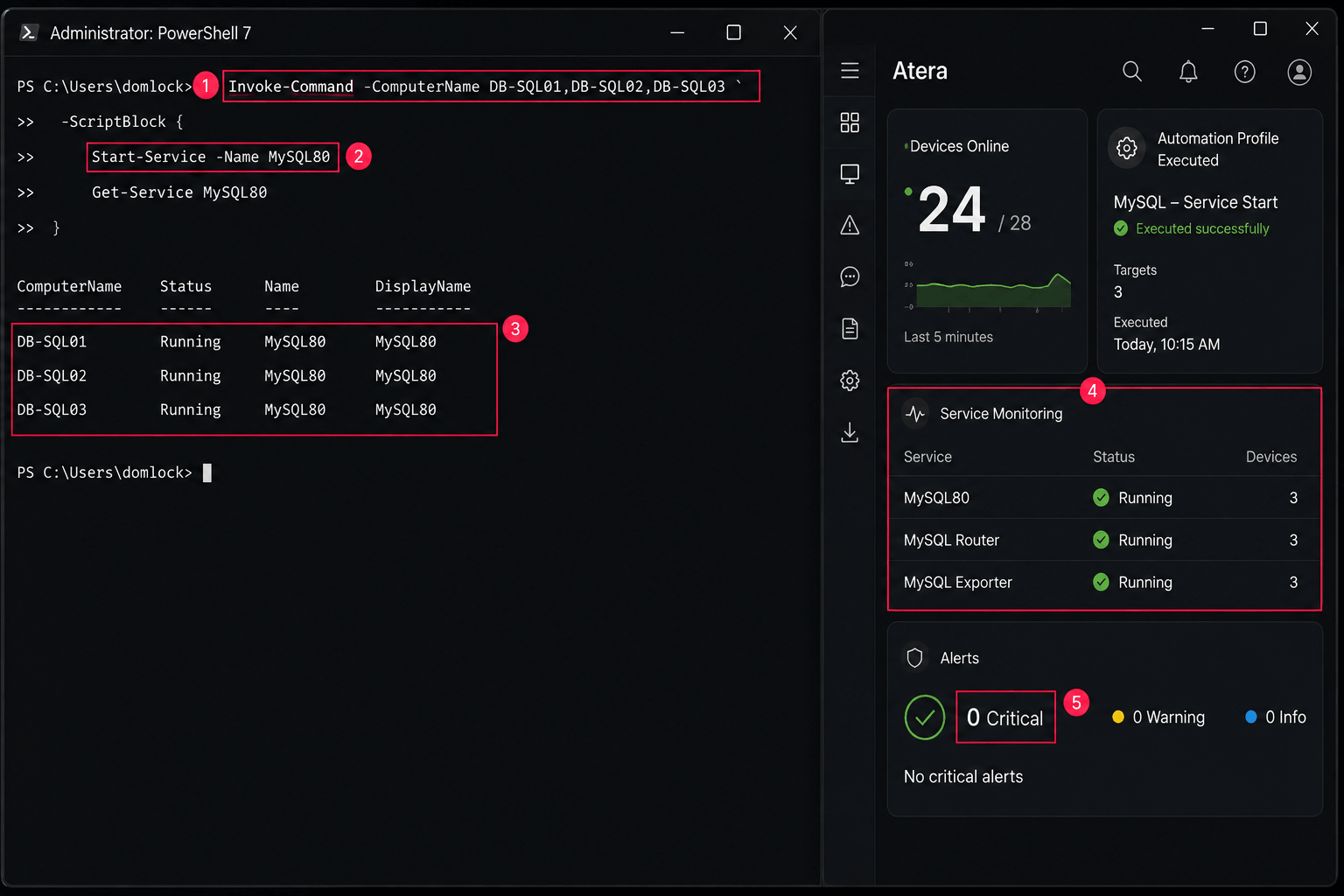
Invoke-Command relies on Windows Remote Management (WinRM), so remoting needs to be enabled and reachable on each target server first.
Pro tip: Using Atera, technicians can run the same start or diagnostic command across selected devices or device groups on demand using the RMM platform and pair it with automated service monitoring so a stopped MySQL service surfaces as soon as it happens rather than after someone notices the outage. You don’t even need to write the script. AI Copilot can do it for you.
» Learn more about deploying PowerShell scripts remotely
Method 4: Using MySQL workbench
Use this method if you’re already working inside Workbench and want to manage the server without switching to a separate console or terminal.
- Launch MySQL Workbench with an account that has administrative privileges
- Select Server > Startup/Shutdown from the menu
- Authenticate with your Windows or MySQL administrative credentials, if prompted
Click Start Server from the Startup/Shutdown panel
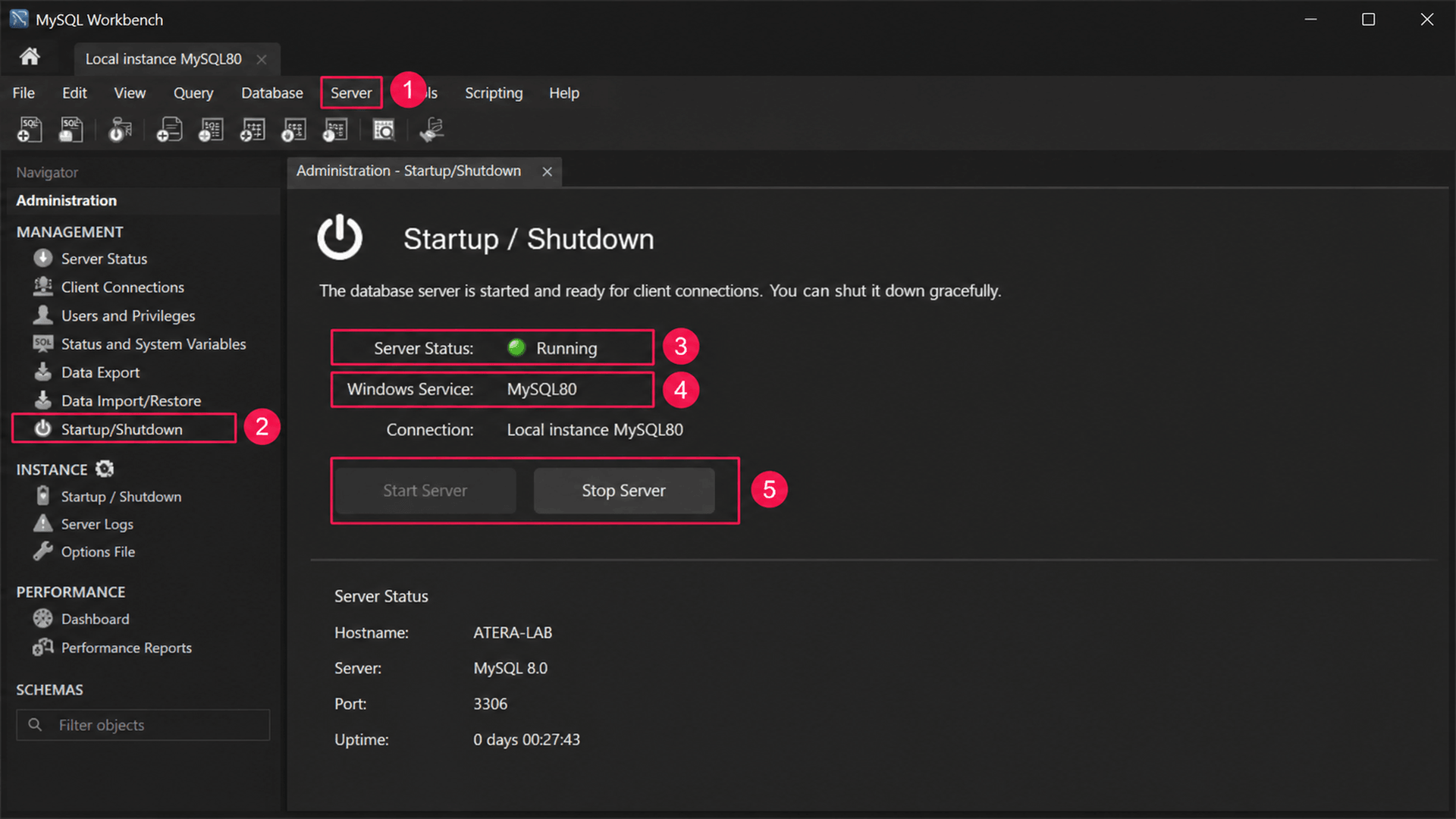
Confirm the Server Status field changes to Running before opening a SQL connection. If the controls are grayed out, the MySQL service likely isn’t installed as a Windows service, or Workbench doesn’t have sufficient privileges to manage it.
Method 5: Using the mysqld executable directly
This is the method to use specifically when troubleshooting a startup failure, since it runs MySQL in the foreground and prints initialization errors straight to the console instead of routing them through the Windows Service Control Manager.
- Open Command Prompt as an admin
- Run
cd "C:Program FilesMySQLMySQL Server 8.0bin"to navigate to the MySQL bin directory Run
mysqld --consoleto start the server as a foreground process
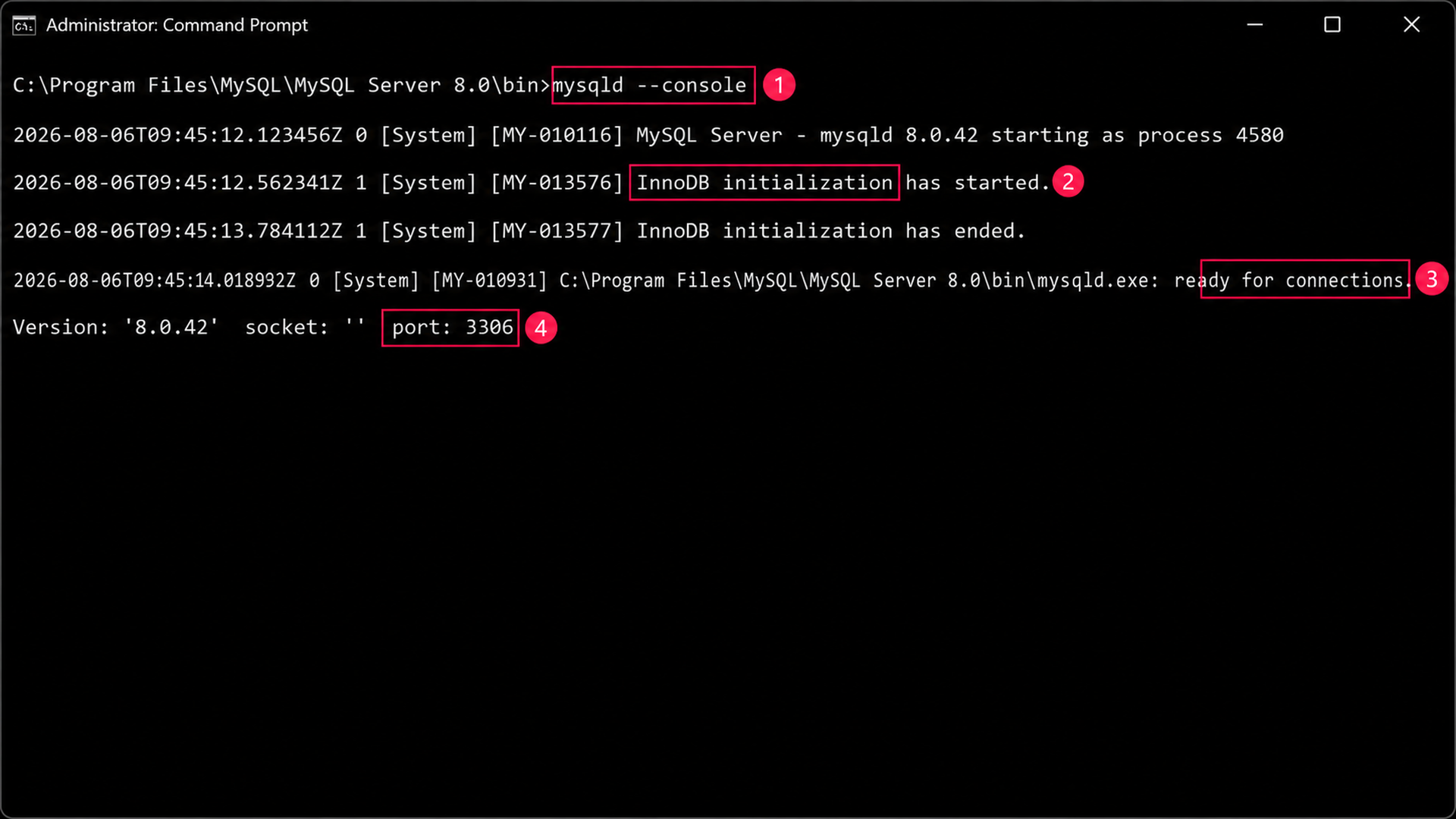
The Command Prompt window stays active and tied to the server for as long as it’s running this way, so closing it stops MySQL. Once you’ve identified and resolved whatever the console output flagged (a bad my.ini value, a missing data directory, an InnoDB initialization failure), stop this instance and return to starting MySQL as a normal Windows service.
» Did you know you can set something to always run as admin?
What to do when the service won’t start
The methods above cover successful starts, but a normal start attempt sometimes returns nothing, or it starts and then immediately stops. Here are the most common causes of failure and how to fix them.
Clearing a port 3306 conflict
Reach for this first when the service fails to start at all, since a bound port is one of the most common and fastest-to-confirm causes of failure.
- Open Command Prompt as an admin
- Run
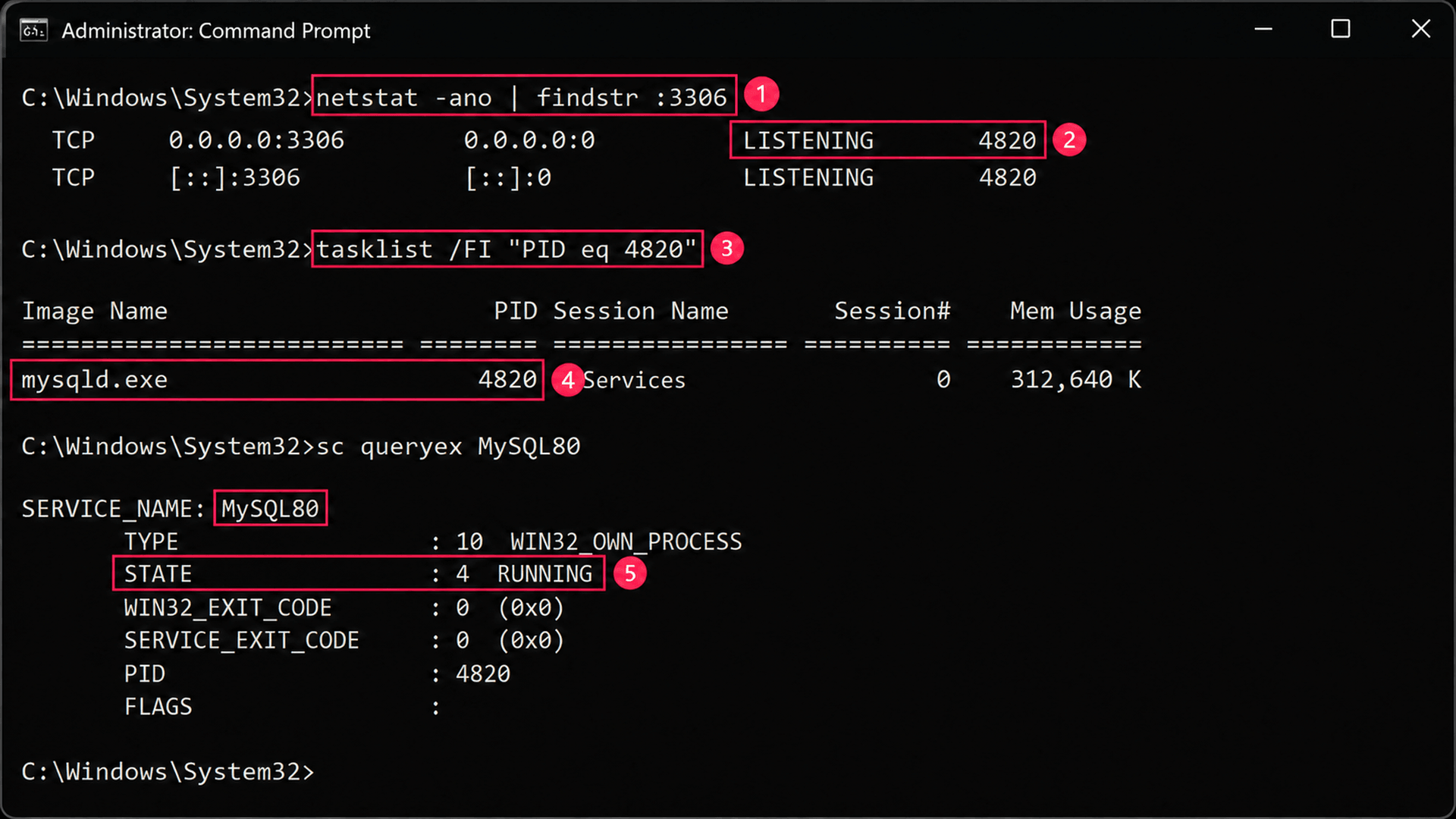
netstat -ano | findstr :3306to check whether TCP port 3306 is already in use - If the port is occupied, run
tasklist /FI "PID eq [PID]"(using the PID from the previous step) to identify the process holding it - Determine whether the process is another MySQL, MariaDB, or database instance already running
- Stop the conflicting service, reconfigure one of the instances to use a different port, or remove the duplicate service, depending on what you find
Restart the MySQL service and rerun
netstat -ano | findstr :3306to confirm port 3306 is now listening under the correct process
Reading Event Viewer and the MySQL error log
Use this when the service fails with a message like “service ended unexpectedly,” since the two logs together usually pinpoint the exact cause faster than either one alone.
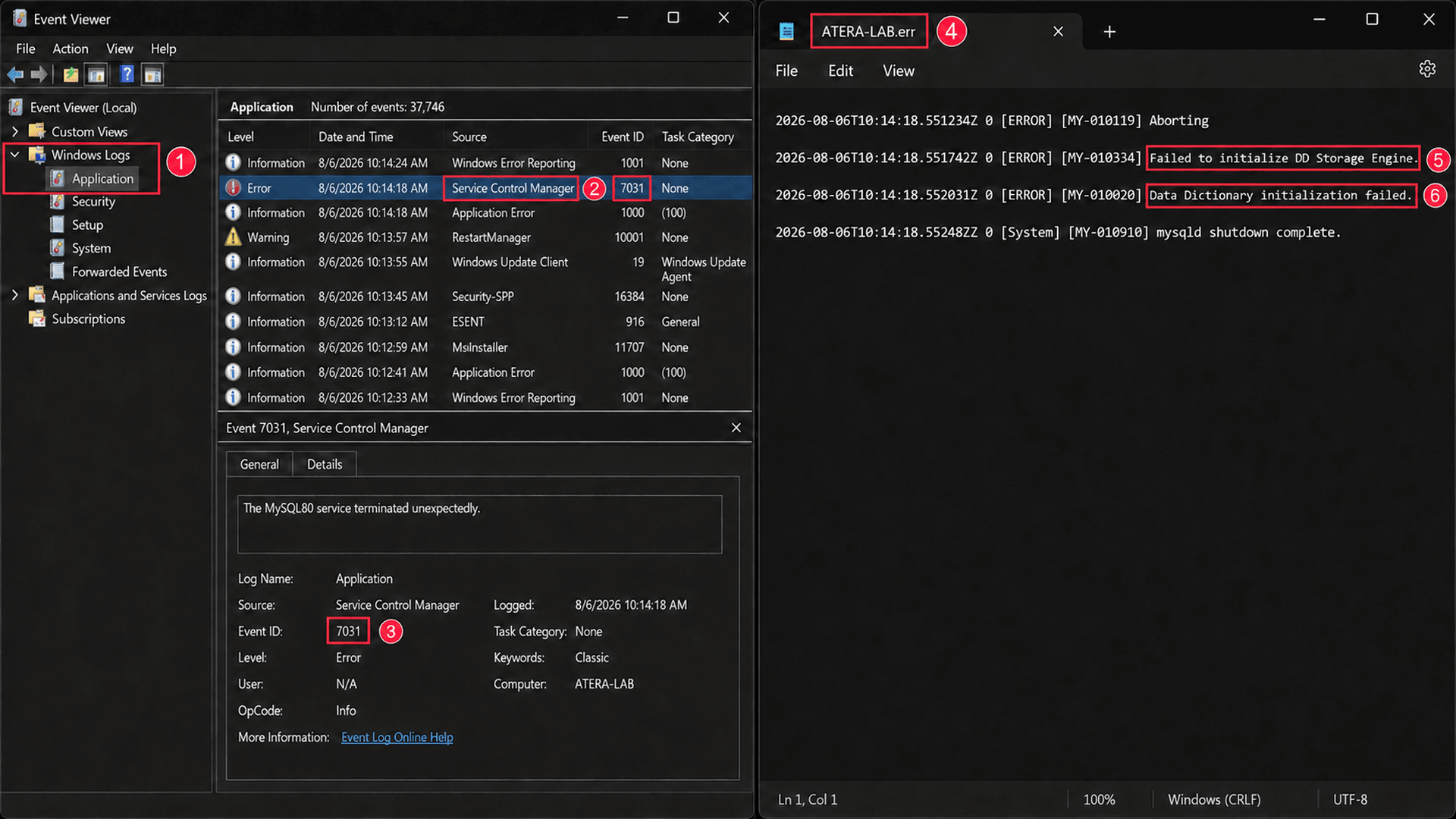
- Open Event Viewer and navigate to Windows Logs > Application
- Look for events logged by Service Control Manager or MySQL around the time of the failure
- Open the MySQL
.errlog, located in the data directory or the path specified inmy.ini - Compare timestamps between the Event Viewer entry and the
.errlog to confirm they correspond to the same failure Read the
.errlog entry for the specific cause, like an invalid configuration parameter, an inaccessible data directory, an InnoDB initialization error, or a port conflict are the usual suspects
» Need help with this? Here are our guides to reading and analyzing Event Viewer logs and running a PC diagnostics report
Bring consistency to MySQL administration
Running net start or Start-Service against a single machine is straightforward once you know the steps. The friction shows up when the same fix needs to happen across a dozen or a hundred servers, and RDP-ing into each one individually to restart a service stops being a sustainable process.
Atera’s remote scripting lets IT teams and MSPs run the same start or diagnostic command across selected devices or device groups on demand, without waiting on a scheduled window. Paired with automated service monitoring, the next MySQL outage gets flagged and resolved before it turns into a support ticket.
» Take control of Microsoft Service management with an Atera free trial
Related Articles

How to set Windows environment variables in PowerShell
PowerShell environment variables can be set at the Process, User, or Machine level, with each scope serving a different purpose. This blog covers how to configure these variables and deploy system-level settings across multiple Windows devices.
Read now
How to install AppImage on Linux
An AppImage that won't launch usually isn't broken. It's missing FUSE, sitting on the wrong filesystem, or lacking its execute bit. Here's every method for running one on Linux, from a single terminal command to pushing it across an entire fleet.
Read now
How to remove write protection from a USB
A drive gone read-only isn't always a two-minute registry fix. Sometimes it's flash memory quietly failing, and every write attempt afterward costs you more of the data you're trying to save. Here's how to tell which one you're dealing with and what to do once you know.
Read now
How to enable or disable Windows Subsystem for Linux WSL in Windows 10
Enabling WSL feels harmless right up until a checkbox turns into error 0x80370102 and a BIOS setting nobody documented. WSL now shows up on more professional machines than a standalone Linux install, which means more failed toggles landing on IT's desk.
Read nowEndless IT possibilities
Boost your productivity with Atera’s intuitive, centralized all-in-one platform









