A batch of new monitors lands on desks across the office and suddenly the help desk queue fills up with blurry text, oversized icons, and legacy tools that look broken on high-resolution screens. None of it is a hardware fault; it’s probably Windows rendering at native resolution on displays that weren’t the standard when most of that software was built.
DPI scaling is what sits between a high-density display and a usable interface. Getting it right on one machine takes about thirty seconds, but getting it right across a fleet (consistently and without a support ticket for every new monitor deployment) is a different problem. This guide covers both: how scaling works, every method Windows gives you to configure it, and how to fix the issues that come up when a setting doesn’t land where you expected.
Why DPI scaling exists and what it actually means
DPI stands for dots per inch, but the term gets used loosely across three different contexts that don’t always mean the same thing:
- Display DPI, more accurately called PPI (pixels per inch), refers to how many pixels are packed into one inch of screen. A higher number means more pixels in the same physical space, which translates to sharper, crisper images.
- Print and image DPI measures something different. For printers, it’s how many ink dots can be placed in one inch of paper; for image files, it’s how many pixels per inch the file contains, which is why a 300 DPI image looks sharper than a 72 DPI image at the same print size.
- Mouse sensor DPI is technically a measure of CPI, or counts per inch, representing how many position signals the sensor sends per inch of physical movement. In practice, this controls cursor sensitivity, so the higher the DPI, the further the cursor travels per inch your hand moves.
This guide focuses on display DPI, since that’s what determines how readable and usable your screen actually is.
Why Windows can’t just display pixels 1:1
As screen resolution increases, more pixels get packed into the same physical space, which makes each individual pixel smaller. A UI element designed at a fixed pixel size, like a 100×50 pixel button, looks dramatically different depending on the display. On a 24-inch full HD monitor (about 92 PPI), that button renders at roughly 1.1 by 0.55 inches. On a 24-inch 4K monitor (about 184 PPI), the same button shrinks to about 0.54 by 0.27 inches. That’s half the size, even though nothing about the button’s code changed.
If Windows simply rendered everything at native resolution with no adjustment, every app not specifically designed for high-density screens would become difficult to read or click accurately. DPI scaling solves this by enlarging UI elements so they remain a consistent physical size regardless of pixel density, letting you take advantage of a sharper display without losing usability.
How to spot a misconfigured scaling setting
Technically, the DPI of a display is a fixed physical property and you can’t change it. What you’re actually adjusting is the operating system’s scaling behavior, applied on top of that fixed display. Microsoft’s terminology has historically blurred this distinction, which is part of why “DPI” and “scaling” get used interchangeably.
There’s no official threshold for correct scaling since it depends on personal preference and visual acuity, but here are a few signs that point to a setting that’s off.
Scaling set too low:
- Text is hard to read at a normal viewing distance
- Buttons, icons, and menus are difficult to click accurately
- Title bars and the taskbar appear unusually thin
Scaling set too high:
- Text and UI elements look oversized
- Noticeably less content fits on screen
- You’re scrolling far more than the content should require
On a single machine, any of these are a quick fix. Across a fleet with mixed monitor types, they show up as a steady trickle of support tickets that all have the same root cause that’s easily fixable.
4 ways to find and change display scaling in Windows
Here’s are all the different ways to find and change your DPI resolution on Windows 10 and 11.
Method 1: Adjust scaling through Display settings
This is the fastest fix for most users and covers both Windows 10 and 11.
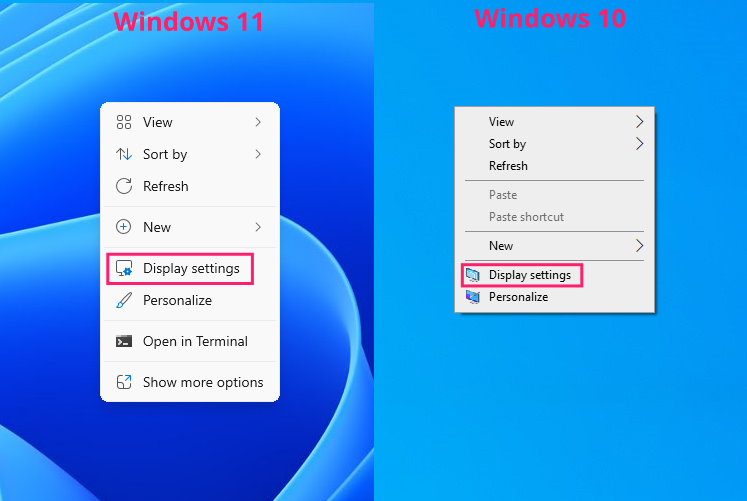
Right-click the desktop and select Display settings

Locate the Scale and layout section


- Open the Scale dropdown (Windows 11) or the Change the size of text, apps, and other items dropdown (Windows 10)
- Select a percentage from the available presets, or choose Recommended if you’re unsure where to start
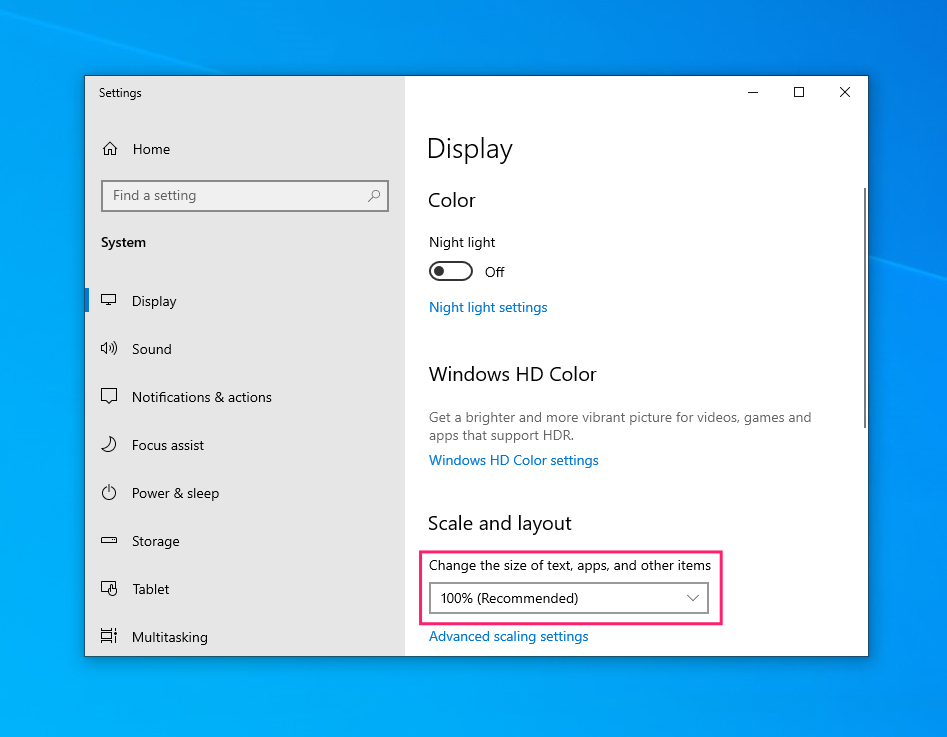
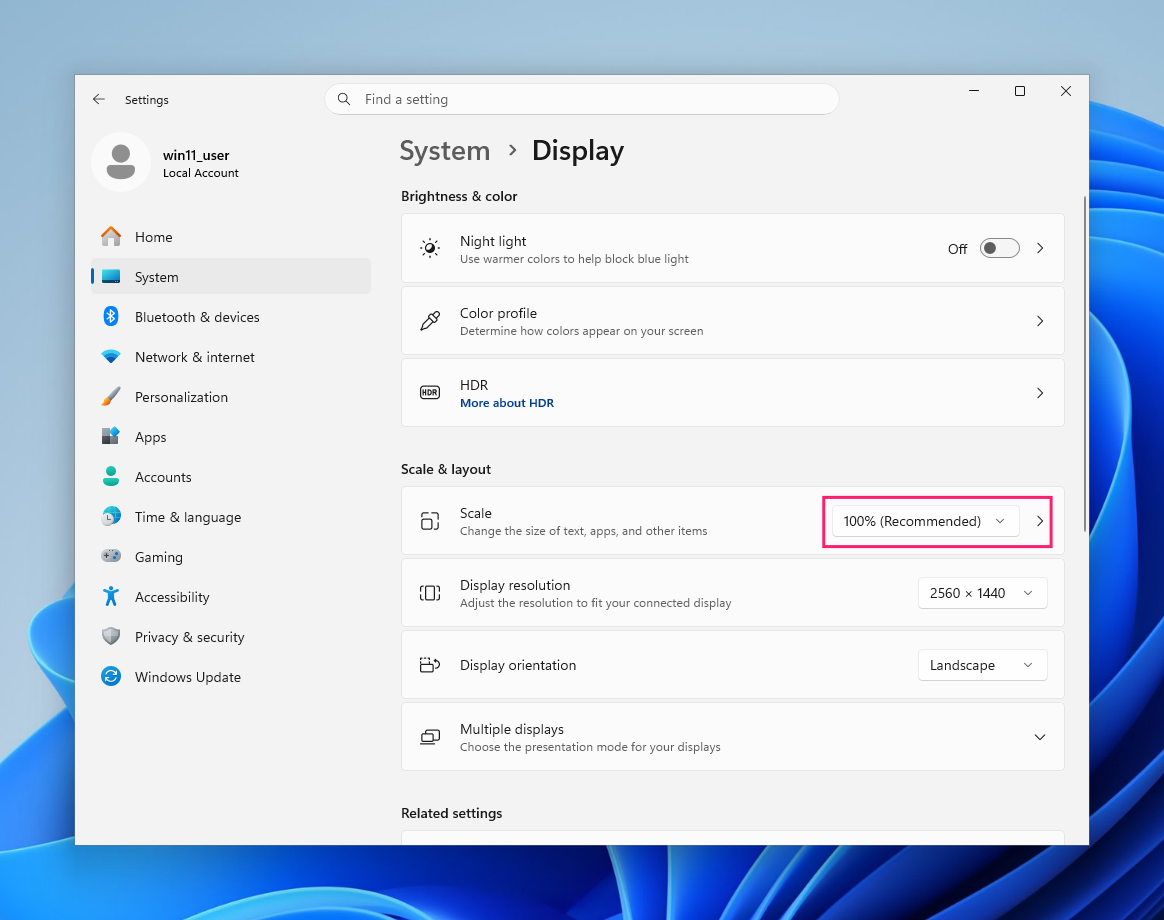
Windows applies the change immediately, no sign-out required, for standard preset values
» Miss the Windows 10 look? Here’s how to make Windows 11 look like 10
Method 2: Set a custom scaling percentage
Use this only if the standard presets (100%, 125%, 150%, etc.) don’t give you a usable result. Values outside the standard steps are more likely to render some apps blurry, since most software is built and tested against the presets.
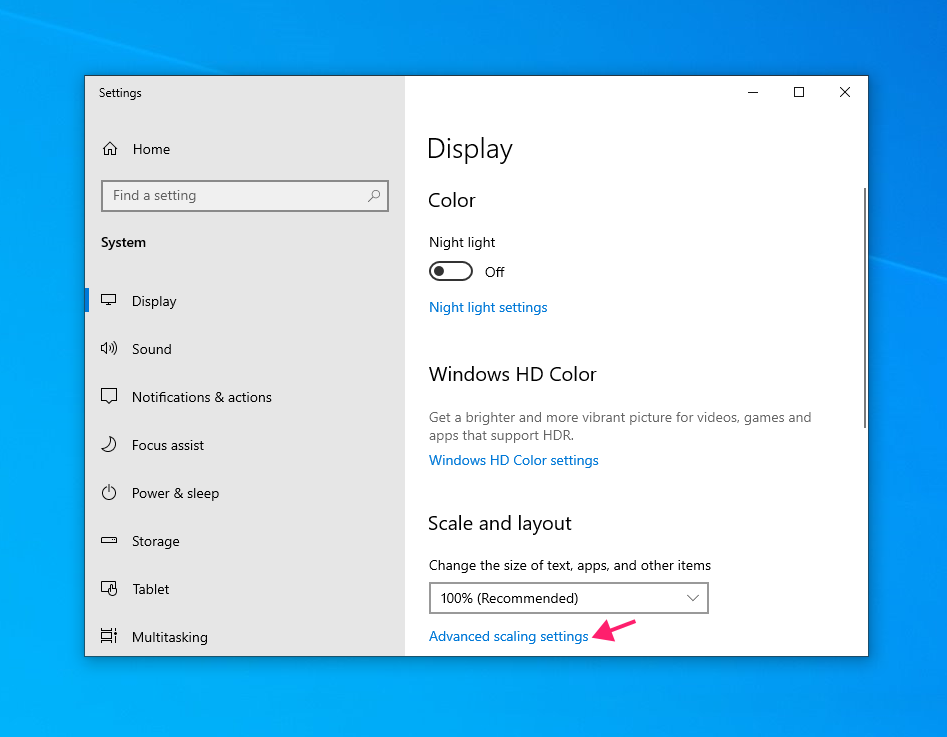
Windows 10:
- Right-click the desktop and select Display settings
Click Advanced scaling settings
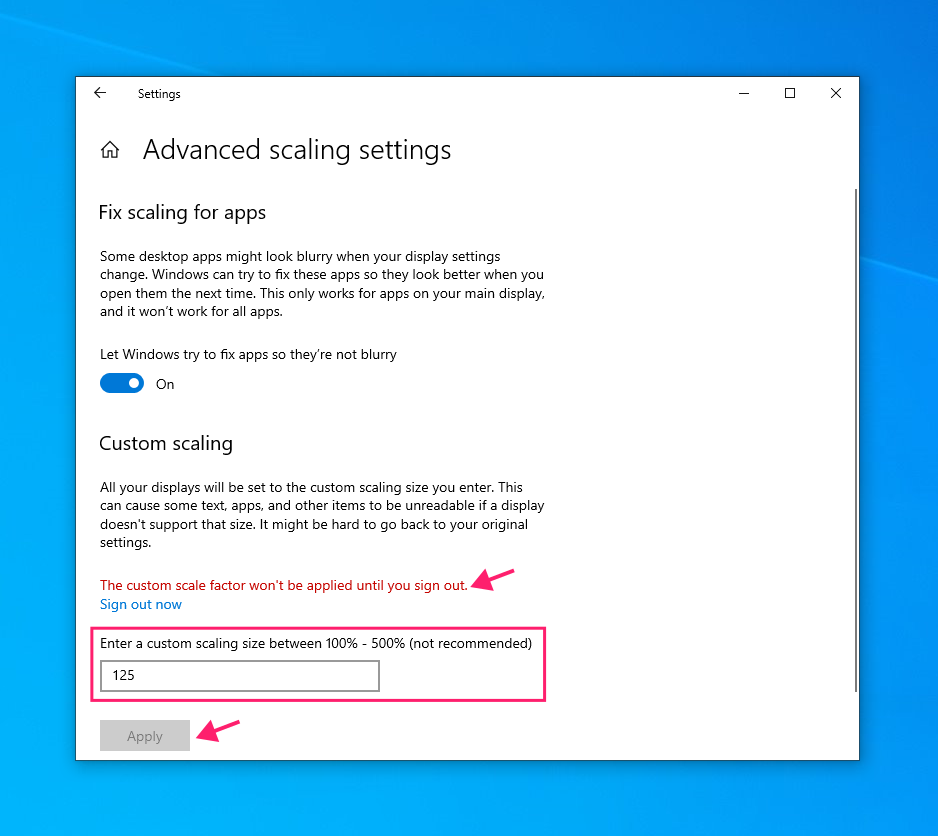
Under Custom scaling, enter a value between 100% and 500%

- Click Apply
- Click Sign out now to apply the change, or sign out manually
Windows 11:
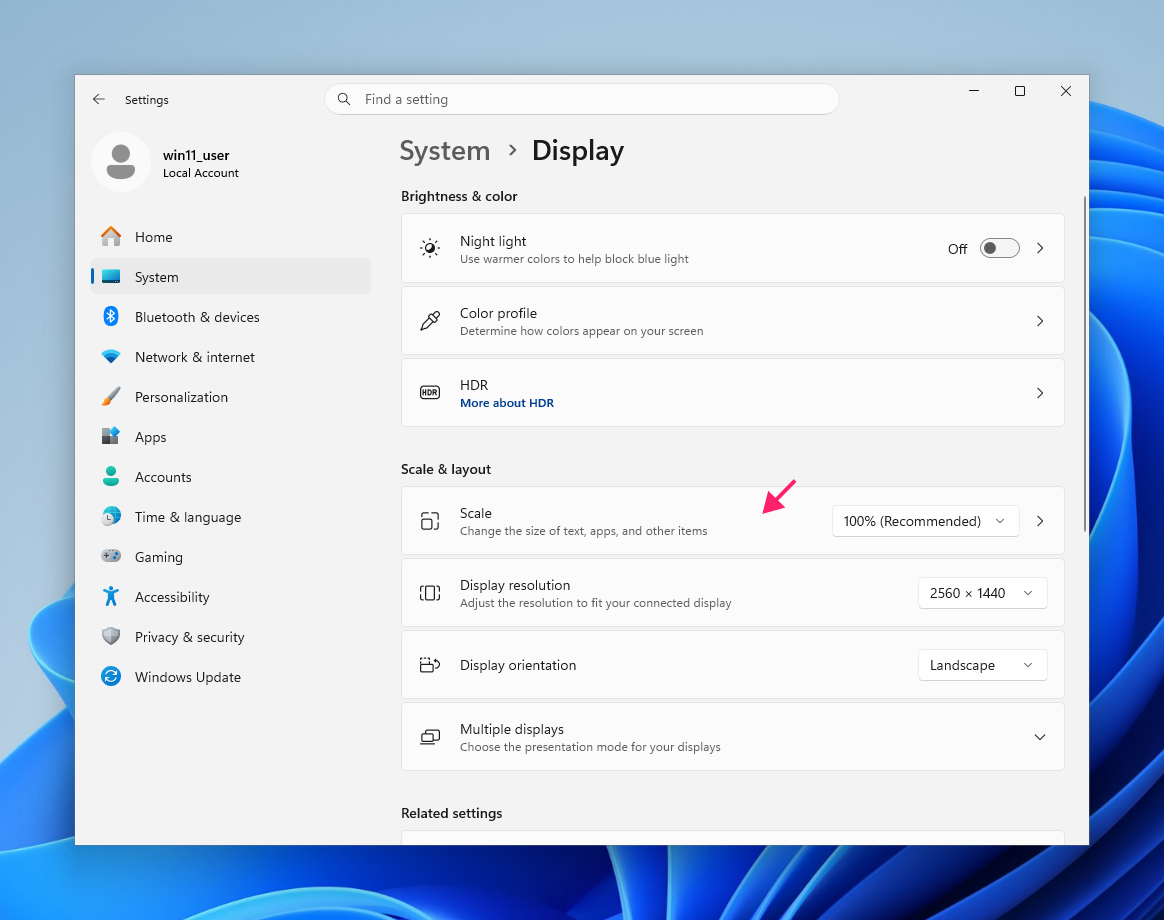
- Right-click the desktop and select Display settings
Click the Scale dropdown, then select Custom scaling
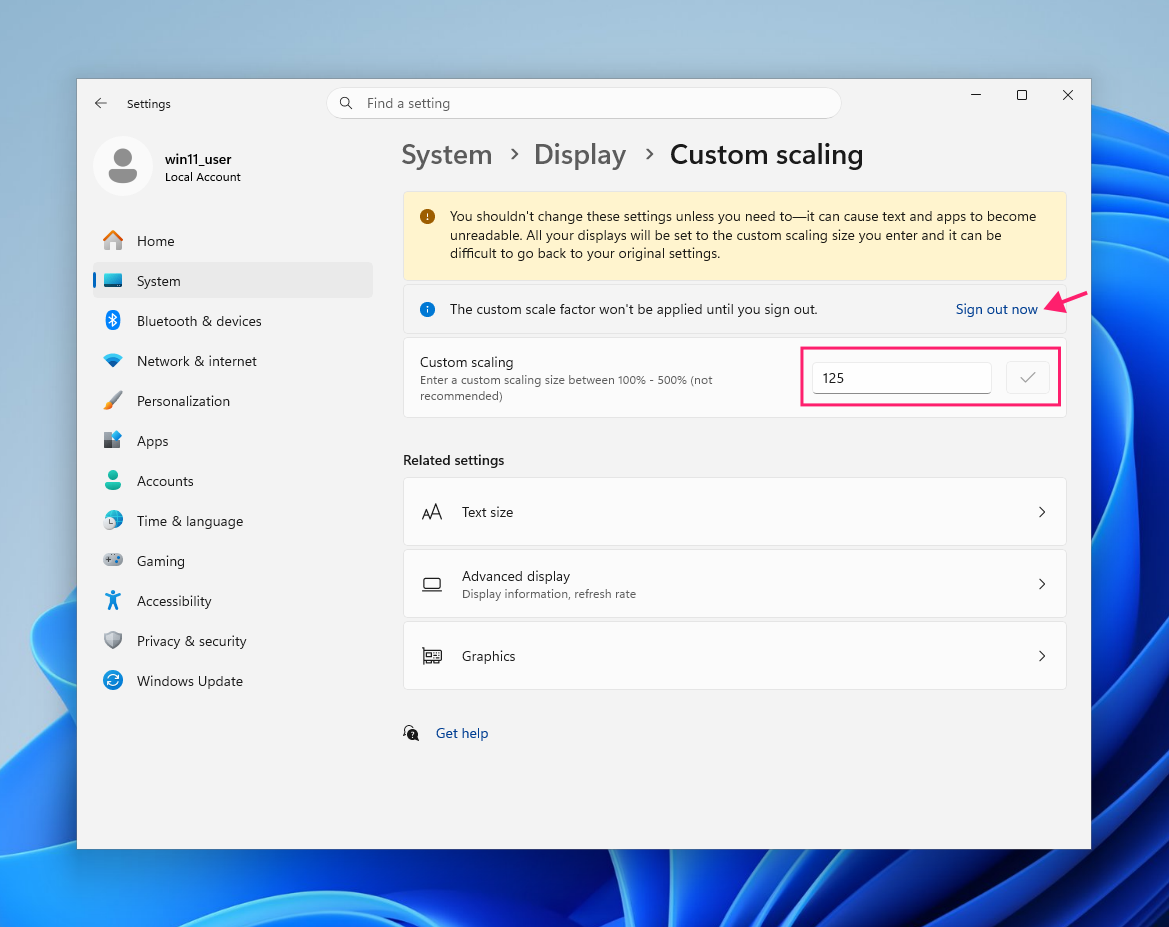
Enter your custom value

- Click the checkmark to confirm
- Sign out for the change to take effect
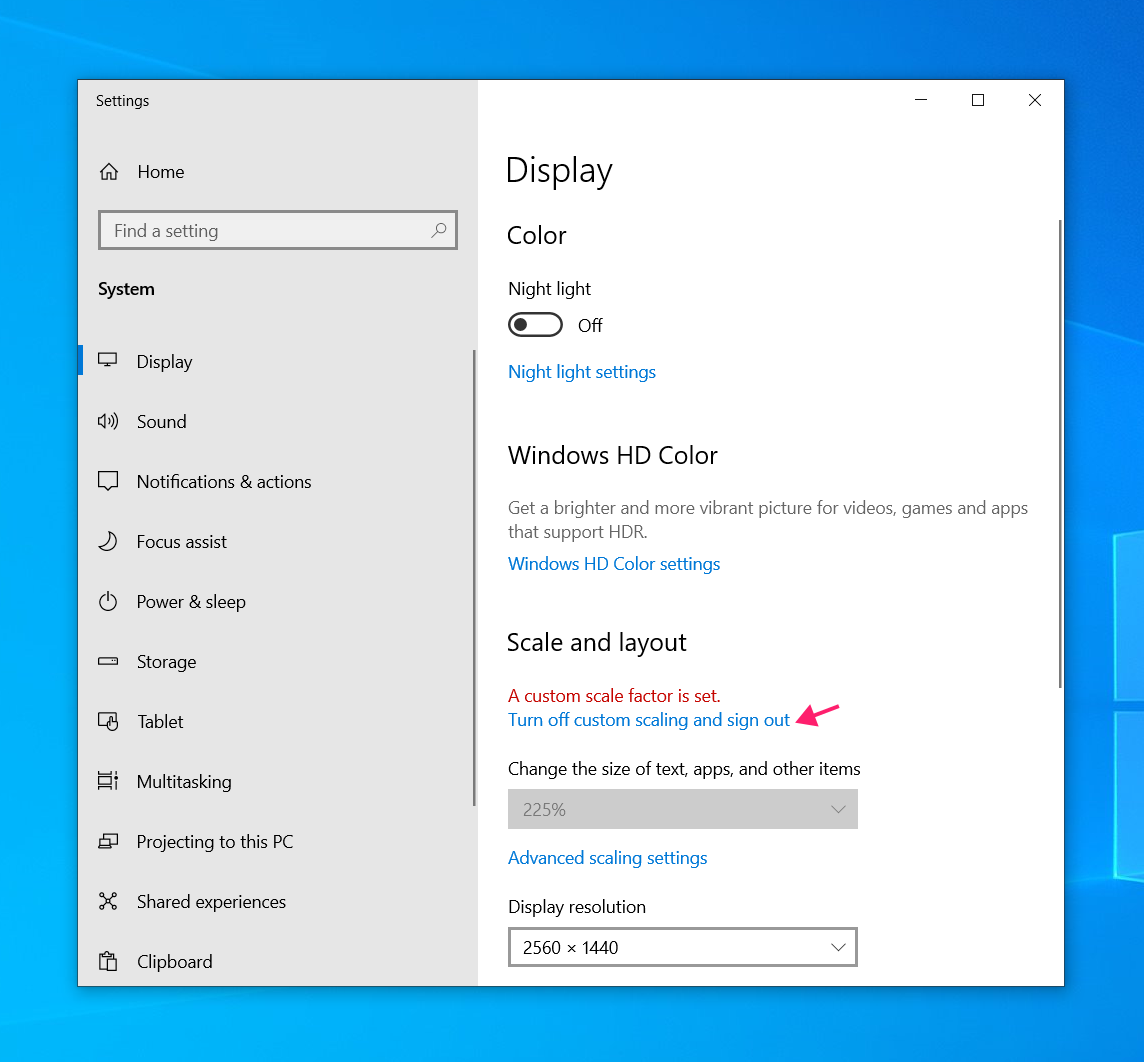
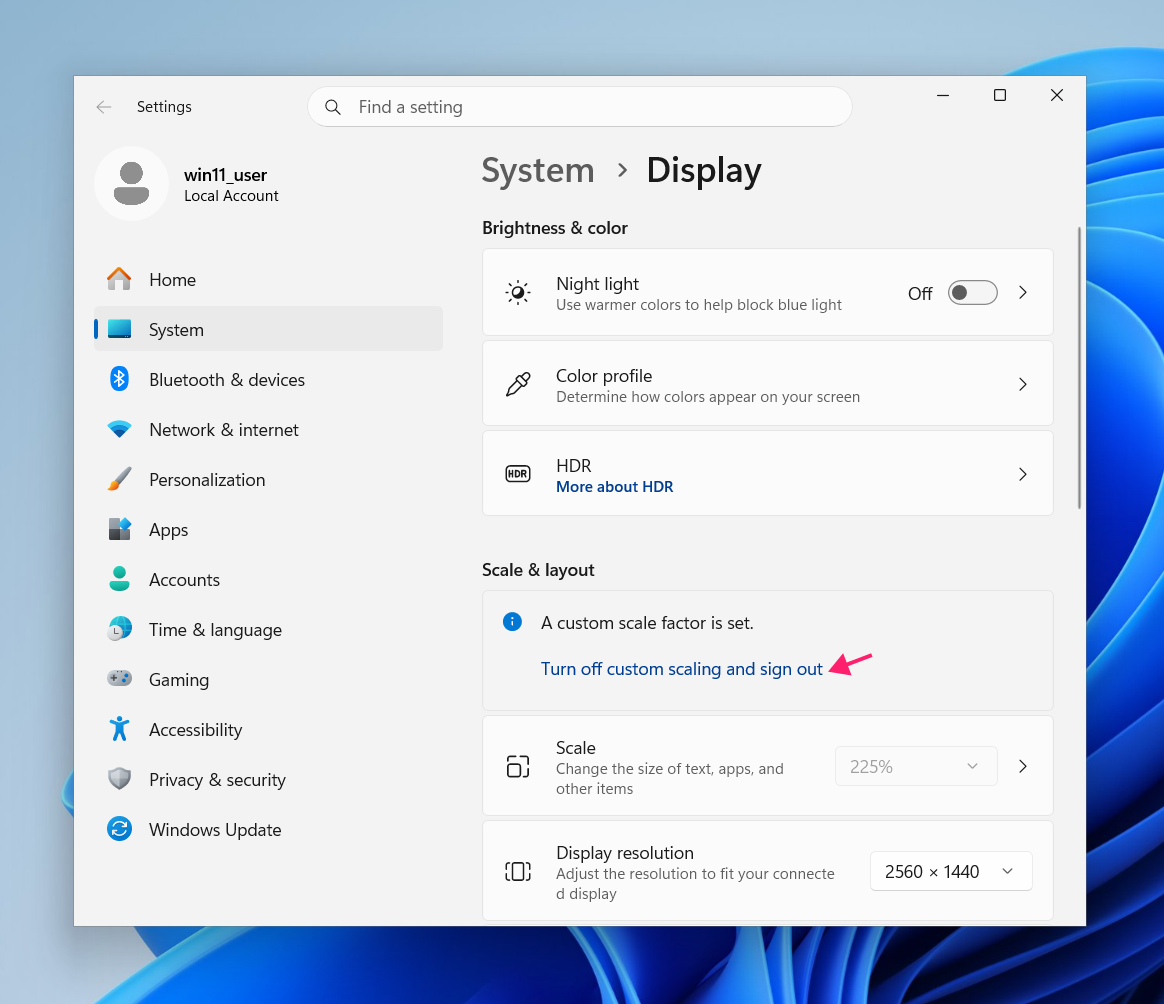
To revert, return to Display settings and click Turn off custom scaling and sign out, which only appears while a custom value is active.
» Here’s how to restart a remote computer using Windows
Method 3: Override scaling for a single application
Use this when one specific app looks wrong even though your system-wide scaling is correct, typically older software that wasn’t built with high-DPI displays in mind.
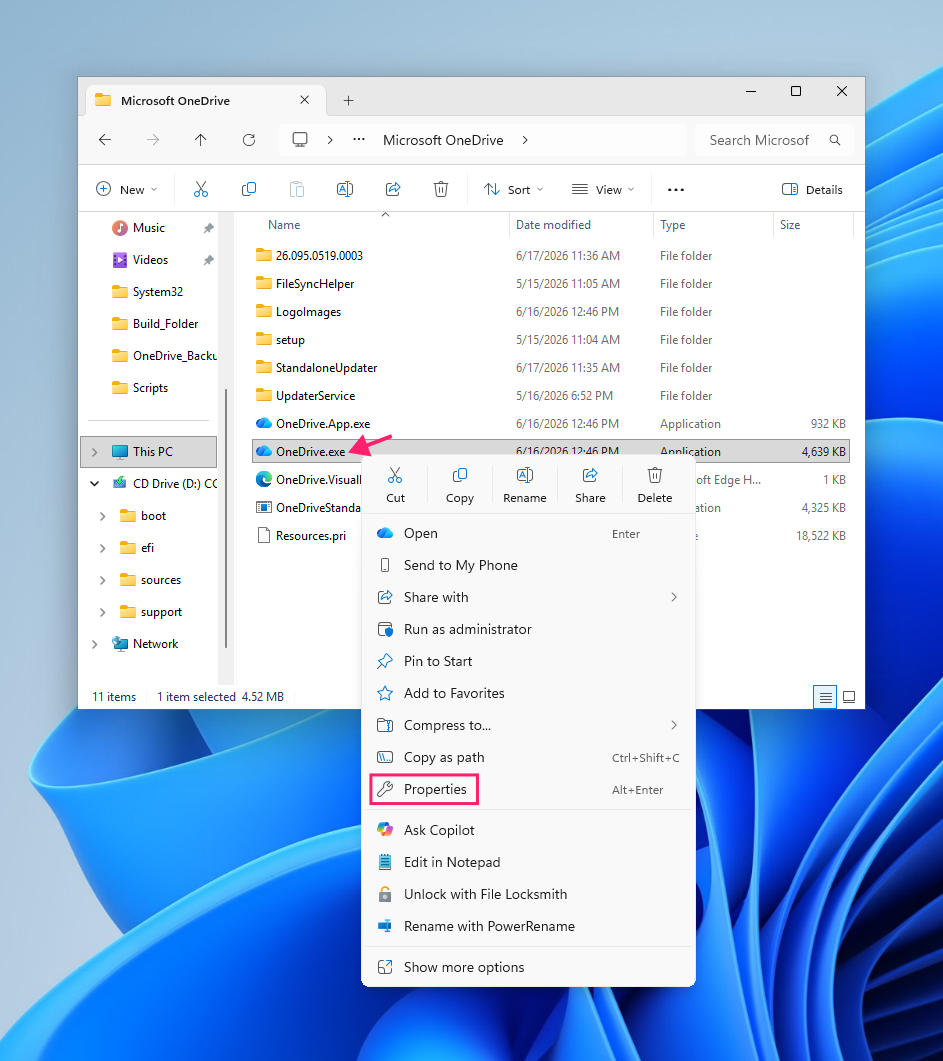
Right-click the application’s
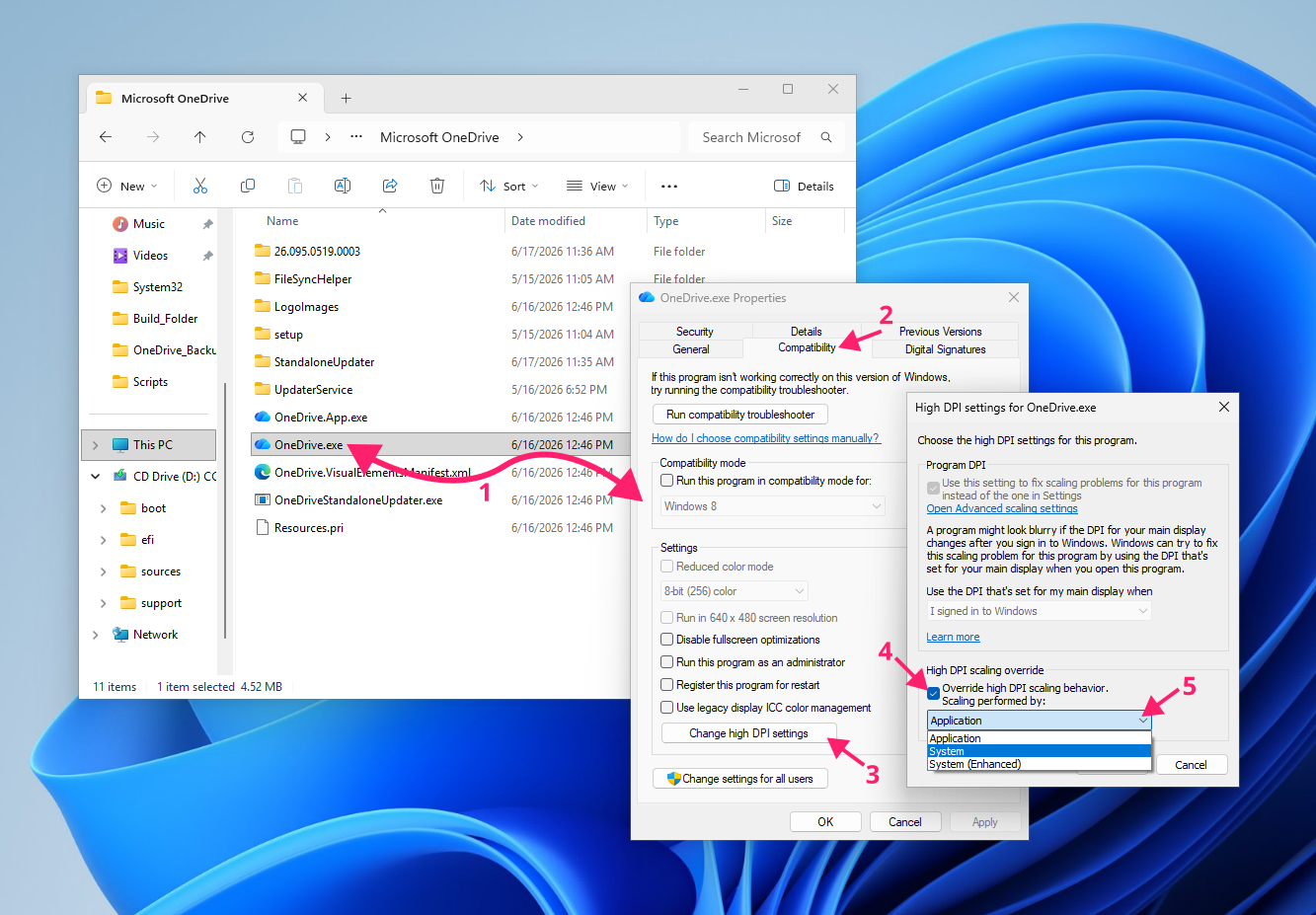
.exefile or shortcut and select Properties
- Switch to the Compatibility tab
- Click Change high DPI settings
- Check Override high DPI scaling behavior
Open the Scaling performed by dropdown and choose one of the following:
> Application: For modern, DPI-aware apps. This also fully disables Windows’ scaling for that app, letting it manage its own rendering.
> System: For legacy apps that aren’t DPI-aware. Windows stretches the rendered bitmap to scale it, which can introduce some blur.
> System (Enhanced): For legacy apps that use GDI rendering. Windows re-renders text and graphics more cleanly than the standard System option.Click OK, then Apply

» Can’t find the app? Here’s how you can show hidden files in Windows 11
Method 4: Set scaling through the registry
Use this when the Settings UI isn’t available or when you need to enforce a consistent scaling value before users ever touch a machine. The two most common scenarios are automated deployments, where a baseline scaling factor needs to be in place before first login, and remote desktop environments where display settings are locked down or inaccessible.
- Press Win + R, type
regedit, and press Enter to open the Registry Editor - Navigate to HKEY_CURRENT_USERControl PanelDesktop
Find the LogPixels key and set it to one of the following decimal values:
Value (decimal)
Scaling equivalent
96
100%
120
125%
144
150%
192
200%

- Find the Win8DpiScaling key and set it to
1. Windows ignores the LogPixels value unless this is enabled - Reboot the system to apply the change
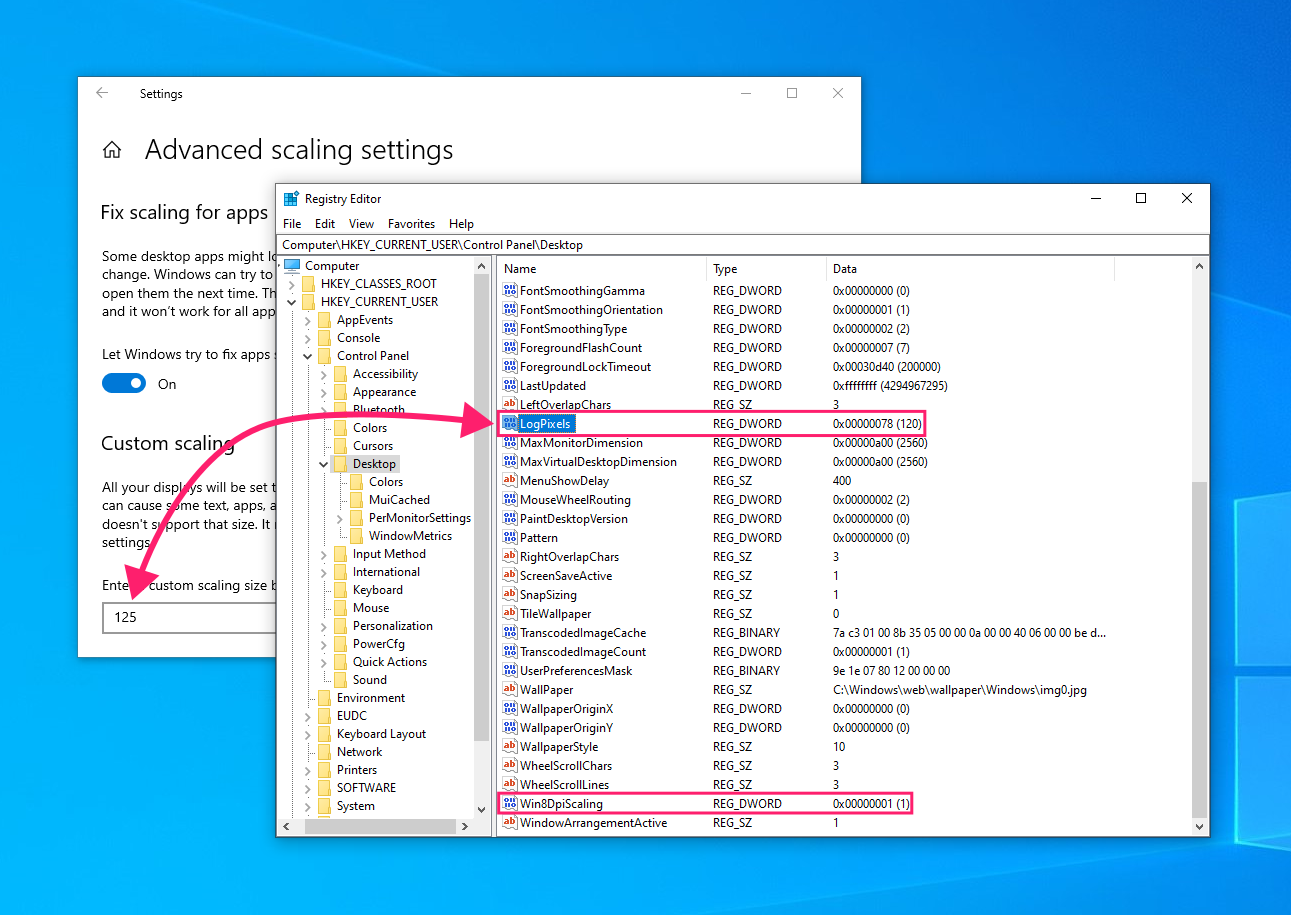
Since this method bypasses the safeguards built into the Settings UI, treat it as a fallback for situations the UI can’t reach, not a faster shortcut for routine adjustments.
» Don’t miss our top Registry Editor challenges and solution
Troubleshooting DPI scaling problems
Most scaling changes go smoothly. The issues below tend to surface when a non-standard value is applied, when legacy software meets a modern display, or when the same configuration gets pushed to machines with monitors that don’t all behave the same way. Here’s what to look for and how to fix it.
Blurry text or UI elements
Blurry rendering after a scaling change is almost always because the app isn’t DPI-aware, so Windows has to stretch its bitmap to match the new scale instead of redrawing it cleanly.
To fix it:
- Right-click the affected application and select Properties
- Go to the Compatibility tab and click Change high DPI settings
- Set Scaling performed by to System (Enhanced). This tells Windows to re-render text and graphics rather than simply stretching them, which usually resolves the blur
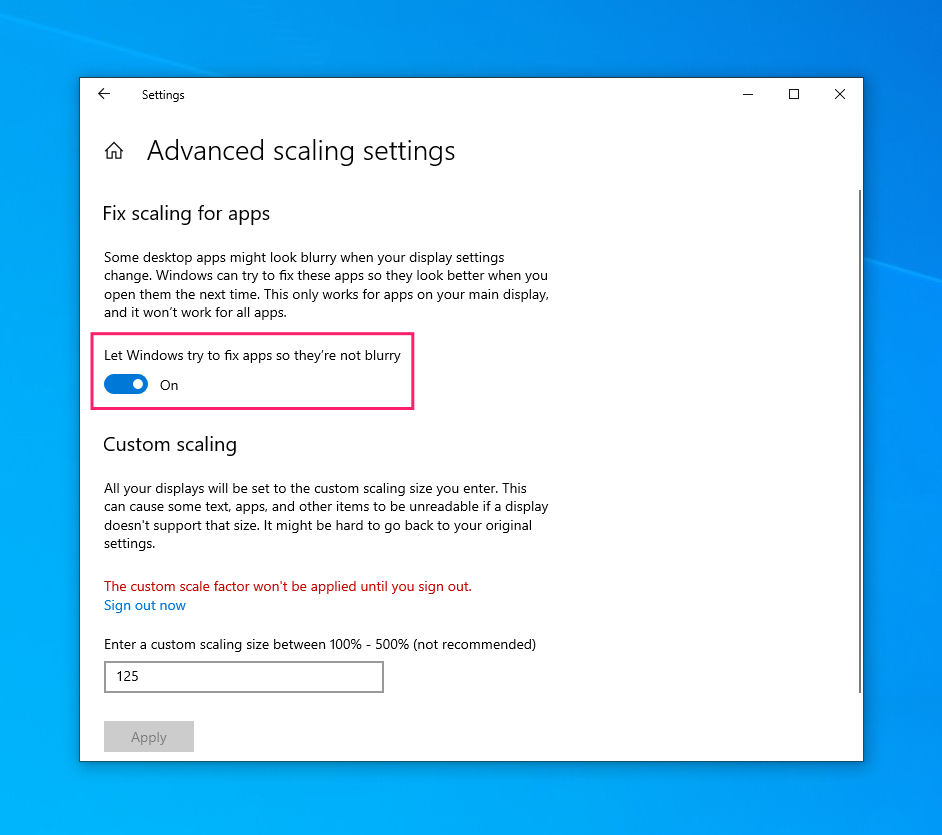
Windows 10 also has a built-in fix worth trying first:
- Right-click the desktop and select Display settings
- Click Advanced scaling settings
Turn on Let Windows try to fix apps so they’re not blurry

Overlapping or cropped UI elements
If text and interface elements are overlapping or getting cut off rather than just looking soft, the scaling factor itself is likely the wrong fit for that app, not just a rendering issue.
To fix it, try reverting to a standard scaling preset (100%, 125%, 150%) if you’re currently on a custom value
If the problem is isolated to one app, apply the DPI override from Method 3 above and test each Scaling performed by option (Application, System, System Enhanced) until the layout renders correctly.
Recovering from a scaling change that breaks navigation
If a scaling adjustment makes the interface too large or too small to use, you have a few ways back in, depending on how unusable things have gotten.
If the Display settings page is still visible:
- Use Tab to move between controls and Shift+Tab to move back. The window automatically scrolls to keep the selected item in view
- Use Space to activate the selected button or toggle
- Use the arrow keys to move through dropdown options
- Navigate to the scaling control and reset it to a usable value
If you can’t navigate the interface at all:
- Restart the machine and boot into Safe Mode, which defaults to 100% scaling regardless of your current settings
- From Safe Mode, either reset the scaling value through Display settings or correct the LogPixels and Win8DpiScaling registry keys directly
Restart normally once the setting is corrected
Getting display scaling right across your environment
DPI scaling is one of those settings that feels personal until you’re responsible for dozens or hundreds of machines. A configuration that looks fine on one user’s laptop may be completely wrong for the same model with a different monitor attached; and without a way to push and verify display settings remotely, you’re relying on end users to either figure it out themselves or file a ticket about blurry text.
That’s where having centralized endpoint visibility changes the equation. Atera’s RMM platform gives IT teams and MSPs remote access to Windows machines across the fleet, with the ability to run PowerShell scripts remotely and push configuration changes without touching each device. Whether you’re standardizing scaling across a new monitor rollout or troubleshooting a single user’s display issue from across the building, it removes the manual legwork from what would otherwise be a one-at-a-time problem.
Related Articles

How to reduce alert fatigue across your IT team
Your technicians aren't ignoring alerts because they're careless. They're ignoring them because most alerts have taught them to. Once the stream stops being trustworthy, real failures slip past with the noise. Fixing it means deciding what deserves an interruption, tuning out transient spikes, collapsing alert storms, and automating the fixes you've run a hundred times.
Read now
How to close the IT skills gap on your team
Course completions don't close skills gaps. Technicians finish the training, then hand the first unfamiliar failure straight back to a senior engineer. Real capability gets built on live tickets, incidents, and maintenance windows, with guidance that fades as competence grows.
Read now
How to calculate cost per ticket (and why most teams get it wrong)
Most cost-per-ticket figures are wrong before anyone reads them. Missing overhead, tickets that were opened but never closed, spam and duplicates padding the count, and one month's costs divided by another month's tickets all make support look cheaper than it is. Fix both sides of the division and the number finally shows where technician time and money actually go.
Read now
How to prepare for a software license audit
A vendor audit notice doesn't wait for you to get organized. It demands proof, right now, that every install matches every entitlement you've paid for, and most IT teams find out the hard way how much they don't actually know about their own environment. Getting audit-ready before the letter arrives is the difference between negotiating from strength and paying for months of scrambling.
Read nowEndless IT possibilities
Boost your productivity with Atera’s intuitive, centralized all-in-one platform









