
Generate summary with AI

Most people treat cloud storage like a filing cabinet. It’s accessible, convenient, and assumed to be private because it requires a login, but that assumption has a cost. According to IBM’s 2025 X‑Force Threat Intelligence Index, nearly one in three incidents observed in 2024 resulted in credential theft, and abuse of user identities remained attackers’ preferred way in. One of the easiest ways is through complex hybrid cloud environments that give them multiple access points to exploit. That means a shared OneDrive folder with no additional access controls is one stolen password away from exposure.
Personal Vault doesn’t solve every security problem, but it does add a meaningful layer that standard OneDrive folders don’t have: a second verification step that locks automatically and encrypts locally on Windows via BitLocker. Here’s everything you need to know about setting it up.
What Personal Vault is and why it exists
A standard OneDrive folder is only as secure as your Microsoft login. If someone has your credentials, they have your files. Most cloud storage tools protect access to your account. Personal Vault protects access to a specific folder inside that account.
That’s crucial for security because Personal Vault adds a second checkpoint, so even after signing into OneDrive successfully, users must complete an additional identity verification step to open the vault. That step can be:
- A code sent to email or phone
- A push notification through the Microsoft Authenticator app
- Biometric authentication depending on how the account is configured
The vault also locks automatically after a period of inactivity (20 minutes by default), which means a forgotten unlocked session doesn’t stay open indefinitely.
What belongs in Personal Vault
The best files for Personal Vault are files that are sensitive, relatively static, and would cause real harm if accessed. Here are the most common examples:
- Travel documents
- Identification records
- Insurance paperwork
- Financial documents are the most common examples
The logic is that these files change infrequently, so the slight friction of unlocking the vault before editing doesn’t disrupt normal workflows.
A few file types and working patterns don’t fit well:
- The legacy
.docformat isn’t supported, so only.docxworks reliably inside the vault. - Large files or anything you edit frequently can create sync friction, because the vault relocks automatically and can interrupt active sync sessions.
- Personal Vault also blocks sharing entirely by design, so each vault is tied to a single Microsoft account and files inside can’t be shared directly with other users. To share a file, you need to move it out of the vault first.
How to set up and use Personal Vault on Windows
Setting up Personal Vault takes a few minutes and requires no special configuration beyond a Microsoft account with two-step verification available. Here’s how:
Initializing Personal Vault
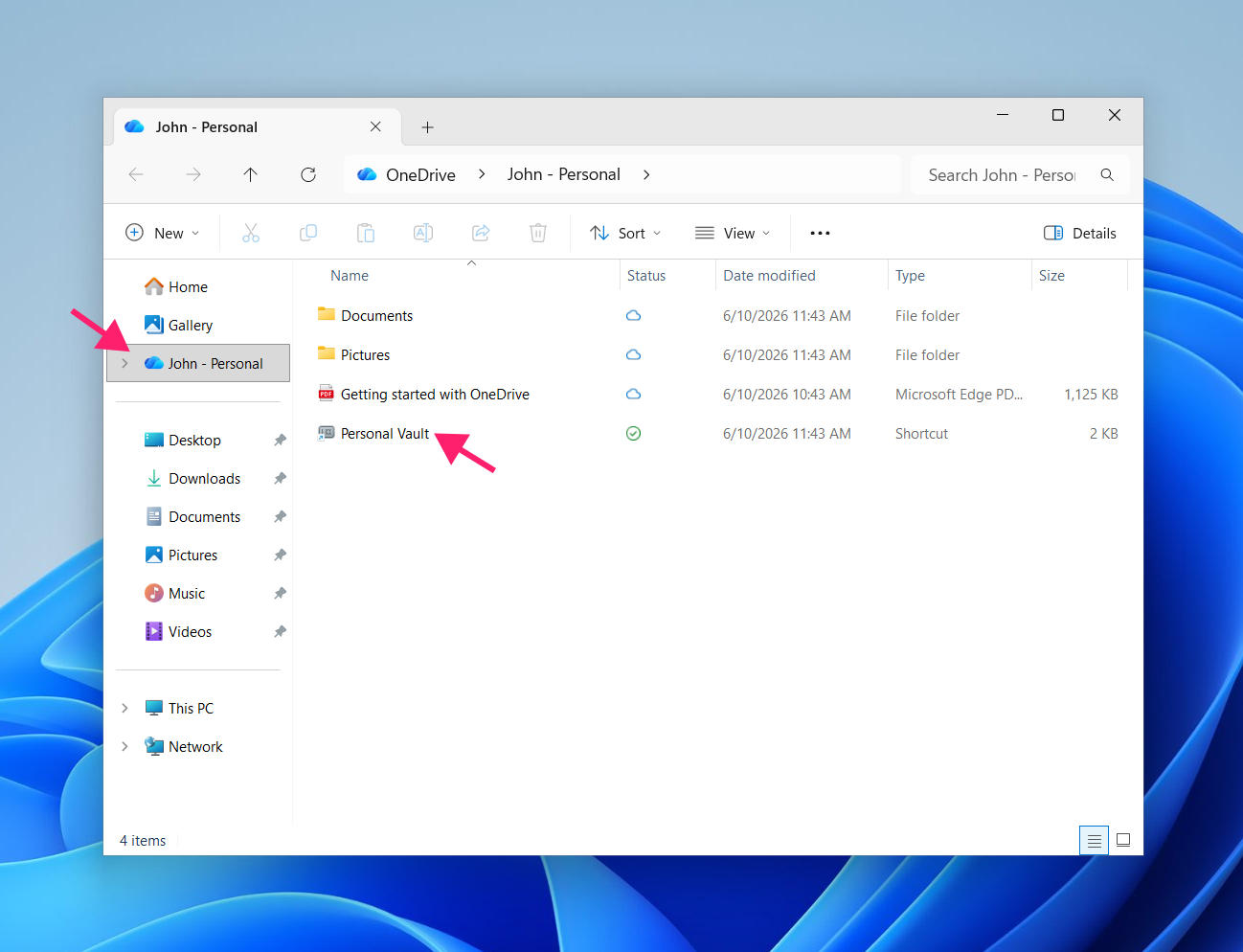
Personal Vault appears in your OneDrive folder by default but needs to be activated before it can store files. To initialize it:
- Open File Explorer and navigate to your OneDrive folder
Double-click Personal Vault

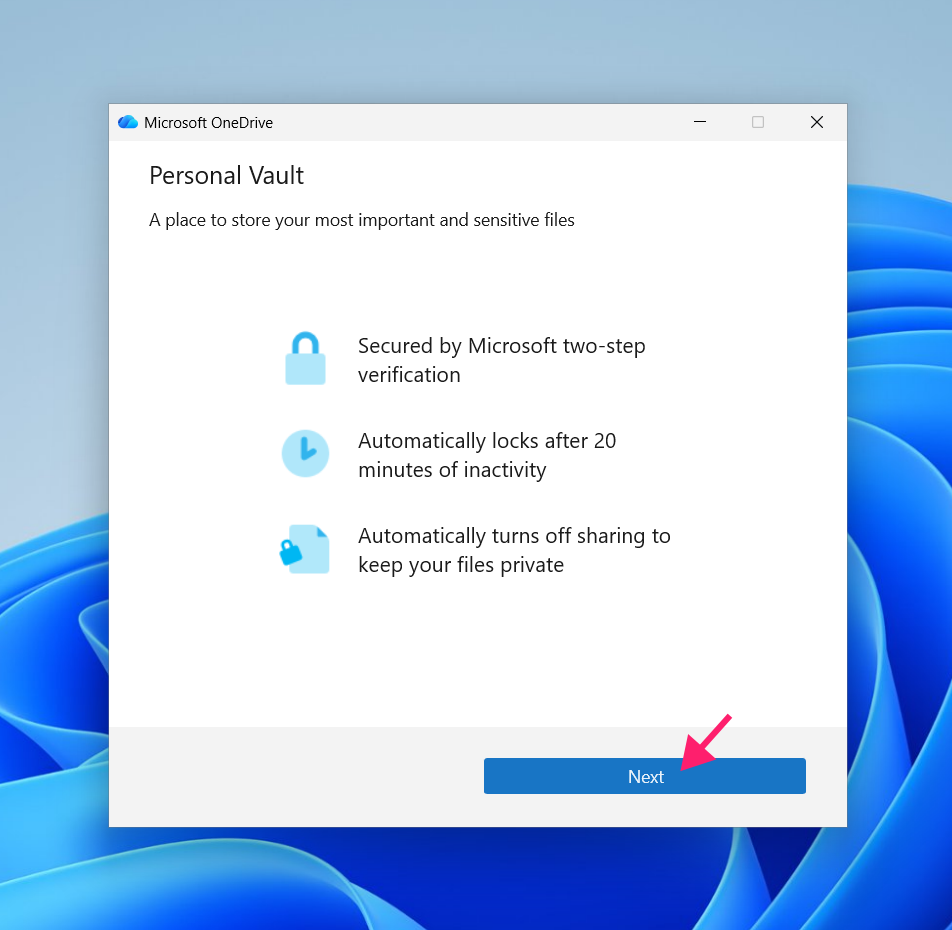
Click Next on the introductory screen

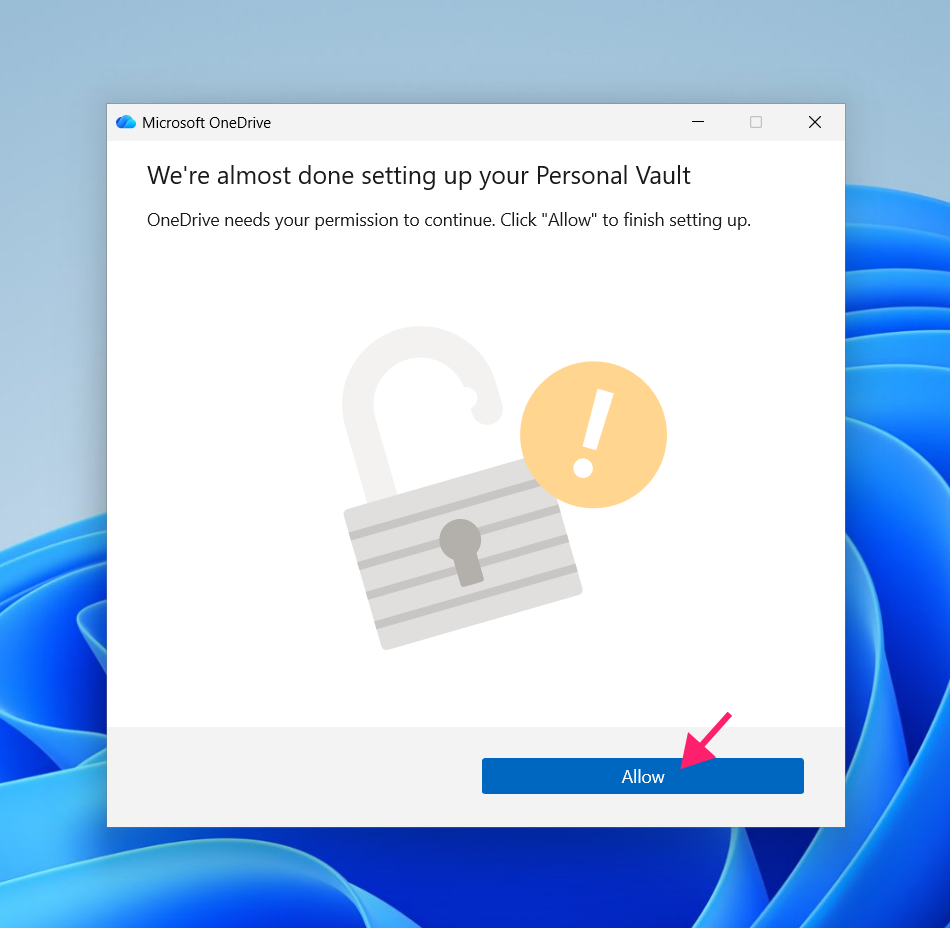
Click Allow when prompted to give OneDrive permission to finish setup

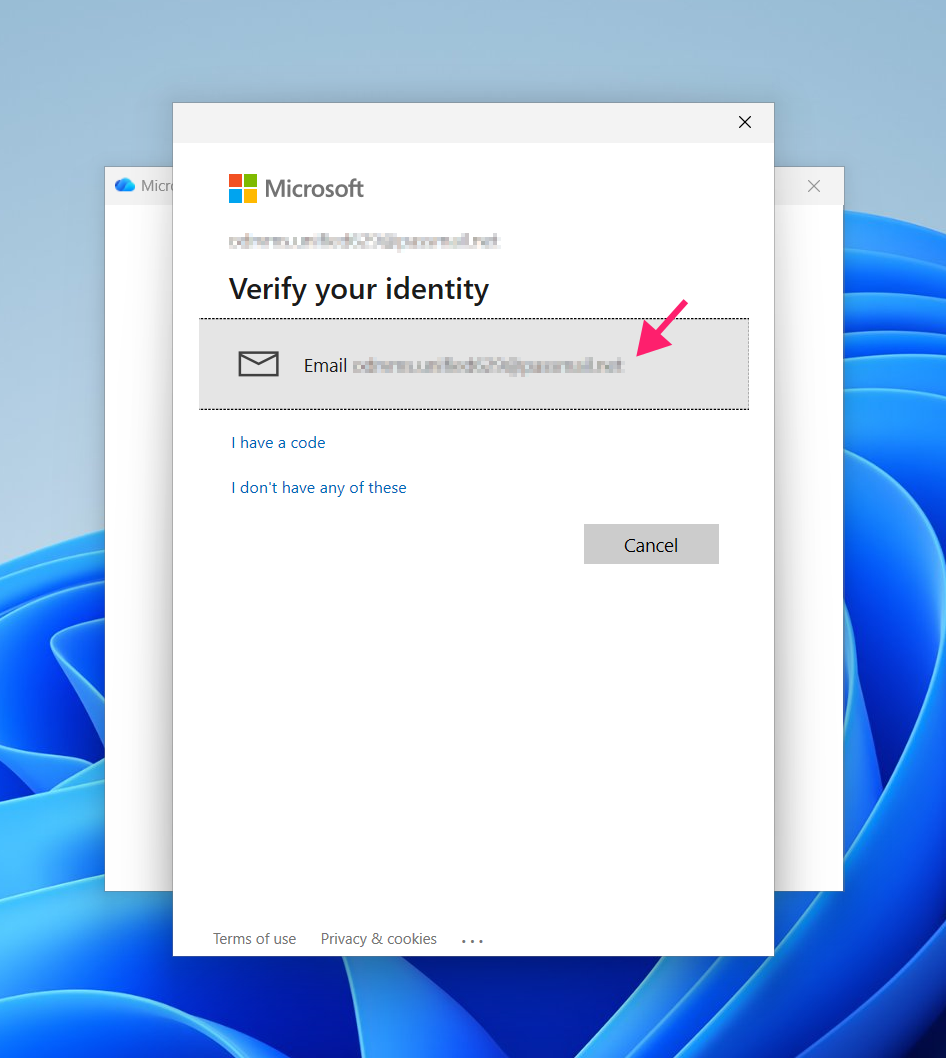
- Complete the identity verification step. Depending on your account configuration, you’ll see one of the following: an email code sent to your registered address, a push notification through the Microsoft Authenticator app, or a PIN prompt tied to your Windows Hello credentials
Follow the on-screen prompts for whichever method appears

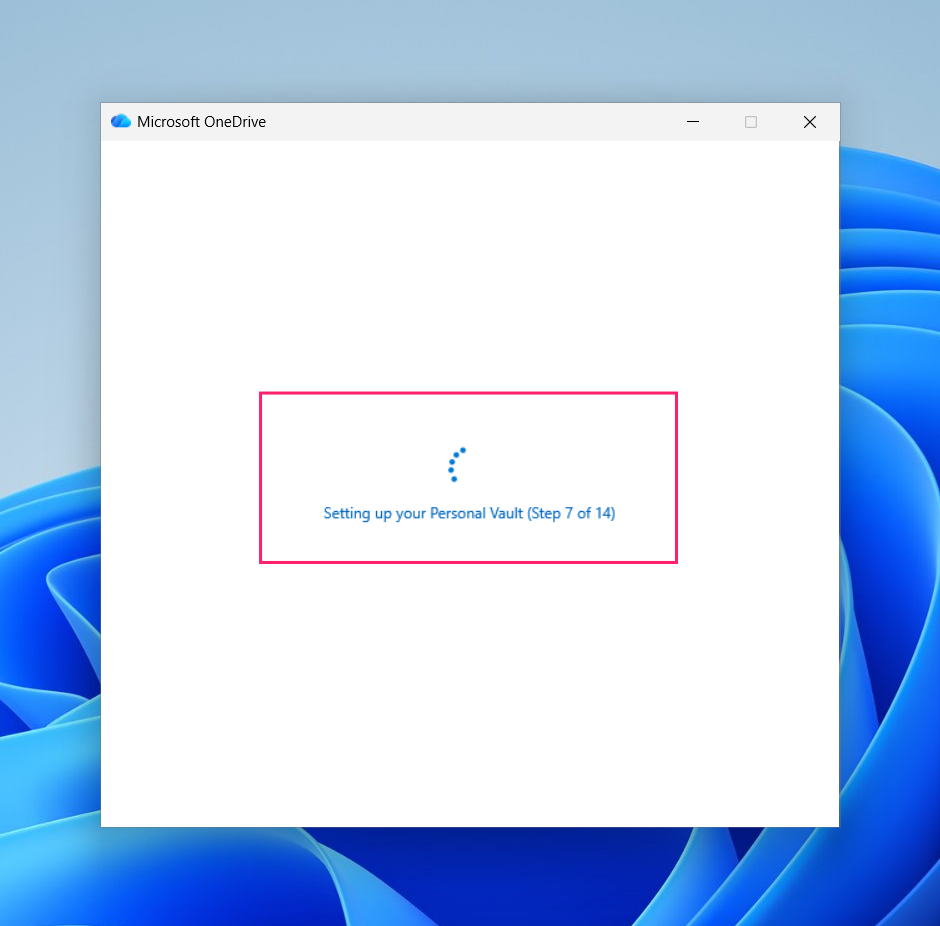
Wait for OneDrive to complete the 14-step setup process

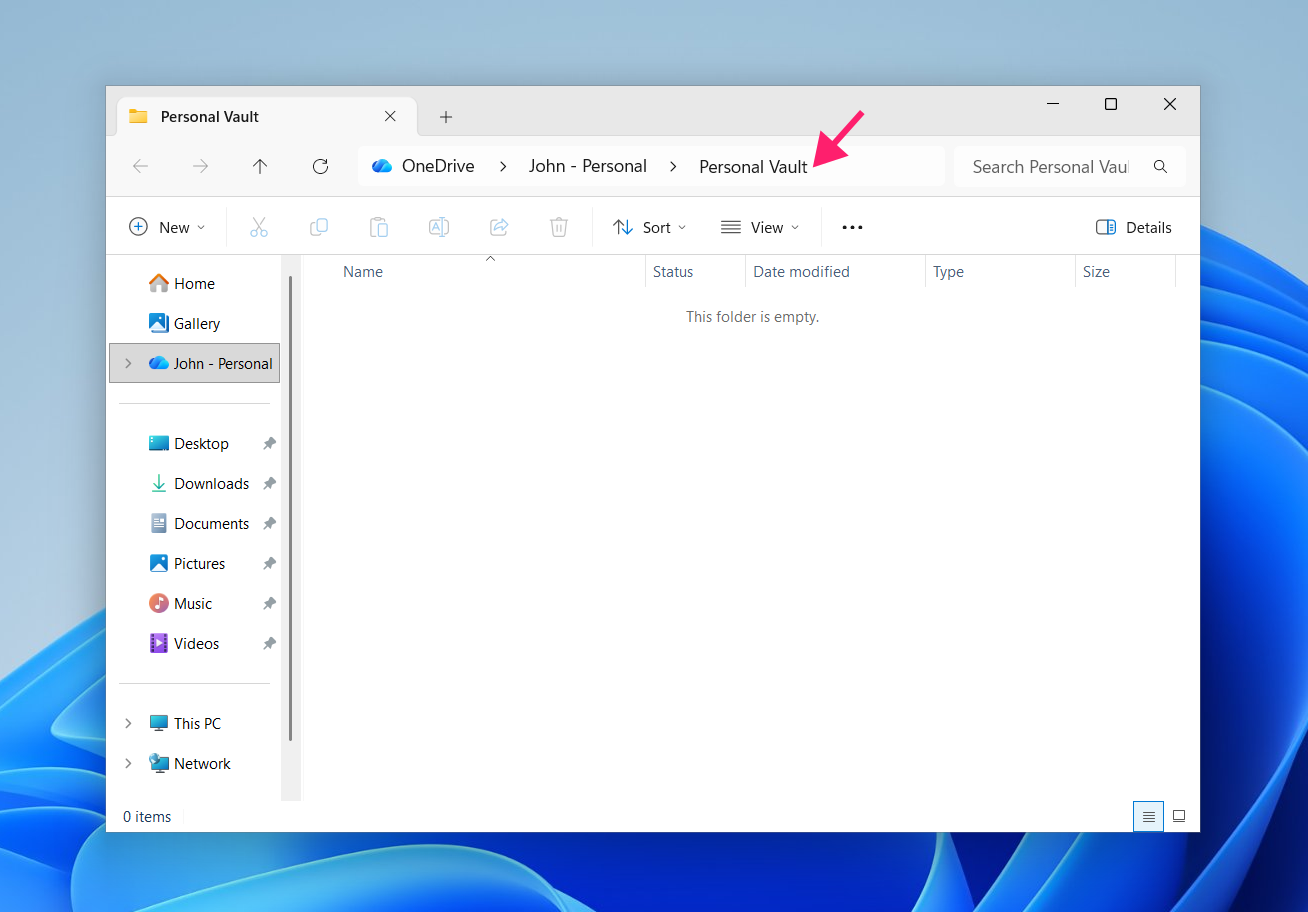
Once setup is complete, the Personal Vault folder opens and is ready to receive files. Copy or move files into it as you would any other folder

Unlocking Personal Vault during daily use
Personal Vault locks automatically after inactivity. Each time you return to it, you’ll need to verify your identity again before accessing the contents.
- Open File Explorer and navigate to your OneDrive folder
- Double-click Personal Vault
- Complete the identity verification step using whichever method your account has configured
- The vault opens immediately after successful verification and remains unlocked until the inactivity timer expires or you lock it manually
» File explorer not working? Here’s how to restart explorer.exe
Locking Personal Vault manually
The vault locks automatically after inactivity, but if you’ve finished working with sensitive files and want to lock it immediately, there are two methods.
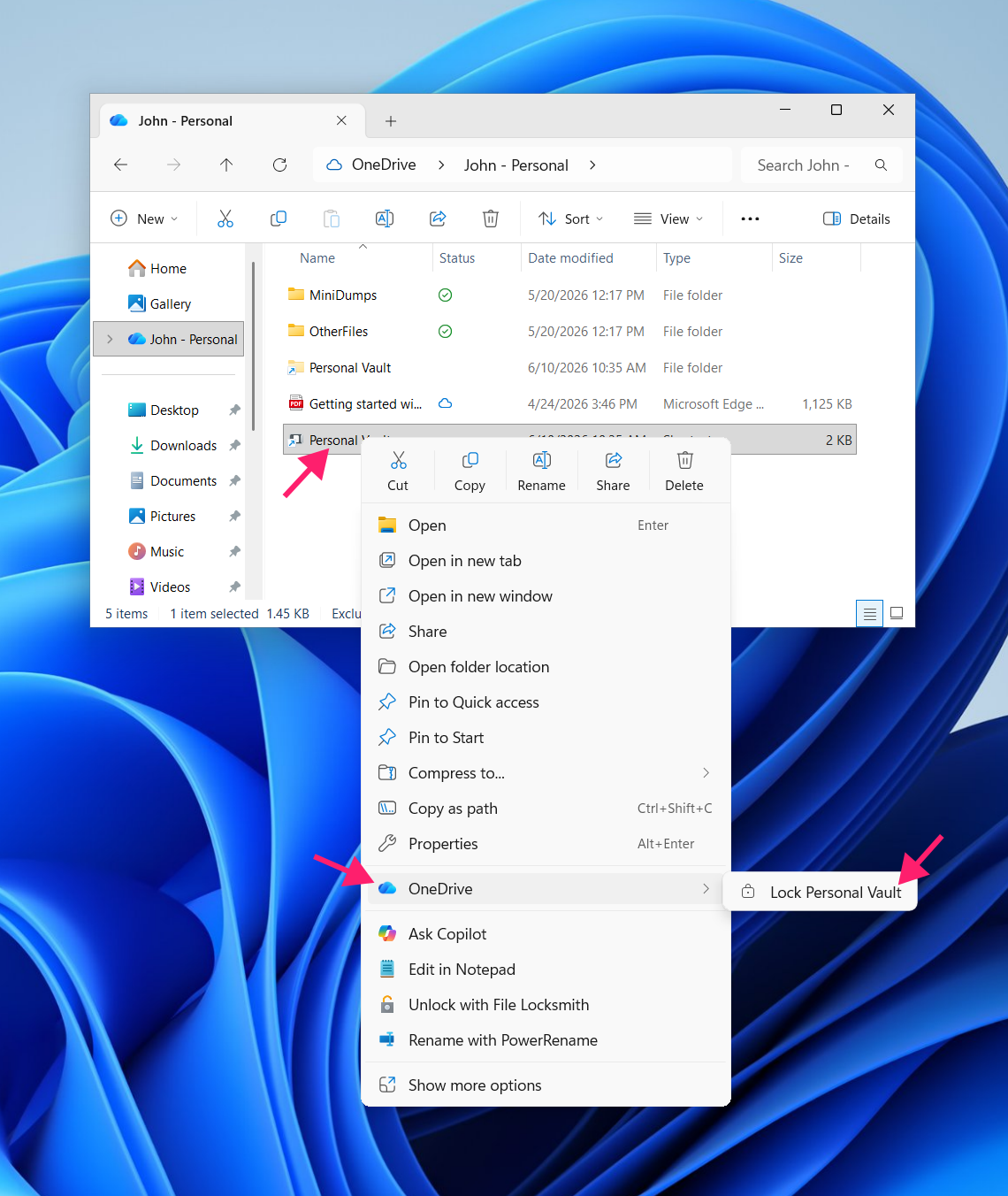
Via File Explorer
- In File Explorer, right-click the Personal Vault folder
- Hover over OneDrive in the context menu
Select Lock Personal Vault

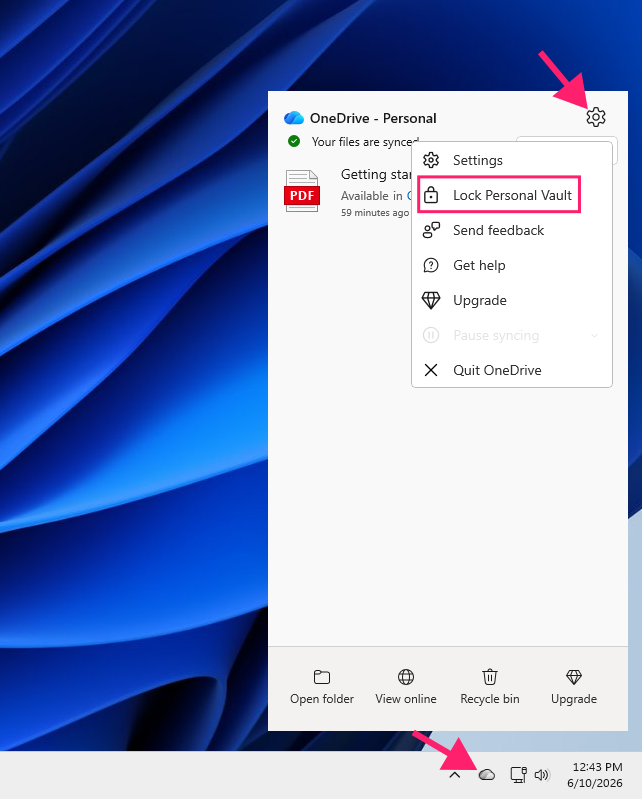
Via the taskbar
- Click the OneDrive icon in the system tray
- Click the gear icon to open the menu, then select Lock Personal Vault
Alternatively, right-click the taskbar icon directly to access the same option without opening the full menu

Customizing the auto-lock timeout
By default, Personal Vault locks after 20 minutes of inactivity. You can extend this to 1, 2, or 4 hours depending on your working patterns. To change it:
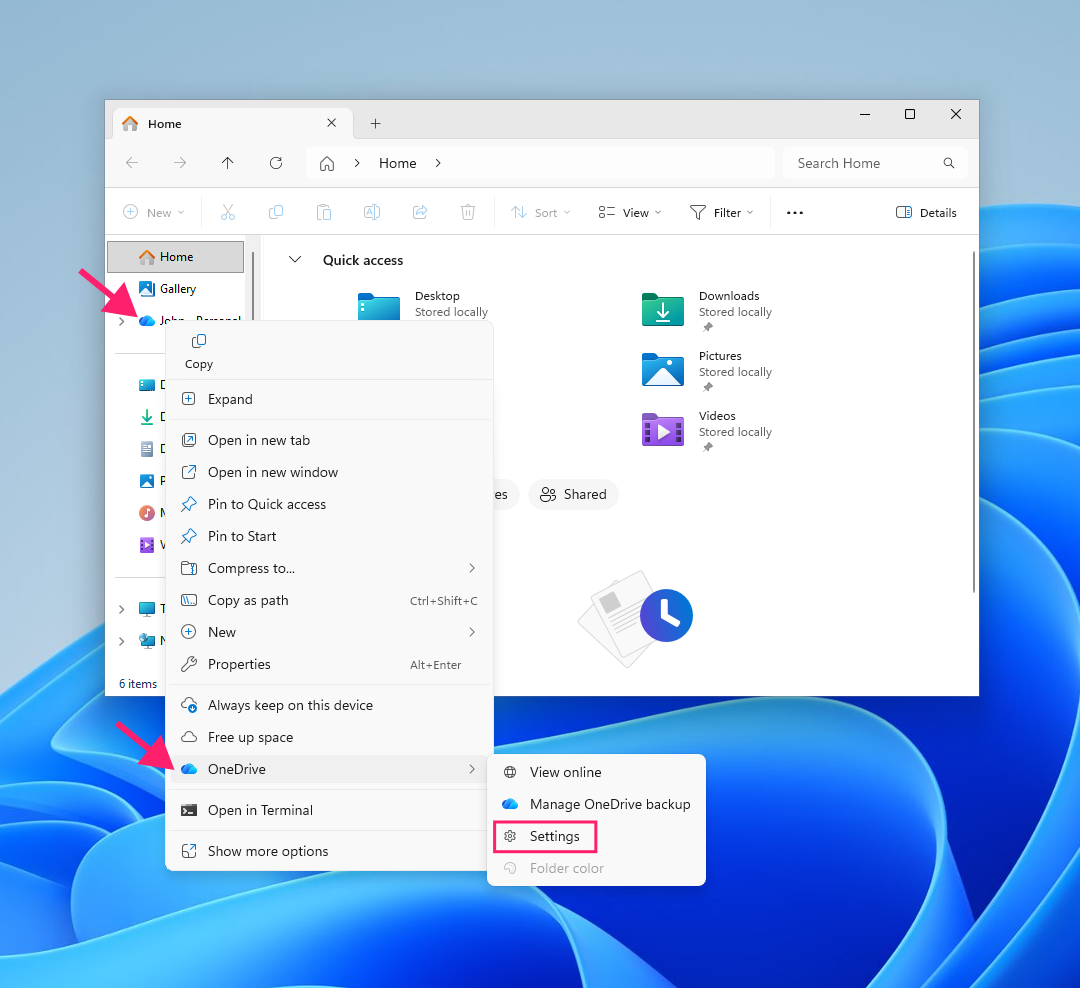
In File Explorer, right-click your OneDrive folder, hover over OneDrive, and select Settings

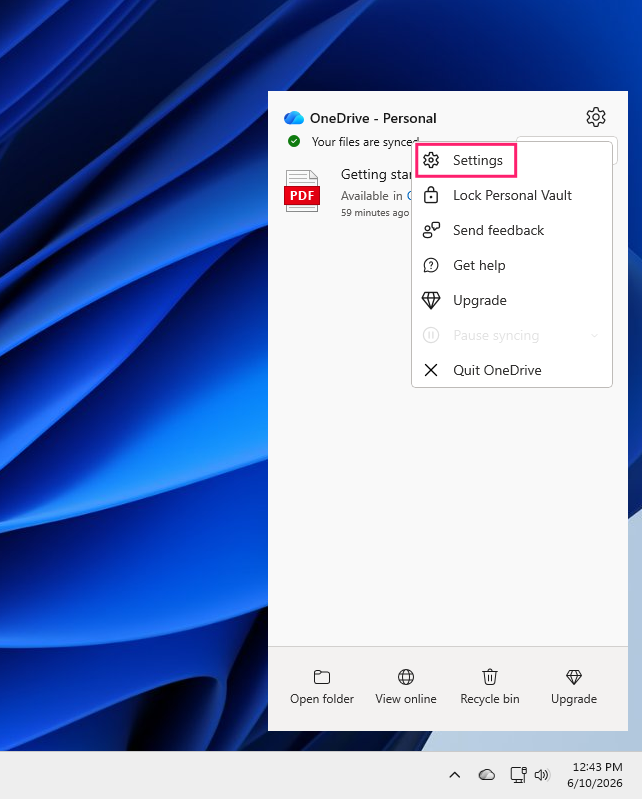
Alternatively, right-click the OneDrive taskbar icon and select Settings from the menu
- Go to the Account tab
- Find the Personal Vault section. You’ll see a dropdown labeled Lock Personal Vault after
Select your preferred timeout, either 20 Minutes, 1 Hour, 2 Hours, or 4 Hours

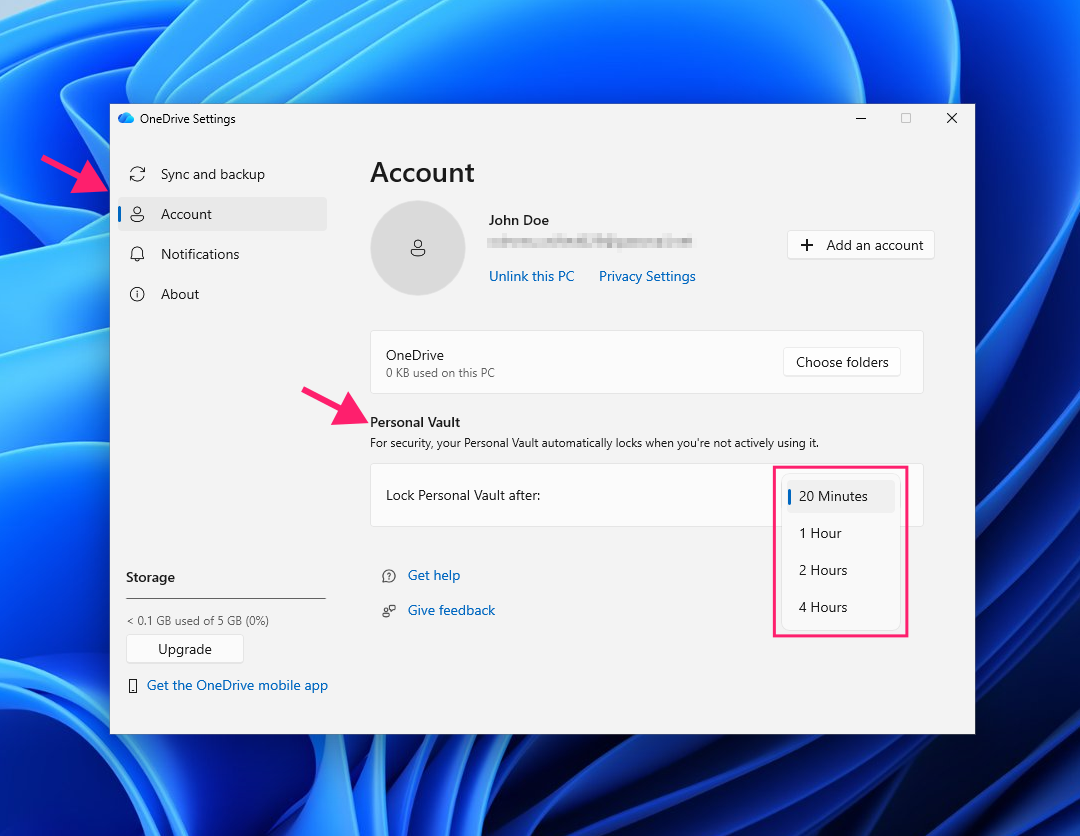
The change takes effect immediately, so no restart is required.
Managing identity verification methods
The verification methods available when unlocking Personal Vault are controlled at the Microsoft account level, not within OneDrive itself. To add or remove methods, or to enable two-step verification:
- Go to account.microsoft.com and sign in
- Navigate to the Security tab
Click Manage how I sign in under Account Security

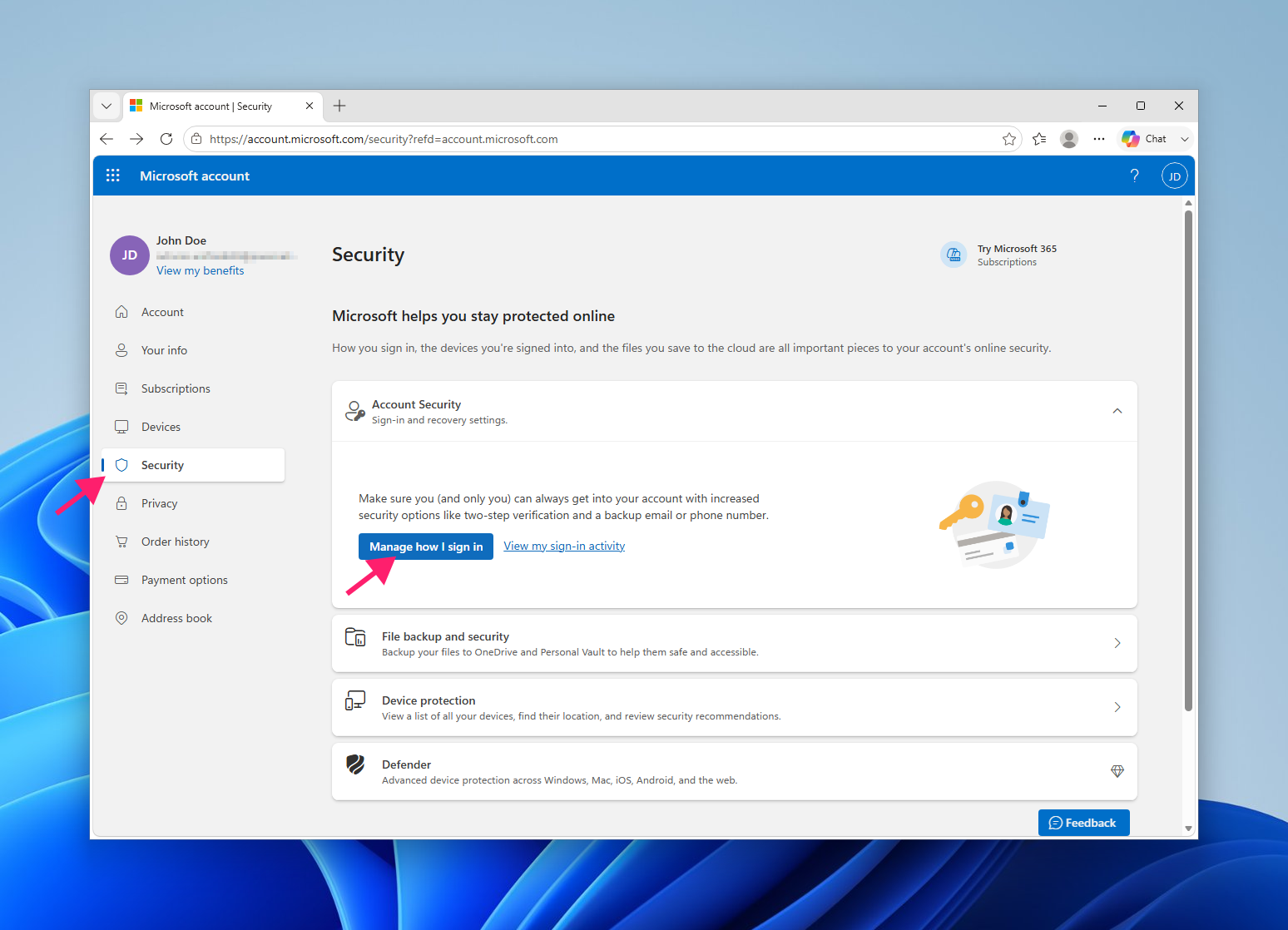
From here you can add new sign-in methods, enable or disable two-step verification, and remove methods you no longer use.
Any methods you add at the account level will become available as options when unlocking Personal Vault. Updating verification methods doesn’t change or reset your Microsoft account password since the two are independent. Personal Vault doesn’t have its own password; it’s an additional verification layer tied to your existing Microsoft account credentials.
Troubleshooting common Personal Vault errors
Personal Vault works well within a narrow scope, but there are some errors to be aware of.
.lnk files blocked from syncing
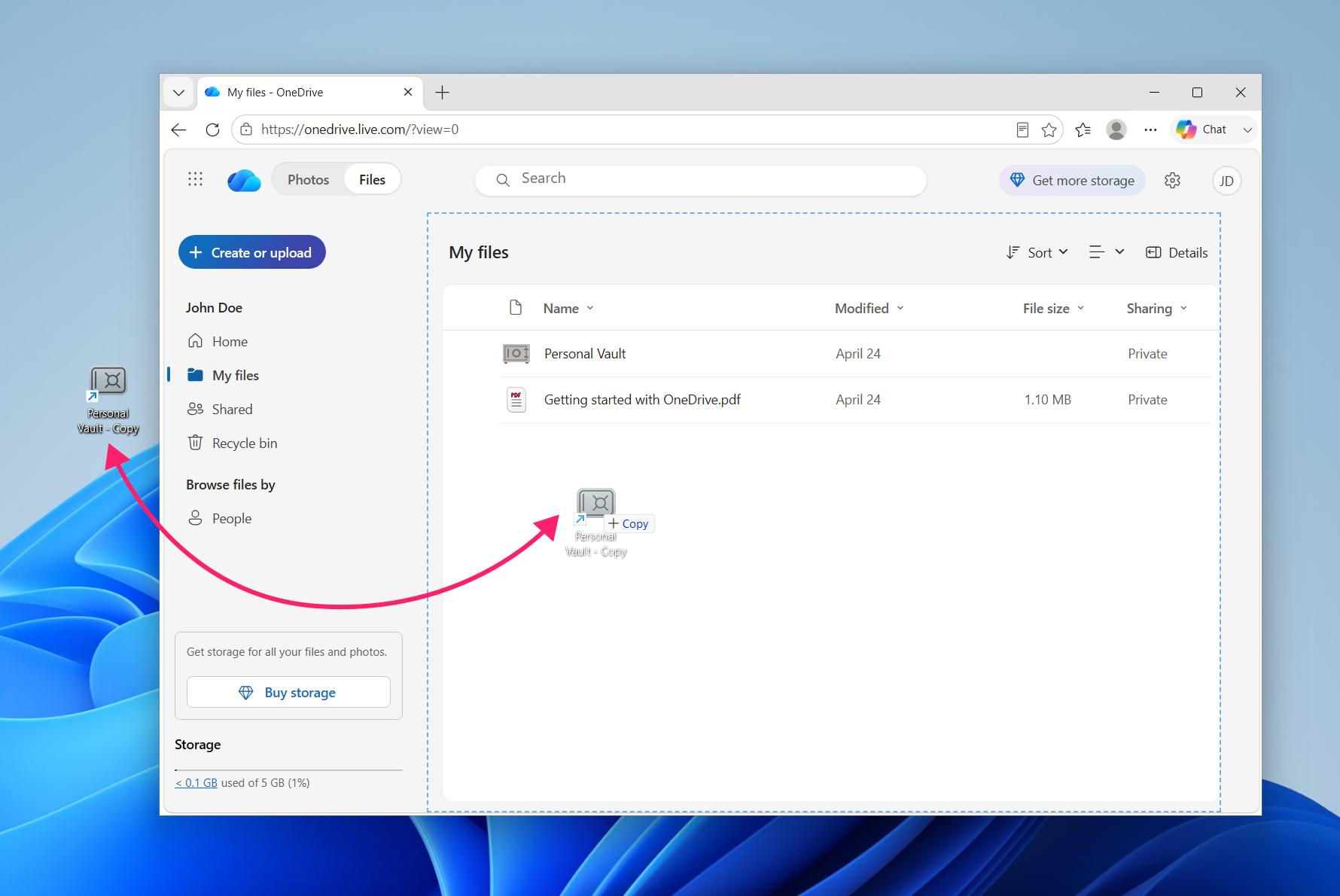
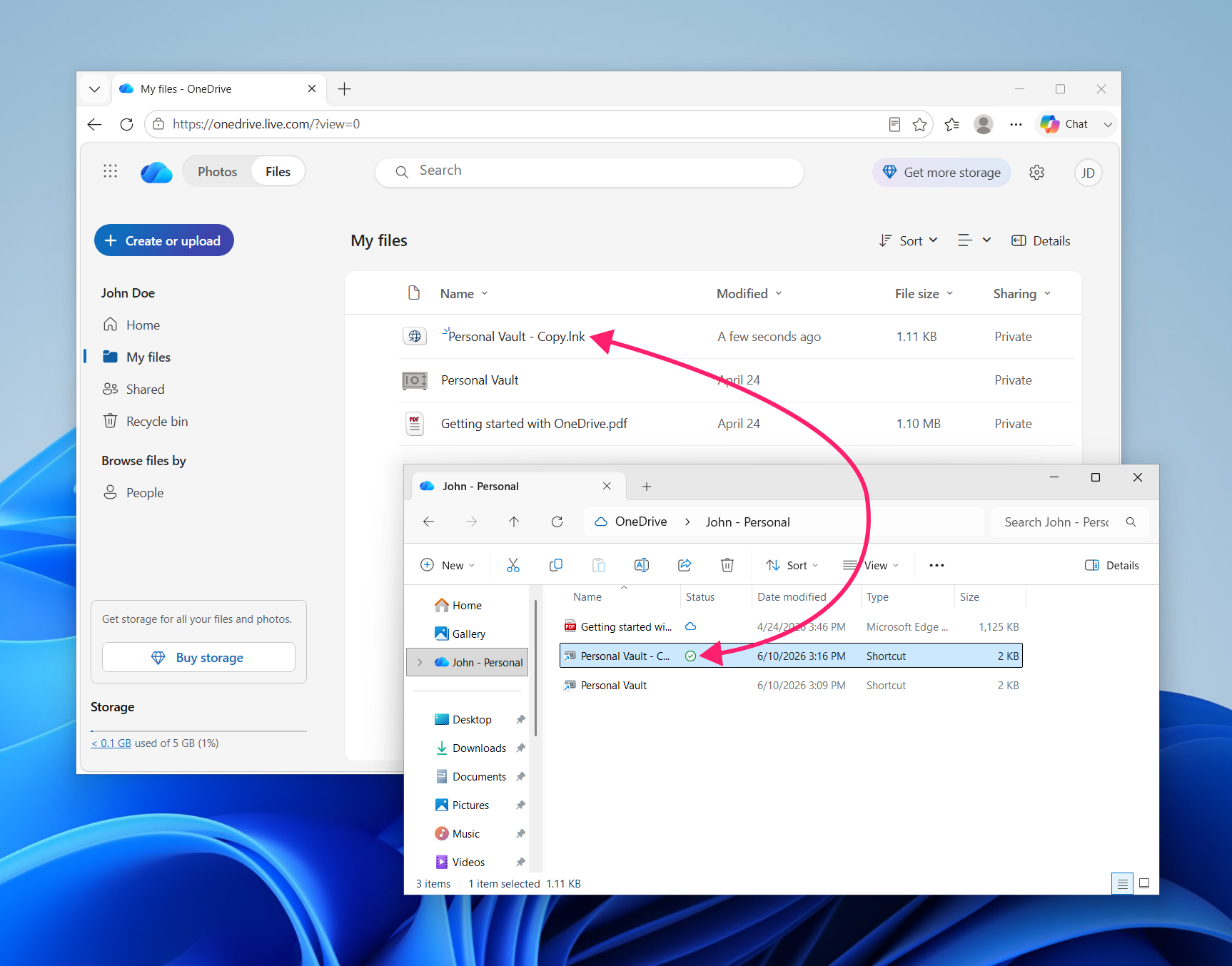
The desktop OneDrive application no longer syncs .lnk shortcut files. If a user tries to add a .lnk file to Personal Vault through File Explorer, it will be blocked.
The workaround is the OneDrive web interface, since it doesn’t enforce the same restriction as the desktop sync client. Navigate to onedrive.live.com, open Personal Vault from there, and upload the .lnk file using drag and drop or the contextual upload menu.
Vault blocking all OneDrive sync
Personal Vault can block the entire OneDrive sync process when it’s locked. If OneDrive displays a “Your Personal Vault isn’t up to date” notification and sync has stalled across other folders, the fix is straightforward.
All you need to do is unlock the vault, wait for sync to complete across all folders, then lock it again. The sync blockage isn’t limited to vault contents; it can affect the entire OneDrive sync queue until the vault is opened.
General sync issues
For persistent sync problems that don’t resolve after unlocking the vault, Microsoft’s documented fix is a full OneDrive reset. Open a Command Prompt or Terminal window and run one of the following commands, depending on where OneDrive is installed on the machine:
%localappdata%MicrosoftOneDriveonedrive.exe /reset"C:Program FilesMicrosoft OneDriveonedrive.exe" /resetC:Program Files (x86)Microsoft OneDriveonedrive.exe /reset
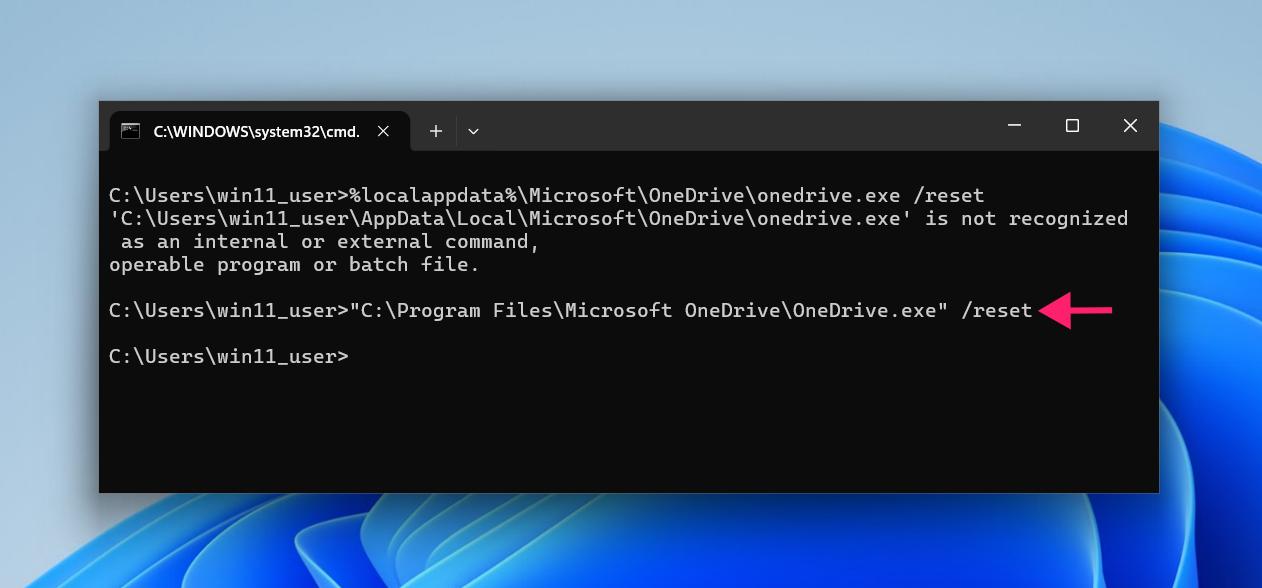
Only one command is needed; the correct one depends on the installation path. OneDrive should restart automatically after the reset. If it doesn’t, search for OneDrive in the Start menu and launch it manually. The reset clears the sync engine state without deleting files.
» Tired of OneDrive? Here’s how to remove OneDrive from File Explorer
Managing cloud security across your users
Personal Vault handles the individual file protection problem well within its scope of stronger authentication, automatic locking, and BitLocker encryption on Windows devices. But for IT teams managing OneDrive configurations across dozens or hundreds of endpoints, the challenge isn’t just one user’s sensitive files; it’s visibility into how cloud storage tools are being used, whether devices are patched, and whether the right policies are actually enforced at the machine level.
With Atera’s RMM and endpoint management built into a single console, IT teams and MSPs can monitor device compliance, push policy updates remotely, and maintain oversight across every endpoint without logging into each one individually. Personal Vault is a sensible security decision for any individual user, but making sure it’s configured correctly across your entire environment is an IT operations problem that can be easily solved.
Frequently Asked Questions
Related Articles

How to reduce alert fatigue in healthcare IT
In a hospital, a dismissed alert isn't a delayed ticket. It can be a patient deteriorating while the monitor keeps sounding. Cutting alert volume won't fix that on its own, and switching alerts off can make it worse.
Read now
How to prevent configuration drift across your IT infrastructure
Configuration drift rarely breaks anything the day it happens. It hides in a hotfix, a reset default, or a vendor installer, then surfaces weeks later as a failure nobody can trace. Stopping it means defining exactly what approved looks like, closing every side door into production, giving each setting one owning tool, and checking that the baseline itself hasn't gone stale.
Read now
How to reduce alert fatigue across your IT team
Your technicians aren't ignoring alerts because they're careless. They're ignoring them because most alerts have taught them to. Once the stream stops being trustworthy, real failures slip past with the noise. Fixing it means deciding what deserves an interruption, tuning out transient spikes, collapsing alert storms, and automating the fixes you've run a hundred times.
Read now
How to close the IT skills gap on your team
Course completions don't close skills gaps. Technicians finish the training, then hand the first unfamiliar failure straight back to a senior engineer. Real capability gets built on live tickets, incidents, and maintenance windows, with guidance that fades as competence grows.
Read nowEndless IT possibilities
Boost your productivity with Atera’s intuitive, centralized all-in-one platform









