
Generate summary with AI

Rsync doesn’t ask for confirmation before it deletes a file and it doesn’t warn you that your trailing slash just changed the entire destination structure. It just executes regardless of your potential mistake.
That’s why the case for --dry-run is so strong.. It runs the full comparison logic rsync would use in a live transfer, prints out every file that would be created, updated, or deleted, and then stops without touching a single byte. Here’s how to use it correctly.
What you need to know about dry runs first
Not every sync needs a dry run first, but certain conditions raise the cost of getting it wrong enough that skipping the simulation isn’t worth the risk. Run --dry-run before:
- Large-scale backups
- Server migrations
- Disaster recovery testing
- Data replication
- Whenever you’re introducing new
--include,--exclude, or--deleterules
In each of these scenarios, a mistake either affects a large volume of data or removes something you can’t easily recreate. The simulation shows exactly which files would be copied, updated, or deleted without modifying anything, which makes it one of the more reliable ways to catch a configuration error before it becomes a production incident.
Permission discrepancies skew dry run accuracy
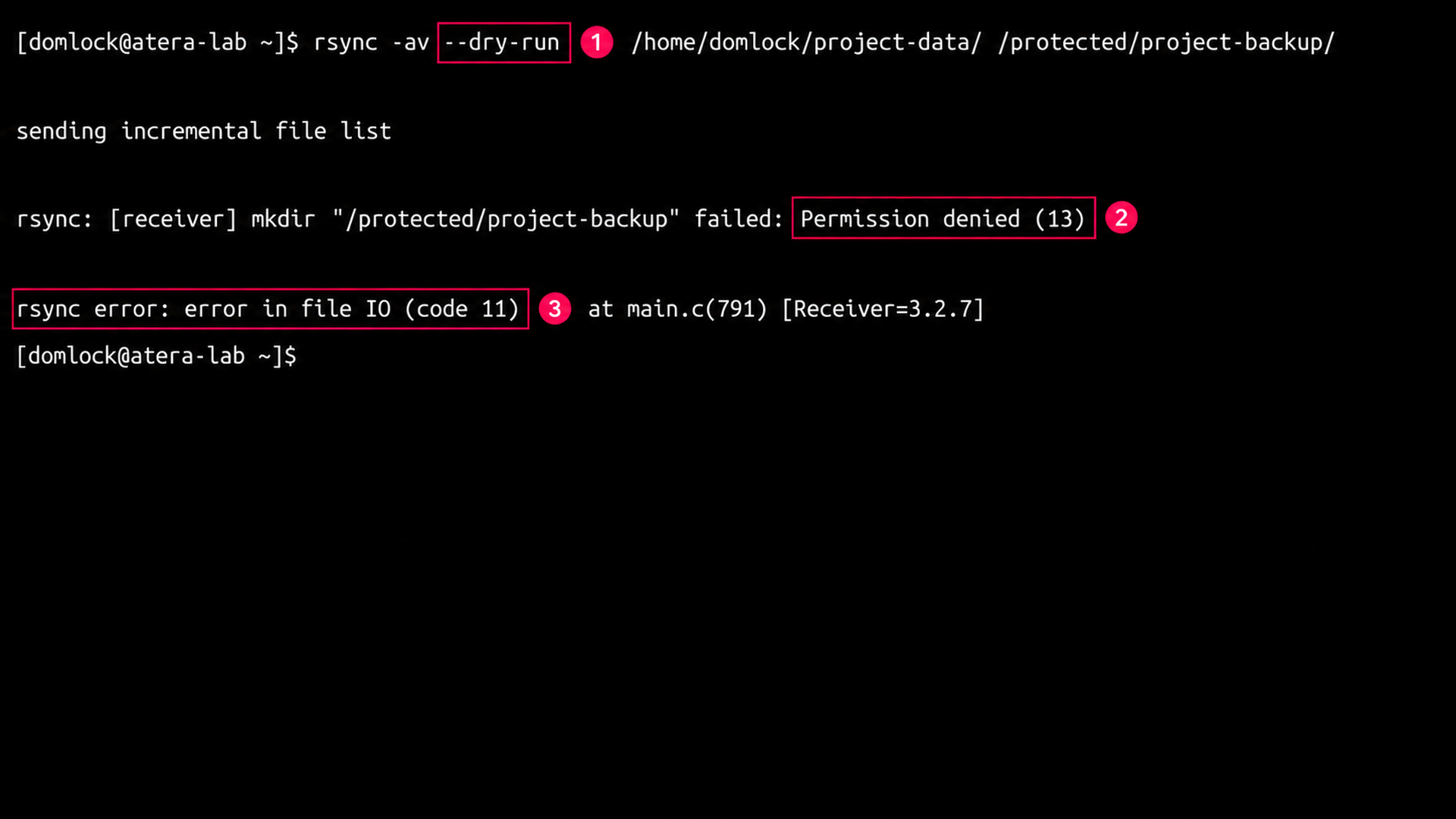
A dry run executes with whatever permissions the executing account actually has, which means the simulation will surface the same access failures a live transfer would.
There are no elevated privileges here unless you grant them, so if the account can’t read source files, write to the destination, preserve ownership, or update file attributes, the dry run reports those errors rather than a clean preview. Before trusting the output, confirm that the account running the simulation has the same permissions that will be used for the production sync. Mismatched testing and production accounts are a common reason a dry run looks fine and the live transfer doesn’t.
» Here’s how to change file permissions on Linux and fix permission denied error
Mixed filesystem migrations have blind spots dry run can’t catch
--dry-run accurately predicts which files will move, but it can’t predict how metadata behaves once it crosses filesystem boundaries. For example, when syncing from EXT4 to NTFS, the simulation identifies the files that would transfer, but it has no way to verify whether the destination filesystem supports POSIX permissions, ownership, symbolic links, extended attributes, ACLs, or special file types.
That means a dry run can complete cleanly while metadata that matters to you (like ownership on a shared directory or symlinks your scripts depend on) quietly fails to carry over during the actual transfer. Before a large cross-filesystem migration, test the dry run against a representative subset of data on the real target filesystem rather than trusting a clean simulation on its own.
» Make sure you know how to exclude directories in rsync
The steps to run, interpret, and scale a dry run correctly
Every method below builds on the same foundation: an rsync command that would otherwise run live, with --dry-run (or its shorthand, -n) inserted to simulate it instead. First, confirm you have working access to both the source and destination paths before starting.
Running a basic dry run and reading the output
Use this when you want a straightforward preview of what a sync will do, with no filters or special flags involved yet.
- Run
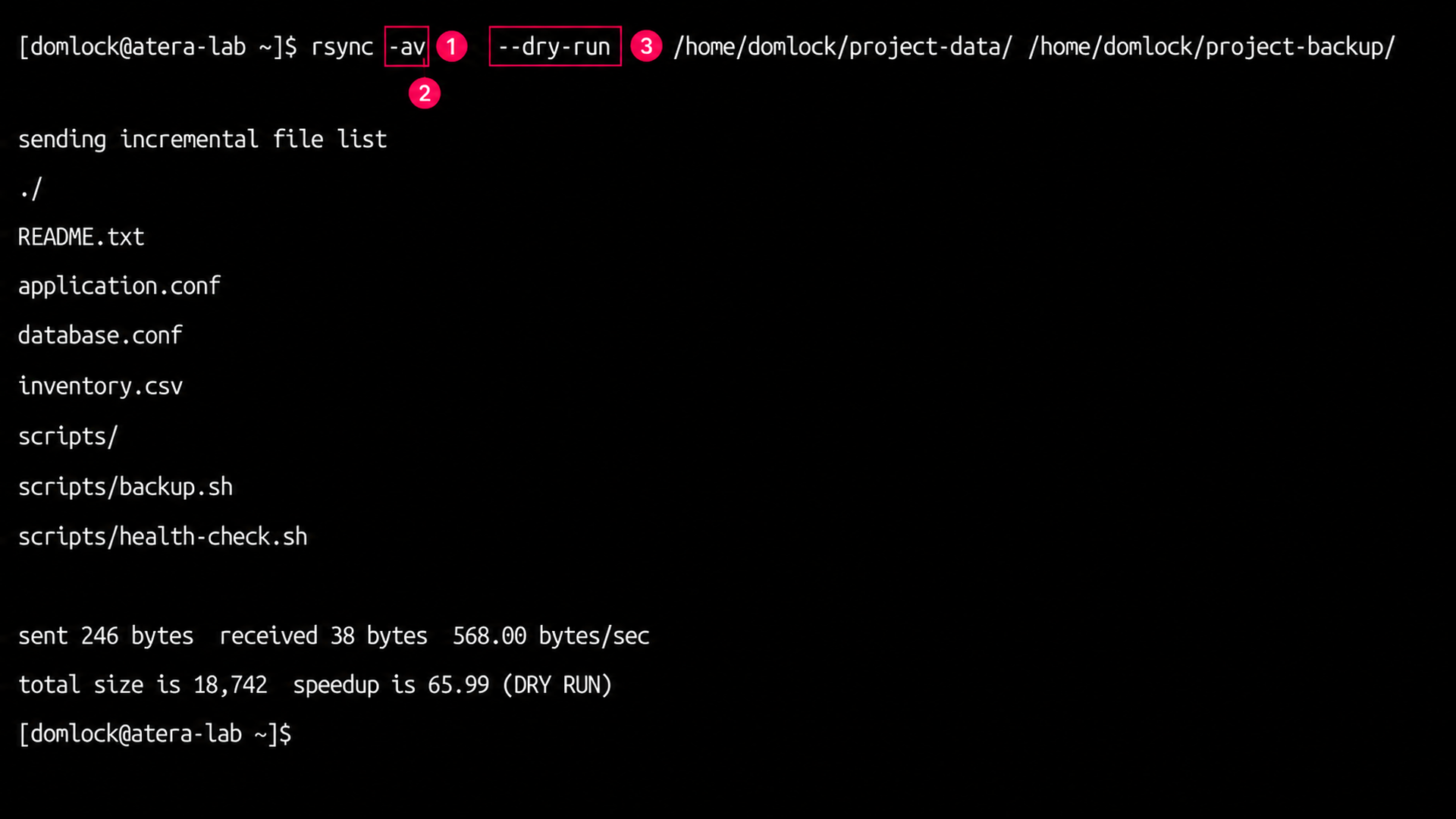
rsync -av --dry-run /source/ /destination/, where-apreserves file attributes and-vprints detailed output - Review the file list printed to the terminal, since each line represents a file or directory that would be created or updated in a live run
- Check the summary line at the bottom, which ends in
(DRY RUN)to confirm no files were actually transferred Compare the listed files against what you expected to change before removing
--dry-runand running the live sync
» Did you know you can paste into a Linux terminal?
Formatting paths correctly under WSL
Use this when your source or destination lives on a Windows drive accessed through Windows Subsystem for Linux, since path formatting mistakes here are a common cause of dry runs that look fine but don’t match the intended transfer.
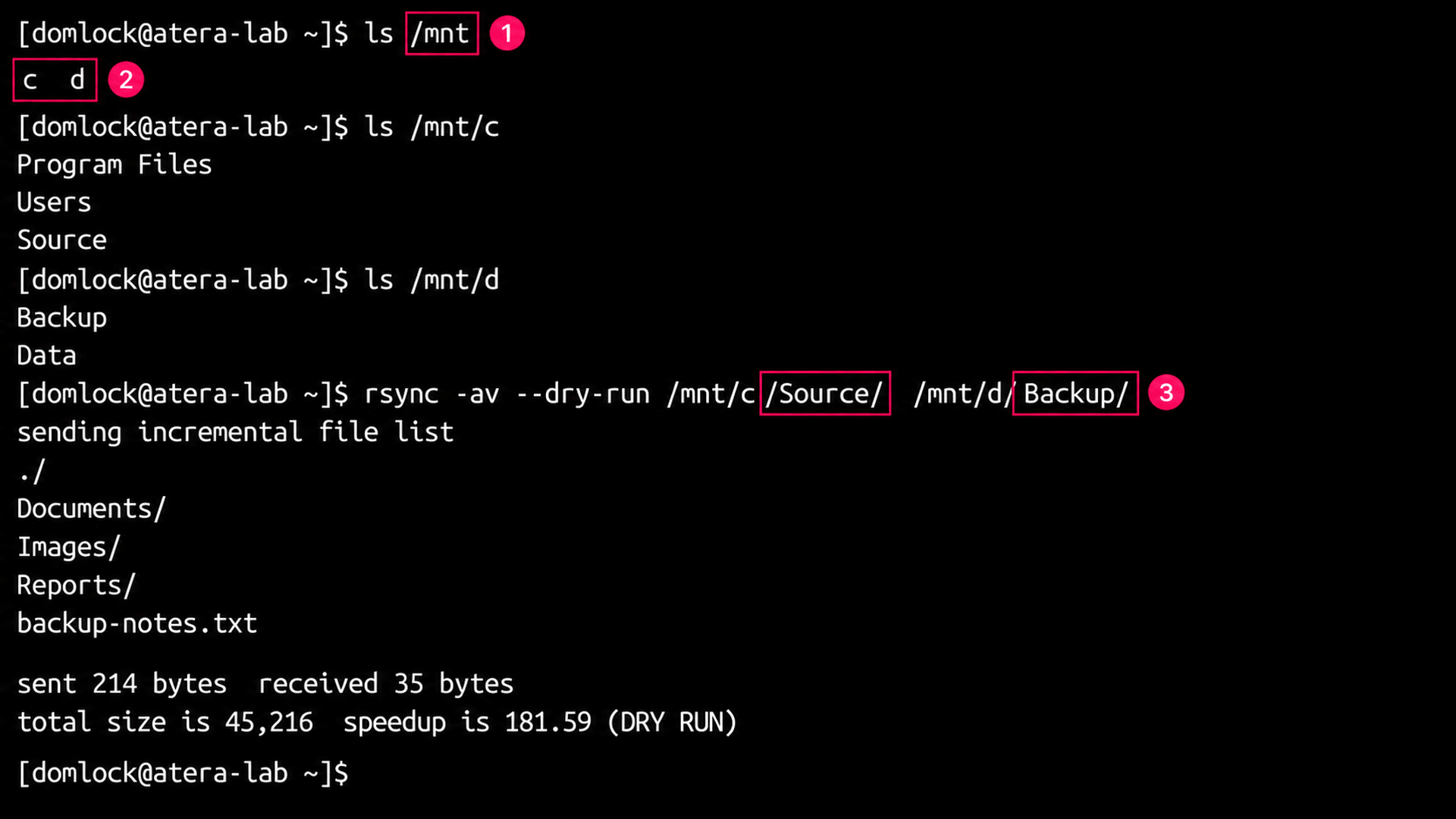
- Confirm both drives are mounted by running
ls /mnt, which should list your available drive letters as lowercase directories (for example,candd) - Reference Windows drives using their Linux mount paths, so the C: drive becomes
/mnt/cand the D: drive becomes/mnt/d - Run the dry run using Linux path syntax throughout, for example
rsync -av --dry-run /mnt/c/Source/ /mnt/d/Backup/ Keep the trailing slash on the source directory if you want to copy its contents rather than the directory itself, since WSL doesn’t change this rsync behavior
» Here’s how to uninstall a WSL distro in Windows 11
Combining dry run with itemize-changes to see why a file is flagged
Use this when a dry run’s file list alone doesn’t tell you enough, since knowing that a file will transfer isn’t the same as knowing why.
- Add
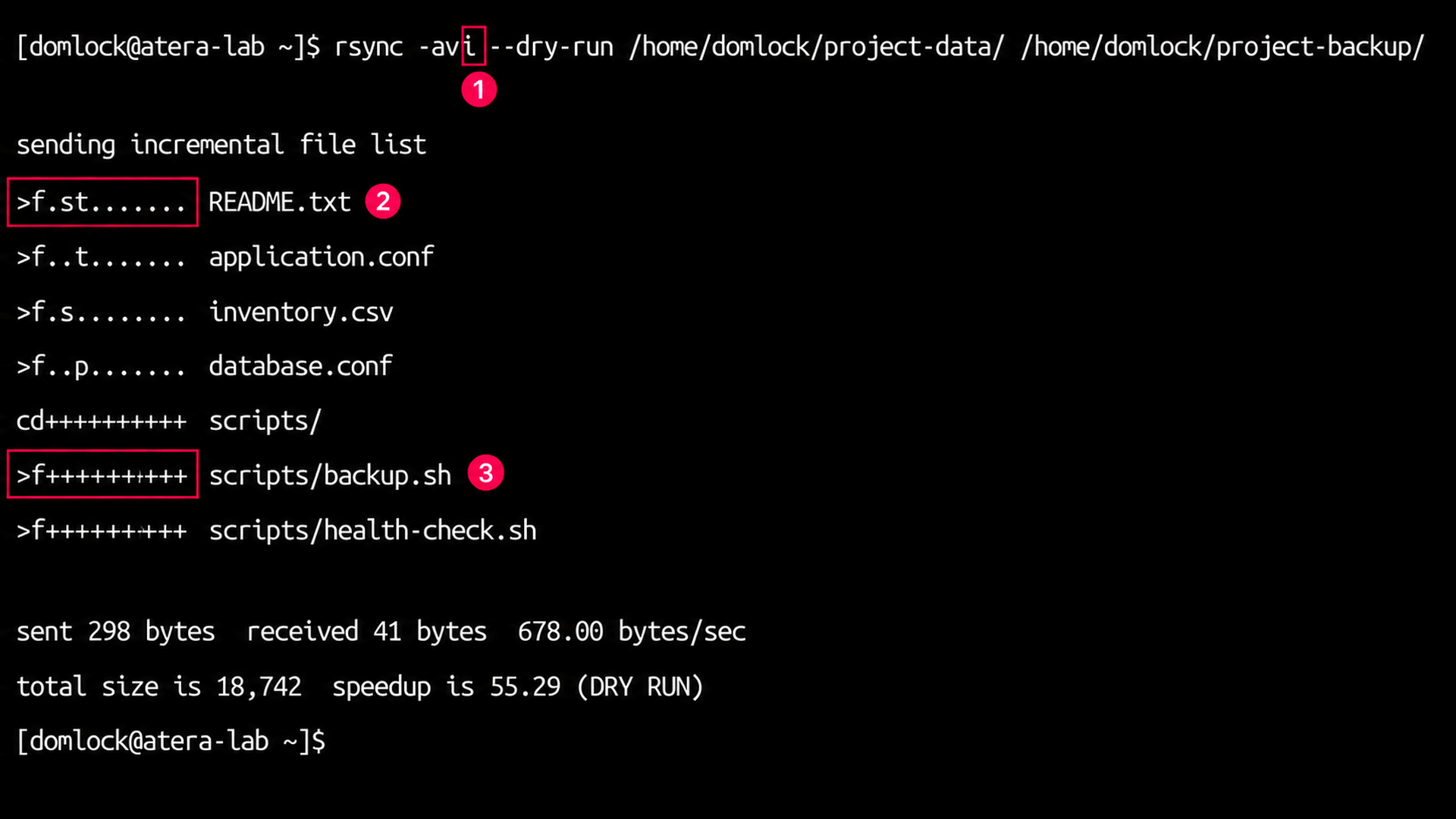
-ito your existing flags, running something likersync -avi --dry-run /source/ /destination/ - Read the change-indicator prefix on each line, where
>fmarks a regular file transfer and the remaining characters identify what differs, such as size, modification time, permissions, or checksum Use that prefix to separate genuine content changes from metadata-only differences before deciding whether the transfer is expected
Safely testing a sync that includes –delete
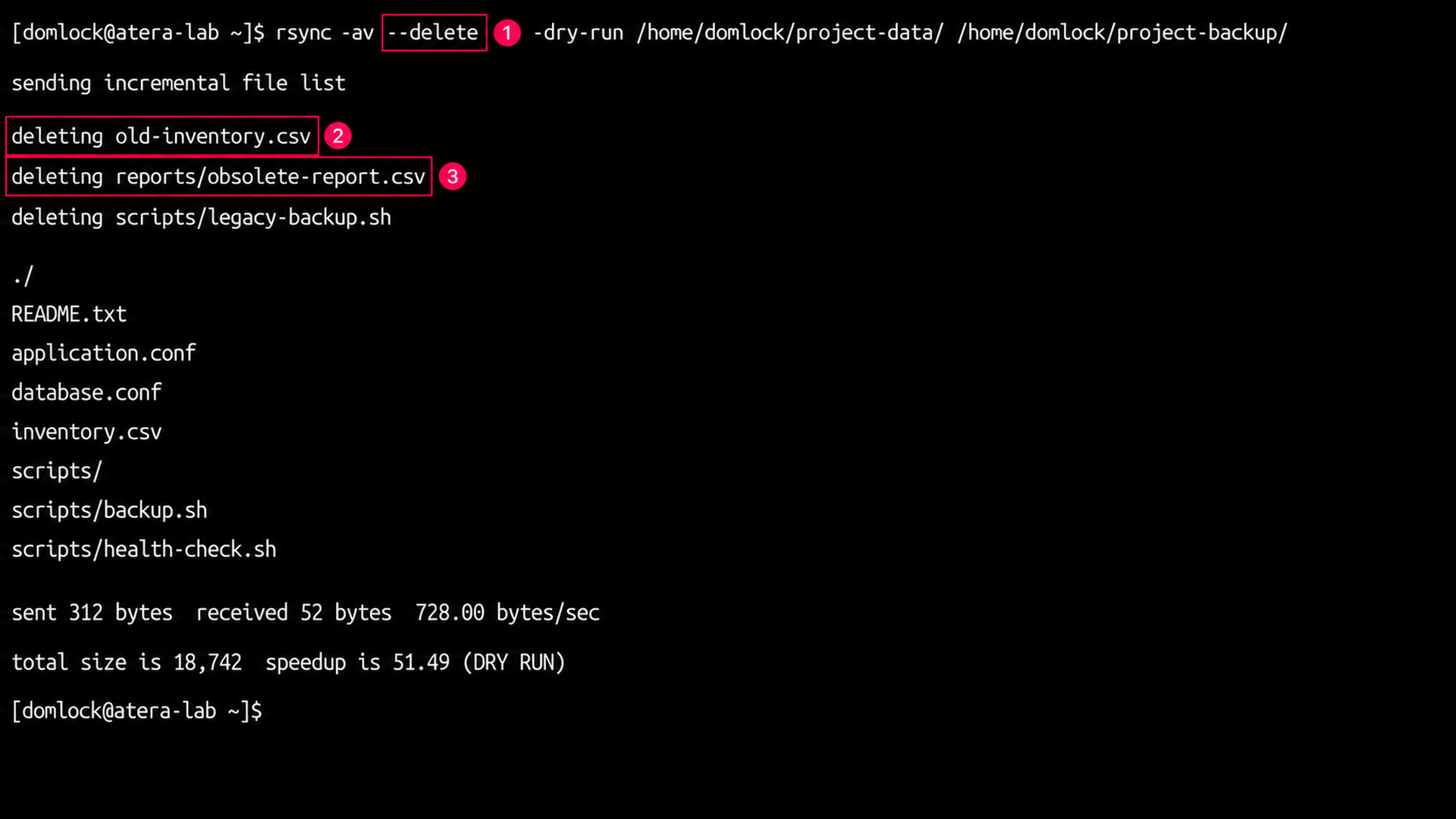
Use this whenever your live command will include --delete, since this flag removes destination files that no longer exist in the source and deserves its own verification pass.
- Add both flags together, running
rsync -av --delete --dry-run /source/ /destination/ - Review every line prefixed with deleting in the output, since these represent files the live run would remove
- Confirm that only genuinely obsolete files appear in that list, and check that no exclude rule is unintentionally catching files you still need
Remove
--dry-runonly once the deletion list matches your expectations exactly
Validating complex include and exclude filters before a full backup
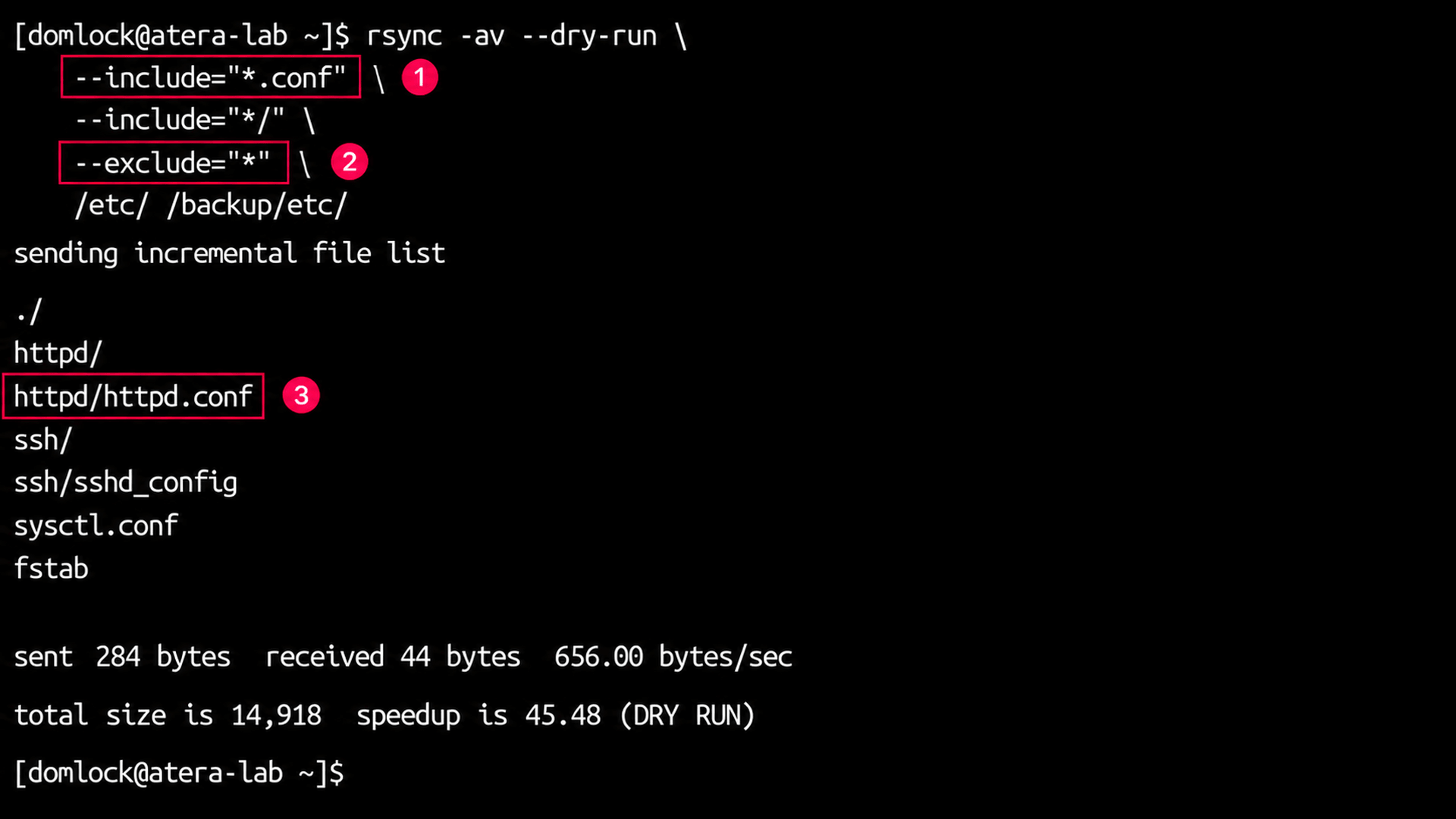
Use this before a backup that relies on filter rules to select specific files, since filter logic is one of the easier things to get subtly wrong.
- Write your filter rules in the order you intend them to be evaluated, since rsync applies
--includeand--excludesequentially - Run the dry run with the filters attached, for example
rsync -av --dry-run --include="*.conf" --include="*/" --exclude="*" /etc/ /backup/etc/ - Check the resulting file list against the pattern you intended, confirming that required files weren’t excluded and unwanted files weren’t included
Test the same filter set against a representative subset of the full dataset before running it against everything, especially for backups spanning a large directory tree
Automating dry run validation across pipelines and fleets
Use this once you’re pushing the same sync operation across multiple machines or running it as part of a recurring pipeline, since manually running a dry run on every target doesn’t scale.
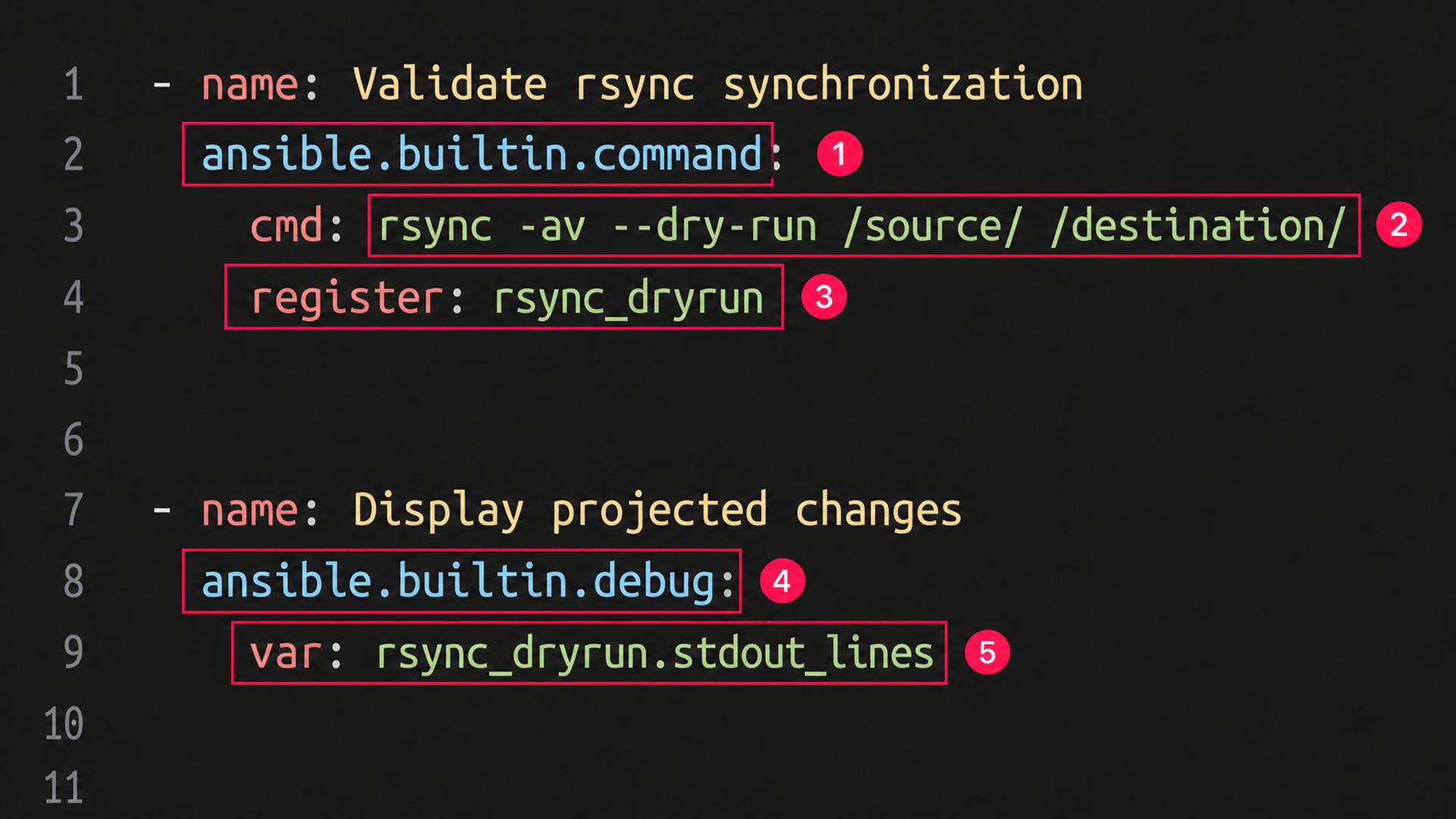
- Add a validation stage to your pipeline or playbook that runs the dry run command and captures its output, for example an Ansible task using
ansible.builtin.commandwithcmd: rsync -av --dry-run /source/ /destination/andregister: rsync_dryrun - Display or log the captured output, such as with a follow-up
ansible.builtin.debugtask referencingrsync_dryrun.stdout_lines, so the projected changes are visible before approval - Archive the output alongside your build or deployment artifacts, creating an auditable pre-flight record for each run
Review the log for unexpected transfers, deletions, or permission errors before the pipeline proceeds to the live synchronization step
To deploy this validation step across a fleet of endpoints rather than a single machine, Atera’s remote scripting through the RMM platform lets you run the same dry-run command across selected devices or device groups on demand, so every target gets the identical pre-flight check without logging into each one individually. And if you don’t have a specific script or need help writing one, AI Copilot can do it for you.
» Here’s how to install Atera’s Linux Agent and monitor Linux servers at scale
Bonus tips for catching what a dry run output can still miss
Even a technician who runs dry runs consistently and reads the file list carefully can be misled by two specific failure patterns. Neither shows up as an error, both produce output that looks plausible, and both are easy to misdiagnose if you don’t already know what to check for.
Diagnosing false-positive transfers
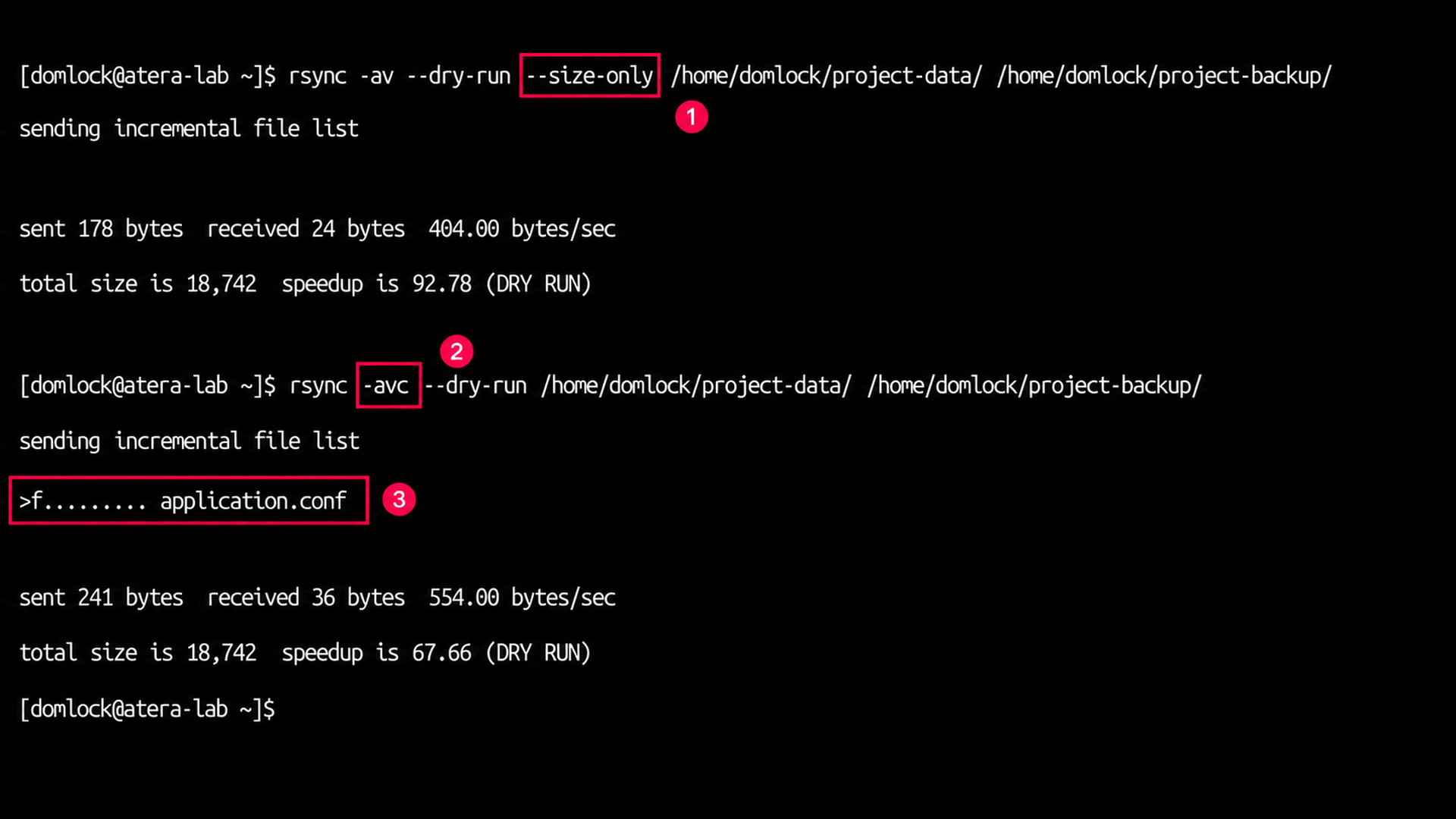
Use this when a dry run flags files for re-transfer that you know haven’t actually changed, since the mismatch is usually about how rsync is comparing files rather than the files themselves.
- Re-run the dry run with
--size-onlyadded; for examplersync -av --dry-run --size-only /source/ /destination/, which compares file sizes instead of modification times and ignores timestamp drift - If files still appear flagged, re-run with
--checksum(-c) instead, for examplersync -avc --dry-run /source/ /destination/, which compares actual file contents rather than metadata - Treat a clean result under
--size-onlyor--checksumas confirmation that the original flags were caused by timestamp or permission differences, not real content changes Reserve
--checksumfor situations where content verification matters enough to justify the extra CPU overhead, since it’s slower on large datasets than the default comparison or--size-only
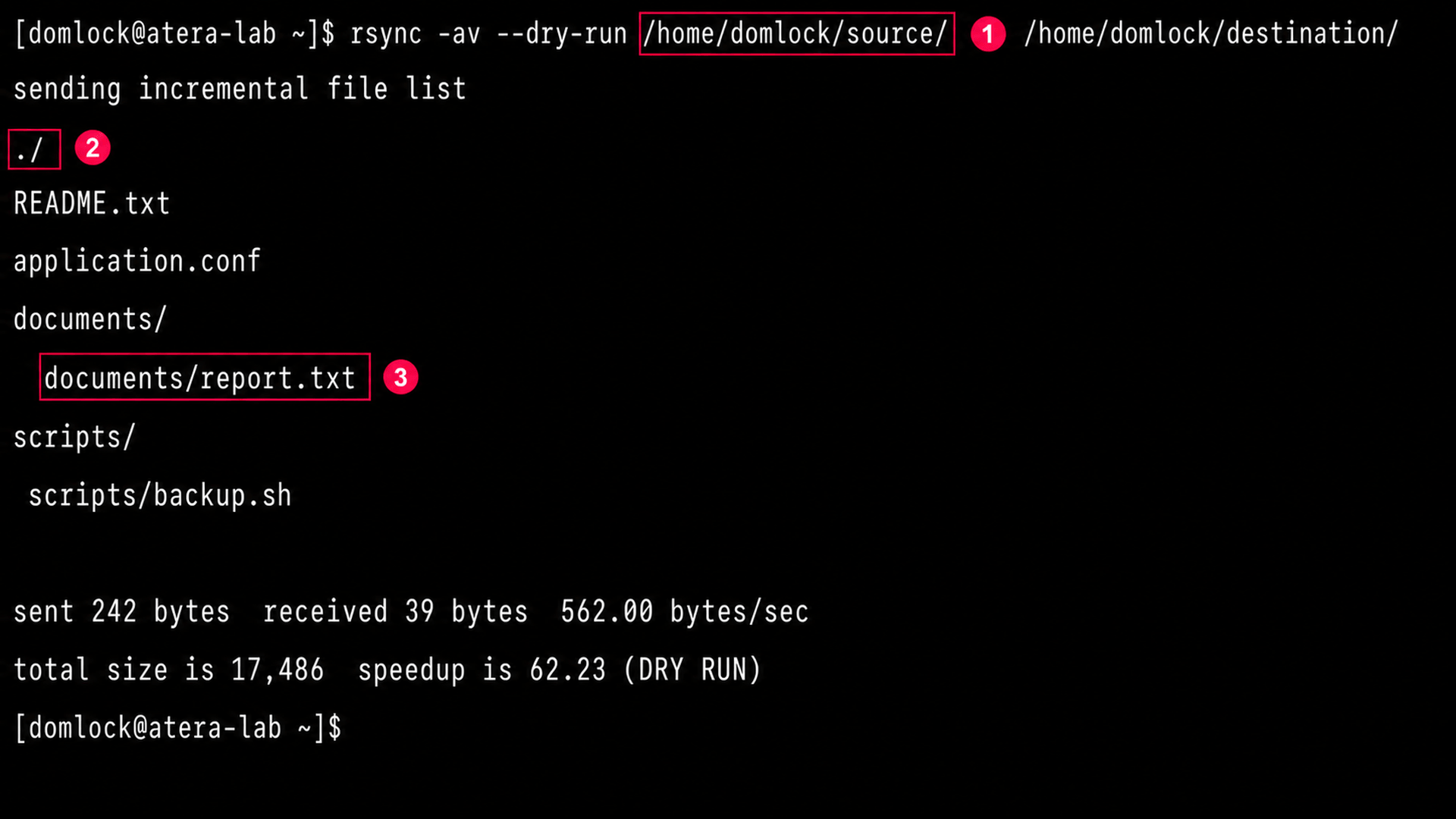
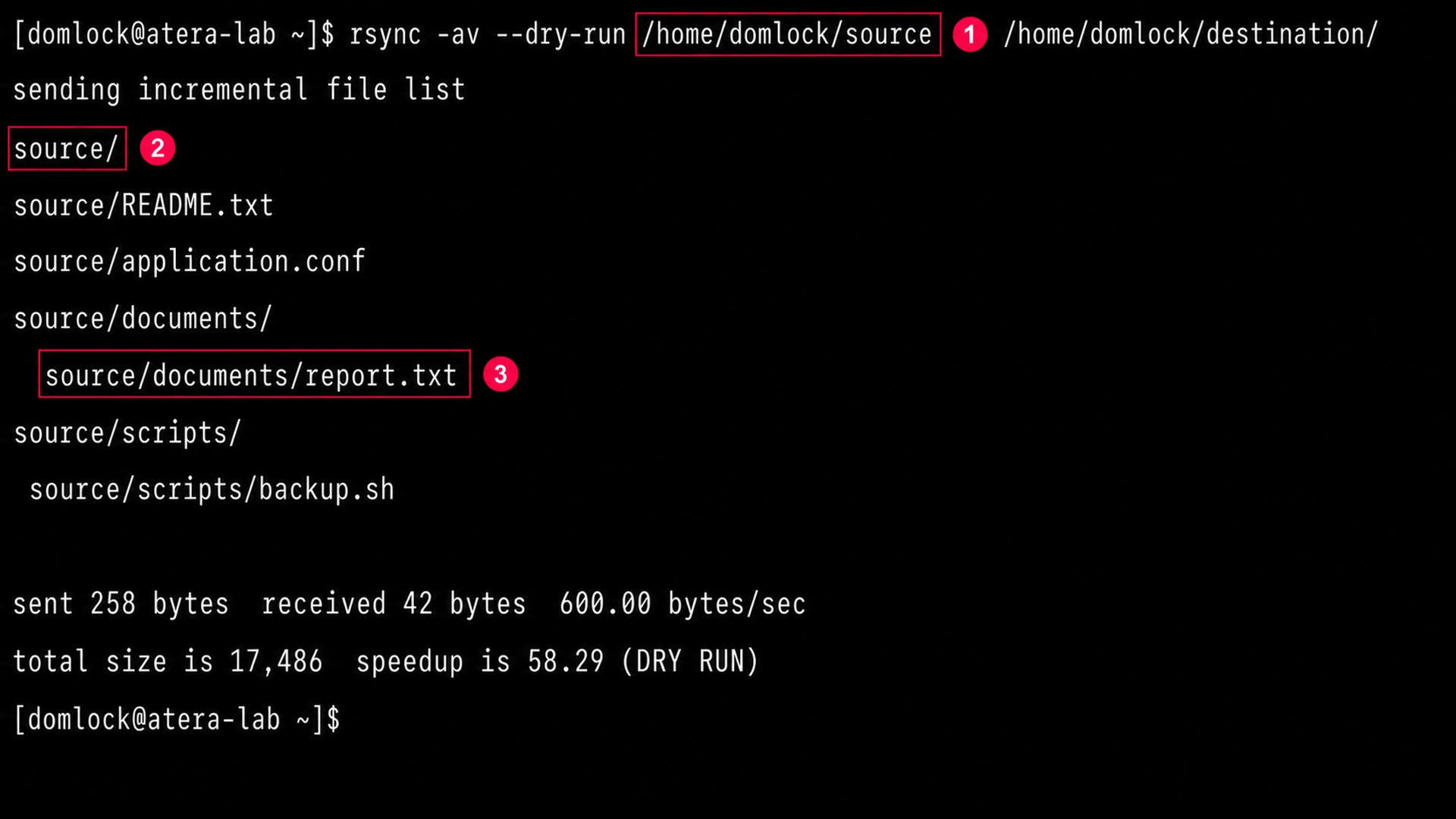
Diagnosing a missing or extra trailing slash
Use this when a dry run shows files landing in an unexpected subfolder rather than the destination you intended, since this is almost always a trailing slash issue on the source path.
Execute the dry run with a trailing slash on the source path, for example
rsync -av --dry-run /source/ /destination/, which copies the contents of the directory- Run the same dry run without the trailing slash, for example
rsync -av --dry-run /source /destination/, which copies the directory itself into the destination Compare the two outputs directly, since the second version will show every path nested one level deeper under a
source/folderChoose whichever version matches your intended destination structure before removing
--dry-runfrom the command
From single sync to fleet-wide confidence
Running --dry-run once, when something feels risky, is better than nothing. Running it as a standard step every time, whether it’s a single backup or a script pushed across a hundred endpoints is what actually prevents migration mistakes.
That consistency is easier to enforce when the validation step isn’t something a technician has to remember to run manually on every machine. Atera’s remote scripting lets IT teams and MSPs push the same dry-run command across selected devices or device groups on demand, so the pre-flight check happens the same way every time.
Related Articles

How to reduce alert fatigue across your IT team
Your technicians aren't ignoring alerts because they're careless. They're ignoring them because most alerts have taught them to. Once the stream stops being trustworthy, real failures slip past with the noise. Fixing it means deciding what deserves an interruption, tuning out transient spikes, collapsing alert storms, and automating the fixes you've run a hundred times.
Read now
How to close the IT skills gap on your team
Course completions don't close skills gaps. Technicians finish the training, then hand the first unfamiliar failure straight back to a senior engineer. Real capability gets built on live tickets, incidents, and maintenance windows, with guidance that fades as competence grows.
Read now
How to calculate cost per ticket (and why most teams get it wrong)
Most cost-per-ticket figures are wrong before anyone reads them. Missing overhead, tickets that were opened but never closed, spam and duplicates padding the count, and one month's costs divided by another month's tickets all make support look cheaper than it is. Fix both sides of the division and the number finally shows where technician time and money actually go.
Read now
How to prepare for a software license audit
A vendor audit notice doesn't wait for you to get organized. It demands proof, right now, that every install matches every entitlement you've paid for, and most IT teams find out the hard way how much they don't actually know about their own environment. Getting audit-ready before the letter arrives is the difference between negotiating from strength and paying for months of scrambling.
Read nowEndless IT possibilities
Boost your productivity with Atera’s intuitive, centralized all-in-one platform









