
Generate summary with AI

Excluding the right directory in rsync sounds trivial until you run the command and realize half your project got copied anyway (or worse, the half you actually needed didn’t). A misplaced trailing slash, an unanchored pattern that matches at every depth, or a --exclude that misunderstands rule order can turn a routine sync into a multi-gigabyte mistake, especially when node_modules, .git, or cache directories are involved.
The good news is that once you understand how rsync actually evaluates its filter rules (order, anchoring, and trailing slashes), excluding directories stops being guesswork. This post walks through the exact syntax for skipping a single folder, multiple folders, wildcard patterns, and nested exceptions, along with how to diagnose it when an exclusion silently does nothing.
The fundamentals you need to know first
Before you write a single --exclude pattern, you should know how rsync actually works because most exclusion failures don’t come from the exclude flag itself. They come from a gap in one of these three fundamentals.
The basic syntax
The foundational syntax for any rsync transfer is rsync [OPTIONS] SOURCE DESTINATION. For most folder-to-folder syncs, you’ll run this with two options combined:
-a(archive mode), which preserves permissions, timestamps, and symlinks while recursing through subdirectories automatically-v(verbose), which prints what’s actually being transferred as it happens
In practice, almost every sync command you write will start with rsync -av followed by your source and destination paths. Verbose output isn’t optional in day-to-day use, since it’s your only real-time confirmation that the command is doing what you expect before you’ve had a chance to check the destination directory.
» Make sure you know which Linux command sends messages to the network interface
The trailing slash rule
This is the single most common source of “why did rsync copy the wrong thing” tickets. rsync -av source/ destination/ copies the contents of source/ into destination/. Drop the trailing slash with rsync -av source destination/, and rsync copies the source directory itself into destination/, nesting everything one level deeper than you probably intended.
The rule holds regardless of what other flags you’re using. Just remember that trailing slash on the source means “copy what’s inside,” no trailing slash means “copy the folder.” If a sync ever produces an unexpected extra layer of nesting at the destination, this is the first thing to check.
The structural limits rsync can’t get around
A few structural limits apply no matter how your exclude patterns are written:
- Permissions gate everything upstream of exclusion: rsync simply can’t read or copy a file or directory it doesn’t have access to, and no
--excludesyntax changes that. The--excludeoption itself only matches file and directory names or paths; it has no awareness of file content, size, or type. - rsync will descend into mounted filesystems by default: So a network share or secondary disk mounted inside your source tree gets synced right along with everything else unless you explicitly pass
--one-file-system. - A pattern without a leading
/matches at every level of the transfer, not just the top: This is a frequent cause of over-broad excludes. And virtual filesystem directories like/procor/sysget no special treatment from rsync; they’re synced like any other directory unless you exclude them manually, which matters if your source path happens to include one.
5 ways to exclude directories in rsync on Linux
With the fundamentals covered, here’s the actual toolkit for keeping directories out of a sync, from a single named folder to exclusion lists deployed across a whole pipeline.
Method 1: Exclude a single directory
Use this when you need to skip one specific, known folder. The main reason would be a node_modules directory you don’t want copied alongside your project source.
Run
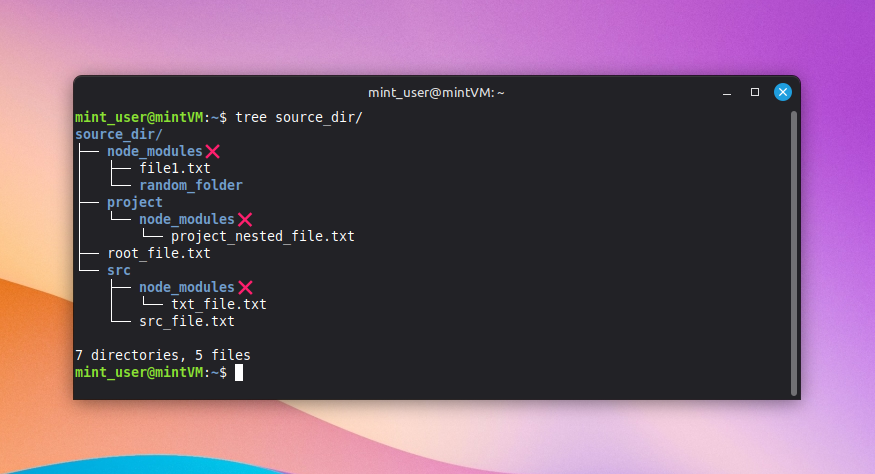
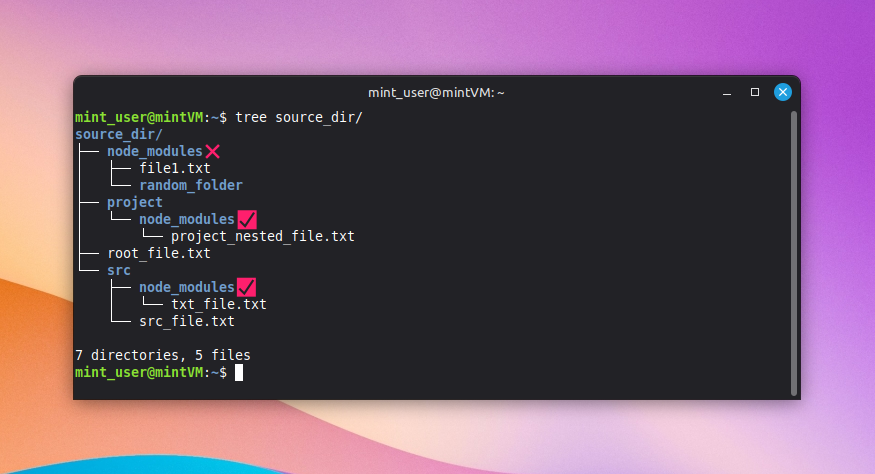
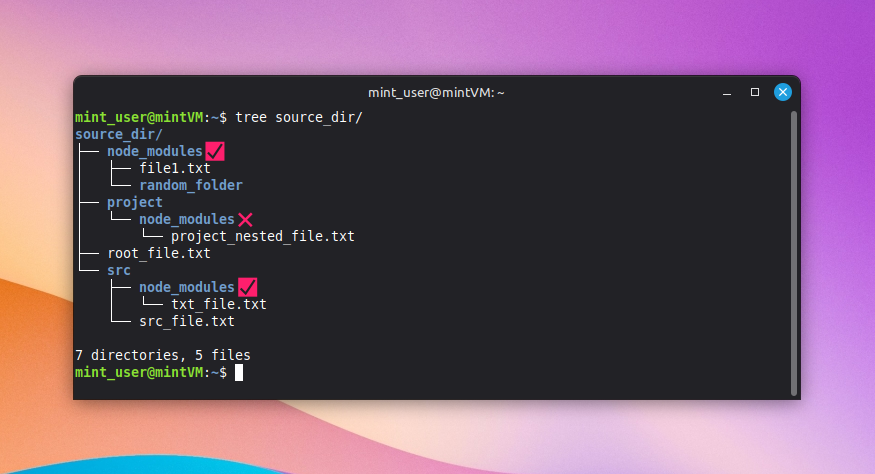
rsync -av --exclude='node_modules' source_dir/ destination_dir/to exclude every folder namednode_modules, at any depth, since the pattern is unanchored by default
Add a leading slash to restrict the match to the top-level
node_modulesonly, leaving nested copies (likeproject/node_modules) untouched:rsync -av --exclude='/node_modules' source_dir/ destination_dir/Target a nested folder specifically by writing out its relative path, as in
rsync -av --exclude='project/node_modules' source_dir/ destination_dir/, which excludes only that path and leaves othernode_modulesfolders alone
» Did you know you can rename a directory in Linux?
Method 2: Exclude multiple, distinct directories
Use this when you need to skip several unrelated folders in one pass rather than running rsync multiple times.
- Add a separate
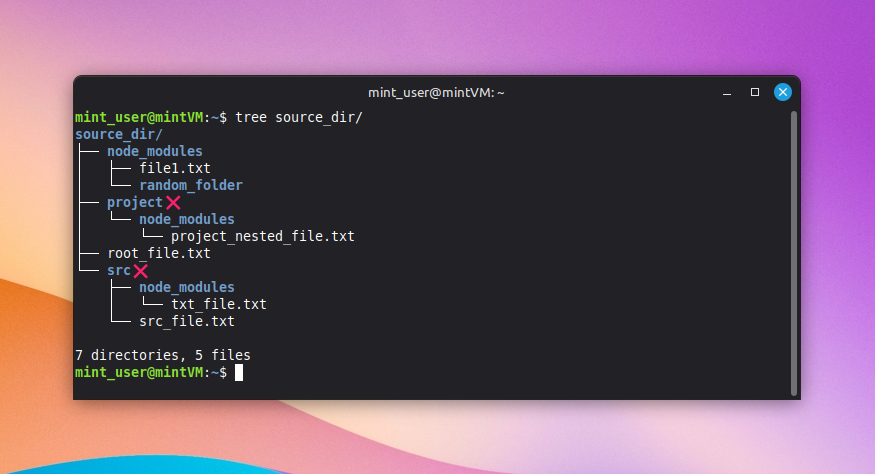
--excludeflag for each directory you want to skip, since rsync applies every pattern you give it Run
rsync -av --exclude='/project' --exclude='/src' source_dir/ destination_dir/to exclude bothprojectandsrcin a single sync
Pro tip: There’s no practical limit to how many --exclude flags you chain since each one is evaluated independently against every file and directory in the transfer.
» Using Mint? Here’s how to update Linux Mint
Method 3: Exclude by naming pattern or wildcard
Use this when the directories you want to skip share a naming convention, like every .cache or .tmp folder scattered across a project, rather than being a fixed, known list:
- Use
*to match any sequence of characters except/, which means it matches at any directory depth unless you anchor it - Use
**when you specifically need the pattern to cross/boundaries - Use
?to match exactly one character, excluding/
Here are some examples:
- Run
rsync -av --exclude='*.cache' --exclude='*.tmp' source_dir/ destination_dir/to exclude every folder ending in.cacheor.tmp, regardless of where they sit in the tree
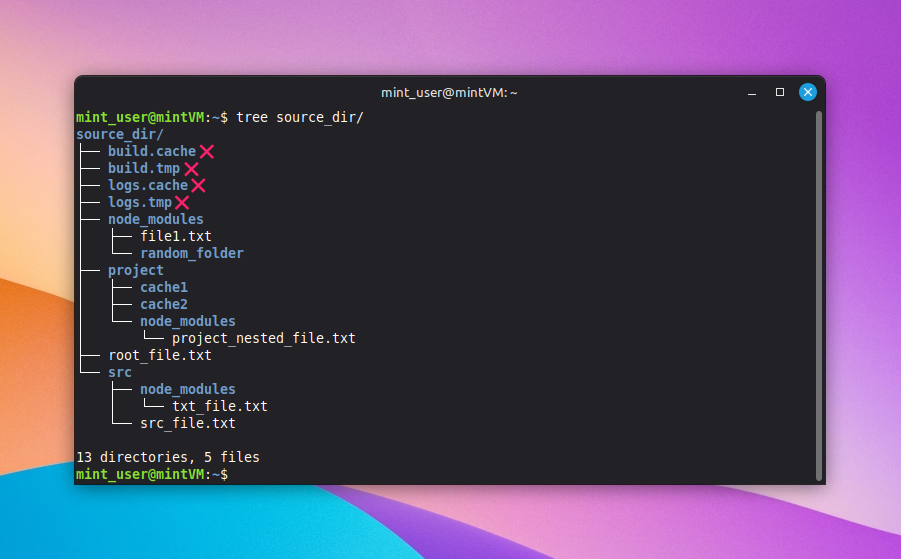
- Run
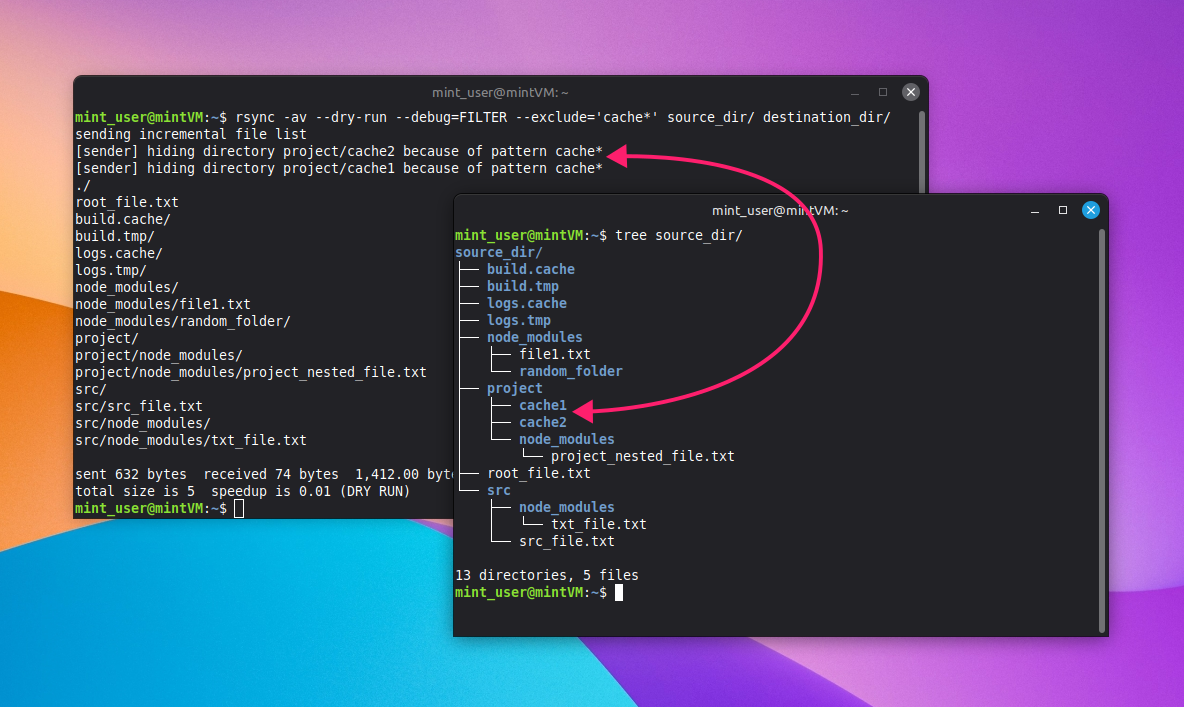
rsync -av --exclude='cache?' source_dir/ destination_dir/when you need to match a single trailing character, such ascache1andcache2but notcachefiles
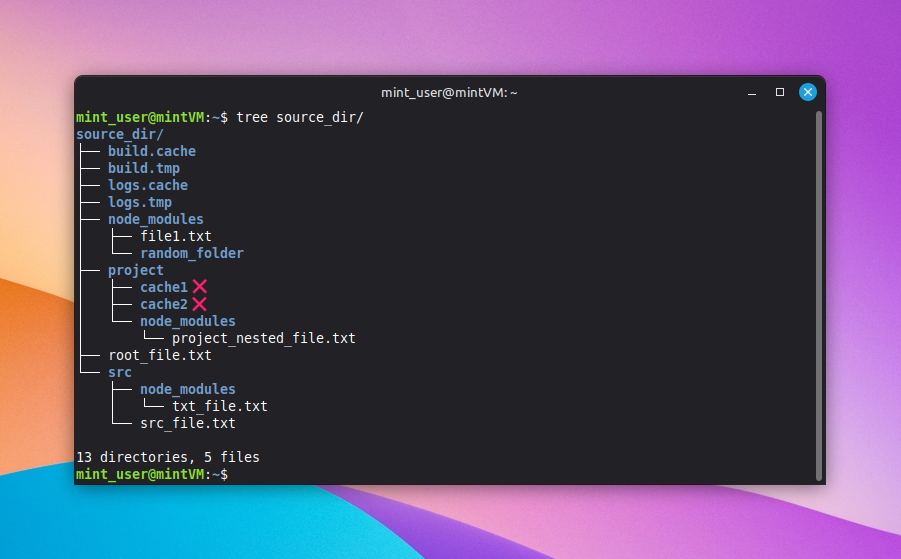
- Run
rsync -av --exclude='**/node_modules/' source_dir/ destination_dir/to explicitly exclude any subfolder namednode_modules, which is functionally equivalent here to the unanchored--exclude='node_modules'pattern from the single-directory method but useful when you want the depth-crossing behavior to be explicit in the command itself
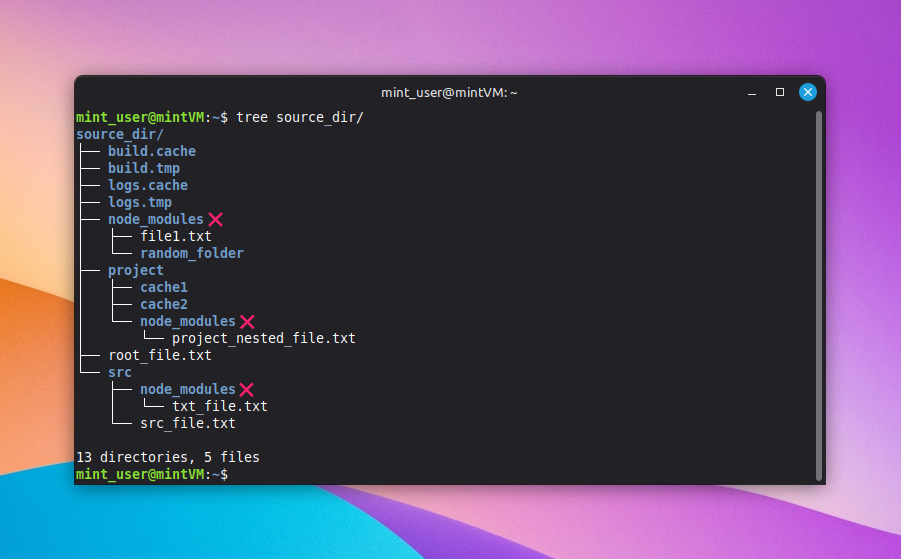
Method 4: Exclude a parent directory while keeping one subfolder
Use this when you need to skip most of a directory’s contents but preserve one specific subfolder inside it.
- Include the parent directory first, so rsync will descend into it at all:
--include='/project' - Include the specific subfolder you want to keep, using the
***wildcard to recursively include the directory and everything nested inside it:--include='/project/node_modules/***' - Exclude everything else in the parent directory:
--exclude='/project/*' Combine all three in order to sync
project/node_modulesin full while skipping every other file and folder insideproject:rsync -av --include='/project' --include='/project/node_modules/***' --exclude='/project/*' source_dir/ destination_dir/
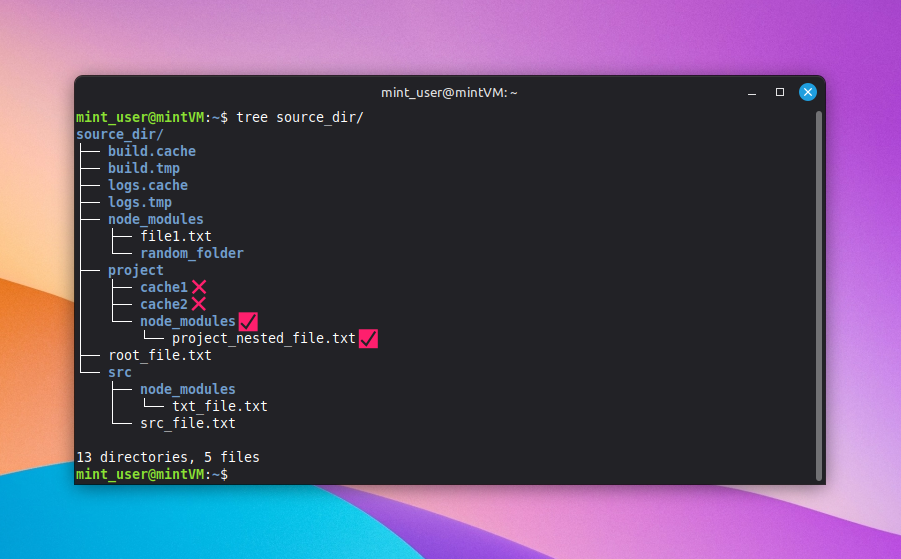
Warning: Rule order is super specific here. Reverse steps 1 – 3 and the broader exclude will shadow the includes before rsync ever evaluates them.
Method 5: Use exclude-from files for long lists
Use this when the exclusion list is too long to manage as inline flags, a common point once a project has more than four or five patterns to track.
- Create a plain text file listing one exclusion pattern per line, using the same wildcard and anchoring syntax as inline
--excludeflags - Leave blank lines and comment lines (starting with
#or;) out of the pattern matching, since rsync ignores both Prefix a line with
-(dash, space) to mark it as an explicit exclude, or+(plus, space) to mark it as an include; every line is treated as an exclude by default if left unprefixed
- Run
rsync -av --exclude-from='/path/to/exclude-list.txt' source_dir/ destination_dir/to apply the entire file as your filter rule set
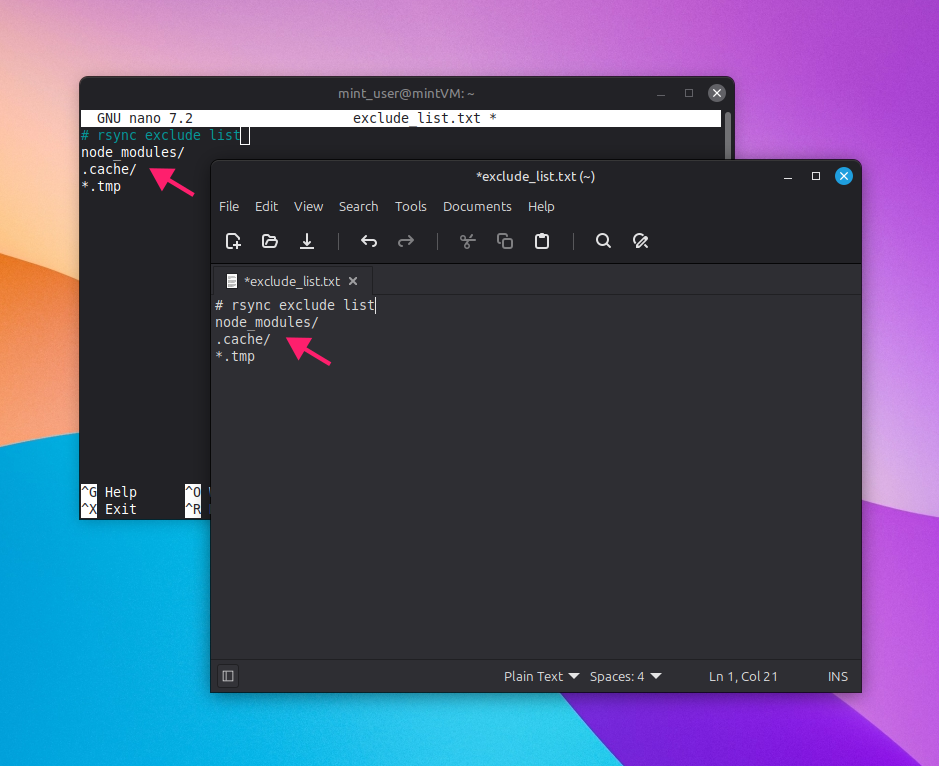
The same exclude-from file can be run consistently across multiple environments, servers, or CI/CD pipelines, rather than being maintained ad hoc on one machine. Here are some tips:
- Maintain separate, environment-specific exclusion files (
dev-excludes.txt,prod-excludes.txt) and keep them in version control alongside the rest of your deployment config - Reference the exclusion file through a parameterized path in your CI/CD job, using an environment variable to keep the path portable across runners:
rsync -av --exclude-from="$CI_PROJECT_DIR/config/job_specific_exclude-list.txt" src/ dest/ - Validate the exclusion behavior with
--dry-runbefore it touches a real destination:rsync -av --dry-run --exclude-from='exclude-list.txt' src/ dest/ - Log exactly what happened using
--itemize-changesin addition to standard output:rsync -av --exclude-from='dev_exclude-list.txt' --itemize-changes src/ dest/ > dev_sync.log
To make it even easier, Atera’s RMM platform lets you push scripts remotely to all your endpoints without ever having to touch them and monitor the change. And if you get stuck trying to find a script that works, AI Copilot can generate the script for you from natural language queries.
» Don’t miss our guide to vibe coding tools
Troubleshooting errors, hidden directories, and dotfiles
Even with the right syntax, exclusions can behave unexpectedly around hidden files or fail silently for reasons that have nothing to do with the pattern itself. Here’s how to handle both.
Excluding hidden directories and dotfiles
Use this when your target is a hidden directory or system dotfile like.git, .env, and similar since rsync gives these no special treatment by default.
- Remember that rsync does not skip hidden files or directories automatically; a pattern like
--exclude='.git'must be written explicitly, the same as any other exclude - Run
rsync -av --exclude='.*' source_dir/ destination_dir/to exclude every file and directory whose name starts with a dot - Add a trailing slash to restrict a dotfile pattern to directories only:
--exclude='.git/'matches only a directory named.git, while--exclude='.env'without the slash matches either a file or a directory named.env - Run
rsync -av --exclude='.*/' source_dir/ destination_dir/when you specifically want to exclude every dot-prefixed directory while leaving dot-prefixed files untouched - Anchor the pattern deliberately depending on scope:
--exclude='.git'excludes at any depth, including inside submodules, while--exclude='/.git'restricts the match to the root directory only
Note: rsync has no built-in mechanism to reuse a .gitignore file, even though the pattern syntax looks similar on the surface. Every pattern has to be passed in directly through --exclude or --exclude-from. There’s no shortcut that reads .gitignore for you.
Diagnosing an exclusion that isn’t working
When an exclude rule appears to have no effect, the cause is almost always one of four things, and it’s worth checking them in this order before assuming the pattern itself is wrong:
- Rule order: Filter rules are processed in the sequence you give them, so an earlier
--includeor a broader--excludecan silently override a rule you added later. - Missing trailing slash on the source: Running
rsync -av --exclude='node_modules' source_dir destination_dirwithout a trailing slash onsource_dircopies the wholesource_dirfolder intodestination_dir, rather than replicating its contents directly; the exclusion may be matching correctly and you’re just looking at the wrong destination path. - Shell expansion: An unquoted wildcard like
--exclude=*.tmpcan get expanded by the shell itself before rsync ever receives it, which is why patterns should always be quoted. For example,--exclude='*.tmp'passes the literal pattern through untouched. - Parent directory exclusion: This can mask a rule entirely. If a parent folder is excluded, rsync never descends into it, so any exclude or include rules written for its children simply never get evaluated.
To diagnose which of these is actually happening:
- Run the command with
--dry-runand--itemize-changesadded (rsync -av --dry-run --itemize-changes --exclude='node_modules' source_dir/ destination_dir/) to see exactly what would transfer or skip without touching the destination Add
--debug=FILTERto see which specific rule matched each file or directory:rsync -av --dry-run --debug=FILTER --exclude='cache*' source_dir/ destination_dir/
Use
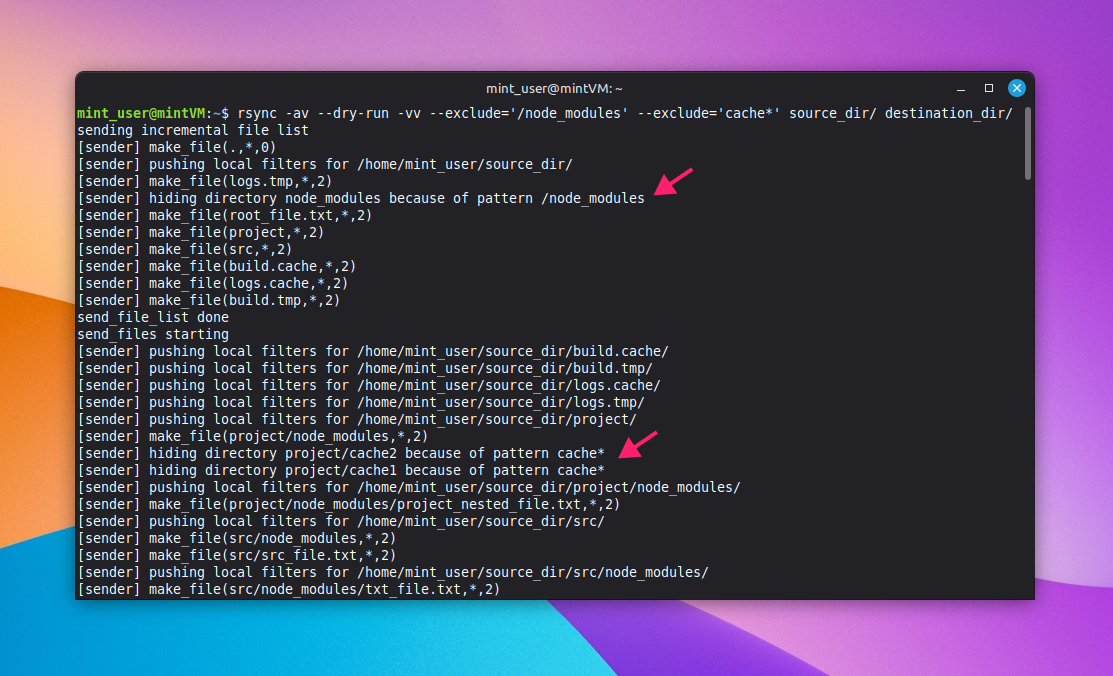
-vvfor maximum verbosity when the filter output alone isn’t enough to explain the behavior:rsync -av --dry-run -vv --exclude='/node_modules' --exclude='cache*' source_dir/ destination_dir/
» Did you know you can paste into a Linux terminal
Getting rsync exclusions right the first time
Every rsync exclusion mistake in this post traces back to the same root cause: a rule that didn’t do what it looked like it should do. Anchoring, trailing slashes, and evaluation order are the mechanics of the tool, and treating them as an afterthought is how a technician ends up debugging a “successful” sync that quietly moved the wrong data.
When the same exclusion pattern needs to run across more than a handful of machines, typing it out one device at a time stops being practical. Atera’s remote scripting lets a technician push a validated rsync command to selected devices or entire device groups on demand; no separate scheduling step required, just the same syntax you already tested run at fleet scale.
» Learn how to install Atera’s Linux Agent and start your free trial
Related Articles

How to reduce alert fatigue across your IT team
Your technicians aren't ignoring alerts because they're careless. They're ignoring them because most alerts have taught them to. Once the stream stops being trustworthy, real failures slip past with the noise. Fixing it means deciding what deserves an interruption, tuning out transient spikes, collapsing alert storms, and automating the fixes you've run a hundred times.
Read now
How to close the IT skills gap on your team
Course completions don't close skills gaps. Technicians finish the training, then hand the first unfamiliar failure straight back to a senior engineer. Real capability gets built on live tickets, incidents, and maintenance windows, with guidance that fades as competence grows.
Read now
How to calculate cost per ticket (and why most teams get it wrong)
Most cost-per-ticket figures are wrong before anyone reads them. Missing overhead, tickets that were opened but never closed, spam and duplicates padding the count, and one month's costs divided by another month's tickets all make support look cheaper than it is. Fix both sides of the division and the number finally shows where technician time and money actually go.
Read now
How to prepare for a software license audit
A vendor audit notice doesn't wait for you to get organized. It demands proof, right now, that every install matches every entitlement you've paid for, and most IT teams find out the hard way how much they don't actually know about their own environment. Getting audit-ready before the letter arrives is the difference between negotiating from strength and paying for months of scrambling.
Read nowEndless IT possibilities
Boost your productivity with Atera’s intuitive, centralized all-in-one platform









