
Table of contents
Install error 0x80070103 shows up in the Windows Update queue and then just stays there, no matter how many times you retry. It’s easy to assume something’s broken, but in most cases it just means Windows is trying to hand you a driver you already have.
The frustrating part for technicians is that the fix isn’t really about repairing anything on the device. It’s about telling Windows to stop offering something it doesn’t need to. Whether you’re clearing it on one laptop or chasing it down mid-Task Sequence in SCCM, the approach is usually the same, and here’s everything you need to know.
What 0x80070103 actually means
0x80070103 shows up during a Windows Update scan when the system flags a driver update it doesn’t actually need. In the vast majority of cases, the driver being offered is one you already have. Sometimes it’s the exact same version, and sometimes a newer one installed manually or through the OEM’s own tool, but Windows Update’s catalog simply hasn’t caught up yet.
Microsoft treats it as a version or compatibility conflict, not a critical fault. A failed driver update here rarely means degraded hardware performance, because the “failure” is really just Windows declining to overwrite something that’s already correct.
The root cause is almost always one of three things:
- The device already has the same driver version (or a newer one) than what Windows Update is trying to push
- The offered driver doesn’t match the hardware’s Plug and Play ID closely enough for Windows to consider it applicable
- A straightforward conflict between Windows Update and a manufacturer’s own driver utility. Dell Command Update, HP Support Assistant, and similar tools all submit their own driver packages, and if two sources are pushing different versions of the same driver, one of them is going to get rejected
» Don’t miss our top driver update software options
6 ways to fix install error 0x80070103
Six ways to resolve this exist because the fix depends on scope. A one-off driver conflict on a single machine calls for a different response than the same conflict recurring across a managed fleet. The methods below are ordered from the quickest suitable fix on one endpoint to the most permanent across networks.
Method 1: Use the Windows Update Troubleshooter
Start here first, since the built-in troubleshooter clears a meaningful share of these conflicts automatically before anything more targeted is needed.
Open Settings > System > Troubleshoot > Other troubleshooters

Click Run next to Windows Update

In the launcher that opens, select Windows Update, then choose the option that matches your issue (e.g. “I can’t download, install, or uninstall an update”)

Grant permission to run the automated diagnostic when prompted

- Restart the computer once the scan finishes
Open Settings > Windows Update and click Check for updates to confirm the error has cleared

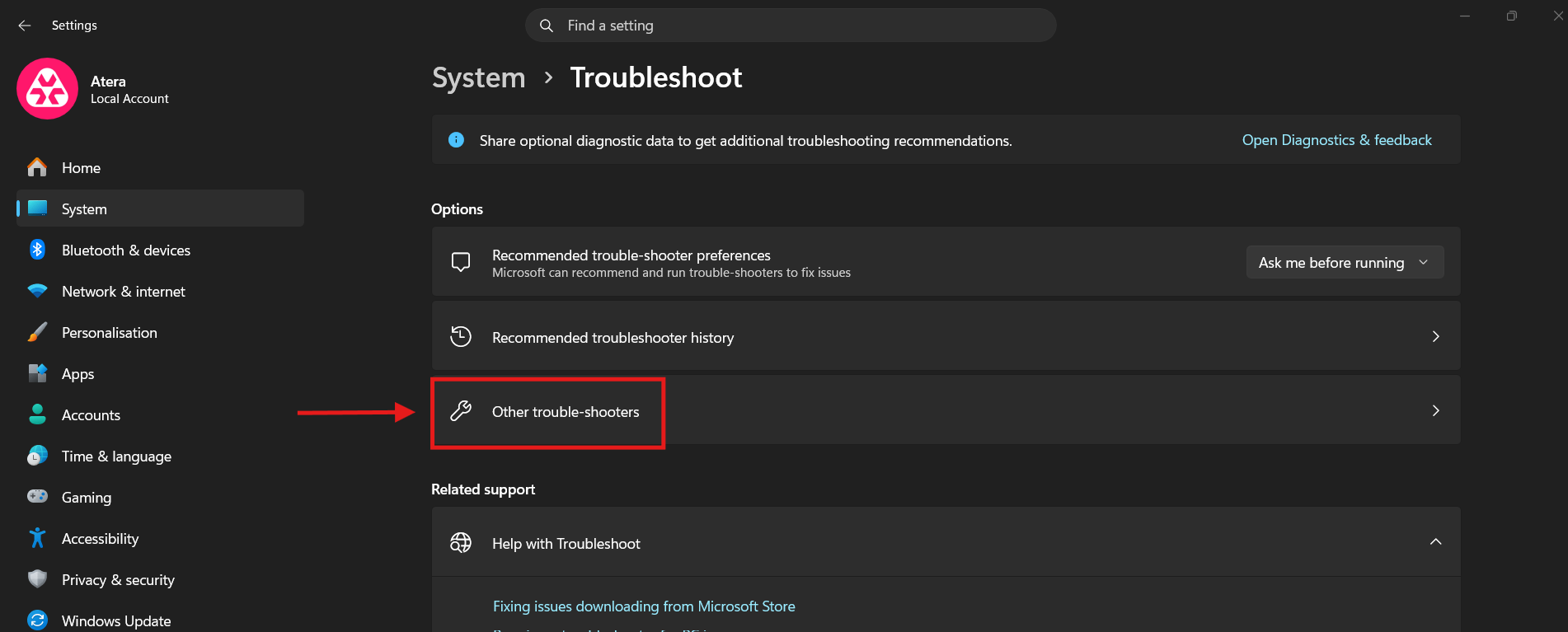
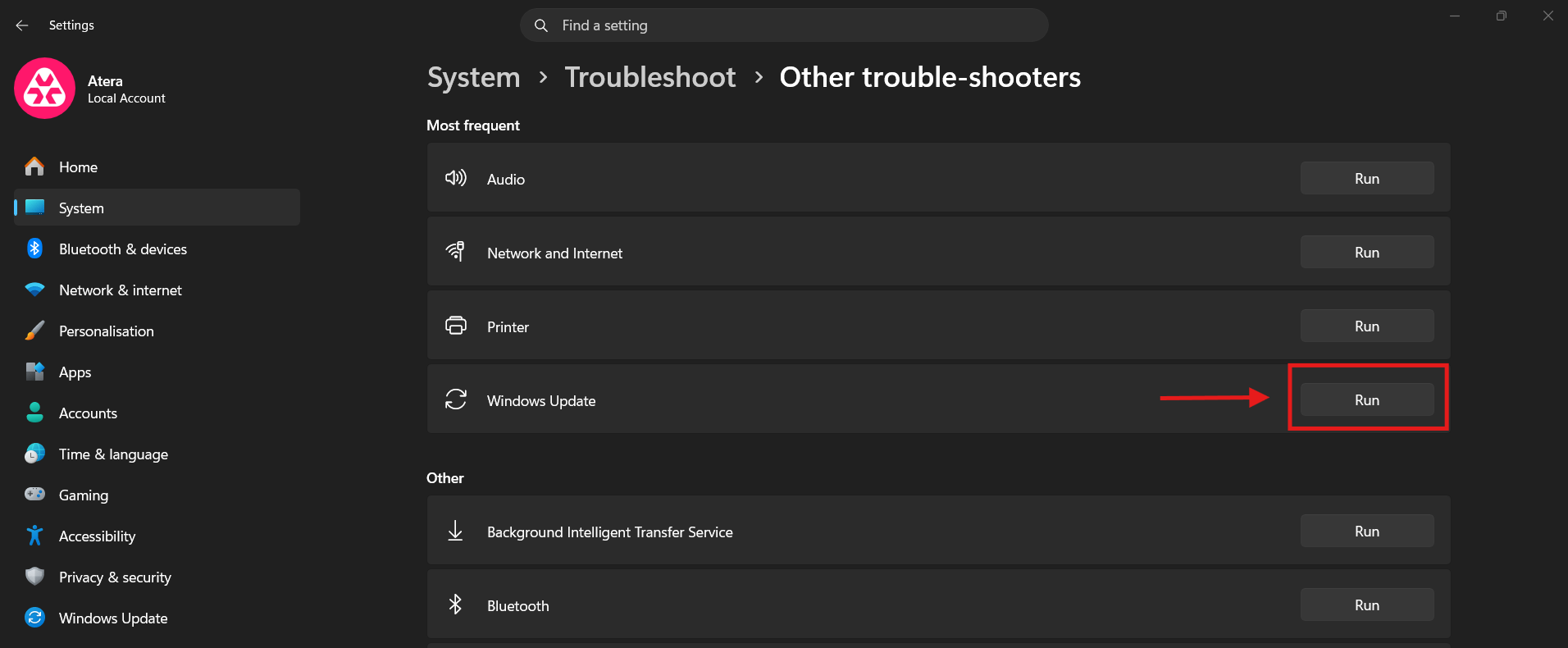
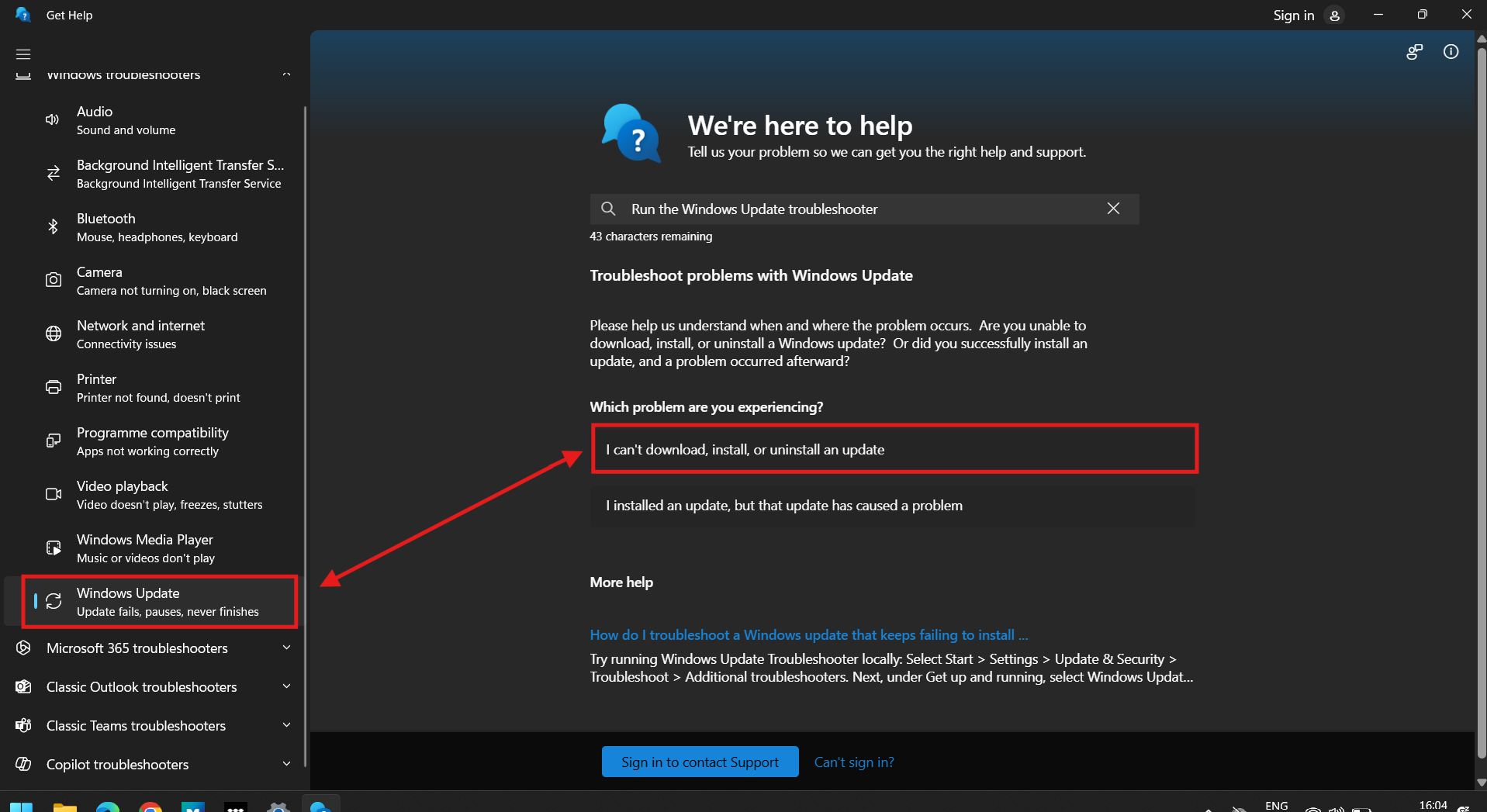
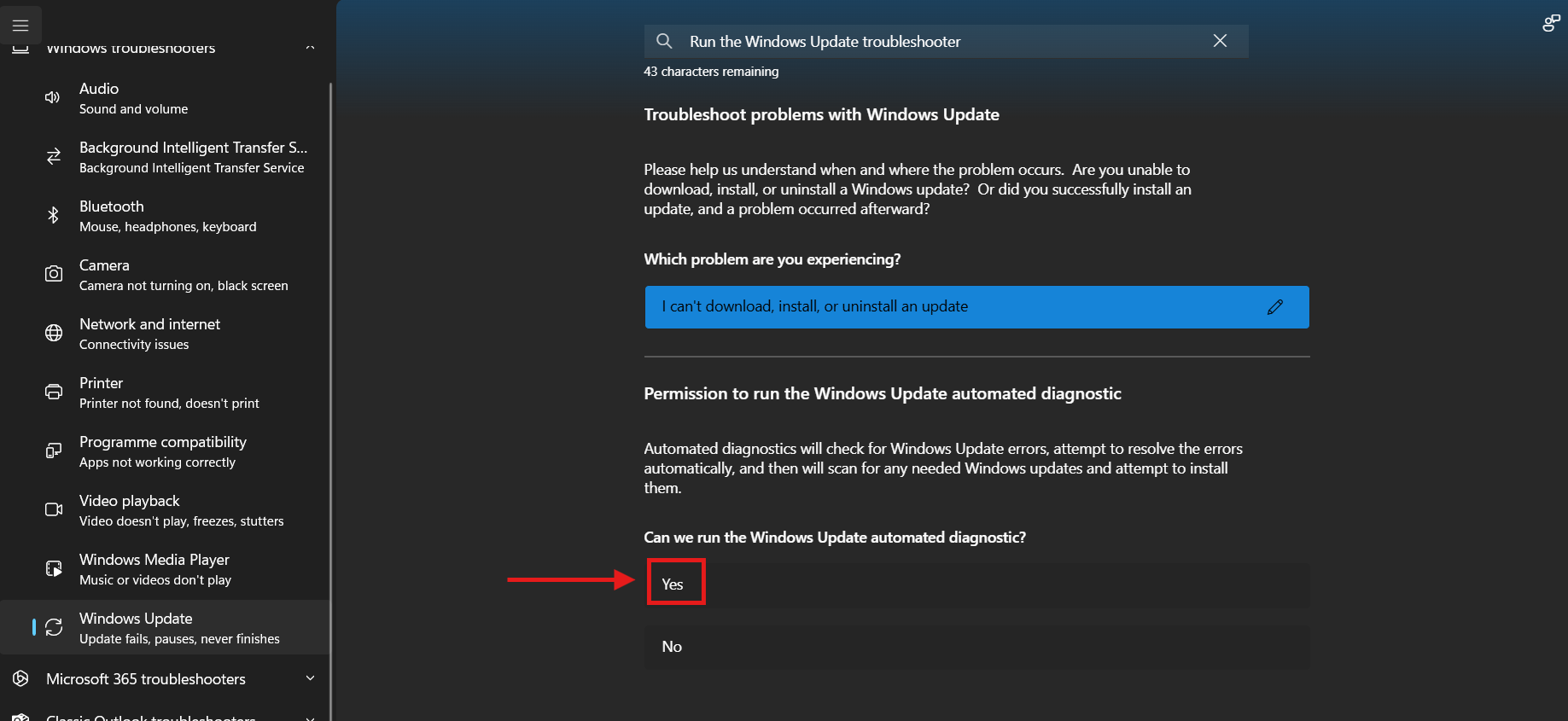
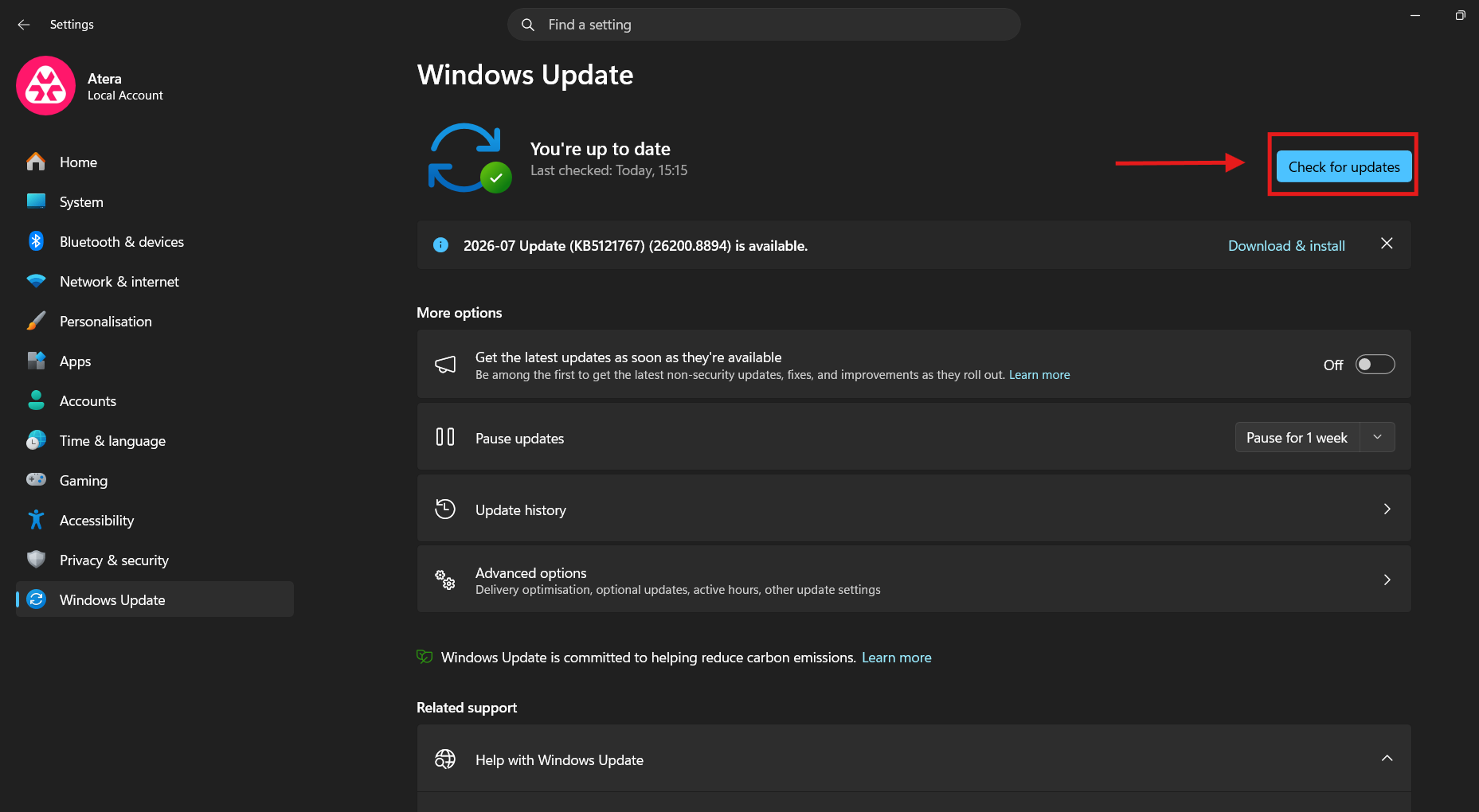
If the same driver update keeps getting re-offered after this, the fix needs to get more specific about which update to block.
» Here’s how to disable Windows updates and manually re-enable Windows updates
Method 2: Download the show or hide updates utility
Use this once you’ve identified that a specific driver update is the repeat offender, since it stops Windows from re-offering that exact driver without touching anything else.
- Download and run Microsoft’s show or hide updates utilitiy
Click Next to let it scan for available updates

Select Hide updates

Check the box next to the problematic driver update

- Click Next to apply the change
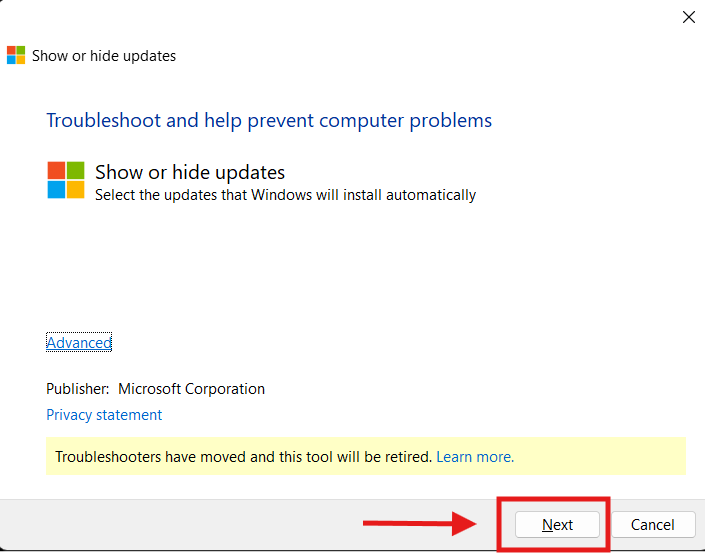
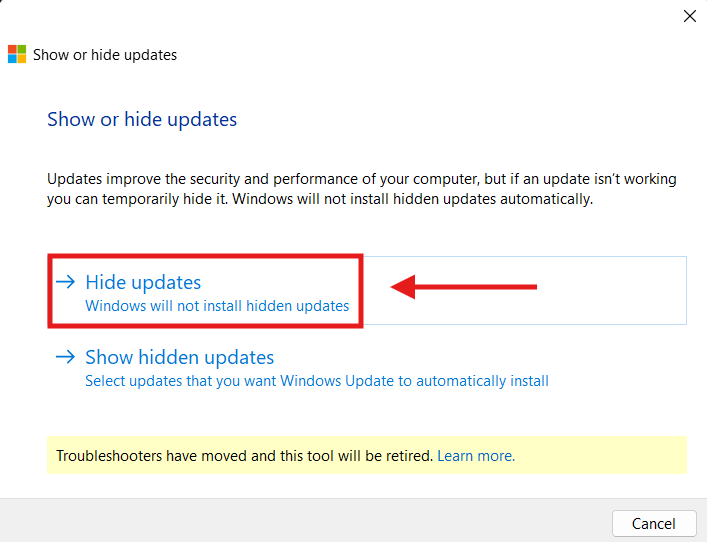
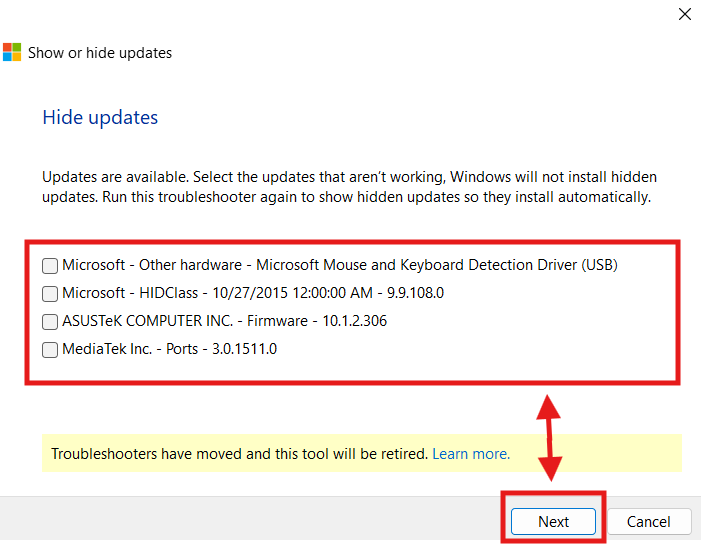
Windows continues installing other security and quality updates as normal; it just stops offering the hidden driver. If you ever need it back, rerunning the utility and selecting Show hidden updates restores it.
Method 3: Change Device Installation Settings
Reach for this when the pattern isn’t one driver but the manufacturer, since it stops Windows from automatically pulling any driver packages from that vendor going forward.
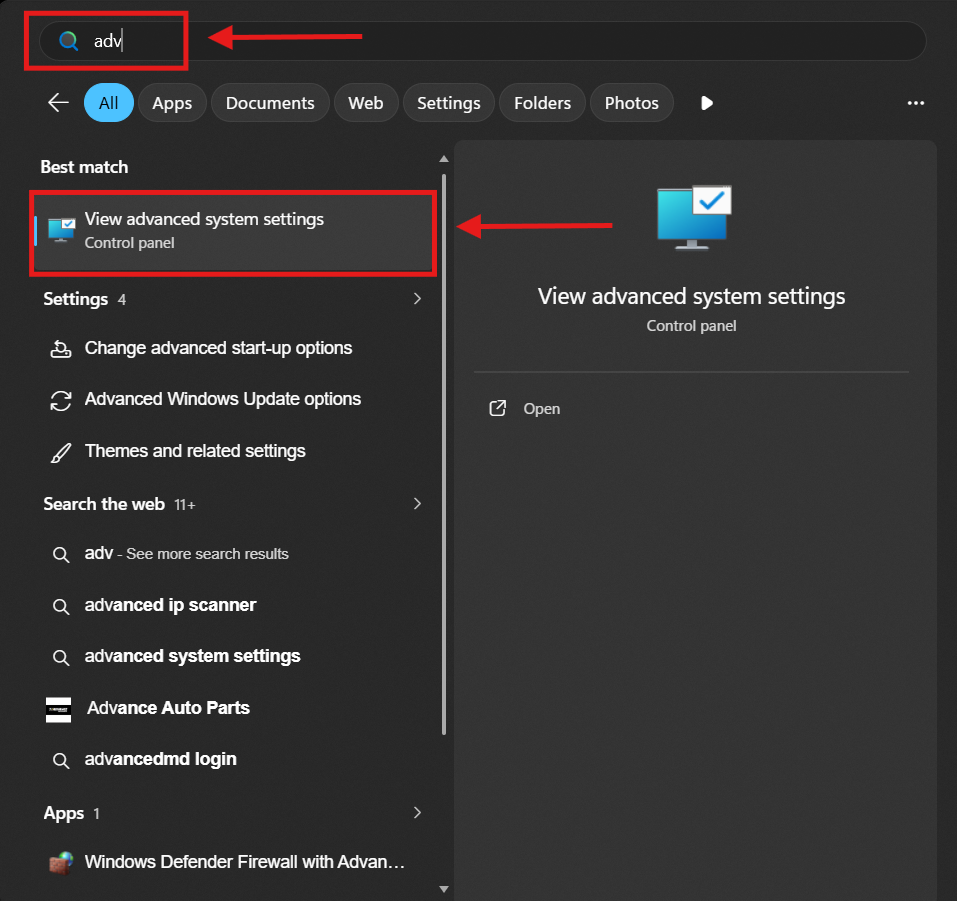
Open the Start menu, type
Advanced, and select View advanced system settings
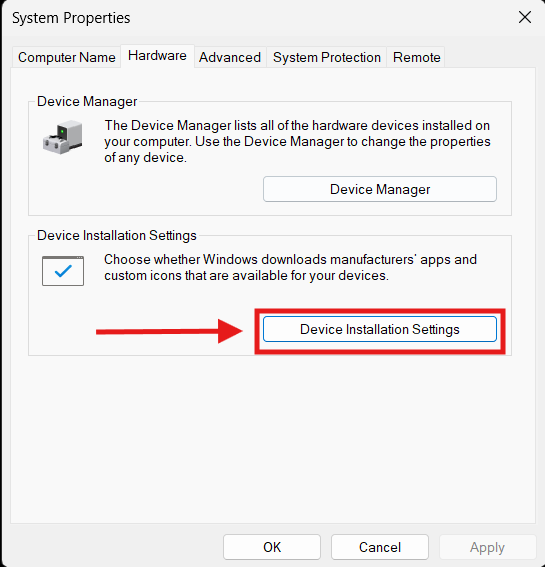
Go to the Hardware tab and click Device Installation Settings

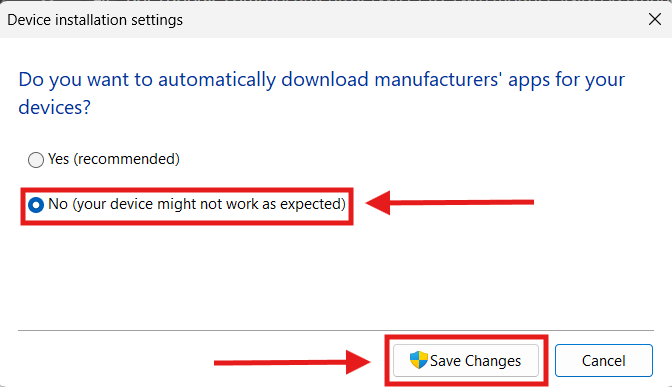
Select No (your device might not work as expected)

- Click Save Changes
Method 4: Clear the Windows Update cache
Use this when the error persists even after hiding the driver, since a corrupted or stale update cache can keep re-triggering the same conflict independently of any single driver.
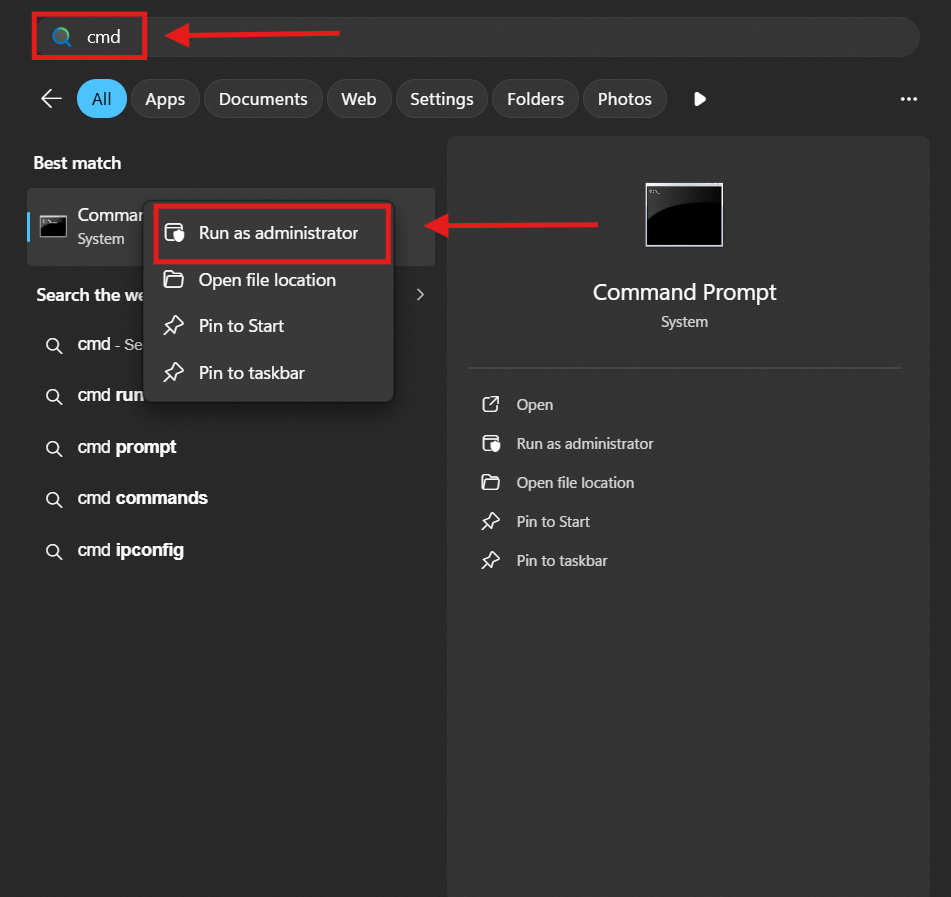
Open Command Prompt as administrator

Run
net stop bitsto stop the Background Intelligent Transfer Service
Navigate to
C:WindowsSoftwareDistributionin File Explorer
- Delete the contents inside the folder without deleting the folder itself
Run
net start bitsto restart the service
- Restart the computer, then open Settings > Windows Update and click Check for updates
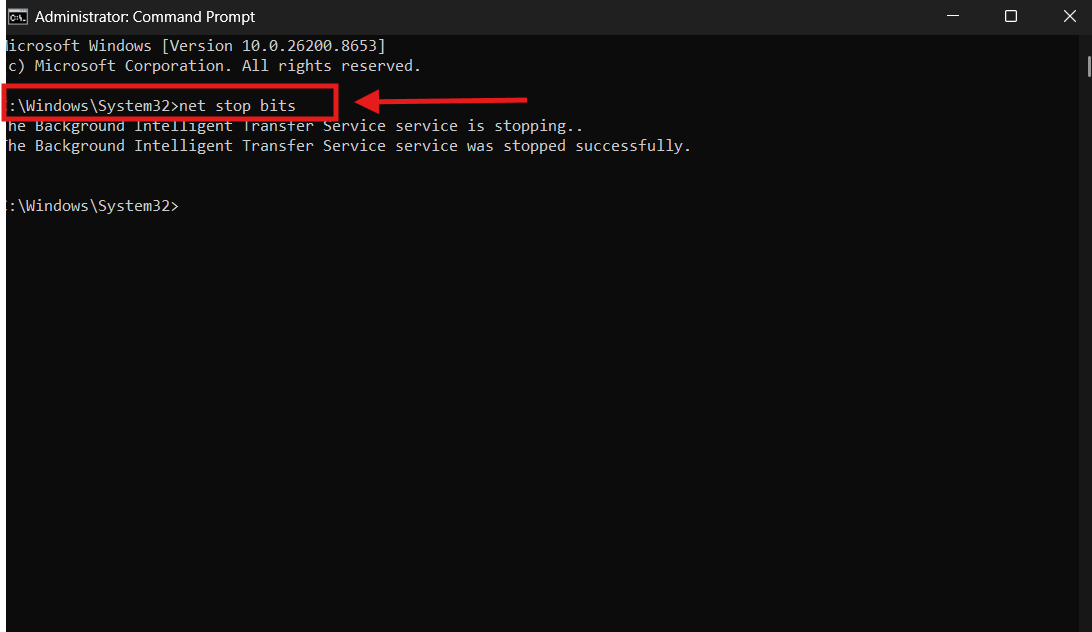
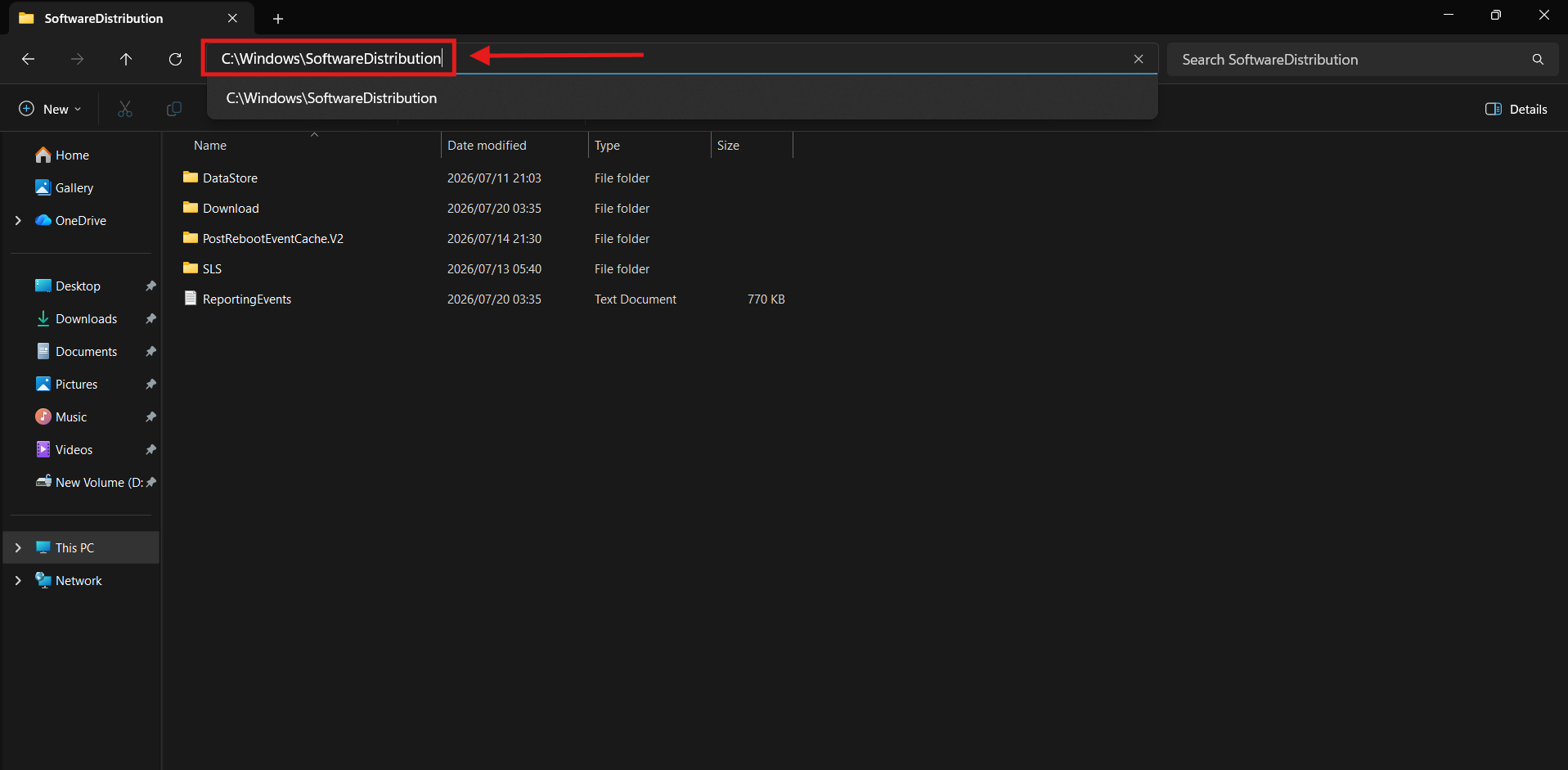
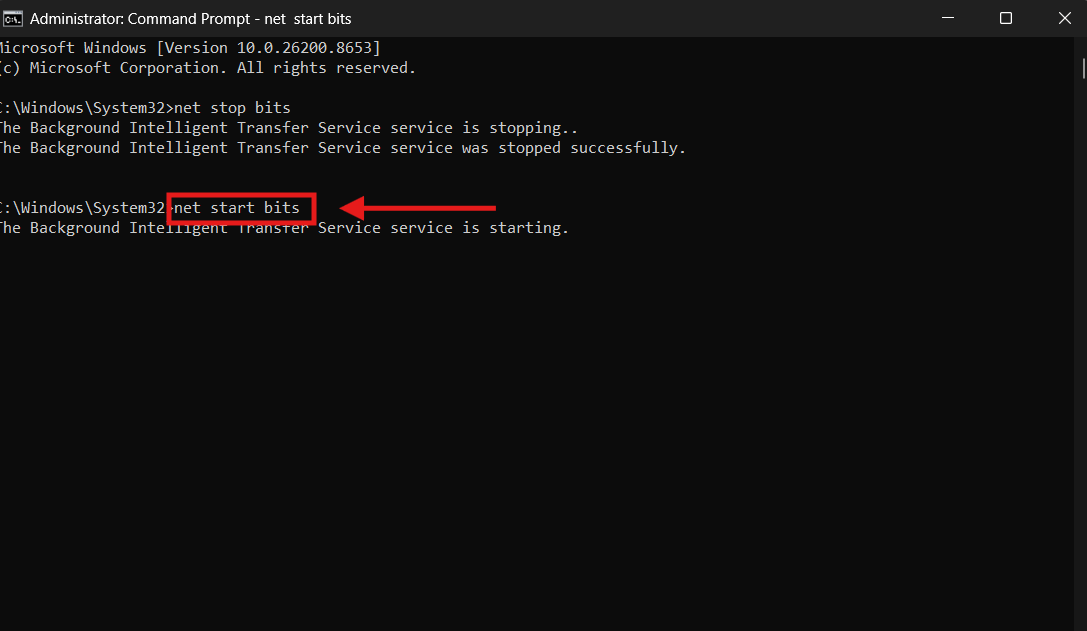
Windows rebuilds the deleted files automatically and establishes a fresh connection to the update servers, which resolves failures caused by a corrupted cache rather than a specific bad driver.
» Need more help? Learn more about clearing update cache on Windows 10 & 11 and clearing Edge cache
Method 5: Edit Group Policy objects
Choose this when you want a permanent, policy-level fix, such as driver delivery through Windows Update turned off entirely, in favor of a single dedicated tool.
Search
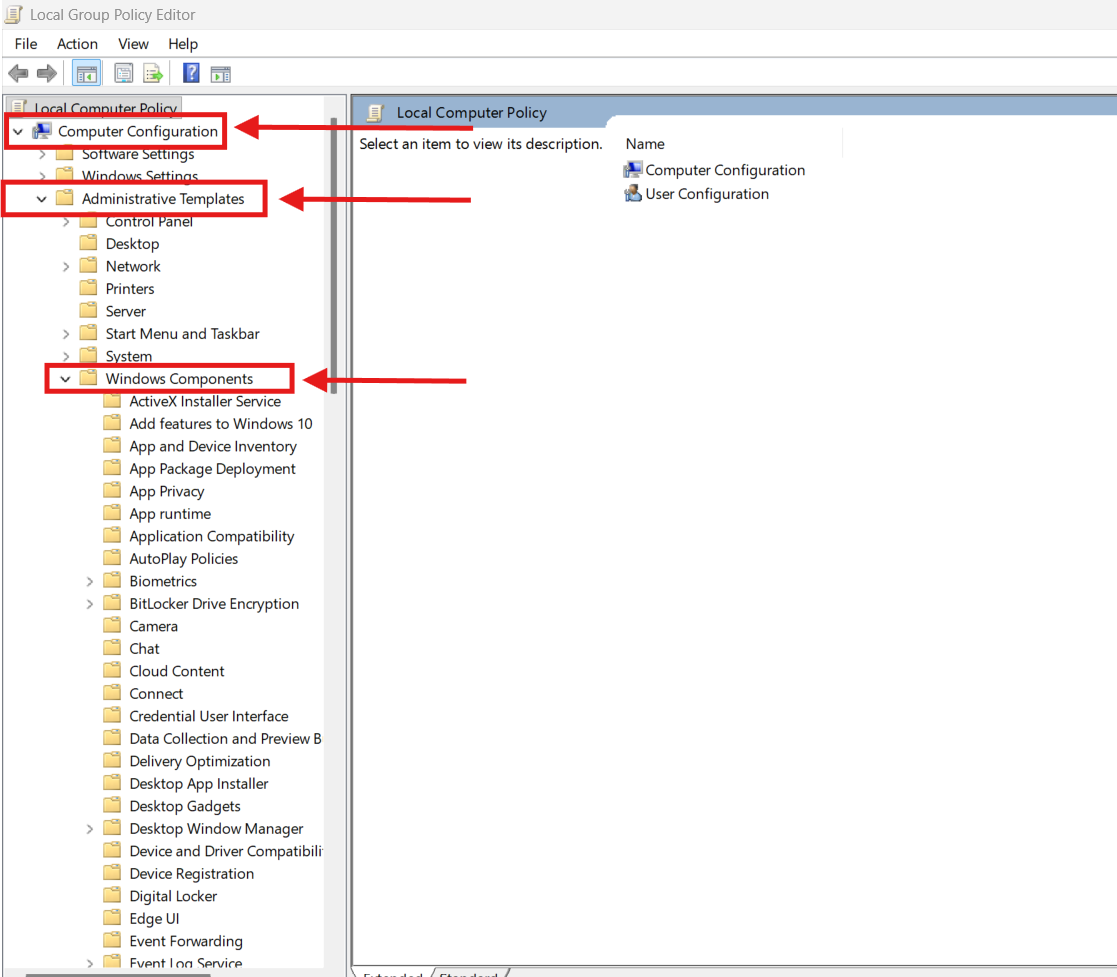
gpedit.mscin the Windows search box and run it as administrator to open Group Policy Editor
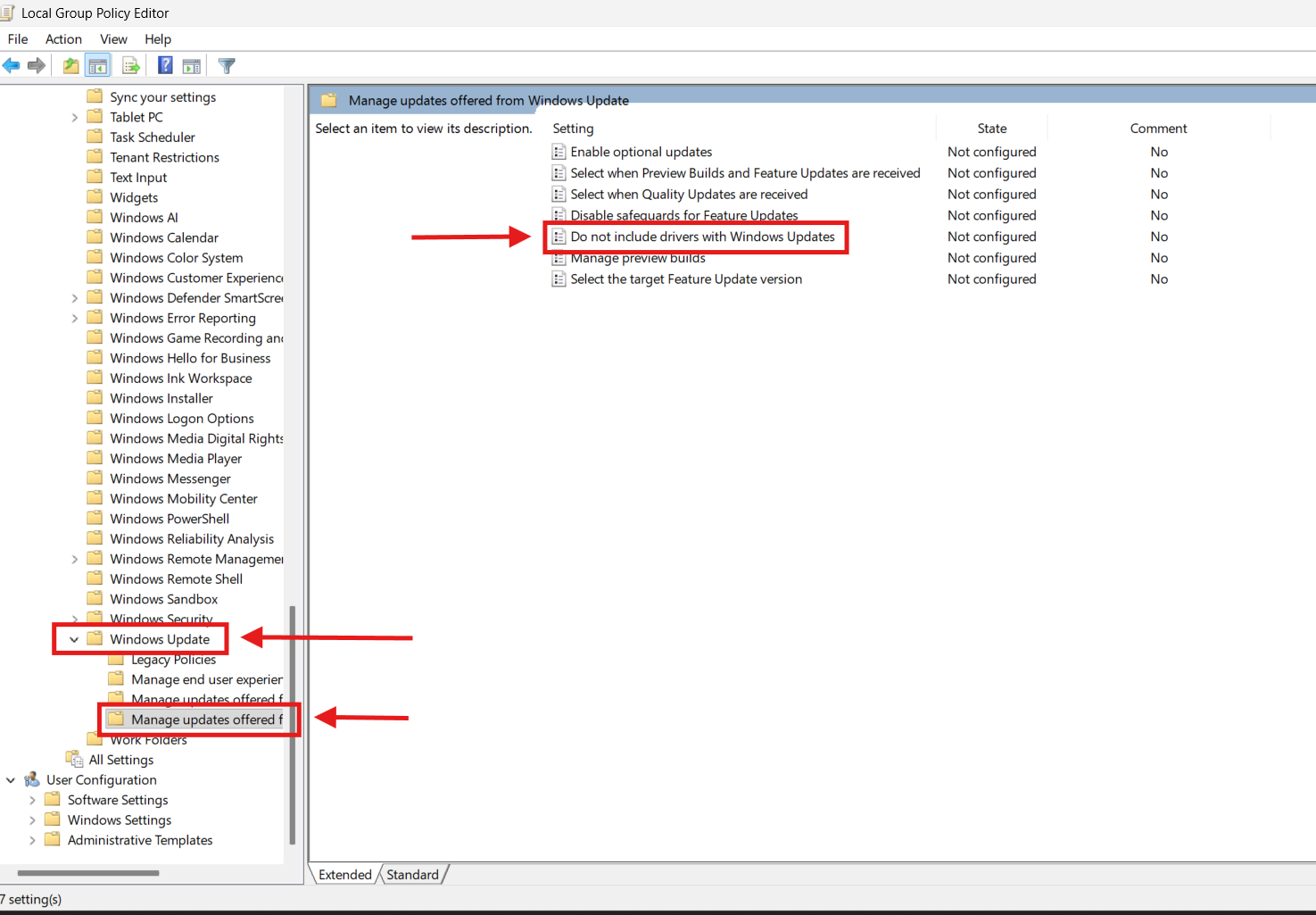
Navigate to Computer Configuration > Administrative Templates > Windows Components > Windows Update > Manage updates offered from Windows Update

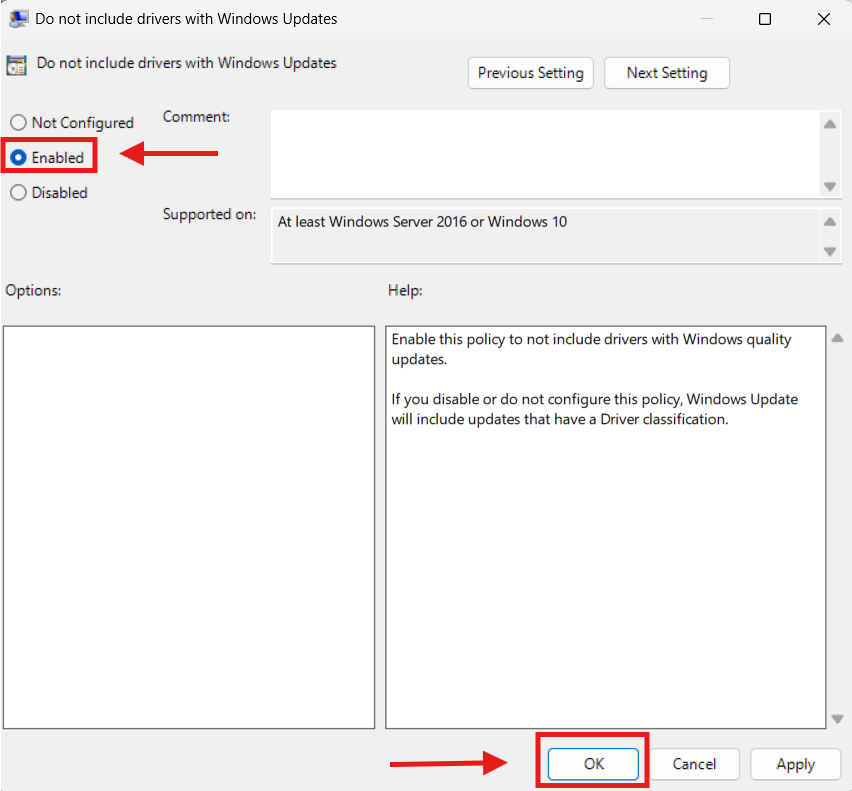
Open Do not include drivers with Windows Updates

Select Enabled, then click Apply and OK

- Restart the computer
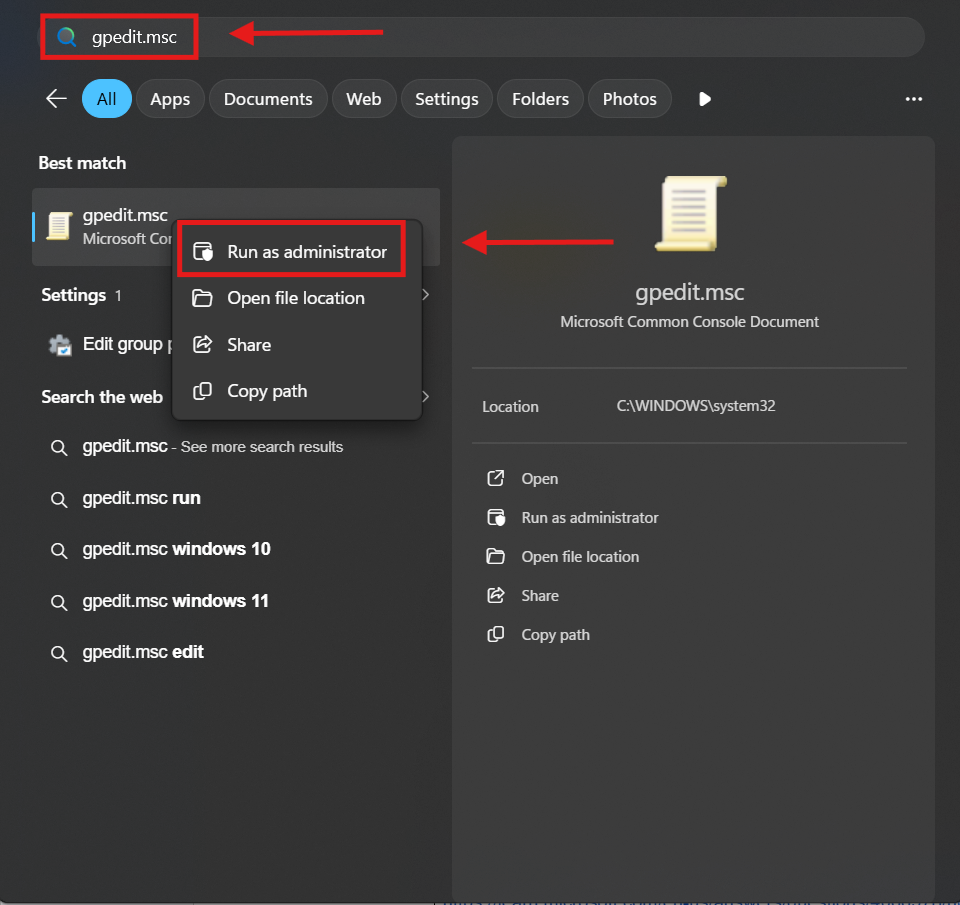
From this point on, driver updates have to be handled through a separate, deliberately chosen tool, such as a manufacturer utility, Intune, or SCCM or your RMM’s built-in patch management module.
Note: Whether you’re a solo IT admin covering a handful of machines, an internal team supporting one organization, or an MSP juggling patch policies across dozens of client environments, the recommended approach is to have one controlled source of driver update management. Allowing Windows Update, OEM utilities, and management platforms to all update drivers can create version conflicts and repeated installation failures such as 0x80070103.
Rolling this out via Group Policy works cleanly for a single machine or a single client site, but doing it endpoint by endpoint – or client by client – across a fleet is exactly the kind of manual, repetitive task that doesn’t scale well. This is where the workload compounds fastest for MSPs: the same GPO change has to be repeated across every managed environment, each with its own domain, policies, and quirks. Atera’s RMM platform with comprehensive patch management lets you set consistent patch policies across your managed devices – and across multiple client accounts from a single dashboard – with automation profiles to schedule which updates get deployed and when, so the change goes out once and applies wherever it’s needed, whether that’s ten endpoints in one office or a thousand spread across your entire client base.
» Learn how to simplify group policy management and manage driver updates through patch management with Atera
Method 6: SCCM and Task Sequence deployments
At fleet scale, the same underlying conflict shows up as a failed Task Sequence rather than a Settings error, and resolving it means tracing the failure to the specific driver package rather than touching devices one at a time. This method applies specifically to organizations already running SCCM as their deployment tool. If that’s not your environment, which is the case for most MSPs and smaller internal IT teams, skip ahead to the fix below; it covers the same ground without requiring a Configuration Manager console.
- Check
C:WindowsCCMLogssmsts.logon the affected endpoint to identify which driver caused the failure - Confirm the driver package matches the exact computer model
- Compare driver versions to check whether the same or a newer version is already installed on the device
- Open the Configuration Manager console and update or remove the incorrect driver from the package
- Redistribute the corrected package to your distribution points
- Redeploy and monitor the endpoint to confirm the error clears
Notevery environment runs SCCM, though – in fact, most MSPs and in-house IT teams manage their endpoints without ever standing up Configuration Manager – and not every driver conflict justifies rebuilding a Task Sequence to fix it. Atera’s remote scripting and remote PowerShell execution let you push the same remediation (clearing the update cache, applying the registry-level fix, or disabling driver delivery outright) across selected devices or device groups on demand, without scheduling a deployment or working through each machine by hand. For an MSP, that means running the fix once across every affected endpoint in every client account where it’s needed, instead of logging into each client’s environment separately. For a smaller in-house team with no deployment infrastructure at all, it means getting the same fleet-wide fix without needing to build out SCCM just to solve one recurring driver conflict.
How to prevent recurring driver conflicts
The methods above resolve 0x80070103 once it’s already fired. What actually stops it from coming back is deciding, ahead of time, which tool is allowed to manage drivers on a given machine because the error is really a symptom of two sources competing over the same job.
Dell Command Update, HP Support Assistant, and Lenovo Vantage all maintain their own driver catalogs, and each will happily push a version that conflicts with whatever Windows Update is trying to deliver. The fix isn’t picking the “better” tool, it’s just picking the one you want and disabling the other for driver duty specifically:
- If you prefer Windows Update, uninstall or disable the manufacturer utility rather than leaving it running alongside it
- If your prefer the manufacturer tool, configure Windows Update to skip optional driver updates so it stops re-offering its own version
- After making the change, update the driver through your chosen tool, restart, and confirm the version in Device Manager matches what you expect
If the conflict persists, stop the Windows Update service, apply the driver manually, then restart the service. Also, keep an eye on Update History for a few cycles to confirm it doesn’t reappear.
Stopping repeat driver conflicts for good
0x80070103 usually isn’t a sign anything is wrong with the machine. It’s a sign that two systems disagree about which driver should be there. Once you’ve hidden, blocked, or corrected the specific update causing it, the underlying fix is deciding who gets to manage drivers going forward: Windows Update, a manufacturer utility, or your own patch policy.
At fleet scale, that decision gets a lot easier to enforce. Atera’s RMM lets IT teams and MSPs standardize patch and driver management across every endpoint from one place, so the same conflict doesn’t resurface machine by machine; and when a specific fix does need to go out immediately, remote scripting and PowerShell execution let you push it across selected devices or device groups without touching each one by hand.
Frequently Asked Questions
Related Articles

How to reduce alert fatigue across your IT team
Your technicians aren't ignoring alerts because they're careless. They're ignoring them because most alerts have taught them to. Once the stream stops being trustworthy, real failures slip past with the noise. Fixing it means deciding what deserves an interruption, tuning out transient spikes, collapsing alert storms, and automating the fixes you've run a hundred times.
Read now
How to close the IT skills gap on your team
Course completions don't close skills gaps. Technicians finish the training, then hand the first unfamiliar failure straight back to a senior engineer. Real capability gets built on live tickets, incidents, and maintenance windows, with guidance that fades as competence grows.
Read now
How to calculate cost per ticket (and why most teams get it wrong)
Most cost-per-ticket figures are wrong before anyone reads them. Missing overhead, tickets that were opened but never closed, spam and duplicates padding the count, and one month's costs divided by another month's tickets all make support look cheaper than it is. Fix both sides of the division and the number finally shows where technician time and money actually go.
Read now
How to prepare for a software license audit
A vendor audit notice doesn't wait for you to get organized. It demands proof, right now, that every install matches every entitlement you've paid for, and most IT teams find out the hard way how much they don't actually know about their own environment. Getting audit-ready before the letter arrives is the difference between negotiating from strength and paying for months of scrambling.
Read nowEndless IT possibilities
Boost your productivity with Atera’s intuitive, centralized all-in-one platform









