
Table of contents
Generate summary with AI

Network printing issues can bring a busy office to a sudden halt, and few problems are as frustratingly persistent as Windows error 0x0000011B. When workstations suddenly fail to connect to a shared printer, technicians are often left scrambling to figure out whether the root cause is a bad Windows patch, missing privileges, or an underlying security protocol mismatch.
This blog breaks down exactly why this error occurs, what permission levels are required to fix it safely, and how to work through troubleshooting methods.
» Here’s how to increase IT efficiency in your organization
Understanding printer error 0x0000011B
Printer error 0x0000011B is a Windows network printer connection error that can occur when a client computer attempts to connect to a printer shared from another Windows computer or print server. This error can occur when:
- Windows security updates enforce stricter Remote Procedure Call (RPC) requirements: The host computer may require a higher level of authentication or packet privacy that an older, unpatched, or incompatible client can’t satisfy.
- The client and host can’t establish a secure connection: The devices may fail to negotiate the authentication and encryption requirements needed for remote print communication.
- Required Windows updates are missing: A client or host that hasn’t received the necessary updates may be unable to communicate correctly with the other device.
- Printer sharing or network configuration issues interfere with the connection: Problems with network discovery, file and printer sharing, credentials, or printer permissions can also prevent the client from connecting successfully.
- Driver installation or Point and Print policies block the connection: In some cases, Windows security policies can prevent the client from downloading or installing the required printer driver from the host machine.
» Here’s how to disable Windows updates and re-enable Windows automatic updates
Administrative privileges required for troubleshooting
Depending on the troubleshooting method, you will need elevated permissions on either the host, the client, or both to implement system-level changes, install drivers, or modify configurations.
- Host machine privileges: You may need local or domain administrator access on the computer hosting the shared printer. Elevated permissions can be required to modify the Windows Registry, restart the Print Spooler service, install or update printer drivers, and change printer sharing or security settings.
- Client machine privileges: Administrator credentials may be required if Windows needs to install or update a printer driver or if you need to modify local system settings. Standard users can usually perform basic checks, such as confirming network connectivity and verifying that the shared printer is visible.
- Network and domain credentials: Both devices should be connected to the appropriate network and configured to communicate with each other. If password-protected sharing is enabled, the client may need valid credentials for a user account on the host computer or within the same domain or network environment.
» Find out how to always run as administrator
Security implications of disabling RPC privacy
Modifying the RpcAuthnLevelPrivacyEnabled registry value to bypass error 0x0000011B restores printer connectivity, but it alters your network’s overall security posture.
- Reduced communication security: Setting the relevant registry value to
0disables the requirement for RPC packet privacy for the print spooler, reducing the security protections applied to communication between the host and connecting clients. - Increased security risk: Lowering RPC authentication or privacy requirements can expose the system to risks that Windows security updates were designed to address. This should only be considered when other troubleshooting methods have failed.
- Temporary workaround: If you disable RPC packet privacy to restore printer connectivity, treat it as a temporary workaround rather than a permanent solution. Keeping both the host and client systems updated and using supported printer drivers and configurations is the more secure long-term approach.
» Check out our picks for the best printer monitoring software for secure monitoring
5 Methods to fix printer error 0x0000011B
There are several ways to troubleshoot and fix printer error 0x0000011B. The right method depends on what is causing the connection failure, so work through the available options and test the shared printer after completing each one.
Start with the less invasive troubleshooting methods before moving on to changes that affect Windows updates, drivers, or RPC security settings.
Method 1: Restart the Print Spooler and clear its files
Start here because the Print Spooler controls print jobs and communication with installed printers. Restarting it clears a temporary service problem without changing the printer’s settings or lowering Windows security.
Follow these steps:
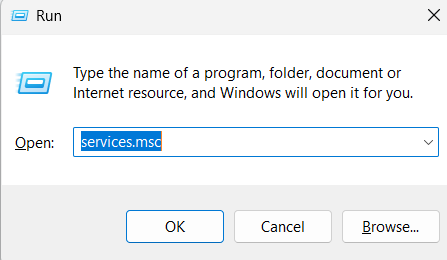
Press Windows key + R, enter
services.msc, and select OK
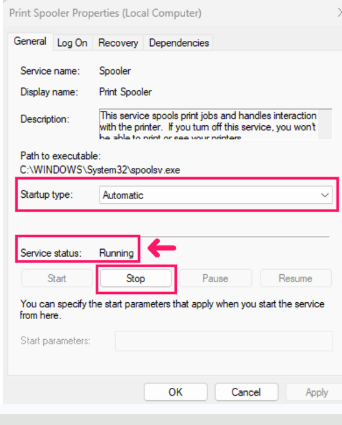
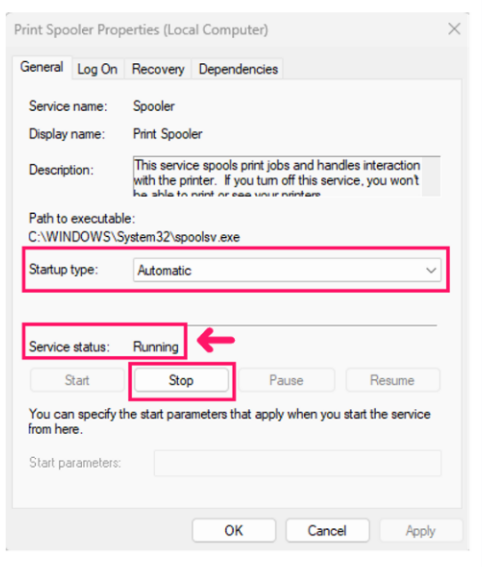
Open Print Spooler, then select Stop

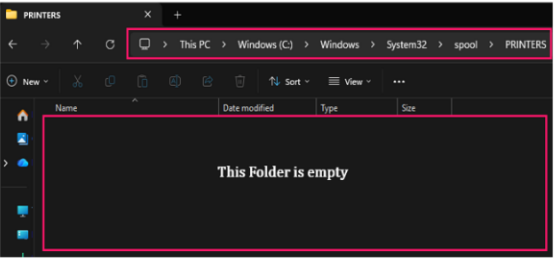
In File Explorer, open
C:WindowsSystem32spoolPRINTERS. Delete the files inside, but don’t delete the folder. If it’s already empty, continue
Return to Print Spooler Properties and select Start. Confirm that the service status changes to Running

- Test the shared printer again. If error 0x0000011B remains, the spooler state wasn’t the cause. Move on to one of the other methods below
Method 2: Add the shared printer using a Local Port
Use this method when the client can reach the host, but Windows doesn’t find the shared printer automatically. Creating a Local Port gives Windows the exact network path instead of relying on discovery. Before starting, confirm the host’s IPv4 address and the printer’s share name.
Follow these steps:
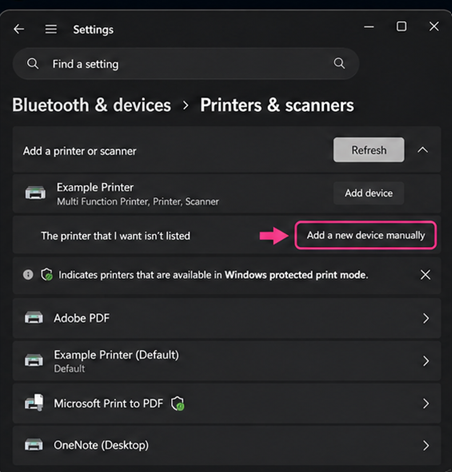
Open Settings > Bluetooth & devices > Printers & scanners, then select Add a new device manually

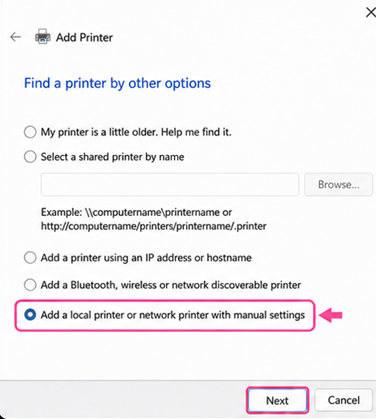
Choose Add a local printer or network printer with manual settings, then select Next

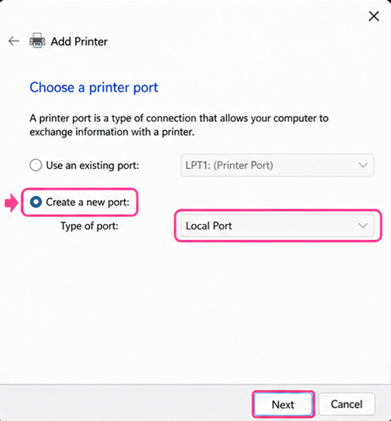
Select Create a new port, choose Local Port, and select Next

- Enter
\<host-IP-address><PrinterShareName>as the port name. For example, use\10.0.0.25OfficePrinter. Select the correct printer driver and finish the wizard This bypasses automatic discovery, but not the connection requirements.
Method 3: Temporarily uninstall a suspected Windows update
Use this method only when the printer stopped working immediately after a Windows update. The goal is to confirm a connection between the update and the error, not to remove security permanently. Follow these steps:
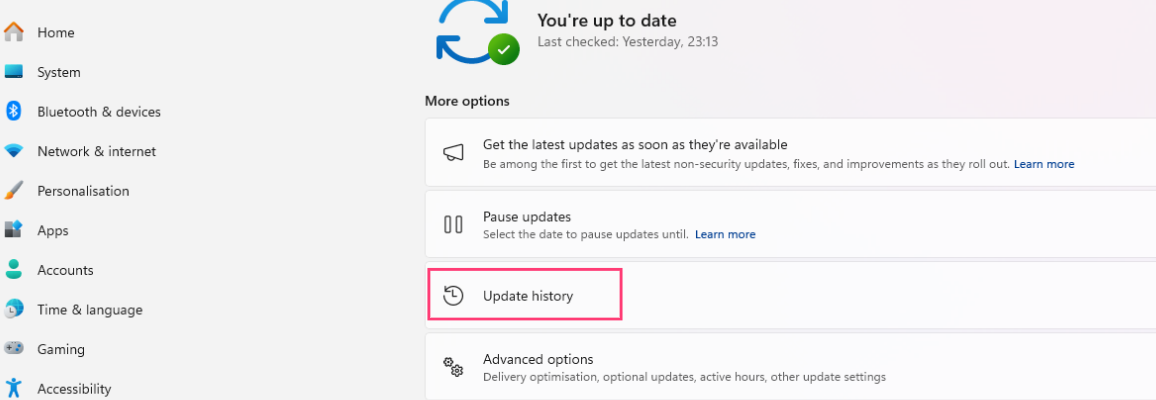
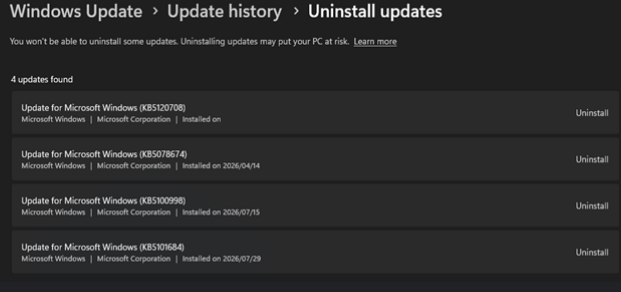
Open Settings > Windows Update > Update history on the affected host or client

Compare the installation dates with when printing stopped. Select Uninstall updates, then remove only the update you have reason to suspect. Don’t remove several updates at once because you will not know which change affected printing

- Restart the computer and test the shared printer. If printing works again, the update is likely involved. Record its KB number, reinstall it, and investigate the compatibility problem it exposed.
» Here’s how to stop a Windows update in progress
Method 4: Remove and reinstall the printer driver
Use this method when Windows detects the printer, but the driver may be damaged, outdated, or incompatible.
Follow these steps:
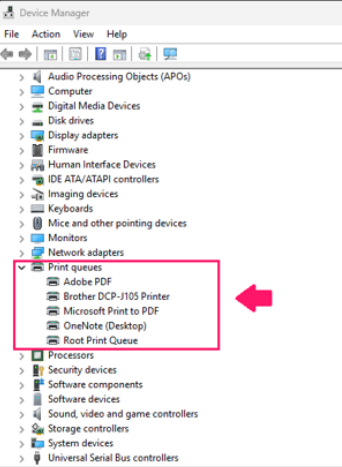
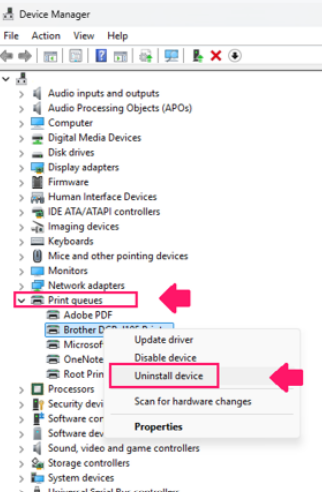
On the host, press Windows key + X, open Device Manager, and expand Print queues or Printers

Right click the affected printer, select Uninstall device, and confirm the removal. If Windows offers an option to delete the driver software, select it

- Repeat the process on the client. Restart both computers, then install the current driver supported by the printer manufacturer. Test the host first, followed by the client
- If the old package remains in the Driver Store, identify its published name and remove it from an administrator Command Prompt with
pnputil /delete-driver <oem#.inf> /uninstall
Method 5: Create the RpcAuthnLevelPrivacyEnabled registry value
Use this method if both computers are updated but the printer connection still fails. This registry change helps confirm whether strict RPC security enforcement is causing the block.
Because this setting must be applied to the computer hosting the shared printer, you can configure it manually on a single machine or scale it out across an enterprise environment using automation.
Option A: Manual configuration (Single host)
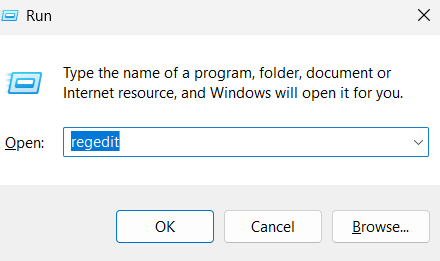
Open Registry Editor by pressing Win + R, typing regedit, and hitting Enter

Go to
HKEY_LOCAL_MACHINESYSTEMCurrentControlSetControlPrint
Create a DWORD (32 bit) Value named
RpcAuthnLevelPrivacyEnabled, then set its value to0
- Restart the Print Spooler or the host PC, then test the printer from the client
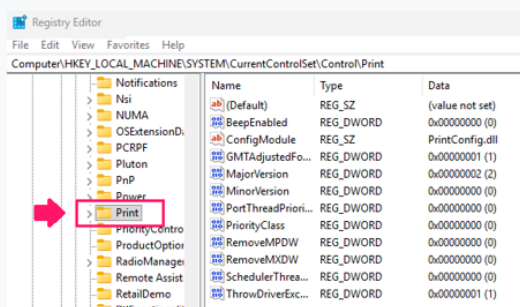
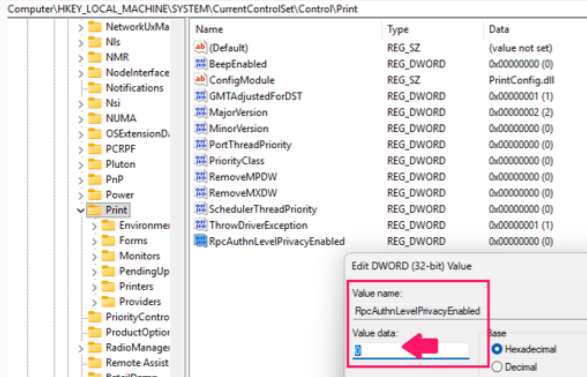
Take note: If printing works, the RPC security requirement was blocking the connection. Value 0 lowers that protection, so treat it as temporary. Change it to 1 or delete the DWORD when the compatibility issue is resolved.
» Check out these registry editor challenges and how to overcome them
Option B: Automated enterprise deployment (Multiple hosts)
If you need to apply this fix across multiple print hosts rather than configuring them one by one, you can deploy it at scale using automation:
- Group Policy (GPO): Create or edit a GPO linked to the Organizational Unit containing your hosts. Go to Computer Configuration > Preferences > Windows Settings > Registry, create an Update item for the Print key, add
RpcAuthnLevelPrivacyEnabledas aREG_DWORD, and set it to0. - PowerShell: Run this command with system permissions on your selected host machines:
New-ItemProperty -Path 'HKLM:SYSTEMCurrentControlSetControlPrint' -Name 'RpcAuthnLevelPrivacyEnabled' -PropertyType DWord -Value 0 -Force
Atera’s remote scripting lets IT teams deploy the same PowerShell fix across selected devices or device groups on demand, with the results reported back so you know immediately which machines took the change and which didn’t. And if you don’t have the script you need, AI Copilot can write one for you with specific instructions from simple natural language queries.
» Learn more about simplifying group policy management with Atera
How Atera can help
Managing printer connections, registry configurations, and RPC security updates across multiple workstations takes up valuable technical resources. Atera’s RMM platform simplifies this process by combining endpoint diagnostics and machine management into one central console.
With Atera, you can instantly generate and deploy scripts remotely to adjust print spooler settings, push registry tweaks, or run updates without interrupting users. Combined with real-time monitoring and alerts, you gain full visibility over system changes to prevent network printing errors and keep your infrastructure running smoothly.
Related Articles

How to reduce alert fatigue across your IT team
Your technicians aren't ignoring alerts because they're careless. They're ignoring them because most alerts have taught them to. Once the stream stops being trustworthy, real failures slip past with the noise. Fixing it means deciding what deserves an interruption, tuning out transient spikes, collapsing alert storms, and automating the fixes you've run a hundred times.
Read now
How to close the IT skills gap on your team
Course completions don't close skills gaps. Technicians finish the training, then hand the first unfamiliar failure straight back to a senior engineer. Real capability gets built on live tickets, incidents, and maintenance windows, with guidance that fades as competence grows.
Read now
How to calculate cost per ticket (and why most teams get it wrong)
Most cost-per-ticket figures are wrong before anyone reads them. Missing overhead, tickets that were opened but never closed, spam and duplicates padding the count, and one month's costs divided by another month's tickets all make support look cheaper than it is. Fix both sides of the division and the number finally shows where technician time and money actually go.
Read now
How to prepare for a software license audit
A vendor audit notice doesn't wait for you to get organized. It demands proof, right now, that every install matches every entitlement you've paid for, and most IT teams find out the hard way how much they don't actually know about their own environment. Getting audit-ready before the letter arrives is the difference between negotiating from strength and paying for months of scrambling.
Read nowEndless IT possibilities
Boost your productivity with Atera’s intuitive, centralized all-in-one platform









