
Alt+Tab is one of those shortcuts you never think about until it stops working. The moment it does, your rhythm gets thrown off. You can’t switch between windows or free yourself from a frozen application.
Alt+Tab fails for a number of different reasons in Windows 11. Sometimes it’s a bug introduced by the latest OS update, sometimes it’s background software hijacking your keyboard, and sometimes it’s a setting you didn’t know could break it.
In this guide, we’ll walk through the exact diagnostic steps and fixes to get Alt+Tab working again.
Why Alt+Tab stops working in Windows 11
Here are a few reasons why the Alt+Tab shortcut fails:
- Windows 24H2 update removed the classic switcher: Starting with version 24H2, Microsoft removed the registry options that let you revert to the old Windows XP/7 style Alt+Tab interface. The modern Live Preview mode can lag or fail completely if you have many windows open.
- The fallback UI was deprecated: If Windows Shell (Explorer) encounters a rendering error, there’s no backup system to display the Alt+Tab switcher anymore and you get a black screen instead.
- A rendering bug with fullscreen transitions: Some users hit a bug where the screen goes black for a few seconds when switching between windows or exiting fullscreen games. This happens because Desktop Window Manager (DWM) doesn’t handle the transition smoothly.
- Background services causing conflicts: Rendering bugs, often tied to background service conflicts or graphics adjustments from the 24H2 update, can freeze the Alt+Tab interface.
- Third-party software overlays hijack the shortcut: Apps like Steam, Discord, and AMD Adrenalin monitor your keyboard input. When multiple overlays run at once, they can prevent Alt+Tab from reaching Windows.
» Still on Windows 23H2? Here’s how to get Windows 11 version 24H2
How to diagnose the problem
Before we get into fixes, determine whether this is a software or hardware issue, or a Windows bug, by following these steps:
Test your keyboard first
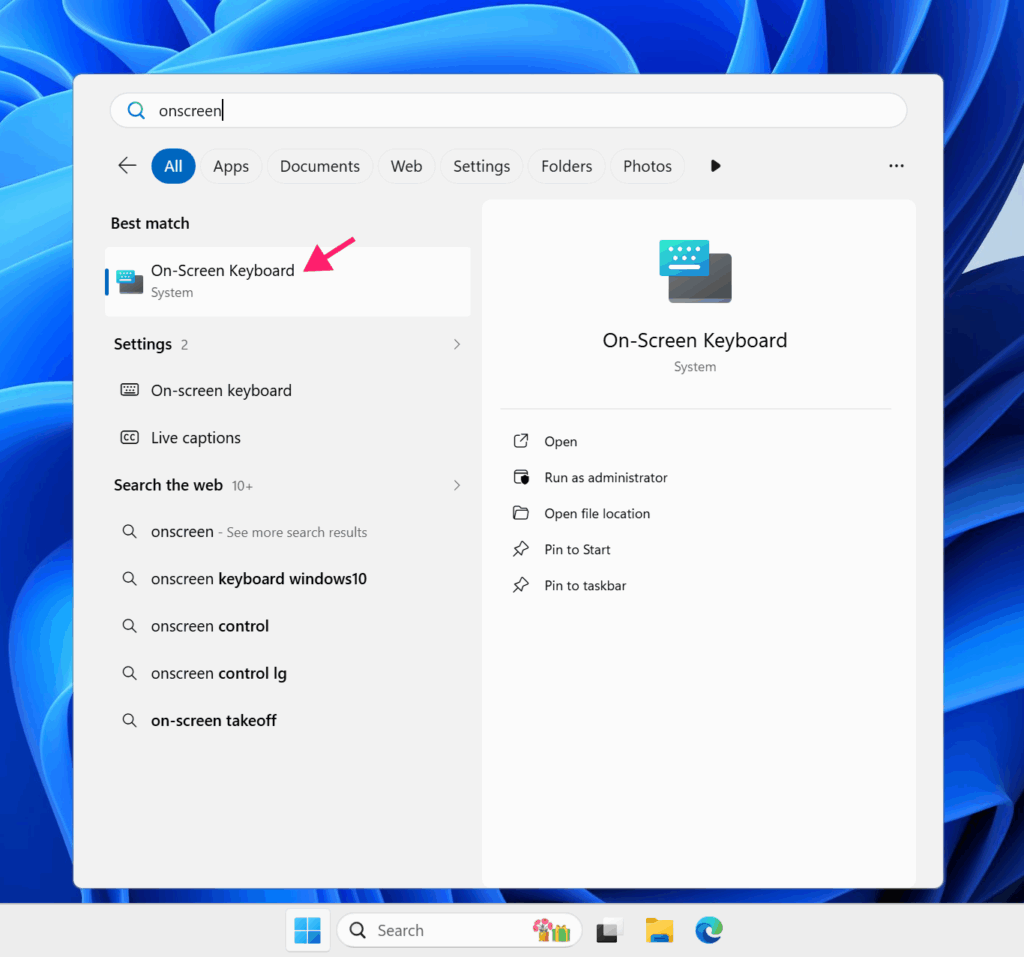
1. Open On-Screen Keyboard by searching for it in the Start menu
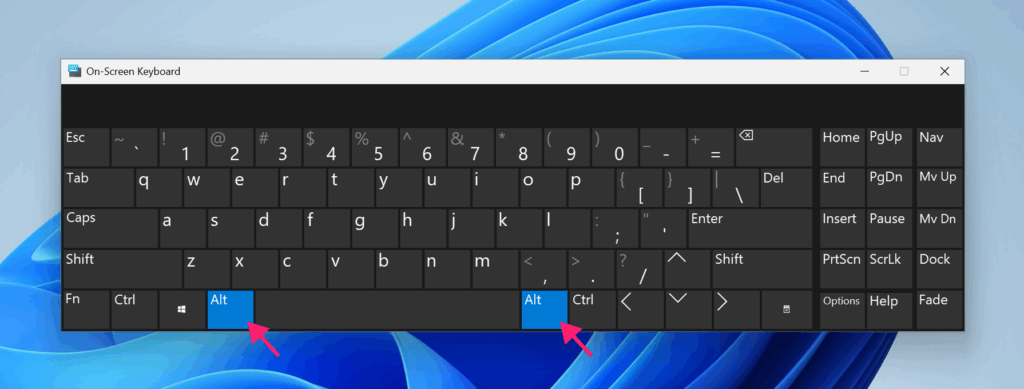
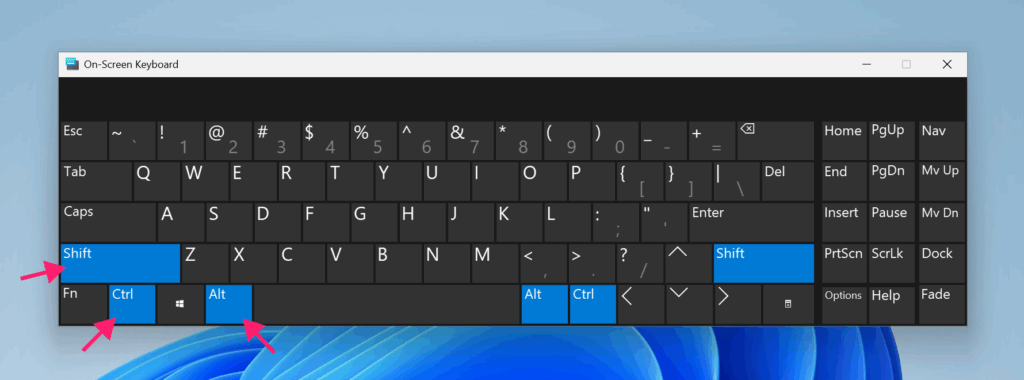
2. On your physical keyboard, press and hold Alt, Ctrl, and Shift. You should see these keys highlight on the on-screen keyboard as you press them
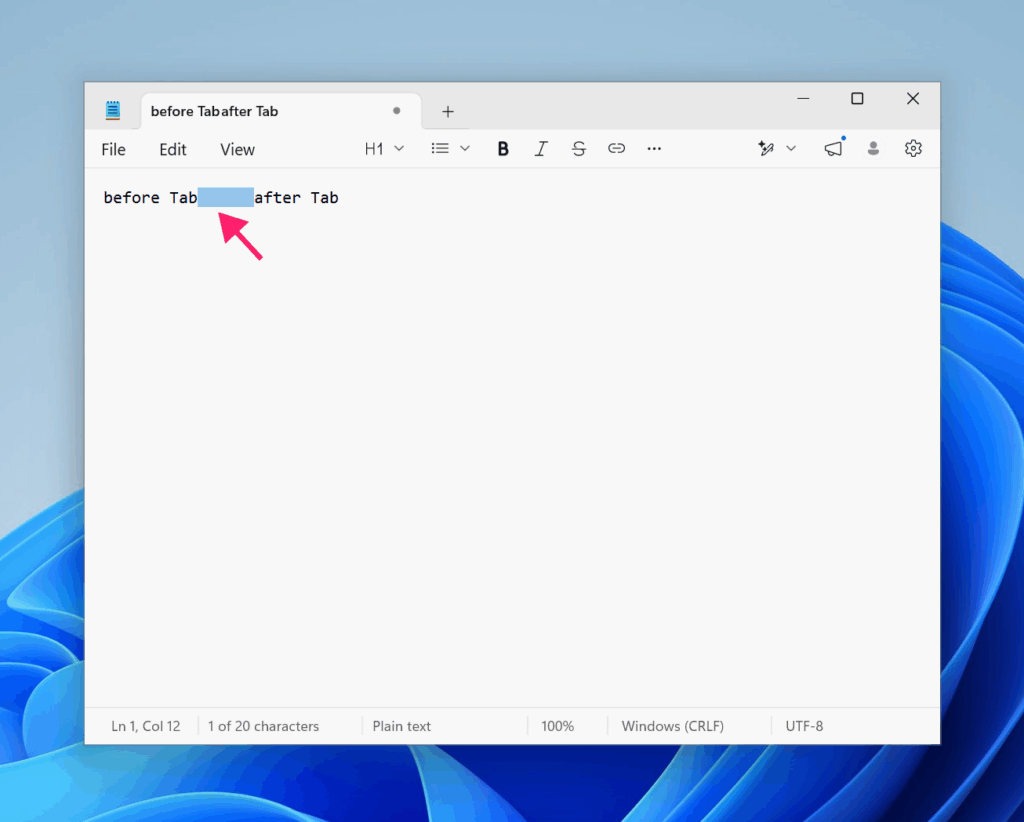
3. Now open Notepad and press Tab. You should see spacing appear between text blocks each time you press it. This confirms the Tab key itself works
4. Alternatively, press Alt once (to focus the app menu) and then press Tab multiple times. The selected menu item should change with each Tab press
If these tests pass, your keyboard hardware is fine
Test custom shortcuts
1. Right-click a desktop shortcut and select Properties
2. Click inside the Shortcut key field and press a key combination you want to test (like Ctrl+Alt+Up)
3. Click Apply, then test whether the shortcut launches the application
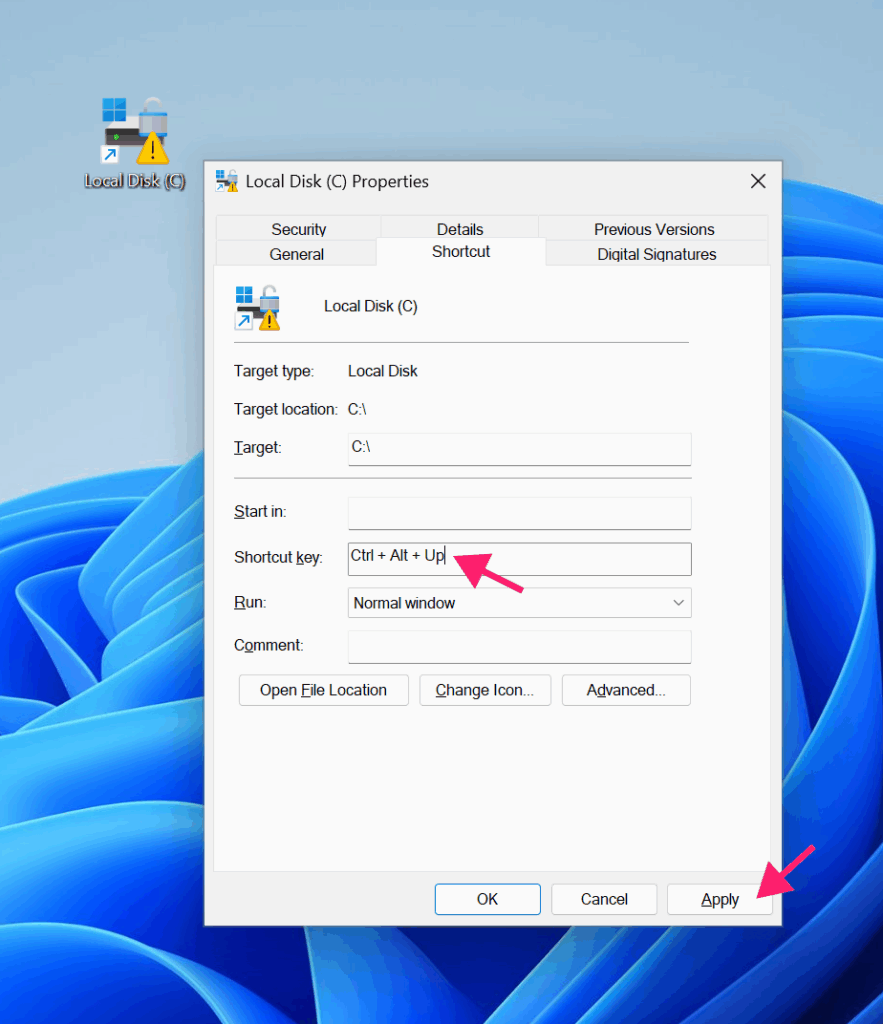
4. Try several combinations. If custom shortcuts work, Alt+Tab’s failure is likely software-related, not a keyboard mapping issue
» Learn how to setup desktop shortcuts
Test your keyboard in Safe Mode
1. Hold the Shift key while selecting Restart from the Start menu, then navigate to Troubleshoot > Advanced options > Startup Settings > Restart and press 4 or F4
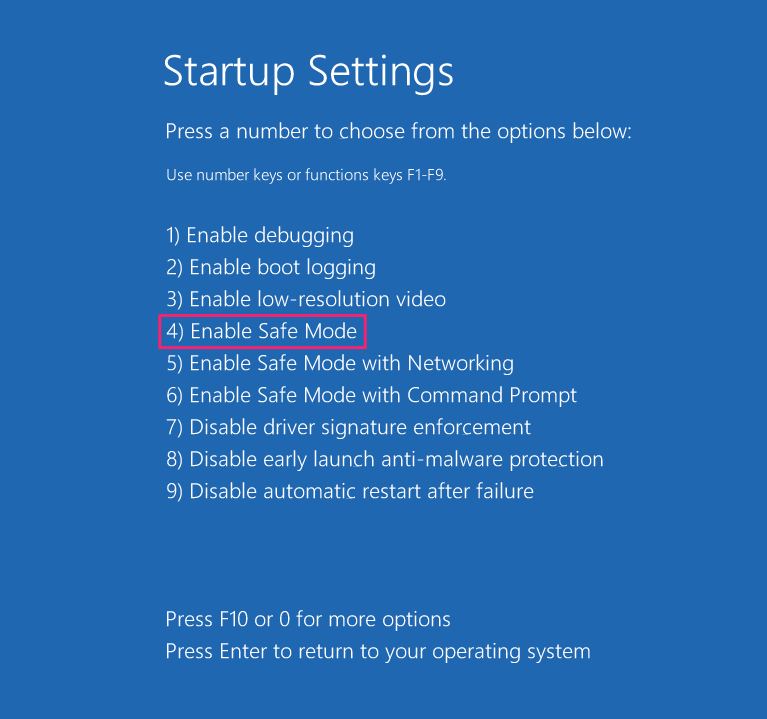
2. Once in Safe Mode, open 2-3 windows and try Alt+Tab
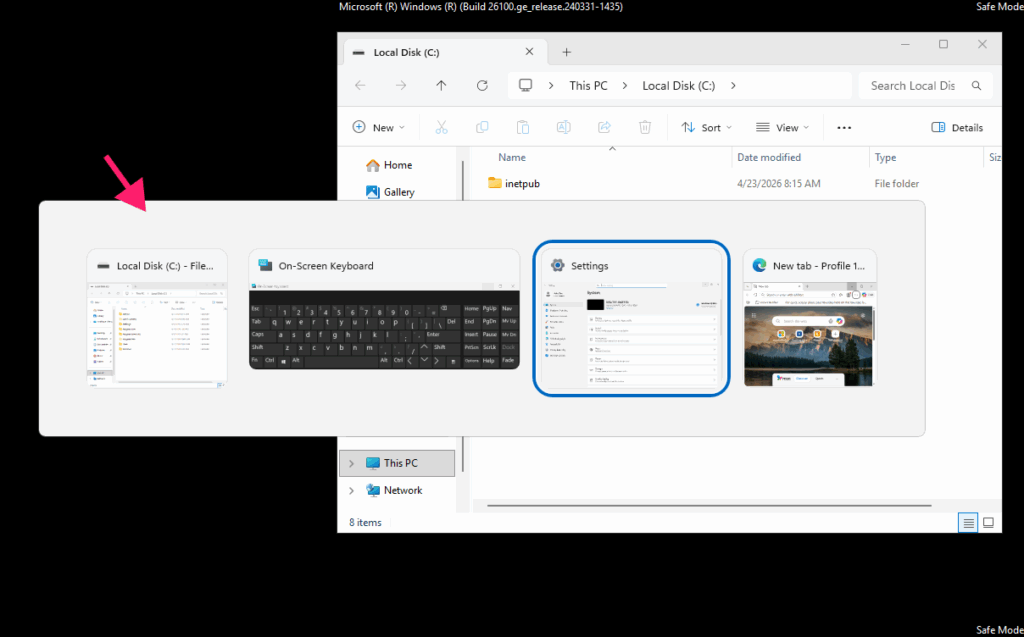
If it works perfectly here, a software conflict is causing the problem in normal mode
Check Microsoft Power Toys for remapped shortcuts
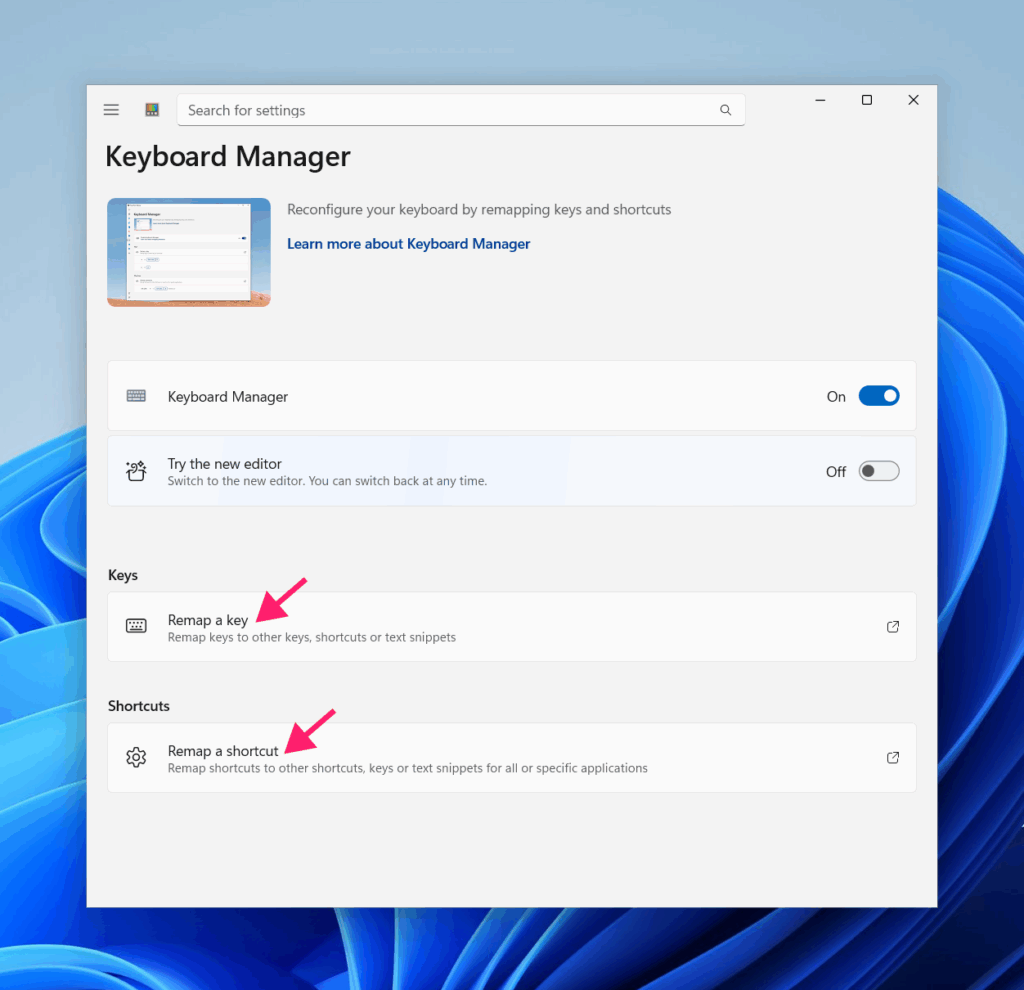
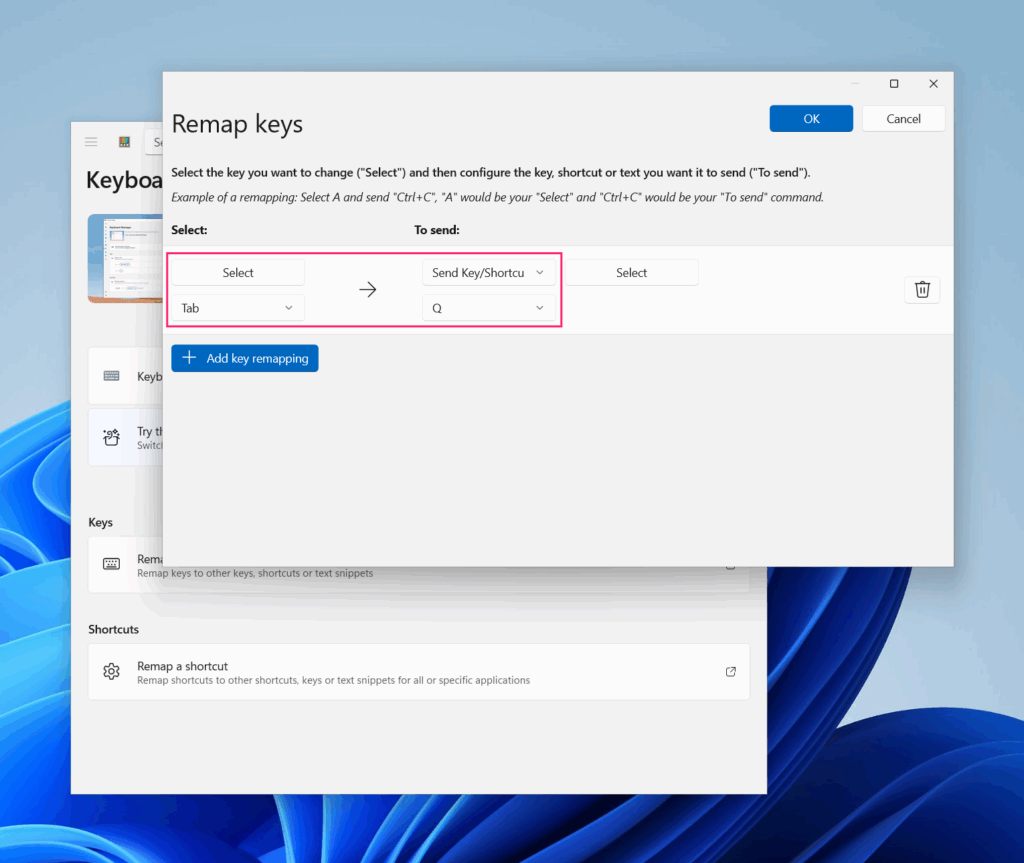
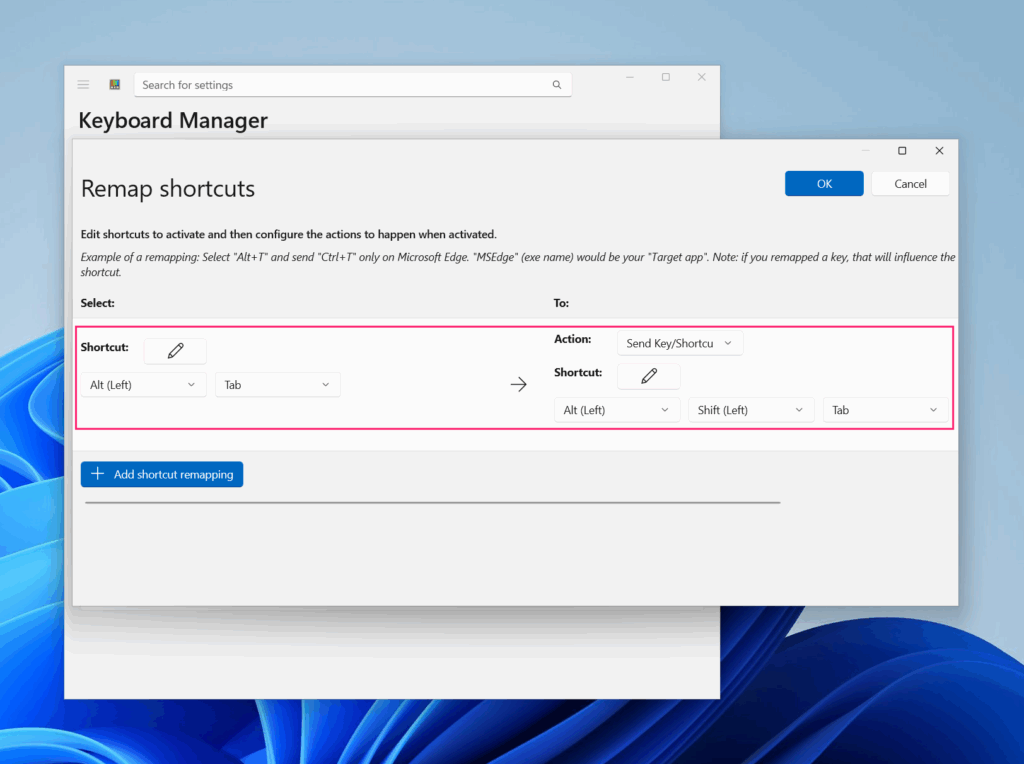
1. If you have Microsoft Power Toys installed, open it and go to Menu > Input and Output > Keyboard Manager
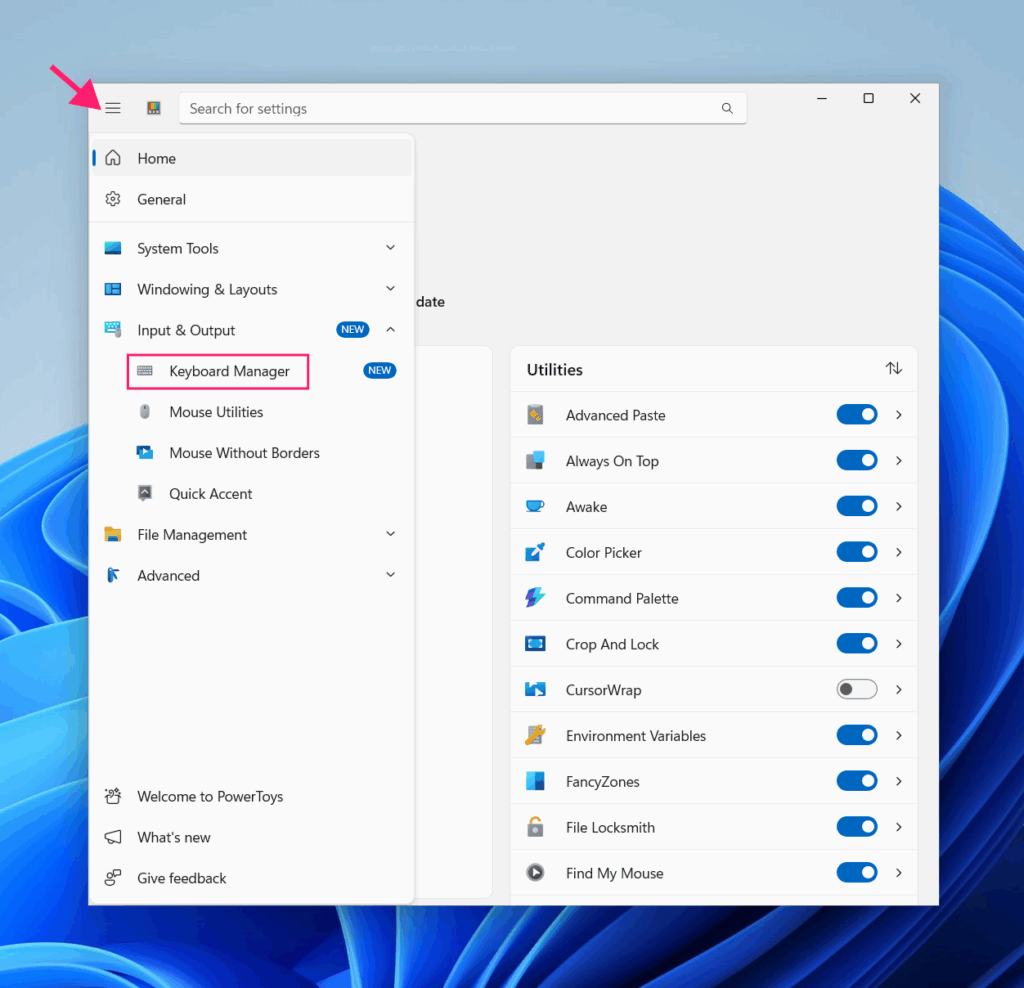
2. Check both the “Remap a key” and “Remap a shortcut” sections for any entries that might affect Alt+Tab
3. Do the same check for other similar software on your system
Step-by-step solutions to fix Alt+Tab not working
Work through these fixes in order until Alt+Tab works again.
Solution 1: Disable Sticky Keys
1. Press Win + I to open Settings. Navigate to Accessibility > Keyboard
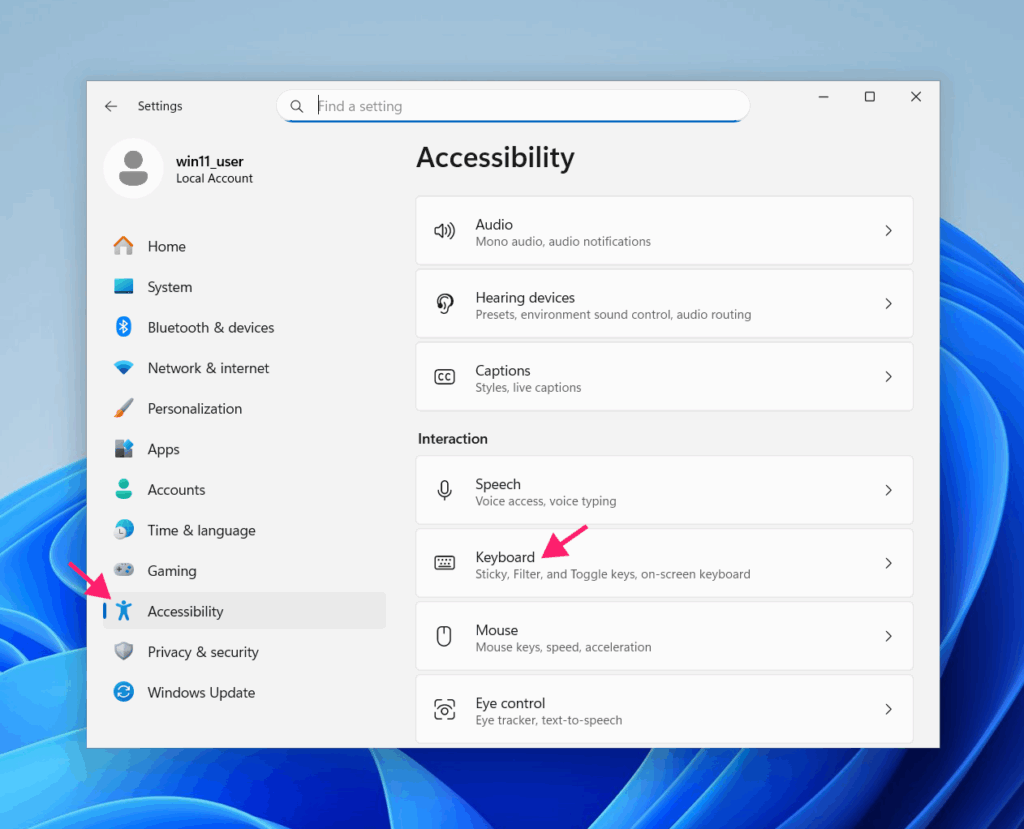
2. Toggle Sticky Keys to Off
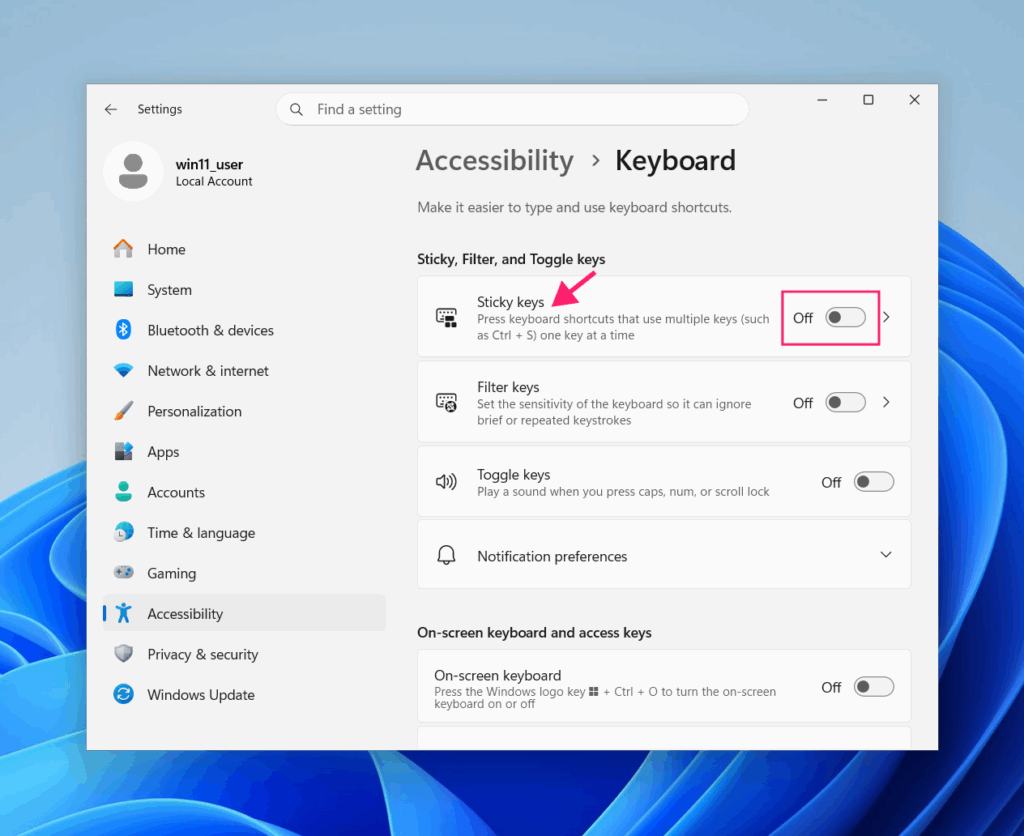
3. Click the Sticky Keys row to open detailed settings
4. Switch the Keyboard shortcut for Sticky Keys to Off to prevent the prompt from appearing
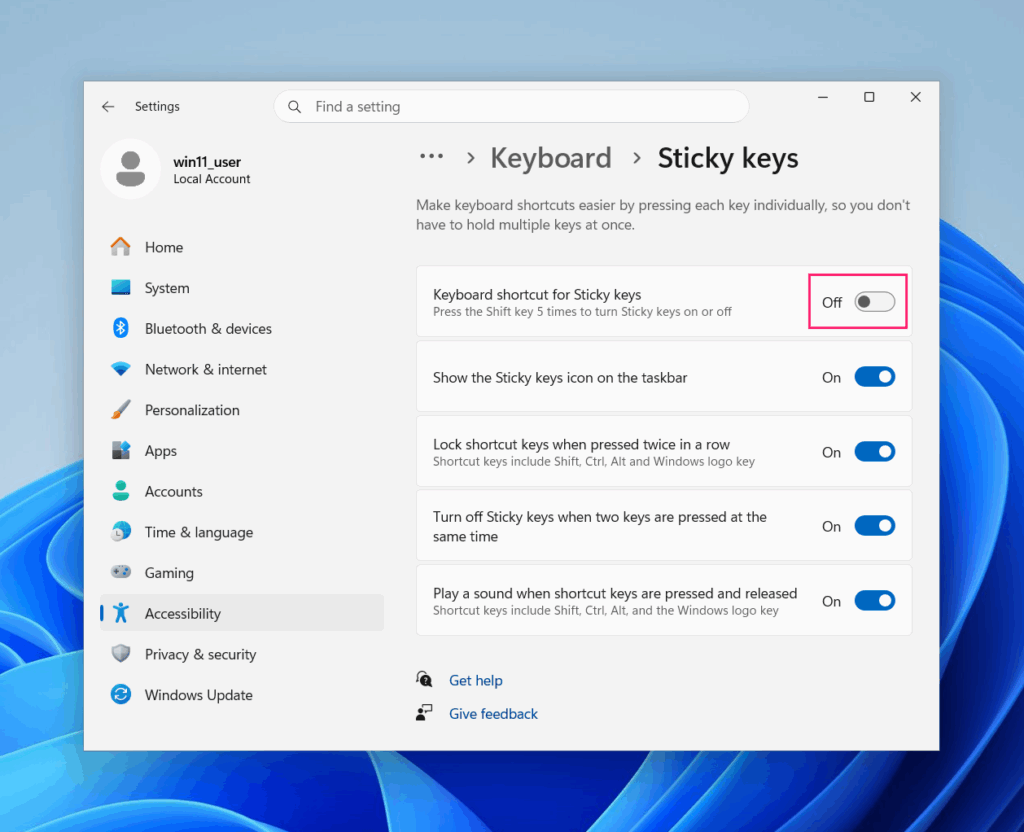
If Sticky Keys is already off but the switcher menu stays open after releasing keys, you might be pressing Ctrl + Alt + Tab instead. This shortcut keeps the switcher open for arrow key navigation, press Esc to close it.
Solution 2: Turn off Game Mode
1. Press Win + I to open Settings. Go to Gaming > Game Mode
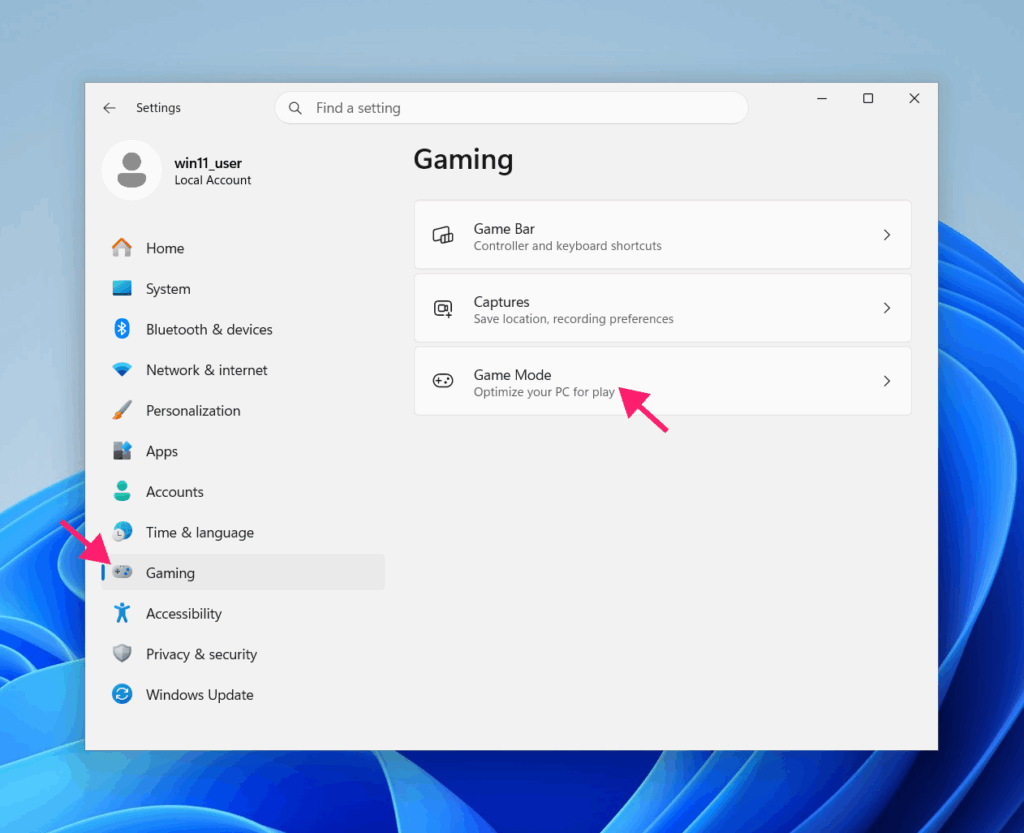
2. Toggle Game Mode to Off
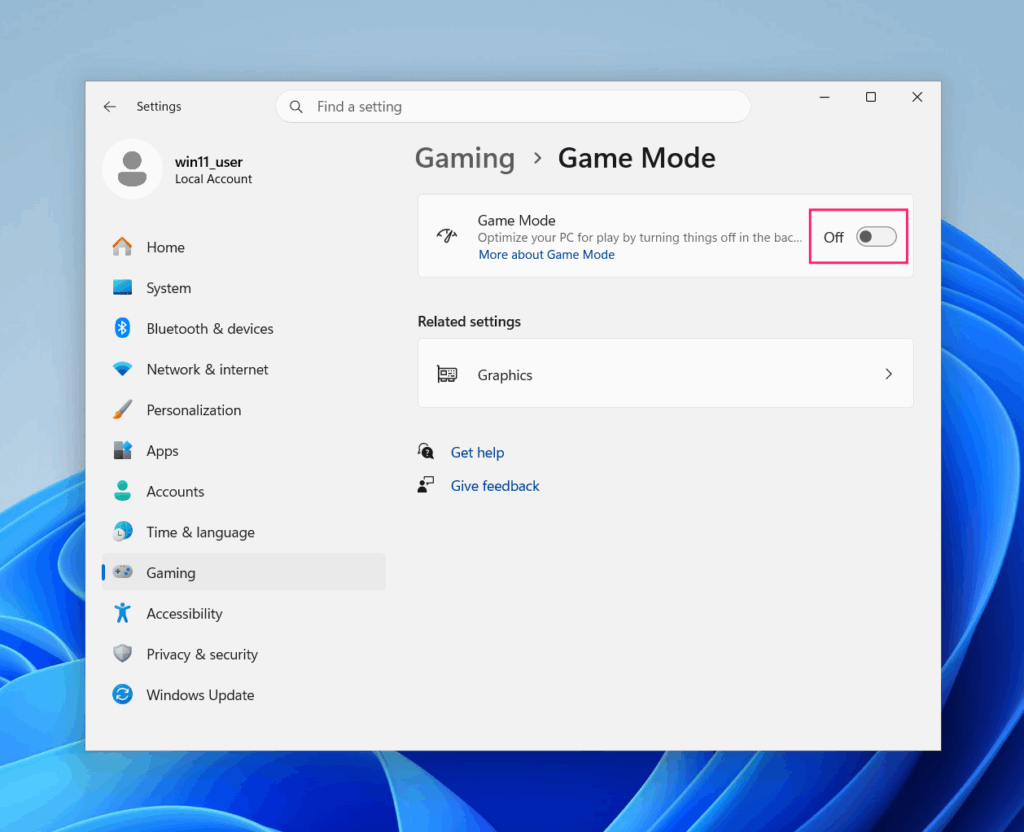
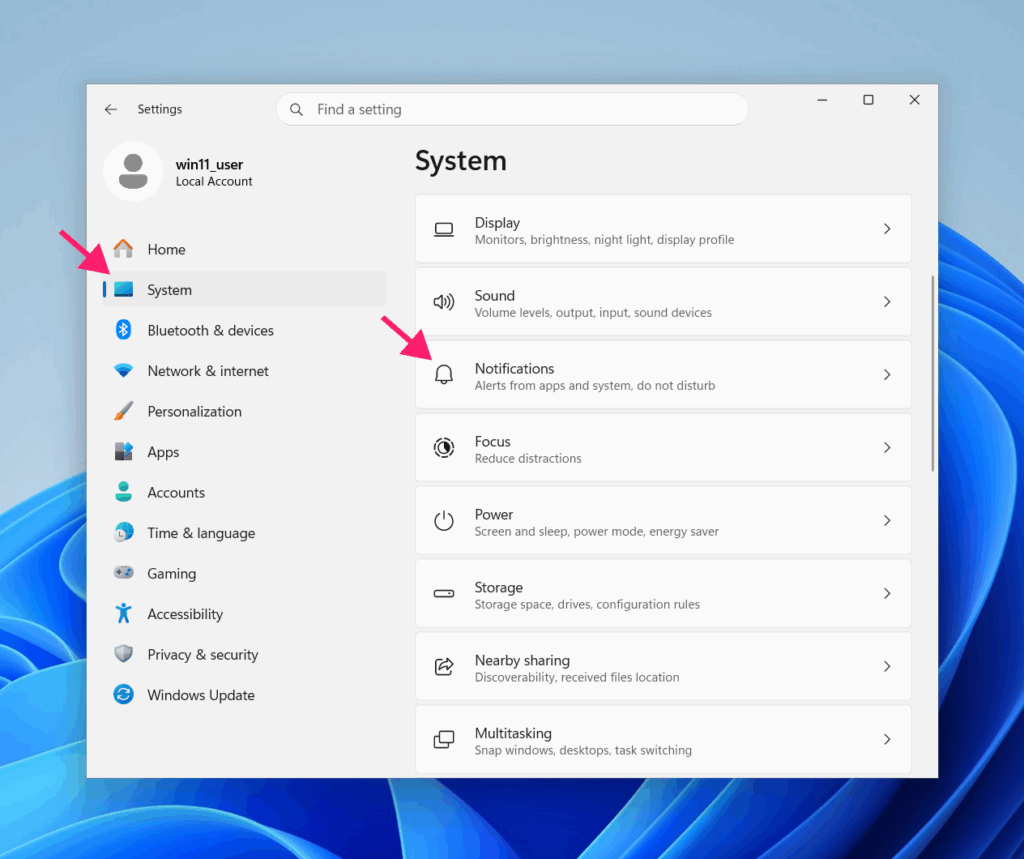
3. While you’re here, also check “Do not disturb” behavior from System > Notifications
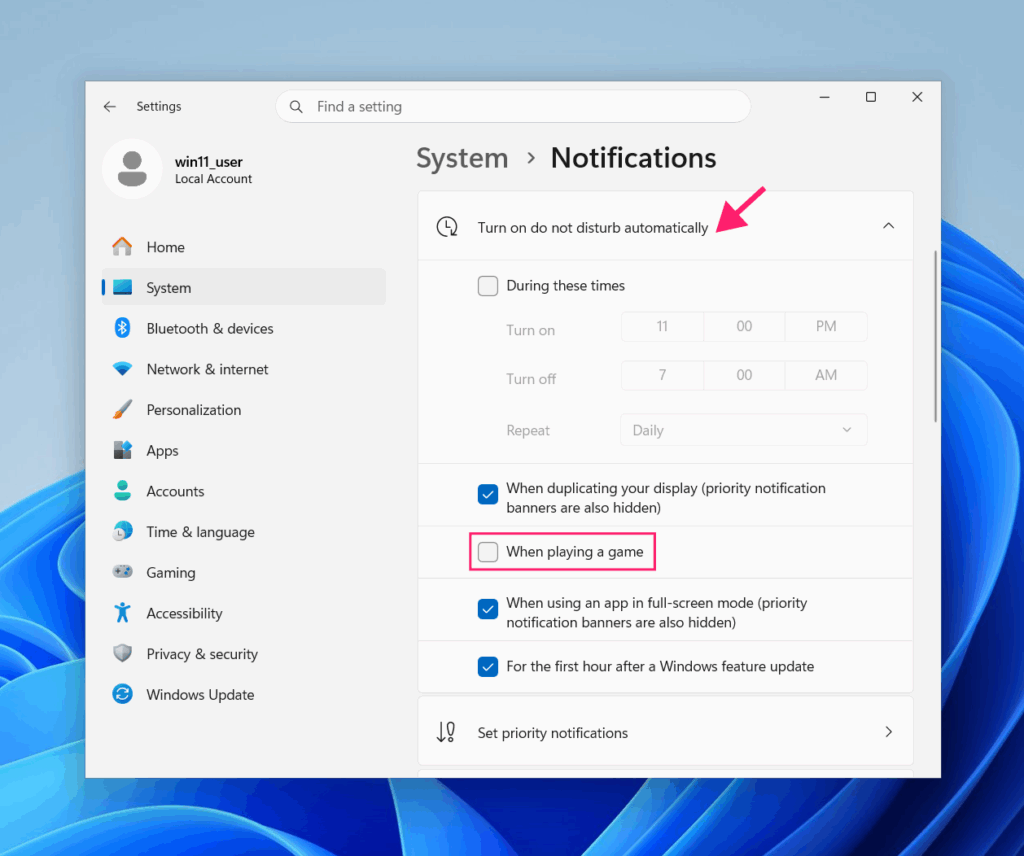
4. Under “Turn on do not disturb automatically,” uncheck the “When playing a game” option
Important: Changing these settings might affect your gaming performance slightly.
Solution 3: Adjust the “Show tabs from apps” setting
Sometimes Alt+Tab only displays the most recent window instead of cycling through all open windows.
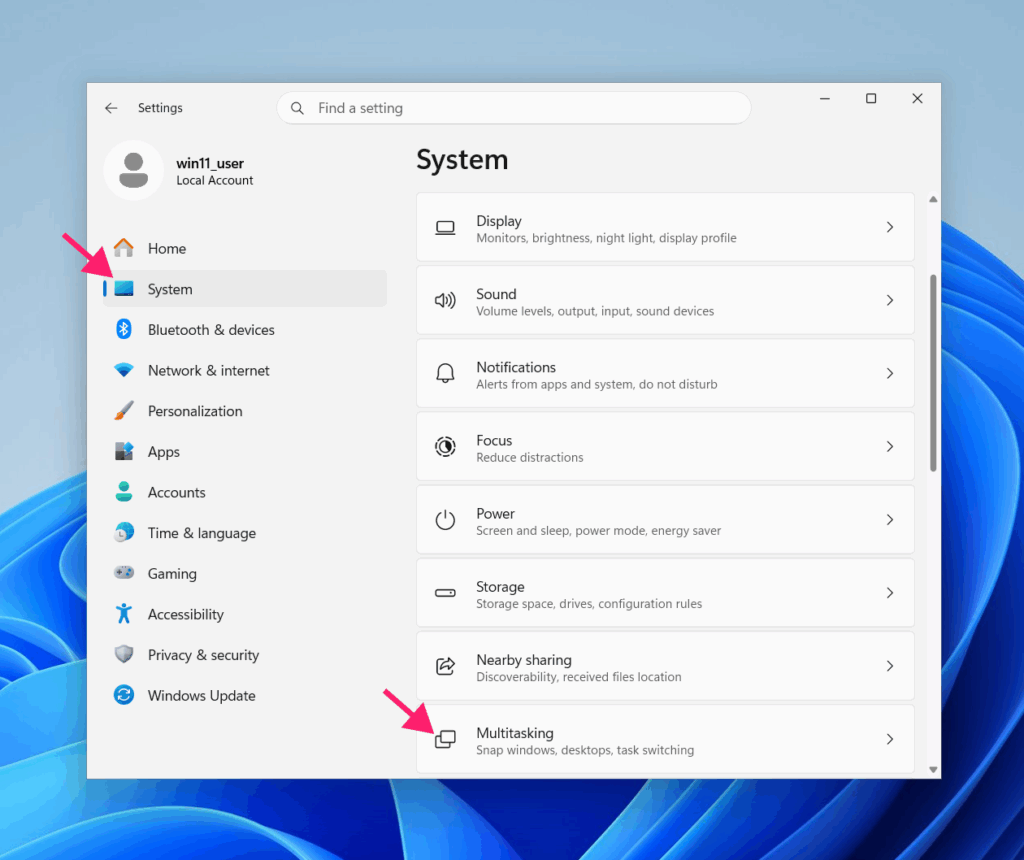
1. Press Win + I to open Settings. Go to System > Multitasking
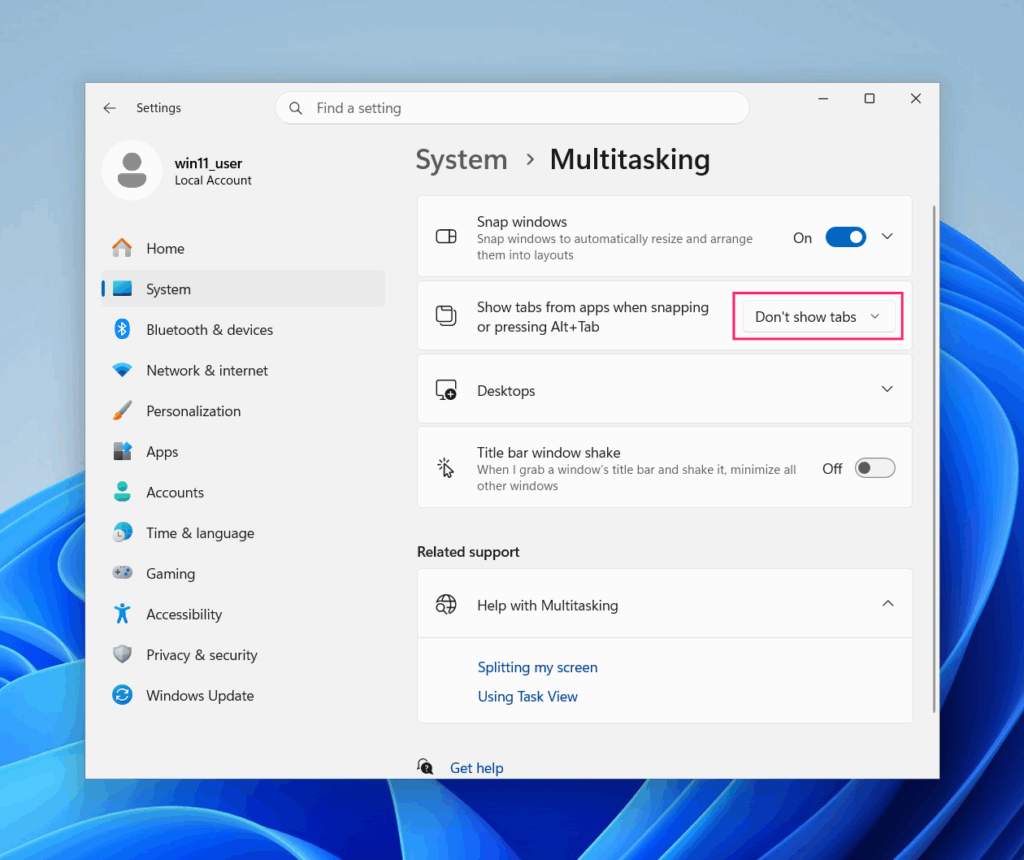
2. Change the “Show tabs from apps” option to Don’t show tabs
Solution 4: Check input language hotkey conflicts
If you use multiple keyboard languages, conflicting language-switching hotkeys can override Alt+Tab.
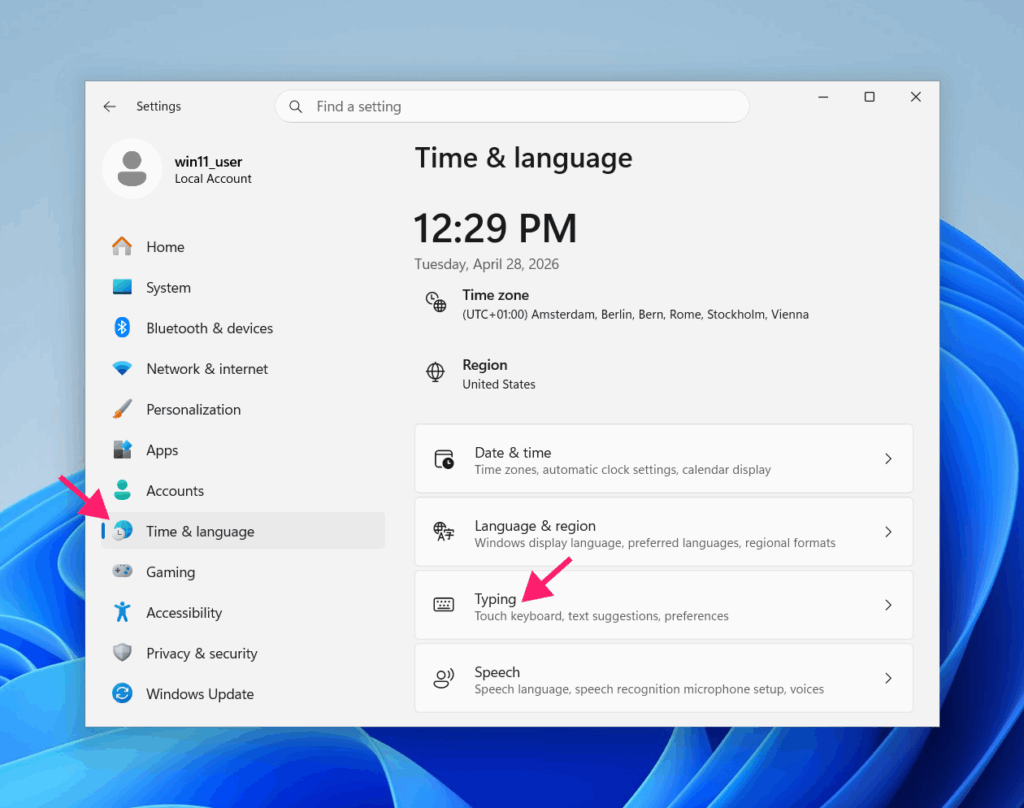
1. Press Win + I to open Settings
2. Go to Time & Language > Typing > Advanced keyboard settings
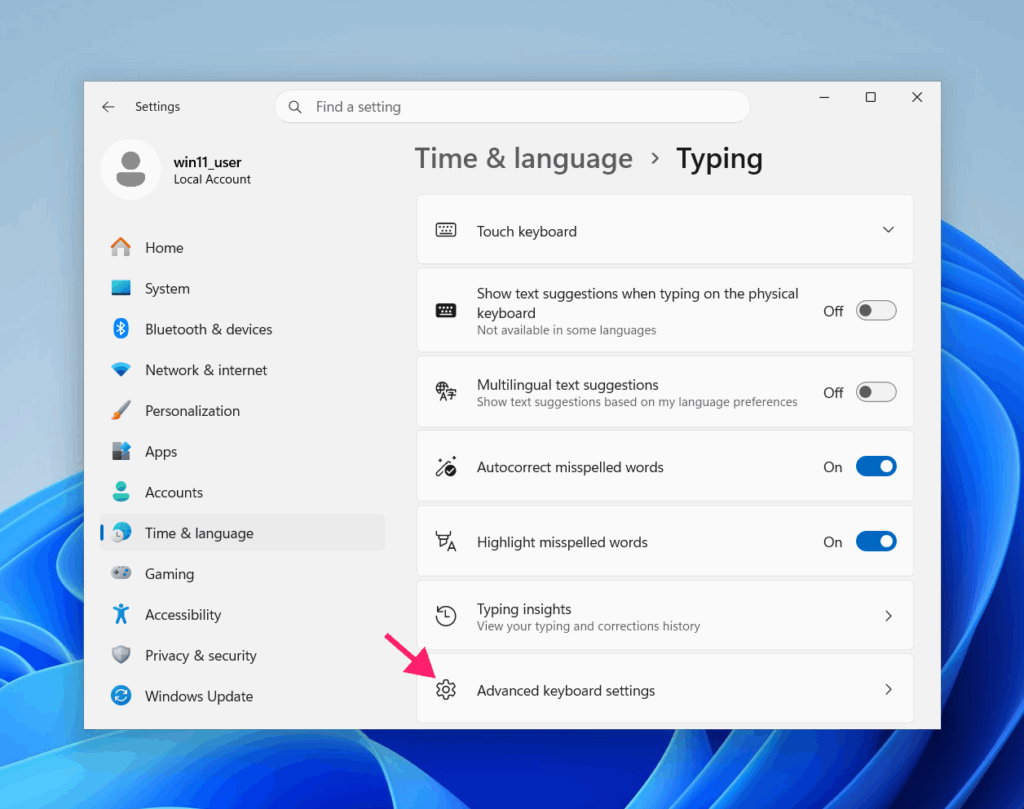
3. Click the Input language hot keys link
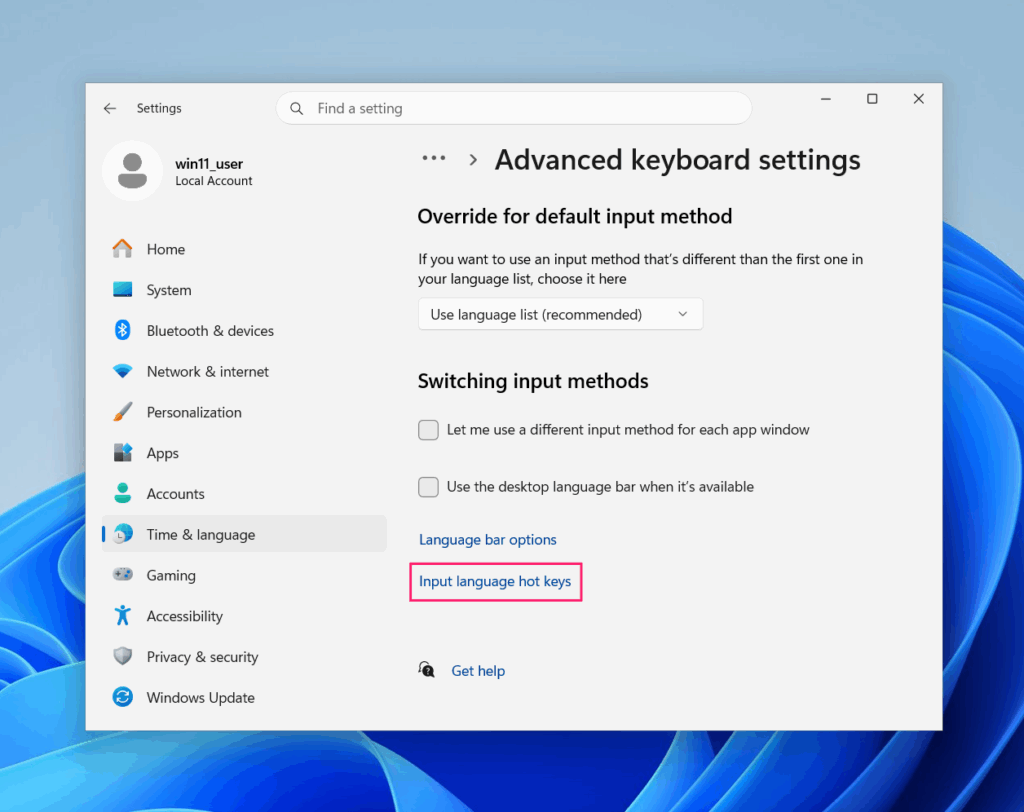
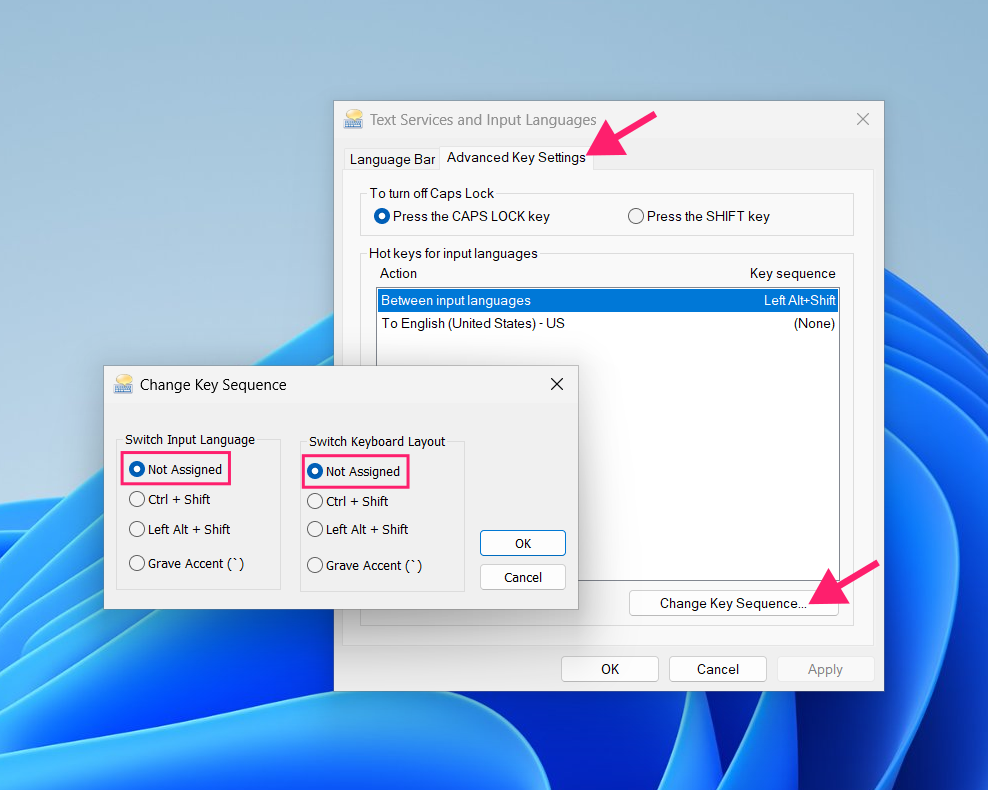
4. In the Advanced Key Settings tab, examine the list of actions. If you see anything assigned to Alt+Tab or Alt+related keys, click Change Key Sequence to modify them
5. If you don’t use multiple input languages, set both language-switching actions to Not Assigned
Solution 5: Restart Windows Explorer
1. Press Ctrl + Shift + Esc to launch Task Manager
2. Go to the Details tab and find explorer.exe
3. Right-click it and select Restart
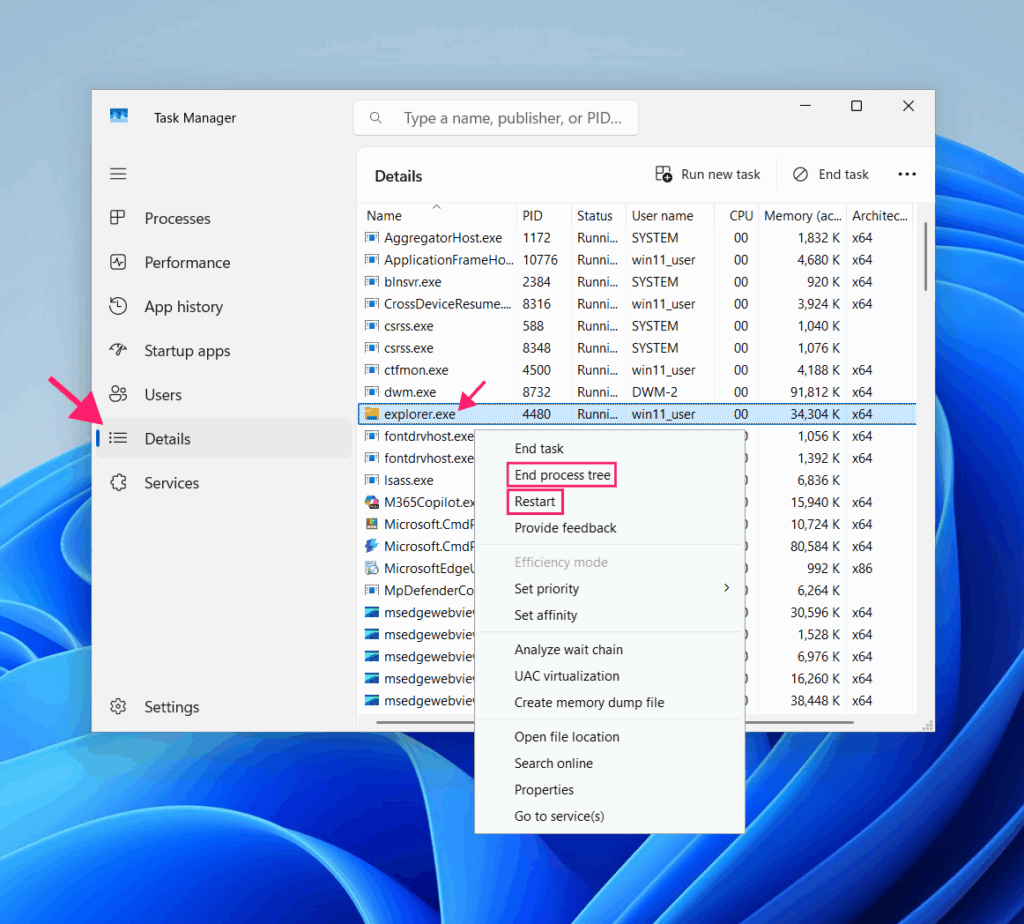
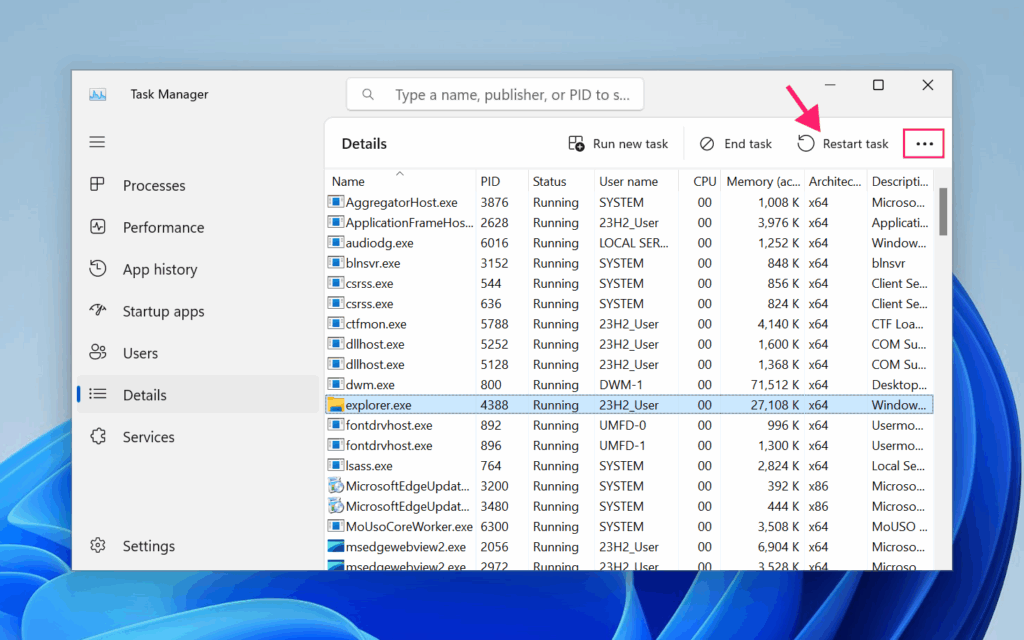
4. If the Restart option doesn’t appear, look for the Restart button in the upper right of Task Manager (you may need to press the “…” options button first)
5. If restarting doesn’t work, force close it instead by right-clicking explorer.exe > End process tree
6. Confirm the action
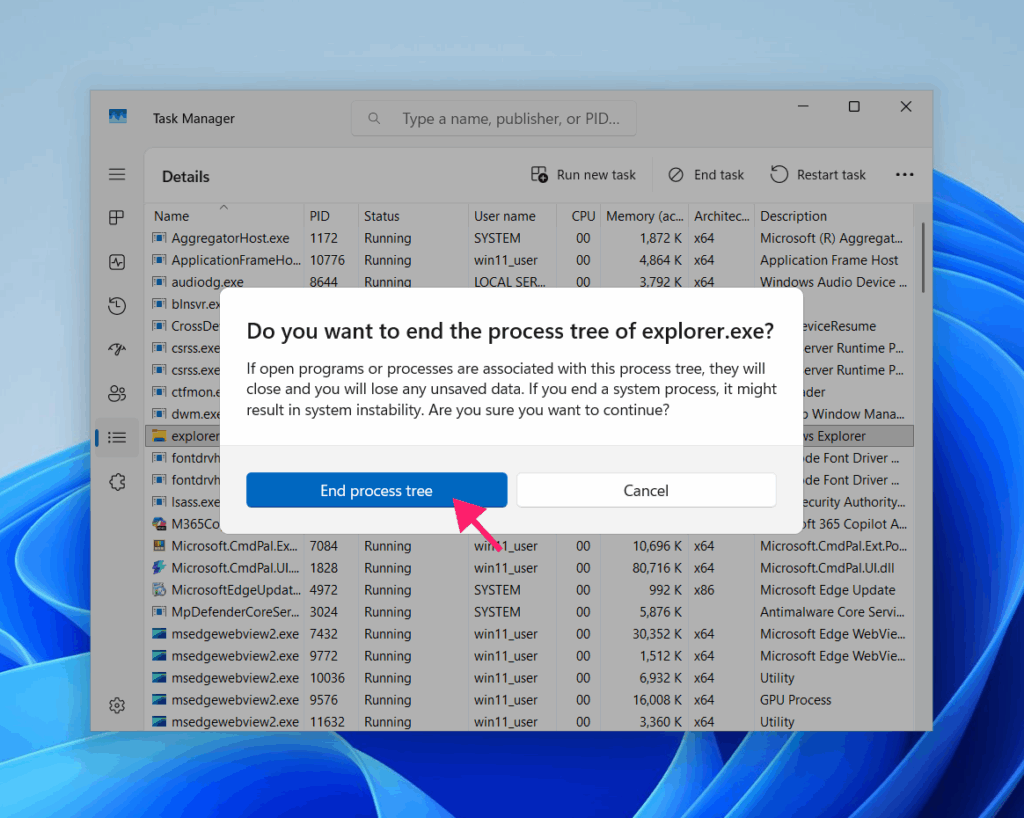
Your wallpaper, icons, and taskbar will disappear temporarily.
7. Click the Run new task button, type explorer, and press Enter
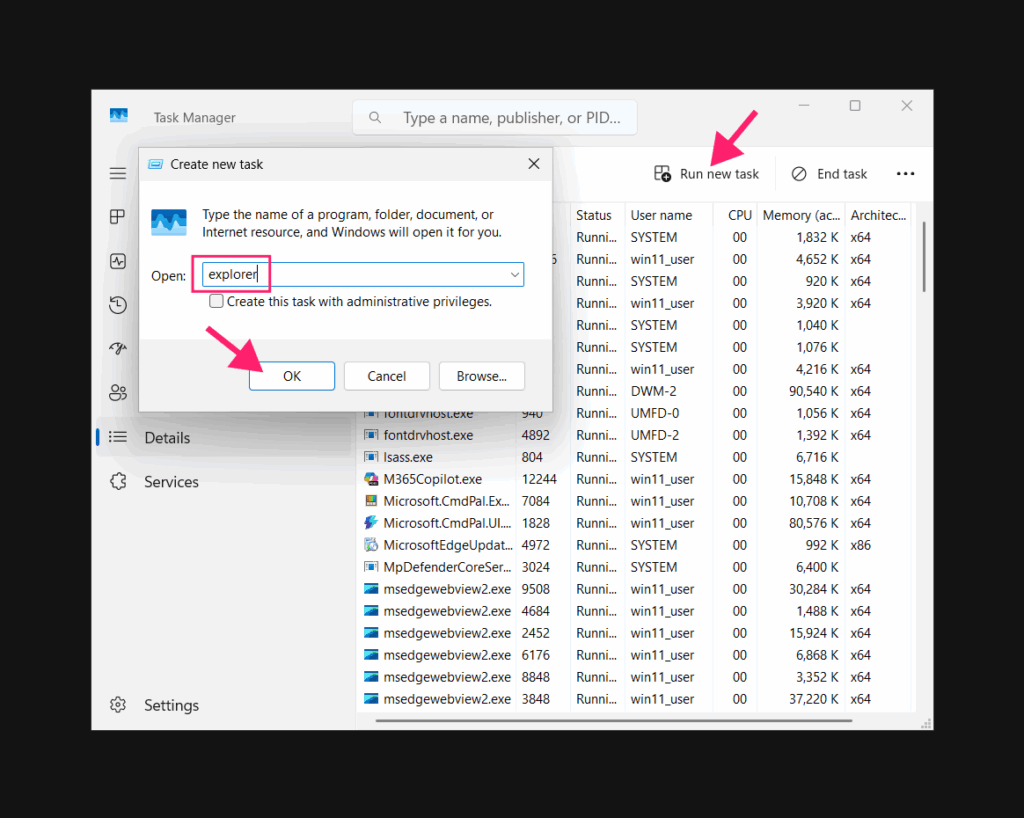
Important: Active file transfers through Windows File Explorer will be interrupted if you restart it, so ensure no operations are in progress first.
» Read more on how to restart explorer.exe
Solution 6: Reinstall your keyboard drivers
1. Press Win + X or right-click the Start button and select Device Manager
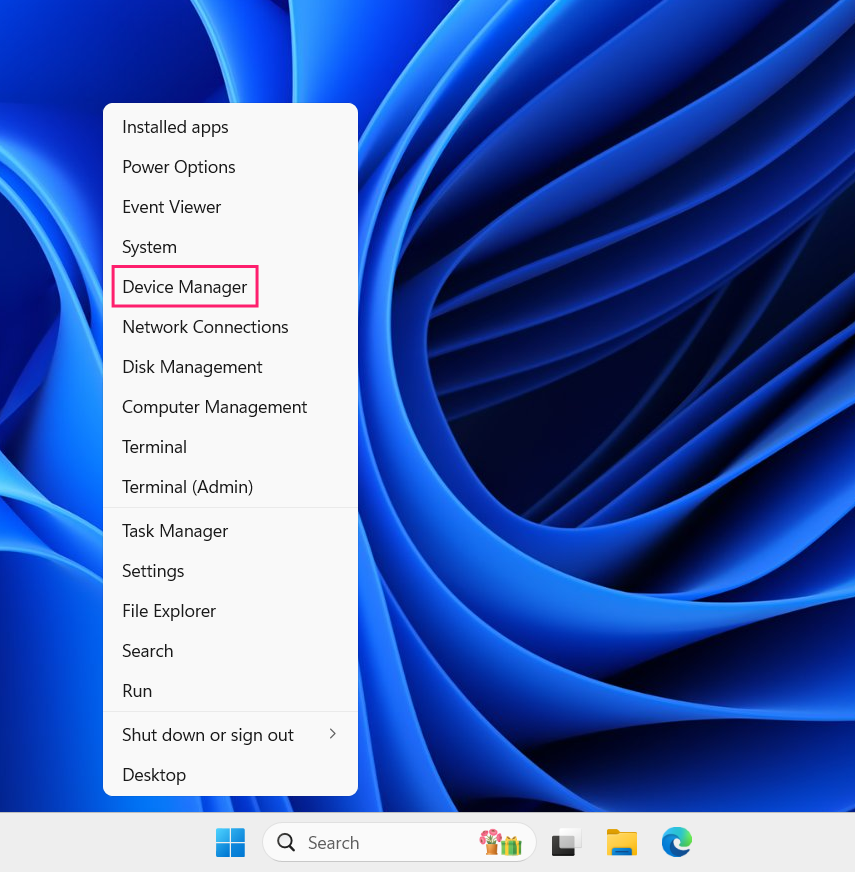
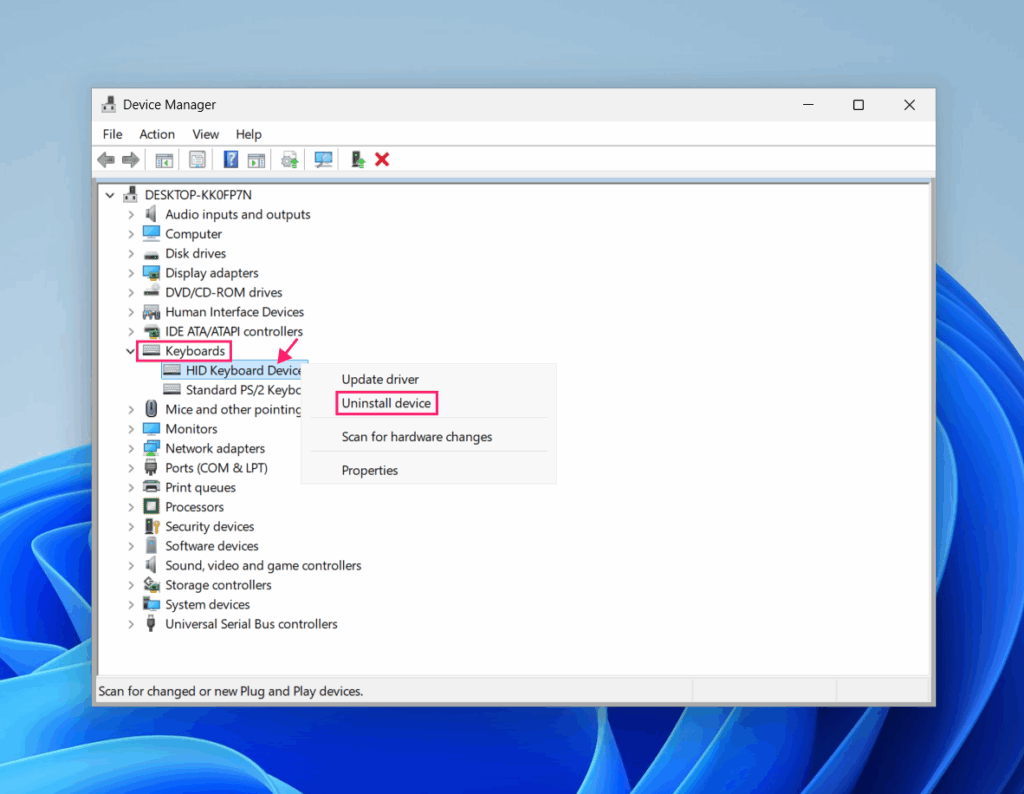
2. Look for the Keyboards category and expand it
Generic laptop keyboards show as “Standard PS/2 Keyboard.” USB keyboards typically show as “HID Keyboard Device.” Premium keyboards display their brand name.
3. Right-click your keyboard and select Uninstall device
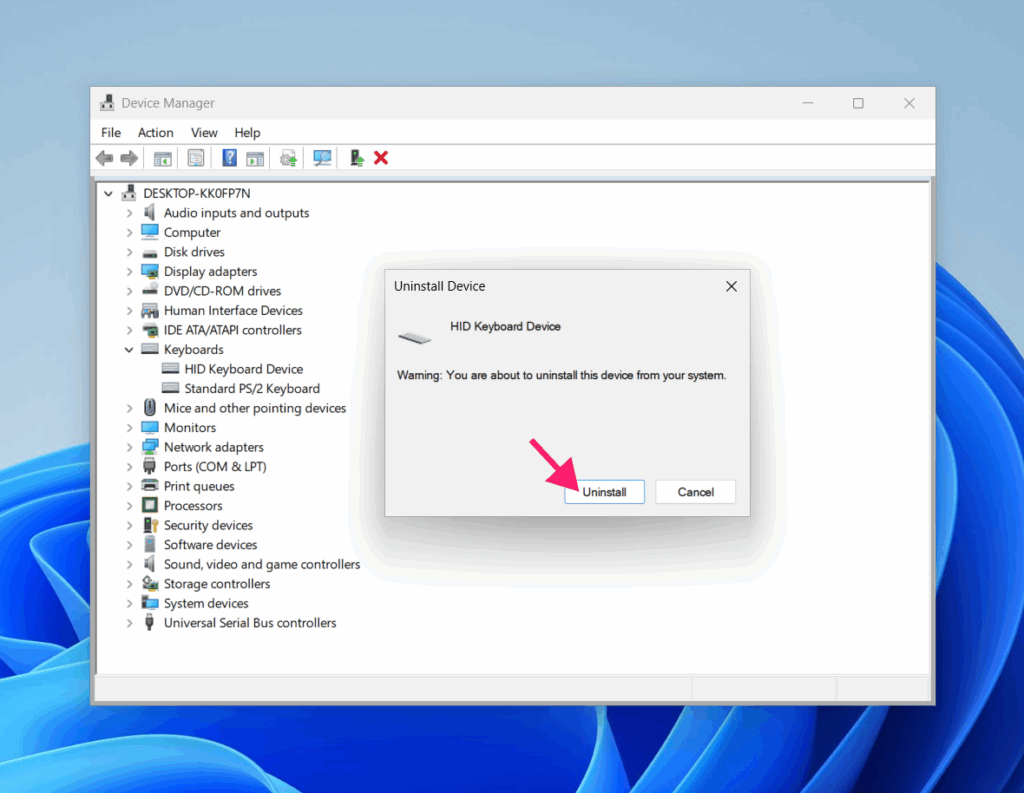
4. Confirm the action
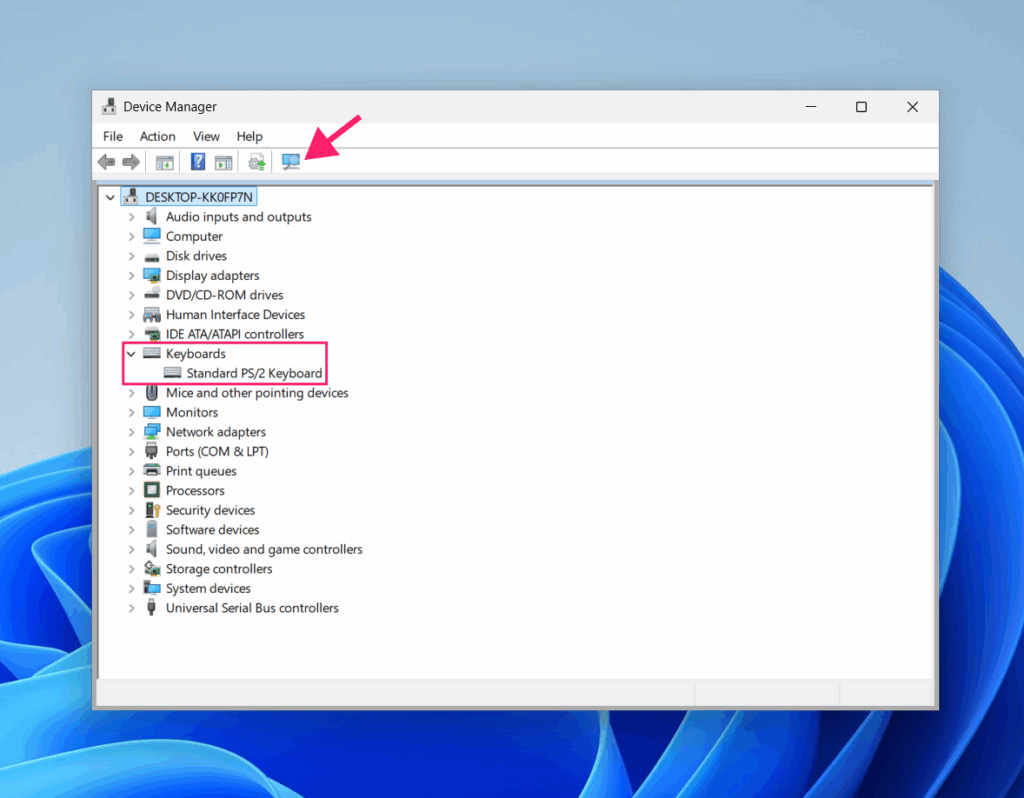
5. Click the Scan for hardware changes button in the menu bar (or go to Action > Scan for hardware changes)
6. Windows will automatically reinstall your keyboard drivers
Solution 7: Run a system file scan
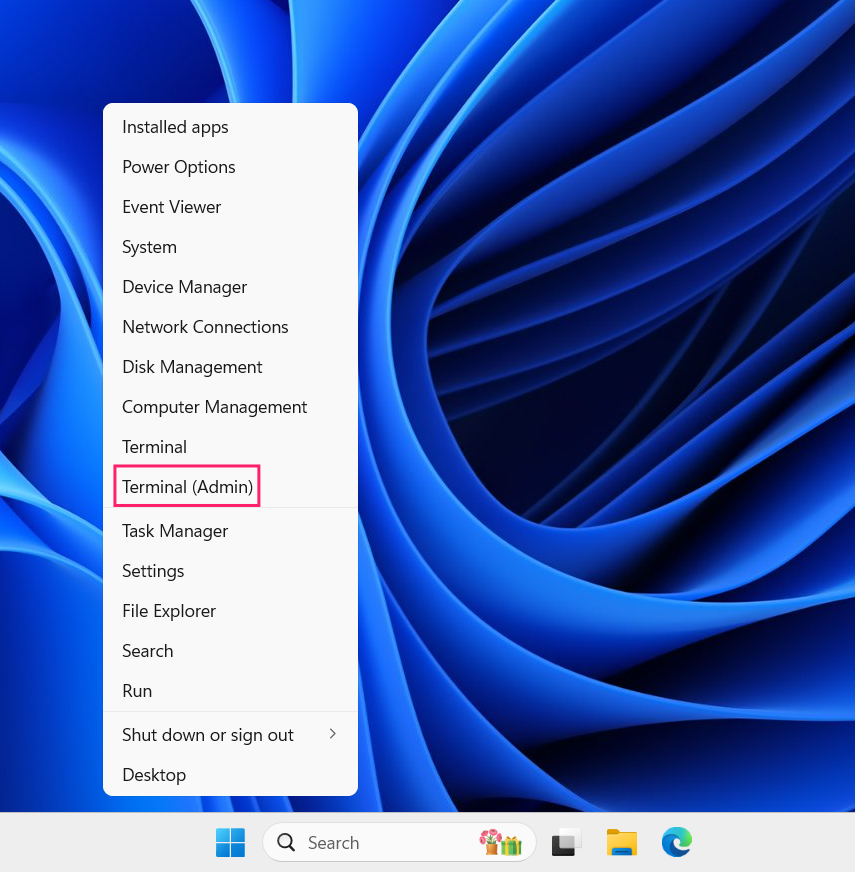
1. Press Win + X or right-click the Start button and select Terminal (Admin) to open a Terminal window with elevated privileges
2. Type the following command and press Enter: sfc /scannow
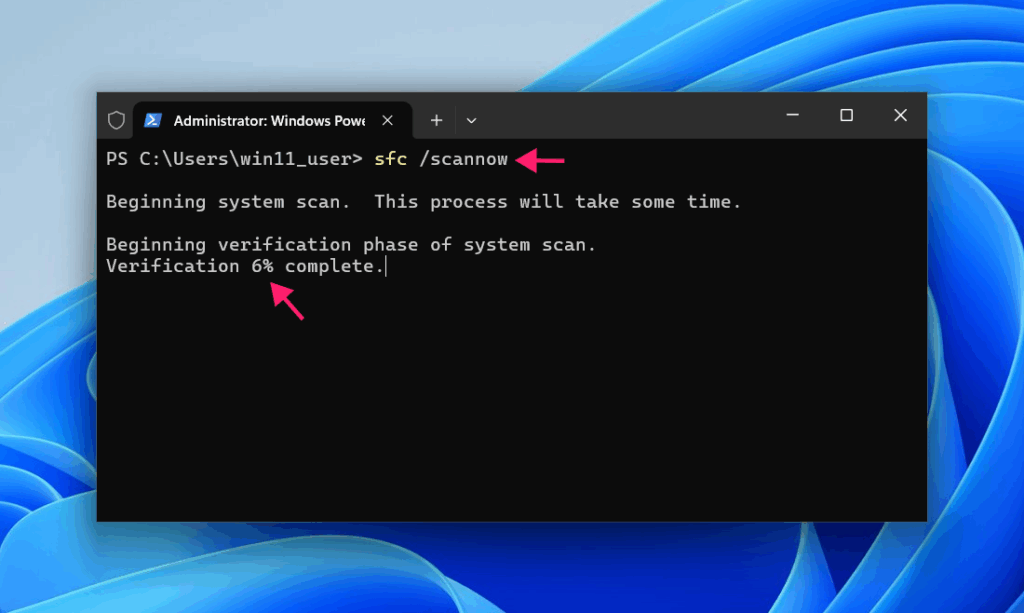
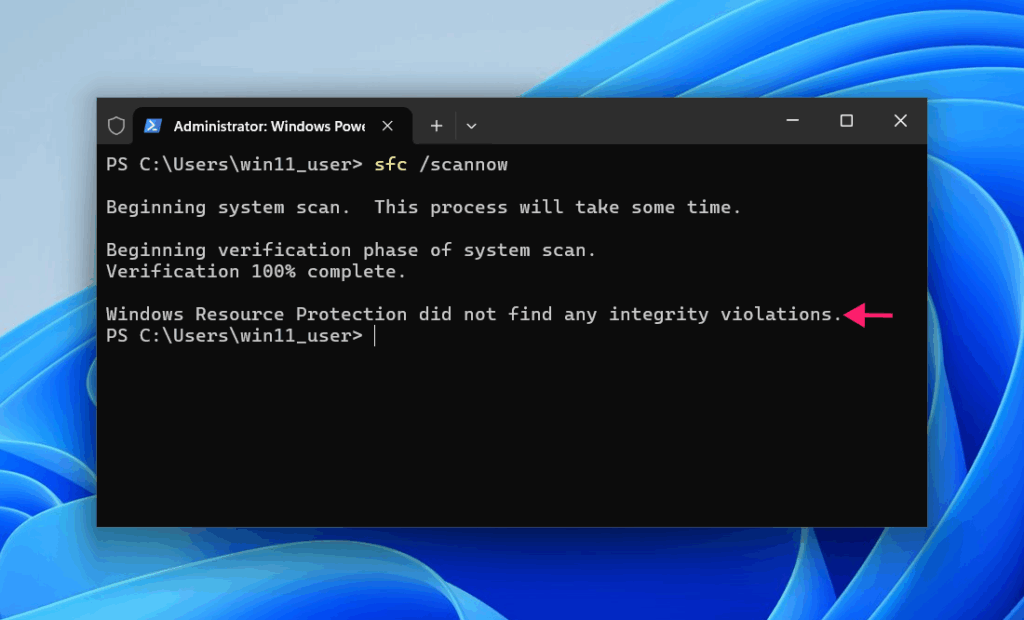
3. Wait for the scan to complete. It may take several minutes
4. Once finished, review the results. If corrupted files were found and repaired, restart your computer
Solution 8: Restore the classic Alt+Tab interface (if you’re on Windows 11 version 23H2 or earlier)
1. Press Win + R to open the Run dialog
2. Type regedit and press Enter to open Registry Editor
3. Navigate to: HKEY_CURRENT_USER\Software\Microsoft\Windows\CurrentVersion\Explorer
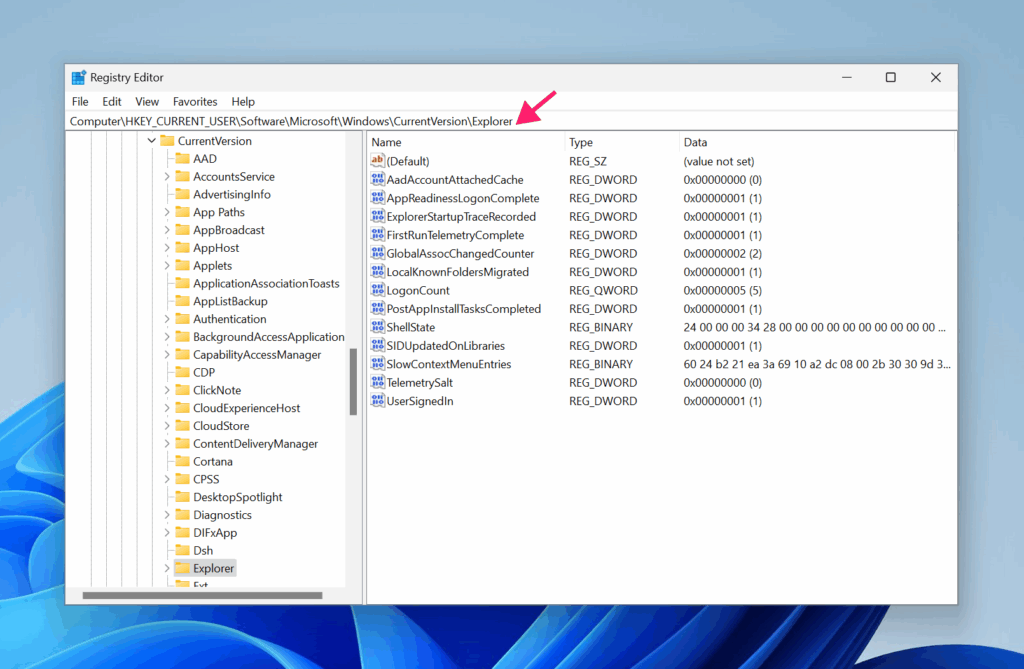
4. Right-click in the empty space on the right side and select New > DWORD (32-bit) Value
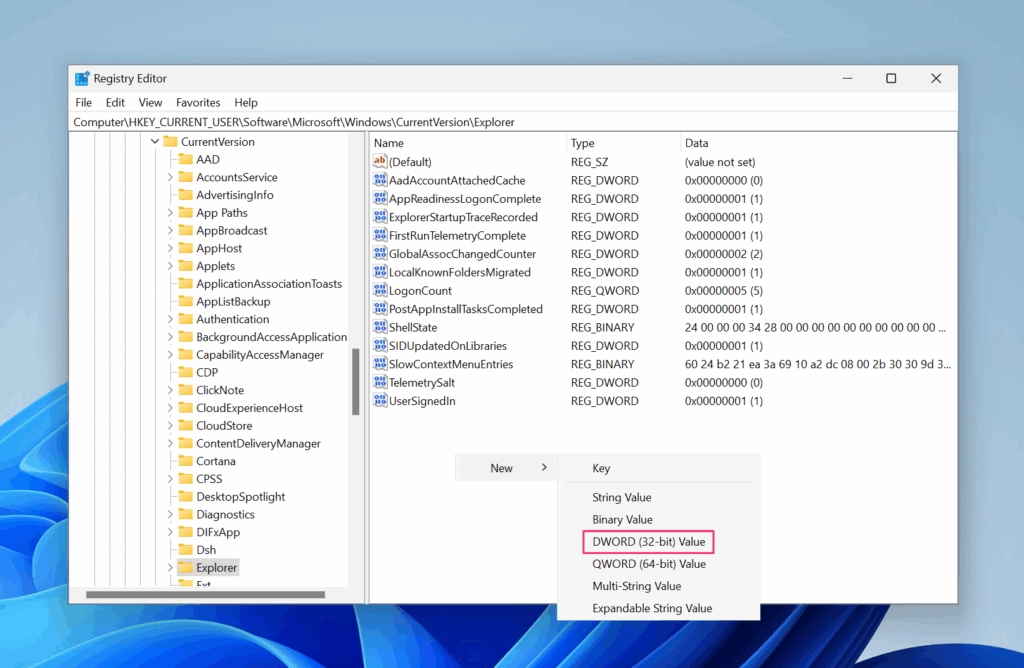
5. Name the new entry AltTabSettings
6. Double-click it and set the value to 1
7. Make sure the Base is set to Hexadecimal
8. Click OK
9. Restart explorer.exe (or reboot your system) to apply the changes
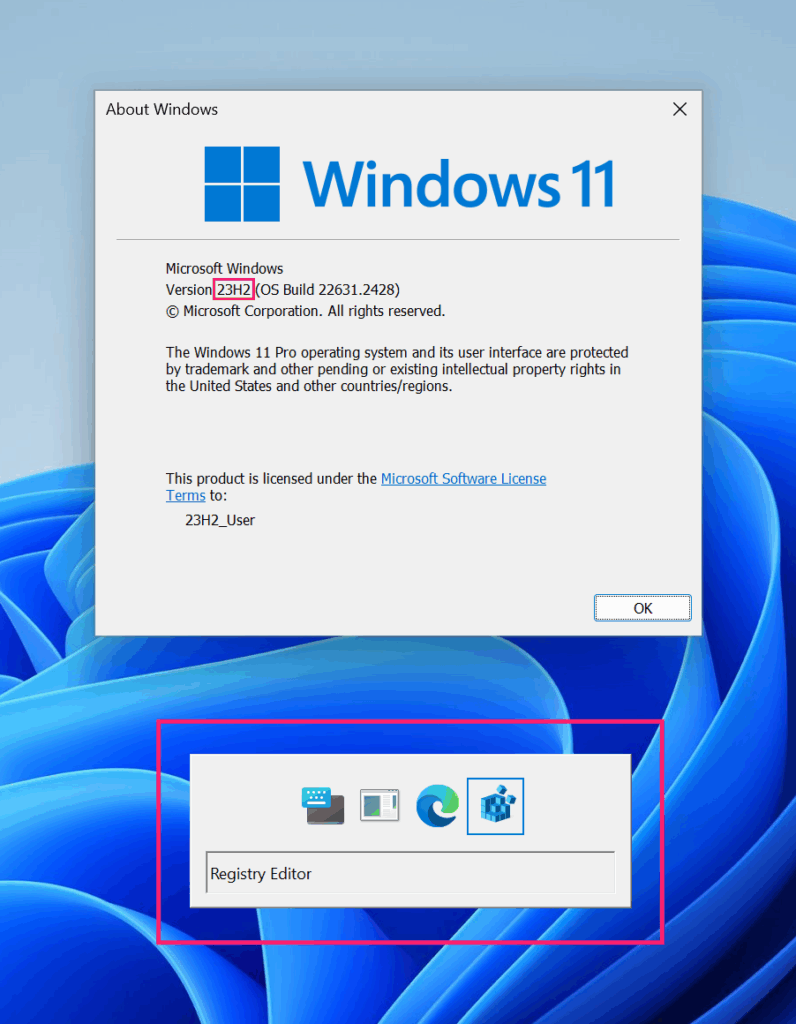
Important: This option is not available in Windows 11 version 24H2, as Microsoft removed the classic Alt+Tab switcher entirely.
» Confused? Learn more about the Registry editor
Special cases: Full-screen games and multi-monitor setups
Full-screen gaming and Alt+Tab
When applications run in Full-Screen Exclusive (FSE) mode, they take direct control of your display, bypassing Desktop Window Manager. Showing the Alt+Tab overlay requires the app to release that control, a process that can cause black screens or crashes.
The simplest fix is to use Borderless Windowed mode instead. It keeps DWM active at all times, so Alt+Tab displays instantly without any transition sequence. Modern DXGI Flip Model technology means borderless windowed achieves the same performance as full screen exclusive, so you don’t lose anything by switching.
In your game settings, change from “Fullscreen” to “Borderless Windowed” or “Windowed Borderless.”
Multi-monitor setups with different refresh rates
If you’re using multiple monitors with different refresh rates, DWM synchronizes to your primary monitor. A 60Hz primary monitor will compose frames at 60Hz even on a 144Hz secondary, causing jittering.
Enable Variable Refresh Rate (VRR) technology (G-Sync for Nvidia or FreeSync for AMD) to let your monitors sync independently. You should also update your GPU drivers and verify your monitor refresh rates in Settings > System > Display > Advanced display.
If Alt+Tab still struggles on multi-monitor setups after checking these settings, ensure VRR is enabled in your GPU control panel.
Important: Most people know Alt+Tab, but Windows also supports Alt+Esc. This shortcut doesn’t display a menu, it instantly sends the current window to the back and brings the next window forward.
» Don’t miss our guide to updating PC drivers
Automate troubleshooting for your entire team
If you manage IT infrastructure and want to prevent these kinds of issues across your entire organization, consider using tools that centralize monitoring and automation. Platforms like Atera combine remote monitoring with intelligent IT automation, enabling your team to identify and resolve system issues proactively before they impact users.
Related Articles

How to reduce alert fatigue across your IT team
Your technicians aren't ignoring alerts because they're careless. They're ignoring them because most alerts have taught them to. Once the stream stops being trustworthy, real failures slip past with the noise. Fixing it means deciding what deserves an interruption, tuning out transient spikes, collapsing alert storms, and automating the fixes you've run a hundred times.
Read now
How to close the IT skills gap on your team
Course completions don't close skills gaps. Technicians finish the training, then hand the first unfamiliar failure straight back to a senior engineer. Real capability gets built on live tickets, incidents, and maintenance windows, with guidance that fades as competence grows.
Read now
How to calculate cost per ticket (and why most teams get it wrong)
Most cost-per-ticket figures are wrong before anyone reads them. Missing overhead, tickets that were opened but never closed, spam and duplicates padding the count, and one month's costs divided by another month's tickets all make support look cheaper than it is. Fix both sides of the division and the number finally shows where technician time and money actually go.
Read now
How to prepare for a software license audit
A vendor audit notice doesn't wait for you to get organized. It demands proof, right now, that every install matches every entitlement you've paid for, and most IT teams find out the hard way how much they don't actually know about their own environment. Getting audit-ready before the letter arrives is the difference between negotiating from strength and paying for months of scrambling.
Read nowEndless IT possibilities
Boost your productivity with Atera’s intuitive, centralized all-in-one platform









