
Table of contents
Generate summary with AI

When a user calls in locked out mid-password-change, here’s what they probably experienced: The prompt accepted the new password, then threw “passwd: Authentication token manipulation error,” and now nothing works. The old one and the new one aren’t being accepted. It might look like a security problem but it’s usually not. Somewhere underneath, PAM tried to write the new hash to /etc/shadow and failed, and it’s pretty much always just a few possible causes.
The fix depends entirely on which of those it is, and the five causes don’t share a diagnostic path. This guide walks through how to identify the actual cause first, then resolve it in the right order.
What the “authentication token error” actually means
“Authentication token” is PAM’s generic label for the credential being changed, which in this context just means the user’s password. When you run passwd, the command itself doesn’t write to /etc/shadow. It delegates that job to PAM, which runs the request through a chain of modules defined in /etc/pam.d/passwd (and whatever it includes, like common-password on Debian-based systems or system-auth on RHEL/Fedora).
“Authentication token manipulation error” means one of those modules failed partway through, so it accepted the new password but couldn’t commit it, which is why you’re often left worse off than before you ran the command.
That failure almost always traces back to one of these causes:
- Disk is full: If the partition holding
/etc/shadowhas no space left, PAM can’t write the updated file. - Filesystem is read-only: This happens when the root filesystem gets remounted
roafter a filesystem error, or when you’re working in a live/recovery environment and forgot to remount itrw. - Corrupted or locked password database: A stale lock file left behind by a killed or crashed process will block subsequent password changes even though nothing is actually running.
- Misconfigured PAM: An invalid or missing module reference in the
passwdPAM stack breaks the chain before it reaches the point of writing anything. - Insufficient privileges: A non-root user attempting an operation that requires elevated access will hit this error for a completely different reason than the other four, which is worth ruling out first since it’s the fastest to check.
Each of these needs a different fix, which is why diagnosing the actual cause before touching anything matters more than reaching for the first fix you remember working last time.
Note: If you’re seeing “reset password token is invalid” instead, you’re not dealing with a Linux or PAM problem at all. That message isn’t part of the standard Linux/PAM vocabulary. It comes from identity management systems or web applications (like WordPress, Django, and similar frameworks), and it almost always means an expired or already-used password reset link, not a broken authentication chain on the host itself.
» Here’s how to change file permissions on Linux
Step-by-step guide to fixing the error
Work through these in order of likelihood, not complexity. Most token manipulation errors trace back to disk space or a stuck filesystem, and both take seconds to rule out. Don’t jump straight to a PAM config audit before you’ve checked the boring stuff first.
Step 1: Reboot to clear a transient state
Use this first when nothing else looks obviously broken; no full disk, no read-only mount, no recent config changes. A reboot clears hung processes and transient kernel states that can trigger this error even when nothing is actually misconfigured.
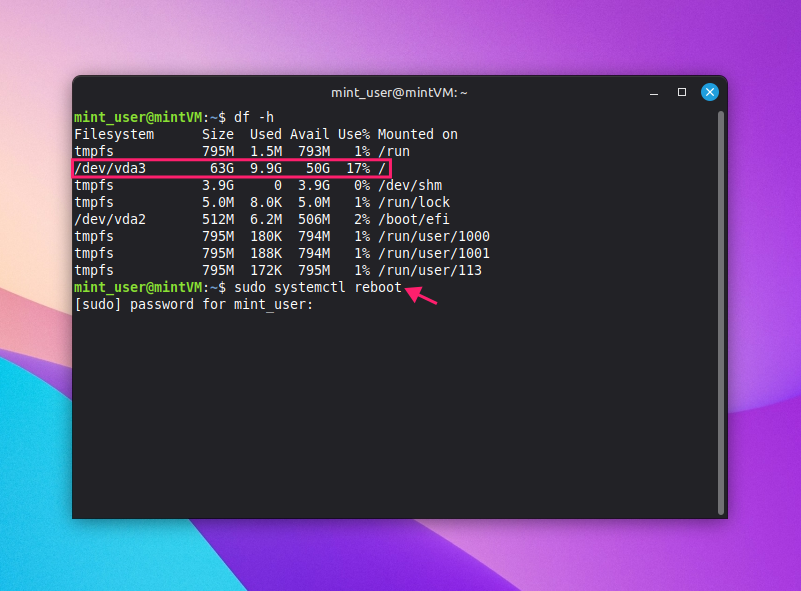
Check remaining disk space before rebooting, so you don’t just land back on the same issue:
df -h
- Reboot from the terminal with
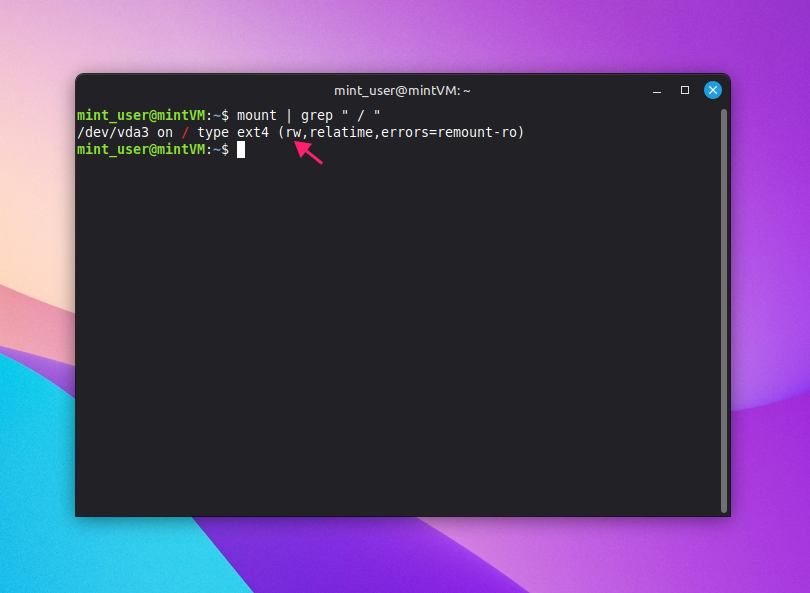
sudo systemctl reboot(orsudo rebooton non-systemd distros) After the system comes back up, confirm the root filesystem mounted read-write:
mount | grep " / "
If the reboot doesn’t resolve it, move to the checks below because the cause is persistent, not transient.
» Here’s how to paste into Linux terminal
Step 2: Check and clear a full root partition
Use this when df -h above showed high usage, or whenever disk space hasn’t been ruled out yet. PAM can’t write the updated password hash if the partition holding/etc/shadowhas no room left.
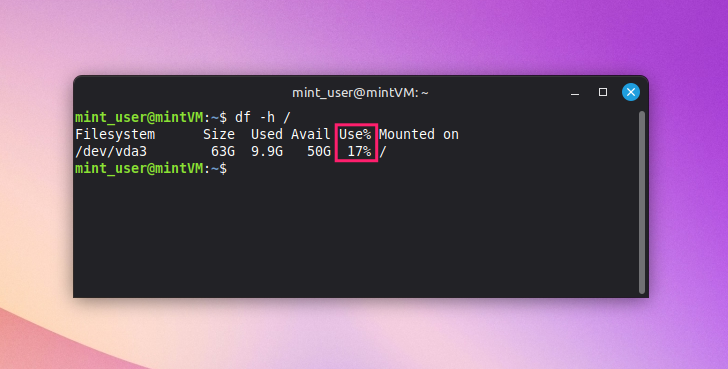
Check usage on the root partition specifically:
df -h /; if Use% is at or near 100%, you need to free up space
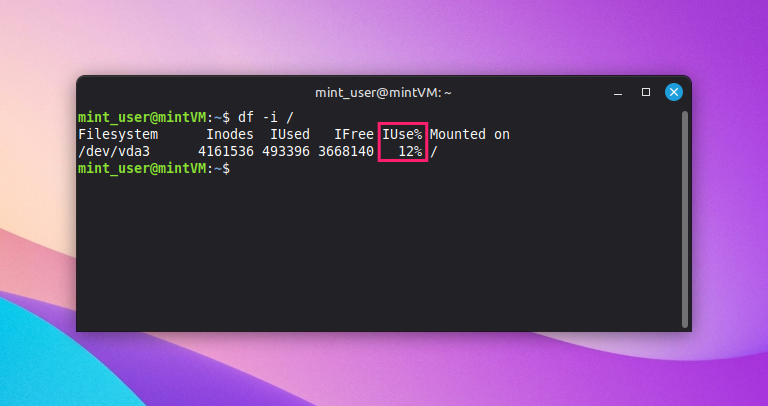
Check inode usage too, since a full inode table blocks new files the same way full disk space does, even with capacity available:
df -i /
Identify what’s consuming space:
du -sh /* 2>/dev/null | sort -h
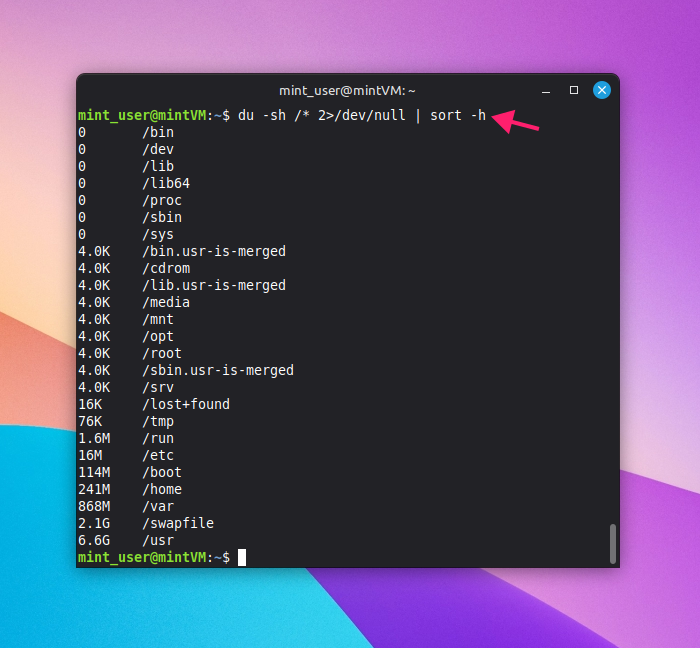
Here are some commands you can use to free space:
sudo apt clean(orsudo dnf clean allon RHEL/Fedora) to clear package cachessudo apt autoremove(orsudo dnf autoremove) to remove unused packagessudo journalctl --vacuum-time=7dorsudo journalctl --vacuum-size=100Mto trim old logs
Note: Remember that updating /etc/shadow isn’t guaranteed to be an in-place write. A temporary file may need to be created during the update, so near-100% usage can block the write even if the file itself is small.
» Using Mint? Here’s how to update Linux Mint
Step 3: Detect and remount a read-only filesystem
Use this when the root filesystem got remounted ro after a filesystem error, or you’re working in a live/recovery environment. PAM can’t write anywhere if the filesystem itself refuses writes.
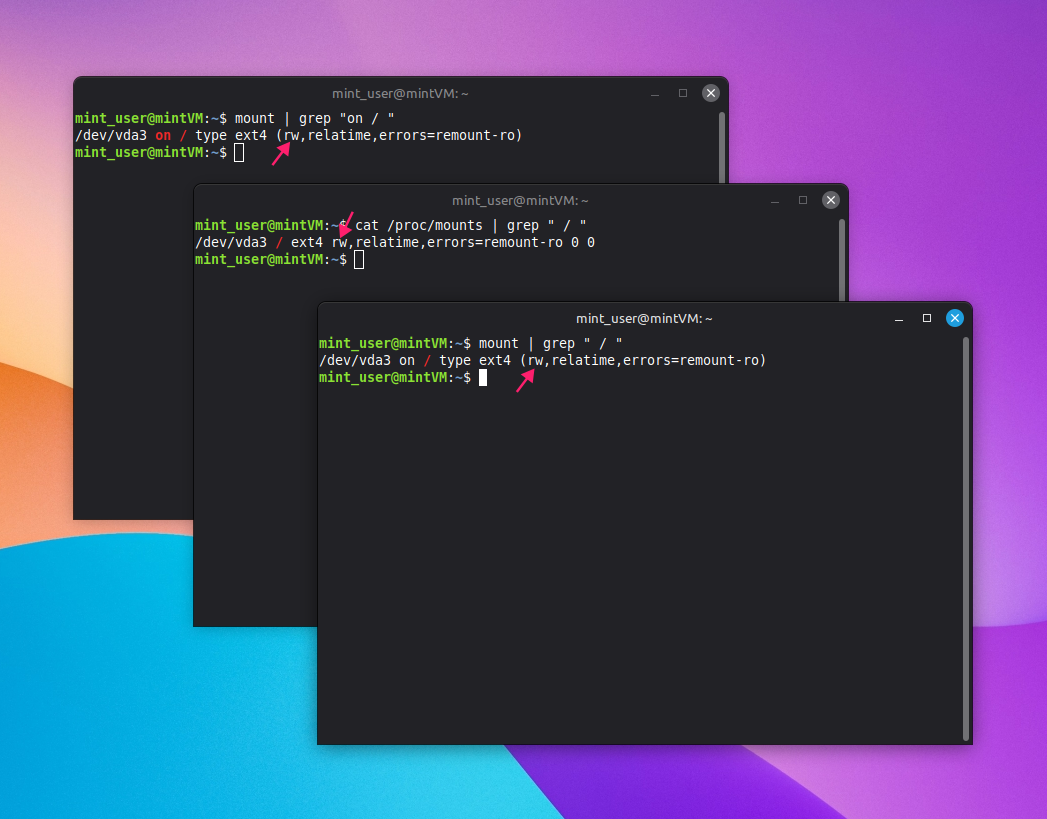
- Check the current mount state:
mount | grep " / ",mount | grep "on / ", orcat /proc/mounts | grep " / " Look for the
roflag; if it showsrwinstead, the filesystem isn’t the cause
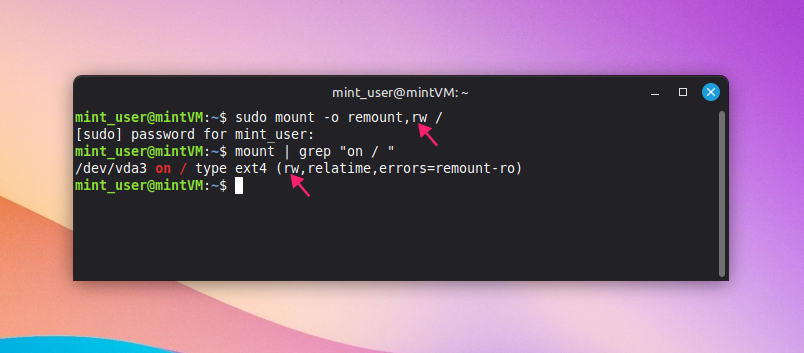
Remount as read-write, run
sudo mount -o remount,rw /
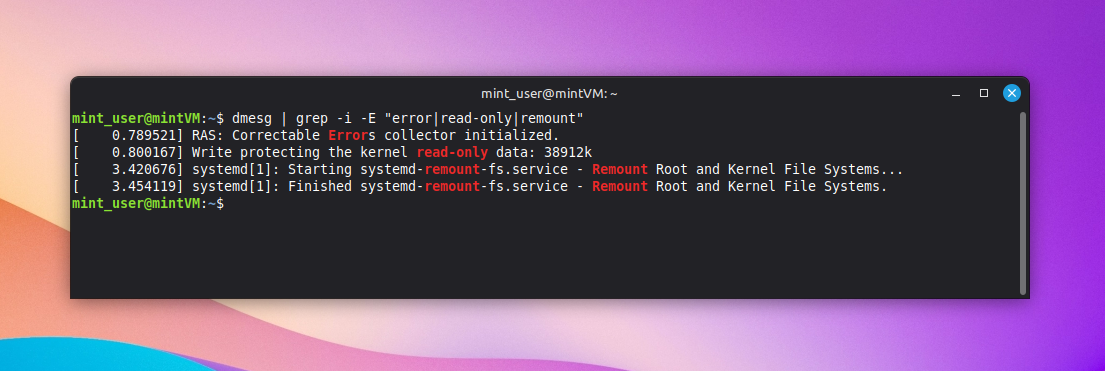
If the remount fails, check kernel logs for the underlying cause:
dmesg | grep -i -E "error|read-only|remount"; filesystem errors are the usual culprit behind an unexpectedroremount
» Did you know you can rename a directory in Linux?
Step 4: Identify and safely remove stale lock files
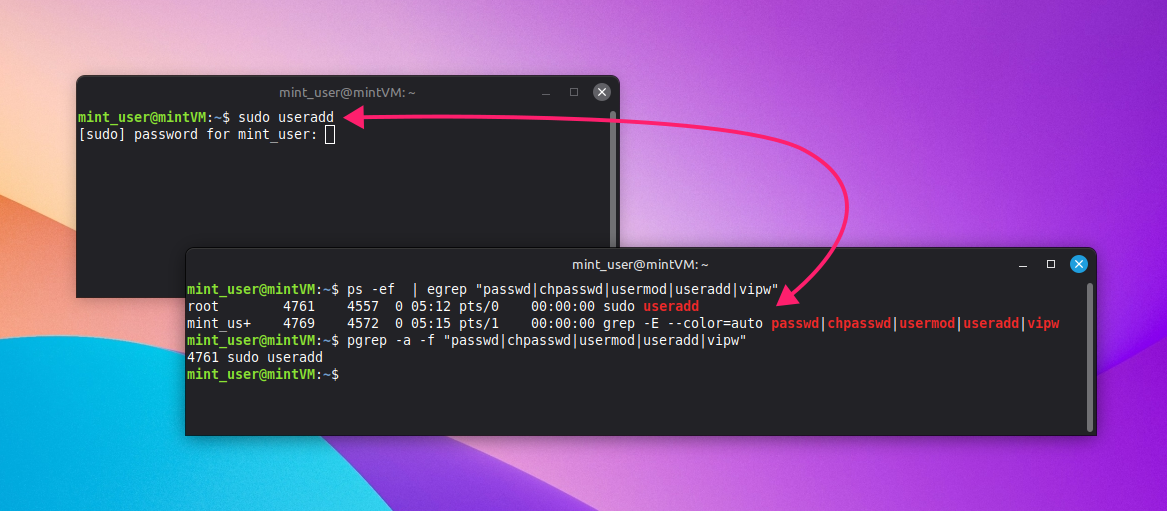
Use this when you see the more specific error “failed to take /etc/passwd lock: invalid argument.” A crashed or killed password-management process can leave a lock file behind that blocks every subsequent attempt.
Check for a legitimate password-management process still running:
ps -ef | egrep "passwd|chpasswd|usermod|useradd|userdel|vipw"orpgrep -a -f "passwd|chpasswd|usermod|useradd|userdel|vipw"
- If a real process is running, don’t remove the lock; let it finish
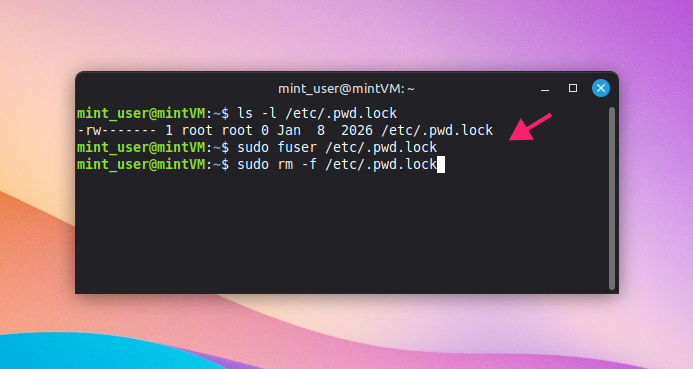
- Check for the standard shadow-suite lock file with
ls -l /etc/.pwd.lock - Confirm no process actually holds it with
sudo fuser /etc/.pwd.lock Remove it with
sudo rm -f /etc/.pwd.lock
Step 5: Restore file permissions and immutable attributes
Use this when the lock file wasn’t the issue, or after clearing it if the error persists. Incorrect ownership, permissions, or an immutable attribute on /etc/passwd or /etc/shadow will block PAM’s write regardless of disk space or lock state. This step also covers the “insufficient privileges” cause from earlier, since it’s the fastest of the five to rule out.
- Confirm you’re running the password change with root privileges:
sudo -v. If this prompts for a password and succeeds, privilege isn’t the issue. If you get “user is not in the sudoers file” or similar, that’s your root cause, and none of the filesystem checks below will fix it. Check current permissions with
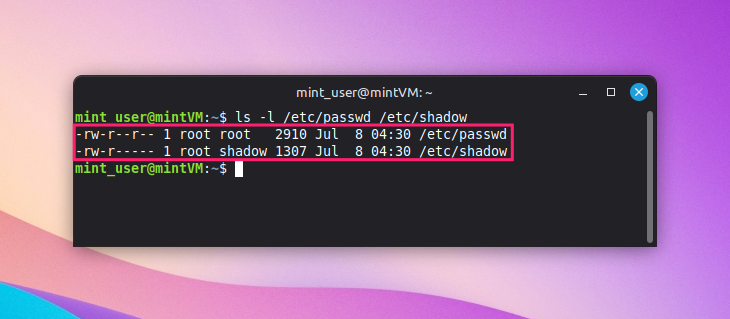
ls -l /etc/passwd /etc/shadow
- Standard ownership is
root:rooton/etc/passwdandroot:shadowon/etc/shadow(some distros useroot:rootfor both) - Restore standard ownership if it’s wrong:
sudo chown root:root /etc/passwdandsudo chown root:shadow /etc/shadow Restore standard permissions:
sudo chmod 644 /etc/passwdandsudo chmod 640 /etc/shadow
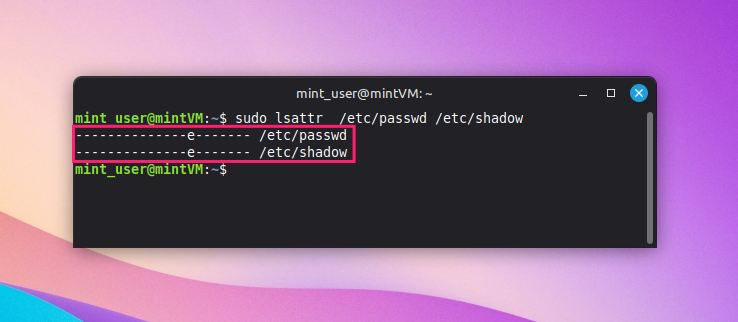
- Check for immutable attributes:
sudo lsattr /etc/passwd /etc/shadow - If either file shows
iin the attribute string, that’s unusual on a stock system and worth a second look at how it got set before removing it. If you’re confident it’s not intentional (some hardened configs set this deliberately), clear it withsudo chattr -i /etc/passwdandsudo chattr -i /etc/shadow
Step 6: Audit and restore PAM configuration
Use this last, once filesystem and permission causes are ruled out. A corrupted or misedited PAM stack breaks the chain passwd relies on before it ever reaches the point of writing a new hash.
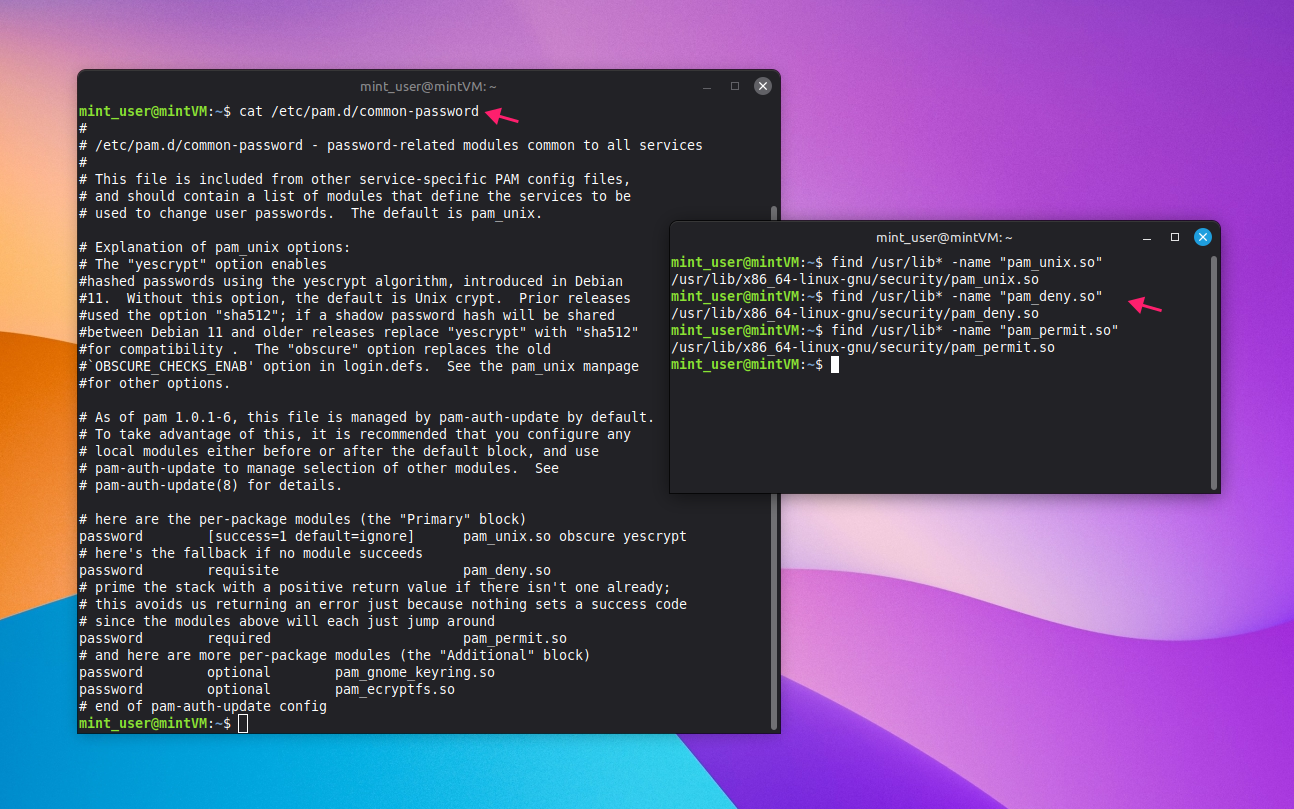
- Inspect the passwd PAM configuration:
cat /etc/pam.d/passwdandcat /etc/pam.d/common-passwordon Debian-based distros, or/etc/pam.d/system-authand/etc/pam.d/password-authon Fedora/RHEL - Look for incorrect syntax or invalid module paths
Verify individual PAM modules actually exist on disk:
find /usr/lib* -name "pam_module_name.so"(for example,pam_unix.so)
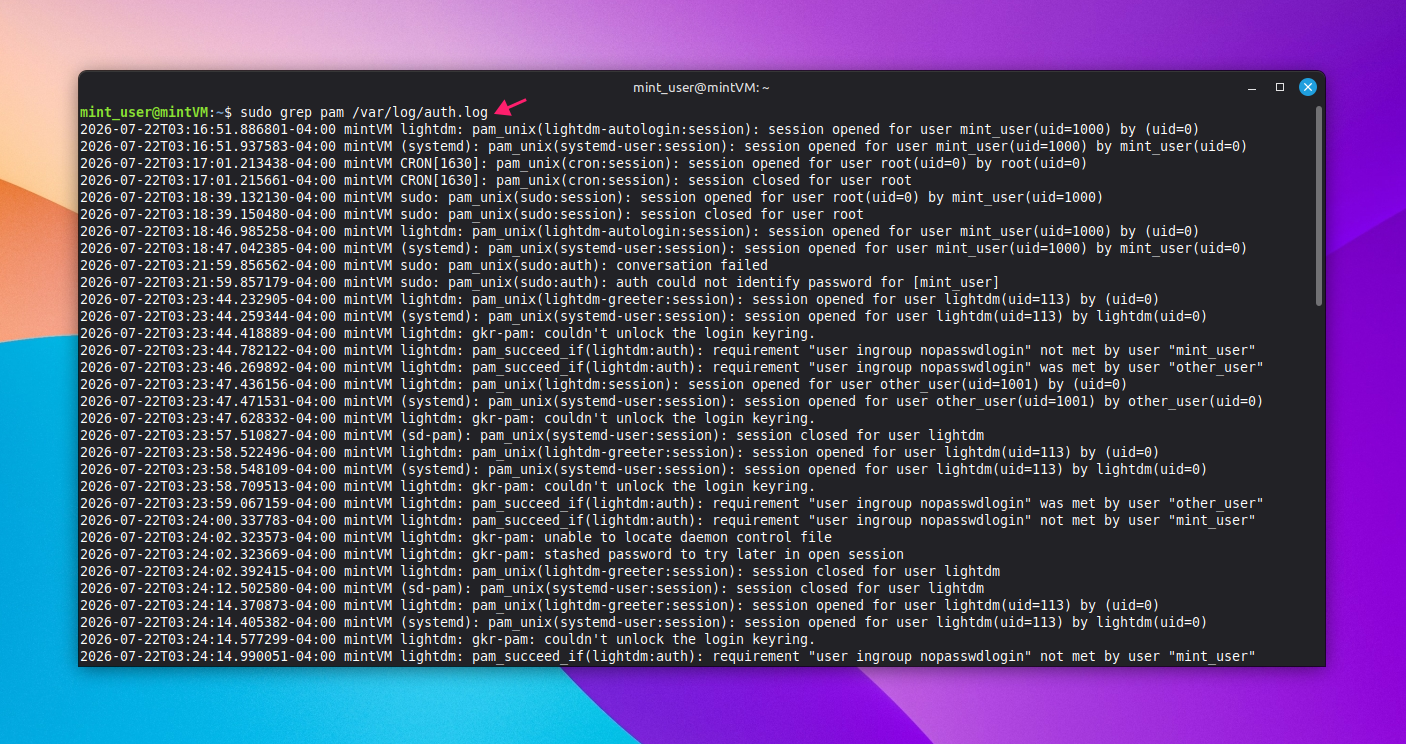
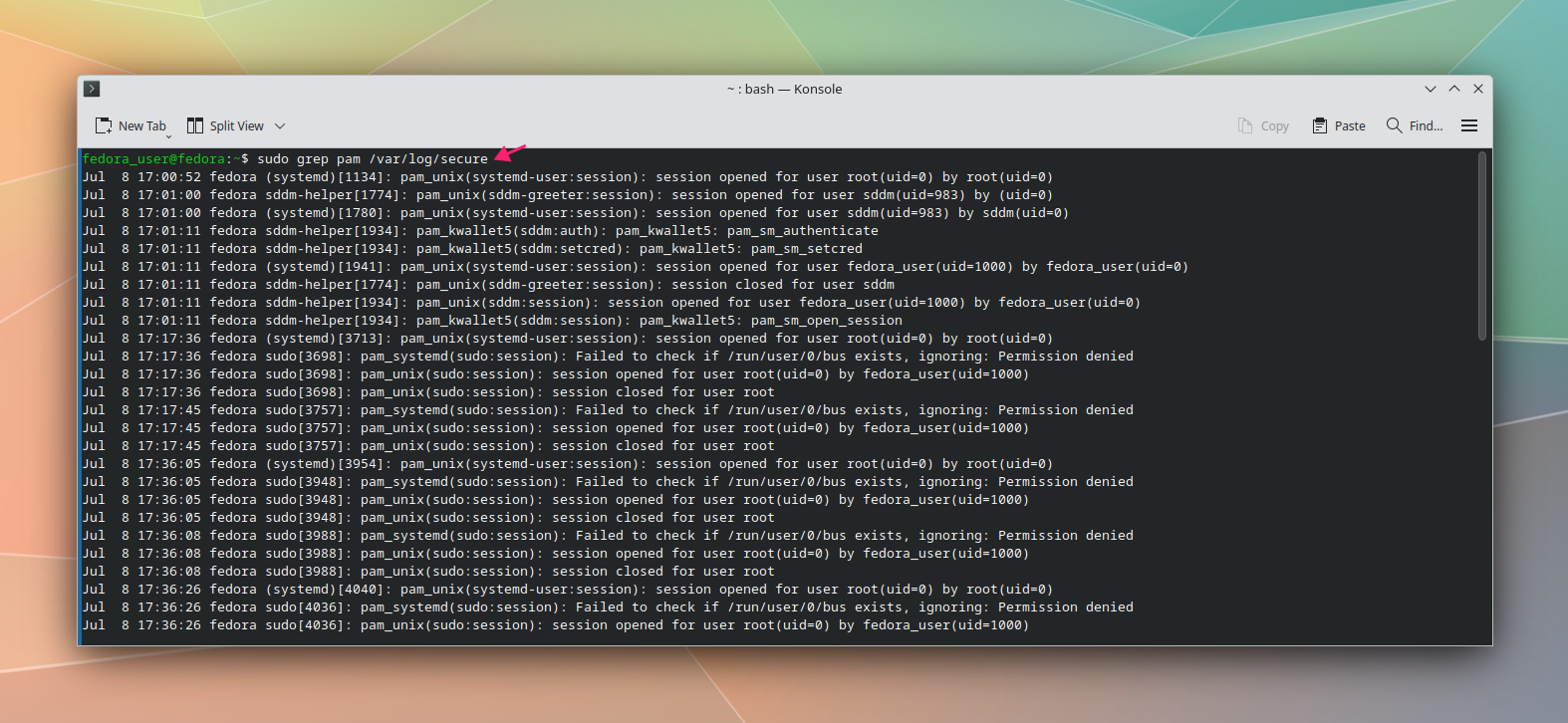
Check authentication logs for module loading errors or failures:
sudo grep pam /var/log/auth.logon Debian-based distros, orsudo grep pam /var/log/secureon Fedora/RHEL

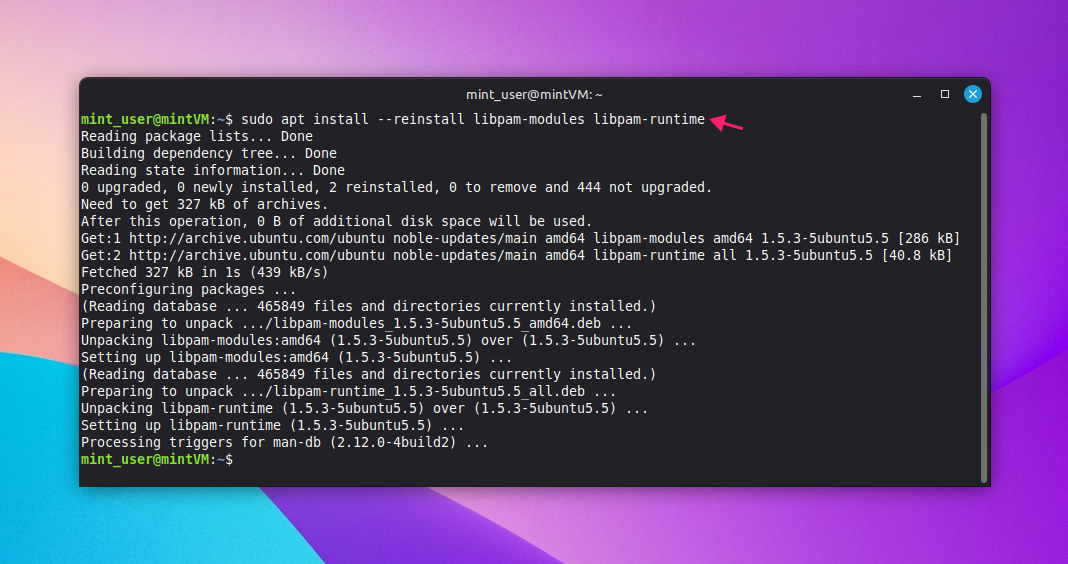
Reinstall the PAM packages if the config or modules look corrupted:
sudo apt install --reinstall libpam-modules libpam-runtimeon Debian-based distros
On RHEL/Fedora, regenerate the configuration with
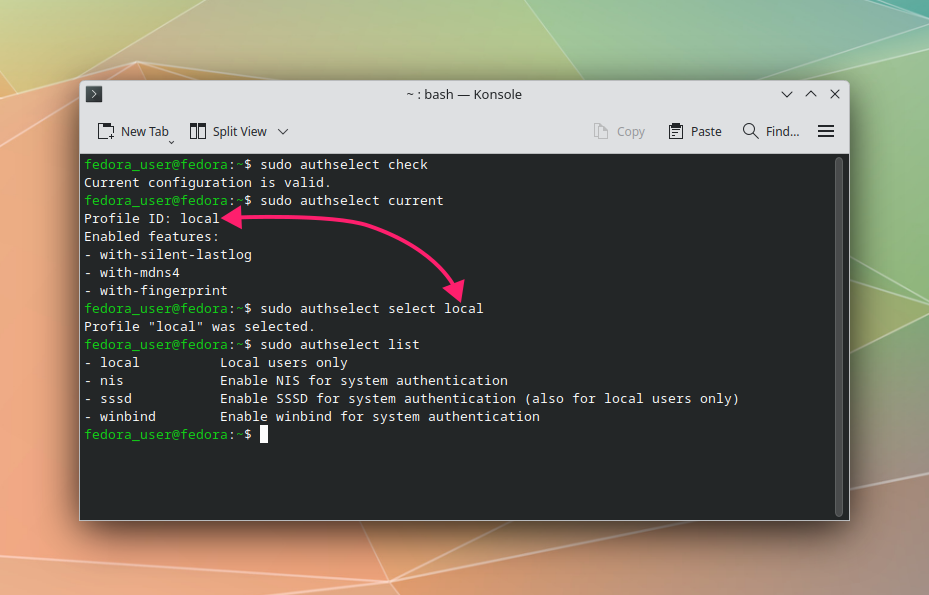
authselectinstead of reinstalling:sudo authselect check,sudo authselect current, andsudo authselect <profile>to reapply a known-good profile
Step 7: Automate routine fixes across a fleet
Use this once you’ve confirmed the fix on one host and want to prevent the same disk, log, or permission drift from causing the error elsewhere. The routine, low-risk parts of this sequence (disk cleanup, log rotation, permission checks) are standard fleet maintenance and can be mass-deployed on a schedule using tools like Ansible, Puppet, Chef, or Atera’s scripting and automation profiles through the Linux Agent for recurring, rule-triggered maintenance.
Authentication-specific changes are a different story. PAM configuration and ownership on /etc/shadow or /etc/passwd get handled more cautiously at scale, since a bad push can lock out an entire fleet at once rather than one host. In practice, a one-off token manipulation error is usually investigated and fixed on the affected machine directly, because the root cause is almost always host-specific rather than something that swept across your environment.
But if you need a more specific fix applied once and can’t get to the machine, Atera’s AI Copilot can help you write a complex script from natural language queries that you can deploy remotely through the RMM platform.
Step 8: Verify the fix
Use this immediately after applying any of the fixes above before considering the issue closed. Confirming the password update pipeline actually works end-to-end catches a fix that looks successful but isn’t.
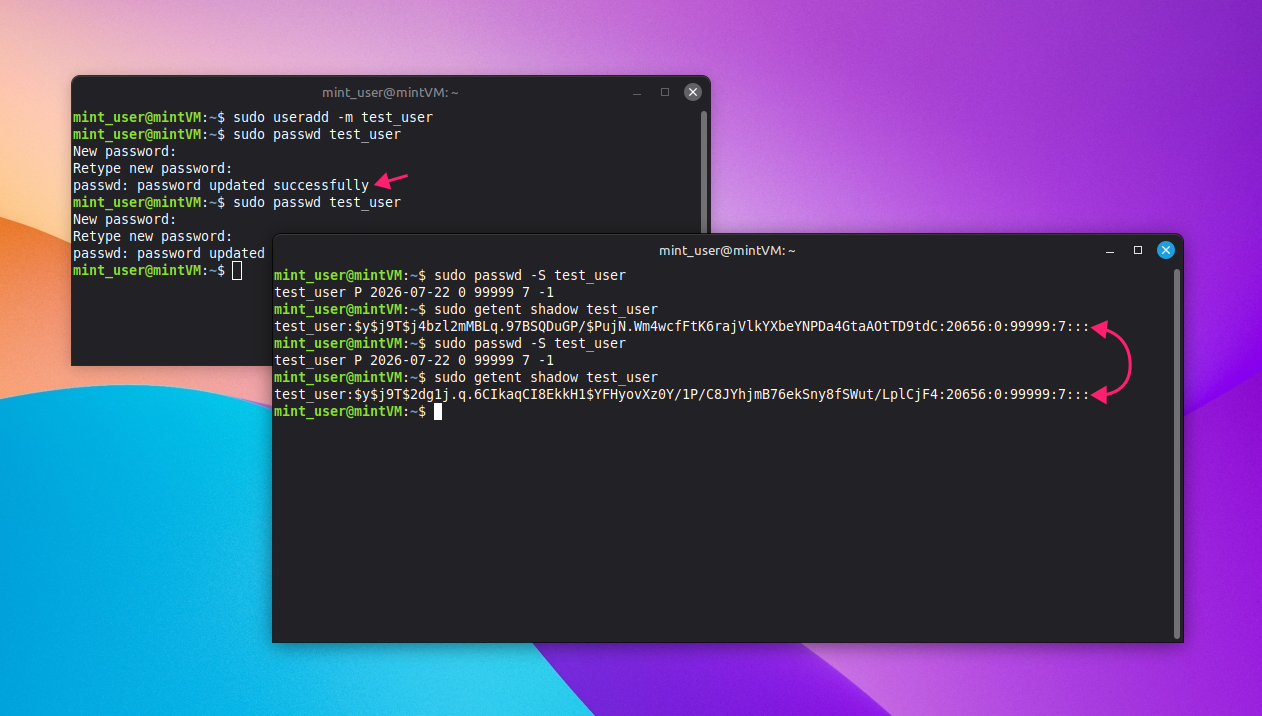
- Create a disposable test user to verify against, rather than testing on a real account:
sudo useradd -m <user> - Update its password and confirm the operation reports success:
sudo passwd <user> Confirm the password status and hash actually updated with
sudo passwd -S <user>andsudo getent shadow <user>
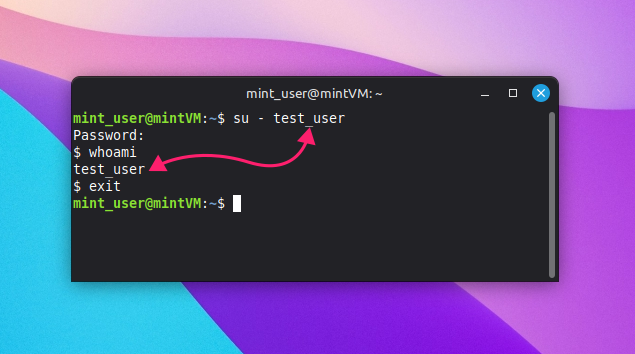
Test the new password in a separate session rather than the one you’re already authenticated in:
su - <user>, then confirm the session withwhoami
Review the authentication logs for the change to confirm there are no secondary errors:
sudo grep pam /var/log/auth.logon Debian-based distros, orsudo grep pam /var/log/secureon Fedora/RHEL
Authentication fixes don’t scale the way other fixes do
Most of what causes this error (a filling disk, aging logs, drifting permissions) is routine fleet hygiene, and it’s exactly the kind of work that should be running on a schedule across every endpoint rather than getting caught after the fact on one machine.
Atera’s RMM lets you push disk cleanup, log rotation, and permission checks as scripts across your whole fleet, so the conditions that cause this error rarely get the chance to. Automation profiles let IT teams and MSPs schedule the cleanup scripts we listed above on a regular basis.
» Sound good? Try Atera for free
Frequently Asked Questions
Related Articles

How to reduce alert fatigue across your IT team
Your technicians aren't ignoring alerts because they're careless. They're ignoring them because most alerts have taught them to. Once the stream stops being trustworthy, real failures slip past with the noise. Fixing it means deciding what deserves an interruption, tuning out transient spikes, collapsing alert storms, and automating the fixes you've run a hundred times.
Read now
How to close the IT skills gap on your team
Course completions don't close skills gaps. Technicians finish the training, then hand the first unfamiliar failure straight back to a senior engineer. Real capability gets built on live tickets, incidents, and maintenance windows, with guidance that fades as competence grows.
Read now
How to calculate cost per ticket (and why most teams get it wrong)
Most cost-per-ticket figures are wrong before anyone reads them. Missing overhead, tickets that were opened but never closed, spam and duplicates padding the count, and one month's costs divided by another month's tickets all make support look cheaper than it is. Fix both sides of the division and the number finally shows where technician time and money actually go.
Read now
How to prepare for a software license audit
A vendor audit notice doesn't wait for you to get organized. It demands proof, right now, that every install matches every entitlement you've paid for, and most IT teams find out the hard way how much they don't actually know about their own environment. Getting audit-ready before the letter arrives is the difference between negotiating from strength and paying for months of scrambling.
Read nowEndless IT possibilities
Boost your productivity with Atera’s intuitive, centralized all-in-one platform









