
A system that won’t boot has a way of feeling personal. Error code 0xc00000f means Windows can’t locate or read its own boot files. The machine won’t start, and the recovery screen is giving you nothing useful. Before reaching for installation media or considering a reinstall that you’ll have to perform on dozens on machines, there’s a logical sequence of tools to work through, most of which are fixable well before you get to the invasive options.
The good news is that this error is almost always fixable. The fix just depends on knowing which tool to reach for first, and which ones to leave alone until you’ve ruled out the simpler options.
What error 0xc00000f actually means
When Windows 11 fails to start and throws error 0xc00000f, the message itself tells you what’s wrong: Windows can’t access the boot files or the system drive. This almost always traces back to a corrupted or missing Boot Configuration Data (BCD) store rather than a failed drive.
In the boot process, UEFI firmware hands off to bootmgfw.efi (Windows Boot Manager), which reads the BCD store to find winload.efi, the file responsible for loading the Windows kernel (ntoskrnl.exe). If the BCD’s reference to winload.efi is missing, corrupted, or pointing to the wrong path, the boot manager has nowhere to go and the result is the 0xc00000f screen.
A few common triggers corrupt the BCD in the first place, including:
- Sudden power-offs or forced restarts during login or boot
- Disk write errors, whether from user action or drive degradation
- Malware, though this is a less common cause
Before chasing software fixes, it’s worth ruling out loose connections or faulty peripherals. Disconnecting external devices and reseating internal drive cables takes a few minutes and eliminates a hardware-level explanation before you move into boot repair tools.
Once hardware is ruled out, the fix becomes a matter of working through the right recovery tools in the right order, which is exactly what the next section covers.
Step-by-step fixes, from safest to most invasive
Once you’ve ruled out hardware, work through these fixes in order. Each one is less invasive than the next, so don’t jump to a manual BCD rebuild before trying Startup Repair.
1. Run Startup Repair first
Start here. Startup Repair handles BCD and system file issues automatically and requires the least intervention. If it works, you’re done in minutes. Hardware failures are outside its scope, but for 0xc00000f, that’s already been ruled out.
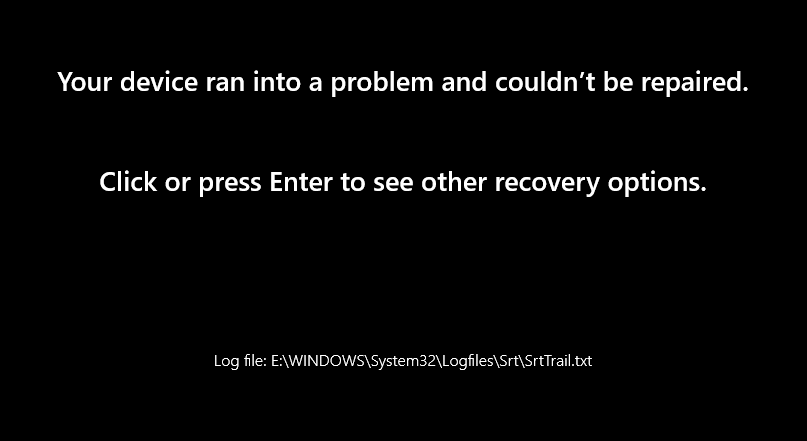
In some cases, you’ll hit the Windows Recovery Environment because of the device being unable to boot:
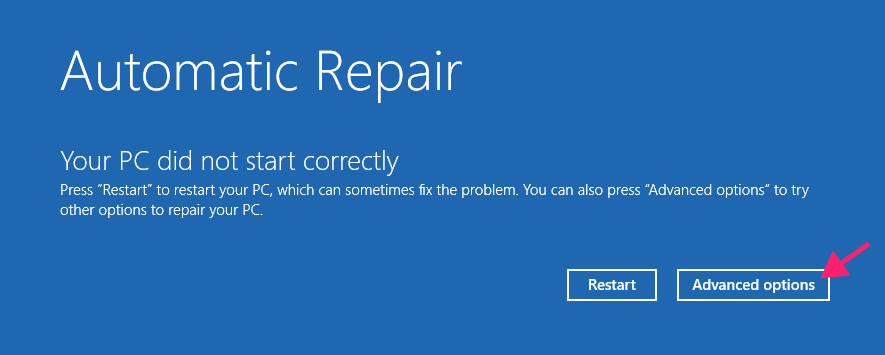
Press Enter to see recovery options and Automatic Repair

Press Advanced options

In the majority of 0xc00000f cases, Automatic Repair won’t launch on its own after two or three failed boot attempts, so you’ll need to boot from Windows installation media instead.
- Then, select Repair my PC
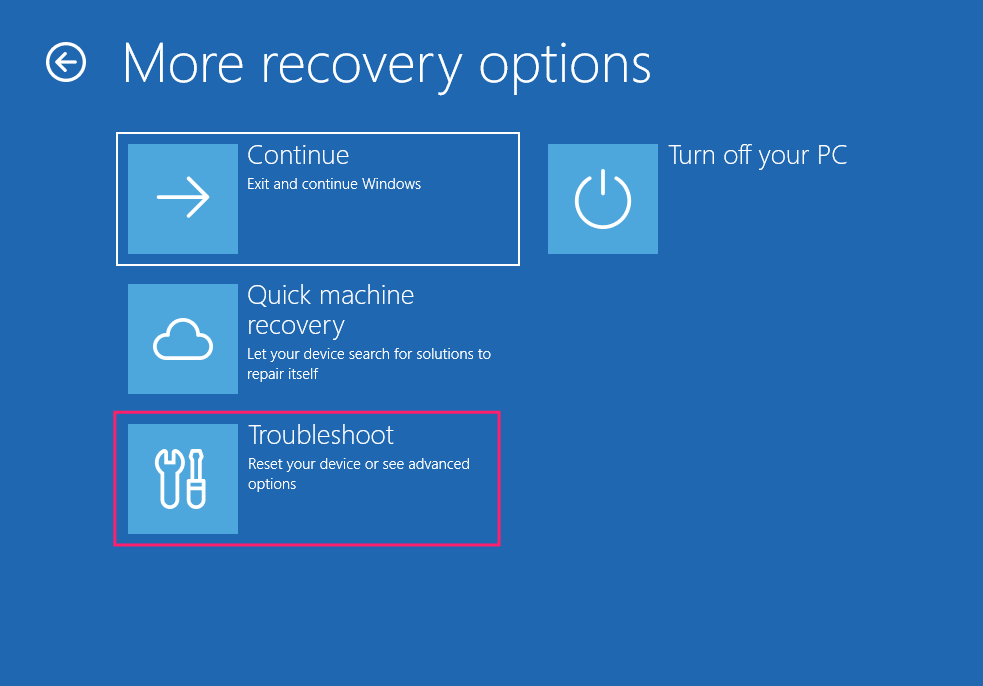
Go to Troubleshoot

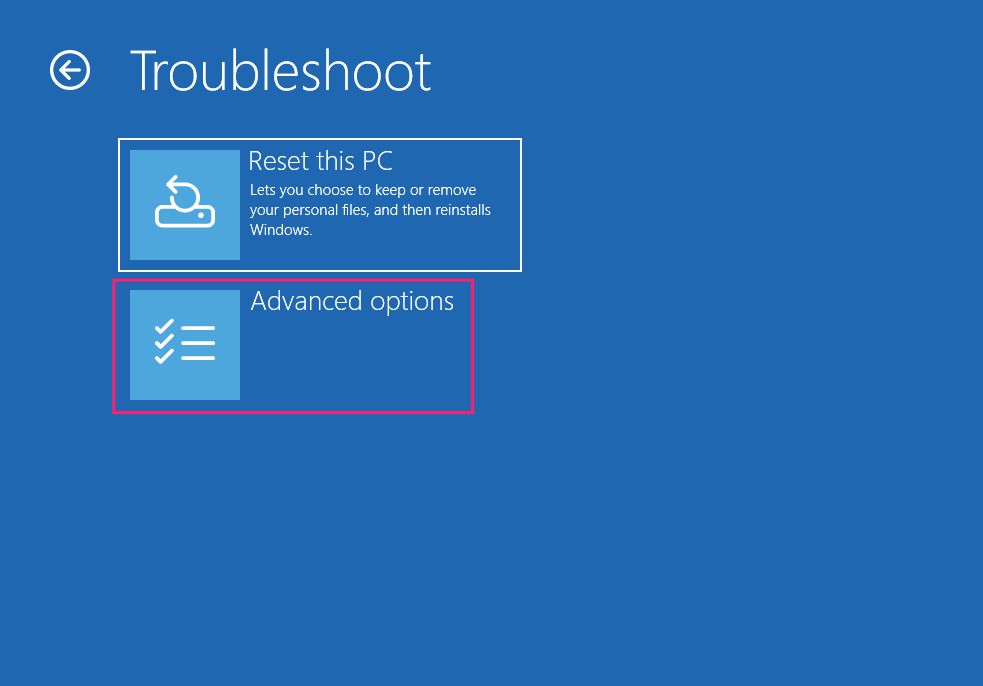
Click Advanced options
Select Startup Repair or Quick machine recovery, depending on your build
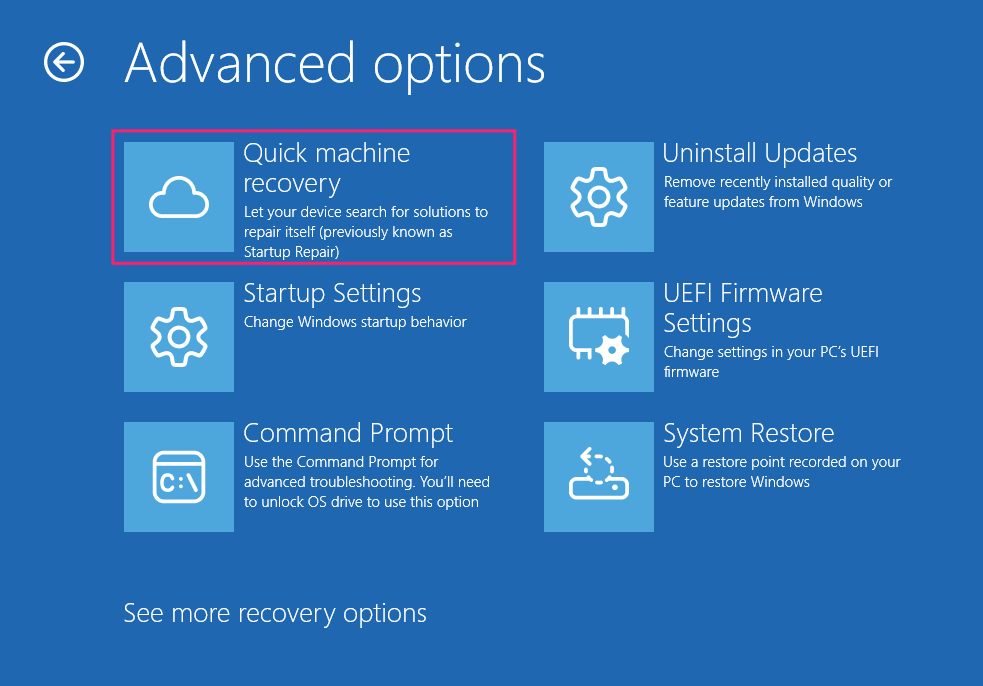
If your drive is BitLocker-encrypted, you’ll be prompted for the recovery key before the tool can proceed.
» See our guides to using Startup Repair in Win11 and enabling or disabling automatic repair
2. Try System Restore if a recent change is the likely cause
System Restore is worth trying when you suspect 0xc00000f followed a recent software change, like a driver update or new application install. It’s accessed the same way as Startup Repair, through WinRE.
From Advanced options, select System Restore
Choose the target operating system and enter the administrator credentials (or BitLocker recovery key, if encrypted)
Select a restore point dated before the error appeared. Use Scan for affected programs to preview what will change

Click Next, then Finish, and confirm to start the restore

Click Restart

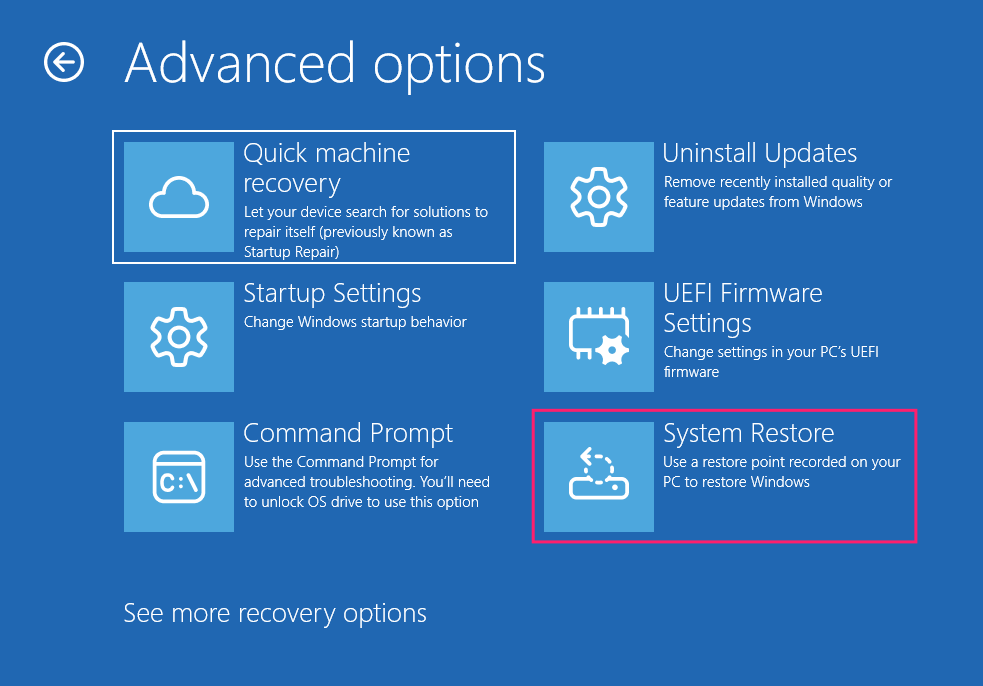
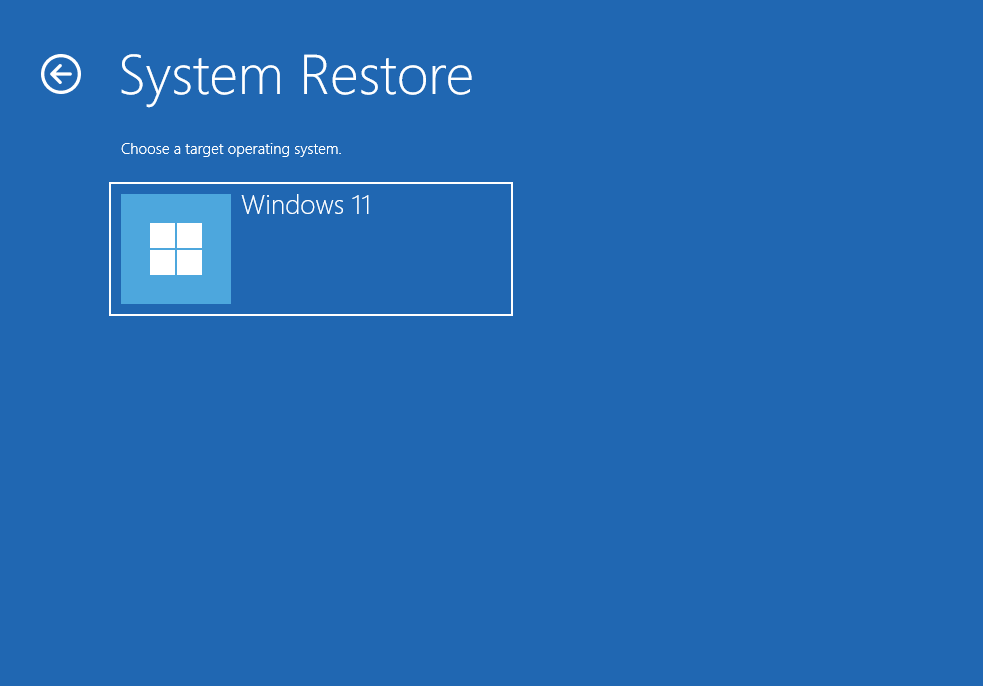
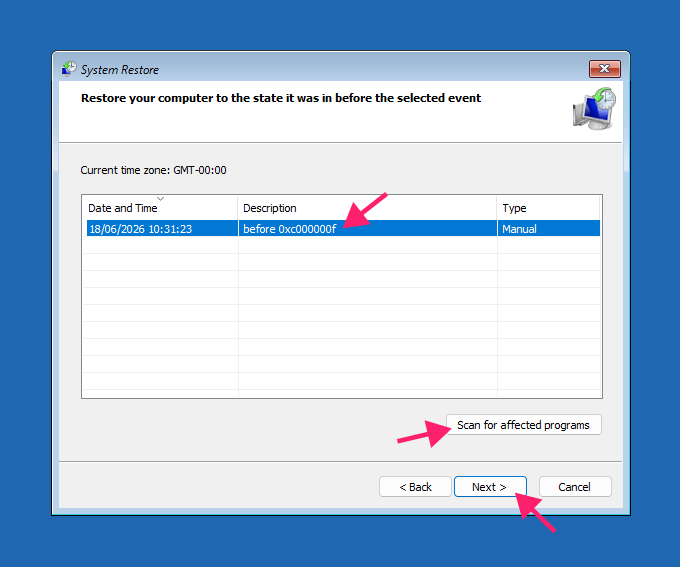
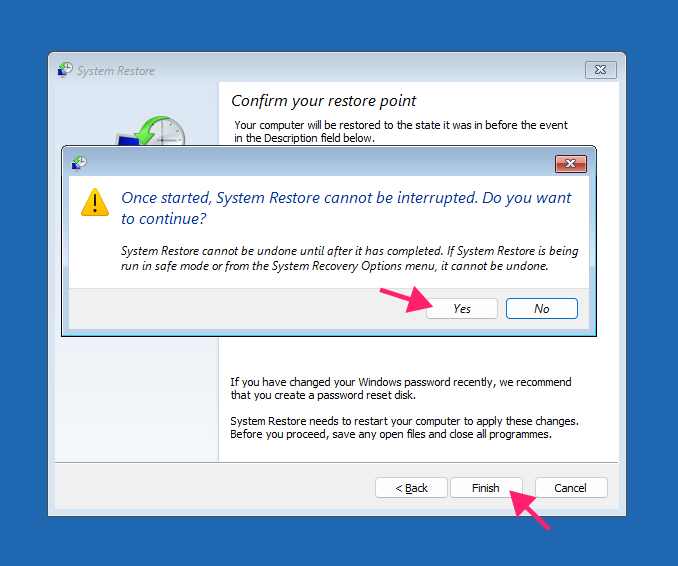
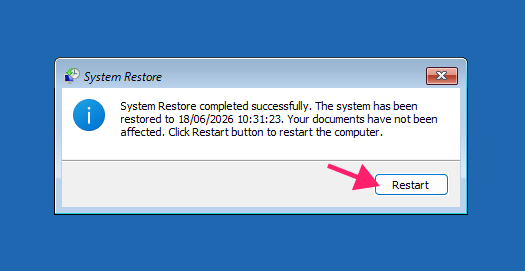
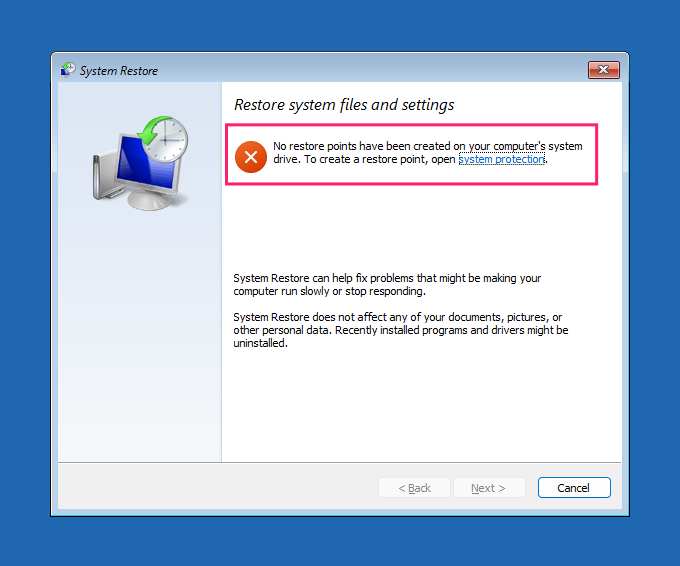
Keep in mind that System Restore is disabled by default in Windows 11, so if no restore points exist, this option won’t be available.
3. Consider Secure Boot only in niche cases
Secure Boot operates before Windows Boot Manager loads, so a Secure Boot rejection typically throws a different error entirely. In rare cases, a Windows update or firmware flash can modify boot drivers without updating the matching certificate keys, which is when toggling Secure Boot becomes relevant.
- Power on and press your manufacturer’s firmware key (commonly Del, F1, F2, or F10)
- Navigate to the Security section and locate the Secure Boot toggle
- Try Restore Factory Keys before disabling Secure Boot outright
Save changes and reboot with F10

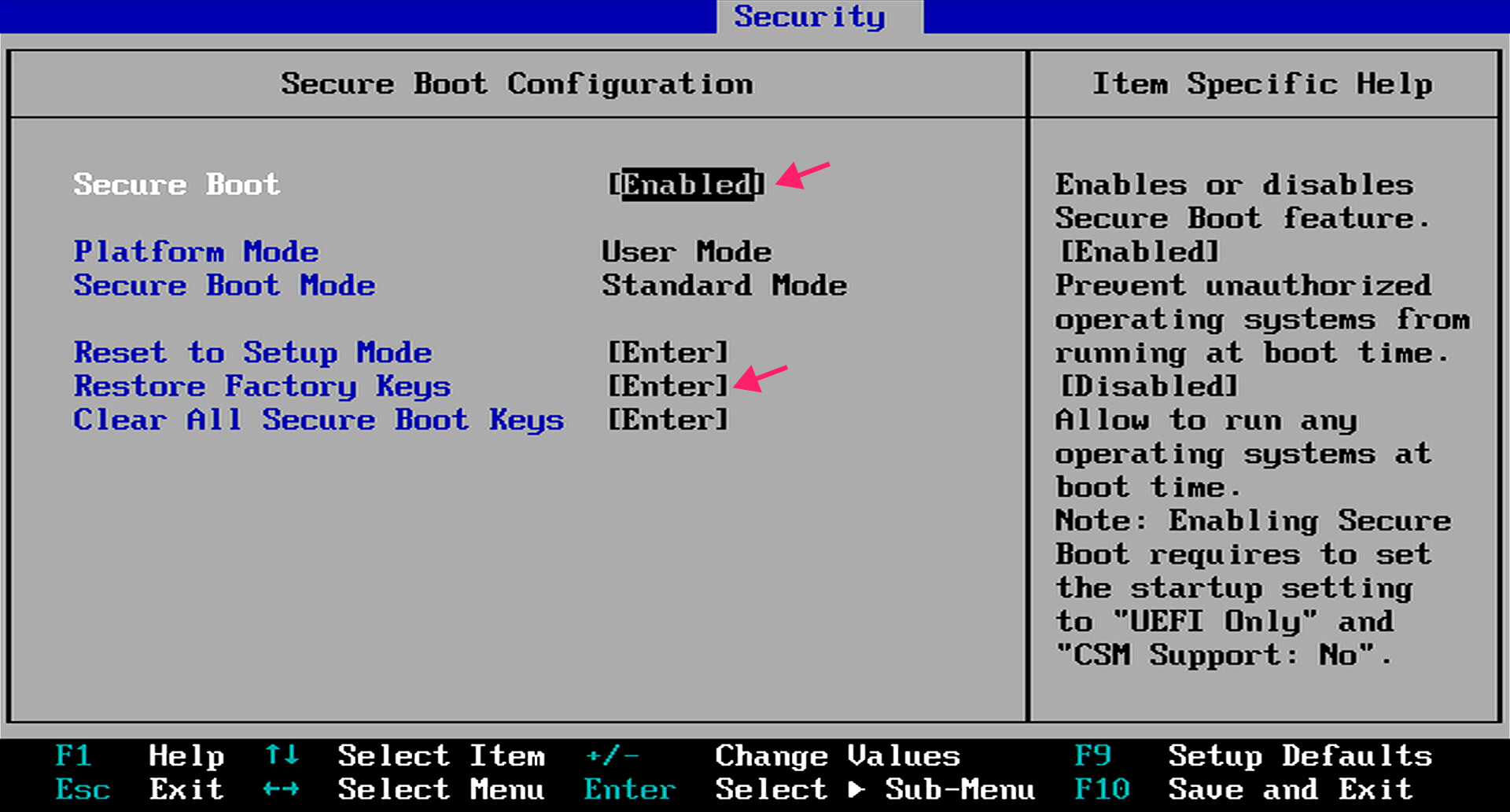
Re-enable Secure Boot once your boot issue is resolved, since it’s a Windows 11 requirement. Disabling it may also trigger a BitLocker recovery prompt, so have your recovery key ready.
» Learn more: How to confirm if Secure Boot is enabled or disabled
4. Run CHKDSK to rule out disk errors
CHKDSK doesn’t fix BCD corruption directly, but it addresses the underlying disk issues that can cause those files to corrupt in the first place. Run it when you suspect the disk itself is the problem:
Boot into WinRE and select Command Prompt from Advanced options
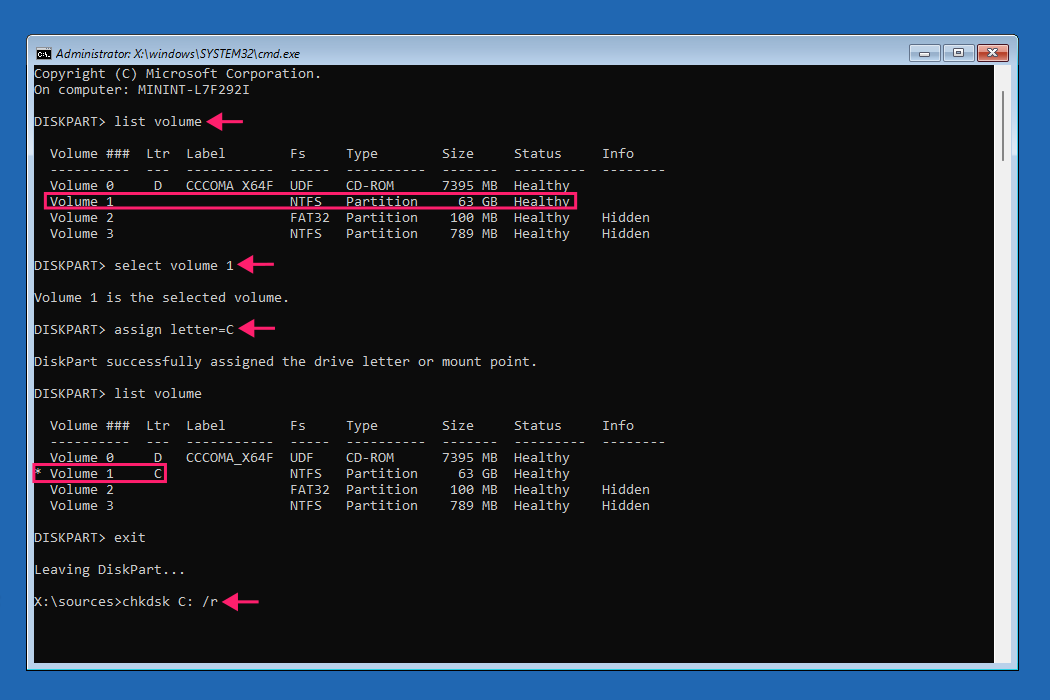
- Run
diskpart, thenlist volumeto identify your system drive (WinRE may assign drive letters differently than usual) - If needed, run
select volume [number]followed byassign letter=C - Type
exitto leave Diskpart Run
chkdsk C: /rand let it complete. The/rflag fixes disk errors and recovers readable data from bad sectors
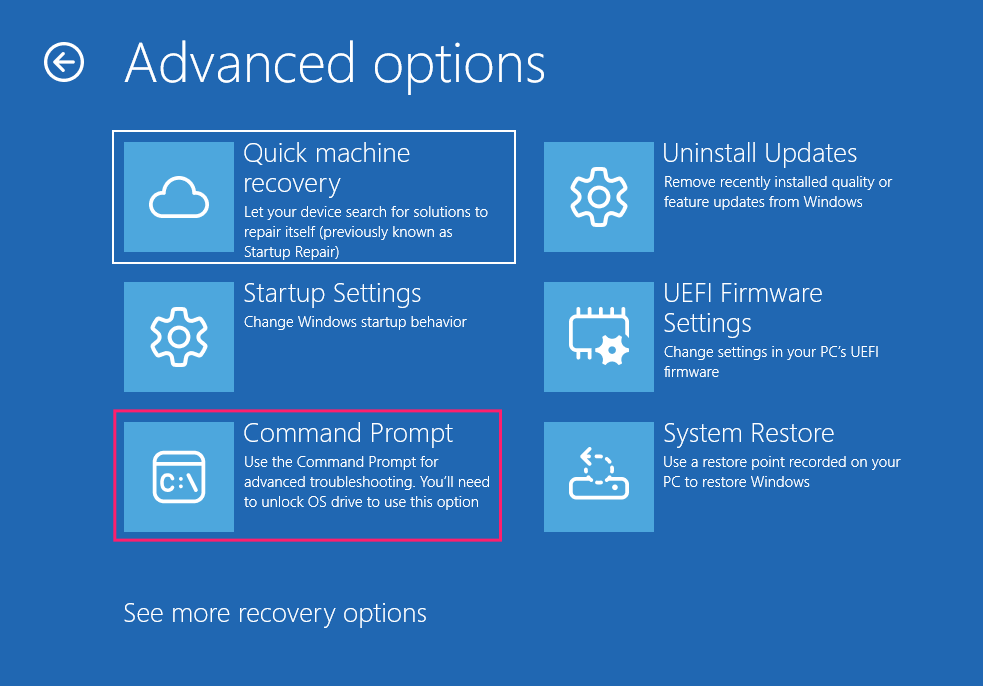
Manually rebuilding the BCD becomes necessary when Startup Repair hasn’t fixed the issue, no valid restore points exist (or System Restore didn’t resolve it), and CHKDSK confirms the disk itself isn’t at fault. At that point, the BCD itself is the remaining variable, and rebuilding it directly through the recovery command prompt is the final step before considering a reinstall.
With each tool ruling out a layer of the problem, from hardware to recent changes to disk health to the BCD itself, you’ll typically land on a fix well before reaching this last step.
» Need help with this? See step 4 of our guide to fixing reboot errors
5. Rebuild the BCD
When Startup Repair, System Restore, and CHKDSK have all come up short, the BCD itself is the last variable. This is the step every other 0xc00000f guide opens with — but it belongs here, after you’ve ruled out the simpler explanations and you’re knowingly editing boot files directly.
Boot into WinRE, open Command Prompt from Advanced options, and run these in order:
bootrec /fixmbr bootrec /fixboot bootrec /scanos bootrec /rebuildbcd
/scanos confirms Windows is detected; /rebuilddbcd recreates the boot entry — type Y when prompted to add the installation to the boot list.
One catch specific to Windows 11: because these are UEFI/GPT systems, bootrec/fixboot often returns “Access is denied” When it does, recreate the boot file with bcdboot instead. In diskpart, locate the EFI System Partition (the small ₁00 MB FAT32 volume), assign it a letter, exit, then run:bcdboot C:Windows /s S: /f UEFI
(swap S: for the letter you assigned, C: for the Windows volume). This rewrites the boot files on the EFI partition and resolves the cases plain bootrec can’t.
Because this modifies boot files, expect a BitLocker recovery prompt on encrypted drives — have the key ready. If a clean rebuild still doesn’t take, you’re into reset/reinstall territory; back up first.
Protecting your data and preventing a repeat
Command-line boot repairs carry a low risk of deleting personal data, since these tools are designed to work on the EFI partition rather than your files. That said, modifying boot files can change the system’s security fingerprint. If your drive is BitLocker-encrypted, this may trigger a recovery prompt requiring the 48-digit recovery key, and if that key isn’t available, the data behind it is effectively lost.
If you don’t have a recent backup, prioritize getting your files off the drive before attempting any reset or reinstall. A few options:
- Live Linux USB: Boot from a Linux USB drive to access and copy files without touching the Windows installation.
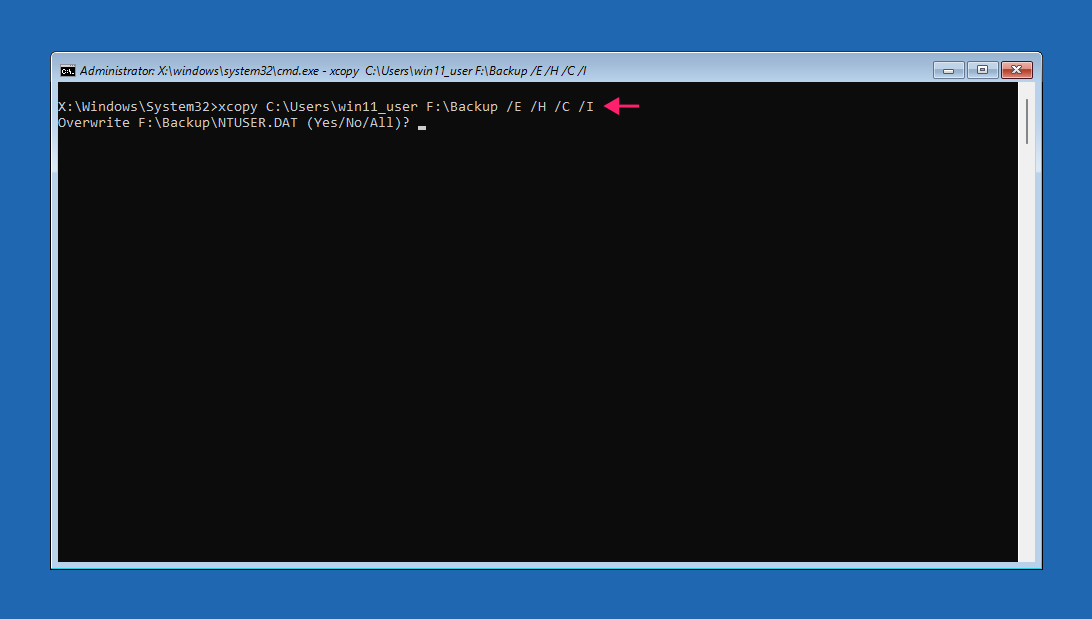
- xcopy or robocopy: Run a command like
xcopy C:Users F:BACKUP /E /H /C /Idirectly from Command Prompt to copy files in bulk, with a visible transfer log and overwrite prompts.
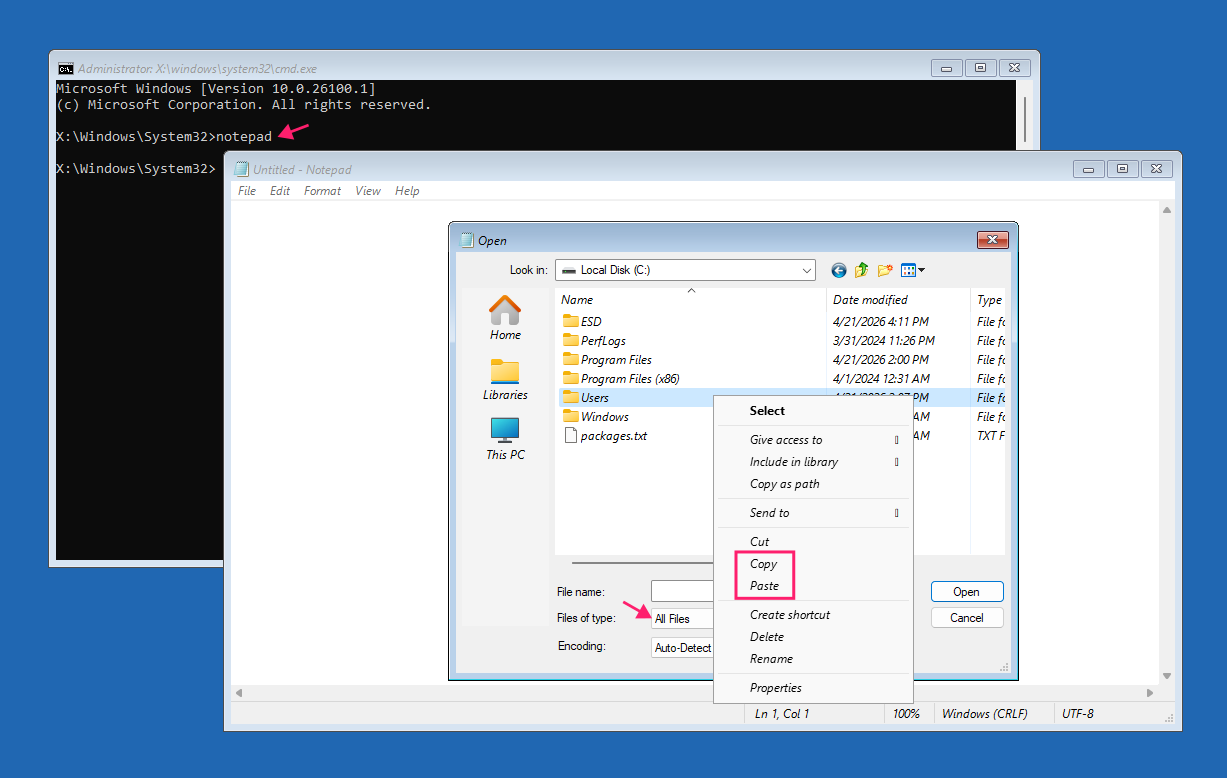
- Notepad’s File Explorer workaround: From WinRE, open Command Prompt, type
notepad, then use File > Open and switch Files of type to All Files. It’s a crude file browser with no progress indicator, so use it for small, targeted file grabs when you don’t have better options in the environment.
Preventing the next boot failure
A few maintenance habits go a long way toward avoiding 0xc00000f altogether:
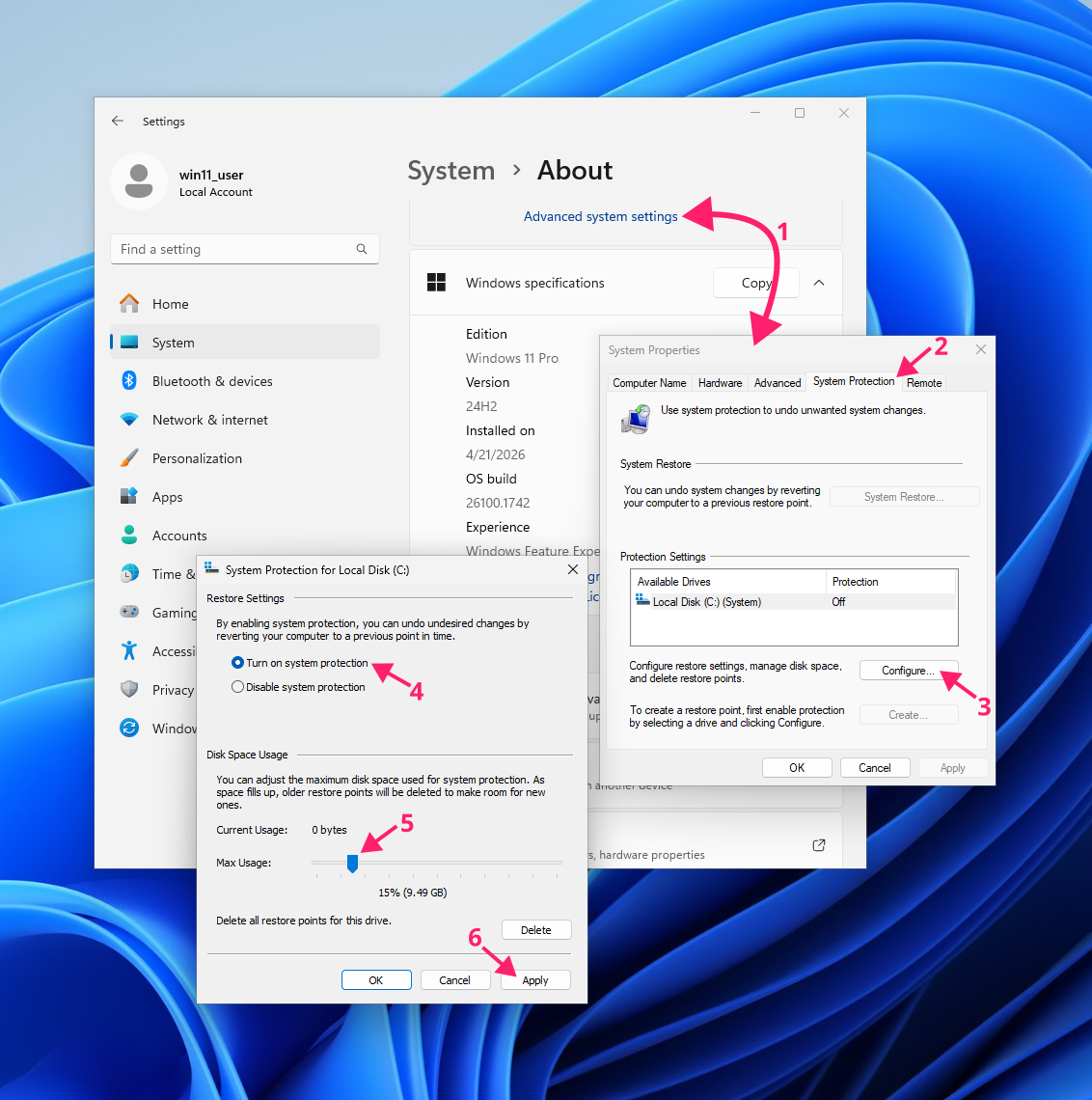
- Enable System Protection: It’s disabled by default in Windows 11. Go to Settings > System > About > Advanced system settings, open the System Protection tab, click Configure, and turn protection on. This lets Windows create restore points automatically before major updates.
- Run periodic disk scans:
chkdsk C: /scanperforms an online scan without requiring a restart, making it easy to fold into routine maintenance. - Monitor drive health: Run
wmic diskdrive get statusor use your RMM platform’s disk health alerts to catch drive degradation before it produces a boot failure. - Avoid hard resets during boot or updates: Sudden power loss during these windows is one of the most common BCD corruption triggers. A UPS helps protect desktops, and laptops should stay plugged in during updates.
- Maintain endpoint backups: A recoverable backup turns a boot failure into a 20-minute fix instead of a data recovery situation.
The cause that’s easy to miss: Fast Startup
When Fast Startup is enabled, Windows doesn’t fully shut down. Instead, it hibernates the system kernel into a file called hiberfil.sys. If that resume process gets interrupted or fails, the filesystem can be left in an inconsistent state, which can prevent Windows Boot Manager from reading the BCD or boot files correctly, sometimes producing 0xc00000f as a result.
Disabling Fast Startup forces a full cold boot every time, removing this failure path entirely.
» Learn more about this in our guide to enabling and disabling hibernate in Windows 11
Manage Windows 11 errors better with Atera
Fixing one instance of 0xc00000f is straightforward once you know the sequence. The harder problem is that the conditions that cause it (degraded disks, interrupted updates, BCD corruption from a bad shutdown, etc.) don’t announce themselves until the machine won’t start. Disk health monitoring, scheduled CHKDSK runs, and consistent patch management are the maintenance layer that keeps boot failures from becoming your morning.
Atera’s RMM platform gives IT teams and MSPs centralized visibility across endpoints, surfacing disk health alerts, automating patch management and deployment, and flagging the conditions that typically precede failures like this one. Robin handles the end-user queue while your team stays focused on the infrastructure work that actually needs a technician.
Related Articles

How to reduce alert fatigue across your IT team
Your technicians aren't ignoring alerts because they're careless. They're ignoring them because most alerts have taught them to. Once the stream stops being trustworthy, real failures slip past with the noise. Fixing it means deciding what deserves an interruption, tuning out transient spikes, collapsing alert storms, and automating the fixes you've run a hundred times.
Read now
How to close the IT skills gap on your team
Course completions don't close skills gaps. Technicians finish the training, then hand the first unfamiliar failure straight back to a senior engineer. Real capability gets built on live tickets, incidents, and maintenance windows, with guidance that fades as competence grows.
Read now
How to calculate cost per ticket (and why most teams get it wrong)
Most cost-per-ticket figures are wrong before anyone reads them. Missing overhead, tickets that were opened but never closed, spam and duplicates padding the count, and one month's costs divided by another month's tickets all make support look cheaper than it is. Fix both sides of the division and the number finally shows where technician time and money actually go.
Read now
How to prepare for a software license audit
A vendor audit notice doesn't wait for you to get organized. It demands proof, right now, that every install matches every entitlement you've paid for, and most IT teams find out the hard way how much they don't actually know about their own environment. Getting audit-ready before the letter arrives is the difference between negotiating from strength and paying for months of scrambling.
Read nowEndless IT possibilities
Boost your productivity with Atera’s intuitive, centralized all-in-one platform









