
Table of contents
Generate summary with AI

Every Linux user hits the same wall eventually: you go to fix a config file, and either the permissions won’t let you touch it, or one wrong keystroke turns a quick edit into an afternoon of cleanup.
Open the wrong file without a backup, or get stuck in an editor you don’t know how to exit, and a two-minute change turns into lost time you didn’t budget for. The method you reach for should depend on the situation, such as a quick interactive tweak on a single endpoint, a scripted change you don’t want to babysit line by line, or the same fix running across every server in the fleet. Here is every method and the best situations to use them in.
What to do before you touch a file
Before you open an editor, there are two things you should check first, since they can determine whether that edit goes smoothly or not. Skipping either one is how a routine edit turns into a support ticket.
Confirm permissions and privileges
There are a few file permissions to check here:
- w (write) for whichever class applies to you (user, group, or other)
- x (search/execute) on every directory in the file’s path, or the system won’t let you reach the file at all, regardless of what the file’s own permissions say
You should also check root user for system-level configuration files since editing them requires elevated privileges via sudo. This is different from your own documents or working files, where you’re usually the owner and don’t need to escalate anything. If a sudo command fails outright, that’s a sign the account itself may be missing a group membership or sudoers entry, not just a simple permissions oversight on the file.
» Need help with this? See our guides to changing file permissions on Linux and fixing the permission denied error
Set your default editor
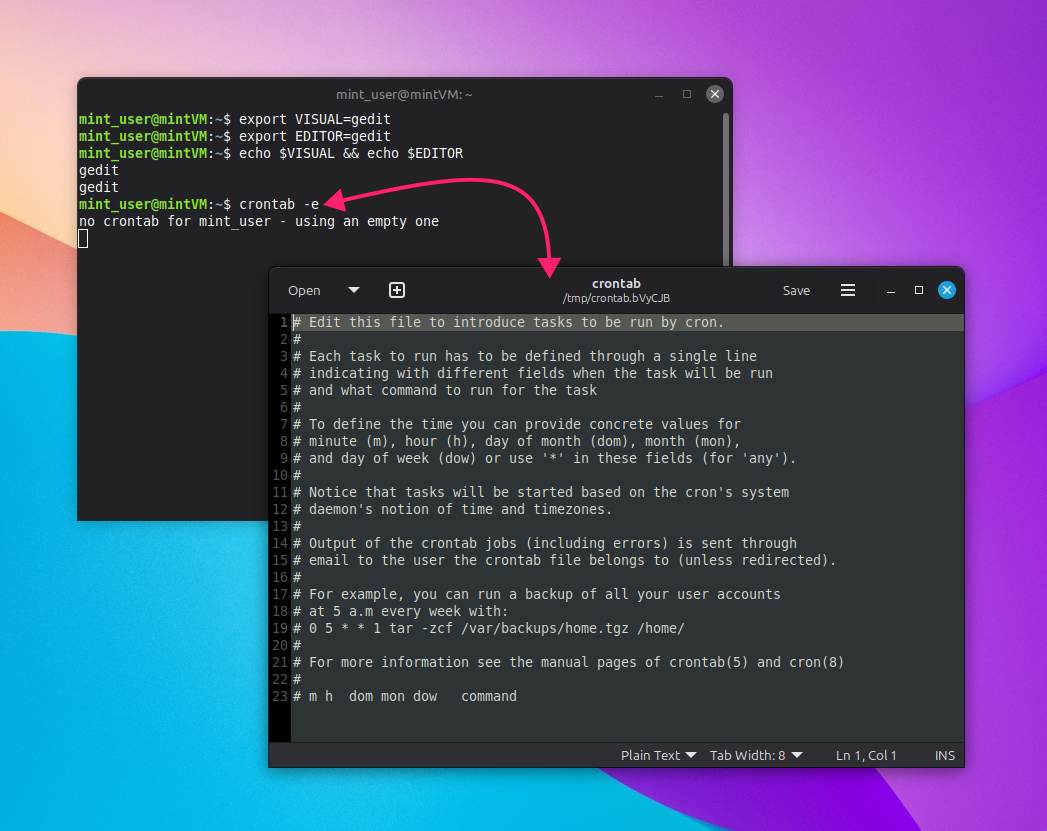
Two environment variables control which editor opens when a command-line tool like crontab -e needs one:
$VISUAL: This is for full-screen, cursor-based editors and requires a terminal that supports cursor movement.$EDITOR: This is for simpler, line-based editors.
That distinction is mostly historical at this point (modern terminals all support cursor movement), but you should still check both variables for compatibility with older tools:
- Run
export EDITOR=<desired_text_editor>to set your line-based default - Run
export VISUAL=<desired_text_editor>to set your full-screen default Add both lines to
~/.bashrcor~/.profileif you want the setting to persist across sessions instead of resetting every time you open a new terminal
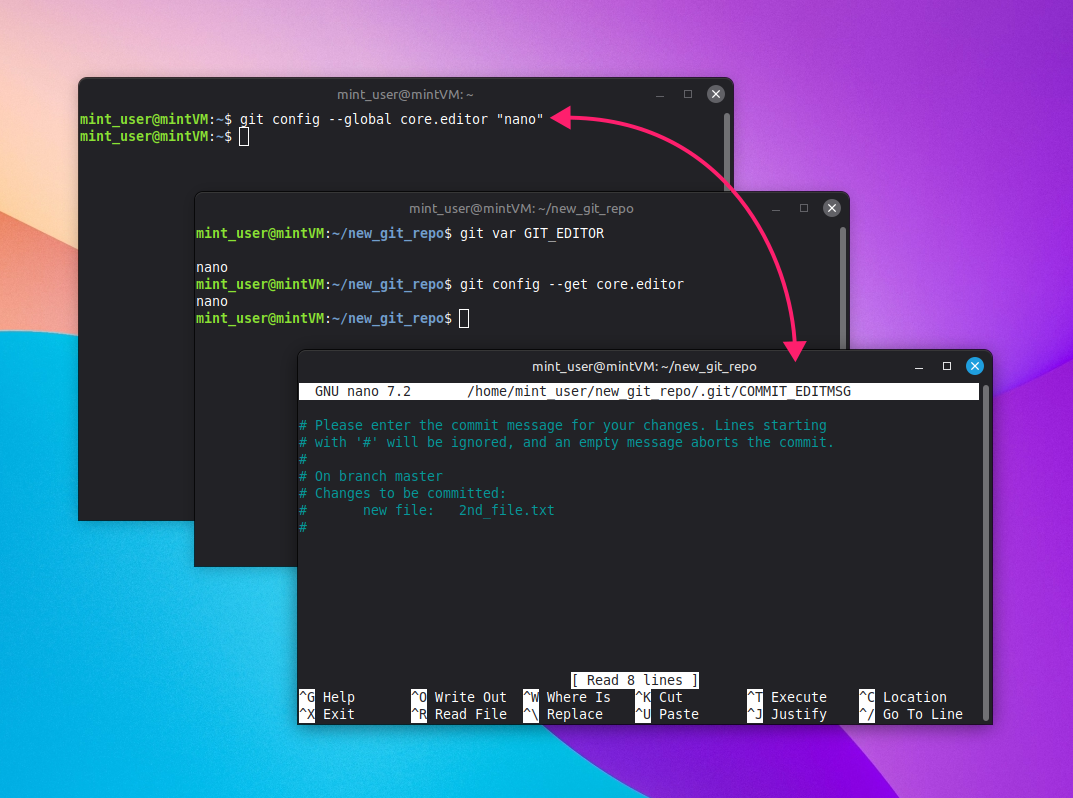
- Git handles this separately from the shell: If you want a specific editor for commit messages, run
git config --global core.editor <desired_text_editor> Git checks its own preference order before falling back to your shell variables:
$GIT_EDITOR, thencore.editor, then$VISUAL, then$EDITOR
» Using Mint? Here’s how to update Linux Mint
Note: Don’t forget to back up before you edit
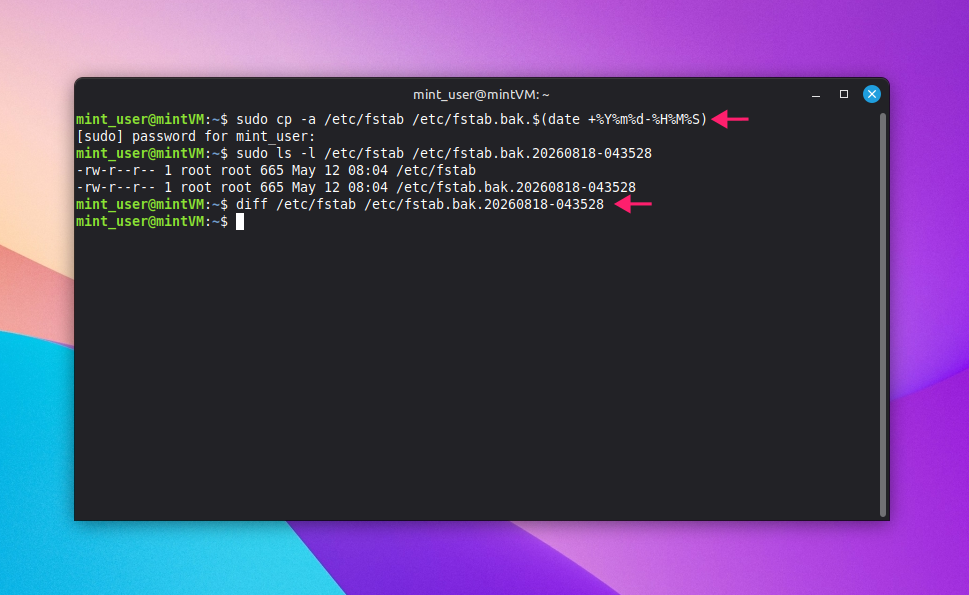
Before touching a critical system file like /etc/fstab, it’s worth it to make a copy you can restore from if the edit goes wrong:
- Run
sudo cp -a /etc/fstab /etc/fstab.bakto create the backup. The-aflag preserves permissions, ownership, and links, so the backup is a true copy, not just a text dump Add a timestamp to the filename for traceability if you’re making repeated changes:
sudo cp -a /etc/fstab /etc/fstab.bak.$(date +%Y%m%d-%H%M%S)
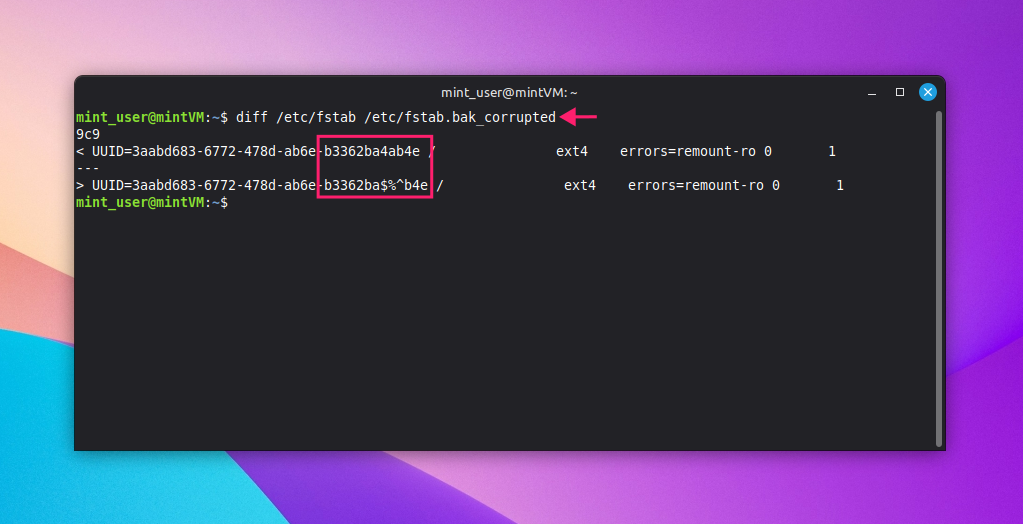
Confirm the copy matches the original by running
diff /etc/fstab /etc/fstab.bak.<timestamp>; No output means the files are identical
If an edit breaks something, restore the backup with
sudo cp -a /etc/fstab.bak.<timestamp> /etc/fstab
6 ways to edit files in Linux
These methods are each suited to different situations, so pick the one that matches what you need the most.
Method 1: Editing interactively with nano
Use nano when you want a straightforward, screen-based edit without needing to learn a mode system first since it’s the lowest-friction option for a one-off change.
- Open the file and start typing at the cursor position. nano is in insert mode by default, so there’s no mode switch required to begin editing
- Press Ctrl + K to delete the current line, cutting it into the buffer
To delete multiple lines, press Ctrl + ^ (or Alt + A) to start a selection (you will see a Mark Set message on the screen), then press Ctrl + K to cut the marked block

Press Ctrl + W to open the search prompt, type your query, and press Enter

Press Alt + W to jump to the next match

Press Ctrl + (or Alt + R) to open search-and-replace. Type the search term, press Enter, then type the replacement and press Enter

For each match found, press Y to replace it, N to skip it, or A to replace every remaining instance at once

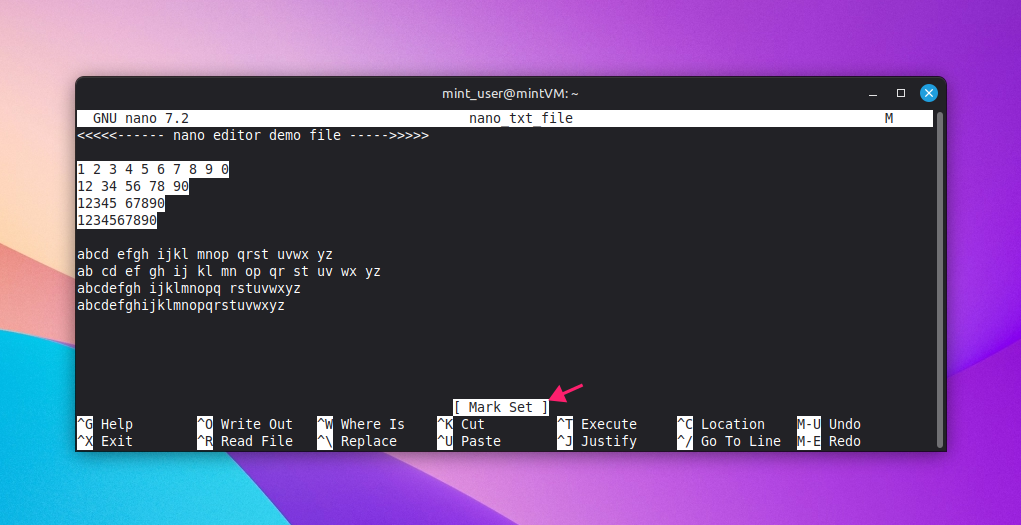
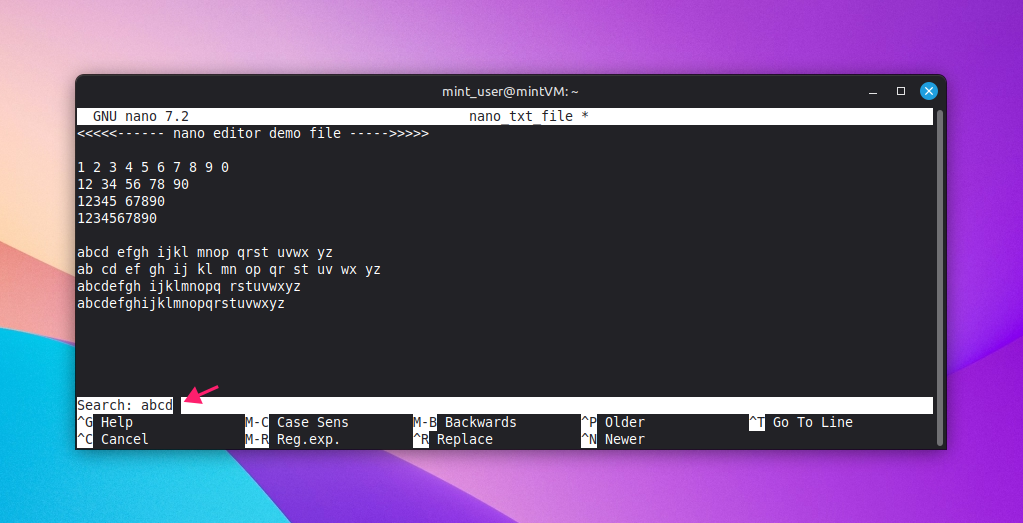
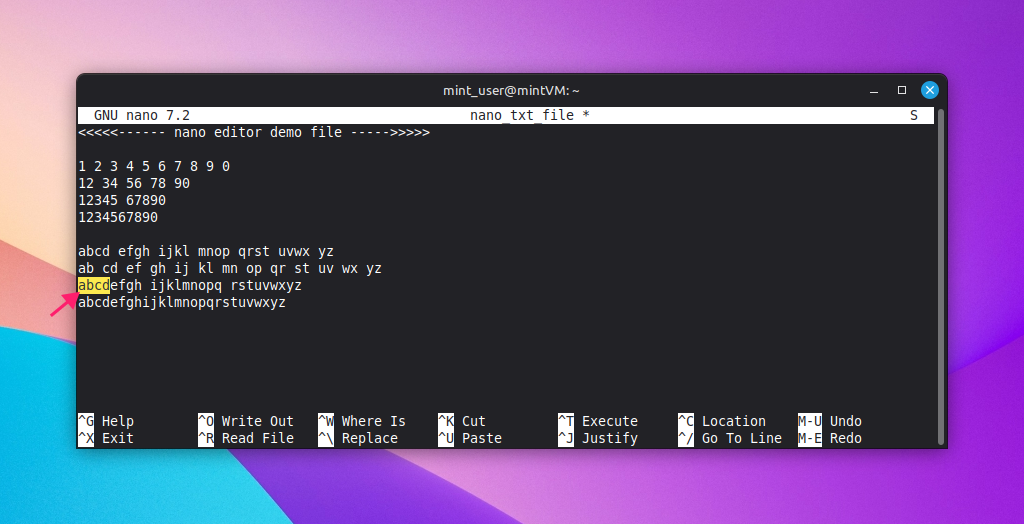
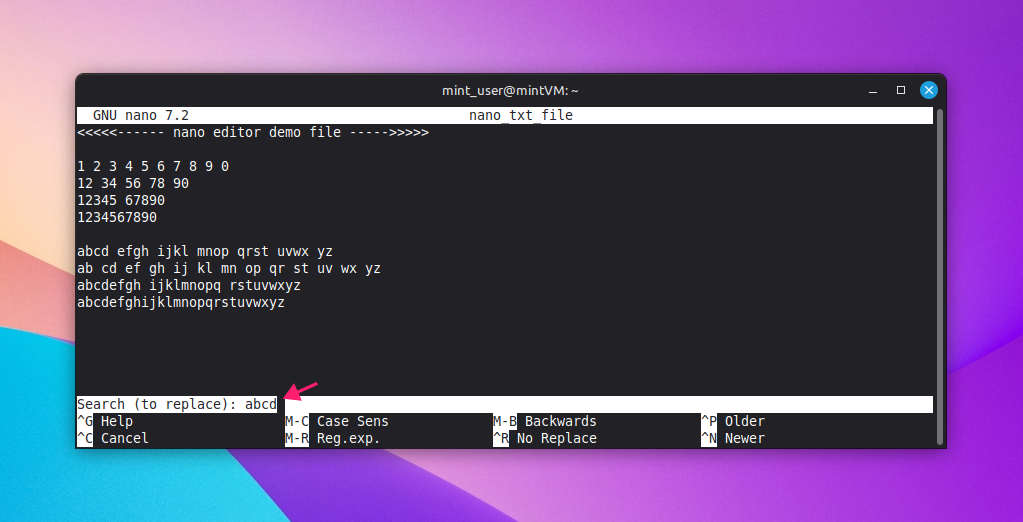
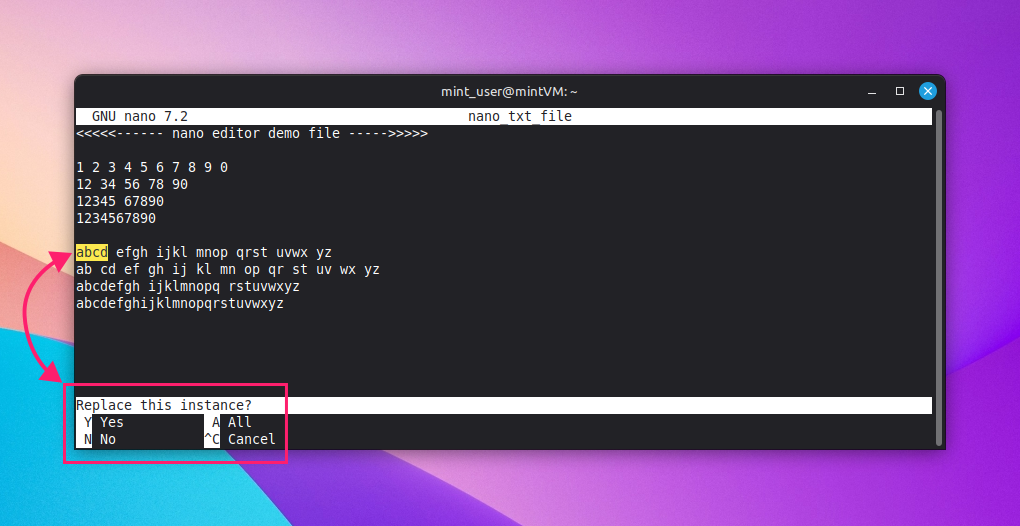
Most key combinations are listed along the bottom of the nano window if you forget one mid-edit.
Method 2: Editing with vi or vim
Reach for vi/vim when you want a keyboard-driven workflow that doesn’t rely on arrow keys or a mouse, especially over a slow or minimal SSH session.
- Open the file. It loads in normal (command) mode by default, so you’re not editing text yet
- Press i to enter insert mode before the cursor, or a to insert after it
- Press Esc to return to normal mode from insert mode
- From normal mode, press dd to delete the current line, or dw to delete a single word starting from the cursor
- Press : to open the command prompt at the bottom of the screen, then type the following commands:
- w and press Enter to save
- q and press Enter to quit
- wq (or x) and press Enter to save and quit in one step
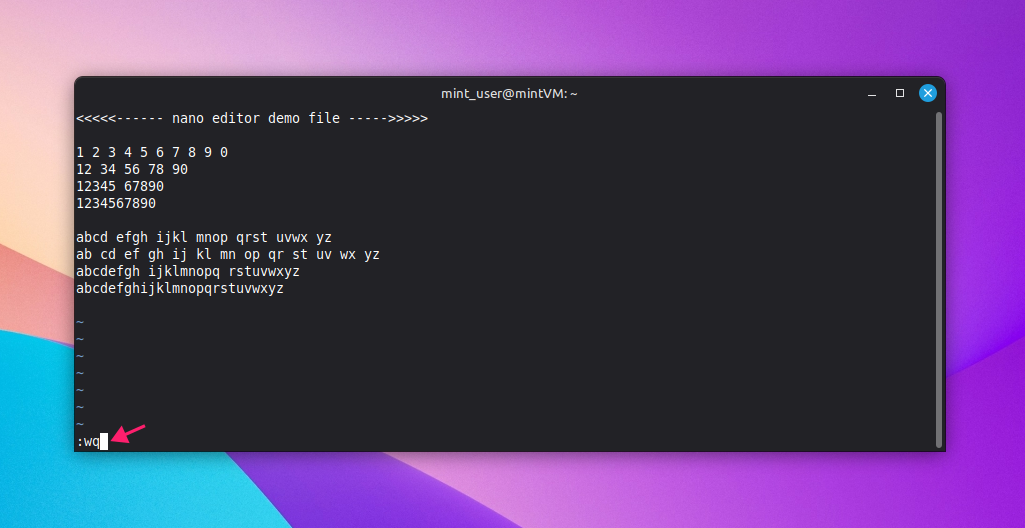
If you need a reminder of what a command does, run :help, followed by the command name (for example :help insert), then :q to return to your file.
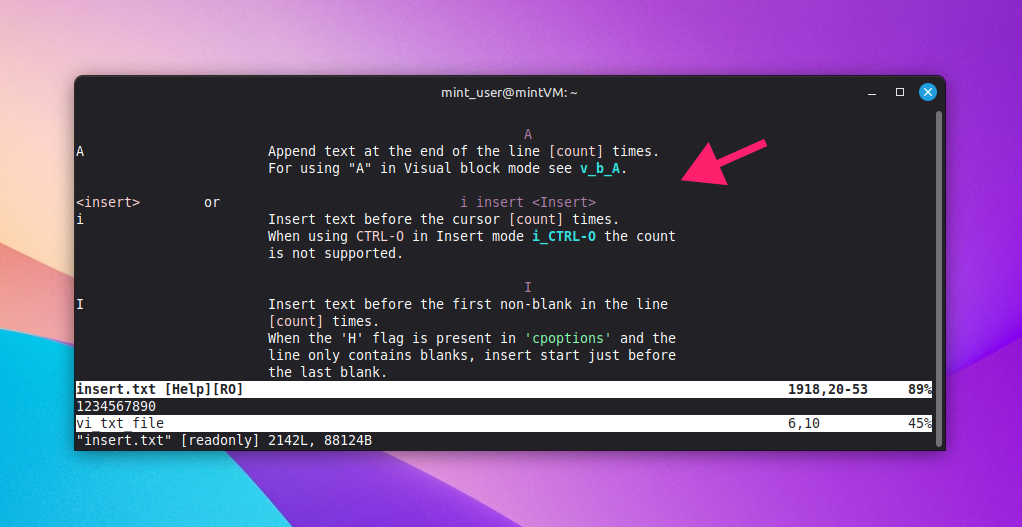
Method 3: Editing without opening an editor
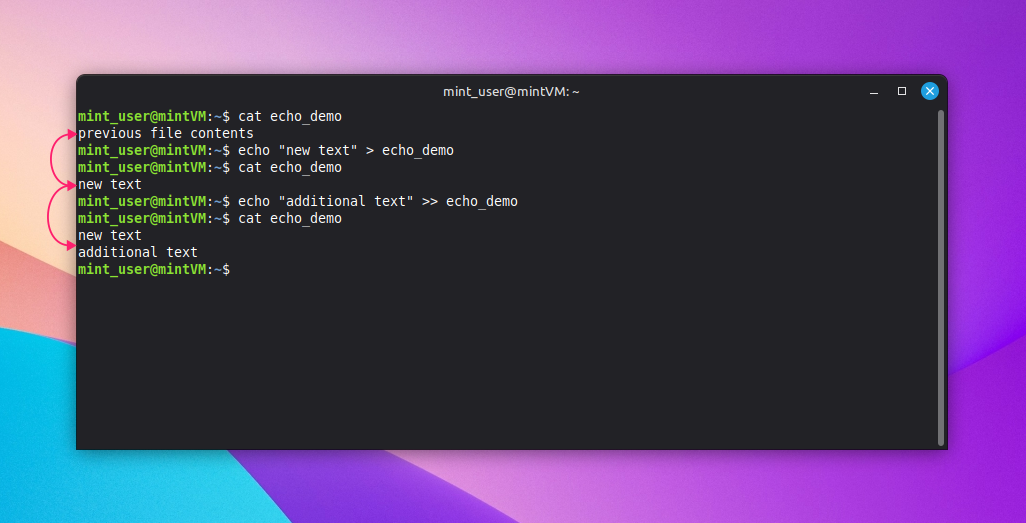
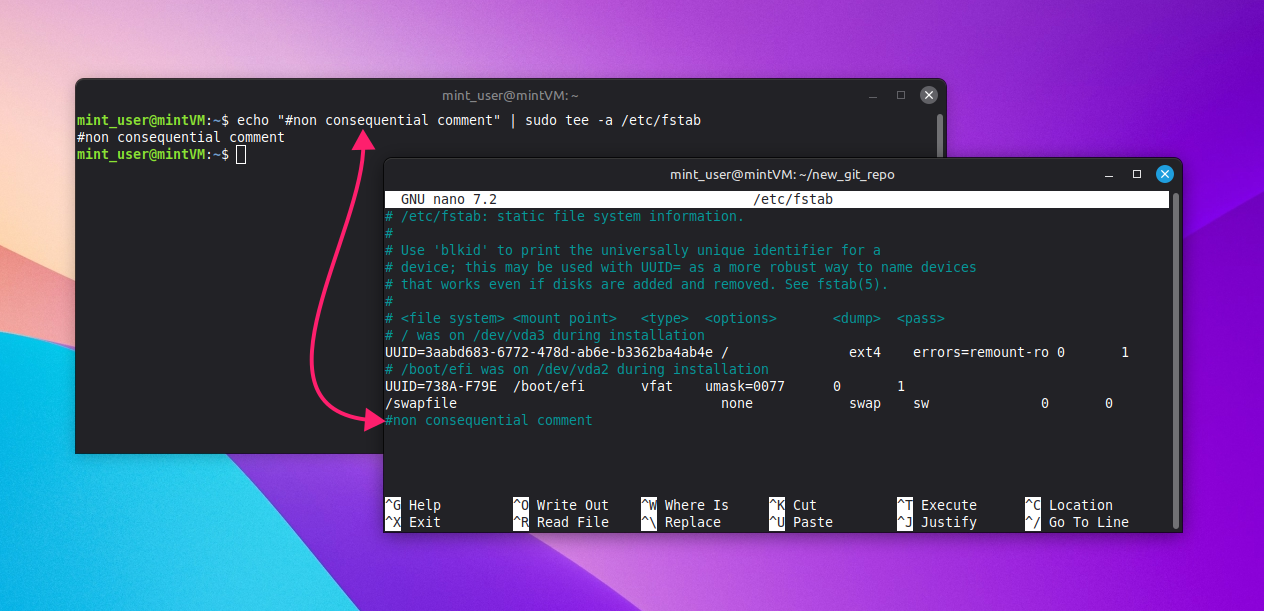
Use echo with redirection when you need to make a small, predictable change (like appending a line to a config file) without opening an interactive session at all:
echo "new_text" > /path/to/fileoverwrites the file’s existing contentsecho "new_text" >> /path/to/fileappends to the end of the file instead
For a file that requires elevated privileges, redirection alone won’t work with
sudothe way you’d expect; pipe throughteeinstead:echo "config_param=new_value" | sudo tee -a /etc/system_file
Method 4: Scripted search-and-replace with sed
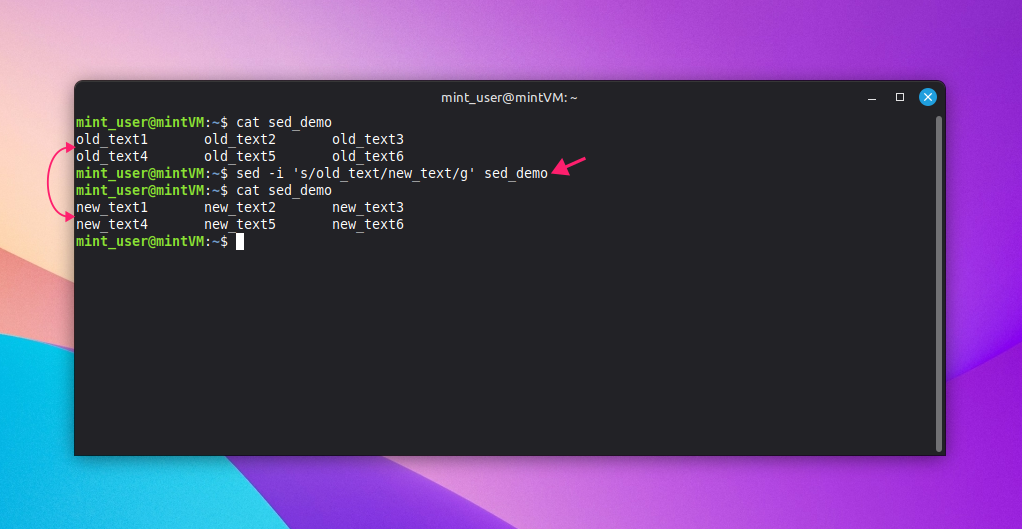
Use sed when the change is a find-and-replace you want to apply consistently, without manually stepping through matches one at a time.
The right syntax is sed -i "s/old_value/new_value/g" path/to/file, where:
- s means substitute
- old_value is the text to match
- new_value is the replacement
- g replaces every occurrence on a line instead of just the first
- -i modifies the file in place
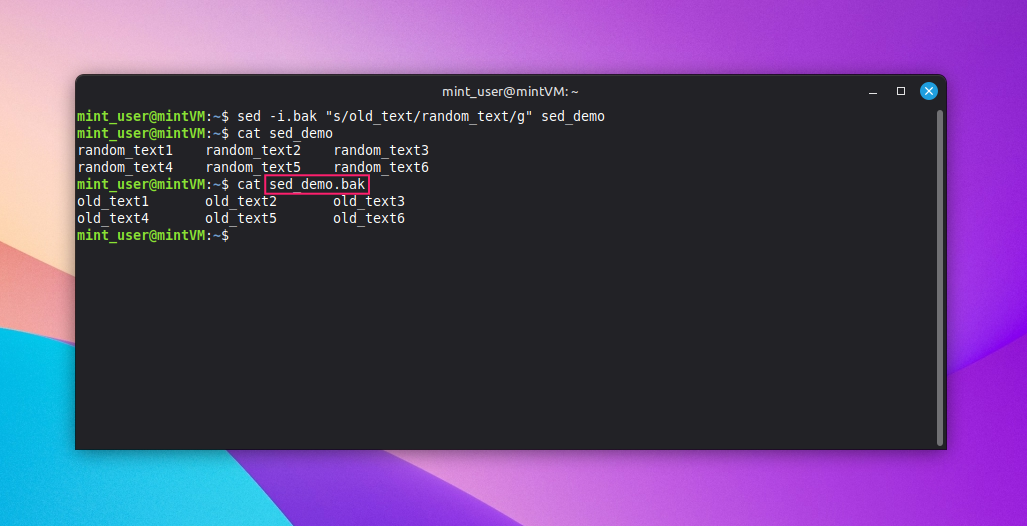
Run
sed -i.bak "s/old_value/new_value/g" path/to/fileto make the change and automatically create a backup with the.bakextension in the same step
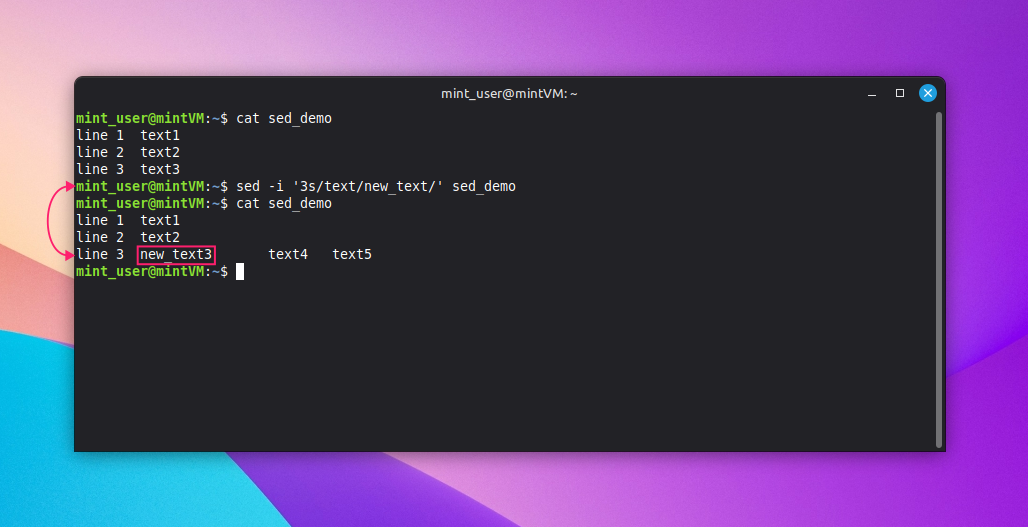
To target a single line instead of the whole file, run
sed -i '3s/old_value/new_value/' path/to/file, replacing 3 with the line number you want
Method 5: Editing with a GUI text editor
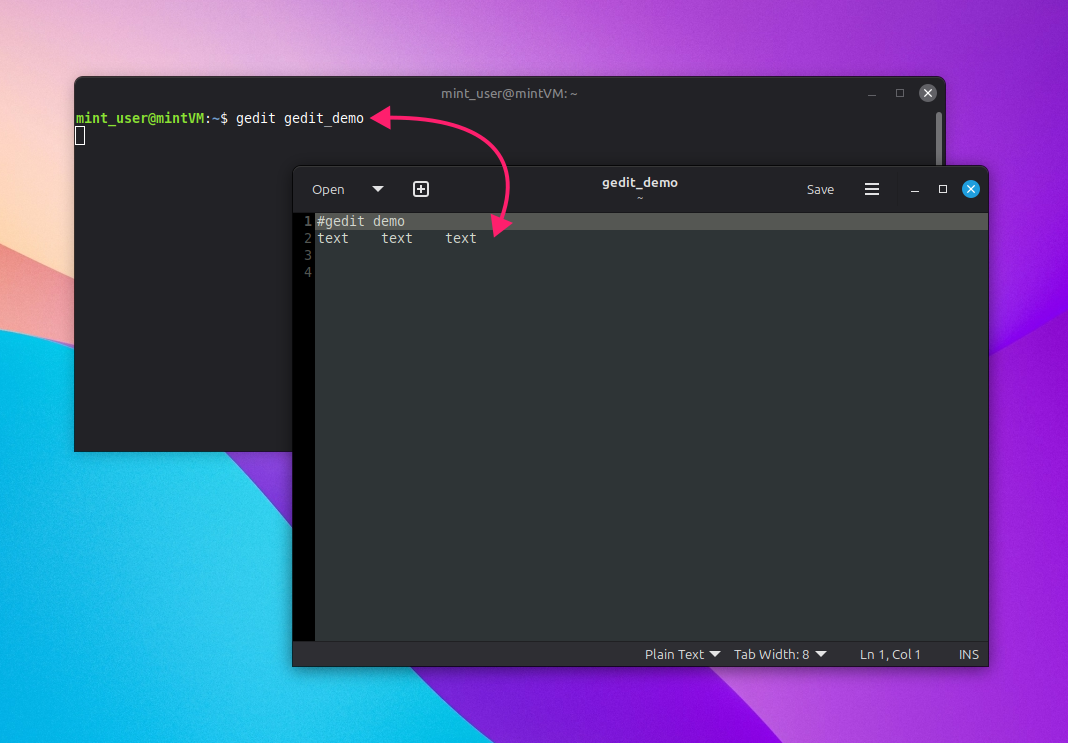
Use a GUI editor like gedit when you’re working directly on a desktop Linux environment and prefer a visual interface over a terminal-based one.
Run
gedit /path/to/fileto open the file. The terminal stays attached to the editor process until you close the window
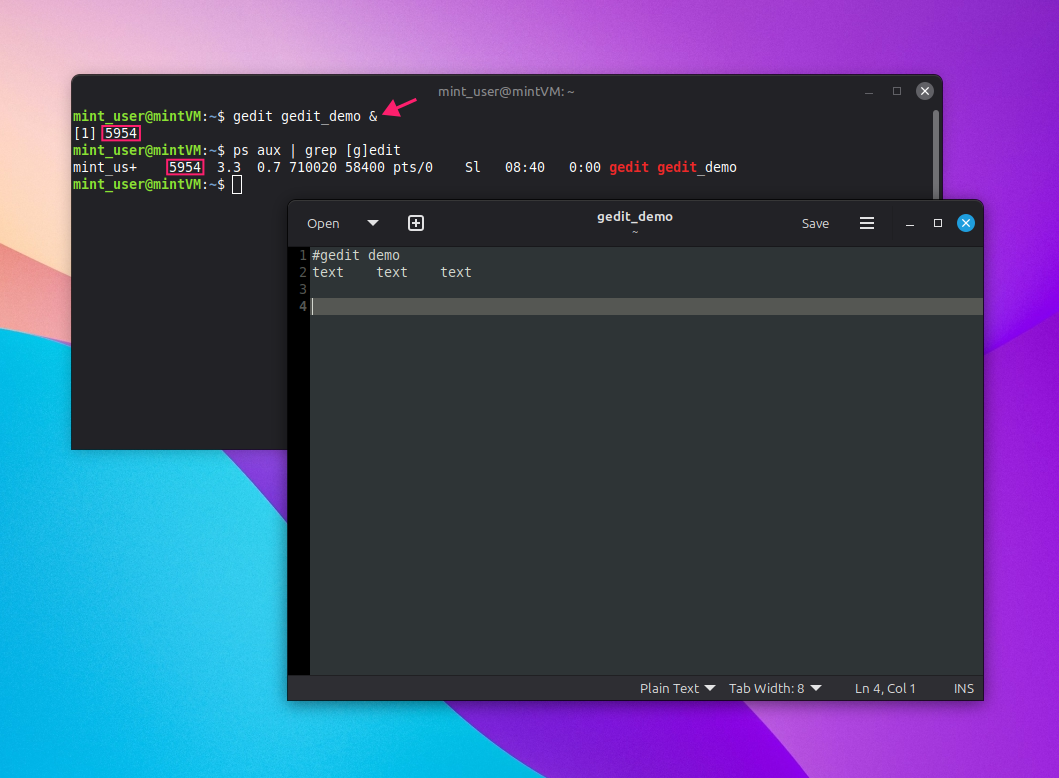
Run
gedit /path/to/file &instead if you want the process to run detached, freeing up your terminal for other commands while the editor stays open
Method 6: Scaling edits across multiple servers
Once a fix needs to land on more than a couple of machines, editing each one by hand stops being practical, which is why technicians prefer to script the same change across a fleet instead.
For a smaller number of hosts, a bash loop over ssh is usually enough. Here’s an example script you can paste:
The Script:
Atera does not guarantee the integrity, availability, security, virus-free, safety, lawfulness, non-infringement, rights’ status, or functionality of the scripts. The use of the shared scripts is at your own risk. Scripts are provided “AS IS”. *
#!/bin/bash
#disable root login on all targeted hosts
HOSTS="server1 server2 server3"
for host in $HOSTS; do
  ssh "$host" "sudo sed -i.bak 's/^PermitRootLogin.*/PermitRootLogin no/' /etc/ssh/sshd_config"
doneFor a more involved change, copy a script to each host and run it remotely instead of trying to fit the whole edit into a single inline command:
The Script:
Atera does not guarantee the integrity, availability, security, virus-free, safety, lawfulness, non-infringement, rights’ status, or functionality of the scripts. The use of the shared scripts is at your own risk. Scripts are provided “AS IS”. *
#!/bin/bash
HOSTS="server1 server2 server3"
for host in $HOSTS; do
  scp update_config.sh "$host":/tmp/
  ssh "$host" "sudo bash /tmp/update_config.sh"
doneA bash loop like this is a reasonable starting point once you’re past a handful of servers you can reasonably script and verify by hand. Past that point (or in a production environment where you need built-in idempotency, rollback, and audit history), you’ll often need a dedicated tool for that job.
Atera’s RMM platform lets you deploy scripts remotely to specific endpoints or groups on your network, schedule them to run automatically, and check the status of endpoints all from a central location without having to touch each endpoint. And you don’t even need to know how to code. Just ask AI Copilot to write the specific script you need.
» Learn more about monitoring Linux servers at scale
Recovering when an edit goes wrong
Even with a backup in hand, things can still go wrong, such as a file saved without the privileges to write it or an editor that stops responding.
For example, many editors don’t write changes directly into the original file. Instead, they save a new file and rename it over the original. That’s usually invisible to you, but it can change the file’s inode, which can break the relationship between hard links, and any process that already had the old file open will keep using the old inode rather than picking up your edit.
Here are the two most common problems and how to fix them.
Forcing a save on a restricted file
If you opened a system file without sudo and have already made changes you don’t want to lose, you don’t have to start over and can force the save through with elevated privileges.
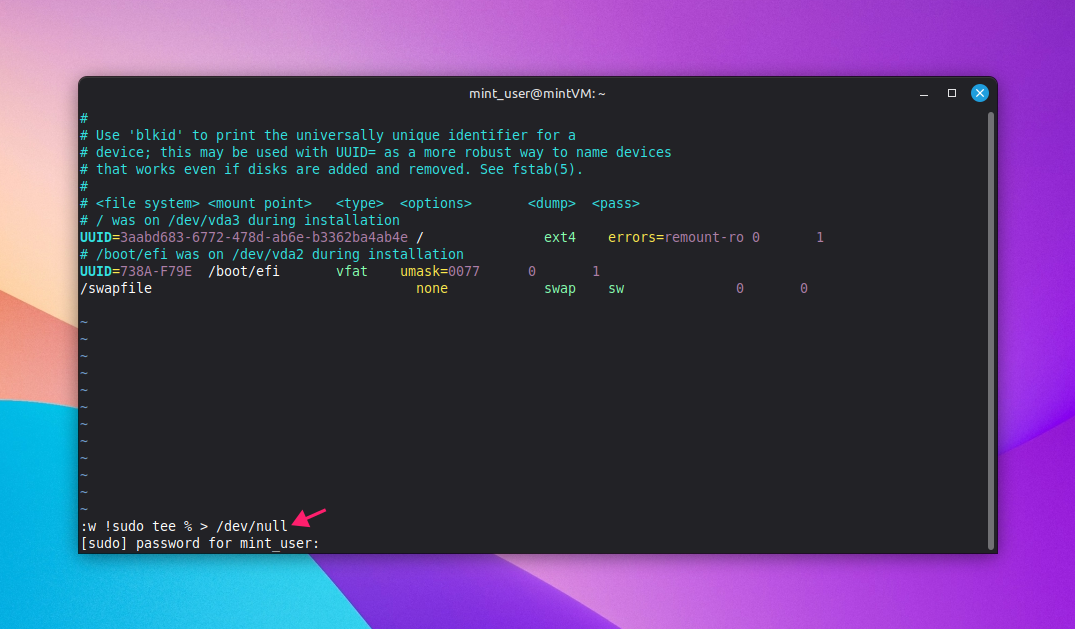
In vim or vi, run :w !sudo tee % > /dev/null. This writes the buffer’s contents through sudo tee, which updates the current filename (%) with root privileges, without you needing to quit and reopen the file with sudo from scratch.
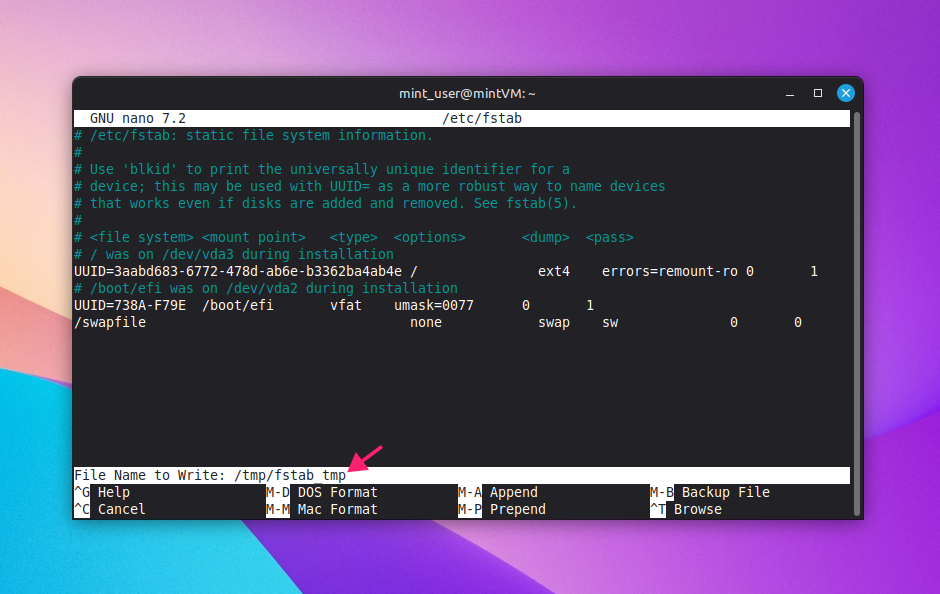
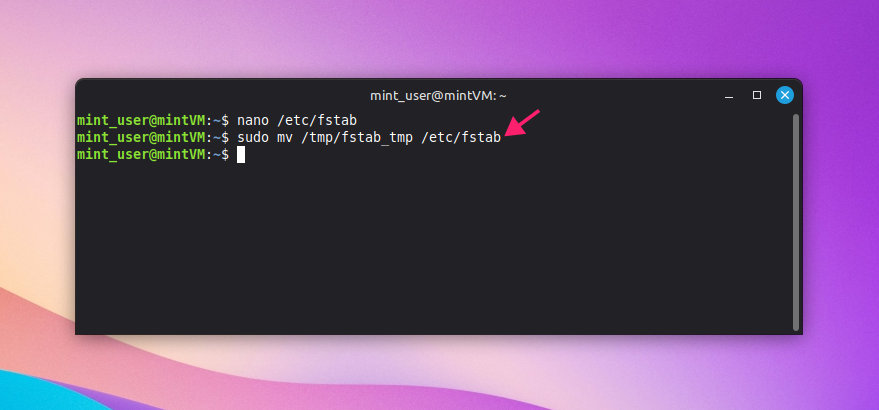
nano doesn’t support this trick directly, so the workaround takes a few more steps:
- Press Ctrl + O to save, then type a path you have write access to (such as
/tmp/fstab_tmp) instead of the original file’s path, and press Enter If prompted to confirm saving under a different name, press Y

- Press Ctrl + X to exit the editor
Move the temporary file into place with elevated privileges:
sudo mv /path/to/temp_file /etc/original_file
Escaping an unresponsive vim session
If vim locks up or stops responding to input, work through these in order rather than force-closing the terminal outright.
- Press Esc a few times to make sure you’re back in normal mode, then try
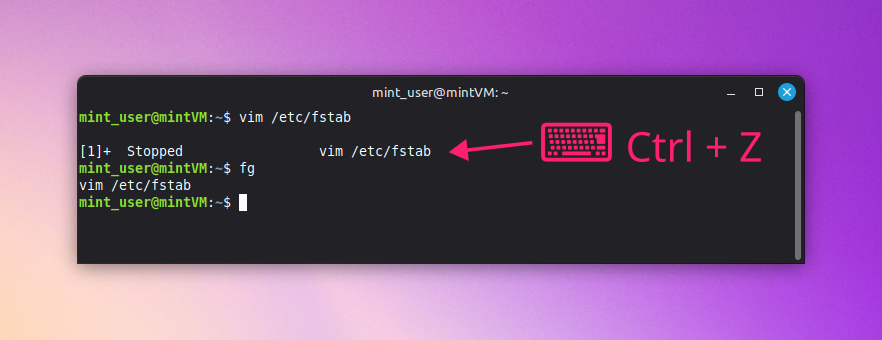
:q!to quit without saving, or:qa!if multiple buffers are open If that doesn’t respond, press Ctrl + Z to suspend the process and return to the shell, then run
fgto bring it back to the foreground and try:q!again
If vim is still unresponsive, find the process with
ps aux | grep [v]imand force it closed withkill -9 <vim_PID>
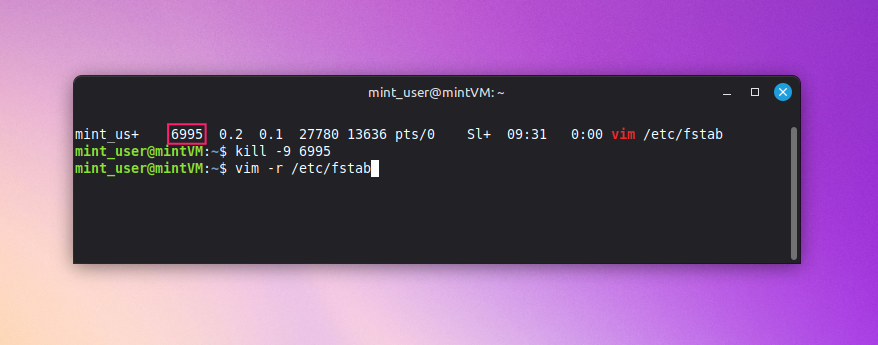
A force-kill doesn’t necessarily mean your changes are gone. vim maintains a swap file (.filename.swp) that can recover unsaved work after a crash. Run vim -r filename to recover from it.
Editing files carefully still matters
None of these methods are complicated on their own. The skill is in matching the method to the moment and protecting yourself before you commit to a change. That discipline holds up whether you’re patching one server or fifty.
SSHing into each box one at a time stops being realistic after a certain point. Atera’s remote scripting lets IT teams and MSPs push the same verified command, sed pattern, or script across selected devices or device groups on demand, no manual per-server login required.
» Learn more about installing Atera’s Linux Agent or start your free trial today
Related Articles

How to decide if you need a dedicated DEX platform, or already have one
"IT feels slow" is the complaint that often sells DEX platforms. Sometimes it signals a real blind spot, but just as often already catches and fixes the problem, and a new scoring layer would only add another console. Telling the two apart takes evidence, and the real gap usually isn't visibility at all.
Read now
How to set up secure printing across your organization
A secure print checkbox protects exactly one moment in a document's life. Everything else, from unencrypted traffic and unhardened devices to payroll printouts forgotten in a tray, stays exposed. Real secure printing covers the whole lifecycle: release policy, authentication, encryption, hardening, and a fleet that stays monitored long after rollout.
Read now
How to reduce alert fatigue in healthcare IT
In a hospital, a dismissed alert isn't a delayed ticket. It can be a patient deteriorating while the monitor keeps sounding. Cutting alert volume won't fix that on its own, and switching alerts off can make it worse.
Read now
How to prevent configuration drift across your IT infrastructure
Configuration drift rarely breaks anything the day it happens. It hides in a hotfix, a reset default, or a vendor installer, then surfaces weeks later as a failure nobody can trace. Stopping it means defining exactly what approved looks like, closing every side door into production, giving each setting one owning tool, and checking that the baseline itself hasn't gone stale.
Read nowEndless IT possibilities
Boost your productivity with Atera’s intuitive, centralized all-in-one platform









