Generate summary with AI

“Cannot open shared object file: no such file or directory” stops a binary cold, and the right fix depends entirely on which of a handful of causes is actually in play. Anyone who’s carried a system through a major distro upgrade has run into an application that worked fine on Ubuntu 20.04 but refuses to start after the jump to 22.04 because the OpenSSL package it links against shipped a new SONAME.
The fix isn’t guesswork if you know where to look. ldd tells you what’s missing in seconds, and from there the resolution is usually one of a small set of moves. Here’s everything you need to know.
What the error actually means and why it happens
Shared objects exist so multiple programs can use the same code without each one carrying its own copy. The loader maps a library into memory once and shares that mapping across every process that needs it, rather than statically compiling the same functions into every executable that calls them.
Here’s why:
- Memory and disk efficiency: One copy in memory serves every running process.
- Lower update overhead: Patching a library fixes every application built against a compatible version, no recompiling required.
- Modularity: An application can be developed and maintained as a separate, independently updatable component.
The dynamic linker is what makes all of that transparent to the running program, which is also exactly why a mismatch anywhere in that chain surfaces as a loader error instead of a compiler error.
This error comes directly from the dynamic linker/loader (ld.so or ld-linux.so, depending on the system and Linux version), which is the piece of the OS that resolves and loads shared libraries at runtime. When a binary starts, the loader reads its list of required .so dependencies and searches a defined set of locations for each one.
The message fires when the loader can’t find or load one of them. It’s usually because the file is missing entirely, is misnamed or the wrong version, or it simply isn’t in any of the loader’s configured search paths.
What actually breaks it
Five situations account for almost every break:
- The package was never installed, or got removed: The binary references a library that simply isn’t present anywhere on the system.
- Version mismatch: The program was built against one library version and only a different one is installed; either an older binary expecting a version the system has since moved past, or a newer build expecting a version the system hasn’t caught up to yet. This is a common side effect of distro upgrades. An OpenSSL bump from
libssl.so.1.1tolibssl.so.3between Ubuntu version 20.04 and 22.04 has broken plenty of binaries that were never rebuilt against the newer SONAME. - Cross-architecture mismatch: A 32-bit binary looking for 32-bit libraries on a 64-bit-only system, or the reverse.
- A stale linker cache: The library was installed or updated, but
ldconfigwas never re-run, so/etc/ld.so.cachedoesn’t reflect what’s actually on disk. - A non-standard install location: The library exists, but it’s sitting in a path that isn’t listed in
/etc/ld.so.confor$LD_LIBRARY_PATH, so the loader never looks there. GPU workloads run into this constantly; an NCCL install living in a custom CUDA toolkit directory (libnccl.net.so, for instance) throws this exact error if that path was never registered with the loader.
Step-by-step methods to resolve the error
Six methods cover this error end to end, from the most common single-machine fix through to running the same checks across an entire fleet or pipeline.
Step 1: Identify and install the missing package (APT/YUM/DNF)
Use this first since it resolves the most common cause, which is a package that was never installed or got removed.
- Run
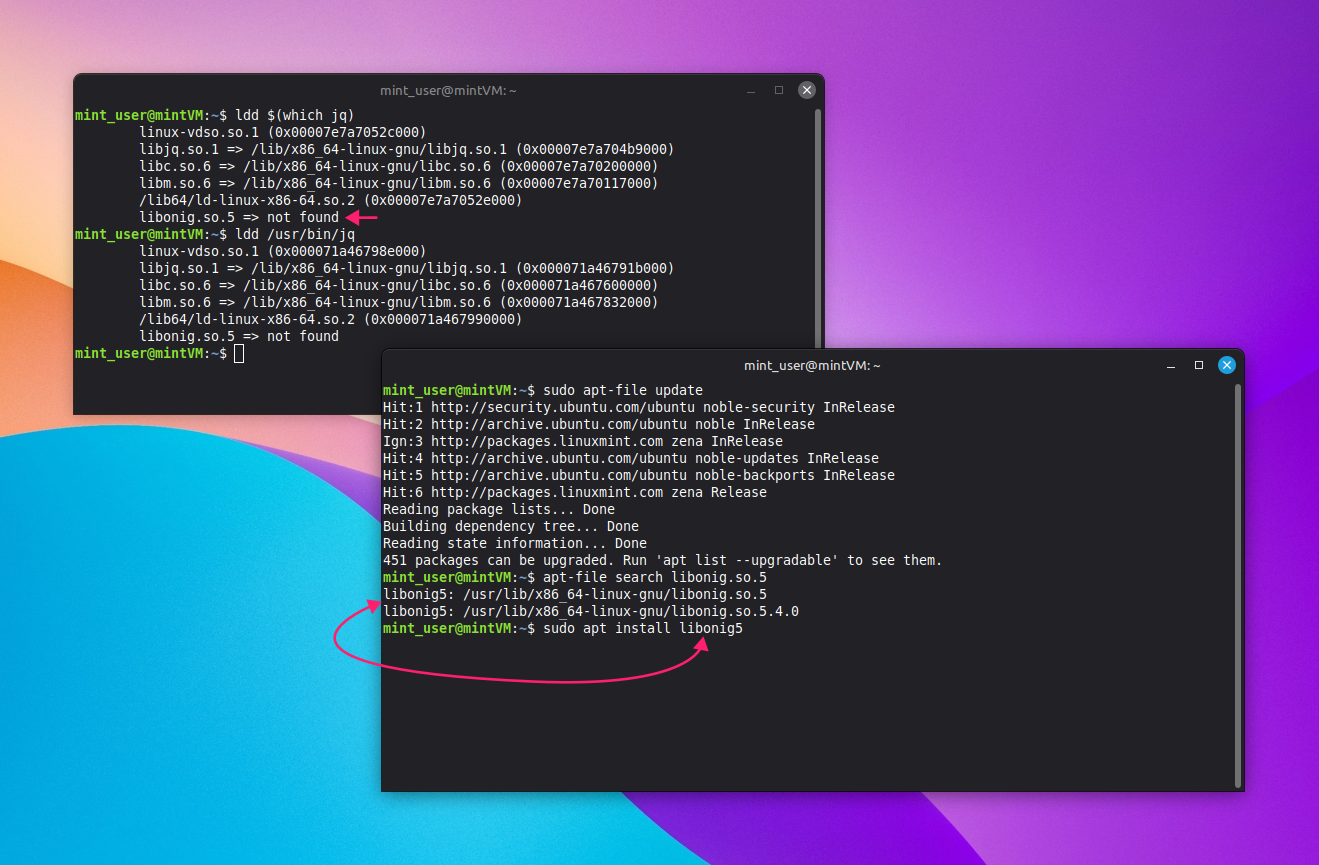
ldd /path/to/binary(orldd $(which <binary_name>)); any dependency the loader can’t resolve shows up flaggednot found - On Debian/APT systems, install apt-file with
sudo apt update, thensudo apt install apt-file - Update
apt-file‘s database:sudo apt-file update Search for the package that provides the missing library:
apt-file search <missing_lib.so.X>
- On RHEL or Fedora, run
sudo dnf provides "*/<missing_lib.so.X>"to find the providing package instead Install the package once identified:
sudo apt install <package_name>orsudo dnf install <package_name>
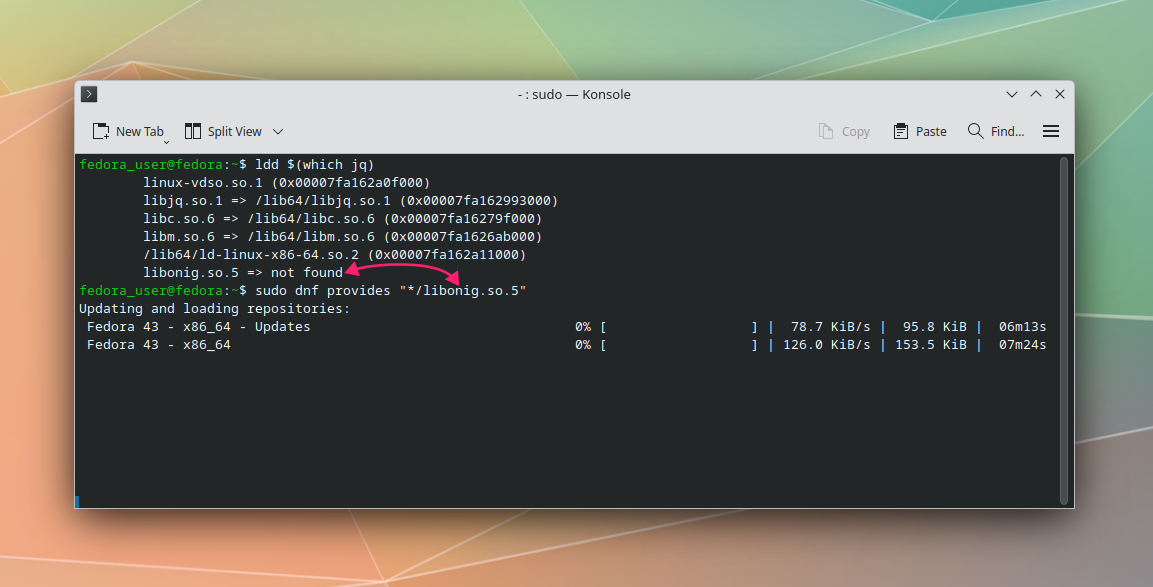
On both RHEL and Fedora, dnf is the actual package manager doing the work; yum is kept around purely for backward compatibility.
» Using Mint? Here’s how to update Linux Mint
Method 2: Refresh the linker cache with ldconfig
Use this when a .so file is already sitting in a standard library directory (/usr/lib, /usr/lib64, or another configured location) but the loader still can’t see it. This usually happens because the cache hasn’t been told about it yet.
- Run
sudo ldconfigto rescan the configured directories and rebuild the cache - Run
sudo ldconfig -vif you want to see every directory scanned and every library linked in the process Confirm the library made it into the cache:
ldconfig -p | grep <library>(the-pflag lists the current cache without rebuilding it)
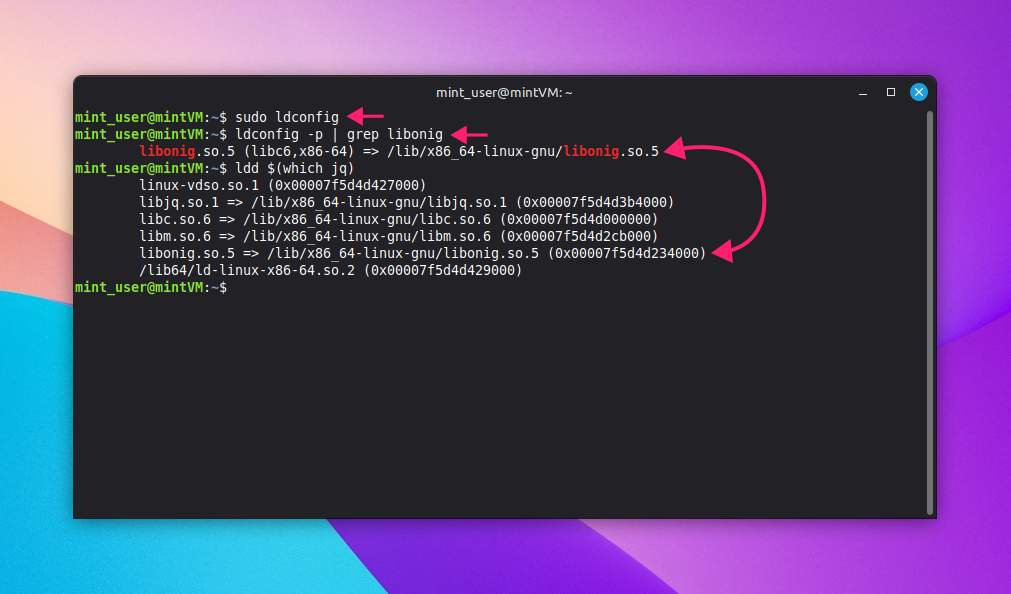
ldconfig scans everything listed in /etc/ld.so.conf and any files under /etc/ld.so.conf.d/, then writes the result to /etc/ld.so.cache. The loader actually consumes that cache at runtime, not the filesystem itself.
Method 3: Point the loader to the library temporarily with LD_LIBRARY_PATH
Use this for a quick test or a one-off run, or when the library legitimately lives somewhere the loader isn’t configured to check and you’re not ready to register it permanently.
Note: This is a session-scoped fix, not a permanent one, and any custom library directory you do create should still follow the Filesystem Hierarchy Standard rather than an arbitrary path.
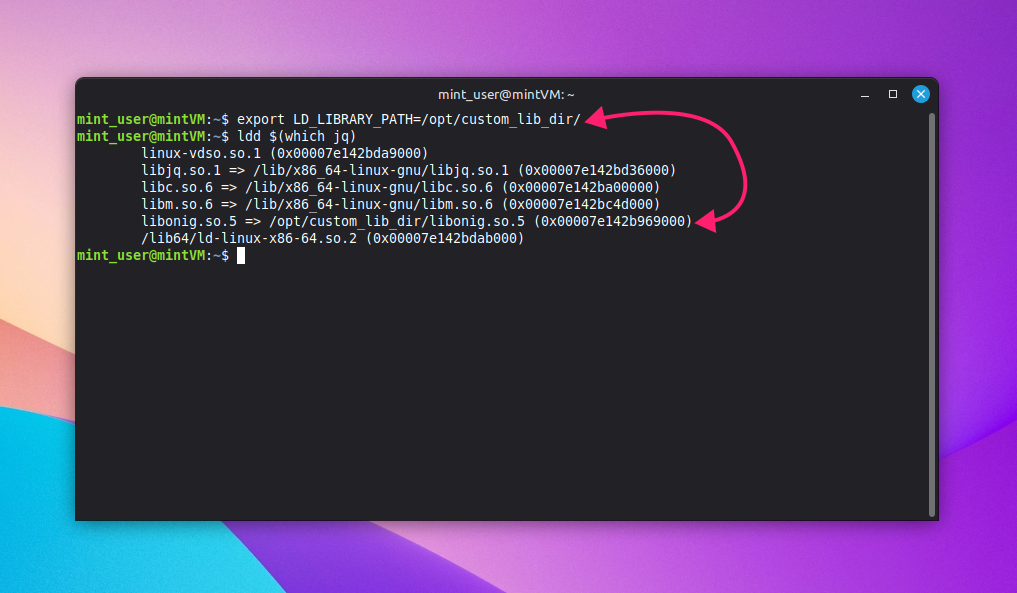
- Scope the variable to a single execution:
LD_LIBRARY_PATH=/path/to/lib ./application_binary - To make it persist for the shell session instead, run
export LD_LIBRARY_PATH=/path/to/lib If a value’s already set, preserve it rather than overwrite it:
export LD_LIBRARY_PATH=/path/to/lib/:$LD_LIBRARY_PATH
- Confirm the library now resolves:
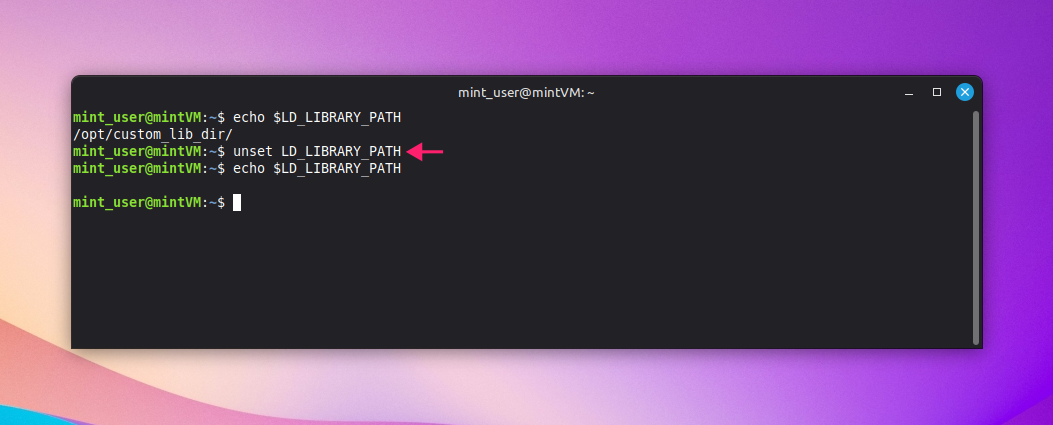
ldd $(which <binary_name>) Remove the variable once you’re done testing:
unset LD_LIBRARY_PATH
Method 4: Find and repair broken symlinks
Use this when the system holds a different library version than the one the binary explicitly expects, and the mismatch traces back to a broken or misdirected symlink.
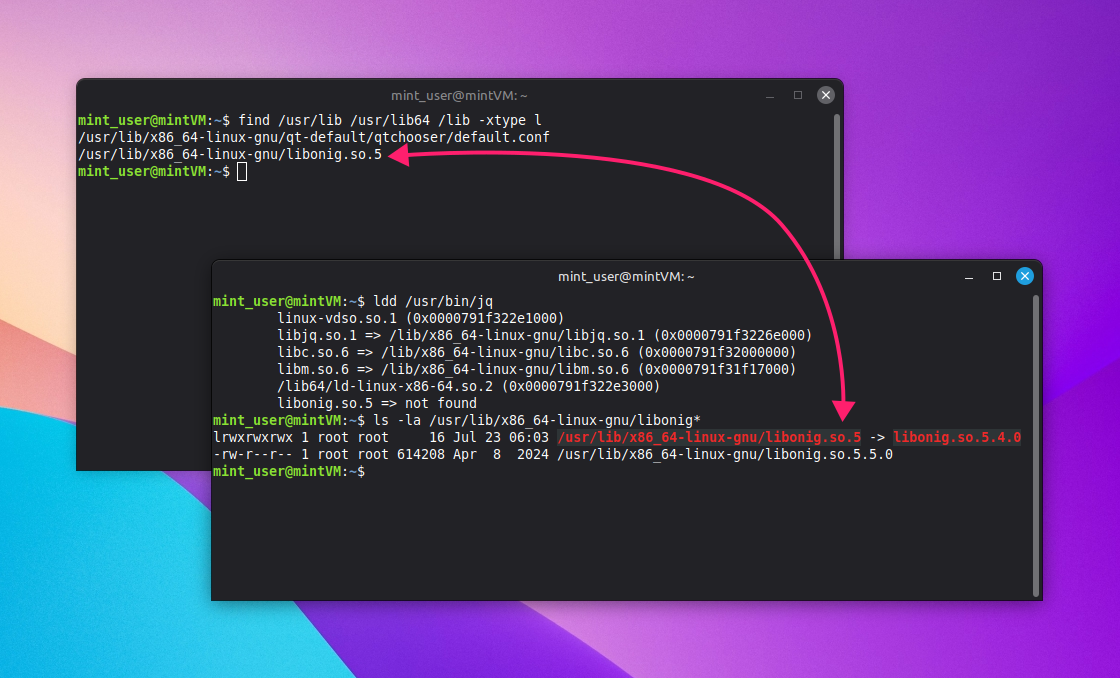
- Run
find /usr/lib /usr/lib64 /lib -xtype lto list broken symlinks system-wide Cross-check that output against the library flagged by
lddto confirm which broken link actually matches the missing dependency
Run
ls -la /path/to/missing/lib/libname*to see what’s actually present on disk at that location
- Relink the symlink to the version that does exist:
sudo ln -sf <symlink> /path/to/existing/lib
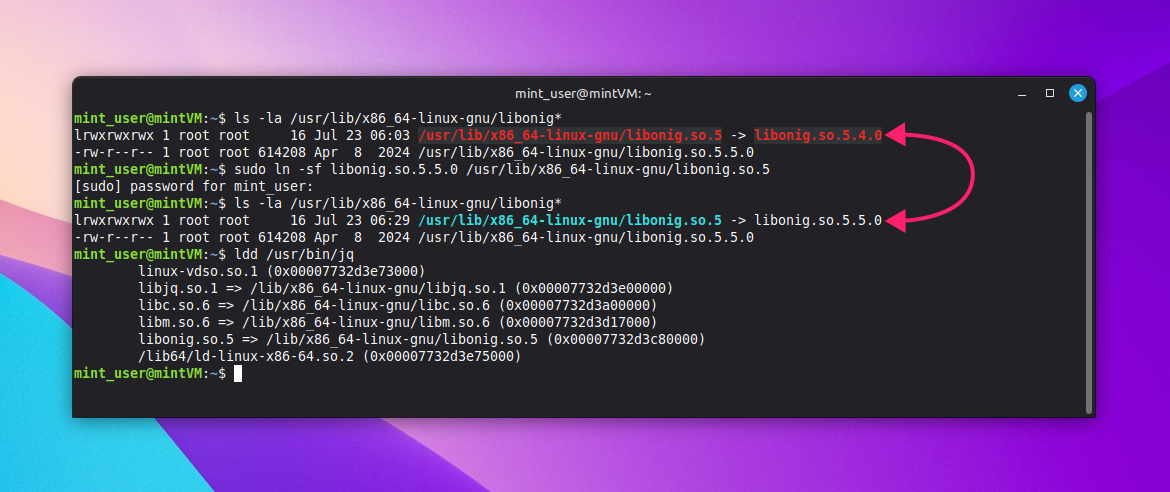
Treat this as a stopgap, not a fix, when the versions involved cross a major boundary. Relinking library.so.2 to library.so.3 can crash the application if the ABI changed between them, since the SONAME is specifically meant to change when backward compatibility breaks. Installing the exact package version via apt or dnf is the safer move whenever that option exists.
Method 5: Permanently register a custom library directory
Use this when a library’s install location is legitimate and ongoing (not a one-off) and you want the loader to always check that path without exporting a variable every session.
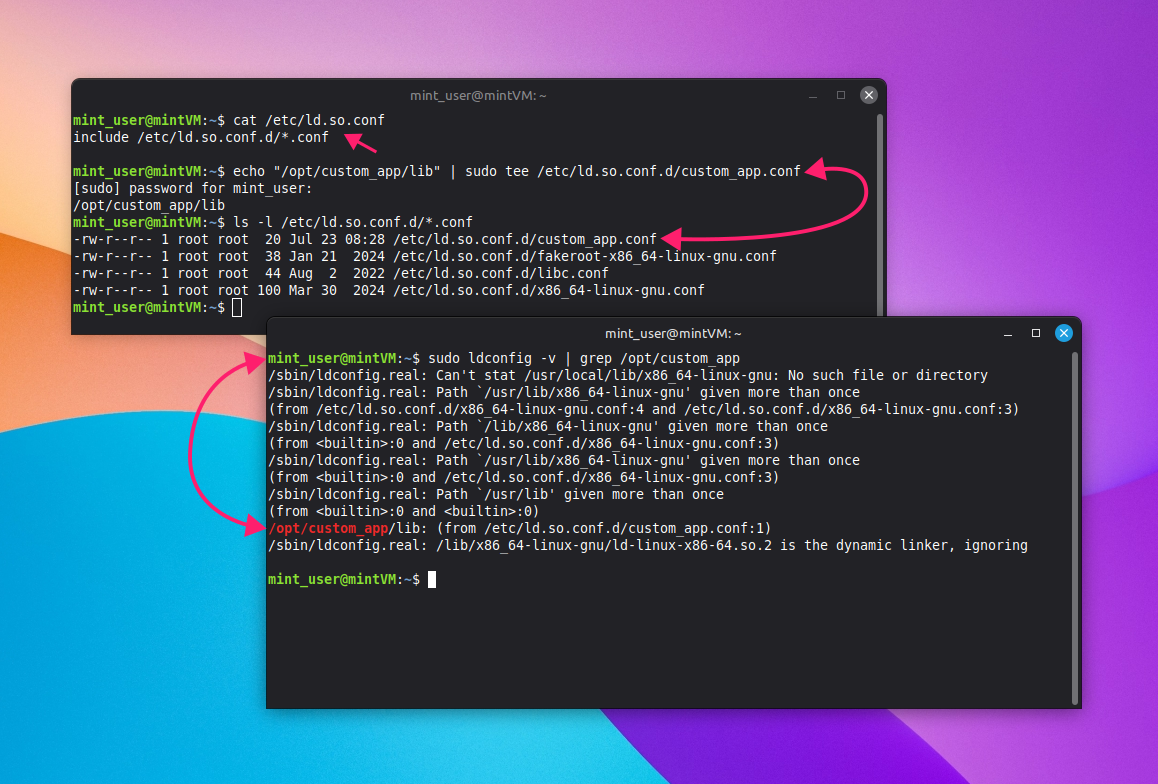
- Check what’s currently included:
cat /etc/ld.so.conf(this typically includes everything matching/etc/ld.so.conf.d/*.conf) - Create a config file pointing at the custom directory:
echo "/opt/custom_app/lib" | sudo tee /etc/ld.so.conf.d/custom_app.conf - Refresh the cache and confirm the new path was picked up:
sudo ldconfig -v | grep /opt/custom_app/lib Confirm the dependency resolves:
ldd $(which <binary_name>)
» Did you know you can rename a directory in Linux?
Method 6: Run these checks at fleet scale through containers and CI/CD
Use this when the same fix needs to land on more than one machine at once. A batch of containers or a pipeline shouldn’t ship a build with a broken dependency in the first place, but in the event that they do, here’s how you fix it at scale instead of troubleshooting every instance by hand.
1. Build with a multi-stage Dockerfile so only the compiled artifact and the libraries it actually needs make it into the final image, not the entire build toolchain. Here’s an example:
The Script:
Atera does not guarantee the integrity, availability, security, virus-free, safety, lawfulness, non-infringement, rights’ status, or functionality of the scripts. The use of the shared scripts is at your own risk. Scripts are provided “AS IS”. *
# stage 1
FROM ubuntu:24.04 AS builder
RUN apt-get update && apt-get install -y build-essential libfoo-dev
# insert actual build steps


# stage 2
FROM ubuntu:24.04 AS runtime
COPY --from=builder /usr/lib/library_example.so.2 /usr/lib/
COPY --from=builder /app/custom_app /app/custom_app
RUN ldconfig
2. Add a verification step to the pipeline that fails the build if a dependency is missing:
The Script:
Atera does not guarantee the integrity, availability, security, virus-free, safety, lawfulness, non-infringement, rights’ status, or functionality of the scripts. The use of the shared scripts is at your own risk. Scripts are provided “AS IS”. *
if ldd ./custom_app | grep -q "not found"; then
  echo "missing library"
  exit 1
else
  echo "all dependencies resolved"
fi
3. The same check drops into CI as a job step. Here’s a GitHub Actions example:
The Script:
Atera does not guarantee the integrity, availability, security, virus-free, safety, lawfulness, non-infringement, rights’ status, or functionality of the scripts. The use of the shared scripts is at your own risk. Scripts are provided “AS IS”. *
jobs:
  check-dependencies:
    runs-on: ubuntu-24.04
    steps:
      - uses: actions/checkout@main
      - name: Check shared library dependencies
        run: |
          if ldd ./custom_app | grep -q "not found"; then
            echo "missing library"
            exit 1
          else
            echo "All dependencies resolved"
          fi
Once that verification needs to run against production machines rather than a CI runner, Atera’s remote scripting and monitoring through the RMM platform applies the same ldd check (or the fix itself) across a selected device group in a single pass, rather than requiring an SSH session per machine.
» Did you know you can paste full scripts into a Linux terminal?
Diagnostics and risk management
Once you know a library is missing, the next question is which diagnostic tool actually confirms it fastest, which depends on how much you trust the binary you’re inspecting.
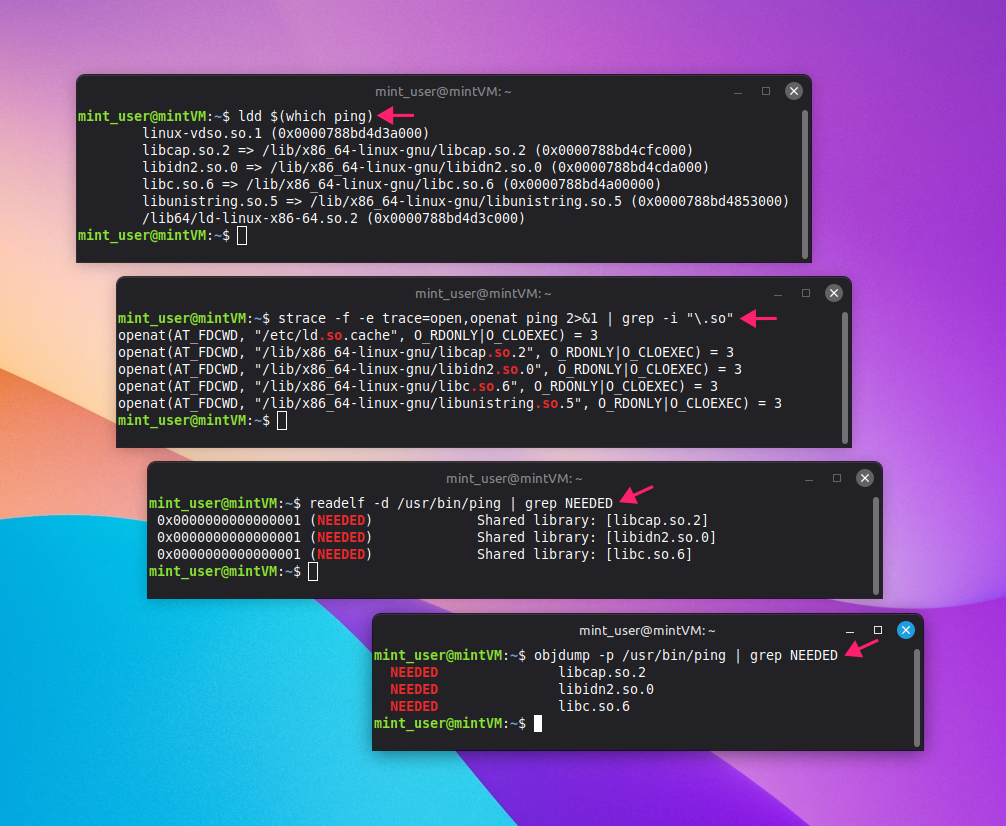
Four tools cover this, each suited to a different situation:
lddis the fastest first check. It lists every shared library dependency a binary declares and flags anything unresolved as not found:ldd $(which ping)straceis the most accurate for confirming what actually happens at runtime, since it traces every system call the process makes, including which library paths were tried and which failed:strace -f -e trace=open,openat ./custom_app 2>&1 | grep -i ".so"readelfandobjdumpinspect what a binary declares it needs without executing it, which makes them the safer choice on untrusted binaries:readelf -d ./untrusted_binary | grep NEEDED objdump -p ./untrusted_binary | grep NEEDED
Start with ldd for the quick answer, reach for strace when you need to confirm exactly what happened at runtime, and use readelf/objdump instead of ldd when you don’t trust the binary enough to let it execute.
Risks of modifying library paths globally, and how to mitigate them
Changing where the loader looks for libraries system-wide carries a few risks:
- Library hijacking: A malicious
.sofile placed in a search path can shadow a legitimate library of the same name. - Unexpected application behavior: Other programs sharing that same library now resolve against whatever you just pointed the loader at.
- System instability: A bad path or a wrong version registered globally can break more than the one binary you were trying to fix.
Here’s how you can mitigate these directly instead of working around them after the fact:
- Restrict write permissions on any custom library directory so only trusted accounts can drop files into it
- Use containers to isolate dependencies when a library requirement is genuinely one-off, rather than registering it system-wide
- Default to package-manager-installed libraries over manual global path edits wherever that’s an option since a package manager tracks what it installed and can remove it cleanly while a hand-edited
/etc/ld.so.conf.d/entry doesn’t uninstall itself
» Here’s how to change file permissions on Linux
Missing libraries don’t have to mean lost time
Every fix in this guide works the same way on one machine: identify the missing library, install or relink it, and verify with ldd. The hard part isn’t the fix. It’s doing it consistently across every server and workstation running the same broken build, without SSHing into each one by hand.
Atera’s remote scripting capabilities let IT teams and MSPs run the same ldd check, the same package install, or the same ldconfig refresh across a selected group of devices in one pass, and confirm the fix landed everywhere before the same ticket comes in five more times.
» Interested? Install Atera’s Linux Agent and start your free trial today
Related Articles

How to reduce alert fatigue across your IT team
Your technicians aren't ignoring alerts because they're careless. They're ignoring them because most alerts have taught them to. Once the stream stops being trustworthy, real failures slip past with the noise. Fixing it means deciding what deserves an interruption, tuning out transient spikes, collapsing alert storms, and automating the fixes you've run a hundred times.
Read now
How to close the IT skills gap on your team
Course completions don't close skills gaps. Technicians finish the training, then hand the first unfamiliar failure straight back to a senior engineer. Real capability gets built on live tickets, incidents, and maintenance windows, with guidance that fades as competence grows.
Read now
How to calculate cost per ticket (and why most teams get it wrong)
Most cost-per-ticket figures are wrong before anyone reads them. Missing overhead, tickets that were opened but never closed, spam and duplicates padding the count, and one month's costs divided by another month's tickets all make support look cheaper than it is. Fix both sides of the division and the number finally shows where technician time and money actually go.
Read now
How to prepare for a software license audit
A vendor audit notice doesn't wait for you to get organized. It demands proof, right now, that every install matches every entitlement you've paid for, and most IT teams find out the hard way how much they don't actually know about their own environment. Getting audit-ready before the letter arrives is the difference between negotiating from strength and paying for months of scrambling.
Read nowEndless IT possibilities
Boost your productivity with Atera’s intuitive, centralized all-in-one platform









