
Table of contents
Generate summary with AI

When a Windows administrator needs to synchronize files between systems, back up folders, or automate transfers, rsync can provide a powerful and efficient solution. The challenge is that rsync is designed for Unix-like environments, so getting it working smoothly on Windows means choosing the right setup and understanding how Windows paths, NTFS permissions, and Linux-based tools interact.
In this blog, we’ll explain the foundations of running rsync on Windows, compare the available environments, and walk through installation methods.
What you need to run rsync on Windows
On Windows 11, the most robust way to run rsync is inside a Linux distribution via the Windows Subsystem for Linux (WSL 2). Before diving into the installation, your system needs to meet specific hardware and software prerequisites:
- Hardware virtualization: Your PC must support hardware virtualization, including Second Level Address Translation, and this feature must be enabled in your system BIOS or UEFI settings.
- Platform components: Microsoft requires both the Windows Subsystem for Linux and the Virtual Machine Platform optional features to be fully enabled.
- Administrator privileges: Installing or enabling WSL requires local Windows administrator rights. Once your chosen Linux distribution is installed, Windows administrator rights are no longer needed to install rsync, provided your Linux account has sudo permissions to manage packages.
» Find out how to always run as administrator
How rsync handles NTFS permissions and metadata
When rsync copies files to an NTFS drive through WSL, Linux permissions and ownership don’t map directly to Windows permissions. The main things to keep in mind are:
- Windows permissions take priority: Without WSL metadata, rsync uses your Windows account’s access rights rather than preserving the original Linux owner and group IDs. Copied files generally inherit the Windows permissions of the destination folder.
- Metadata can preserve more information: WSL metadata can store Linux user IDs, group IDs, and permission bits as additional NTFS data, but these settings can’t override Windows security rules. The
-aoption preserves standard permissions and ownership where possible, while-Apreserves access control lists and-Xpreserves extended attributes.
How to choose the best environment for rsync
Because rsync is native to Linux, choosing how to run it on Windows depends entirely on your integration needs, performance expectations, and team familiarity.
- Windows Subsystem for Linux: This is the best fit if your work involves Linux scripts, SSH tools, or broader development workflows. It provides a complete Linux environment, though accessing files across the Windows and Linux file systems can occasionally add operational overhead.
- Cygwin: If you only need a Unix-style shell and familiar command line utilities without spinning up a full Linux subsystem, Cygwin offers a lighter alternative.
- Chocolatey: For users whose main goal is to get rsync running with minimal extra setup or environment overhead, a command-line package manager provides the easiest route.
» Make sure you know which Linux command sends messages to the network interface
How to install and configure rsync on Windows
Running rsync on Windows can be achieved through several distinct pathways, each offering a unique balance of setup complexity, environment depth, and integration with native tools.
Method 1: Windows Subsystem for Linux (WSL)
This method is ideal for developers and system administrators who need a robust, native Linux environment for heavy scripting, complex file synchronization, and secure shell workflows.
Follow these steps:
On Windows 11, open PowerShell as Administrator and run
wsl --installto install Windows Subsystem for Linux (WSL) and Ubuntu. Windows enables the required WSL components and may ask for a restart
- After restarting, open Ubuntu and create the Linux username and password
- Back in PowerShell, run
wsl --statusandwsl --list --verboseto check the WSL setup and confirm Ubuntu is using WSL 2 Inside Ubuntu, run:
sudo apt updateandsudo apt install rsync.These commands update your package list, install the latest updates, and clean up old packages
Then confirm the installation with:
rsync --version

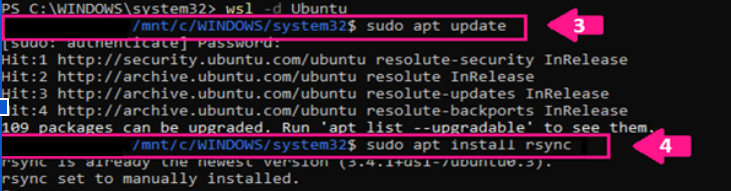

Take note: For normal local or SSH transfers, rsync doesn’t need a separate configuration file. Once the version is returned successfully, rsync is ready to use inside Ubuntu.
With Atera, IT teams can deploy these setup steps remotely using remote PowerShell scripting. You can write a script to automate commands like wsl --install and wsl --status, or simply ask AI Copilot to create the script for you. Once ready, add it to your script library and effortlessly deploy it to specific devices or groups across your organization through the Atera RMM platform.
» Find out how to automate tasks with PowerShell scripts
Method 2: Git for Windows SDK
This approach suits developers who already rely heavily on Git Bash workflows and want an integrated MSYS toolchain without spinning up a full virtualized Linux kernel.
Follow these steps:
Git Bash doesn’t include rsync or the pacman package manager by default. To integrate rsync with the Git for Windows environment, first download and install the Git for Windows SDK, which provides its own Bash shell and MSYS package manager

After installation, open the SDK Bash shell and run
pacman -Sy rsyncto refresh the package list, download rsync, and install the MSYS packages it needs
- Once installation is complete, you can run rsync directly from the SDK Bash shell using normal rsync commands, such as
rsync [options] source destination Run
rsync --versionto confirm that rsync was installed correctly and is ready to use



Method 3: Cygwin
This option works best for users who need a lightweight Unix-style shell and familiar command-line utilities without installing a complete Linux subsystem or heavy background services.
Follow these steps:
Take note: Cygwin installs only its Base packages and their required dependencies by default, so you do not need the full Cygwin package collection just to use rsync.
1. Download the Cygwin installer and run it
2. Run setup-x86_64.exe and continue to Select Packages. Search for rsync and select the available version in the New column. Avoid changing the All category to Install, as that would install the entire package collection

3. Finish the installation, open Cygwin Terminal, and run rsync --version

4. If the version information appears, rsync is installed and ready to use

» Make sure you know how to paste into Linux terminal
Method 4: Windows Package Managers (Chocolatey or Scoop)
This choice fits IT administrators and power users whose primary goal is to get rsync running quickly from the command line with minimal extra environment overhead.
Follow this command-line workflow:
Open PowerShell as Administrator and run
choco install rsync -y
Confirm Chocolatey finished successfully by checking for the message:
Chocolatey installed 1/1 packages.That tells you the package installation completed
Verify rsync works by running
rsync --version. If the version information appears, rsync is ready to use



How to choose your deployment strategy at scale
When a large number of devices need rsync, the safest option is to test one approved setup first, then roll out that exact configuration to the rest once it has proven stable.
- WSL Endpoints: For WSL, Microsoft Intune can manage WSL settings, run PowerShell scripts, and deploy a prepared Linux environment with
wsl --importto help keep the rsync setup consistent across devices. - Chocolatey packages: For Chocolatey, keep the approved rsync package in an internal source instead of downloading it directly from the public community feed. The approved package can then be deployed through Intune, an RMM platform, or Chocolatey Central Management, depending on how the environment is managed.
- Pilot testing and staging: Start with a small pilot group, run
rsync --version, check the logs, and test that file transfers work correctly. If everything works as expected, the rollout can be expanded to larger groups in stages.
» Make sure you know how to monitor Linux servers at scale
How Atera can help
Running rsync on Windows bridges the gap between powerful Linux-native file synchronization and Windows environments, giving administrators the flexibility to back up folders, automate transfers, and sync files across systems. Whether you choose WSL for heavy scripting, Cygwin for a lightweight Unix shell, Git Bash, or package managers like Chocolatey, mastering the right syntax, path formats, and NTFS permission behaviors ensures stable operations.
When your organization needs to scale these capabilities, Atera helps streamline IT management. Through centralized endpoint visibility, automated patch management, and remote script execution, Atera makes it easy to oversee deployments, track configurations, and maintain consistent file management standards across all your Windows endpoints.
» Learn how to install Atera’s Linux Agent and start your free trial
Related Articles

How to reduce alert fatigue across your IT team
Your technicians aren't ignoring alerts because they're careless. They're ignoring them because most alerts have taught them to. Once the stream stops being trustworthy, real failures slip past with the noise. Fixing it means deciding what deserves an interruption, tuning out transient spikes, collapsing alert storms, and automating the fixes you've run a hundred times.
Read now
How to close the IT skills gap on your team
Course completions don't close skills gaps. Technicians finish the training, then hand the first unfamiliar failure straight back to a senior engineer. Real capability gets built on live tickets, incidents, and maintenance windows, with guidance that fades as competence grows.
Read now
How to calculate cost per ticket (and why most teams get it wrong)
Most cost-per-ticket figures are wrong before anyone reads them. Missing overhead, tickets that were opened but never closed, spam and duplicates padding the count, and one month's costs divided by another month's tickets all make support look cheaper than it is. Fix both sides of the division and the number finally shows where technician time and money actually go.
Read now
How to prepare for a software license audit
A vendor audit notice doesn't wait for you to get organized. It demands proof, right now, that every install matches every entitlement you've paid for, and most IT teams find out the hard way how much they don't actually know about their own environment. Getting audit-ready before the letter arrives is the difference between negotiating from strength and paying for months of scrambling.
Read nowEndless IT possibilities
Boost your productivity with Atera’s intuitive, centralized all-in-one platform









