
Generate summary with AI

Uninstalling a Snap package seems like a one-line job to most technicians, but snapd doesn’t fully let go of what it removes. If you don’t know what you’re doing, it quietly stashes a copy of the package’s user, system, and configuration data in an automatic snapshot and holds onto it for 31 days before deleting it on its own.
So the workstations you thought were clean could actually be still carrying a month of leftover data, or a “simple” removal turns out to be a base Snap that other applications depend on.
So here’s everything you need to know to make sure you’re doing it properly across all the workstations in your fleet.
What to check before uninstalling a snap package
Before you remove anything, take a quick look at what’s installed, what permissions the removal will require, and what actually happens to the data afterward.
Production systems tend to accumulate more Snap packages than admins expect, including base Snaps that other applications quietly rely on. Here’s how you check the full list:
- Run
snap listto see every installed package along with its version, revision, publisher, and tracking channel Run
snap info <package-name>for any package you’re planning to remove, to confirm its available channels and current tracking status
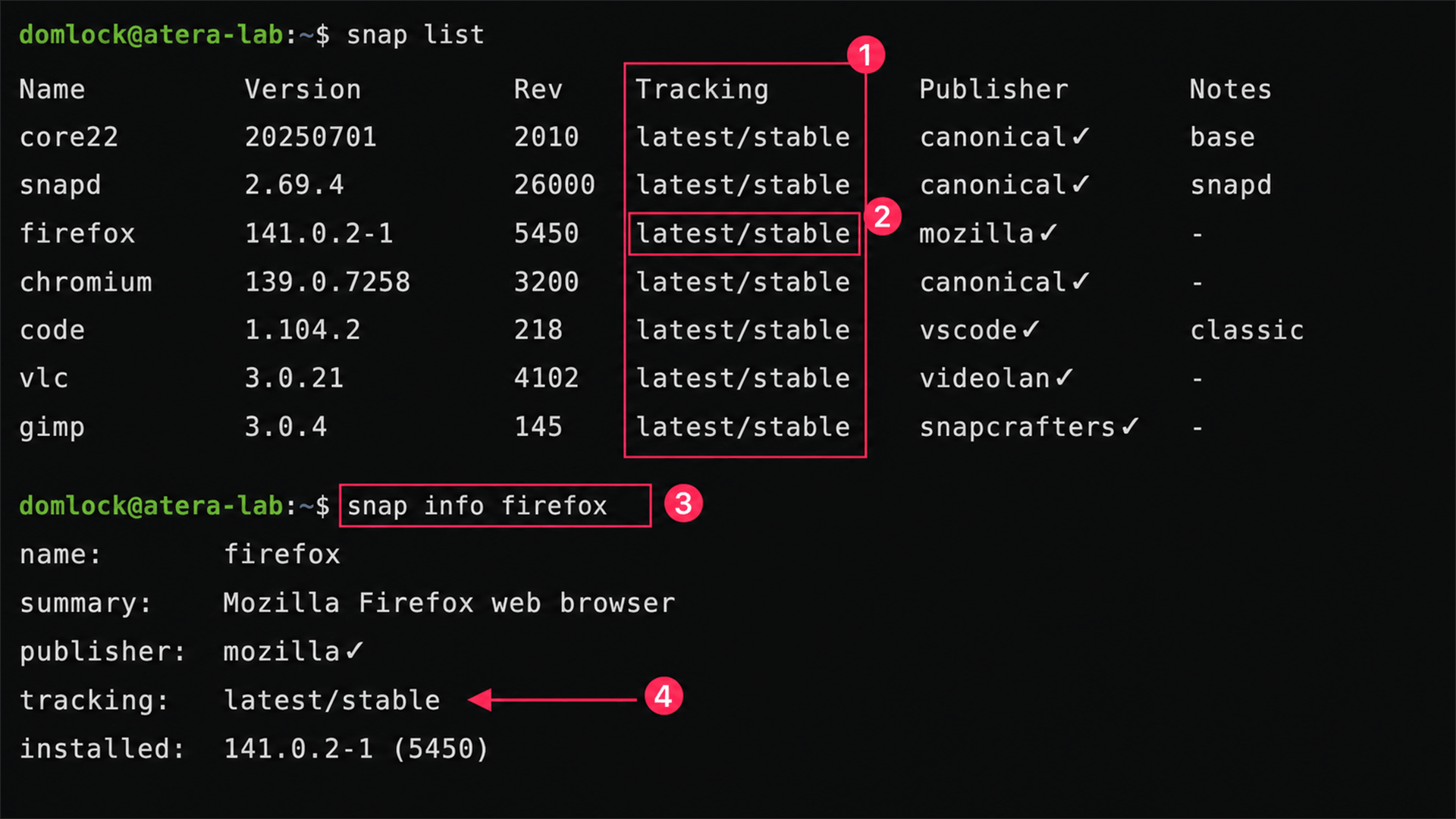
The tracking channel (latest/stable, latest/edge, etc.) tells you which release stream a package follows. Reviewing it before removal is a small step, but it’s the difference between confidently uninstalling the right application and accidentally taking out a base Snap that something else depends on.
» Did you know you can rename a directory on Linux?
Confirm you have the right permissions and a clear system state
Removing a Snap package requires root privileges, which is why the command runs with sudo. A standard user can view what’s installed with snap list, but the removal itself modifies system-managed directories and will fail without elevated access.
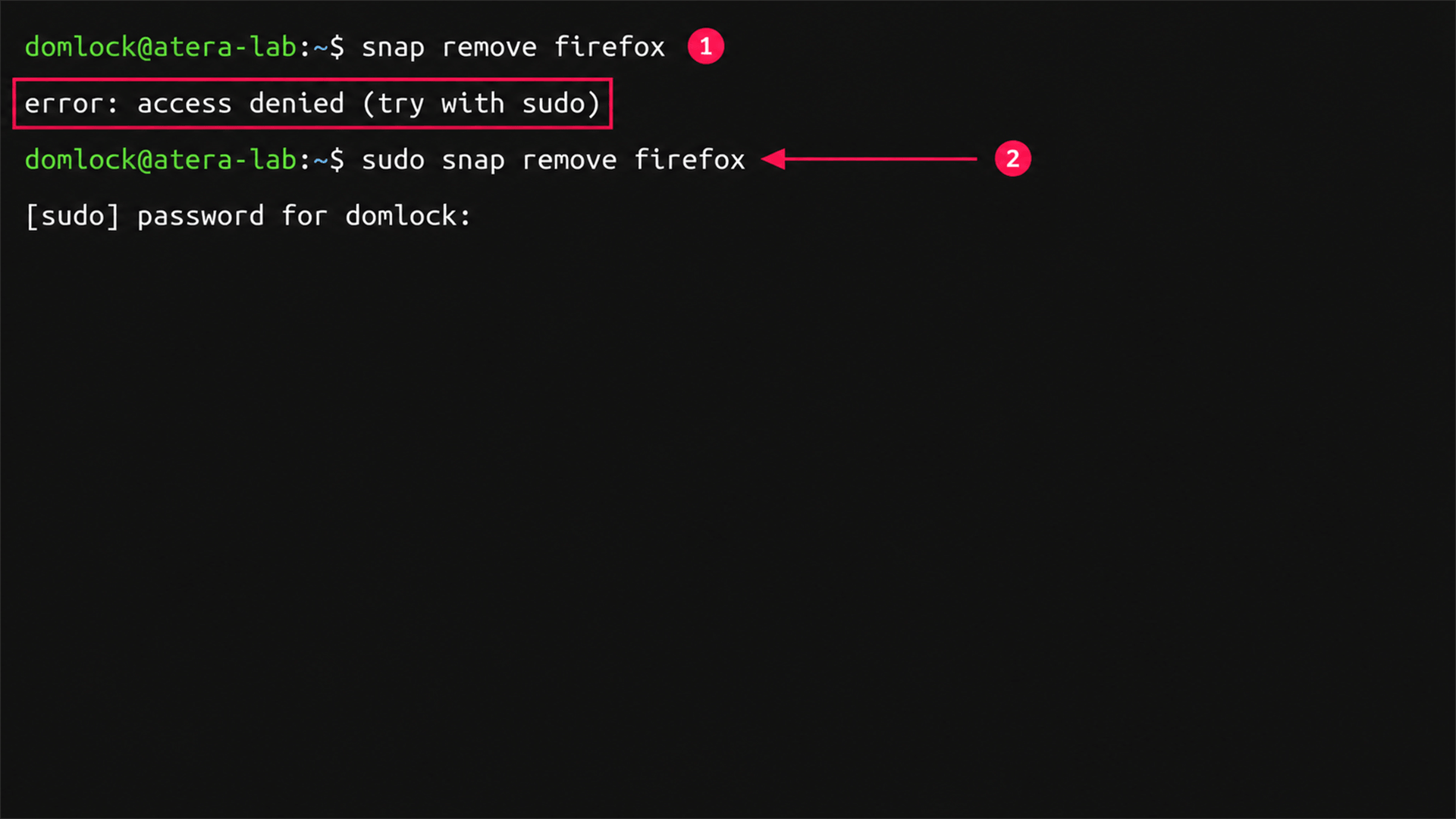
Beyond permissions, the package can’t be locked by another Snap operation, such as an install, refresh, or rollback already underway, and the snapd service needs to be running since it manages every Snap lifecycle action.
In practice, permission errors are less common than removals blocked by an in-progress operation, so it’s worth confirming nothing else is actively touching the package before you retry. On production systems, it’s also worth a quick check that no scheduled jobs, automations, or active users are depending on the application before it comes out from under them.
» Here’s how to change file permissions on Linux and fix the permission denied error
5 ways to uninstall Snap packages
Once you’ve confirmed what’s installed and what depends on it, just pick the right method below for the situation, whether it’s a quick command-line removal, a full data wipe with --purge, a graphical option for desktop users, cleanup of old revisions, or a scripted removal across an entire fleet.
Note: Every method below assumes you already have sudo access.
Method 1: Remove a package from the command line
This is the standard method for most removals, whether you’re clearing out one unused application or working through a short list on a single machine.
- Confirm the exact package name with
snap list Run
sudo snap remove <package-name>to remove itFor example,
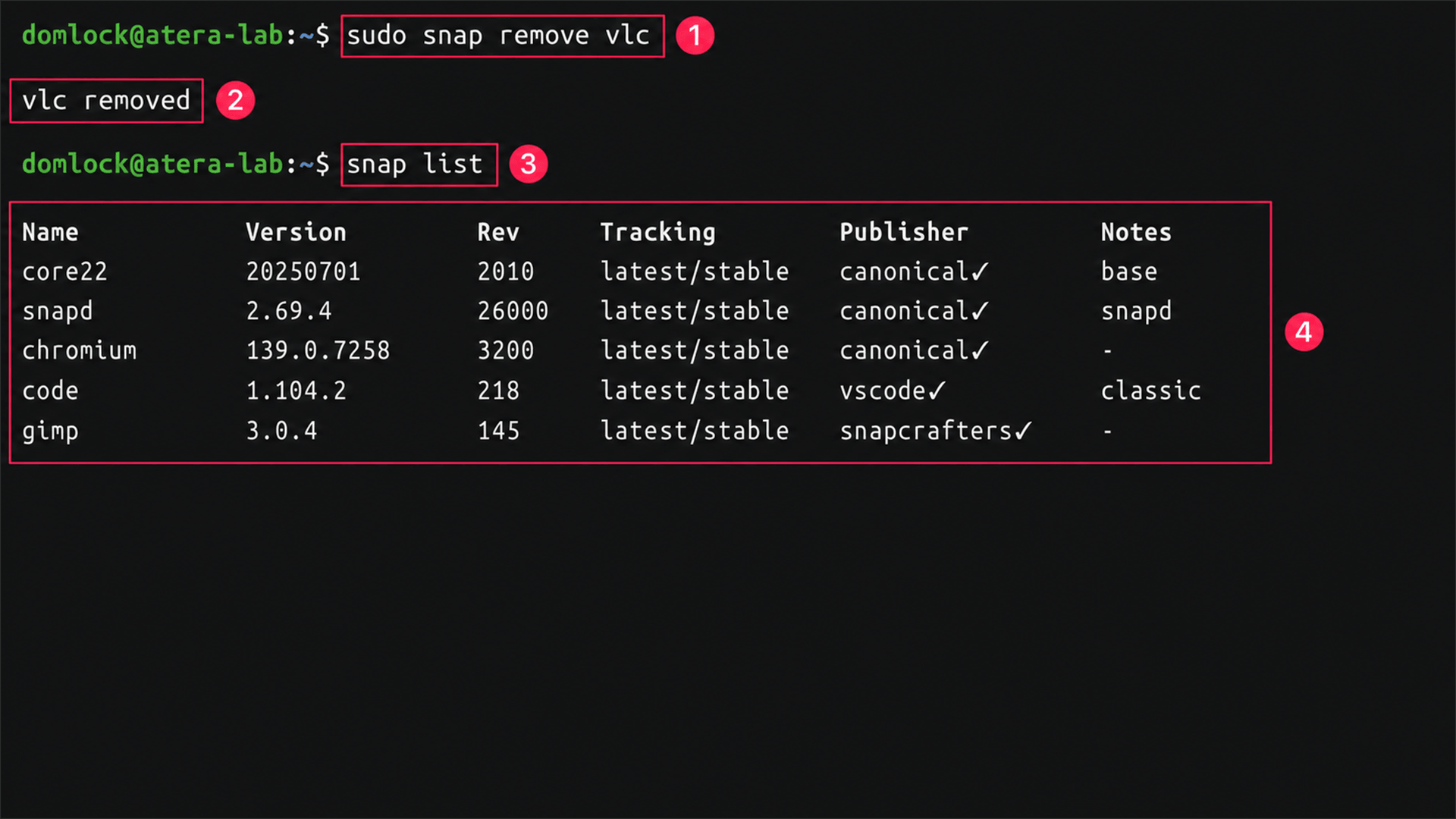
sudo snap remove vlcstops the application, unmounts its runtime files, updates the Snap package database, and creates an automatic data snapshot unless you specify otherwise.Re-run
snap listafterward to confirm the package no longer appears, or runsnap savedto check what snapshot was retained
Method 2: Permanently delete a package’s data with –purge
Use this method when you’re certain you won’t need to restore the application later, since it skips the recovery snapshot entirely. This fits lab environments, temporary VMs, or software that’s being permanently retired more than production systems you might need to roll back.
Run sudo snap remove --purge <package-name> to remove the package and its data in one step
For example, sudo snap remove --purge firefox deletes the application’s associated user and system data immediately, rather than creating the 31-day recovery snapshot a standard removal would.
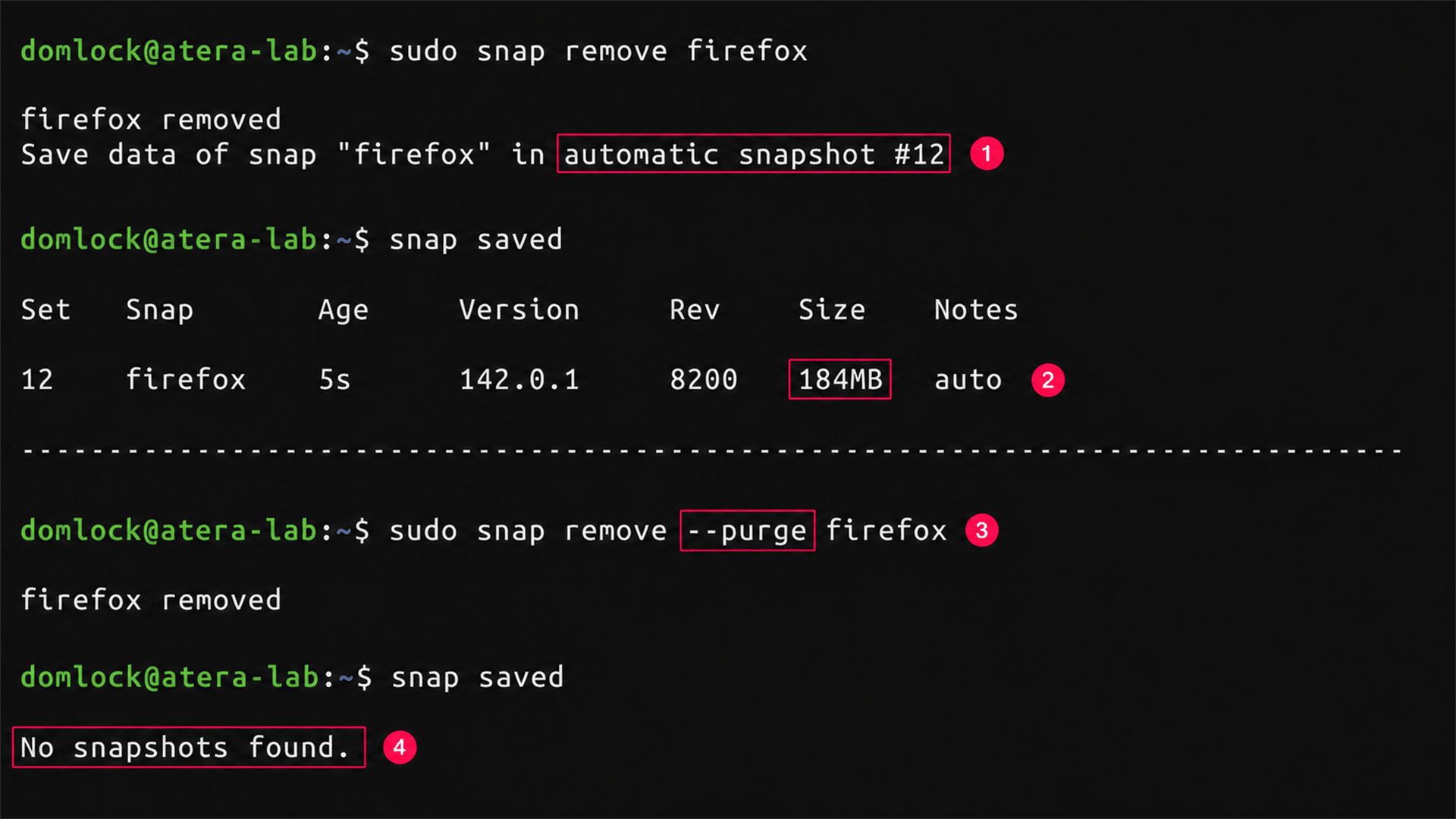
Once this runs, there’s no snapshot to restore from, so it’s worth confirming beforehand that the package’s configuration and data genuinely aren’t needed.
Method 3: Remove a package through a graphical interface
This method suits individual workstations and desktop users who’d rather avoid the terminal. It triggers the same underlying removal process as the CLI, just through a visual interface.
- Open your Linux version software; for example, Ubuntu Software
- Select the Installed tab
- Locate the Snap application you want to remove
- Click Uninstall
Enter your administrator password if prompted to authenticate
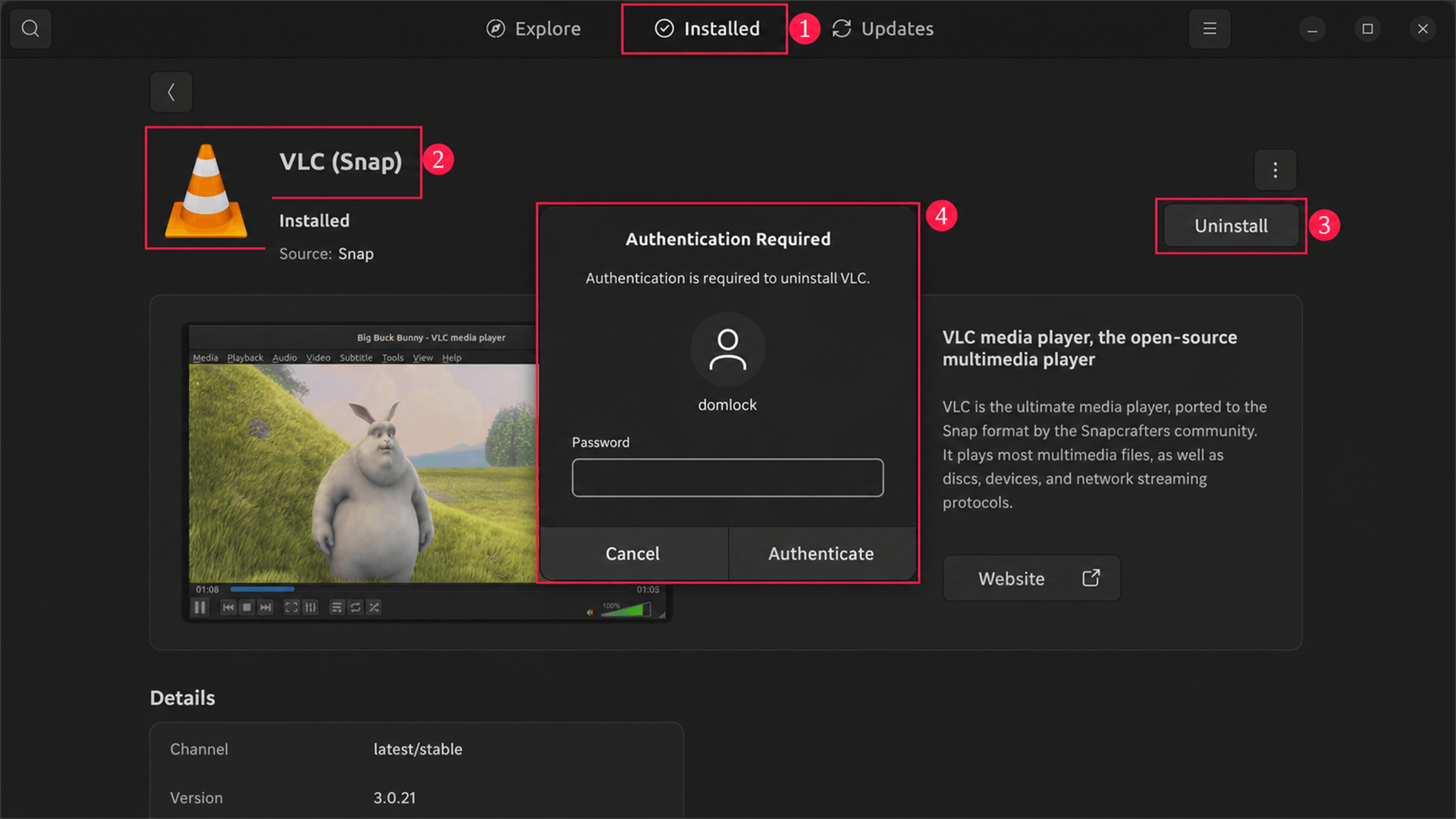
Once the removal completes, refresh the Installed list or search for the package to confirm it’s gone. For server environments or large-scale administration, the command line is the better fit, since it integrates more naturally with scripting and change management processes.
Method 4: Clean up disabled revisions to free up space
Snap keeps previous revisions around after an update so you can roll back if needed, and over time those inactive revisions add up. Use this method for routine housekeeping once you’re confident a recent update is stable, not as part of removing a package outright.
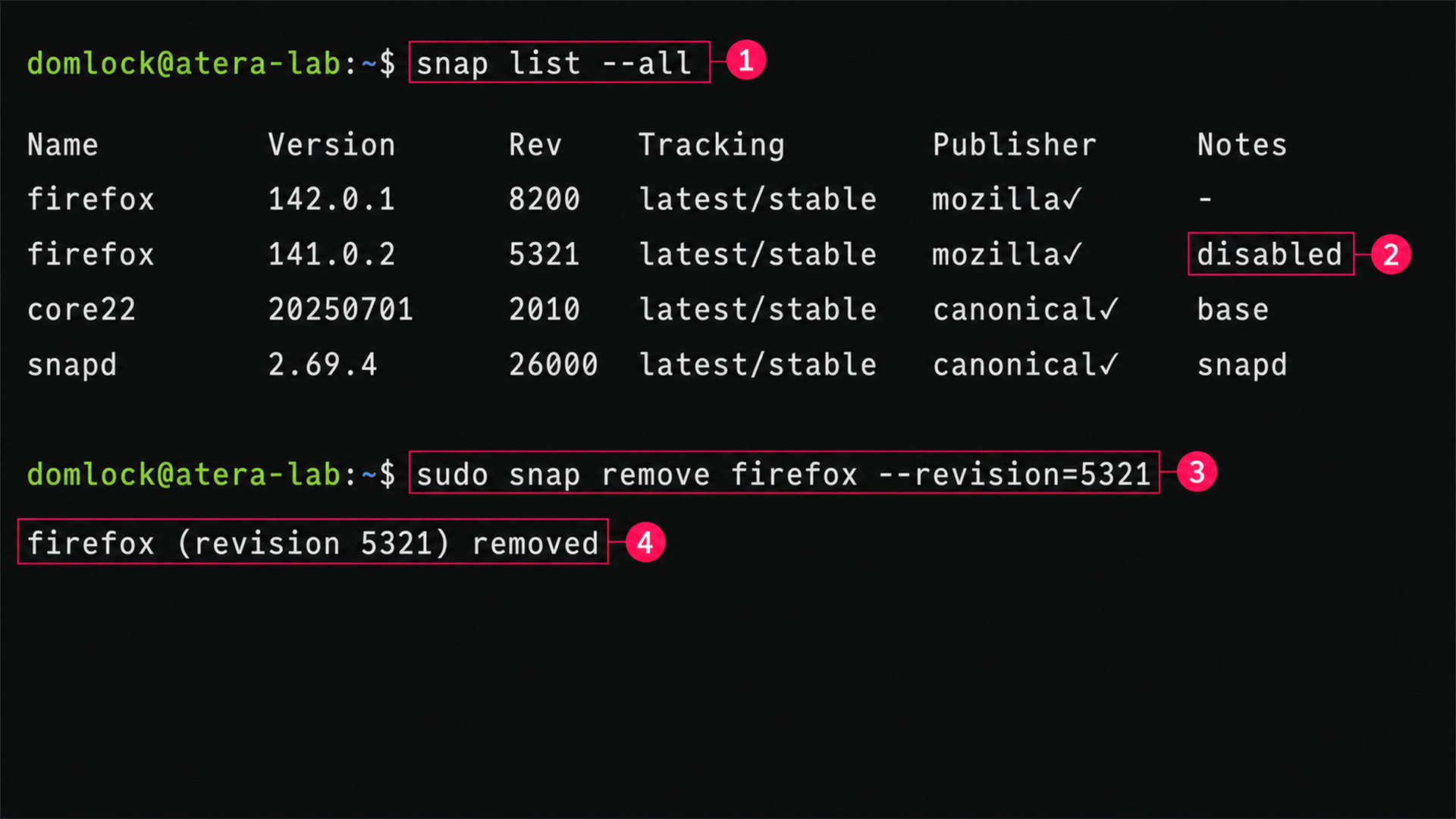
- Run
snap list --allto see every revision, including disabled ones - Confirm which revisions are marked disabled in the output
- Run
sudo snap remove <package> --revision=<revision>to remove a specific inactive revision
For example, sudo snap remove firefox --revision=5321 removes only that inactive revision while leaving the currently installed version untouched. It’s worth waiting until the updated revision has been running successfully for a while before clearing out the old one, so you don’t lose the rollback option too early.
Method 5: Remove snap packages across multiple machines at once
For fleets of any real size, removing packages one machine at a time doesn’t scale. This method fits situations where the same package needs to come off many endpoints at once, with consistent execution and a record of what happened on each one.
- Write or adapt a Bash script that loops through installed packages and runs
snap removeon each target - Test the script on a small pilot group of machines first
- Confirm no business-critical applications on those machines depend on the packages being removed
Deploy the script across the remaining fleet in stages, reviewing execution results as you go
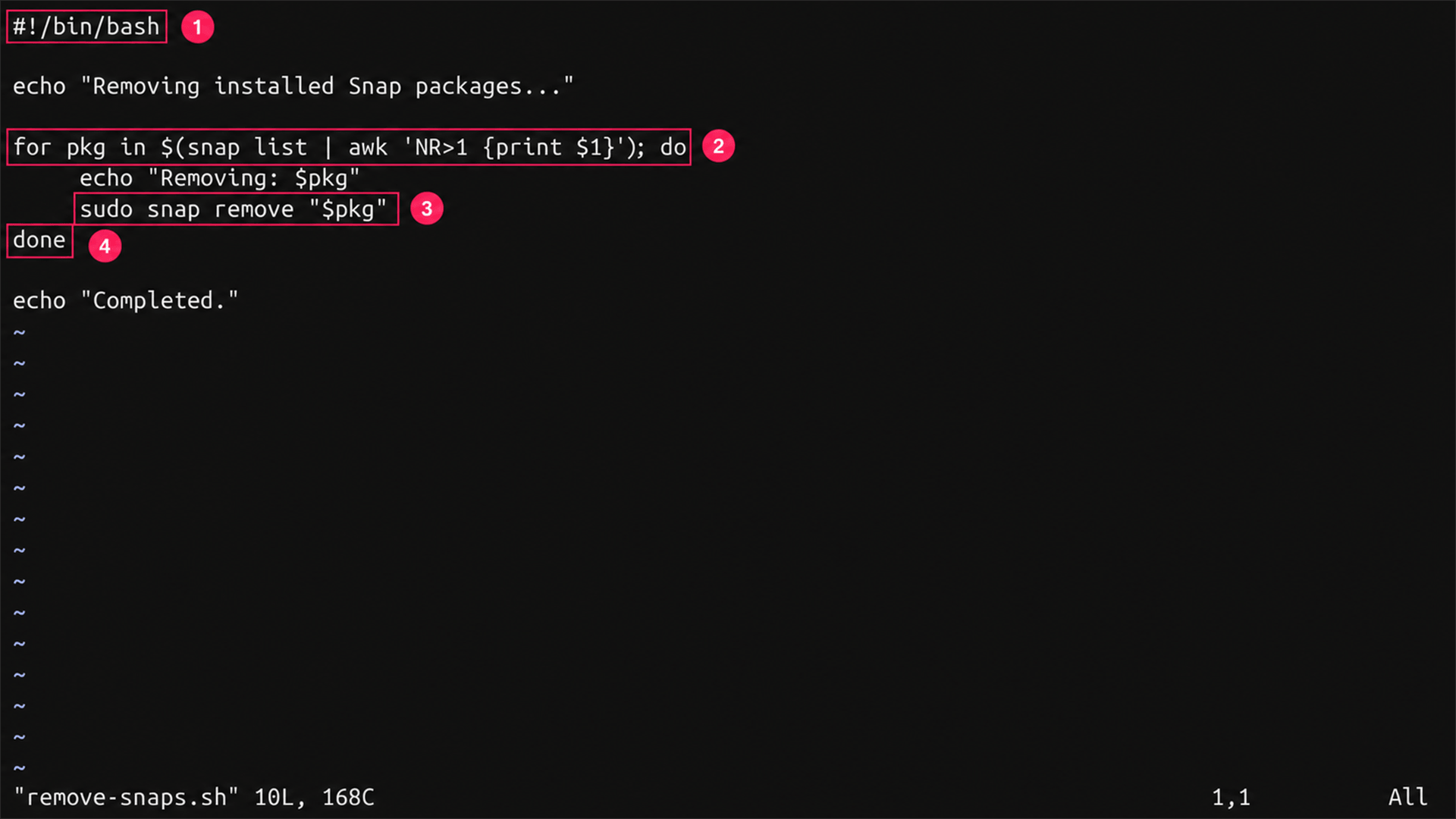
Don’t know how to write a complex Bash script like that? No worries. Atera’s AI Copilot can write it for you from simple queries. Then you can deploy that same removal script remotely across selected devices or device groups on demand using Atera’s RMM platform without needing to touch each machine individually.
» Here’s how to install Atera’s Linux Agent and monitor Linux servers at scale
Troubleshooting and advanced removal methods
If your organization decides they don’t want to use any Snap packages anymore, you can get rid of Snap support altogether. Use this method only when you’re certain Snap won’t be needed on the machine going forward, since it removes the daemon that manages every Snap operation, not just an individual package.
- Uninstall any remaining Snap applications first, to avoid leaving orphaned packages or data behind
- Run
sudo systemctl disable --now snapd.serviceto stop and disable the service - Run
sudo apt purge snapdto remove the daemon and its supporting files Run
systemctl status snapdto confirm the service is no longer found
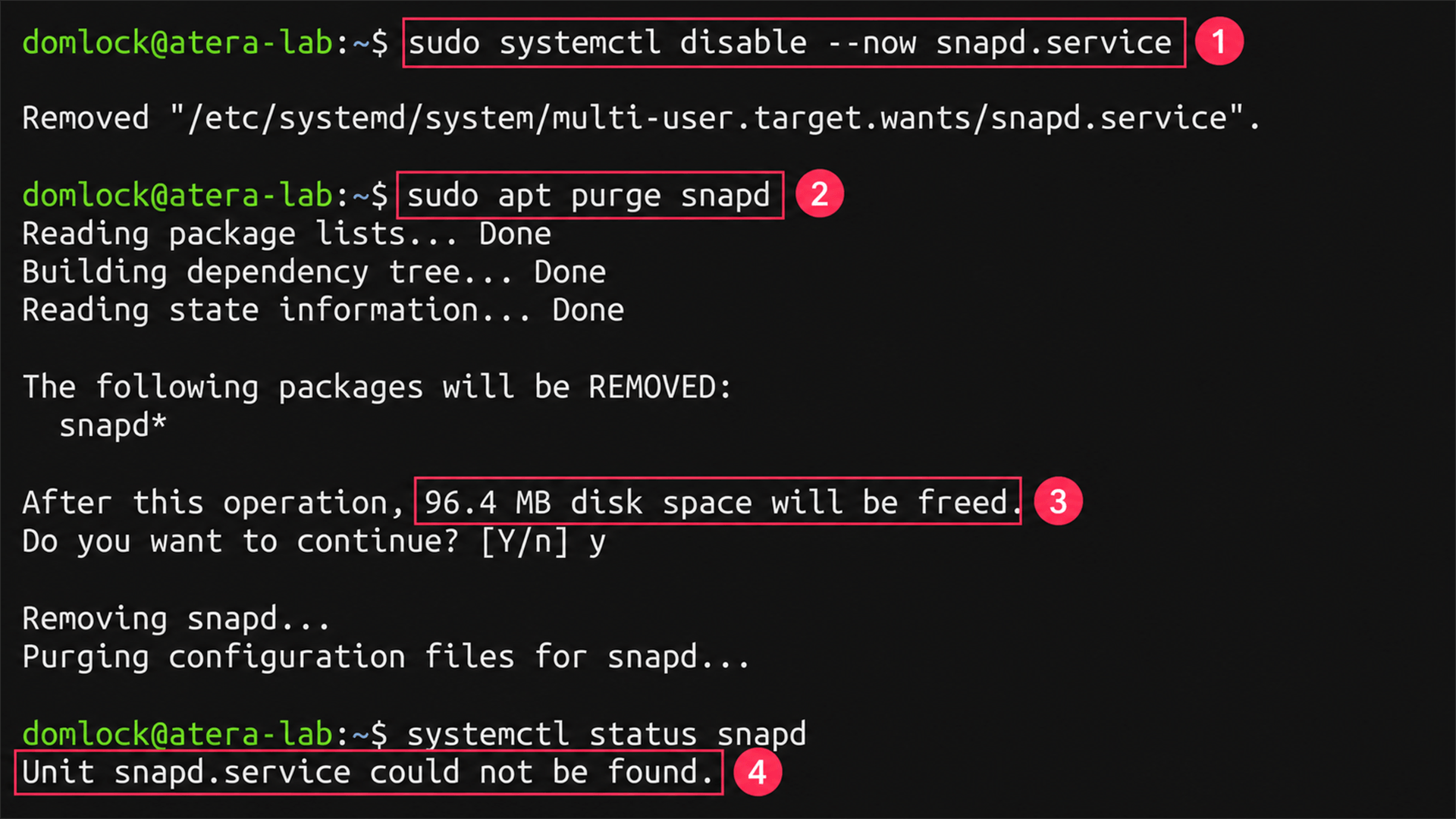
Once snapd is gone, Snap packages can’t be installed, updated, or managed until it’s reinstalled, though that’s a fully reversible step through your distribution’s package manager whenever Snap support is needed again.
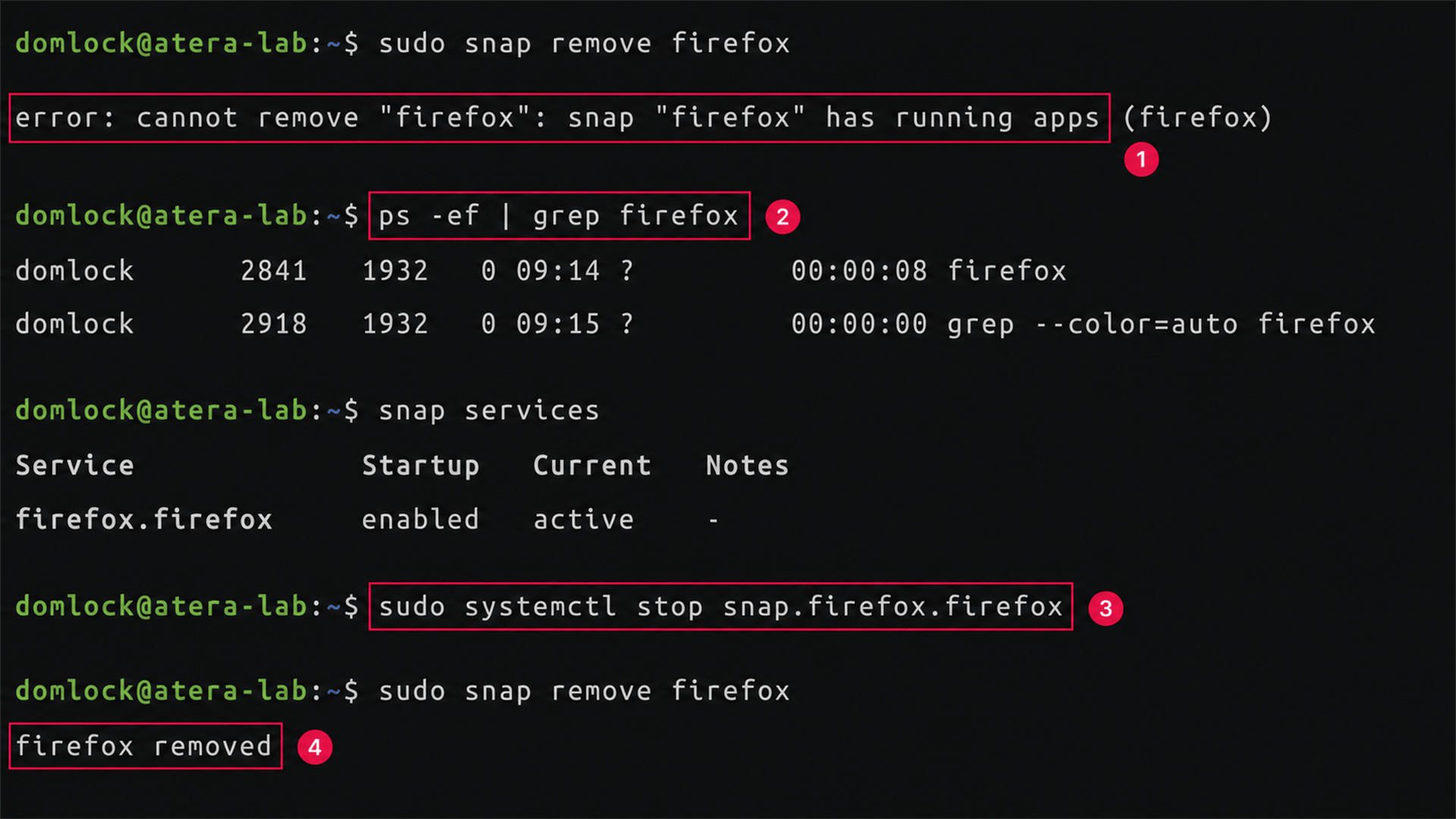
How to resolve a “Snap is in use” or “process running” error
A Snap package can’t be removed while it’s actively running, so this error means something needs to stop before the removal can proceed. To fix it:
- Run
ps -ef | grep <package>orsnap servicesto identify the running process or service - Stop the application, or run
snap.<snapname>.<app>.serviceif it runs as a systemd service Re-run the
snap removecommand
Resolve a dependency error when removing a core snap
Core Snaps like core18, core20, and core22 provide shared runtime libraries that other applications rely on, so Snap blocks their removal while dependents still exist rather than risking a broken environment.
- check
snap infoon your installed snaps to see which ones declare this base. - Remove or migrate those dependent applications first
Re-run
sudo snap remove <core-snap>once no remaining Snaps depend on it
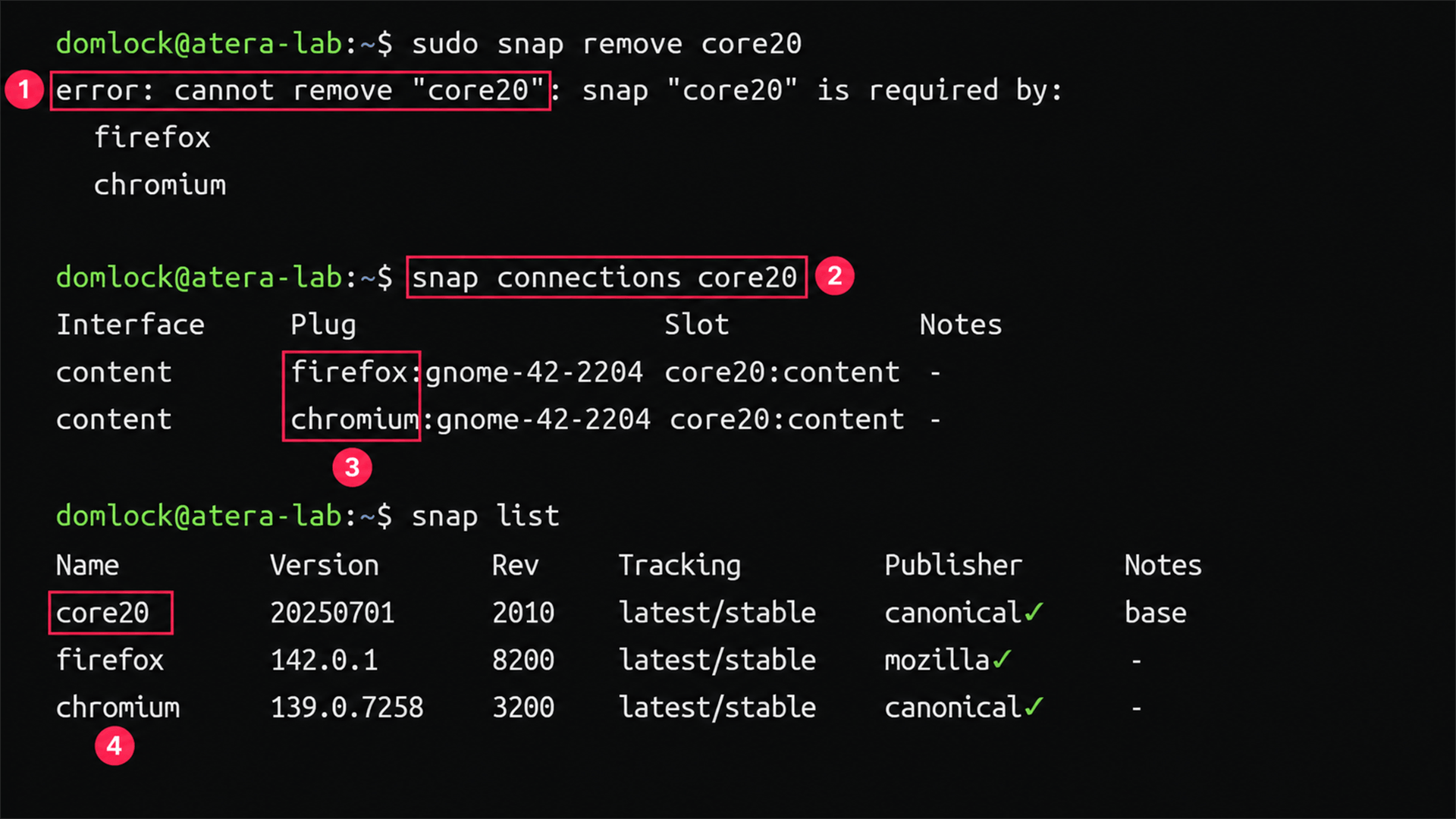
Forcing this removal isn’t worth the risk if it’s not necessary, since it can prevent every dependent application from starting correctly afterward. It’s better to treat it as a small maintenance task. Then confirm what’s still relying on the core Snap, clear or update those dependencies on your own schedule, and only remove the core package once nothing needs it anymore.
Make snap cleanup part of routine maintenance
None of this is complicated once you know where the friction points sit. Check what’s installed and what depends on it, understand what gets left behind, and choose --purge or the default snapshot based on whether you might need to roll back.
Doing it at scale is usually where manual habits break down. Atera’s remote scripting lets IT teams and MSPs push a tested removal script across selected devices or device groups on demand, so a cleanup that would otherwise mean an afternoon of individual SSH sessions runs the same way, with the same safeguards, everywhere it needs to.
Related Articles

How to reduce alert fatigue across your IT team
Your technicians aren't ignoring alerts because they're careless. They're ignoring them because most alerts have taught them to. Once the stream stops being trustworthy, real failures slip past with the noise. Fixing it means deciding what deserves an interruption, tuning out transient spikes, collapsing alert storms, and automating the fixes you've run a hundred times.
Read now
How to close the IT skills gap on your team
Course completions don't close skills gaps. Technicians finish the training, then hand the first unfamiliar failure straight back to a senior engineer. Real capability gets built on live tickets, incidents, and maintenance windows, with guidance that fades as competence grows.
Read now
How to calculate cost per ticket (and why most teams get it wrong)
Most cost-per-ticket figures are wrong before anyone reads them. Missing overhead, tickets that were opened but never closed, spam and duplicates padding the count, and one month's costs divided by another month's tickets all make support look cheaper than it is. Fix both sides of the division and the number finally shows where technician time and money actually go.
Read now
How to prepare for a software license audit
A vendor audit notice doesn't wait for you to get organized. It demands proof, right now, that every install matches every entitlement you've paid for, and most IT teams find out the hard way how much they don't actually know about their own environment. Getting audit-ready before the letter arrives is the difference between negotiating from strength and paying for months of scrambling.
Read nowEndless IT possibilities
Boost your productivity with Atera’s intuitive, centralized all-in-one platform









